If your MacBook is overheating or slowing to a crawl, the culprit could be coreaudiod draining your system’s resources secretly in the background. It’s incredibly frustrating when this process disrupts your workflow, but with MacKeeper’s Memory Cleaner, we can quickly clear excess memory, freeing up RAM and restoring your Mac’s performance in seconds.
If you’re unfamiliar with it, coreaudiod is a macOS background system daemon that manages all your device’s audio input and outputs, which includes playback as well as recording. It connects your apps to your Mac’s audio hardware and is designed to keep CPU usage low. However, coreaudiod high memory or CPU usage can hinder performance, cause crashes, and consume excessive RAM, which is often linked to conflicting settings, corrupted preferences, or missing audio files.
A hint from our team:
Do you suspect demanding apps or background processes are slowing down your device, but you’re not sure how to view CPU usage on Mac to confirm your suspicions? We recommend reading our attached guide, where we walk you through the steps to open and monitor the resources being consumed on your Mac to help you identify any issues.
Common causes of high CPU by coreaudiod
When we’ve noticed our Mac slowing down due to coreaudiod high CPU usage, we realized that it’s often caused by third-party apps, outdated plugins, or virtual audio drivers conflicting with macOS. Plus, large system updates are known to disrupt audio settings, whereas Bluetooth device switching or noise reduction can overload the daemon. Corrupted preferences and audio apps that are constantly demanding sound can also force coreaudiod to consume excessive resources.
A note from our experts:
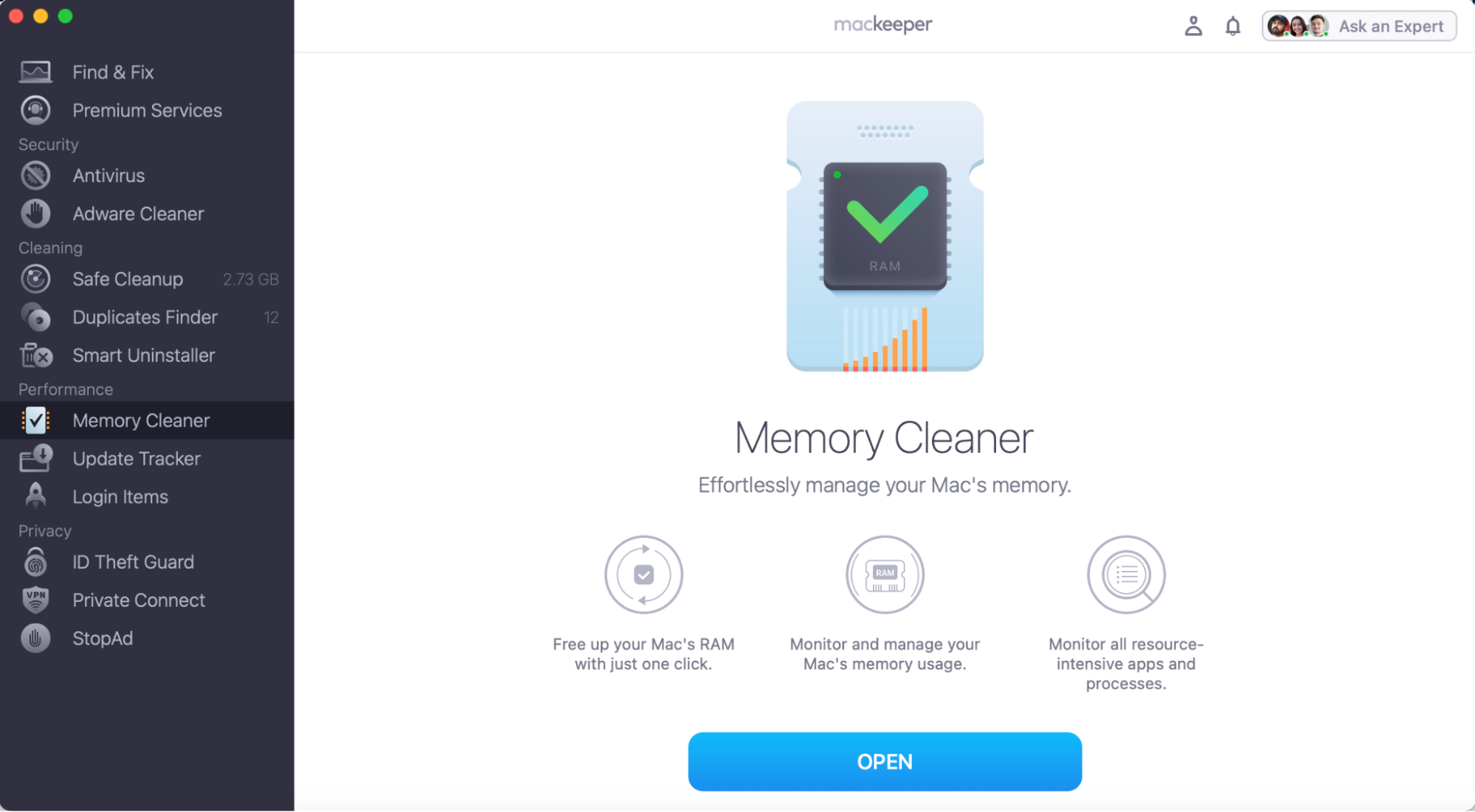
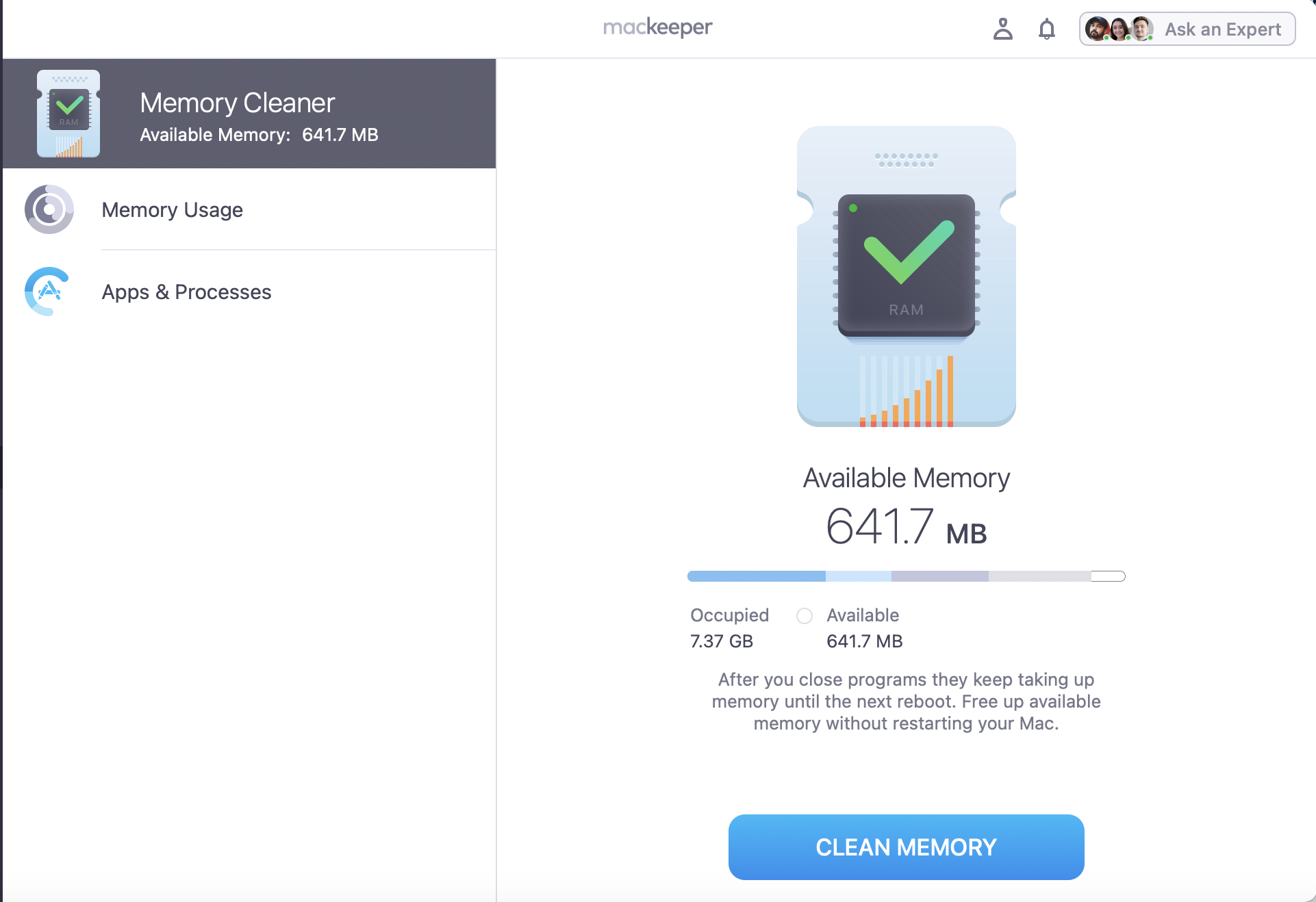
Not sure how to manually delete redundant processes on your Mac? We can come to the rescue as MacKeeper’s Memory Cleaner can do all the hard work for you. Our sophisticated software makes Mac maintenance painless. Just allow the memory scanner to detect and automatically clear all unnecessary processes and application caches in seconds.
Here’s how MacKeeper’s Memory Cleaner works automatically to free up your RAM:
Step 1. Open MacKeeper, go to Memory Cleaner, and click on OpenStep 2. Review your Memory Usage and click the Clean Memory button
How to fix coreaudiod high CPU usage?
When coreaudiod is causing your Mac’s memory to skyrocket, the quickest solution our Clario Tech experts recommend is restarting your device, as sometimes that’s all it takes to refresh your system. No luck? Here are some alternative solutions we recommend:
Restart coreaudiod
Clearing cache and junk files
Updating or reinstalling macOS
Removing or disabling problematic audio apps and plugins
Recreating preferences directory
Our advice to consider:
Before trying our coreaudiod fixes, we recommend learning how to check performance of the Mac system first. This will help confirm whether demanding processes are causing the issue or if the problem is something else that’ll require different troubleshooting. Our linked guide will show you how to access Activity Monitor and run Apple Diagnostics to fix your performance safely.
1. Restarting coreaudiod
To help you fix coreaudiod high memory, the quickest solution we recommend is restarting coreaudiod in your macOS Terminal app. One command will automatically close and restart all related processes.
Here’s how to restart coreaudiod in Terminal:
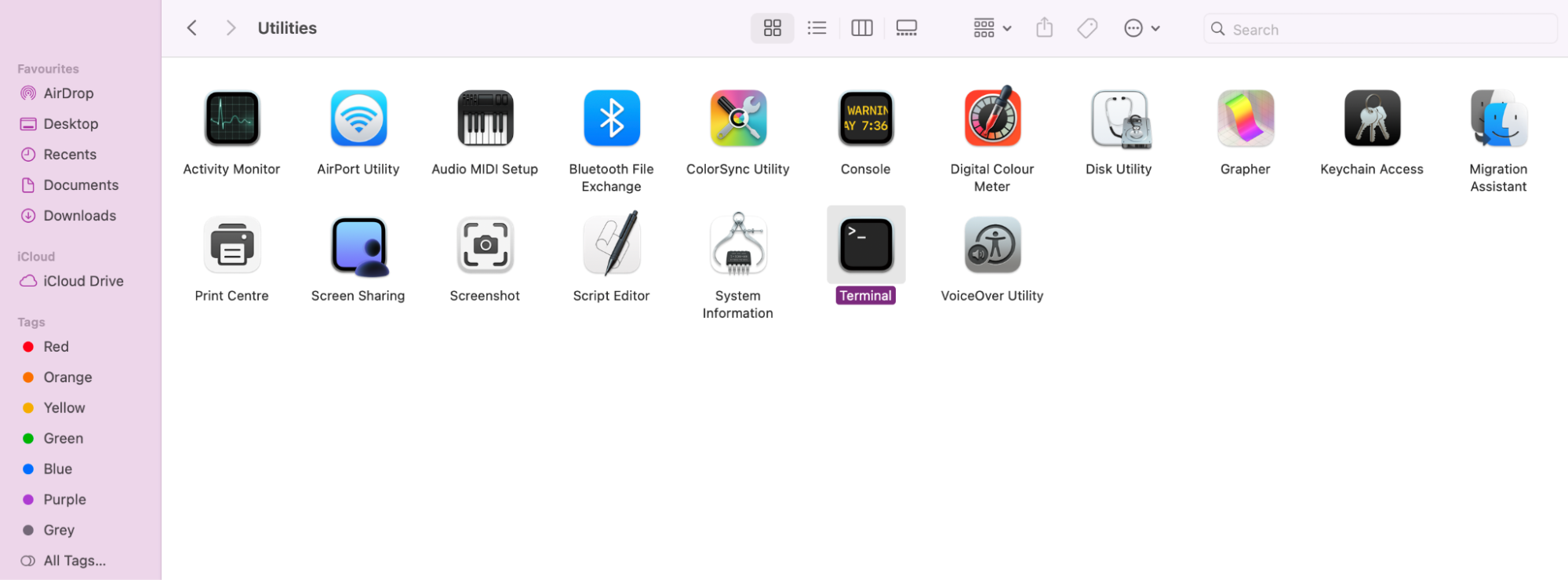
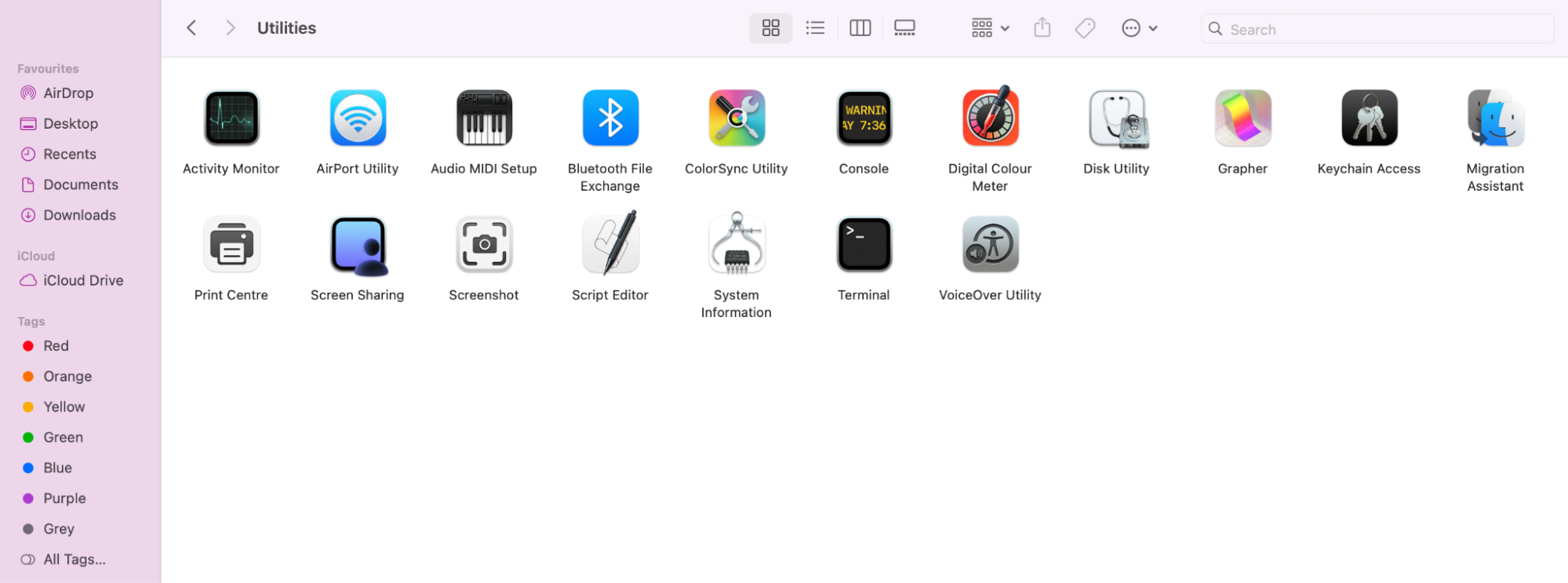
Open Finder, go to your Applications Folder > Utilities > Open Terminal.
Type in the following command: sudo killall coreaudiod.
Leave Terminal.
Step 1. Open TerminalStep 2. To restart coreaudio and type in the command: sudo killall coreaudiod
2. Clearing cache and junk files
An accumulation of cache and junk files is common for coreaudio high CPU, as all the digital debris just stores up and consumes precious resources. Many Apple users rely on quick and easy solutions to help them reduce the likelihood of resource overload, leading to glitches on their Macs.
Here are the decluttering solutions we recommend:
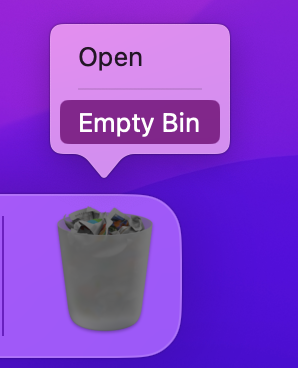
Emptying trash regularly so files in your Bin don’t consume all your resources.
Removing unused apps from your Application Folder.
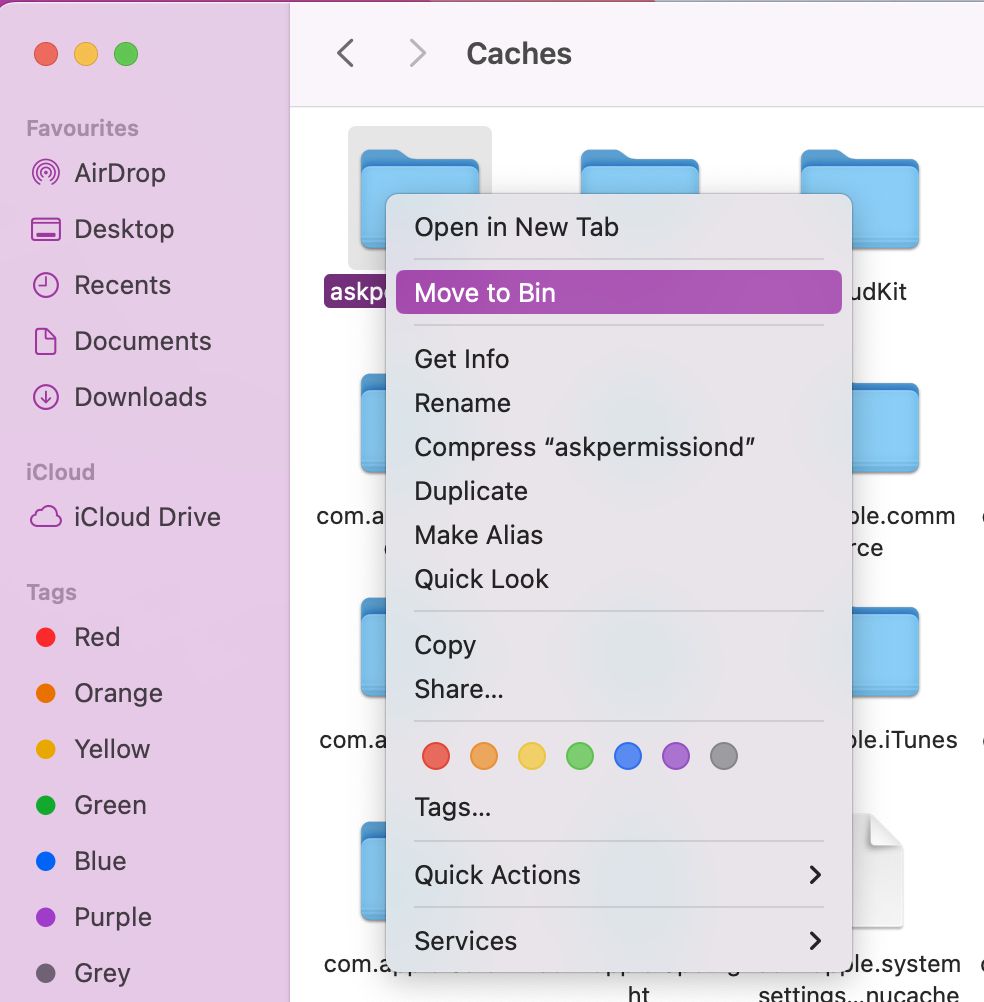
Deleting unwanted Library files, like caches.
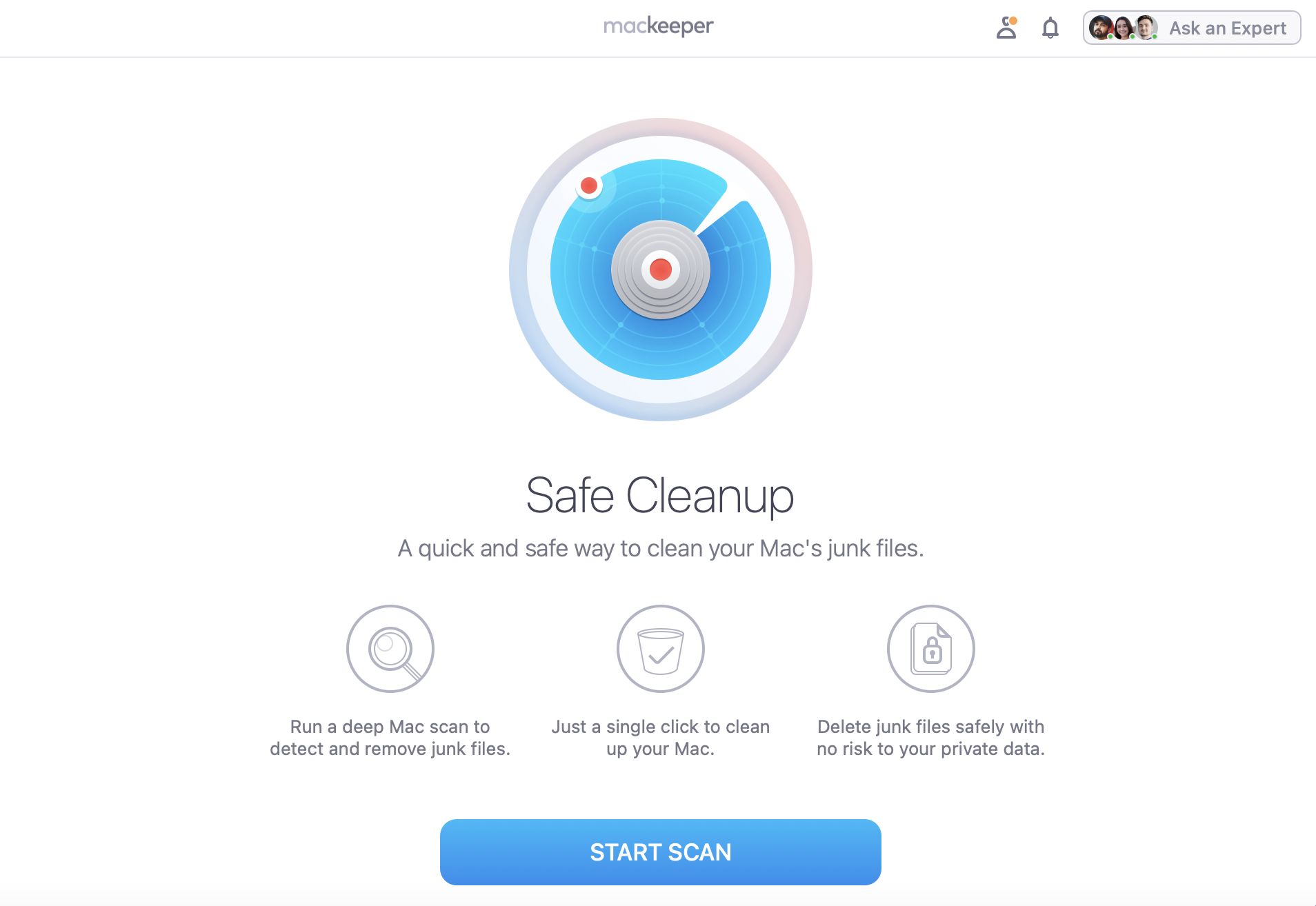
Using a third-party Maccleaning tool to automatically remove junk and cache.
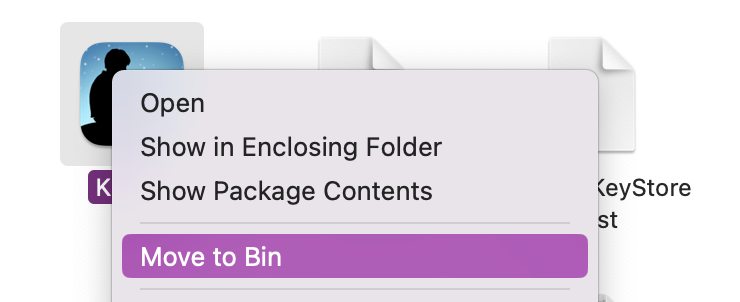
Step 1. Empty your Trash regularlyStep 2. Remove unused or unwanted appsStep 3. Delete unwanted or old Library filesStep 4. Use a third-party Mac maintenance and cleaner app
3. Updating or reinstalling macOS
Once you’ve checked if you have any cache or junk files that need to be cleared, we now recommend double-checking for any macOS updates–in case new patches are available to fix bugs.
Here’s how to check for outstanding macOS updates:
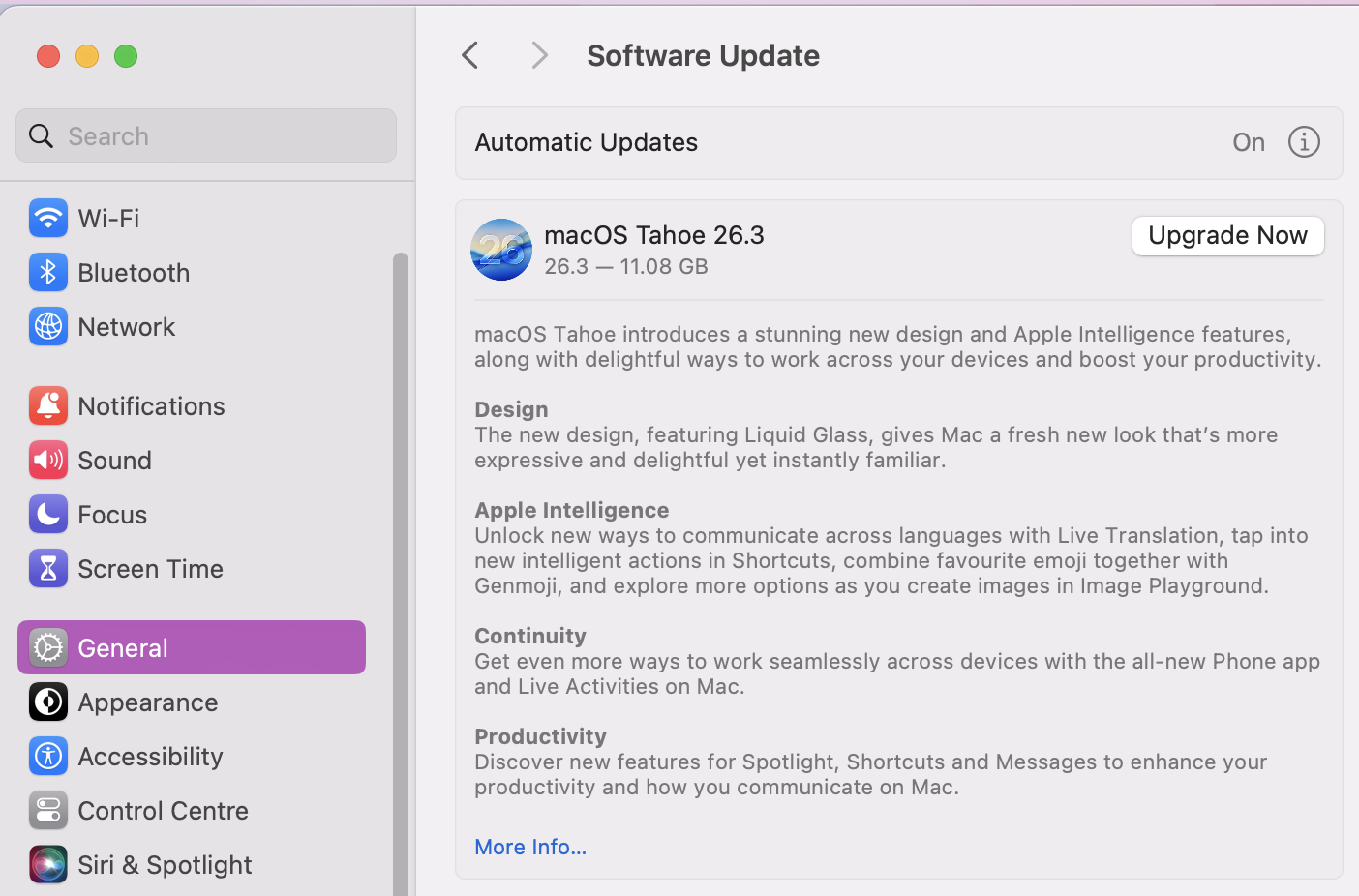
Open System Settings.
Go to General > Software Updates.
If any updates are available, click on Update Now.
In System Settings, navigate to Software Updates and press Update Now if available
Extra help from us:
Sometimes your Mac can feel warm, and it can be normal, like if you use your laptop to game or stream. If you are concerned, our support blog shows you how to check temperature on a MacBook manually and with the help of specialized third-party apps. No more guessing, and no risk of overheating.
4. Removing or disabling problematic audio apps and plugins
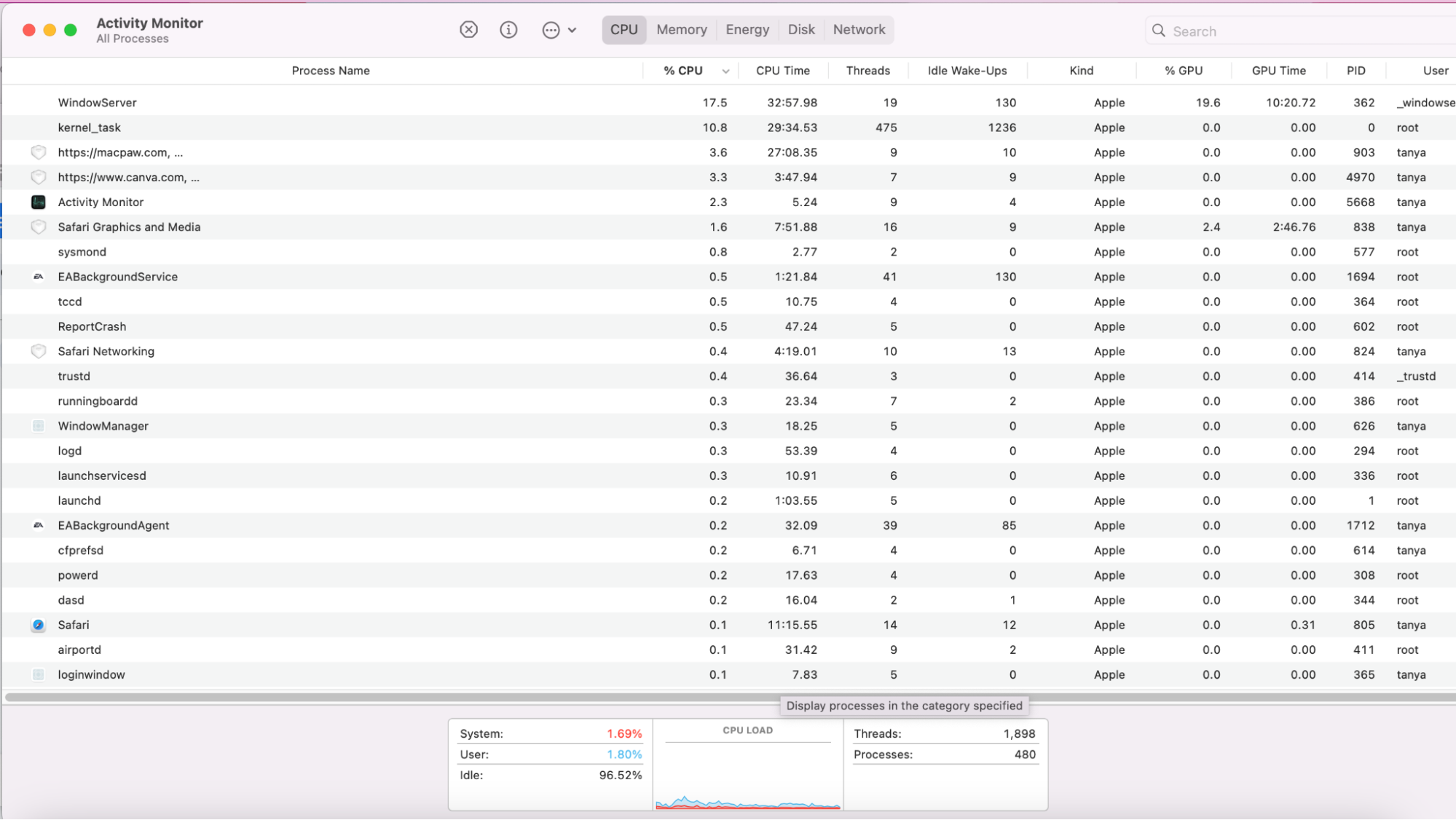
Still having no luck at lowering the coreaudiod high CPU? The problem could be linked to your audio apps, and there’s a way to confirm this with Activity Monitor.
Here’s how Activity Monitor can help you check your audio apps' CPU:
Open Finder, go to Applications > Utilities, and open Activity Monitor.
Click on the CPU tab.
Open all your audio apps and check their CPU usage.
Step 1. Open Activity MonitorStep 2. Open your audio apps and check their CPU usage
5. Recreating preferences directory
If your MacBook fan keeps running loudly or you’re still unsure how to stop your MacBook from overheating, as coreaudiod is still overwhelming your system, it’s time to try recreating prefernces directory in Terminal. This is a common solution for macOS audio issues that are causing high CPU.
Here’s how to recreate the preferences directory in Terminal:
Open Terminal.
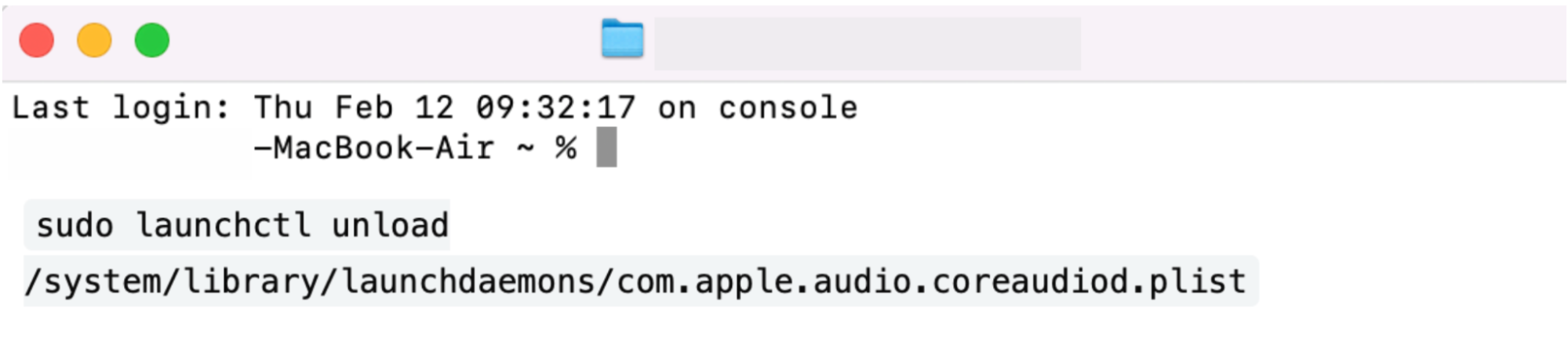
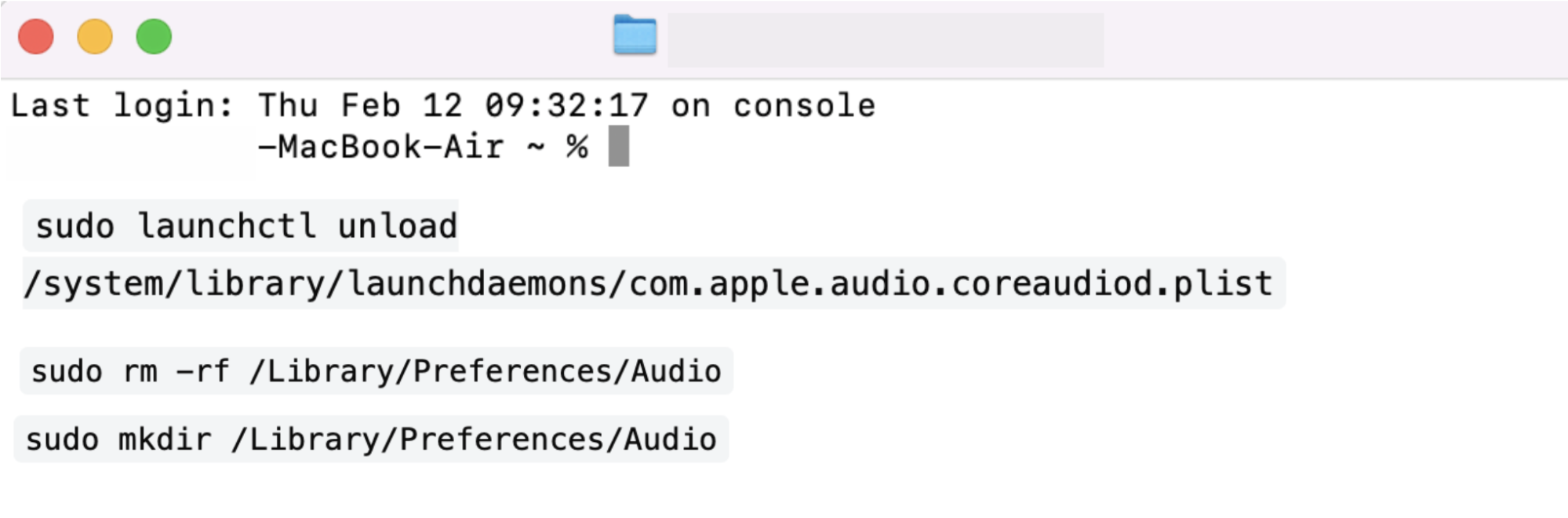
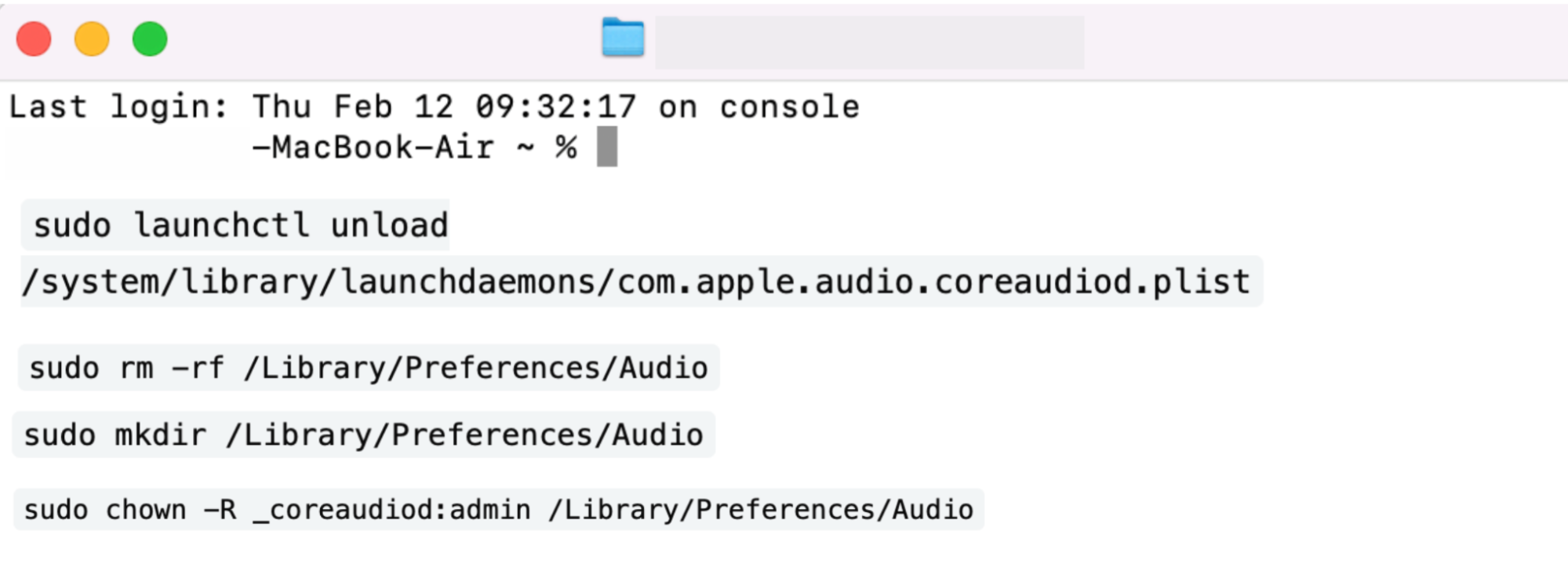
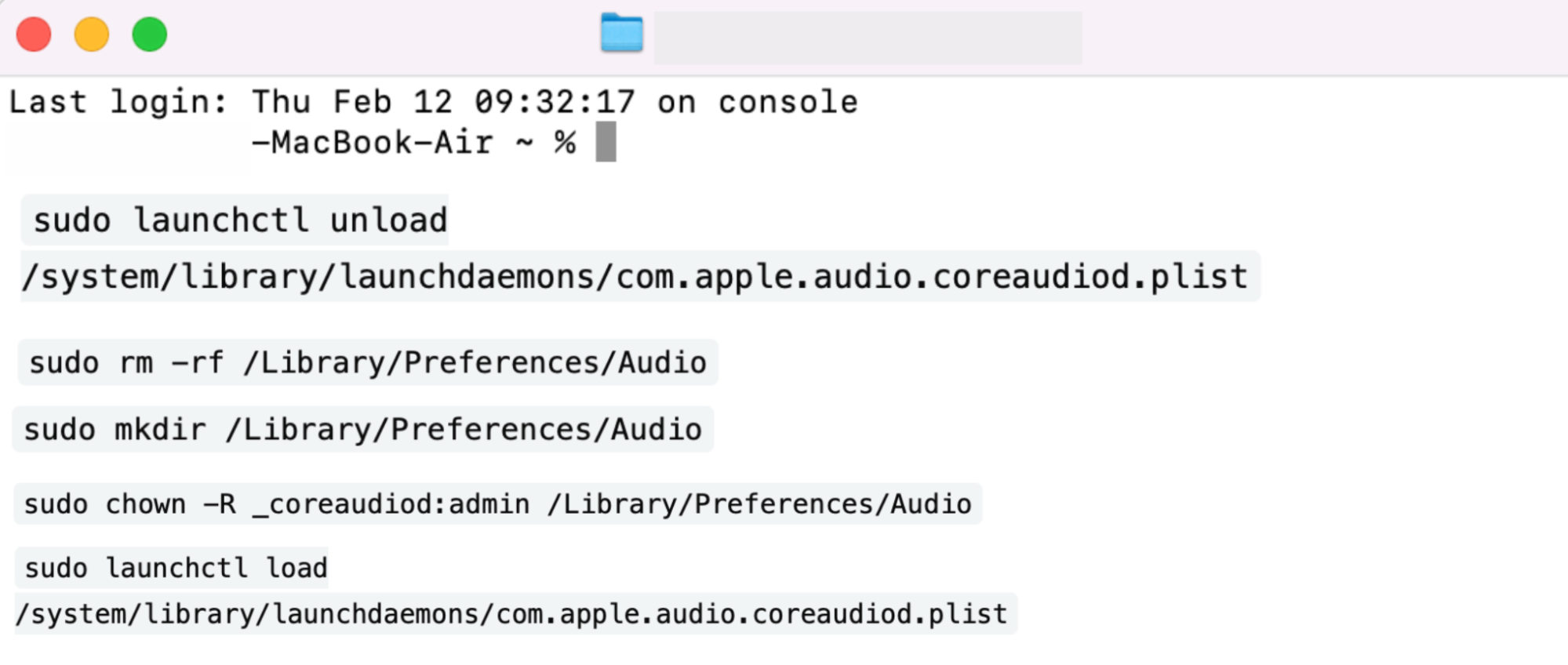
Unload the current daemon by entering this command: sudo launchctl unload /system/library/launchdaemons/com.apple.audio.coreaudiod.plist to prevent it from writing to the current directory.
Enter your Admin password when prompted.
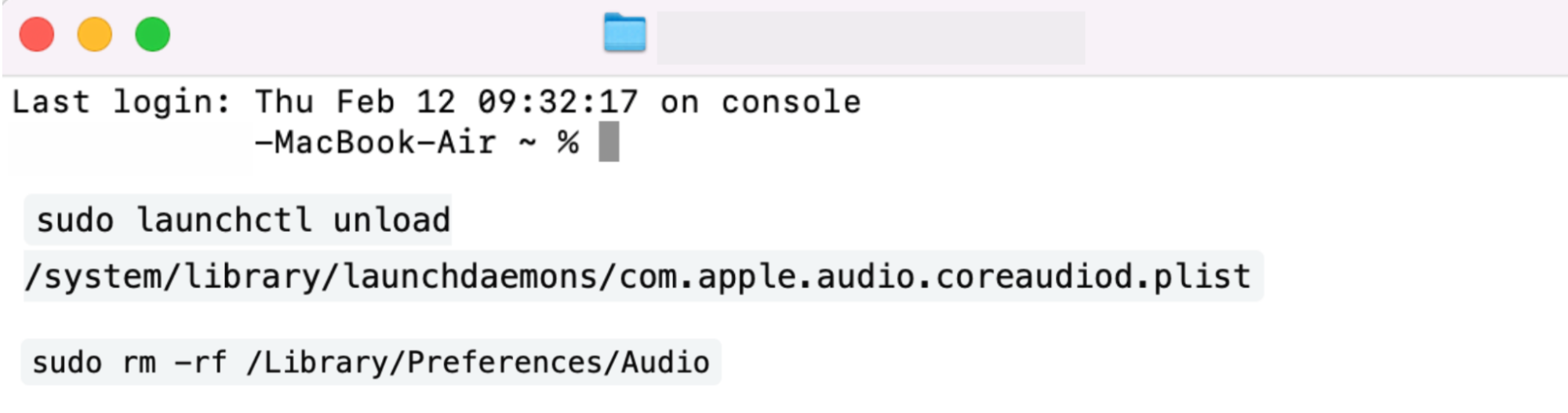
Delete the existing Audio folder with the sudo rm -rf /Library/Preferences/Audio command.
Recreate the permissions with the sudo mkdir /Library/Preferences/Audio command.
Enter the command: sudo chown -R _coreaudiod: admin /Library/Preferences/Audio to reset permissions to ensure coreaudiod can read/write to it.
Reload the daemon with the sudo launchctl load /system/library/launchdaemons/com.apple.audio.coreaudiod.plist command:.
Step 1. Unload the current coreaudiod daemonStep 2. Delete the existing audioStep 3. Recreate the Audio folderStep 4. Set the correct permissions for coreaudiodStep 5. Reload the coreaudio daemon
Fixing coreaudiod High CPU with MacKeeper’s help
When coreaudiod significantly impacts your Mac’s memory usage, the strain can quickly cause overheating, loud fans, and frustrating slowdowns. The good news is we’ve shown you how to stay on top of coreaudiod manually, by clearing cache junk files and restarting the process to prevent audio glitches. These troubleshooting steps help keep it running properly and stop background processes from eating up all your memory.
Don’t want to manually search through all your Mac processes to find out what might need clearing? MacKeeper’s Memory Cleaner can automatically clear unnecessary usage for you. It’ll free up RAM and prevent performance dips. With regular optimization, you’ll keep your device running smoothly without the stress of overbearing background processes.
We respect your privacy and
use cookies
for the best site experience.
Privacy Preferences Center
We use cookies along with other tools to give you the best possible experience while using the
MacKeeper website. Cookies are small text files that help the website load faster. The cookies we
use don’t contain any type of personal data meaning they never store information such as your
location, email address, or IP address.
Help us improve how you interact with our website by accepting the use of cookies. You can change
your privacy settings whenever you like.
Manage consent
All cookies
These cookies are strictly necessary for enabling basic website functionality (including page
navigation, form submission, language detection, post commenting), downloading and purchasing
software. The website might malfunction without these cookies.