When your Mac’s menu bar is packed with random icons, it’s easy to lose track of their actual purpose. Here you’ll learn how to customize your menu bar for a cleaner macOS experience. You can also take it a step further with MacKeeper’s Safe Cleanup for an even tidier device.
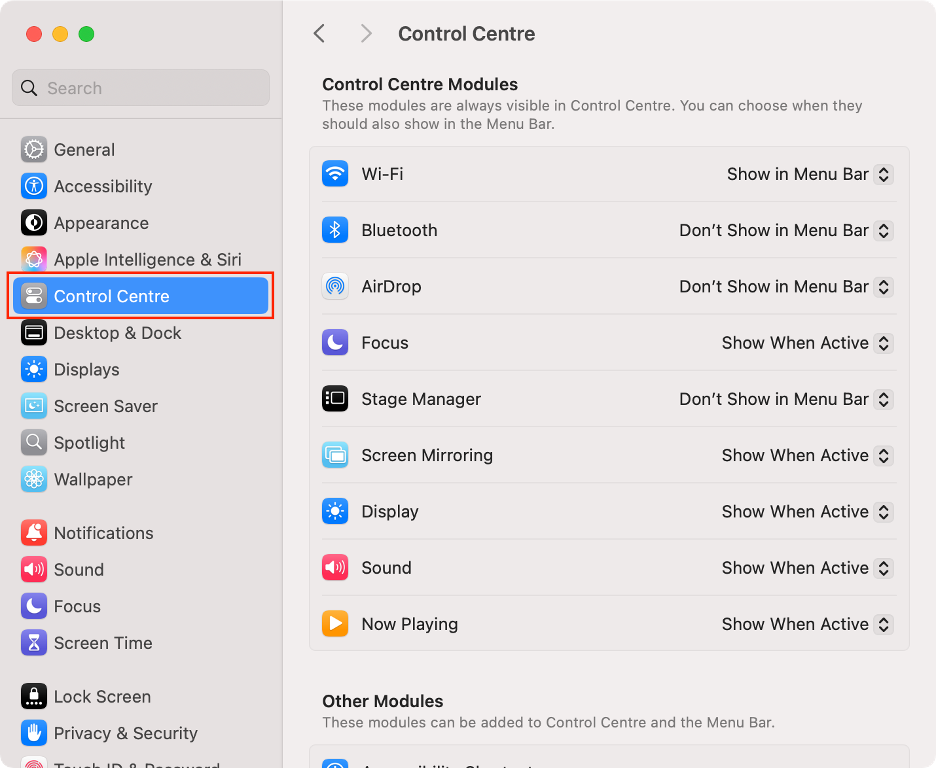
To edit your Mac’s menu bar, start in System Settings. Go to the Control Center section in the left-hand sidebar and select which modules, such as Wi-Fi and Sound, you want to display in the menu bar. For third-party apps, you can usually decide if their icons appear by adjusting their Preferences or Settings, which are also accessible via the menu bar.
What is menu bar on Mac?
The Mac menu bar is the horizontal strip you’ll always see at the top of your screen by default. On the left, you’ll find the Apple menu or the menus for whichever app you’re currently using, giving you quick access to key features and settings. On the right, you’ll see elements such as the Control Center (with the time, Wi-Fi, battery, sound, etc.), plus shortcuts for third-party apps.
As we previously mentioned, the menu bar is always visible by default, but you can set it to hide. Has your Mac taskbar disappeared? Check out our comprehensive guide for troubleshooting tips.
Reasons to customize menu bar on Mac
Tailoring your Mac’s menu bar to your needs comes with plenty of benefits. With just a few tweaks, you can keep your favorite apps, settings, and features easily accessible, while also removing anything you don’t actually use. Besides, we recommend this handy way to spot apps that may have added unwanted items to your computer.
While you’re personalizing your Mac, why not make Safari work better for you, too? Find out how to customize Safari and use our expert advice to get even more out of your browsing experience.
A note from our experts:
If you want a smoother, clutter-free Mac experience, don’t stop at just editing the menu bar. MacKeeper’s Safe Cleanup is an Apple-notarized tool trusted by millions that removes junk files that take up valuable space on your computer. Clario Tech’s Safe Cleanup delivers memory optimization and a performance boost in one go.
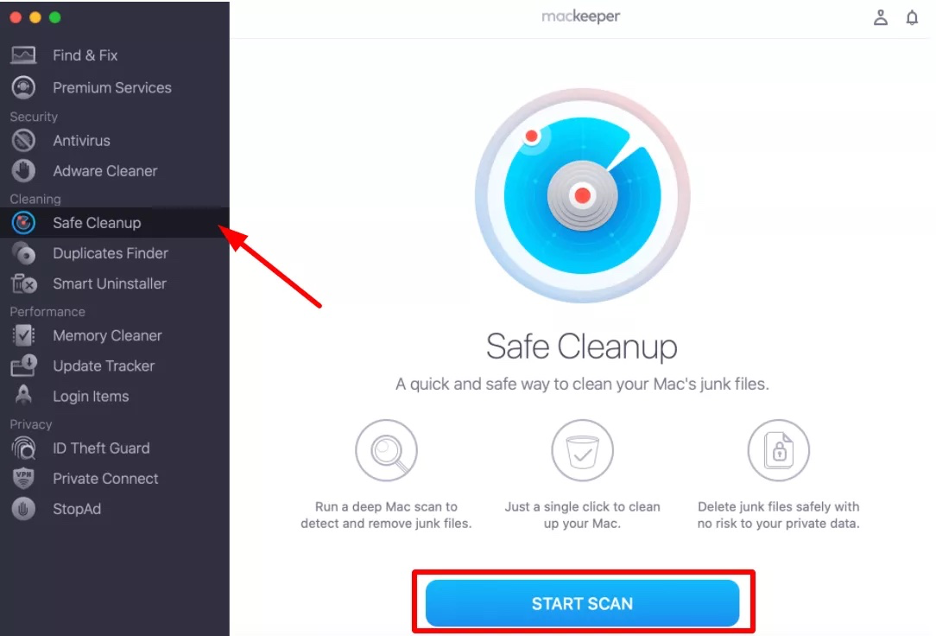
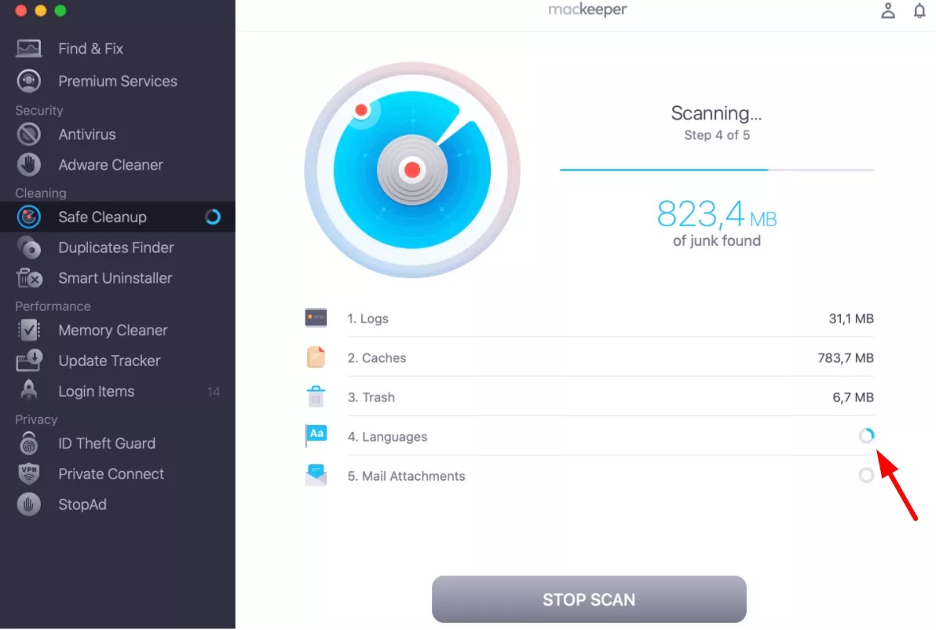
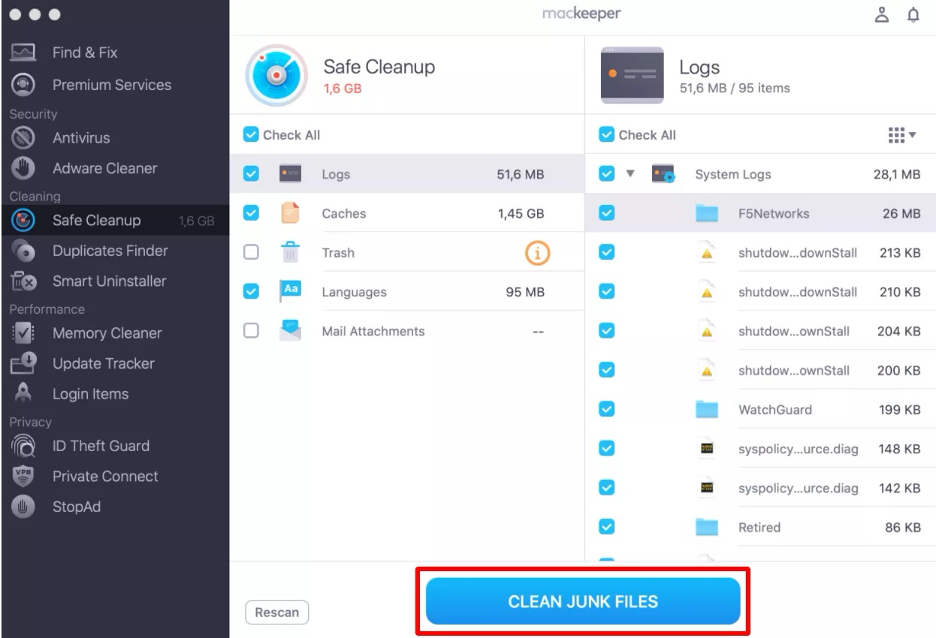
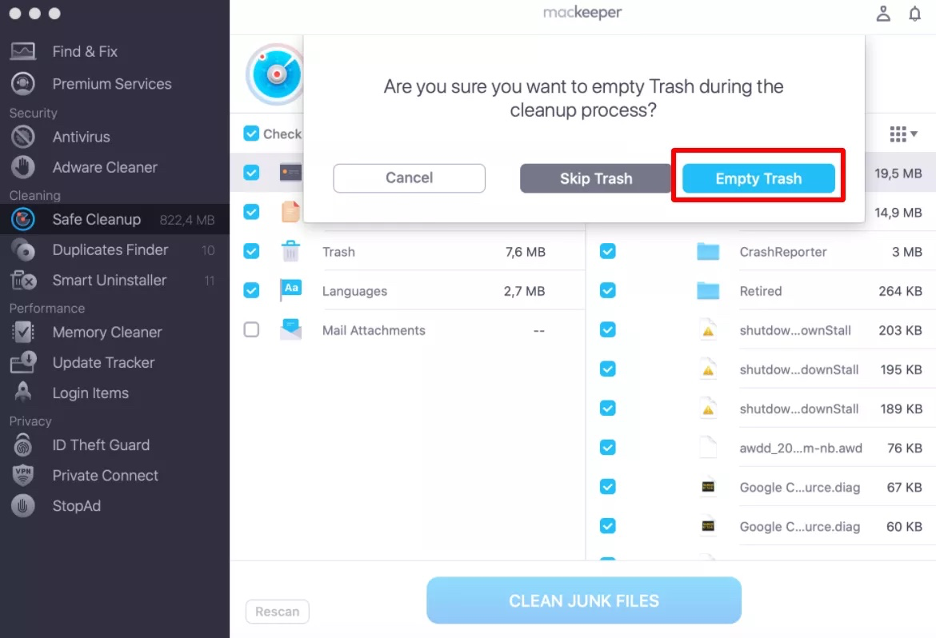
See our steps below to use MacKeeper’s Safe Cleanup on your Mac:
Step 1. Safe Cleanup > Start ScanStep 2. Wait until the scanning process is completeStep 3. Select foldersStep 5. Click Clean Junk FilesStep 6. Click Empty Trash
Built-in macOS menu bar customization
There’s no one-size-fits-all approach to customizing your Mac’s menu bar. The simplest way is to open System Settings and head to the Control Center section, where you can pick which items show up. Additionally, you can rearrange the icons in the menu bar just by dragging them while holding the Command key. You can even tweak the menu bar’s appearance or set it to hide automatically under certain circumstances.
1. System settings and control center options
To adjust your Mac menu bar settings, head to the Control Center section in the macOS System Settings app. In our experience, this is the easiest and most effective way to arrange which items appear in your menu bar. However, you should note that you’ll need to manage third-party app icons separately.
Here’s how to customize your Mac’s menu bar via the System Settings:
Click the System Settings icon on your Dock.
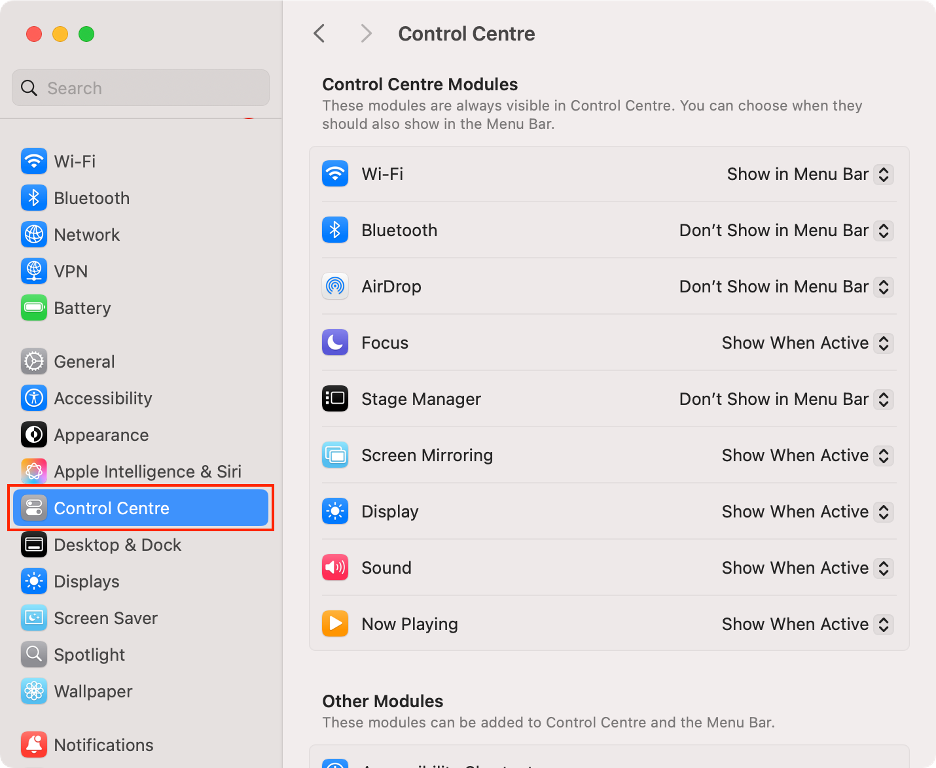
Choose Control Center from the left-hand sidebar.
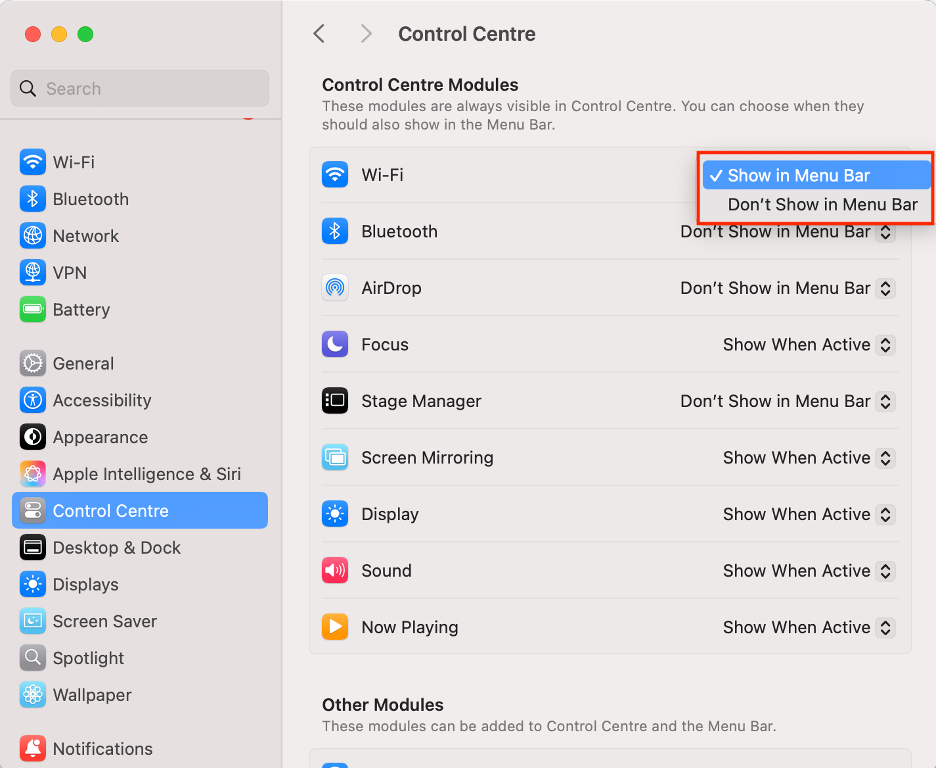
Select Show in Menu Bar or Don’t show in Menu Bar next to each item.
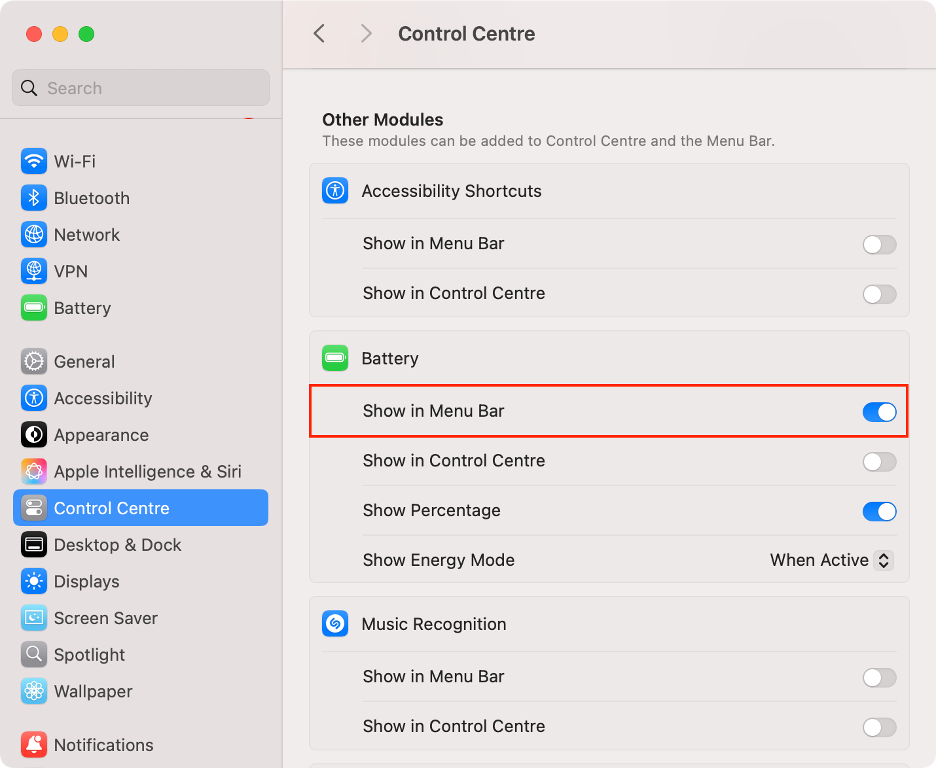
Under Other Modules, you can adjust other settings.
Step 1. System Settings > Control CenterStep 2. Select Show in Menu Bar or Don’t Show in Menu BarStep 3. Adjust other settings under Other Modules
If you’re having trouble finding your Mac’s settings, keep in mind that Apple renamed System Preferences to System Settings with the release of macOS Ventura in 2022. For more details, check out our guide to System Preferences on MacBook.
2. Reordering and removing native items (Command-drag)
Our next tip is for those users who want to rearrange or remove existing menu bar items. There’s a quick and easy way to do it by using the Command key on your keyboard. Just note that this method doesn’t let you add new icons.
This is how to drag and arrange items in your menu bar:
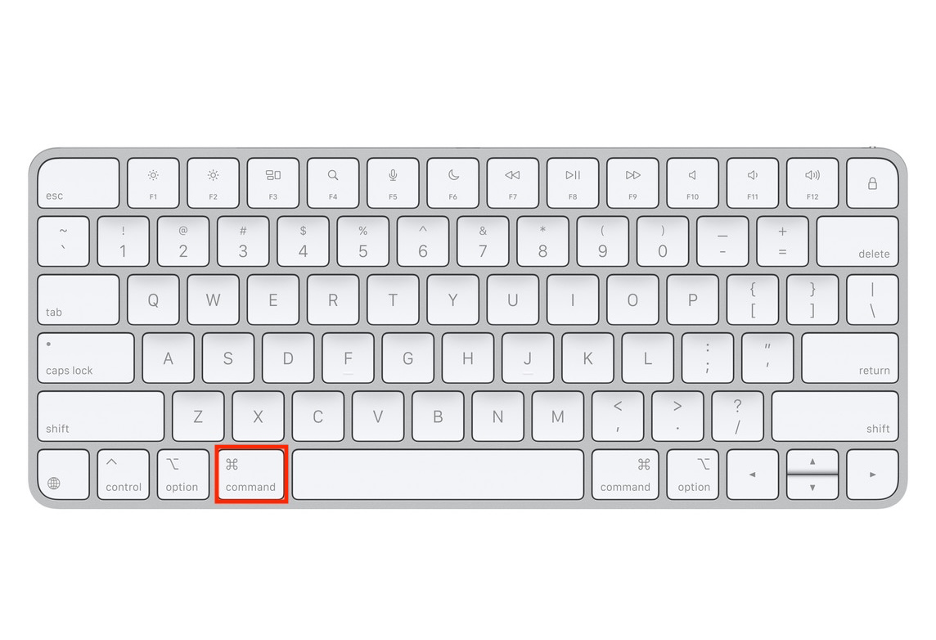
Press and hold the Command key on your keyboard.
Click and drag the icon you want to arrange across the menu bar. Alternatively, drag it outside the bar to remove it.
Step 1. Click and Hold the Command buttonStep 2. Click and drag the icon in menu bar
Beyond learning how to adjust the menu bar on Mac and its items, you can also personalize the way it looks. This means Apple lets you adjust the transparency and size of your menu bar to match your preferences.
Follow our tips to make your menu bar look just the way you like:
Click the System Settings icon on your Dock.
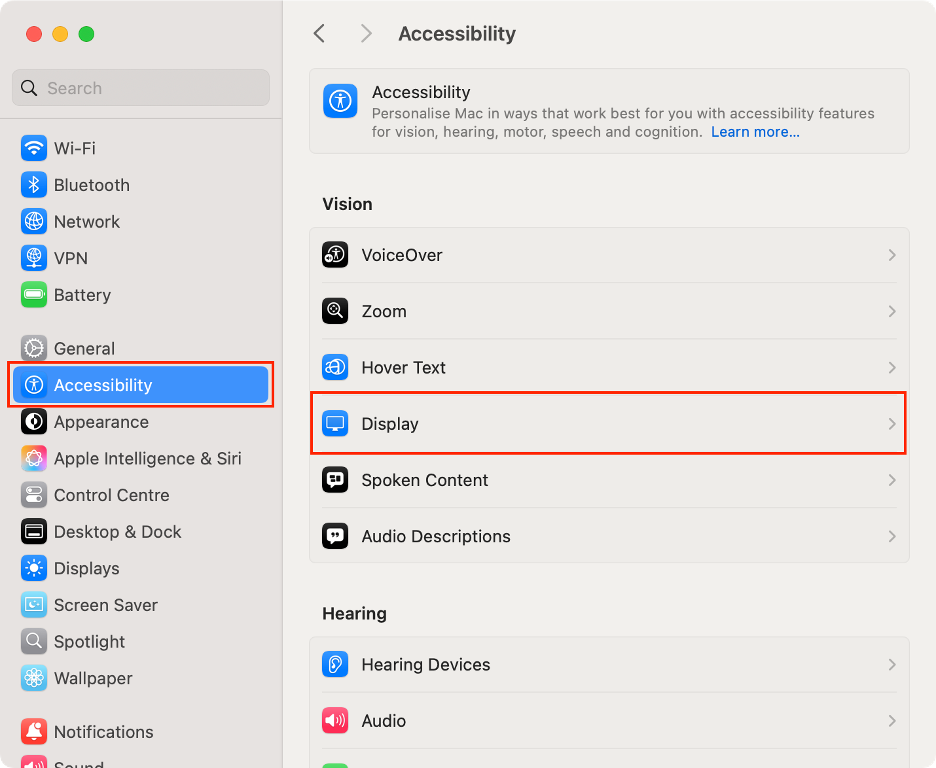
Choose Accessibility from the left-hand sidebar.
Select Display under Vision.
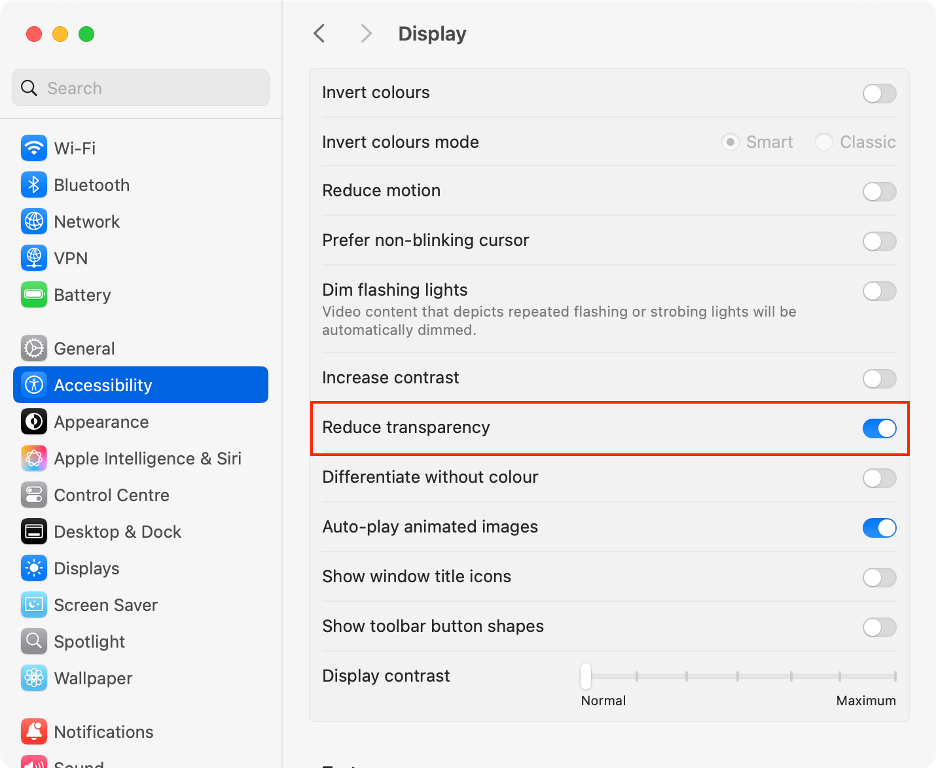
Scroll down and turn on the Reduce transparency toggle.
Next, go back to the Display page.
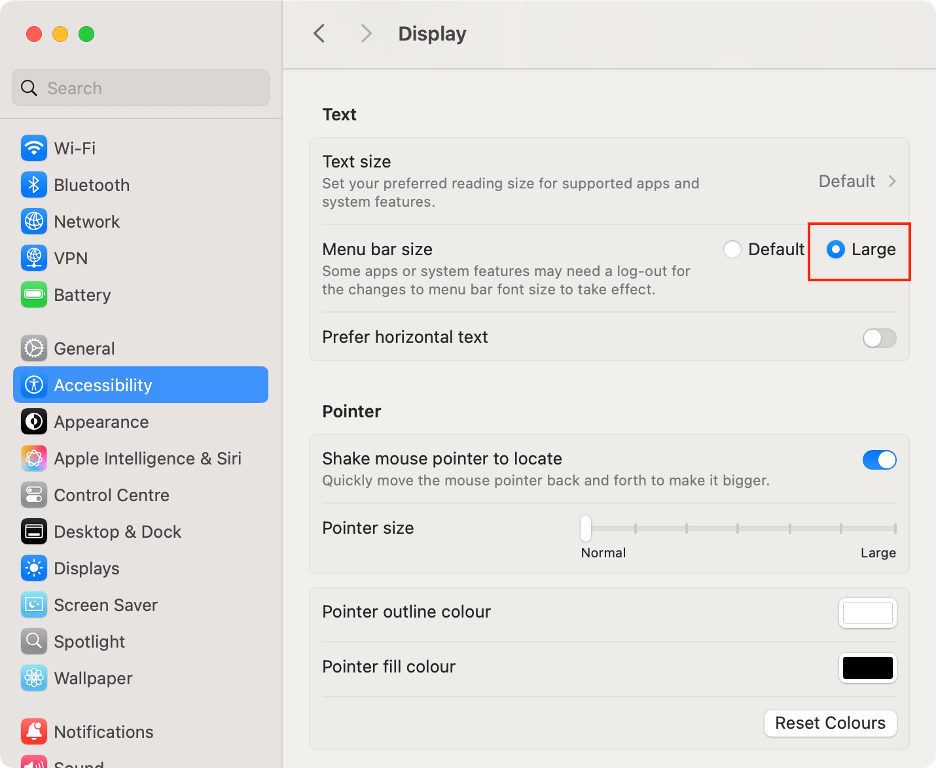
Scroll down to the Text section.
Check the Large option next to Menu bar size.
Step 1. System Settings > Accessibility > DisplayStep 2. Turn on the Reduce transparency toggleStep 3. System Settings > Accessibility > Display > Menu bar size
4. Auto-hide and visibility settings
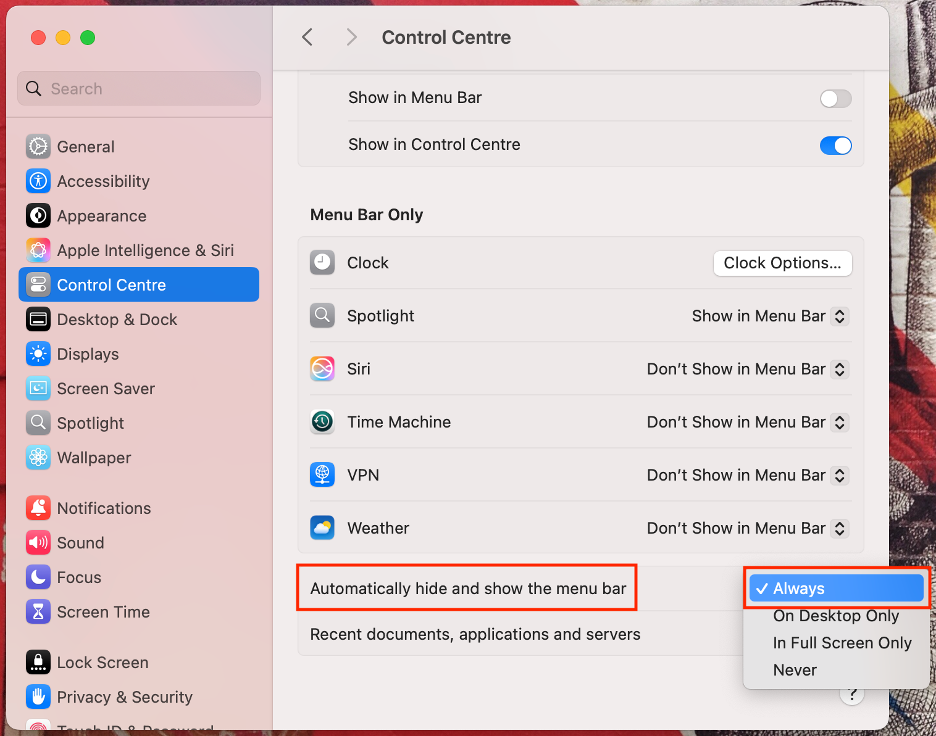
Another favorite customization among our team is setting the menu bar to hide automatically. From our test, this gives your screen a cleaner look and a bit more space as the menu bar stays hidden until you move your cursor to the top of the screen.
If you want to know how to set up the menu bar on Mac to hide automatically, follow these tips:
Click the System Settings icon on your Dock.
Choose Control Center from the sidebar.
Scroll down to the Automatically hide and show the menu bar option.
Choose Always.
Step 1. System Settings > Control CenterStep 2. Automatically hide and show the menu bar > Always
Managing third-party menu bar items on Mac
When a third-party app puts an icon in your menu bar, you have a few ways to manage it. Most of the time, you can click the app’s name in the menu bar, open Preferences or Settings, and choose whether to keep the icon visible. For even more control, try a tool like Bartender, which lets you organize or hide non-native app icons, keeping your menu bar neat and tidy.
Take control of your Mac’s menu bar now
Customizing your Mac’s menu bar lets you control which icons appear on the right side of that horizontal strip at the top of your screen, making it easier to spot and remove anything you don’t need. Head to System Settings to pick and choose which icons are visible, adjust the menu bar’s appearance, or even set it to hide automatically when you want a cleaner look.
If you want to keep your Mac clean and organized, try MacKeeper’s Safe Cleanup. It automatically scans your Mac for junk and unnecessary files, helping you reclaim space with just a click. Plus, Clario Tech’s MacKeeper app offers top-notch protection against malware, making it one of the best utility apps for macOS.
We respect your privacy and
use cookies
for the best site experience.
Privacy Preferences Center
We use cookies along with other tools to give you the best possible experience while using the
MacKeeper website. Cookies are small text files that help the website load faster. The cookies we
use don’t contain any type of personal data meaning they never store information such as your
location, email address, or IP address.
Help us improve how you interact with our website by accepting the use of cookies. You can change
your privacy settings whenever you like.
Manage consent
All cookies
These cookies are strictly necessary for enabling basic website functionality (including page
navigation, form submission, language detection, post commenting), downloading and purchasing
software. The website might malfunction without these cookies.