When your Mac asks you to “Enter a password to unlock the disk Macintosh HD” (or something similar), it can make your computer unusable. Follow our guide to get back on track, but if you need expert help, 24 hours a day, reach out to MacKeeper’s Premium Services.
The Macintosh HD password issue can rear its head for many reasons. For example, if your Mac or MacBook is second-hand and the last owner didn’t erase its hard drive properly, you might see this error. It can also happen if you try to use the same login details as the previous user but with a different Apple Account. Trying to access an internal drive can also produce this message if you’ve booted your Mac from an external disk. Solutions include entering an admin password, resetting your login details, and reinstalling macOS.
Why does your Mac show “Enter a Password to Unlock the Disk Macintosh HD”?
Your Mac might ask for a password to unlock Macintosh HD simply because the macOS encryption security feature, FileVault, is enabled. However, this message can also indicate a problem, caused by mismatched login details or by an incorrectly erased hard drive with an old ‘data’ volume left behind.
A note from our experts:
If you’re struggling to fix “Enter a password to unlock the disk Macintosh HD”, give MacKeeper’s Premium Services a try. Available all day, every day, this service gives you instant access to a team of Mac experts, with thousands of hours of experience.
Select Premium Services from the menu on the left.
Click Chat Now, and explain your issue to the online agent.
Work with the Premium Services team to find a solution.
MacKeeper's Premium Services are available all day, every day
How to fix “Enter a password to unlock the disk Macintosh HD?”
To fix the Macintosh HD password problem, you should first simply try to enter your admin password. If that doesn’t work, then you’ll need to take more advanced steps, such as using a FileVault recovery key or resetting your password in Recovery mode. Ultimately, you might need to completely erase your Mac’s hard drive or SSD and reinstall macOS from scratch, which will delete all your data and settings in the process.
1. Unlock the disk with your user password
It sounds obvious, but the first thing we suggest, when asked to enter a password to unlock Macintosh HD, is to enter a password. This should be your admin password or, if you know it, the admin password of the previous user.
If FileVault is enabled, this should unlock your Mac. If it works, you might also want to disable FileVault if you don’t find it useful.
2. Unlock with FileVault recovery key or Apple ID
When you first enable FileVault, you’ll be asked to choose a recovery method. This will either be the Apple Account (formerly known as Apple ID) you use for iCloud or a special recovery key, which is a long series of letters and numbers.
Recovering with your Apple Account:
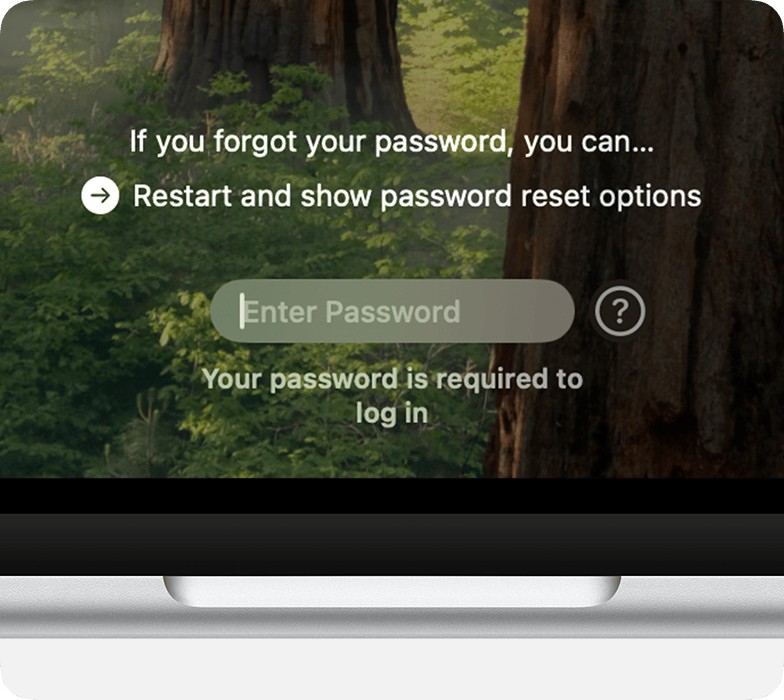
On your Mac’s login screen, click the question mark or Forgot password?
Use your Apple Account login details, and follow the on-screen prompts to reset your password.
Enter a new password.
Resetting your macOS password could get you back into your Mac
Recovering with a FileVault recovery key:
On the macOS login screen, click the question mark or Forgot password?
Choose the Unlock with Recovery Key option.
Enter your recovery key, then follow the instructions to create a new password.
3. Reset your forgotten password in Recovery mode
Although we suggest using the normal password reset function on your Mac, it’s also possible to initiate a reset while in Recovery mode. This may be useful if you’re unable to fix the Macintosh HD password issue with the usual login reset options. Here’s what to do:
Put your Mac into Recovery mode, and select Utilities > Terminal from the menu bar.
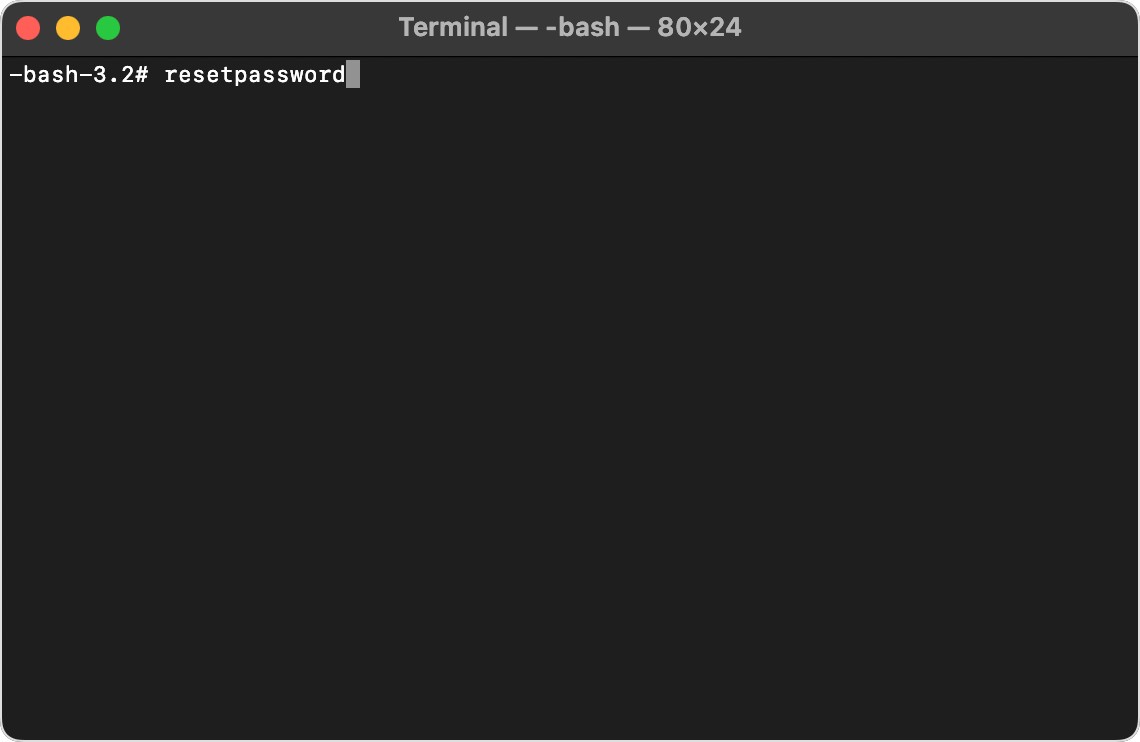
Type in resetpassword, and press Enter.
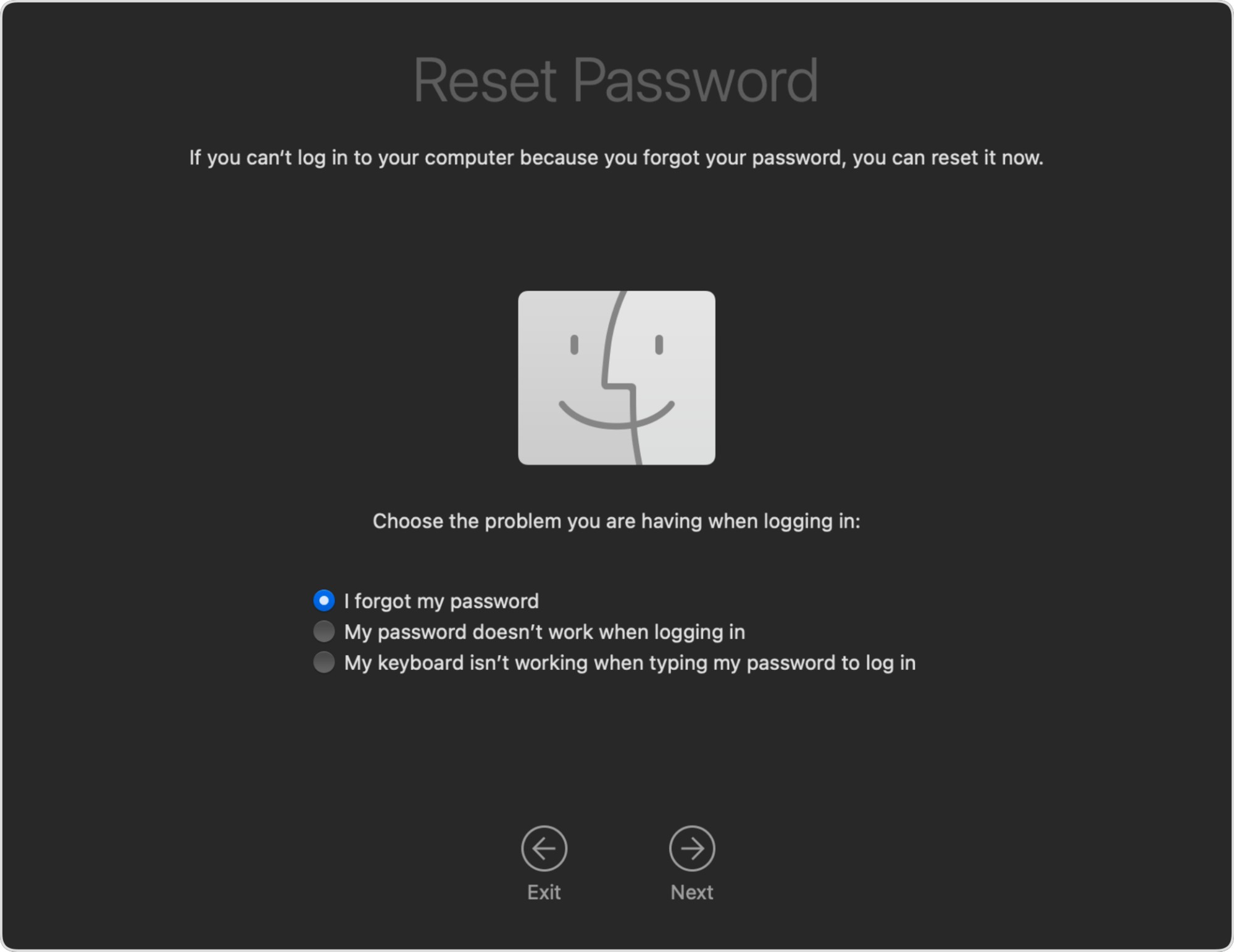
This will open a new window. Choose one of the reset options, and click Next.
Follow the on-screen instructions to create a new password.
Enter resetpassword into TerminalMake a selection and follow the on-screen prompts
4. Restart and attempt login again (after password reset)
If you’ve followed our tips above and reset your Mac’s admin or FileVault password, what do you do next? Simply restart your Mac, and if you’re lucky, you’ll be able to log into your Mac as normal.
However, if you can’t reset your password or the newly created password doesn’t work, then you have a bigger problem—and you’ll need to take more drastic action.
5. If password and recovery key are lost: Erase disk
We try to avoid factory resetting Macs if possible, because it erases all your data, apps, and settings. But if nothing else works, and the disk Macintosh HD can't be unlocked, then erasing your disk might be your only option.
You need to do this from Recovery mode:
Boot your Mac into Recovery mode.
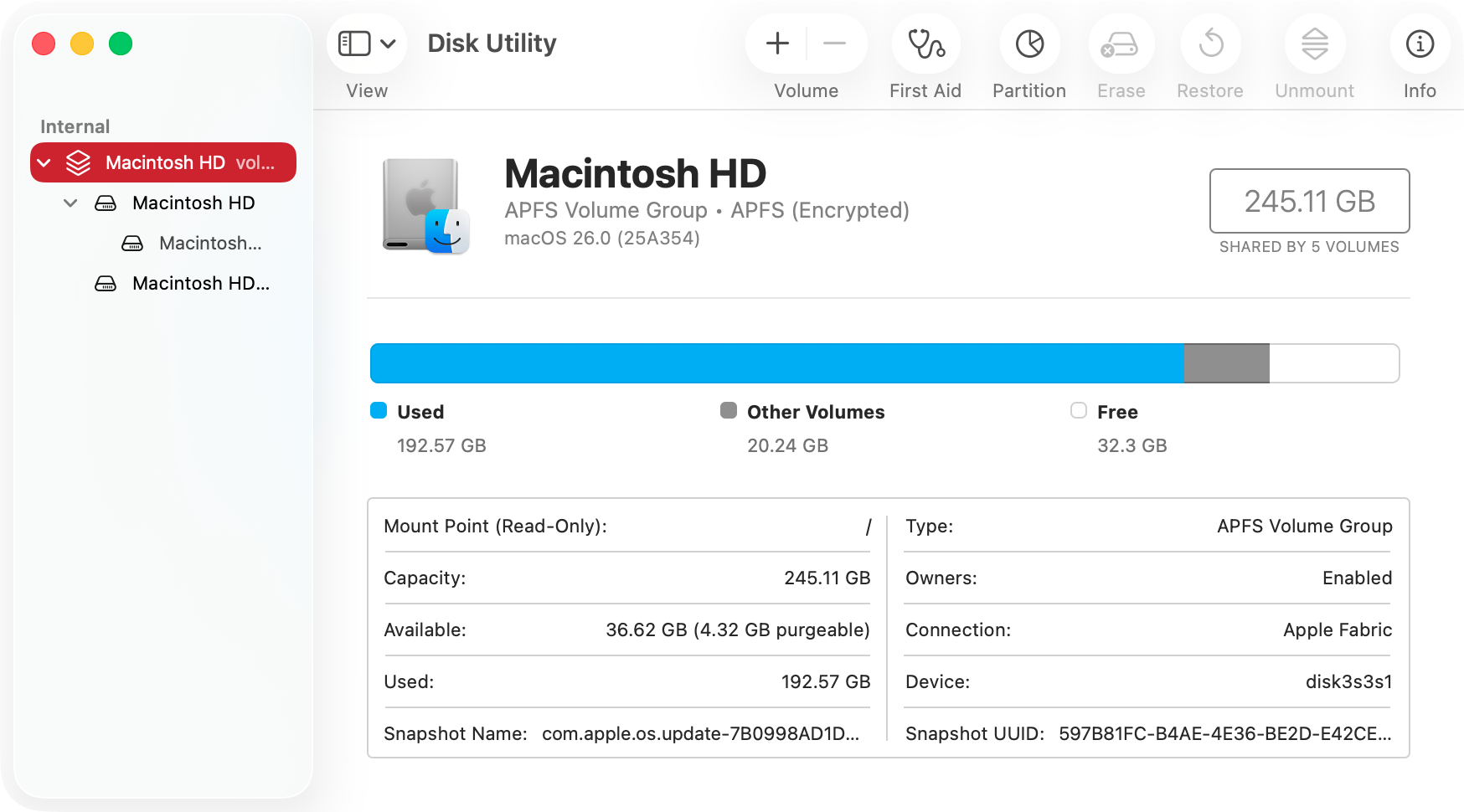
Open Disk Utility from the available options.
Choose your main system disk from the left-hand menu.
Click Erase, and give your disk a name.
Set the format to APFS and the scheme to GUID Partition Map.
Click the Erase button and follow any instructions that appear.
If all else fails, you can wipe your hard drive and reinstall macOS
A hint from us:
You can also use Disk Utility’s First Aid function to fix disk errors and repair disk permissions on your Mac. This probably won’t fix your password issue, but we don’t think it would hurt to try.
6. Reinstall macOS after unlocking or erasing
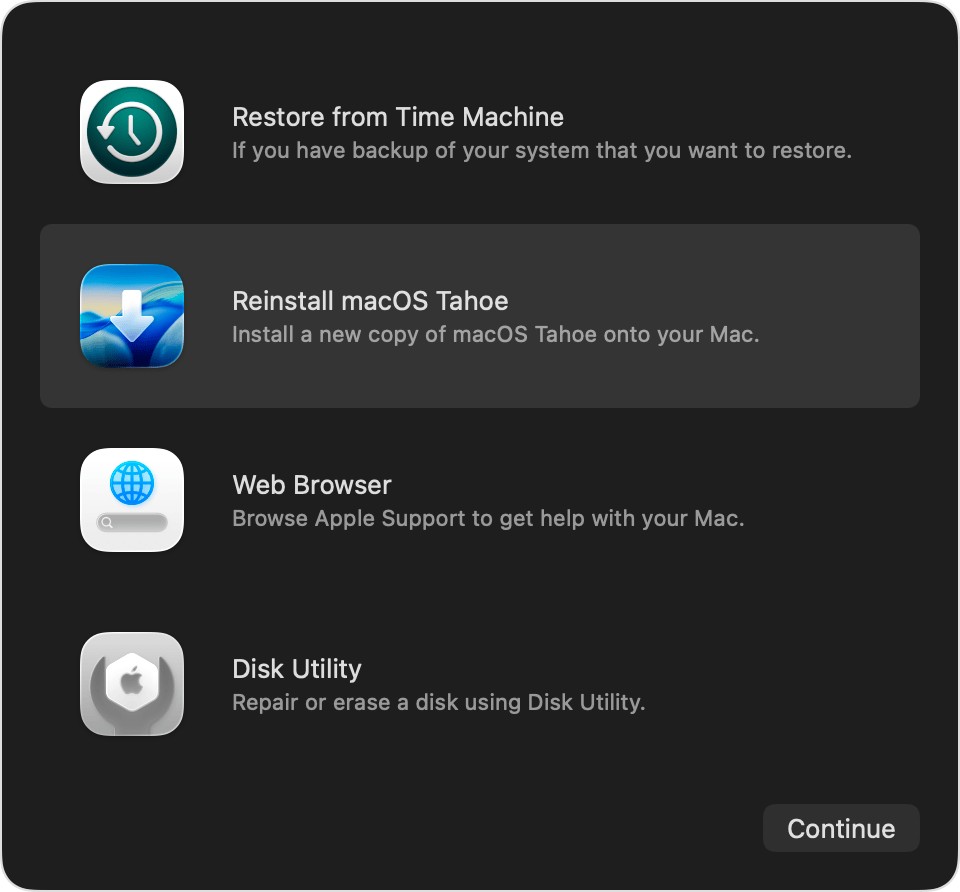
If you’ve wiped your Mac’s hard drive or SSD, you need to reinstall macOS, otherwise you won’t be able to use your device. You should still be in Recovery mode at this point, so select the Reinstall macOSoption from the main list of choices. Select your newly erased hard drive or SSD as the location for macOS, and then simply follow the on-screen instructions to reinstall the operating system.
You might also want to reinstall macOS if you managed to log into your Mac but are unable to disable FileVault.
Either way, back up any files you’re able to before you wipe your system disk. You can simply move files to an external location, such as a USB hard drive or iCloud, or you can use Apple Time Machine tool.
While in Recovery mode, follow the prompts to reinstall macOS
You shall pass, with expert help if you need it
Hopefully, our tips here have helped you to fix the Enter a password to unlock the disk Macintosh HD problem. If you’ve managed to regain entry to your Mac, you might want to think about reinstalling macOS anyway, particularly if your computer is second-hand and your issue was caused by the previous user’s FileVault settings. A factory reset with Disk Utility will also unlock your Mac when all other possible solutions have failed—but be aware that you’ll lose everything stored on the system disk.
Unfortunately, dealing with encrypted drives and other disk-related problems can be much more complex than resetting your password, especially if you need access to your data. MacKeeper’s Premium Services were created especially for cases like this. Available around the clock, our team of technical experts knows Apple hardware and software inside out, giving you quick access to advanced solutions when you need them. Download MacKeeper today, and see how we can support you.
We respect your privacy and
use cookies
for the best site experience.
Privacy Preferences Center
We use cookies along with other tools to give you the best possible experience while using the
MacKeeper website. Cookies are small text files that help the website load faster. The cookies we
use don’t contain any type of personal data meaning they never store information such as your
location, email address, or IP address.
Help us improve how you interact with our website by accepting the use of cookies. You can change
your privacy settings whenever you like.
Manage consent
All cookies
These cookies are strictly necessary for enabling basic website functionality (including page
navigation, form submission, language detection, post commenting), downloading and purchasing
software. The website might malfunction without these cookies.