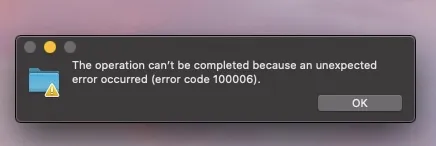
Have you encountered the “error code 10006” while using an external disk with your Mac? We’re going to look at a few common causes and fixes, but if you need extra help, reach out to MacKeeper’s Premium Services, 24 hours a day.
Error code 100006 occurs in macOS when you’re trying to read from or write to an external hard drive and something goes wrong. Based on our tests and research, there are lots of potential causes, including faulty cables, formatting problems, software issues, and even malware, which can prevent your drive from working. You may be able to fix this problem by using a different USB cable, updating your Mac or MacBook, resetting your NVRAM or PRAM.
What is error code 100006?
In most cases, error code 100006 on Mac is a file transfer fault. We’ve noticed that it’s most commonly found when using a USB external hard drive, but it can also occur with other forms of external storage, such as an SD card or NAS (network attached storage) device. Besides, you may also come across this error when transferring files over your network to another computer.
Error code 100006 usually signifies an issue with an external drive
Common causes of 100006 error
The most common causes for error code 100006 on a Mac include a broken USB cable, a malfunctioning USB port, an insufficient disk space on your external drive, corrupted data, incompatible third-party drivers, and malware. All of these can prevent you from reading data from or writing data to an external location. Error code 100006 can also be caused by NVRAM or PRAM issues on Intel Macs, so resetting these can help.
How to fix the 100006 error?
Fixing the error code 100006 on Mac is usually a process of elimination. Because it usually happens when transferring files between your Mac and a USB drive, the first thing we advise is to check the USB cable and the USB port. Unplug your drive and plug it back in. Also, try using a different USB port, and clear storage space on your Mac. If you still see the 100006 error, move on to more advanced fixes like booting in Safe Mode and resetting your NVRAM.
A note from our experts:
Fixing the 100006 error may not be simple, but you don’t have to suffer alone. The MacKeeper Premium Services team is available 24 hours a day to help you with all your Mac-related challenges.
Select Premium Services from the menu on the left.
Click the Chat Now button.
Explain your issue to the online agent, and they’ll help you find a solution.
MacKeeper's Premium Services are available 24 hours a day
1. Try a different cable or USB port
In our experience, error code 100006 is usually caused by a faulty USB cable. Even if your cable is still providing power to your external drive, you might find your Mac not detecting external hard drives. Also, some USB cables are designed only to charge devices and not carry data at all. So try a different cable.
It’s also a good idea to try a different USB port. Sometimes, plugging your external drive into another port can be all it takes to get your Mac to read or write the device.
2. Connect your external drive directly
If your external hard drive or SSD is plugged into a USB hub, that could be the cause of your 100006 error code. The hub may have malfunctioned, or it may not be able to supply enough power to your storage device.
Although you can buy powered USB hubs, we suggest something much simpler—plug your external disk directly into one of your Mac’s USB ports. If it works, then you know your hub is the problem.
3. Check disk space and free up space if needed
If you have insufficient disk space on your Mac or external drive, it can lead to the dreaded 100006 error message. To fix this, clean some files off the disk.
You could make room by offloading data to another location, or you can erase files instead. We suggest getting rid of any downloads you don’t need, including old app installers.
An extra hint from us:
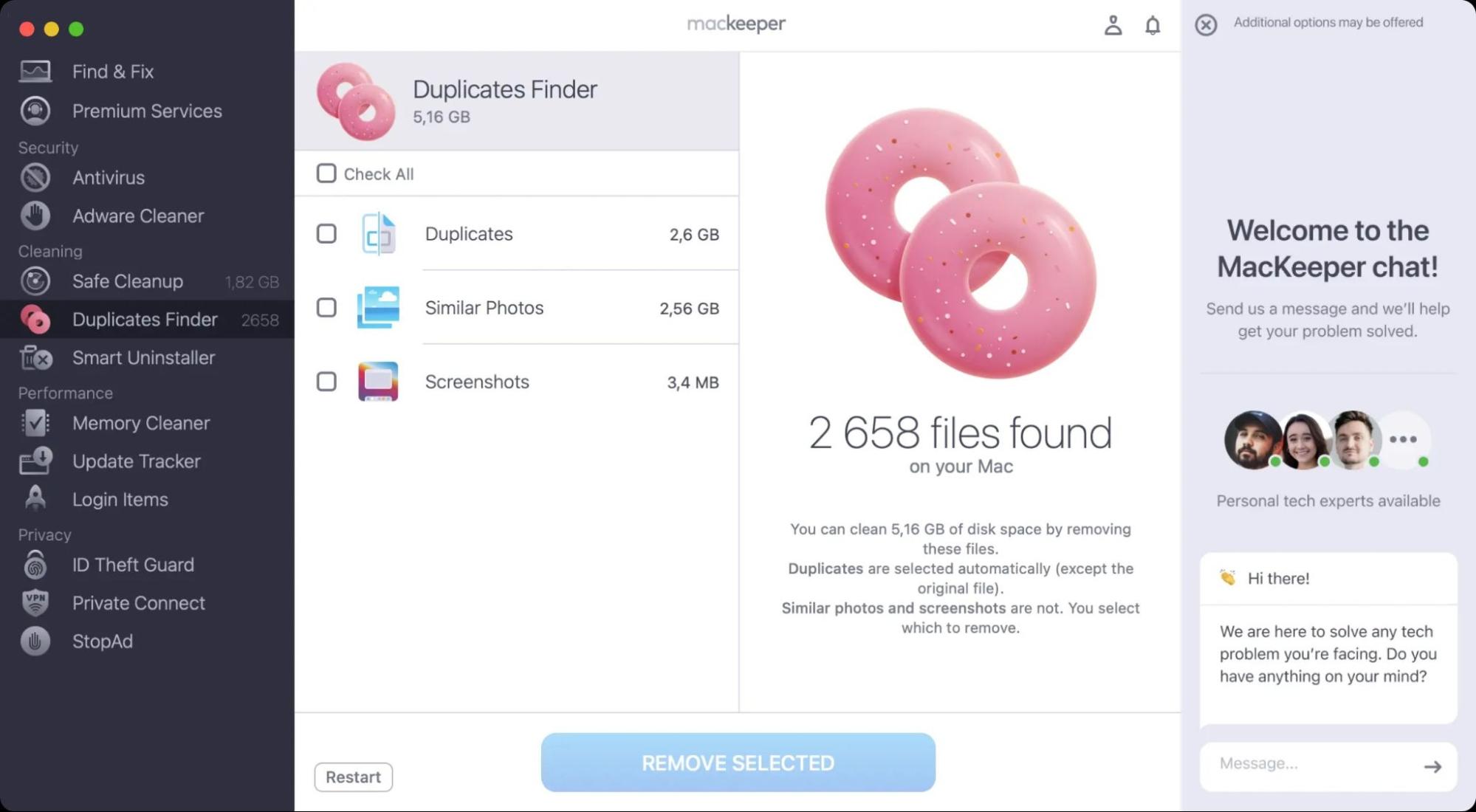
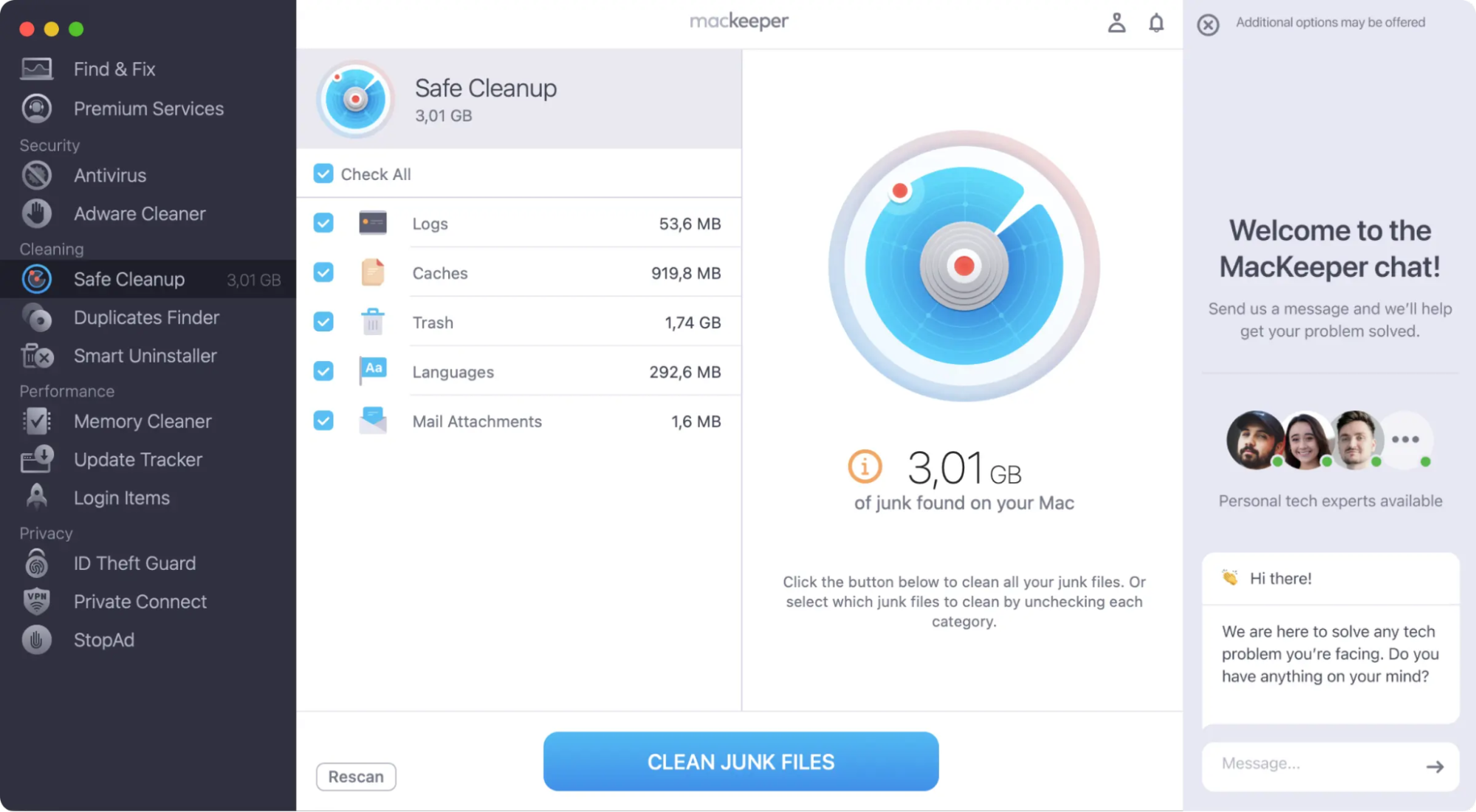
You can also scan for duplicate files with MacKeeper’s Duplicates Finder tool, then delete junk and cache data with its Safe Cleanup feature. It’ll give you more free space on your computer and improve its performance.
Step 1. Delete the redundant copies with MacKeeper’s Duplicates FinderStep 2. Remove cash files with MacKeeper’s Safe Cleanup
4. Verify and adjust file or drive permissions
If you’re trying to copy a file in another user’s account or if you’ve accidentally changed the file permissions, you can encounter error code 10006. Here’s how to check and fix it:
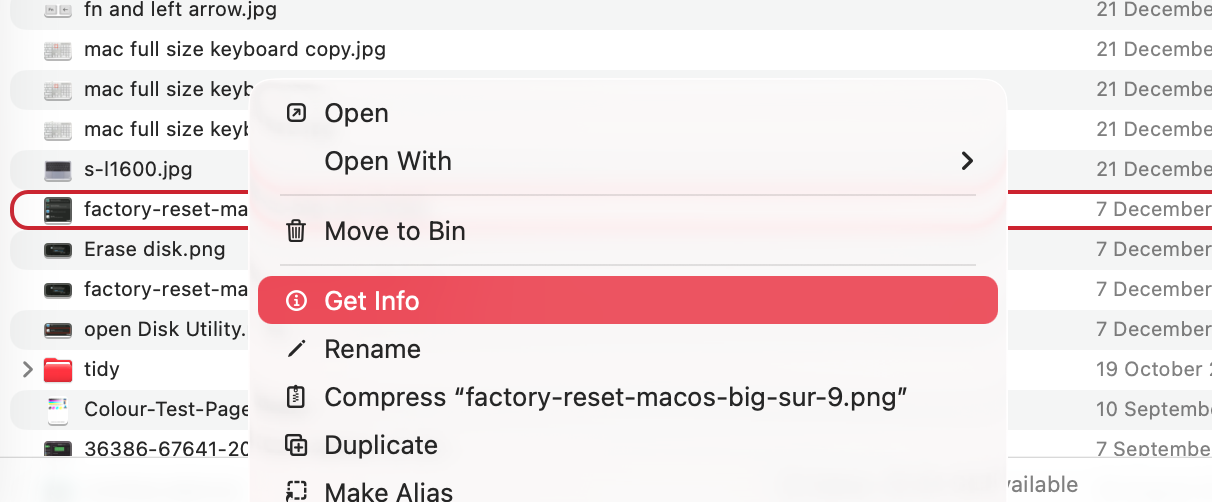
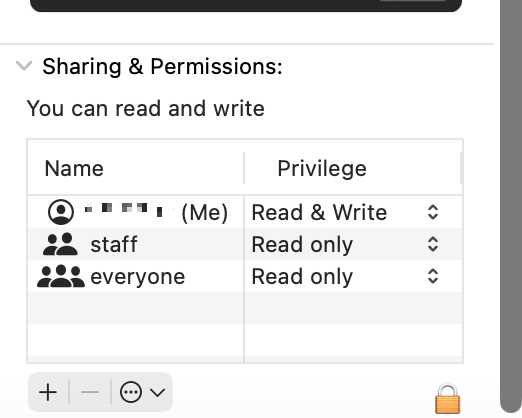
Right-click the file or folder you’re trying to transfer to or from your external drive, and select Get Info.
Scroll down to the bottom of the panel, and check the Sharing & Permissions section. Make sure your account has read and write privileges. To make changes, you might need to click the padlock at the bottom and enter your admin password.
Now try using your external drive again.
Step 1. Right-click a file or folder, and select Get InfoStep 2. Check under Sharing & Permissions
5. Repair your disk with Disk Utility
Running a First Aid scan on your Mac can be all you need to beat the 100006 problem. It can fix a variety of disk errors if you follow these steps:
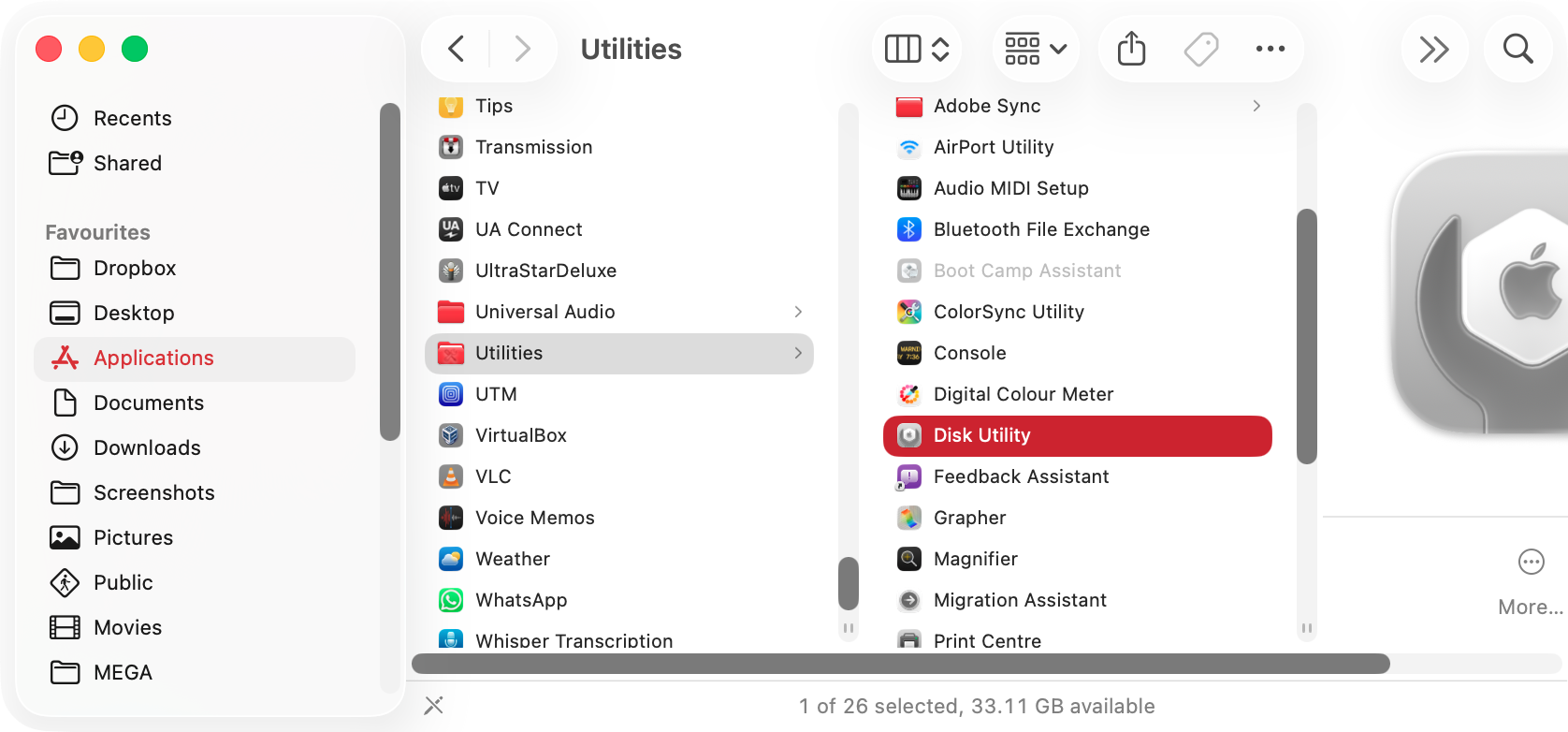
Open Disk Utility from Applications > Utilities, or open it with Spotlight.
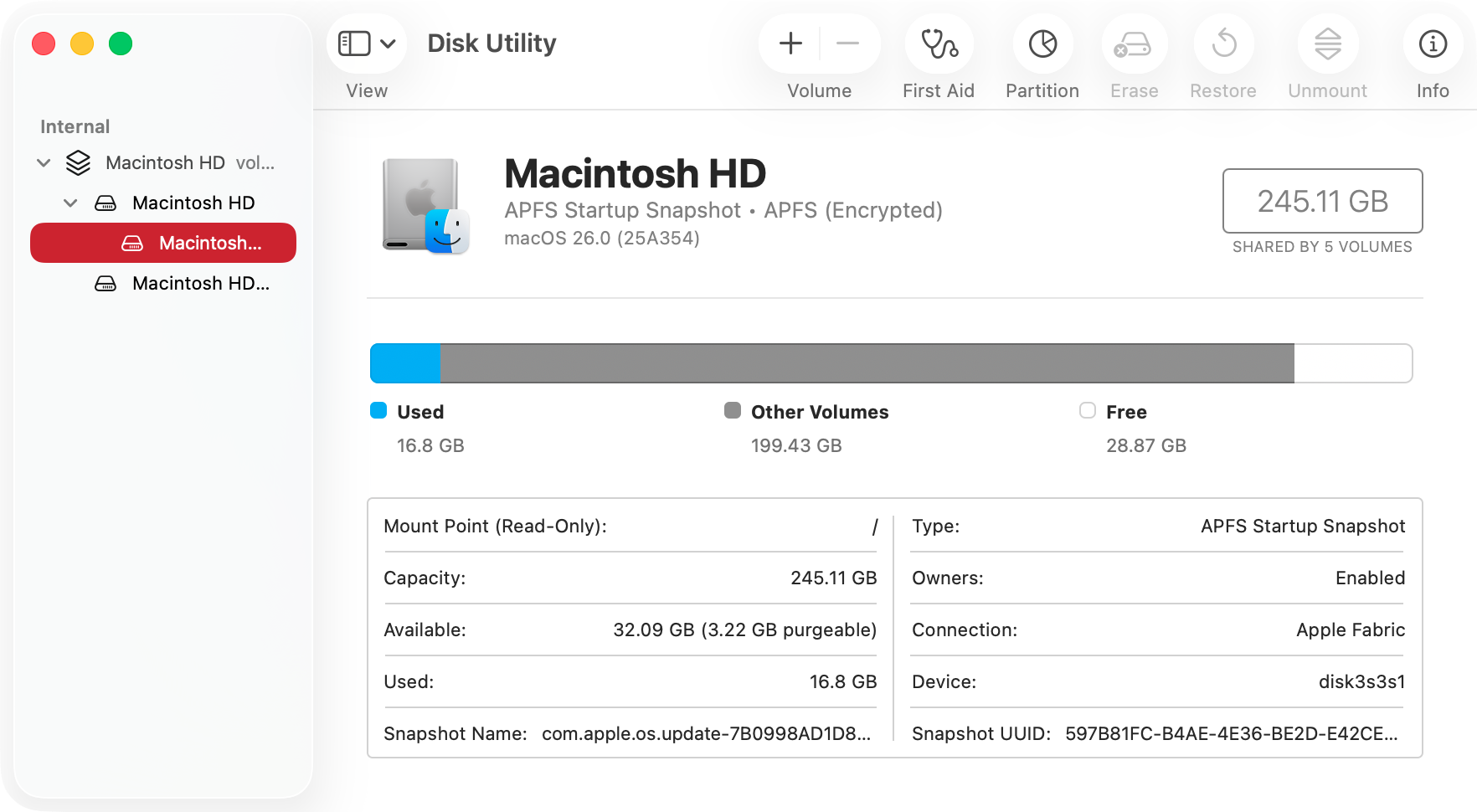
Select your disk from the sidebar, and click First Aid.
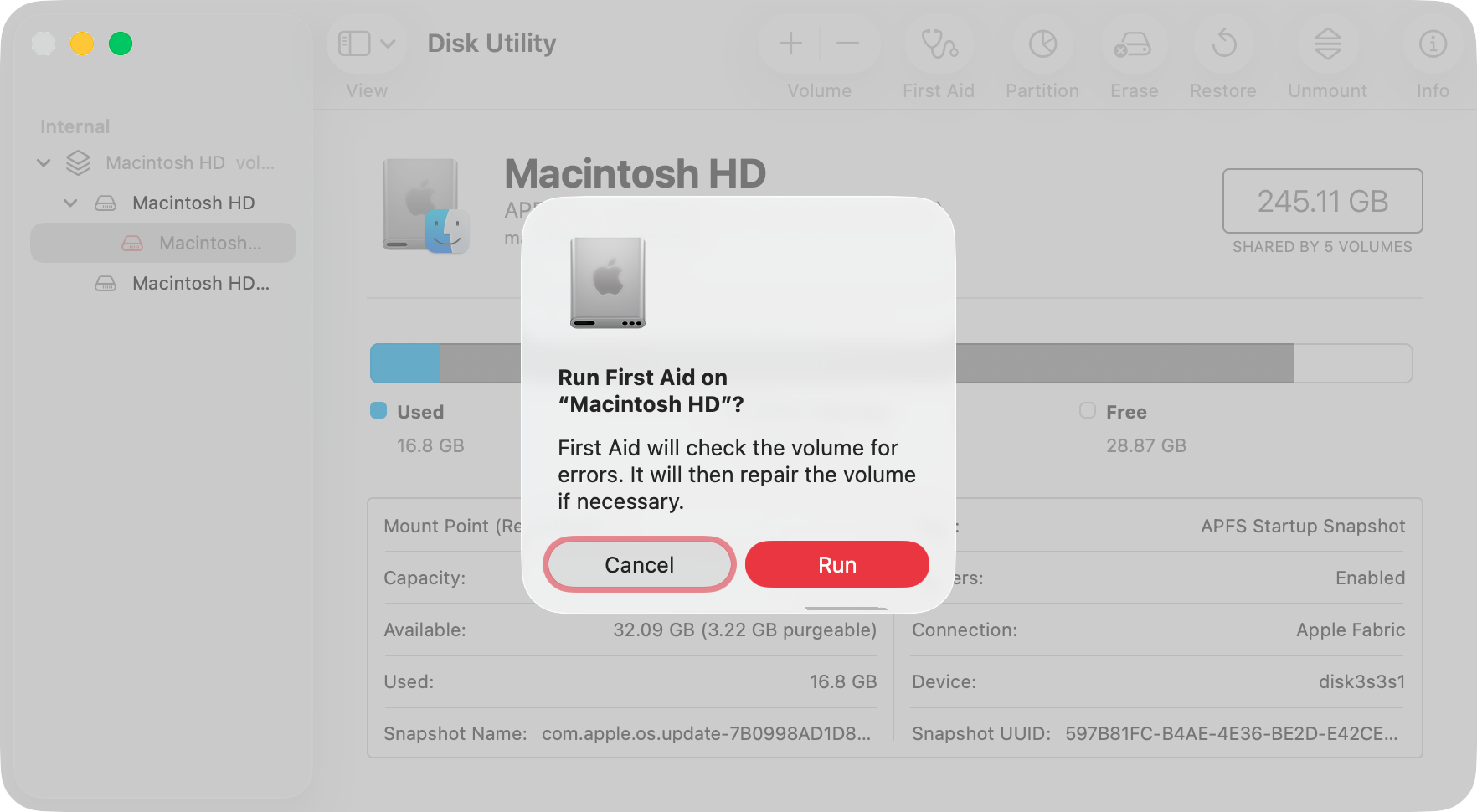
Read the message that comes up, and click Run.
When First Aid is finished, try your external drive again.
Step 1. Open Disk UtilityStep 2. Select your disk and click First AidStep 3. Confirm that you want to scan your disk
6. Reset NVRAM / PRAM
Non-Volatile Random Access Memory (NVRAM) and Parameter RAM (PRAM) on a Mac store a variety of important hardware settings.If you have an Intel Mac, you can manually reset these, and it may fix the 100006 error, like this:
Power down your Mac, and unplug your external disk.
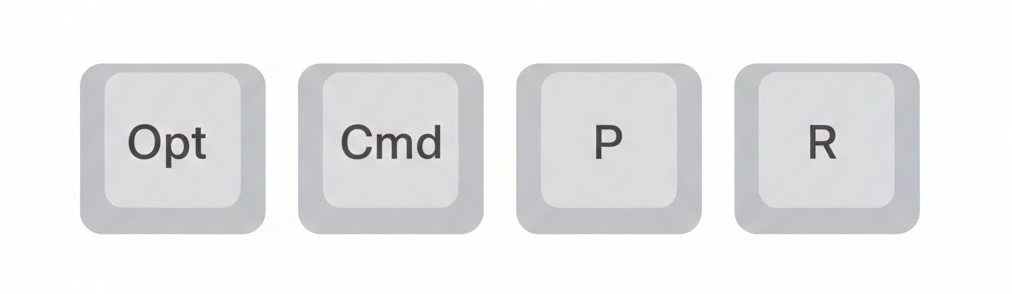
Turn your Mac back on, then immediately press and hold Opt+Cmd+P+R for roughly 20 seconds.
Your Mac will restart, possibly more than once.
When your Mac has booted back into macOS, plug your external disk in and see if it works.
Press Opt+Cmd+P+R to reset your NVRAM
7. Boot in Safe Mode and retry
When you boot your Mac in Safe Mode, it will load macOS with only its default drivers, and everything else will be left out. If your external drive works in Safe Mode, you know the problem is caused by software and not hardware.
7.1 Safe Mode with Apple Silicon Macs
To put an Apple Silicon Mac into Safe Mode:
Turn off your Mac.
Press and hold the Power button until you see Loading Startup Options.
Select your system disk, then hold Shift, and select Continue in Safe mode.
Log in to your Mac.
7.2 Safe Mode with Intel-based Macs
To put an Intel-based Mac into Safe Mode:
Shut down or restart your Mac.
As soon as your Mac restarts, press and hold Shift.
When you see the login screen, let go of the Shift key.
Log in to your Mac.
8. Scan for malware
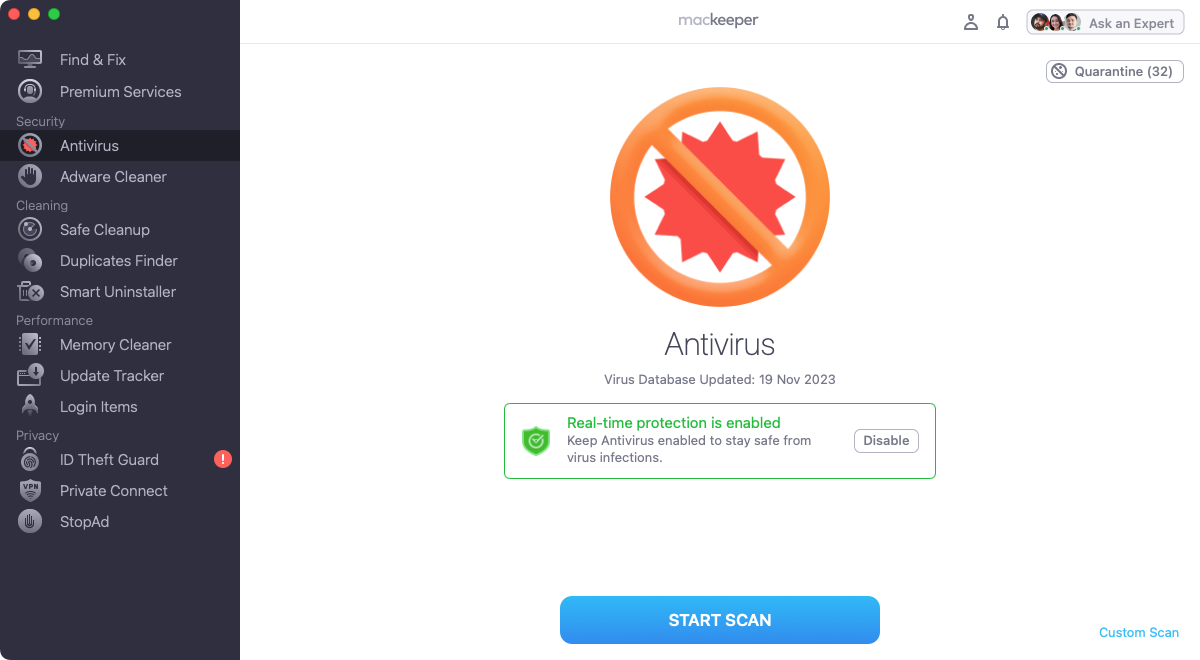
Unfortunately, Macs are a growing target for malware, so your 100006 error code might be caused by a virus. Here’s how to check for malware on Mac with MacKeeper’s Antivirus tool:
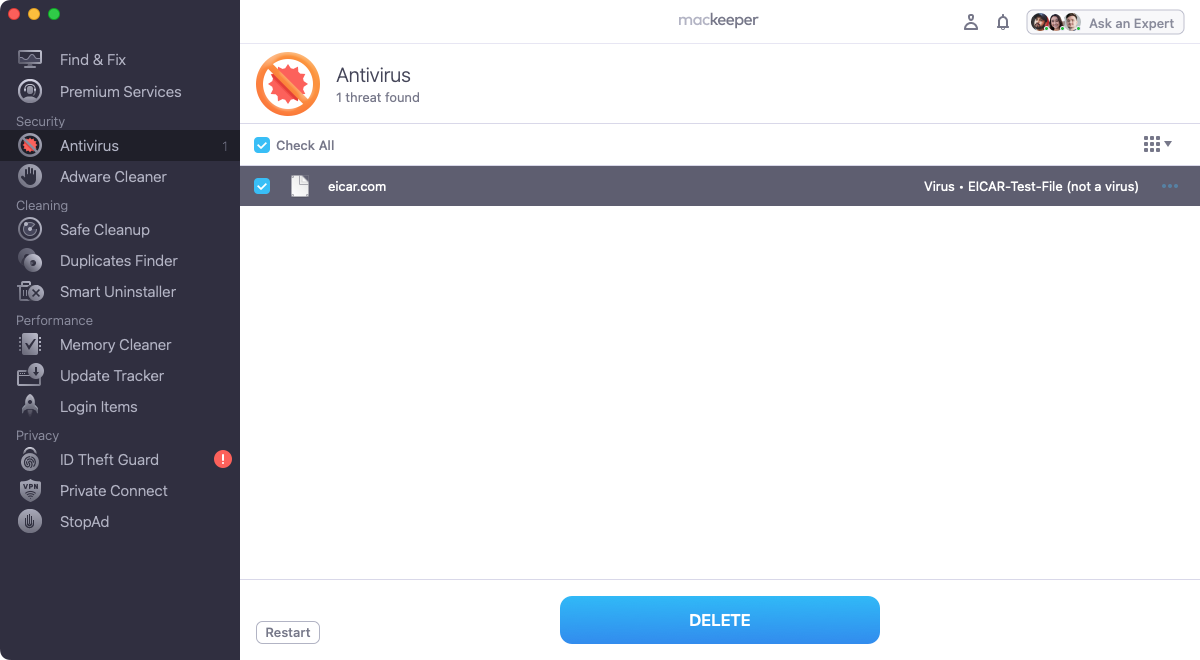
If MacKeeper flags anything malicious, select it in the results and click Delete.
Step 1. Select Antivirus and click Start ScanStep 2. Select anything suspicious and click Delete
Make your Mac trouble-free
Ridding yourself of the error code 100006 on Mac can be as simple as changing the USB cable. Or you might just need to clear some storage space on your Mac or external drive. But if it occurred for a more complex reason, you may have to perform a more complex fix, like booting into Safe Mode or resetting your NVRAM.
Hopefully, our advice here has helped, but if you need tailored support, reach out to the MacKeeper’s Premium Services team at any time.
We respect your privacy and
use cookies
for the best site experience.
Privacy Preferences Center
We use cookies along with other tools to give you the best possible experience while using the
MacKeeper website. Cookies are small text files that help the website load faster. The cookies we
use don’t contain any type of personal data meaning they never store information such as your
location, email address, or IP address.
Help us improve how you interact with our website by accepting the use of cookies. You can change
your privacy settings whenever you like.
Manage consent
All cookies
These cookies are strictly necessary for enabling basic website functionality (including page
navigation, form submission, language detection, post commenting), downloading and purchasing
software. The website might malfunction without these cookies.