Just like your iPhone, your Mac relies on regular software updates to run efficiently. You can update macOS automatically or manually. Either way, it’s usually an easy process… But sometimes, your device may notify you that macOS failed to personalize the software update. If you want to bypass any manual fixes and save time, use MacKeeper’s Premium Services to have an expert technician solve the problem while you wait.
What does “Failed to personalize the software update” mean?
“Failed to personalize the software update please try again on macOS” is an error you receive after unsuccessfully implementing a macOS update. It means your Mac’s system cannot authenticate the update with Apple servers, often due to common issues we’ll expand on below. The good news is you can easily fix this problem with a few solutions, which we’ll touch on later.
Common reasons behind the “Failed to personalize the software update” error
Quite a few common issues can cause the macOS “Failed to personalize the software update” error. These include:
Network blocks: Firewalls can view outgoing connections as a threat and block them. Public Wi-Fi networks typically require a login page that interferes with secure data transfers. And Apple’s security system may find your VPN suspicious and reject it since it routes traffic through a server or hides your real location.
Apple ID authentication issues: Personalization often requires a clear link between your device and your Apple account to prove ownership and eligibility. So, the verification process may be delayed if there’s a temporary glitch with iCloud services or if your Apple ID has a pending "Terms and Conditions" update. Account credentials and access issues can also prevent the system from signing off on the new software.
Security settings: Macs with Apple Silicon (M1/M2/M3) or T2 security chips can be too restrictive when it comes to security, making it difficult for a new update to finalize. These computers may block updates that don’t meet certain criteria if their Startup Security Utility feature is set to the highest level. Third-party antivirus programs may mistakenly block the personalization process upon suspicion of a system intrusion.
Corrupted update data: Missing or scrambled data from downloads renders the whole file invalid for personalization and requires clearing the old download and restarting the process.
Firmware-related problems: Your Mac’s internal firmware must be ready to receive the new update before it commences. The handshake between the hardware and update may fail if the former is out of sync or if NVRAM contains outdated or conflicting information, causing the Mac to not authorize the software installation.
How to fix macOS “Failed to personalize the software update”?
Fix the “Failed to personalize the software update” error using these fixes, ranging from the safest to most advanced, to minimize data loss and unnecessary system changes: Try another Internet connection and disable VPN, proxy, or security software. Check date and time settings and make sure there’s enough storage available. Sign out and back into your Apple ID. If that doesn’t work, temporarily turn off Find My and remove partial updates and re-download. Also, try updating in Safe Mode. As a last resort, install the update using Terminal. Do a DFU revive or restore on Apple Silicon.
A note from our experts:
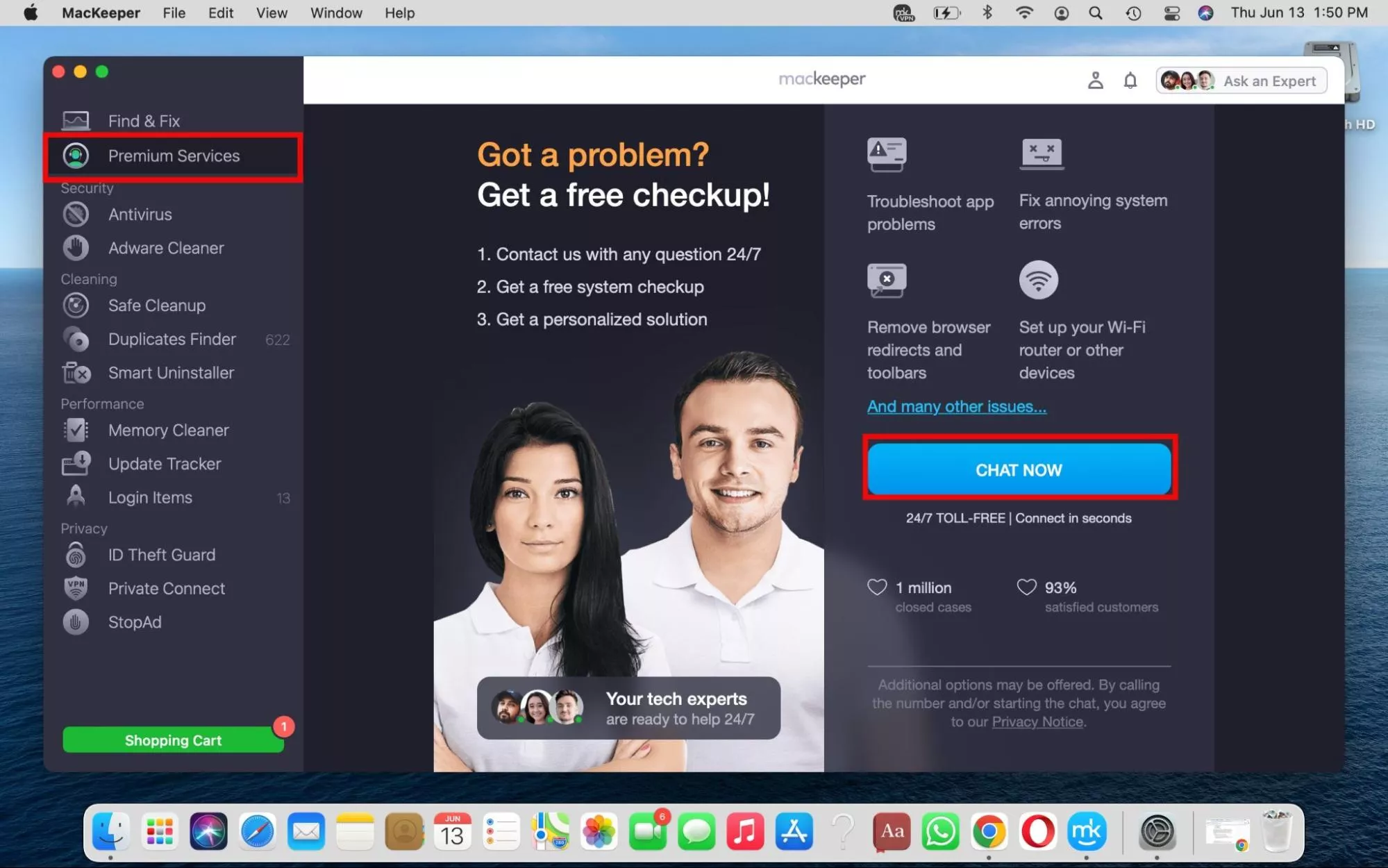
The list of fixes above seems exhaustive because we want to ensure you’re fully equipped to resolve the software update issue you’re faced with. But there’s an easier way: use MacKeeper’s Premium Services to get quick, professional assistance from one of over 150 Clario Tech expert technicians who deal with similar Mac-related issues on a daily basis. They’ll have you sorted out while you wait, so you can enjoy an optimized Mac without doing the heavy lifting yourself and risking data loss.
Check out MacKeeper’s Premium Services using the steps below:
Select the Premium Services feature from the sidebar, press the Chat Now button on the opposite end of the screen, and tell the technician what’s going on in the text box.
Answer any questions they may have and follow their instructions where applicable.
If our Internet connection is the issue, switching networks helps us rule out ISP, DNS, proxy, or corporate filtering blocking Apple update servers.
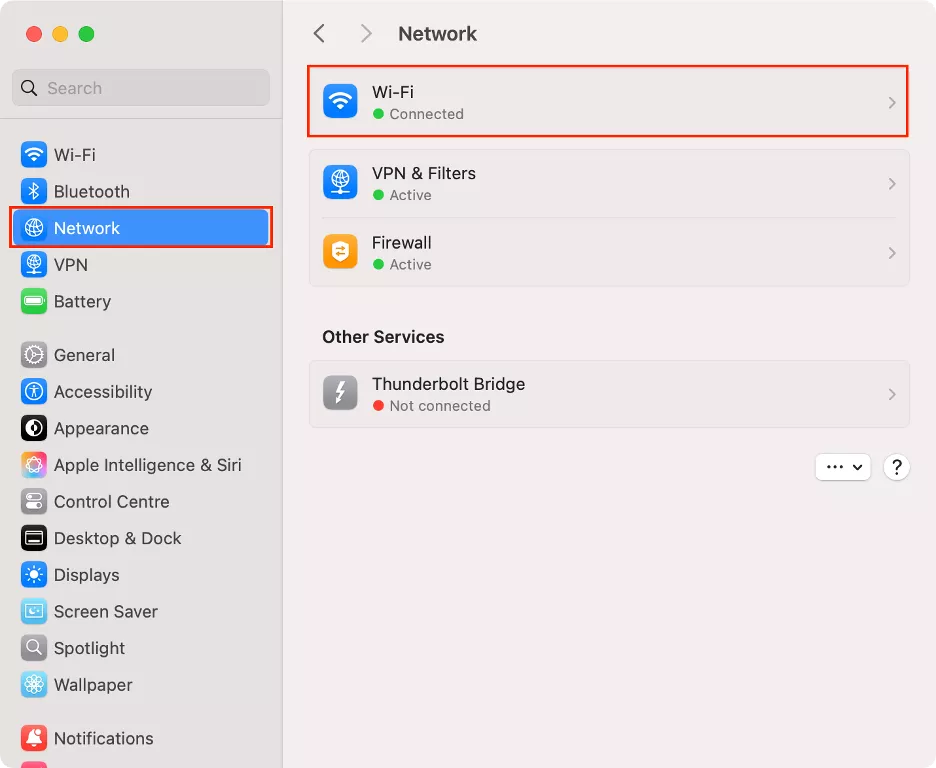
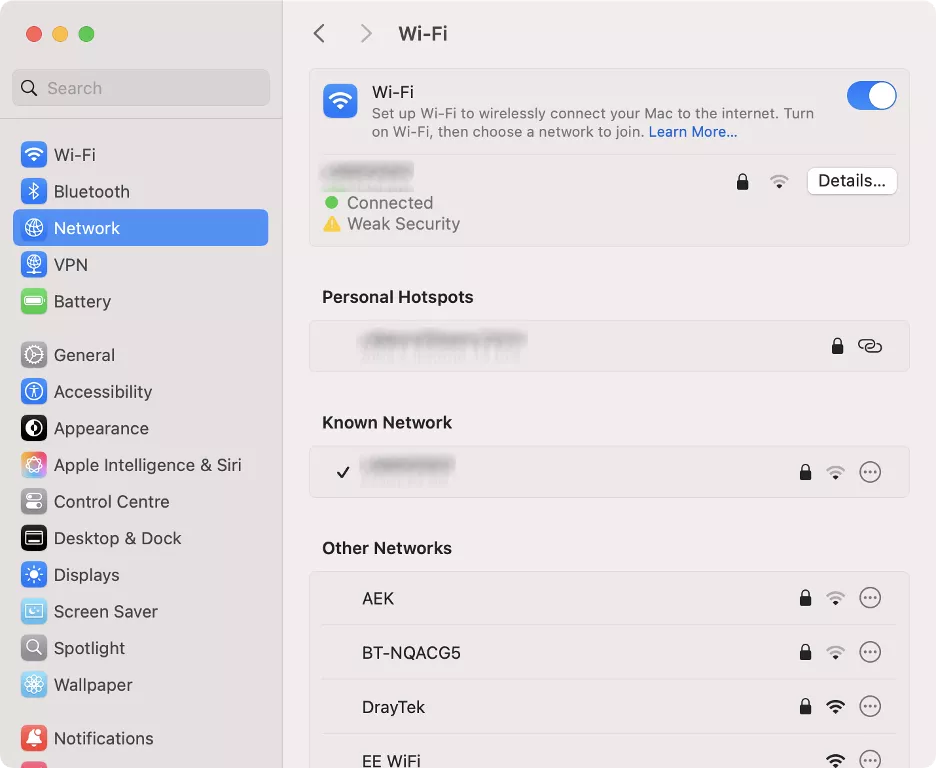
Here’s how to switch to a different network connection:
Open System Settings and select Network > Wi-Fi.
Choose a different network.
Step 1. Go to System Settings and select Network > Wi-FiStep 2. Choose another network
2. Disable VPN, proxy, or security software
To disable tools that might interfere with Apple’s server verification, we start by disabling any active VPN, proxy settings, or security software.
Turn off VPN, proxy, and security apps by following these steps:
Open the respective third-party app for your VPN, antivirus tool, or firewall.
Disable the tool or service.
3. Check date and time settings
Apple’s servers use time-sensitive security certificates to verify updates, which is why checking time and date settings is so crucial. If our clock is even a few minutes off, the "handshake" with the server will fail because the security credentials will appear expired or invalid, leading to the personalization error.
To fix this, check your Mac’s date and time settings using this approach:
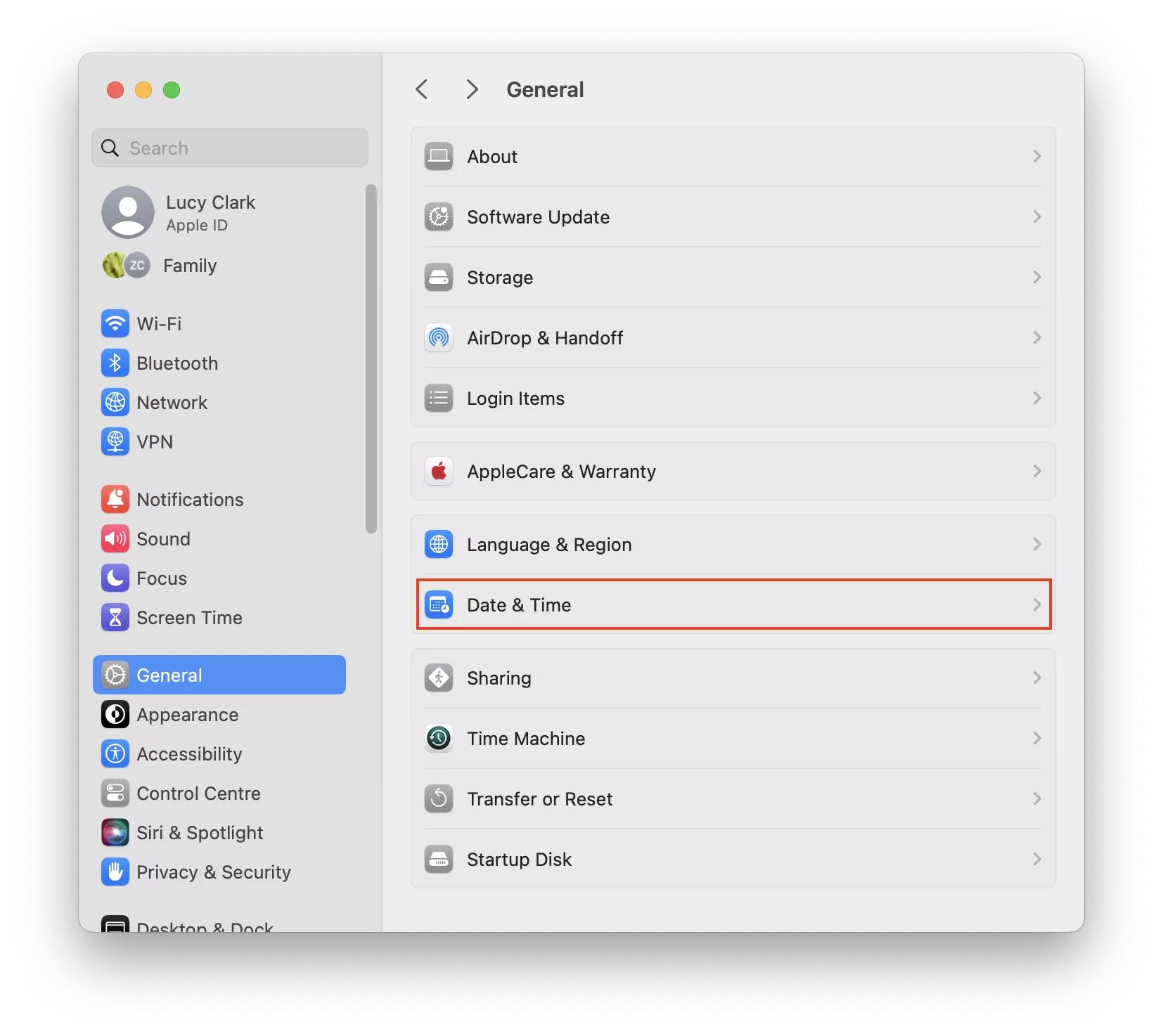
In System Settings, go to General and select Date & Time.
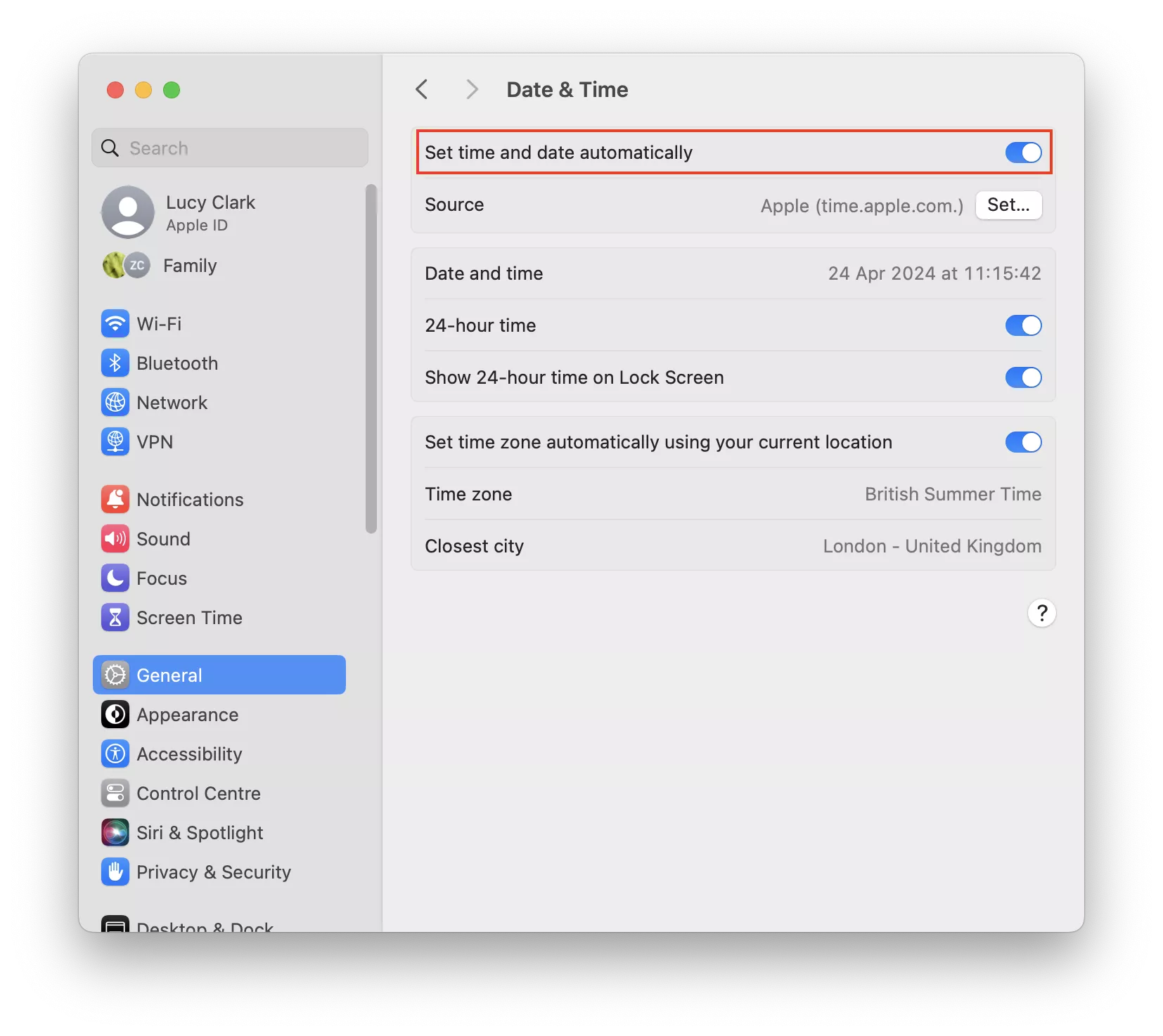
Ensure that the Set date and time automatically feature is enabled and that it’s connected to a reliable time server like Apple.com (toggle the setting off and back on if the time is wrong).
Step 1. Click on General > Date and TimeStep 2. Turn on the option to Set time and date automatically
4. Make sure enough storage is available
Updating to the latest macOS versions, such as Tahoe, Sequoia, and Sonoma, needs quite a lot of free disk space for a proper and successful installation. When there’s not enough space on Mac to update, it can lead to the “failed to personalize the software update” issue.
To check how much disk space you have available:
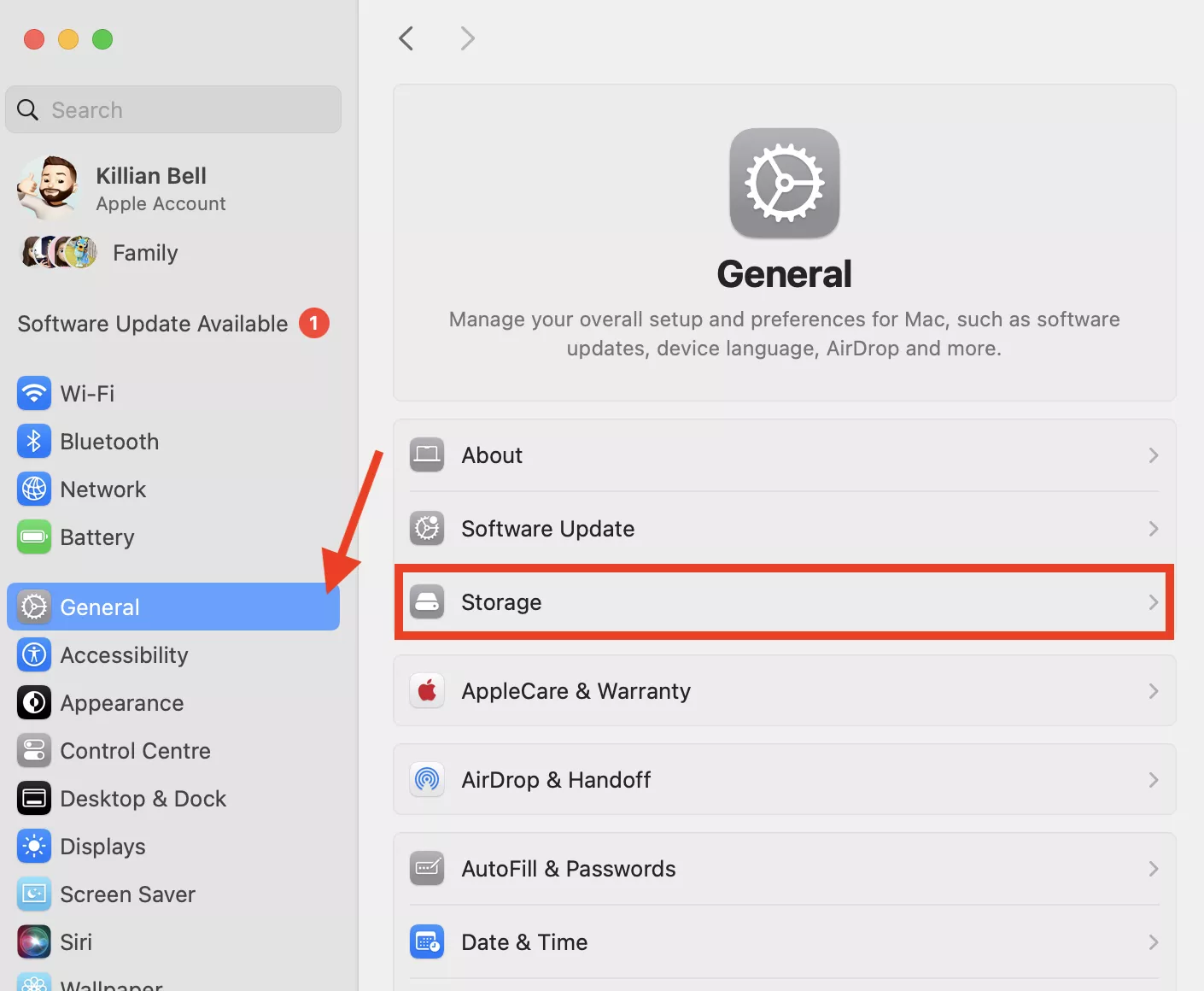
In System Settings, select General > Storage.
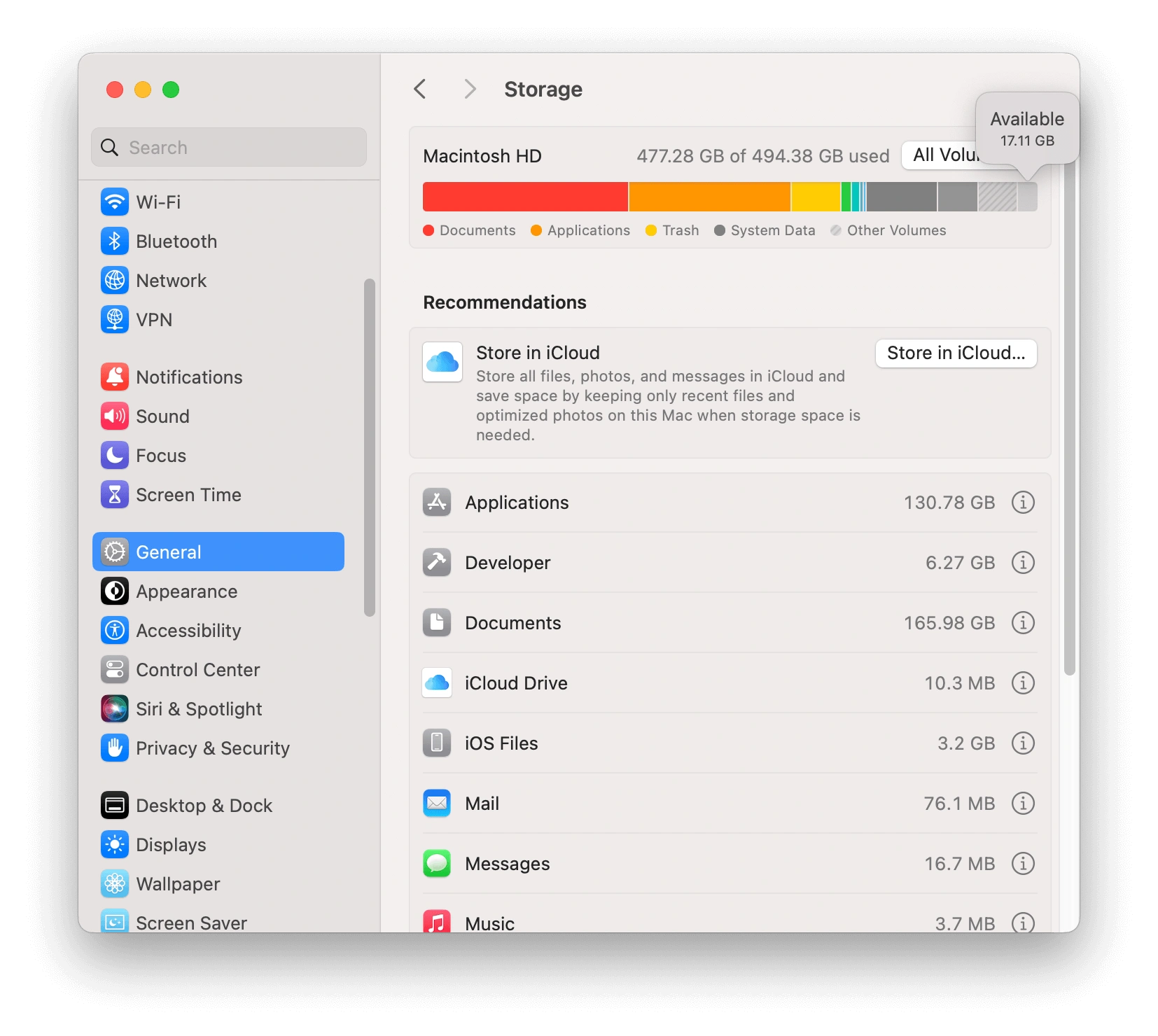
Now check if you have enough storage space, keeping in mind that you’ll need a minimum of 20-30GB of free space for a smooth installation.
Step 1. In System Settings, select General > StorageStep 2. Check if you have enough storage available
5. Sign out and back into Apple ID
The server may sometimes reject your Mac's request for a personalized update signature due to the connection being broken. For this reason, we sign out of our iCloud account to reset the authentication token between our Mac and Apple’s servers.
Sign out and back into your Apple ID account this way:
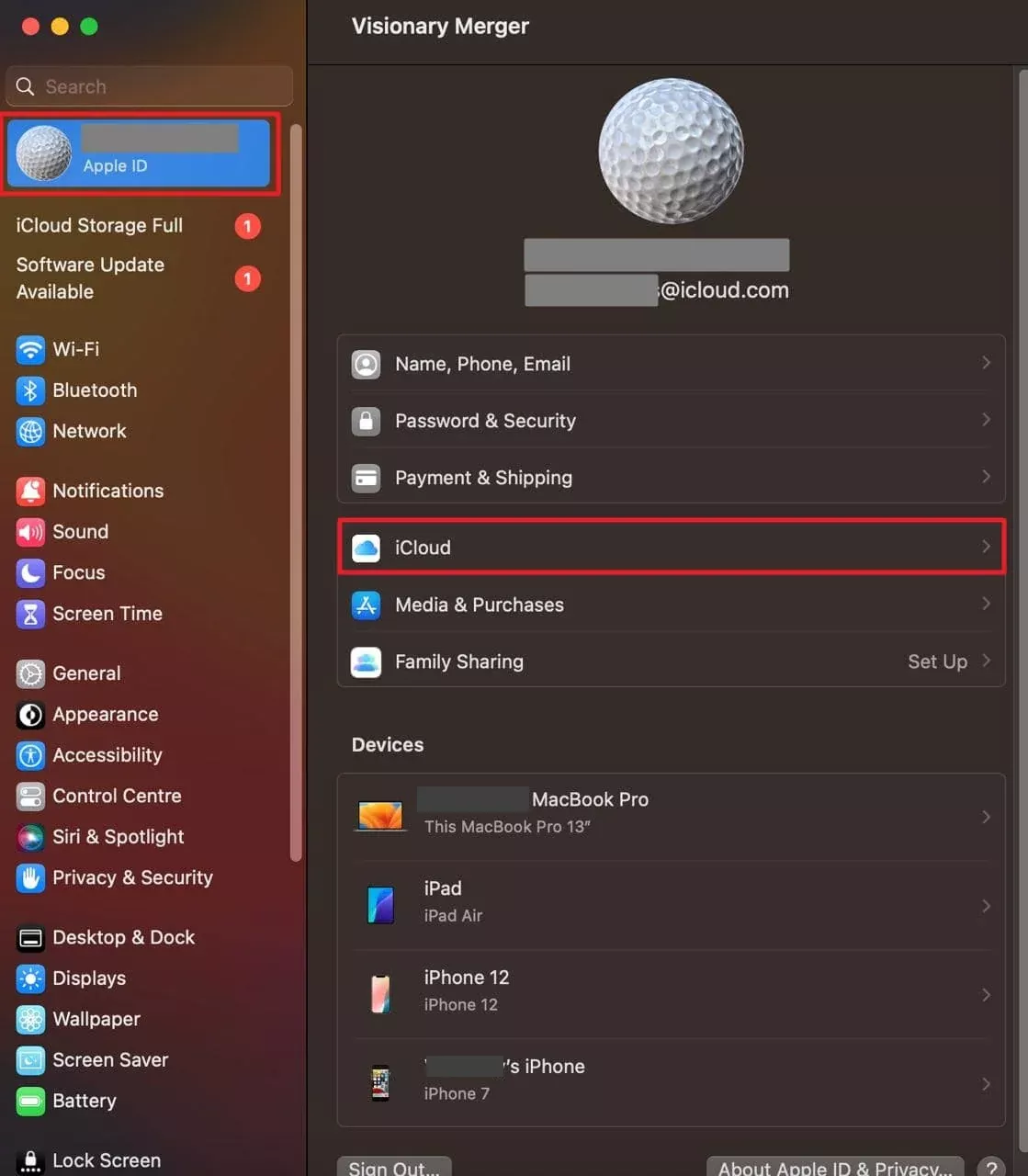
On OS X Ventura or later, go to System Settings > click on your Apple ID name > Sign Out.
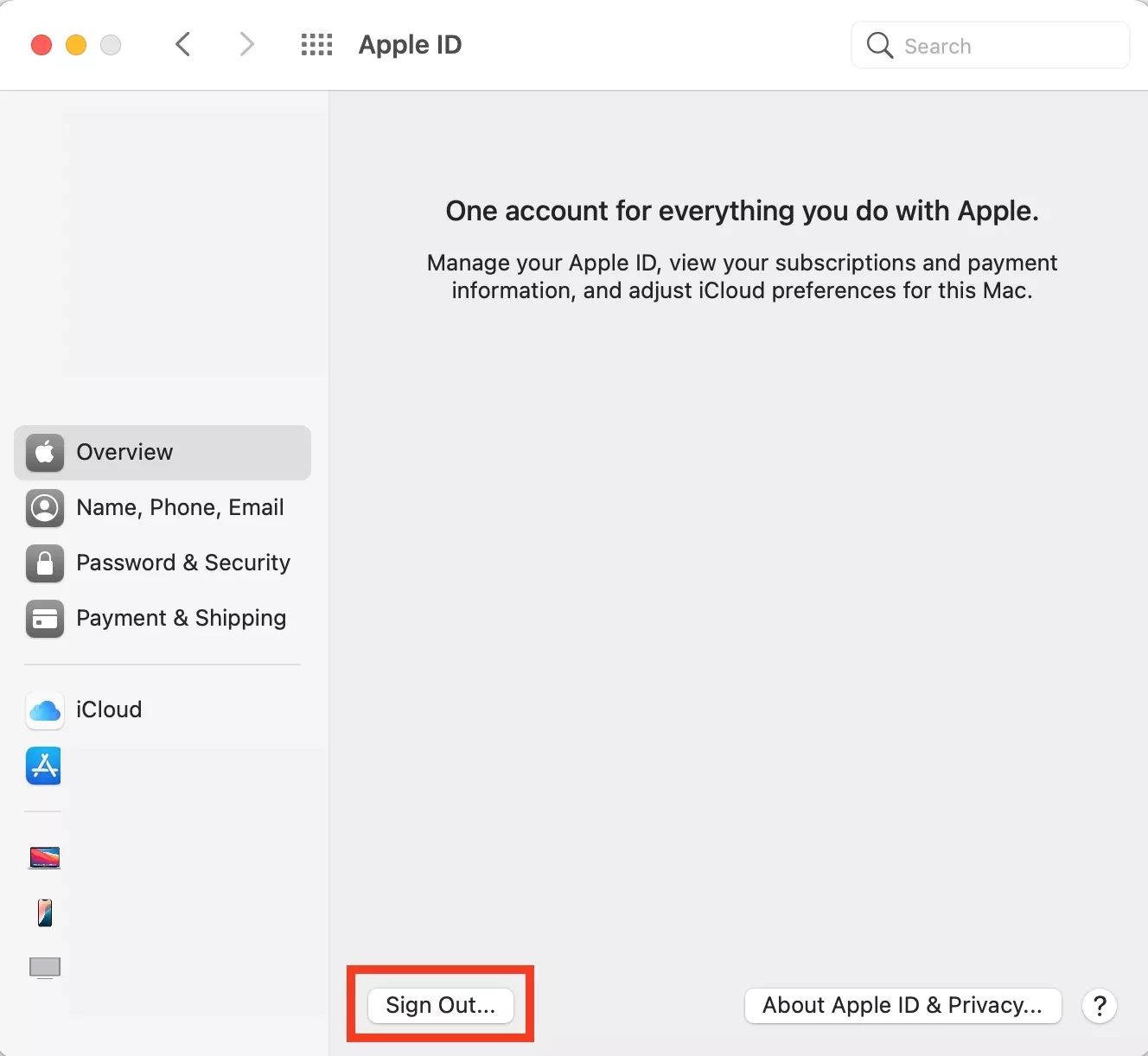
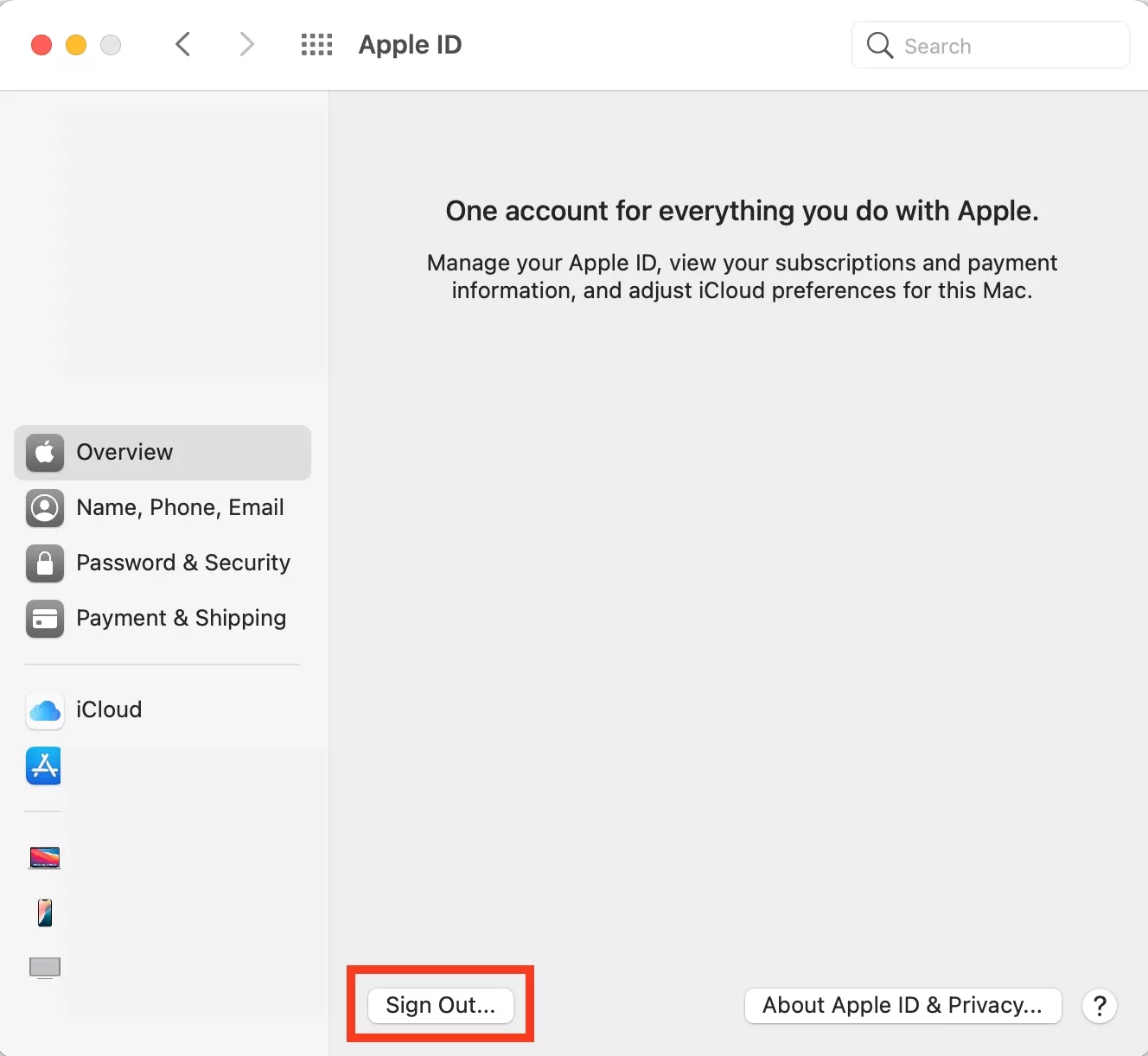
On Monterey or earlier, click on System Preferences > Apple ID > Overview > Sign Out > choose the data you want to keep, and click on Keep a Copy.
Sign back in the same way.
Step 1. Go to System Settings > click on your Apple ID name > Sign OutStep 2. Click on Apple ID > Overview > Sign Out > Keep a Copy
6. Temporarily turn off Find My
Apple’s Activation Lock links the hardware to Apple’s security servers. To personalize the software without interference, we remove this lock by disabling the feature, allowing the system to write new firmware.
How to disable Find My Mac:
Go to Apple menu > System Settings > your Apple ID account > iCloud.
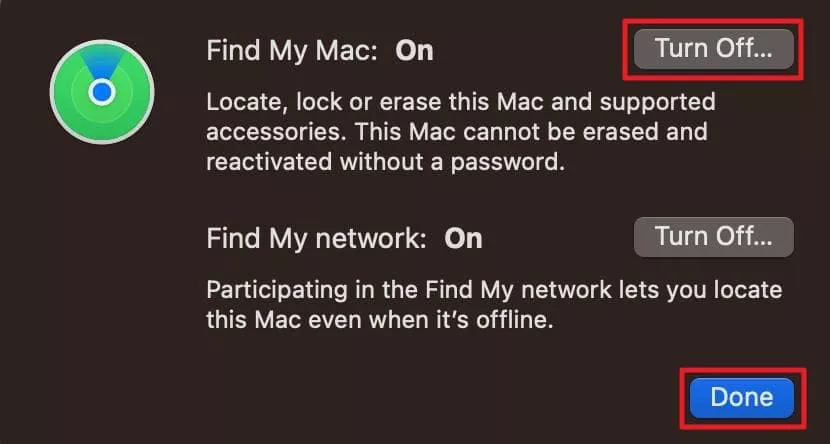
Click on Find My Mac > Turn Off.
Step 1. Go to Apple menu > System Settings > your Apple ID account > iCloudStep 2. Select Find My Mac > Turn Off
7. Remove partial updates and re-download
Download interruptions caused by a weak internet connection produce broken files, which can’t be verified by Apple’s servers. We delete such downloads to force the Mac to restart the process and download a new set of data that matches the required security signature. However, we start by clearing corrupted or incomplete files that may be blocking the installation.
To delete partial updates and re-download the software update:
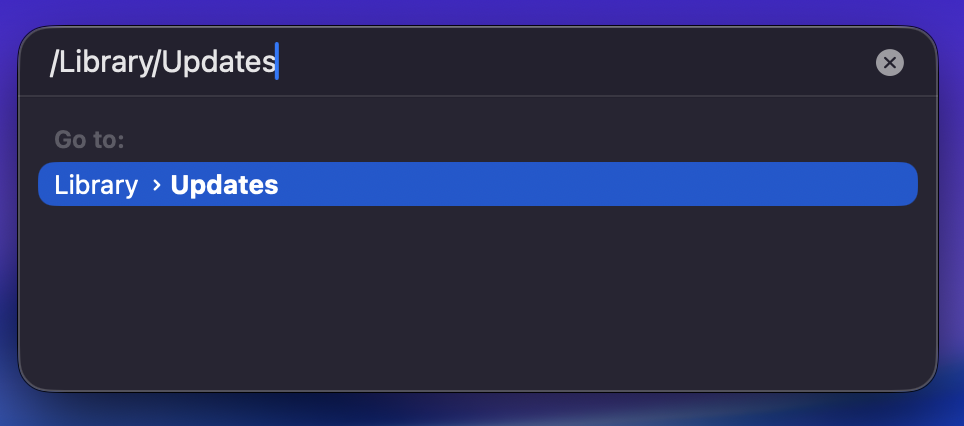
Open Finder, click on Go to Folder in the menu bar, and type /Library/Updates.
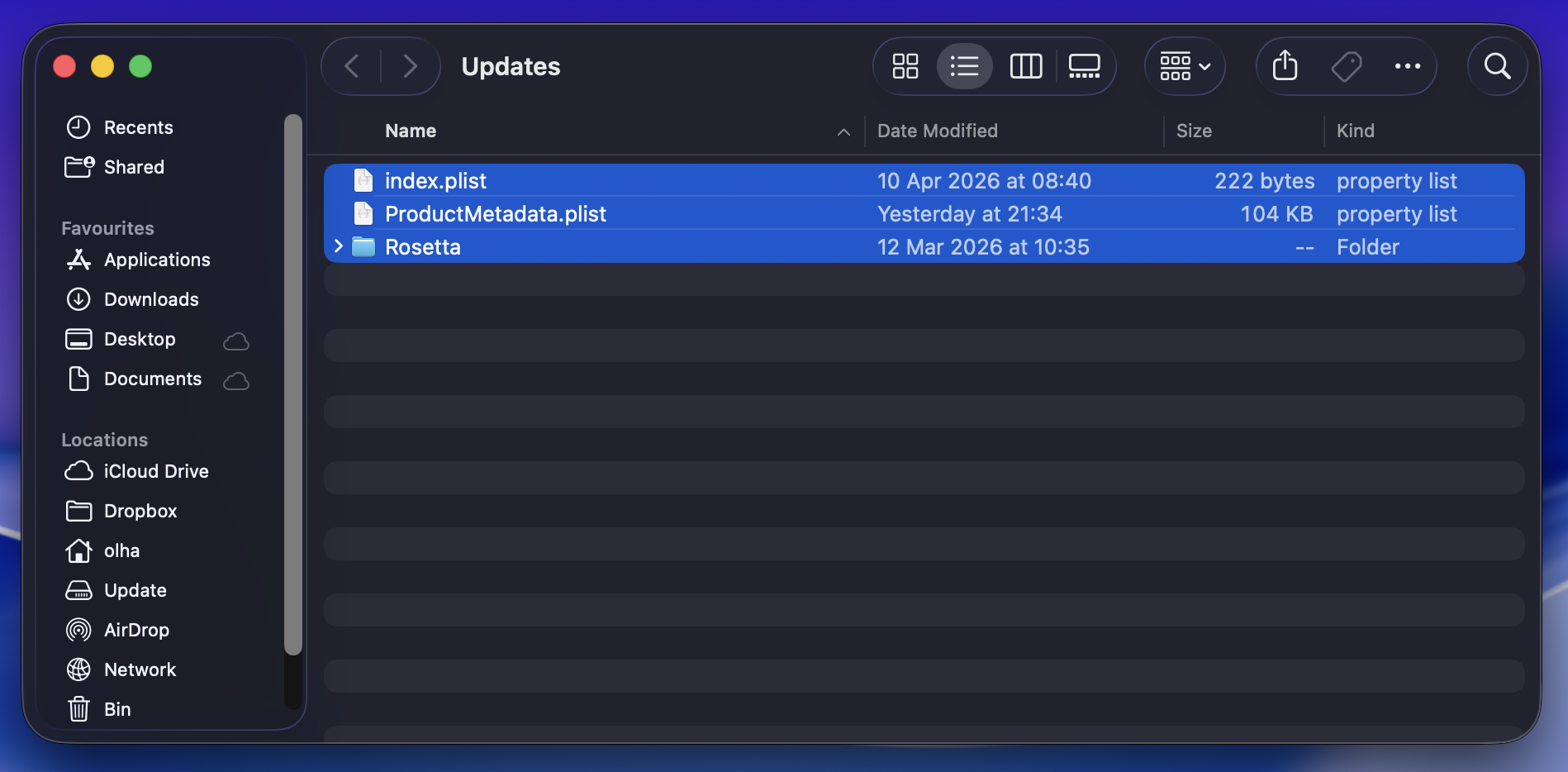
Delete all the contents of the Updates folder to reset the update queue for the system and download the software update again.
Step 1. Open the /Library/Updates folderStep 2. Delete the contents of the Updates folder
Third-party software can sometimes interfere with macOS updates and other system processes. We boot Mac in safe mode to help eliminate those potential conflicts.
This is how to start your Mac in Safe Mode:
For Intel Macs:
Shut down your Mac.
Turn it on and immediately hold down the Shift key, releasing it when you see the login screen.
For Apple Silicon Macs:
Shut down your Mac.
Hold down the power button until Startup options appear on the screen.
Pick your startup disk, hold down the Shift key, and select Continue in safe mode.
Release the Shift key when the Login screen appears.
9. Install the update using Terminal
Installing updates via Terminal bypasses the visual Software Update interface (which can sometimes become unresponsive) to communicate directly with the macOS update engine. Note that Terminal is a more complex solution, so we recommend you use it if you’re confident, and always back up your files beforehand to avoid potential data loss.
Use this approach to install the update via Terminal:
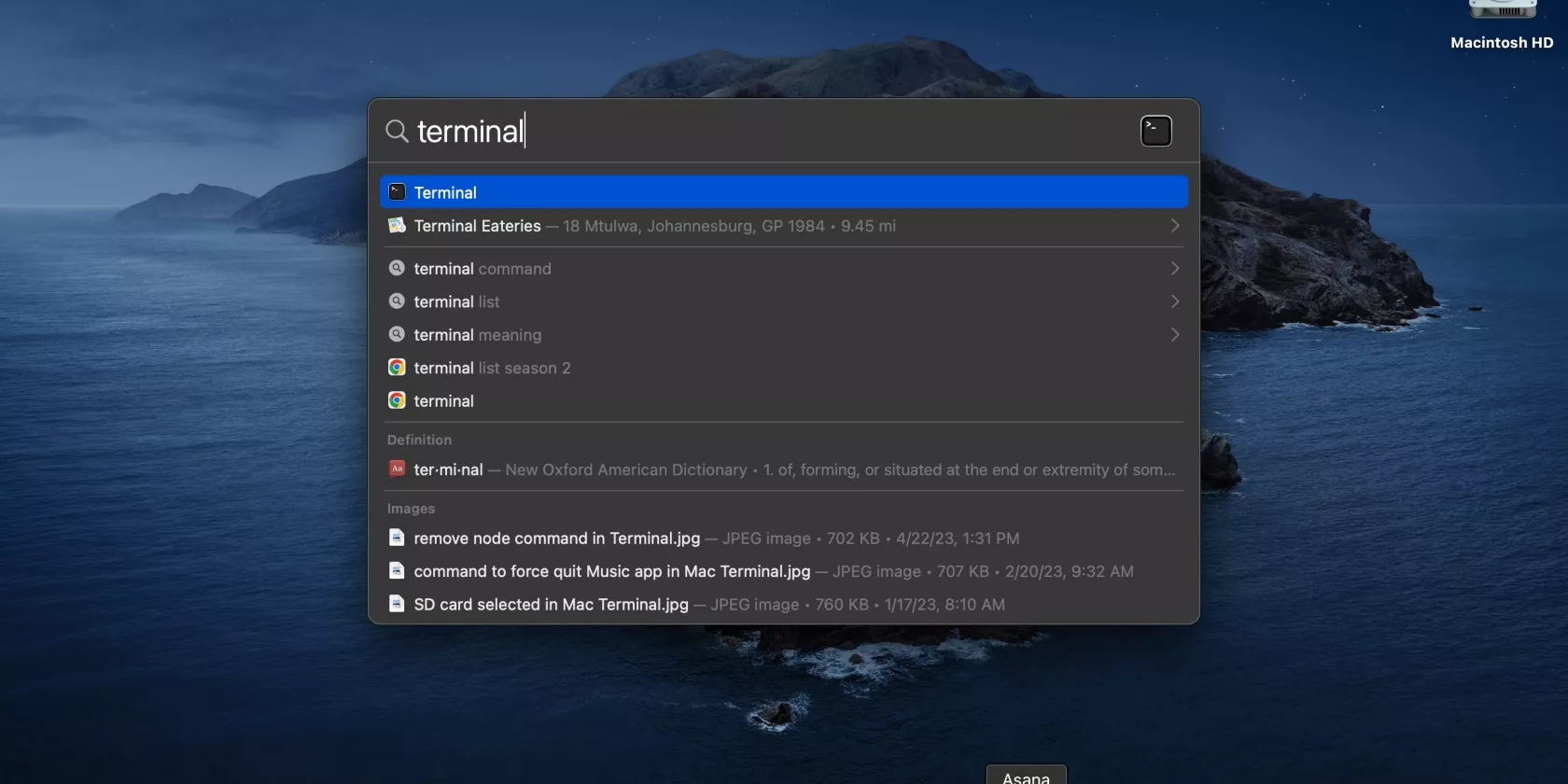
Open the Terminal app from either Spotlight search or the Applications and Utilities folders.
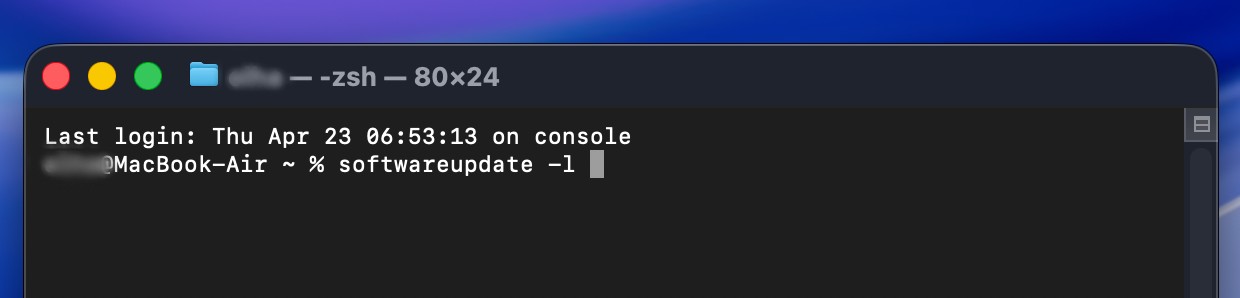
Type the command softwareupdate -l and hit Enter. If the system finds the update you’re looking for, you’ll see it on the list.
Step 1. Open the Terminal appStep 2. Type the command softwareupdate -l and hit Enter
10. DFU revive or restore on Apple Silicon
If we have another Apple Silicon Mac and a backup available, we initiate a DFU Restore. This method restores our computer to factory settings using Mac firmware and then restores our files using Time Machine backup. Note that you need to have a USB-C to USB-C cable that supports both power and data, as well as a backup available to use this method.
How to do a DFU revive or restore Apple Silicon on a MacBook Pro or MacBook Air laptop:
Ensure the device is completely shut down and connected to the host Mac, hold down the power button, and immediately hold down the right Shift, left Option, and left Control keys simultaneously for about 10 seconds.
Release all keys except for the power button and continue holding it down for another 10 seconds or until the DFU window appears on the host MacBook’s Finder or Apple Configurator.
Fix the failed to personalize the software update when updating to macOS error
Most “Failed to Personalize the Software Update” errors are resolved with network or account fixes, while firmware-related cases require advanced recovery or Apple service support. Use the tips in our guide to solve the problem. You may find that you don’t need to escalate the matter to Apple Support.
And if you’d rather not fix it manually, MacKeeper’s Premium Services exists to take the load off. It connects you with an expert technician who takes care of the software update issue, so you can focus on being productive again.
We respect your privacy and
use cookies
for the best site experience.
Privacy Preferences Center
We use cookies along with other tools to give you the best possible experience while using the
MacKeeper website. Cookies are small text files that help the website load faster. The cookies we
use don’t contain any type of personal data meaning they never store information such as your
location, email address, or IP address.
Help us improve how you interact with our website by accepting the use of cookies. You can change
your privacy settings whenever you like.
Manage consent
All cookies
These cookies are strictly necessary for enabling basic website functionality (including page
navigation, form submission, language detection, post commenting), downloading and purchasing
software. The website might malfunction without these cookies.