An SD card not showing up on Mac can instantly stall your photo imports, video projects, or file transfers, and the cause may range from a loose connection to a deeper system or formatting issue that blocks macOS from reading the card. MacKeeper's Premium Services give you direct access to certified Mac specialists who can diagnose and detect the problem fast and help you recover access to your files without risking data loss.
If your SD card isn’t showing up on Mac, it's usually caused by a loose connection, an unsupported file system, a hidden disk setting, file corruption, or a faulty reader.
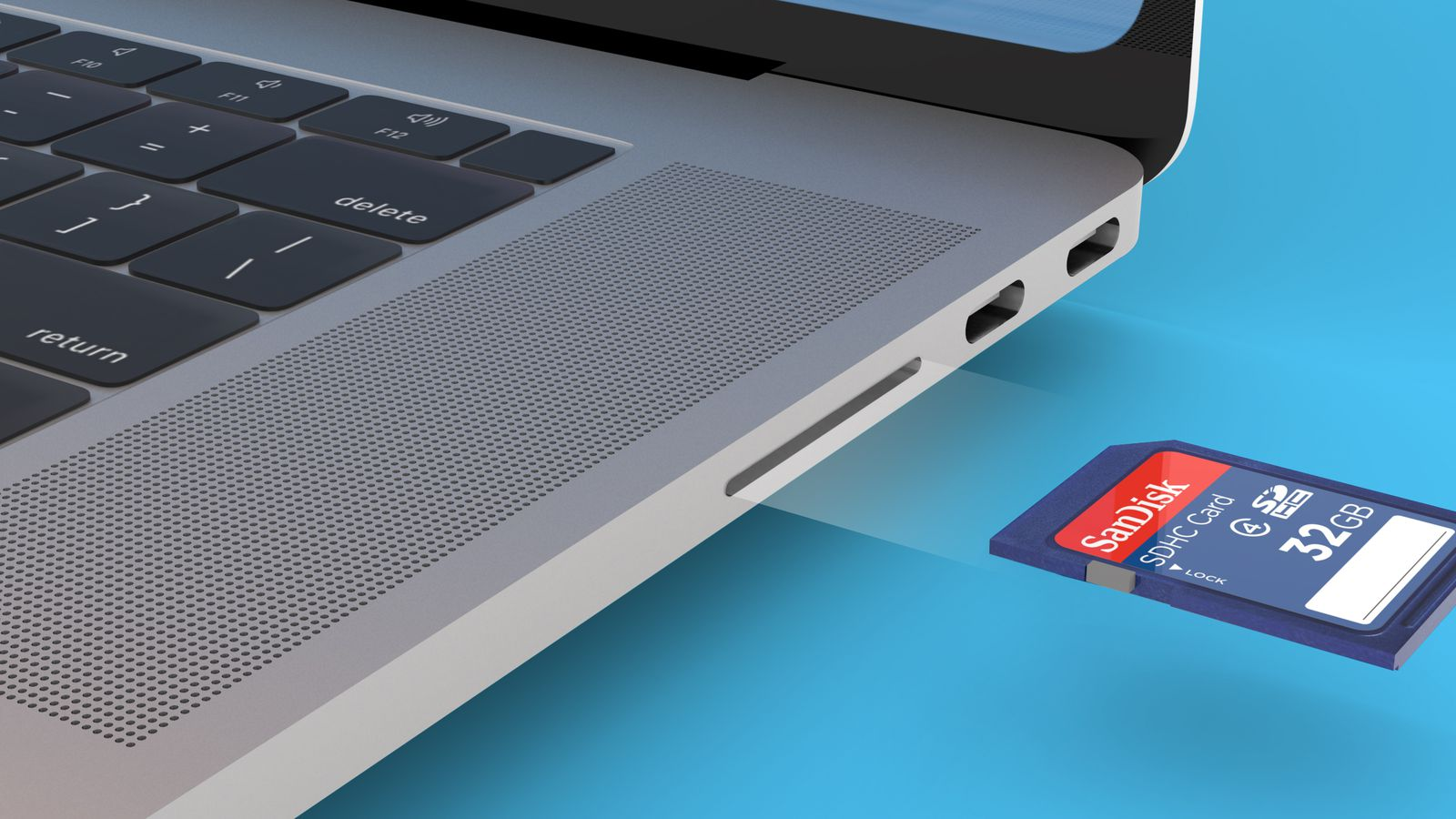
What does it mean when your SD card is not showing up on your Mac?
When your Mac is not recognizing an SD card, the issue usually falls into one of a few buckets—the card isn't mounting, macOS doesn't support its file system, the card or reader has physical damage, or a Finder setting is hiding external disks from view.
Less commonly, a logic board or USB controller fault prevents hardware-level detection entirely, in which case running a Mac hardware test helps you confirm the problem before touching anything else.
How to get an SD card to show up on Mac?
Our team has arranged these methods from the simplest checks to the most advanced actions, so you can identify the cause before attempting anything that could risk your data. If the card still doesn't appear after the first few steps, the later methods dig into macOS disk settings, system reports, and formatting as a last resort.
A note from our experts:
When an SD card does not appear on your Mac, figuring out whether the issue is the card, the reader, the port, or the file system takes a lot of guesswork, and one wrong move in Disk Utility can wipe your files for good. A faster and safer route is getting hands-on help from certified technicians. Because MacKeeper is an Apple-notarized macOS utility developed by Clario Tech, its Premium Services put you in touch with 150+ Mac specialists who've already resolved more than 1 million cases, so you get an expert diagnosis instead of trial and error.
Here's how to reach a MacKeeper expert about your SD card issue:
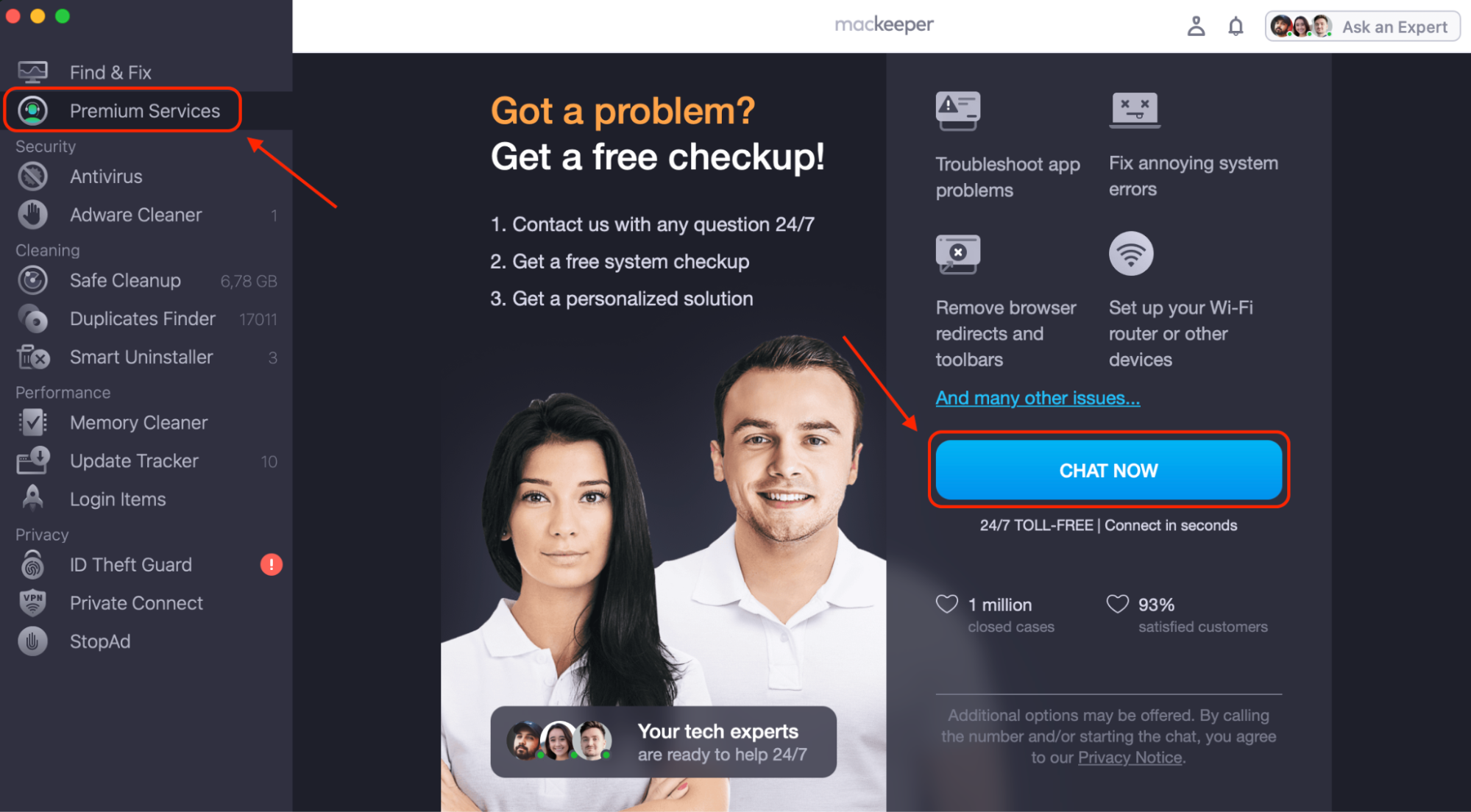
Select Premium Services from the sidebar to open the live technical assistance panel.
Click Chat Now to connect with a certified Mac technician who'll investigate why your SD card is not detected on Mac and walk you through the safest fix.
Open MacKeeper, click Premium Services in the sidebar, and select Chat Now
1. Restart your Mac
If you don't know how to restart a MacBook in a pinch, it's the first thing we suggest. A quick reboot refreshes macOS system services, clears temporary mounting errors, and often brings an SD card back into view without any further action.
Here's how we recommend you restart your Mac and recheck the SD card:
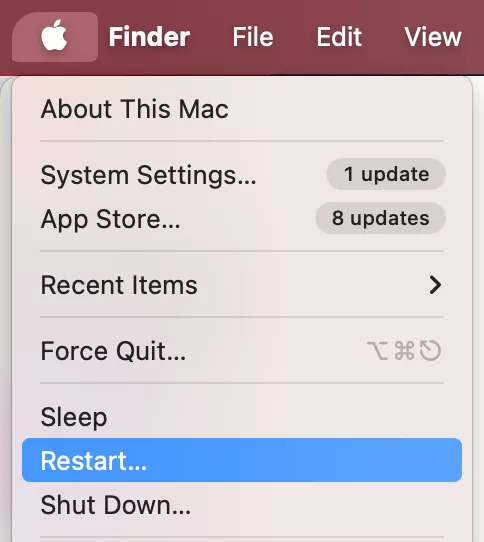
Click the Apple menu in the top-left corner of your screen.
Select Restart from the dropdown.
Wait for your Mac to fully reboot and reach the desktop.
Insert your SD card into the slot or reader.
Open Finder and check the sidebar to see if the card appears.
Step 1. Click the Apple menu, select Restart, and reinsert your SD card once your Mac rebootsStep 2. Open Finder and check the sidebar to see if the card appears
2. Check the physical connection and reader
Before you blame macOS, we always recommend ruling out the simplest cause—a bad physical connection.
Follow these steps to inspect the connection:
Remove the SD card gently and wipe the metal contacts with a dry, lint-free cloth.
Check the SD card slot or reader for dust, bent pins, or debris.
Try a different USB-C port or use a direct slot instead of an adapter.
Plug the card into another Mac or device to see if the card or the reader is at fault.
Wipe the SD card contacts, inspect the slot, and test the card on another device to isolate the fault
3. Relaunch Finder if the card is detected
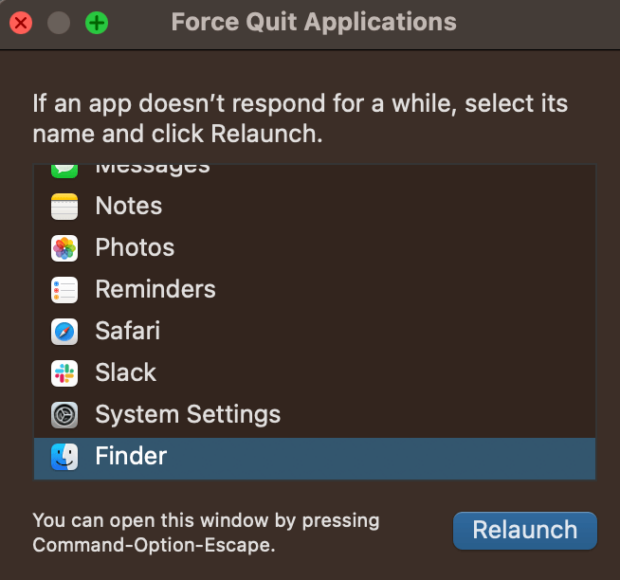
Our team finds that relaunching Finder is a light-touch fix that forces the interface to redraw mounted drives without affecting your files, which makes it a safe one to try early on.
Here's how you can relaunch Finder:
Press Option + Command + Esc to open the Force Quit window.
Select Finder from the app list.
Click Relaunch to restart Finder without rebooting your Mac.
Open a new Finder window and look for your SD card under Locations.
Press Option + Command + Esc, select Finder, and click Relaunch to refresh mounted drives
4. Check file system compatibility
From our testing, this is one of the top reasons an SD card isn't popping up on Mac. Especially if you're a photographer or videographer who shares cards across cameras and Windows PCs.
Here's how to check the file system:
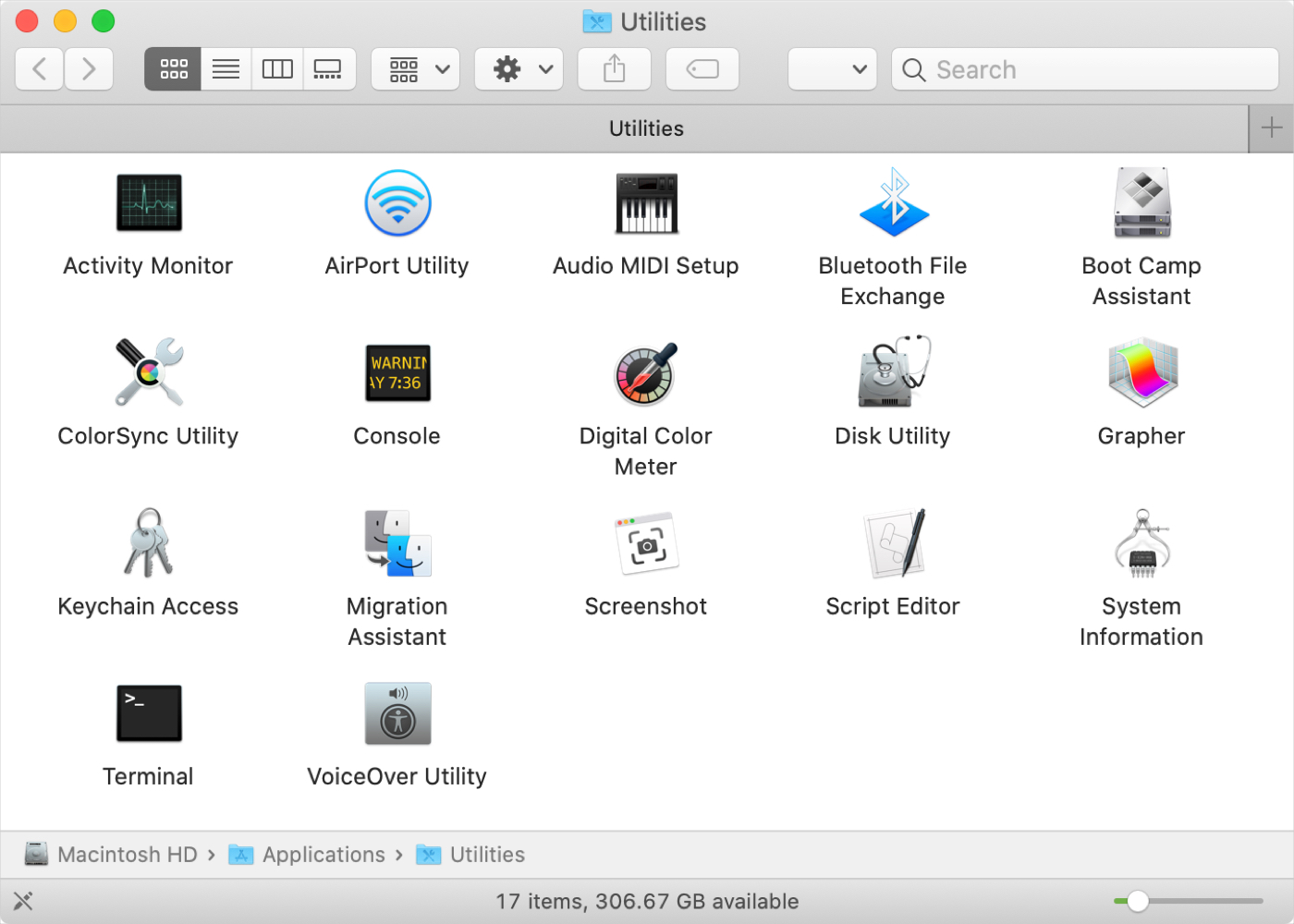
Open Disk Utility from Applications > Utilities.
Look for your SD card in the sidebar under External.
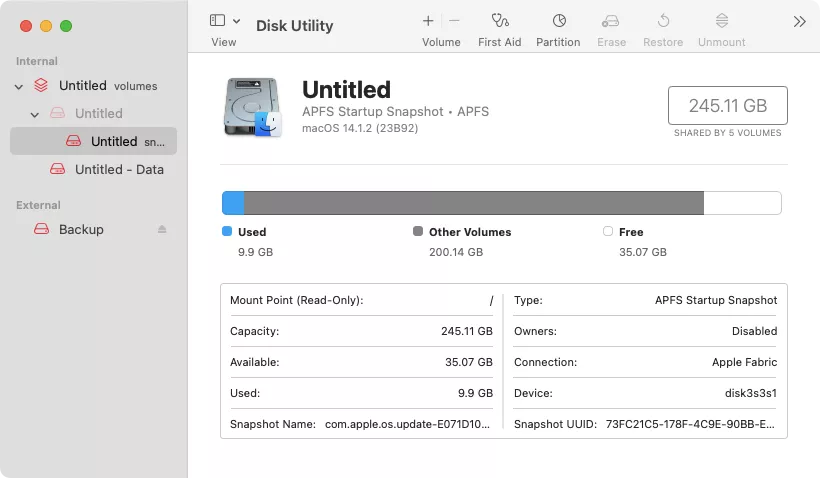
Click the card and read the Format field in the info panel.
If it shows NTFS or another unsupported format, you'll need either a third-party driver or to reformat the card.
Open Disk Utility, select your SD card, and check the Format field to confirm compatibility with macOS
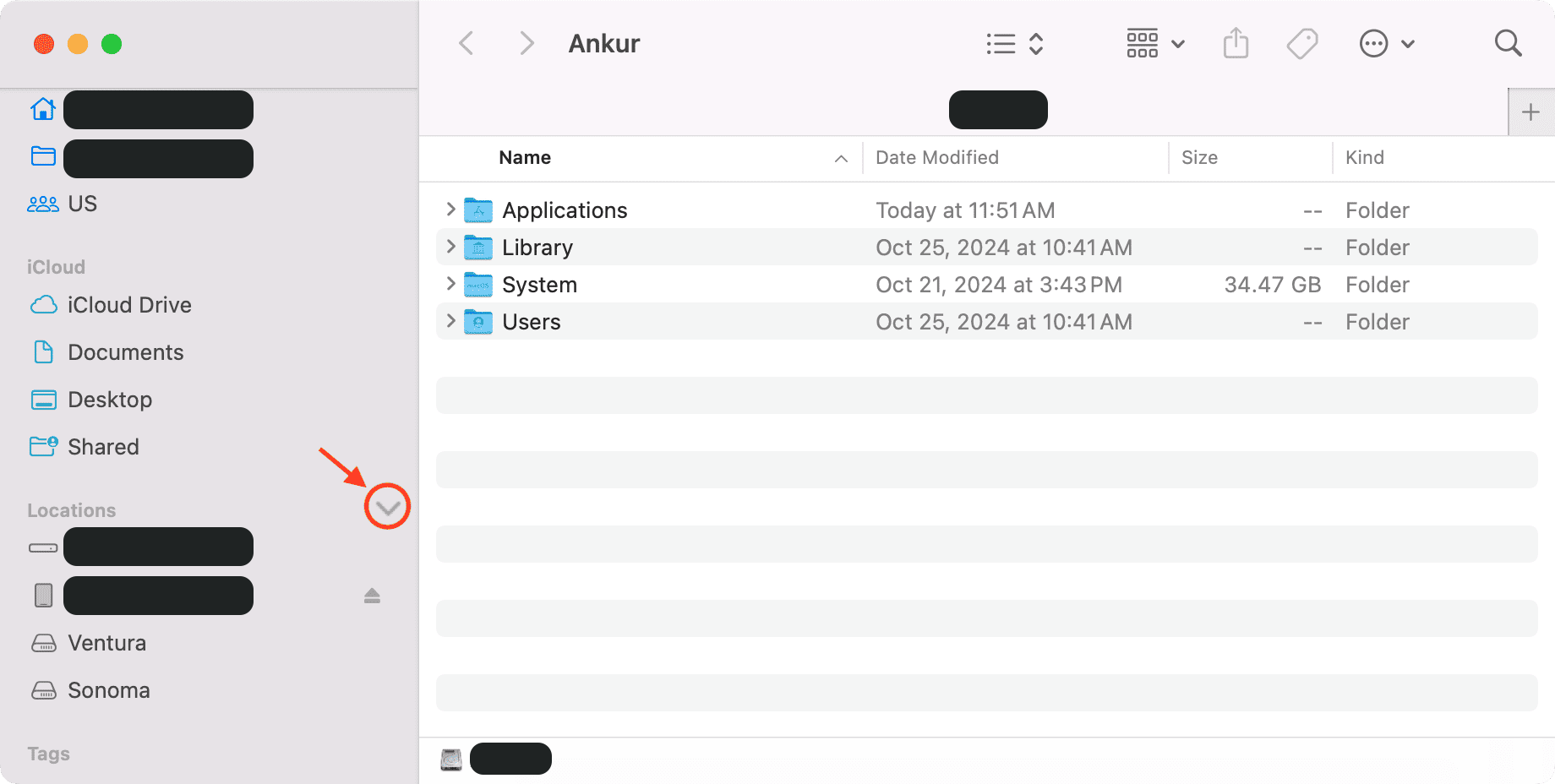
5. Enable external disks in Finder settings
We've seen plenty of users miss this two-click fix entirely and jump straight to reformatting, so it's worth checking before you assume the card itself is broken.
Follow these steps to enable external disks in Finder:
Open Finder and click Finder in the top menu bar.
Select Settings (or Preferences on older macOS versions).
Go to the General tab and check External disks under Show these items on the desktop.
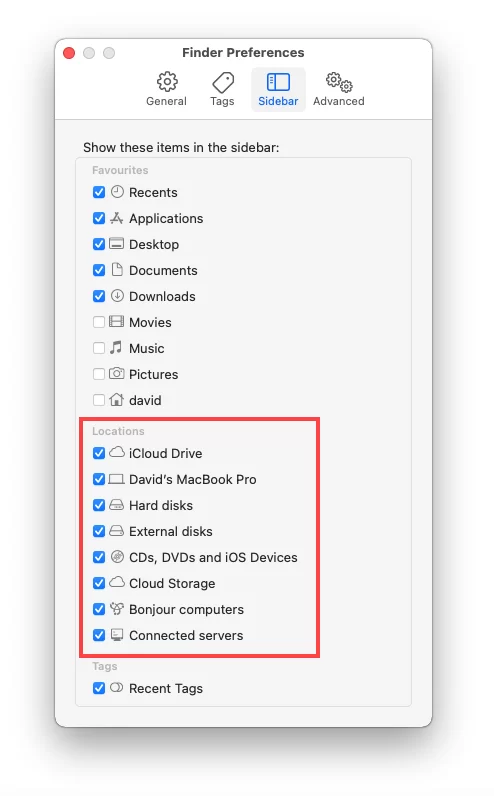
Open the Sidebar tab and check External disks under Locations.
In Finder Settings, go to General and Sidebar, and check External disks to make the SD card visible
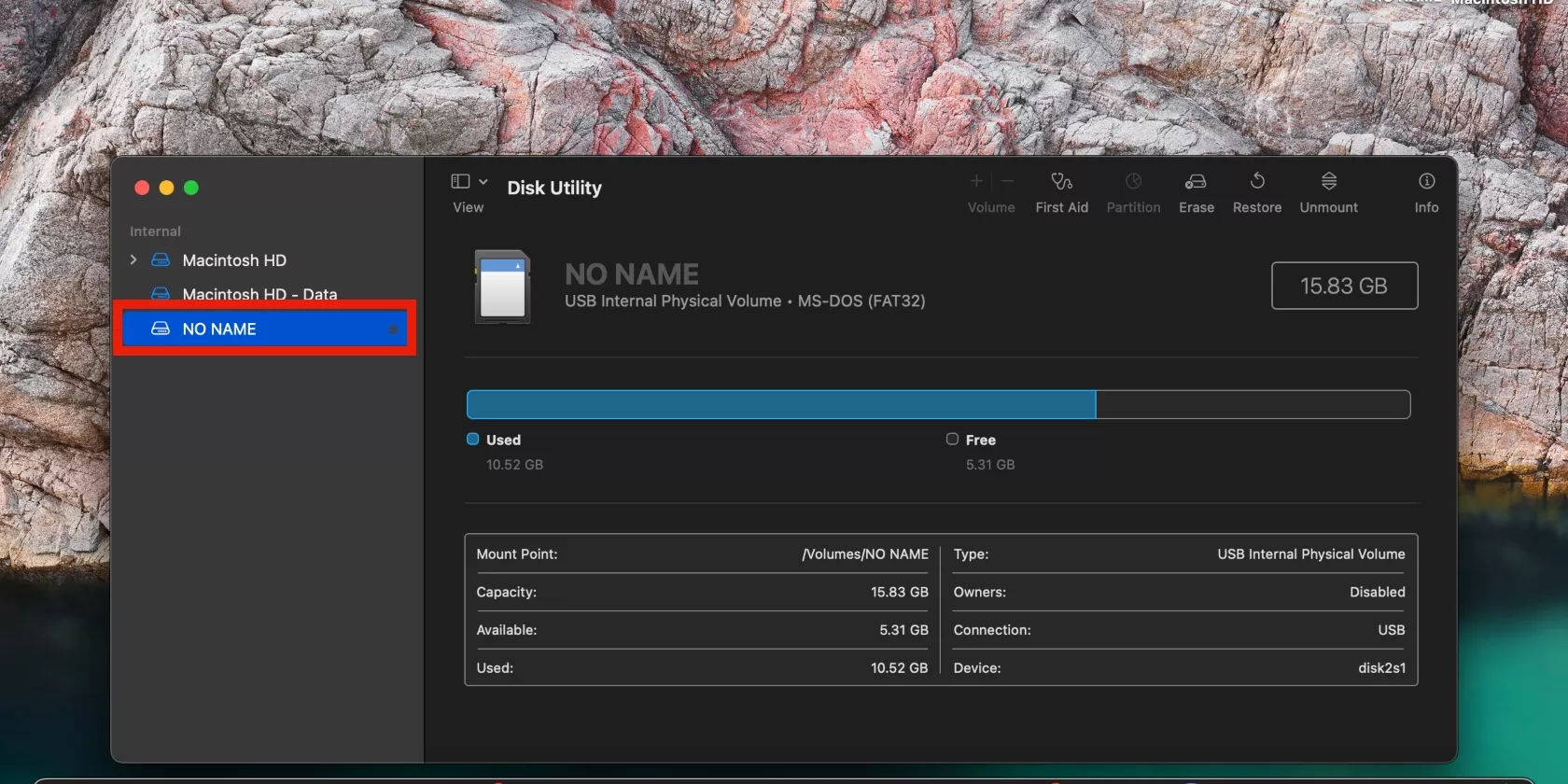
6. Find the SD card in Disk Utility
Our team finds the MacBook Disk Utility app the fastest way to confirm detection. If the card shows here but not in Finder, you're dealing with a mounting issue rather than a hardware one.
Here's how you can locate the SD card in Disk Utility:
Open Finder and go to Applications > Utilities.
Launch Disk Utility.
Look in the left sidebar under External for your SD card.
If the card appears greyed out, it's detected but not mounted, move to the next method we cover below.
Step 1. Open Finder and go to Applications > UtilitiesStep 2. Launch Disk Utility and look under External in the sidebar to see whether your SD card is listed
7. Mount the SD card in Disk Utility
A detected but unmounted SD card usually just needs a manual push from you.
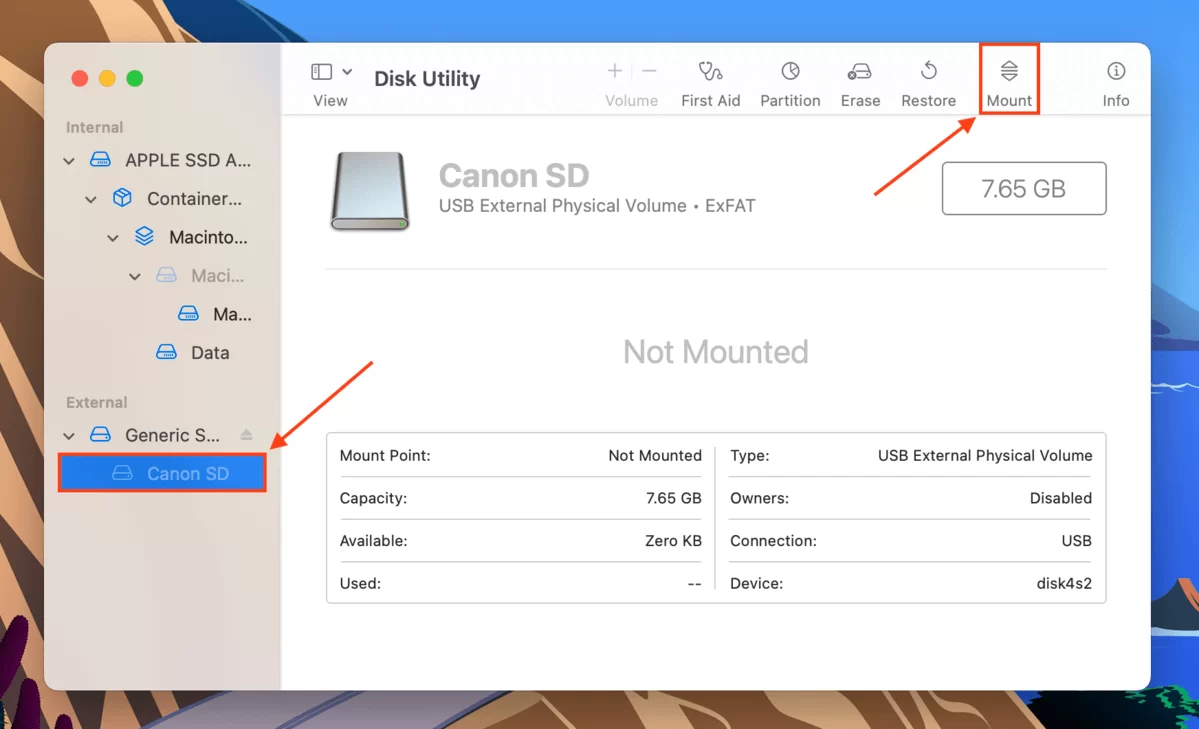
Steps to mount the SD card manually:
Open Disk Utility.
Select your SD card from the sidebar.
Click the Mount button at the top of the window.
Wait a few seconds, then check Finder for the mounted volume.
If Mount fails, note any error message, you'll likely need First Aid next.
Select the SD card in Disk Utility and click Mount to load the volume so it appears in Finder
8. Run First Aid in Disk Utility
First Aid checks for directory and file system errors and repairs many of the small glitches that stop an SD card from mounting on your MacBook.
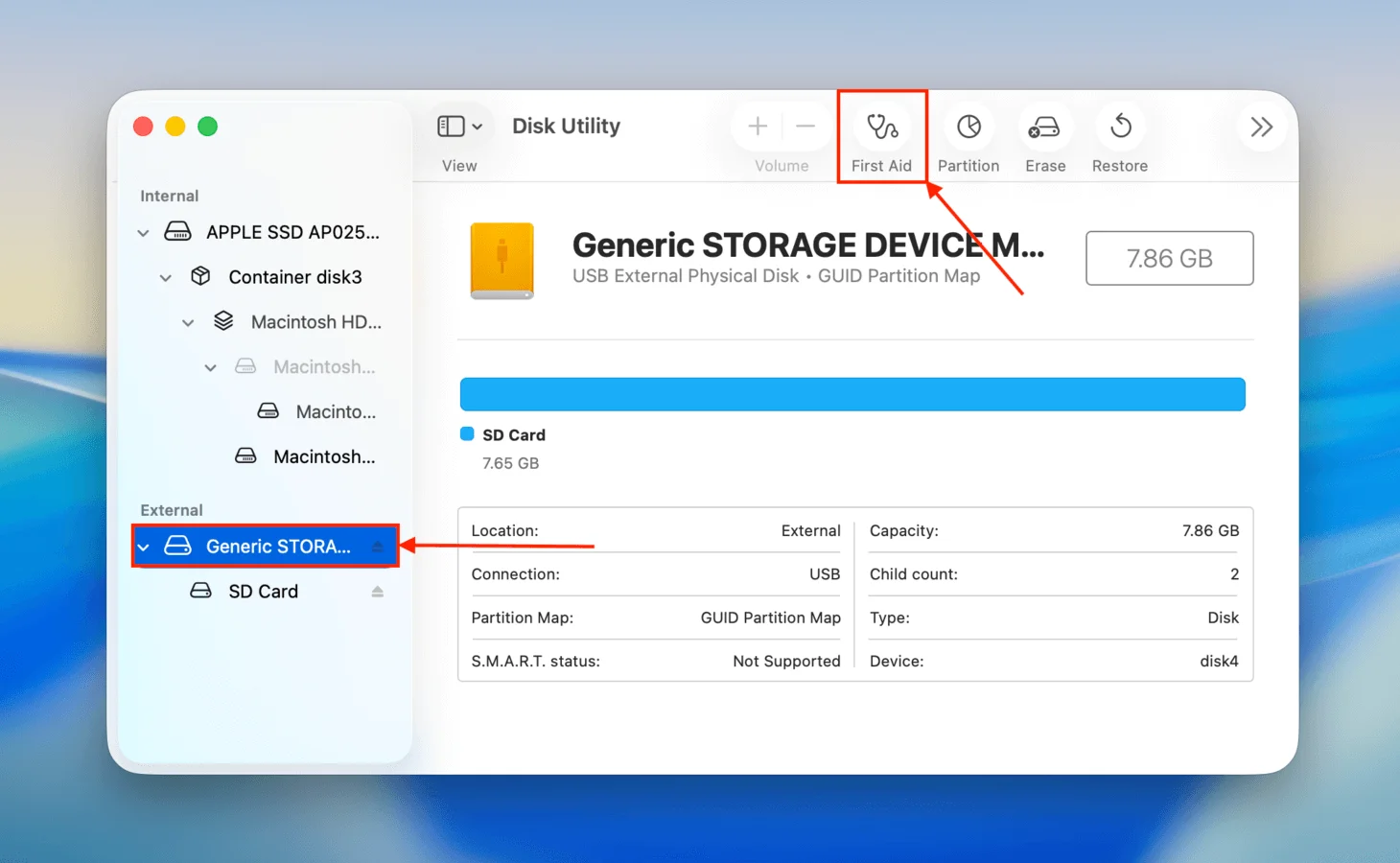
Here's how to run First Aid on the SD card:
Open Disk Utility.
Select the SD card in the sidebar.
Click First Aid at the top of the window.
Click Run and confirm the scan.
Wait for the process to finish, then try opening the card in Finder.
Select the SD card, click First Aid, and then Run to repair file system errors
9. Use "Show all devices" in Disk Utility
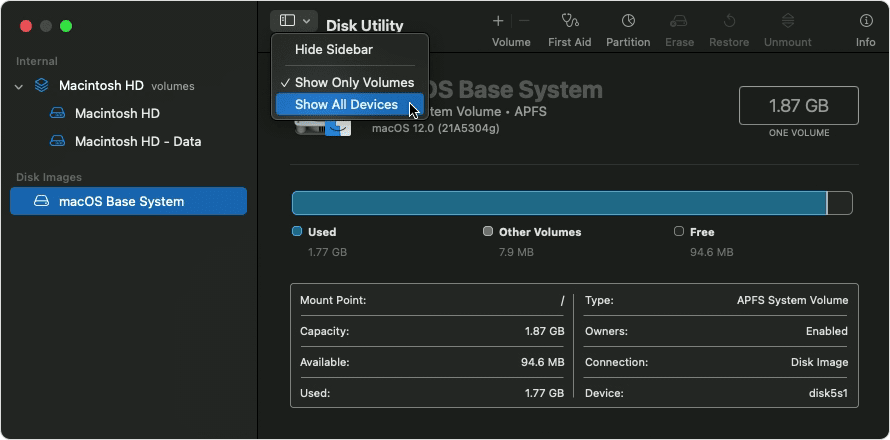
The default Disk Utility view hides physical devices and only shows volumes, which can mask a partially mounted SD card from you.
Follow these steps to enable Show All Devices:
Open Disk Utility.
Click the View menu in the top-left of the window.
Select Show All Devices.
Look in the sidebar for the physical SD card device; it'll appear above any named volume.
Select the device to check its status and any hidden partitions.
Click View and select Show All Devices in Disk Utility to reveal the SD card at the hardware level
10. Check System Report to confirm hardware detection
When nothing shows in Disk Utility, our experts rely on System Report as the most reliable way to confirm whether macOS is recognizing the SD card reader at the hardware level.
Here's how to open and check System Report:
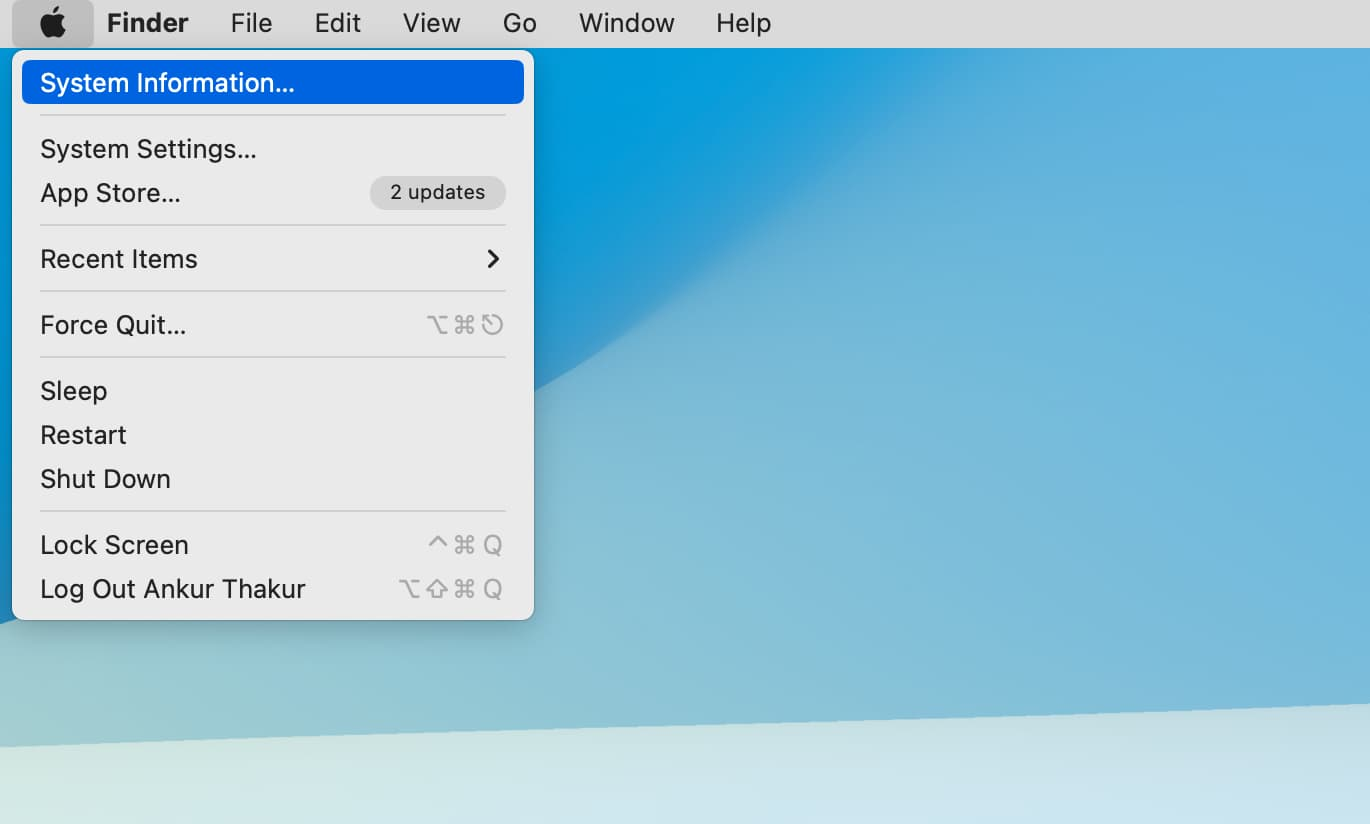
Hold Option and click the Apple menu.
Select System Information.
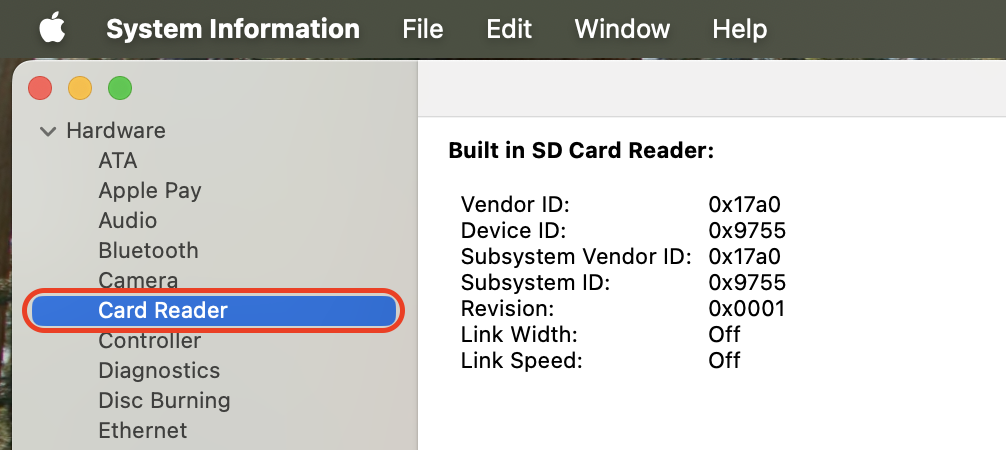
In the sidebar, click Card Reader (for built-in slots) or USB (for external readers).
Look for your SD card or reader in the detected devices list.
If nothing shows, try another port or reader before you conclude the card is dead.
Step 1. Open System Information by holding Option and clicking on the Apple menuStep 2. Click Card Reader or USB in the sidebar, and check whether your SD card appears
11. Format the SD card as a last resort
If the card is detected but still won't open, formatting restores it to a usable state—but it wipes all your data in the process. This is also a good moment to learn how to check storage on an SD card on a Mac and pick the right format for your future shots or backups.
Here's how to format an SD card on Mac:
Open Disk Utility.
Select your SD card from the sidebar.
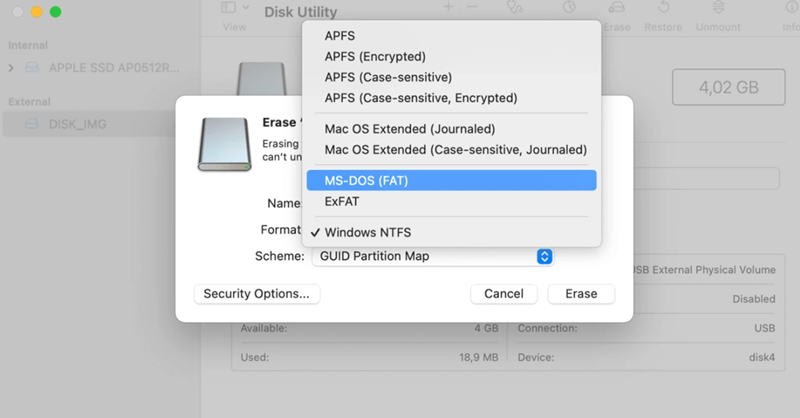
Click Erase at the top of the window.
Choose a name and select exFAT for cross-platform use or APFS for Mac-only use.
Click Erase to confirm and wait for the format to finish.
Select the SD card, click Erase, choose exFAT or APFS, and confirm to reformat
What to do if the SD card isn't detected anywhere on Mac?
If the SD card doesn't appear in Finder, Disk Utility, or System Report, the problem is usually physical, and you'll need to move beyond software fixes.
Here are the signs and actions our team recommends you watch for:
Visible damage to the card. Bent contacts, a cracked housing, or a missing write-protect tab usually mean the card is beyond DIY repair.
The slot or reader is broken. If your other cards also fail in the same slot but work elsewhere, the reader is at fault, not your card. Swap in an external USB-C reader to confirm.
The card is dead. SD cards have a finite write cycle, and older cards from cameras or drones often fail silently. If no Mac detects the card, our experience tells us it's likely end-of-life.
How to prevent SD card issues on MacBook?
A few simple habits keep your SD cards readable and reduce the risk that your Mac won't detect them down the line.
Our team swears by the following routine:
Always eject safely. Right-click the card in Finder and choose Eject before pulling it out.
Use reliable readers. In our experience, cheap USB hubs and no-name readers cause detection failures more often than faulty cards, so stick with Apple or trusted brands.
Store cards properly. Keep them in protective cases away from heat, magnets, and static, especially when you're traveling.
Plan your storage. If you're running low on space while copying large files off the card, it's worth learning how to increase storage on your MacBook so your transfers don't fail mid-copy.
Conclusion
An SD card not popping up on a Mac almost always traces back to one of five causes we see repeatedly: a loose physical connection, a Finder visibility setting, an unsupported file system, a mounting glitch, or physical damage.
If you'd rather skip the troubleshooting altogether, MacKeeper and its Premium Services give you a direct line to certified Mac experts, so your SD card detection issue gets diagnosed and resolved by a professional in minutes instead of hours.
We respect your privacy and
use cookies
for the best site experience.
Privacy Preferences Center
We use cookies along with other tools to give you the best possible experience while using the
MacKeeper website. Cookies are small text files that help the website load faster. The cookies we
use don’t contain any type of personal data meaning they never store information such as your
location, email address, or IP address.
Help us improve how you interact with our website by accepting the use of cookies. You can change
your privacy settings whenever you like.
Manage consent
All cookies
These cookies are strictly necessary for enabling basic website functionality (including page
navigation, form submission, language detection, post commenting), downloading and purchasing
software. The website might malfunction without these cookies.



2.jpg "SOCD Report Detected: (AP Watchdog Expired)")



