You open your Mac to get some work done, enter your password, and are greeted with a “Network accounts are unavailable” error accompanied by a red dot. We’ll shed light on what this means and how you can fix it and access your device. It’s worth mentioning that you can also use MacKeeper’s Premium Services to fix this issue right away. It gives you access to an expert technician who does the job for you, removing any guesswork.
The macOS “Network accounts are unavailable” error with a red dot is a Gatekeeper error. From our experience, it occurs when your Mac won’t let you into your profile. This happens because the Mac cannot reach the server to verify your login. To fix it, we advise restarting your MacBook or verifying your network connection.
What does “Network accounts are unavailable” mean?
The “Network accounts are unavailable” message appears when your computer fails to reach the server required to verify your identity because your Mac doesn’t know if the password you’ve entered is correct. As a result, it blocks access to your profile to prevent unauthorized entry.
How to make network accounts available on Mac?
To fix “Network accounts are unavailable on Mac”, restart your Mac and verify the network connection. As a next step, boot into Safe Mode. If that doesn’t work, we suggest you to repair permissions and rebind Mac to Active Directory. Also, consider killing the Open Directory process. Finally, check DNS.
A note from our experts:
Because the “Network accounts are unavailable” message keeps you out of your Mac, to say it can be a huge inconvenience is an understatement. When faced with this issue, regaining access becomes the priority. Try this “Network accounts are unavailable on Mac” fix: use MacKeeper’s Premium Services to get assistance from a Clario Tech technician who resolves Mac system-related issues around the clock. They’ll help get your device up and running as soon as possible, so you can continue being productive.
Follow the steps below to use MacKeeper’s Premium Services feature:
Click on Premium Services on the left, Chat Now on the right,and use the text box to explain the situation to the expert technician.
Follow their instructions where applicable.
1. Restart your Mac
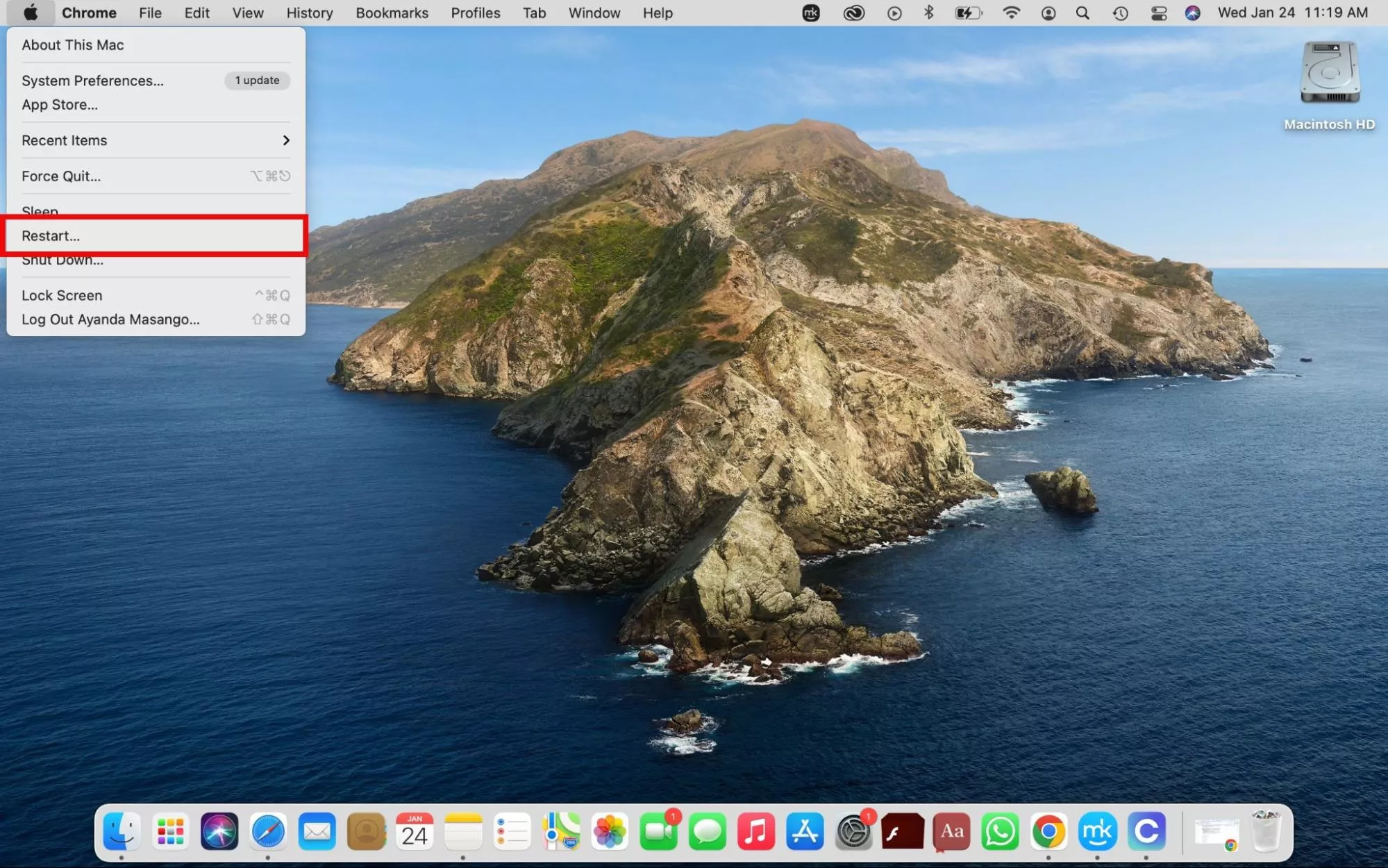
Restarting our Mac helps clear out any stuck processes or system glitches. This forces the computer to reset its network hardware and start the connection process from scratch. Not sure how to restart MacBook? Find out how to do it below.
To restart macOS, including Catalina, Mojave, Monterey, Big Sur, Sonoma, Sierra, and Sequoia:
Go to the Apple menu and choose the Restart option from the list.
Try to sign in to your profile again.
A tip from the MacKeeper team:
As a Mac owner, it’s crucial to know how to keep your Mac running smoothly. Learn how to set up an effective Mac maintenance routine.
2. Verify your network connection
We always check if we’re connected to the correct network in the first place. This step ensures that our Mac can send our login details to the server for verification.
Check your Wi-Fi connection using these steps:
Navigate to the upper-right corner of your Mac’s screen.
Click on the Wi-Fi icon to determine if the setting is either enabled or disabled, or if you're even connected to the correct network.
Third-party software is known to sometimes block system processes, including the ability to sign into your Mac profile. Fortunately, this is something we’ve often fixed by opening Mac in Safe Mode.
Follow the approach we describe below to reboot your Mac in Safe Mode.
Intel Macs:
Shut down your Mac.
Turn it on and immediately hold down the Shift key, releasing it when you see the login screen.
Apple Silicon Macs:
Shut down your Mac.
Hold down the power button until Startup options appear on the screen.
Pick your startup disk, hold down the Shift key, and select Continue in safe mode.
Release the Shift key when the Login screen appears.
Your disk-related issues aren’t resolved yet? If so, we recommend you to repair your disk and run First Aid using Disk Utility on Mac in Safe Mode.
4. Repair permissions
Repairing permissions ensures the computer has the correct authorization to run its own background software. By removing internal software barriers, it helps our Mac communicate with the network server and allows us to log in without issue. Note that modern macOS versions, starting from macOS El Capitan, lack the manual "Repair Disk Permissions" button because the system now protects and repairs its own file permissions. However, you can achieve the same result using Apple’s First Aid tool or Terminal from your Mac's Recovery Mode.
To repair permissions in First Aid via Recovery Mode:
Turn your Mac off and immediately switch it back on by holding down the Command + R keys until you see the Apple logo.
Select Disk Utility and click Continue in the Utilities window.
Choose your startup disk (in most cases, Macintosh HD) > First Aid button > Run.
Restart your device.
5. Rebind Mac to Active Directory
The "Network accounts are unavailable" error tells you that the existing bond may be corrupted or expired. Rebinding a Mac to Active Directory (AD) deletes and recreates the trust relationship between your computer and your school or organization's central server. We like to think of it as a connection reset.
A warning from our team: You must be logged into a Local Administrator account and be connected to your work/school network (usually via Ethernet) to do this. Unfortunately, you can’t perform this fix at home. Contact your school or organization’s IT department for assistance.
Unbind or get rid of the old connection this way:
Open System Settings > Users & Groups.
Click the Edit button next to Network Account Server.
Select your Active Directorydomain and remove it.
Supply your admin password (you may also need to enter the AD admin's credentials) to confirm.
Rebind this way:
In the same menu, click Join or Add.
Provide the Server Address.
Enter the AD admin login credentials given to you by your IT department and click OK or Bind.
Restart your computer.
6. Kill Open Directory process
This method helps us force the Mac's background identity service (opendirectoryd) to stop and immediately restart. Note that you can only do this while logged into a Local Admin account. Find out which processes are consuming your system’s resources in Activity Monitor on Mac.
Use this approach to kill the Open Directory process via Terminal:
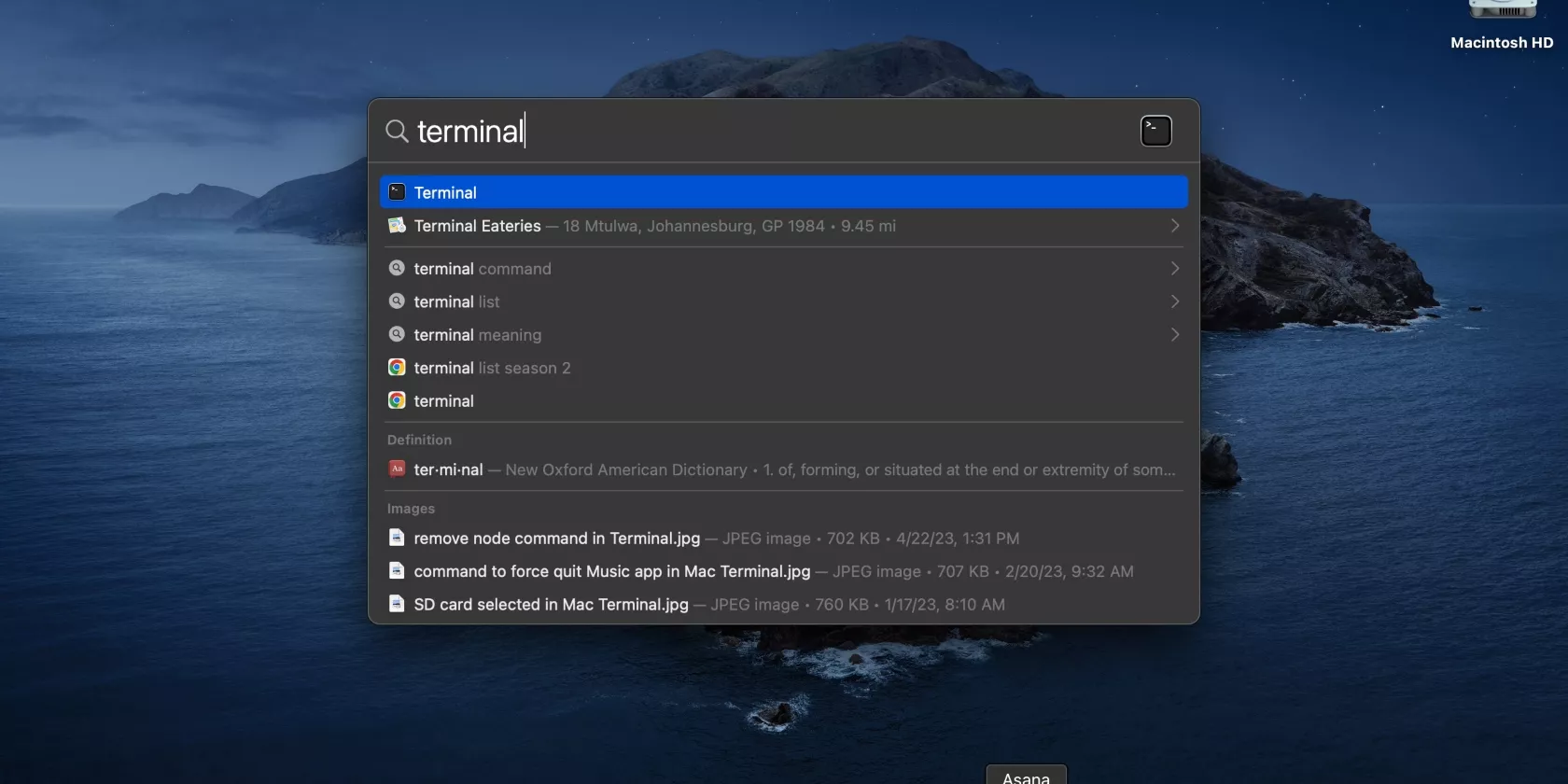
Open the Terminal app in Finder’s Utilities folder.
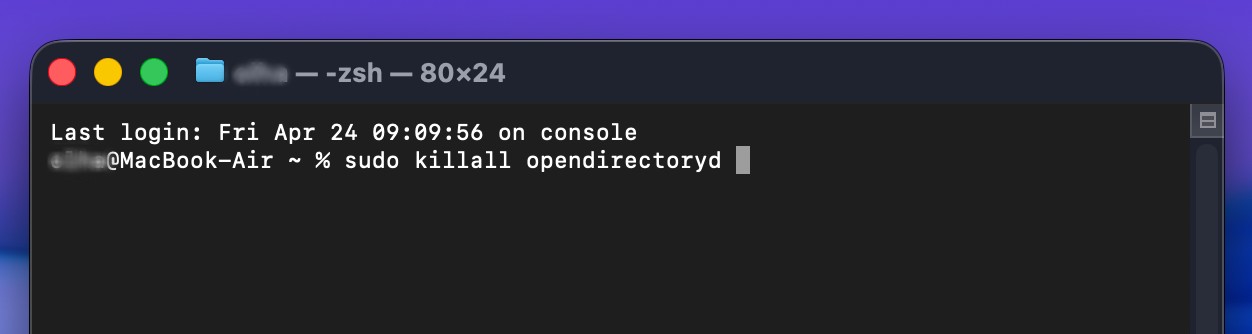
Type the command sudo killall opendirectoryd and press Enter. You may have to enter your admin password and press Enter again.
Step 1. Open the Terminal app in Finder’s Utilities folderStep 2. Type the command sudo killall opendirectoryd and press Enter
An extra help from us:
Is your Mac lagging or performing poorly? You may need to kill processes on the Mac to help optimize it.
7. Check DNS
Checking DNS ensures our Mac can locate the login server on the network. Without a working DNS, our Mac can’t verify our password, causing the “Mac network accounts are unavailable” error message.
Here’s how to check DNS on a Mac:
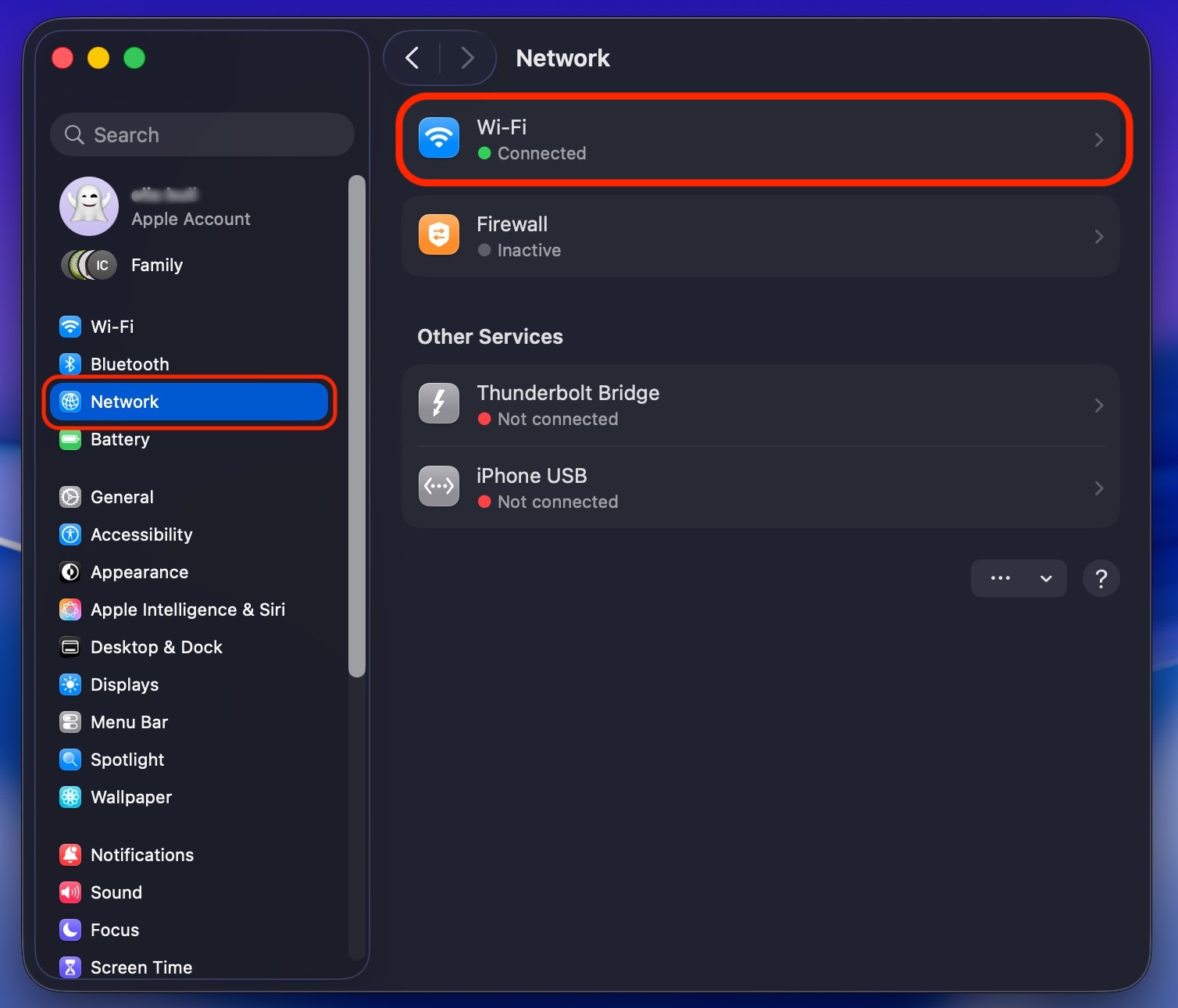
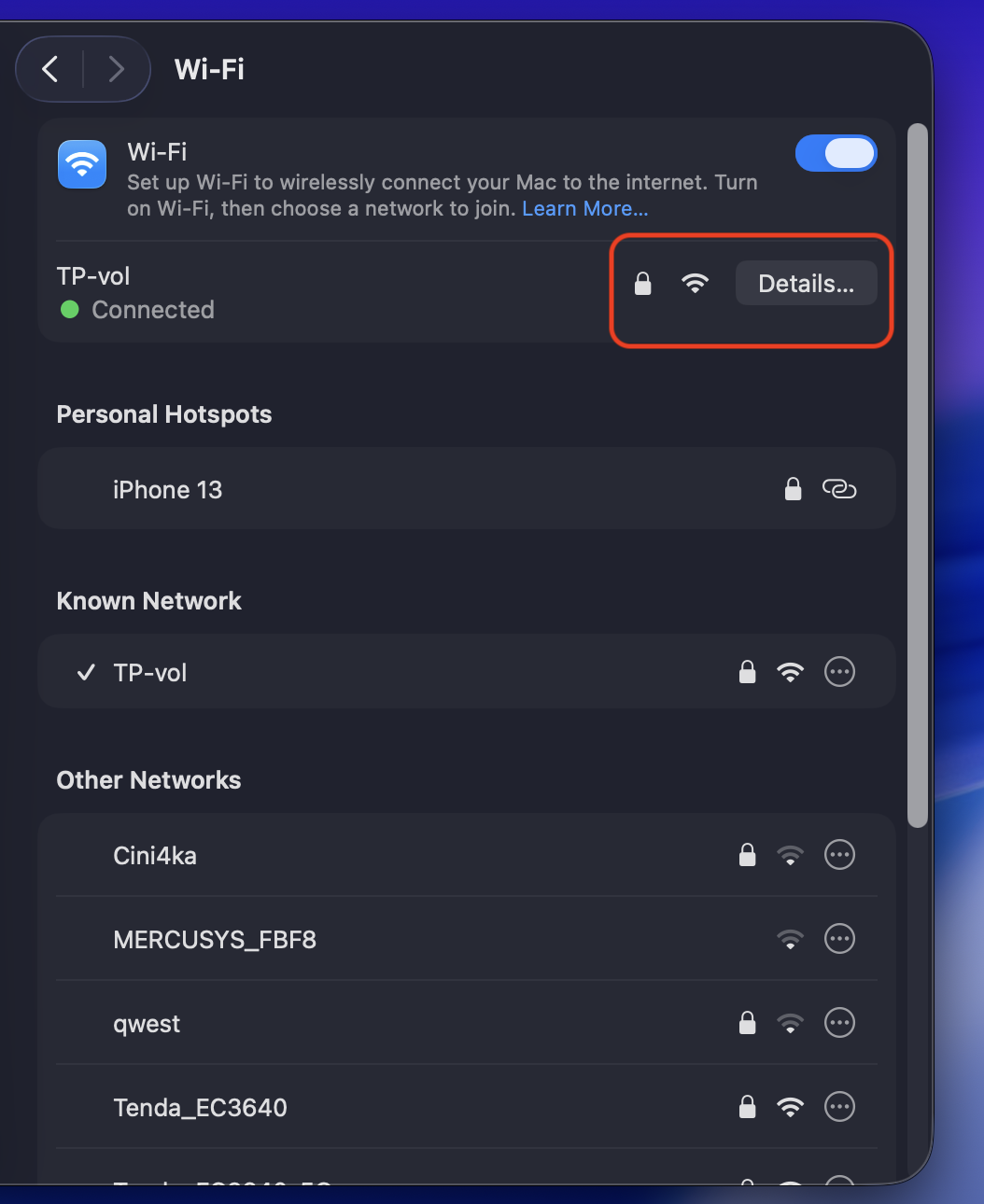
Open System Settings and select the Network option.
Click on your active Wi-Fi or Ethernet connection, followed by Details.
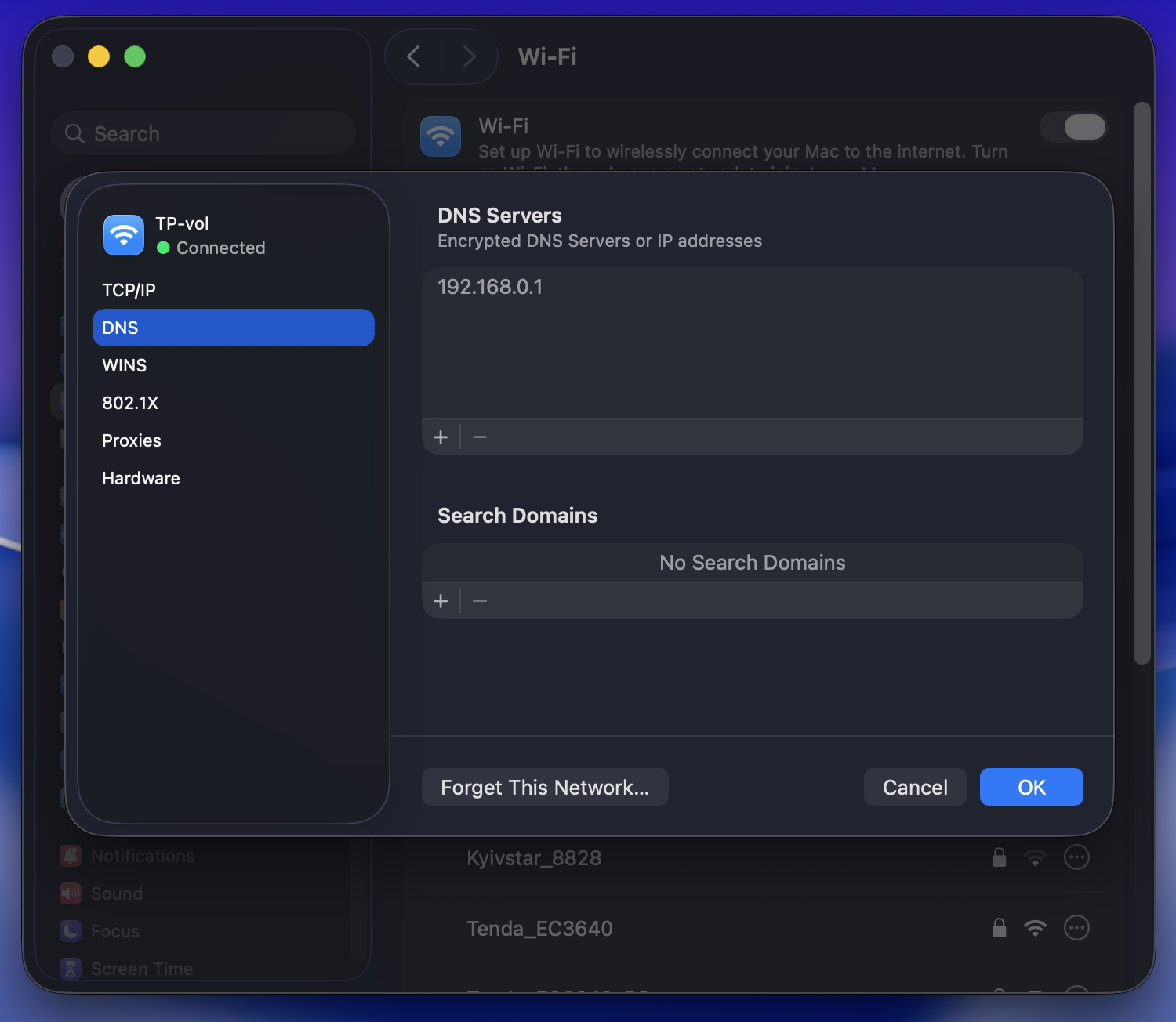
Select the DNS tab in the sidebar. Here’s what each one means:
Grayed-out addresses: Provided automatically by your network or router.
Black addresses: Custom and added by you.
Step 1. Open System Settings and select NetworkStep 2. Click on your active Wi-Fi or Ethernet connection > DetailsStep 3. Select the DNS tab in the sidebar
The “Network accounts are unavailable” error is almost resolved
Encountering a “Network accounts are unavailable” message on your Mac can set you back a bit. However, using the tips in this guide, you shouldn’t remain locked out of your profile for long.
Does that sound like a long process? You don’t have to do it yourself. Bring in an expert technician via MacKeeper’s Premium Services and let them do the work while you wait. They’ll resolve the problem remotely without the risk of making potentially costly mistakes.
We respect your privacy and
use cookies
for the best site experience.
Privacy Preferences Center
We use cookies along with other tools to give you the best possible experience while using the
MacKeeper website. Cookies are small text files that help the website load faster. The cookies we
use don’t contain any type of personal data meaning they never store information such as your
location, email address, or IP address.
Help us improve how you interact with our website by accepting the use of cookies. You can change
your privacy settings whenever you like.
Manage consent
All cookies
These cookies are strictly necessary for enabling basic website functionality (including page
navigation, form submission, language detection, post commenting), downloading and purchasing
software. The website might malfunction without these cookies.