Finder sidebar missing can instantly turn a simple file search into a frustrating mess, but the good news is that you can usually restore your shortcuts, folders, and drives without losing access to your data. And if you don’t want to spend time guessing which fix will actually work, MacKeeper’s Premium Services gives you direct access to certified Mac experts who can guide you to a reliable, personalized solution.
Finder not showing the sidebar on your Mac is usually caused by the sidebar being hidden, disabled in Finder settings, or affected by a temporary Finder glitch. Start by opening Finder and choosing View > Show Sidebar, or press Command-Option-S. However, if the sidebar appears but key items are still missing, go to Finder > Settings/Preferences > Sidebar and re-enable the folders or drives you need. Based on our experience, a quick Finder relaunch or Mac restart also resolves many cases. If the issue persists, resetting Finder preferences may restore the sidebar to its original state.
What is the Finder sidebar on Mac?
The Finder sidebar on Mac is a navigation panel located on the left side of the Finder window that provides quick access to commonly used folders, drives, and cloud locations. It usually includes sections like Favorites, iCloud, Locations, and Tags to help you navigate your files more quickly. If these shortcuts disappear, you may need to restore Finder sidebar settings through Finder preferences or the View menu, so your important folders and storage locations appear again.
Why is my Finder not showing a sidebar?
If the Finder sidebar disappeared on Mac, it’s usually because the sidebar was accidentally hidden or certain items were disabled in Finder settings. In many cases, the sidebar toggle in View > Show Sidebar was turned off, or the Finder toolbar is hidden, which greys out the sidebar option. Sometimes, missing folders happen because they’re unchecked in Finder > Settings > Sidebar. Less commonly, temporary Finder glitches or corrupted preference files can also cause the sidebar to disappear until Finder is restarted.
How to fix the Finder sidebar disappeared?
If the Finder sidebar is not appearing, start by opening Finder and selecting View > Show Sidebar or pressing Command + Option + S to enable it. If some folders are missing, go to Finder > Settings (Preferences) > Sidebar and check the boxes for the items you want displayed. Based on our experience, restarting Finder or your Mac also resolves temporary glitches that cause the sidebar to hide.
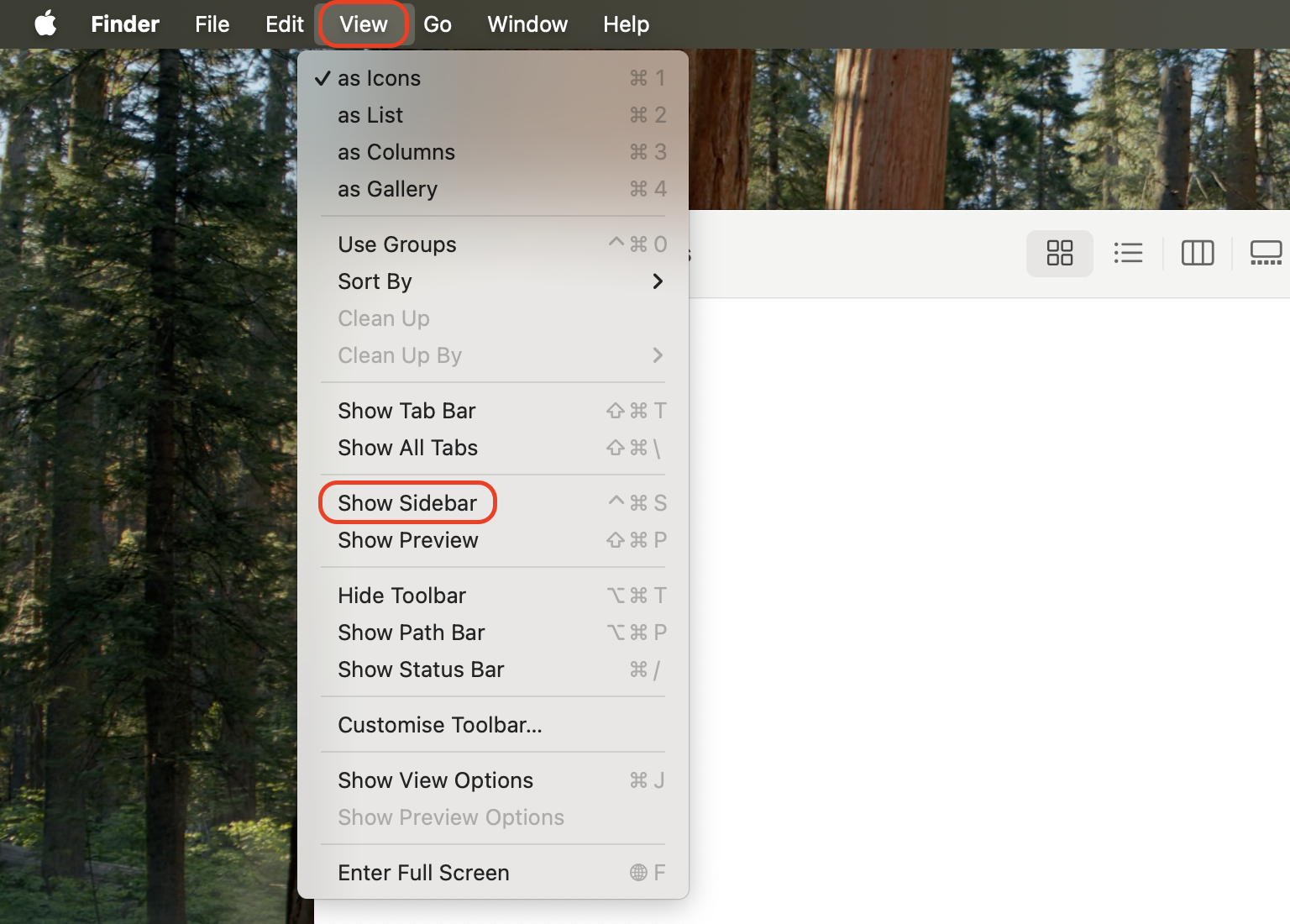
Go to Finder and select View > Show Sidebar to enable the Sidebar
A note from our experts:
If your Finder sidebar suddenly disappears, trying every workaround one by one can take far longer than expected. From our experience troubleshooting macOS issues, a faster approach is to consult a specialist who can immediately identify what’s wrong. Since MacKeeper is a leading solution in Mac optimization and cybersecurity, its Premium Services allow you to connect with certified Mac technicians who guide you through a precise fix instead of leaving you to test multiple solutions yourself.
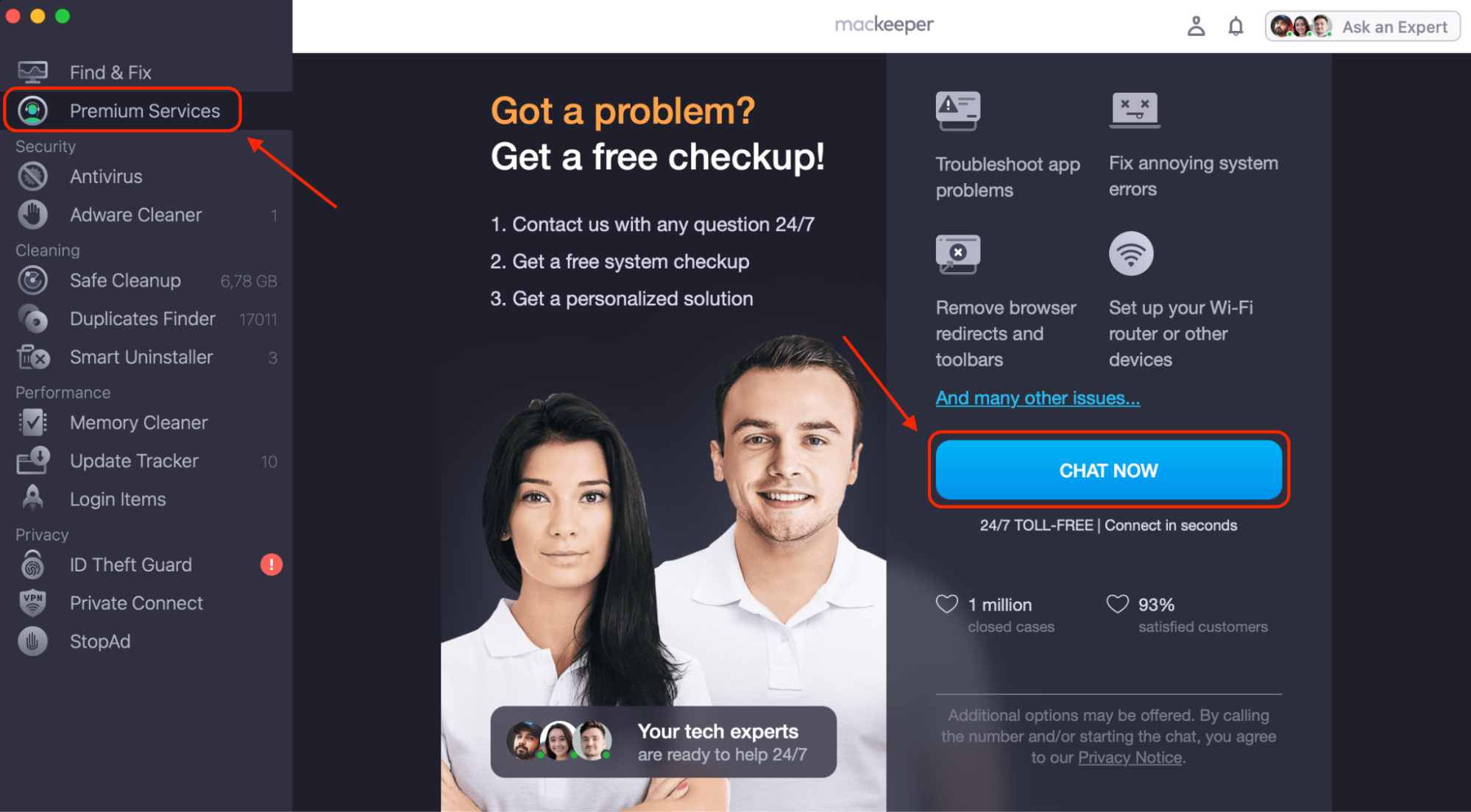
Open the app and select Premium Services from the left-hand sidebar.
Click Chat Now to instantly connect with a technician who will analyze the issue and guide you step by step until the Finder sidebar works normally again.
Open MacKeeper, click Premium Services in the sidebar, and select Chat Now
1. Show Finder sidebar items
If the sidebar disappears completely, it’s often just hidden. In our experience, this happens after an accidental shortcut or interface change. Even users researching how to update Mac operating system sometimes discover the sidebar was simply toggled off in Finder’s View menu.
Steps to show Finder sidebar:
Open Finder.
Click View in the menu bar.
Select Show Sidebar.
Or press Command + Option + S.
From Finder, click View and select Show Sidebar
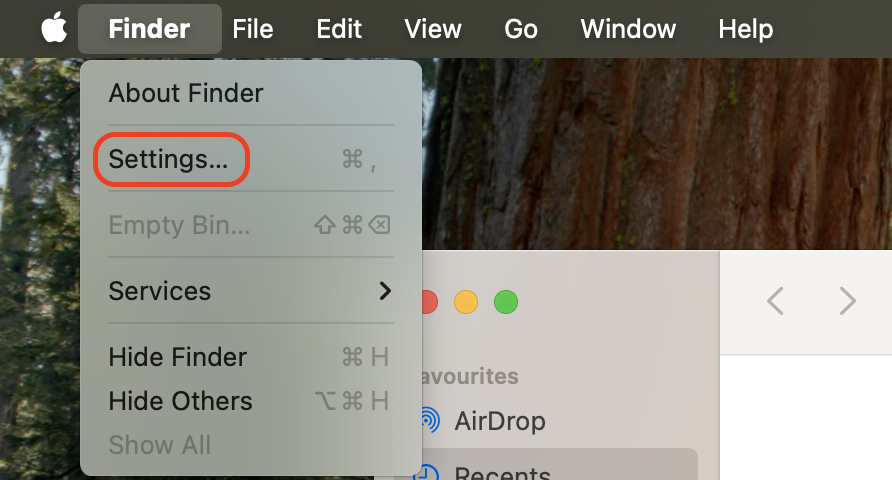
2. Restore sidebar icons via Finder Preferences
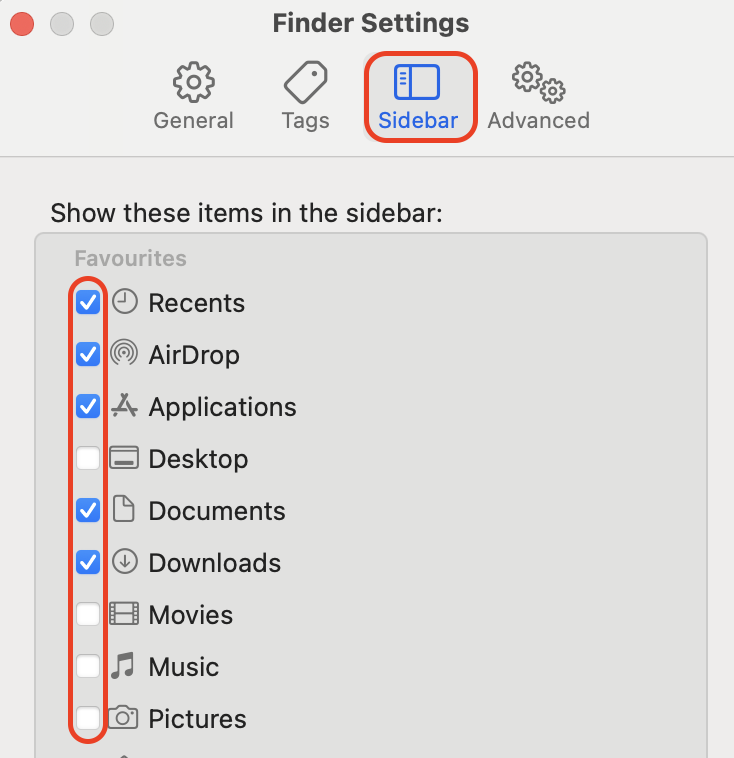
Sometimes Finder appears normally, but certain folders are missing. Our tests show this usually happens when sidebar items are unchecked in Finder settings. Users searching for how to get to downloads on Mac may not see the Downloads shortcut because it’s disabled.
Steps to restore icons:
Open Finder.
Click Finder > Settings (Preferences).
Open the Sidebar tab.
Check folders like Downloads, Desktop, and Applications.
Step 1. After opening Finder, go to SettingsStep 2. Open the Sidebar tab and check folders like Downloads, Desktop, and Applications
3. Add missing icons to Finder Sidebar
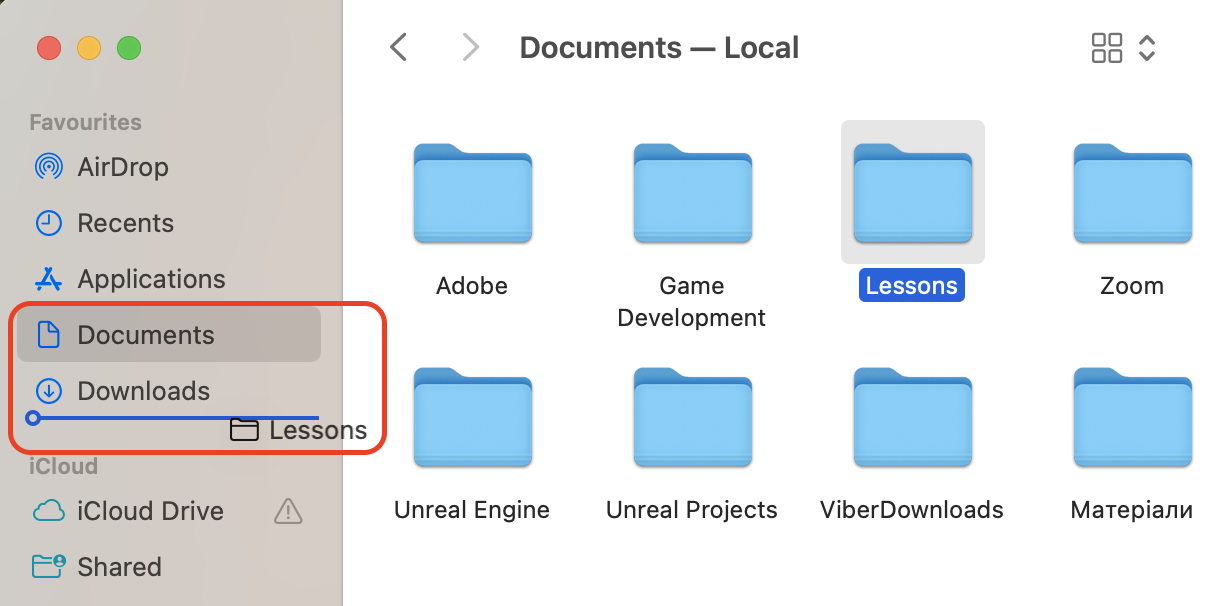
If a specific item disappears, you can add it manually. Based on our experience, this method works well for external devices. For example, when users search for how to find a USB on a Mac, the drive often appears in Finder but not in the sidebar.
To add items:
Open Finder.
Locate the folder or drive.
Drag it to the Finder sidebar.
Release it where you want it placed.
Open Finder, locate the folder or drive, and drag it to the Finder sidebar. Then release it
4. Use Terminal to reset Finder Preferences
If Finder ignores changes to settings, resetting preferences via Terminal can help. We’ve found this useful after system glitches or interface errors. Some users discover this fix while troubleshooting UI issues, like how to add downloads to Dock.
Follow our hints to reset Finder via Terminal:
Open Terminal (Applications > Utilities).
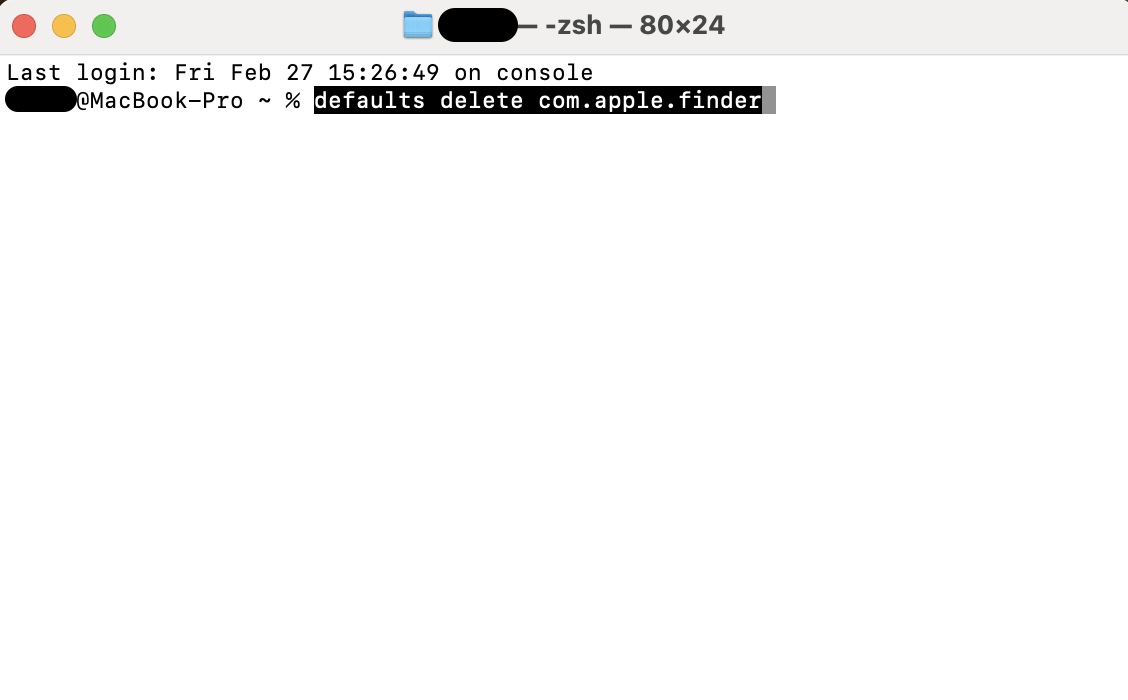
Type: defaults delete com.apple.finder.
Press Return.
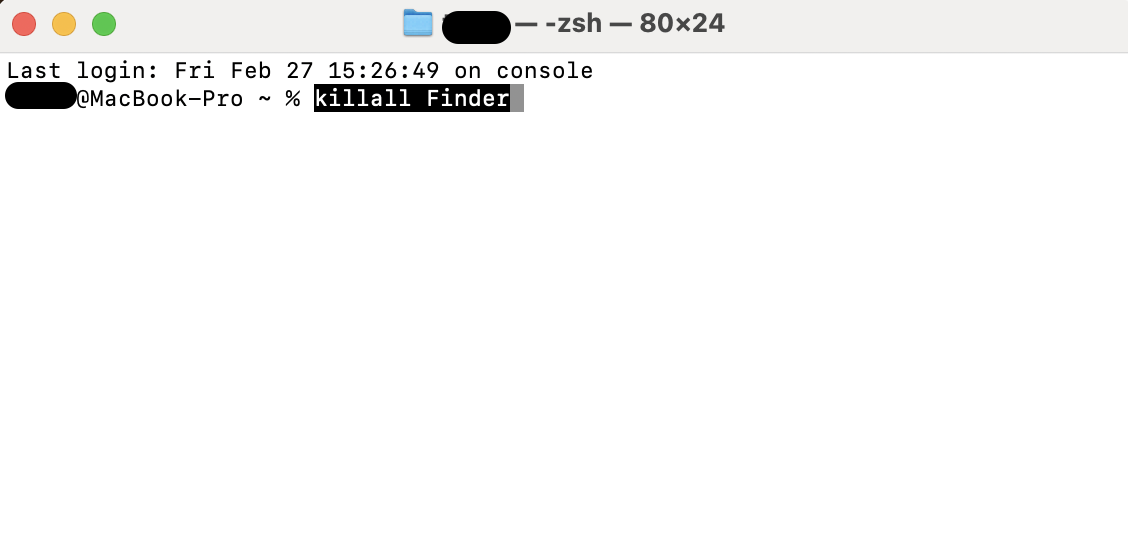
Then type: killall Finder.
Warning: Finder will restart and reset certain settings.
Step 1. Open Terminal and type: defaults delete com.apple.finderStep 2. After pressing the Return key after the previous command, type the new one: killall Finder
5. Reset Finder Preferences
Corrupted Finder configuration files can hide sidebar items. In these cases, performing a finder sidebar reset forces macOS to rebuild default settings. When Finder navigation breaks like this, users often struggle to locate files and may even start searching questions like where do Airdrop files go on Mac because their usual Finder shortcuts and quick-access folders disappear.
Steps to reset preferences:
Open Finder.
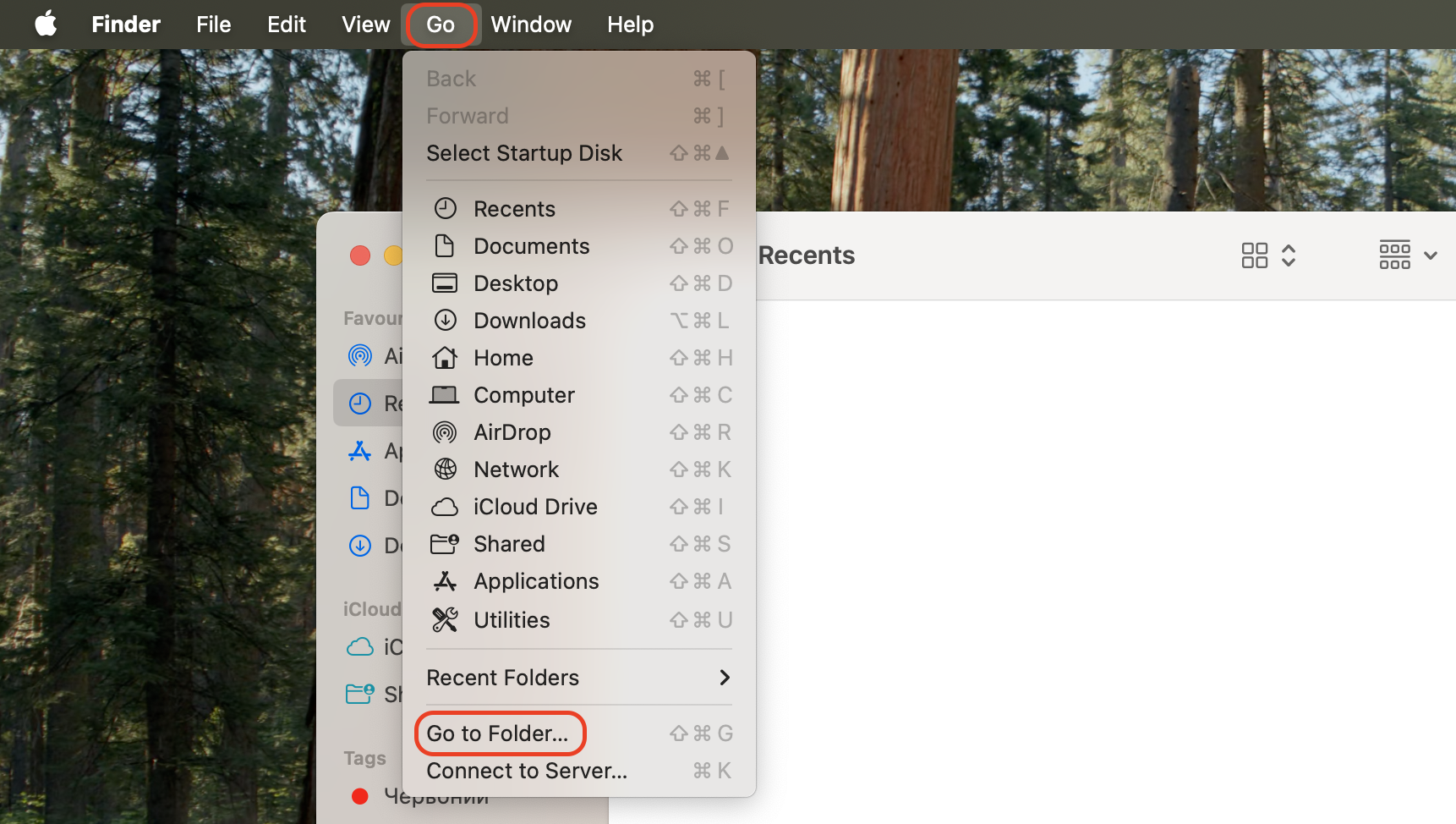
Click Go > Go to Folder.
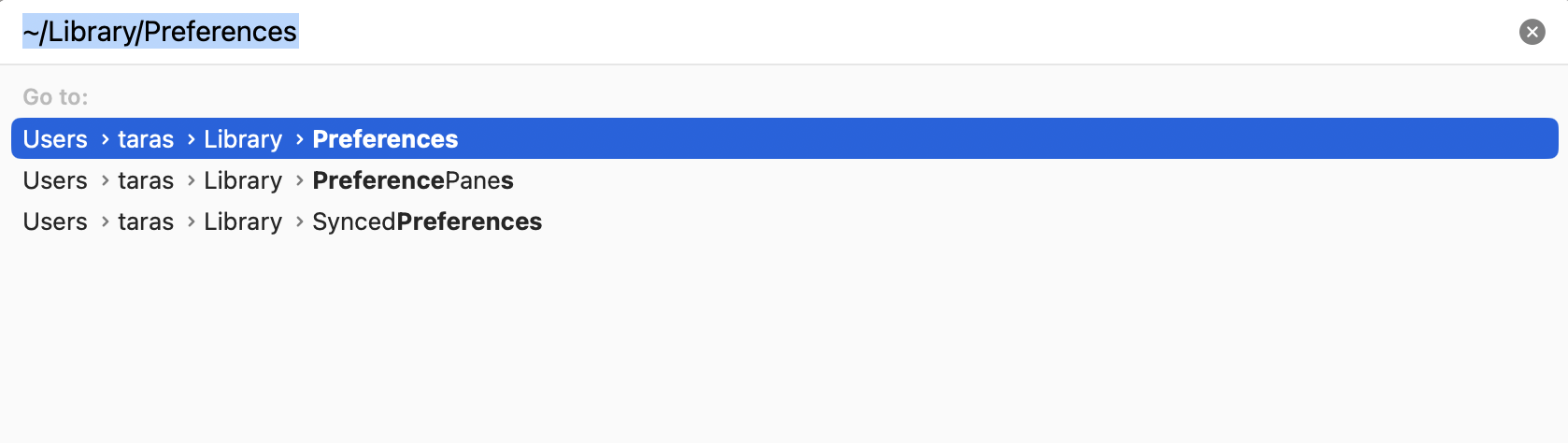
Enter ~/Library/Preferences/.
Locate com.apple.finder.plist.
Move it to Bin and restart your Mac.
Step 1. From Finder, click Go > Go to FolderStep 2. Enter ~/Library/Preferences/. Then locate com.apple.finder.plist and move it to the Bin
6. Update macOS
System bugs can sometimes affect Finder behavior. Based on our testing, installing updates often resolves interface glitches and missing sidebar items. It also ensures Finder properly displays shortcuts like the Applications folder on Mac.
To update macOS:
Click the Apple menu.
Open System Settings.
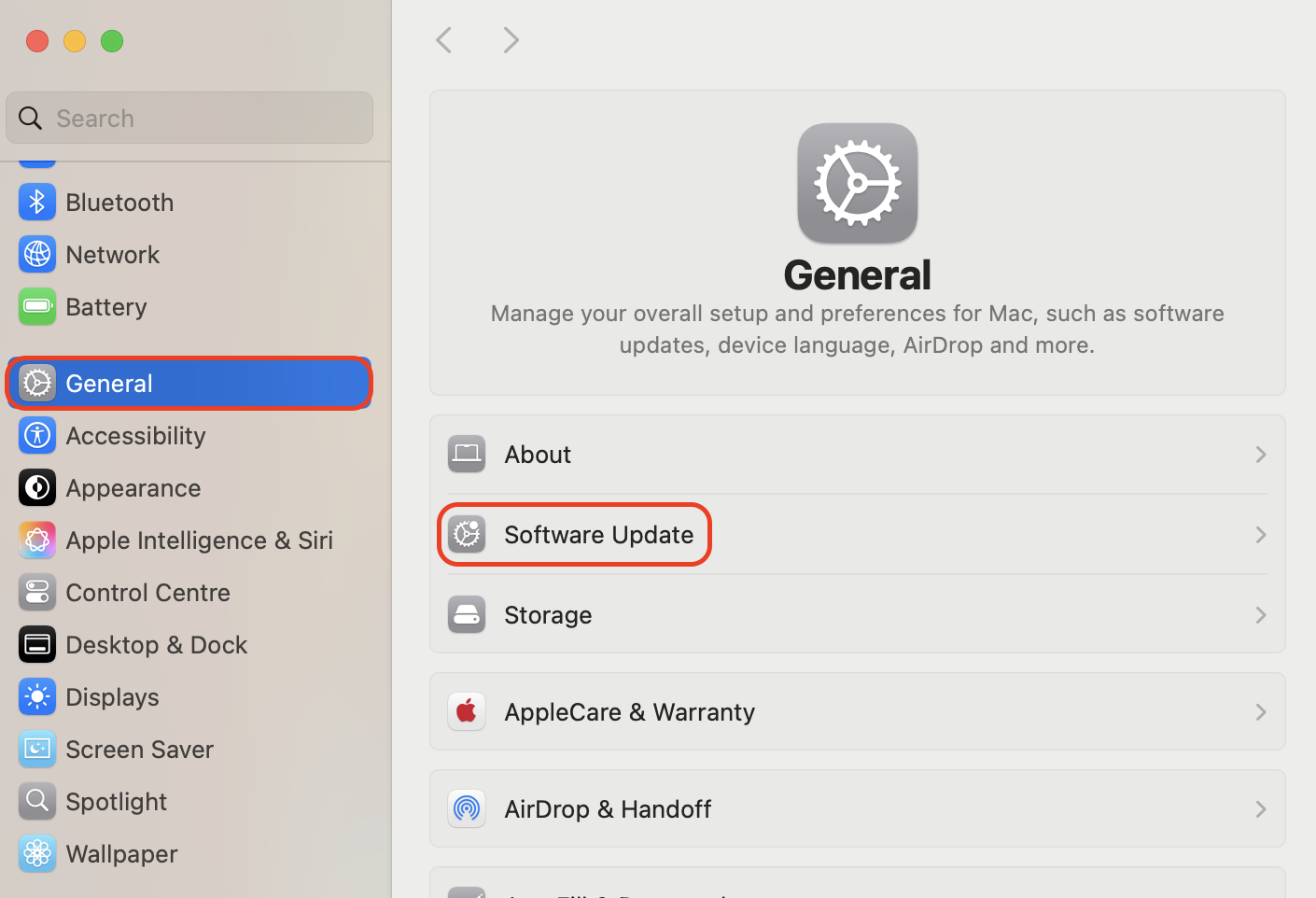
Go to General > Software Update.
Install any available updates.
Click the Apple menu, open System Settings, and go to Software Update. Install any available updates
Conclusion
The Finder sidebar is a small but essential part of macOS navigation, helping you quickly reach folders, drives, and cloud locations. When it disappears, accessing files becomes slower and more confusing.
If these solutions don’t resolve the issue, getting professional assistance can save you time. MacKeeper is a macOS utility software developed by Clario Tech, and through its Premium Services, it provides direct access to our certified technicians’ assistance.
We respect your privacy and
use cookies
for the best site experience.
Privacy Preferences Center
We use cookies along with other tools to give you the best possible experience while using the
MacKeeper website. Cookies are small text files that help the website load faster. The cookies we
use don’t contain any type of personal data meaning they never store information such as your
location, email address, or IP address.
Help us improve how you interact with our website by accepting the use of cookies. You can change
your privacy settings whenever you like.
Manage consent
All cookies
These cookies are strictly necessary for enabling basic website functionality (including page
navigation, form submission, language detection, post commenting), downloading and purchasing
software. The website might malfunction without these cookies.