Sharing your Mac with a friend or family member while they visit you for the weekend? Create a guest account on your Mac to provide them a safe workspace while protecting your personal files, documents, browsing history, and saved passwords. Use MacKeeper’s Safe Cleanup software to remove any data remnants and optimize your device.
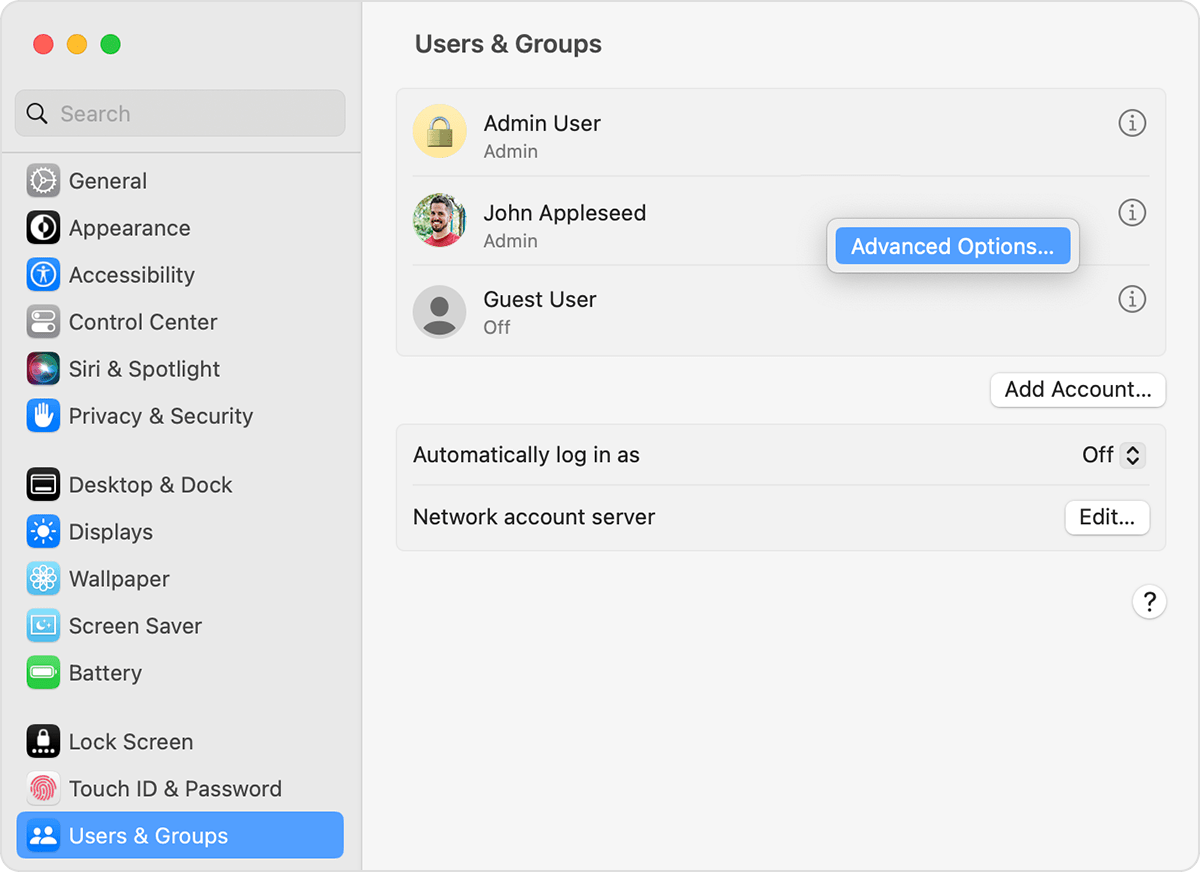
To make a guest account on a Mac, click on the Apple menu in the upper-left corner. Choose System Settings from the expanded menu, select Users & Groups in the sidebar, and click the information icon next to Guest User (you may need to scroll down).
What is a guest account on a Mac?
A guest account is a temporary account you can set up to allow visitors to use your MacBook with limitations. Since they aren't administrators, they can’t alter any settings, create a password, or view the information in other user accounts.
In addition, your Mac automatically deletes all the data in a guest account when the user logs out to ensure that every visitor starts with a clean slate. It also protects your privacy and system resources. Conversely, when you delete a user on a Mac, you can choose whether you want to erase or save their data.
However, there are some cases when you need to share the specific data with the other accounts used by your family members. If you have some troubles with this function, such as, for instance, your Mac’s file sharing isn’t working, read our helpful guide to know what to do.
A note from our experts:
Similar to creating a user on a Mac, sharing a laptop with a guest user can lead to an accumulation of junk files. As such, we often expect slight performance dips as our Mac utilizes more storage than normal. When this happens, specialized software like MacKeeper’s Safe Cleanup comes in handy—both in the moment we need to clear junk and as a maintenance tool going forward.
The Safe Cleanup solution removes caches, logs, mail attachments, trash, languages, and installation files to reduce latency and optimize your Mac. MacKeeper is developed by Clario Tech and notarized by Apple, giving Mac owners confidence that it’s free of security threats and malware.
To clear junk files with MacKeeper’s Safe Cleanup tool on macOS:
Download MacKeeper on your MacBook Pro, MacBook Air, or Mac mini device.
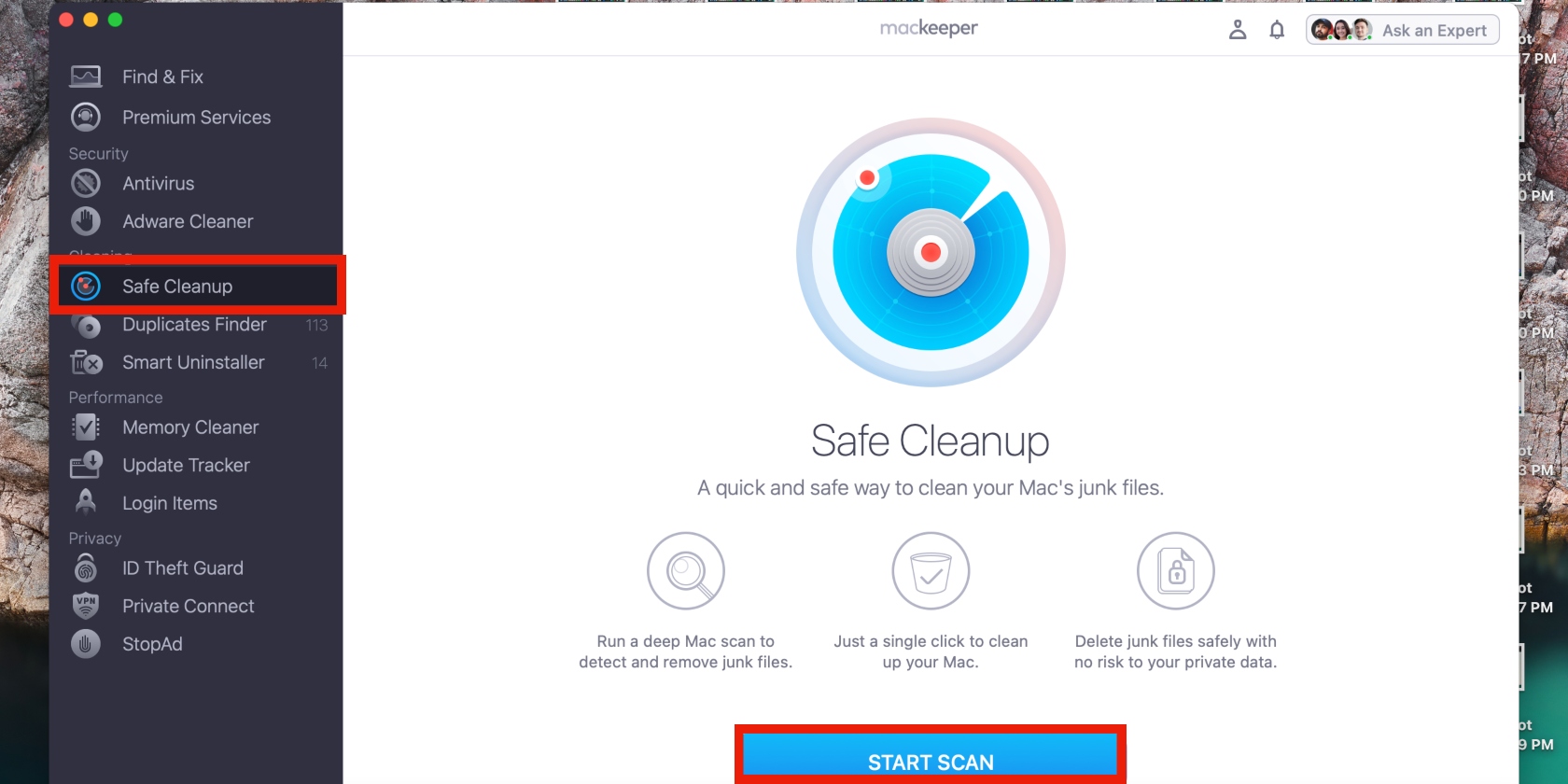
Open the app, select Safe Cleanup in the sidebar, then tap the big Start Scan button.
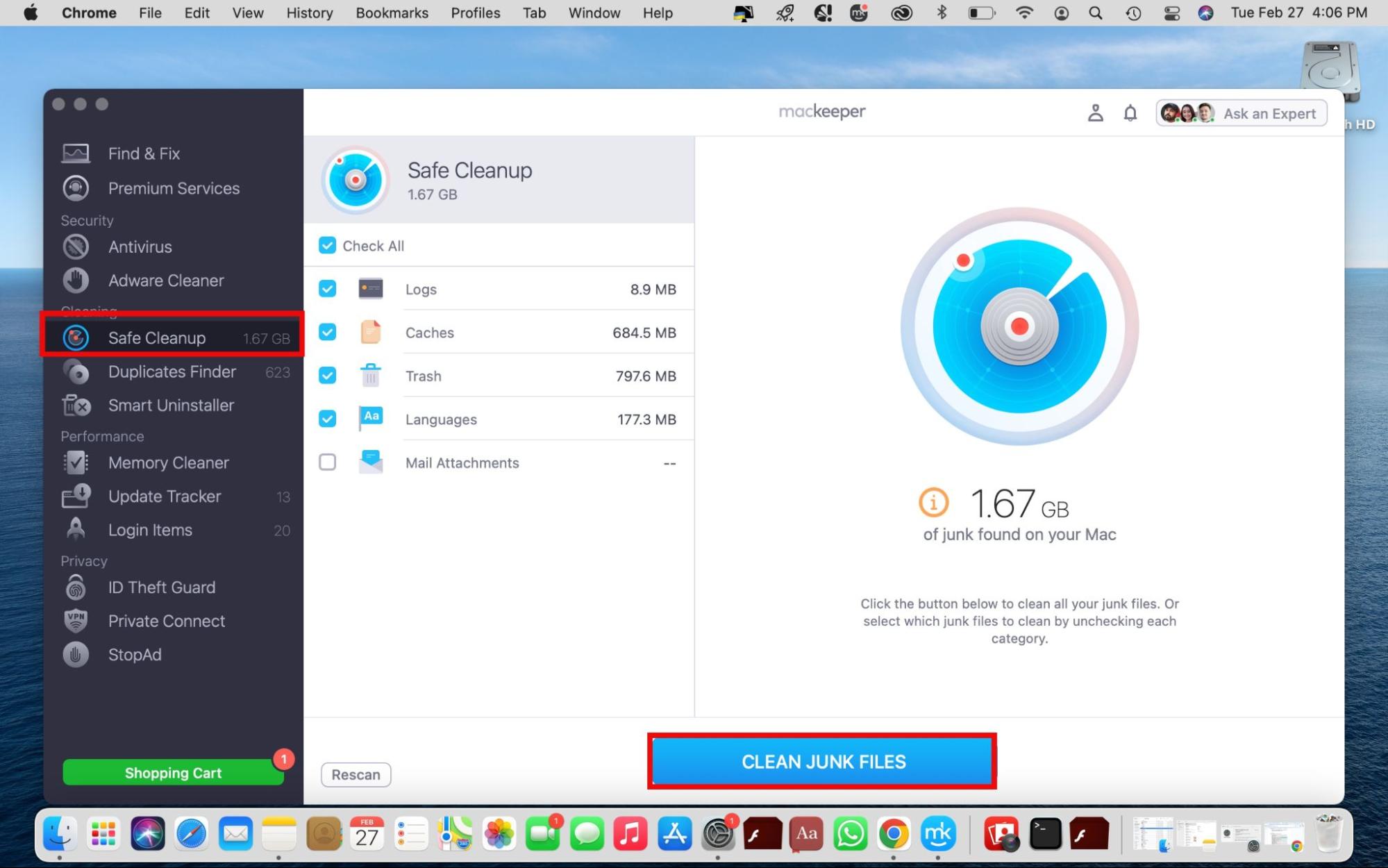
Click Clean Junk Files after the scan is completed.
Step 1. Click on Safe Cleanup and select Start ScanStep 2. Click the Clean Junk Files button
How to activate a guest account on a Mac?
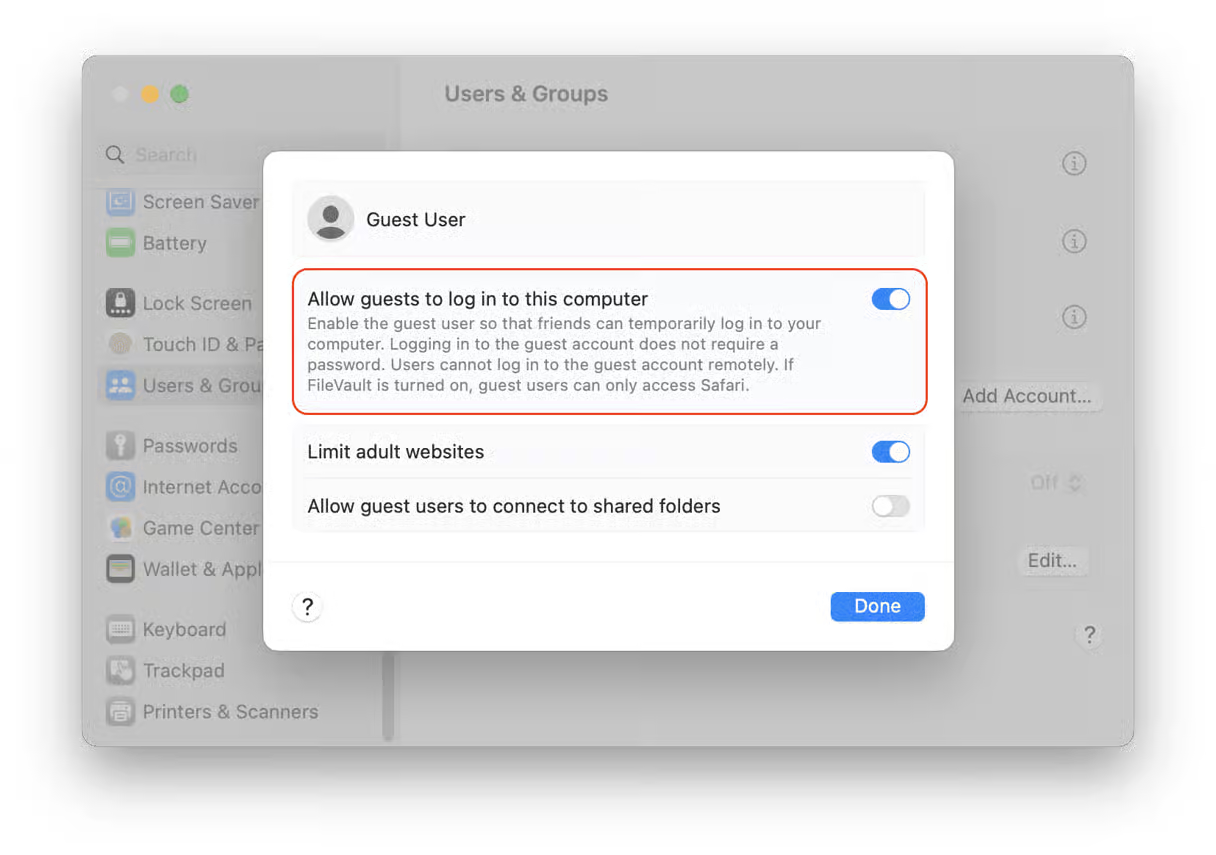
To activate a guest account on a Mac, launch System Settings or System Preferences and navigate to Users & Groups. Hit the information icon next to Guest User and enable the setting to Allow guests to log in to this computer.
We follow this process to provide our visitors with password-free access to our Mac. It gives us peace of mind to know they can’t access our data (though they can map a network drive on the Mac, depending on our settings).
Activate a guest account on your Mac by following these steps:
From the Apple menu, click on System Settings, and select Users & Groups in the sidebar (you may need to scroll down).
Click the information icon next to Guest User and toggle on the option to Allow guests to log in to this computer. While this window is open, you can also choose whether you want the guest visitor to connect to shared folders or have limited access to adult websites.
Step 1. Click on the Apple menu > System Settings > Users & GroupsStep 2. Toggle on the option to Allow guests to log in to this computer
Use a temporary guest account for visitors on a Mac
macOS guest account functionality is a smart solution for giving visitors temporary access to your device. It’s safe and convenient thanks to its automatic deletion of guest user data when you sign out. You can turn on a guest account via System Settings and clear your Mac of junk files using MacKeeper’s Safe Cleanup tool.
We respect your privacy and
use cookies
for the best site experience.
Privacy Preferences Center
We use cookies along with other tools to give you the best possible experience while using the
MacKeeper website. Cookies are small text files that help the website load faster. The cookies we
use don’t contain any type of personal data meaning they never store information such as your
location, email address, or IP address.
Help us improve how you interact with our website by accepting the use of cookies. You can change
your privacy settings whenever you like.
Manage consent
All cookies
These cookies are strictly necessary for enabling basic website functionality (including page
navigation, form submission, language detection, post commenting), downloading and purchasing
software. The website might malfunction without these cookies.