Participating in a virtual meeting or need to upload a new video or image to verify yourself as part of an online application process? You’ll need to enable Safari to access the camera on your Mac. If you’re not sure how to do it, we’re here to walk you through the process. Avoid nuisances and distractions in your browser—use MacKeeper’s StopAd tool to reduce trackers, block annoying ads, and simply browse faster.
To give Safari access to the camera on a Mac, open Safari Settings and click on Websites > Allow. If Safari itself is blocked, open System Settings, select Privacy & Security, followed by Camera, and then switch the toggle on for Safari.
Why does Safari need camera access on a Mac?
From our experience, the common reasons why Safari needs camera access on your MacBook’s browser include:
Participating in virtual doctor visits.
Identity verification when completing online forms.
Attending virtual classes when you can’t make it in person.
Joining meetings on Microsoft Teams, Google Meet, and Zoom.
Taking part in user testing websites where you’re required to provide live feedback, and your screen is recorded.
Is your browser glitching? Update Safari on your Mac to implement software updates and new bug fixes.
A note from our experts:
As a Safari user, you probably know how annoying browser notifications can be, especially when you’re in the middle of something. Now, you can either take the manual route to turn off Safari notifications on a Mac or you can automate the process with MacKeeper’s StopAd.
This tool is useful for disabling browser notifications on Mac browsers, including Safari, to give you a peaceful and pleasant browsing experience. MacKeeper is developed by Clario Tech and notarized by Apple. Try it for yourself to see why thousands of Mac owners like yourself trust it to optimize their MacBook devices.
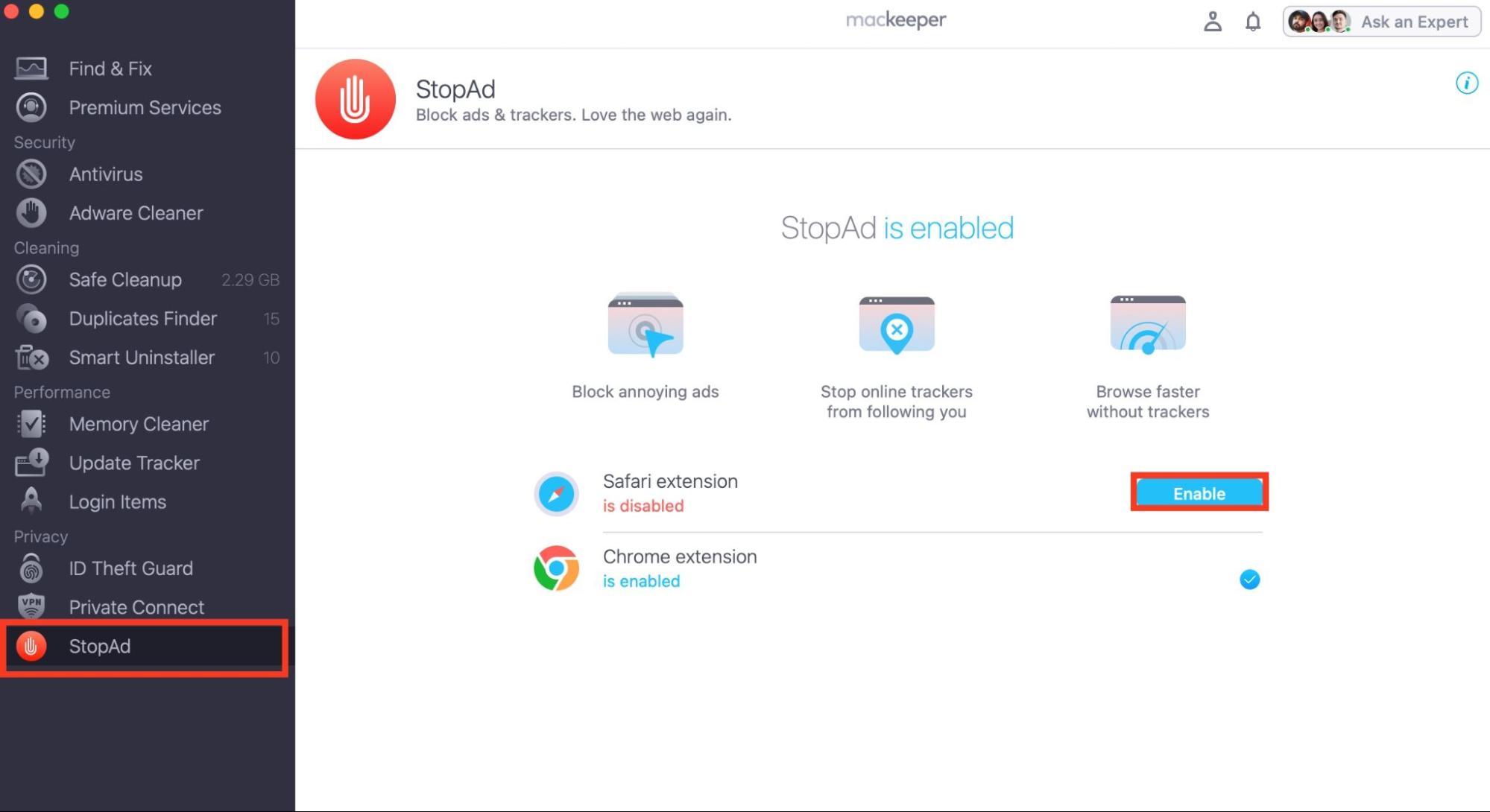
Follow these steps to use MacKeeper’s StopAd extension:
Open it and click on StopAd in the left sidebar—it’s at the bottom—and hit the Enable button next to Safari extension.
We should also mention that enabling the camera in Mac’s Safari is usually only half the requirement for identity verification and using modern web applications like banking. So, these platforms may not work if location services are disabled when you enable camera access in Safari on a Mac. This is because these services typically require both permissions to confirm that you’re in a supported region or to comply with local privacy and biometric laws. Learn how to change the location on Safari to ensure these platforms function properly.
How to give Safari access to the camera on a Mac?
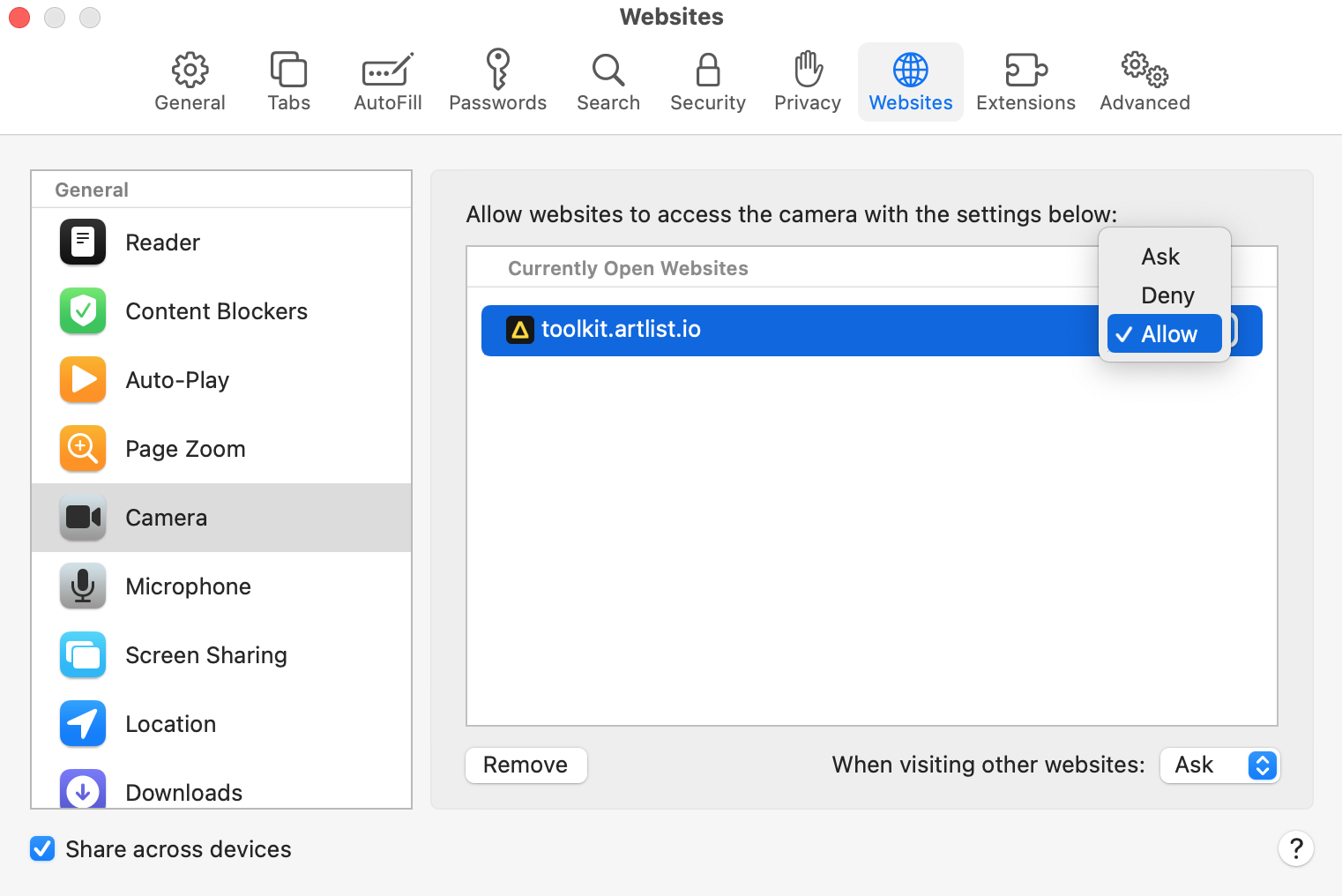
To give Safari access to the camera on your Mac, open Safari Settings, click on Websites, and select Allow. If Safari itself is blocked, open System Settings, click on Privacy & Security, choose the Camera option, and enable Safari.
On older Macs, open Preferences from the menu bar while the app is open. Now, click on Websites > Camera > Allow from the drop-down menu next to an open website.
Is your MacBook camera not working? Learn how to fix it through the MacKeeper blog.
Grant Safari camera access on your Mac
Knowing how to allow Safari to access the camera on macOS is crucial in an increasingly digital world. Fortunately, it’s an easy process—simply enable camera access in Safari settings, and you’ll be able to connect virtually in no time.
Are annoying ads and trackers in Safari giving you a hard time? With MacKeeper’s StopAd, you can block them and enhance your browsing experience at the same time.
We respect your privacy and
use cookies
for the best site experience.
Privacy Preferences Center
We use cookies along with other tools to give you the best possible experience while using the
MacKeeper website. Cookies are small text files that help the website load faster. The cookies we
use don’t contain any type of personal data meaning they never store information such as your
location, email address, or IP address.
Help us improve how you interact with our website by accepting the use of cookies. You can change
your privacy settings whenever you like.
Manage consent
All cookies
These cookies are strictly necessary for enabling basic website functionality (including page
navigation, form submission, language detection, post commenting), downloading and purchasing
software. The website might malfunction without these cookies.