Is your Mac’s mouse speed making it challenging to stay focused and productive? Well, you can increase it for a more comfortable experience. Your mouse pointer can lag due to an accumulation of junk files and general system clutter. Resolve this issue with MacKeeper’s Safe Cleanup software, which automatically removes junk files, including cache, logs, mail attachments, and trash, to optimize your MacBook.
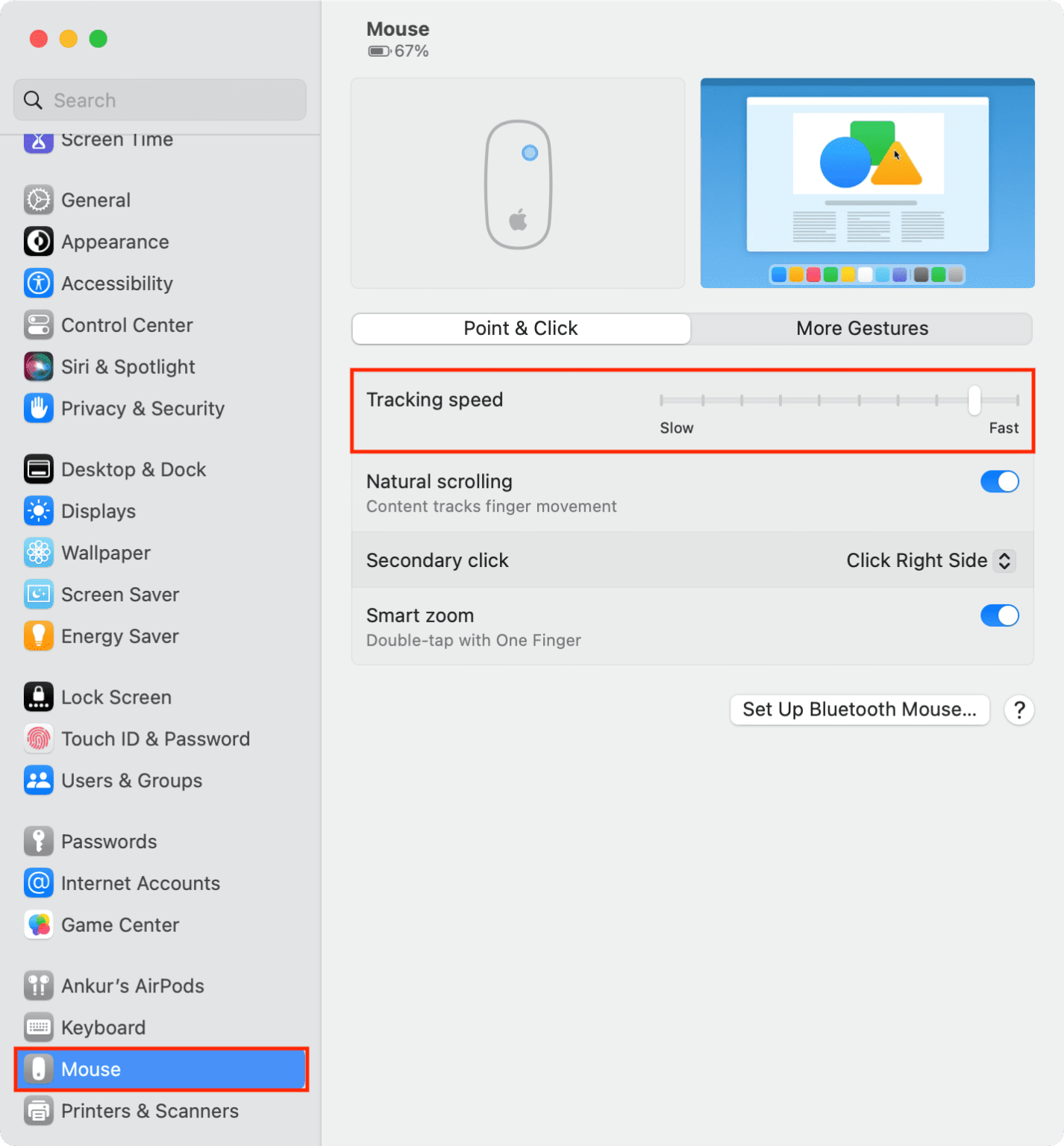
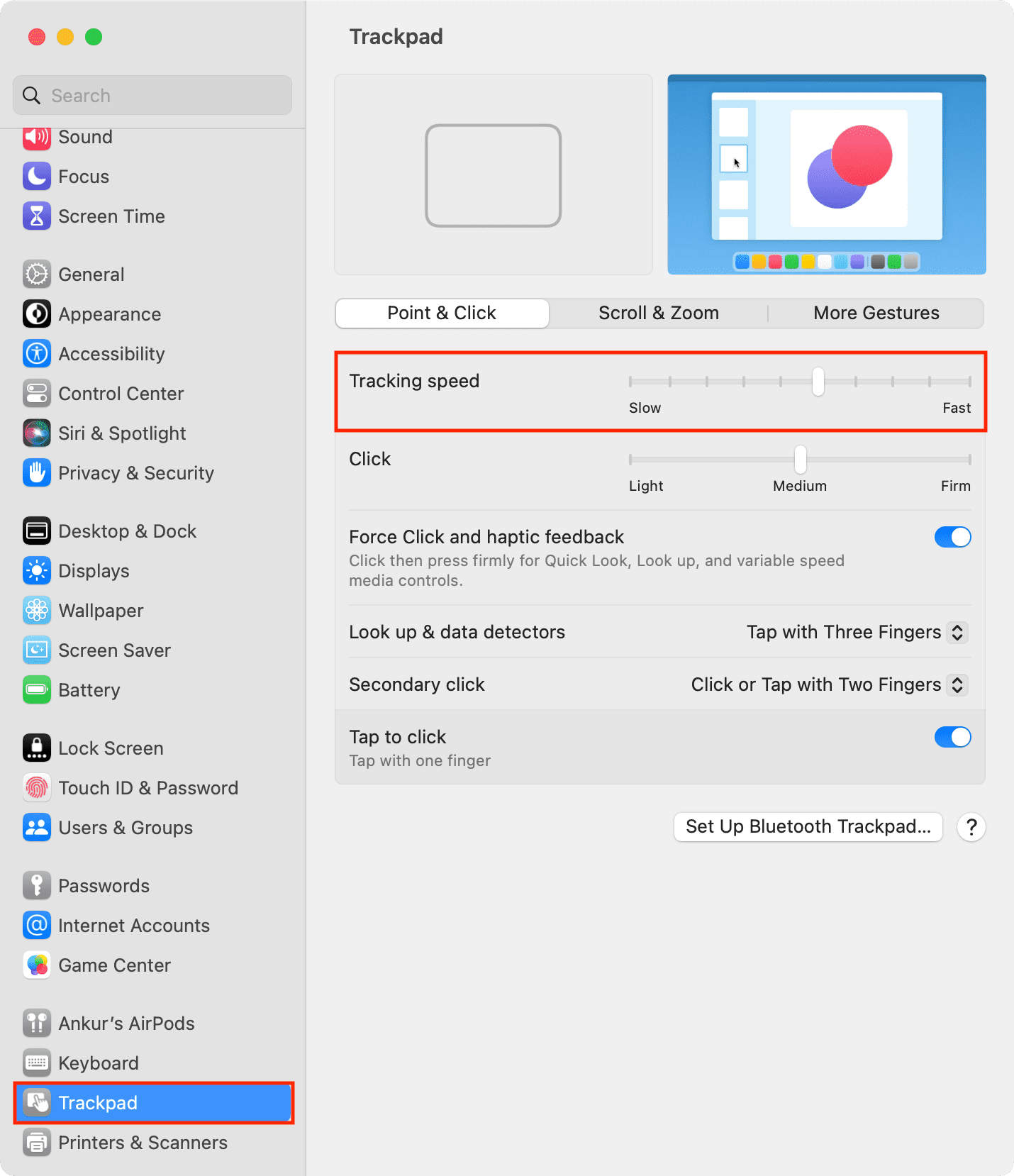
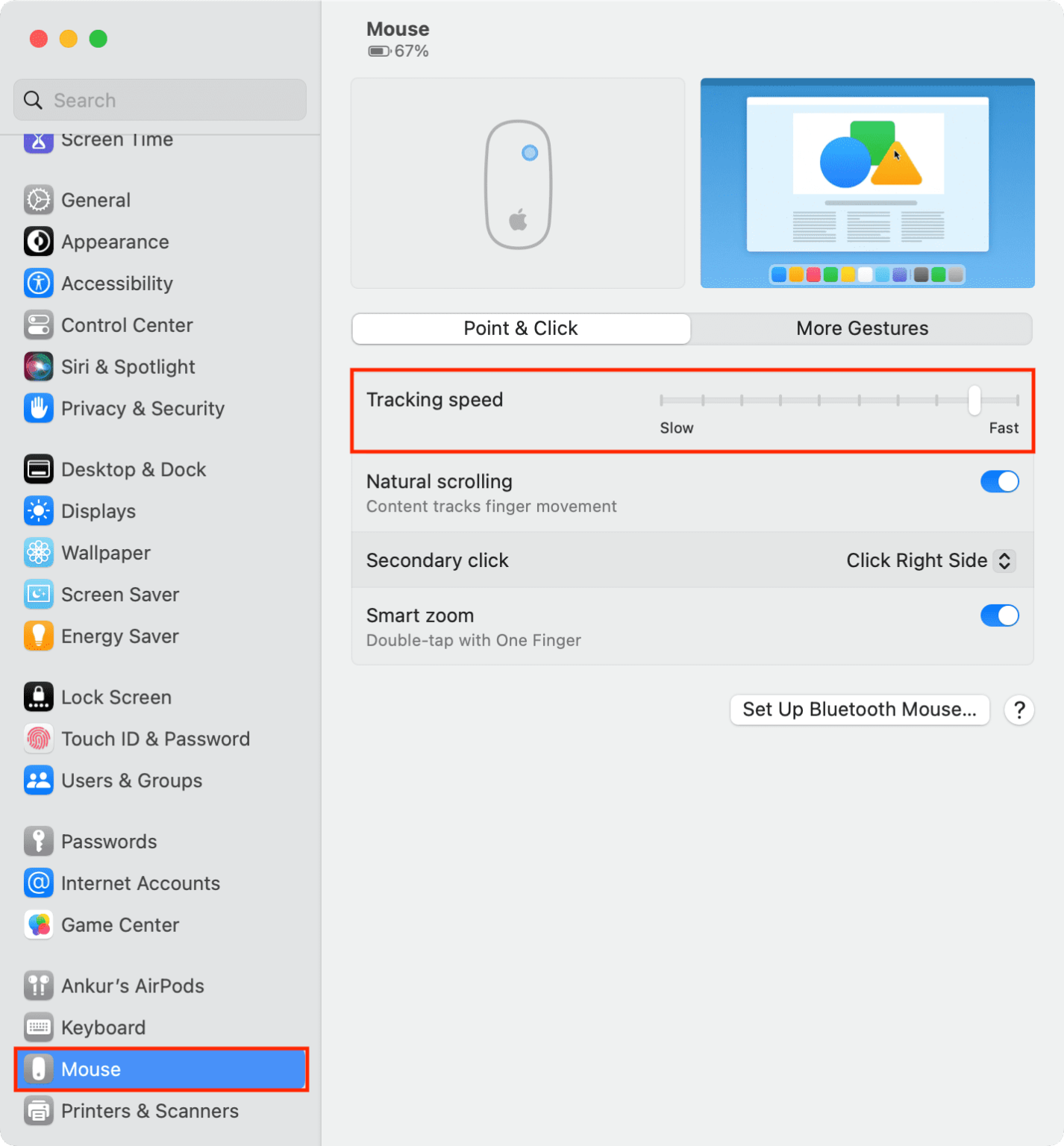
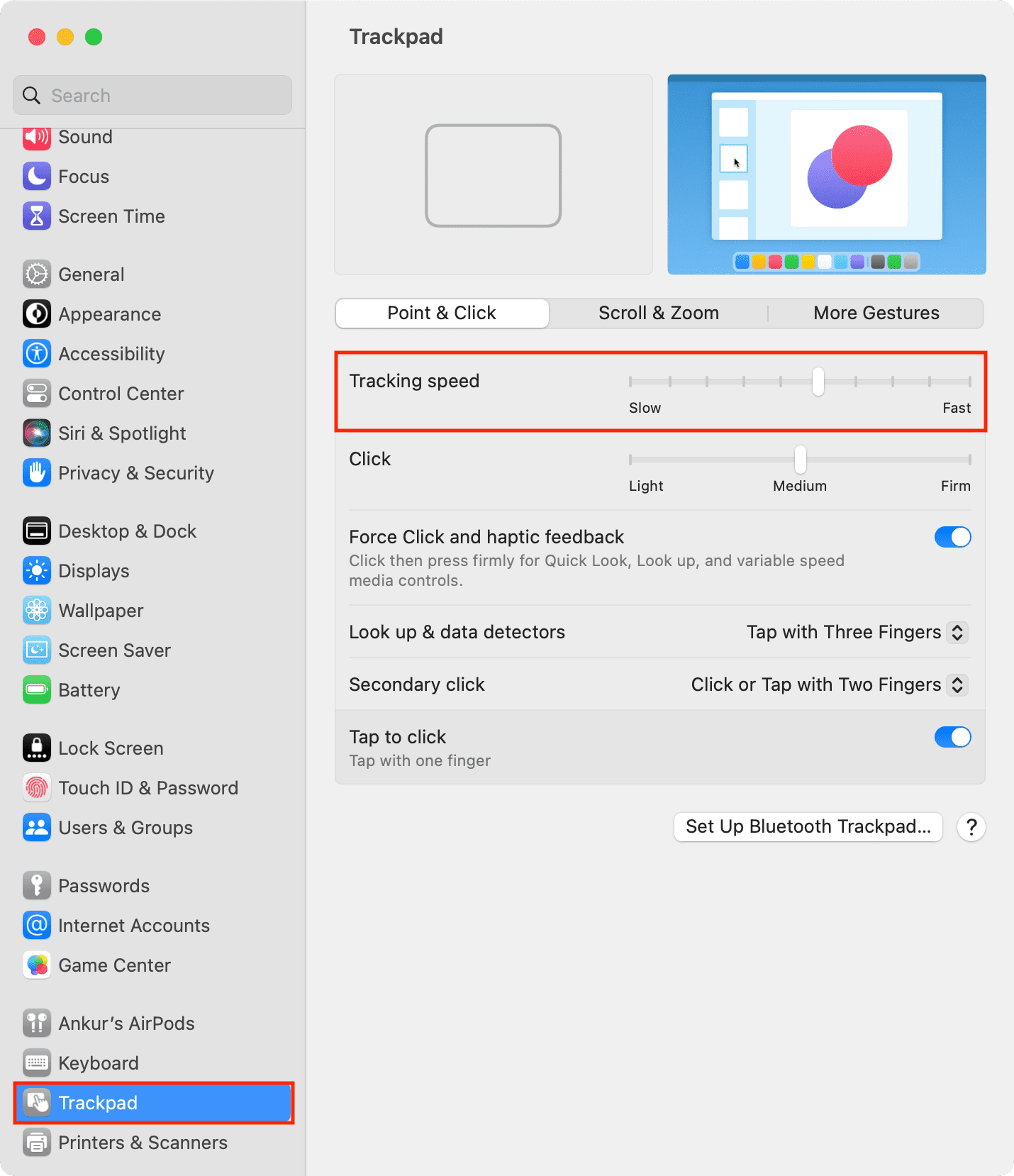
To increase your mouse’s sensitivity on Mac, open the Apple menu and select System Settings > Mouse. Adjust the speed using the slider on the right, next to the Tracking speed settings. Test the speed by moving the mouse around the screen and adjust as needed. To speed up your trackpad’s sensitivity, in System Settings, select Trackpad and move the slider to the left or right. Again, test your trackpad for a few moments to ensure you have the desired sensitivity.
Step 1. Click on the Apple menu > System Settings > Mouse > move the sliderStep 2. Click on the Apple menu > System Settings > Trackpad > move the slider
Does your mouse’s pointer seem to be playing hide and seek? Don’t stress, you can get it to reappear. Learn what you can do when the Mac mouse has disappeared.
Why you might want to adjust the mouse speed on a Mac?
The key reasons for changing the mouse sensitivity on a Mac are:
Improved productivity and efficiency in everyday tasks.
Faster multi-monitor navigation through your screens’ edges.
Decreased physical strain to limit the need to constantly adjust the mouse.
Advanced gaming responsiveness with quicker reactions and faster 180° turns in fast-paced games.
A tip from the MacKeeper team:
Are you struggling with moving your mouse or dragging the slider? Nearly all Mac users can relate to how incredibly frustrating it is when an unresponsive cursor interrupts workflow. But software glitches and power levels are typically the culprits behind such scenarios. Find out what you can do when the mouse is frozen on a Mac.
For instance, you should stay on top of checking your Bluetooth connection and making sure your device actually has a sufficient charge—something that any Mac owner can innocently forget to do. If the hardware is fine but the pointer remains stuck, you may need to force a system restart or look into the possibility of a crashed process hijacking your system’s resources.
A note from our experts:
Did you know that your mouse’s pointer can perform slowly when your Mac’s system is weighed down by junk files? You can fix that right now using MacKeeper’s Safe Cleanup tool. This software improves your Mac’s performance by safely getting rid of unwanted files, such as caches, mail attachments, logs, trash items, languages, and installation files. And if you have any questions about MacKeeper’s authenticity, the app is notarized by Apple, making it a safe and trusted solution.
Follow these steps to use MacKeeper’s Safe Cleanup tool right now:
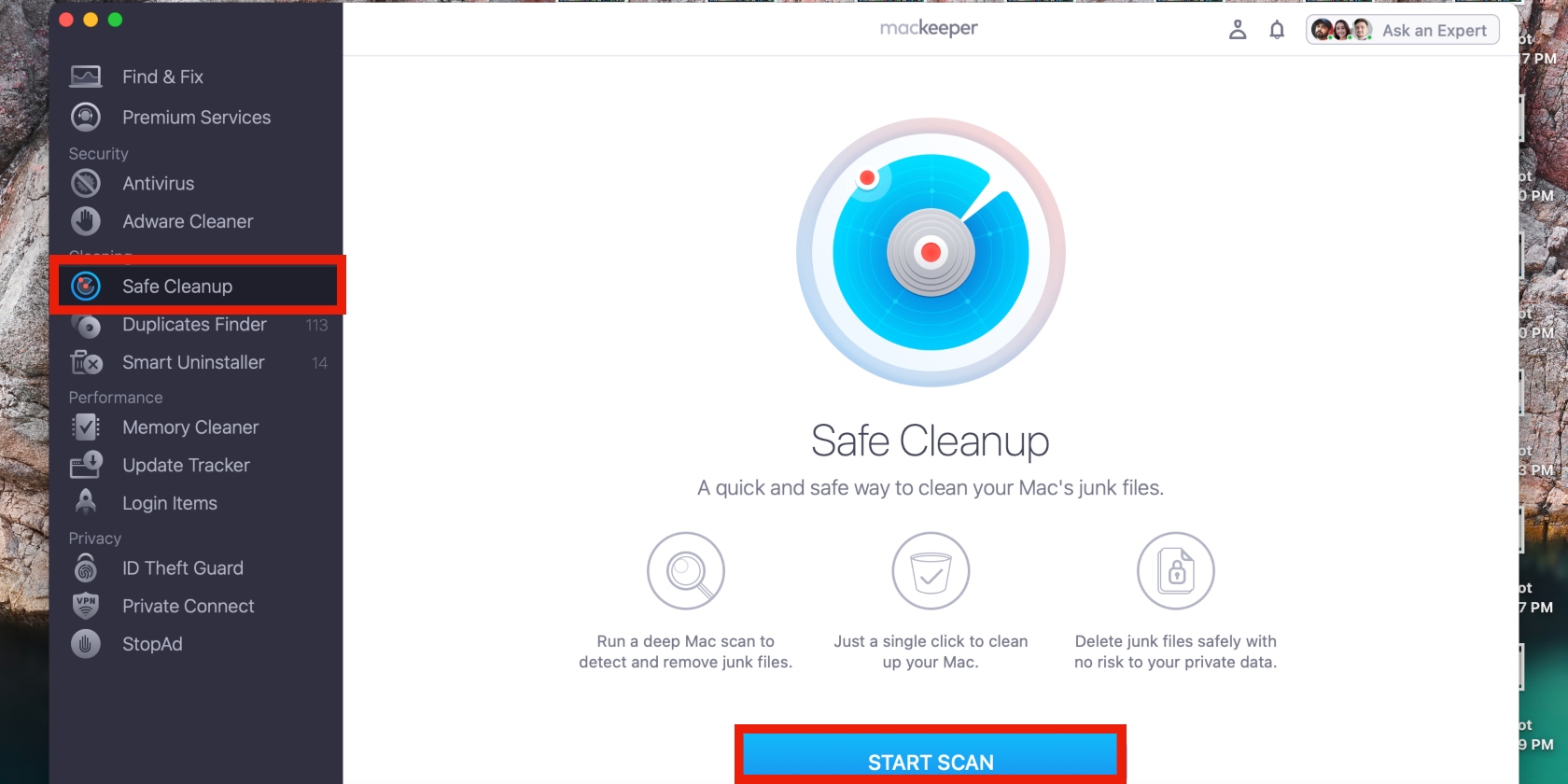
Download MacKeeper on your MacBook Pro, MacBook Air, Mac mini, or iMac computer and click the Safe Cleanup option from the features list in the sidebar.
Navigate to the Start Scan button, click on it, and wait for the scan to start.
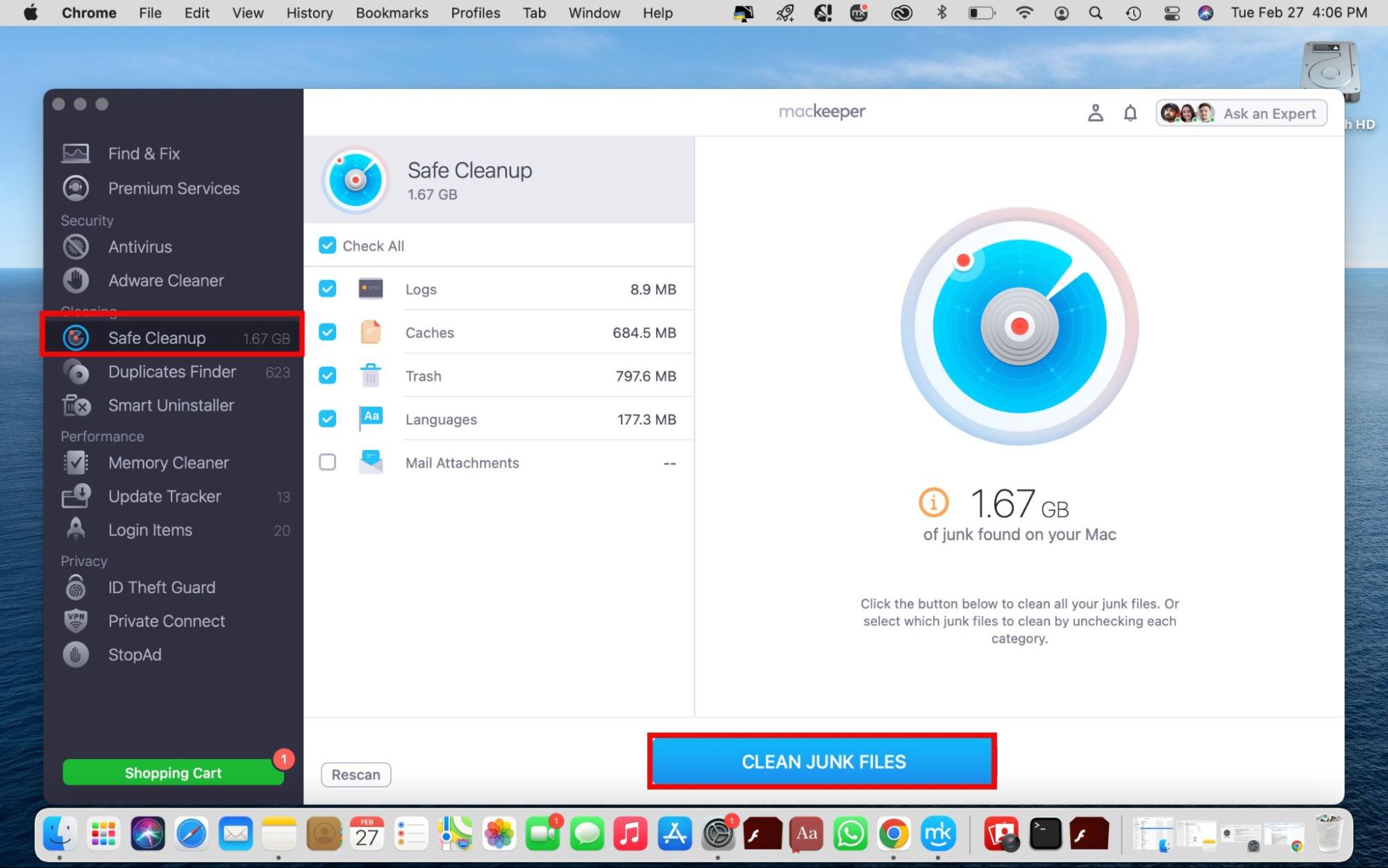
MacKeeper will start looking for all junk files on your device. When the scan is complete, click the Clean Junk Files button.
Step 1. Open MacKeeper and click on Safe Cleanup > Start ScanStep 2. Click on Clean Junk Files
We’d like to add that Apple’s Magic Mouse is a convenient gadget when it functions properly, offering a sleek design and intuitive gesture controls that enhance the macOS experience. However, its wireless nature means users may occasionally encounter frustrating Bluetooth issues or pairing failures. That’s why it always helps to know what you can do when the Magic Mouse isn’t connecting to your Mac. This ensures that a minor technical glitch like this doesn't derail your entire workflow.
How to adjust the speed of the mouse on a Mac?
To change your mouse pointer’s speed:
Open the Apple menu, select System Settings > Mouse, and change the speed using the Tracking speed slider (don’t forget to test the speed by moving the mouse around the screen and adjust as needed).
To adjust pointer speed via trackpad settings, select Trackpad in System Settings, move the slider, and test your trackpad’s speed.
Step 1. Click on the Apple menu > System Settings > Mouse > move the sliderStep 2. Click on the Apple menu > System Settings > Trackpad > move the slider
Do your computer's scroll settings need to be changed?
You can quickly achieve your desired level of comfort by modifying your interface. See how easy it is to change scroll direction on a Mac via the Mouse or Trackpad settings in System Settings. You may adjust the toggle there to fit your comfort level and muscle memory, making sure that all of your favorite apps have responsive and easy scrolling.
Adjust your Mac mouse’s speed for comfort and convenience
Whether you need to slow down an erratic pointer or speed it up for an enhanced user experience, changing the macOS mouse’s speed is a straightforward process. Simply drag the Tracking speed slider in either Mouse or Trackpad settings in System Settings, and you’re good to go.
To fix a sluggish Mac or mouse pointer, consider clearing your Mac of junk files with MacKeeper’s Safe Cleanup tool. It optimizes your MacBook device by safely deleting junk files you’ve probably forgotten about, such as old mail attachments, trash items, caches, logs, and more. Your Mac will thank you.
We respect your privacy and
use cookies
for the best site experience.
Privacy Preferences Center
We use cookies along with other tools to give you the best possible experience while using the
MacKeeper website. Cookies are small text files that help the website load faster. The cookies we
use don’t contain any type of personal data meaning they never store information such as your
location, email address, or IP address.
Help us improve how you interact with our website by accepting the use of cookies. You can change
your privacy settings whenever you like.
Manage consent
All cookies
These cookies are strictly necessary for enabling basic website functionality (including page
navigation, form submission, language detection, post commenting), downloading and purchasing
software. The website might malfunction without these cookies.