
In this article you will find the following:
What is cache in Adobe After Effects?
When you work on a project in Adobe After Effects, the app doesn’t render every frame from scratch each time you hit play. Instead, it stores rendered frames, audio waveforms, and footage data as temporary files—this is the cache.
Cache speeds things up. Once a frame is rendered and stored, Adobe After Effects reads it back instantly. Green bars in the Timeline indicate frames in RAM, while blue bars show frames on disk. However, on a MacBook with limited storage, the cache folder can grow to hundreds of gigabytes.
Is it safe to remove Adobe After Effects cache?
Yes, it’s safe. Cache files are temporary. Deleting them won’t remove your projects, compositions, or assets. Adobe After Effects will rebuild the cache the next time you preview a timeline. The only trade-off—your first preview after clearing will take a bit longer.
A note from our experts:
Want to delete cache across your entire Mac? macOS stores temporary files in several other locations, too. Use MacKeeper’s Safe Cleanup to get rid of the accumulated cache and resolve the potential problem with Adobe After Effects app. After you’ve downloaded the app, move to the Use third-party cleaning apps section below—for more details on how to use the tool to delete cache on your MacBook.
How to delete Adobe After Effects cache on Mac?
There are several ways to remove After Effects cache: within the app itself, through Finder, or with a third-party tool. Moreover, if you need to clear app cache across your Mac, these methods work for other Adobe apps too.
1. Clear disk cache from After Effects preferences
Deleting cache within the app is the most straightforward method—you’ll use After Effects’ built-in preferences panel. Here’s what you need to do:
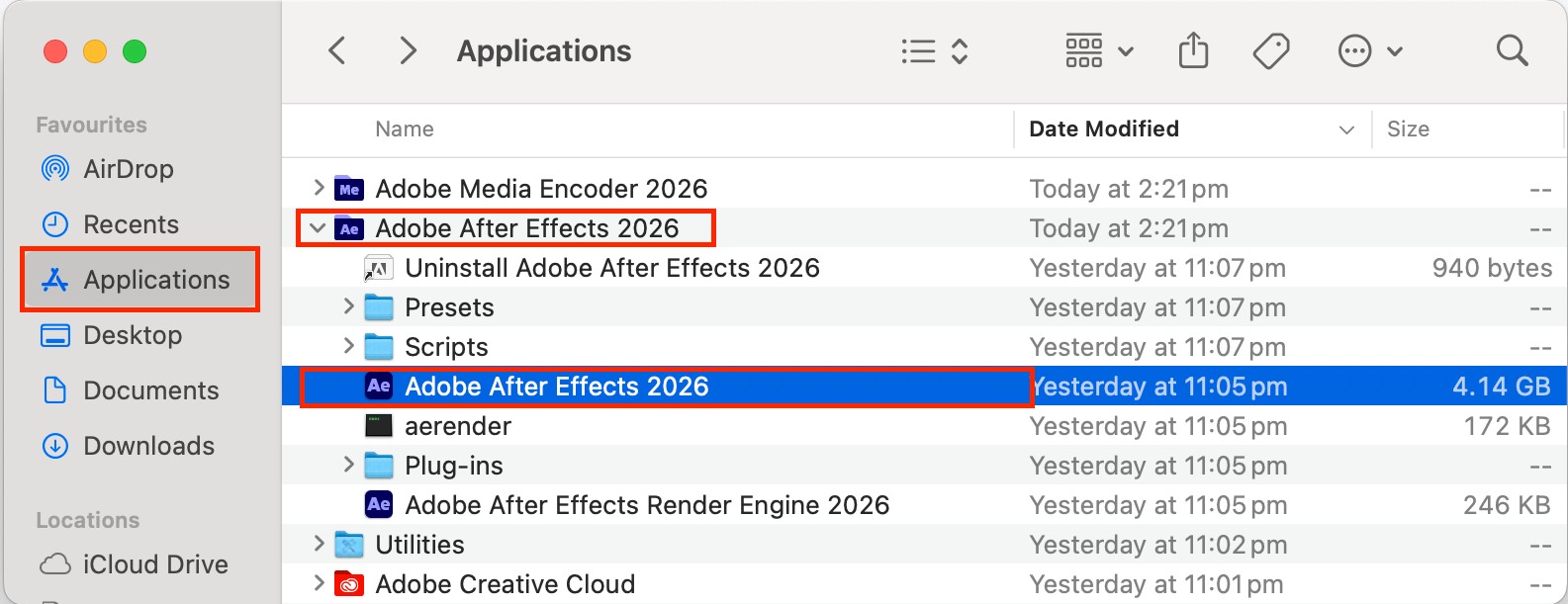
- Open After Effects from the Applications folder on your Mac.
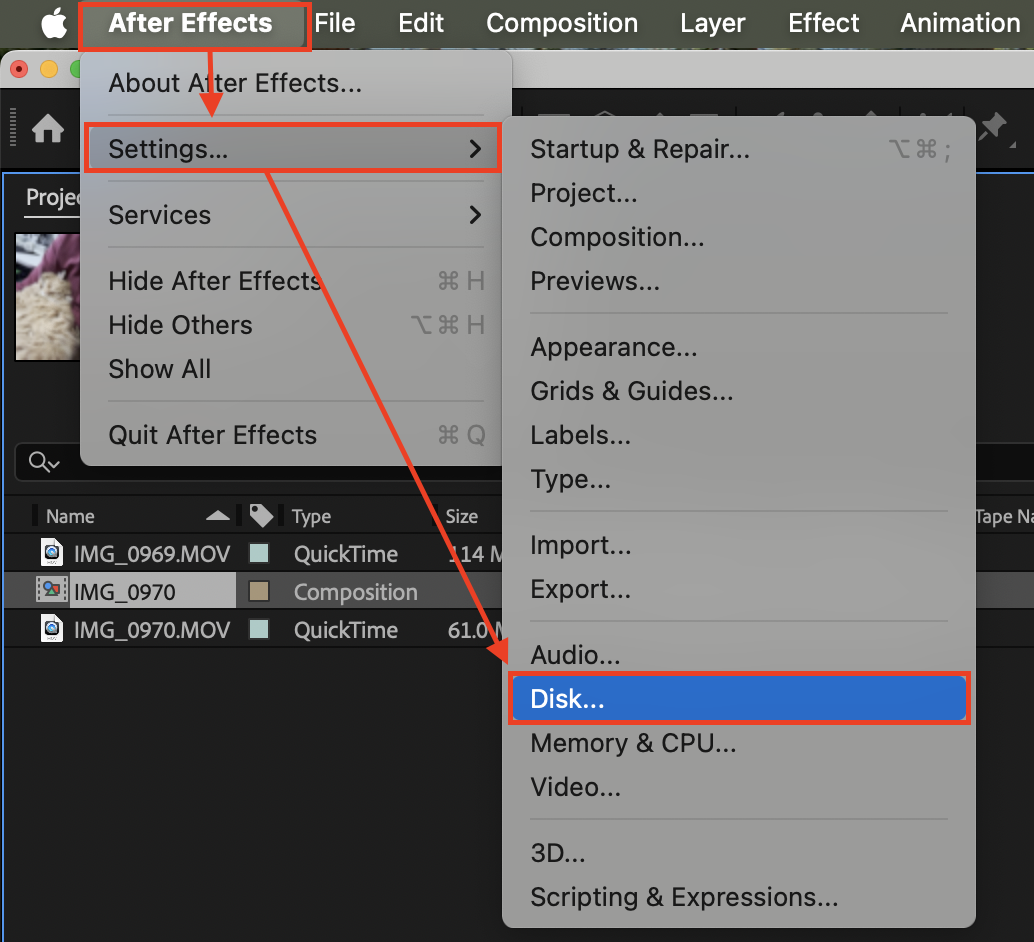
- Go to After Effects > Preferences/Settings > Media & Disk Cache > Disk. Please, mind that this path might vary a bit on your macOS version.
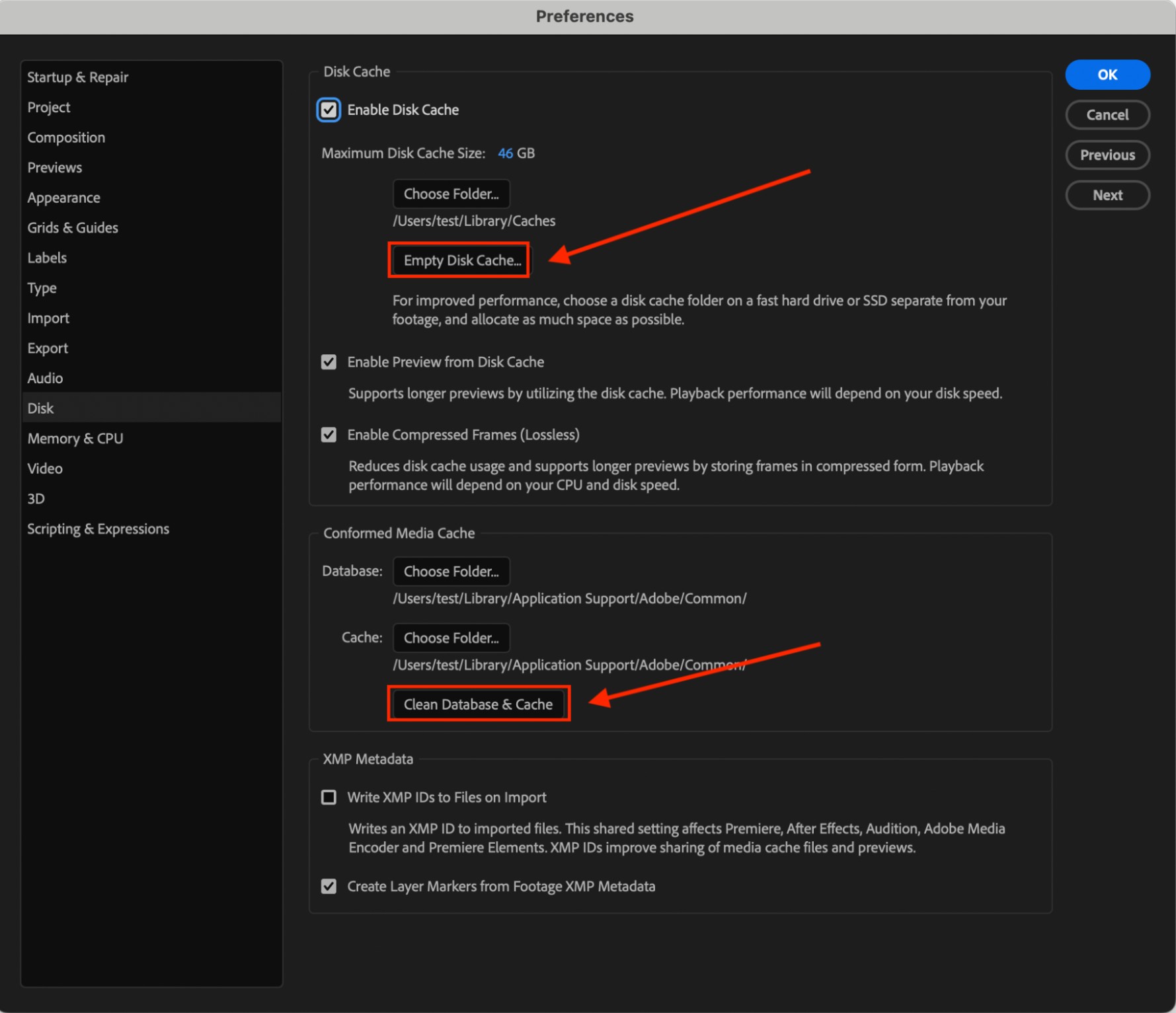
- Click Empty Disk Cache.
- Select Clean Database & Cache when prompted > click OK.
- Optionally, you can adjust the Maximum Disk Cache Size slider to set a smaller limit for the future.
Another tip from us:
While you’re still in the Disk window of the Adobe After Effects app setting, check the cache location. If it’s on your startup disk, consider moving it to an external SSD.
2. Purge memory and disk cache from the menu
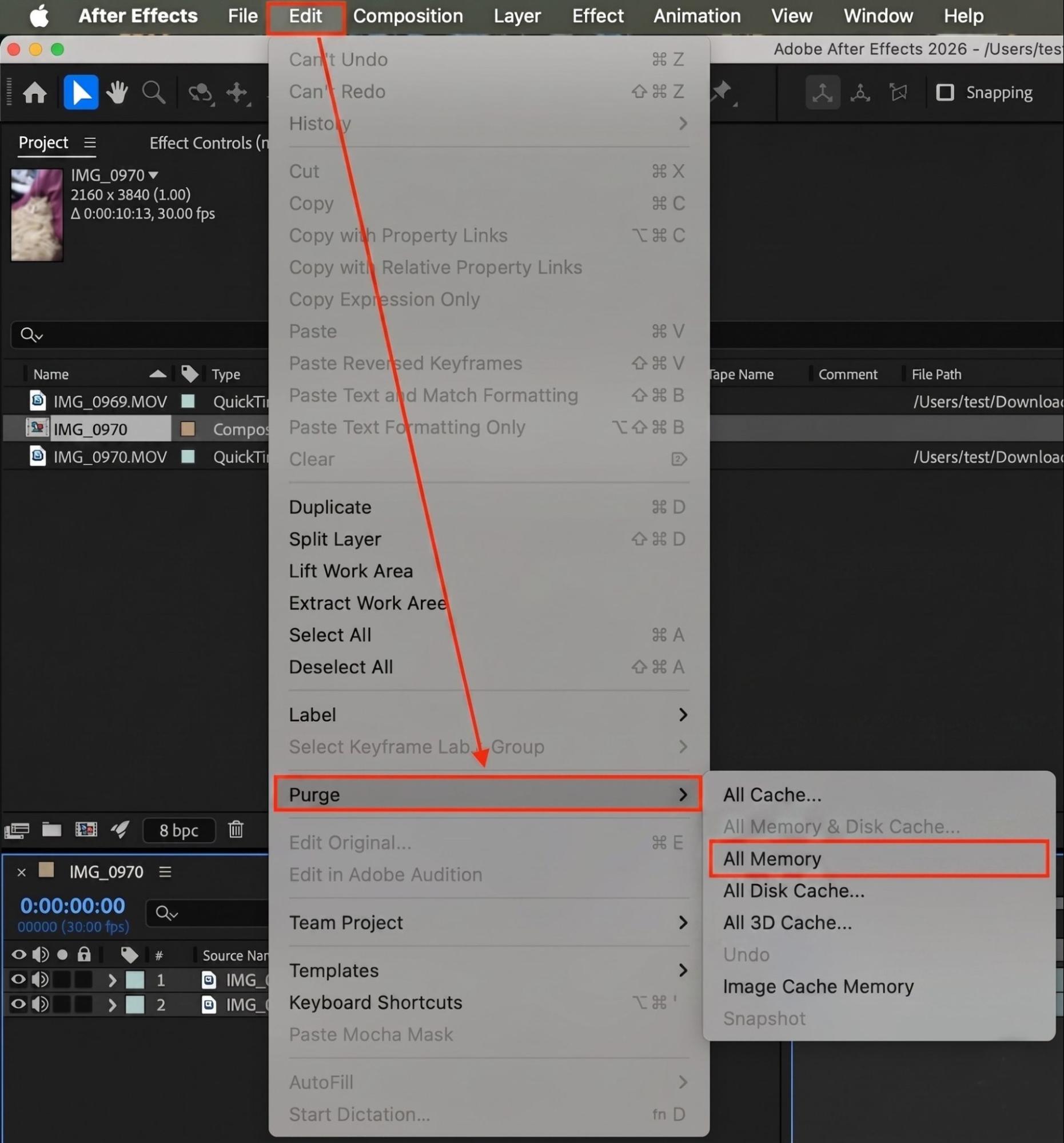
Adobe After Effects also provides a quick purge option from the menu bar that clears both RAM and disk cache at once. To use this method, follow our instructions below:
- Open your project in After Effects.
- Go to Edit > Purge > All Memory & Disk Cache.
- Click OK in the confirmation dialog.
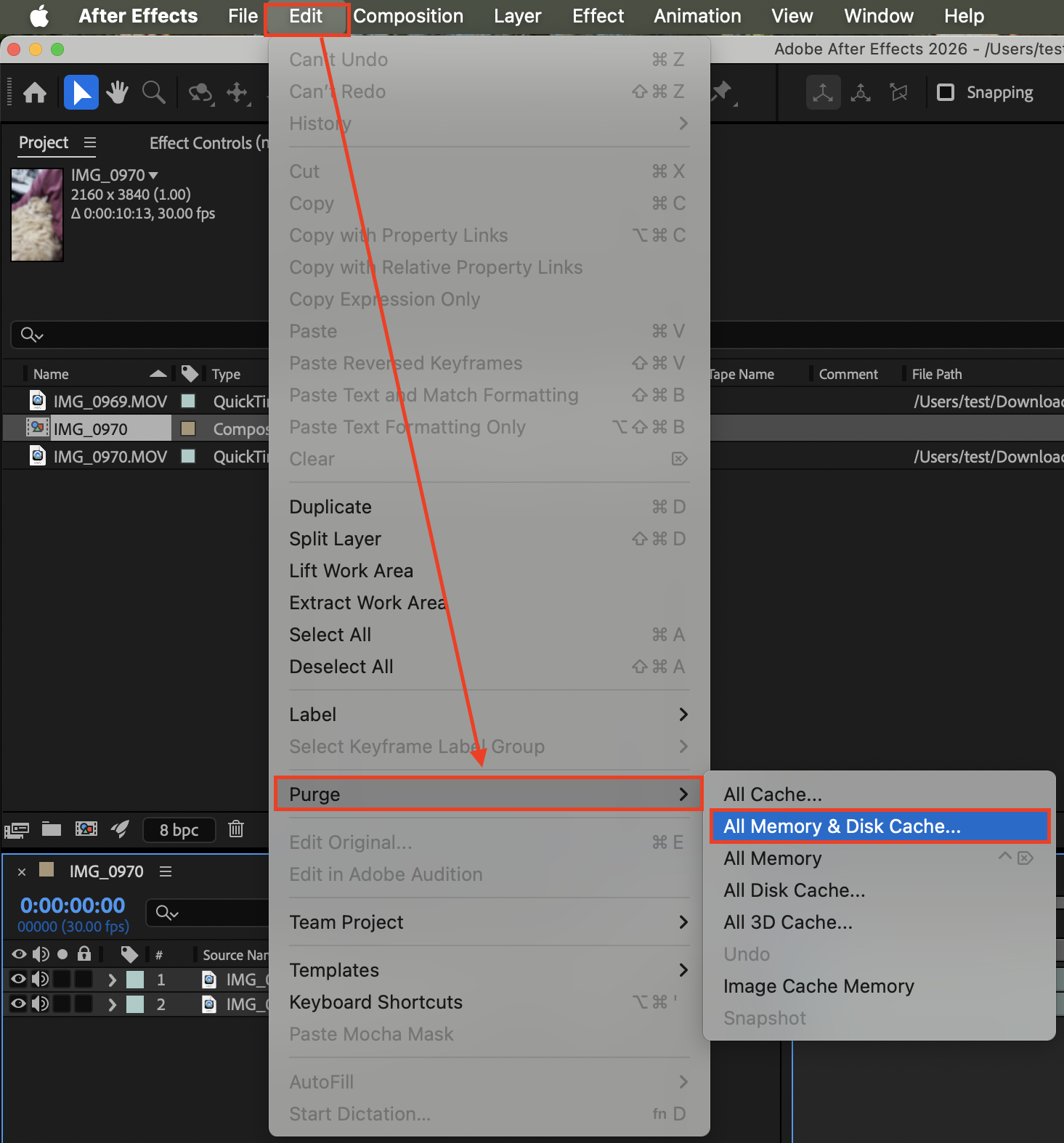
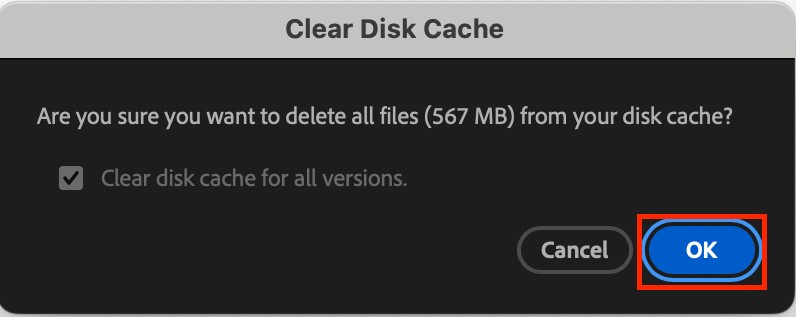
Alternatively, you can also purge just memory or disk cache separately from the Purge menu. For this, choose All Memory to free up RAM without touching saved previews on disk.
3. Delete After Effects cache manually on Mac
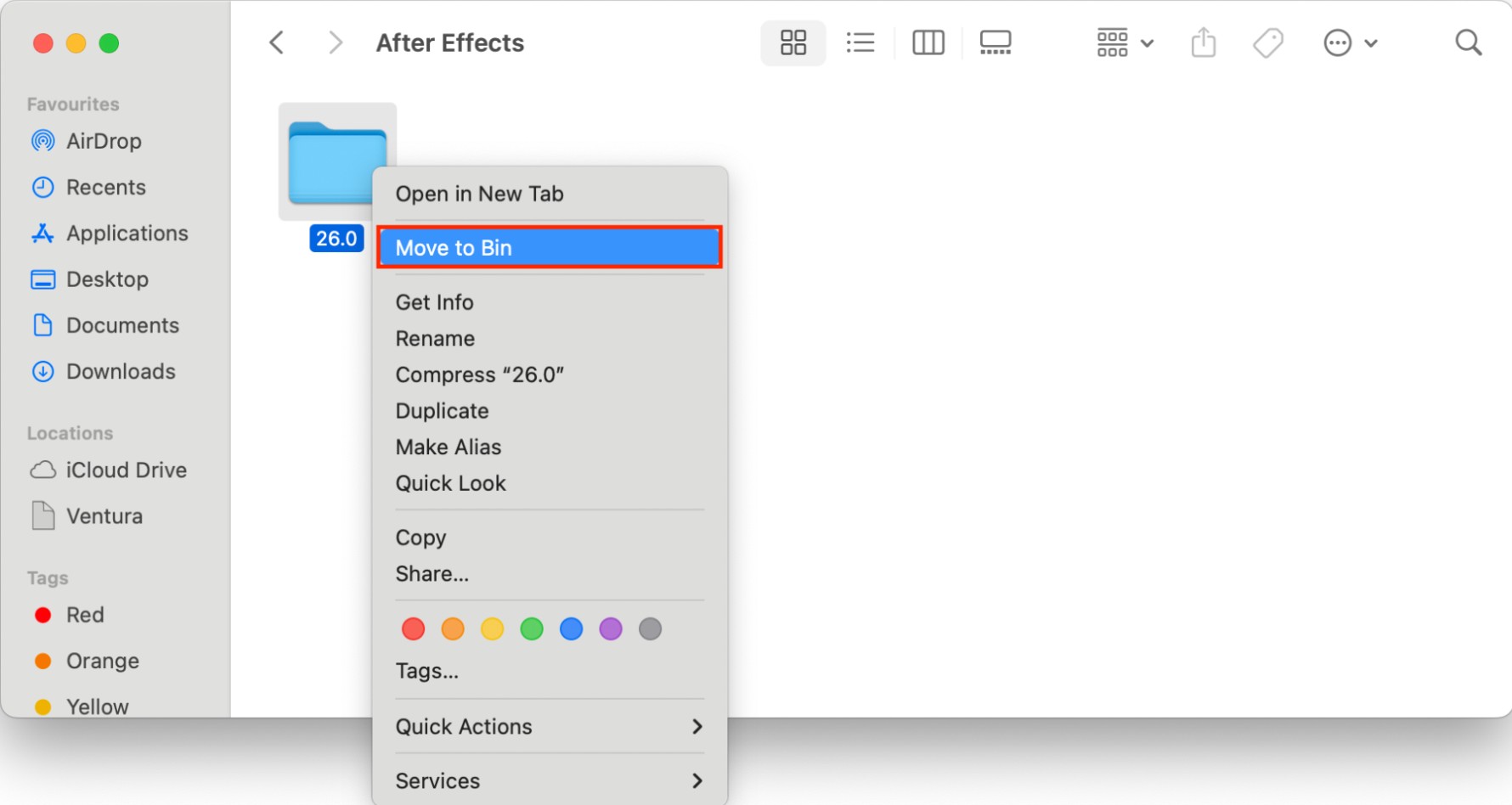
If After Effects won’t open or you’ve already uninstalled it, you can remove cached files manually through Finder. Plus, this method also helps clear temp files Adobe leaves behind across multiple versions. Do the following:
- Open Finder on your Mac.
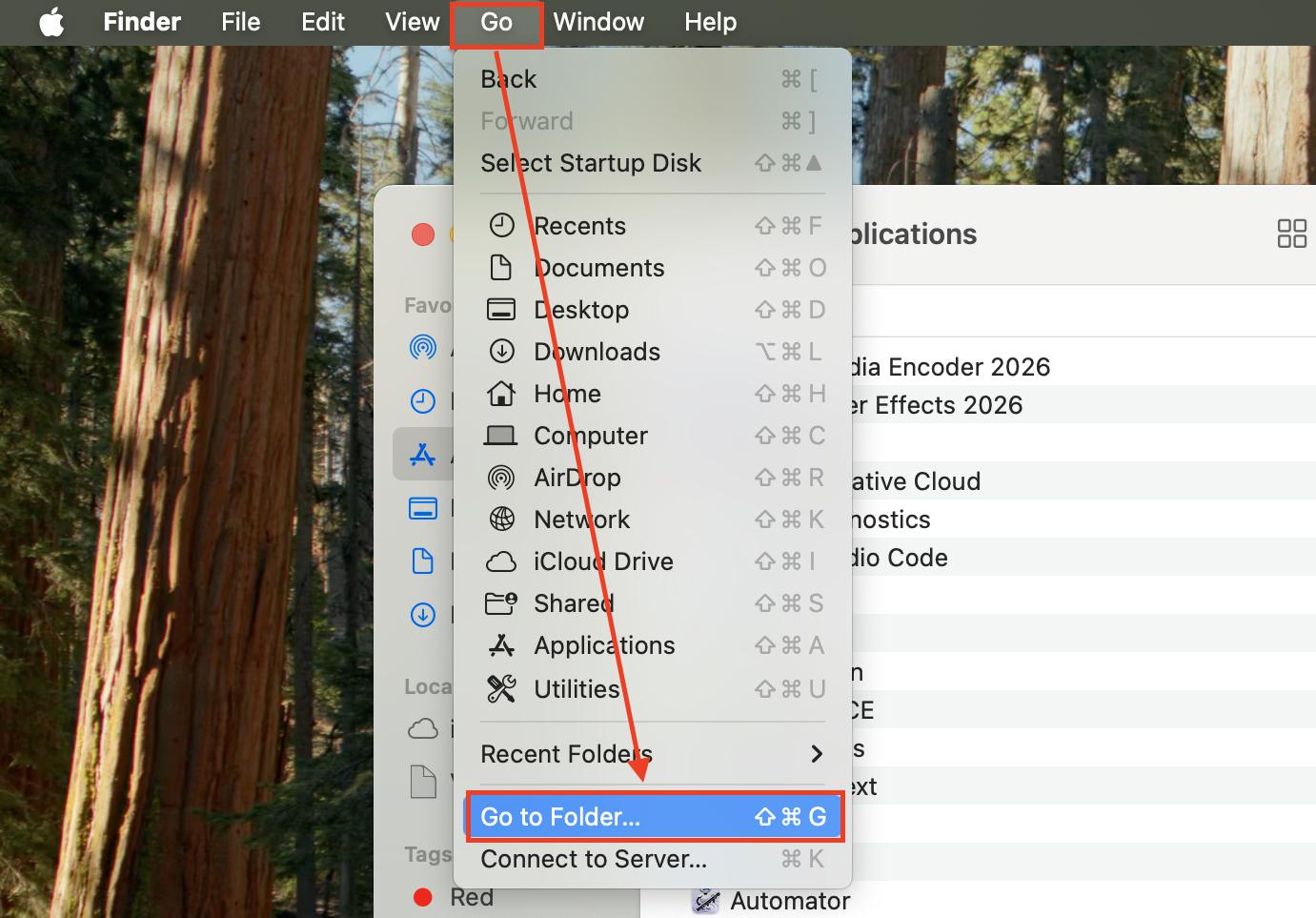
- In the top menu bar, click Go > Go to Folder.
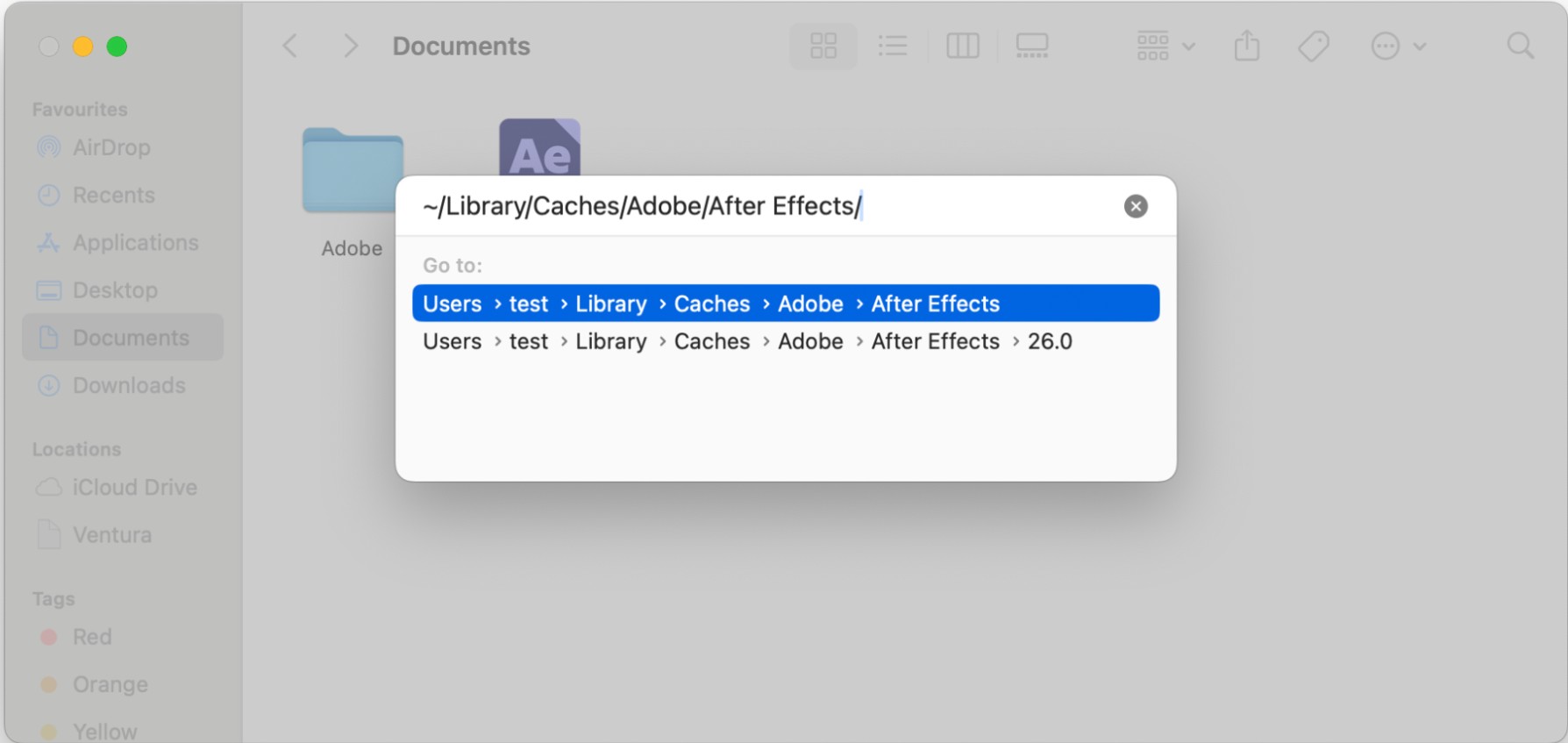
- Type ~/Library/Caches/Adobe/After Effects/ and press Return.
- Select the version folders you no longer need. Keep the folder for your current version.
- Move them to Trash, then empty the Trash to reclaim the space.
4. Use third-party cleaning apps
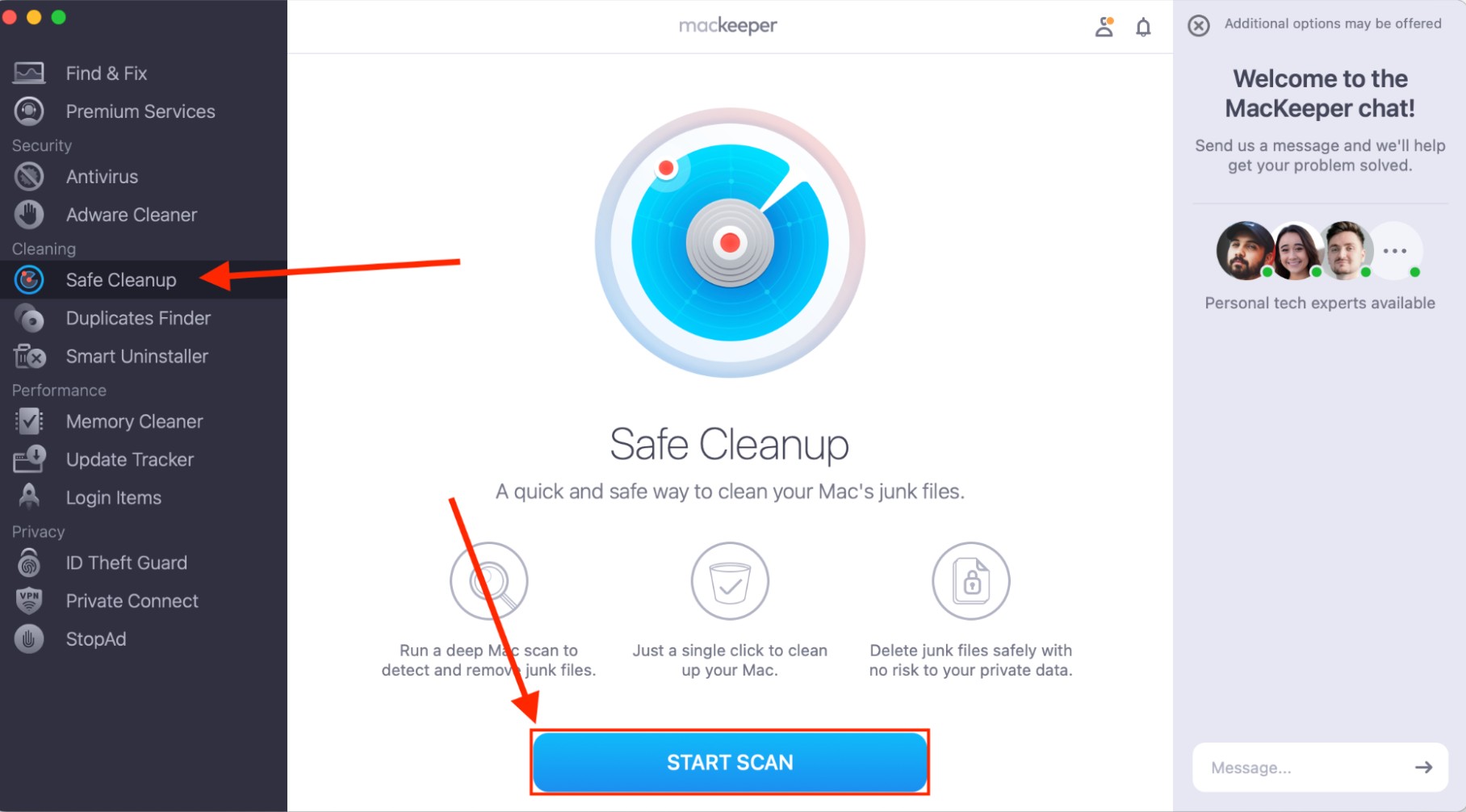
If digging through Library folders isn’t your thing, a cleanup tool can handle it. MacKeeper’s Safe Cleanup scans for junk files—including Adobe caches and logs—and lets you remove them in one click. Just follow these steps:
- Download and open MacKeeper on your Mac.
- Select Safe Cleanup from the sidebar.
- Click Start Scan.
- Review the results and select the cache files you want to remove.
- Click Clean Junk Files to remove them.
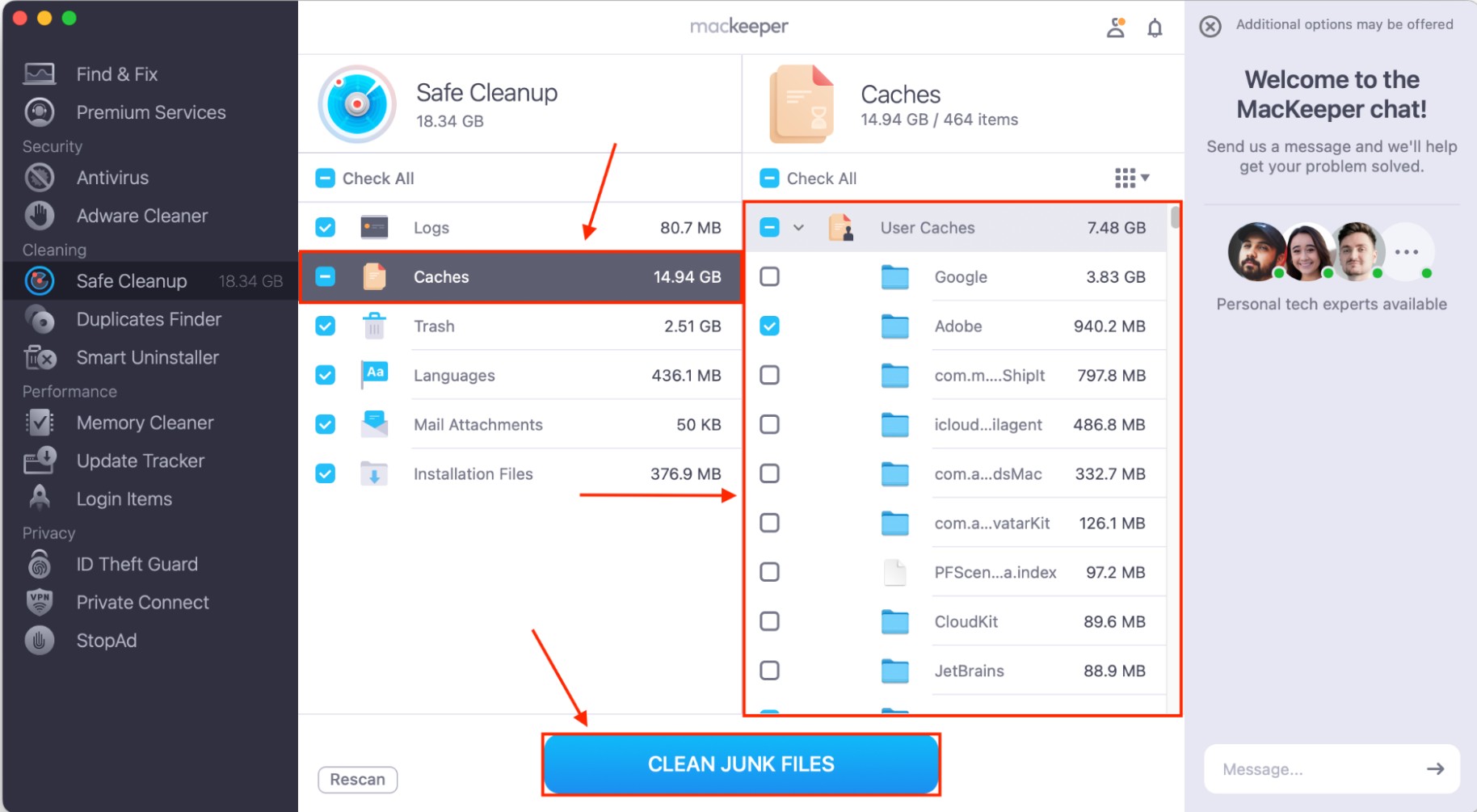
This approach is especially helpful if you use several Adobe apps, since each one creates its own cache. A single scan catches them all.
What can clearing the Adobe After Effects cache on Mac help with?
You don’t need to clear cache on a schedule, but there are situations where it makes a real difference—read it on in more detail below.
1. After Effects is running slowly
Large or outdated cache files slow down previews and renders. Clearing the disk cache gives Adobe After Effects a fresh start. Has your Mac suddenly become so slow? A bloated cache might be why.
2. Glitches or preview errors appear
Sometimes, Adobe After Effects reads an outdated cached frame instead of rendering a fresh one. A font might not display correctly, or an effect could look wrong. Purging the cache forces the app to rebuild previews from scratch.
3. Disk space is running low
Adobe After Effects cache can quietly consume 50, 100, or even 500+ GB of your Mac’s storage. Removing it is one of the fastest ways to clean up Mac storage without deleting any personal files.
Types of cache in Adobe After Effects
Adobe After Effects uses two caching systems. Understanding the difference helps you decide which one to clear.
| Feature | Disk cache | Memory (RAM) cache |
| Stored in | Hard drive or SSD | RAM |
| Persists after quitting | Yes | No |
| Timeline indicator | Blue bar | Green bar |
| Can grow very large | Yes (hundreds of GB) | Limited by available RAM |
1. Disk cache
The disk cache saves rendered frames to your hard drive or SSD. These files persist after you quit After Effects. By default, they’re stored in ~/Library/Caches/Adobe/After Effects/. With complex motion graphics or 4K footage, this folder can grow to hundreds of gigabytes.
2. Memory cache
The memory (RAM) cache holds rendered frames in your Mac’s RAM for real-time playback. It’s faster than disk cache but limited in size. RAM cache clears automatically when you quit After Effects, so it’s the disk cache that usually needs attention.
3. Conformed media cache
Conformed media cache is the storage of processed and optimized versions of media files located in ~/Library/Application Support/Adobe/Common. These optimized versions may include transcoded or converted versions of the original media files, making them more suitable for efficient playback and editing.
If we put it into comparison table above, the specs are almost identical to Disk Cache, with only reason, that timeline indicator doesn't have a specific indication color for such cache and it doesn't grow as large as Disk Cache.
How often should you clear Adobe After Effects cache?
There’s no universal rule, but here are practical guidelines we suggest you follow:
- After finishing a large project. You don’t need cached previews once a project is exported and delivered.
- When previews start glitching. Stale cache is often the cause of visual artifacts during playback.
- When your Mac’s storage is filling up. Check Adobe cache folders first.
- Monthly, as a habit. Regular cleanup keeps things manageable.
Conclusion
Knowing how to clear the Adobe After Effects cache on Mac saves you from sluggish timelines and storage headaches. Whether you use the app’s preferences, the Purge menu, or Finder, it takes just a few clicks. For ongoing maintenance after large projects or intense editing sessions, MacKeeper’s Safe Cleanup makes it even easier. Give it a try and keep your creative workflow running clean.