Despite its unusual name, searchpartyuseragent is a legitimate part of macOS—but it can also be a source of Mac performance issues. There are a few different ways to fix this issue, but for a quick speed boost, clear your RAM with MacKeeper’s Memory Cleaner tool.
The searchpartyuseragent process is related to Apple’s crowdsourced location-tracking network—the technology that powers services like Find My Mac. Most of the time, it runs quietly in the background, but if something goes wrong with searchpartyuseragent, you may notice a spike in your Mac’s CPU usage. From our experience, this process can also slow your Mac down, and it could potentially be caused by a system malfunction or by malware.
What is searchpartyuseragent on Mac?
Searchpartyuseragent is a macOS system daemon that plays an integral role in Apple’s Find My network. If you’ve ever used Apple’s tracking services to find your iPhone, AirTags, AirPods, or MacBook, then you’ve used searchpartyuseragent, as well as searchpartyd. Both are background processes and aren’t designed for any kind of direct user interaction.
Searchpartyuseragent vs searchpartyd: What’s the difference?
Both searchpartyuseragent and searchpartyd on Mac are related to Apple’s Find My network, but they have slightly different roles. Searchpartyd is a system-wide daemon, designed for offline device finding. Searchpartyuseragent is a user-level daemon, which works in tandem with searchpartyd, accessing keychain data and presenting notifications.
Common searchpartyuseragent issues and causes
When all is going well, you won’t even notice searchpartyuseragent working. Unfortunately, though, it can go wrong, and you may encounter one of these common issues:
High CPU and/or RAM usage: This slows down your Mac, making it essential to get searchpartyuseragent under control.
Location tracking and Bluetooth issues: You may experience problems when you try to locate your Apple devices.
Password prompts: On-screen messages might pop up, with searchpartyuseragent asking for access to your keychain.
Malware symptoms: While Apple searchpartyuseragent is a key part of macOS, it’s possible for viruses and adware to mimic this daemon.
A note from our experts:
If you’re reading our article here, it’s likely because of searchpartyuseragent high CPU usage. For a quick speed boost, try MacKeeper’s Memory Cleaner—in just a few clicks, this handy tool will close down unneeded background processes and help your Mac run more smoothly.
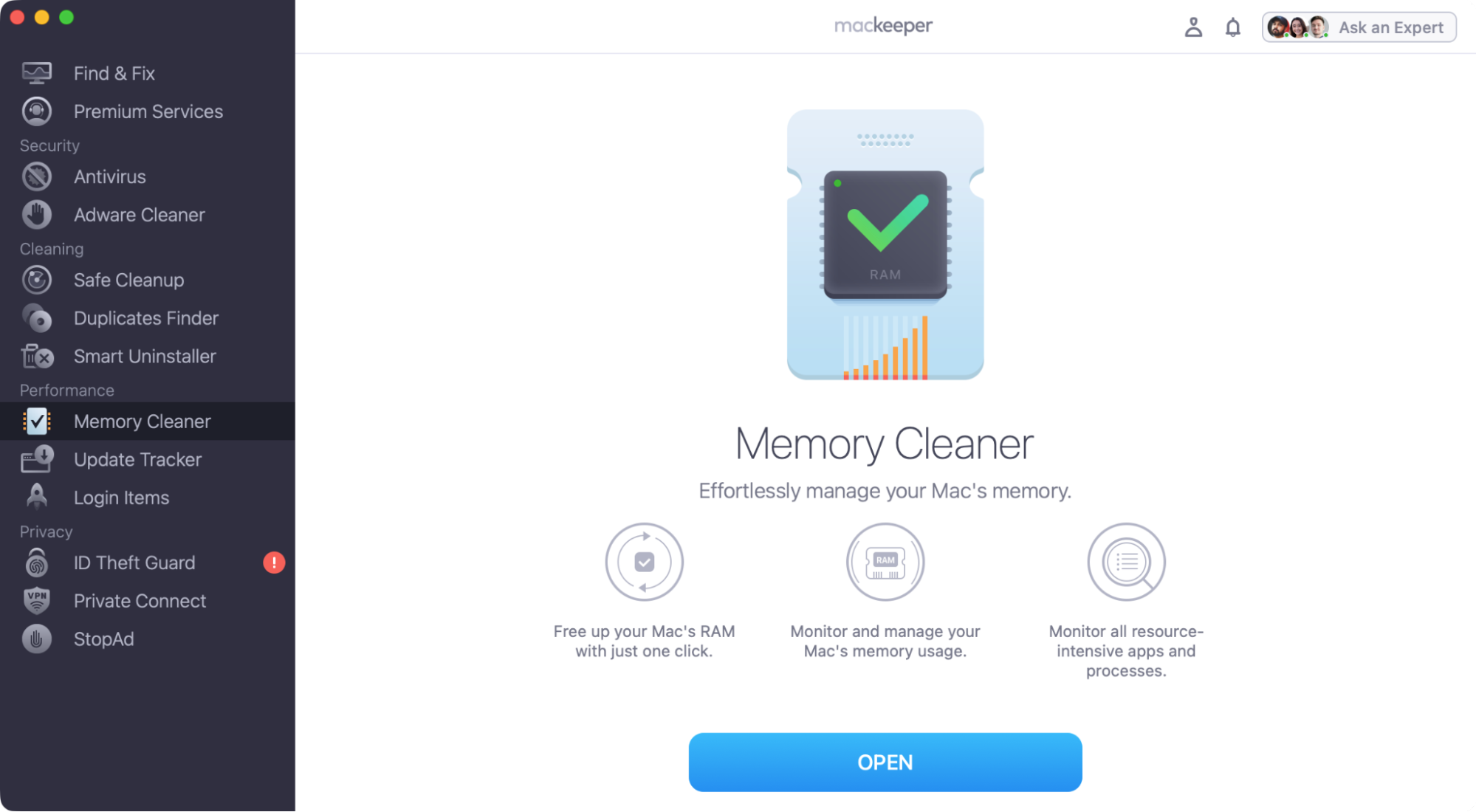
Select the Memory Cleaner tool from the side menu, and click Open.
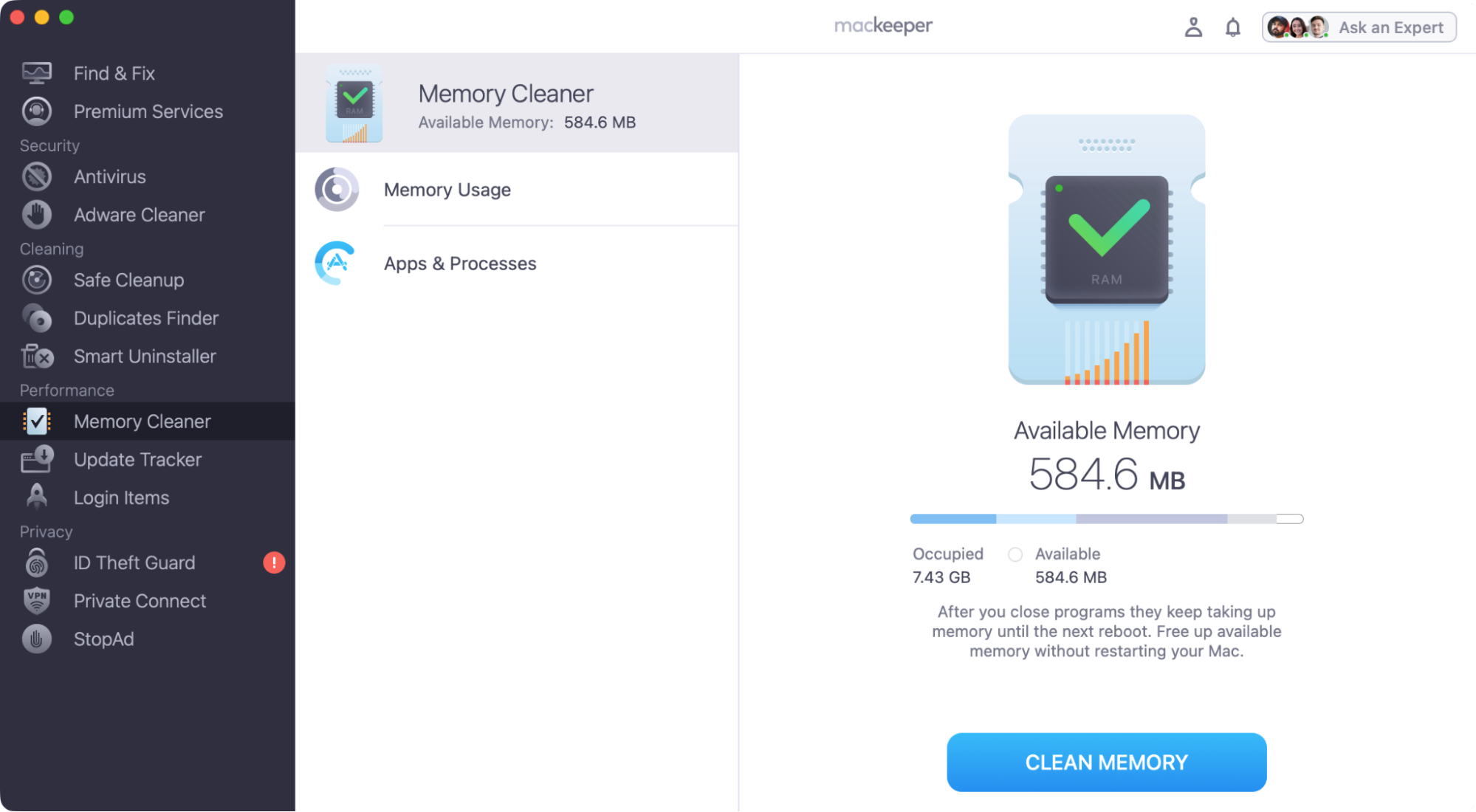
Click Clean Memory.
Step 1. Select the Memory Cleaner tool, and click OpenStep 2. Click the Clean Memory buttonStep 3. Enjoy the extra RAM!
That’s it! Enjoy the extra bit of system performance.
Is searchpartyuseragent safe?
Yes, searchpartyuseragent for Mac is completely safe. It’s a standard part of the macOS operating system, so you should expect it to run in the background whenever you use your computer. To check if searchpartyuseragent is running, open Activity Monitor on Mac, and look for this process in the list.
Why searchpartyuseragent may look suspicious?
Although searchpartyuseragent is a legitimate element of macOS, it sometimes behaves in ways that lead people to mistake it for malware. For example, it may use a large amount of CPU or RAM, slowing the user’s system down. It may also request access to keychain data, similar to some malware. However, this is just part of searchpartyuseragent’s normal operations.
What does “SearchPartyUserAgent will damage your computer” mean?
The message “SearchPartyUserAgent will damage your computer” is most likely a fake virus warning. Scammers and unscrupulous antivirus sellers will pretend this harmless system process is actually malware, encouraging you to hand over your personal information or payment details. We’d like also warn you that they might also prompt you to download their apps, which may themselves be riddled with malware.
How to fix searchpartyuseragent high CPU usage?
Now we’ve explained what searchpartyuseragent is, let’s look at what to do if it’s causing your Mac’s CPU usage to spike.
For your convenience, we’re going to start with the easiest and least intrusive fixes and work our way up to more involved solutions. Hopefully, you won’t have to work your way through the entire list to get your Mac back on track.
1. Force quit process
The first thing we’re going to try is to force quit Mac’s searchpartyuseragent and seachpartyd processes. Because they’re both background processes, you need to do this with Activity Monitor. Simply do as follows:
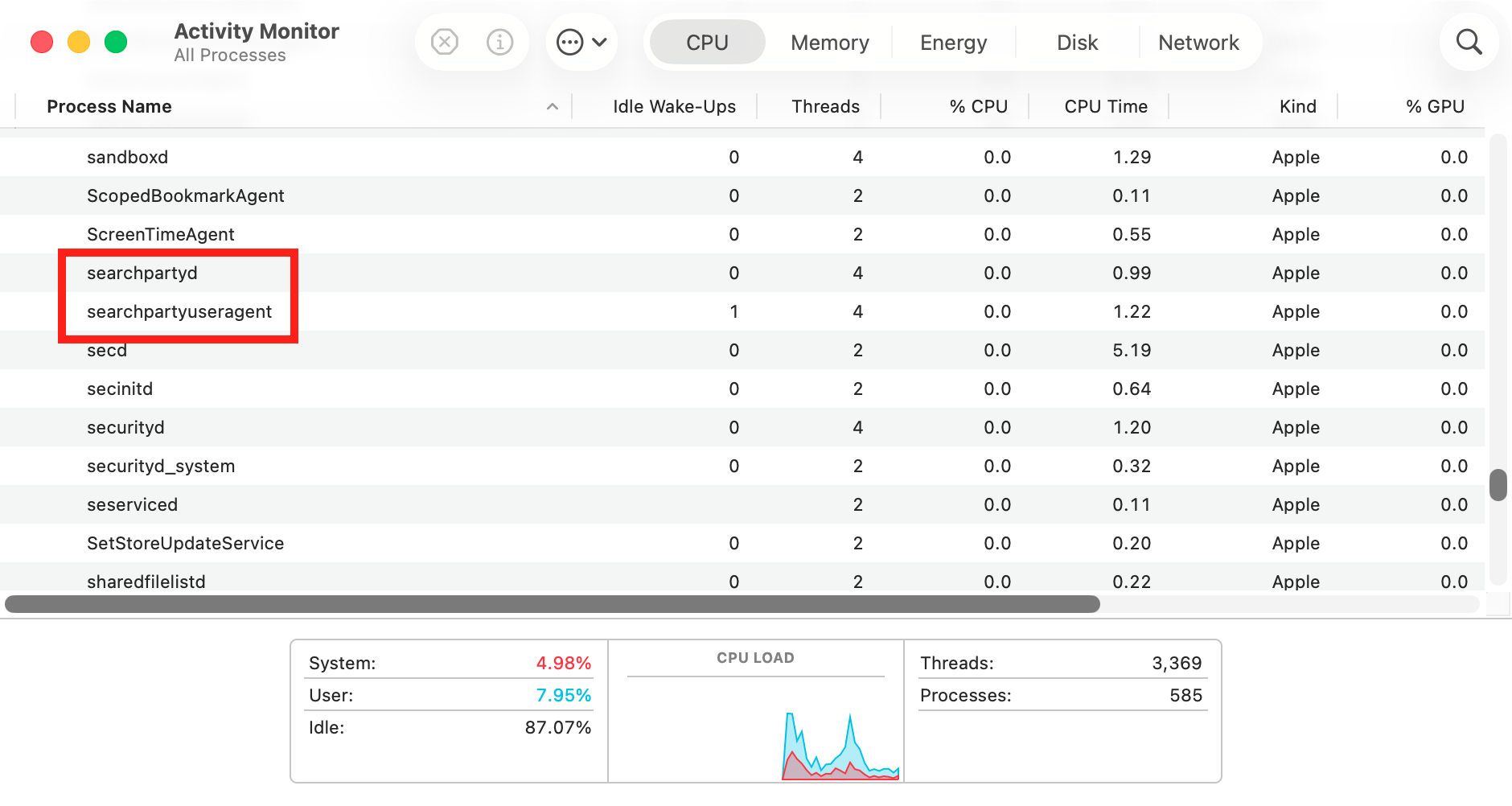
Open Activity Monitor using Spotlight, or find it in Applications > Utilities.
In the CPU tab, click Process Name to sort the processes by name.
Find searchpartyuseragent in the list, and double-click it.
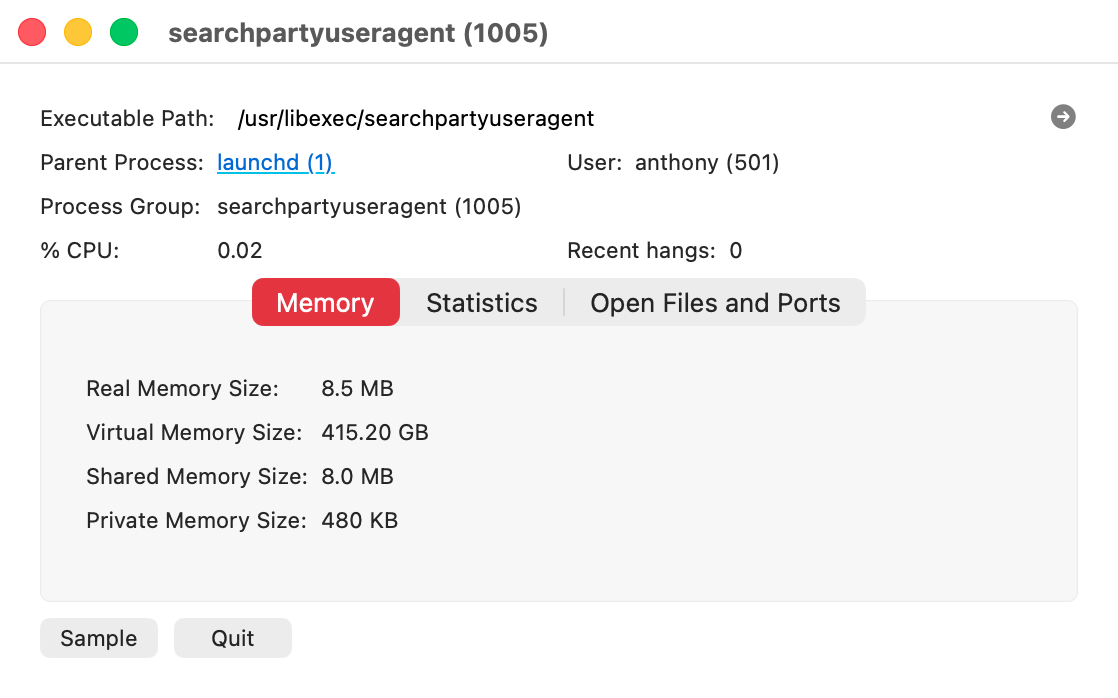
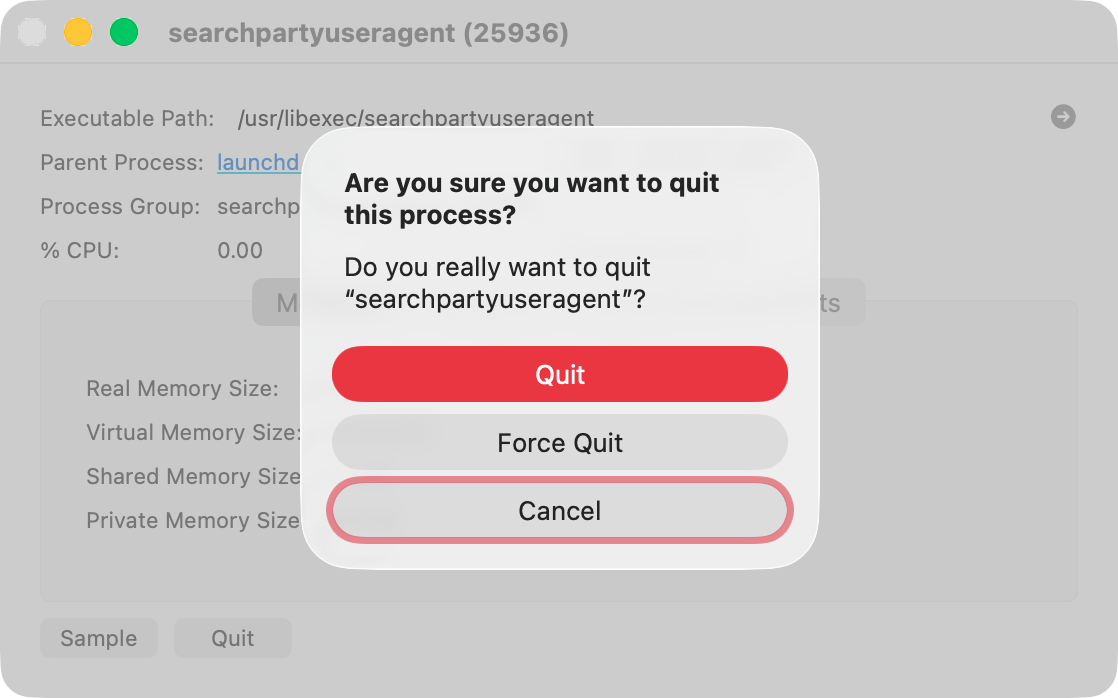
Click Quit.
In the pop-up panel, click Quit or Force Quit.
Now do the same with searchpartyd.
Step 1. Find searchpartyuseragent in Activity MonitorStep 2. Click the Quit buttonStep 3. Select Quit or Force Quit
As you can see, it’s easy to force quit Mac apps like this, and with many system processes, macOS will simply start these processes again when it needs to. You shouldn’t see any kind of deleted process messages on your Mac.
2. Disable Find My and offline finding
If you think your Mac’s running slowly because of searchpartyuseragent, we recommend temporarily disabling the Find My service and offline finding, to see if it makes a difference.
Here’s what you need to do:
Open your Mac’s System Settings.
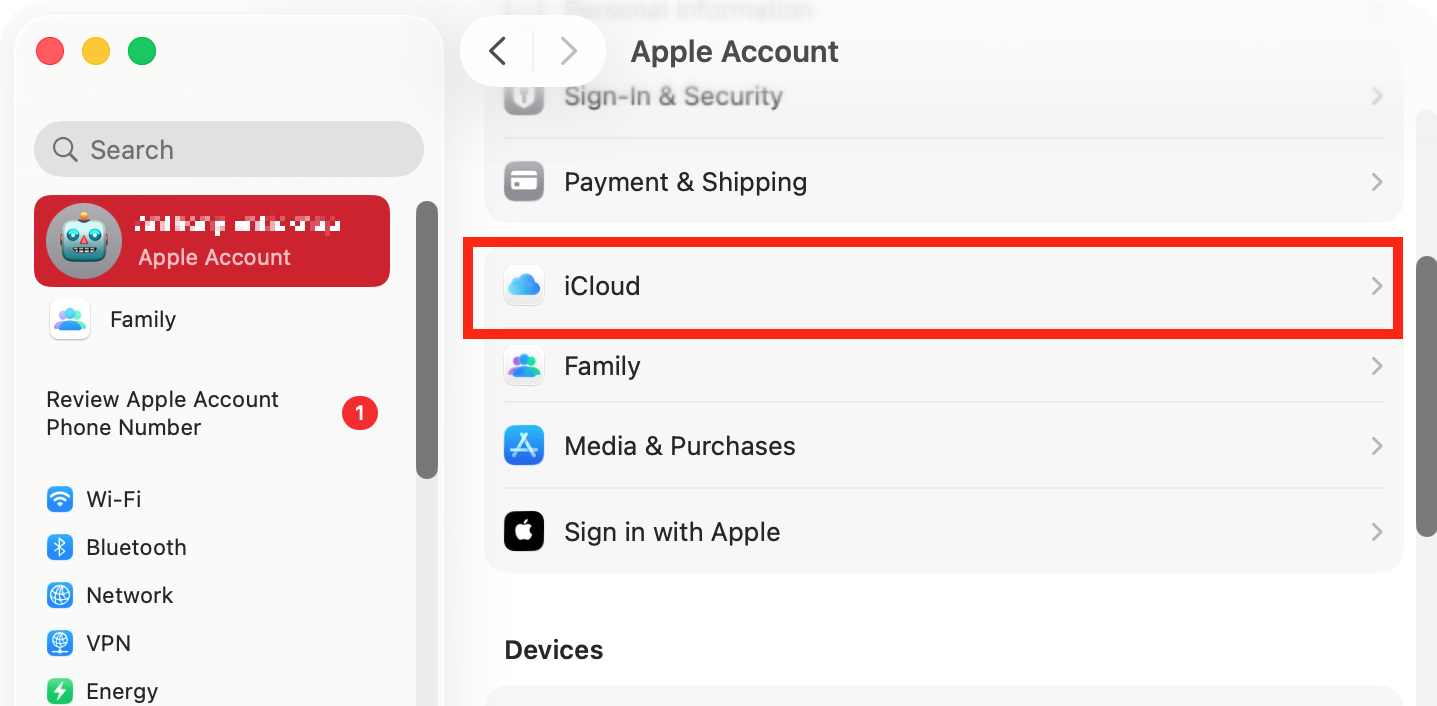
Select your Apple ID from the sidebar, and click iCloud.
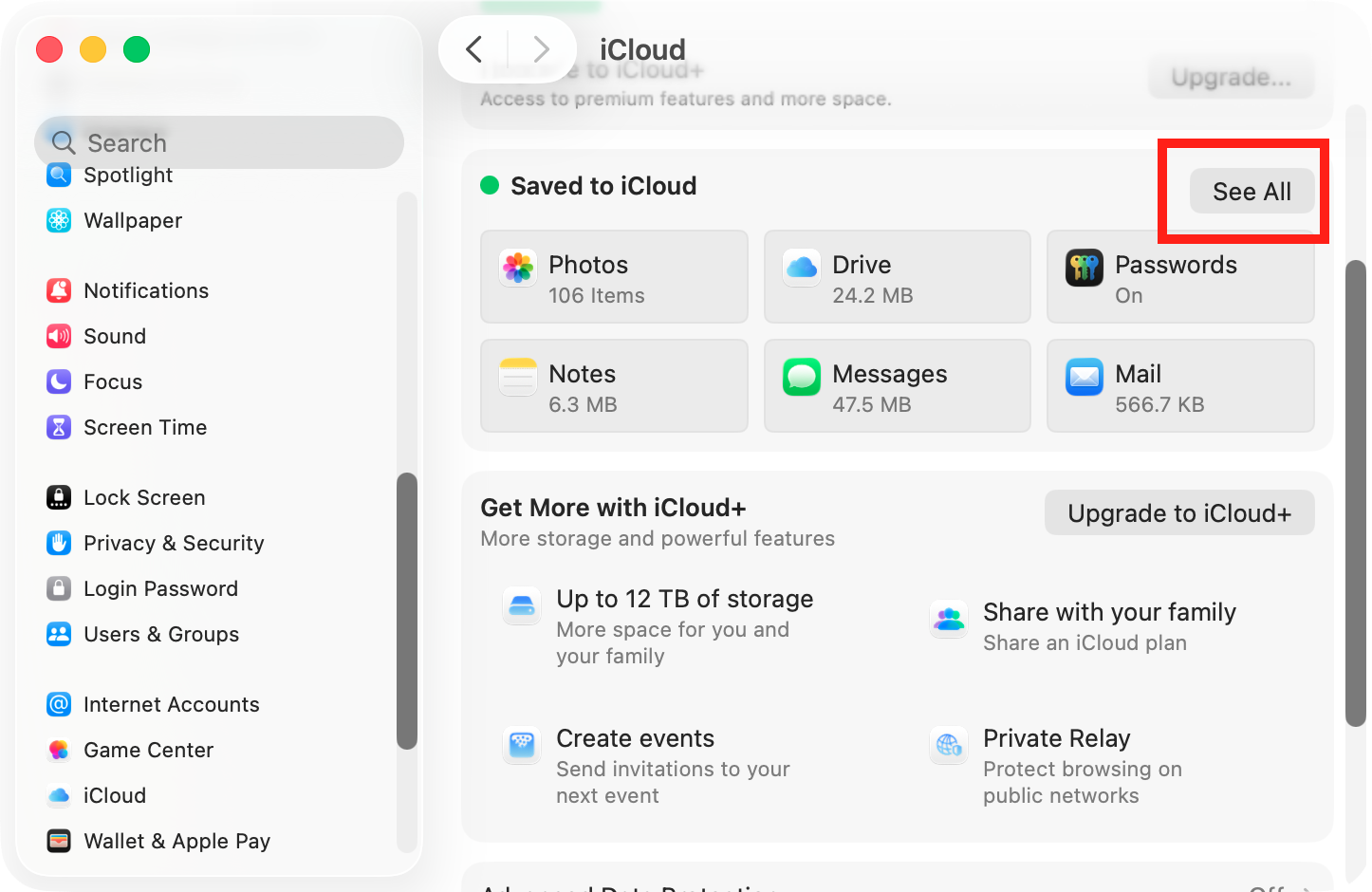
In the Saved to iCloud section, click See All.
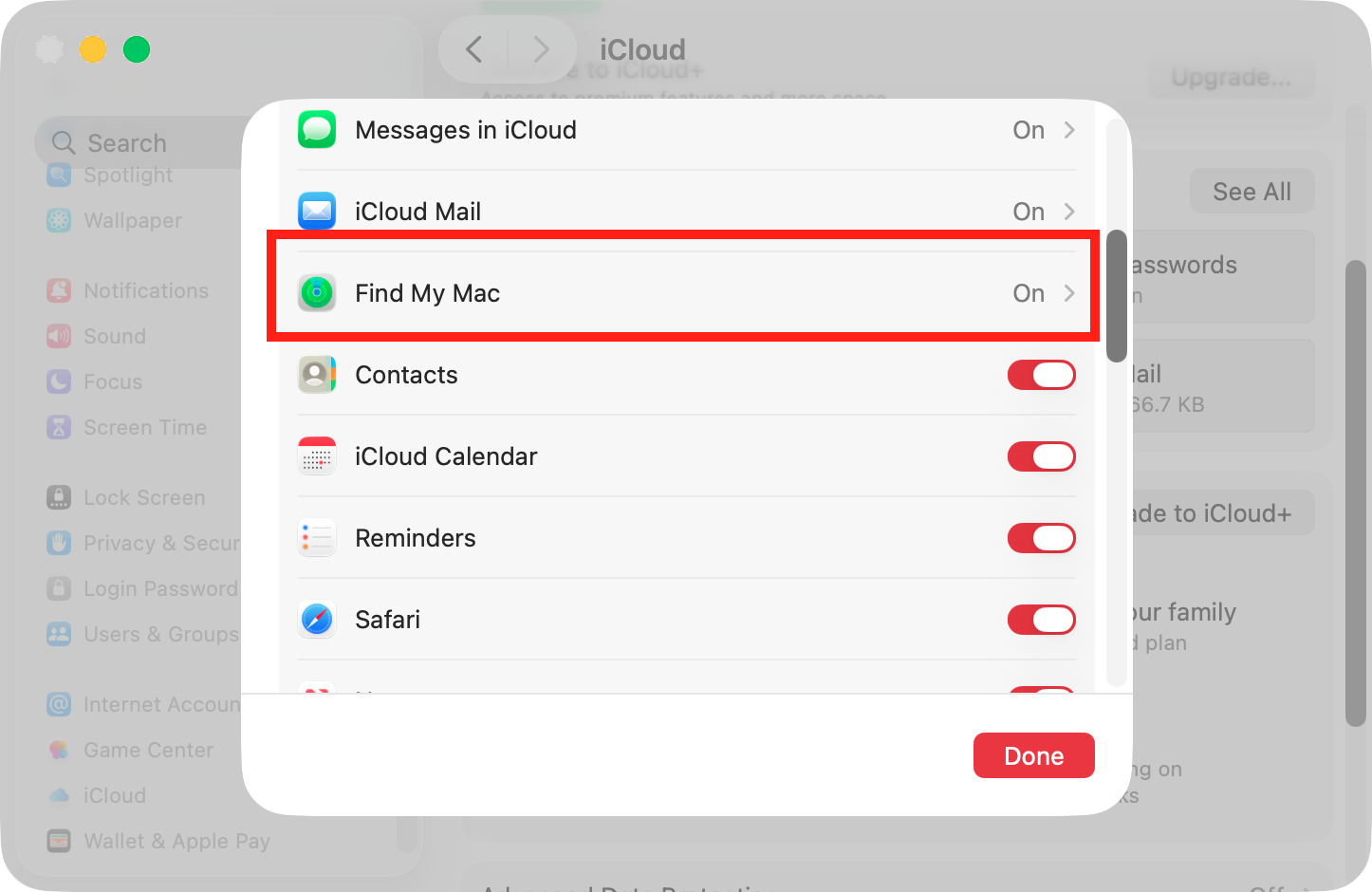
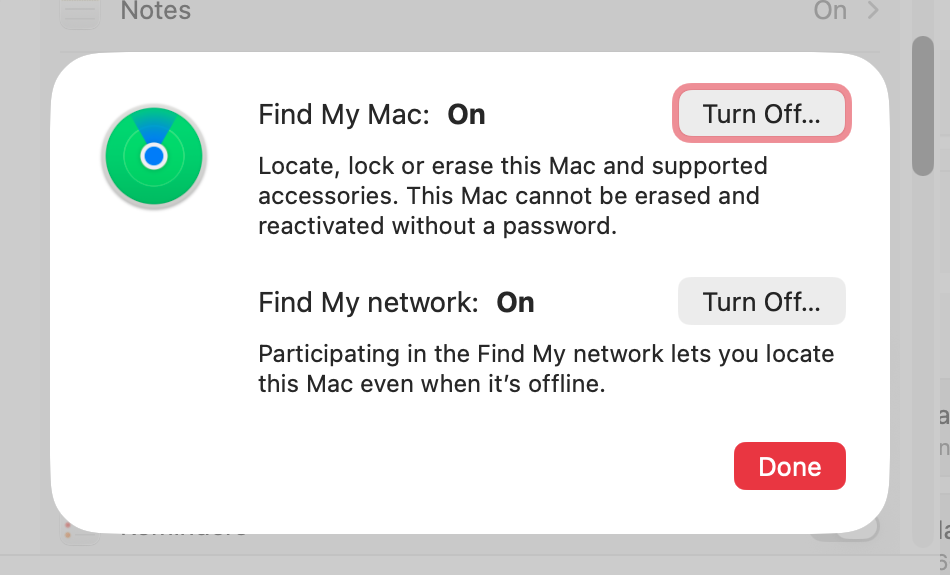
Select Find My Mac from the list.
From here, you can disable Find My Mac and the Find My network.
Step 1. In System Settings, go to Apple ID > iCloudStep 2. In the Saved to iCloud, click See AllStep 3. Select Find My MacStep 4. Try turning off the different Find My Mac features
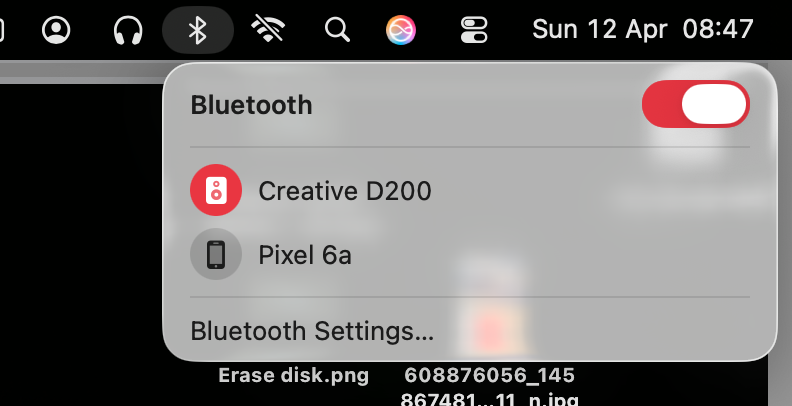
The offline finding feature of Find My Mac relies on Bluetooth, so problems with Bluetooth can cause constant scanning, leading to searchpartyuseragent and searchpartyd high CPU issues. Try disabling Bluetooth, like this:
Click the Bluetooth icon in your menu bar, at the top right of your screen.
Toggle Bluetooth off.
Check the CPU usage of searchpartyuseragent and searchpartyd. If it drops suddenly, enable Bluetooth again, and try disconnecting Bluetooth devices one by one to see if any of them are faulty.
Disabling Bluetooth temporily may stop searchpartyuseragent from using a lot of CPU resources
4. Reset location services permissions
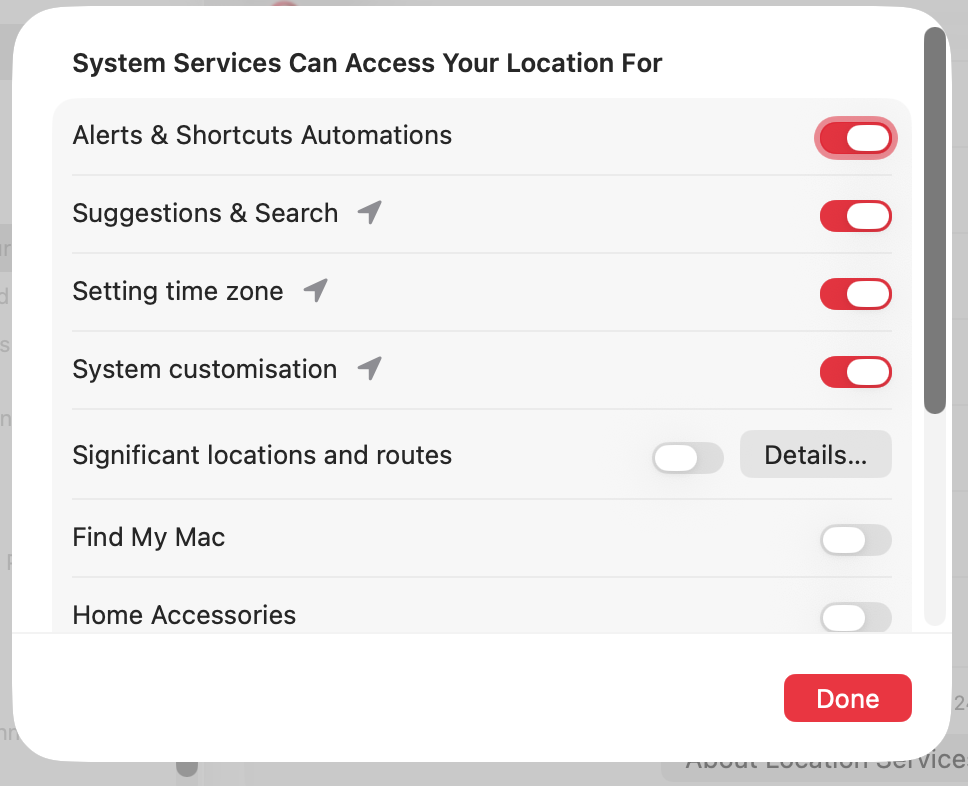
If macOS keeps prompting you to allow Find My Mac to access your keychain, you may have a fault in your computer’s location permissions. We suggest disabling location services to test this:
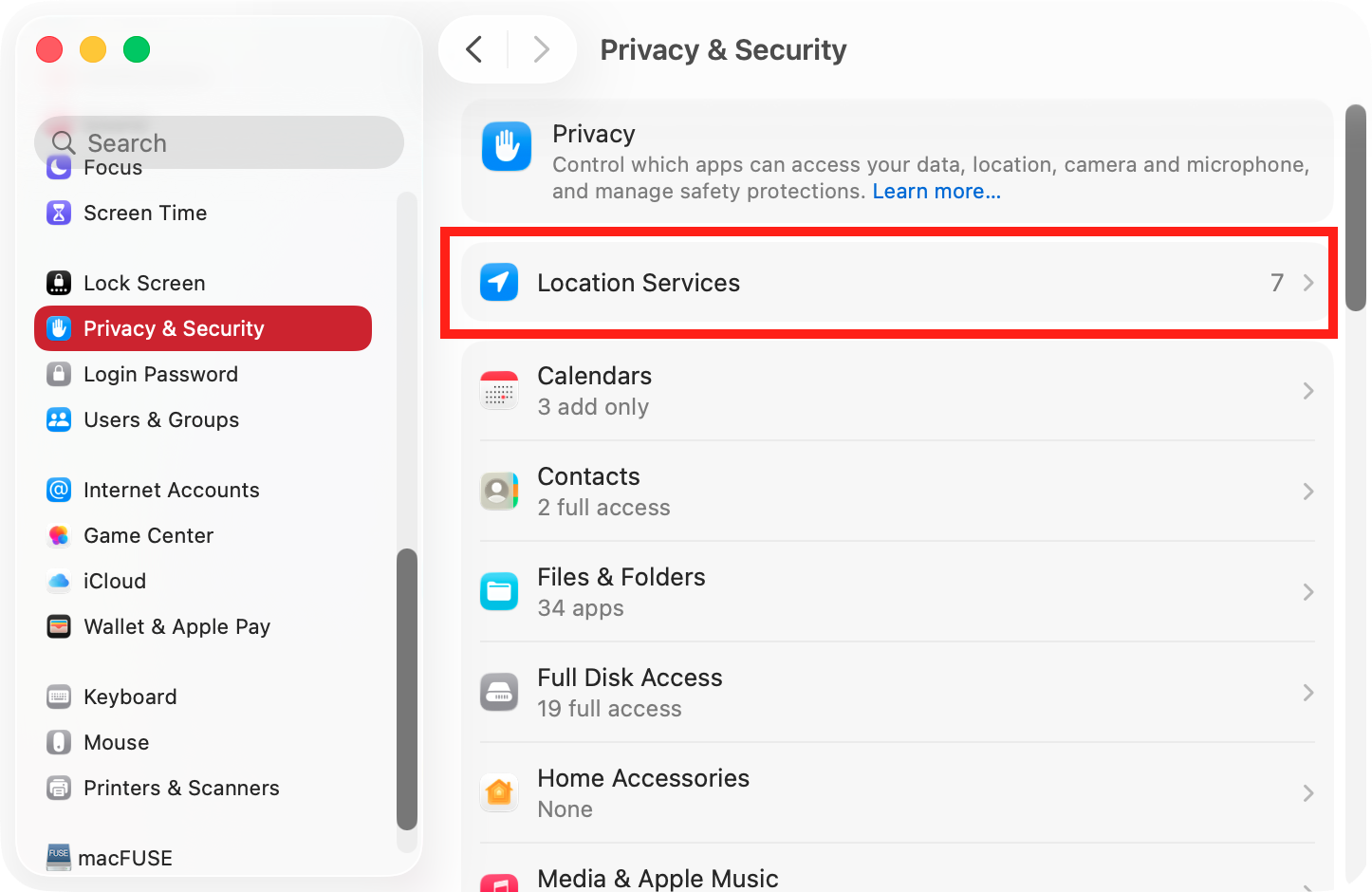
In System Settings, go to Privacy & Security > Location Services.
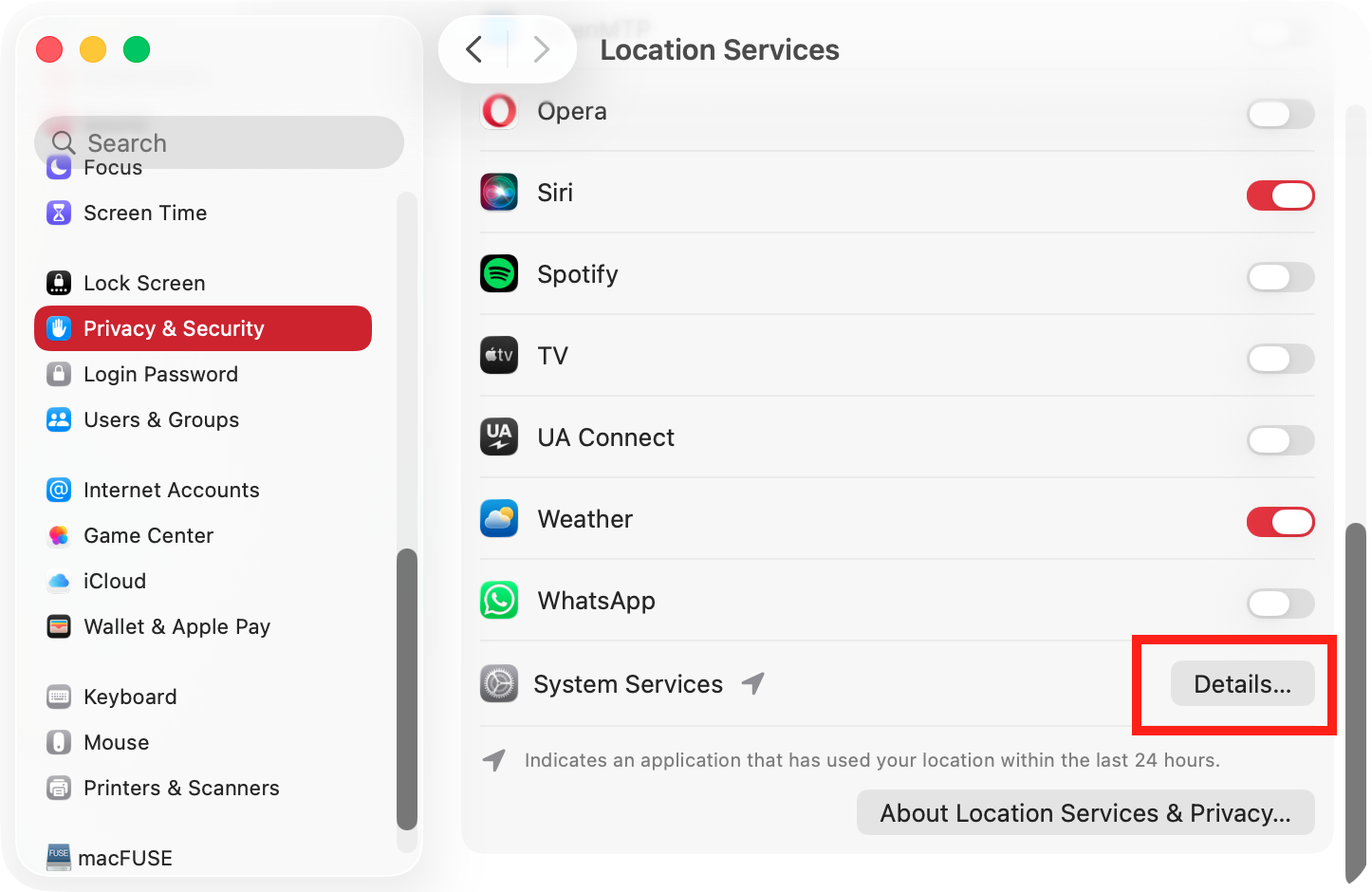
Scroll down to System Services, and click Details.
Disable any services that may be related to Find My.
Restart your Mac, and monitor your CPU usage.
Step 1. In System Settings, go to Privacy & Security > Location ServicesStep 2. Scroll down to System Services and click Details
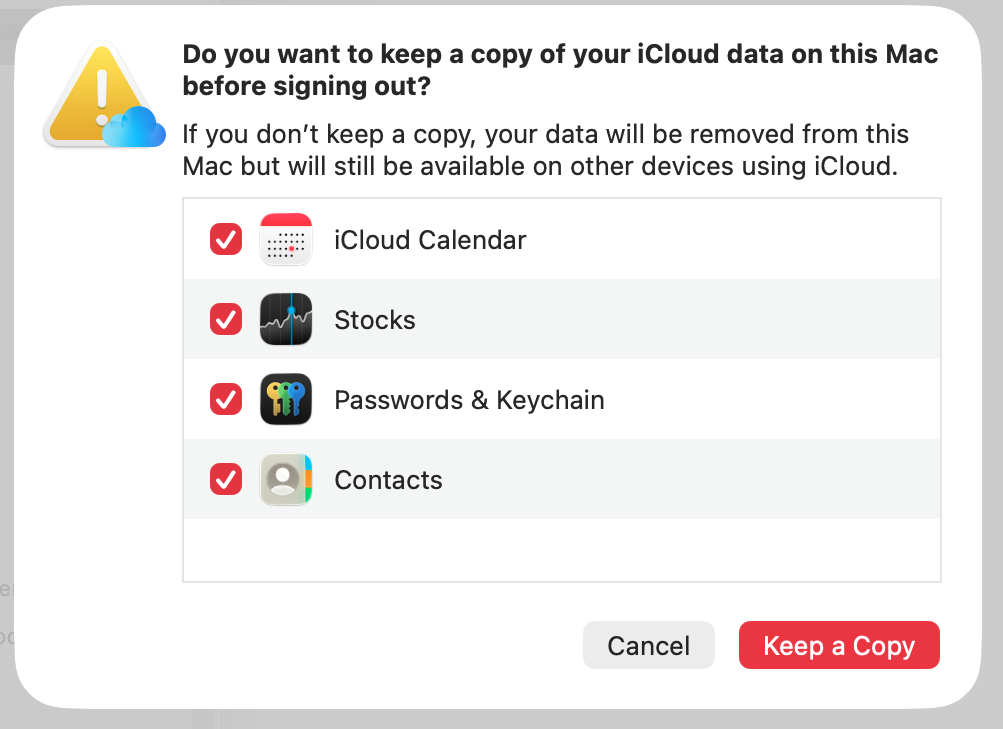
The Find My Mac service works hand in hand with iCloud, so signing out of iCloud can help with searchpartyuseragent issues—clearing out glitches and resetting sync operations that have become stuck.
Here’s how we do this:
In System Settings, select your Apple ID.
Scroll right down to the bottom, and click Sign Out.
Click Keep a Copy to back up your important iCloud settings.
Restart your Mac, and sign back into your Apple ID.
Check your CPU usage, and hopefully, the problem will be fixed.
Step 1. Select your Apple ID, then scroll down and click Sign OutStep 2. Click Keep a Copy
6. Update Mac
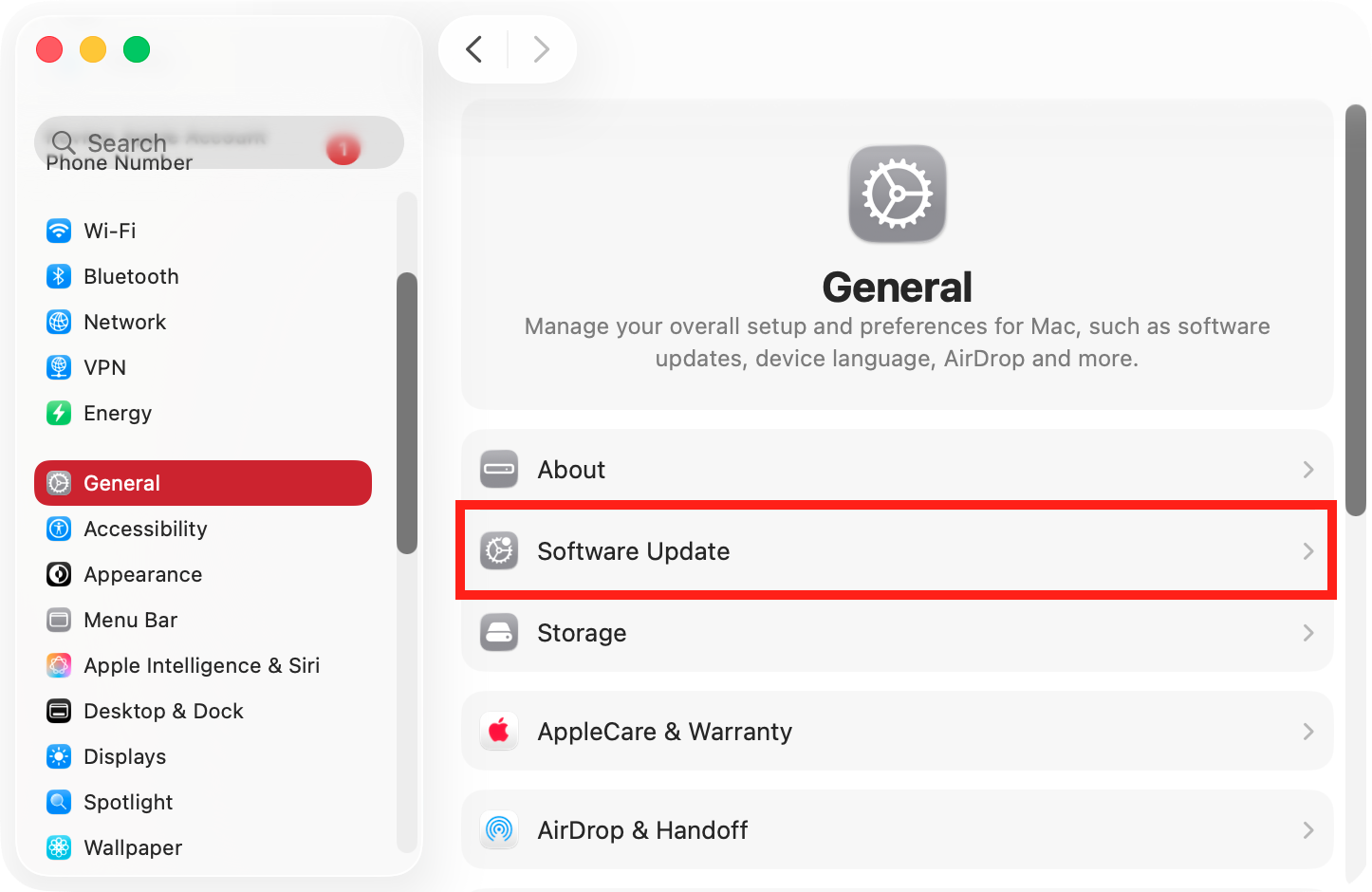
Whenever you’re having any kind of macOS performance issues, we recommend that you update your MacBook or Mac. Apple usually includes bug fixes and performance tweaks, which can make a huge difference.
To update your Mac, follow these steps:
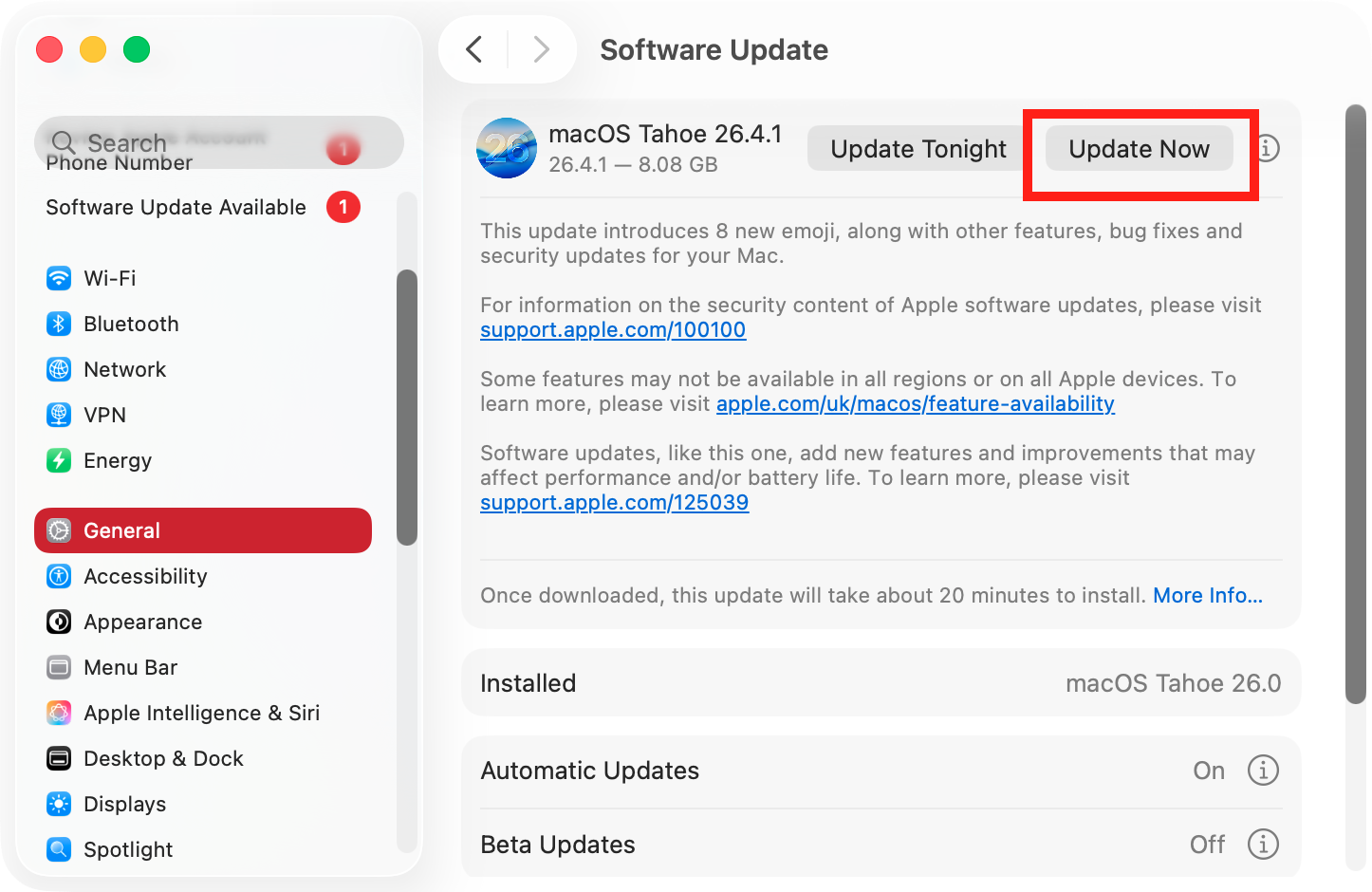
Open System Settings, and go to General > Software Update.
Your Mac will automatically search for updates. If an update is available, click the Update Now button.
Follow the on-screen instructions to update your Mac.
When the update is finished, check if searchpartyuseragent is still hogging your CPU.
Step 1. Go to System Settings > General > Software UpdateStep 2. If an update is available, download and apply it
How to prevent searchpartyuseragent from slowing down Mac?
Under normal operations, searchpartyuseragent shouldn’t have a significant impact on your Mac’s performance. It’s a legitimate part of macOS, but when it goes wrong, it can push up your CPU usage, slowing down your Mac.
To help, we’ve come up with a quick checklist, so you can keep it all under control:
Make sure it’s the real thing. Some malware can copy genuine Apple system daemons. In Activity Monitor, check that the name of the searchpartyuseragent is spelled correctly, and that it’s an Apple service.
Restart everything. Force quit location-related apps, sign out of iCloud, and reboot your Mac. That might be enough to flush out processes that have become stuck.
Disable Find My Mac. Head into your System Settings, and try turning these features off temporarily. We don’t recommend leaving these settings permanently disabled, though.
Scan for malware. Use a tool like MacKeeper’s Antivirus to check for malicious apps, which could be causing your CPU usage to rise suddenly.
Tidy up your Bluetooth settings. Unpair any Bluetooth devices you aren’t using anymore. This will stop your Mac from constantly looking for hardware that isn’t there.
Going faster should be easy
Hopefully, one of our tips here has helped you tame your out-of-control searchpartyuseragent or searchpartyd service. Usually, when these system daemons are spamming your CPU, it’s just a temporary glitch, which you can fix by force quitting them. Sometimes, though, you might have to dig deeper, disabling Find My services, toggling Bluetooth, and resetting related settings.
However, if you’d rather avoid all that fuss and get a quick and easy speed boost, then MacKeeper’s Memory Cleaner is your friend. It safely shuts down unneeded background processes, freeing up RAM and speeding up your Mac. No messing around with macOS settings—a few clicks is all it takes.
We respect your privacy and
use cookies
for the best site experience.
Privacy Preferences Center
We use cookies along with other tools to give you the best possible experience while using the
MacKeeper website. Cookies are small text files that help the website load faster. The cookies we
use don’t contain any type of personal data meaning they never store information such as your
location, email address, or IP address.
Help us improve how you interact with our website by accepting the use of cookies. You can change
your privacy settings whenever you like.
Manage consent
All cookies
These cookies are strictly necessary for enabling basic website functionality (including page
navigation, form submission, language detection, post commenting), downloading and purchasing
software. The website might malfunction without these cookies.