Just bought a new pair of Bose headphones and aren’t sure how to pair them to your Mac? It’s simple, really. Stick around, and we’ll show you how to do it. As a precaution, make sure you remove system clutter that can cause performance issues, such as lagging and audio problems. MacKeeper’s Safe Cleanup tool is a great solution for achieving this.
To connect Bose headphones to your Mac, switch them on. On your MacBook, go to System Settings and click on Bluetooth. Alternatively, you can access Bluetooth settings via the Control Center. Find your headphones in the Nearby Devices section and select Connect next to your device name on the screen.
How to pair Bose headphones to your Mac?
To pair Bose headphones to your MacBook device, turn them on on your MacBook, go to System Settings, and click on Bluetooth. You can also access Bluetooth settings from the menu bar: Navigate to the Control Center, click on the arrow next to Bluetooth > Bluetooth Settings). Pair your headphones, select them from the list, and verify that they’re connected.
A note from our experts:
It’s important to prepare your Mac computer appropriately before connecting a new device, such as Bose headphones. Using a solution like MacKeeper’s Safe Cleanup software is an important maintenance step that clears old and unnecessary files that can slow down your Mac’s performance, such as caches, logs, mail attachments, and more. This ensures a smooth audio experience when using your headphones. MacKeeper is a legitimate cybersecurity app notarized by Apple and trusted by many.
See the benefits for yourself. Follow the steps below to use MacKeeper’s Safe Cleanup tool:
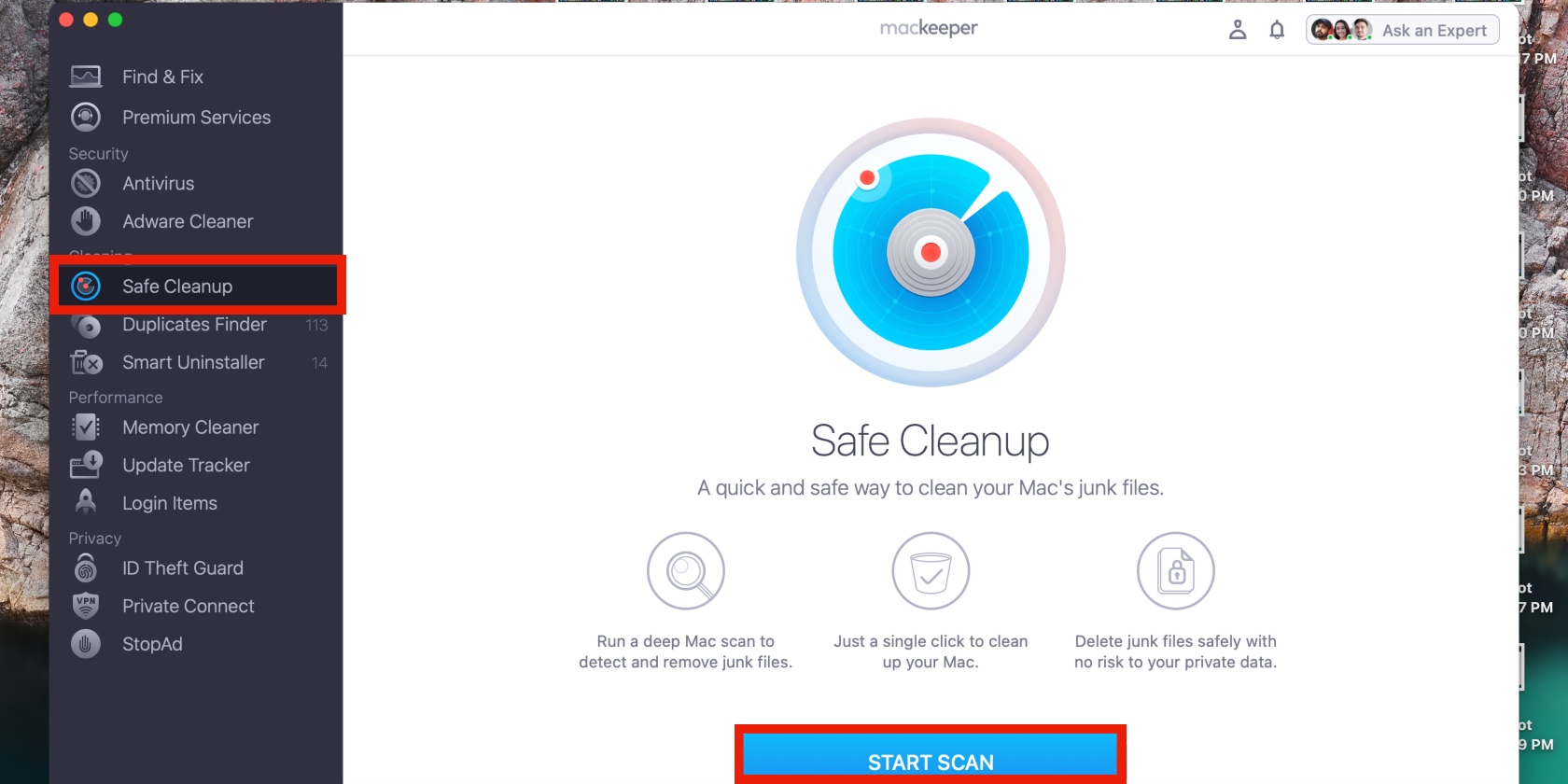
Find the Safe Cleanup option in the sidebar, click on it, and select Start Scan.
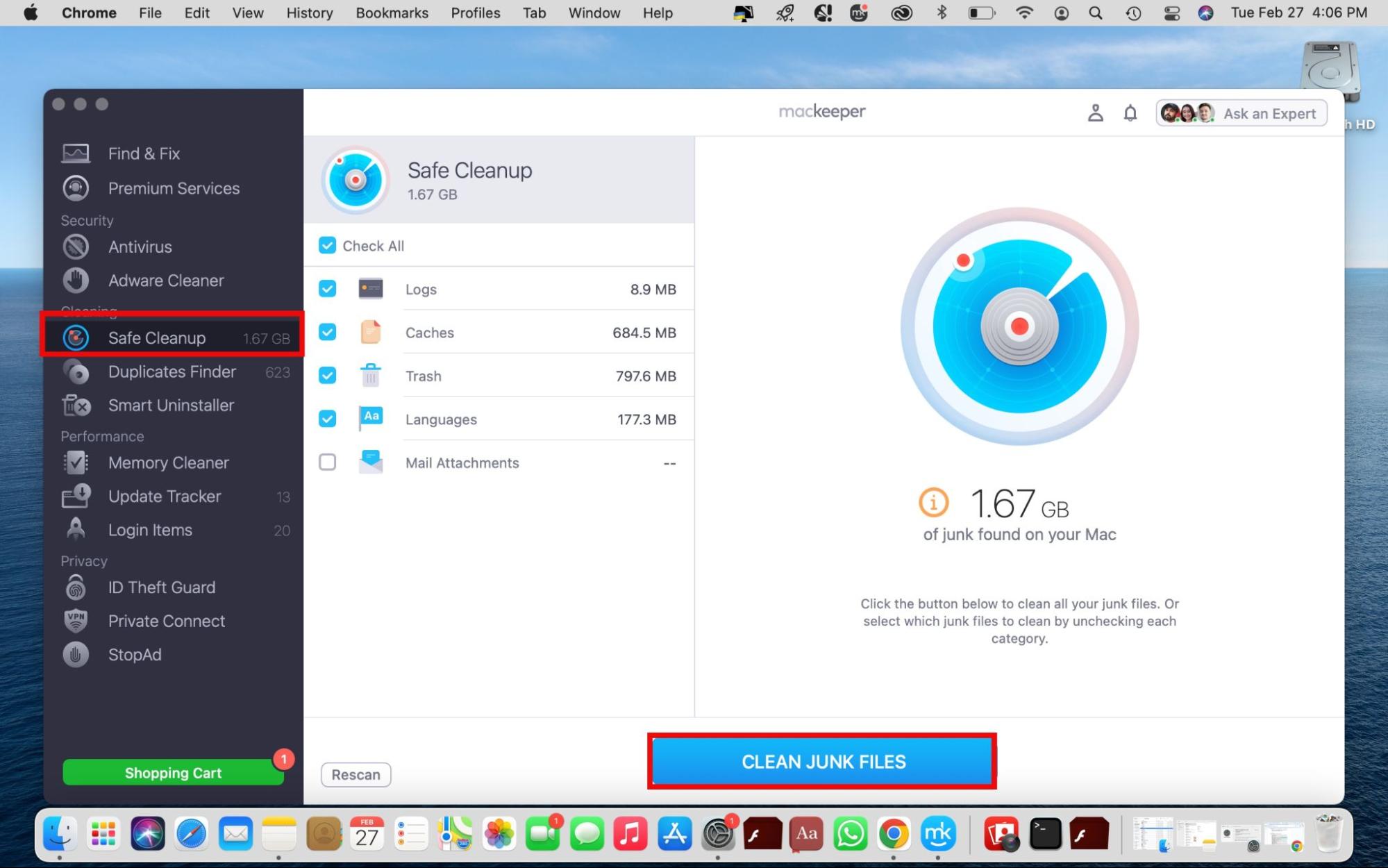
Wait for the scan to finish and then click on Clean Junk Files to start clearing your Mac.
Step 1. Select Safe Cleanup and click on Start ScanStep 2. Click the Clean Junk Files button
1. Turn on Bluetooth on the Mac
When pairing Bose headphones with our Mac, the first step we take is to ensure that Bluetooth is actually enabled on the laptop. Are you struggling to switch Bluetooth on? This can be caused by an error in the Bluetooth daemon (the background process that handles connections) or a conflict with the NVRAM/PRAM settings.
If the icon is grayed out or won't respond to our clicks, it's a sign that the Mac's hardware communication has stalled and needs a manual reset to recognize our Bose device. Sounds familiar? Learn what to do when Mac Bluetooth isn’t working, and then move on to the guide below.
Follow these steps to switch on Bluetooth on your MacBook:
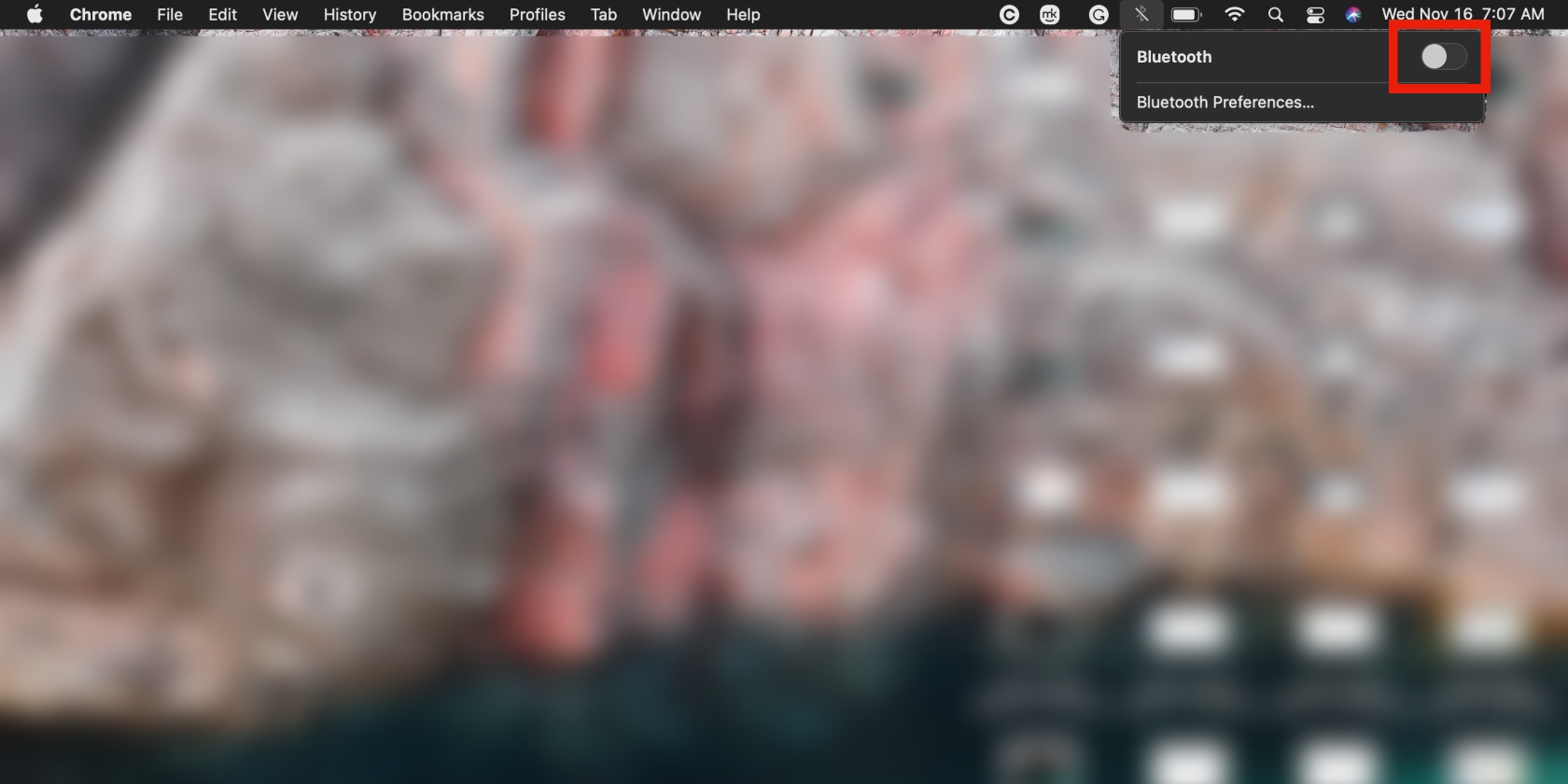
Click on the Bluetooth icon in the Mac menu bar.
Ensure that Bluetooth is enabled. If not, turn it on.
2. Put the Bose headphones in pairing mode
The next crucial step is pairing the headphones with the Mac. This initial handshake is required when connecting your Bose headphones to your MacBook for the first time, as it establishes a secure, remembered link between the two devices. To do this, we put our headphones into pairing mode.
If our Bose headphones appear on the list but fail to connect, or if the spinning loading icon just keeps spinning indefinitely, it’s often a sign that we need to reset Bluetooth on the Mac. This clears the pairing registry, which refreshes the Mac’s memory to help it properly identify the Bose signal without interference from old, corrupted connection data.
Here’s how to pair your Bose headphones to your MacBook via Bluetooth settings:
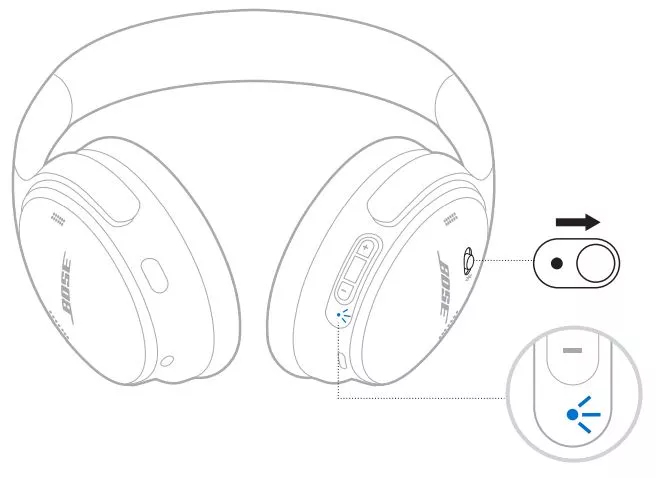
Long-press the power button or slide the switch toward the Bluetoothicon on the right of your Bose headphones.
You should notice a blue blinking light near the Bluetooth icon or hear an audio message from your headphones confirming that they’re ready to connect.
Step 1. Switch on your Bose headphones using the power button
3. Select and connect your headphones
We probably all know how to connect Bluetooth headphones to a Mac. The process of pairing Bose headphones to a Mac is no different. Once we’ve successfully paired the Bose headphones, we move on to connecting them to the Mac device in Bluetooth settings. It only takes a moment since the headsets are already paired.
To connect your Bose headphones to your Mac, do this:
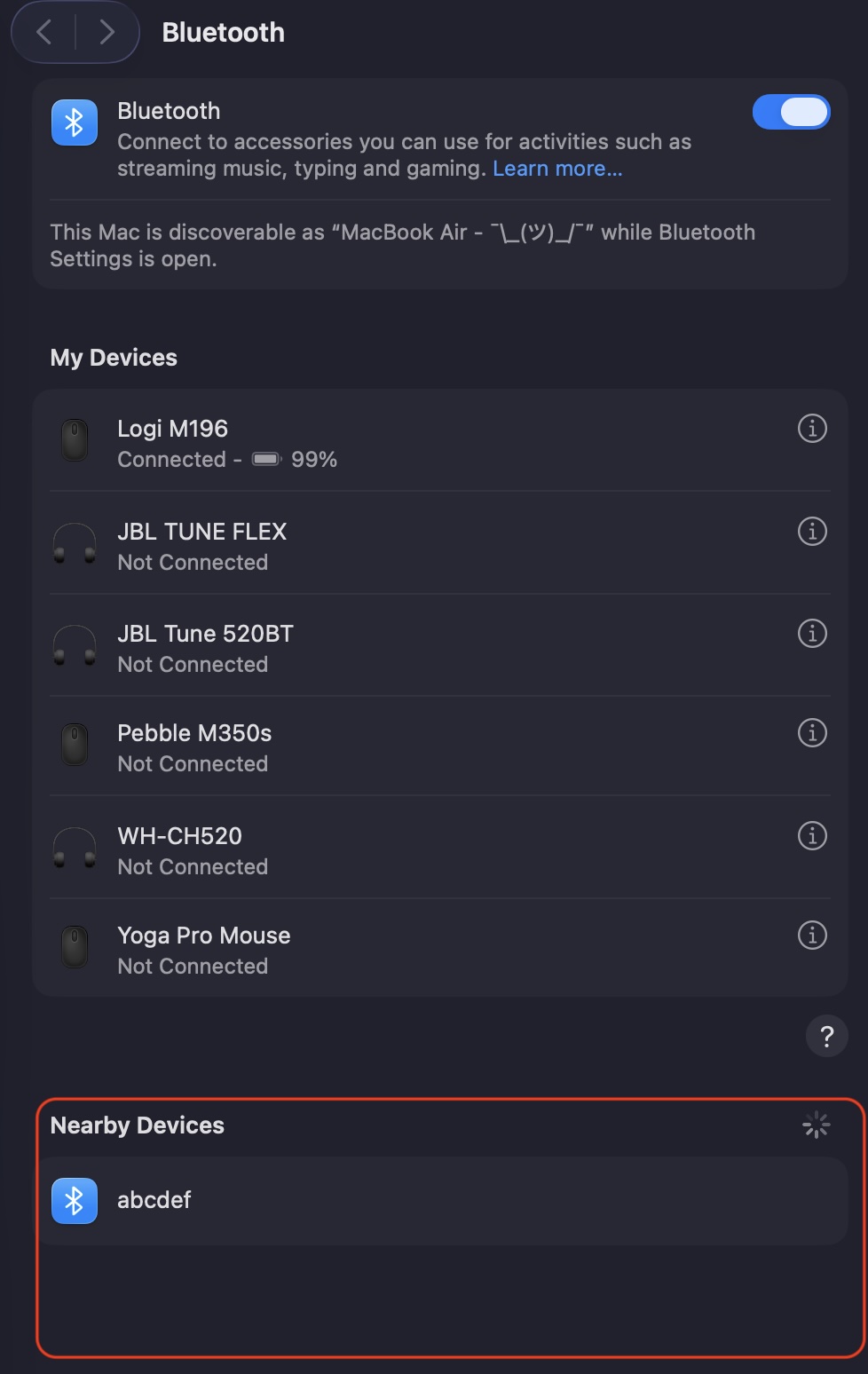
In your Mac’s Bluetooth settings, locate your Bose headphones under Nearby Devices.
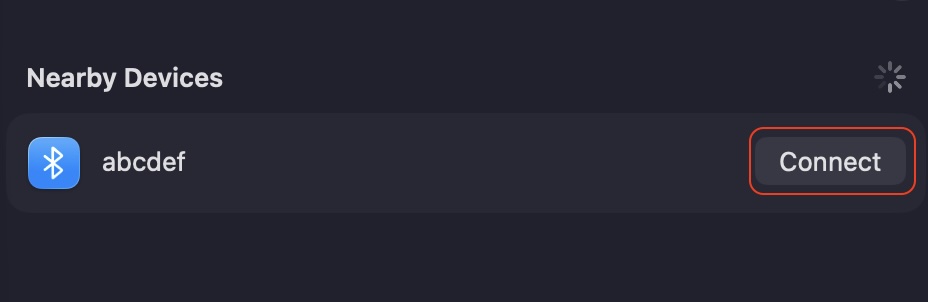
Click the Connect option next to the Bose headphones.
Step 1. Locate your Bose headphones under Nearby DevicesStep 2. Click the Connection option next to the Bose headphones
4. Verify connection status
Before we attempt to use the headphones, we wait for confirmation that they’re actually connected to the Mac. Even if the Bose headphones audibly confirm they’re connected, we just prefer to verify it in the Bluetooth settings.
Follow this approach to verify your Bose headphones’ connection status:
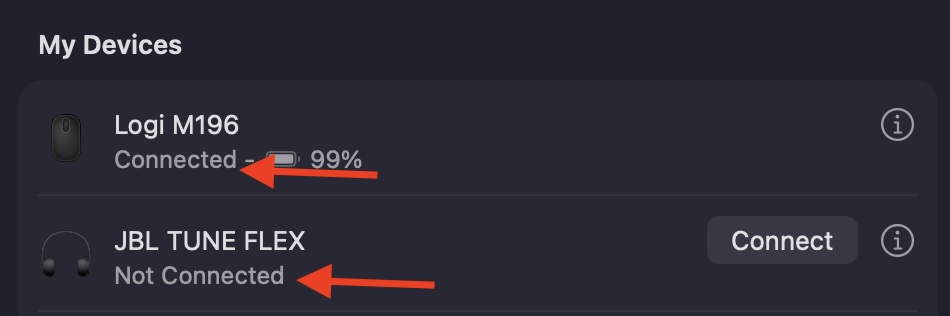
After clicking Connect, look for the word Connected—it should appear next to your headphones on the screen. If the status appears as Not Connected, it means the “handshake” might have timed out.
If your headphones have successfully connected, this is confirmation that they’re now ready for use… Unless you want to adjust audio settings (more on that below).
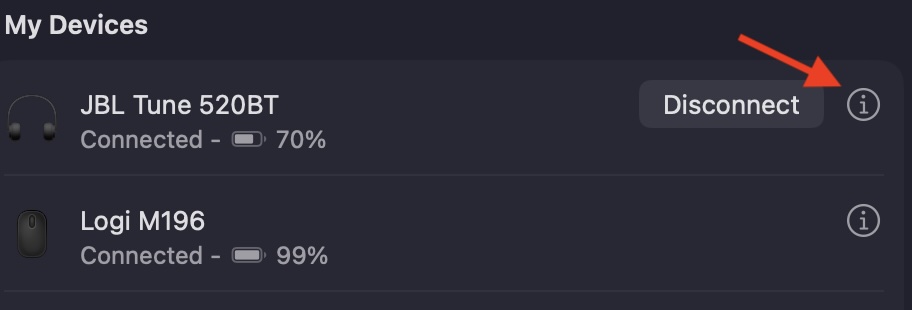
Step 1. Look for the word “Connected” to confirm the connectionStep 2. Press the information icon to adjust audio settings
Adjusting audio settings on a Mac
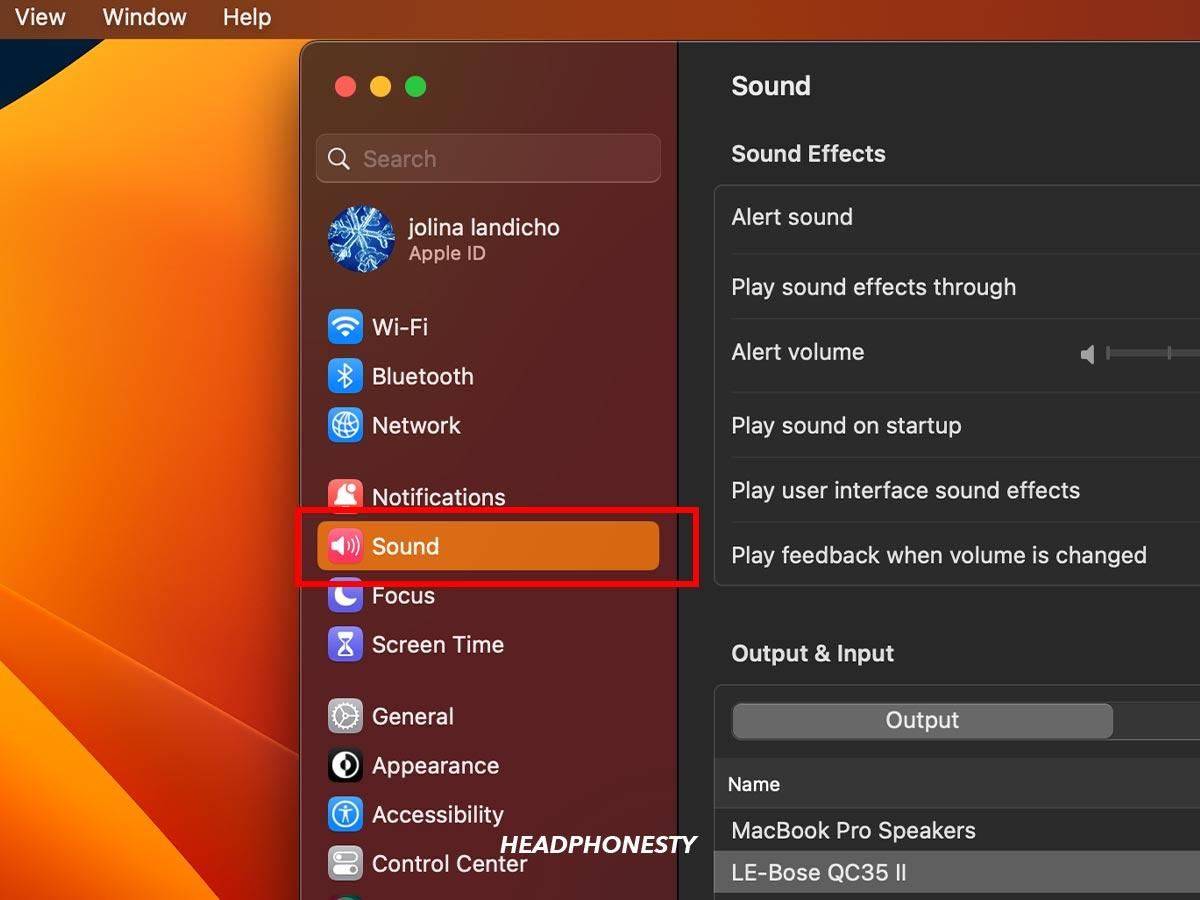
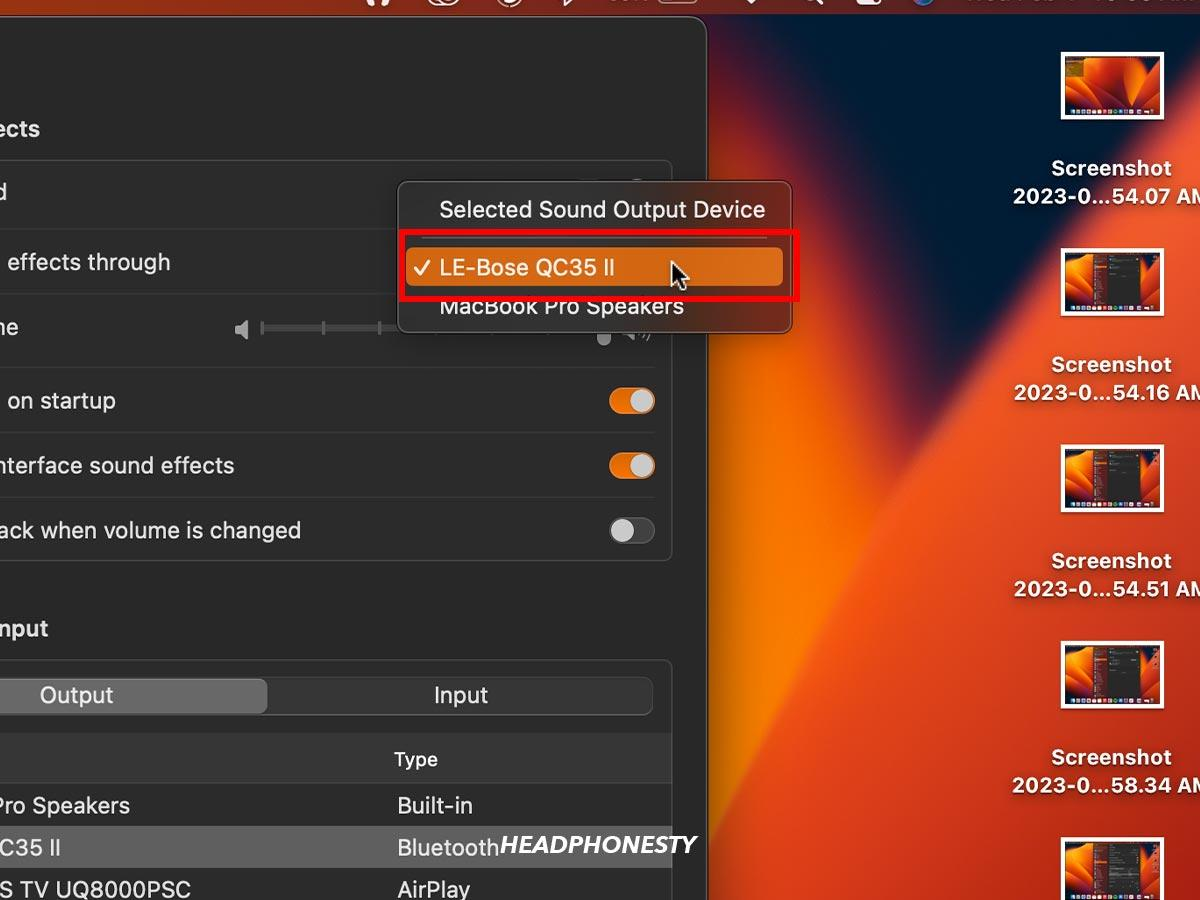
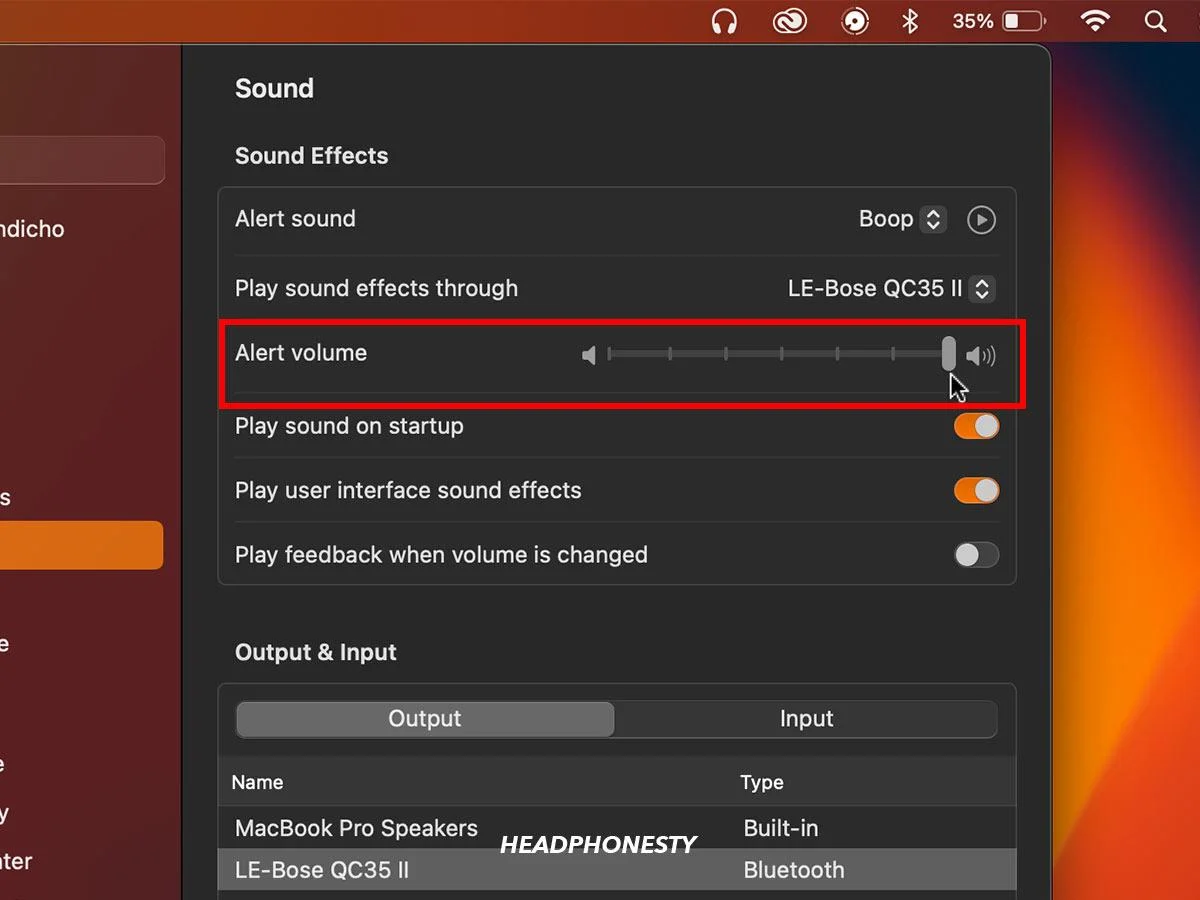
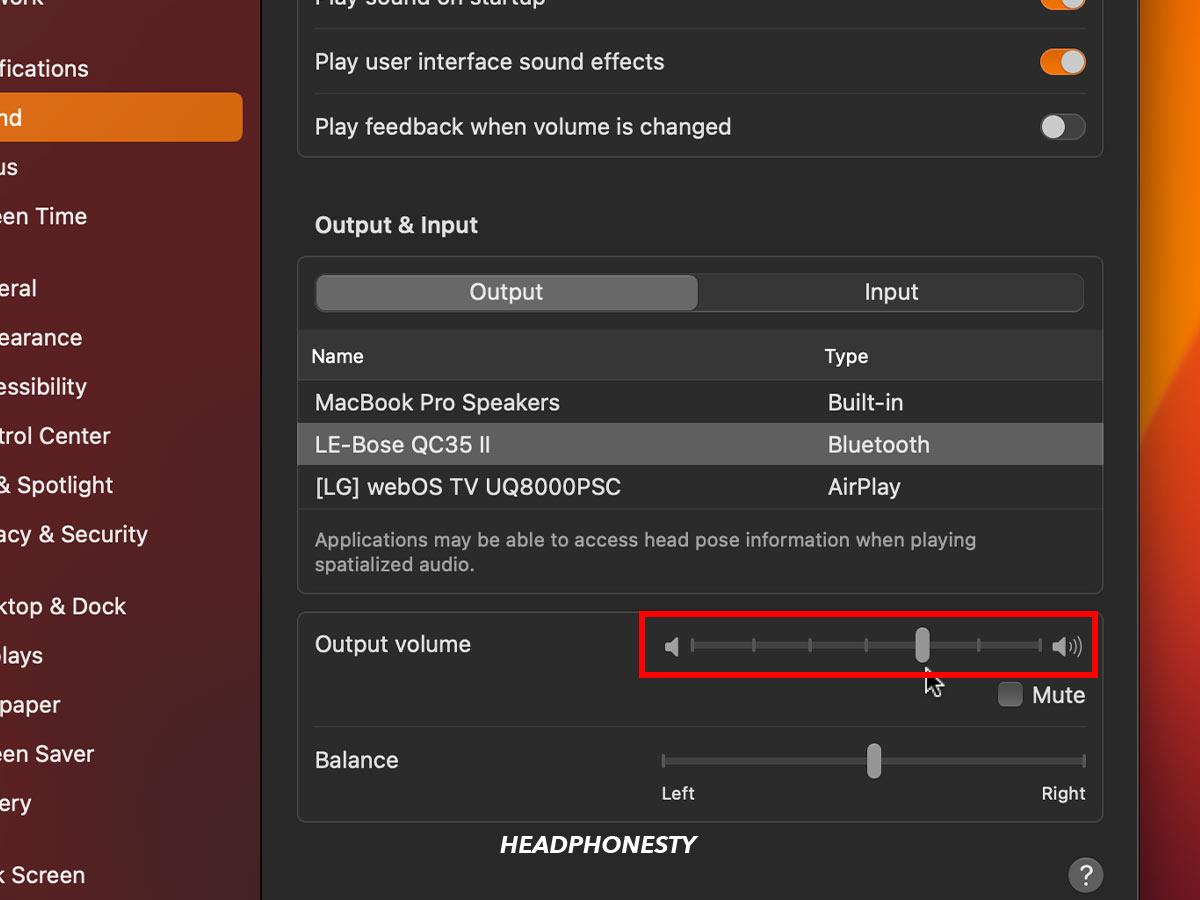
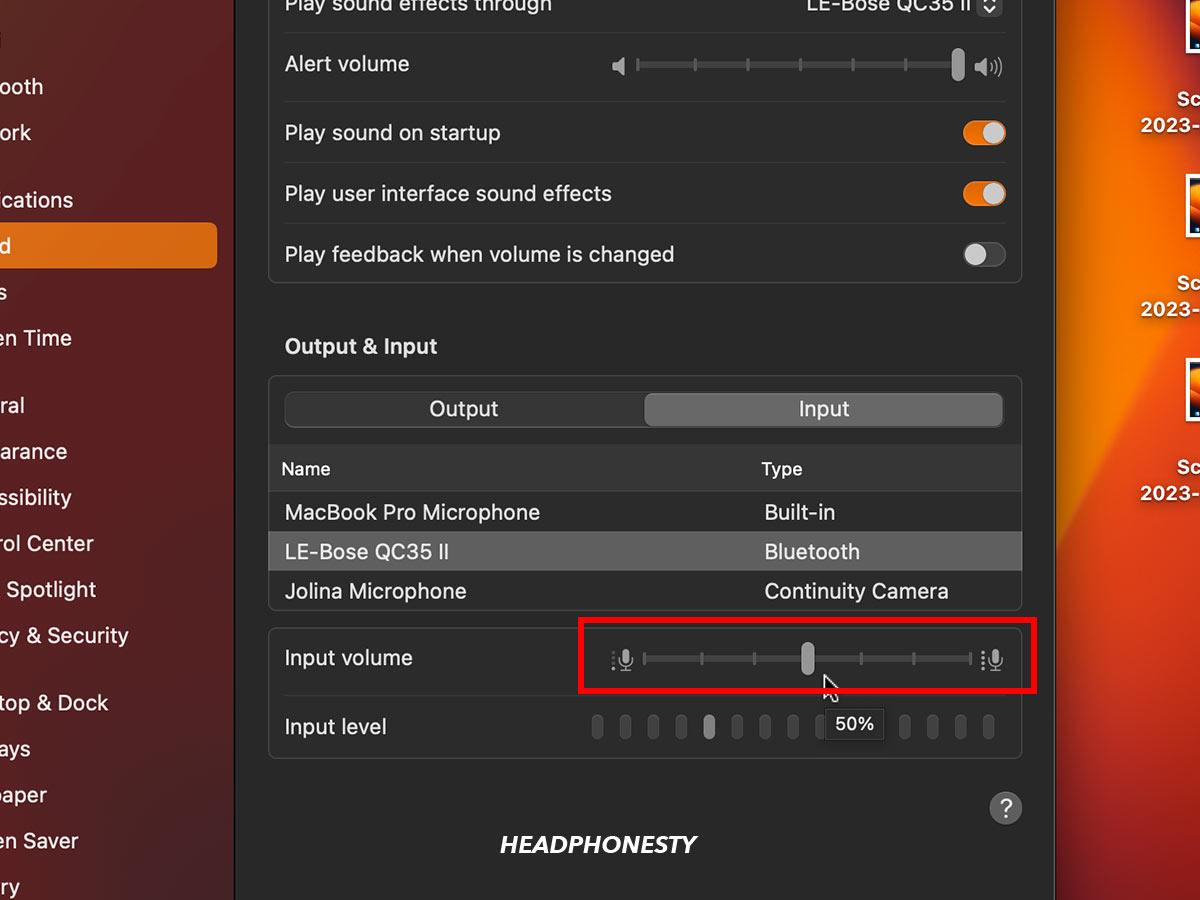
To adjust the audio settings on your Mac, choose the Sound category in Mac’s System Settings. Navigate to the Sound Effects section, find the Play sound effectsthrough setting, and choose your Bose headphones from the list. Adjust the volume. Next, click Output in the Output & Input section, then move the sliders accordingly. Do the same for Input settings.
Step 1. Select Sound from the sidebar of Mac’s System PreferencesStep 2. Click on Play sound effects through and choose your Bose headphones from the listStep 3. Adjust the volumeStep 4. Adjust output settingsStep 5. Customize input settings
Connect your Bose headphones to macOS easily
If you’re curious about how to connect Bose headphones to a Mac, this guide offers comprehensive instructions to help you set up your Bluetooth headphones in a few easy steps. Simply enable Bluetooth on both your headphones and Mac devices, pair and connect the headphones, and you’re good to go.
But don’t forget an essential step in this process—get rid of junk files you may have forgotten about using MacKeeper’s Safe Cleanup before setting up the Bluetooth device. This will minimize performance issues that could affect your Bose experience on the Mac.
We respect your privacy and
use cookies
for the best site experience.
Privacy Preferences Center
We use cookies along with other tools to give you the best possible experience while using the
MacKeeper website. Cookies are small text files that help the website load faster. The cookies we
use don’t contain any type of personal data meaning they never store information such as your
location, email address, or IP address.
Help us improve how you interact with our website by accepting the use of cookies. You can change
your privacy settings whenever you like.
Manage consent
All cookies
These cookies are strictly necessary for enabling basic website functionality (including page
navigation, form submission, language detection, post commenting), downloading and purchasing
software. The website might malfunction without these cookies.