Curious about macOS Golden Gate and whether your Mac is ready for it? Before you upgrade, it’s smart to clear out the clutter first. MacKeeper’s Safe Cleanup removes junk files, caches, and logs in one click—freeing up space without touching your personal files. Clear the clutter now for a smoother upgrade.
macOS Golden Gate is Apple’s macOS 27—the newest major release of the operating system behind every modern Mac and MacBook. If you’ve been wondering about what’s new in macOS 27, this macOS 27 review covers the highlights, the supported Macs, and how to upgrade safely.
It builds on earlier macOS versions with deeper Apple Intelligence integration, a refined interface, smarter system-wide search through Spotlight, and stronger child safety tools. Where macOS Tahoe still ran on some Intel Macs, Golden Gate makes a clean shift to Apple silicon.
That architectural change is the headline. Apple has moved the Macintosh lineup fully onto its own chips, and the gains in performance and stability show it. If Apple’s naming trips you up, seeing the macOS versions in order places Golden Gate in context.
A note from our experts:
No matter to which macOS version you want to upgrade your Mac, we always give the same advice—free up more space on your computer to have the memory space required for this update. And not only this! Cleaning your MacBook also ensures that your device works with lags and slowdowns, which is important for both everyday Mac performance as well as its work after the macOS update.
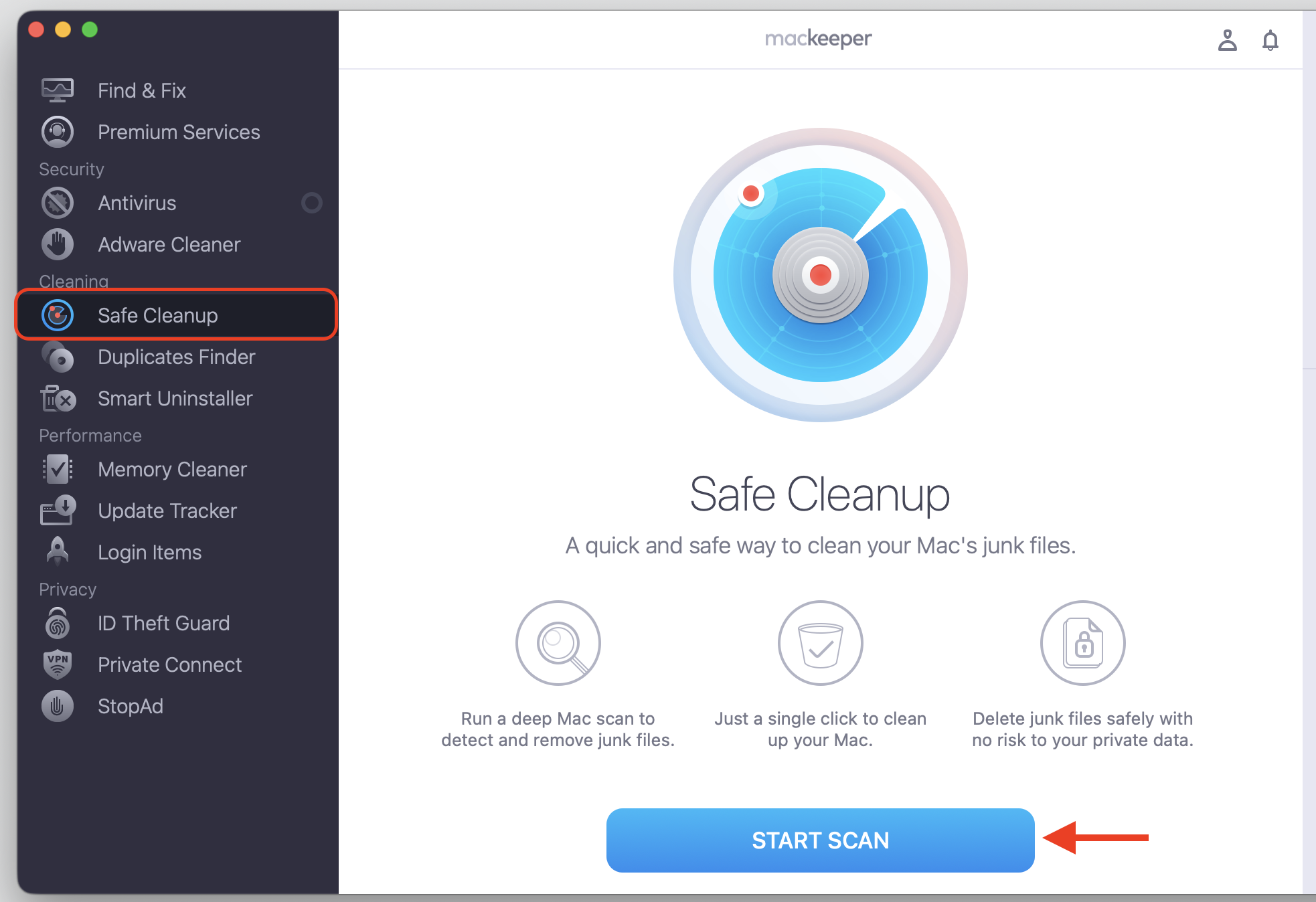
Select Safe Cleanup followed by the Start Scan button.
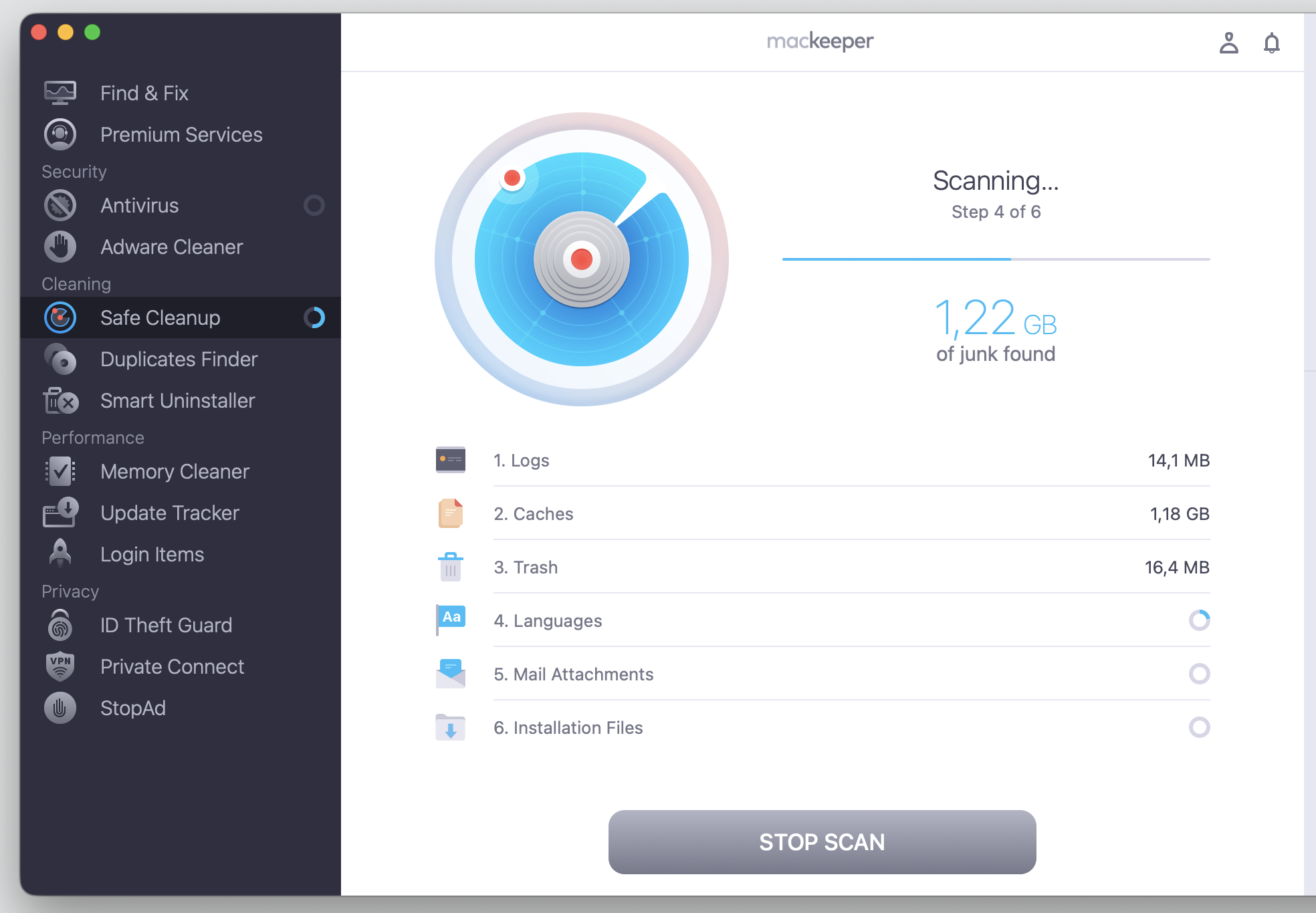
Wait for the scan results.
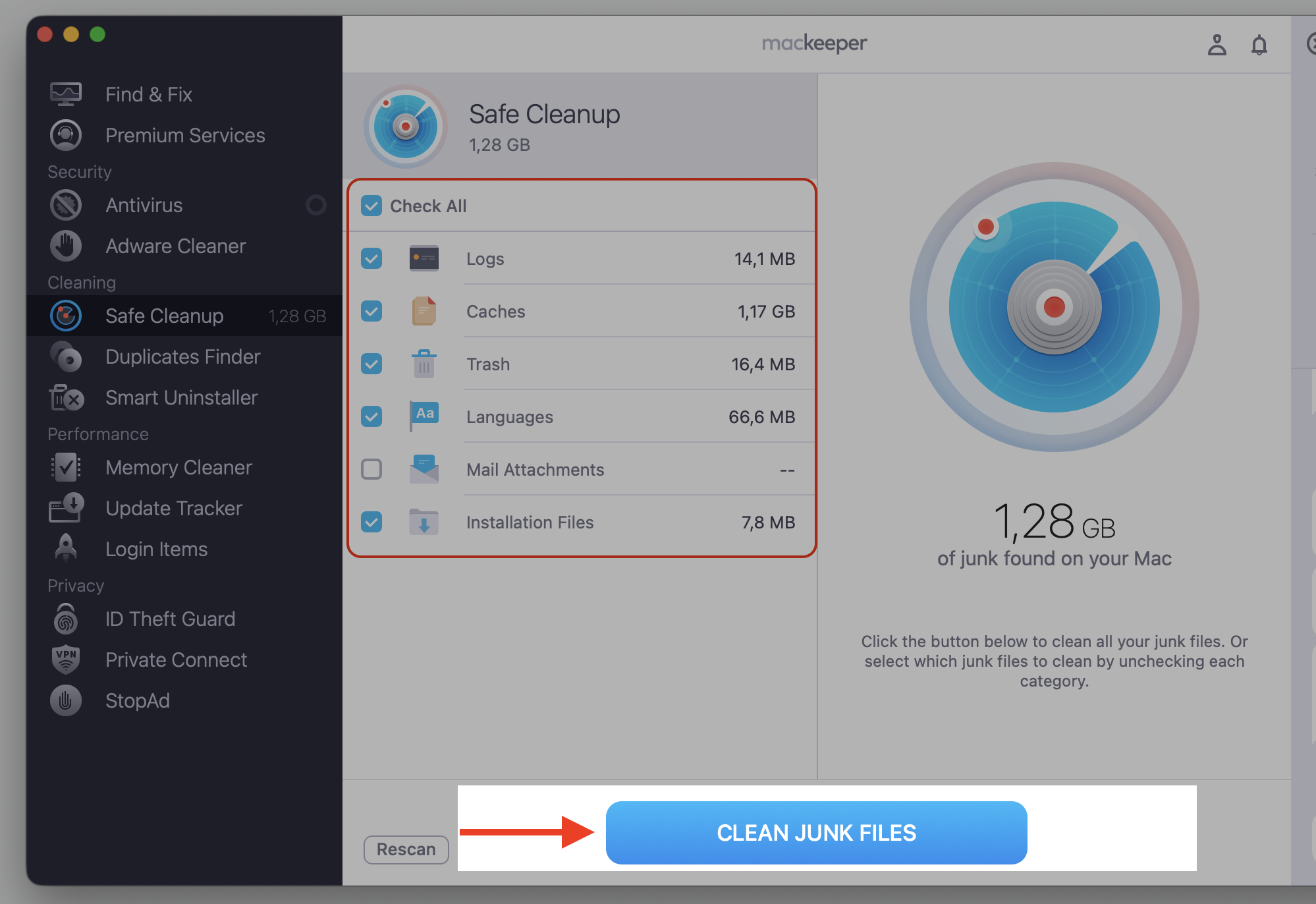
Check the necessary boxes on the left, and click Clean Junk Files to confirm.
Step 1. Go to MacKeeper > Safe Cleanup and Start ScanStep 2. Wait until the scan is finishedStep 3. Check all setup and proceed with Clean Junk Files
What are key features of macOS 27?
macOS Golden Gate introduces a wide set of system-wide improvements designed to make daily tasks faster, more intuitive, and more automated. The new features of macOS Golden Gate range from a conversational assistant to a cleaner interface, and most of them aim to save you time.
We’ve spent time with each one, so before you install new macOS, let’s walk through everything new in macOS 27—the five updates we think you’ll notice first.
1. Advanced Siri AI capabilities
Siri AI gets a major rework. It now works as a conversational assistant with personal context awareness, so it remembers what you were doing and picks up where you left off. On-screen Visual Intelligence lets Siri read what’s on your display, and a dedicated Siri app keeps your requests in sync across your Apple devices.
If you want to use Apple Intelligence on Mac across the whole system, Golden Gate makes it more approachable than before.
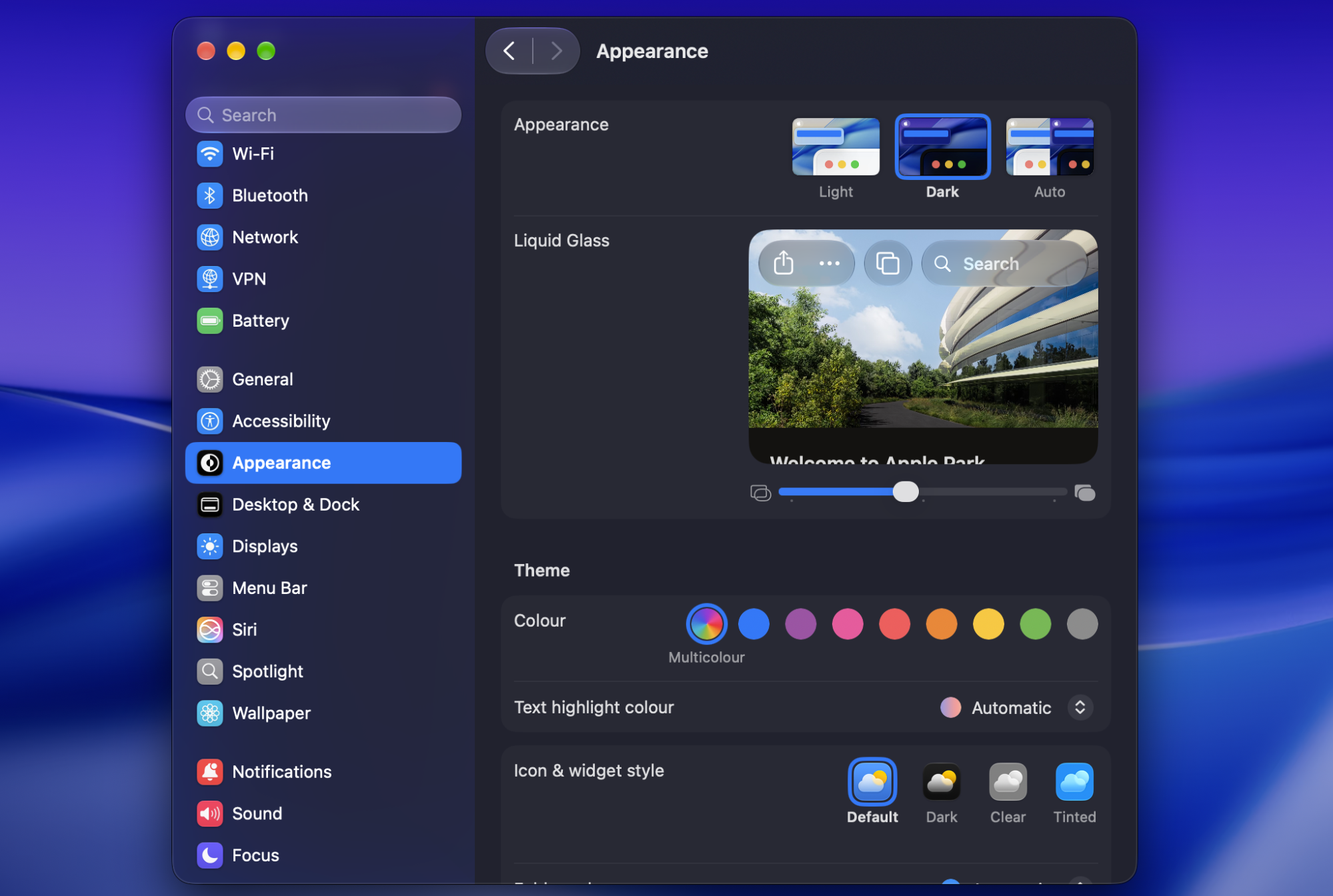
2. Refined Liquid Glass interface design
The Liquid Glass interface makes everything easier to read. Toolbars look uniform from app to app, sidebars stretch edge to edge, and window corners stay consistent. There’s also a transparency slider in System Settings, so you can dial the glassy look up or down to suit your eyes.
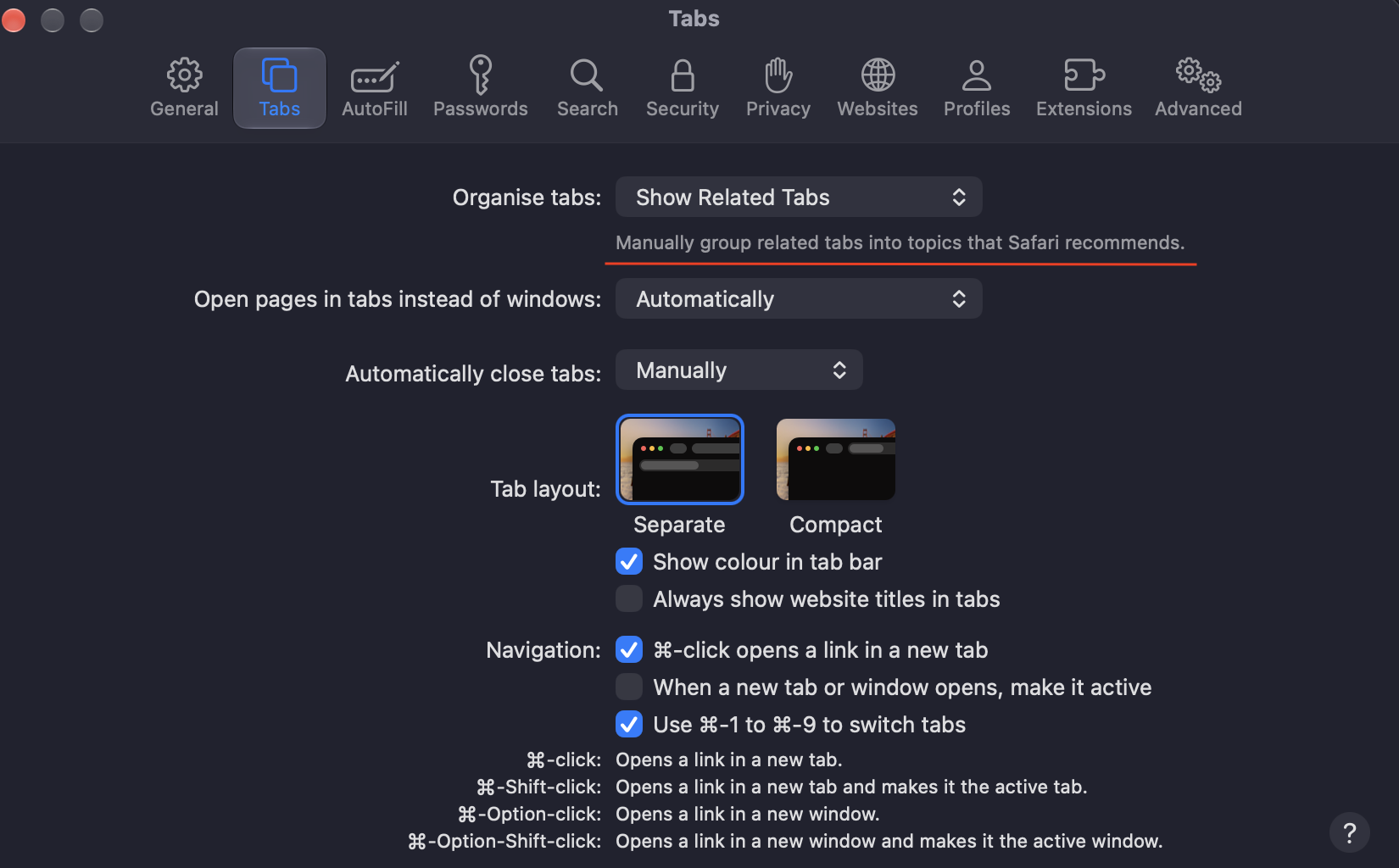
3. Smarter Safari and automation tools
Safari now sorts your open tabs into topic groups on its own, so a pile of research links organizes itself into tidy clusters. The Notify Me feature watches a page for you and lets you know when something changes. Pair that with the natural-language AI in the Shortcuts app, and you can build automations just by describing what you want.
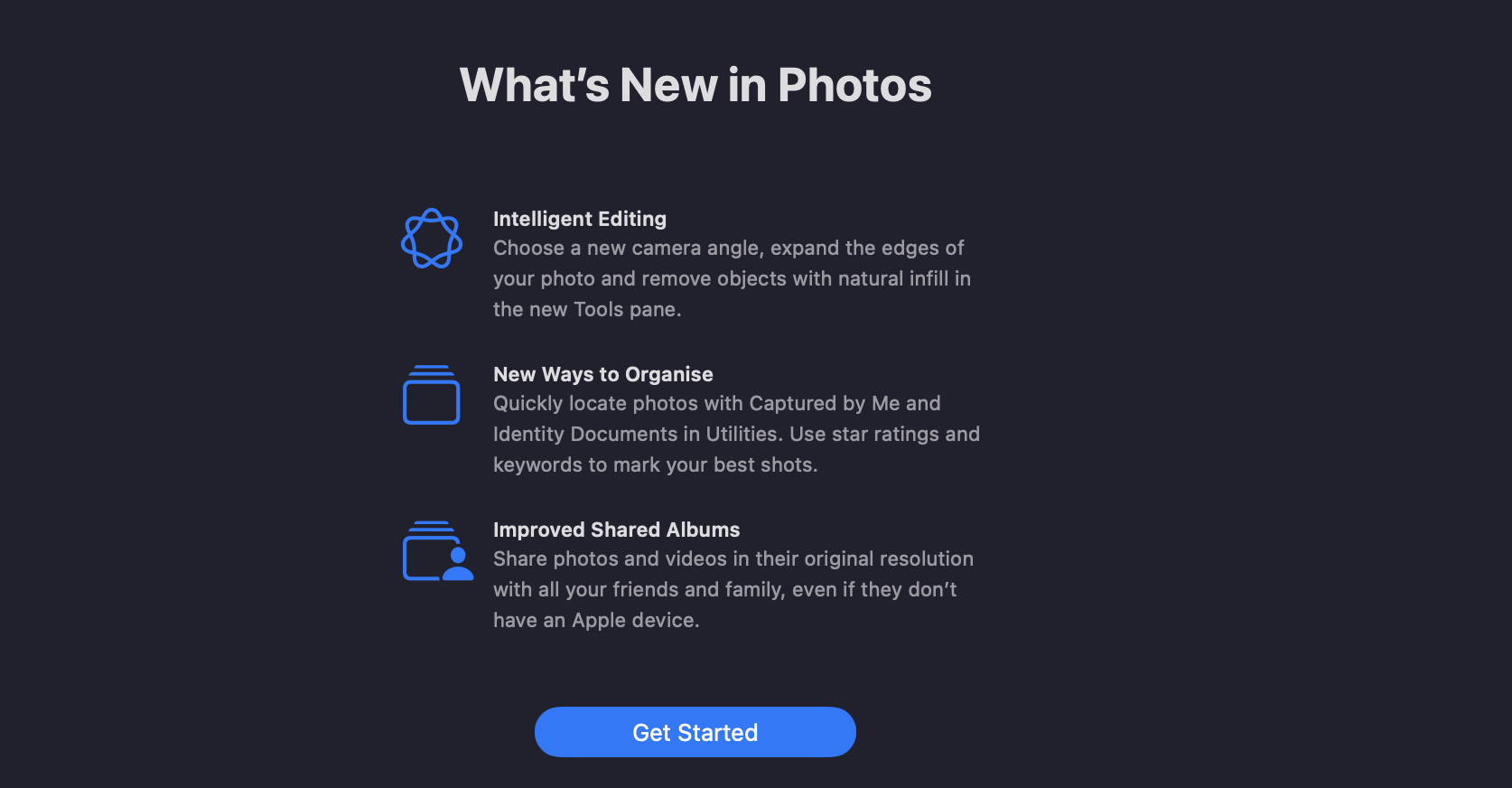
4. Intelligent photo and writing tools
Write with Siri now works system-wide, helping you draft text and proofread as you type. Over in Photos, generative expansion fills in the edges of a cropped shot, perspective tools straighten awkward angles, and enhanced object removal clears unwanted items from the background.
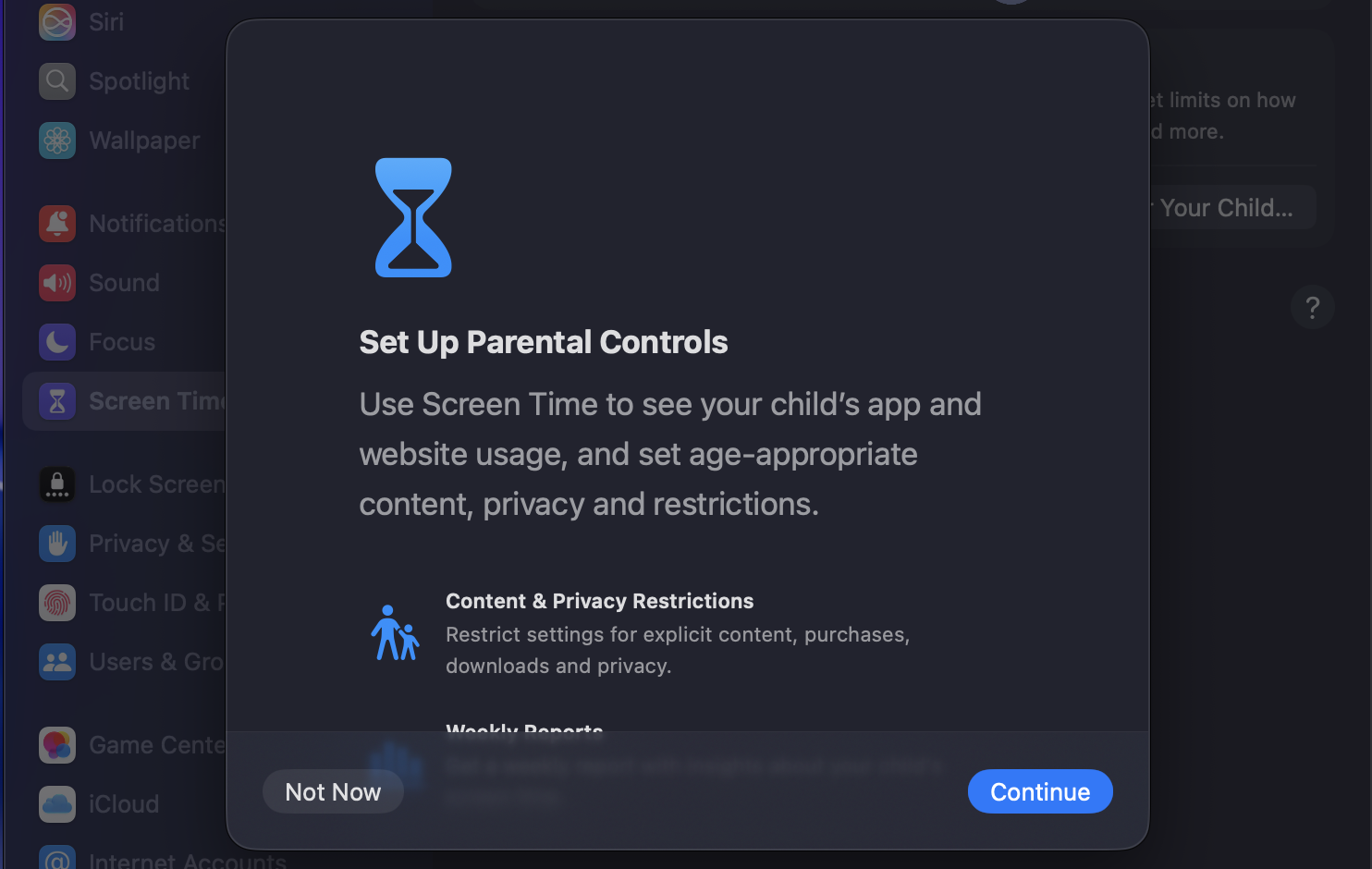
5. Enhanced child safety and parental controls
Parents get more control without the guesswork. Ask to Browse lets you approve websites before your child visits them, expanded Communication Safety blurs sensitive media, and age-guided Time Allowances in Screen Time help you set limits that grow with your kid.
Which Macs support macOS Golden Gate?
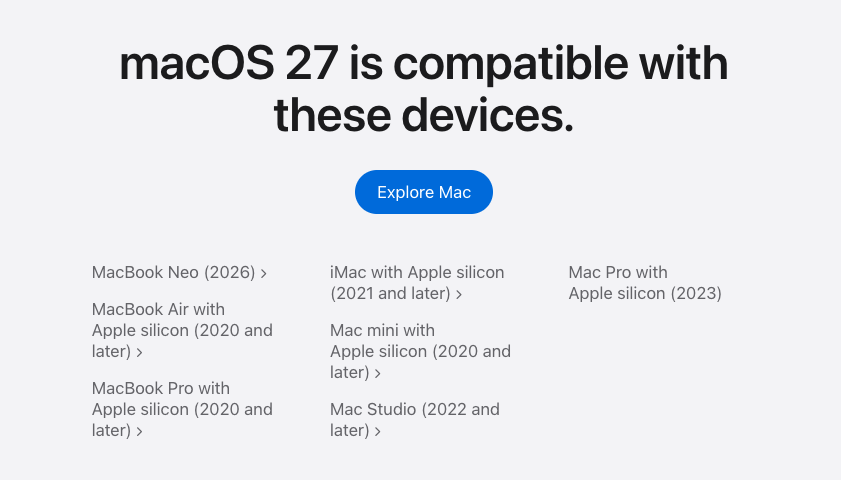
Here’s where the macOS Golden Gate system requirements matter. Golden Gate runs only on Apple silicon—that means M1 chips and newer, plus A18 Pro models. Apple has dropped support for Intel-based Macs, so older machines won’t make the jump.
There’s one more thing to know. The chip you have decides how much of Golden Gate you’ll get:
Standard Golden Gate features run on any Apple silicon Mac—M1 or newer, plus A18 Pro models.
Advanced AI features need an M3 chip or newer with at least 12GB of unified memory.
Not sure what’s inside your Mac? You can check Mac processor details in a few seconds and see exactly which chip you have.
How to check compatibility and update to macOS 27 on Mac?
Before any major upgrade, I always do two things—confirm my Mac is supported and back everything up. It takes a few minutes and saves a lot of stress if something goes sideways.
Start by matching your model against the supported list. You can check macOS compatibility to see whether your Mac made the cut.
Next, back up your files—Time Machine is the easy route. Plug in an external drive, open Time Machine in System Settings, and let it copy everything. With macOS 27 available for supported Macs, you’re set once the backup wraps up.
Once your backup’s done, here’s the quickest way to update:
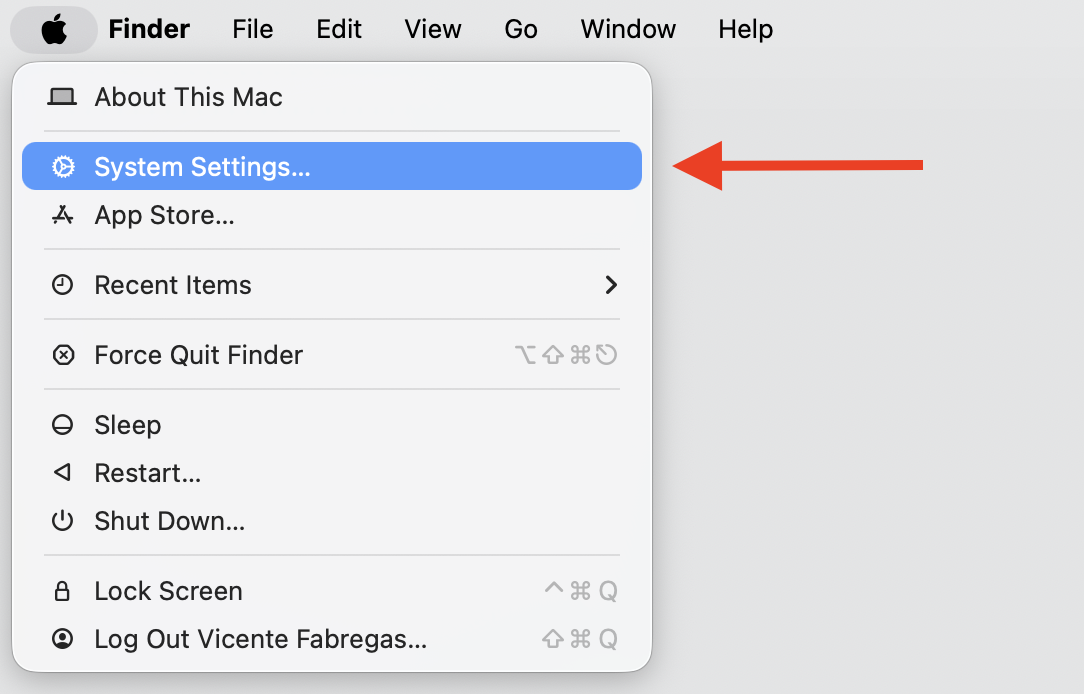
Open System Settings from the Apple menu.
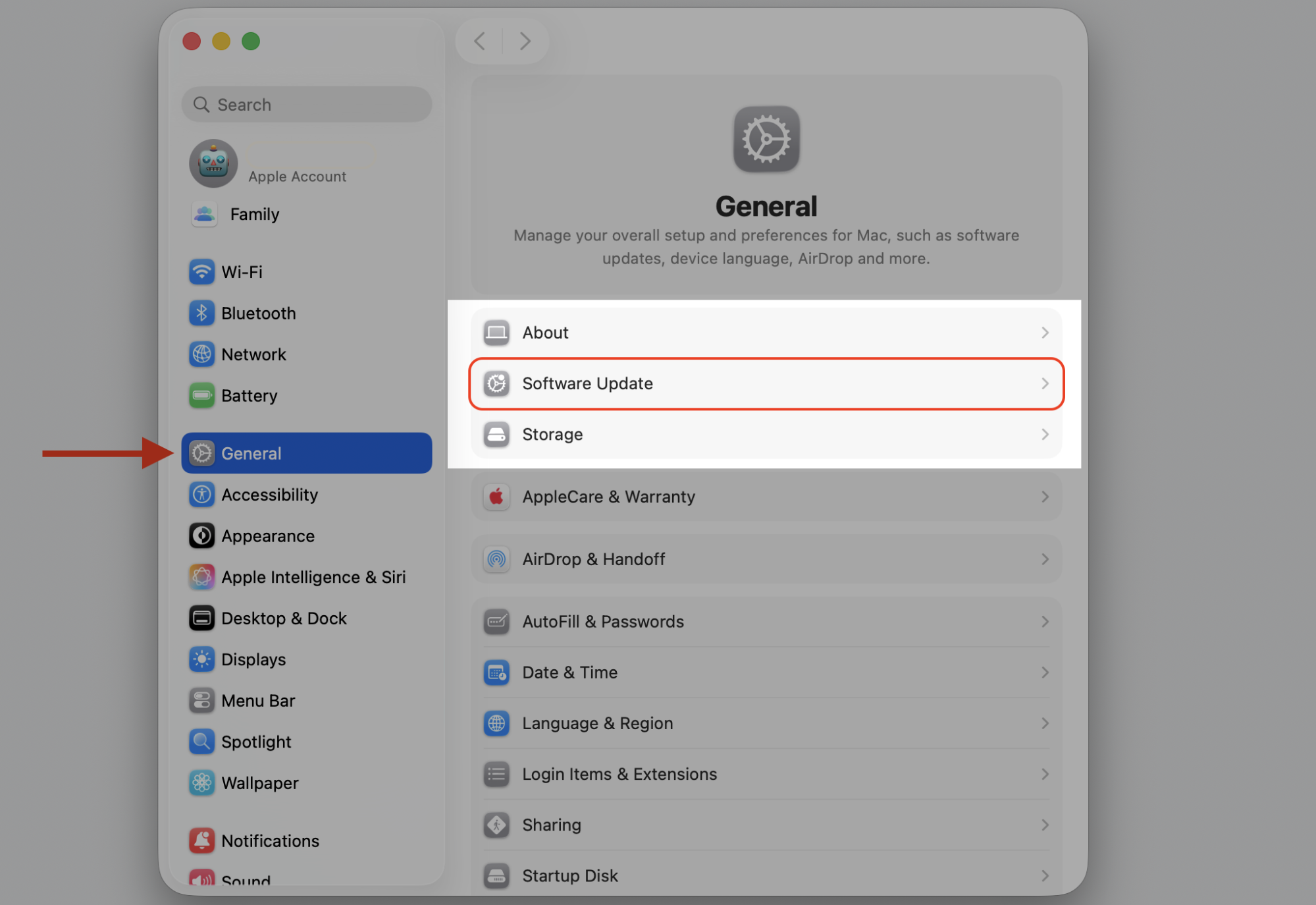
Select General, then Software Update.
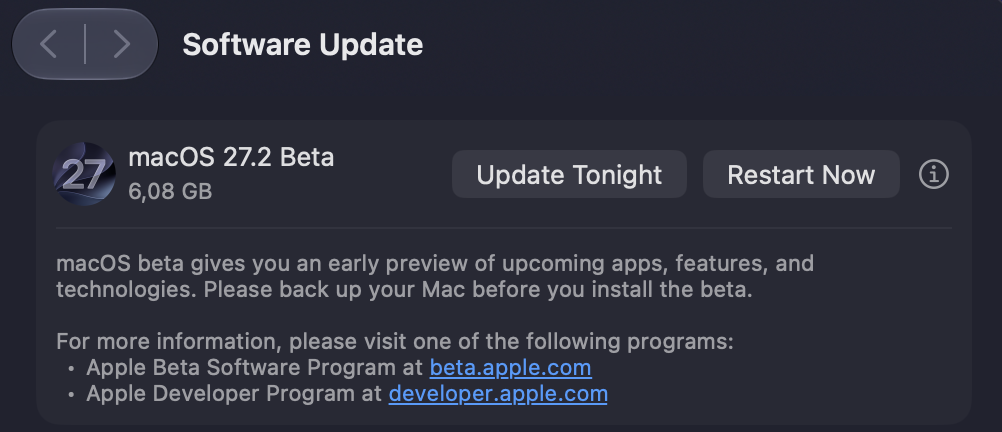
Wait for your Mac to find macOS 27. When it appears, select Update Now or Restart Now if the update us already downloaded on your Mac.
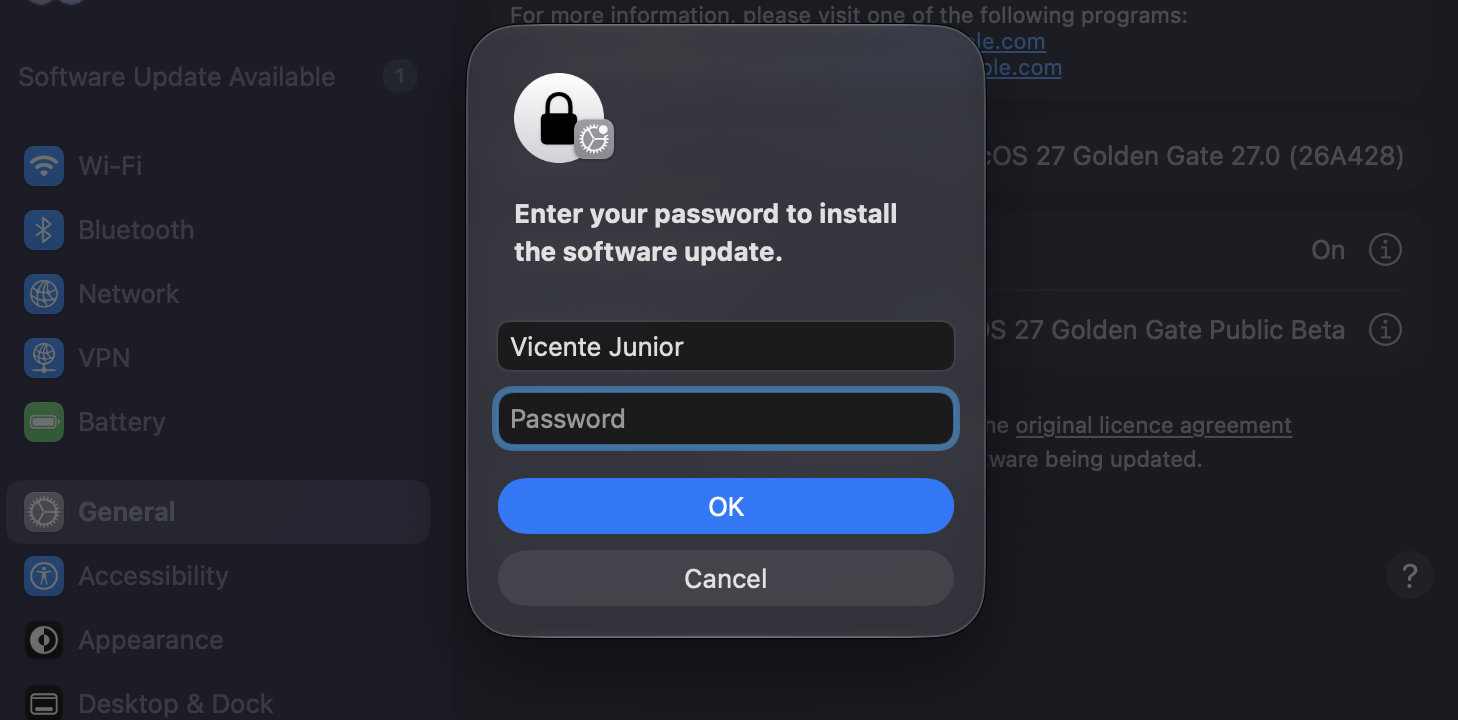
Enter your password..
Follow the on-screen prompts to restart and complete the install.
Step 1. Go to Apple Logo > System SettingsStep 2. Select Software Update from General sectionStep 3. Select the Retart Now optionStep 4. Enter your password, then proceed with restarting the Mac to complete the installation
Conclusion
macOS Golden Gate is a real step forward for the Mac—smarter AI, a cleaner Liquid Glass interface, and steady performance across Apple silicon. Checking your compatibility first makes sure you get every updated tool and security feature the upgrade brings.
A big update can also surface an old issue—a Mac that’s low on space or weighed down by years of junk files. That’s where MacKeeper’s Safe Cleanup helps—try it out. Our tool clears caches, logs, and leftover files in one click, freeing up room for macOS 27 without touching anything personal. Give your Mac a clean, fast start before you upgrade—run MacKeeper’s Safe Cleanup today.
We respect your privacy and
use cookies
for the best site experience.
Privacy Preferences Center
We use cookies along with other tools to give you the best possible experience while using the
MacKeeper website. Cookies are small text files that help the website load faster. The cookies we
use don’t contain any type of personal data meaning they never store information such as your
location, email address, or IP address.
Help us improve how you interact with our website by accepting the use of cookies. You can change
your privacy settings whenever you like.
Manage consent
All cookies
These cookies are strictly necessary for enabling basic website functionality (including page
navigation, form submission, language detection, post commenting), downloading and purchasing
software. The website might malfunction without these cookies.