You download dozens of files to your Mac, use them a few times and they accumulate in your storage. Eager to know how to increase storage on Mac? The simplest way to do it is with MacKeeper’s Safe Cleanup tool, which will find and delete all unneeded downloads and any useless junk files on your Mac.
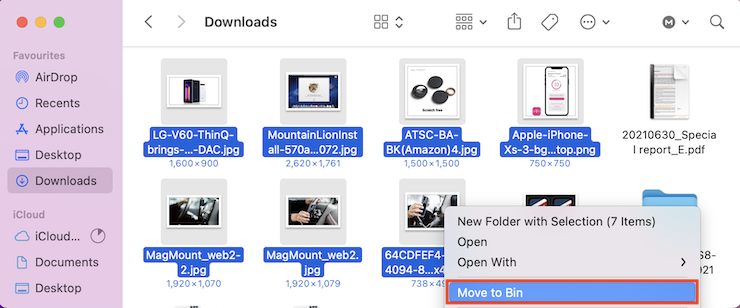
To delete downloads on Mac, open your Downloads folder from the Finder section, select files you want to remove, then right-click and choose Move to Trash. After that, right-click on the Trash icon on the Dock and select Empty Trash to permanently delete them. Alternatively, go to System Settings > General > Storage > Documents > Downloads to immediately clear downloads on Mac without moving them to Trash.
Videos, images, audio files, and app installers can occupy lots of your MacBook’s free space. So if you need to free up disk space, cleaning up your downloads folder on Mac is a great place to start. If you’re finding it difficult to locate and organize your Downloads folder, stay tuned, and we’ll show the quickest and easiest way to manage your downloads and save yourself some gigabytes.
What happens if you delete downloads on MacBook
If you delete downloads on your Mac through Finder, they’ll be moved to your Trash folder. Trash allows you to recover any files you accidentally deleted, so if you want to permanently delete files—you’ll have to open Trash and empty it.
A note from our experts:
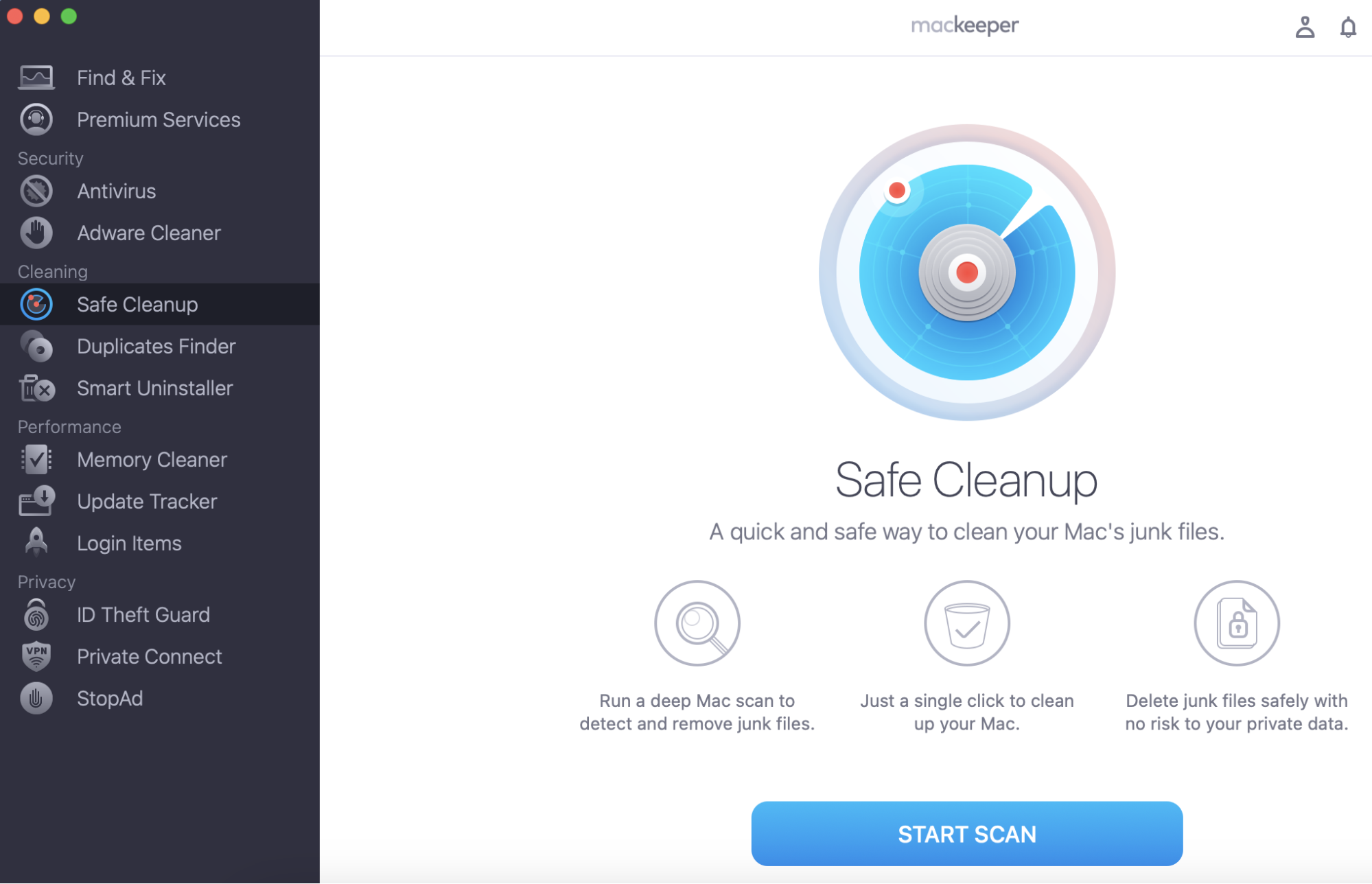
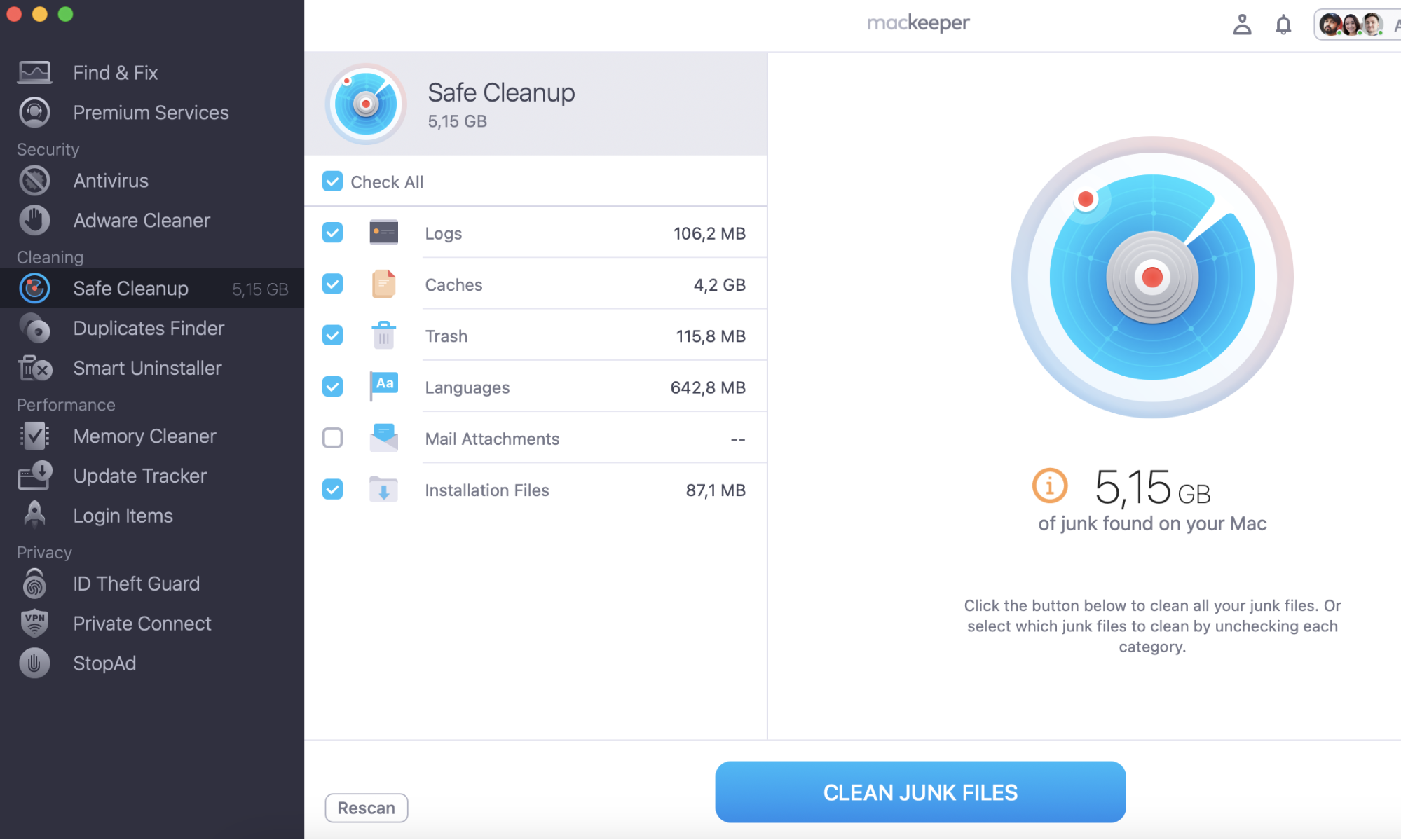
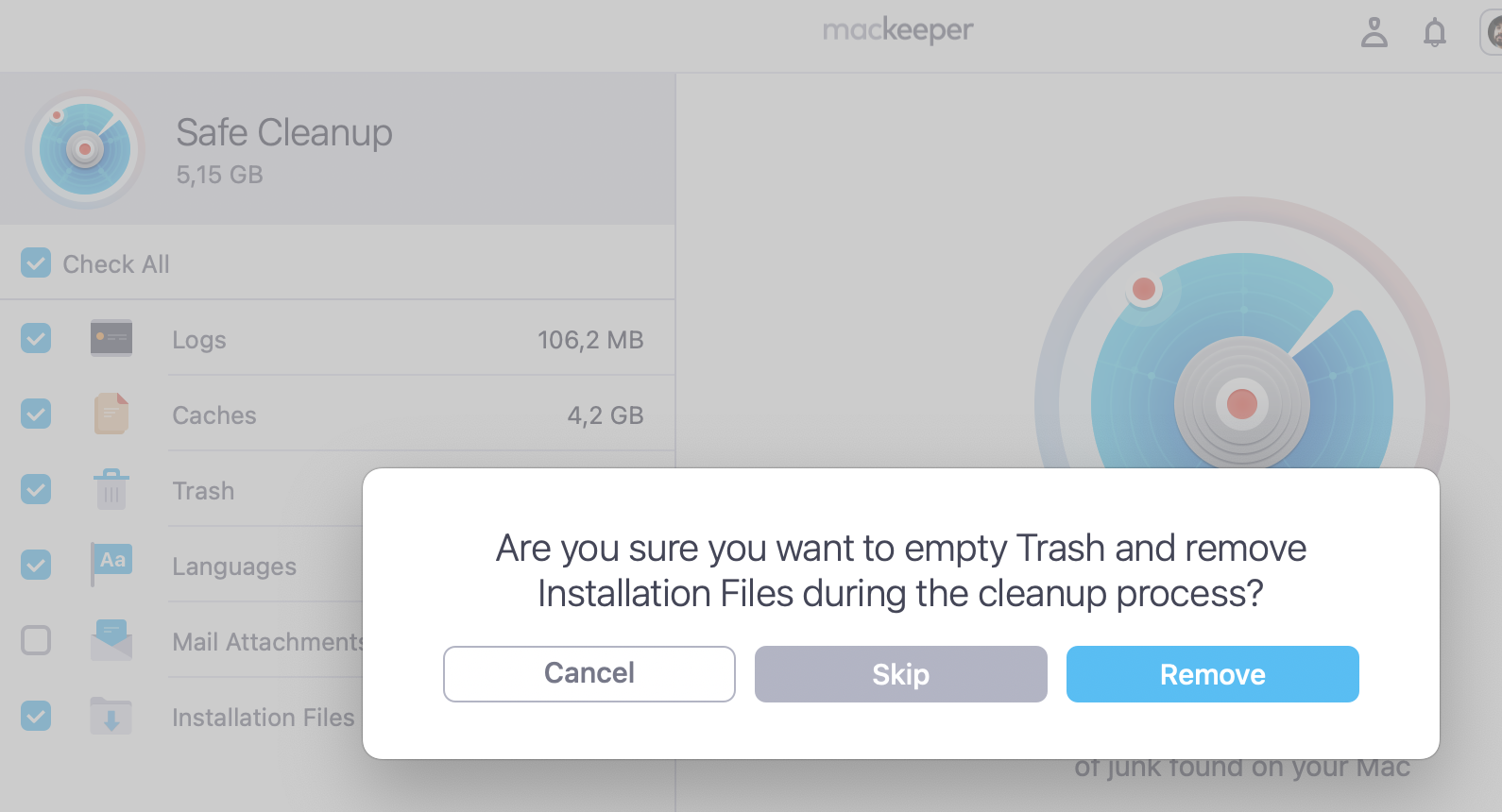
We claim that there’s a better way to get rid of downloads on Mac, as even after clearing your downloads, you may still not have enough free disk space. This can be annoying, especially when your Mac won't let you download new files. So, the solution is to use MacKeeper’s Safe Cleanup to free up disk space purely by deleting useless junk files.
Here’s how to free up junk space without losing any personal files:
You can find your downloads folder on Mac by either selecting Downloads in your Dock next to the Trash Can, or by opening Finder and selecting Downloads from the Favorites section of the side menu.
Our pro-tip:
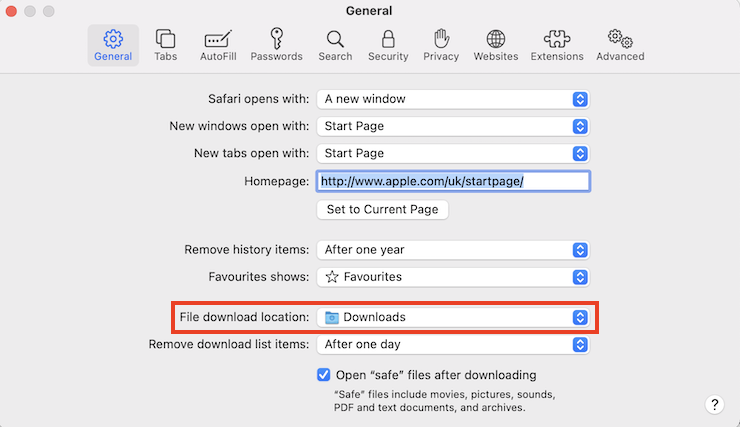
If your downloads aren’t ending up in the Downloads folder, this could be due to your web browser’s settings. To change or check the destination of your downloaded files, see our instructions below.
If you use Safari, you’ll manage your downloads this way:
Open Safari, then select Safari from the top toolbar.
Select Preferences from the drop-down menu.
In the General tab, check the File Download Location to find out where your downloads are saved. Click the folder if you’d like to update it, and select a new location.
Open Safari > click Safari in the toolbar > Preferences > refer to the File Download Location field
If you use Google Chrome, do the following:
Open the Chrome app, and then select Chrome from the menu bar.
In the Chrome menu, select Preferences.
Scroll to the bottom of the Preferences page, and select Advanced.
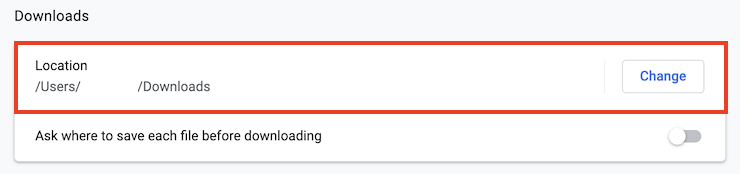
In the Downloads section, you can find where your downloads are saved. Click Change if you want to update it.
Open Chrome > click Chrome in the toolbar and select Preferences > scroll down to Advanced > refer to the Downloads section
How to organize your downloads
If you’re looking to clear out your downloads on Mac, it’s helpful to sort them in Finder. This way, you can find old downloads that you no longer require or larger files which could be taking up the most storage space.
Sort the downloads by size
If you want to empty your downloads folder on Mac to free up disk space, it’s much easier to organize your downloads by size, so you can locate large files and delete them. To organize your downloads by size, follow the steps below:
Open your Downloads folder in Finder.
Right-click inside the Downloads folder.
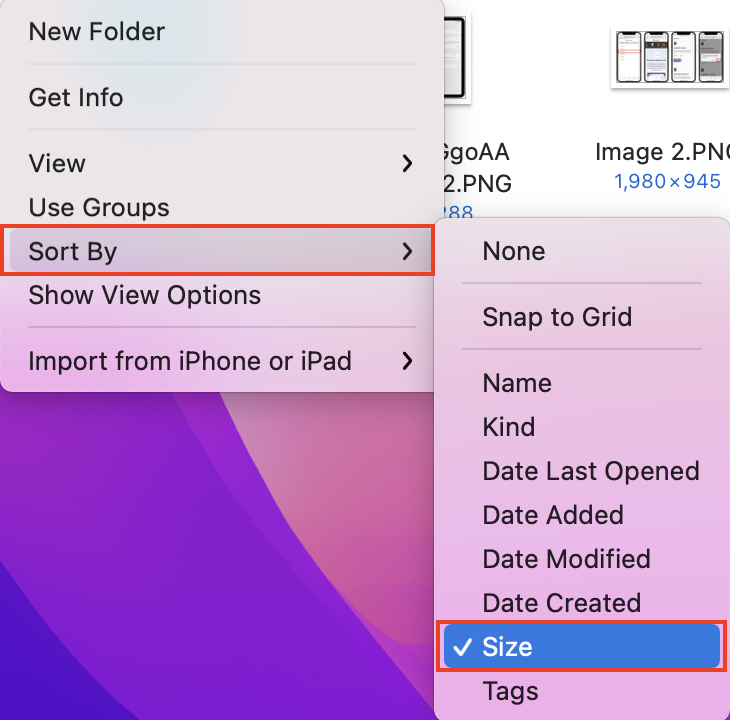
Select Sort By from the drop-down menu, and then select Size.
Right-click in your Downloads folder > Sort By > Size
Organize your downloads using a list view
It’s much easier to see how much space each file takes up in your Downloads folder when you view the folder as a list. The list view will show you file size information quickly without needing to open another menu. To update your folder view to a list:
Open the Downloads folder.
Right-click inside your Downloads folder.
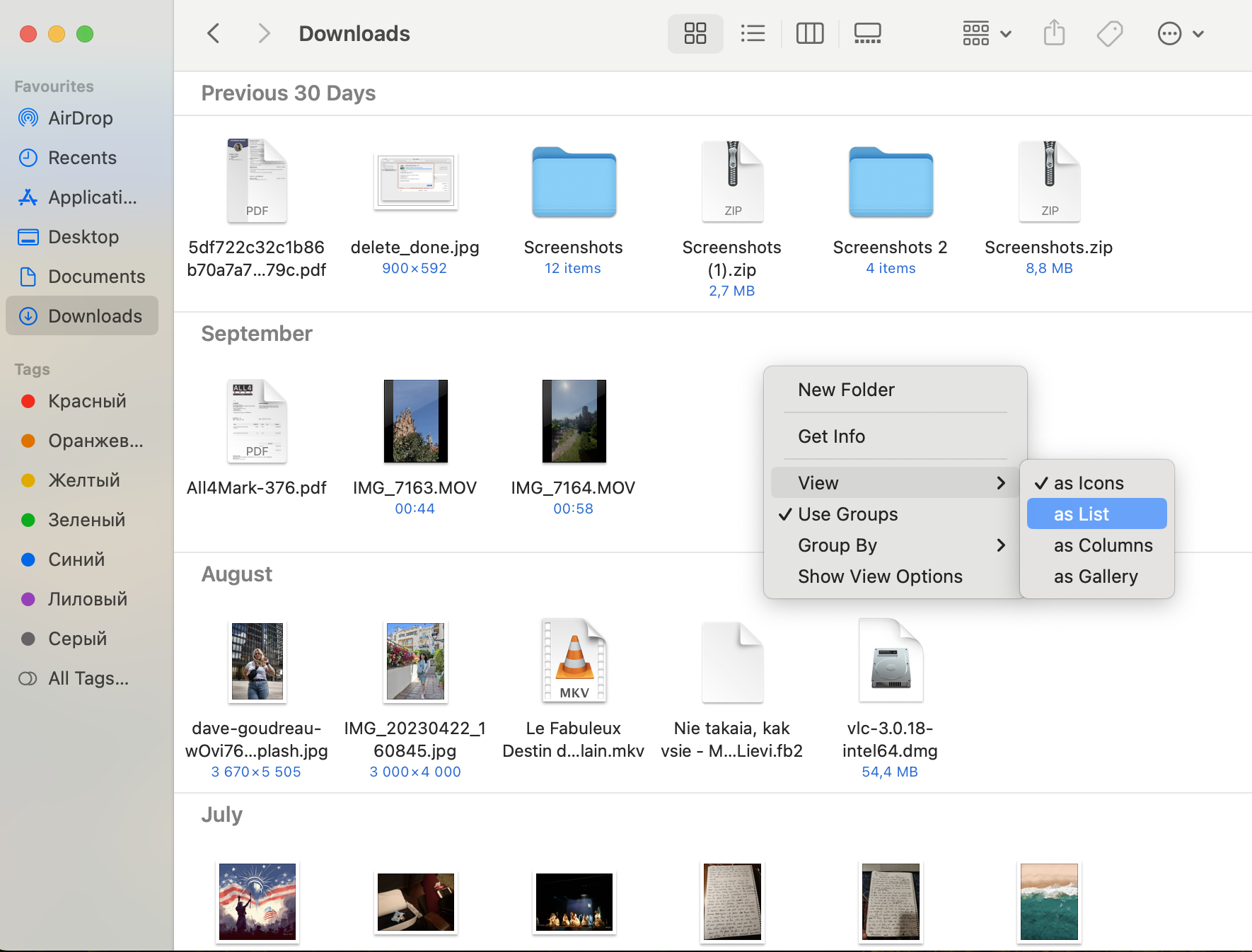
Select View, and then click As List.
Open Downloads folder > right-click > View > as List
Sort the downloaded date by a date
If you’ve already removed your larger downloads by sorting by size, we suggest then organizing them by date. This means you can see your most recent downloads and remove unwanted files. To sort your downloads by date:
Open Finder and go to the Downloads folder.
Right-click inside your Downloads folder.
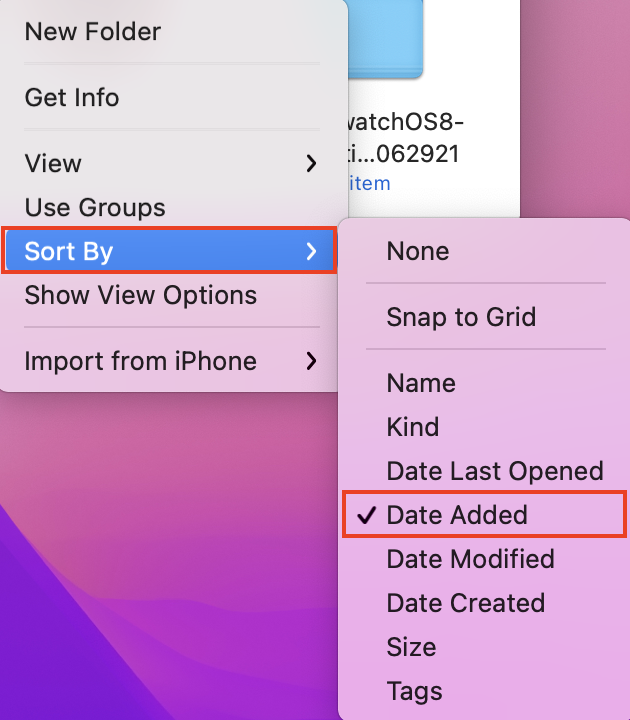
Select Sort By, then click Date Added.
Right-click in your Downloads folder > Sort By > Date Added
How to clear downloads on Mac
After locating your large downloads, and other downloaded files that you no longer need, you can then trash your downloads on Mac.
Important: We’d like to remind you that when you move files to Trash, they aren’t completely deleted from your Mac. So, if you’re sure you want to do this, drag and drop each file you don’t want to the Trash icon in your Dock. However, there’s a much faster way if you need to delete multiple downloads on Mac at once—see it below.
Hold down cmd and click on each file you want to delete.
Then, right-click and select Move to Trash.
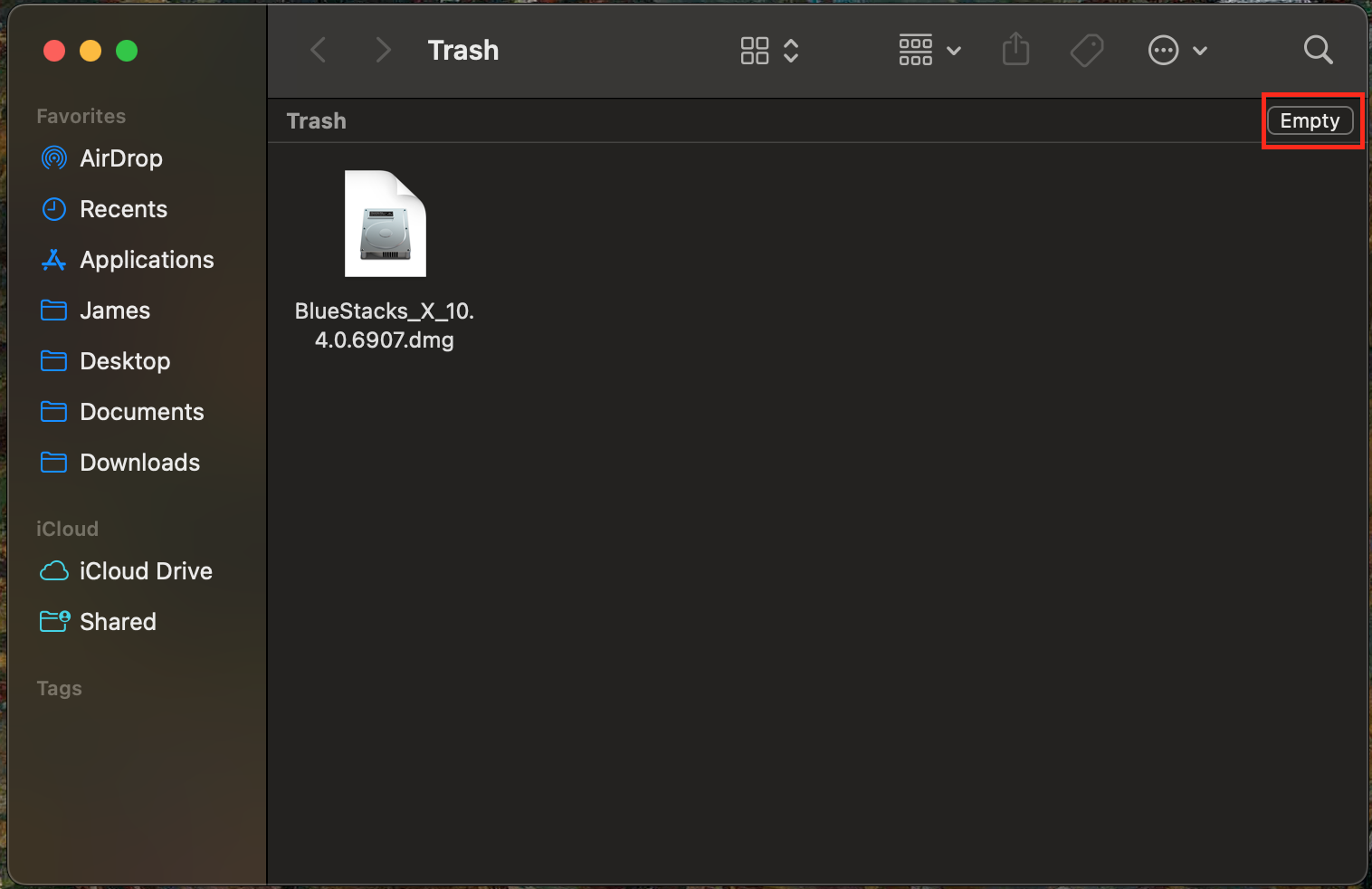
To permanently delete these files, click the Trash icon in your dock, and click Empty in the top right corner of the window.
Step 1. Hold down cmd > click each file you want to delete > right-click > Move to TrashStep 2. Click the Trash can in your Dock > click Empty in the top right corner
If you also want to clear the downloads history on a Mac, after removing the files from the Downloads folder, you need to open each web browser, such as Safari or Google Chrome, and remove the download list. In Safari, click the Downloads icon and then click the Clear button. In Google Chrome, click the three dots icon, select Downloads, and then click Clear all.
2. Empty downloads automatically
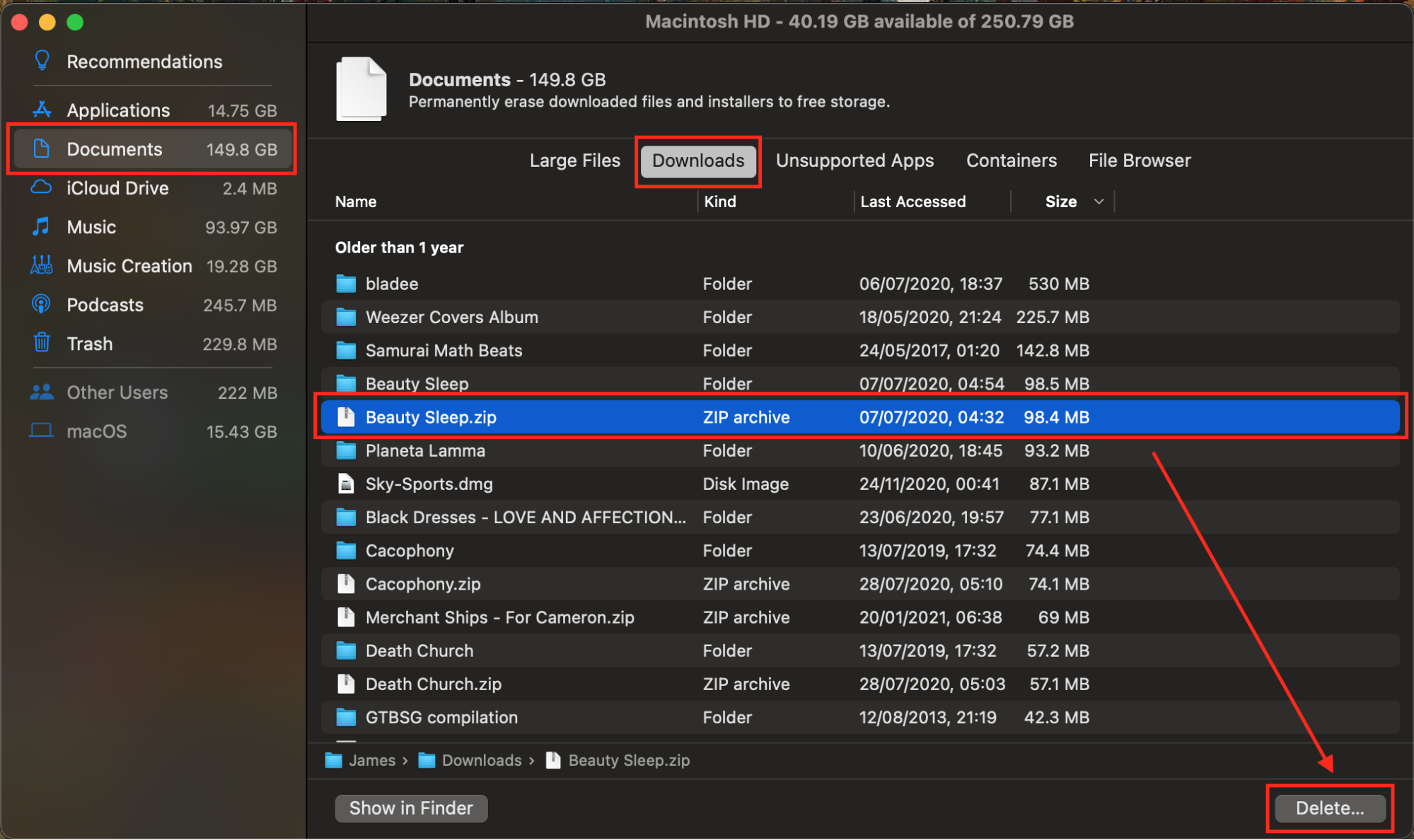
To permanently delete downloads on Mac without needing to empty your Trash, you can speed up the process by using your Mac’s built-in Storage tool. Please note that if you delete any files here, they will not be recoverable. This method is especially useful when you need to mass delete downloads on Mac. Here’s how to do it:
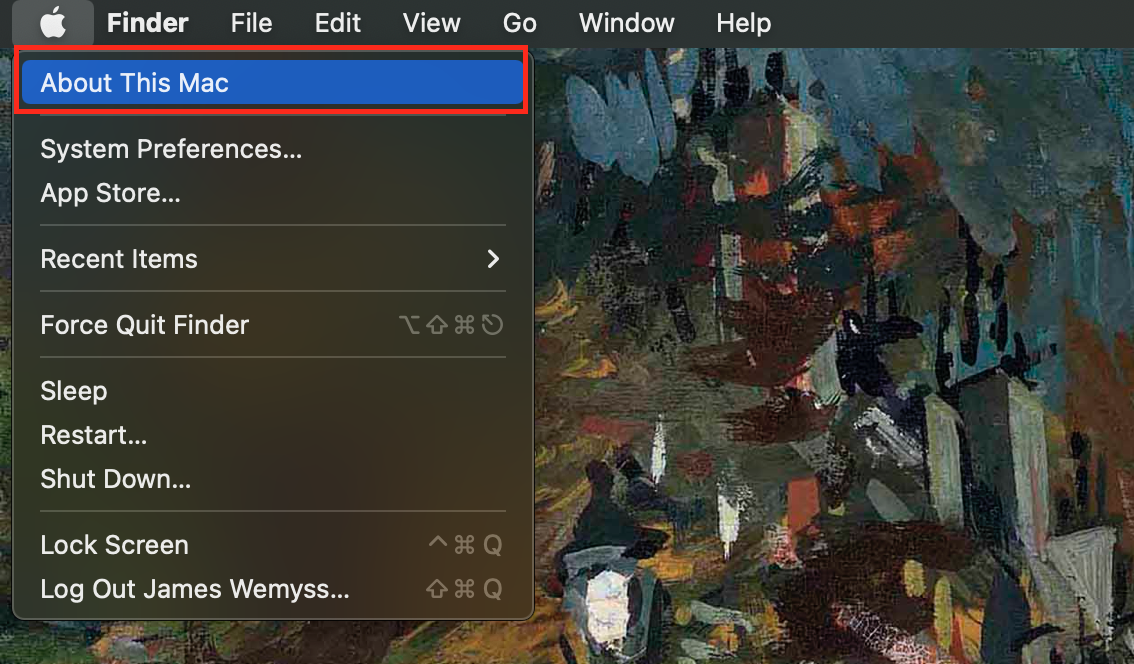
Click the Apple logo in the top left corner of your screen, and select About this Mac.
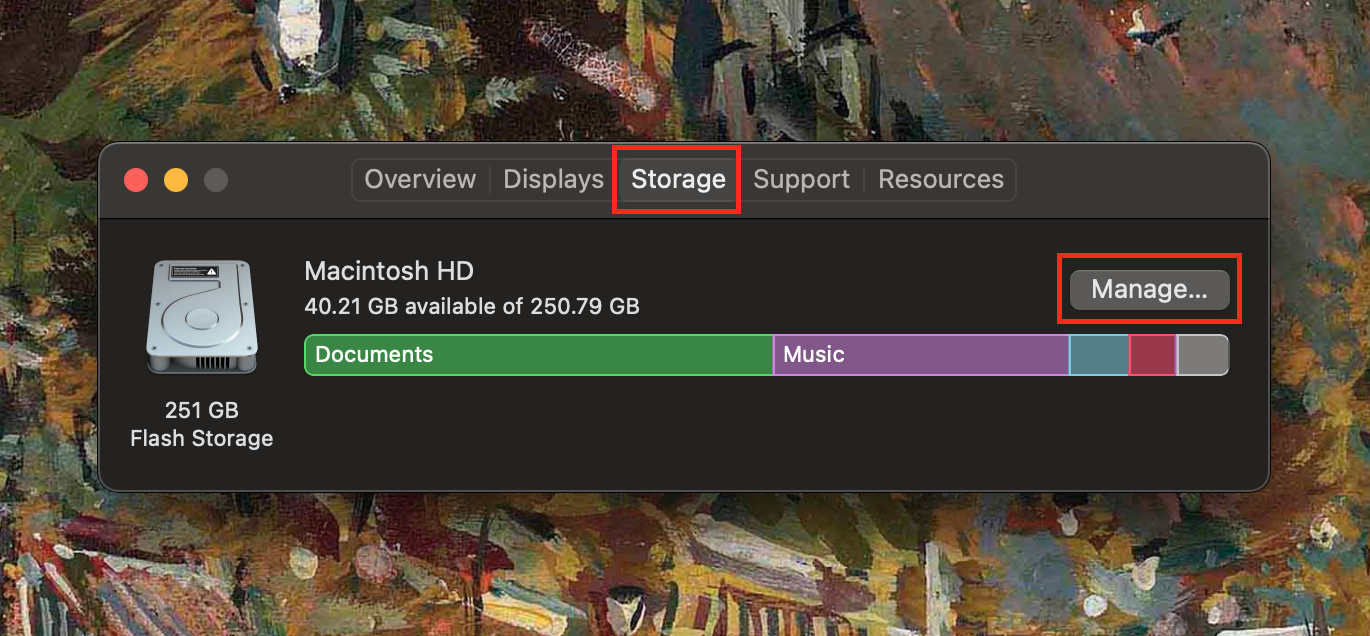
Open the Storage tab and then select Manage.
Select Documents from the side menu, and then click on the Downloads tab to view downloaded files.
Select a file you want to delete, and then click Delete in the bottom right corner to delete it.
Step 1. Open the Apple menu > About this MacStep 2. Select the Storage tab, then click ManageStep 3. Documents > Downloads > select file > click Delete
Pro tip: You can delete Downloads on Mac without a mouse by using keyboard shortcuts only. Press Command+Space bar to open the Spotlight search, type Downloads, and press Enter. Once in the Downloads folder, use the arrow keys to select the file (Shift+arrow key to select multiple, Command+A to select all) and press Command+Delete to move them to Trash.
More space gives your Mac more pace
If you’ve followed our guide, you should hopefully have managed to erase your downloads on Mac. Though freeing up disk space is great so you can download more files, you may be unaware that having more disk space also helps to speed up your MacBook.
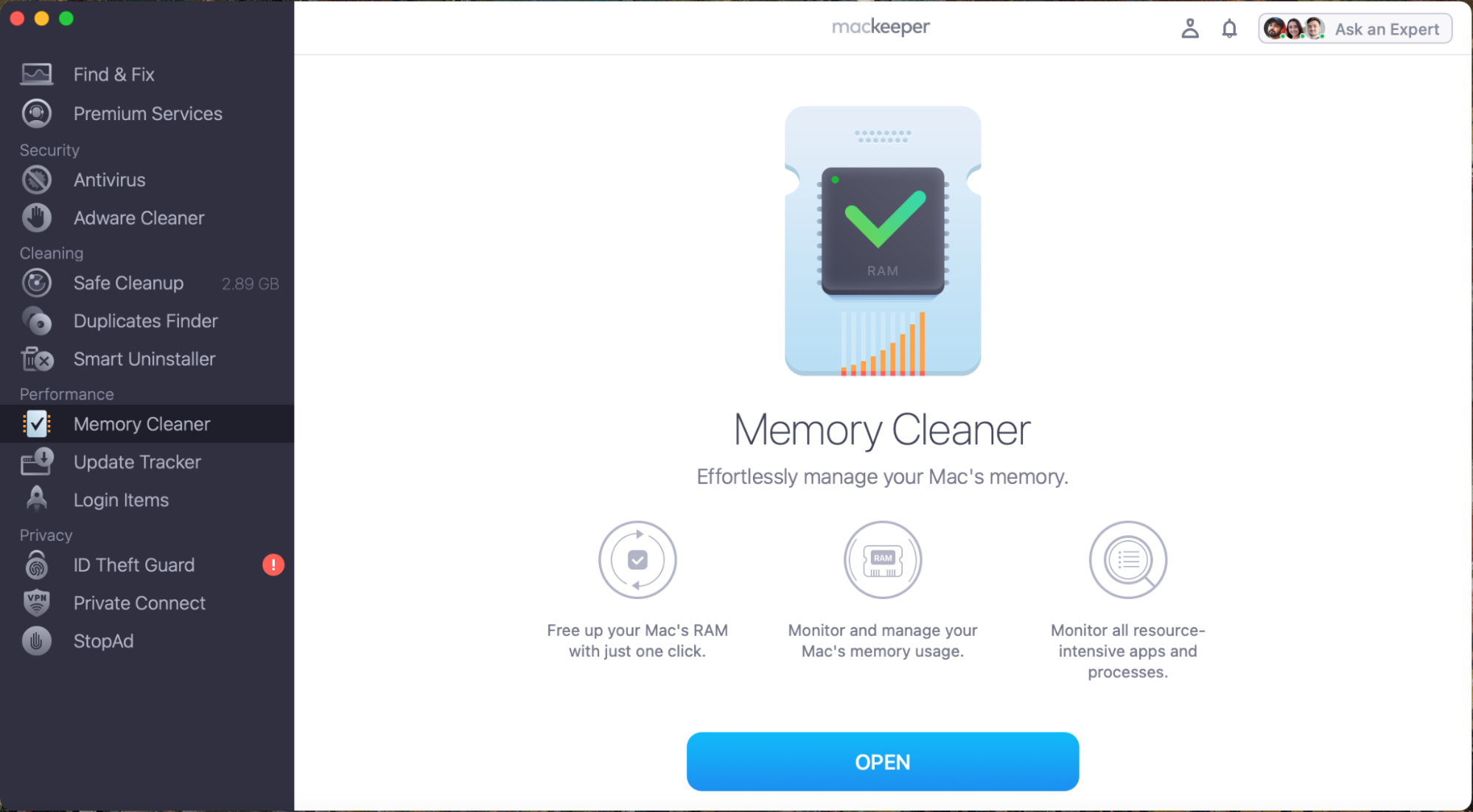
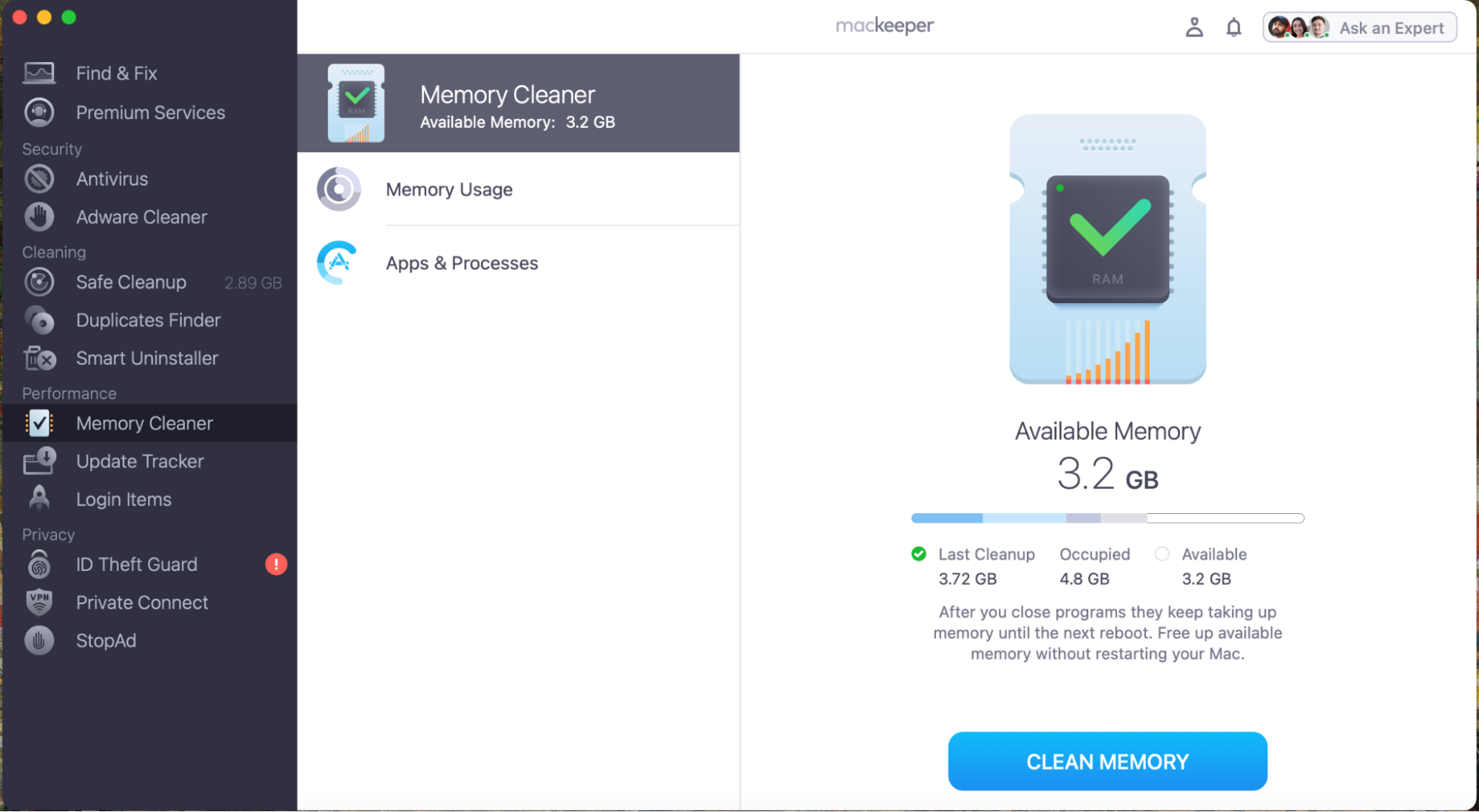
Meanwhile, you can also achieve the same by freeing up RAM with MacKeeper’s Memory Cleaner:
We respect your privacy and
use cookies
for the best site experience.
Privacy Preferences Center
We use cookies along with other tools to give you the best possible experience while using the
MacKeeper website. Cookies are small text files that help the website load faster. The cookies we
use don’t contain any type of personal data meaning they never store information such as your
location, email address, or IP address.
Help us improve how you interact with our website by accepting the use of cookies. You can change
your privacy settings whenever you like.
Manage consent
All cookies
These cookies are strictly necessary for enabling basic website functionality (including page
navigation, form submission, language detection, post commenting), downloading and purchasing
software. The website might malfunction without these cookies.