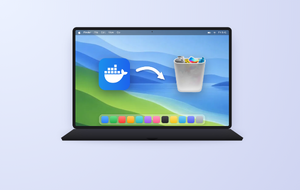
Running low on space because of backups you no longer need? You can delete backups from iCloud in a few minutes, and we’ll walk you through it. To free room on your Mac itself, MacKeeper’s Safe Cleanup clears junk files in one click—a quick, safe way to reclaim space without sorting files yourself.
iCloud backups are saved copies of your device data, tied to your Apple Account. Each one stores app data, settings, and content, so you can restore a device later if needed.
Old backups usually come from previous iPhones, iPads, or devices you no longer use. They sit quietly in your account, and over time, they can take up a fair slice of your iCloud storage.
If your free space is shrinking, it helps to manage iCloud storage on Mac and see what’s still worth keeping. We’ll show you where to manage iCloud storage and which copies are safe to remove.
Can you delete old backups on iCloud?
Yes, you can. If a backup belongs to an old iPhone, iPad, or device you no longer use, it’s safe to remove old backups on iCloud whenever you like.
Old backups can be deleted from iCloud the moment you’re sure you won’t need them again. Doing so frees up storage, and you can remove backups from iCloud without touching the data on the device you’re using right now, so your current photos, messages, and apps stay put.
The same idea applies to your computer. If you back up to a Mac, you can also delete iTunes backup files you no longer need to free local space.
A note from our experts:
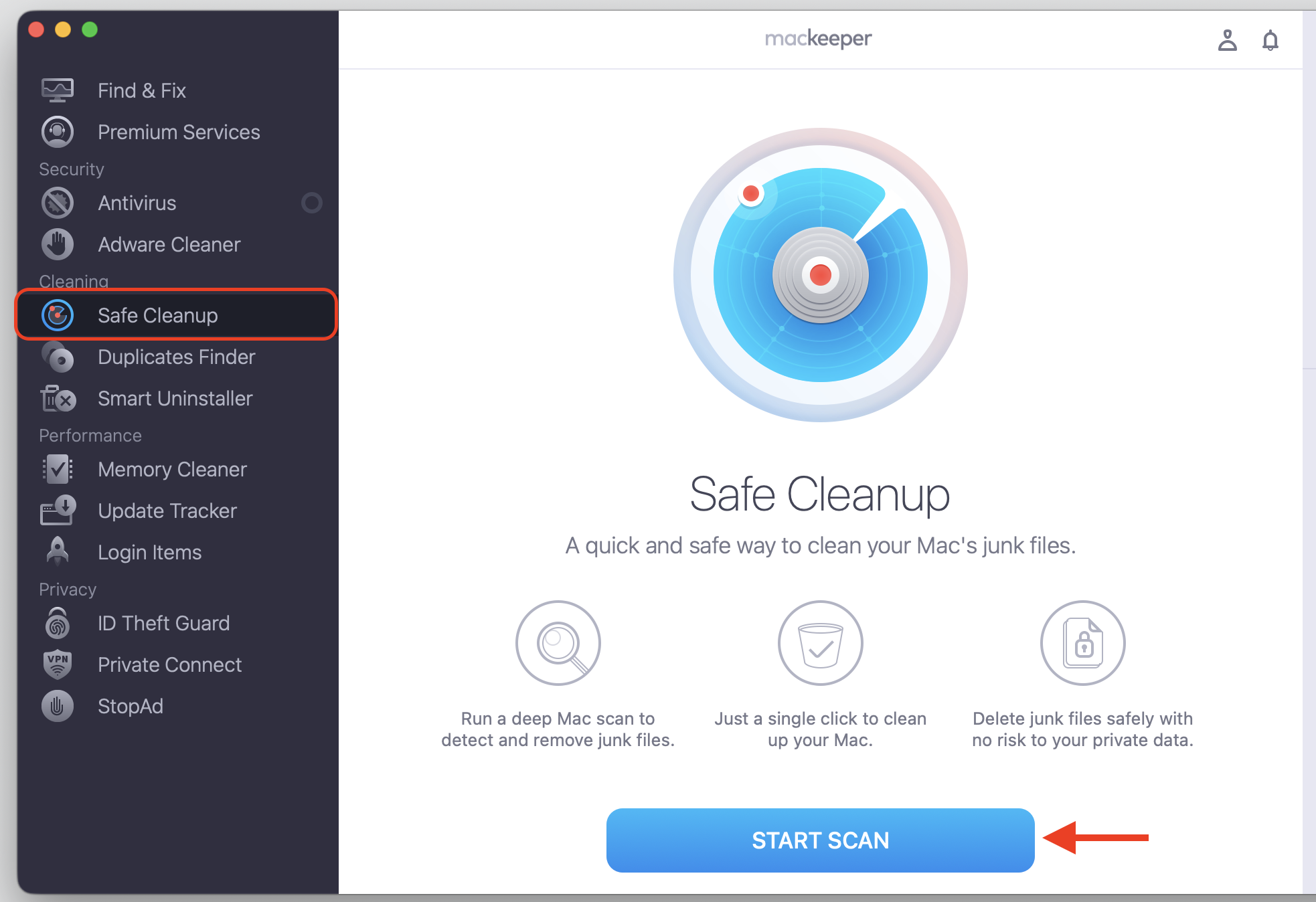
Now, when you realize the necessity of deleting your old iCloud copies, you can imagine that the same applies to the other applications on your Mac. They store multiple cache and log files that are always hidden from view, but still occupy space on your computer. To free your Apple laptop’s storage in a safe and easy way, we suggest using MacKeeper’s Safe Cleanup. Do this:
Choose Safe Cleanup on the left and click Start Scan to initiate the process.
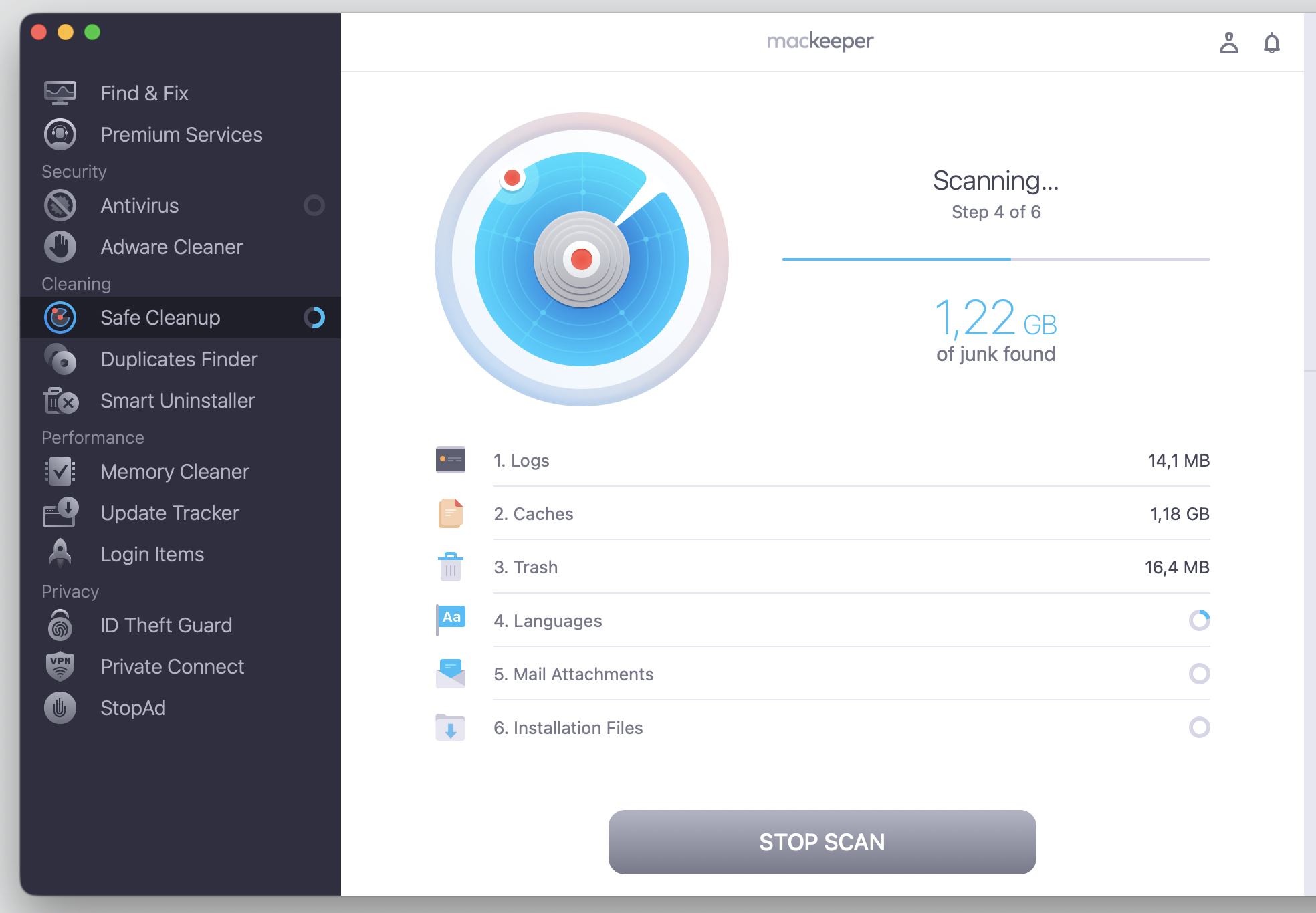
Wait until the cleaning scan is done.
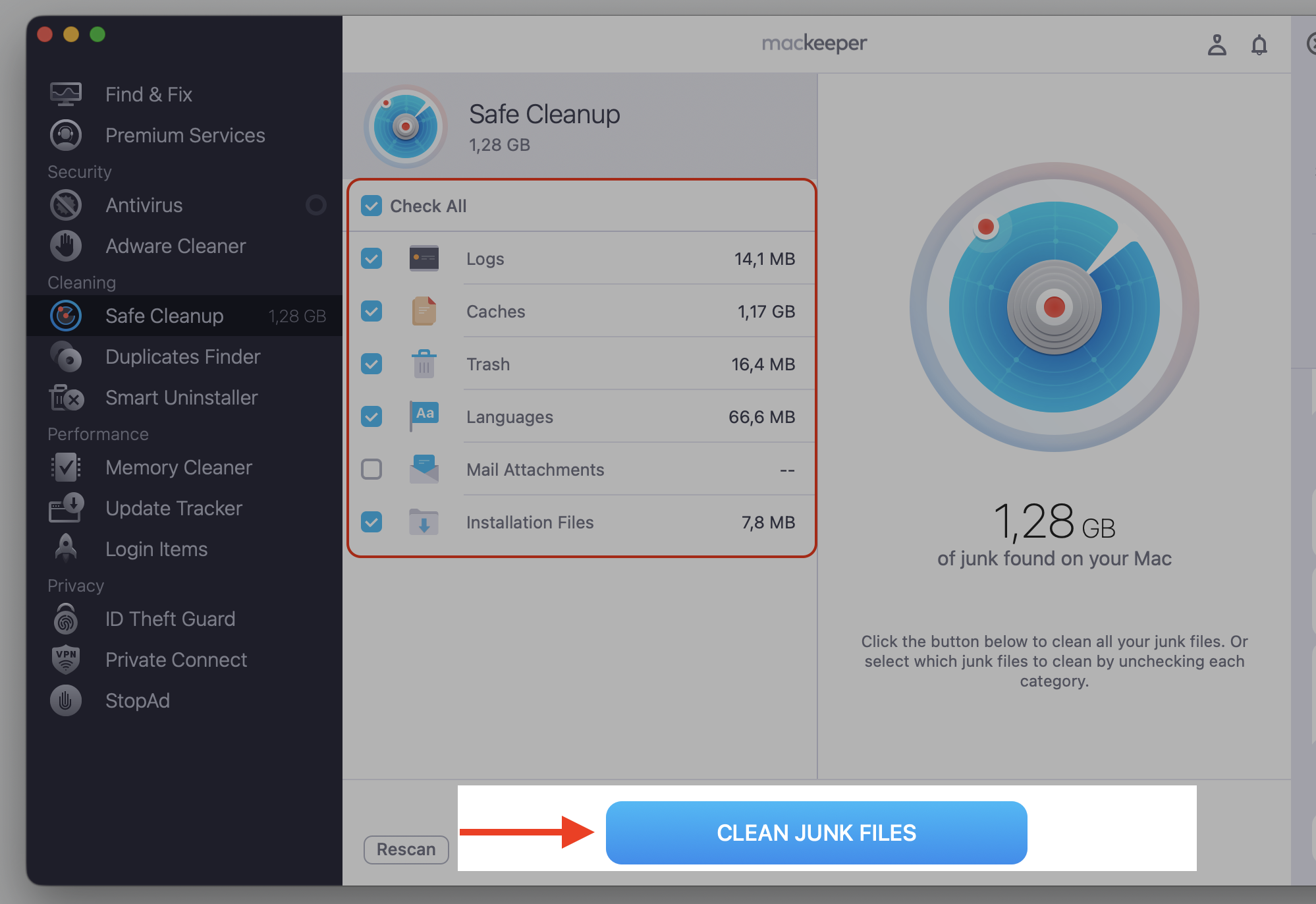
Check the desired boxes next to the file categories you want to delete from your Mac or choose Check All to perform the cleanup.
Confirm your decision with the Clean Junk Files button.
Step 1. Go to MacKeeper’s Safe Cleanup and click Start ScanStep 2. Wait until the scan is finishedStep 3. Check the relevant boxes or click to Check All and click Clean Junk Files
What happens when you delete an old iCloud backup?
When you delete a backup, iCloud removes that saved copy for good. You won’t be able to use it to restore that particular device afterward, so it’s worth a moment’s thought.
The good news—the data on your physical iPhone, iPad, or Mac stays untouched. Still, we’d suggest a quick double-check, so confirm you no longer need the backup before it’s gone.
From our practice, sometimes the real space-hog isn’t a backup at all. If you notice iOS taking up so much storage on Mac, clearing those leftover iOS taking up so much storage files can help just as much.
How to check old iCloud backups before deleting them?
Before you remove anything, we’d check three details first—the device name, the backup size, and the last backup date. This small check helps you avoid deleting your current device backup by mistake. If you’re unsure which is which, the date is usually the clearest clue.
This is also a good moment to view each backup’s details, so you know exactly what you’re about to clear.
Here’s what to look for:
Device name—whether it belongs to an old iPhone, iPad, or device you no longer use.
Backup size—how much space you’ll free up once it’s gone.
Last backup date—a recent date usually points to a device you still use.
How to remove old backups on iCloud from a MacBook?
Removing these copies is a tidy way to clear storage on Mac when room runs short, and there’s plenty more you can do to clear storage if you need extra space. Below, we’ll share a practical method to manage iCloud backups straight from macOS System Settings. Whether you’re on a newer MacBook or an older Macintosh, the process looks much the same.
Follow these simple steps to clear old backups from iCloud on your MacBook:
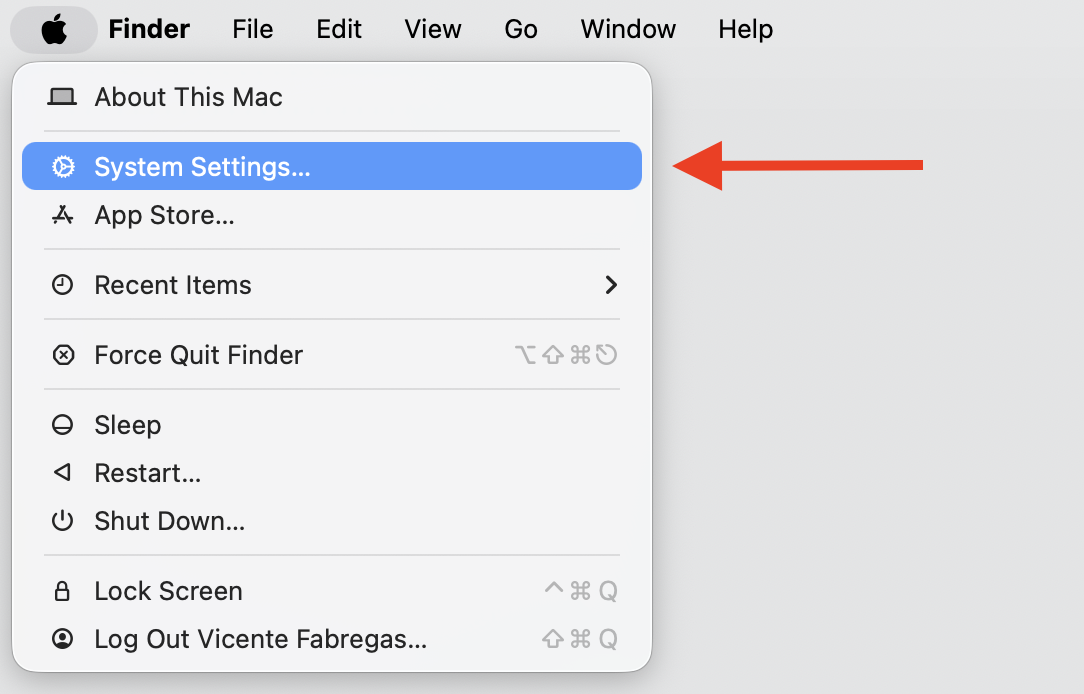
Click the Apple menu, then open System Settings.
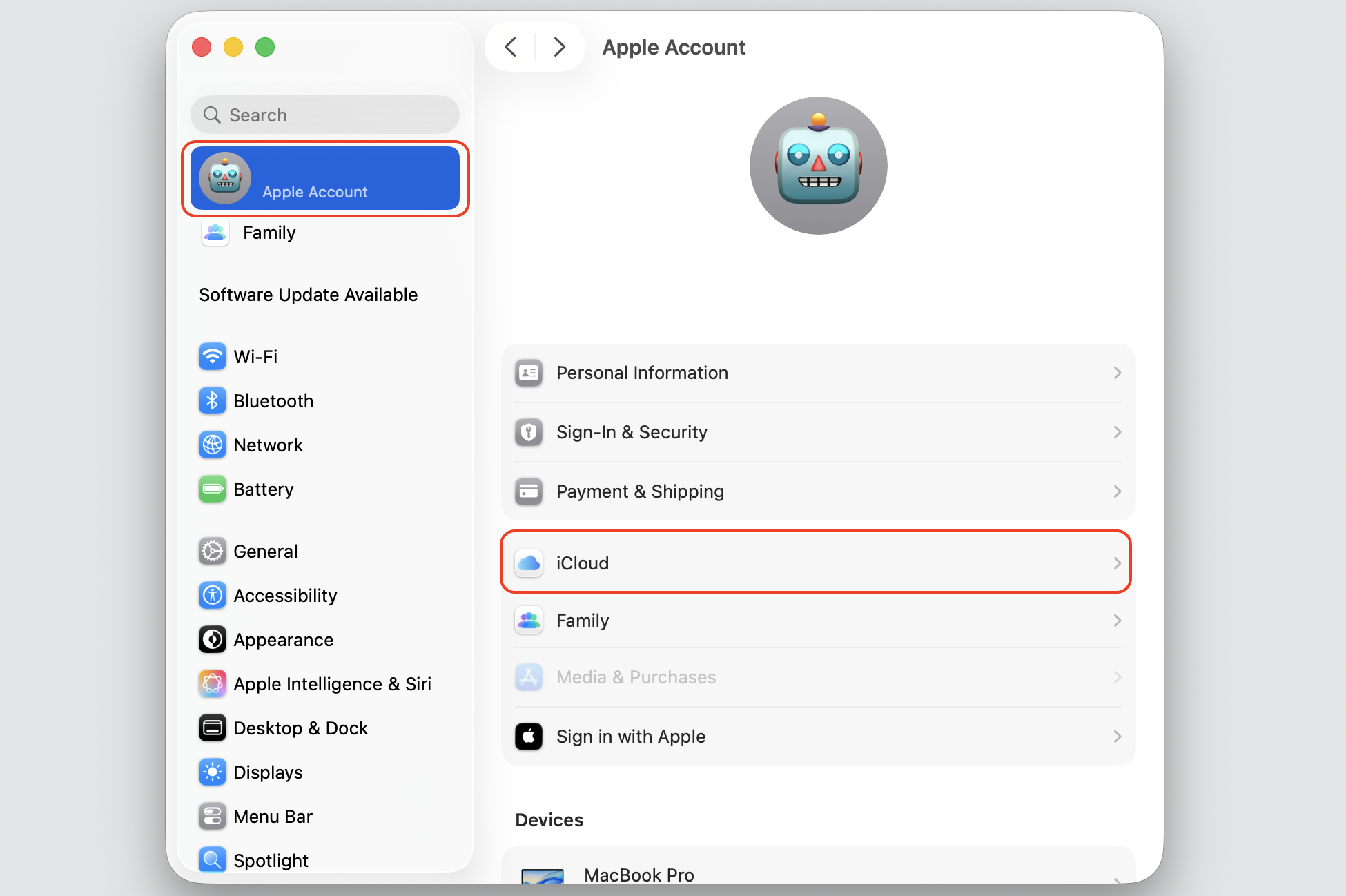
Select your name at the top, then choose iCloud.
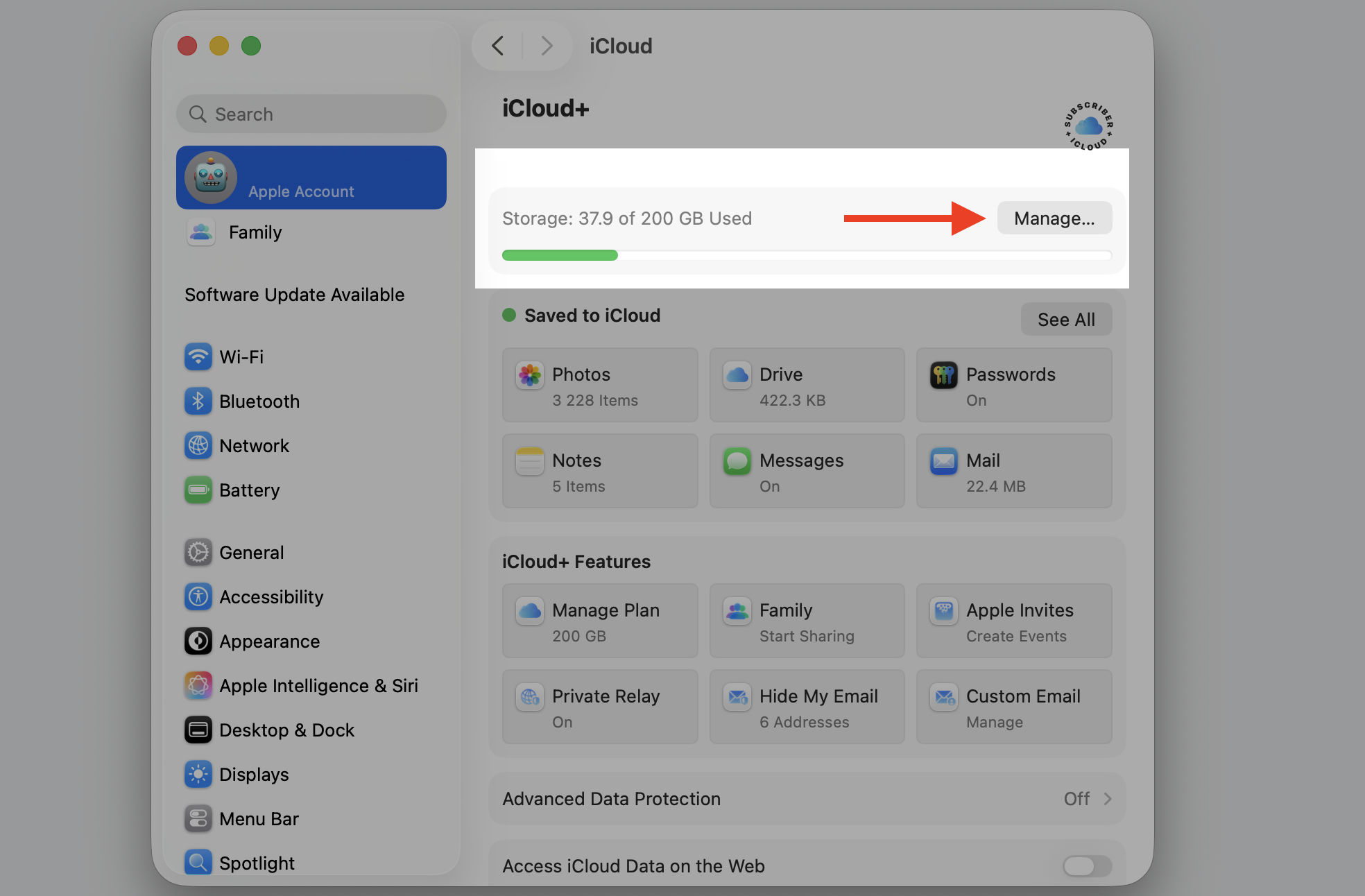
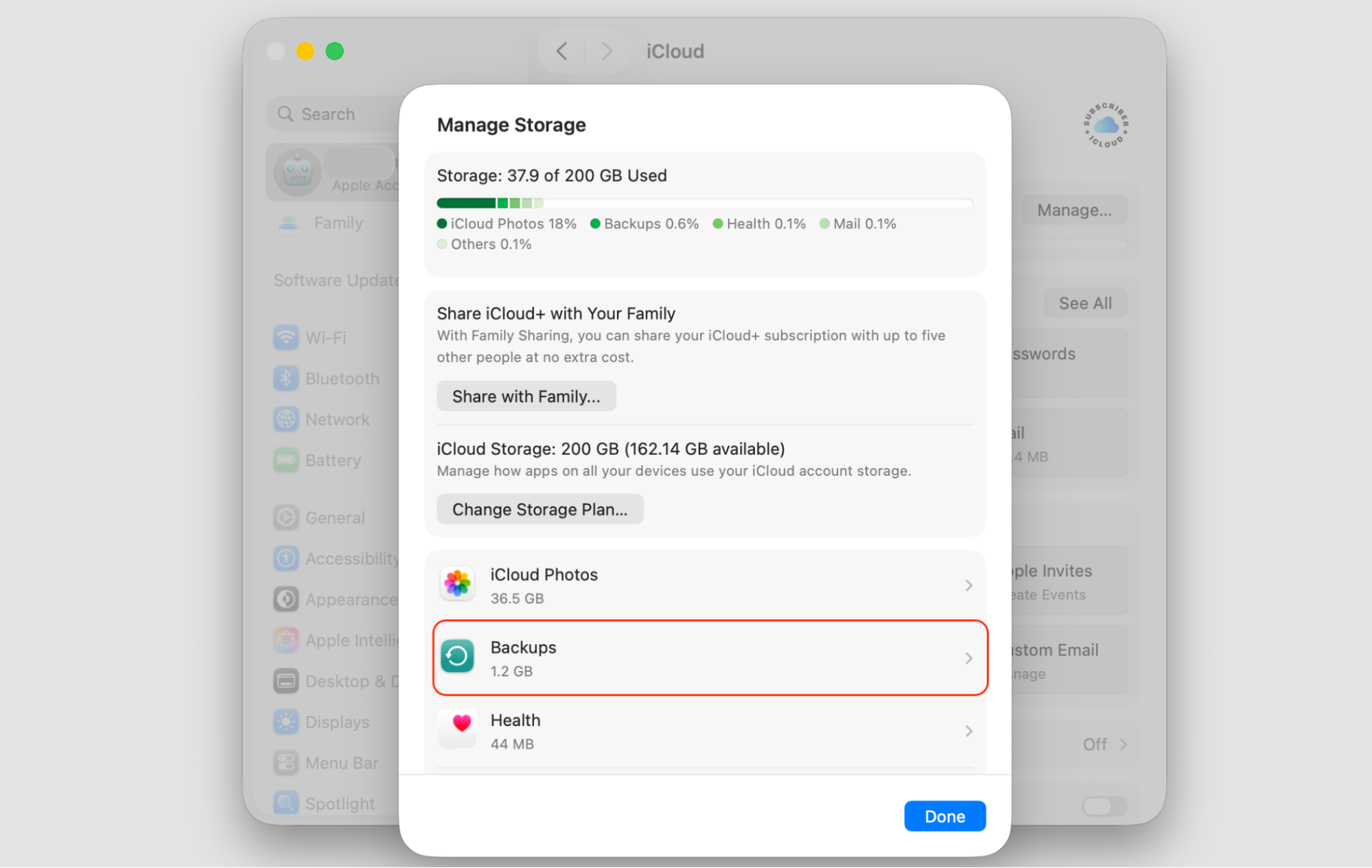
Click Manage beside iCloud storage, then open Backups.
Find and select the old backup you want to remove.
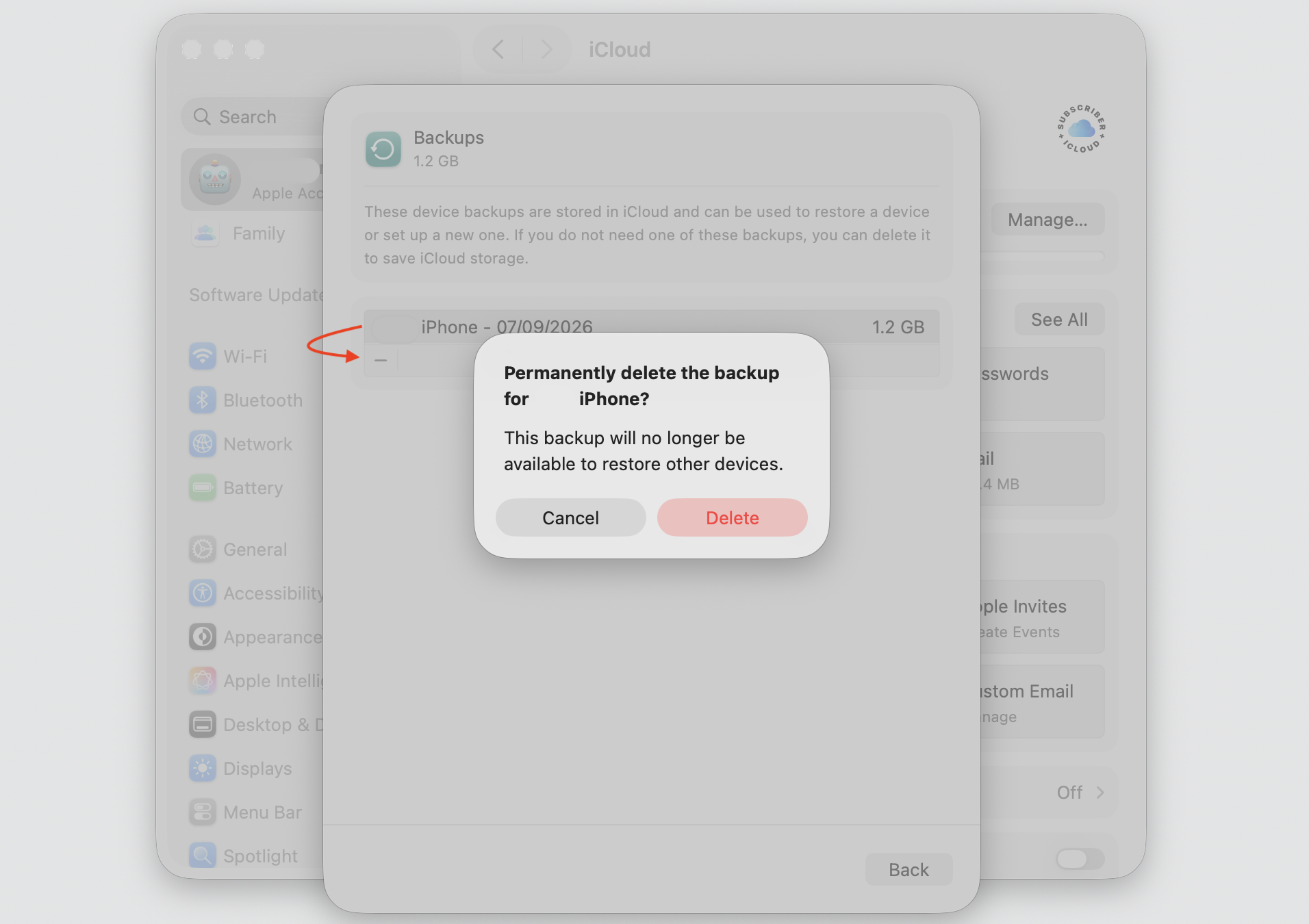
Click the minus button and then confirm your choice by pressing the Delete button.
Step 1. Go to Apple Logo > System SettingsStep 2. Select your iCloud account at the top, then choose iCloudStep 3. Click Manage beside iCloud storageStep 4. Select BackupsStep 5. Select a backup > Choose Delete > Confirm an action
How to delete old iCloud backups from iPhone or iPad?
We can also help you get rid of old backups on iCloud directly from an iPhone or iPad. In our opinion, this rsolution is handy when you want to confirm which backup belongs to the device in your hand.
On your iPhone or iPad, try the following:
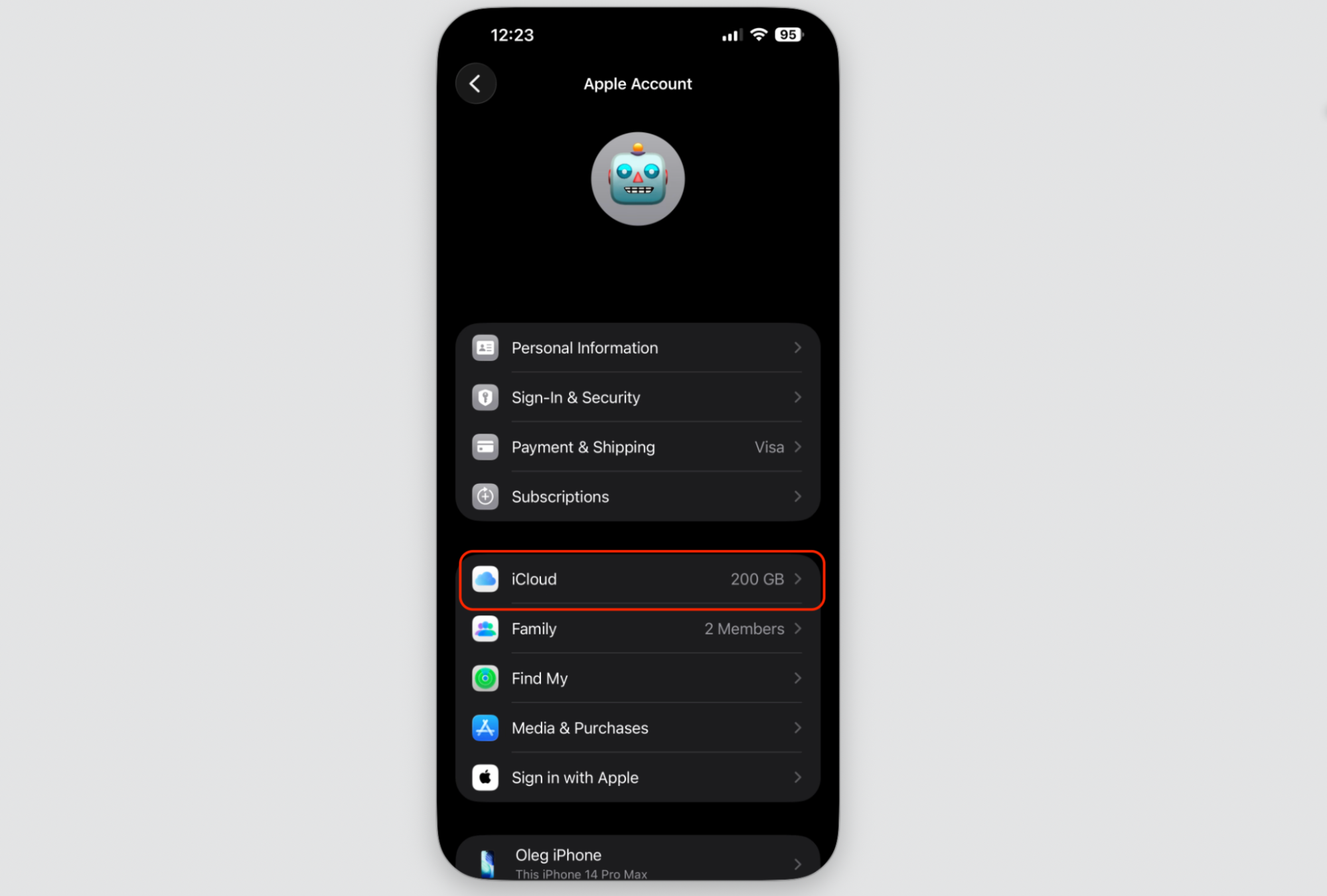
Open Settings, then tap your name at the top.
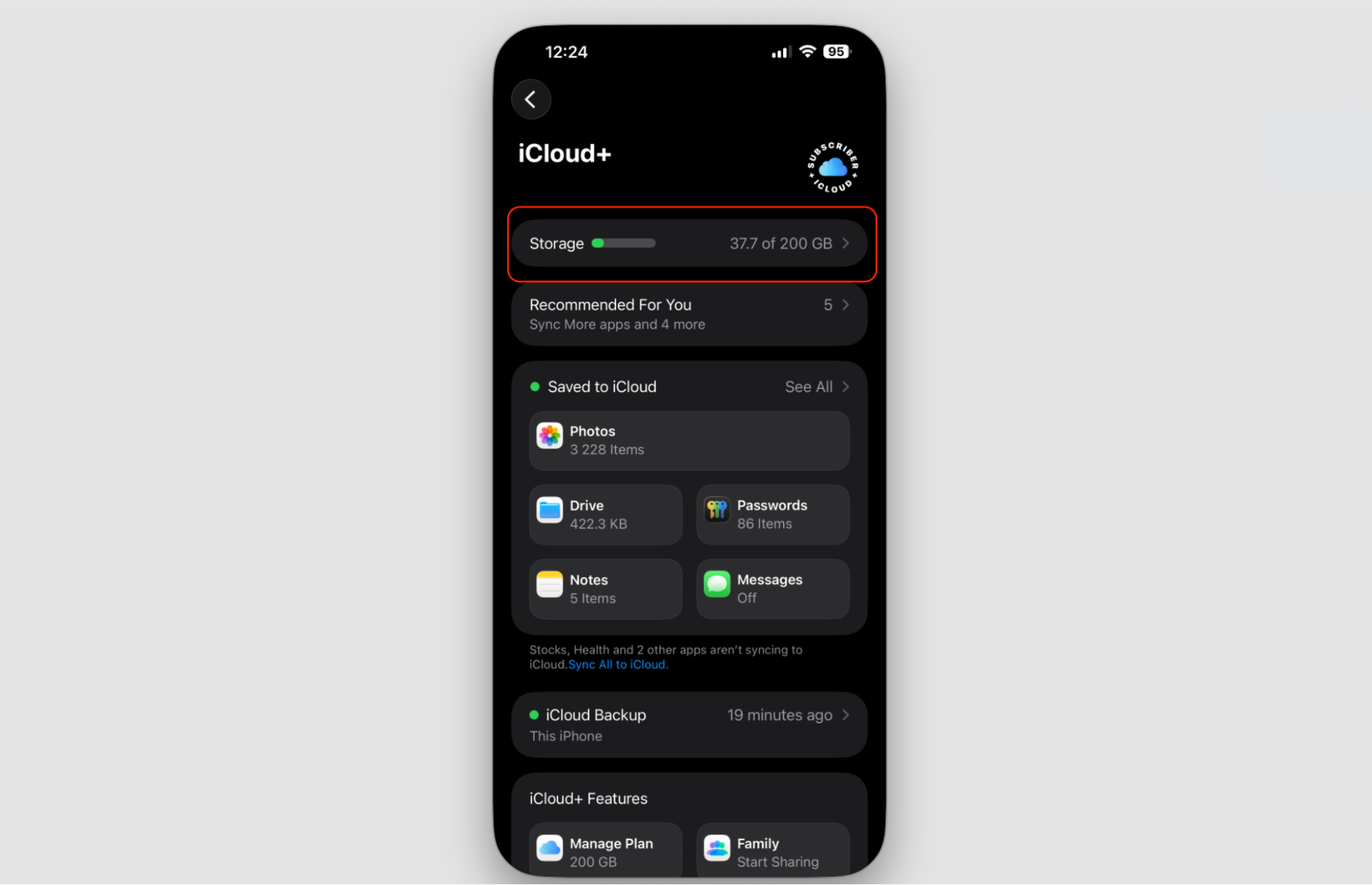
Tap iCloud, then Storage.
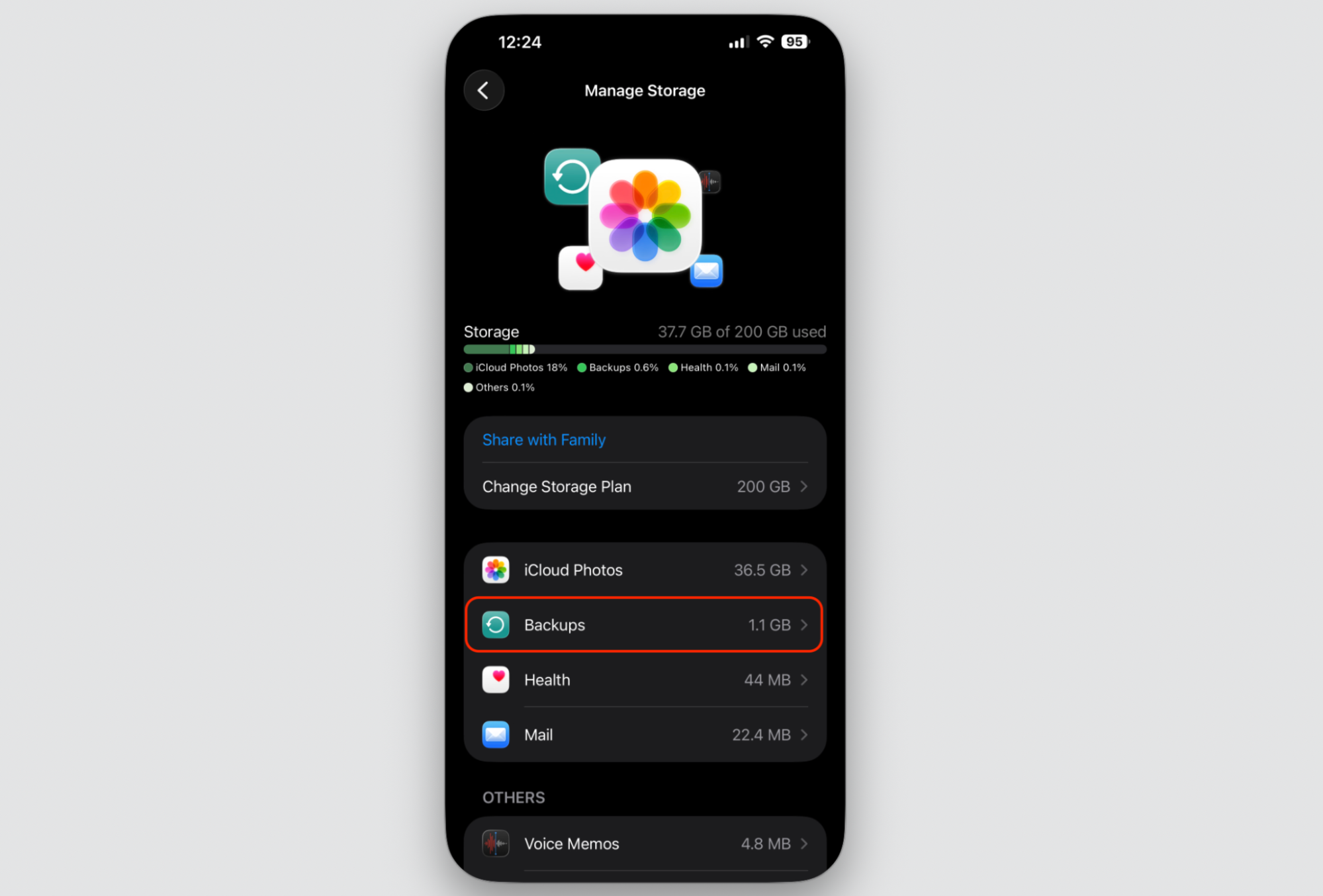
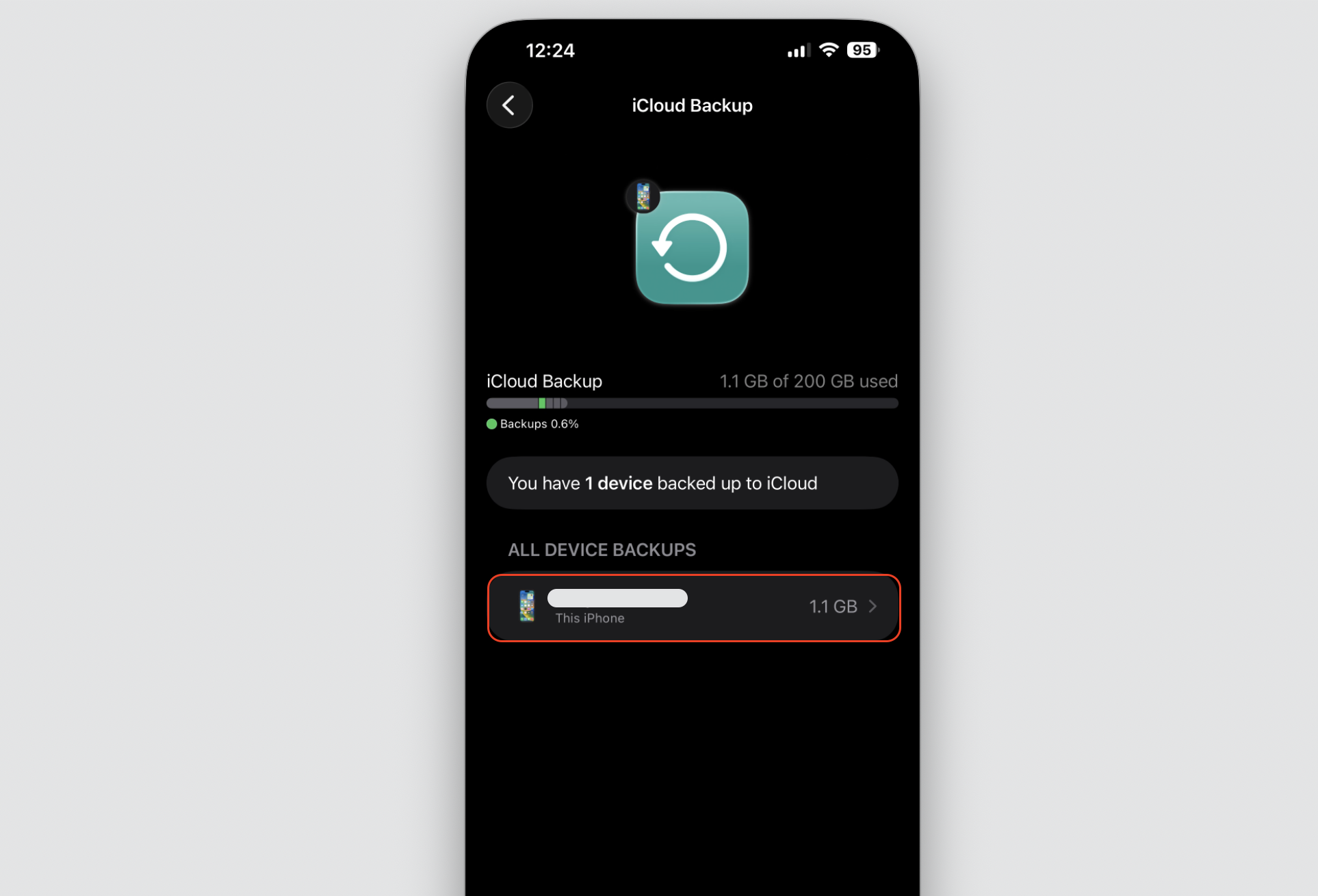
Tap Backups to view every saved copy.
Choose the device backup you no longer need.
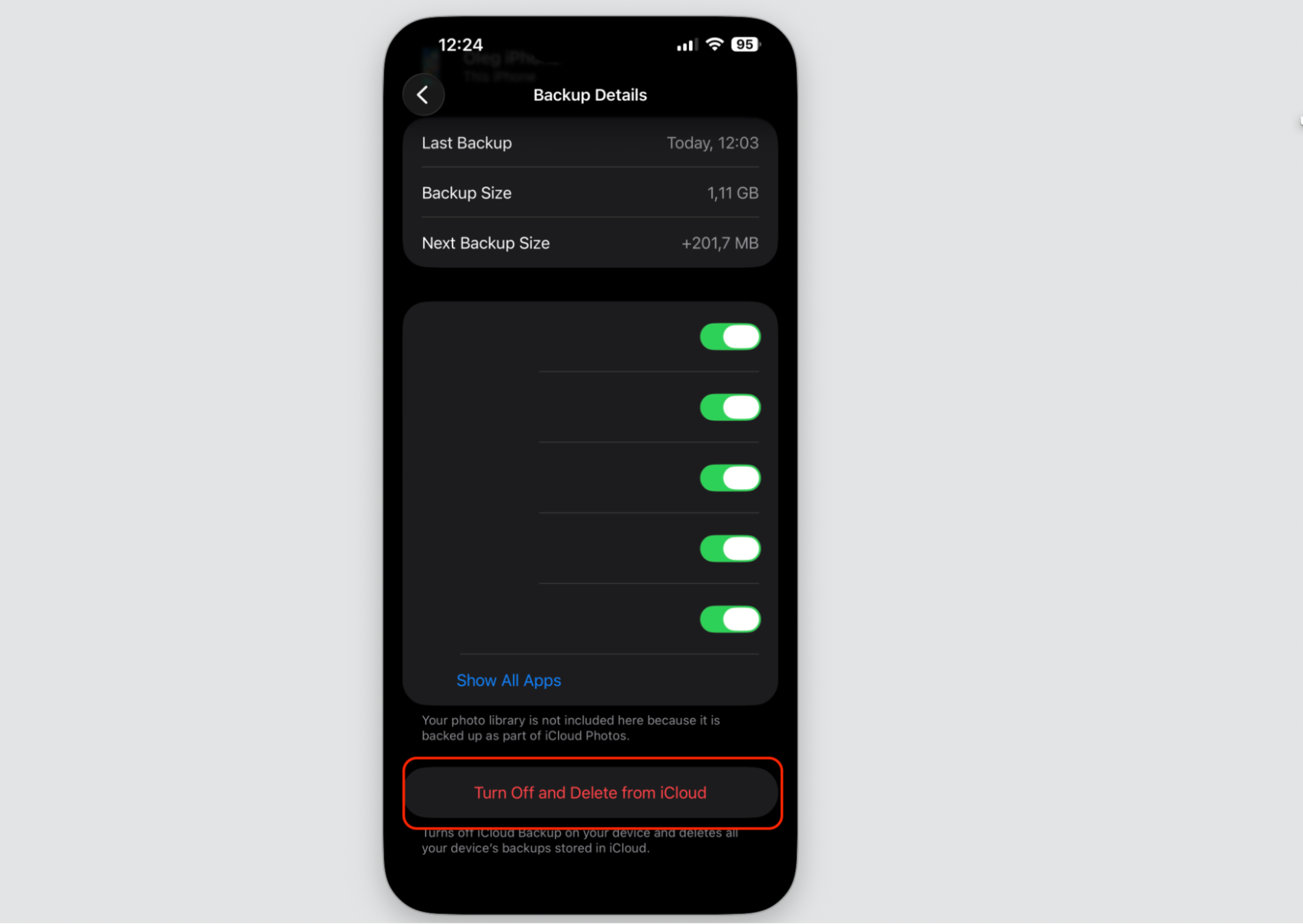
Tap Turn Off and Delete from iCloud, then confirm.
Step 1. Open Settings, then tap your Apple Account at the topStep 2. Select iCloudStep 3. Go to the Storage sectionStep 4. Select BackupsStep 5. Select the backup you want to deleteStep 6. Tap Turn Off and Delete from iCloud
Can you delete iCloud backups from iCloud.com?
Not quite. iCloud.com is handy for managing iCloud Drive files, photos, and some recoverable data, but full device backups aren’t listed there.
Those backups are usually managed through your Apple device settings or iCloud for Windows. Each tool has its own location for these tasks, so it helps to know where to look. Deleting an iCloud Drive file isn’t the same as removing a full device backup.
If you mainly want your documents and photos, it’s easy to access iCloud from Mac. Open the same files online when you access iCloud in a browser, then sort them without going near a backup.
How to free up iCloud storage without deleting backups?
Maybe you’d rather keep your backups and free space another way. There’s a fair bit you can trim without touching a single backup.
Try these handy tips:
Remove large iCloud Drive files you no longer open.
Delete old photos and videos, then empty the Recently Deleted album.
Clear bulky email attachments from iCloud Mail.
Turn off backup for apps you don’t really need to save.
Review what each device backs up, then trim the extras.
A hint from our team:
When the iCloud storage full message keeps popping up, these habits add up fast—and you’ve got more options if your iCloud storage full warning won’t go away. A little regular clearing keeps your account roomy, and it often frees enough space to stop the warnings for good.
What to do if you deleted wrong iCloud backup?
Deleted the wrong one? Take a breath, and let’s look at where you stand.
A deleted full device backup usually can’t be brought back as it was. Once it’s removed from iCloud, that complete copy is gone, which is why that earlier double-check matters.
Some iCloud data is a different story, though. Files such as iCloud Drive documents, contacts, calendars, or bookmarks may be recoverable from iCloud Data Recovery for a limited time. Just remember—that’s not the same as restoring a deleted full backup.
Conclusion
Old iCloud backups are safe to clear once they belong to devices you no longer use or need to restore. A quick check of the name, size, and date keeps your current backup safe while you free space.
Tired of cramped storage? Once you delete backups from iCloud, let MacKeeper’s Safe Cleanup sweep junk off your Mac in one click.
We respect your privacy and
use cookies
for the best site experience.
Privacy Preferences Center
We use cookies along with other tools to give you the best possible experience while using the
MacKeeper website. Cookies are small text files that help the website load faster. The cookies we
use don’t contain any type of personal data meaning they never store information such as your
location, email address, or IP address.
Help us improve how you interact with our website by accepting the use of cookies. You can change
your privacy settings whenever you like.
Manage consent
All cookies
These cookies are strictly necessary for enabling basic website functionality (including page
navigation, form submission, language detection, post commenting), downloading and purchasing
software. The website might malfunction without these cookies.