How to Encrypt Files on a Mac: A Simple Explanation
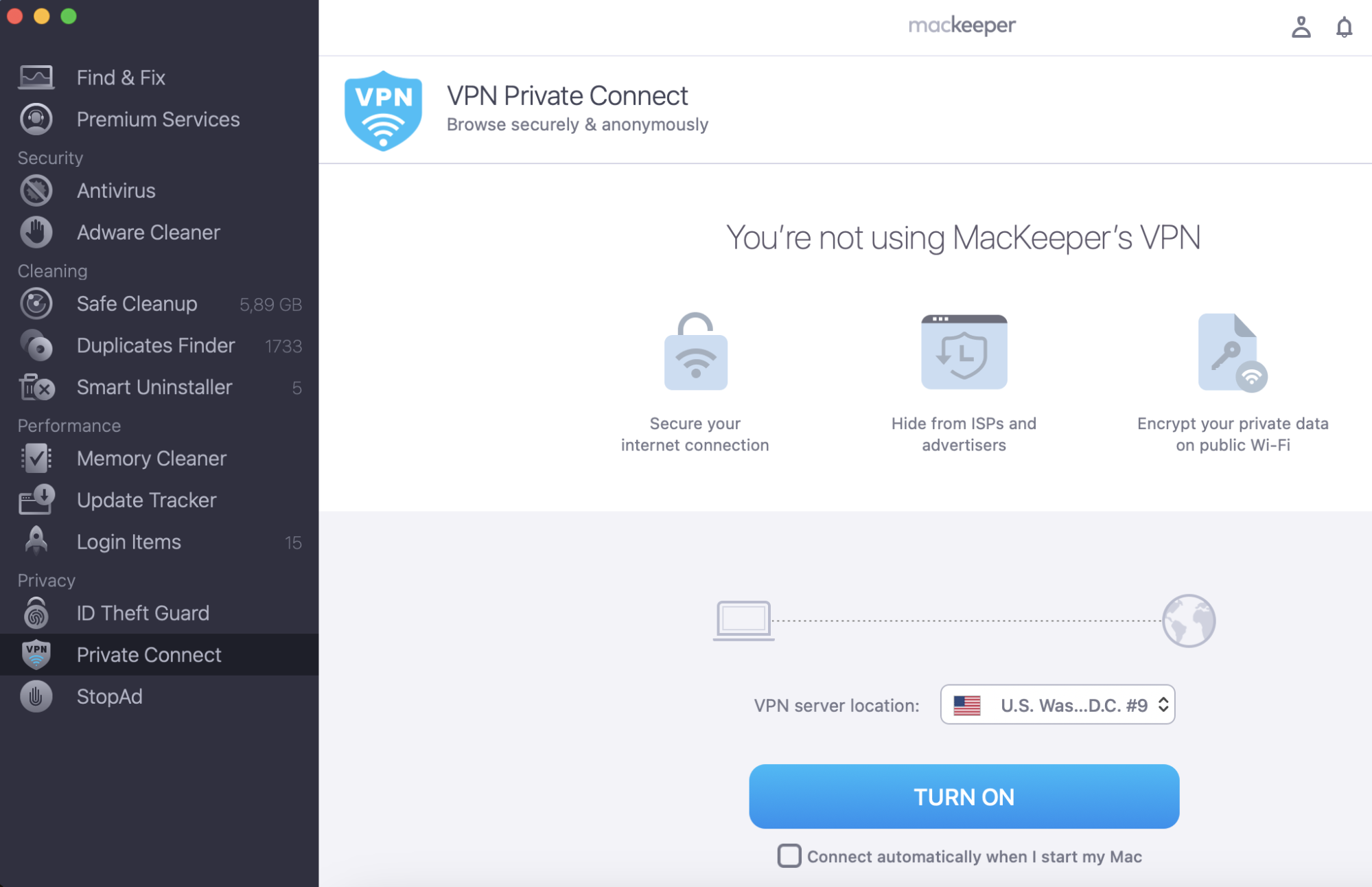
Before you read our simple explanation on how to encrypt your files on a Mac, we’d like to remind you to also use data encryption when you go online. That’s easy to do with a good VPN tool, like MacKeeper’s Private Connect.
There are several free macOS tools you can use for file encryption on a Mac:
FileVault to encrypt your entire startup disk
Disk Utility to encrypt folders and external disks
PDF settings to encrypt documents
Time Machine to encrypt backups
A note from our experts:
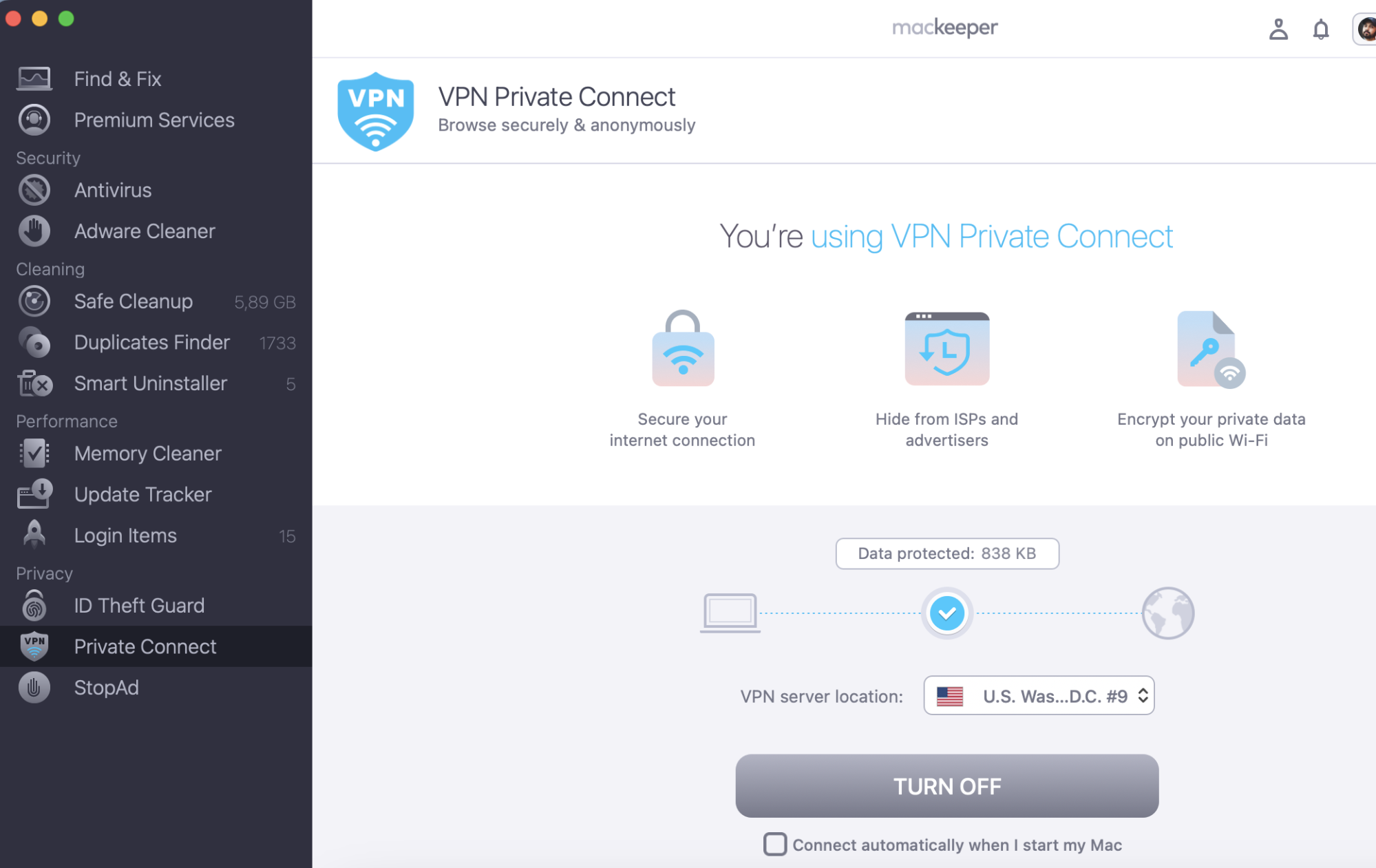
If you want to encrypt files to stay private, use VPN to remain confidential on the Internet. MacKeeper’s VPN Private Connect lets you keep your data secure and browse anonymously.
Here’s how to use MacKeeper’s VPN Private Connect:
Select the preferred location or use the default one and click Turn On.
Press Turn Off.
Step 1. MacKeeper > Private Connect > Turn OnStep 2. Click Turn Off when you finish browsing
Encrypt your startup disk with FileVault
Encryption with FileVault is the most reliable measure to protect your data on a Mac. For macOS Snow Leopard 10.6, you can use FileVault, whereas for 10.7 Lion to 10.15 Catalina, FileVault 2 is in place. Even the older version of this tool for Macintosh encryption guarantees the safety of your sensitive files.
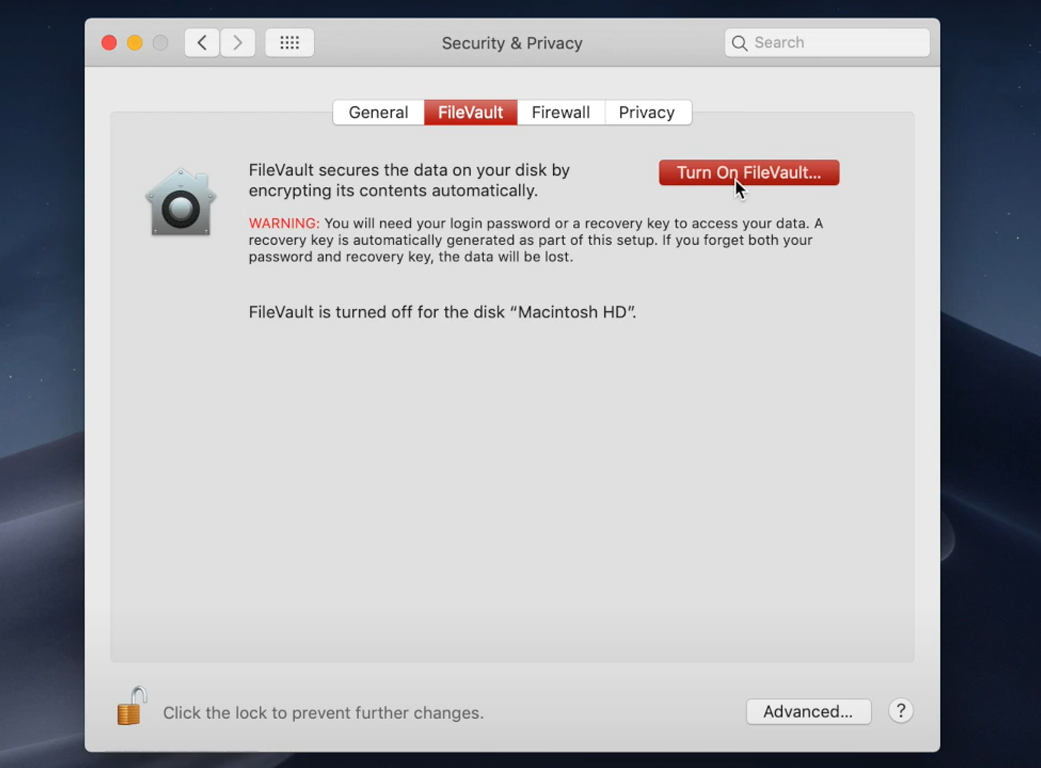
To set up FileVault encryption:
Go to the Apple menu in the top left corner of the screen and open System Preferences.
Click on Security & Privacy → FileVault.
Click on the padlock sign in the bottom left corner and enter the password for your user account to enable any changes. If you have multiple users on your computer, you’ll have to enter passwords for all the accounts.
Turn on FileVault if it’s not active already.
Create a recovery key in case you lose your password to make sure you keep access to your disk. To do that, you can connect to iCloud and store the access code. In this case, you’ll need to sign in for recovery and it will only be available online. Another way to do it is to take a picture or a screenshot of the key when it shows up on the screen. Make sure you also save it on another device to have access to it at all times.
Launch encryption. Note that it may take a few hours—you can’t turn off your computer while it’s in progress. When the process is complete, the system will notify you.
macOS Yosemite and later versions support the usage of an iCloud account for backups in case of password loss.
Now, no one will be able to access files on your Mac unless they know the key.
Encrypt external disks with Disk Utility
Despite the growing popularity of cloud storage, external disks are still common. Some may argue that an external hard drive is better than the cloud—it can be used offline and it guarantees privacy. Still, encryption is recommended for additional protection of your personal information—for example, if the drive is lost or stolen.
This method works best for empty drives. If you already have files on a disk you want to encrypt with Disk Utility, make sure you have backups.
Before you start the encryption process, note that the disk format of your external drive will be changed to APFS. If you try to connect the carrier to a Mac running an older version of the operating system this format may not be supported. If you encounter this issue, we suggest updating your macOS.
To encrypt an external hard drive on a Mac:
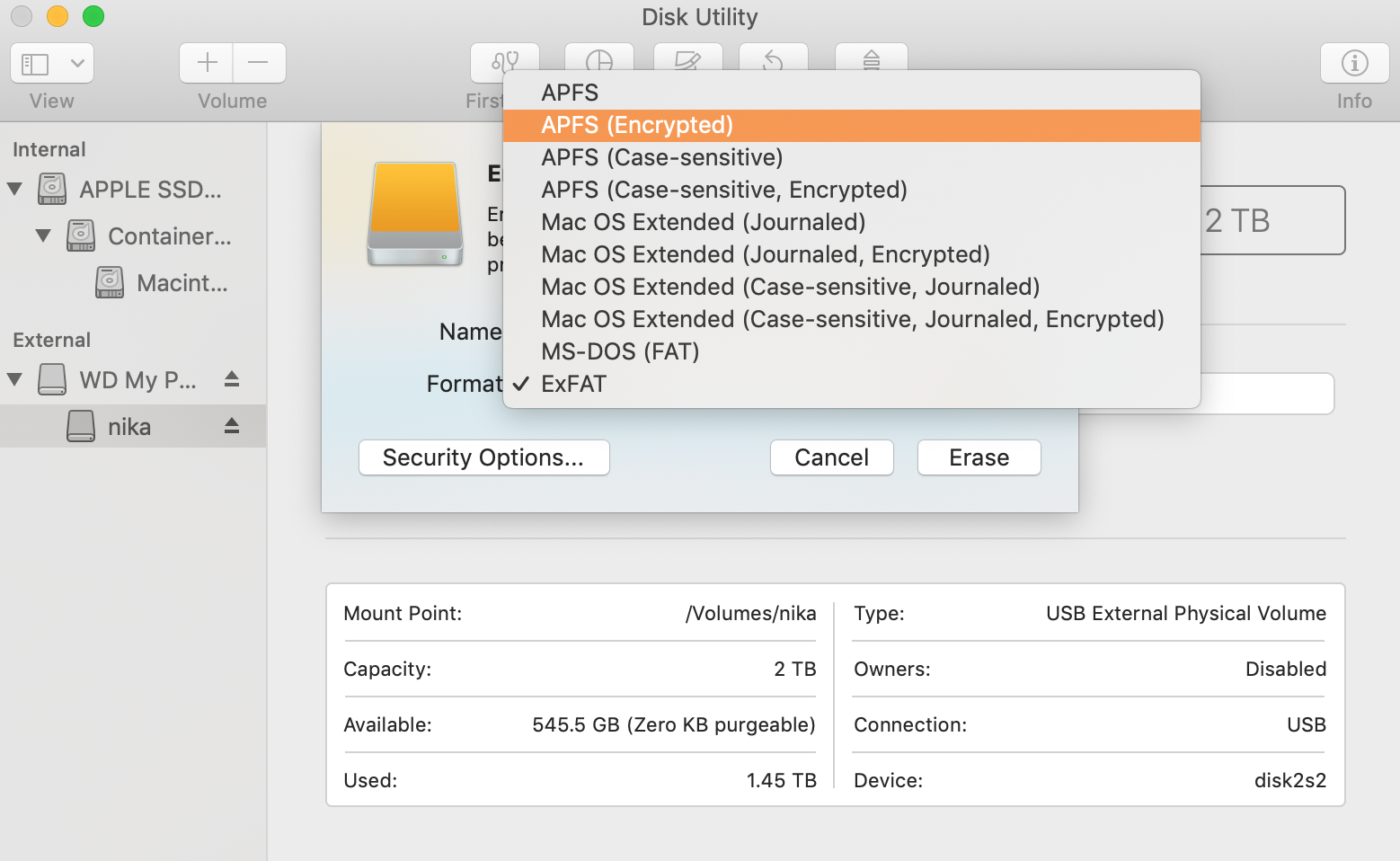
Connect your drive to the Mac. Open Disk Utility and select your drive name from the sidebar on the left. The drive isn’t recognized by your Mac? Read our guide to fix the problem.
Click on Erase.
Choose GUID Partition Map” for the scheme. Then click on “Format” and choose “APFS (Encrypted)".
Create a password and save it in a secure location. If you lose the password you won’t be able to access your encrypted external drive.
Click Erase. Then, the data on the disk will be erased and a new encrypted drive will be created.
Encrypt a folder with Disk Utility
Apart from managing disks connected to your Mac, Disk Utility can assist with folder encryption by creating an archive-like disk image. Let’s see how to do it.
To encrypt a folder on Mac using Disk Utility:
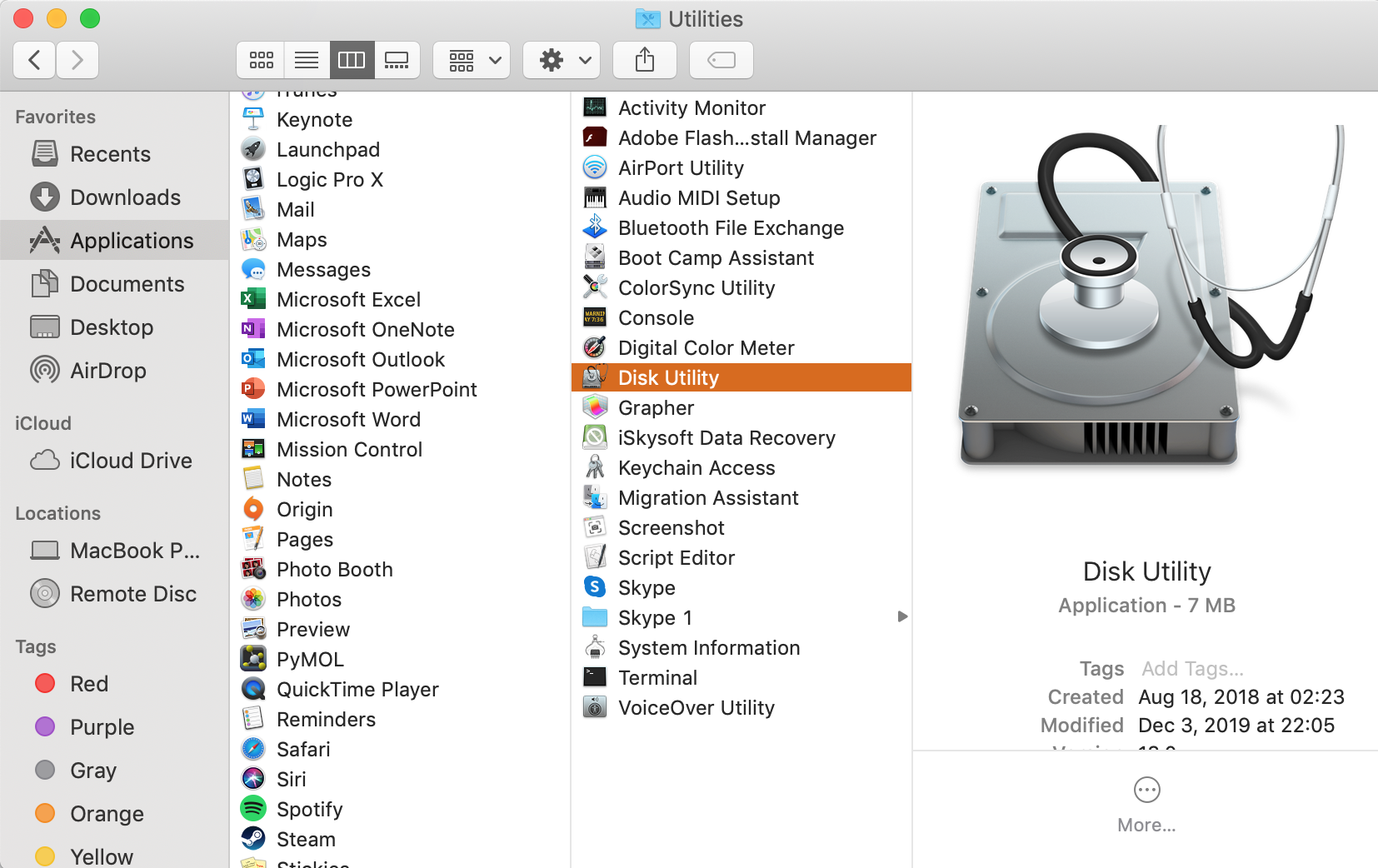
Open Disk Utility by following Applications → Utilities → Disk Utility. Alternatively, search for it in Spotlight (Command (⌘)+ Space).
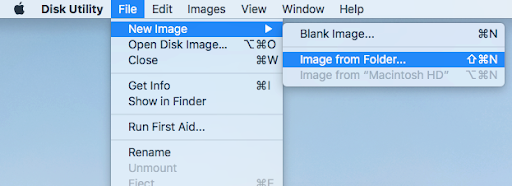
In the menu on top of the screen, click on File → New Image → Image from folder.
Select a folder that you want to encrypt in the search window.
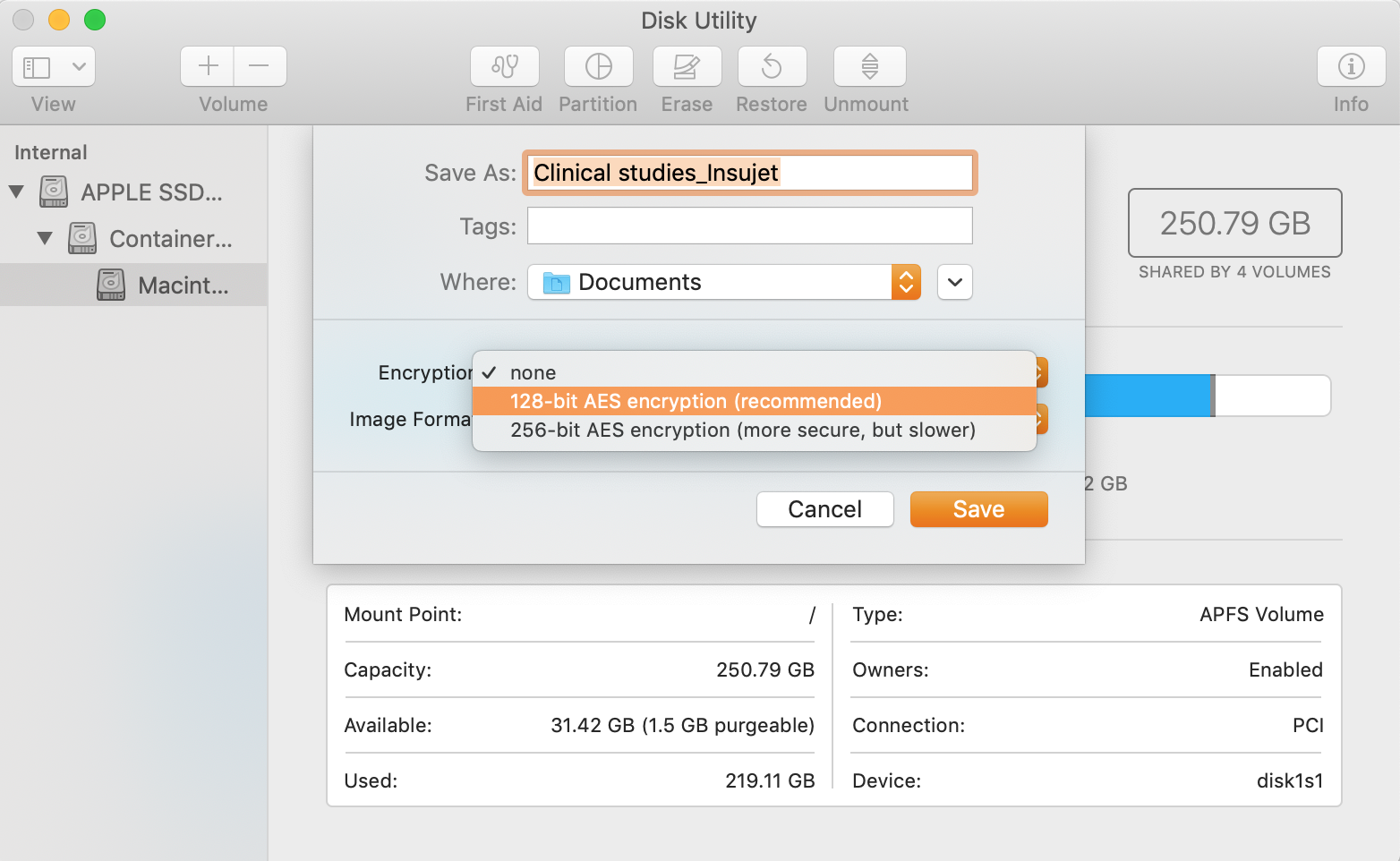
In the menu that appears, enter the name and encryption parameters for your folder. Choose the storage location.
Click Save.
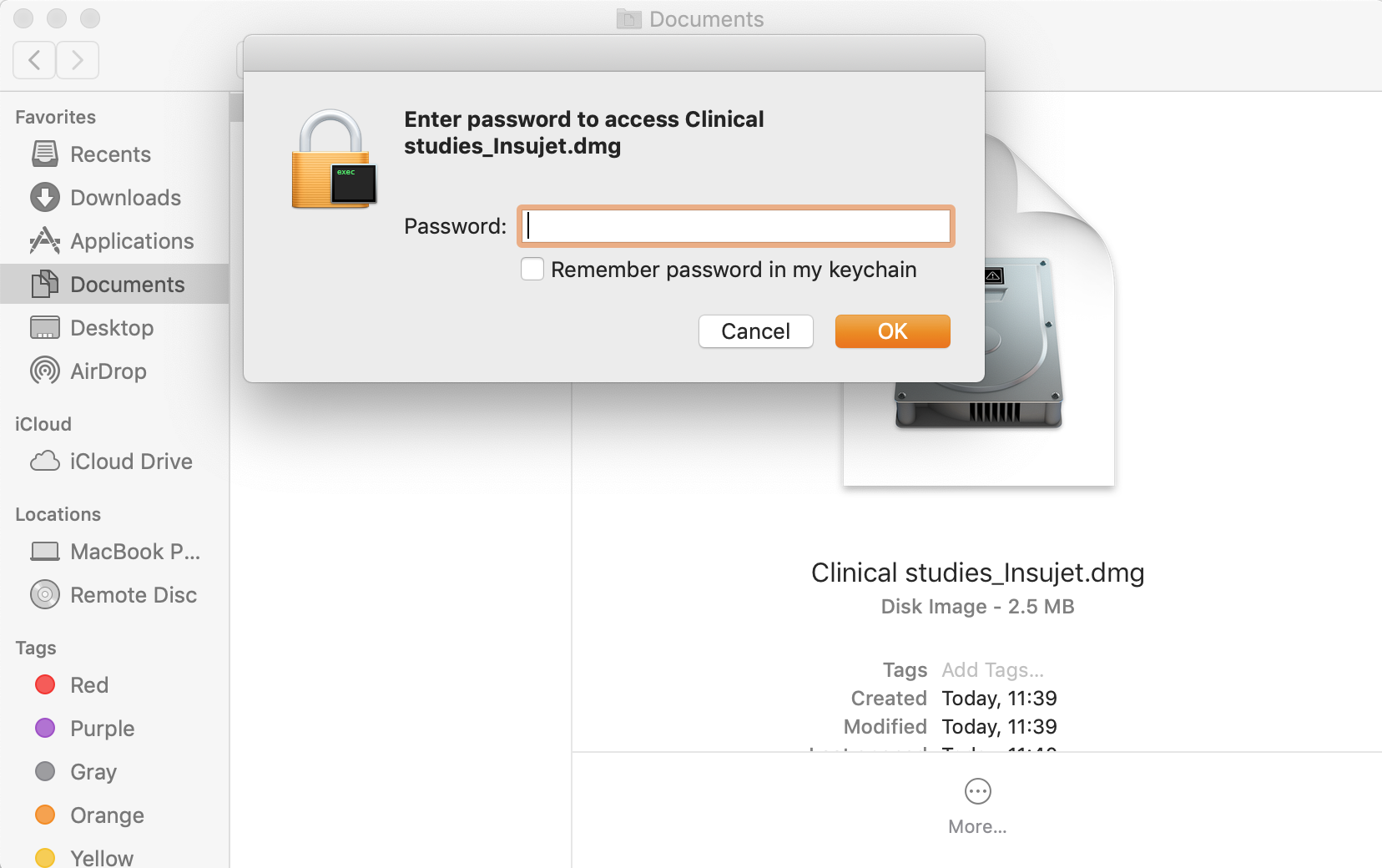
Enter a password for your encrypted folder and make sure to store it in a safe place. If you lose the password, you lose access to the encrypted data.
Step 1. Go to Applications > Utilities > Disk UtilityStep 2. Click on File in the top menu and go to New Image > Image from folderStep 3. Enter the name and encryption parameters for your folder and click Save
File encryption may take a while depending on the size of the files that you wish to protect. When the process is finished, you’ll receive a notification and your data will be safe.
Access the encrypted folder and its contents
You can access a folder encrypted via Disk Utility by entering the password that you created for it. When you enter the password, you get access to managing the files and adding new ones. However, as the amount of data stored in your encrypted folder increases, the process will take more time and will become increasingly difficult for your system to manage. In this case, you might need Mac encryption software to automate and speed up the process.
Protect documents with PDF encryption
You can encrypt virtually any of the printable files on your Mac—a text document, an image, an Excel chart, and so on—by turning it into a PDF document and setting up encryption.
To encrypt a document:
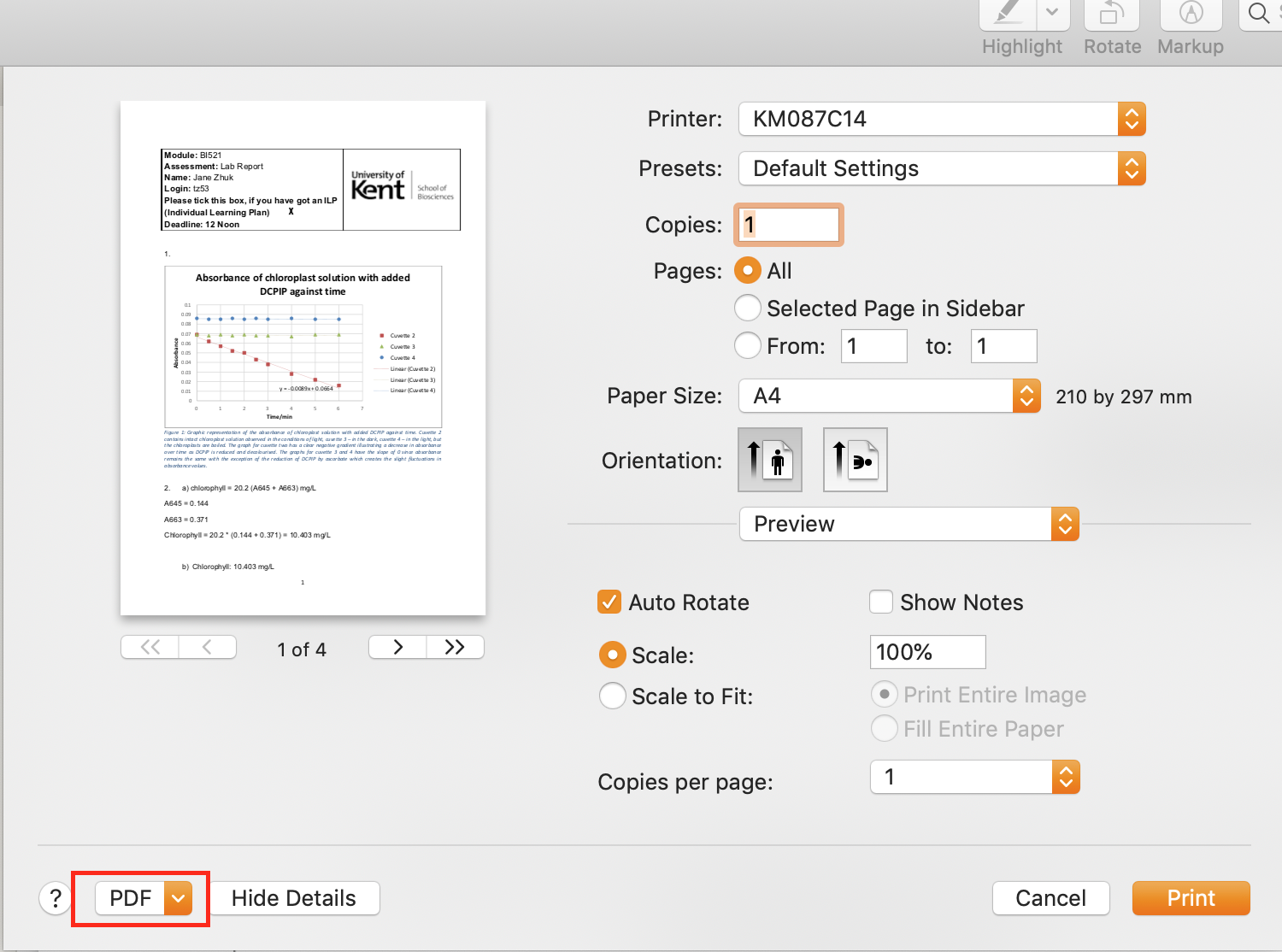
Open the document in the Preview app and press Command (⌘) + P to open the printing window.
In the bottom left corner of the window, click on PDFto open a drop-down menu. Select Save as PDF.
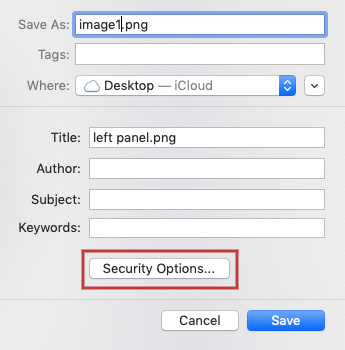
A new window will pop up. Click on Security Options.
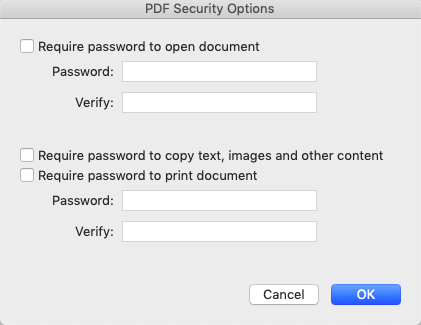
You can set a password for opening and printing the document, as well as copying its contents.
Save the changes.
Step 1. Open the document and press Command (⌘) + P the click PDF and Save as PDFStep 2. Click on Security Options in the pop-up windowStep 3. Enter a password and click OK
Bear in mind that these changes will create an encrypted version of the original document. If you only want to keep the protected document on your Mac, delete the original file and empty the Trash.
Encrypt backups with Time Machine
You can protect your data with a password when backing up your Mac with Time Machine. Encrypt your backup disk to protect sensitive data. You can make sure only encrypted copies are saved by deleting the existing backup disk, changing privacy settings, and saving the disk again.
To encrypt Time Machine backups:
Go to the Apple menu in the top left corner of the screen.
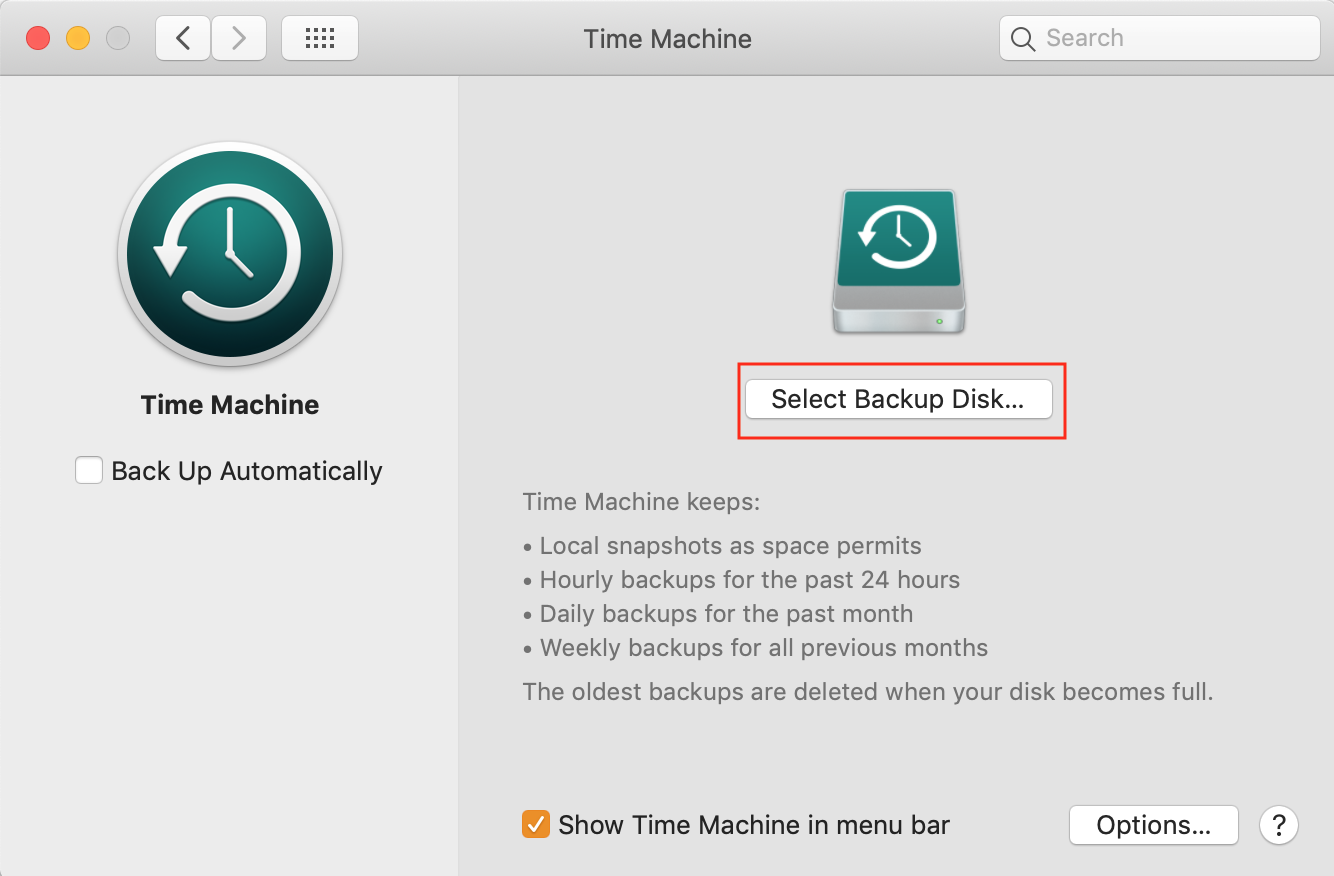
From the drop-down menu, choose System Preferences → Time Machine.
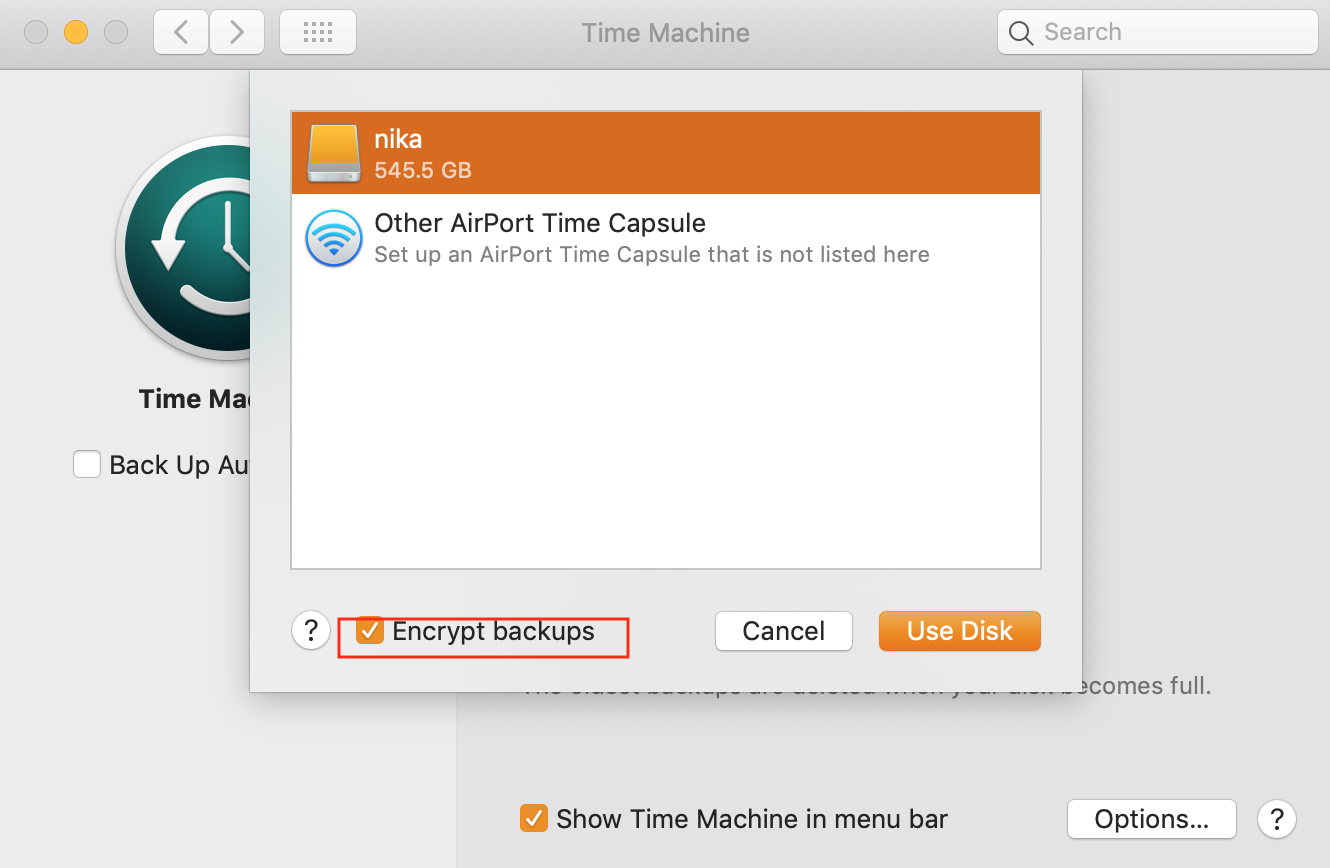
Select a disk that you want all future backups encrypted on.
Choose Encrypt backups.
Enter a password for encryption—it will be used to access all future backups.
If you want to encrypt all of your previous backups as well as the new ones, turn off Time Machine and select the disk that you want to encrypt.
Remove the disk.
Click on Select disk again and choose the carrier that you just deleted.
The entire drive with all its backups will be encrypted. You can now turn Time Machine back on.
Step 1. Open System Preferences > Time Machine and Select Backup DiskStep 2. Choose the disk and put checkmark next to Encrypt backups
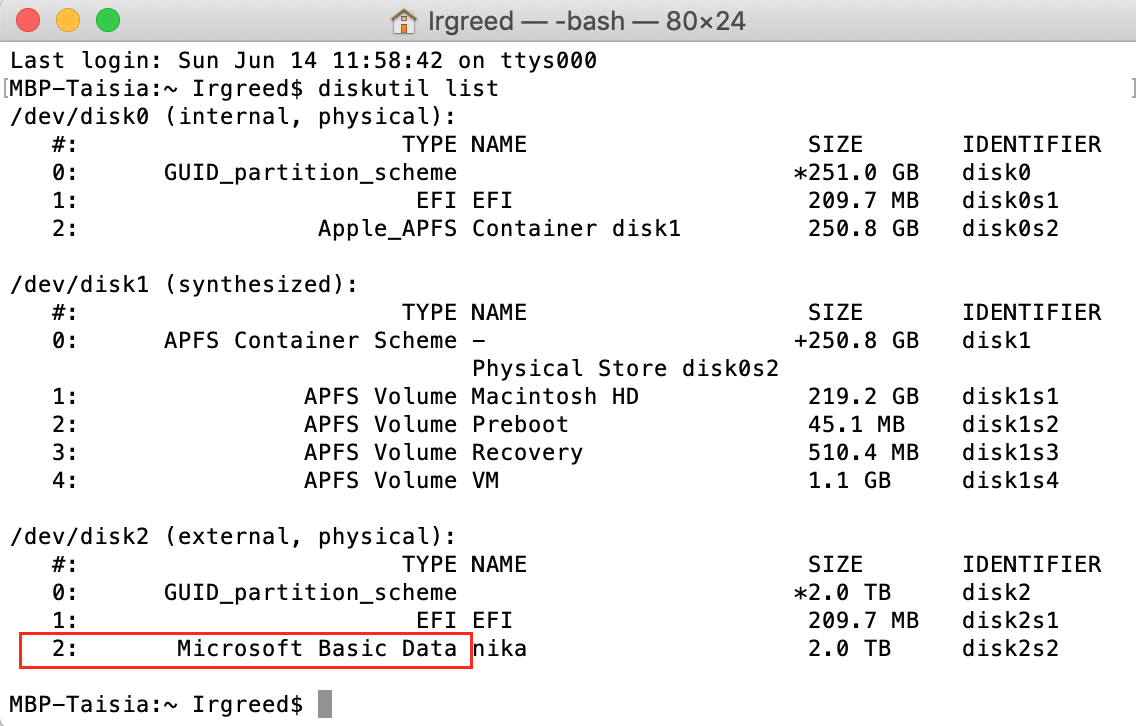
If you can’t see the “Encrypt backups” option when creating a new backup, check your disk’s formatting—to do that, go to Terminal and enterdiskutil list. The format will be displayed in the last line under the backup disk name.
FAQ
How do I decrypt a folder on a Mac?
To lift protection, right-click on the encrypted folder and select Decrypt selectedfile from the drop-down menu. You will see a warning saying that you’re trying to decrypt data - select Decrypt.
How long does it take to encrypt a hard drive on Mac?
Decrypting an entire hard disk on Mac may take anywhere from a few minutes to several hours, depending on the amount and size of the files stored in it.
Does encryption slow down Mac?
In the earlier versions of macOS, users have reported their Macs slowing down after encryption. However, after the upgrade to FileVault 2 all the issues were resolved. In the up-to-date versions of the operating system encrypting doesn’t impact the speed of your device.
Does Time Machine encrypt the entire disk?
Unfortunately, Time Machine only creates an image of the disk. Therefore, only the image of the disk and the data required for system restoration will be encrypted.
How do I speed up encryption on my Mac?
To speed up data encryption on your Mac you should reduce the amount of heavy files and use specialized software that allows you to automate and speed up the encryption process.
We respect your privacy and
use cookies
for the best site experience.
Privacy Preferences Center
We use cookies along with other tools to give you the best possible experience while using the
MacKeeper website. Cookies are small text files that help the website load faster. The cookies we
use don’t contain any type of personal data meaning they never store information such as your
location, email address, or IP address.
Help us improve how you interact with our website by accepting the use of cookies. You can change
your privacy settings whenever you like.
Manage consent
All cookies
These cookies are strictly necessary for enabling basic website functionality (including page
navigation, form submission, language detection, post commenting), downloading and purchasing
software. The website might malfunction without these cookies.