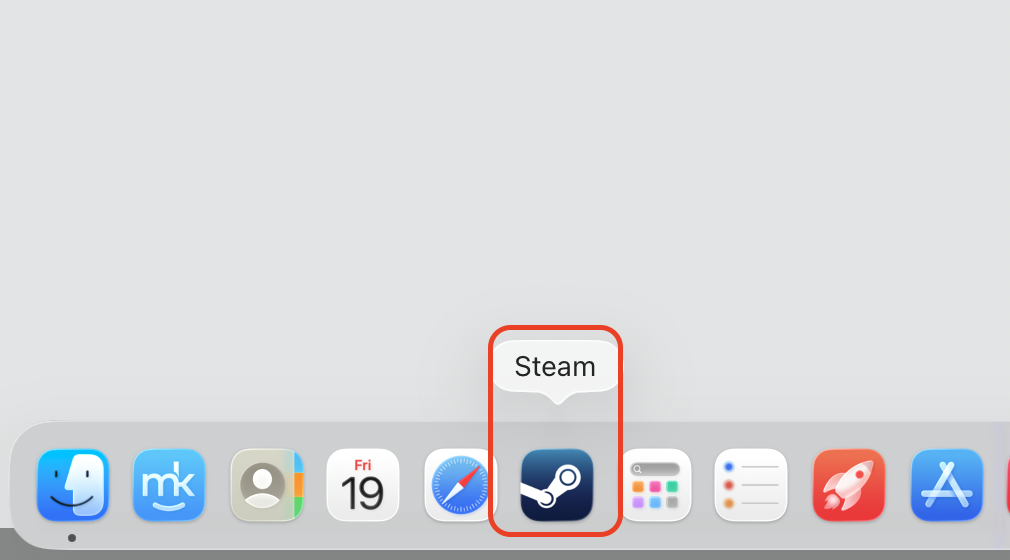
Steam isn’t opening on Mac, and your game night is on hold? It's a common, fixable hiccup—usually a stuck process, an outdated app, or a small system conflict. Let us help you to solve it through the professional support known as MacKeeper's Premium Services. Try it today, and you won’t regret it.
Before you try a single fix, it helps to know what's going on under the hood. When Steam won't run on Mac, the cause is almost always something small and ordinary. Pinning it down first means you'll spend less time guessing and more time playing.
From our texts, here are the usual suspects behind the issue:
System compatibility. An older macOS version or a Steam build that hasn't caught up can clash and block launch.
Corrupted cache or files. Damaged cache or a broken download can stop the app cold. If you suspect bad data, you can uncorrupt files and clear the way for a clean start.
Network issues. Steam needs a steady connection to reach its servers, so a flaky Wi-Fi link can leave it hanging.
Permission restrictions. macOS privacy and security settings sometimes hold an app back until you grant access.
Background app conflicts. Antivirus tools, VPNs, or other apps can quietly get in Steam's way.
The good news? Each of these has a simple fix. Once you know which one you're dealing with, the right solution is usually one step away.
How to fix Steam not opening on Mac?
There's more than one way to get Steam back on its feet, so start with the easy tricks and work your way down only if you need to. From our experience, most people are back to play Steam after the first two or three steps. Try them in order, and stop as soon as one works.
A note from our experts:
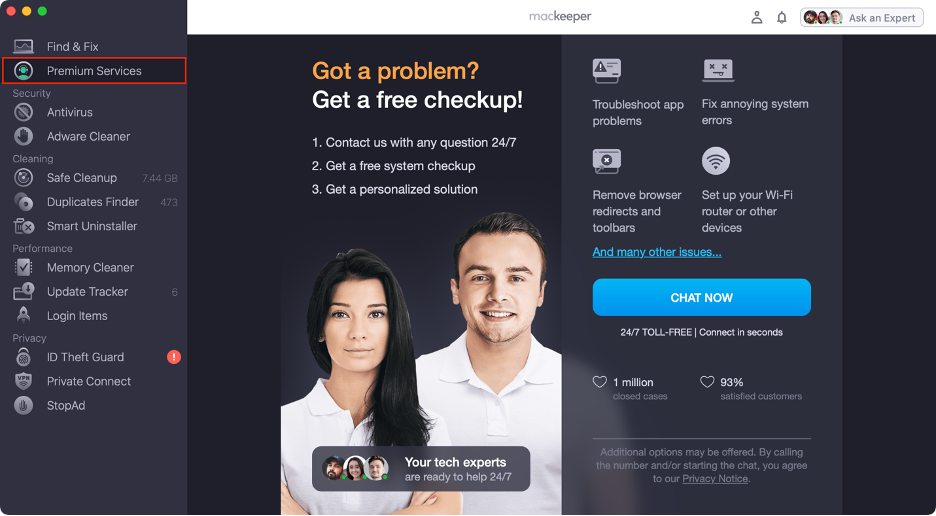
If Steam isn’t opening on your MacBook, and you don’t have time and wish to try multiple methods to bring it back to life, there’s a solution. With the help of our guided support, you can quicker and easier solve any Mac-related problems.
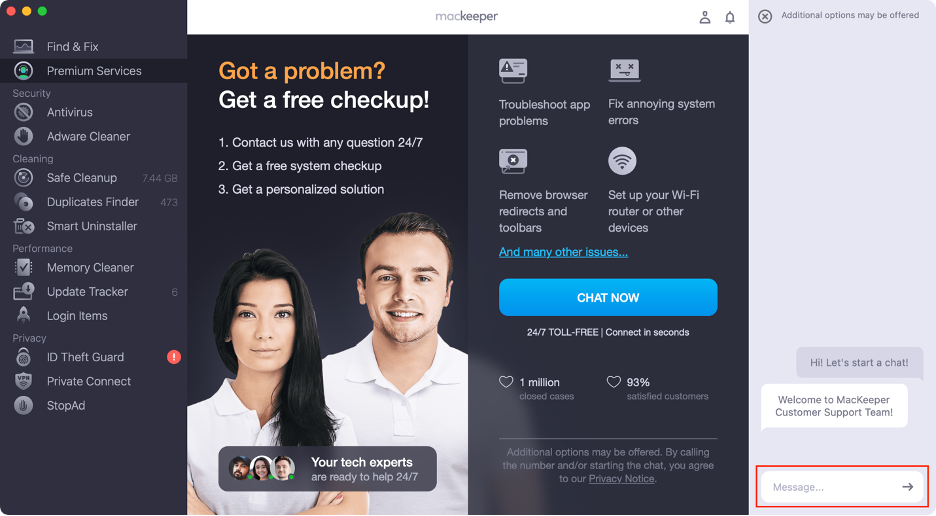
To troubleshoot Steam errors with MacKeeper’s Premium Services, do the following:
Explain your particular issue to our support team representative.
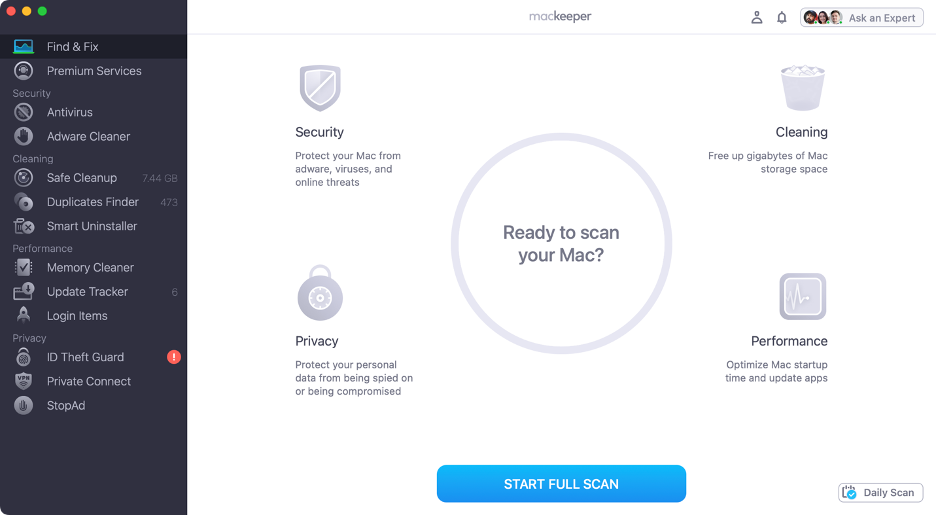
Step 1. Open MacKeeper Step 2. Choose Premium Services Step 3. Click Chat NowStep 4. Type in your message
1. Force quit Steam and relaunch
A relaunch clears temporary glitches and stuck processes—it's the quickest thing to try when the Steam app won't open on Mac. Here's how to force close and start fresh:
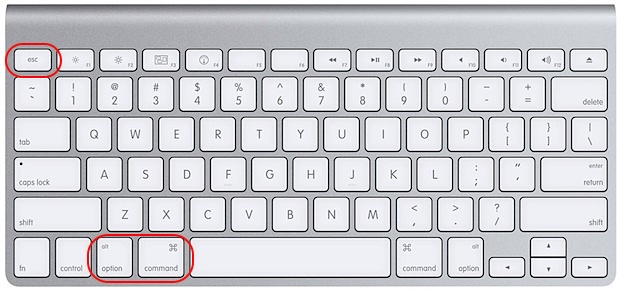
Press Option + Command + Esc to open the Force Quit window.
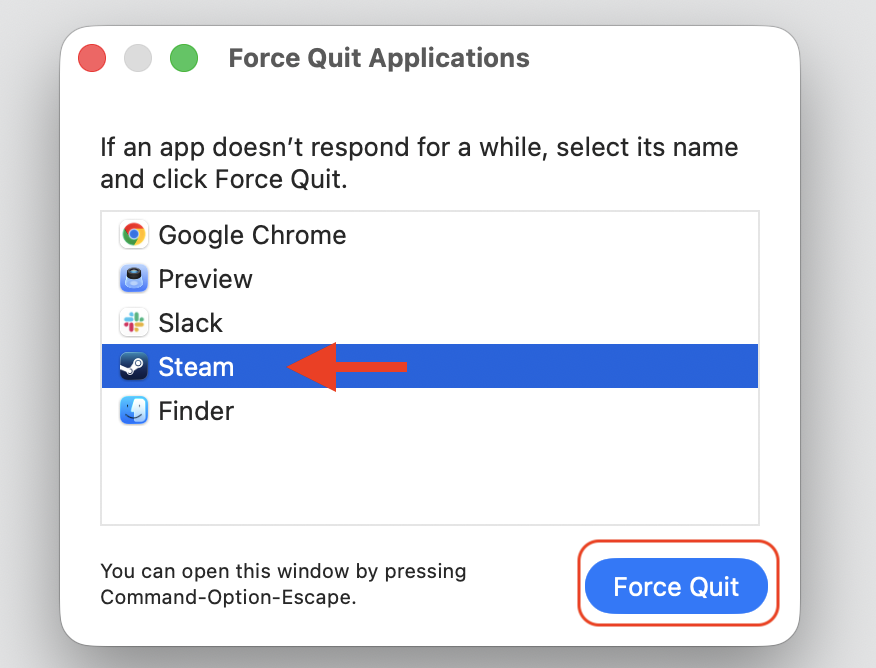
Select Steam from the list of open apps.
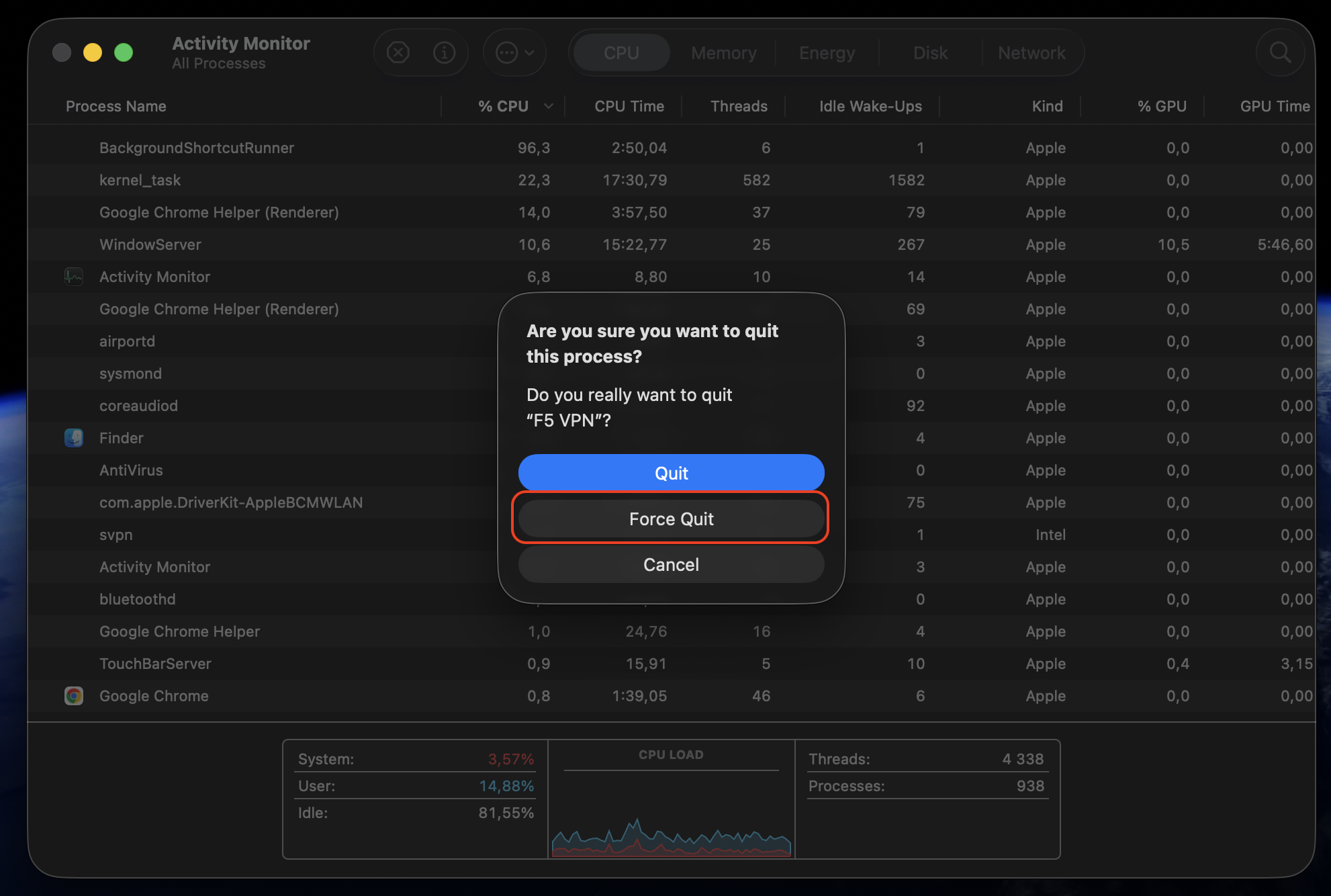
Click Force Quit, then confirm.
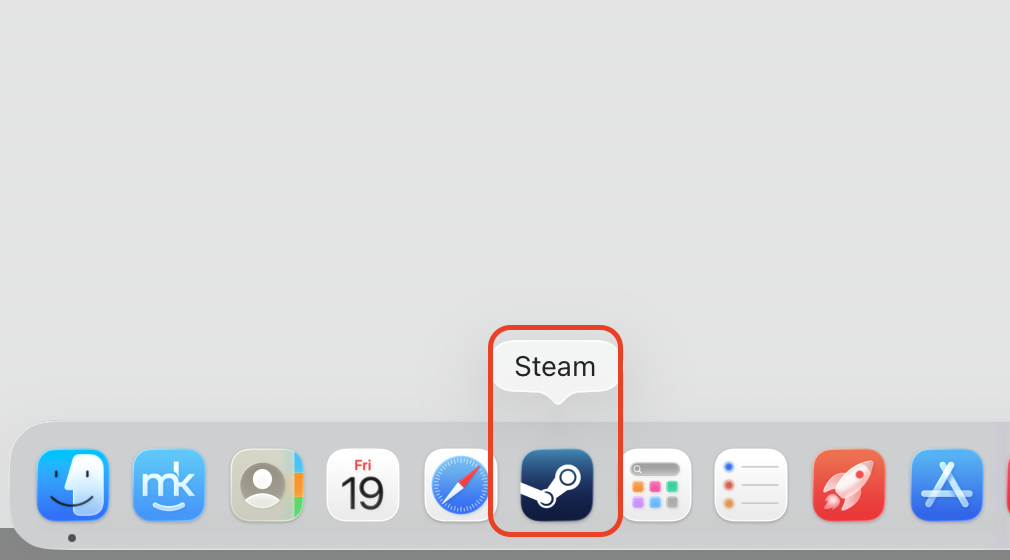
Wait a few seconds, then open Steam again.
Step 1. Press Option + Command + EscStep 2. Select Steam > Force QuitStep 3. Relaunch the Steam app
2. Restart your Mac
A reboot clears temporary system snags and frees up resources that an app needs to launch. If a quick relaunch didn't help, reboot MacBook with these steps:
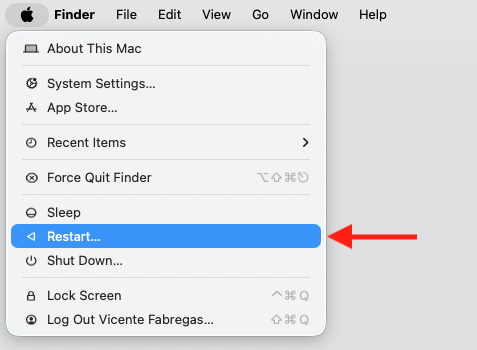
Click the Apple menu in the top-left corner.
Choose Restart.
Once your Mac is back up, try Steam again.
Step 1. Go to Apple Logo > RestartStep 2. Relaunch Steam
3. Check internet connection and Steam servers
Steam needs steady connectivity, and it sometimes cannot open on Mac if the servers are down or your connection is unstable. A few quick checks will tell you where the trouble is:
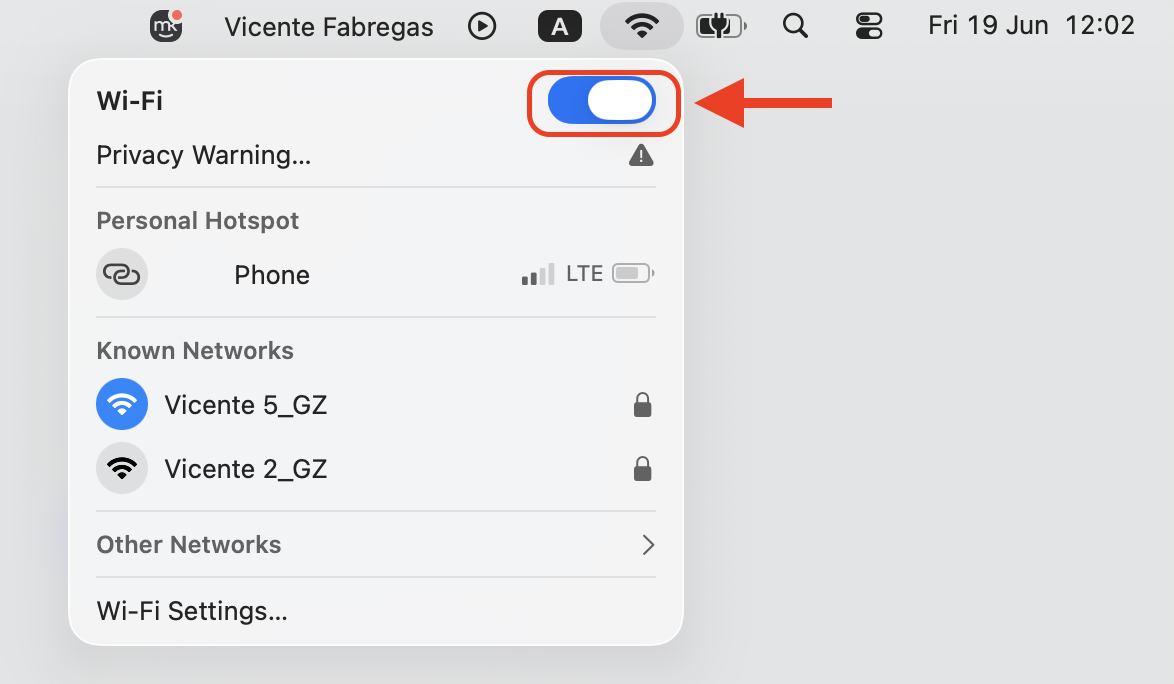
Toggle Wi-Fi off and on from the menu bar to refresh the connection.
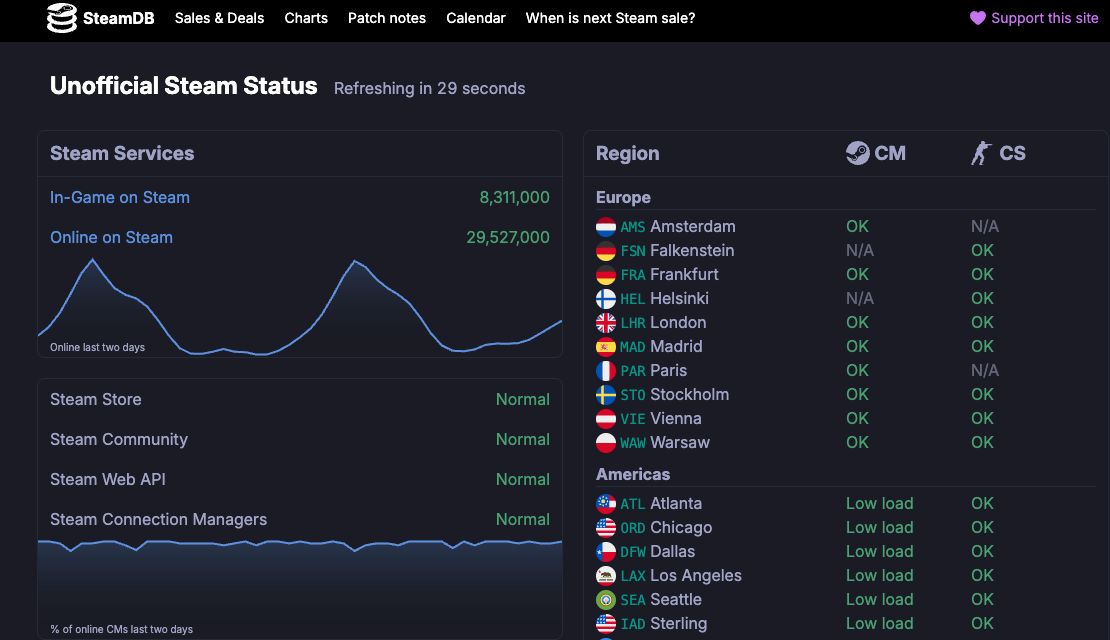
If the servers are down, wait a while and try again later.
Step 1. Click the Wi‑Fi icon in the top-right corner, then toggle Wi‑Fi off and back onStep 2. Visit https://steamstat.us/ to check if there any problem with global servers
4. Update Steam and macOS
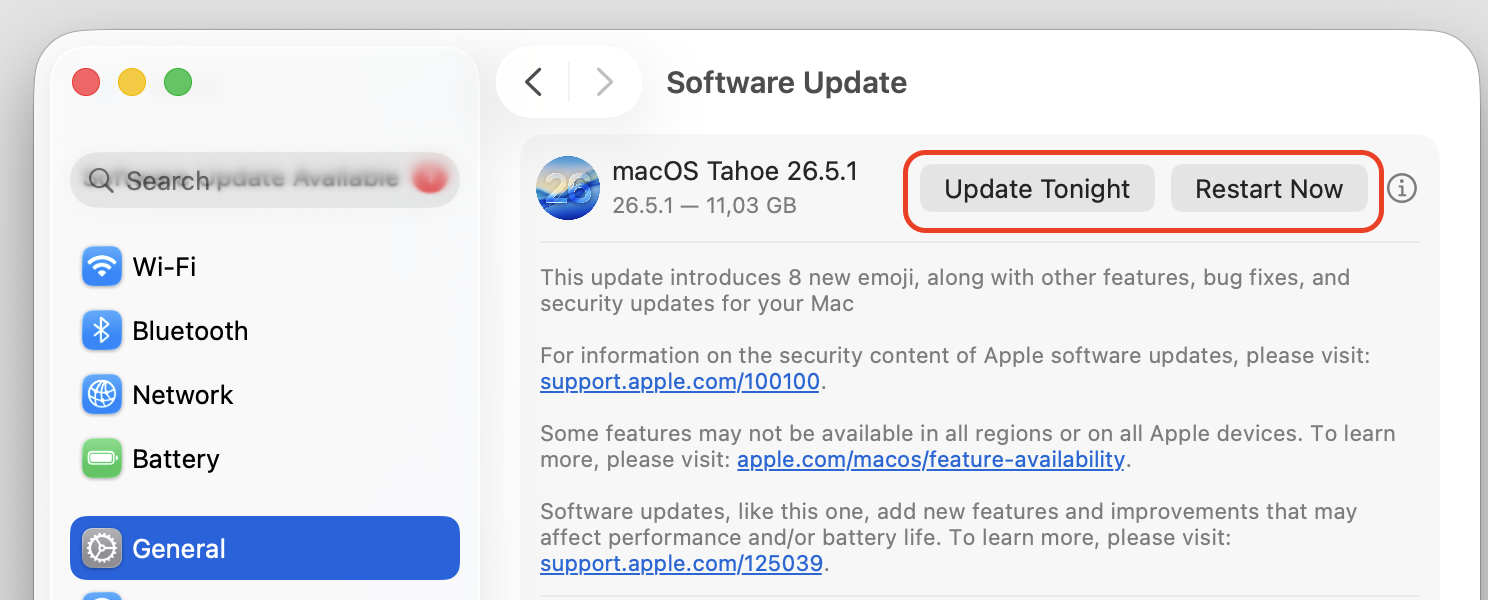
Outdated software can cause compatibility issues, and an update often resolves the bugs behind them. It's smart to upgrade macOS and refresh Steam together:
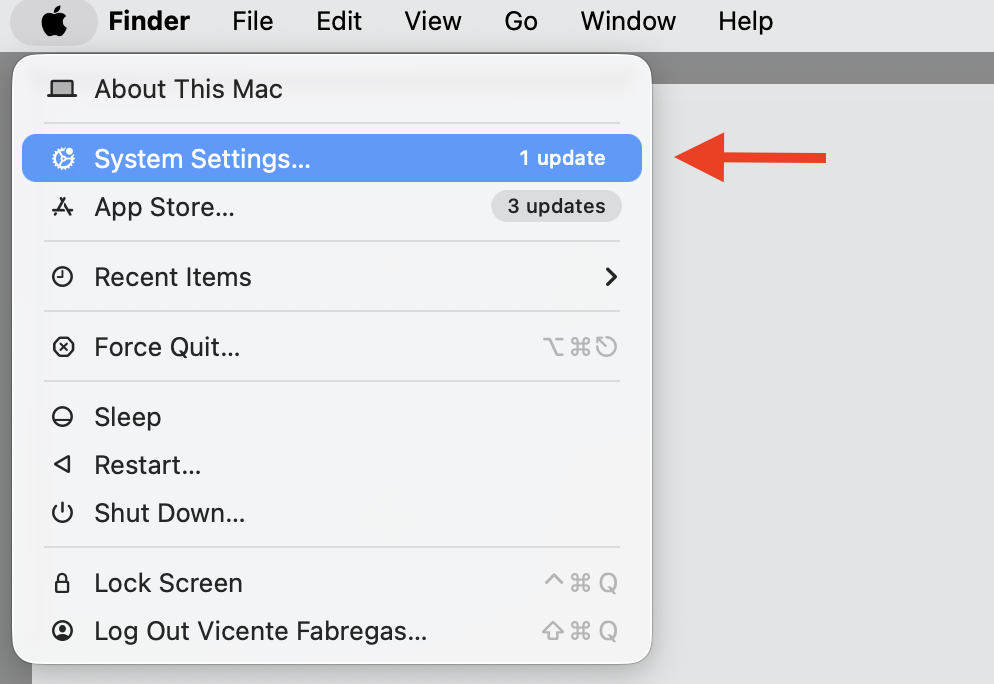
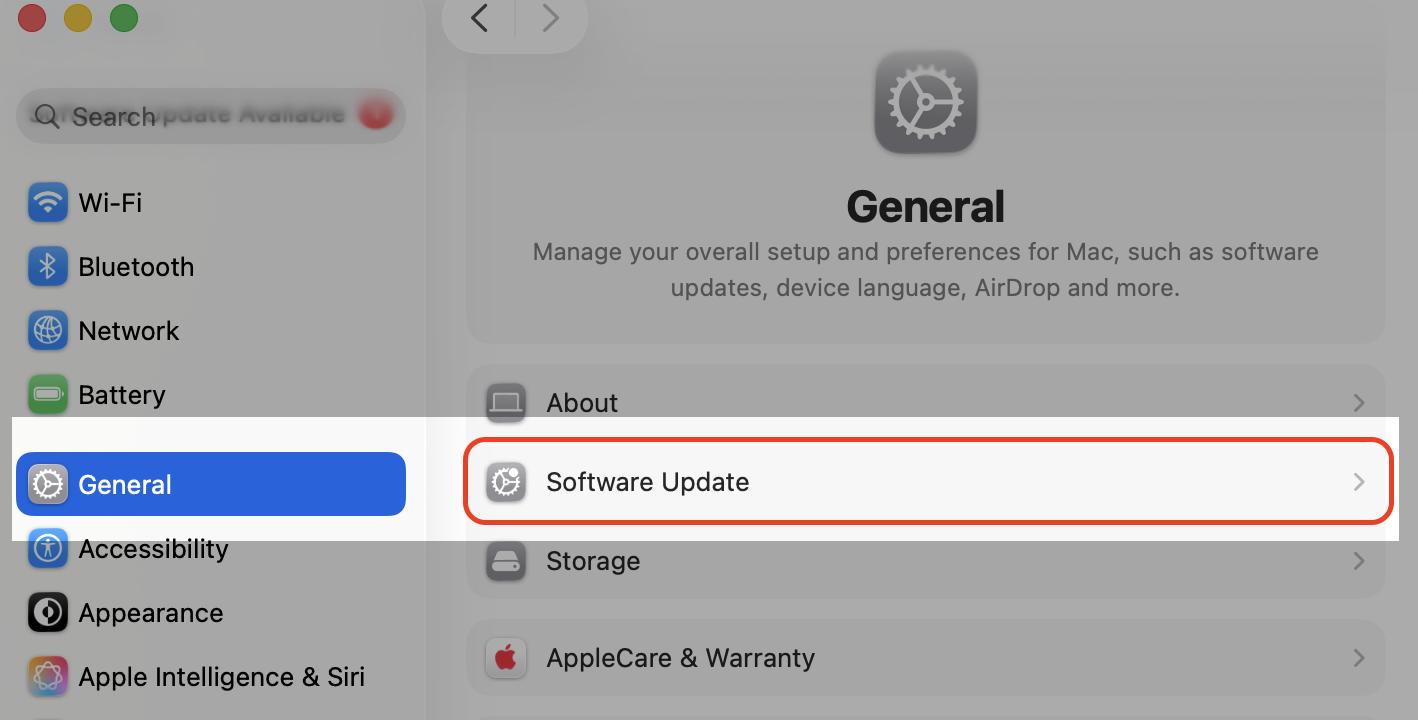
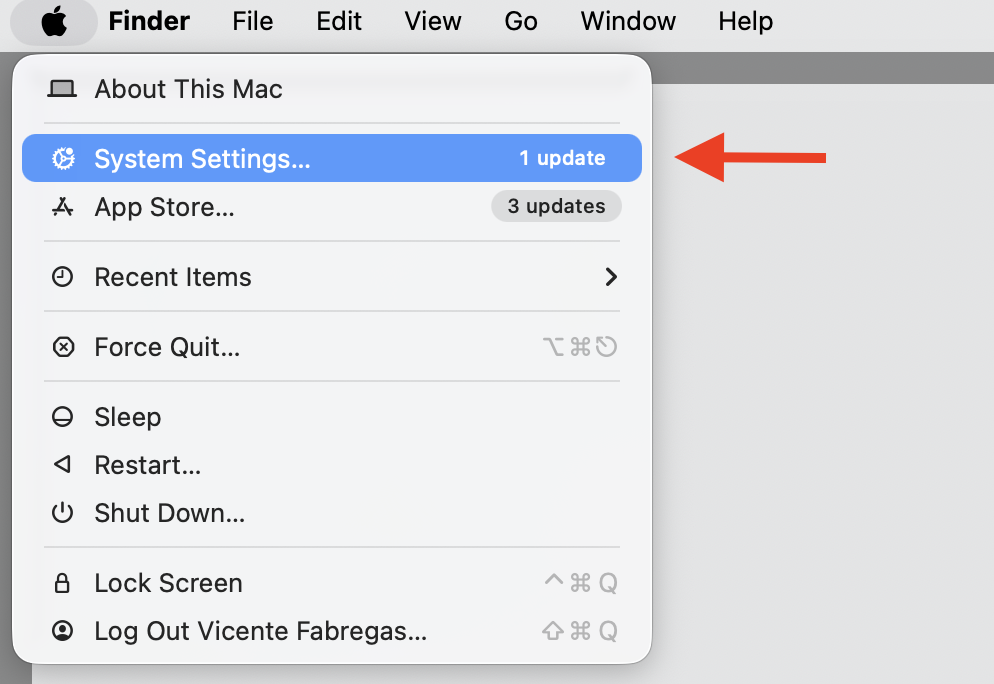
Open the Apple menu and choose System Settings.
Go to General > Software Update and install anything available.
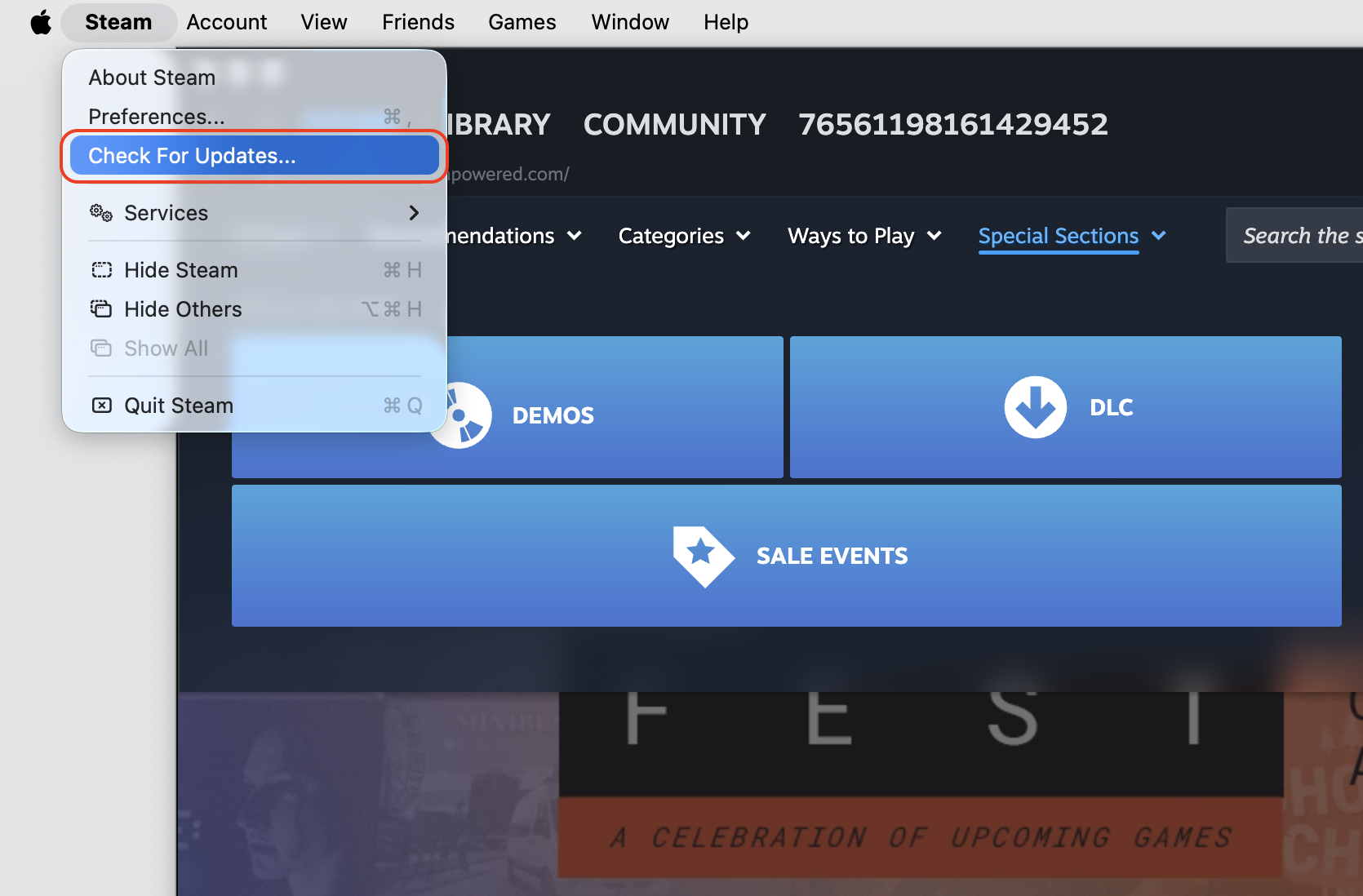
Open Steam, then select Steam > Check for Updates from the menu bar.
Install any Steam update it finds, then relaunch.
Step 1. Go to Apple logo > System SettingsStep 2. Go to General > Software UpdateStep 3. Update macOS if an update is availableStep 4. Go to Steam name next to Apple Logo and choose Check for UpdateStep 5. Verify status at the bottom of the App
5. Clear Steam cache and temporary files
Corrupted or overloaded cache files can stop Steam from launching properly. You'll find a full walkthrough on clearing Steam cache, and the basics look like this:
Quit Steam completely.
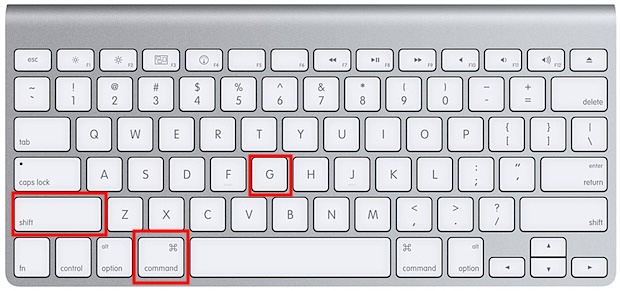
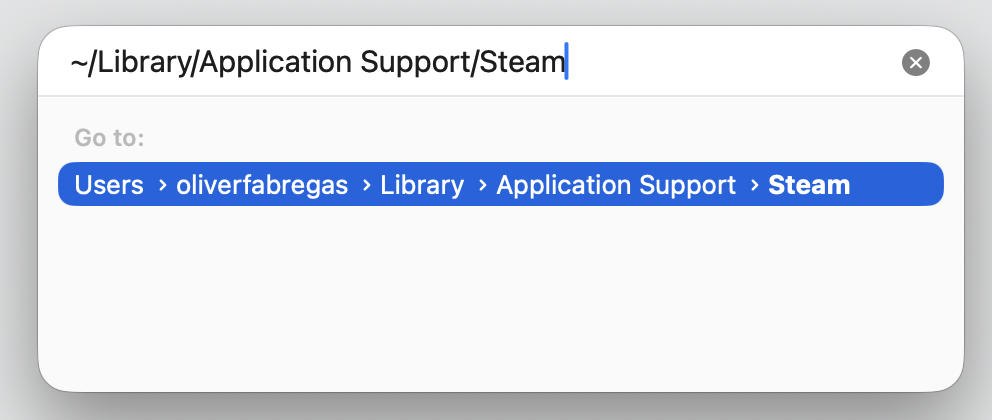
Open Finder, then press Shift + Command + G.
Type ~/Library/Application Support/Steam and press Return.
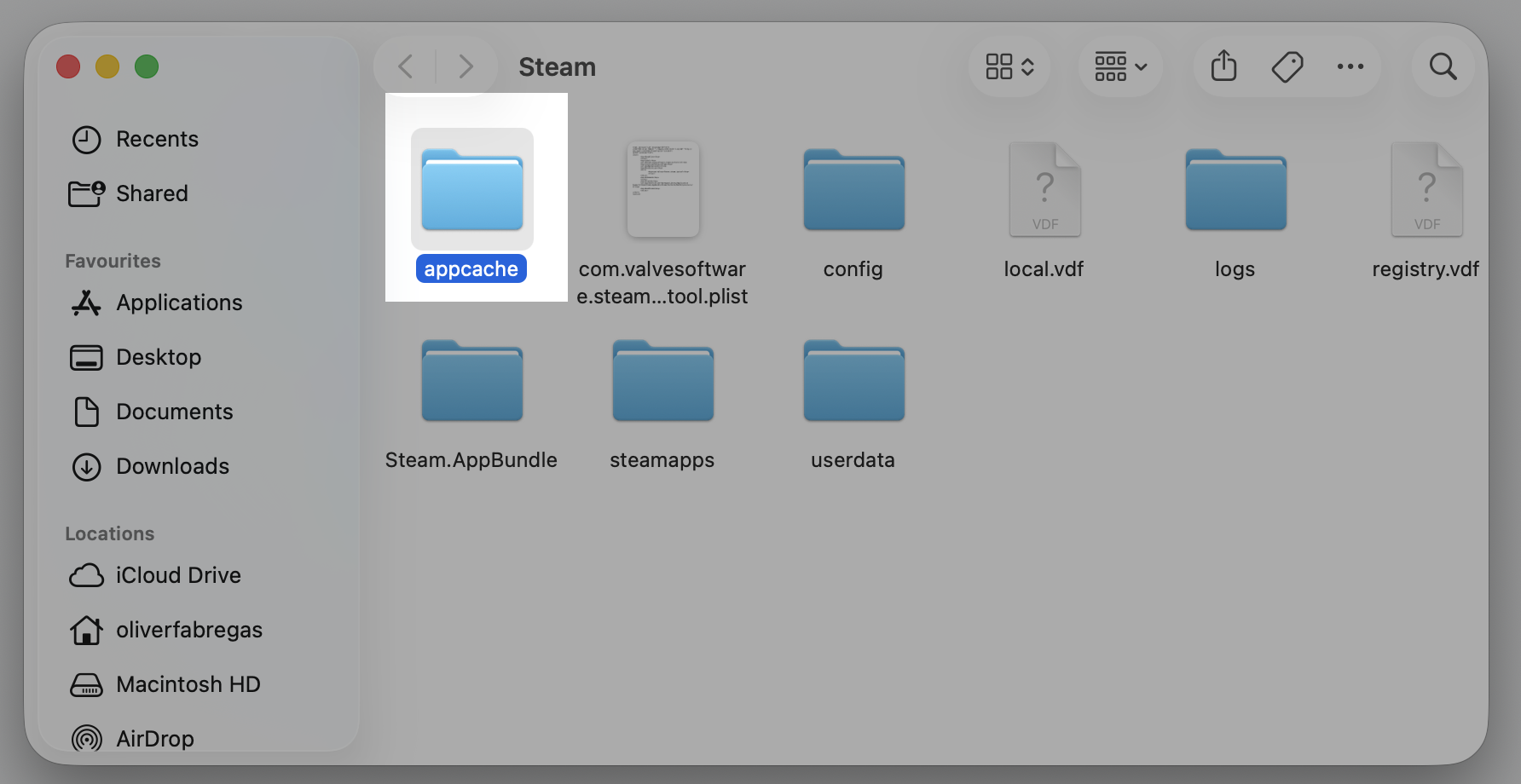
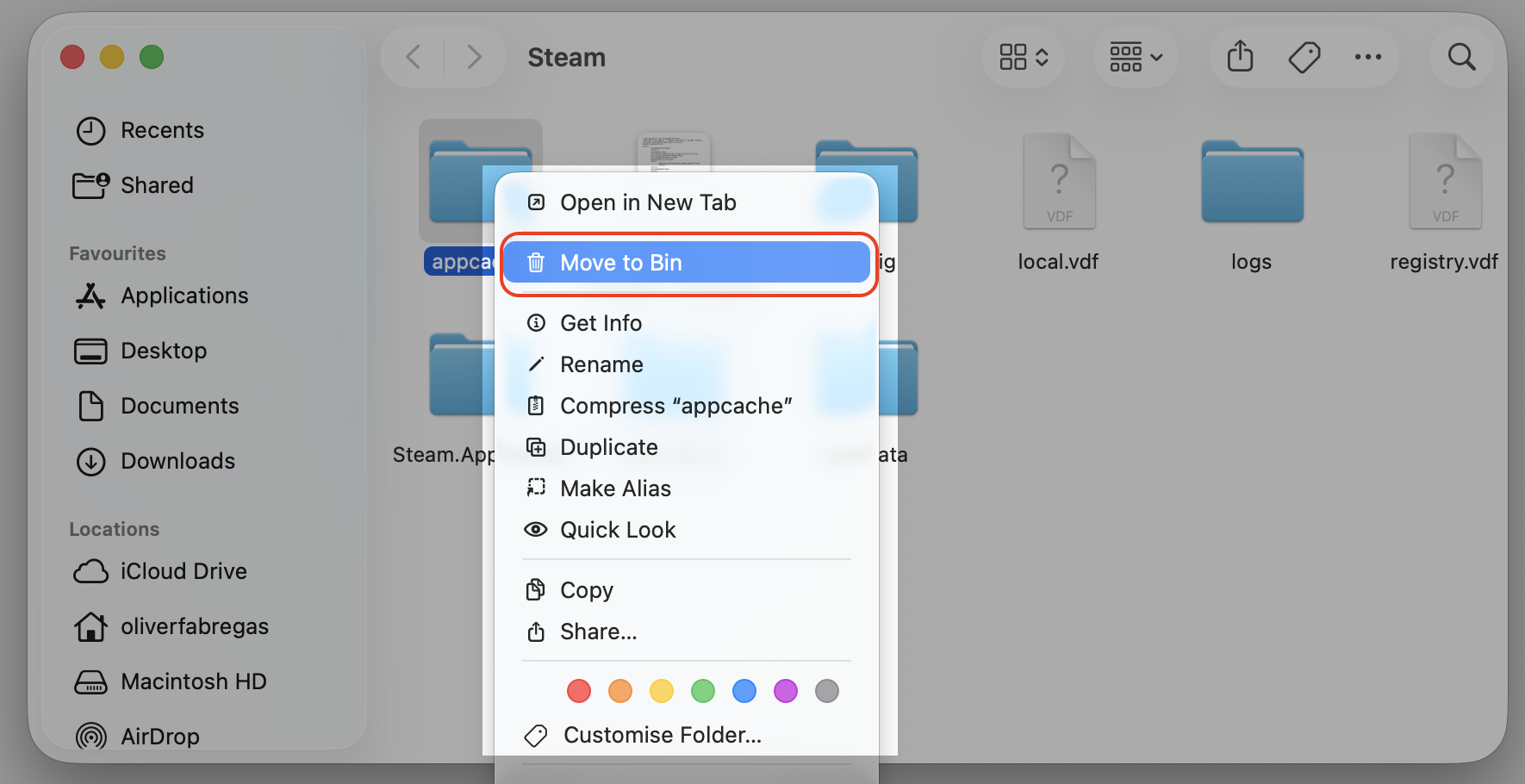
Move the appcache folder to the Trash, then reopen Steam.
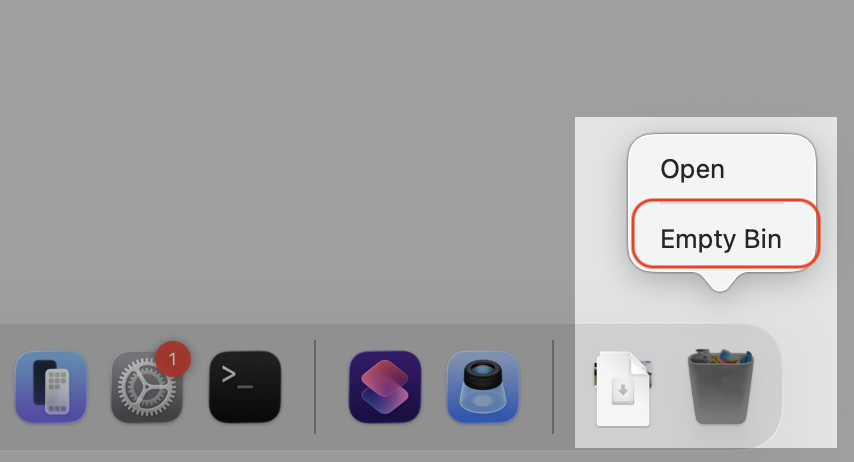
Step 1. Click on Finder and press Shift + Command + GStep 2. Type ~/Library/Application Support/Steam and press ReturnStep 3. Select “appcache” folderStep 4. Move to BinStep 5. Empty Bin
6. Check permissions and security settings
macOS privacy settings or security restrictions may block Steam from running correctly. Granting full disk access often clears the way:
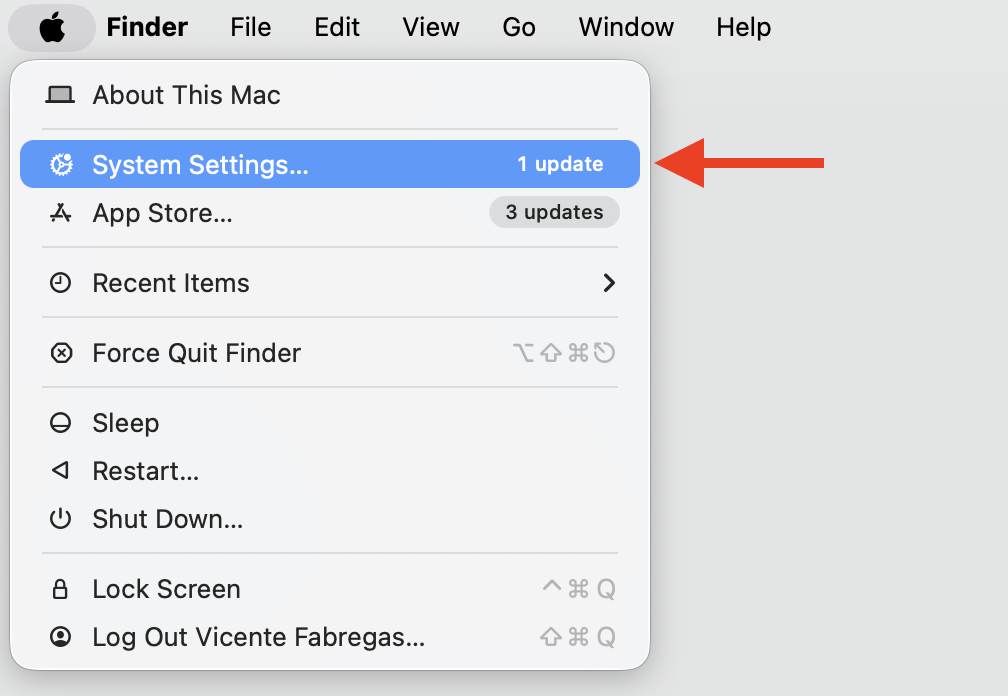
Open the Apple menu and choose System Settings.
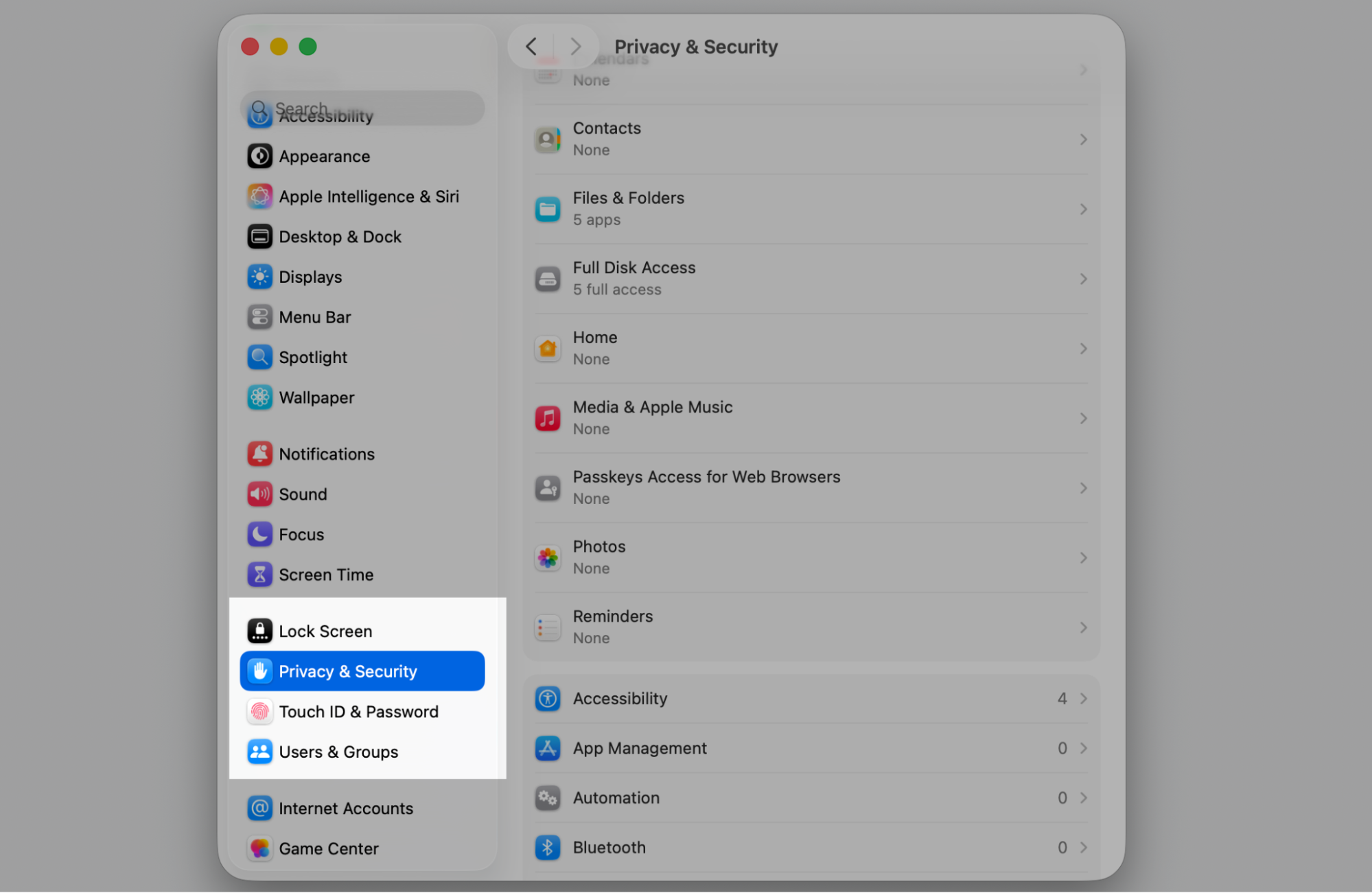
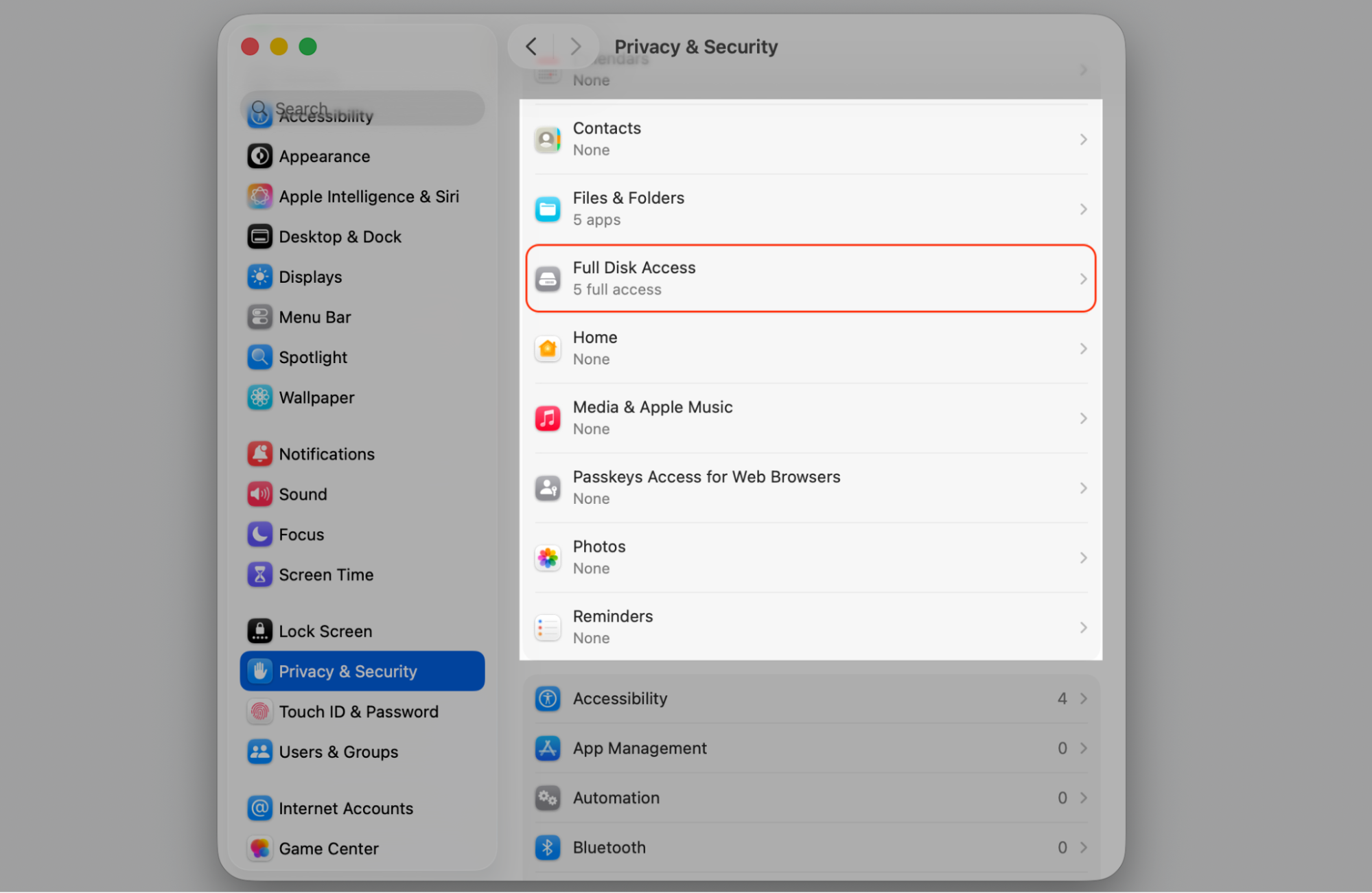
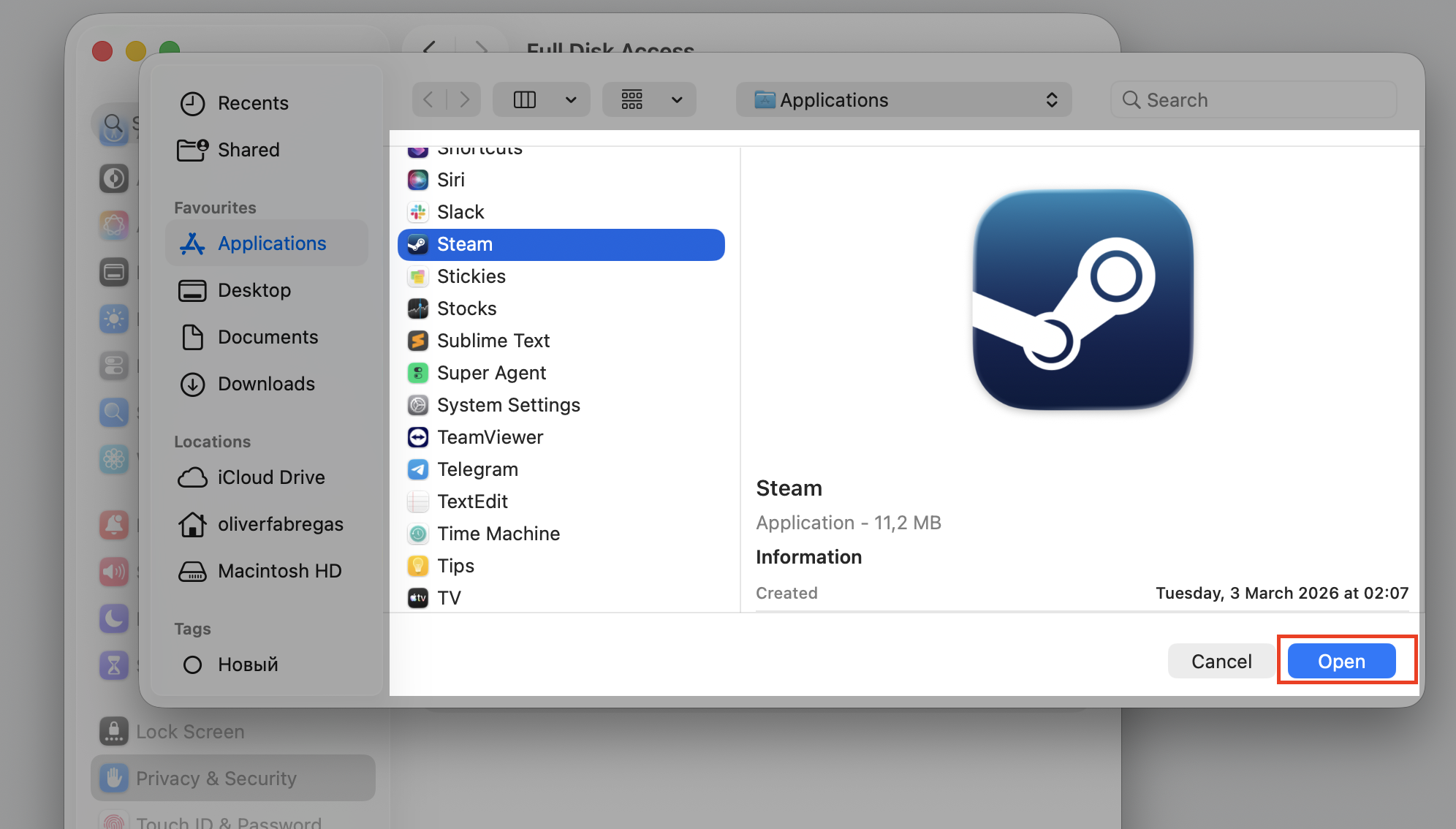
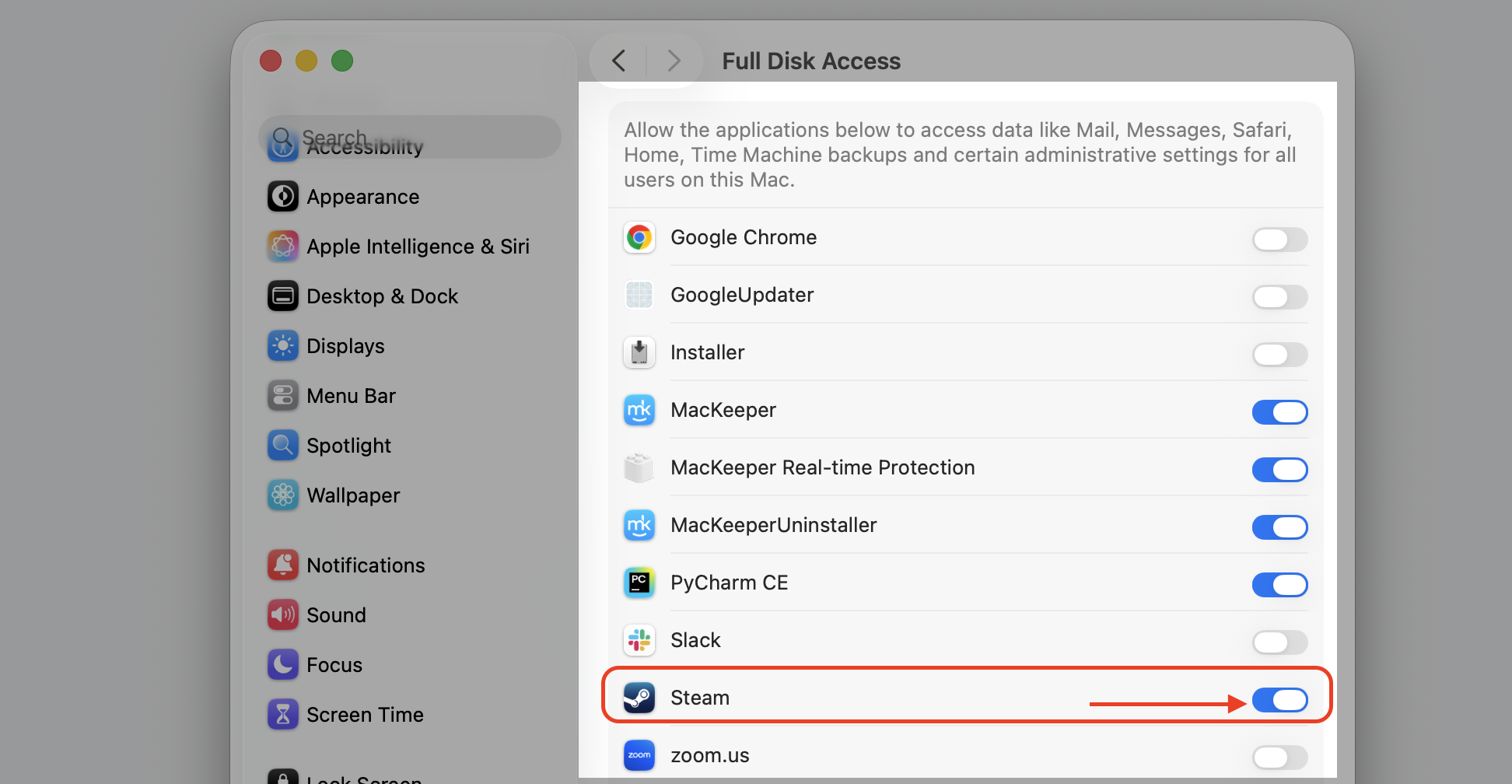
Go to Privacy & Security > Full Disk Access.
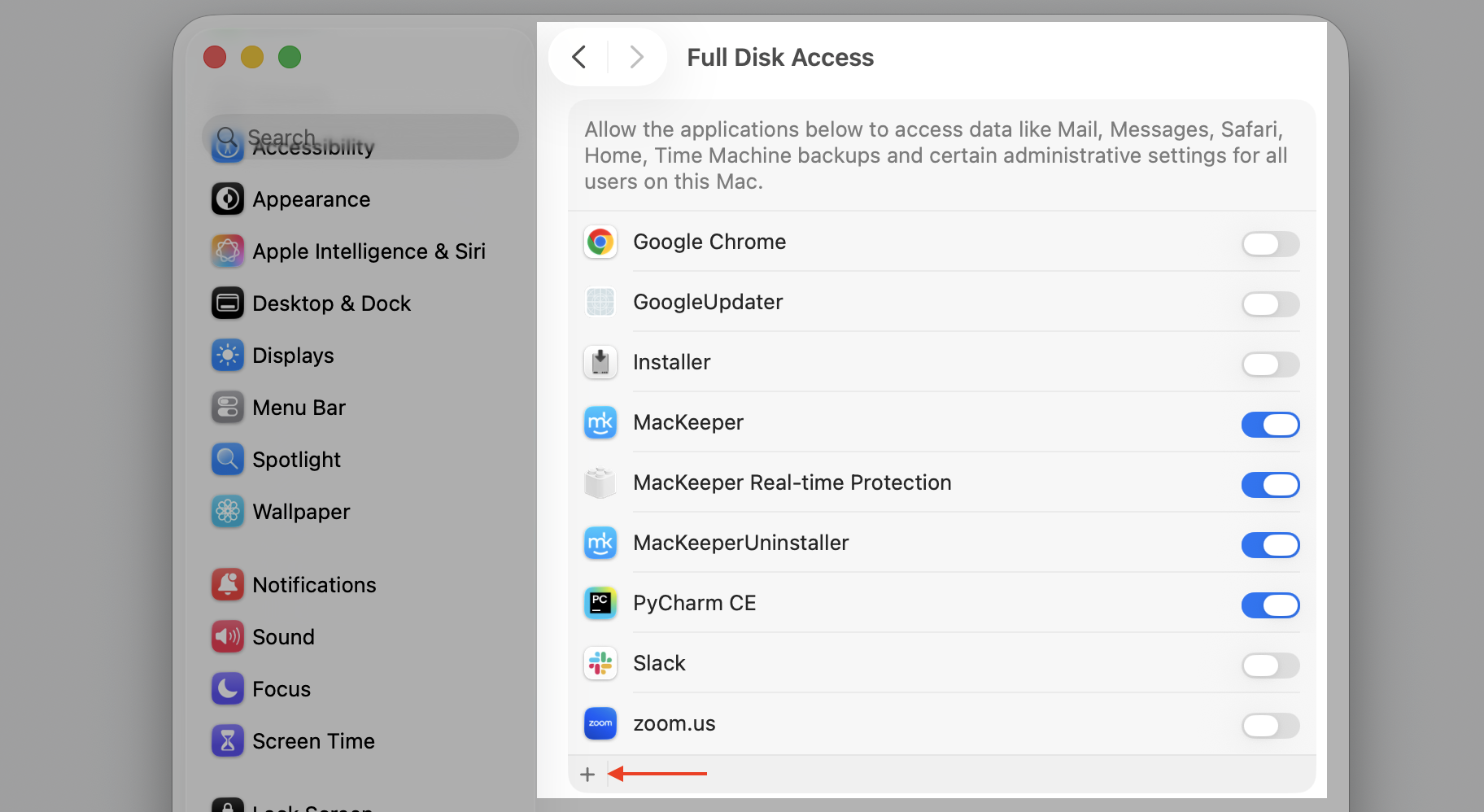
Select the toggle next to Steam to grant access.
If Steam isn't listed, click the + button to add it, then relaunch.
Step 1. Go to Apple logo > System SettingsStep 2. Select Privacy & SecurityStep 3. Choose Full Disk AccessStep 4. Click the + button to add SteamStep 5. Select Steam from the list and press OpenStep 5. Select the toggle next to Steam to grant access
7. Disable conflicting apps or background processes
Antivirus tools, VPNs, or other apps can interfere with Steam's operation. Checking what's running—and how hard it's working—helps you spot the culprit, so it's worth learning to view CPU usage:
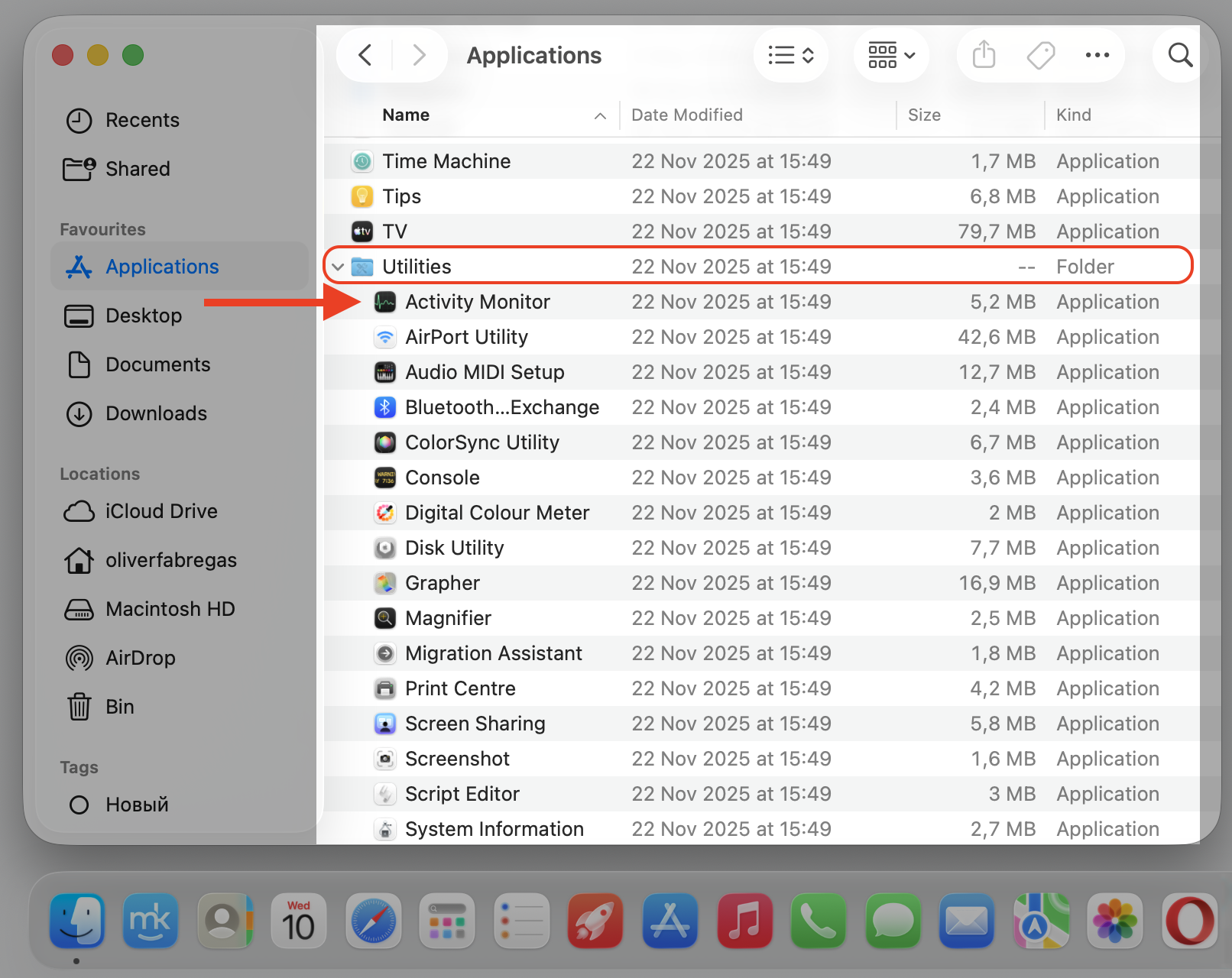
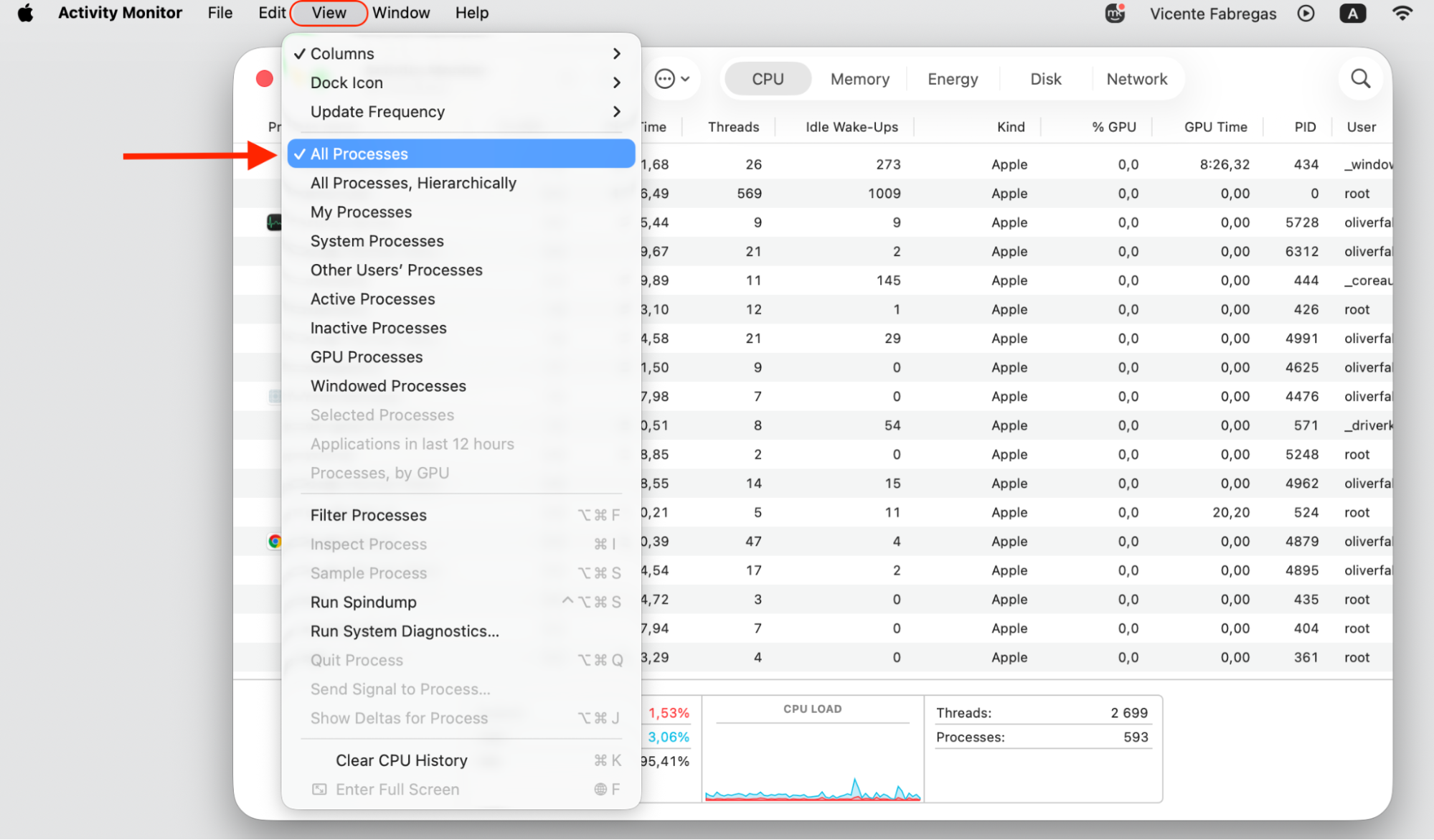
Open Activity Monitor from your Applications folder.
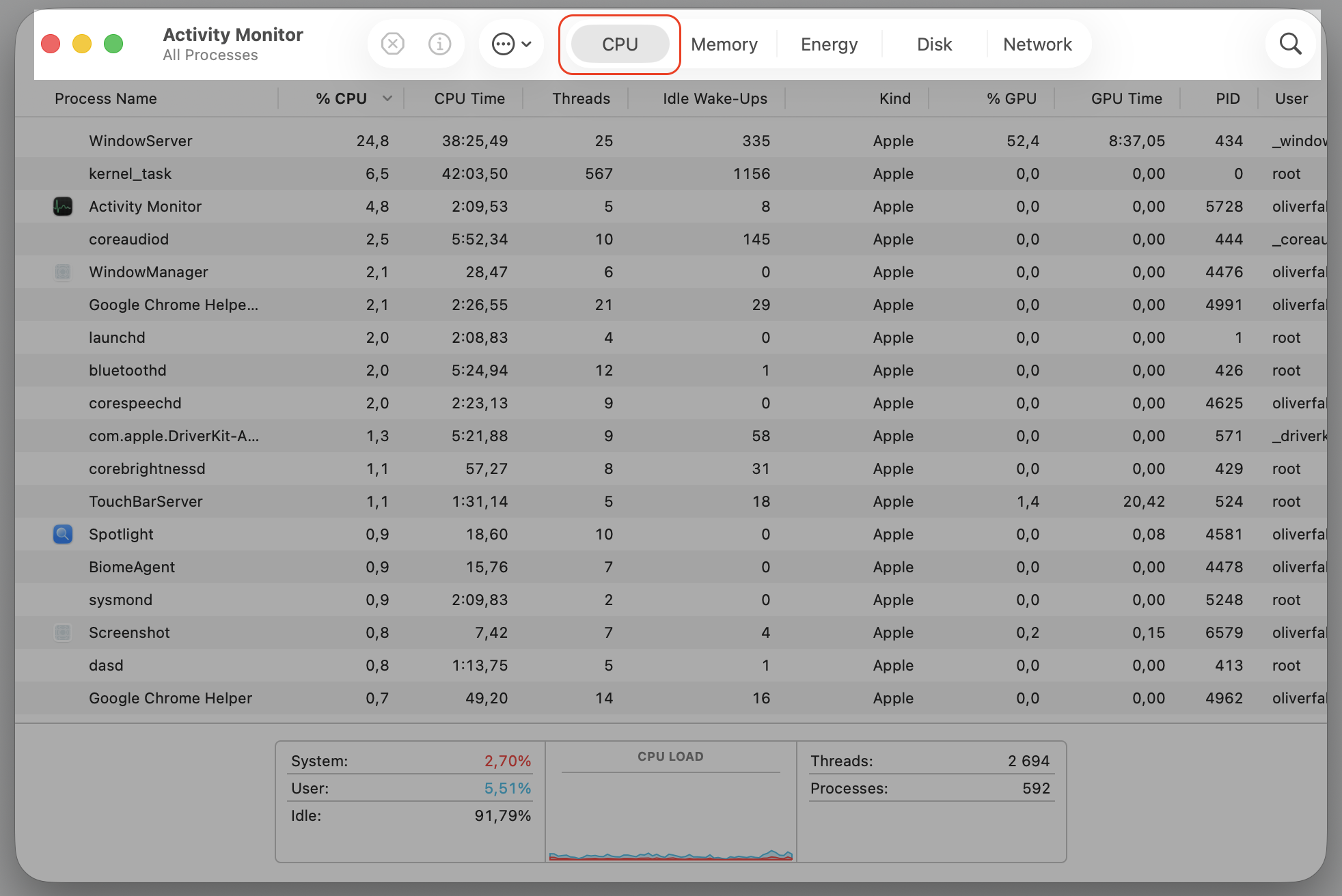
Click the CPU tab to see which apps are working hardest.
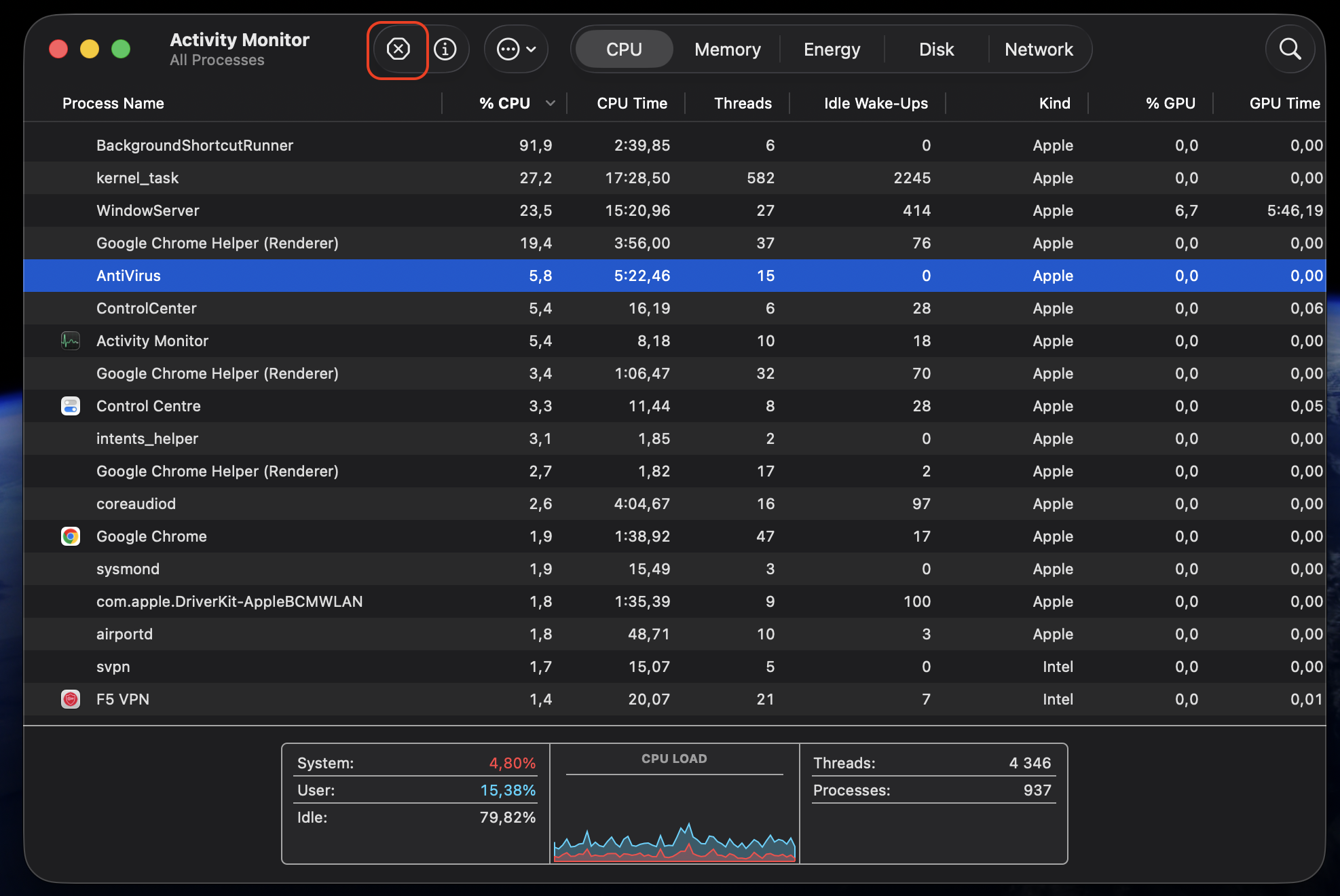
Quit any VPN, antivirus, or heavy apps you don't need right now.
Try opening Steam again with those apps closed.
Step 1. Expand the Utilities folder and select Activity MonitorStep 2. Select the CPU tabStep 3. Go to View and select All ProcessesStep 4. Select the Quit buttonStep 5 Confirm action by the Force Quit button
8. Reinstall Steam
A clean reinstall repairs damaged files and broken installations when nothing else sticks. You can delete Steam and set it up again like so:
Quit Steam, then drag it from your Applications folder to the Trash.
Empty the Trash to remove the app fully.
Download the latest installer from the official Steam website.
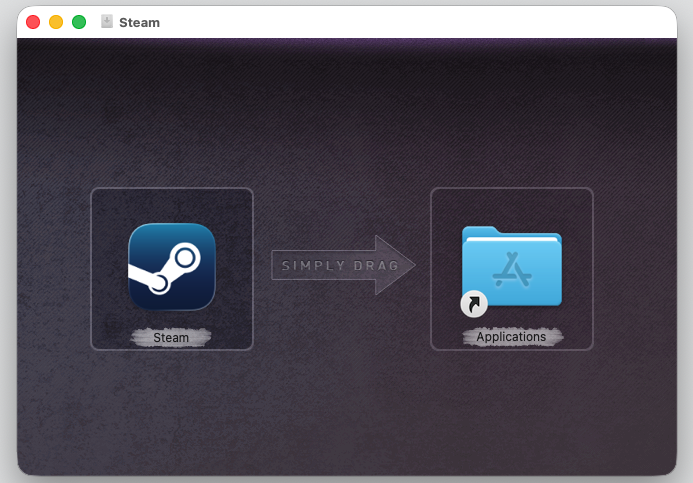
Open the downloaded file and follow the on-screen steps to reinstall.
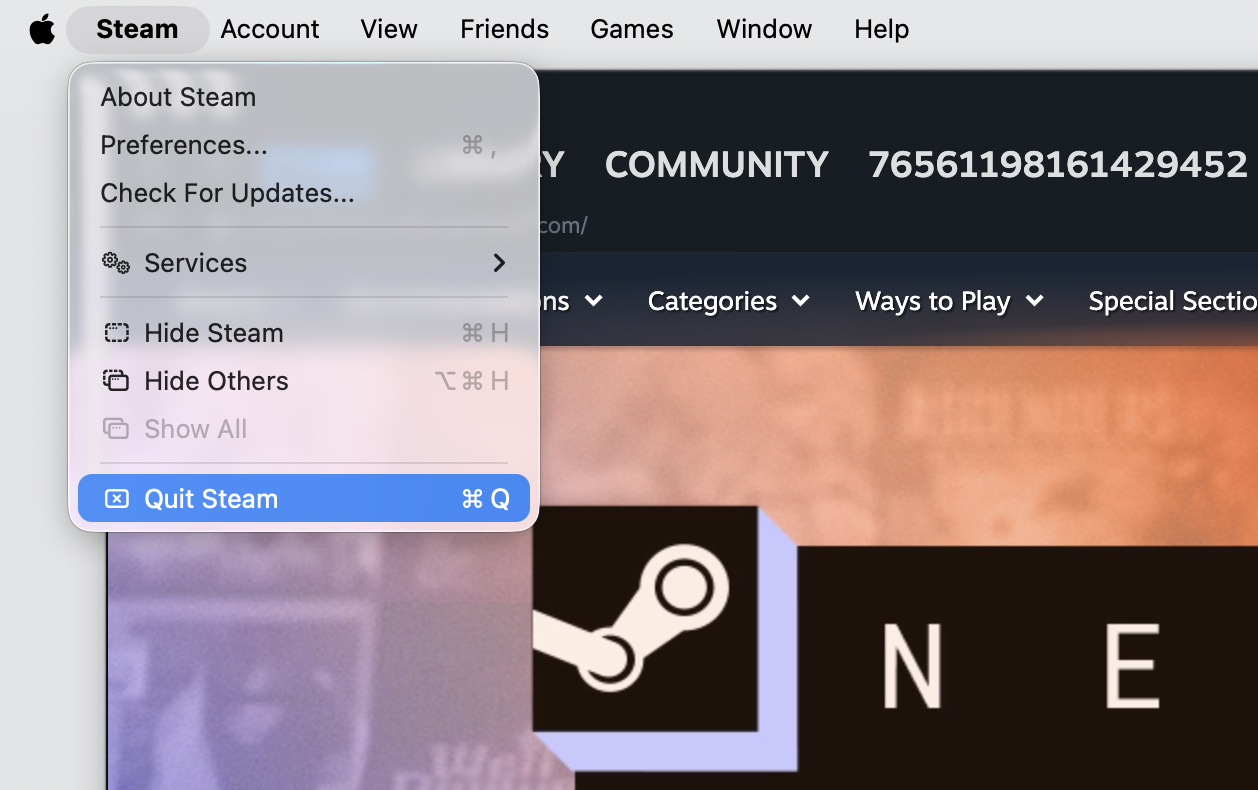
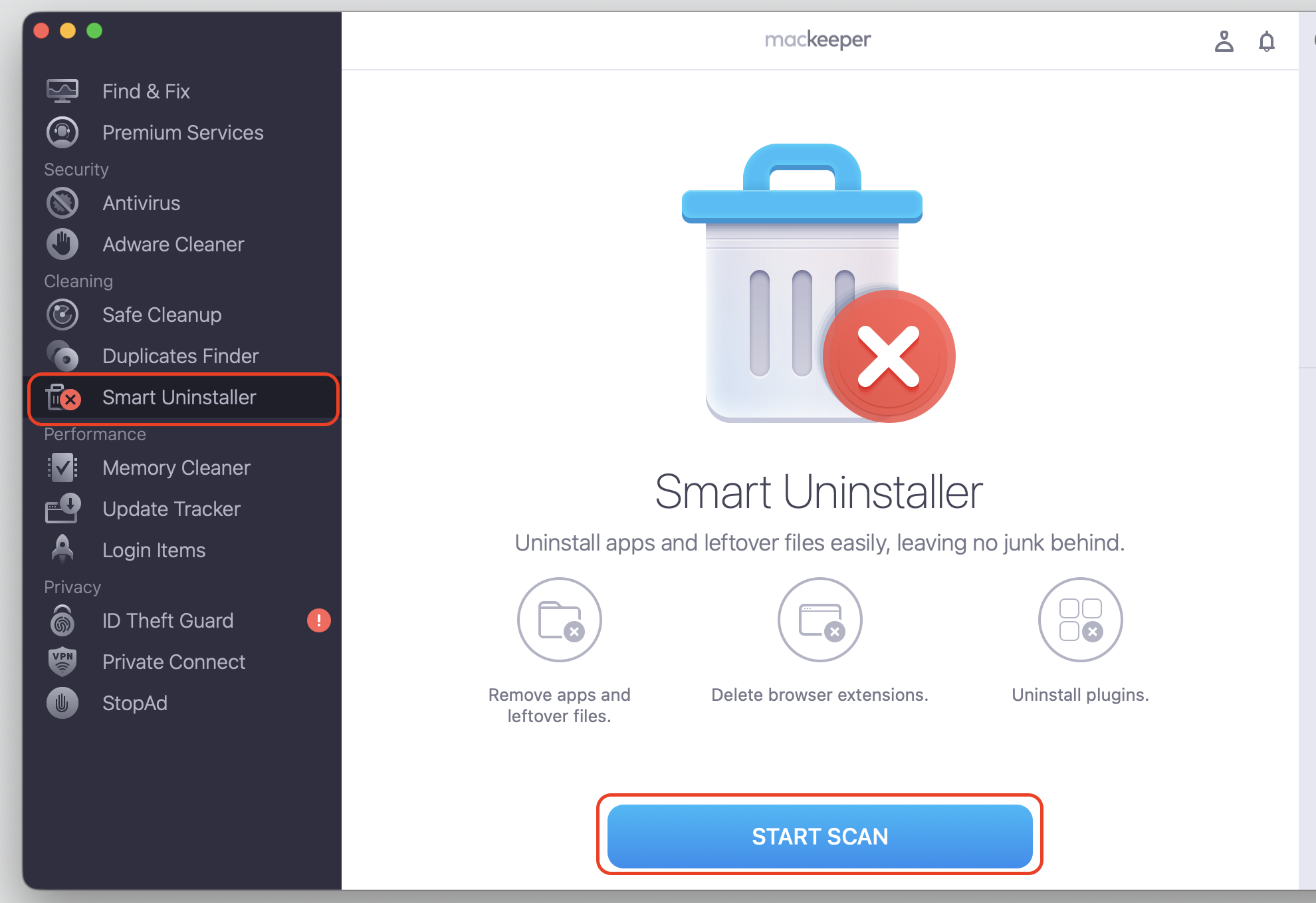
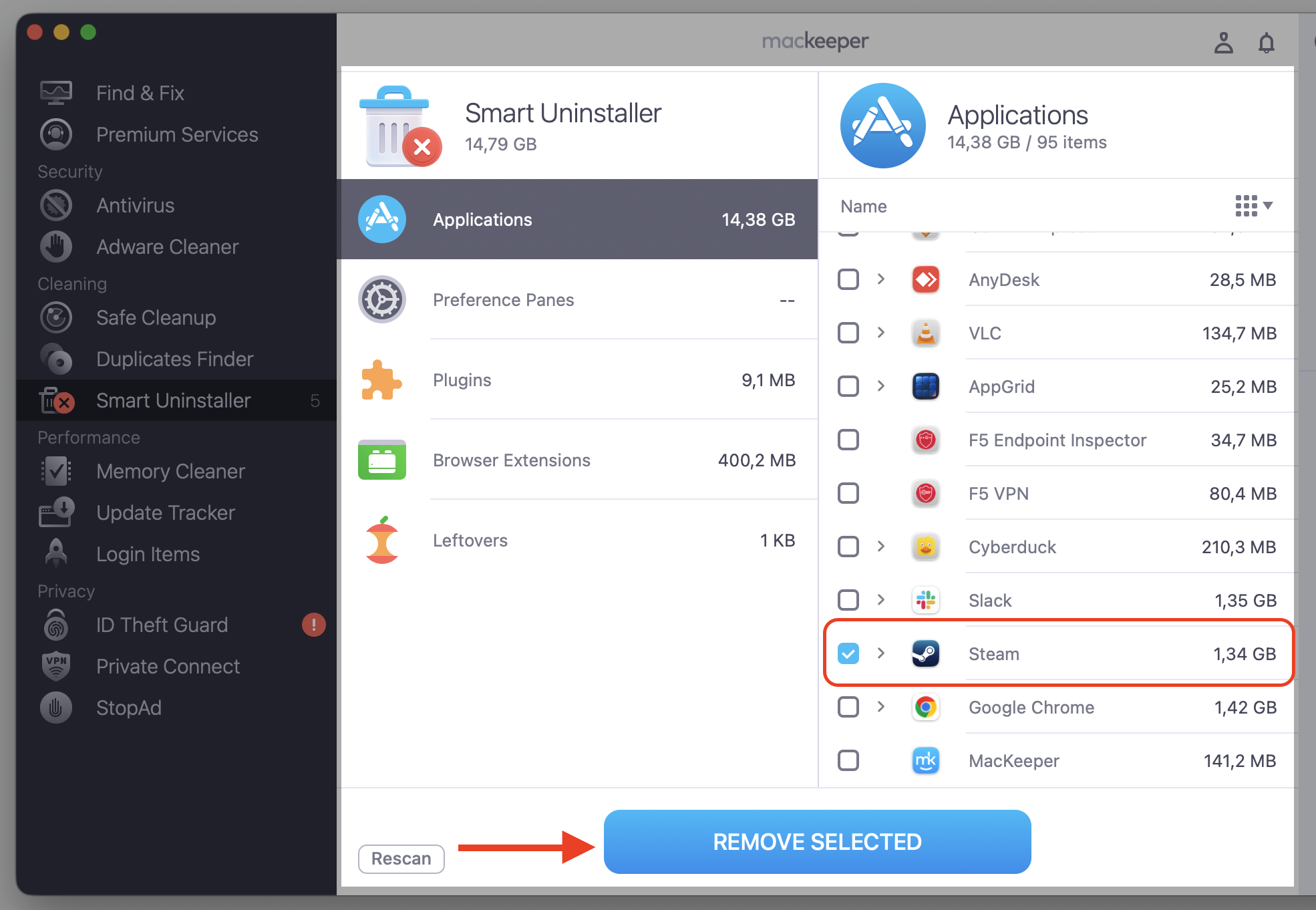
Step 1. Go to Steam Preferences and select Quit SteamStep 2. Open MacKeeper > choose Smart Uninstaller > click Start ScanStep 3. Select Applications > Steam and Remove SelectedStep 4. Confirm action by the Remove buttonStep 5. Once it's done, reinstall Steam
9. Run Steam via Terminal
Launching through Terminal can surface hidden errors or bypass interface issues that block a normal start. If you're comfortable to use Terminal, here's the way in:
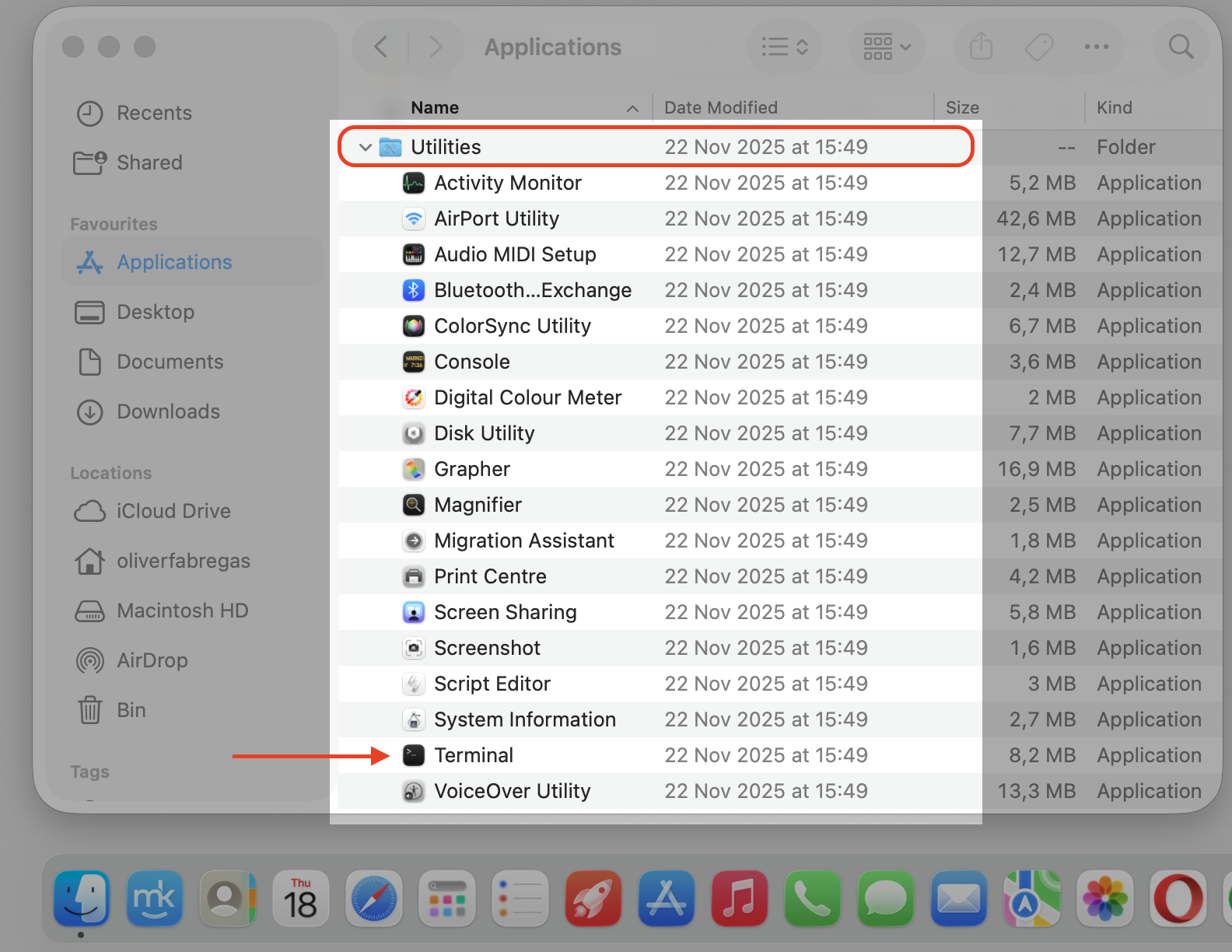
Open Terminal from Applications > Utilities.
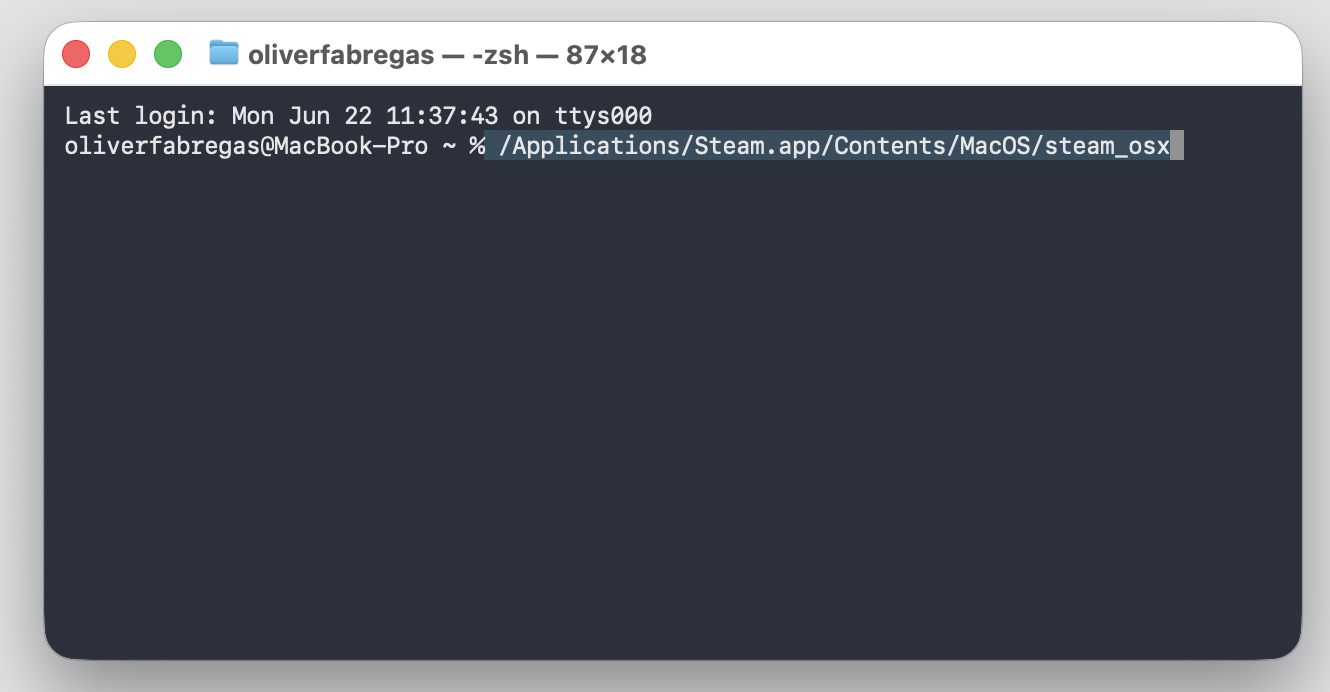
Type /Applications/Steam.app/Contents/MacOS/steam_osx and press Return.
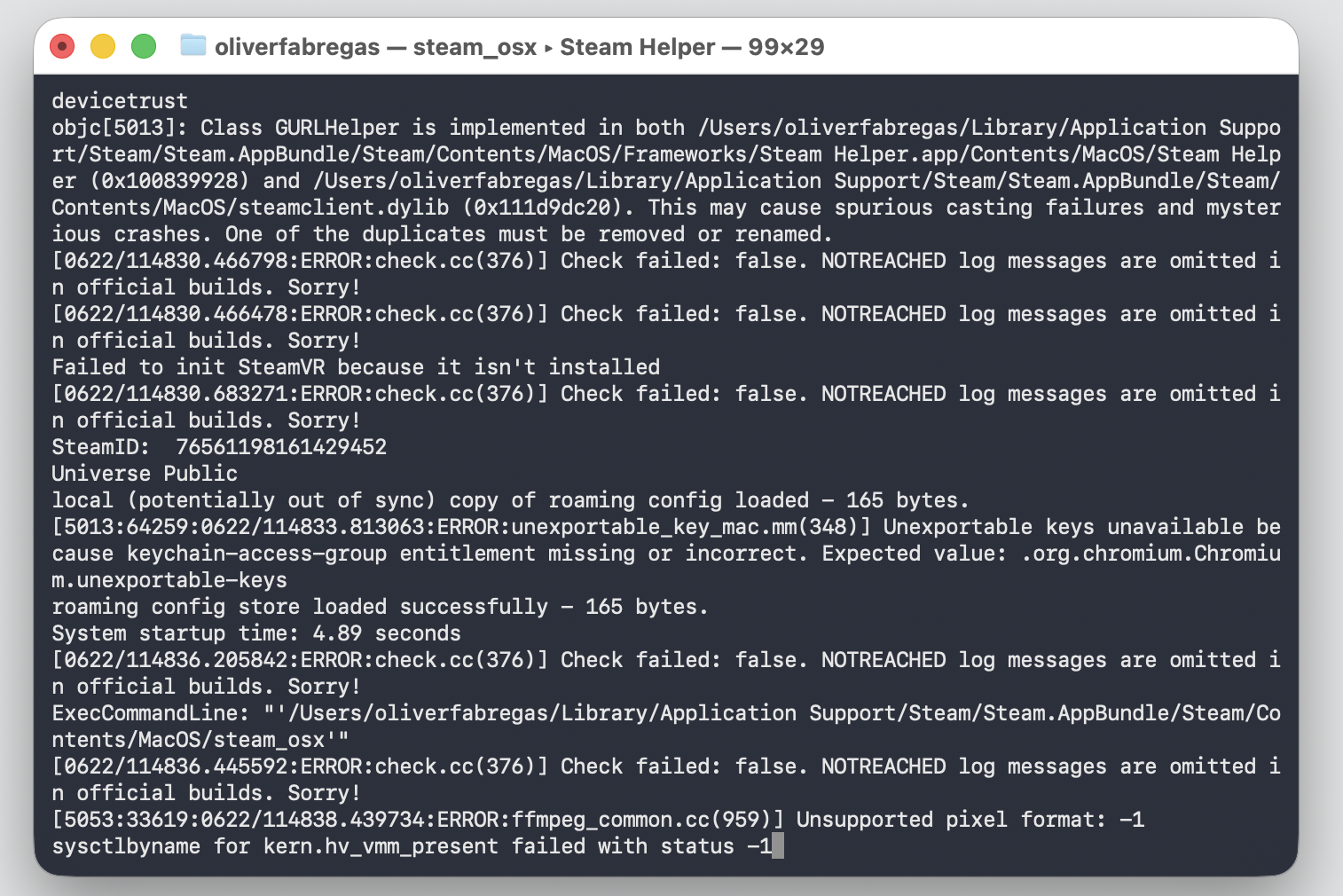
Watch the messages that appear—they often point to the exact issue.
Note any error text so you can search for a targeted fix.
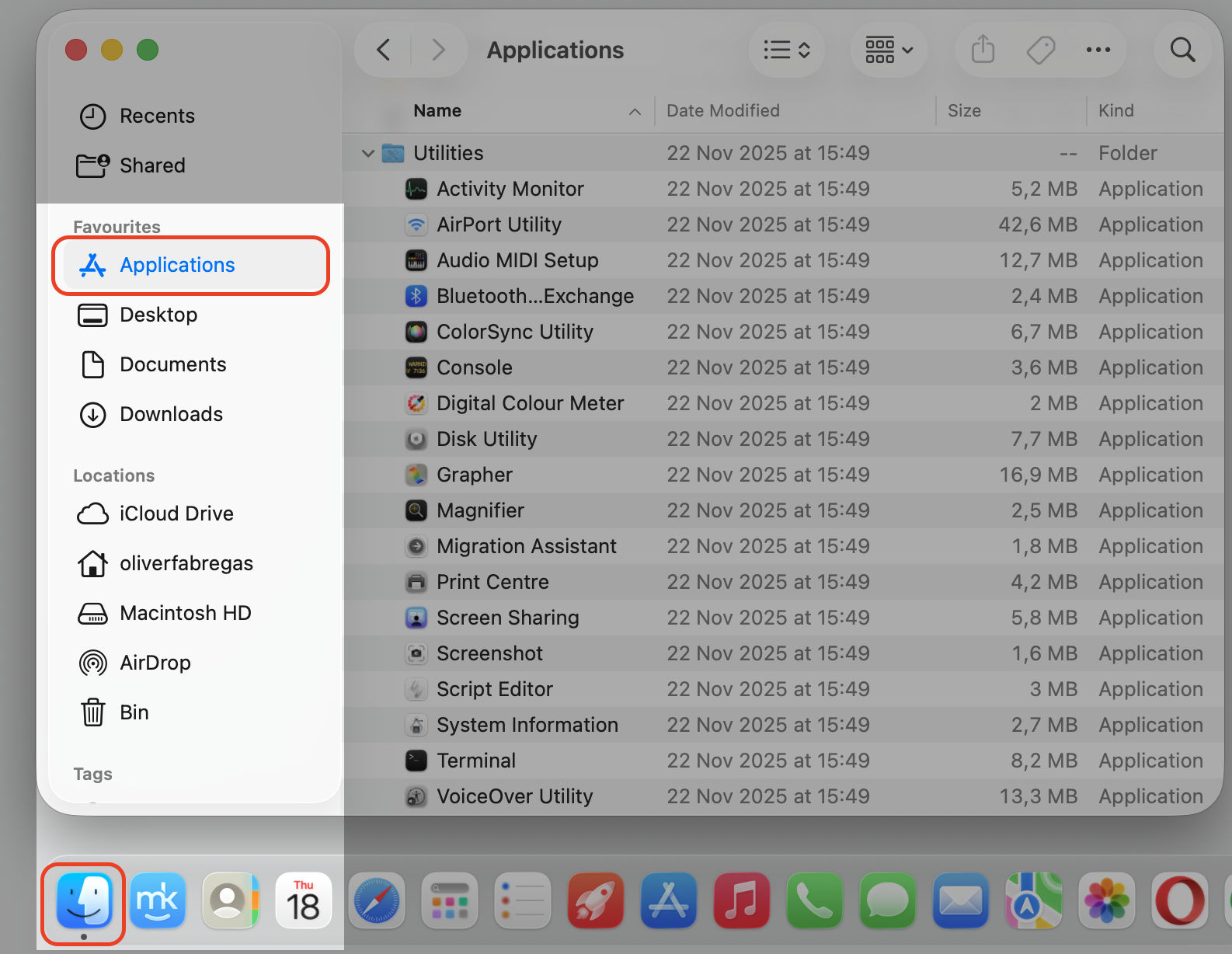
Step 1. Go to Finder > ApplicationsStep 2. Expand Utilities Folder and select Terminal Step 3. Type /Applications/Steam.app/Contents/MacOS/steam_osx and press ReturnStep 4. Write down any error text that appears and Google the exact message
10. Check Date and Time settings
An incorrect system clock can cause connection or authentication issues with Steam. A quick look at changing Date and Time keeps things in sync:
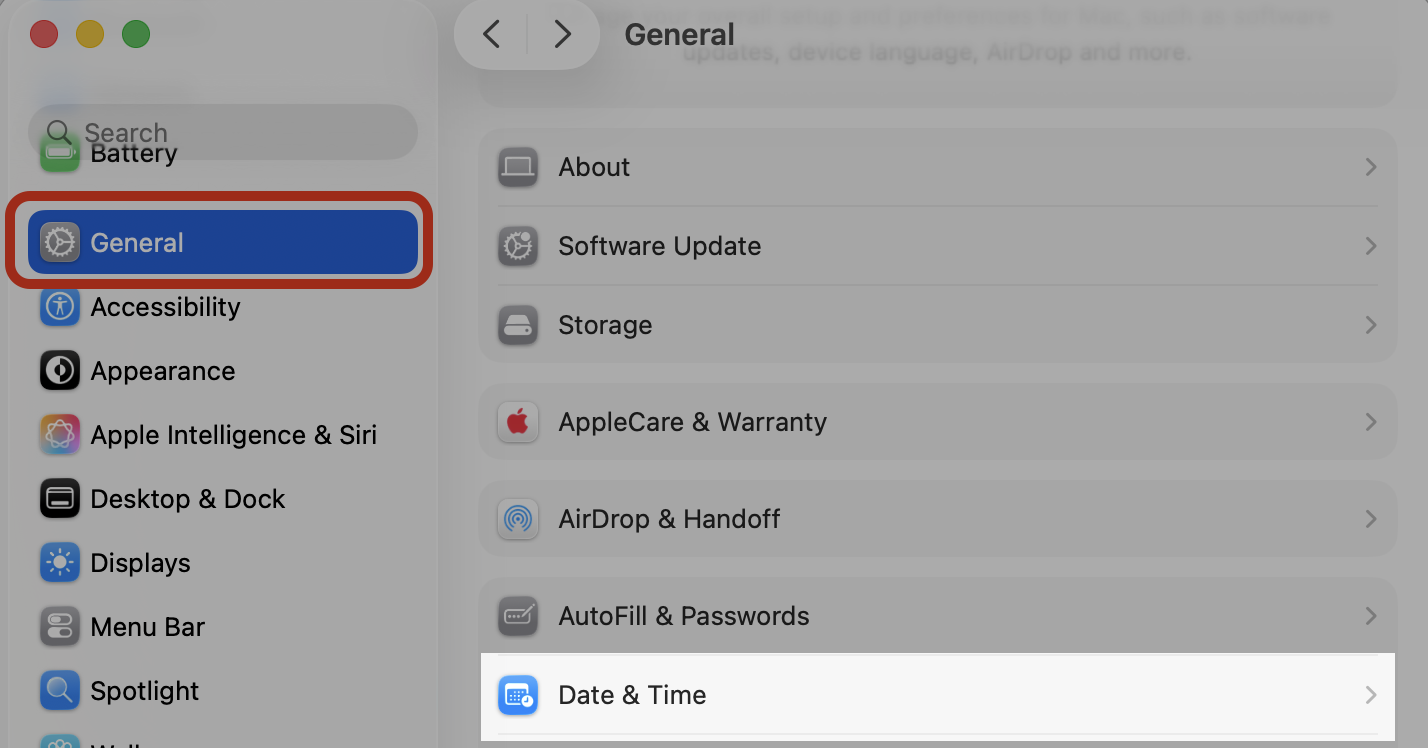
Open the Apple menu and choose System Settings.
Go to General > Date & Time.
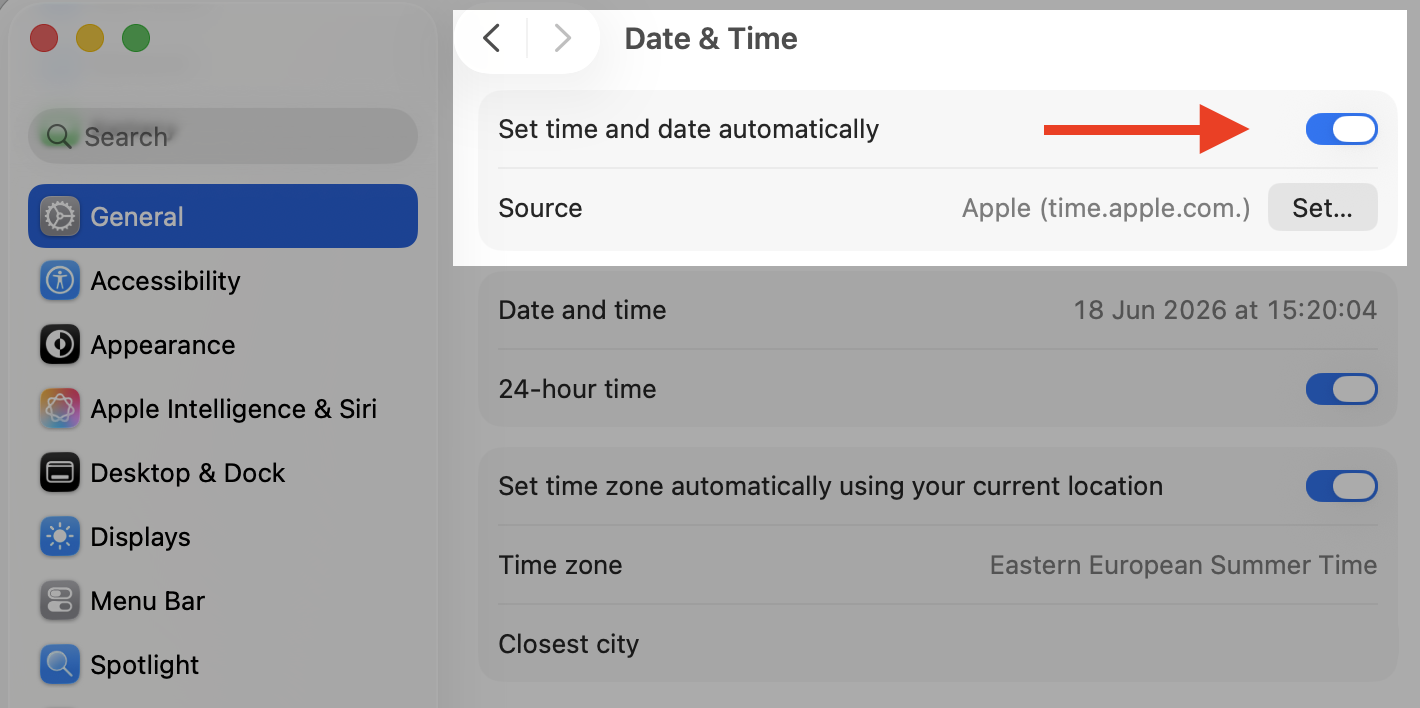
Turn on Set timeand date automatically.
Confirm your time zone is correct, then reopen Steam.
Step 1. Go to Apple Menu > System SettingsStep 2. Go to General > Date and TimeStep 3. Turn on the Set time and date automatically option
11. Reinstall macOS (last resort)
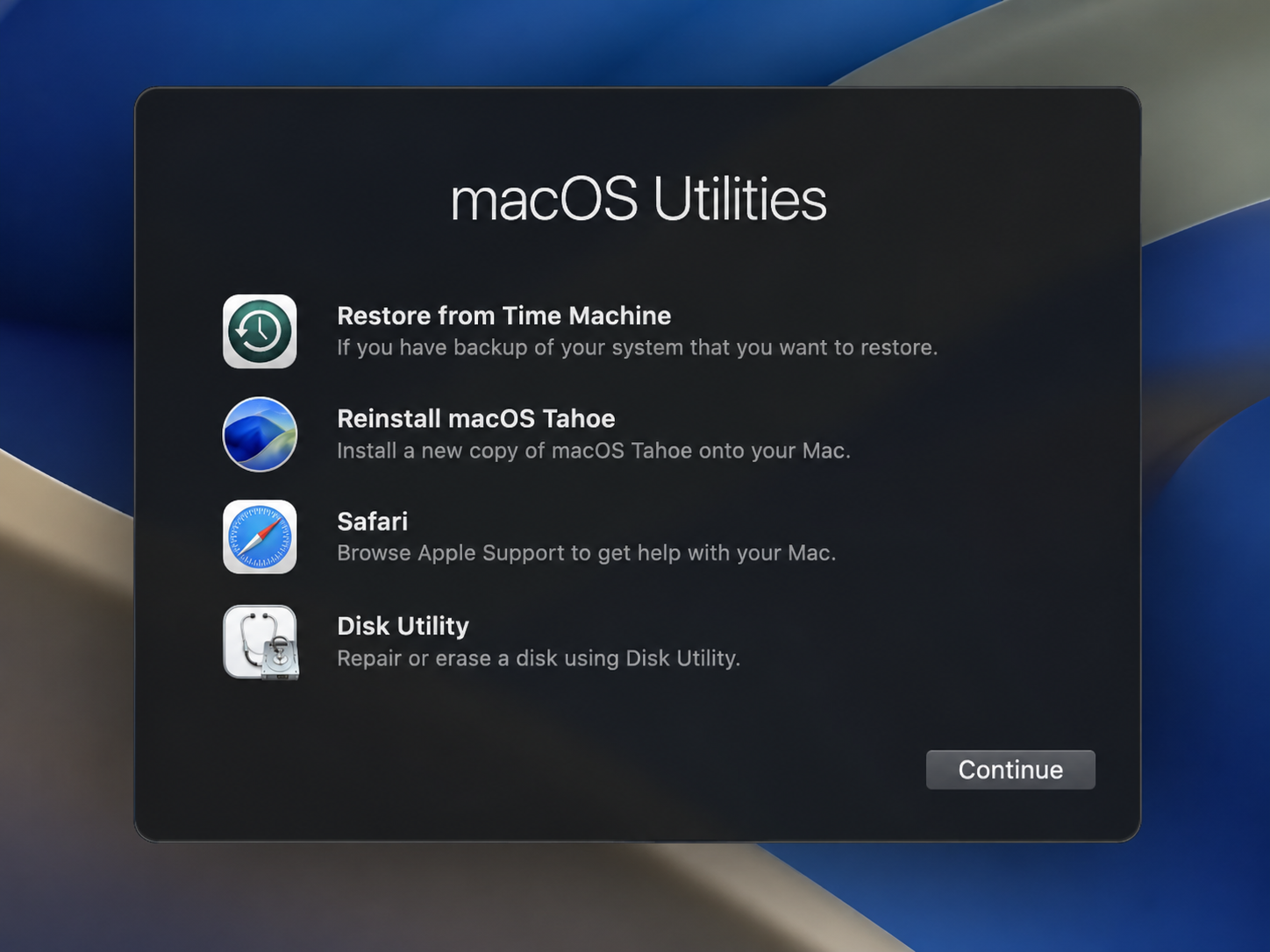
When deeper system-level issues are to blame, and every other fix falls short, a fresh OS install can reset things. It's a big step, so reinstall macOS only after you've backed everything up:
Back up your Mac with Time Machine or another method first.
Restart your Mac and enter Recovery mode.
Choose Reinstall macOS and follow the on-screen steps.
Once it's done, reinstall Steam and sign back in.
How to prevent Steam issues on Mac?
Once Steam's running again, a little upkeep keeps it that way. Below, we’ll share with you a few easy habits tp make your Mac run faster across the board:
Keep software updated. Install macOS and Steam updates as they arrive so compatibility issues don't pile up.
Manage cache and storage. Clear out junk and old files regularly to give apps room to breathe.
Trim background apps. Quit VPNs, antivirus tools, and heavy apps you're not using before a gaming session.
Keep your connection steady. A stable Wi-Fi or wired link helps Steam reach its servers without a fuss.
Get back to your games with less hassle
When Steam won't launch on Mac, it's usually a minor glitch or app conflict. Our above-mentioned solutions will clear it up fast. However, for ongoing peace of mind, enjoy MacKeeper's Premium Services and get quick tips on how to keep your Mac clean, secure, and ready for your daily computer routine.
We respect your privacy and
use cookies
for the best site experience.
Privacy Preferences Center
We use cookies along with other tools to give you the best possible experience while using the
MacKeeper website. Cookies are small text files that help the website load faster. The cookies we
use don’t contain any type of personal data meaning they never store information such as your
location, email address, or IP address.
Help us improve how you interact with our website by accepting the use of cookies. You can change
your privacy settings whenever you like.
Manage consent
All cookies
These cookies are strictly necessary for enabling basic website functionality (including page
navigation, form submission, language detection, post commenting), downloading and purchasing
software. The website might malfunction without these cookies.