
In this article you will find the following:
What is Chromium on Mac?
Chromium is an open-source browser developed by Google. It’s actually the foundation that Chrome is built on—so the two look almost identical. Legitimate developers use Chromium to test websites and build browser-based apps. But because anyone can modify and distribute it freely, it’s sometimes bundled with software you didn’t mean to install.
Finding Chromium on your Mac doesn’t automatically mean something is wrong. If you downloaded it intentionally—or installed an app that came with it—it’s just a browser. The concern starts when Chromium appears on your system without a clear explanation, changes your default browser settings, or behaves in ways you didn’t ask for.
What is Chromium virus?
The “Chromium virus” isn’t a virus in the traditional sense—it’s a modified, unofficial version of the Chromium browser that gets installed without your knowledge. Cybercriminals use the Chromium name and interface as a disguise, so it looks familiar while quietly running malicious activity in the background.
This type of Chromium malware can hijack your search settings, redirect you to unfamiliar sites, flood your screen with ads, and collect browsing data. It often arrives bundled with free software downloads, fake updates, or files from untrusted sources.
The tricky part: it looks and feels like a real browser, so many people don’t realize it’s there.
How to identify Chromium virus on Mac?
Not sure whether the Chromium on your Mac is a legitimate app or malware? There are a few reliable signs to look for. Usually, you can spot the Chromium virus by checking for unusual browser behavior, unexpected settings changes, and suspicious background activity. But to be more sure, we’ve prepared a checklist for you to know what to watch for:
- Your default browser changed after the system confirmation that you didn’t get but accepted.
- You see unfamiliar extensions or plugins in your browser.
- Search results redirect to sites you didn’t search for.
- Pop-up ads appear constantly—even on sites that don’t usually show them.
- Your Mac runs slowly or seems to overheat more than usual.
- Chromium launches automatically at startup, even though you never set it as a login item.
If two or more of these red flags match your situation, we encourage you to scan your Mac and remove Chromium as soon as possible.
How to uninstall Chromium on Mac?
There are a few ways to get rid of Chromium from your Mac, depending on how deeply it’s embedded in your system. You can delete it manually using Finder, use a cleaner app to remove all traces at once, or clean it out of your browsers one by one. Read below how each method works.
1. Delete Chromium from Mac via Finder
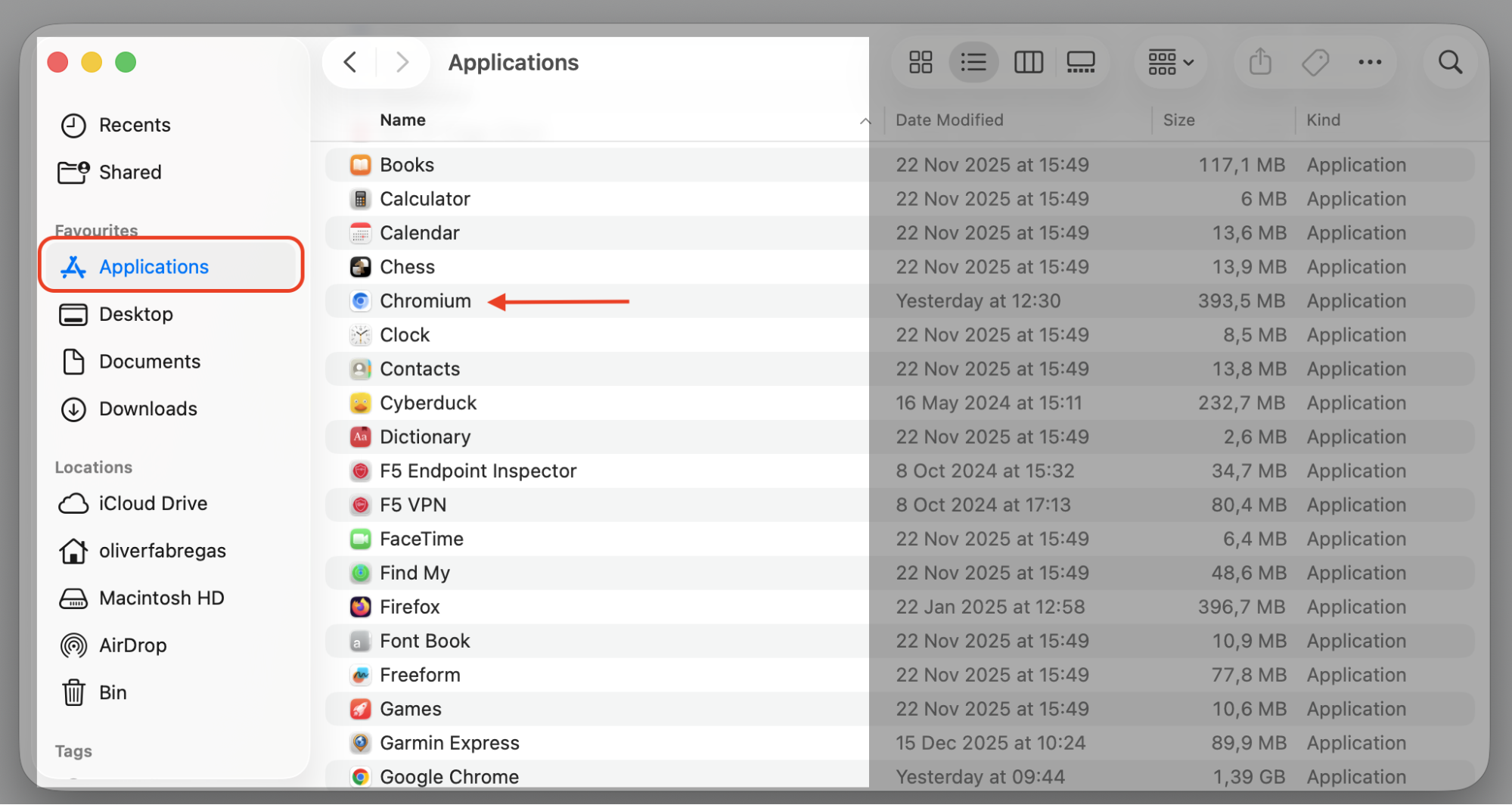
The manual approach works for straightforward cases where Chromium is installed like any other app. You’ll find it in your Applications folder and move it to the Trash. If you’re not sure how to delete apps on Mac using Finder, find a quick walkthrough from us below.
- Open Finder from your Dock.
- Click Applications in the left sidebar.
- Find Chromium in the list.
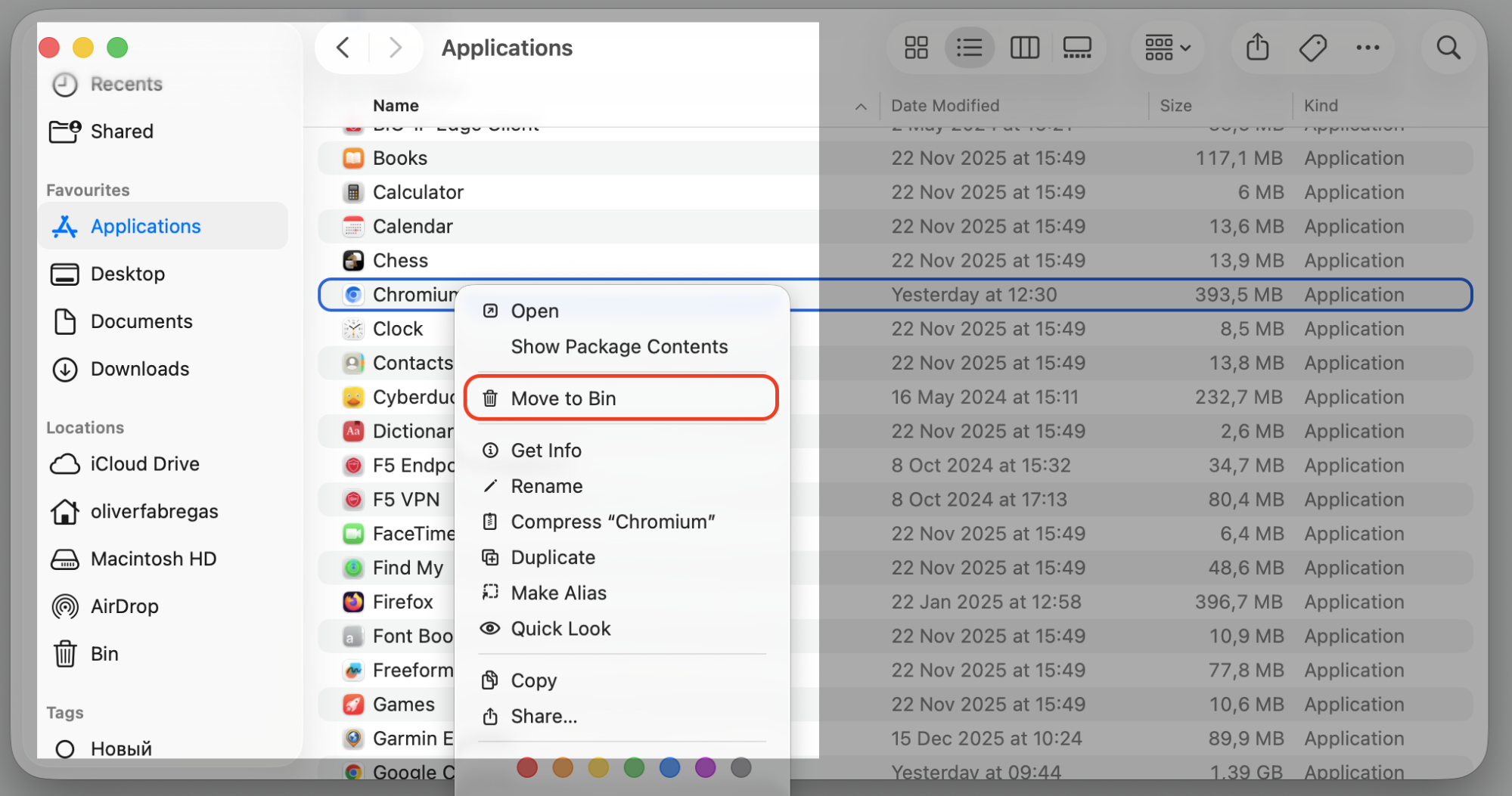
- Control-click it and select Move to Trash.
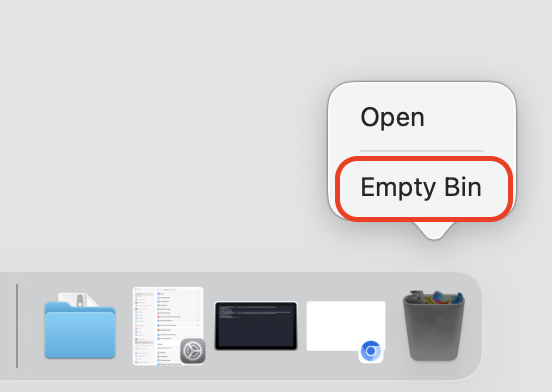
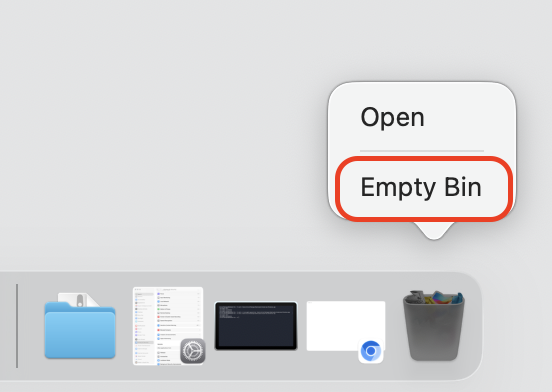
- Open the Trash and click Empty Trash to finish removing it.

A note from our experts:
This method only removes the main app file. Chromium may leave behind preference files, cache data, and other leftover items scattered across your system. To fully clean those up, you’ll want to use a dedicated cleaner app like MacKeeper and its Smart Uninstaller in particular. Below, we’ll cover how to use it.
2. Remove Chromium with a MacKeeper
If you want to make sure every trace of Chromium is gone, MacKeeper’s Smart Uninstaller is the way to go. Instead of hunting for leftover files manually, it finds the app and all its associated data in one place—then lets you remove everything at once. It’s also a great way to manage storage on Mac without digging through folders yourself. To benefit from it, follow our guidelines:
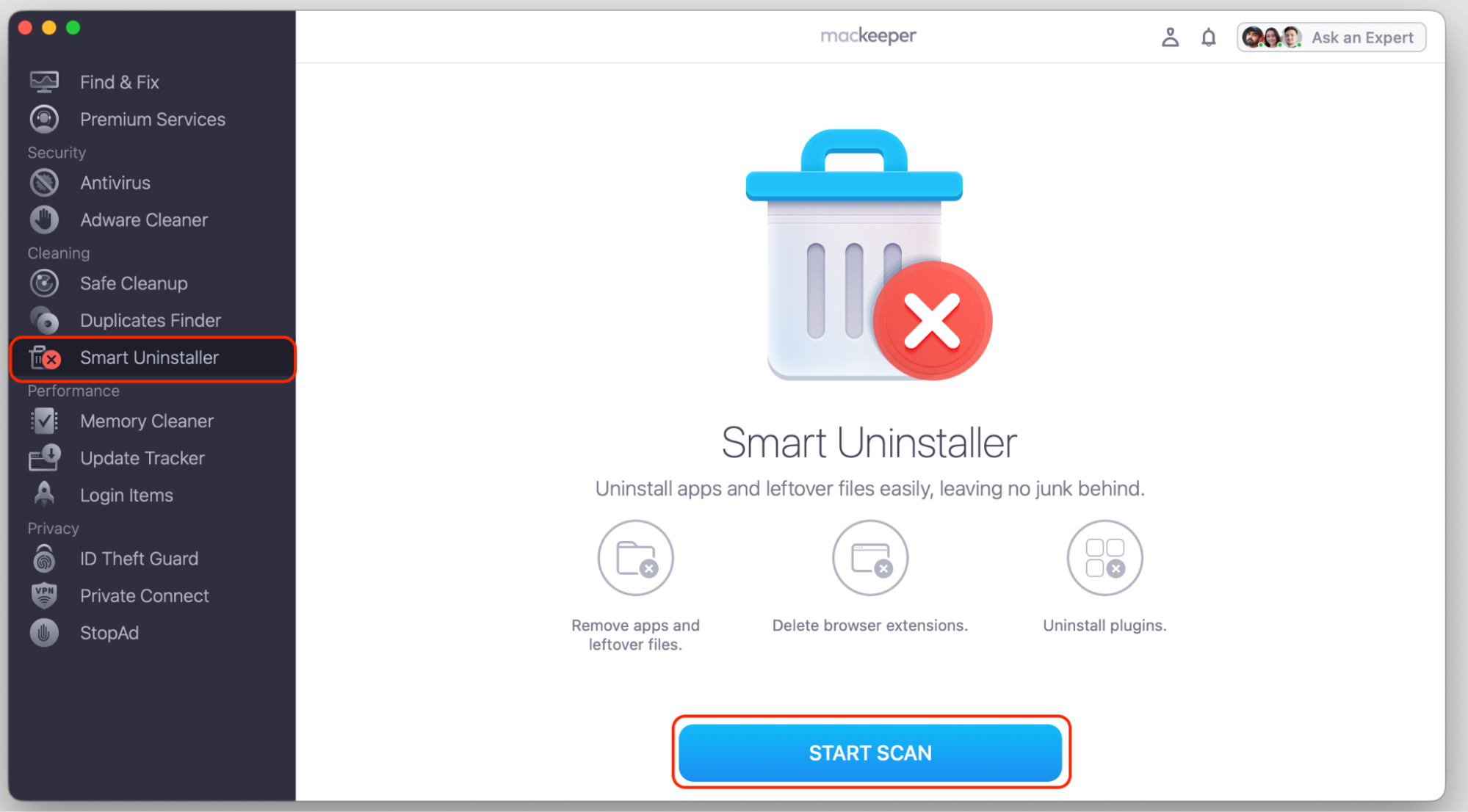
- Open MacKeeper and go to Smart Uninstaller in the left menu.
- Click Start Scan and wait for the scan to complete.
- Find Chromium in the list of installed apps.
- Select it, then click Remove Selected.
- Confirm when prompted. MacKeeper will delete Chromium and all its leftover files.
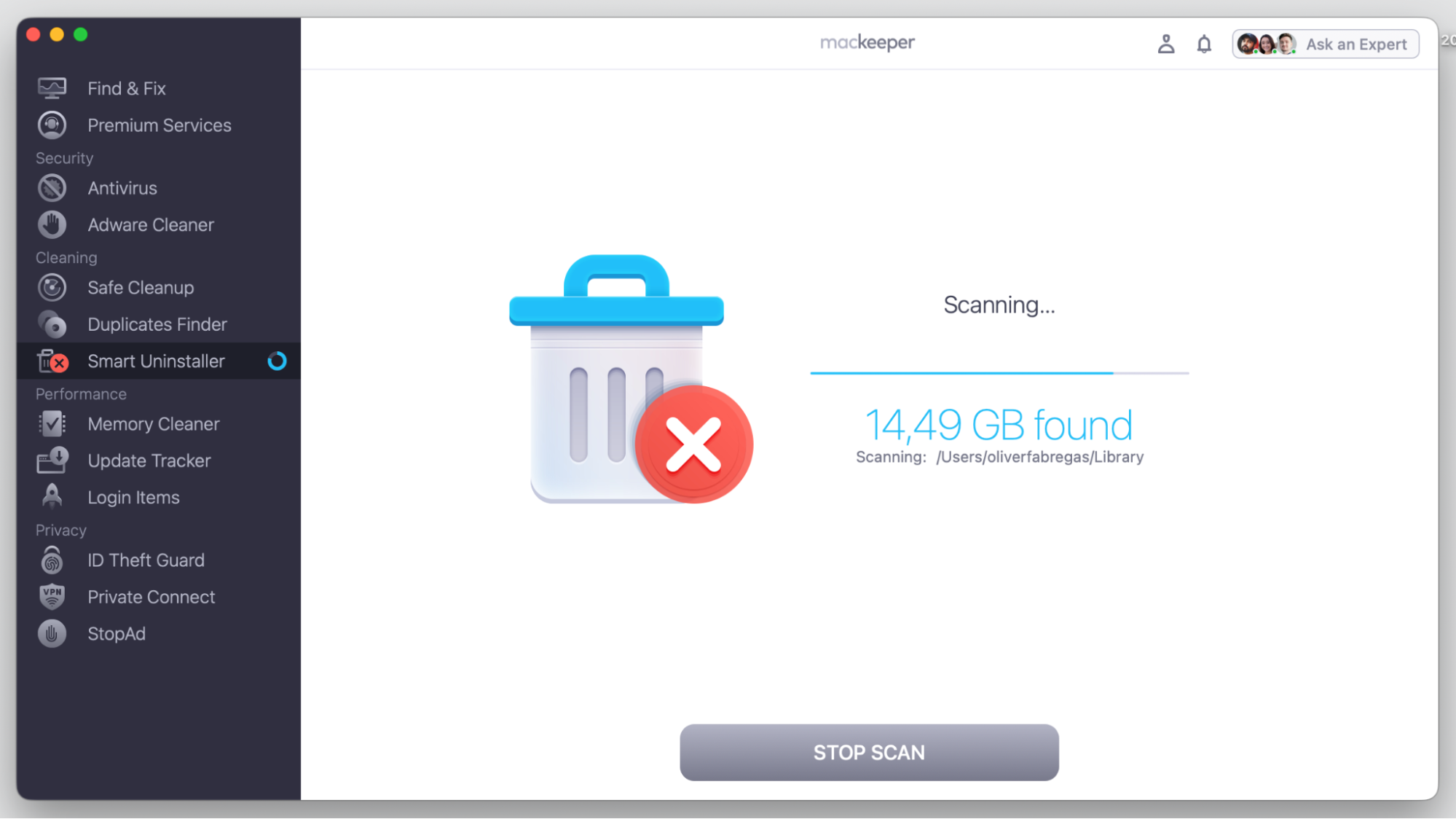
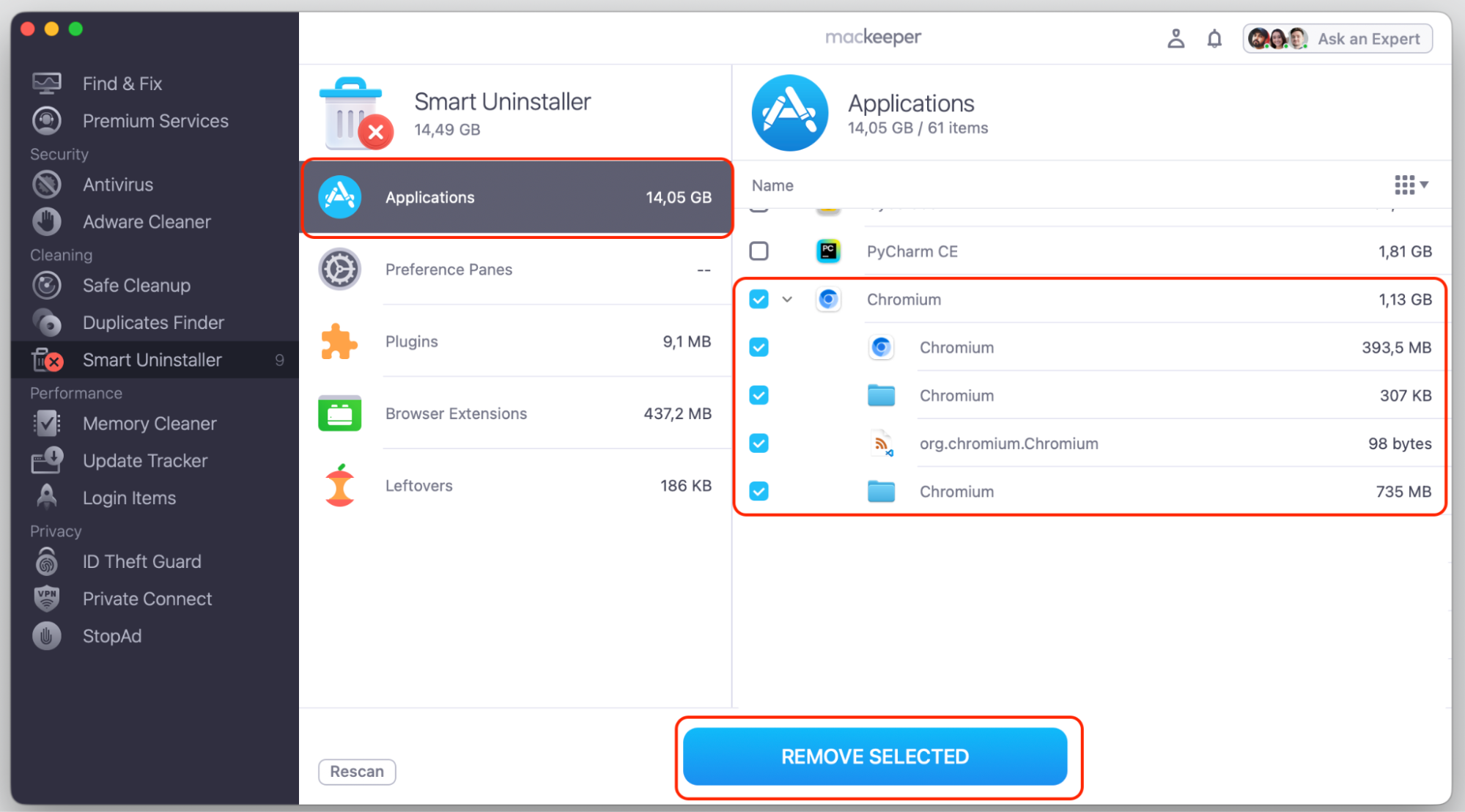

We’re proud to say that MacKeeper’s Smart Uninstaller also works well for removing any other apps that got installed alongside Chromium without your permission.
3. Uninstall Chromium and its components manually
Chromium often arrives bundled with other apps or browser extensions that get installed at the same time. Even after you delete the main browser, those components can stay active and cause the same issues. To find and remove bundled components:
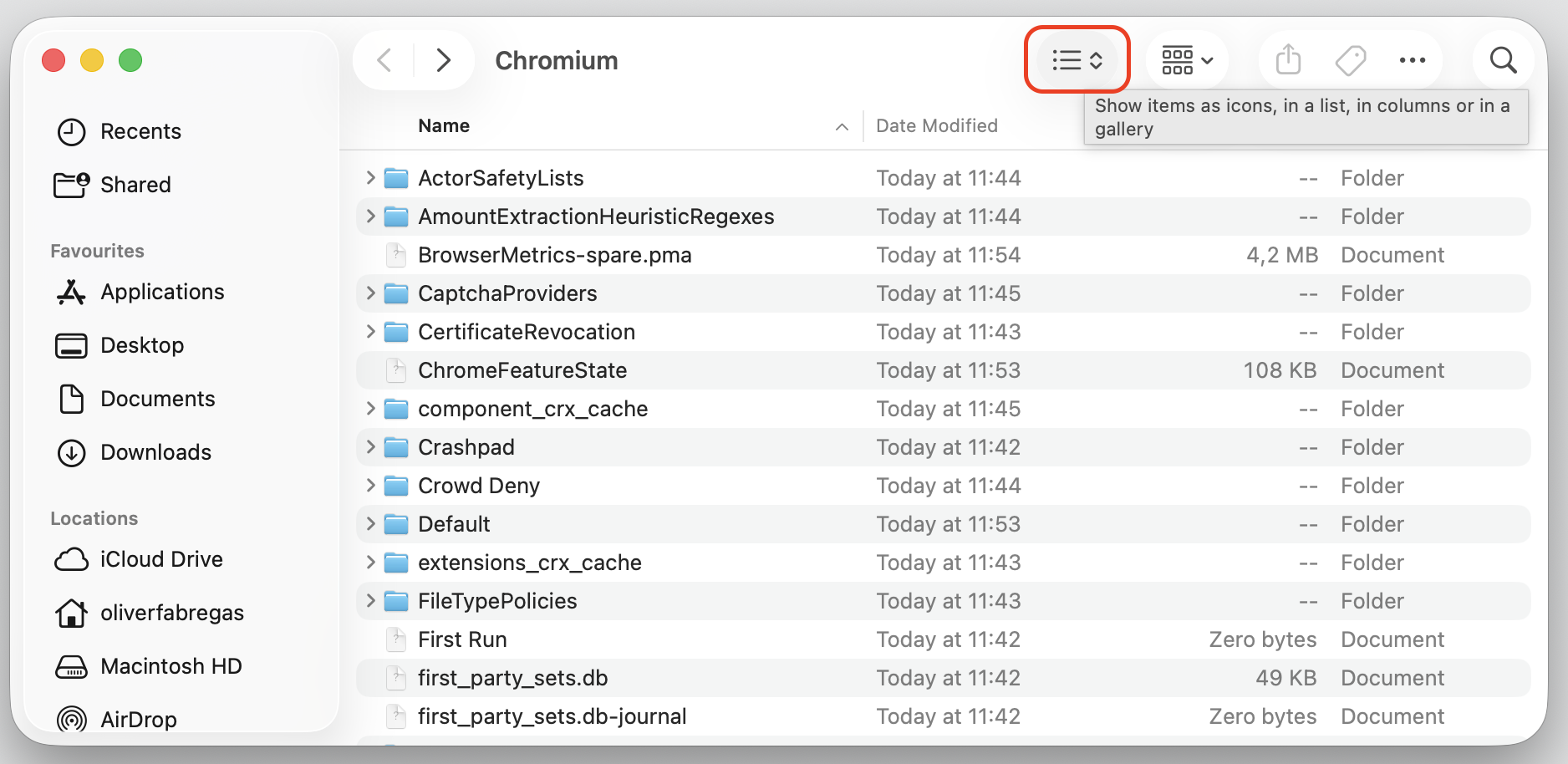
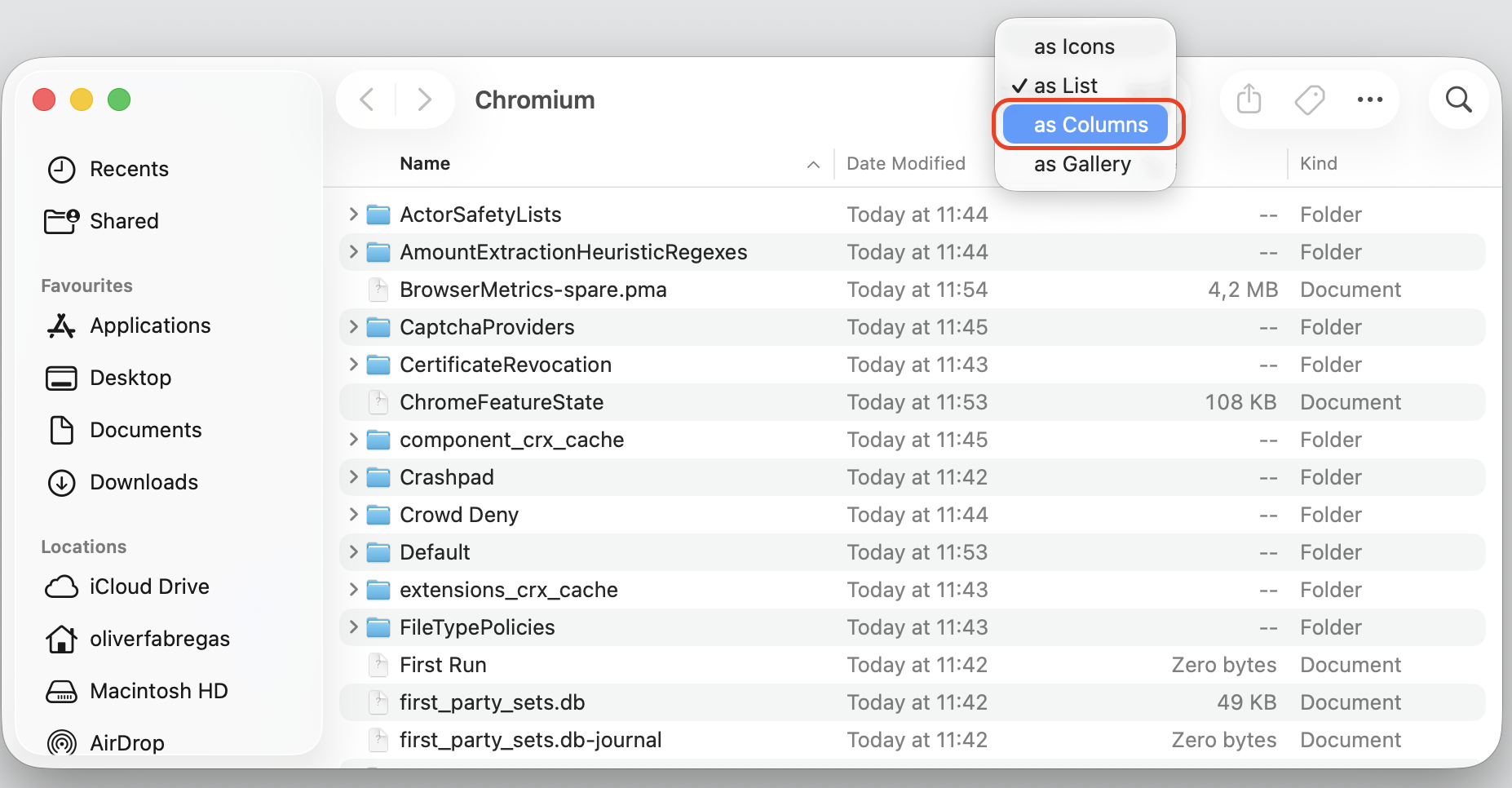
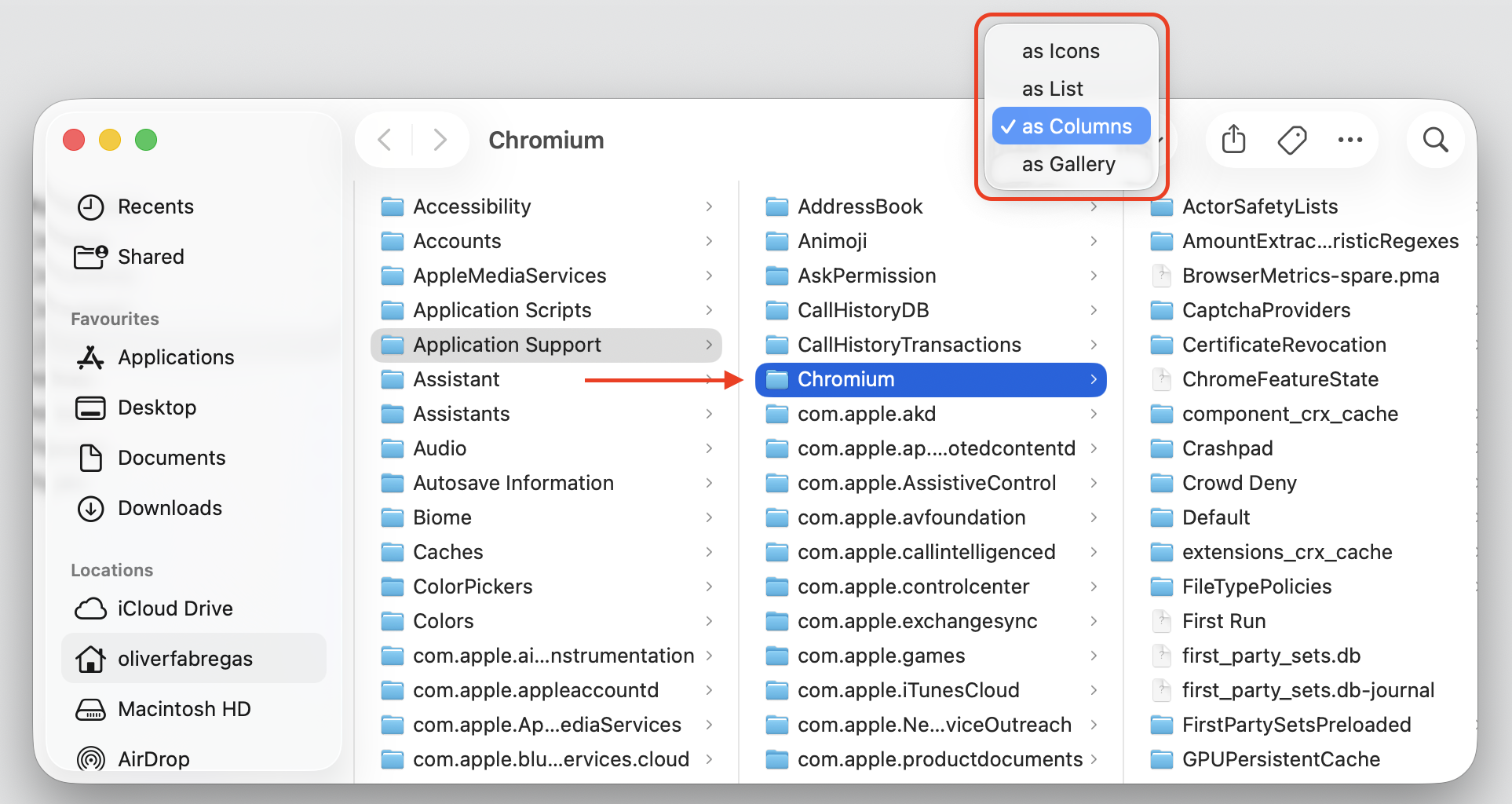
- Open Finder, click Go in the menu bar, and select Go to Folder.
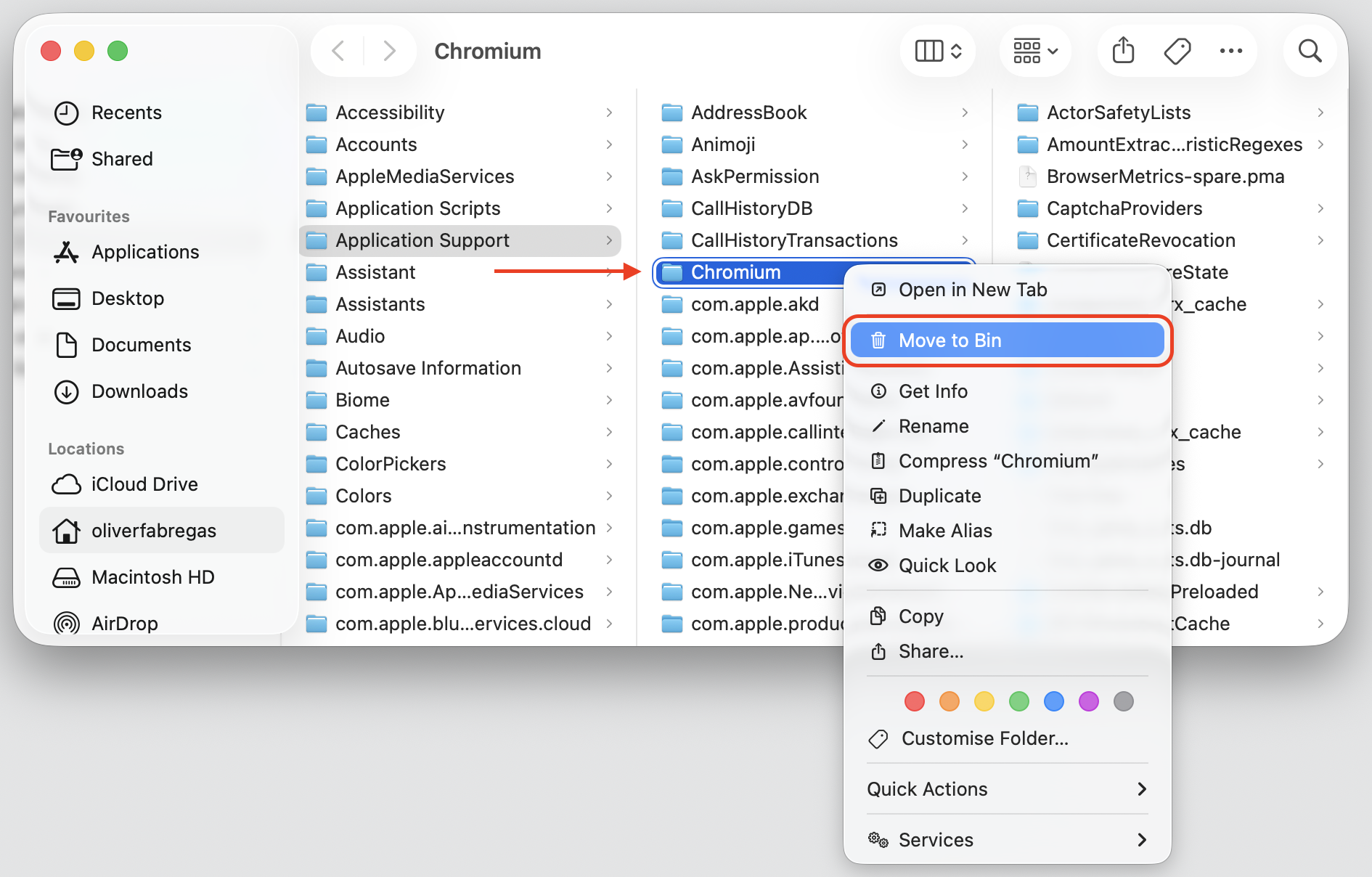
- Check these locations for leftover Chromium files and folders:
- ~/Library/Application Support/Chromium
- ~/Library/Caches/Chromium
- ~/Library/Preferences/org.chromium.*
- Move any suspicious files you find to the Trash, then empty it.
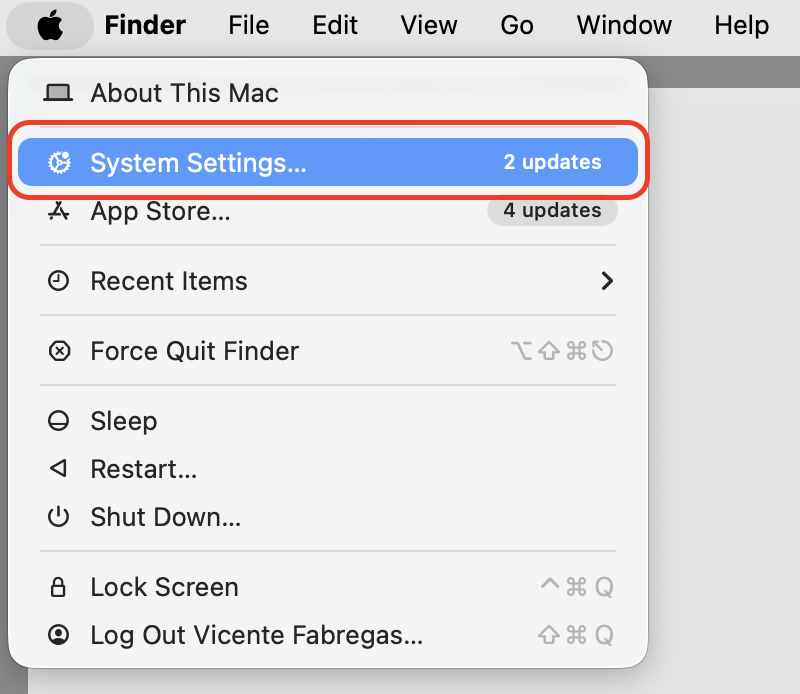
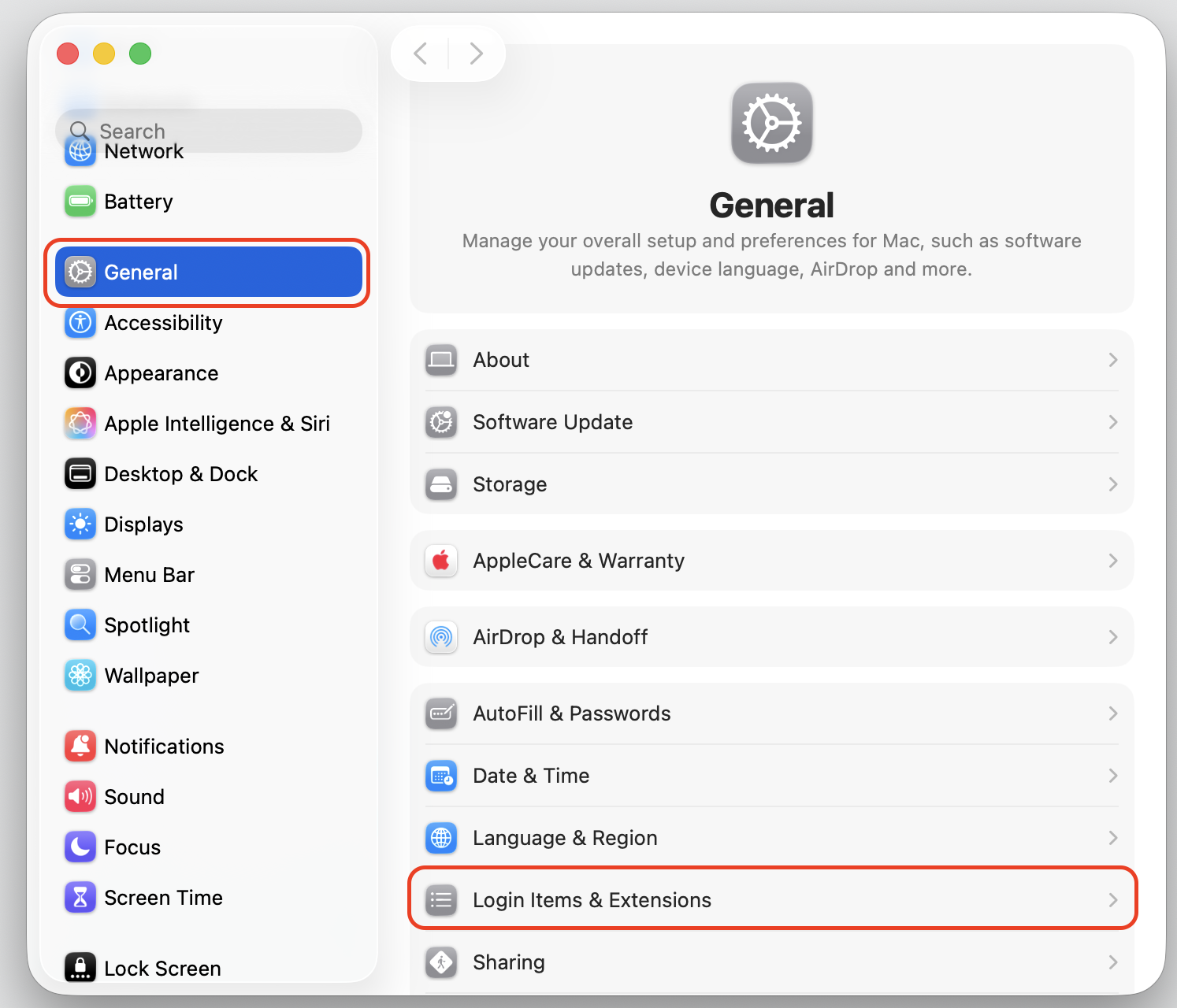
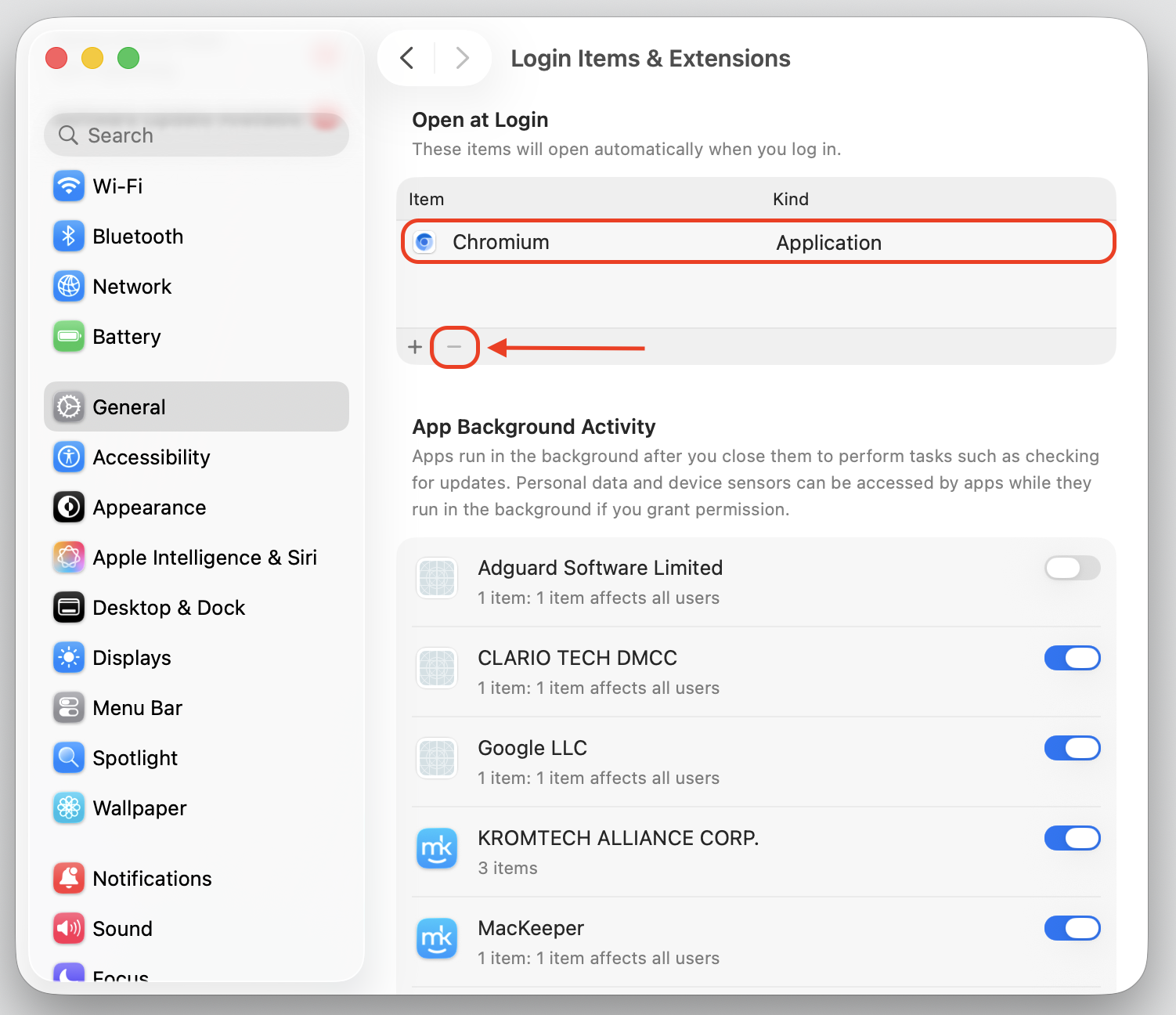
- Open your Mac’s System Settings > General > Login Items and Extensions to see if Chromium or anything related launches automatically at startup. Remove any items you don’t recognize.
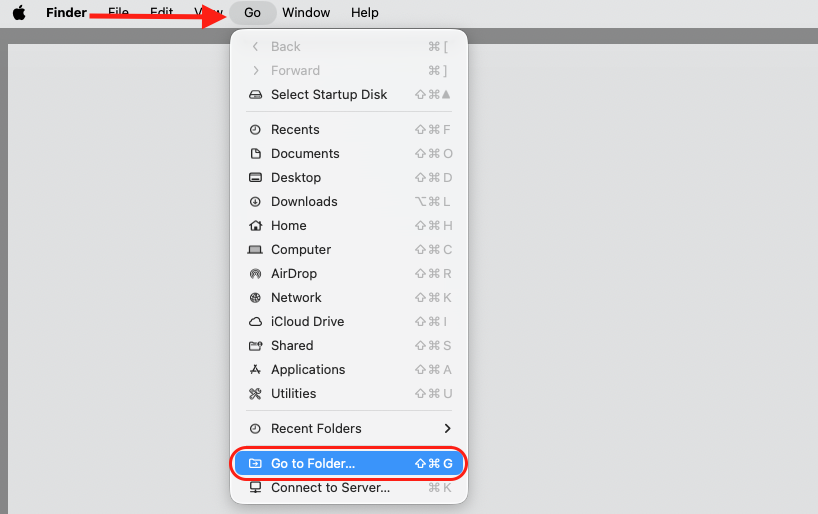
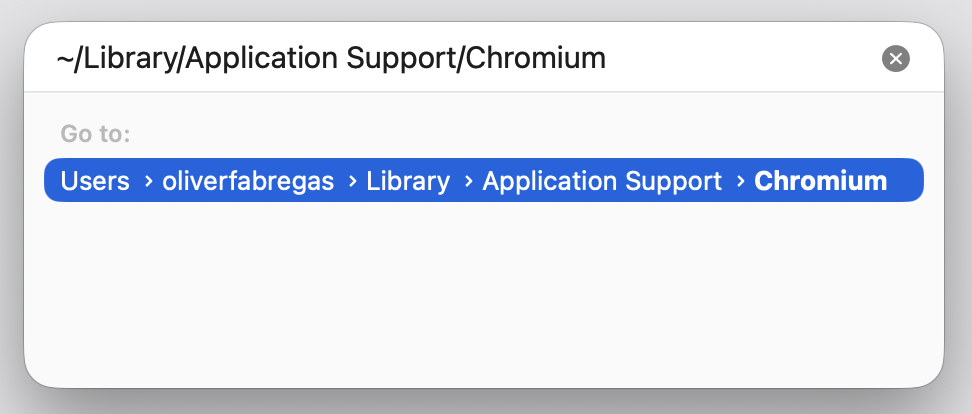
FYI! MacKeeper’s Smart Uninstaller handles all of this automatically, so you don’t have to visit each folder individually. In the table below, you can find out more details on the perks of using our tool vs. the traditional app removal method.
Comparison: Manual removal vs. MacKeeper’s Smart Uninstaller
| Task | Manual (Finder) | MacKeeper Smart Uninstaller |
| Remove the app | ✓ Yes | ✓ Yes |
| Delete leftover files and cache | ✗ Manual only | ✓ Automatic |
| Find bundled components | ✗ Hard to find | ✓ Scans for all |
| Safe for personal files | ✓ Yes (if careful) | ✓ Yes, always |
| Time required | 10–20 minutes | Under 2 minutes |
4. Get rid of Chromium from browsers
Chromium malware can also embed itself into your existing browsers by adding extensions, changing your homepage, or modifying search settings. To fully remove malware from browser on Mac, you’ll need to clean each browser you use.
4.1. Safari
If you use Safari and notice unusual behavior—like a new search engine or unwanted extensions—it’s worth doing a full cleanup. From our experience, the most thorough option is to reset Safari on Mac, which clears your history, cache, and saved settings in one step.
To remove suspicious extensions and restore your settings:
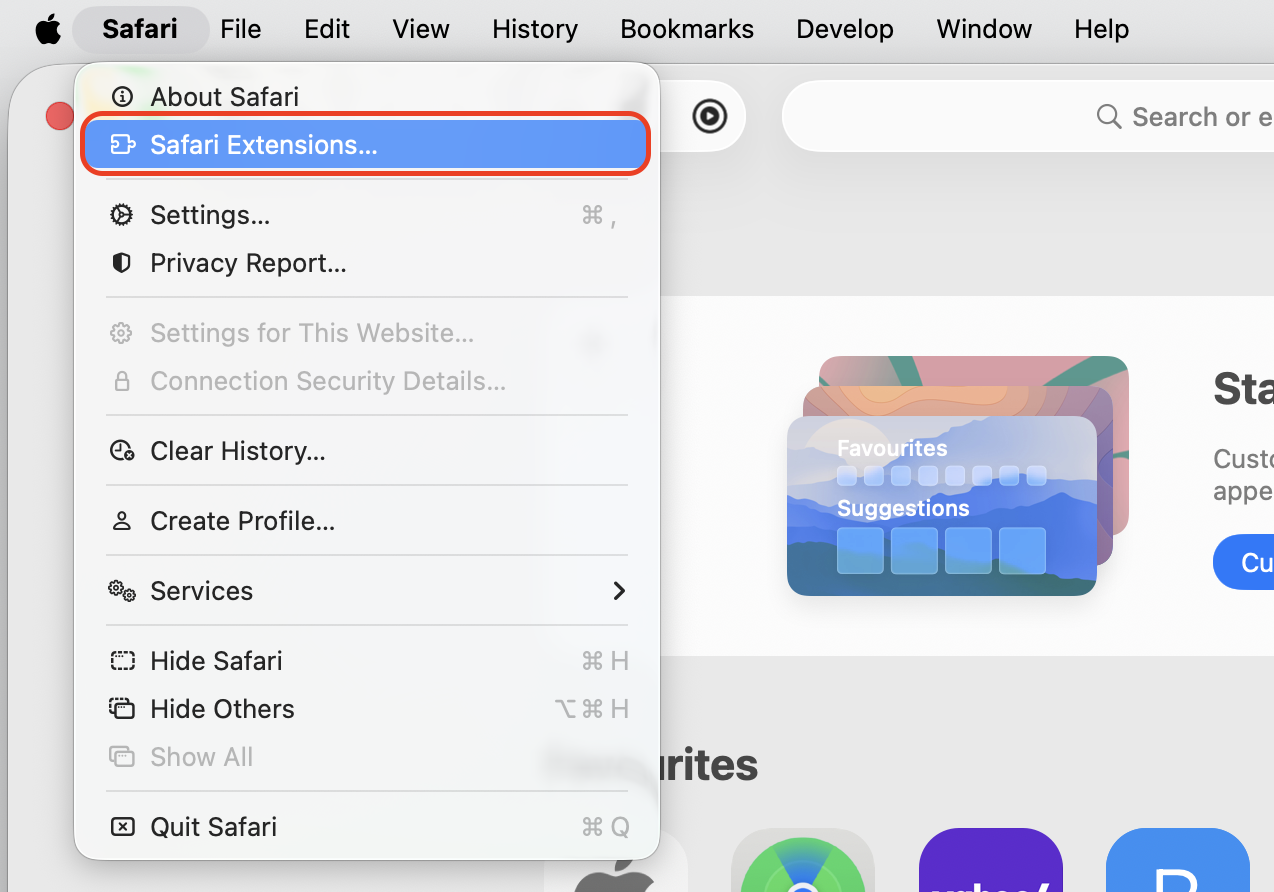
- Open Safari and go to Safari > Safari extensions.
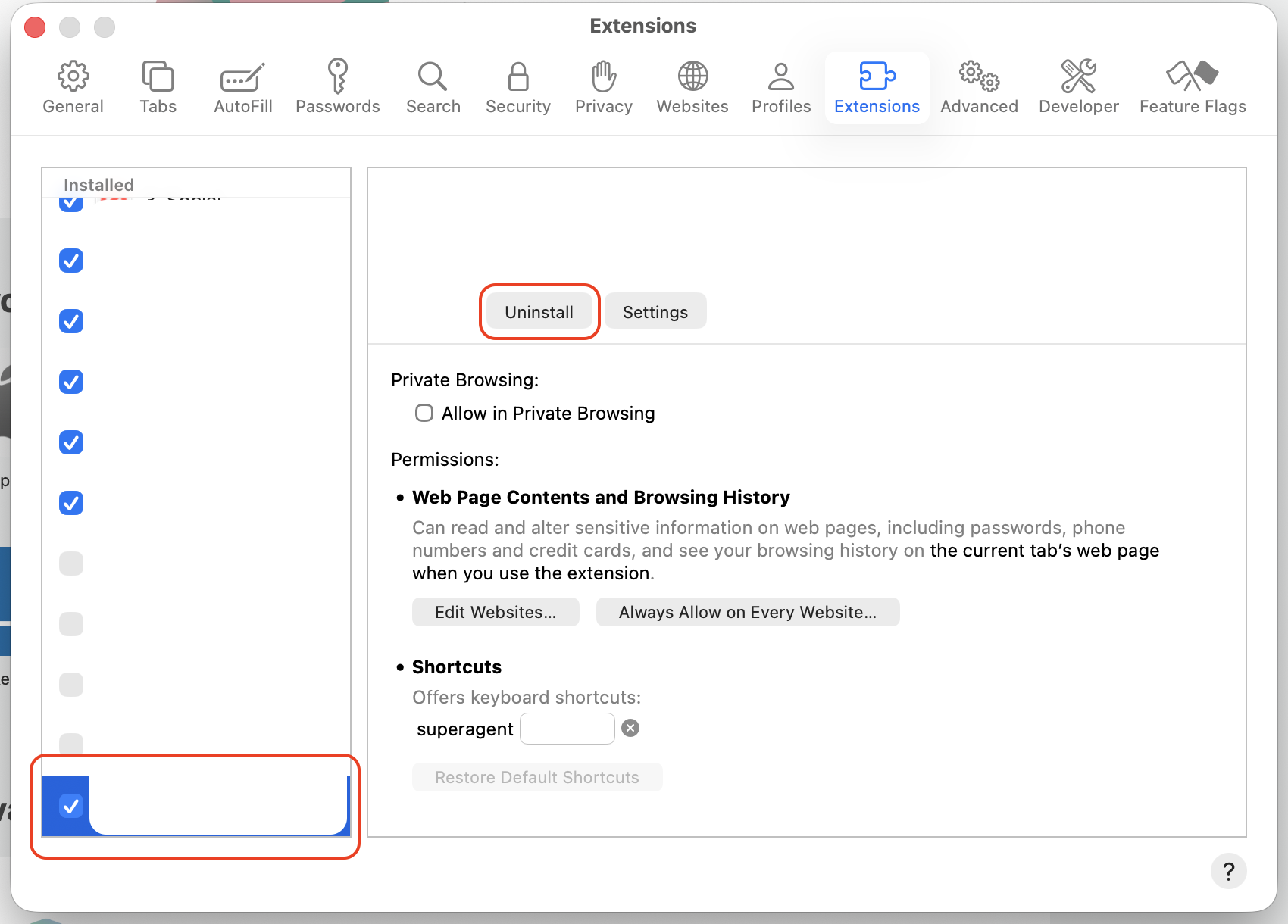
- Click the Extensions tab and look for anything unfamiliar.
- Select any suspicious extension and click Uninstall.
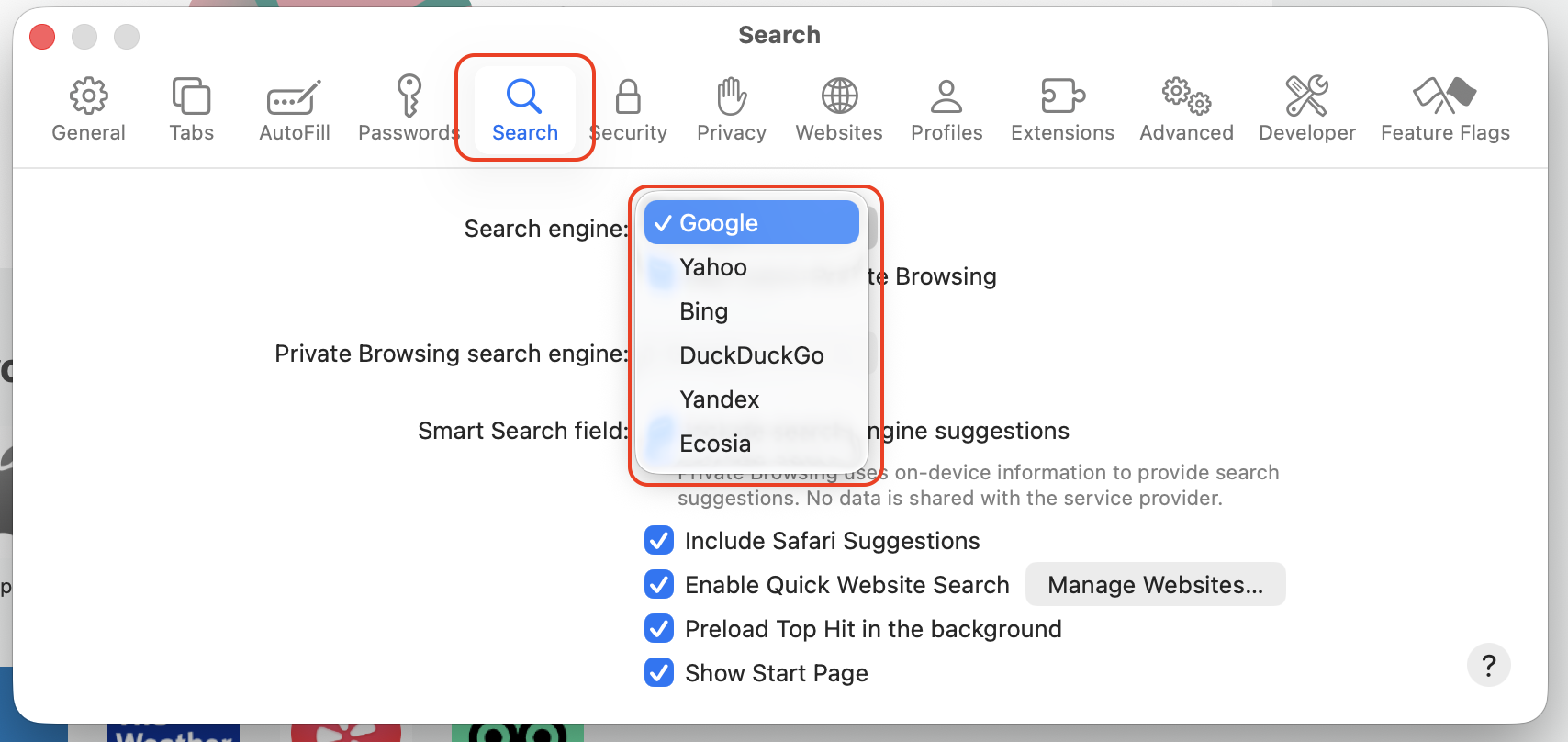
- Go to the Search tab and set your preferred search engine.
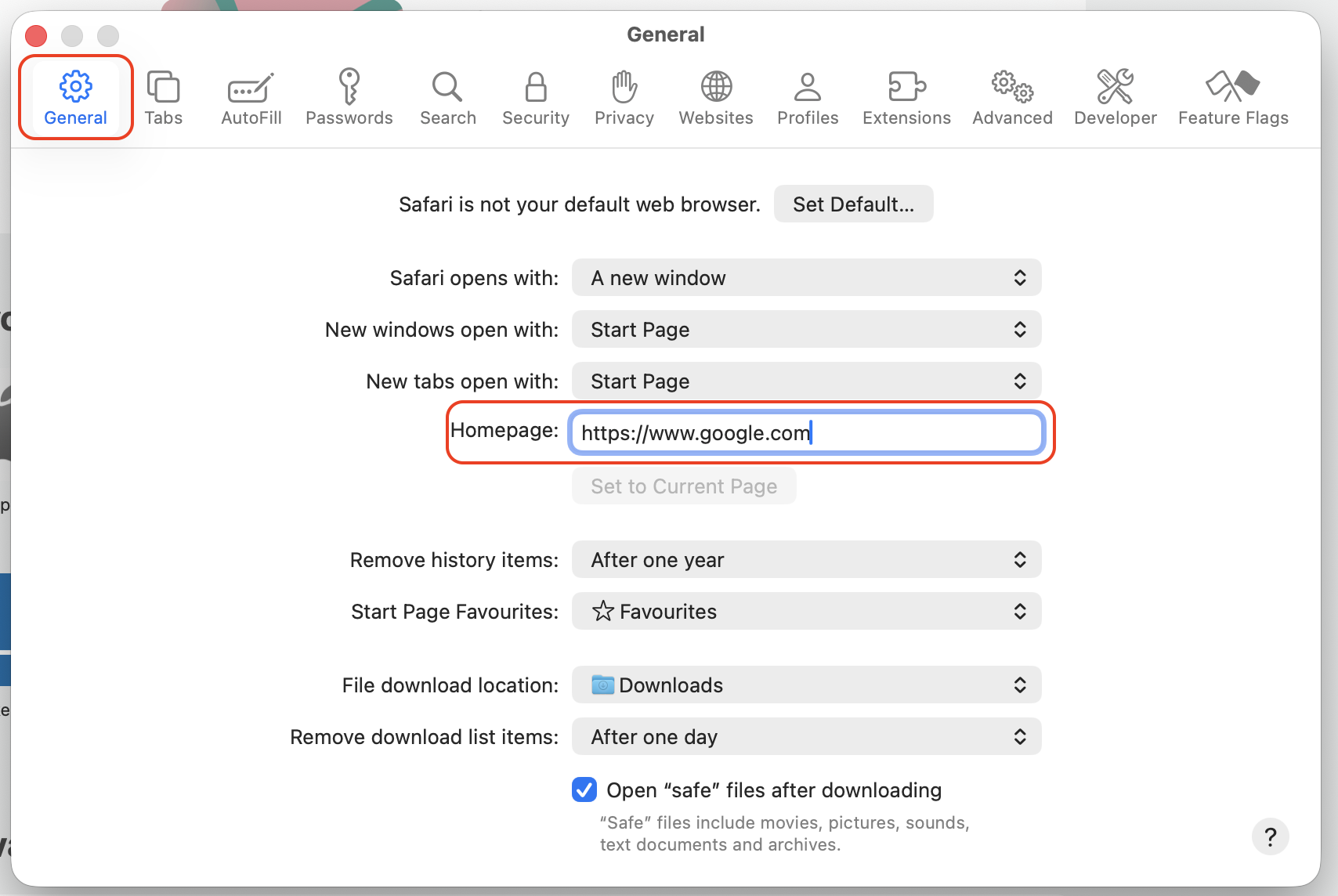
- Go to the General tab and confirm your homepage is set correctly.
4.2. Chrome
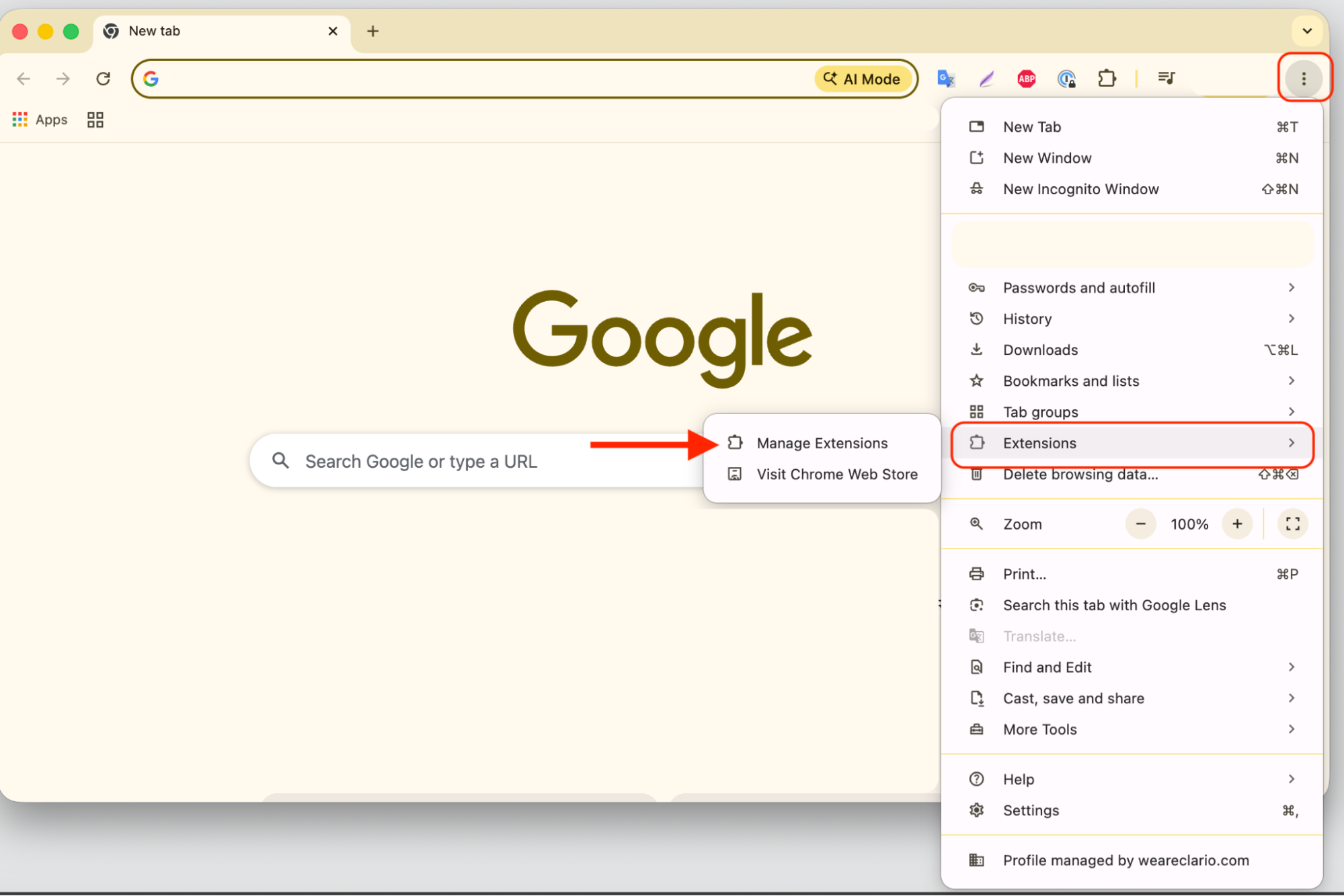
Chromium can interfere with your Chrome browser by installing extensions or changing its settings. Before making changes, close Chrome on Mac completely, then reopen it to start fresh. After that, do the following:
- Open Chrome and go to the three-dot menu in the top right.
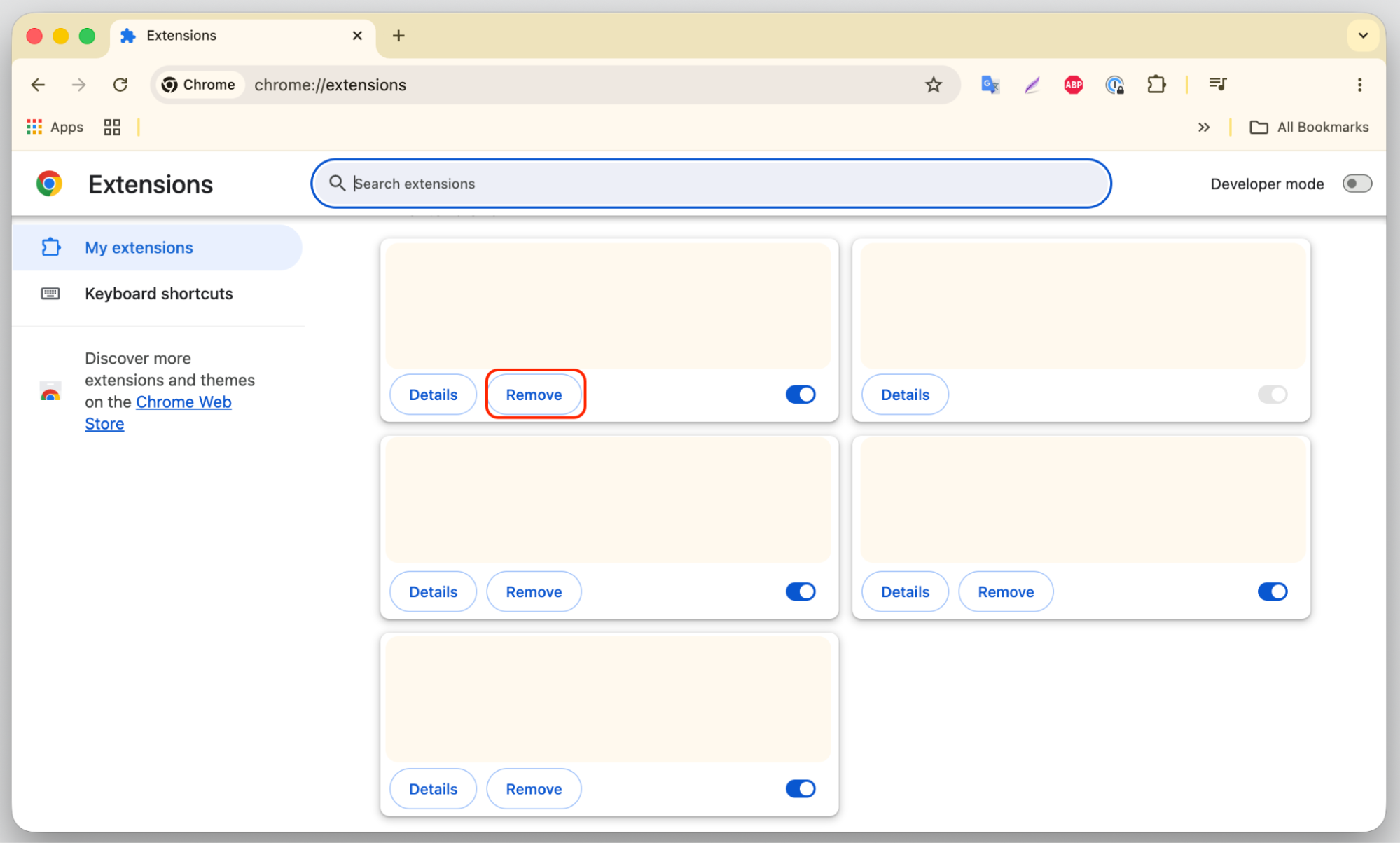
- Select Extensions > Manage Extensions.
- Remove any extensions you don’t recognize by clicking Remove.
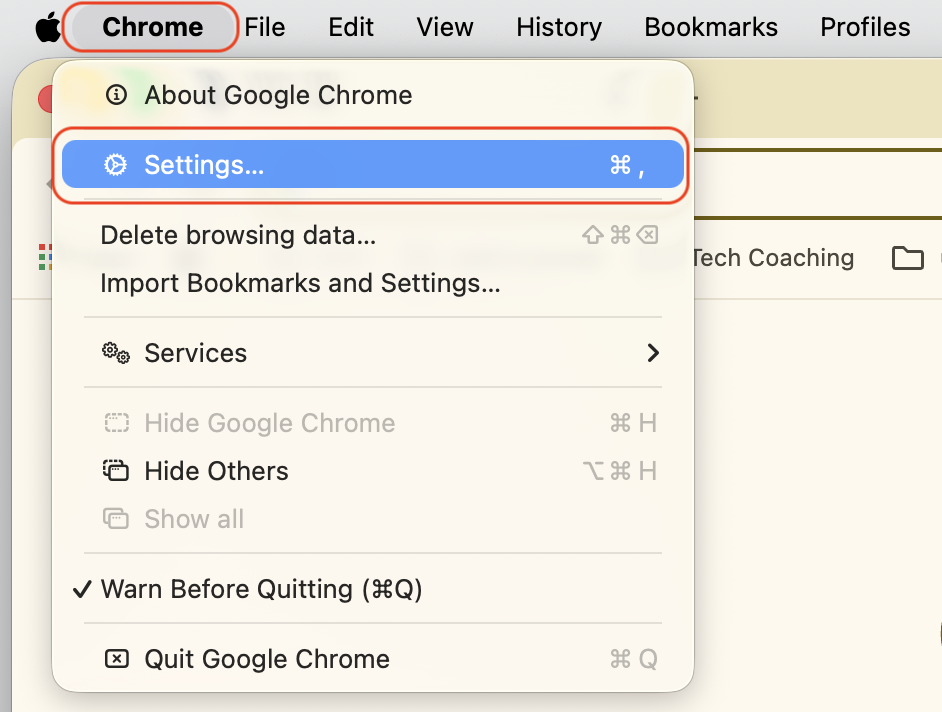
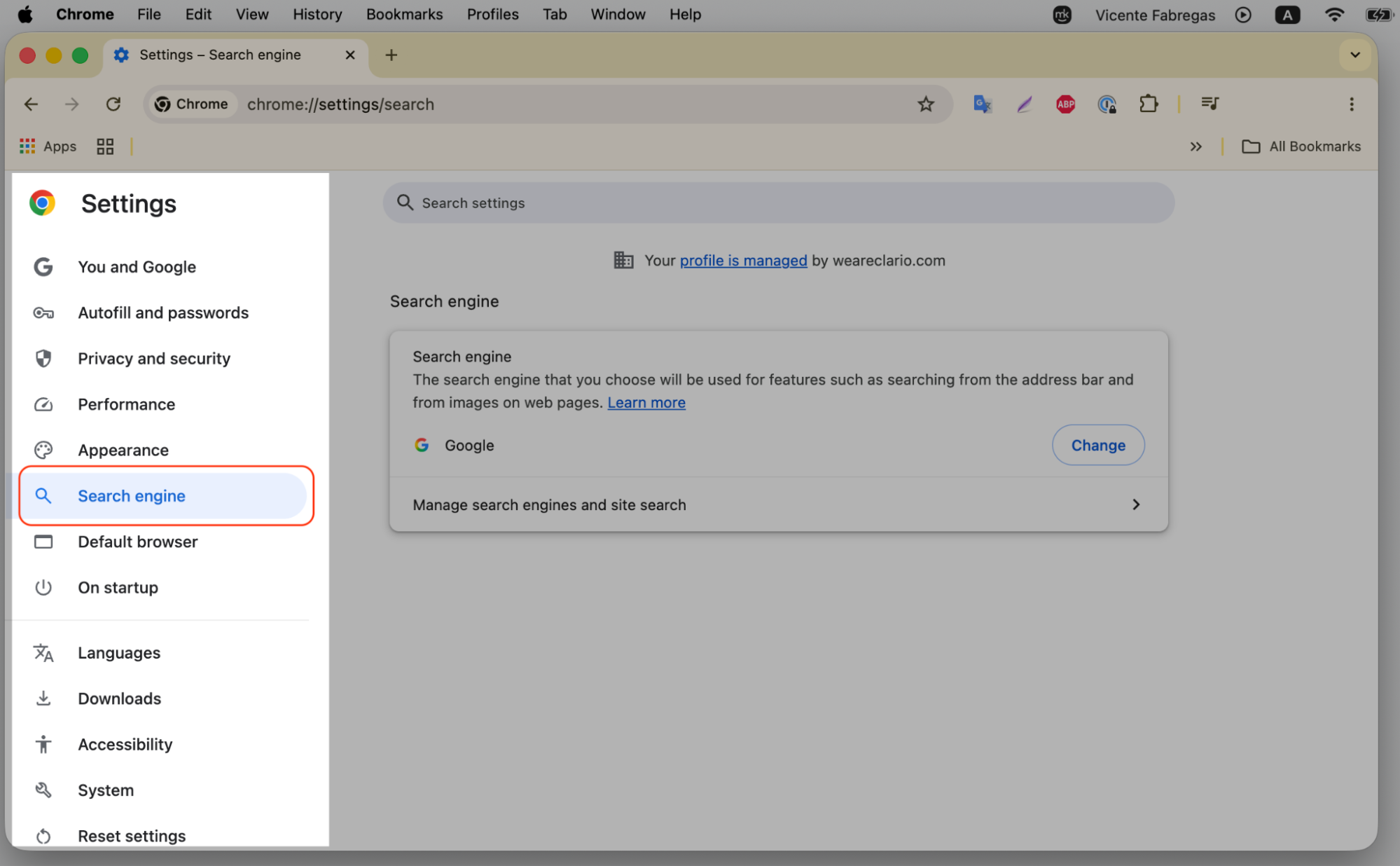
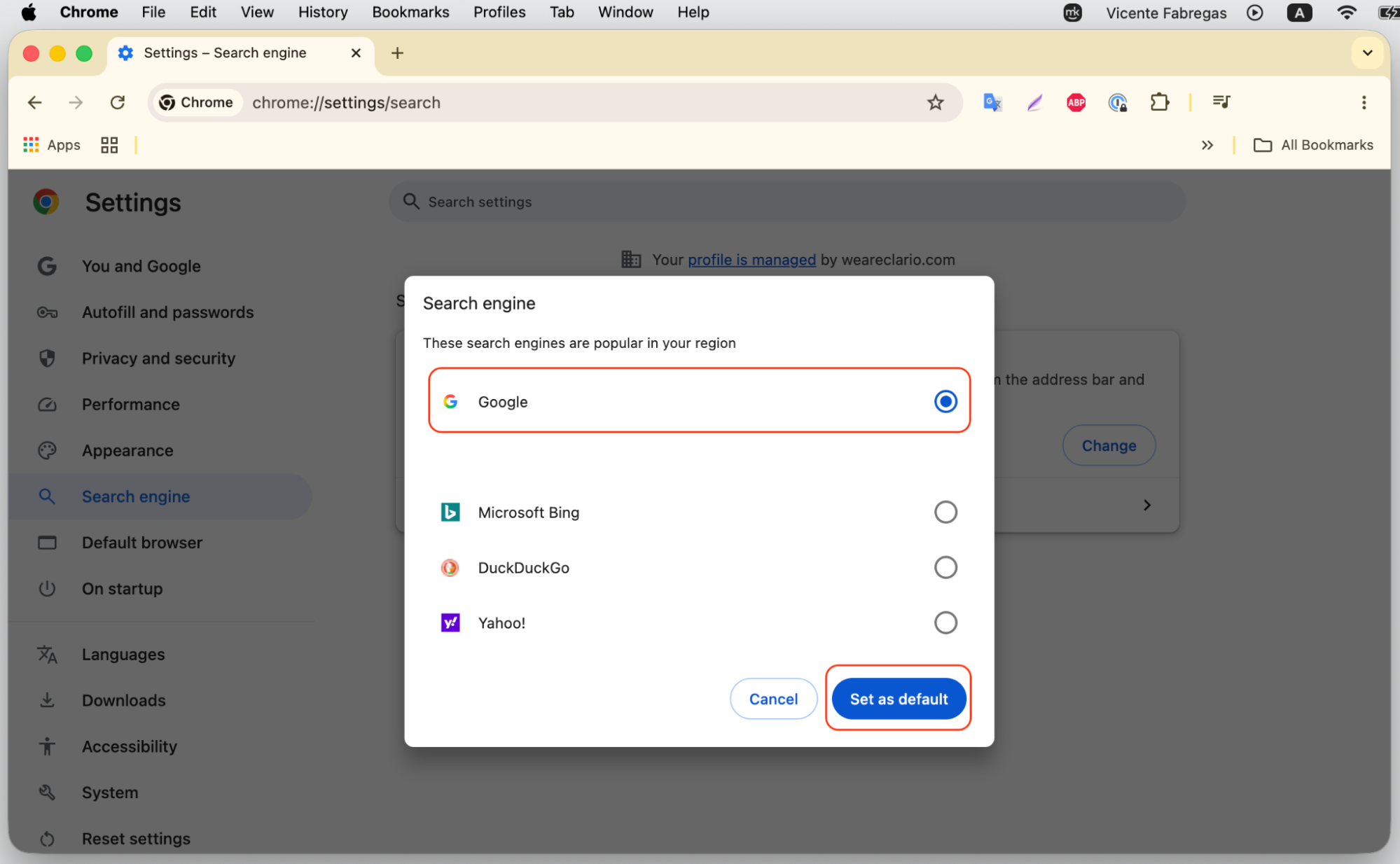
- Go to Chrome Settings > Search engine and set it back to your preferred search engine.
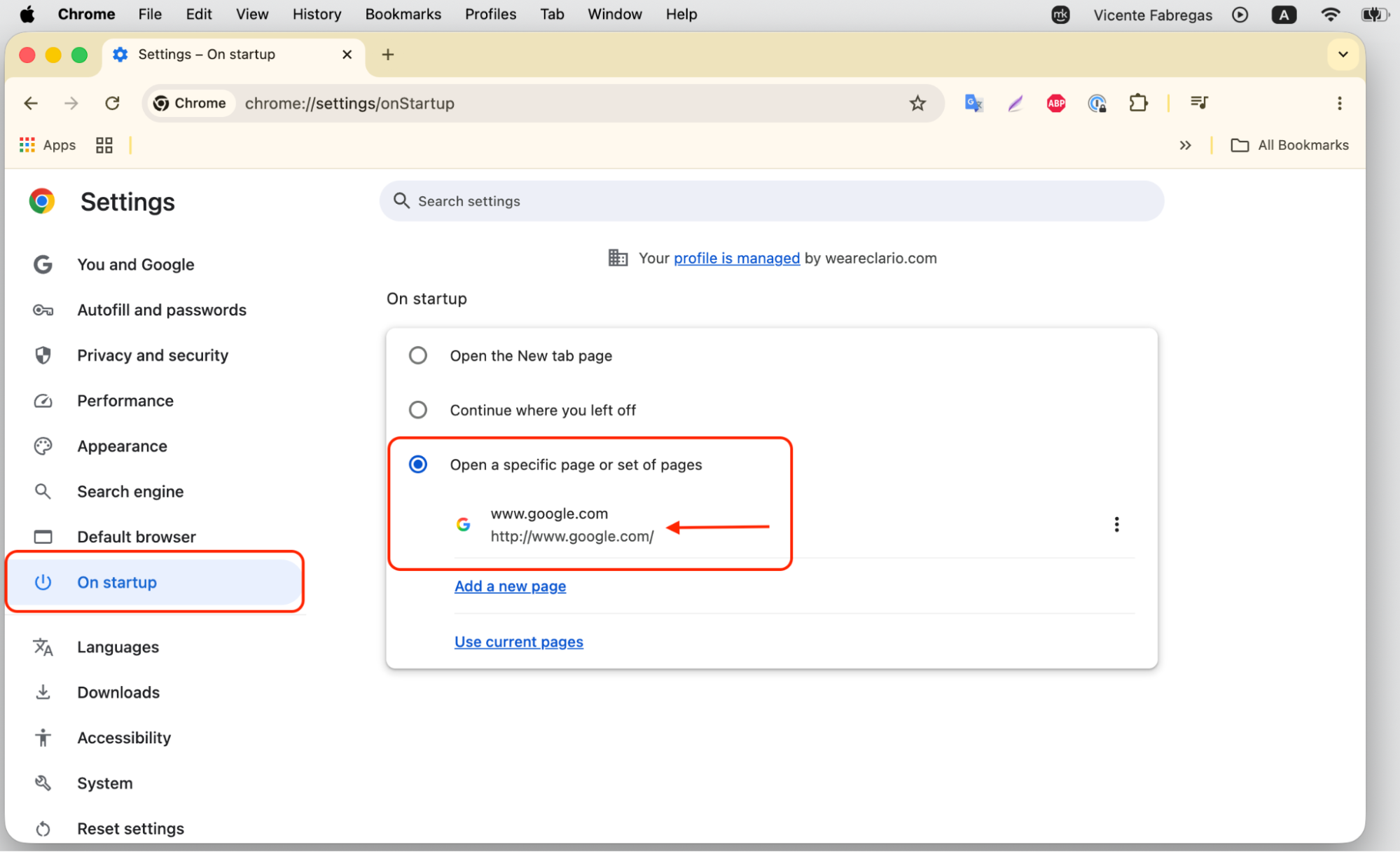
- Go to Chrome Settings > On startup and check that your homepage hasn’t changed.
4.3. Firefox
If Firefox is behaving strangely after Chromium showed up on your Mac, a few quick changes can restore it to normal. Here’s what to do:
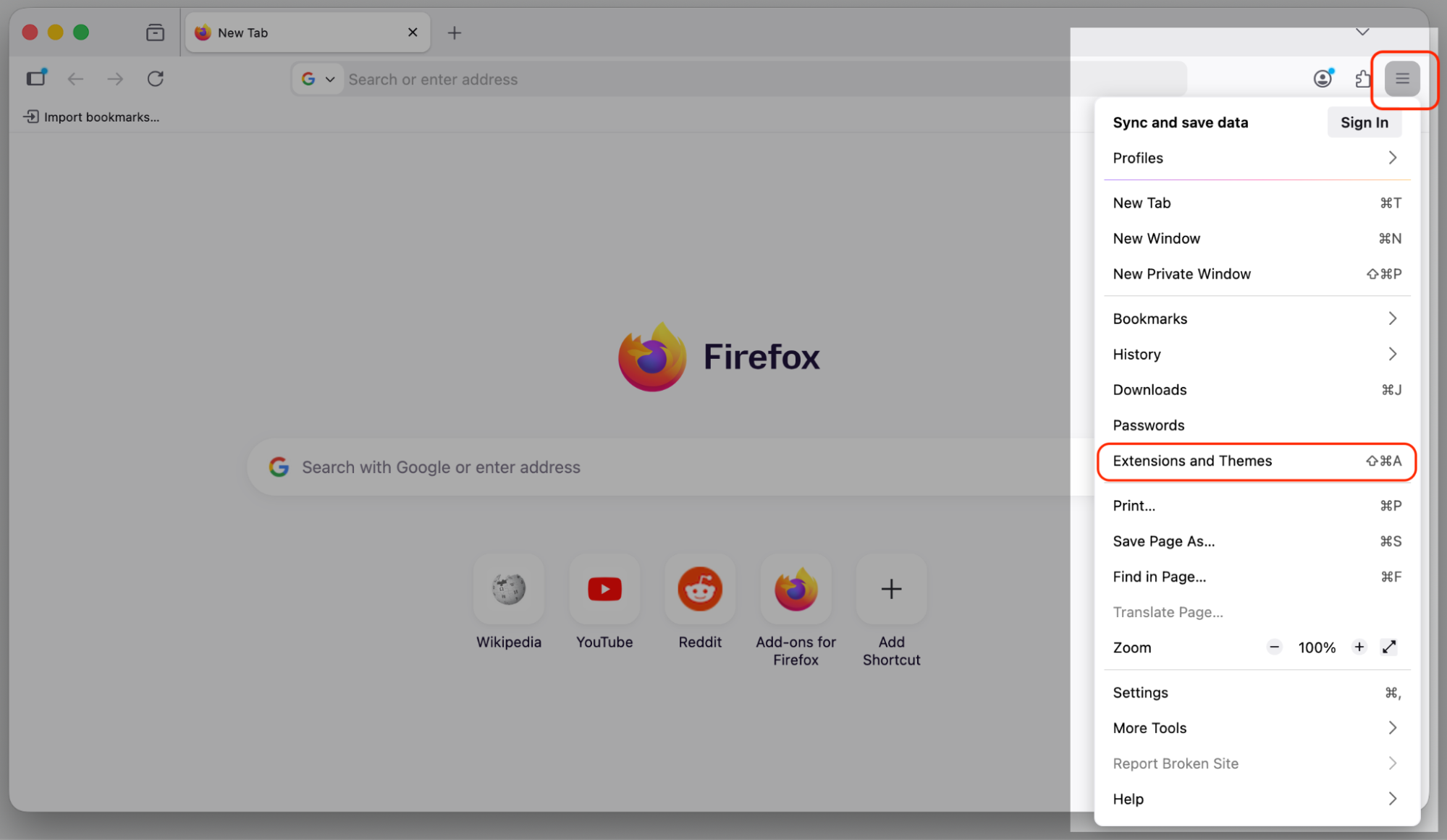
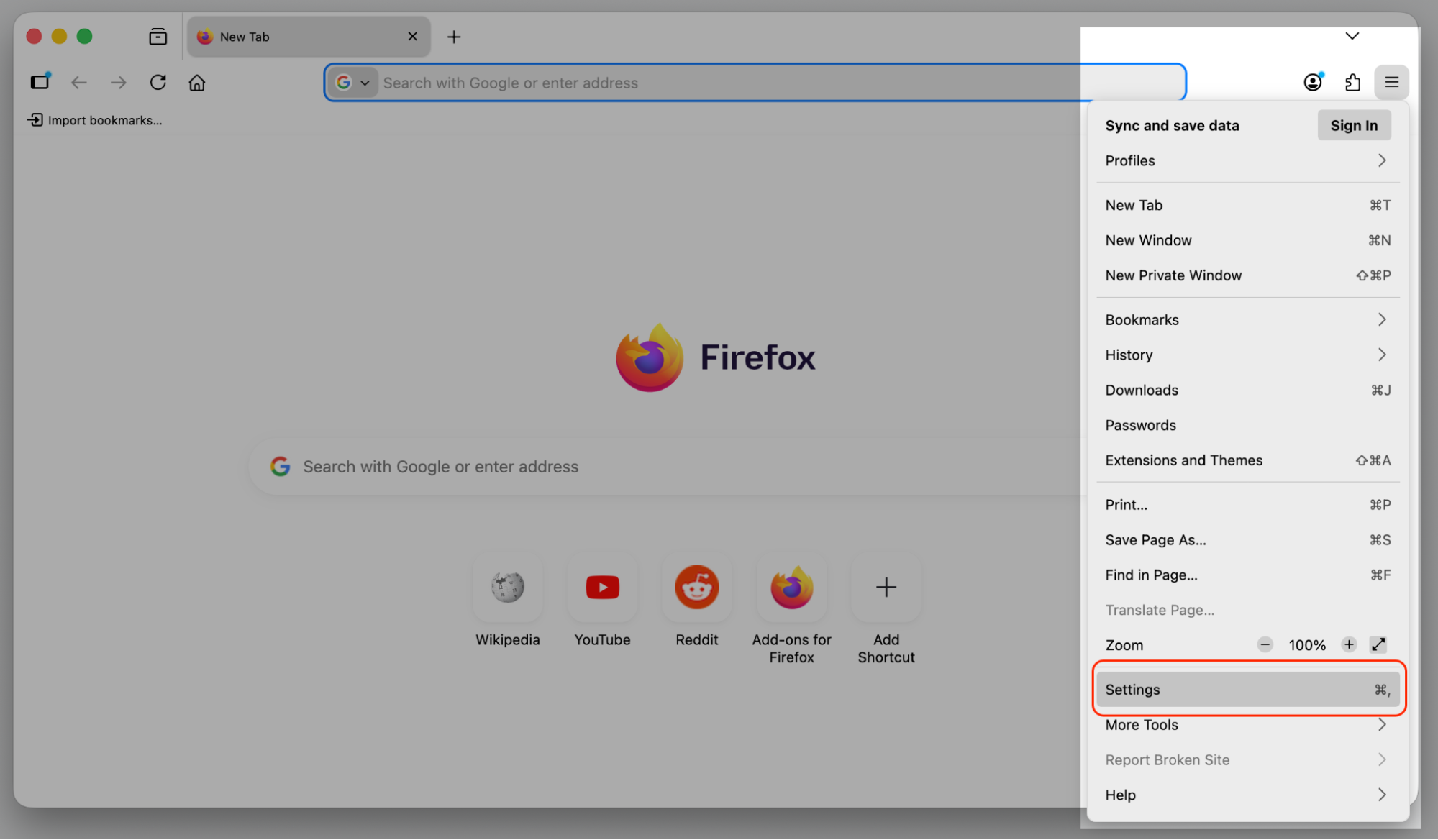
- Open Firefox and click the menu button (three horizontal lines) in the top right.
- Select Extensions and Theme, then go to Extensions.
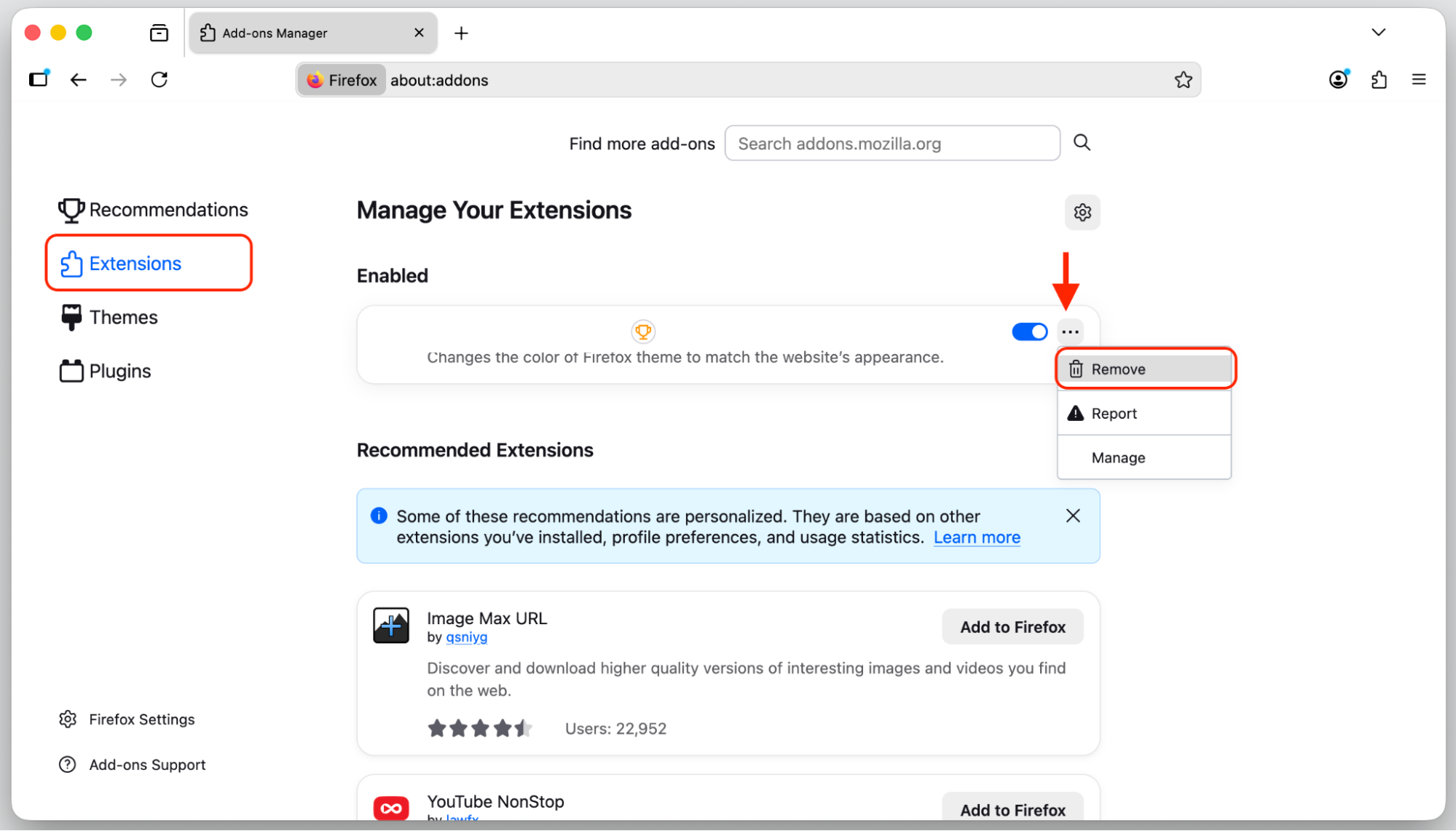
- Review the list and remove any extension you don’t recognize.
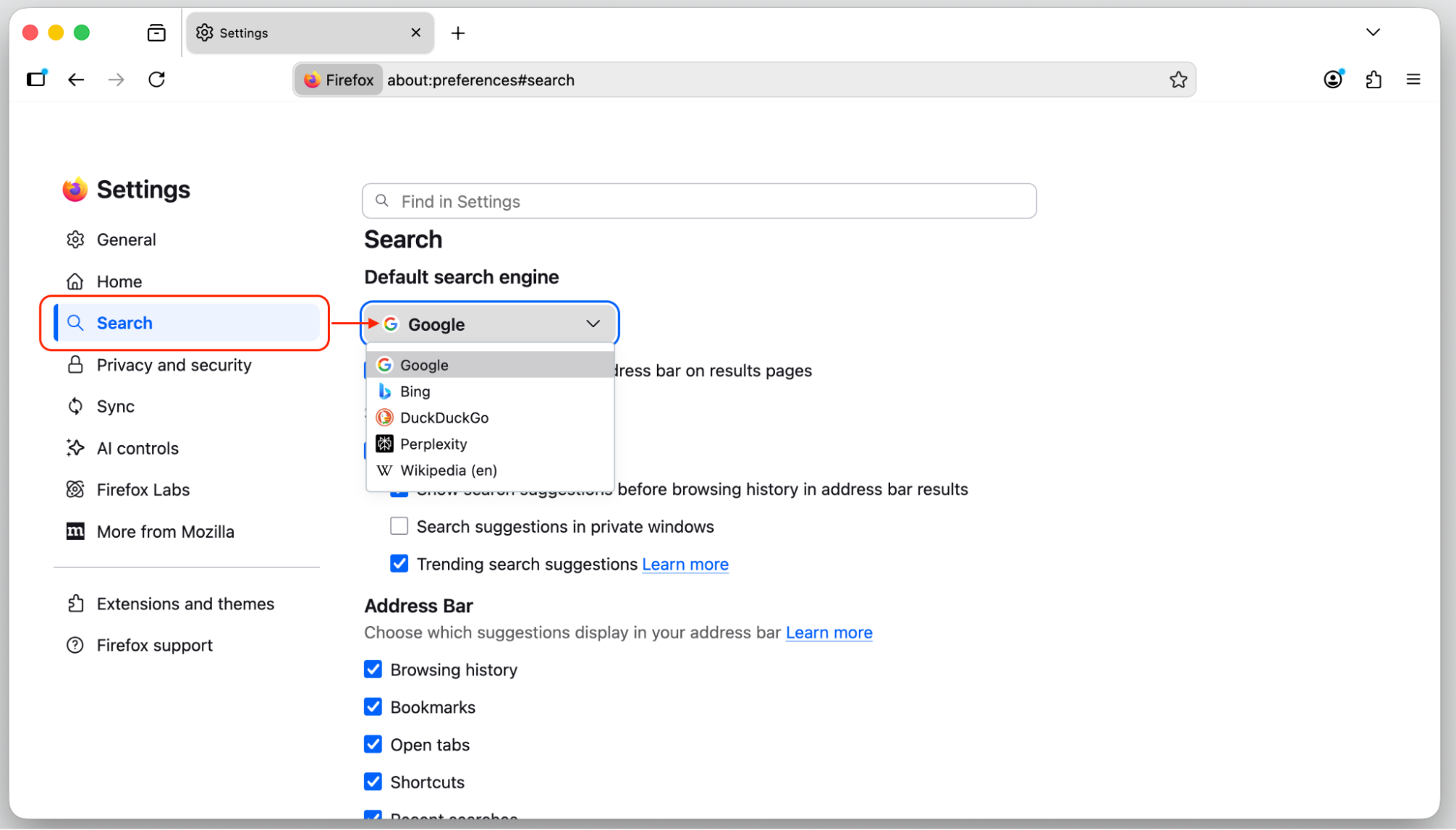
- Go to Settings > Search and restore your preferred search engine.
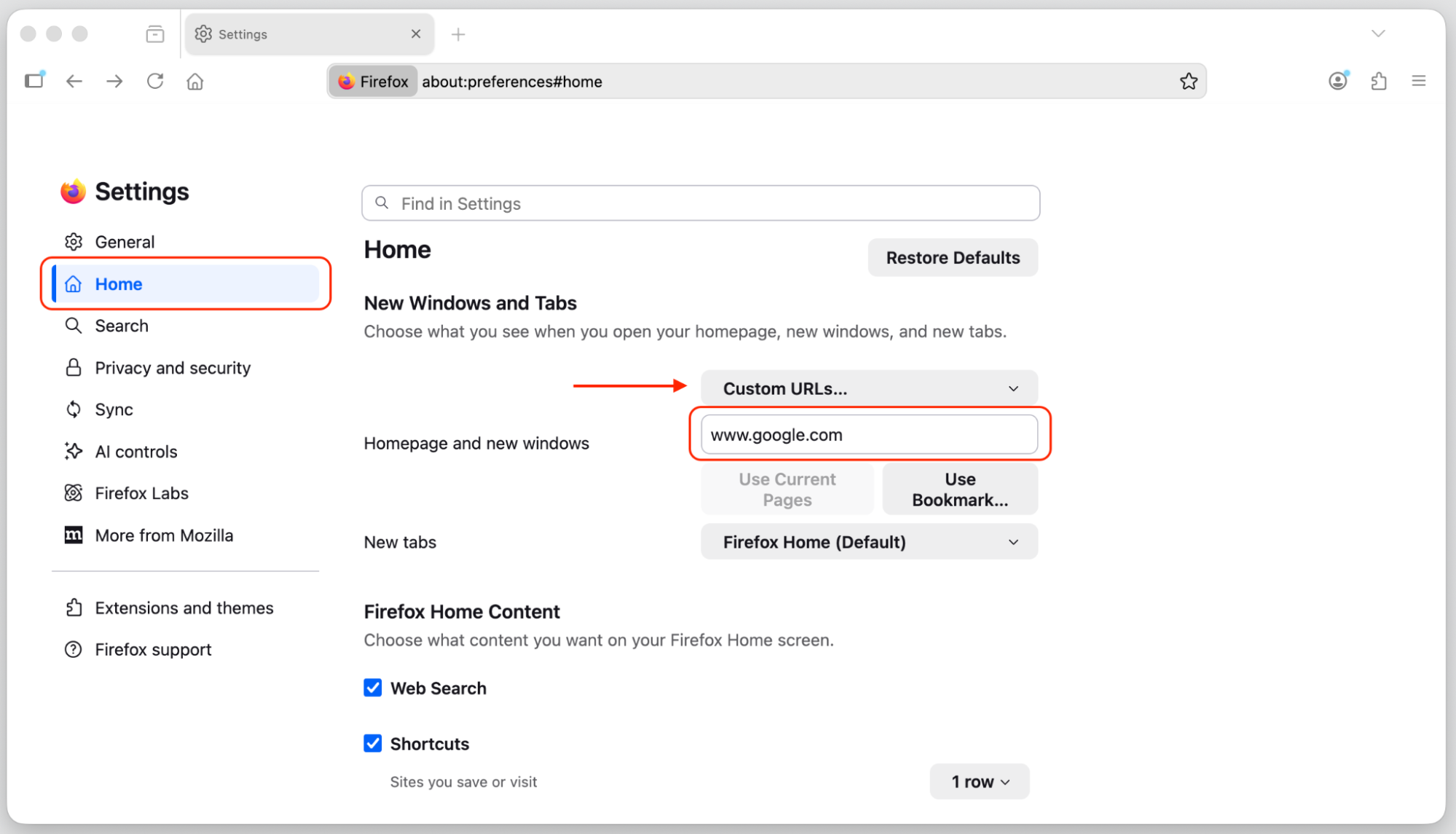
- Under Settings > Home, check your homepage and new tab settings.
4.4. Opera
Opera users can follow a similar process to remove unwanted extensions and restore browser settings. Just follow our instructions:
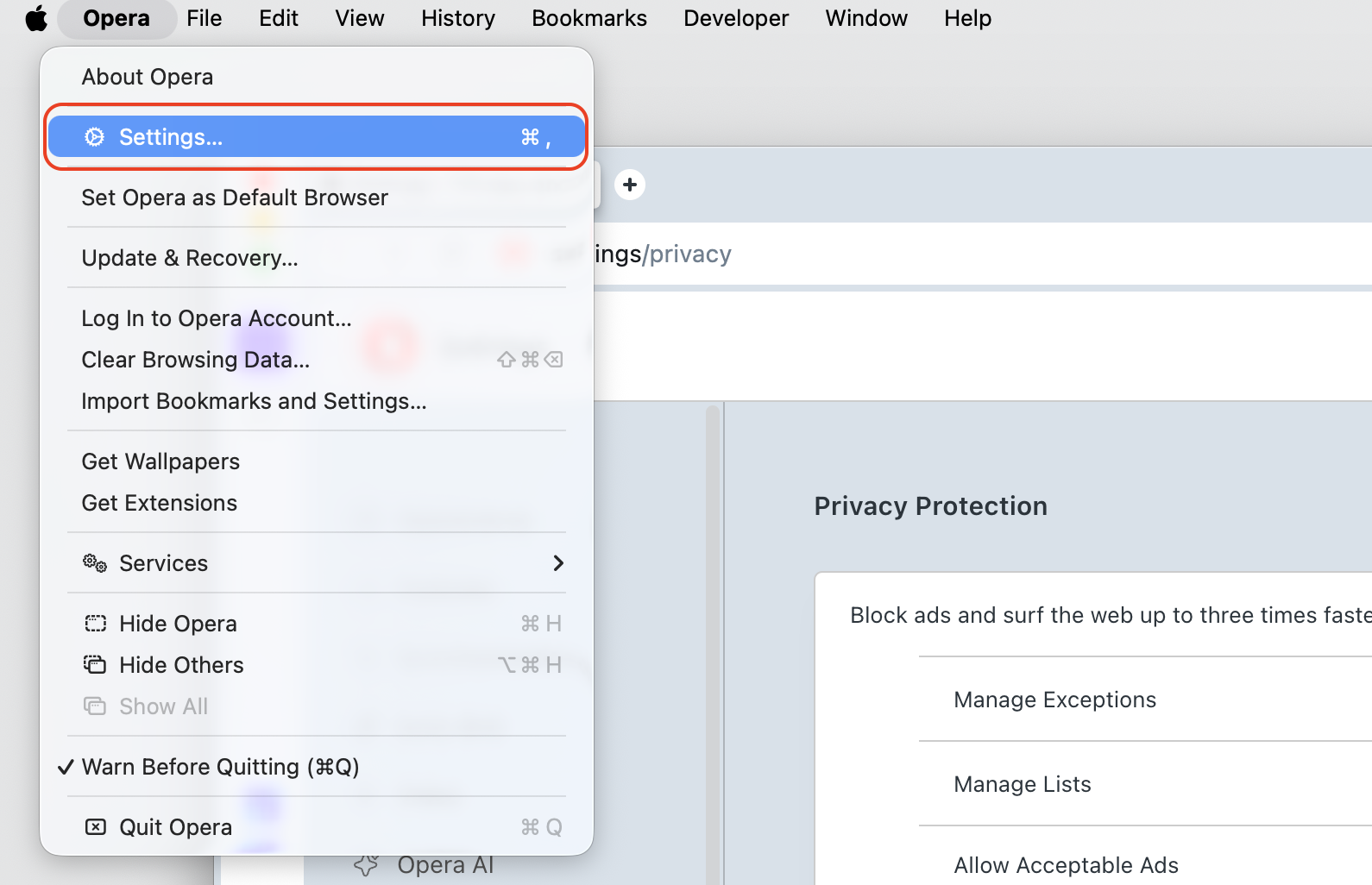
- Open Opera and click the Opera menu in the top right corner.
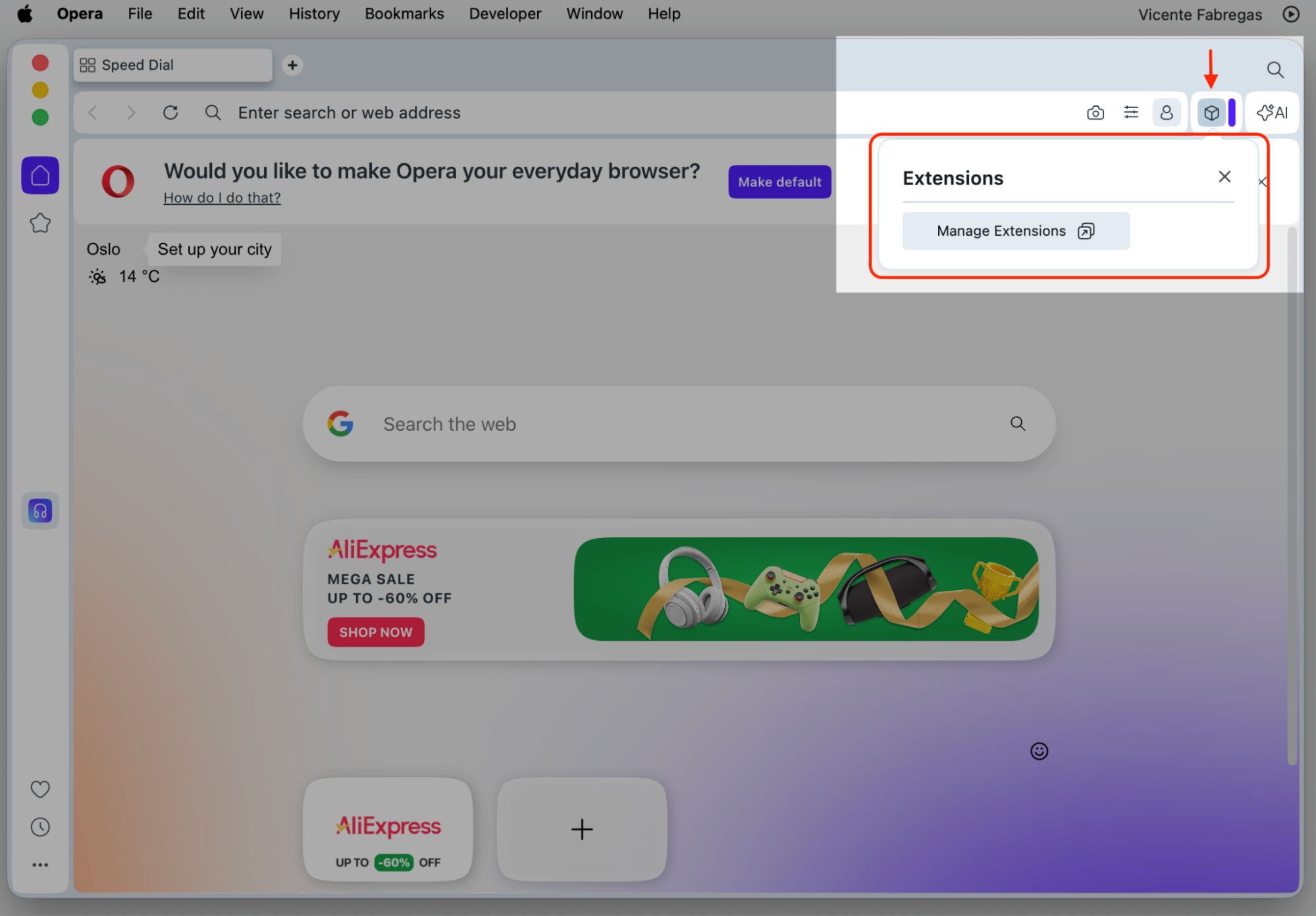
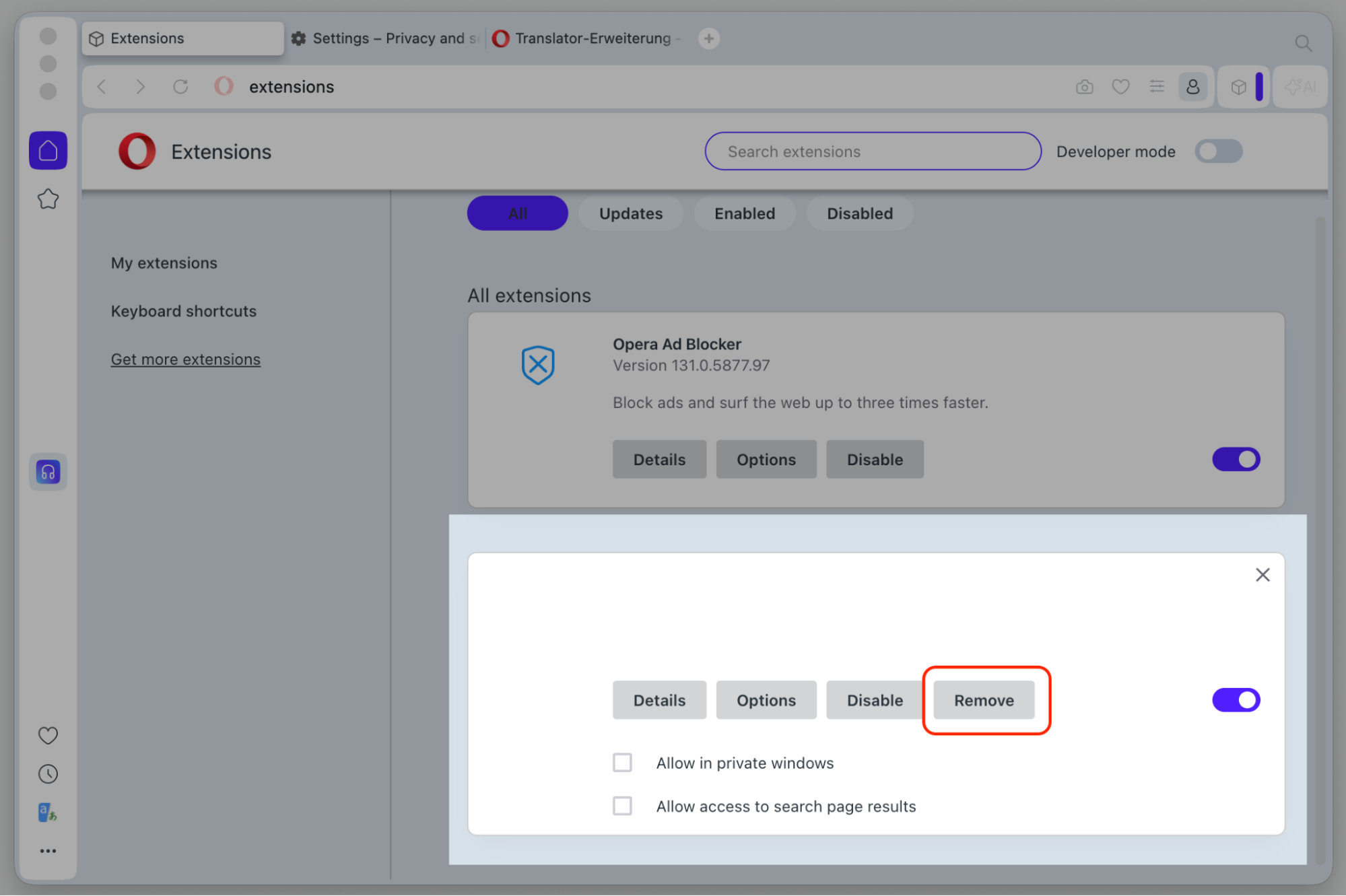
- Go to Extensions > Manage Extensions and review what’s installed.
- Click the Remove button next to any suspicious extension to remove it.
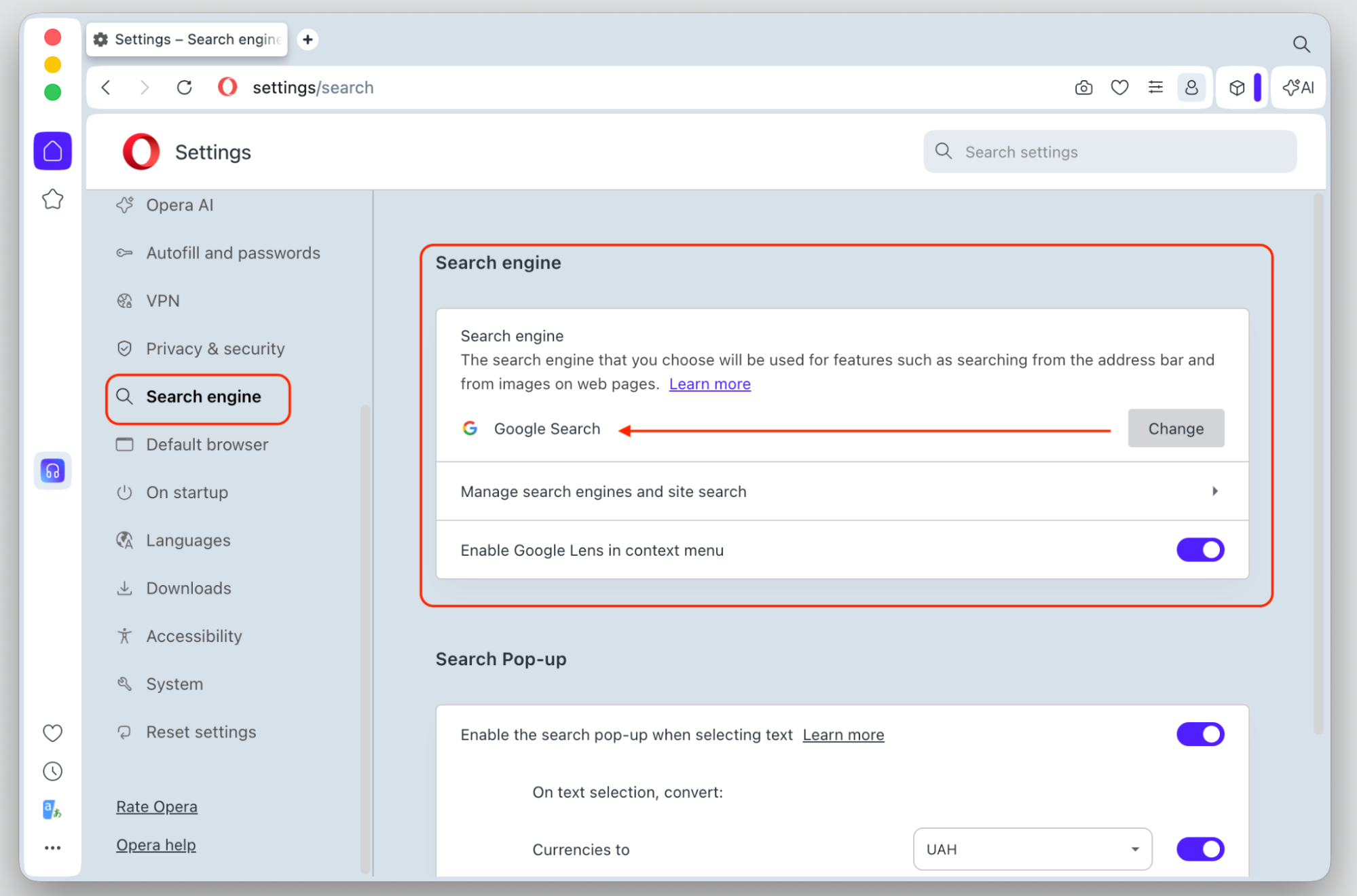
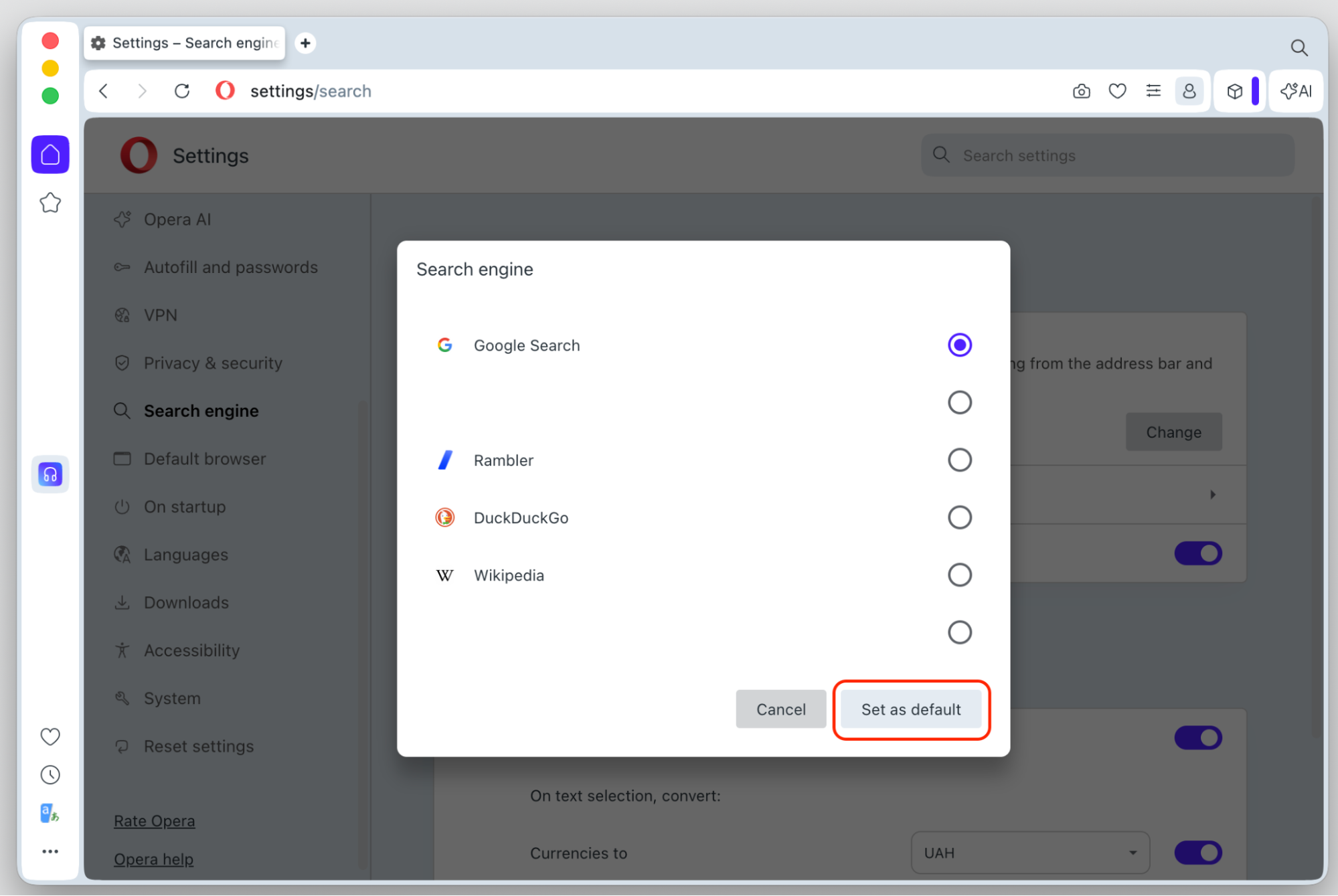
- Go to Settings > Search engine and check your default search engine.
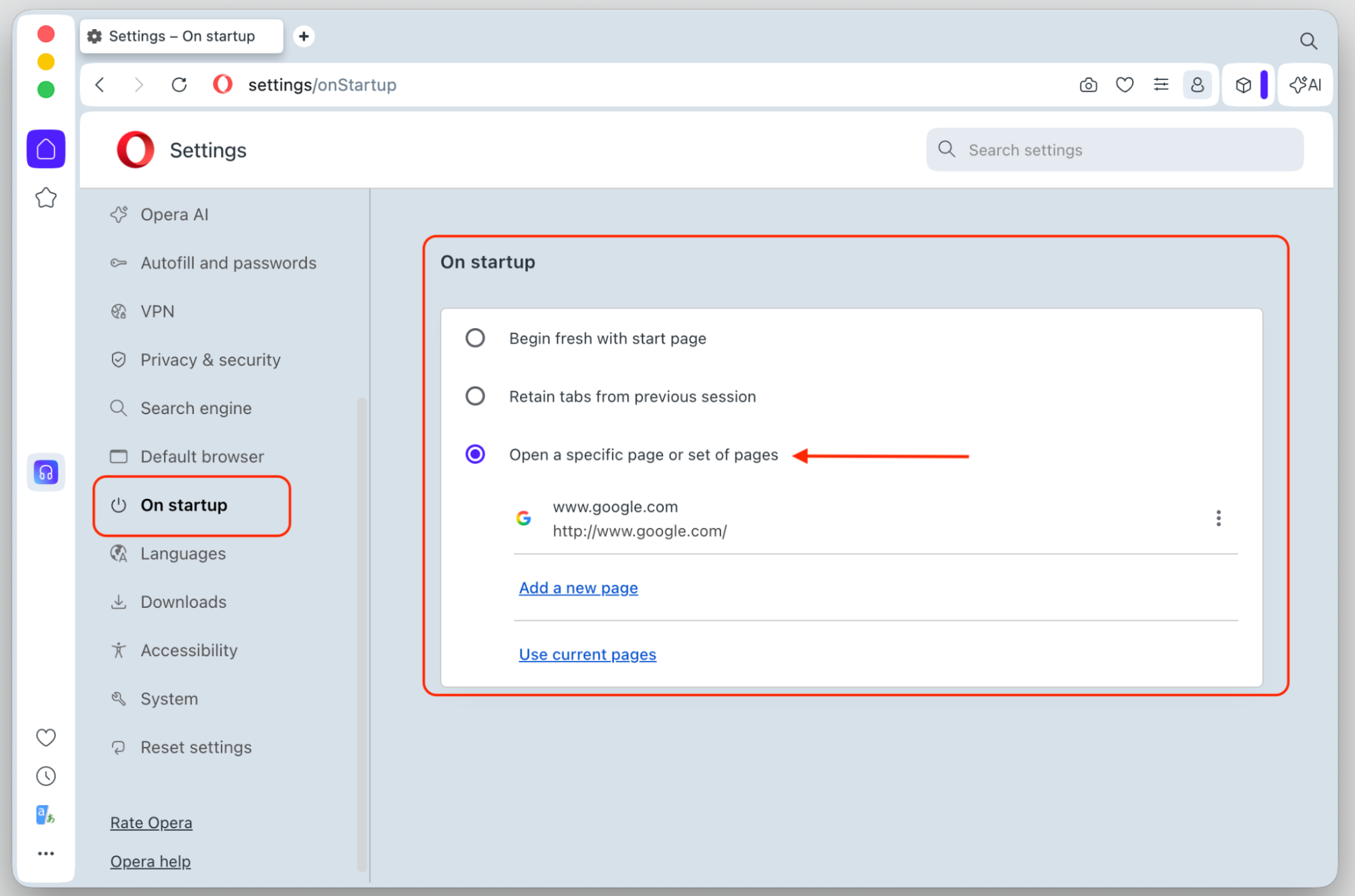
- Review your homepage under Settings > On startup and update it if needed.
How to protect yourself from Chromium virus on Mac?
Once you’ve removed Chromium, it’s worth taking a few steps to keep your Mac safe going forward. Most Chromium malware gets in through avoidable situations—so a little awareness goes a long way.
Here’s what we suggest:
- Download software only from trusted sources. The Mac App Store and official developer websites are the safest options.
- Read installation screens carefully. Bundled apps often get added through “quick install” options. Always choose the custom install path so you can see—and deselect—anything extra.
- Keep your macOS and apps up to date. Security updates patch known vulnerabilities that malware takes advantage of. MacKeeper’s Update Tracker shows all available updates in one place and lets you choose which ones to install.
- Run regular scans. MacKeeper’s Antivirus detects malware, Trojans, and other threats in real time, so issues get caught early.
- Use an ad blocker. Many malicious downloads are triggered by deceptive ads. MacKeeper’s StopAd extension blocks ads and online trackers in Safari and Chrome.
- Review your login items. Go to System Settings > General > Login Items and remove anything you don’t recognize. MacKeeper’s Login Items feature makes this even easier.
Conclusion
Chromium on your Mac isn’t always a cause for concern—but when it shows up uninvited, it’s worth taking seriously. Whether it’s a rogue browser hijacking your settings or just an app you no longer want, the steps above will help you remove it cleanly and keep your Mac running the way you expect.
For the most complete removal—app, leftover files, and bundled components all at once—MacKeeper’s Smart Uninstaller is the most reliable option. It’s especially useful if you need to delete multiple unwanted apps or programs on your macOS without leaving traces or having to go folder by folder.