
In this article you will find the following:
To get rid of Honey on your machine, you’ll first need to remove the extension from your browser. You can do so by opening the browser Settings in either Safari, Chrome, Edge, or Firefox. Then open the Extensions tab. All that’s left is to select Uninstall, Uncheck, or Remove–purging Honey from your browser.
Our tip before you get started:
If you want to know how to delete extensions on Mac that you no longer need, or you suspect you’ve installed malware parading as Honey, our attached guide can show you how to get rid of an unwanted extension on a variety of Apple-supported browsers.
What is Honey on Mac?
Not sure what Honey on MacBook is? Paypal Honey is a free Apple browser extension that finds coupons and automatically applies them to your shopping basket. It’s targeted to help people save money and earn PayPal Rewards when they shop, but the extension can get irritating.
Is the Honey app safe?
Yes, the PayPal Honey browser extension and app are considered to be safe and trusted when installed on a device to help you find suitable discounts. PayPal owns the extension and uses industry-standard encryption to protect data. One of the main reasons people remove Honey extension from Mac is due to the incessant pop-ups and constant resources it's consuming.
Heads-up from us:
Worried your PayPal Honey extension is not legitimate? Be encouraged to check out our blog on how to remove browser hijacker right away– it’ll help you promptly clean your Mac of threats.
How to delete Honey on Mac?
Our team of Clario Tech experts has tested many different removal methods, both manually and with our own MacKeeper Smart Uninstaller tool. We’ve found that heading directly to your browser settings is an easy way to manually delete and uninstall Honey on Mac.
A note from our experts:
Manually removing Honey application from Mac can work, but it's time-consuming, as you need to make sure you find all the hidden files and leftover clutter, so the browser is off your device for good. Some files can scatter and hide deep within your library; that’s why we recommend MacKeeper’s Smart Uninstaller. Our tool scans your entire system to delete all unnecessary or suspicious extensions safely and thoroughly.
1. Close a browser on Mac
If you’ve been asking yourself if it’s time to delete Honey from my Mac and you’ve said yes, we’re here to help. The very first step is to simply close your browser, as this prevents any future issues.
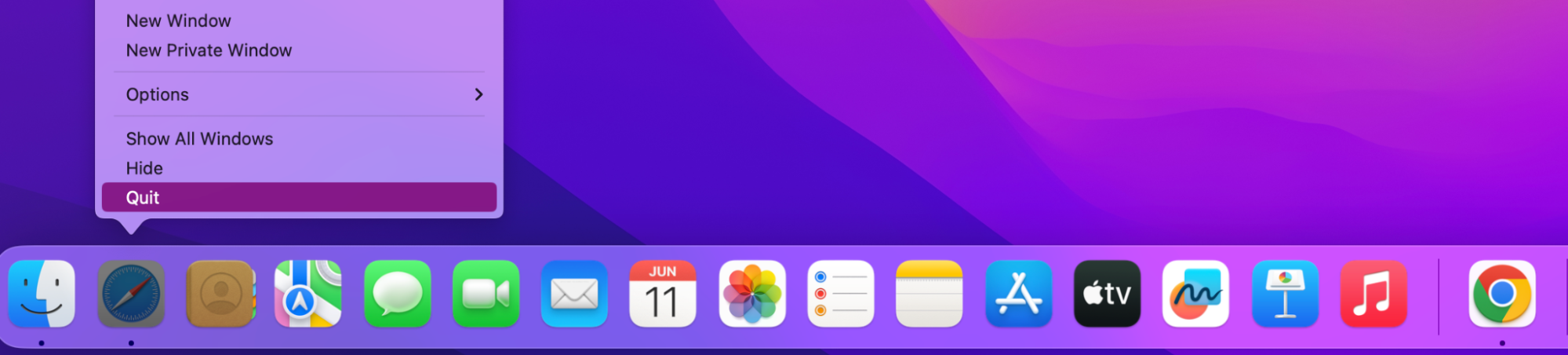
Here’s how to close a browser on a Mac:
- In your Dock, right-click on the browser icon.
- Select Quit.
2. Remove Honey application from Mac
After you have closed your browser, it’s time to remove Honey from your Application folder. This is an important step, as knowing how to uninstall app on Mac thoroughly will ensure all traces are removed, and nothing is left behind eating away at your internal storage.
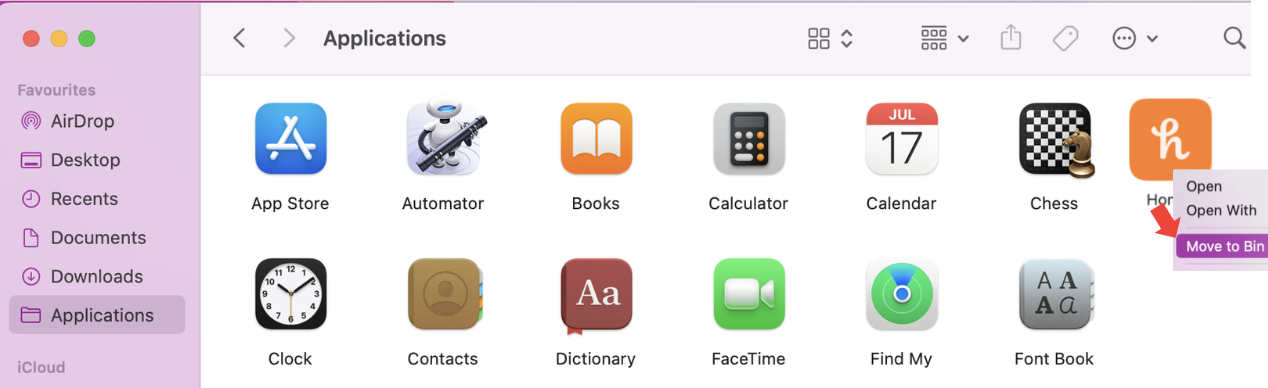
Here’s how to remove Honey from your Application Folder:
- Open Finder.
- Click on the Application folder.
- Look for Honey, right-click, and Move to Bin.
3. Delete Honey extension on Mac
Eventhough Honey is not known to be a threat to macOS, there are copycat apps that might try to pretend to be legitimate and cause harm to your computer when installed. That’s why knowing how to remove malware from browser on Mac is important–it might be pretending to be the real deal.
3.1. Remove Honey from Safari
For Safari users, removing Honey could not be easier, as you can easily access the extensions settings when you open a new Safari tab.
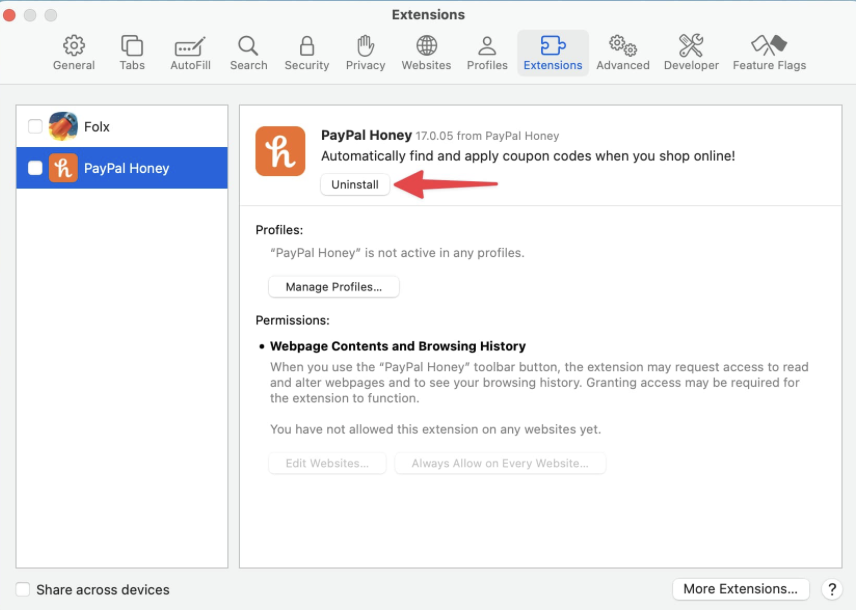
Here’s how to remove Honey from Safari:
- Open Safari > Settings.
- Uncheck Honey and press Uninstall.
3.2. Uninstall Honey on Chrome
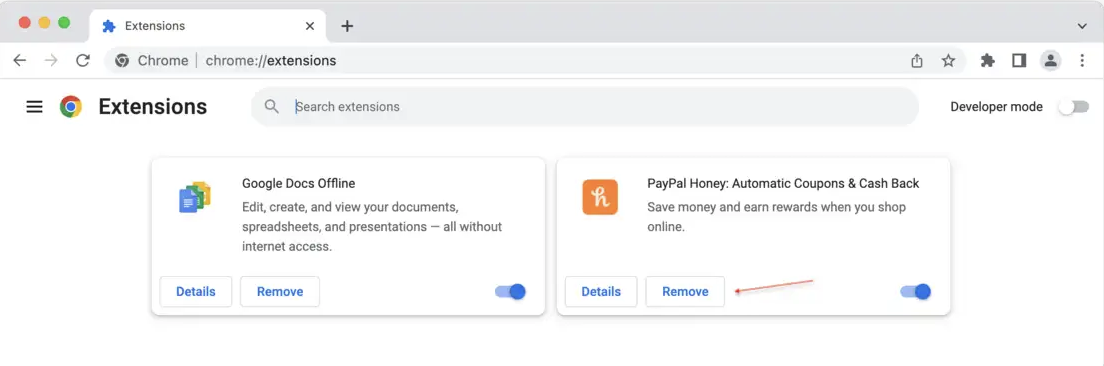
For Chrome users, uninstalling Honey is a little different but still pretty simple. Here’s how:
- In Chrome, click on the three dots in the right corner of your screen.
- Go to Extensions.
- Next to PayPal Honey, click Remove.
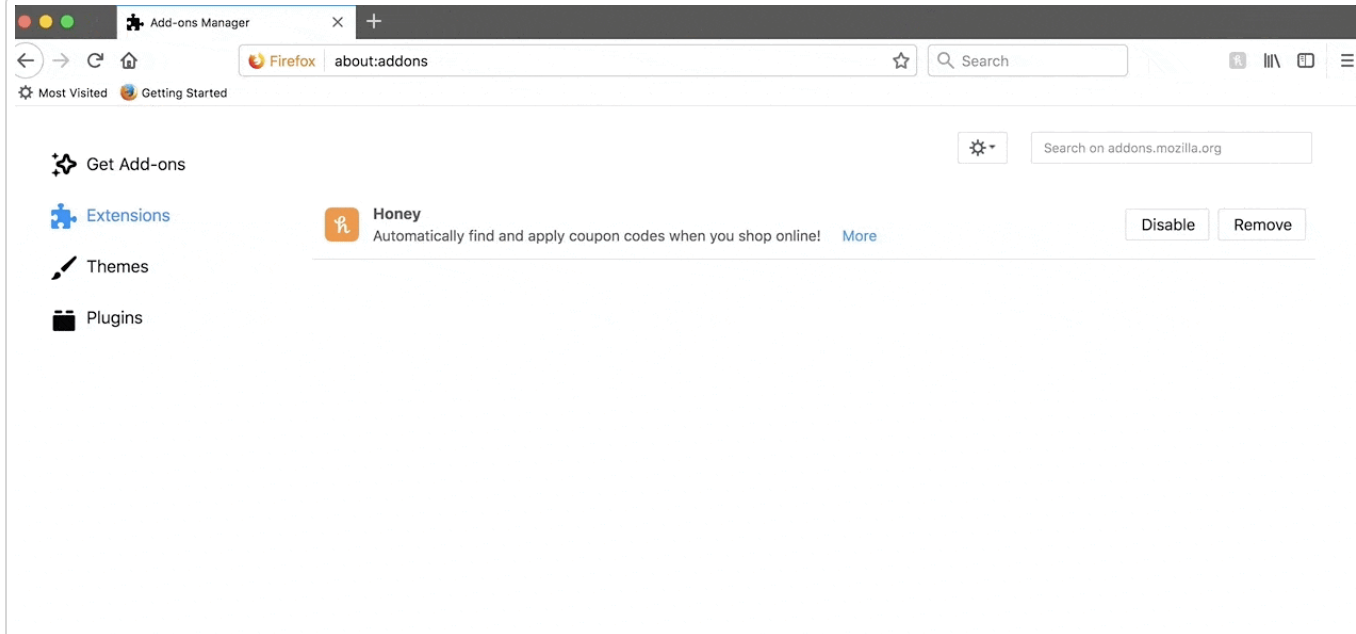
3.3. Get rid of Honey from Firefox
If your browser preference is Firefox, you can still get rid of Honey if it’s no longer wanted or unused.
Here’s how we recommend you get rid of Honey from Firefox:
- Click Tools > Add-Ons.
- Next to Honey, press Remove.
3.4. Delete Honey on Opera
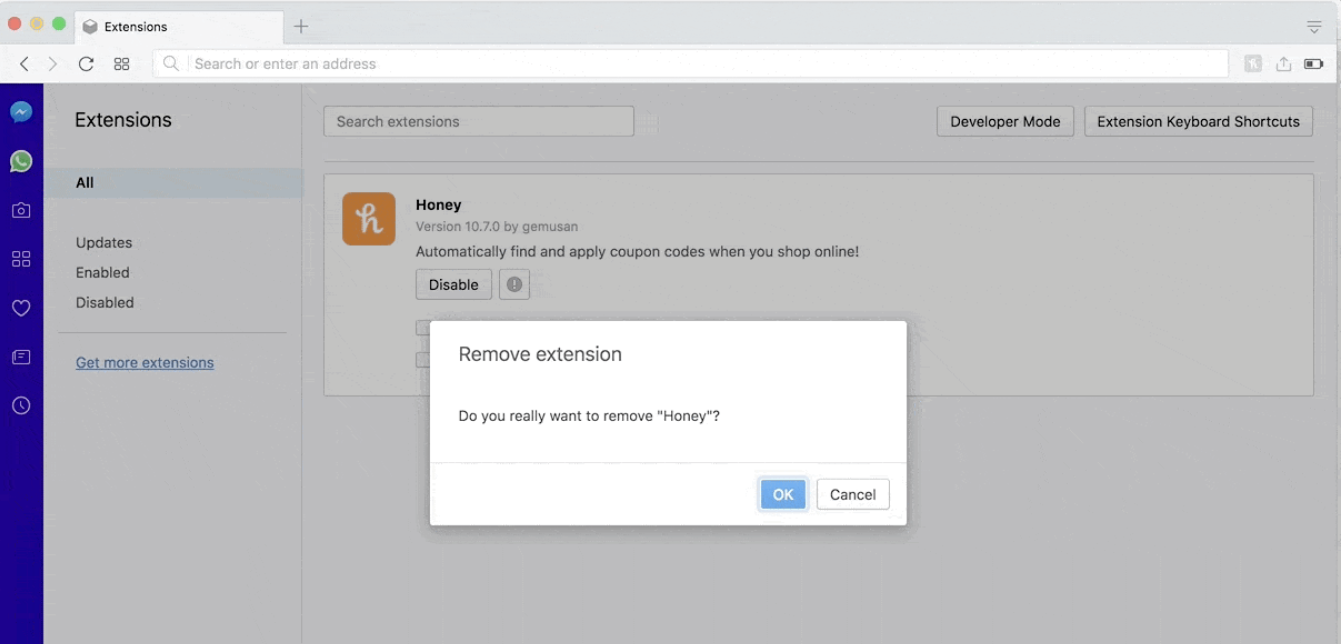
For Opera users, the process of deleting Honey is a little different, but our team of Clario Tech experts has found the best method for you to remove it quickly.
Here’s how:
- In Opera, click on View > Show Extensions.
- Next to Honey, click X and confirm by pressing OK.
4. Get rid of Honey leftover files
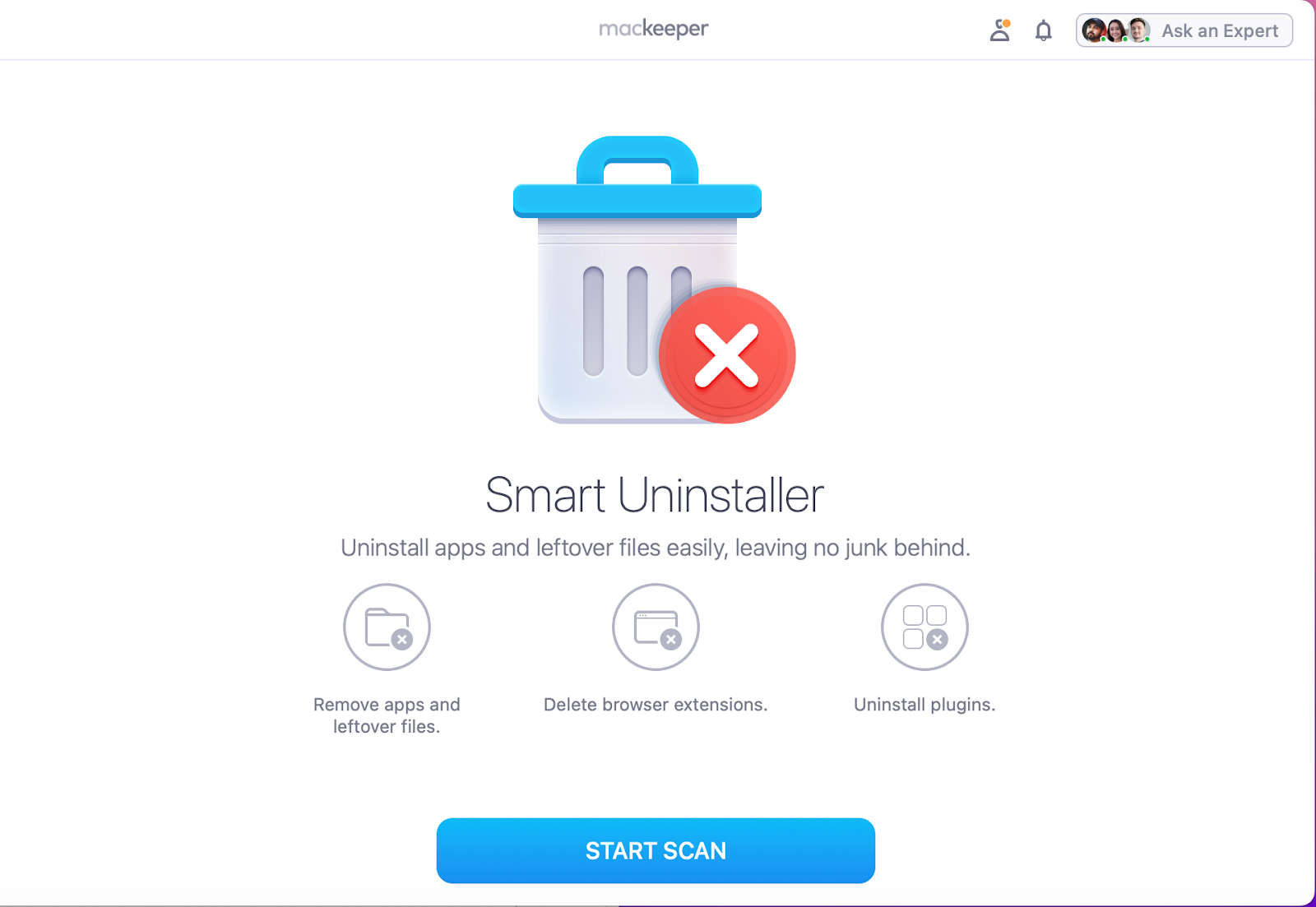
The best way to ensure you’re getting rid of Honey or another application properly is to get help from an automatic uninstaller tool–like MacKeeper’s Smart Uninstaller. It’ll not only remove unwanted apps, but also get rid of all leftover files simultaneously. It’s more reliable than manual deletion.
Here’s how to get rid of all traces of Honey with MacKeeper’s Smart Uninstaller:
- Open MacKeeper and click on Smart Uninstaller.
- Press Start Scan.
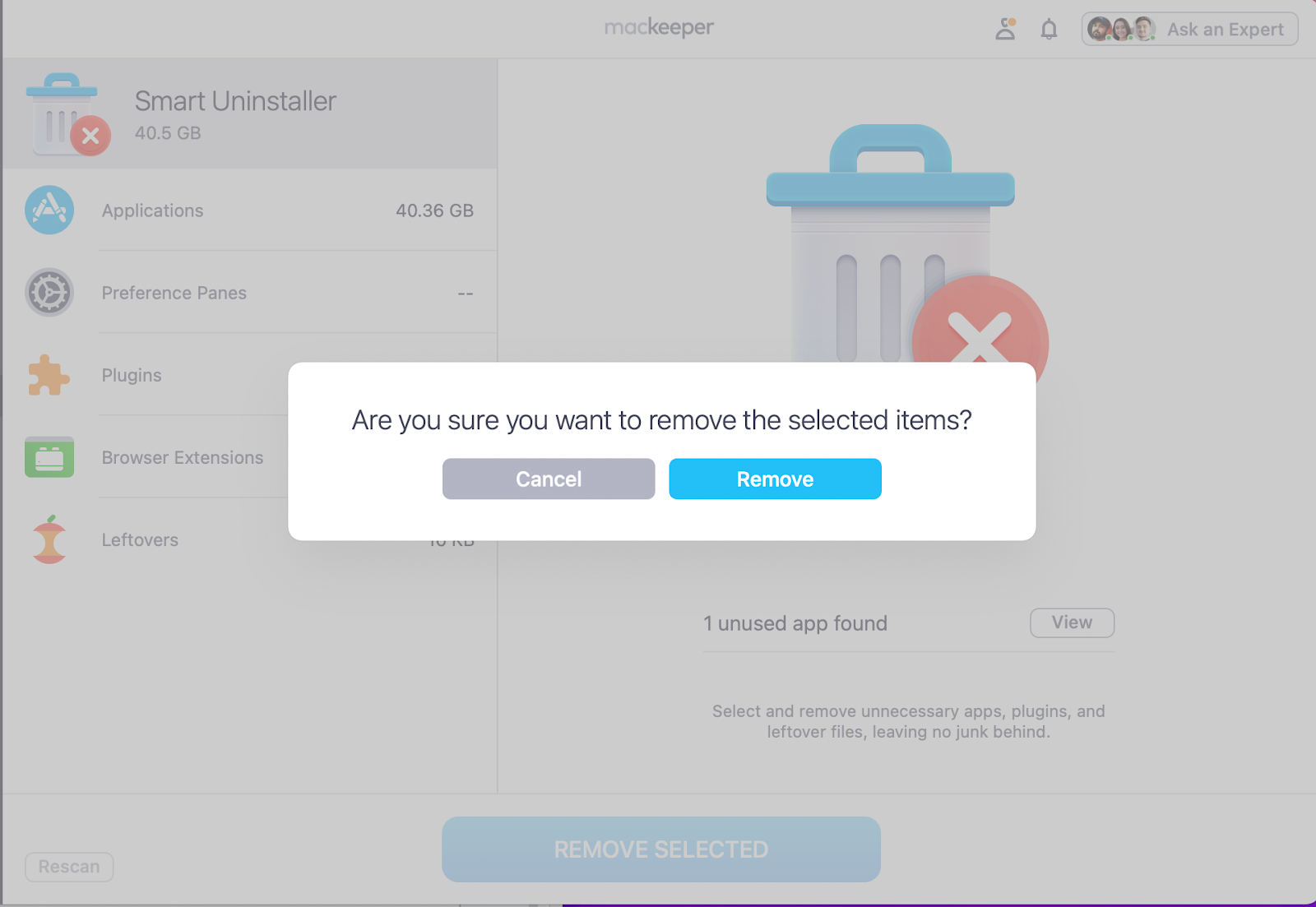
- Look through your Applications, Plugins, Browser Extensions, and Leftovers.
- Select Honey and press Remove Selected.
- Confirm by pressing Remove.
Advice from us:
If you want to know how to delete leftover files from uninstalled programs on Mac, we encourage you to check out our attached article, as you’ll be able to see the entire removal process step-by-step. Be sure to save the article so you can refer back to it when needed.
5. Empty trash
Once you’ve moved the unwanted app to your Trash, all that’s left is to make sure you know how to empty trash on Mac so that nothing is left behind after manually uninstalling Honey.
Here’s how to Empty Trash:
- Right-click on the Bin icon at the bottom of your screen.
- Select Empty Bin.

Getting rid of Honey and other unwanted apps for good
When you’ve had enough and want to get rid of Honey on Mac for good, you can manually uninstall and remove the application from your computer, but it might not delete all the files left in your library. You’d need to check and manually move them to your bin.
Alternatively, you can let MacKeeper’s Smart Uninstaller take on the workload for you–in no time at all, it can show you a full list of installed apps that you can go through and choose to either keep or tick to remove. With MacKeeper’s help, it’s that easy.