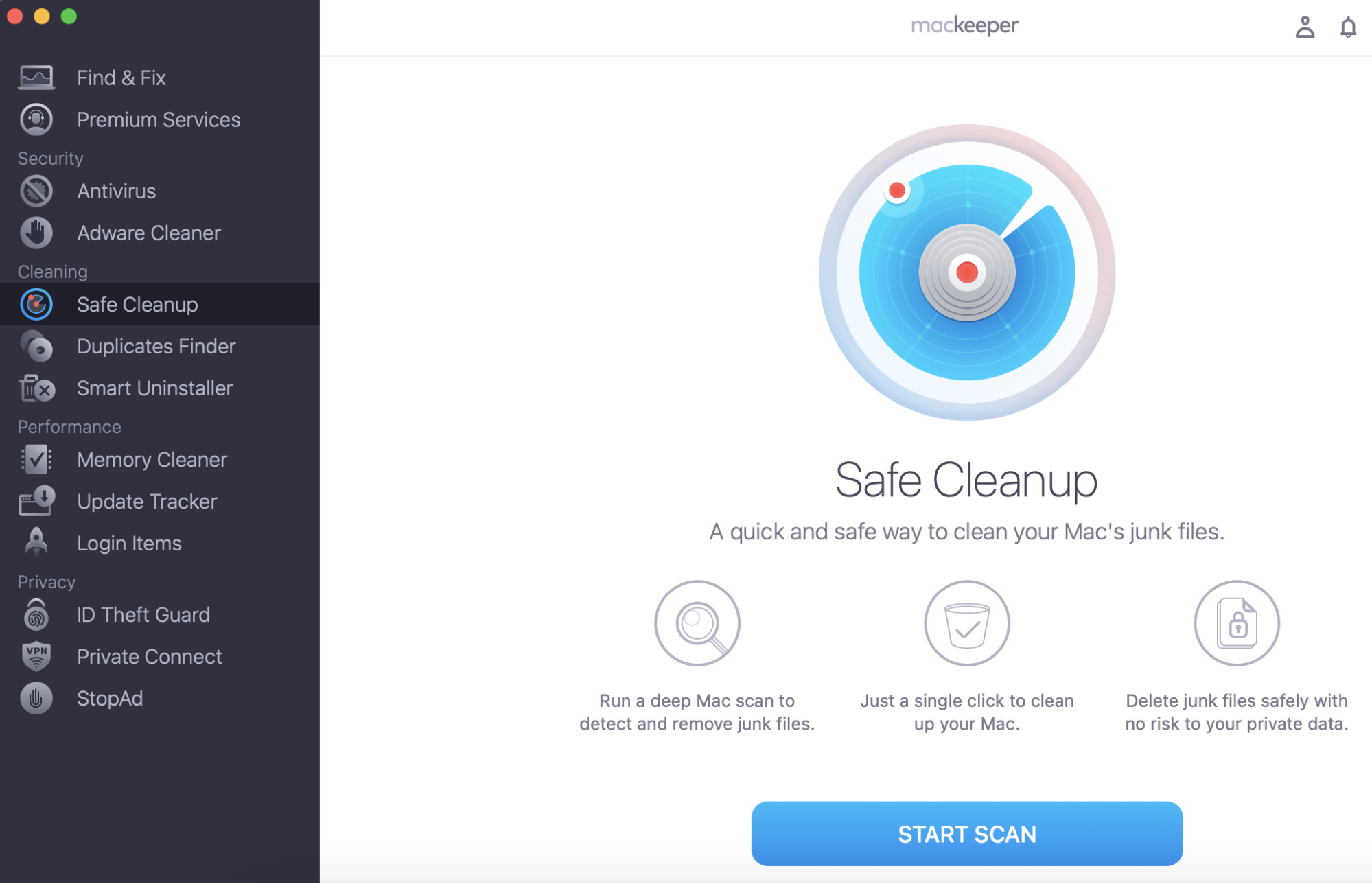
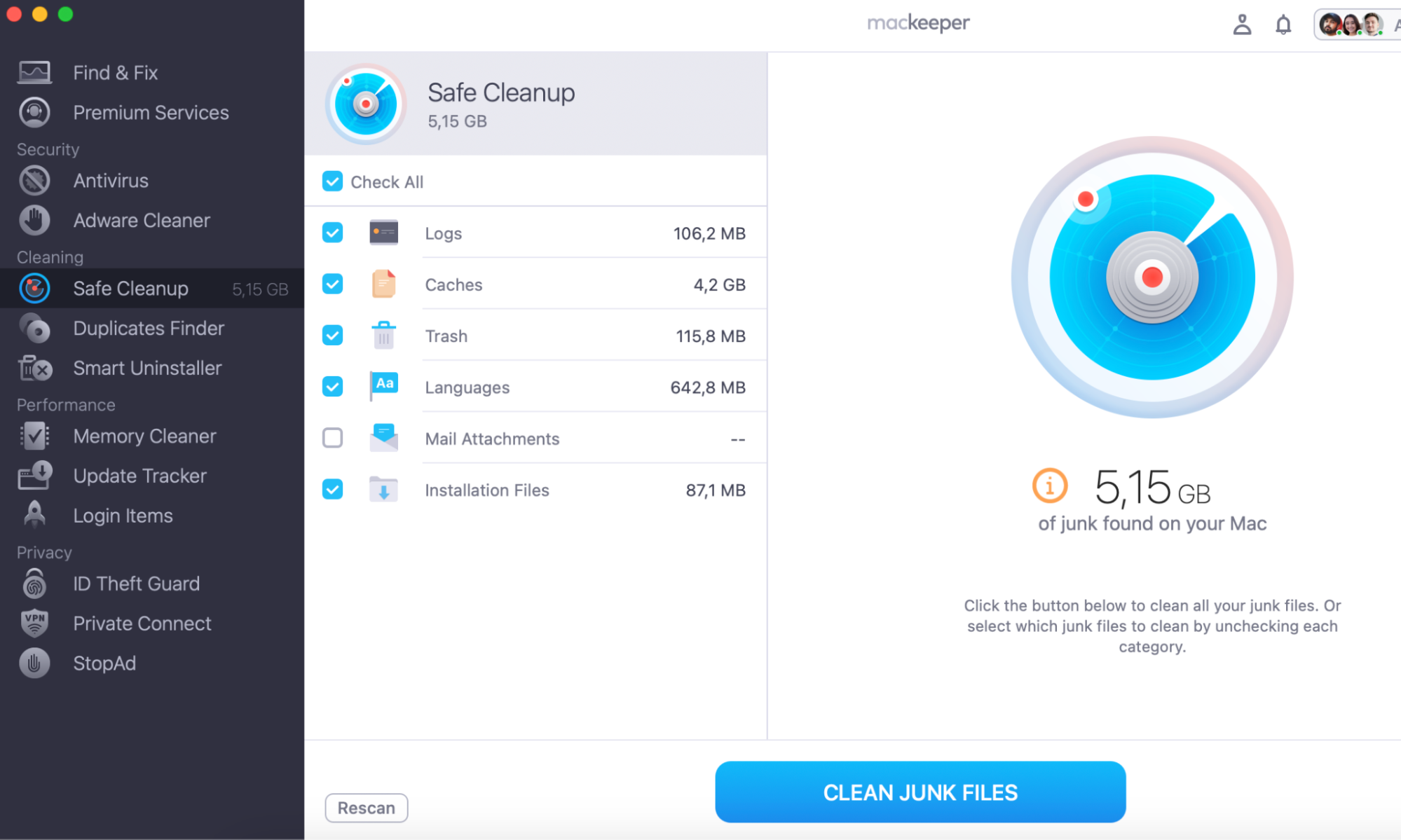
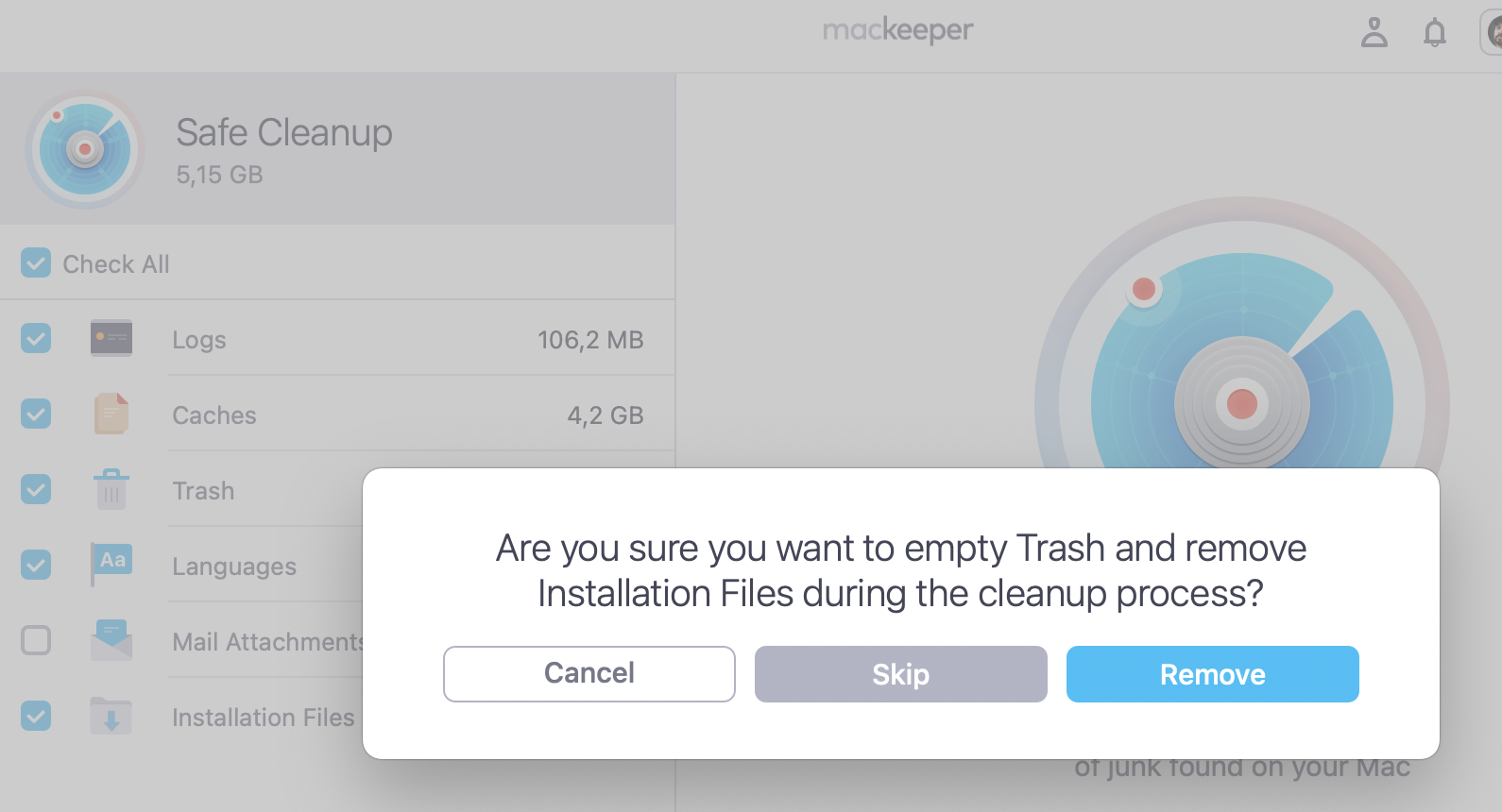
Got an older MacBook that Apple says can’t run macOS Sequoia? You’re not stuck. With the right tools, you can install Sequoia on an unsupported Mac and keep enjoying the latest features. In any case, before you start, free up storage with MacKeeper’s Safe Cleanup—it removes junk files so your Mac has room for the upgrade.
Why does macOS Sequoia not support some older Macs?
Every year, Apple releases a new version of macOS—and every year, a few more Mac models get left behind. The bottom line is that Apple drops support when older hardware can’t keep up with the demands of new software features, security protocols, and system frameworks like Metal graphics. That’s why macOS Sequoia can’t be run on older Macs.
The 2018 and 2019 MacBook Air models, for example, were dropped from macOS Sequoia’s official support list even though they run macOS Sonoma without issues. If your Mac is too old to update via the standard path, a third-party patcher may be your best option.
What to know before installing macOS Sequoia on an unsupported Mac?
Running macOS Sequoia on an unsupported Mac isn’t like a regular update. You’ll be using community-developed tools to bypass Apple’s hardware restrictions—so preparation matters. Understanding the potential trade-offs will help you decide whether it’s worth running Sequoia on unsupported Mac hardware for your specific model.
Read our considerations below before you install macOS Sequoia on an unsupported Mac.
1. Unsupported installation isn’t an official Apple method
Apple doesn’t endorse or support installing macOS on hardware. On the contrary, it’s excluded from the compatibility list. When you install Sequoia on an unsupported Mac, you’re relying on OpenCore Legacy Patcher (OCLP)—a free, open-source tool developed by the Dortania community. Apple Support won’t help if something goes wrong, and future updates may require extra steps. Because compatibility rules change with each release, it also helps to review macOS versions in order to understand how support for older Macs has shifted over time.
2. Performance may be slower
Older hardware wasn’t designed for macOS Sequoia’s resource demands. You might notice slower app launches, longer boot times, or higher CPU usage. Macs with less than 8 GB of RAM will feel this more than others. Follow our guide to check CPU usage and monitor how your Mac handles the upgrade.
A note from our experts:
To avoid sacrificing your Mac's performance, we suggest using MacKeeper’s Safe Cleanup to remove all unnecessary files on your computer and optimize your Mac's speed.
Not everything in macOS Sequoia will function on unsupported hardware. Apple Intelligence requires an Apple Silicon chip (M1 or later)—no patcher can change that. iPhone Mirroring needs a T2 security chip, which most older Macs lack. Keep an eye on our list of macOS Sequoia problems for known bugs and workarounds.
4. Graphics or hardware patches may be required
After installing macOS Sequoia on older hardware, you may notice visual glitches, missing Wi-Fi, or audio issues. OpenCore Legacy Patcher handles this with post-install root patching—a step that restores hardware support for your Mac’s specific components. Pre-2012 Macs without a Metal-compatible GPU may need additional attention, but OCLP provides non-Metal workarounds for most supported models.
5. You should consider SIP as well
SIP, or System Integrity Protection, needs to be lowered on systems where root patching is required to patch data on disk. This will vary between OS versions and the model in question. OpenCore Legacy Patcher (OCLP) will, by default, determine the correct SIP options for the OS version and Mac model, but in most cases, the user has no need to touch these settings. This is an important point: a Mac device becomes more vulnerable to threats if SIP is disabled (even partially). Moreover, if a virus is already on a Mac, it could spread throughout the system exponentially and get to important system folders/files.
What do you need before installing macOS Sequoia?
Before you start the process, gather everything you’ll need. Rushing through without the right preparation is the fastest way to run into issues. Here’s your checklist:
An unsupported Mac model compatible with OpenCore Legacy Patcher (check OCLP’s supported models list)
A USB flash drive with at least 32 GB of storage
At least 35 GB of free hard drive space on your Mac’s internal storage
A full backup of your data—use Time Machine, an external drive, or a cloud service
A stable internet connection for downloading the installer and OCLP
Time and patience—the full process can take one to two hours
How to install macOS Sequoia on unsupported Mac?
The installation process has several stages—from verifying compatibility to applying post-install patches. Each step builds on the previous one, so we highly advise following them in order. Want to get macOS Sequoia on unsupported Mac hardware? Let’s walk through it. If you need older macOS versions for any reason, you can also download old macOS versions from Apple’s servers.
1. Check Mac compatibility with the patcher
Before downloading anything, confirm your Mac model works with OpenCore Legacy Patcher. Not every older Mac can install Sequoia on unsupported Mac hardware—even with patching. Run a macOS compatibility check to find your exact model details.
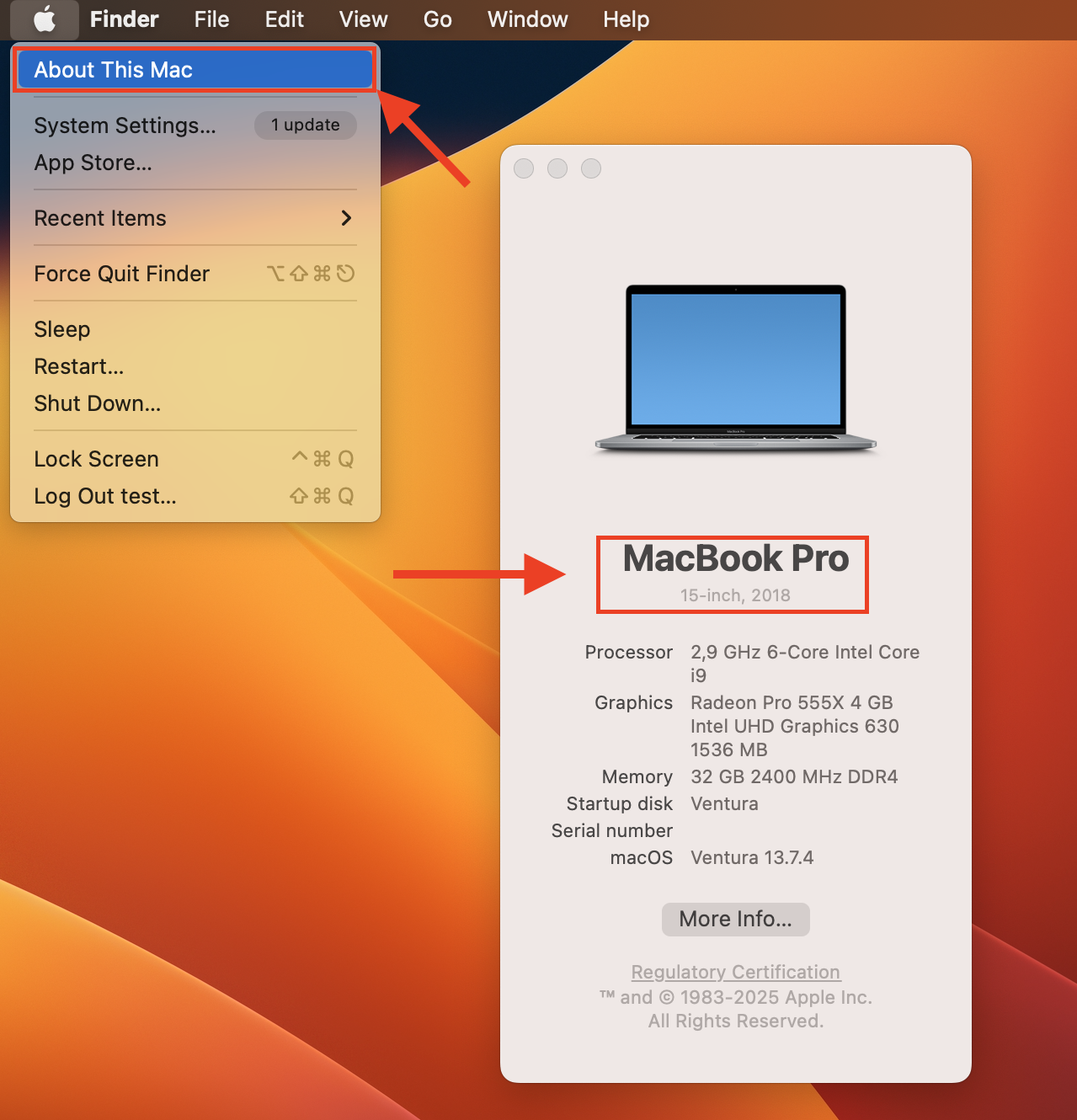
Go to Apple menu > About This Mac to find your Mac’s model.
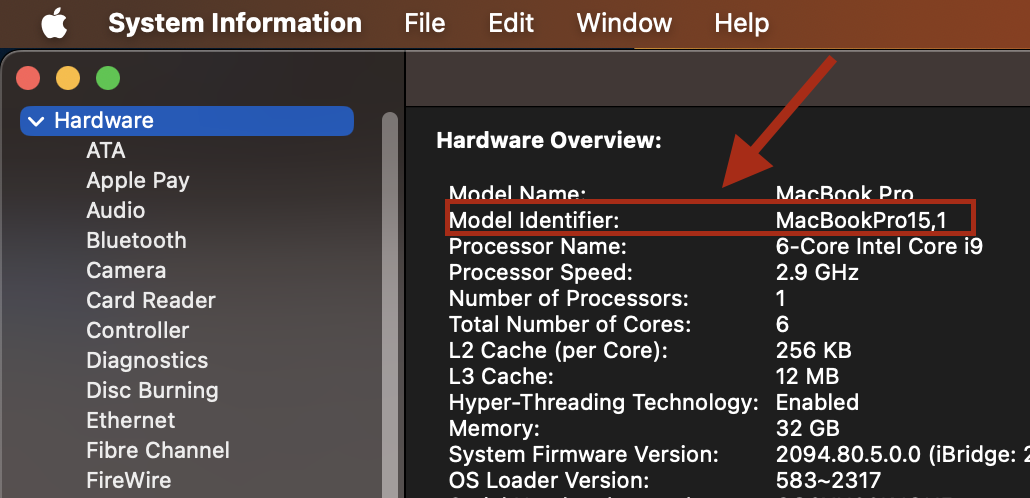
To find out the model identifier, go to Apple Logo, press and hold the Option Key, and find System Information. Alternatively, open Finder > Applications > Utilites > System Information.
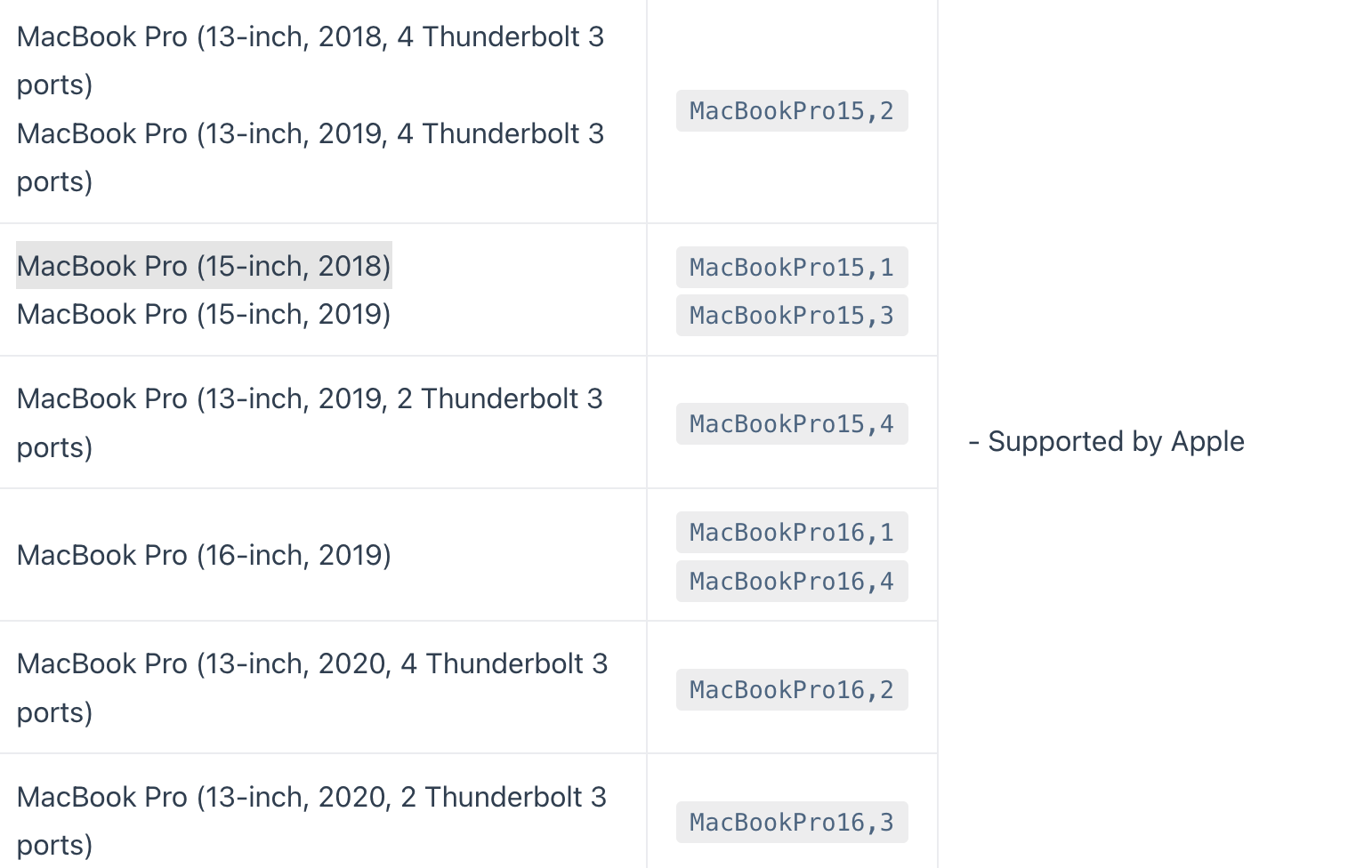
Then visit the OpenCore Legacy Patcher-supported models page on the Dortania website.
Search for your exact model identifier in the compatibility list.
If your Mac is listed, you’re good to proceed. If it’s not—especially 2018–2019 MacBook Air models with a T2 chip—this process won’t work yet.
Step 1. Apple menu > About This MacStep 2. Apple Logo > Option Key > System InformationStep 3. Check if your device model is supported by Apple
2. Download macOS Sequoia installer files
This time, you’ll need the full macOS Sequoia installer files to create a bootable USB drive. Want to download macOS Sequoia on old Mac hardware? OCLP can grab the files directly from Apple’s servers for you. Here’s how:
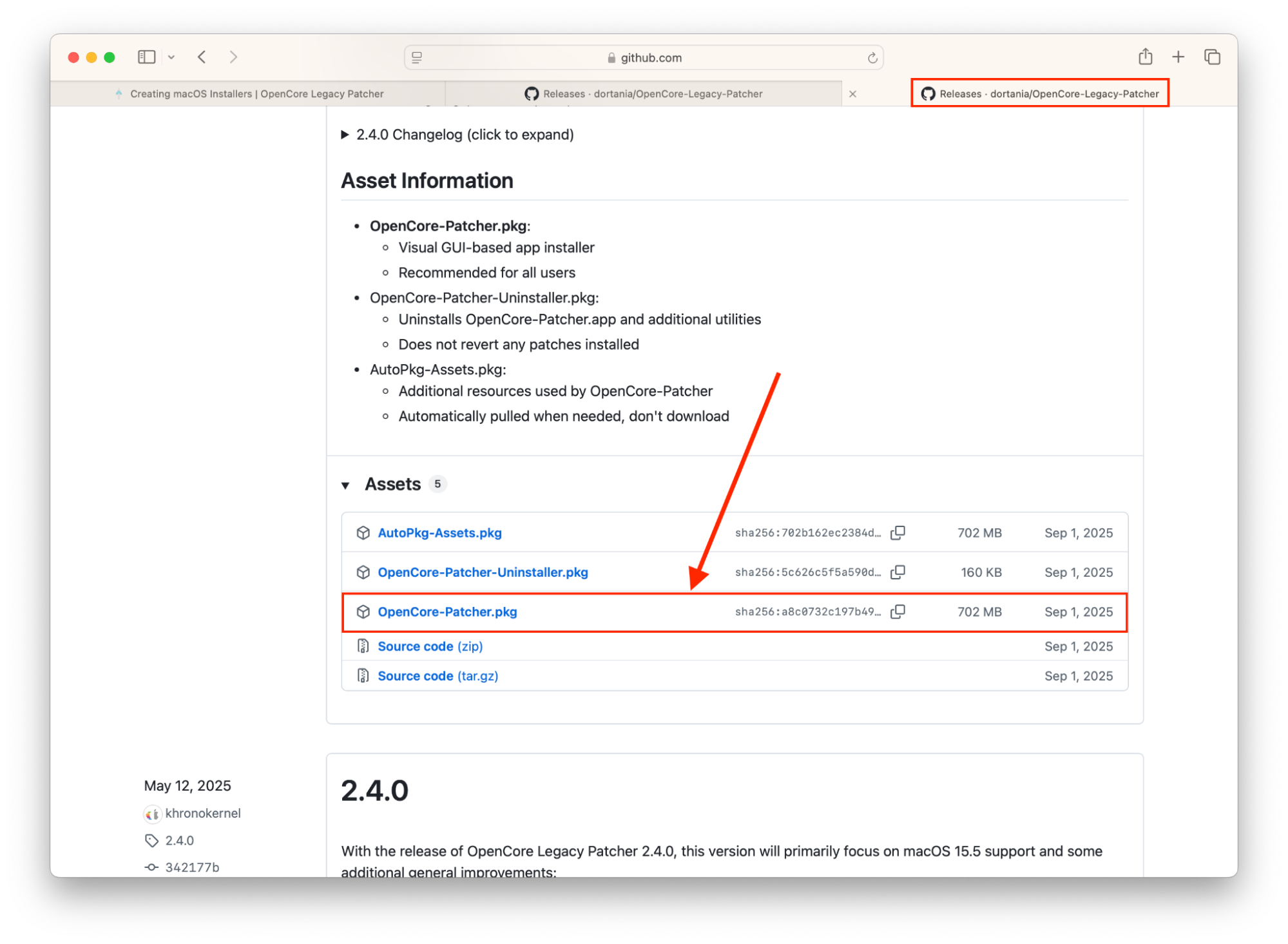
Download the latest version of OpenCore Legacy Patcher from the official Dortania GitHub page.
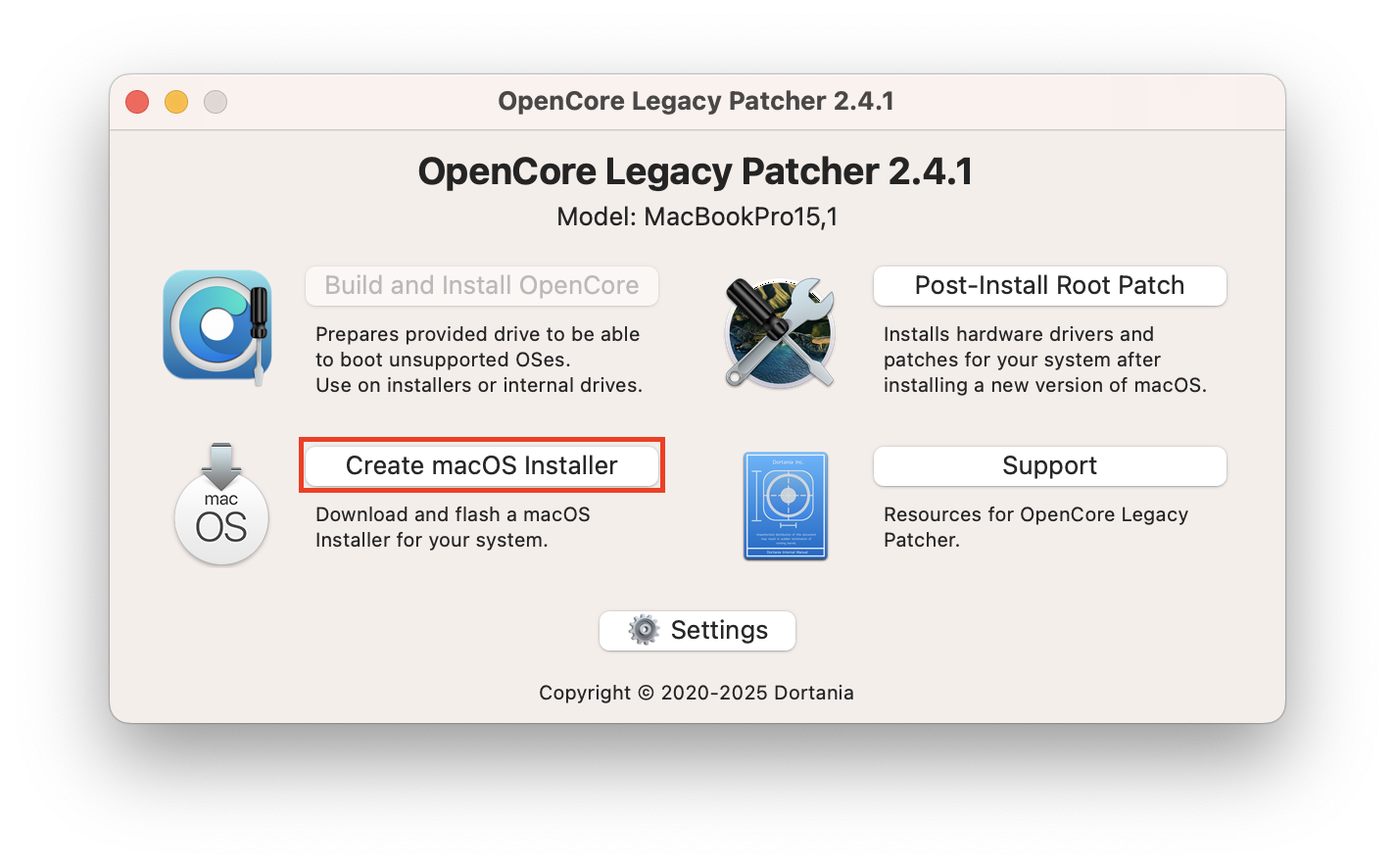
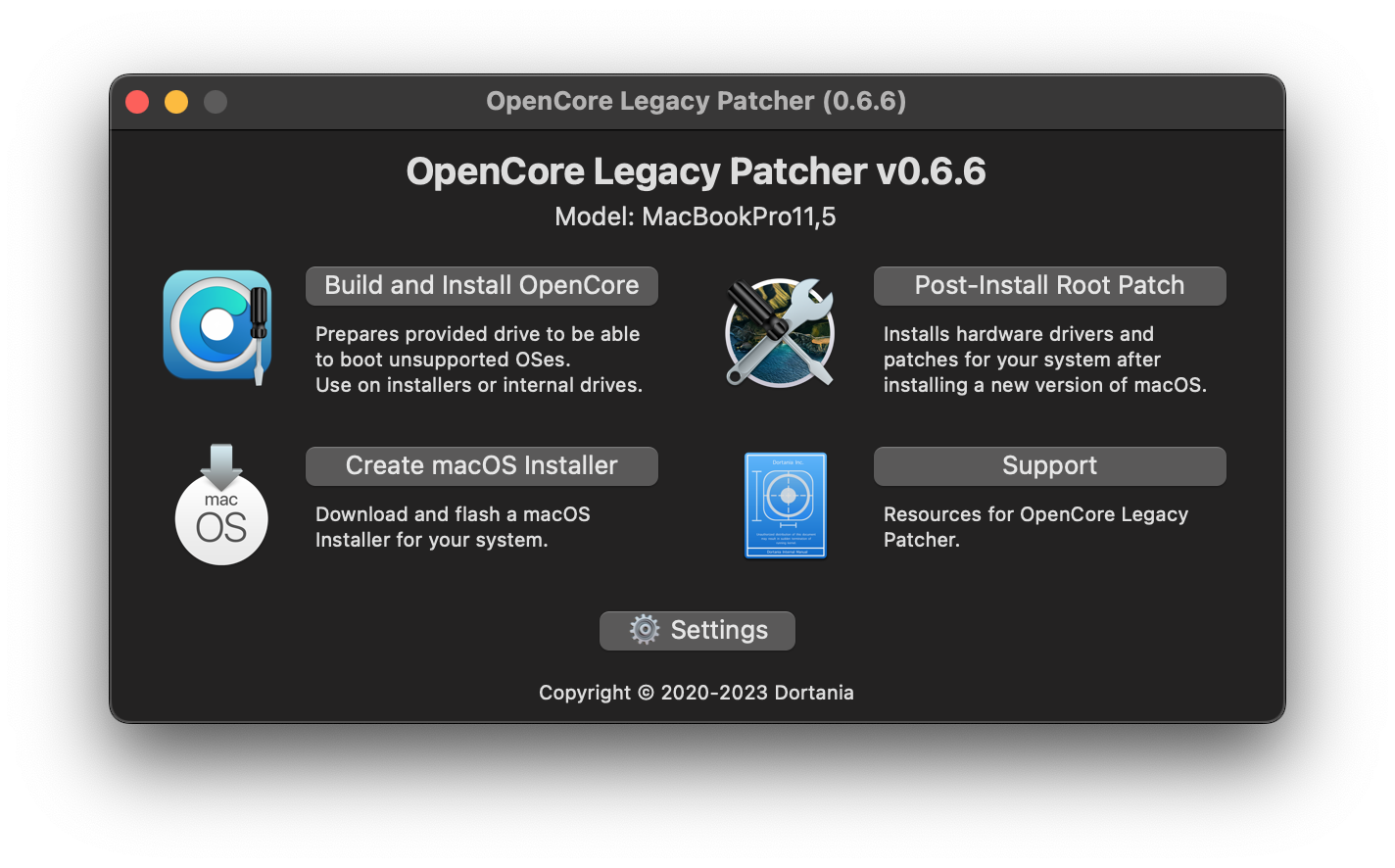
Open the app and click Create macOS Installer.
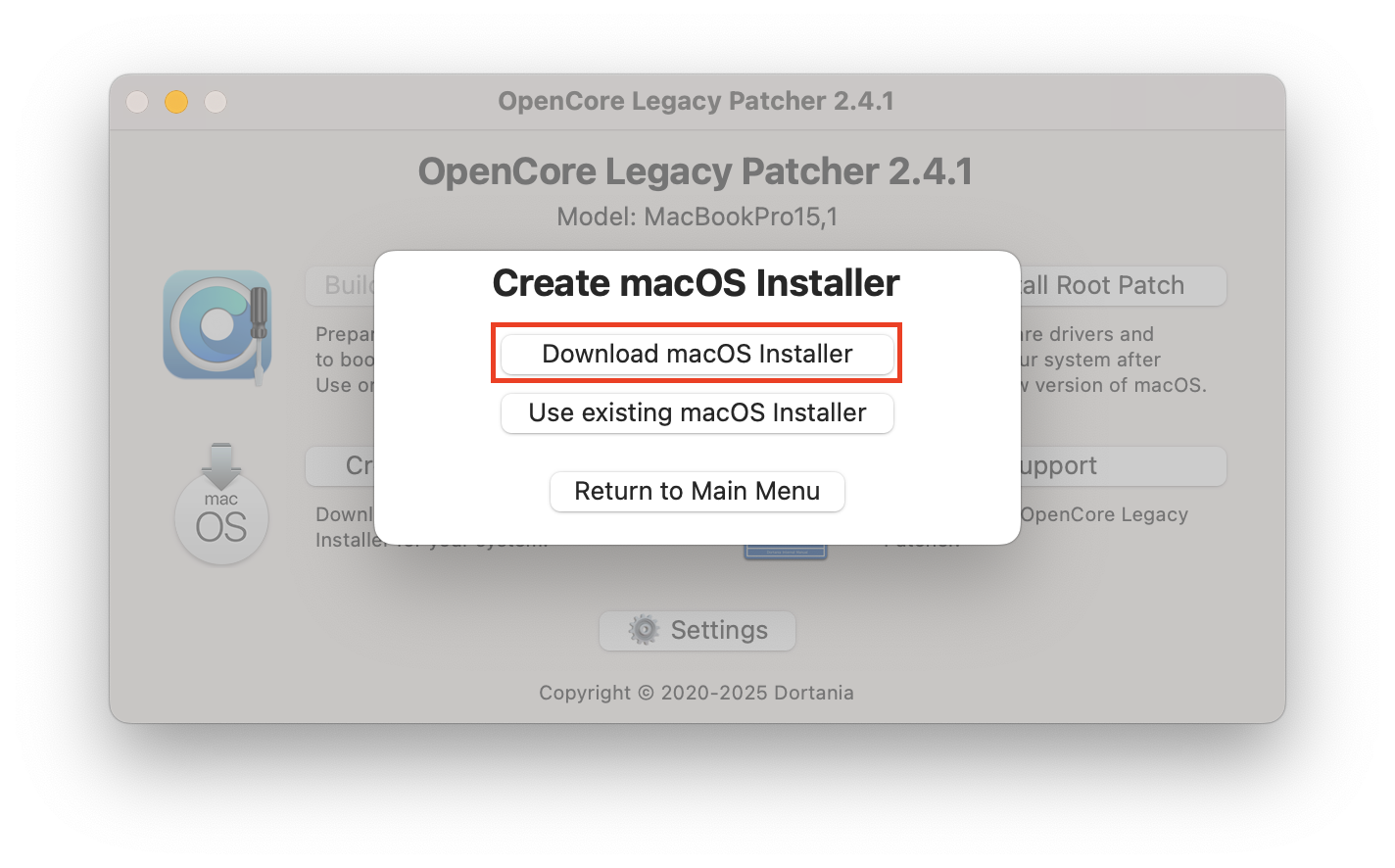
Select Download macOS Installer from the options.
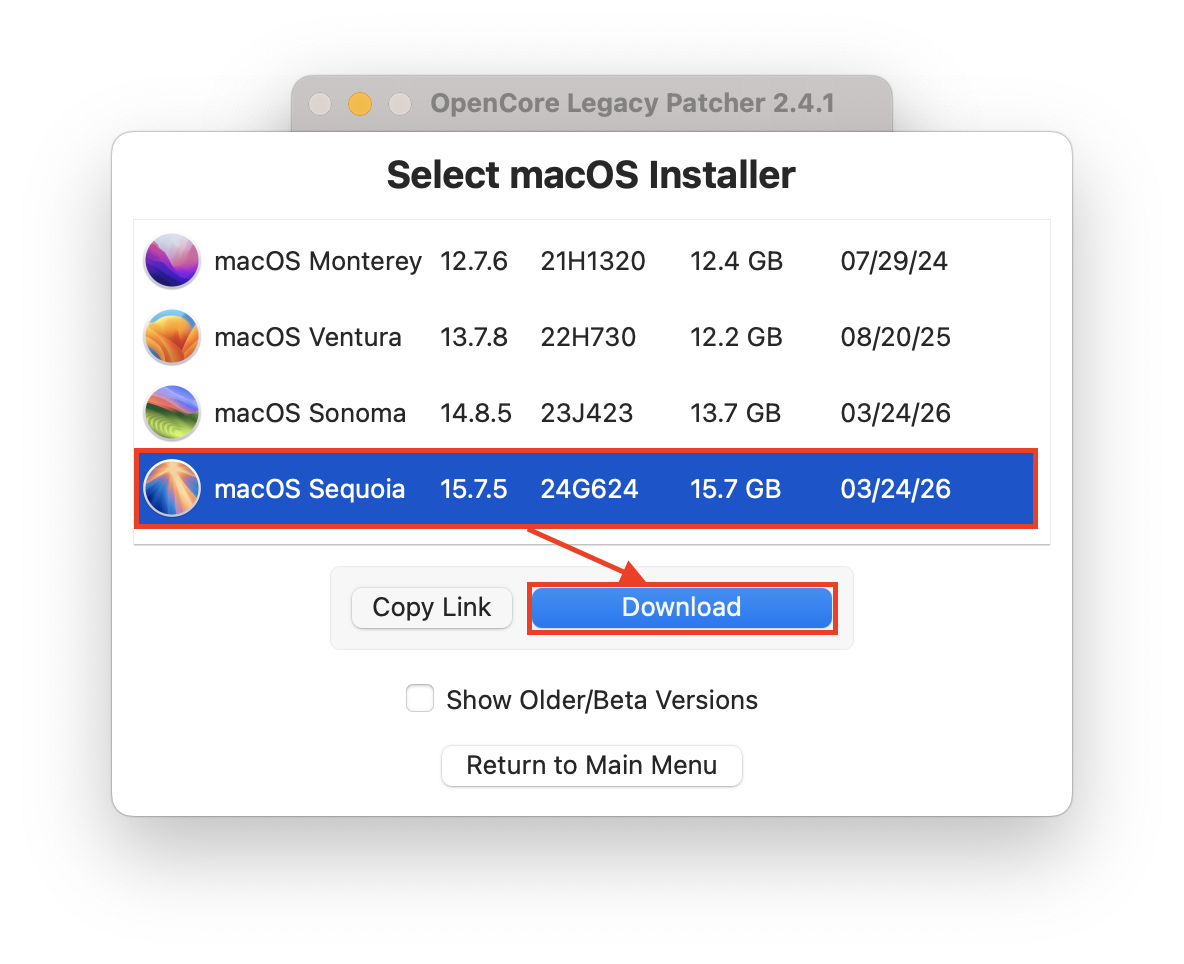
Choose macOS Sequoia from the list of available versions.
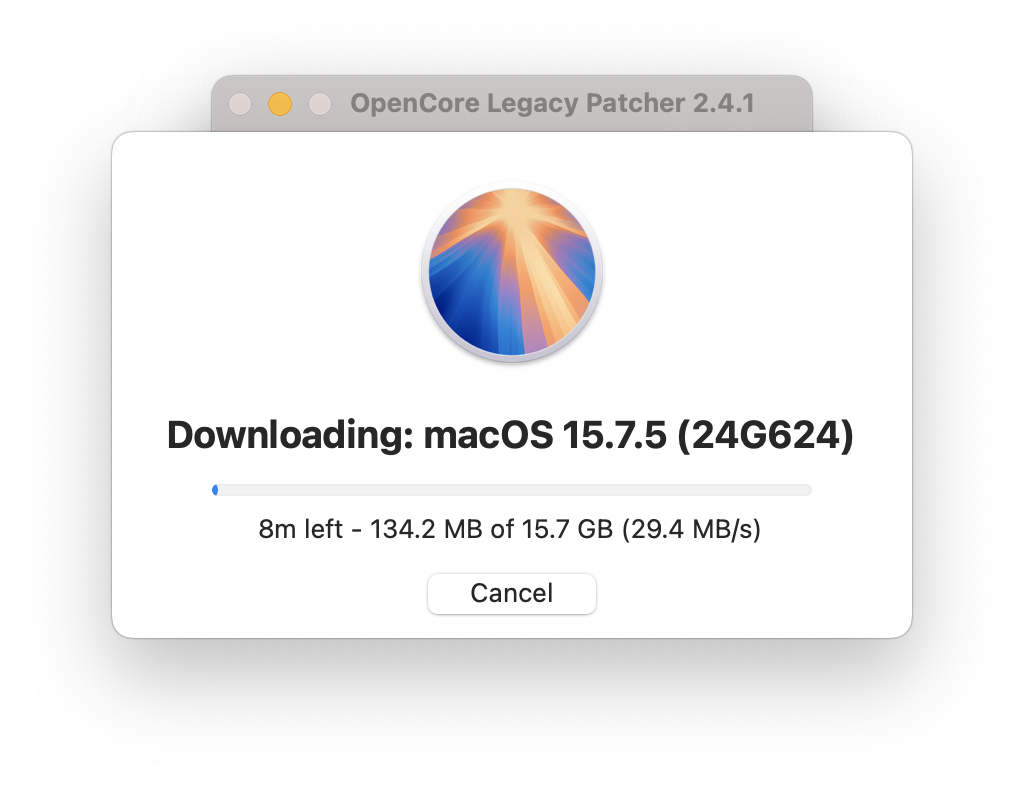
Wait for the download to finish—this can take a while depending on your internet speed.
Step 1. Download and open OpenCore Legacy PatcherStep 2. Click Create macOS InstallerStep 3. Select Download macOS InstallerStep 4. Choose macOS Sequoia from the listStep 5. Wait for the download to finish
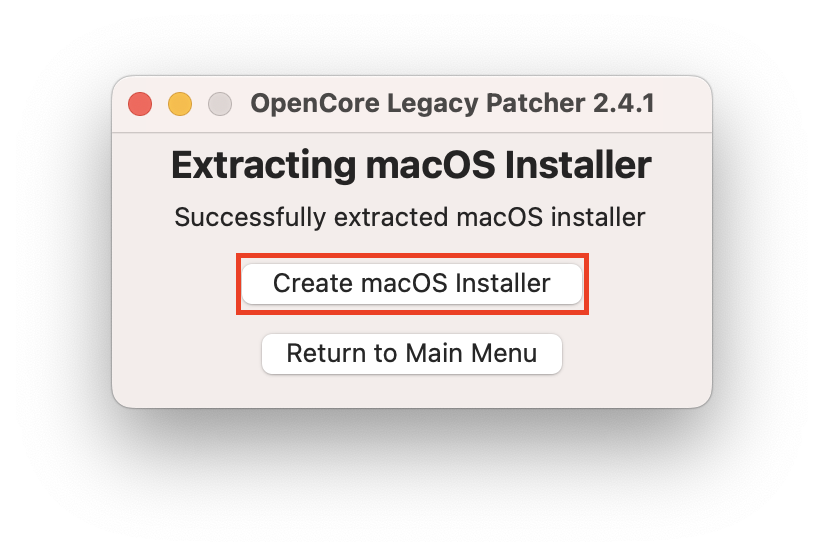
With the installer downloaded, you’ll write it to your USB drive. This will erase everything on the drive, so make sure there’s nothing important on it. Do the following:
Plug your USB flash drive (32 GB or larger) into your Mac.
In OpenCore Legacy Patcher, select Create macOS Installer again.
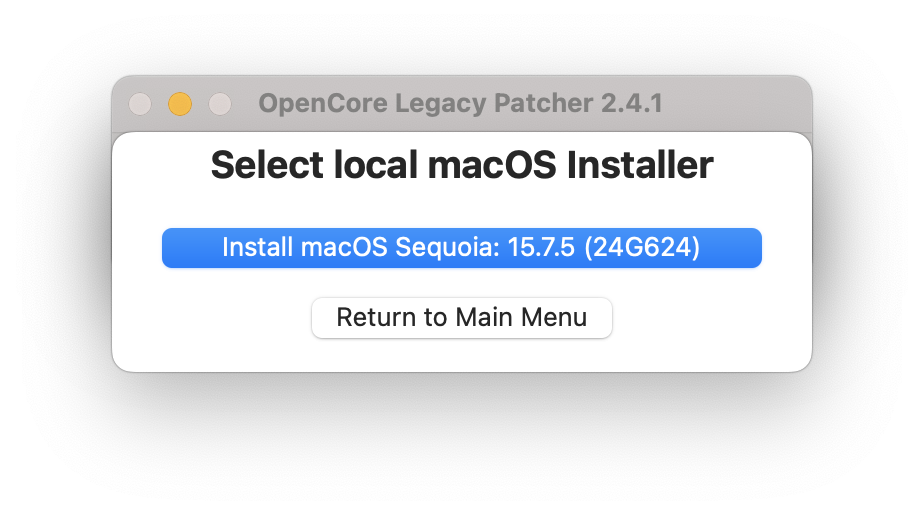
This time, choose Use existing macOS Installer and select the macOS Sequoia installer you just downloaded.
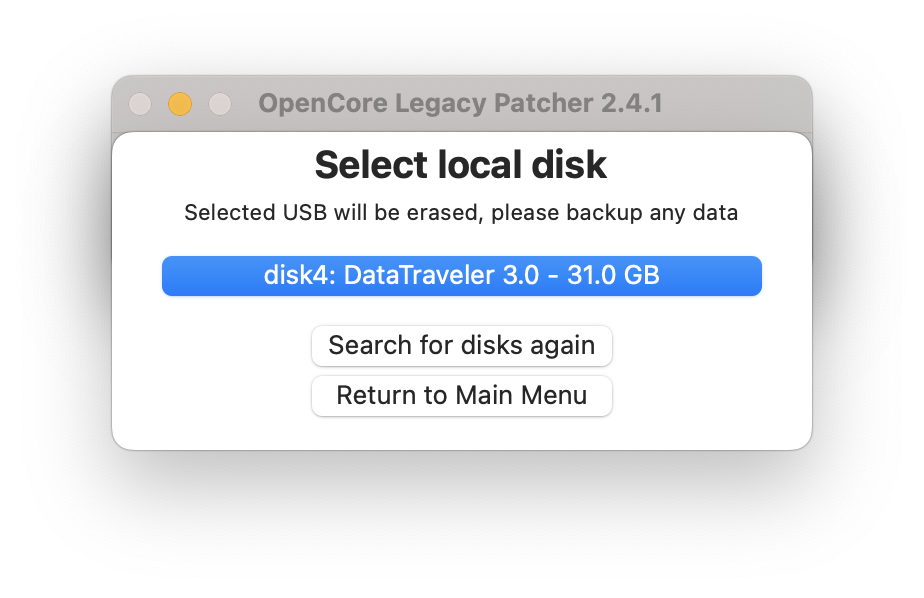
Select your USB drive as the destination.
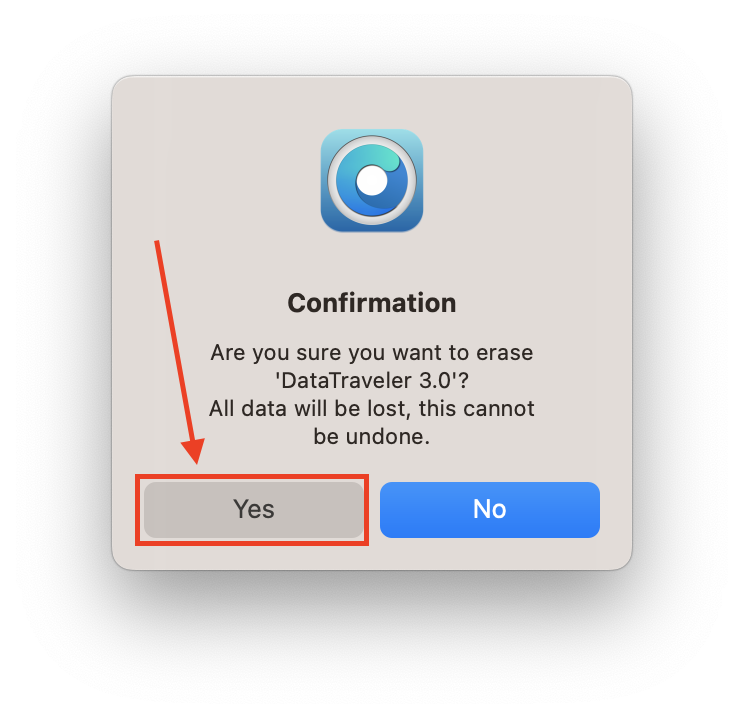
Confirm that you want to erase and format the drive, then proceed.
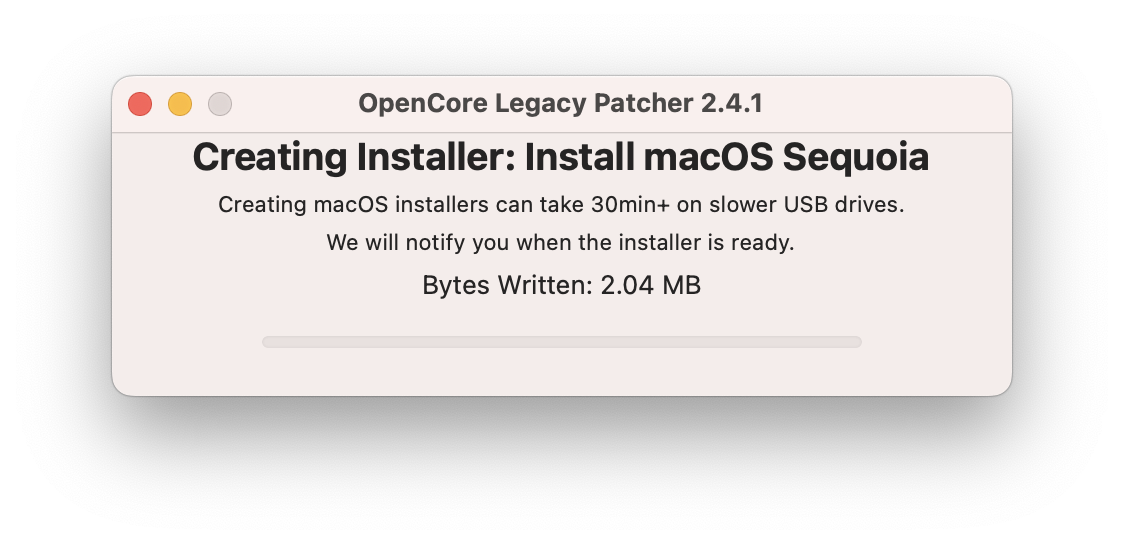
Wait for the bootable installer to be created—this typically takes 15–30 minutes.
Step 1. Create macOS InstallerStep 2. Choose and confirm your macOS installer selectedStep 3. Select the USB drive as destinationStep 4. Confirm erase and wait for bootable installer creationStep 5. Wait until the installation is complete
4. Install OpenCore Legacy Patcher to external drive
Now you need to add OCLP’s bootloader to the USB drive so your unsupported Mac can boot from it. Proceed with these hints from us:
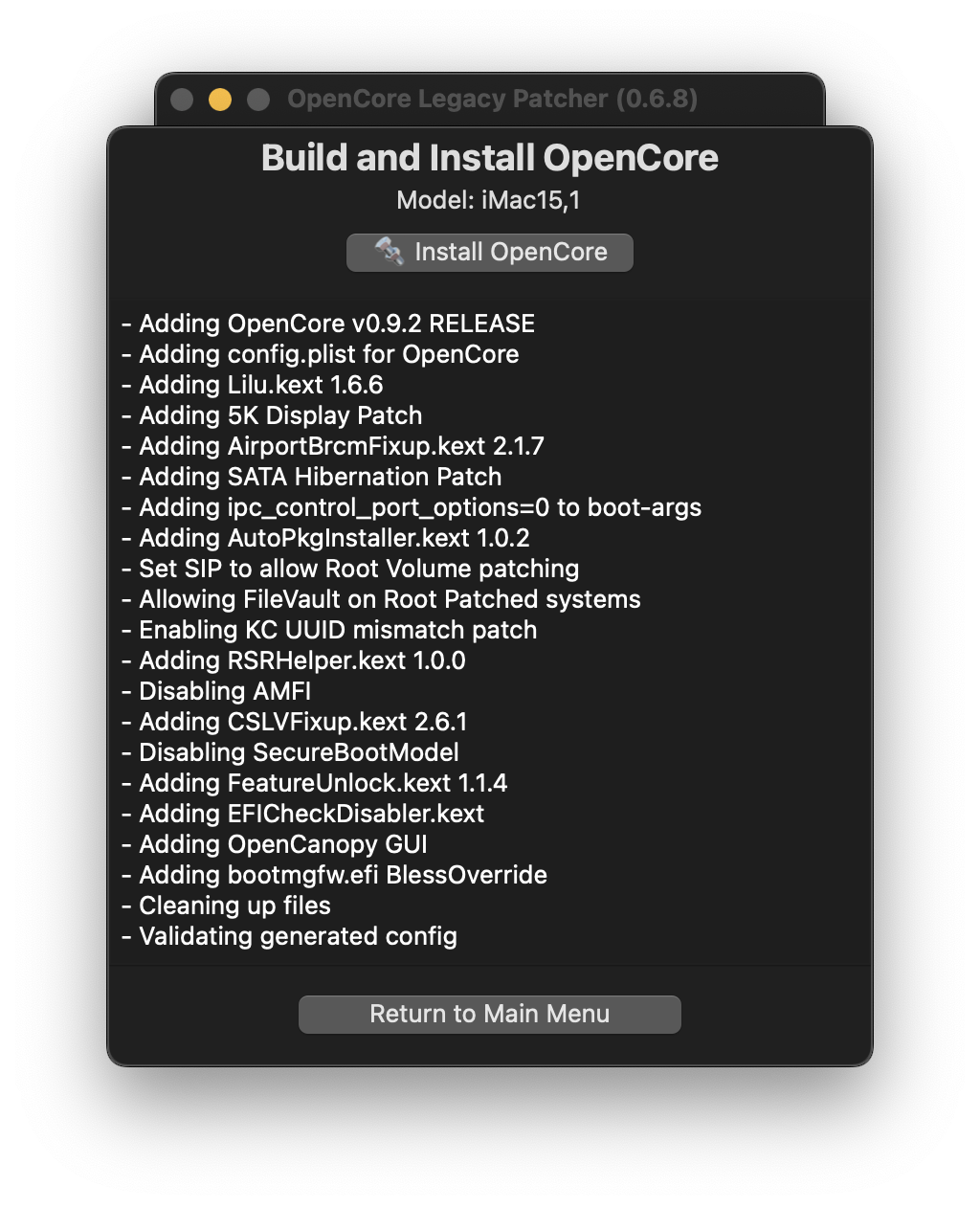
In OpenCore Legacy Patcher, click Build and Install OpenCore.
Click Build OpenCore and wait for the process to finish.
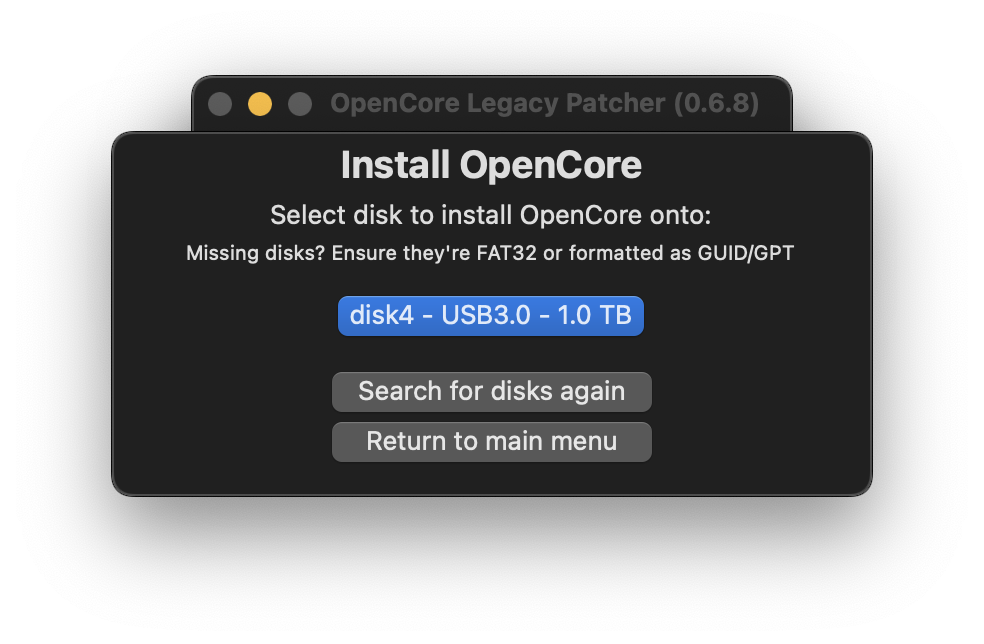
When prompted, click Install OpenCore.
Select your USB flash drive (not your Mac’s internal drive) as the install target.
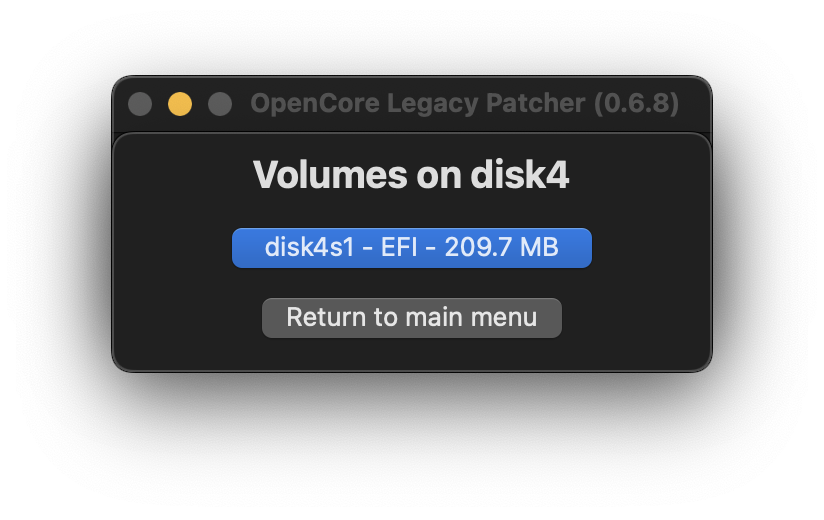
Choose the EFI partition on the USB drive when asked.
Step 1. Click Build and Install OpenCoreStep 2. Click Install OpenCoreStep 3. Select USB driveStep 4. Choose the EFI partition on the USB drive
5. Boot from the installer and start macOS installation
With your bootable USB ready, restart your Mac and begin the installation. For this, do the following:
Restart your Mac and immediately hold the Option (Alt) key.
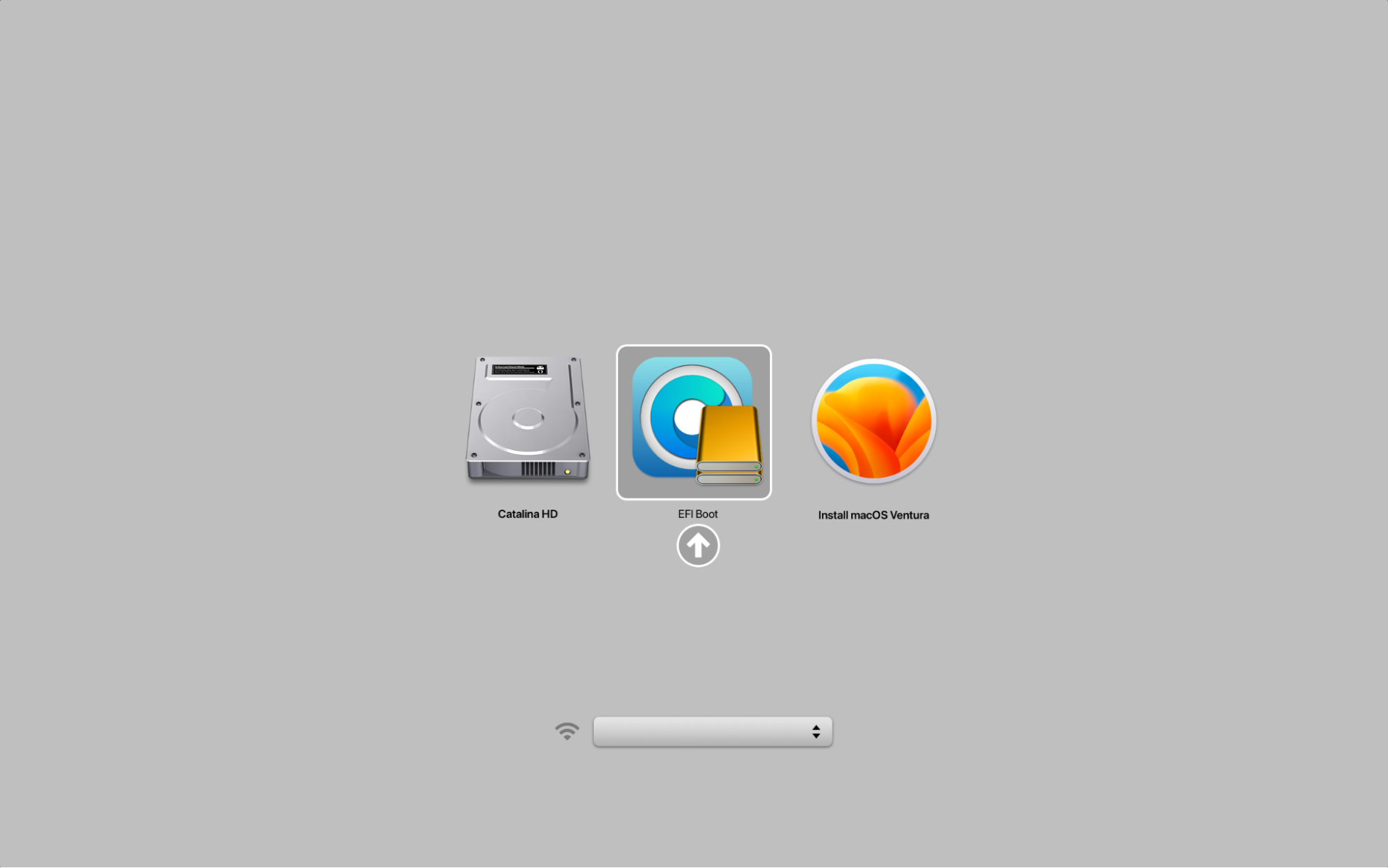
When the boot menu appears, select EFI Boot or the OpenCore option (it may show as a drive icon with “EFI”).
In the OpenCore boot picker, choose Install macOS Sequoia.
Once the macOS installer loads, select Disk Utility from the recovery menu if you want to format your drive first.
Return to the main menu and choose Install macOS Sequoia.
Select your Mac’s internal hard drive as the destination and follow the on-screen instructions.
Your Mac will restart several times during installation—this is normal. Keep the USB plugged in throughout the process.
6. Complete post-install patching
After macOS Sequoia installs, and you reach the login screen, your Mac may still be missing support for Wi-Fi, graphics acceleration, or audio. Root patching fixes this. Do this:
Log in to your Mac and wait a minute for background processes to settle.
Open OpenCore Legacy Patcher (it should be in your Applications folder or on the USB drive).
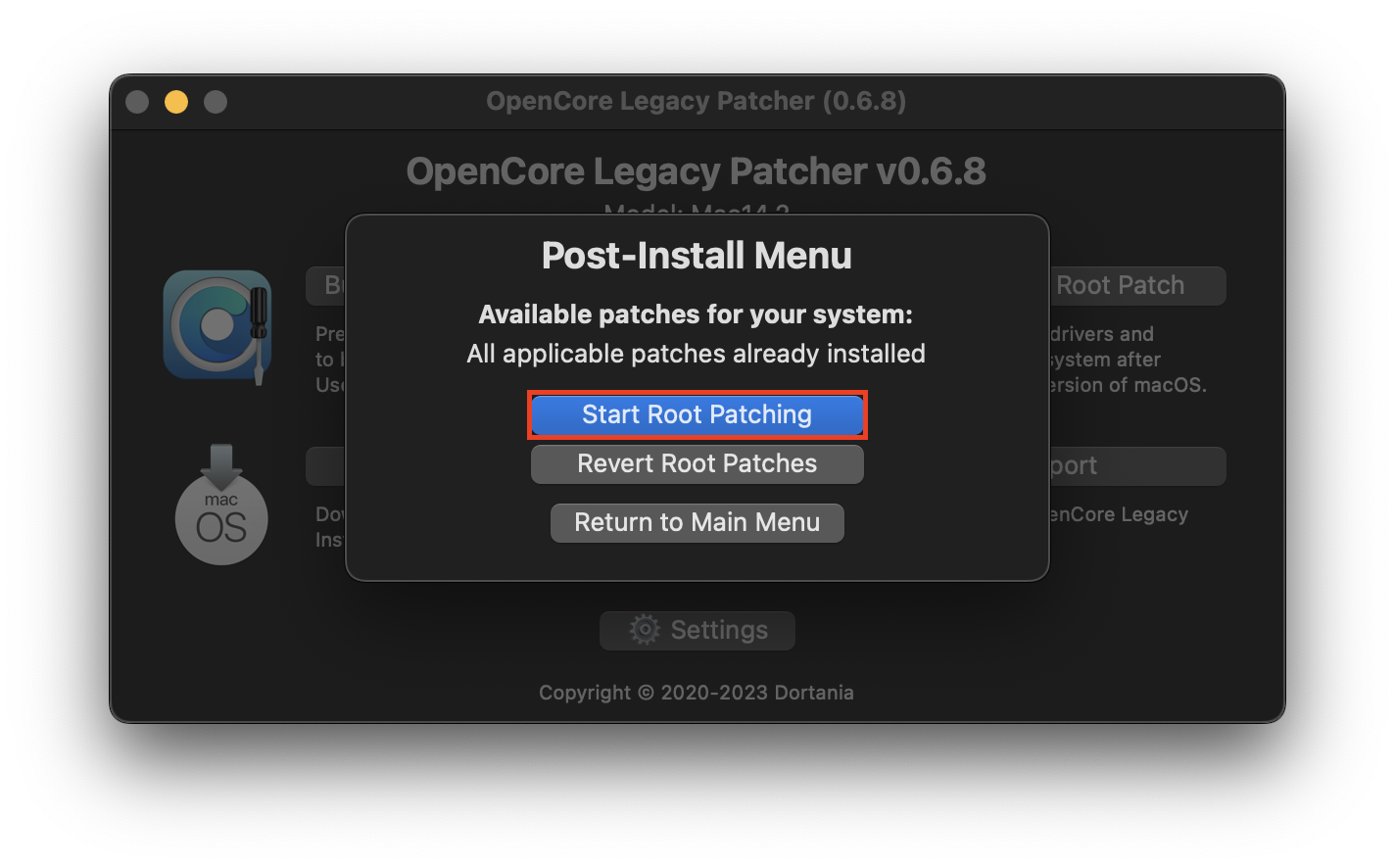
Click Post Install Root Patch.
Click Start Root Patching and enter your admin password when prompted.
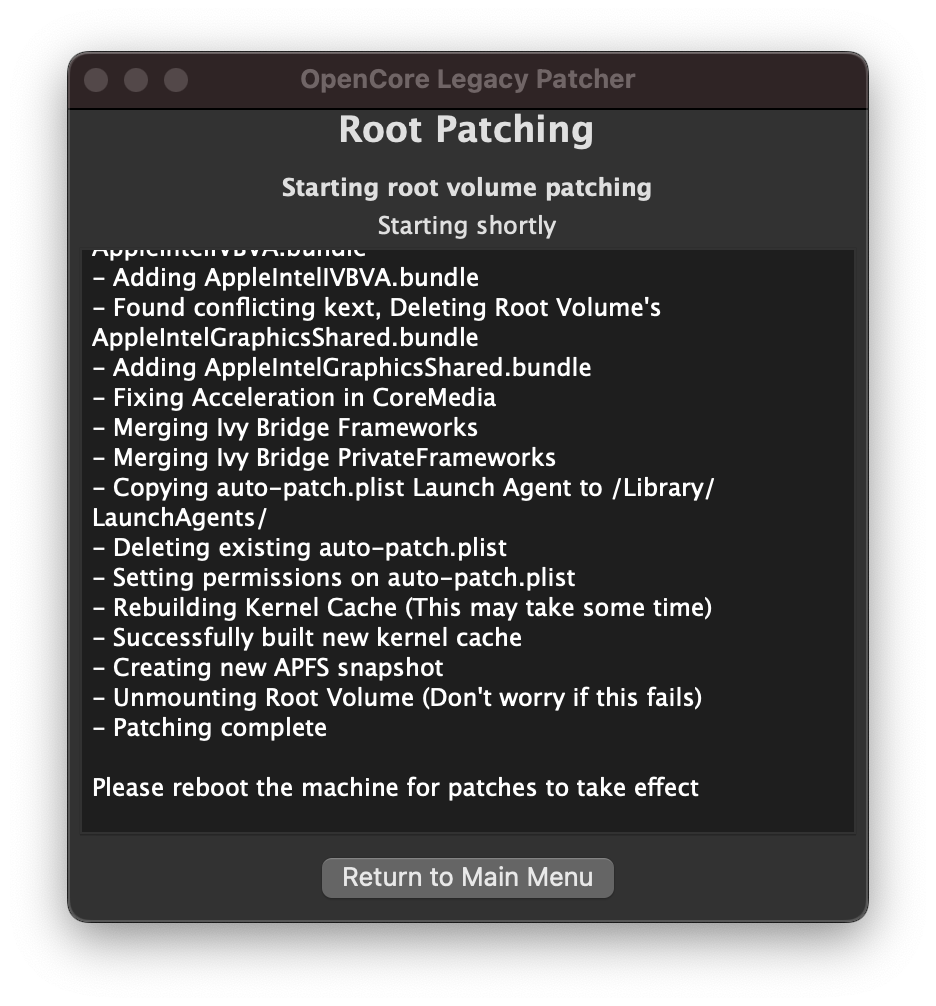
Wait for the patching to complete—this usually takes a few minutes.
Restartyour Mac to apply the changes.
See how to initiate the root patching processSee how it goes
7. Install OpenCore to the internal drive
Right now, your Mac can only boot macOS Sequoia with the USB drive plugged in. To boot normally without the USB, move the OpenCore bootloader to your internal drive. The process is similar to the one explained in the Install OpenCore Legacy Patcher to external drive section. Here’s the reminder:
Open OpenCore Legacy Patcher.
Click InstallOpenCore to Disk.
Select your internal drive (the one macOS Sequoia was installed on)—not the USB drive.
Select the EFI volume when prompted.
Restart your Mac and remove the USB drive.
Your Mac should now boot into macOS Sequoia on its own.
How to update macOS Sequoia after installing it on unsupported Mac?
Updating a patched Mac isn’t quite the same as clicking Update Now in System Settings.
Here’s what to keep in mind:
Wait a few days after any new macOS Sequoia update. Community members test patches first, and rushing in could break your setup.
Update OCLP first. Download the latest version of OpenCore Legacy Patcher and rebuild the bootloader before installing any macOS update.
Re-apply root patches after every update. macOS uses a sealed system volume—updates restore the seal, which removes your hardware patches.
Disable automatic updates. Go to System Settings → General → Software Update and turn off automatic downloads to prevent surprise updates.
For the standard update process on supported Macs, see our guide on how to upgrade macOS.
Is macOS Sequoia worth installing on an unsupported Mac?
It depends on your Mac and your expectations. Here’s a quick overview prepared by the MacKeeper team:
What you gain
What to consider
Access to the latest macOS security improvements
Some features (Apple Intelligence, iPhone Mirroring) won’t work on older models
Continued app compatibility with newer software
Older hardware may feel slower with macOS Sequoia’s demands
Extended life for your older MacBook or Mac Pro
Updates require extra steps with OCLP
Community support from active OCLP users
No official Apple support for troubleshooting
Our verdict is that installing macOS Sequoia on an unsupported Mac is a real option for extending the life of older hardware. It takes preparation, patience, and realistic expectations, and thousands of users upgrade unsupported Macs to Sequoia without major issues. Still, performance and stability may vary, but if you want to improve Mac performance alongside the upgrade, cleaning up junk files and managing startup items can help.
Conclusion
Installing macOS Sequoia on an unsupported Mac is doable—and it can breathe new life into your older Macintosh. Before you begin, use MacKeeper’s Safe Cleanup to clear junk files and free up the storage space you’ll need for a smooth upgrade. Then, follow the instructions we’ve explained so far in precise detail. Good luck!
We respect your privacy and
use cookies
for the best site experience.
Privacy Preferences Center
We use cookies along with other tools to give you the best possible experience while using the
MacKeeper website. Cookies are small text files that help the website load faster. The cookies we
use don’t contain any type of personal data meaning they never store information such as your
location, email address, or IP address.
Help us improve how you interact with our website by accepting the use of cookies. You can change
your privacy settings whenever you like.
Manage consent
All cookies
These cookies are strictly necessary for enabling basic website functionality (including page
navigation, form submission, language detection, post commenting), downloading and purchasing
software. The website might malfunction without these cookies.