Searching for macOS Tahoe to remove widgets from the desktop usually means you're ready to clear those interactive panels that clutter your view, drain background resources, and pull your attention from real work. Before you dig into settings, MacKeeper’s Smart Uninstaller can scrub leftover files from widget-providing apps so your Mac runs lighter every day.
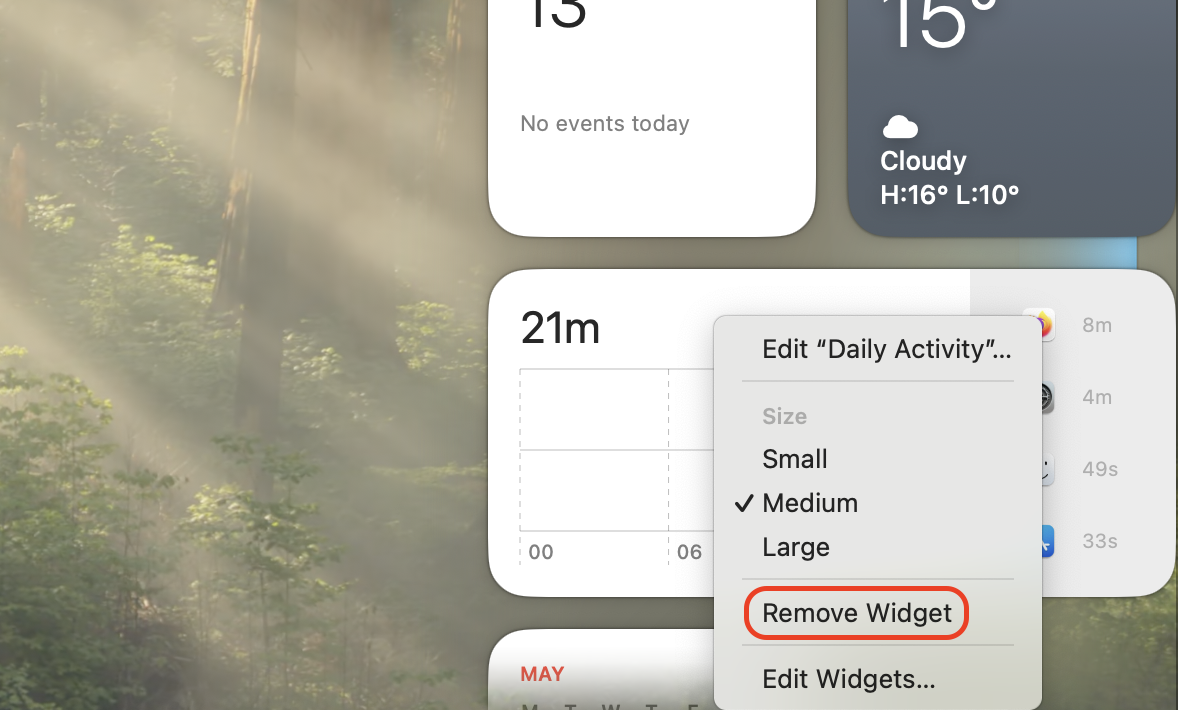
You can remove widgets from your desktop on macOS Tahoe in a few clicks. To do this, right-click any single widget and pick Remove Widget, or open System Settings, choose Desktop and Dock, and turn off Show Widgets on Desktop to hide every panel at the same time.
Why to remove widgets from desktop macOS Tahoe?
macOS Tahoe remove widgets from desktop has quickly become one of the top cleanup searches among new Mac users, since those interactive panels crowd your wallpaper, drain battery, eat CPU cycles in the background, sync data you never asked to track, and pull your focus far from the real work you opened your Mac for.
How to get rid of widgets on macOS Tahoe?
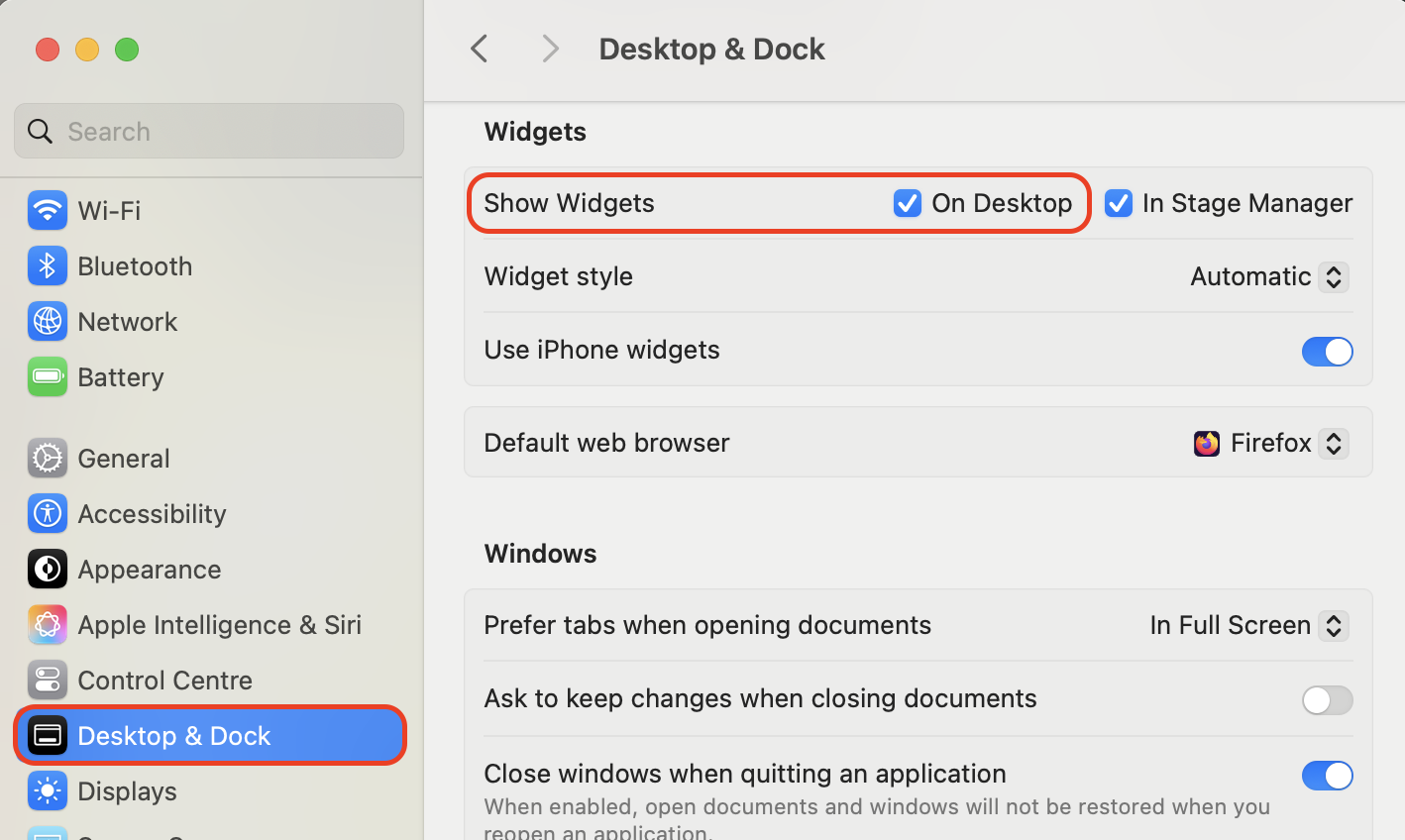
To get rid of widgets in macOS Tahoe when they show up by default, right-click a widget and select Remove Widget for a single item, or open System Settings > Desktop and Dock and toggle off Show Widgets on Desktop to clear them all at once.
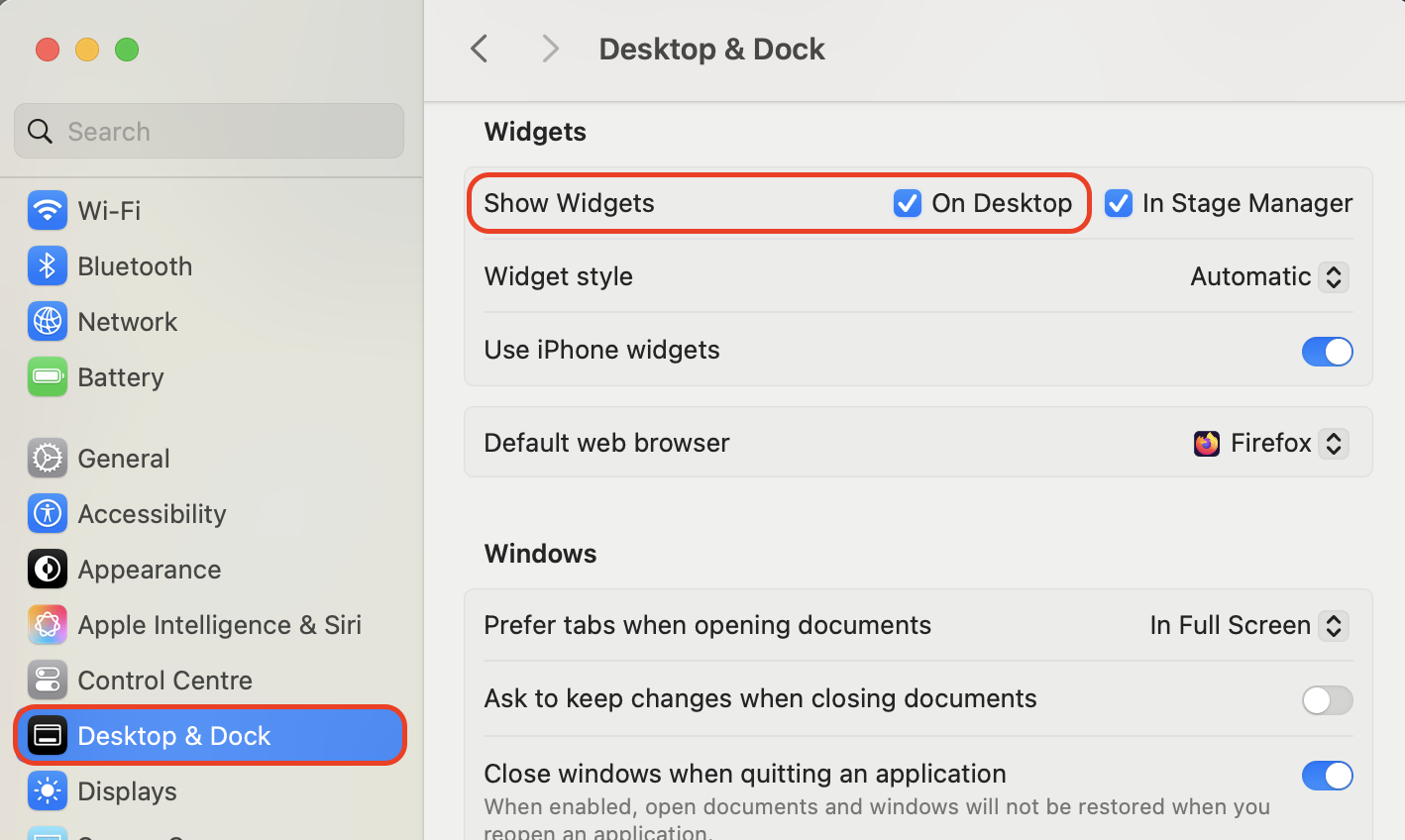
Open System Settings > Desktop and Dock and toggle off Show Widgets on Desktop to clear them all at once
A note from our experts:
When you uninstall a widget-providing app the usual way, plugins, browser extensions, and hidden service files often stay behind on your disk. That’s why our team relies on MacKeeper’s Smart Uninstaller for full removal. It scans your Mac for every component tied to an app, including the parts macOS doesn’t show you. MacKeeper, trusted by millions of users, offers memory optimization and gives you full control over what stays and what goes from your device.
Here’s how to scan and uninstall widget-related apps with Smart Uninstaller:
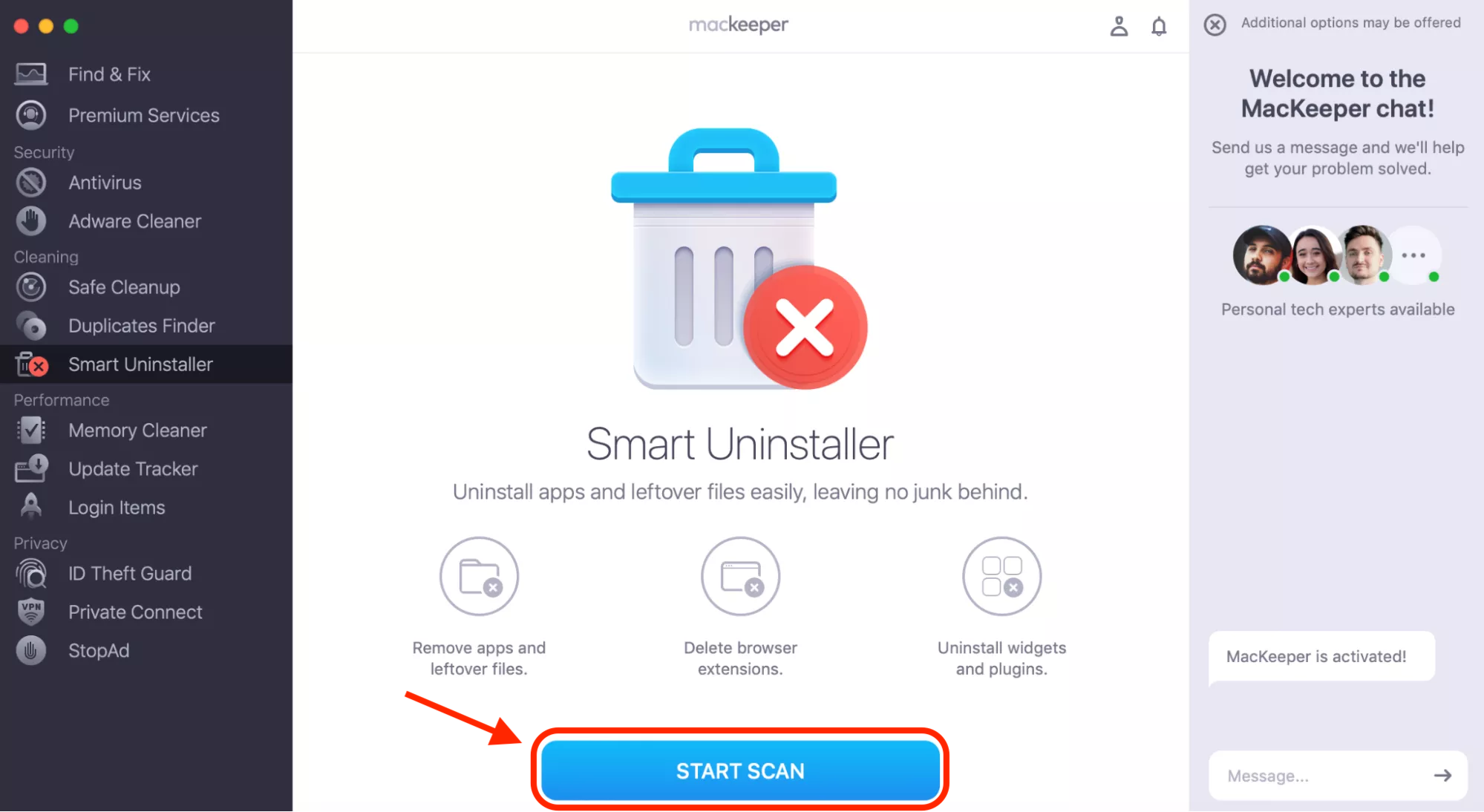
Open MacKeeper and select Smart Uninstaller from the left sidebar.
Click Start Scan to detect all installed applications and their associated leftovers.
Review the results and tick the apps tied to widgets you want removed.
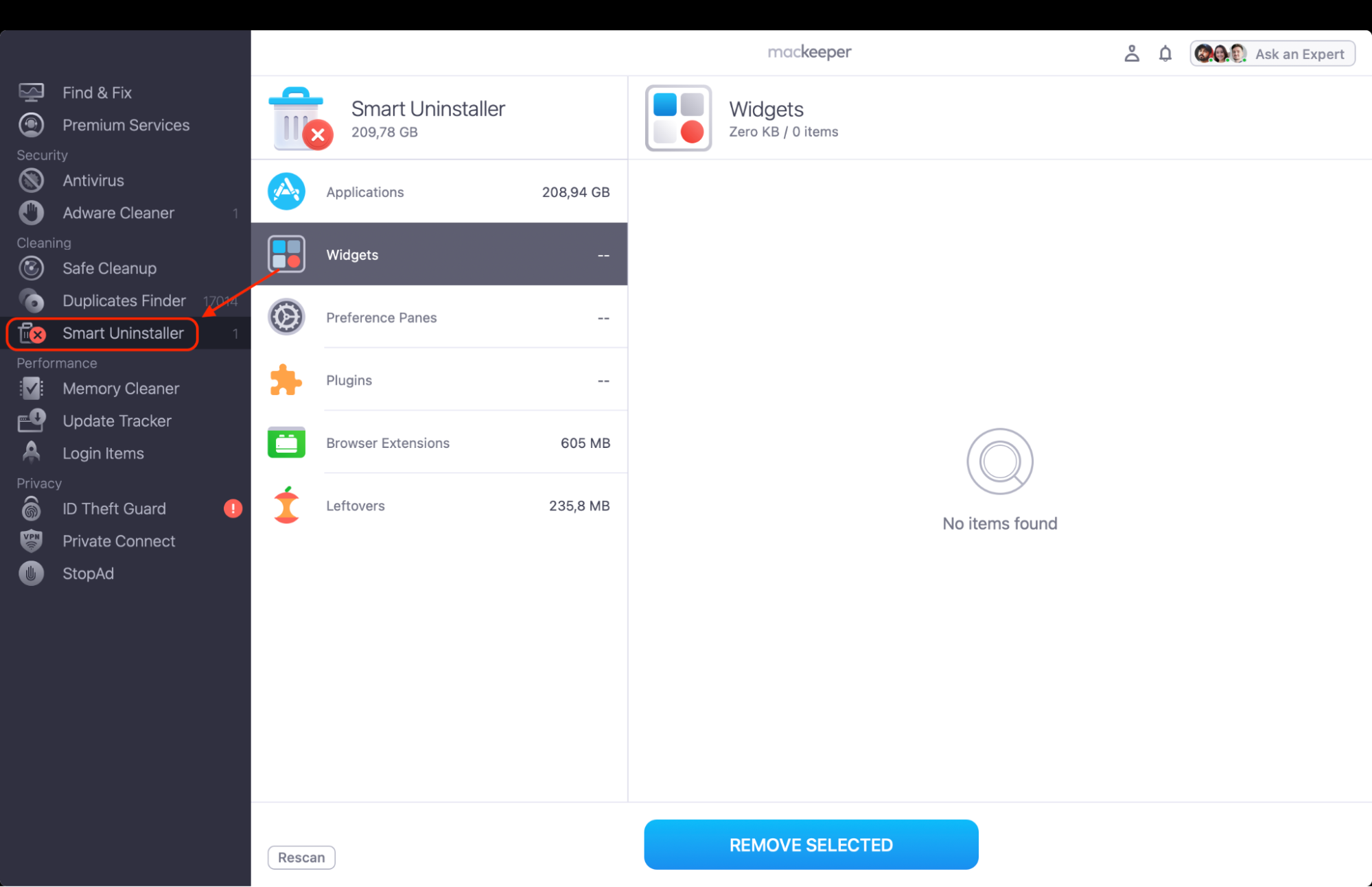
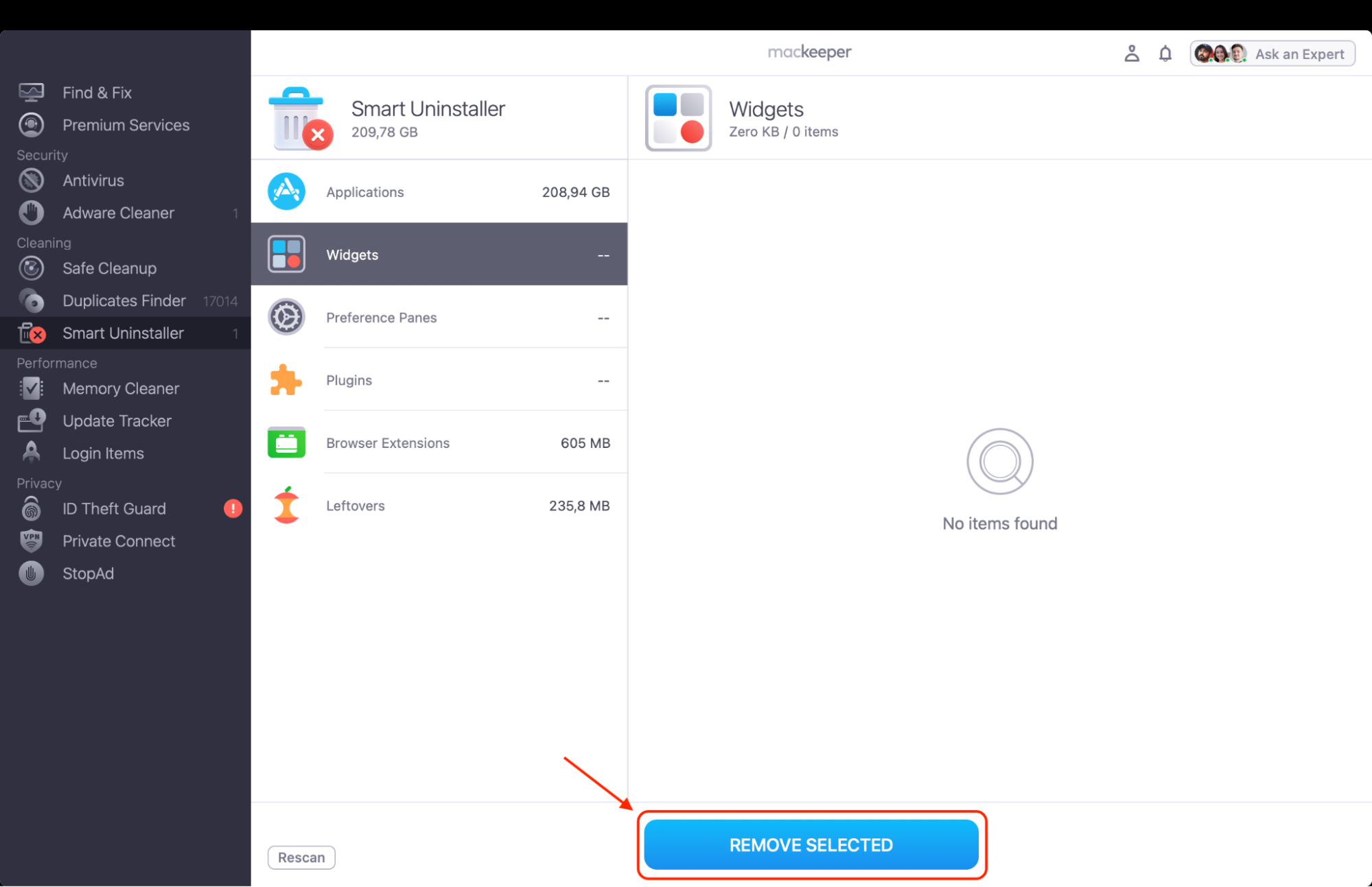
Click Remove to delete the selected items along with every related file.
Step 1. Open MacKeeper and select Smart Uninstaller from the left sidebarStep. 2. Click Start Scan to generate a list of removable itemsStep. 3. Click Remove to uninstall selected apps
1. Remove Widget from menu
We rely on this method when only one or two items bother you on the desktop, since it doesn’t touch your other widgets or system settings.
To remove a widget from the desktop menu:
Right-click directly on the widget you want gone.
Pick Remove Widget from the dropdown menu.
Confirm the removal if Tahoe asks.
Repeat for any other panel you want off the desktop.
Right-click directly on the widget and select Remove Widget from the dropdown menu
2. Remove from System Settings
This method shows how to remove widgets from a Mac desktop in bulk and lets you bring them back later without re-adding each item. Based on our tests, it’s also the only path that survives a restart, so you don’t have to disable each one again after a reboot.
To remove widgets through System Settings:
Open System Settings.
Click Desktop and Dock in the sidebar.
Scroll to the Widgets section.
Toggle off Show Widgets on Desktop to clear the entire layout.
Close System Settings to confirm the change.
Open System Settings, click Desktop and Dock, scroll to the Widgets section and toggle off Show Widgets on Desktop to clear the entire layout
3. Hide widget from desktop
Hiding a widget keeps it ready for future use without showing it on your wallpaper. If your workflow changes and you want to add widgets to a Mac desktop again, the same Show Widgets toggle brings them back.
To hide a widget from the desktop:
Open System Settings and select Desktop and Dock.
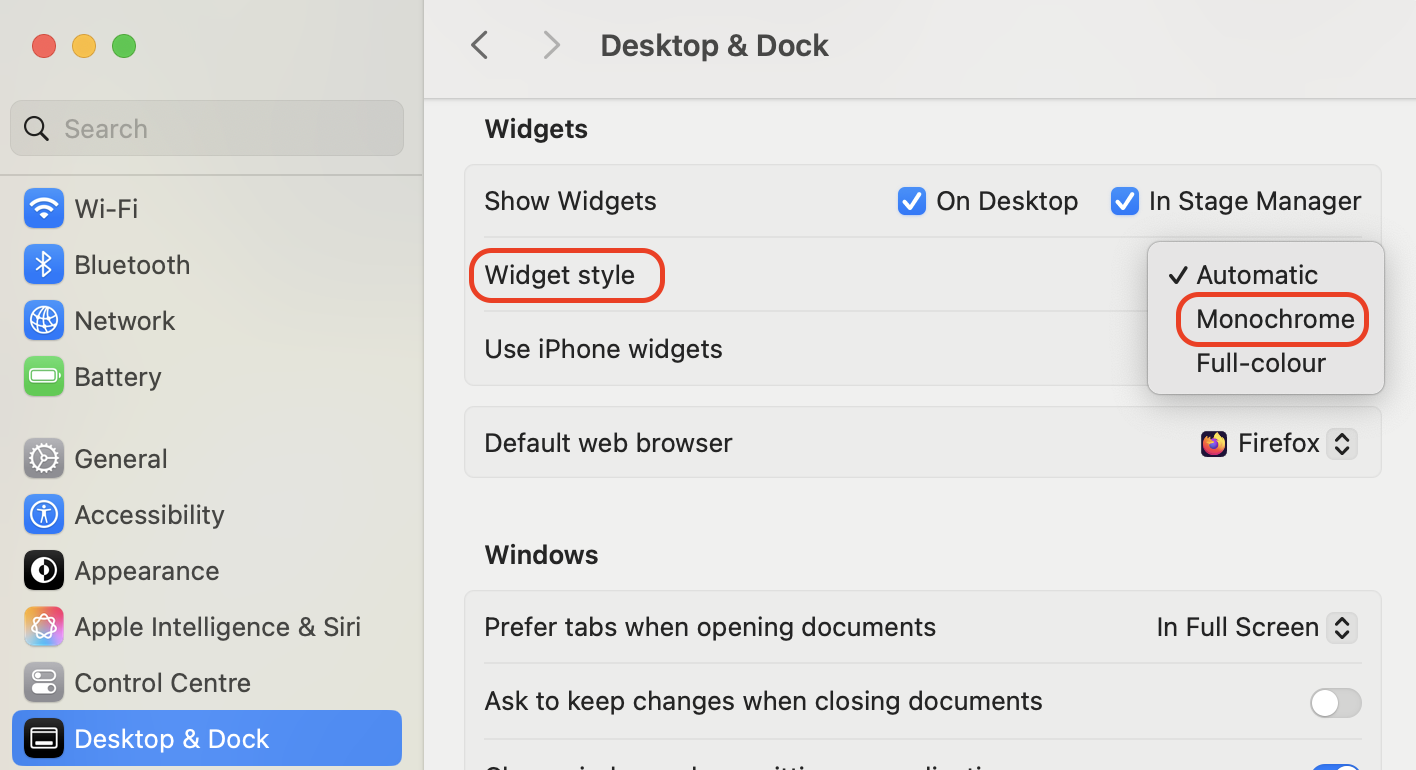
Find the Widget style option in the Widgets section.
Choose Monochrome or set the desktop opacity to fade widgets behind your wallpaper.
Apply the change and check your desktop view.
From Desktop and Dock settings, find the Widget style option and choose Monochrome
4. Clear widget from Notification Center
If a widget no longer fits your workflow, the Notification Center is where you fully clear it from both views. We use this approach to make sure a removed widget doesn’t pop up again the next time you open the Notification Center.
To clear a widget from the Notification Center:
Click the date and time in the menu bar to open Notification Center.
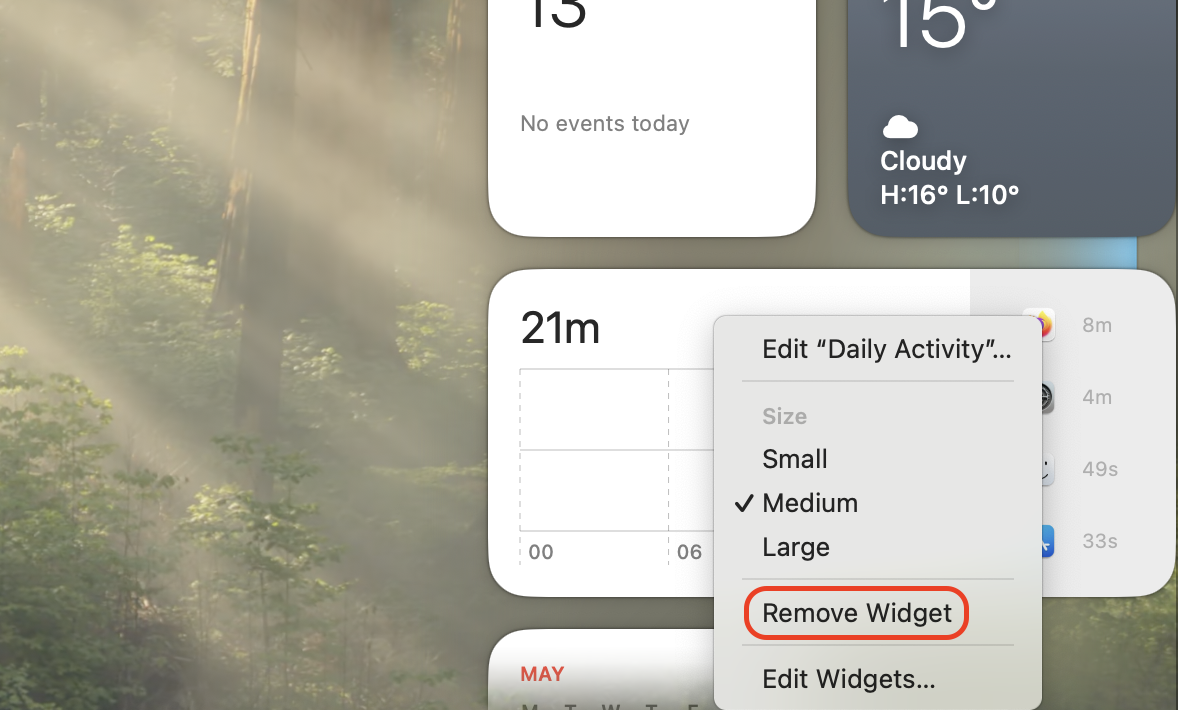
Right-click the widget you want gone and select Remove Widget.
Click Done to save and exit.
Click the date and time in the menu bar to open Notification Center. Right-click the widget you want gone and select Remove Widget
Conclusion
Removing widgets from your Tahoe desktop comes down to four simple paths: right-clicking individual panels, disabling them in System Settings, switching to a hidden style, or clearing them in the Notification Center.
Whichever path you pick, Tahoe lets you keep widgets fully managed without third-party tools. For a deeper clean of widget-related leftovers, MacKeeper’s Smart Uninstaller stays our go-to tool.
We respect your privacy and
use cookies
for the best site experience.
Privacy Preferences Center
We use cookies along with other tools to give you the best possible experience while using the
MacKeeper website. Cookies are small text files that help the website load faster. The cookies we
use don’t contain any type of personal data meaning they never store information such as your
location, email address, or IP address.
Help us improve how you interact with our website by accepting the use of cookies. You can change
your privacy settings whenever you like.
Manage consent
All cookies
These cookies are strictly necessary for enabling basic website functionality (including page
navigation, form submission, language detection, post commenting), downloading and purchasing
software. The website might malfunction without these cookies.