Have you noticed more system lags or overheating since you’ve updated to macOS Tahoe? Your device might not be handling the software too well, and that’ll likely prompt the dreaded color-loading wheel. If your MacBook is slow, MacKeeper’s Memory Cleaner can resolve your memory issues to help stabilize your Mac.
If you’re wondering, why is macOS Tahoe so slow? It’s likely an issue with insufficient space and not enough resources to keep the software functioning as expected post-update. The OS also needs memory for background indexing and additional RAM to ensure it can continue running as intended.
What is macOS Tahoe?
macOS Tahoe is the latest version of the 2025-2026 os that is specifically designed for Apple Mac devices. The new features include Liquid Glass visuals, Control Centrecustomizations, and enhanced FaceTime features like Edge Light. Downloading the new os wil also fix any bugs from previous patches, but we do recommend checking your macOS Tahoe compatibility before it’s installed.
Root causes of macOS Tahoe slow performance
Is your Mac running slow after you’ve installed the new macOS Tahoe? You might have too many background processes running, leading to a resource overload. Demanding UI effects, background indexing, and increased GPU strain are all going to make macOS Tahoe slow, requiring you to make effective changes to your Mac quickly. To restabalie os, follow our troubleshooting steps below.
A note from our experts:
Upgrading to macOS Tahoe should make your system better and faster, but if instead it’s lagging significantly or having trouble responding or opening apps, then we advise checking your memory usage, as it might be overloaded. MacKeeper’s Memory Cleaner can help you check your usage by finding out what Apps & Processes are demanding too many resources. With MacKeeper’s help, you’ll free up much-needed RAM in seconds.
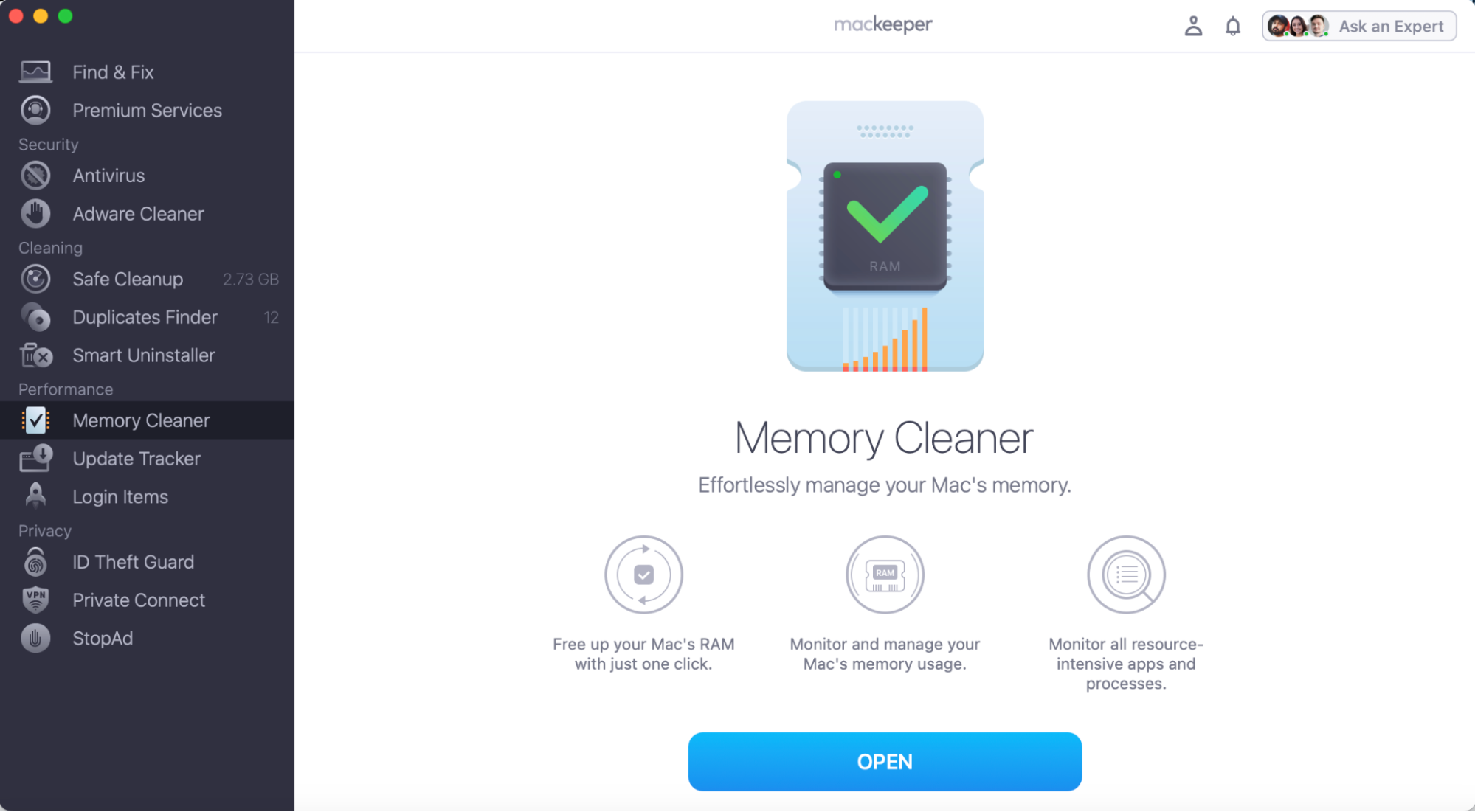
Here’s how to use MacKeepr’s Memory Cleaner to speed up macOS Tahoe:
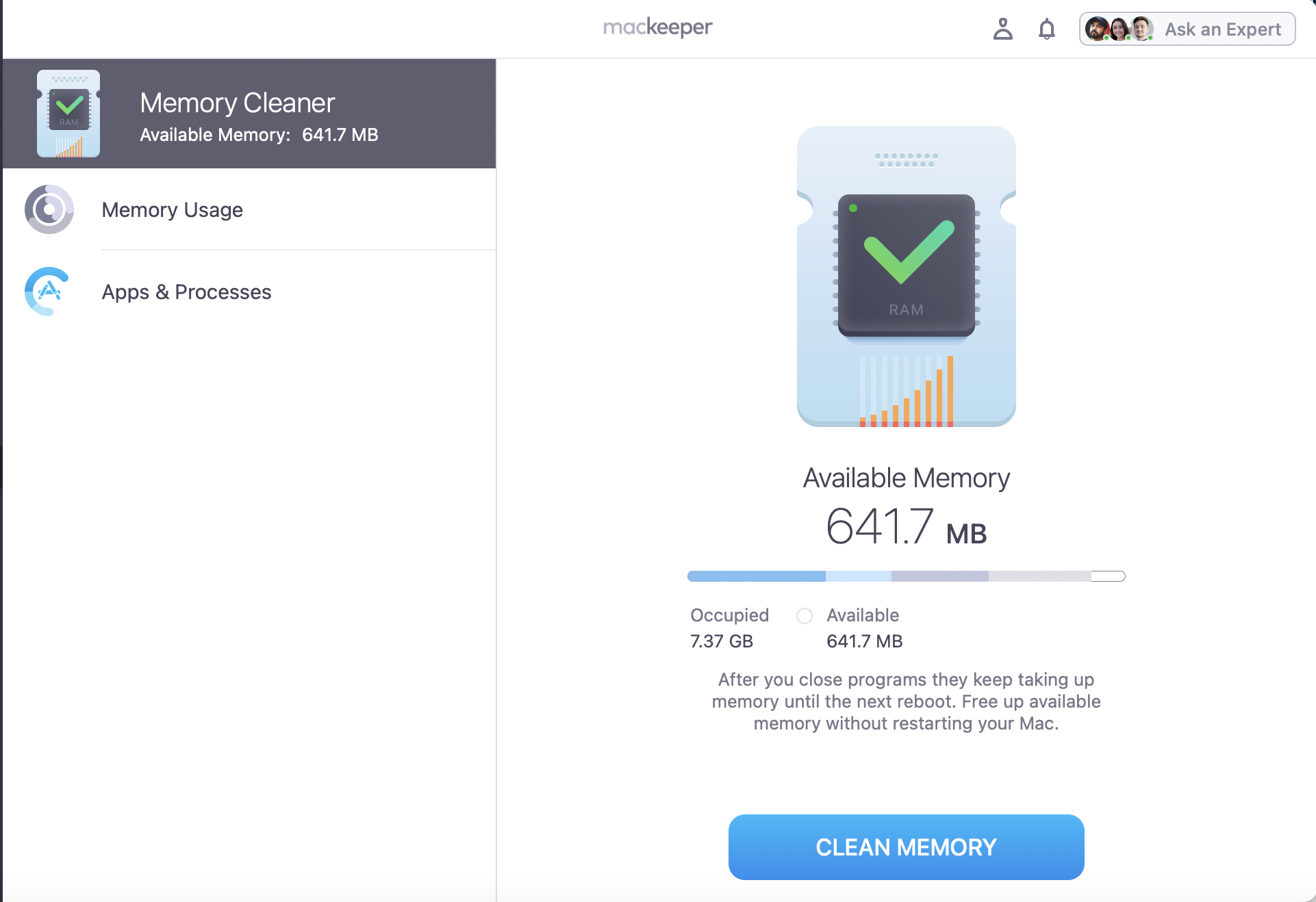
Review your Memory Usage from the full list of apps & processes.
To free up RAM, press Clean Memory.
Step 1. Open MacKeeper, go to Memory Cleaner, and click OpenStep 2. Look through your Memory usage and press Clean Memory to free up RAM
How to speed up macOS Tahoe?
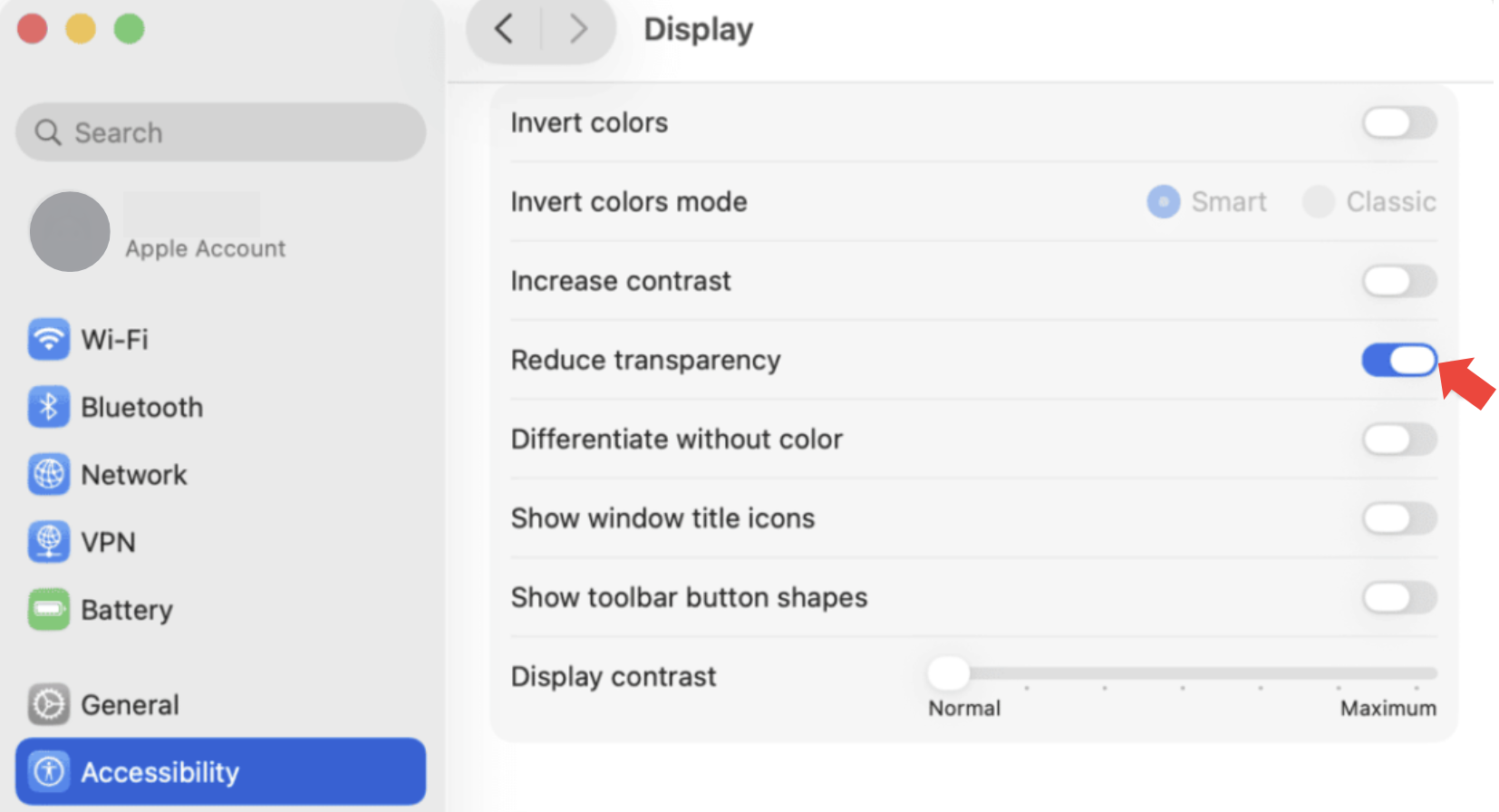
To help you speed up macOS Tahoe, we recommend Reducing Transparency in System Settings > Accessibility > Display, as the new macOS Tahoe visuals could become overbearing. Then try the following:
Restarting your Mac
Managing login items and background apps
Reducing visual effects and motion
Finishing background indexing
Clearing cache and freeing storage
1. Restarting your Mac
The first step we suggest you try to help make Tahoe faster is to familiarize yourself with how to force restart MacBook. Restarting your MacBook can help you instantly quit all your open apps and stop all processes running in the background in their tracks. Plus, it's super simple to do.
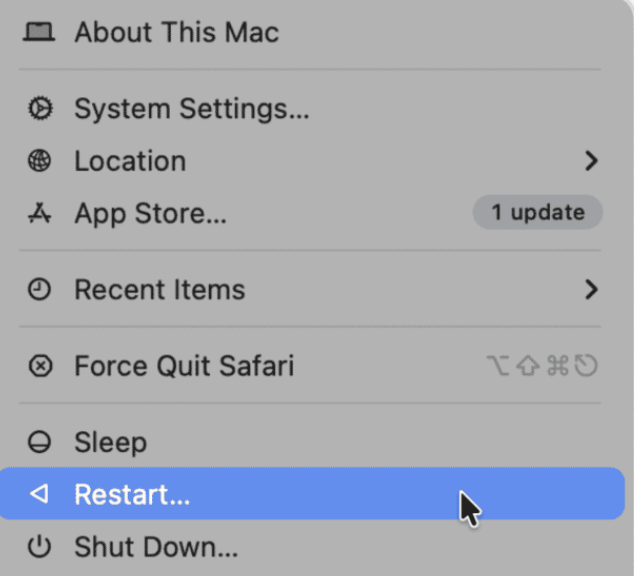
Here’s how to restart your Mac:
Click on the Apple Icon.
Select Restart.
You can restart your device by clicking on the Apple Icon and selecting the Restart option
2. Managing login items and background apps
Next, we want to remind you of the importance of managing your login items and background apps, as having too many can lead to a Mac slow startup. Our advice is to limit and change startup apps on Mac if you suspect them to be behind your OS slowness.
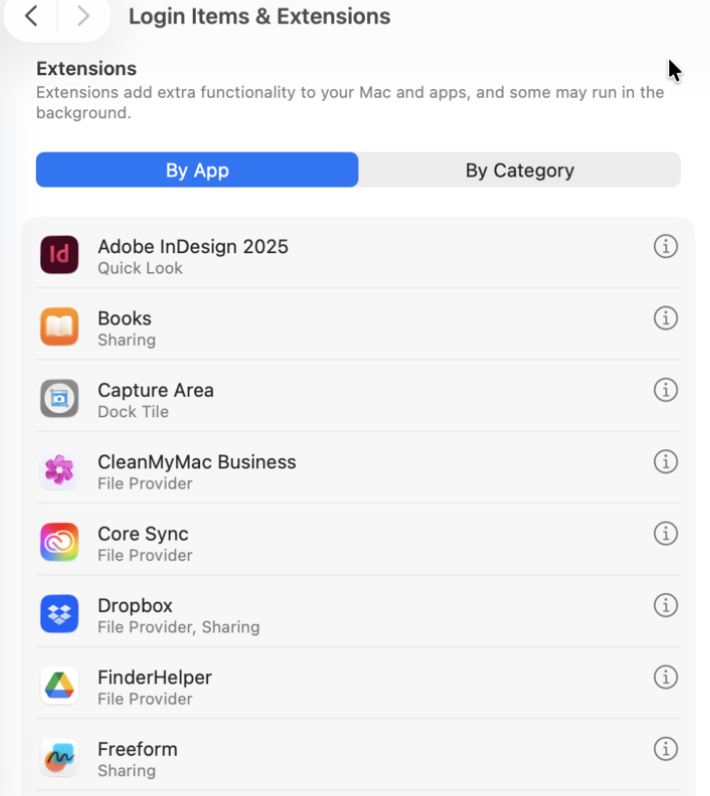
Here’s how to manage your login items and background apps:
In System Settings, go to General > Login Items to turn off the startup apps you don’t need.
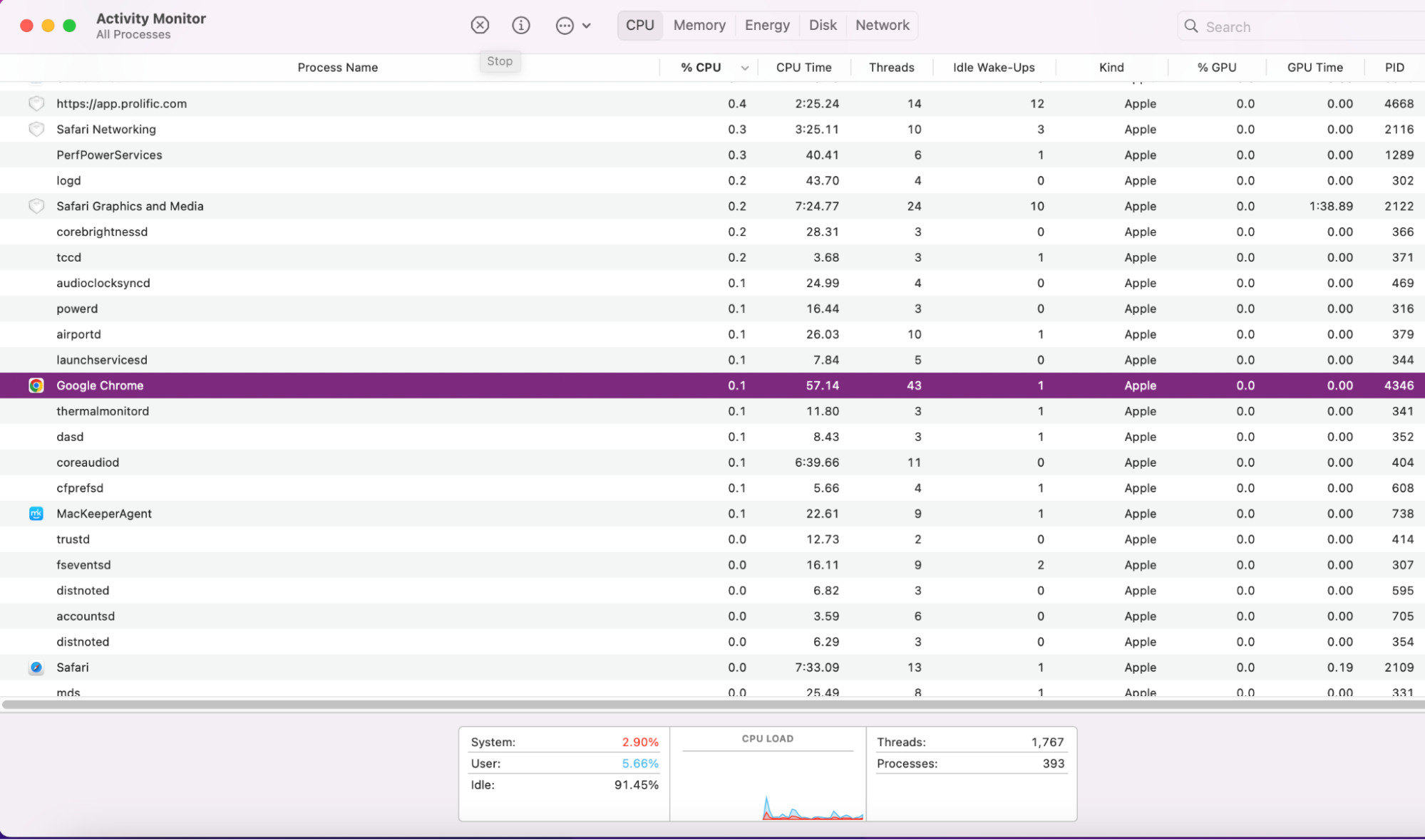
Open Activity Monitor and press Stop next to any apps that are demanding too much CPU.
Step 1. In System Settings, go to Login Items & Extensions and turn off unwanted startup itemsStep 2. In Activity Monitor, look for apps using a lot of CPU and press Stop to quit the process
3. Reducing visual effects and motion
We mentioned earlier how reducing your Mac’s visual effects could significantly help make Tahoe faster. This is a common step overlooked by many Apple users, but screen effects and motions can put a strain on resources and therefore lead to macOS Tahoe slowness.
Here’s a reminder of how to reduce visual effects and motion on Mac:
Open System Settings, click on Accessibility > Display.
Turn on Reduce Transparency and Reduce Motion.
In System Settings, open the Display tab to reduce motion and reduce transparency
4. Finishing background indexing
The macOS Tahoe features can be demanding, so you may need to give your device time to finish background indexing, especially if you recently upgraded. Different processes running in the background can temporarily affect speed, even on Apple Silicon devices. So we advise that you plug in and turn on your device and leave it untouched for a day or so to give it time to complete indexing.
5. Clearing cache and freeing storage
In case macOS Tahoe is still slow, it might be time to declutter any cache and free up space. If you’re unsure how to clear cache on Mac manually, follow our steps below.
Here’s how to clear cache and free up storage:
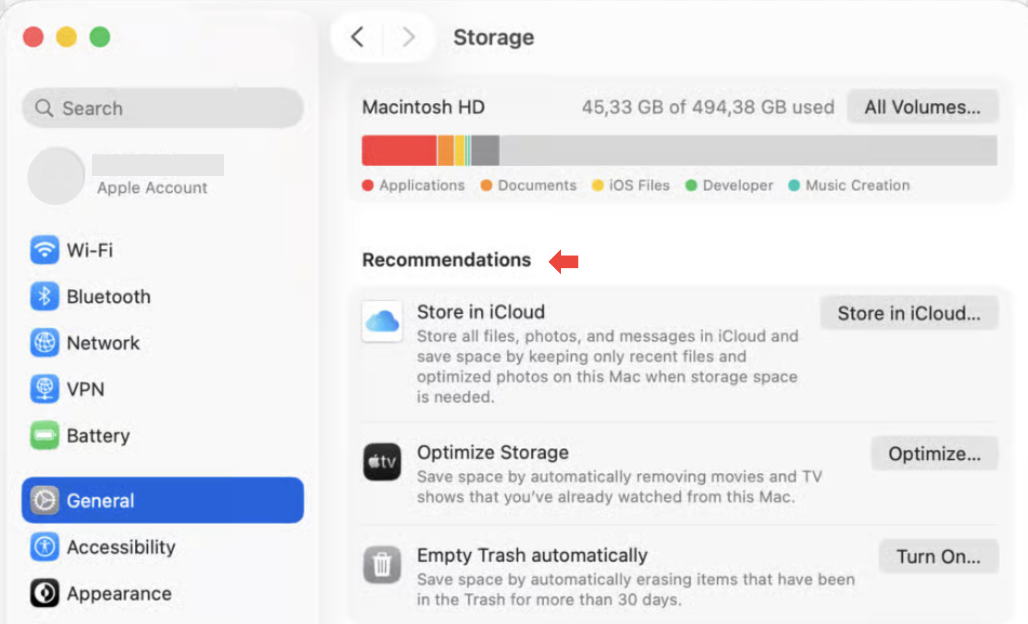
In System Settings, go to General > Storage and follow your personal Recommendations.
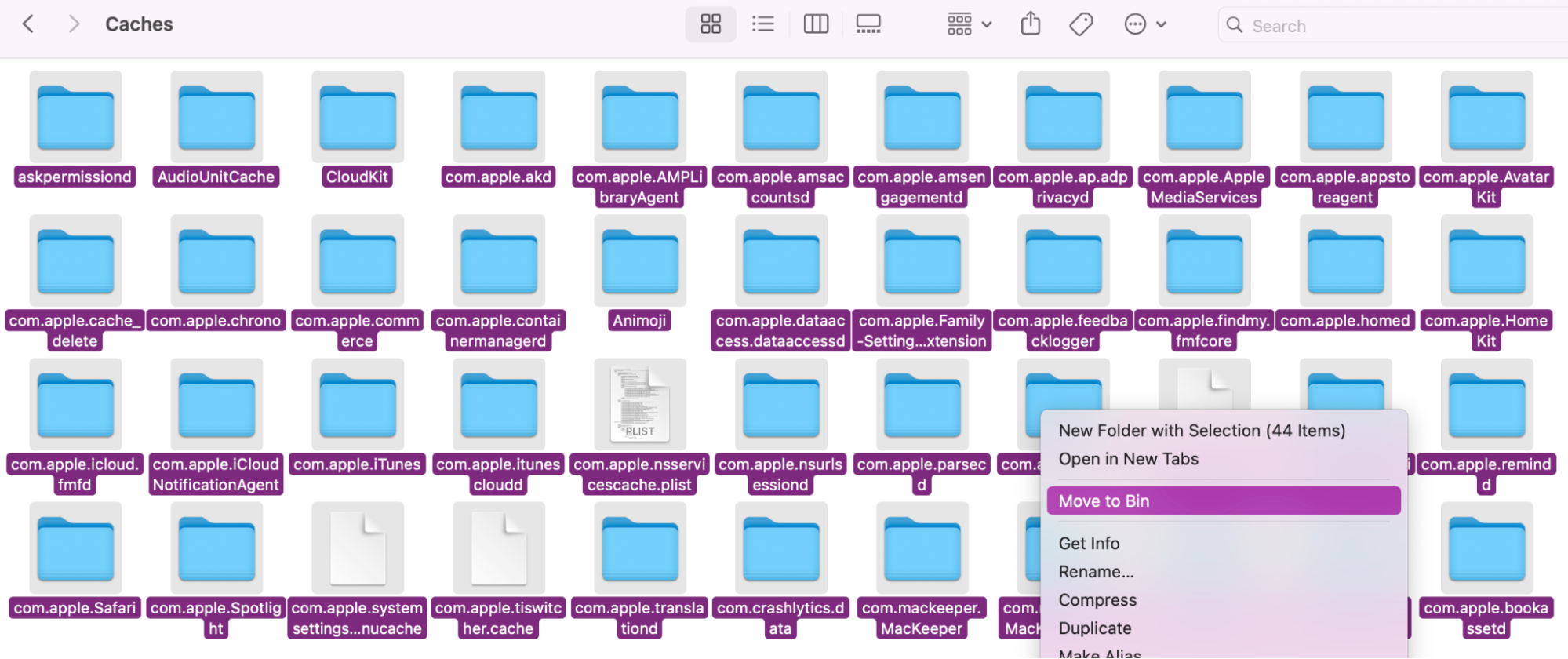
Open Finder, click on Go to Folder, and type in the path: ~/Library/Caches. Highlight your cache folders and Move to Bin.
Step 1. In Settings, go to the Storage tab and follow your top Recommendations to help free up spaceStep 2. In Finders Go to Folder, type in ~/Library/Caches and press Enter to find and send cache to Bin
6. Updating macOS and third-party apps
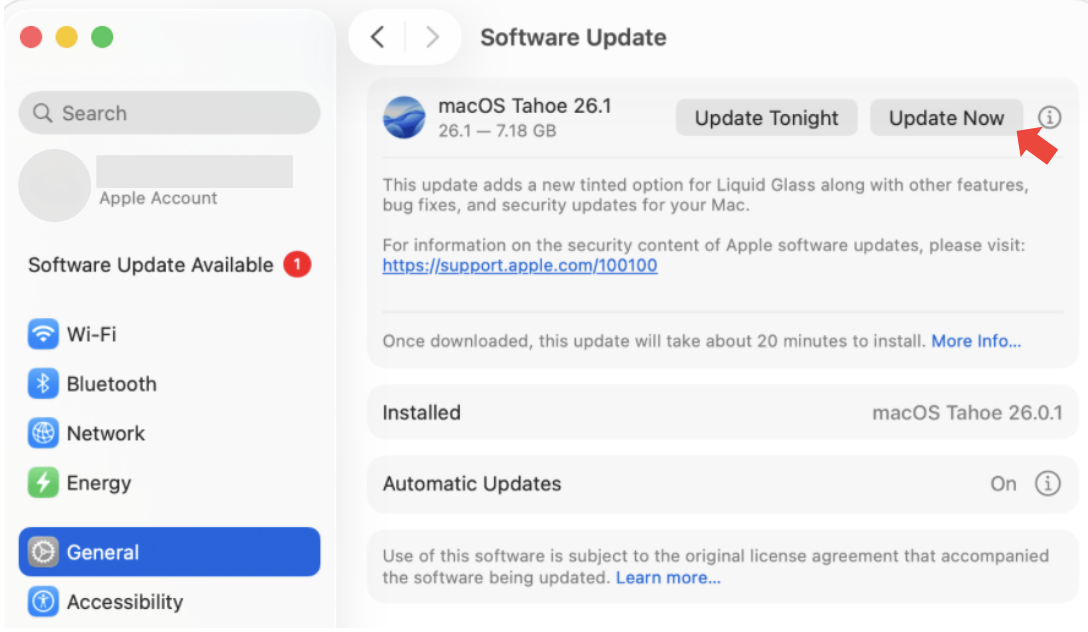
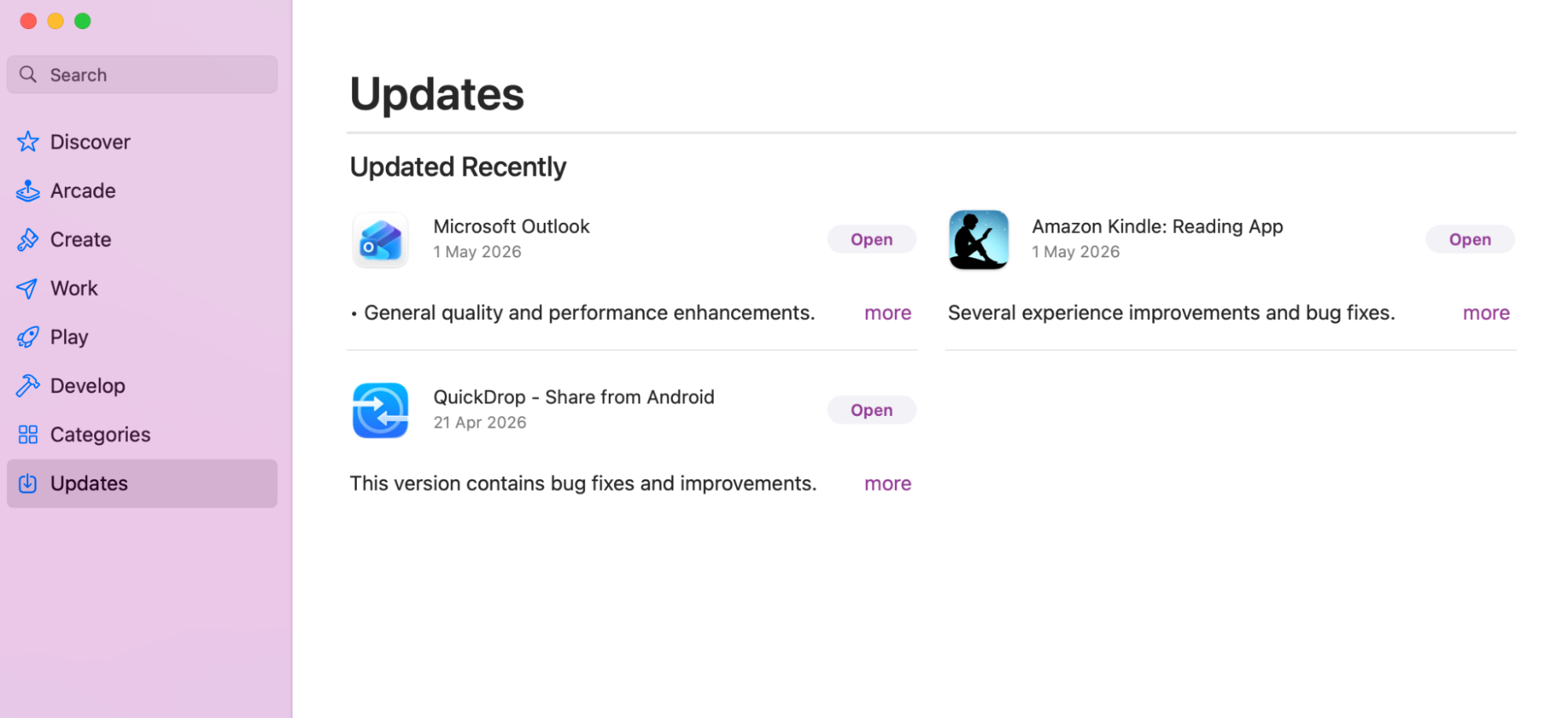
If macos Tahoe so slow still, check for any patch updates in your Settings and for any app updates in the App Store. Outdated OS and apps are known to stop your device from performing as expected.
Here’s how to check for macOS and app updates:
In System Settings, go to General > Software Updates and click Update Now if available.
Open the App Store and look for any apps that require an update.
Step 1. In System Settings, go to General > Software Updates and click Update Now if availableStep 2. Next, open the App Store to see if any third-party apps need updating
Enjoy macOS Tahoe minus the slowness thanks to MacKeeper
Should you encounter any slowness or lagging after you’ve installed macOS Tahoe, just remember that sometimes all it takes is a quick device reset to get your Mac running like normal. If not, our troubleshooting methods above, like reducing visual effects and freeing up storage, should improve your OS stability.
If you need an extra helping hand, MacKeeper’s Memory Cleaner can come to the rescue—it’ll check your memory and show you how it’s being used. Then it’ll free up essential RAM. Once your device is more stable, you’ll soon be back to enjoying the many new features macOS Tahoe has to offer.
We respect your privacy and
use cookies
for the best site experience.
Privacy Preferences Center
We use cookies along with other tools to give you the best possible experience while using the
MacKeeper website. Cookies are small text files that help the website load faster. The cookies we
use don’t contain any type of personal data meaning they never store information such as your
location, email address, or IP address.
Help us improve how you interact with our website by accepting the use of cookies. You can change
your privacy settings whenever you like.
Manage consent
All cookies
These cookies are strictly necessary for enabling basic website functionality (including page
navigation, form submission, language detection, post commenting), downloading and purchasing
software. The website might malfunction without these cookies.