You’ve just downloaded an app, double-clicked it, and your Mac throws a warning: “app is damaged and can’t be opened.” Frustrating, right? The good news is that this message rarely means the app is truly broken. Below, you’ll learn why macOS shows this alert and how to get past it. And if you’d like hands-on help, MacKeeper’s Premium Services team can walk you through it.
What does “app is damaged and can’t be opened” mean on Mac?
When your Mac displays this warning, it’s telling you that macOS couldn’t verify the app’s integrity or authenticity. The wording may differ slightly—you might see “The application is damaged and cannot be opened” or “You should move it to the Trash”—but the underlying cause is the same.
macOS uses a built-in security layer called Gatekeeper to check every app before it’s allowed to run. If Gatekeeper spots something it doesn’t trust—an unsigned certificate, a missing notarization stamp, or altered code—it blocks the launch and shows the “damaged” message. In most cases, the app itself is fine; it just didn’t pass Apple’s verification checks.
Why does macOS say an app is damaged?
Several things can trigger this alert, and they don’t always mean something is wrong with the app itself. macOS security mechanisms are designed to be cautious—sometimes overly so. Understanding the root cause will help you pick the right fix. If you’ve also run into a situation where the application isn’t open anymore, our troubleshooting guide might save you time.
1. Gatekeeper is blocking the application
Gatekeeper checks every app’s digital signature and notarization status before allowing it to run. If an app is unsigned, has been modified after signing, or was downloaded outside the App Store, Gatekeeper may flag it as damaged—even if there’s nothing harmful about it.
From our experience, this is especially common when you download apps without App Store. macOS treats these apps with extra scrutiny because they haven’t gone through Apple’s review process.
2. Corrupted or incomplete download
A weak Wi-Fi signal, a server timeout, or a browser glitch can interrupt a download mid-stream. When that happens, macOS receives a partial file that fails its integrity check and gets flagged as damaged. You might also notice the installer’s file size looks smaller than expected.
If you’re seeing downloads not working in general, it’s worth troubleshooting your connection before retrying.
3. App incompatibility with the macOS version
An older app may lack the code-signing requirements introduced in newer macOS releases. Similarly, a 32-bit app won’t run on macOS Catalina or later. In both scenarios, macOS may display the “damaged” warning instead of a more descriptive compatibility message.
Apple requires developers to register and sign their apps with a unique certificate. If the developer hasn’t done that—or if their certificate has expired—macOS treats the app as untrustworthy. This doesn’t necessarily mean the software is harmful, but macOS won’t take the chance.
However, you still can learn how to open an unverified app if you’re confident the source is legitimate.
A note from our experts:
After we’ve clearly enumerated the most common reasons for the “app is damaged and can’t be opened” error, you might already be in a slight panic about what to do and how to fix the issue. But don’t be! Instead, get the expert support from MacKeeper and let our professionals guide you through.
To use MacKeeper’s Premium Services, just do the following:
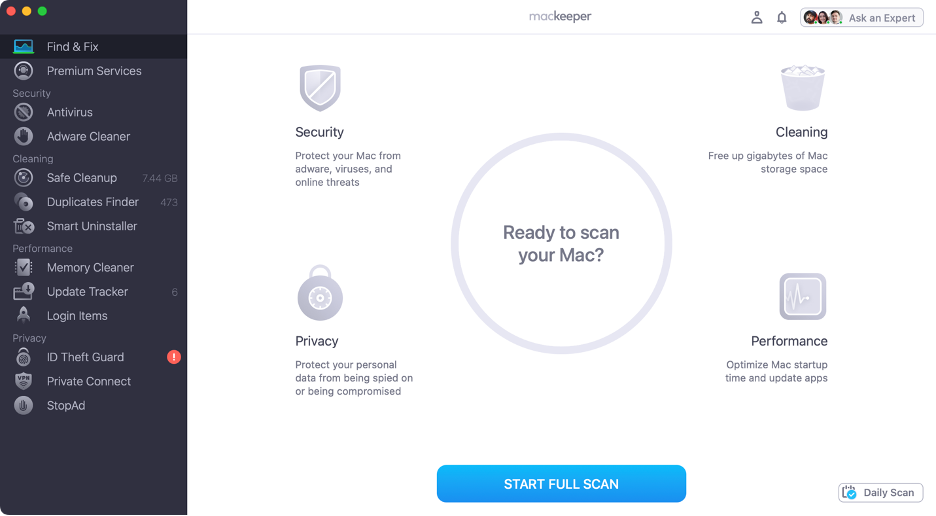
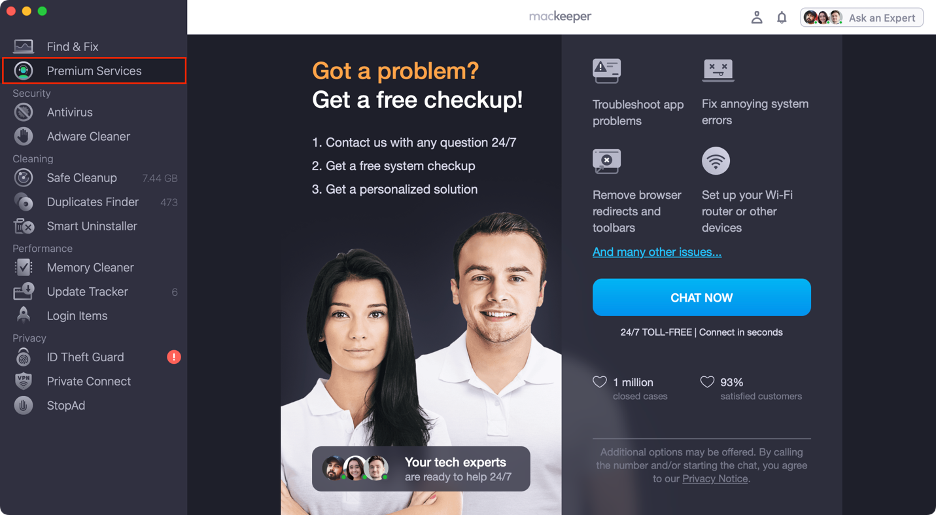
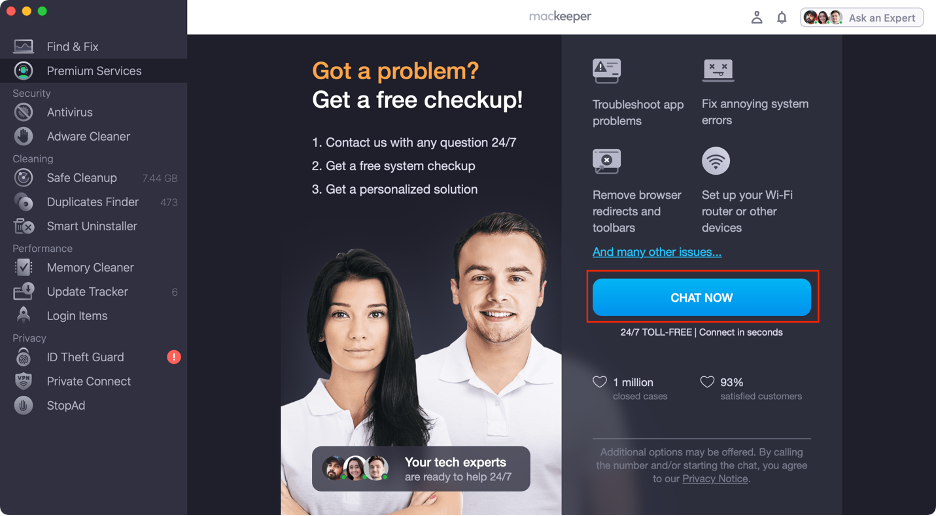
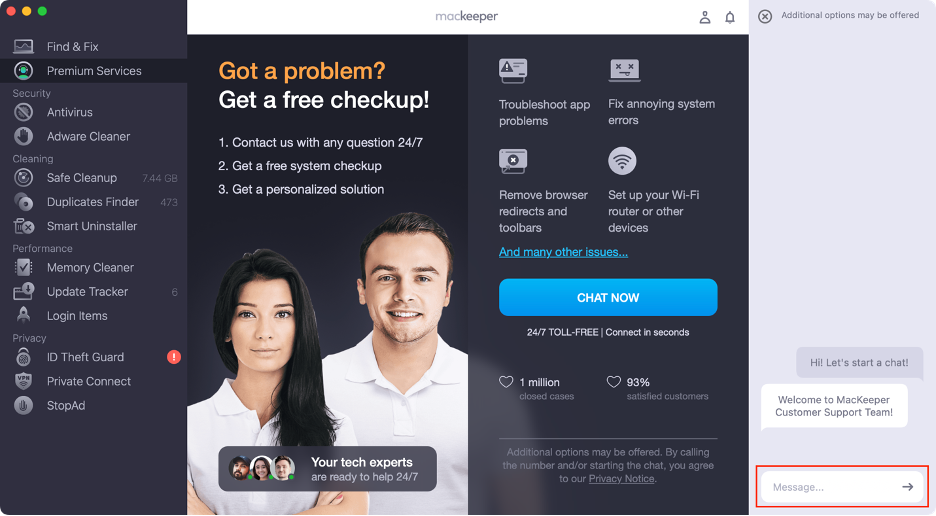
Step 1. Open the MacKeeper appStep 2. Find Premium Services and click on itStep 3. Select Chat NowStep 4. Explain your issue to our team
Basic things to check before fixing “app is damaged and can’t be opened” error
Before diving into more advanced fixes, run through these quick checks:
Verify the download source. Did the app come from the developer’s official site or the Mac App Store?
Restart your Mac. A fresh boot clears temporary glitches that can interfere with app verification.
Re-download the app. Delete the current copy, empty the Trash, and download a fresh installer.
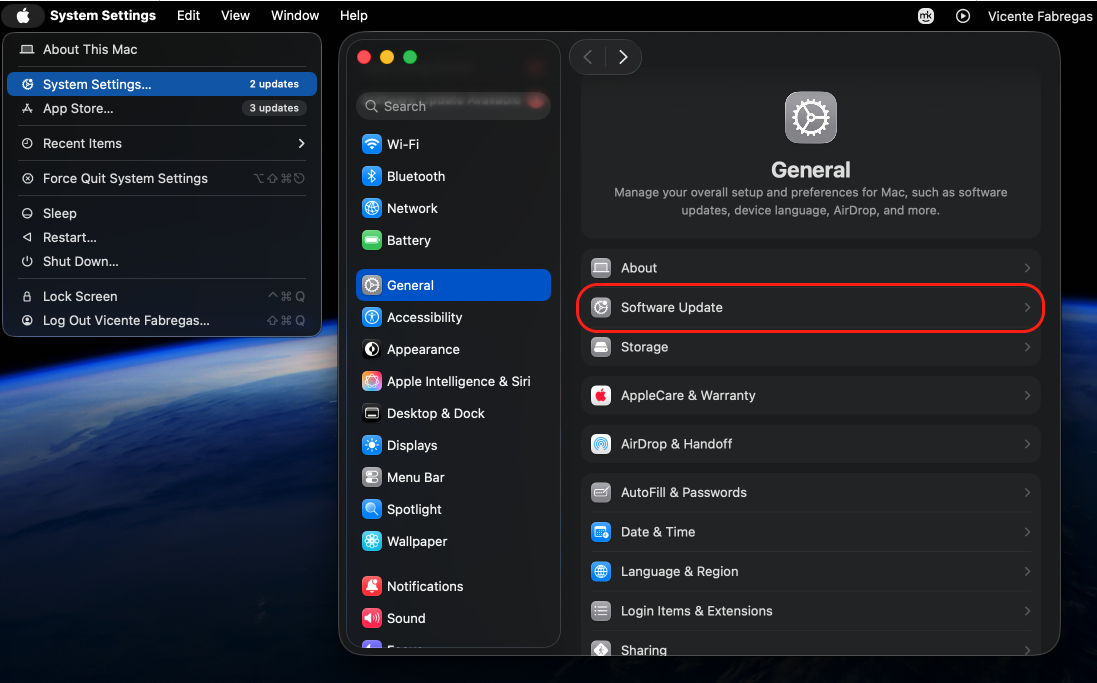
Check for macOS updates. Go to System Settings > General > Software Update and install anything pending.
If none of these solve the problem, move on to the targeted fixes below.
How to fix “app is damaged and can’t be opened” on Mac?
The right solution depends on why macOS flagged the app. Try these methods in order—starting with the simplest—and stop once the app opens normally.
1. Allow the app to open through Privacy & Security settings
When macOS blocks an app, it often logs the event in your Privacy & Security settings. You can approve the app from there this way:
Open System Settings (or System Preferences on older macOS versions).
Go to Privacy & Security.
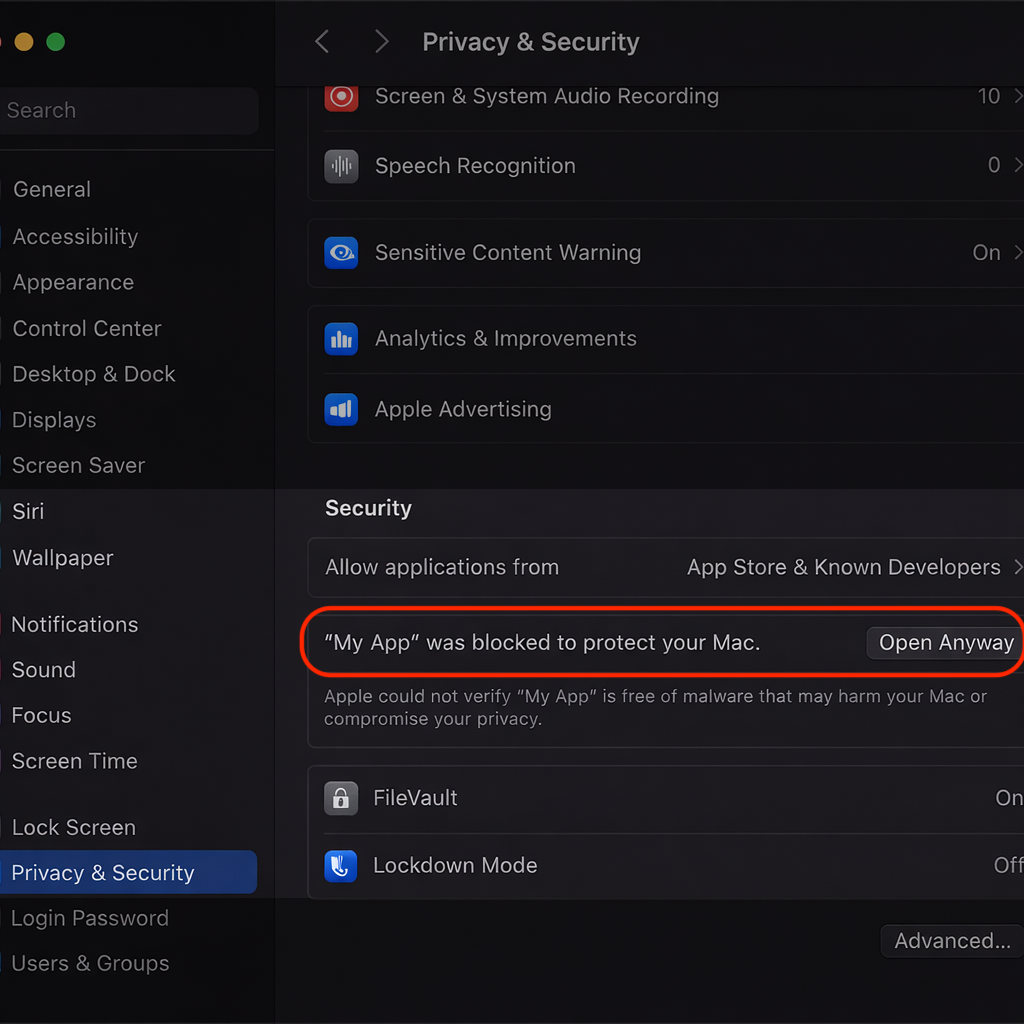
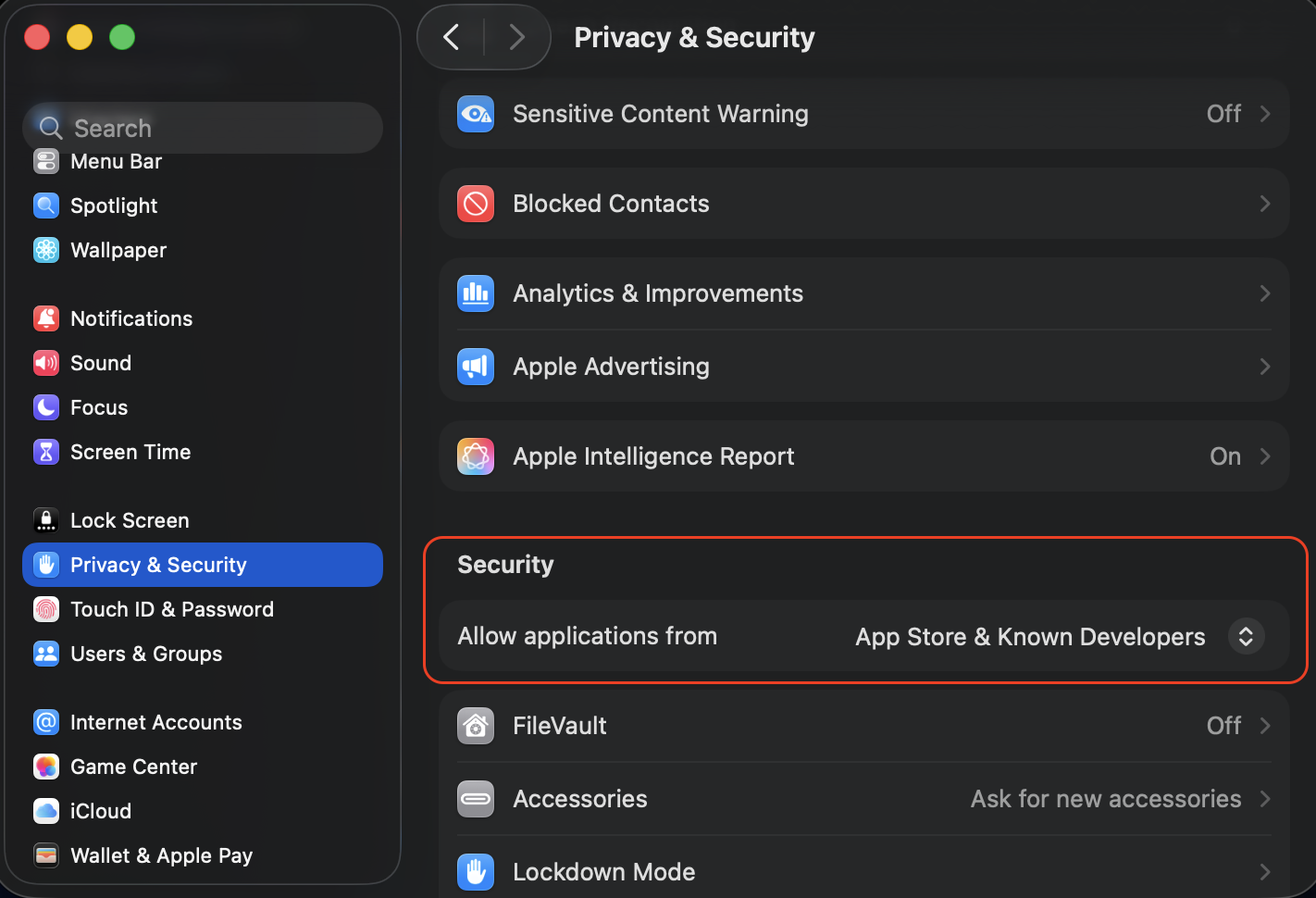
Scroll down to the Security section. You should see a message about the blocked app.
Click Open Anyway and confirm with your password.
Try launching the app again.
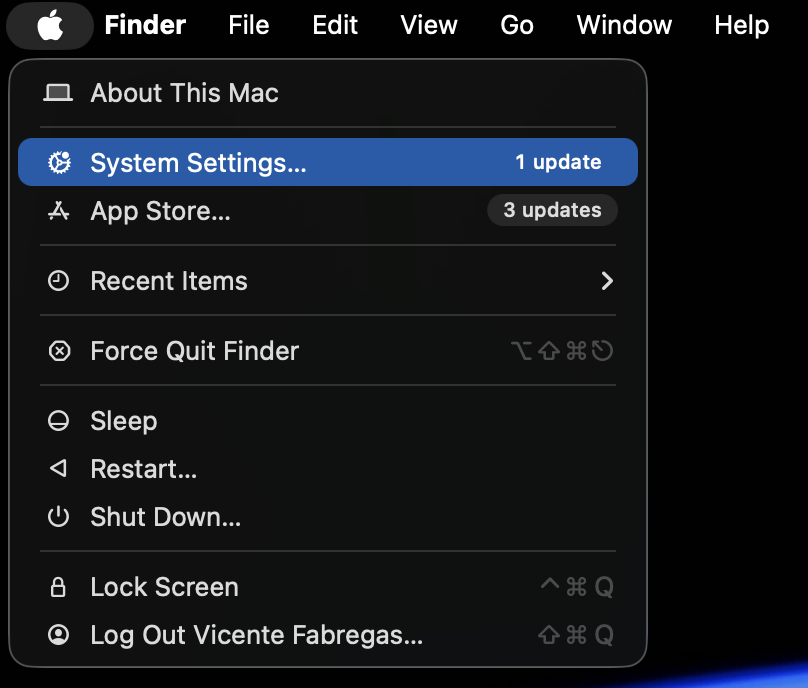
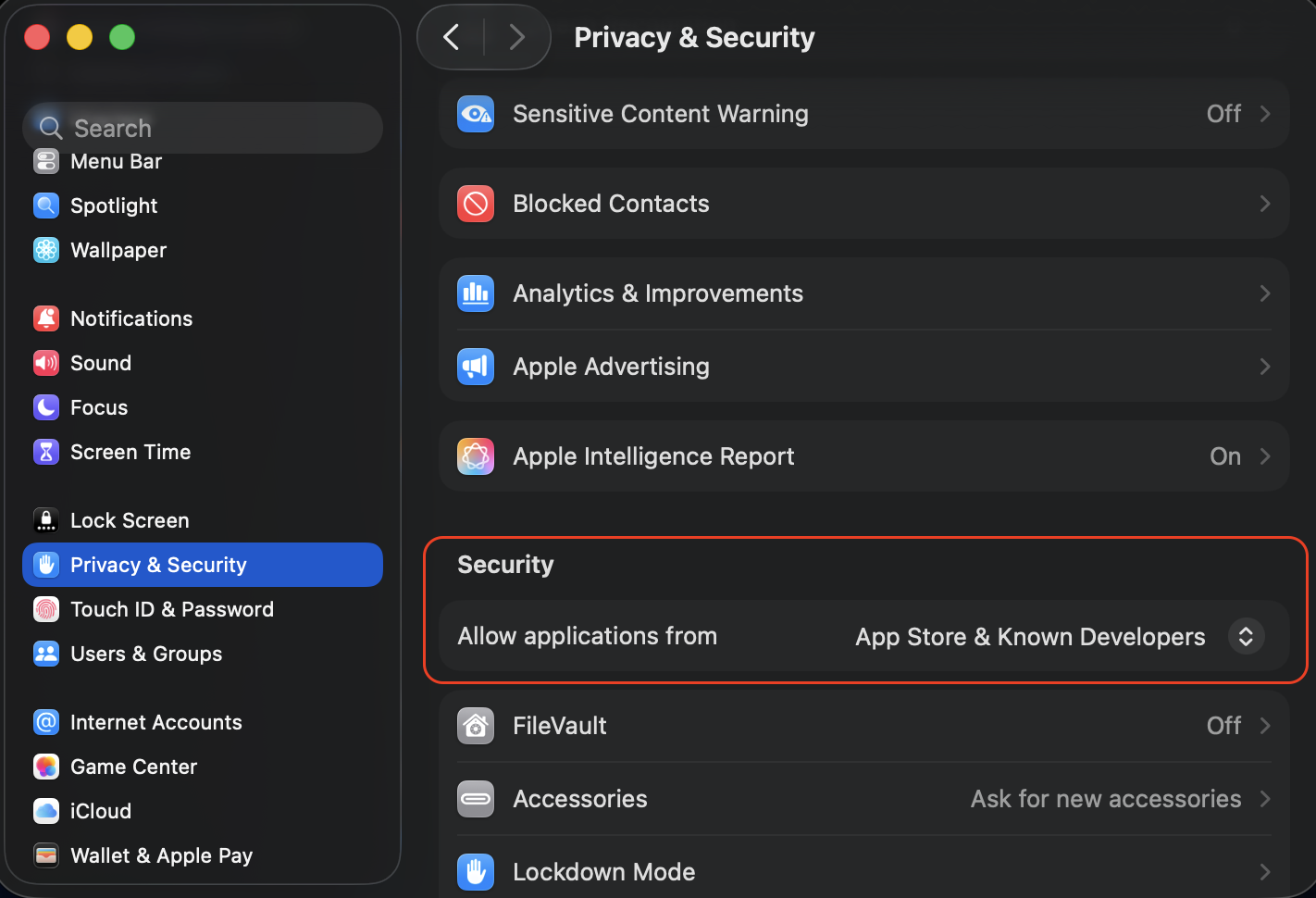
Step 1. Go to Apple menu > System SettingsStep 2. Go to Privacy & Security and scroll down to the Security sectionStep 3. Click Open Anyway
2. Remove quarantine attributes via Terminal
macOS tags every file downloaded from the internet with a quarantine attribute. Removing that tag tells your Mac to stop treating the file as a potential threat. First, open Terminal on your Mac and then do the following:
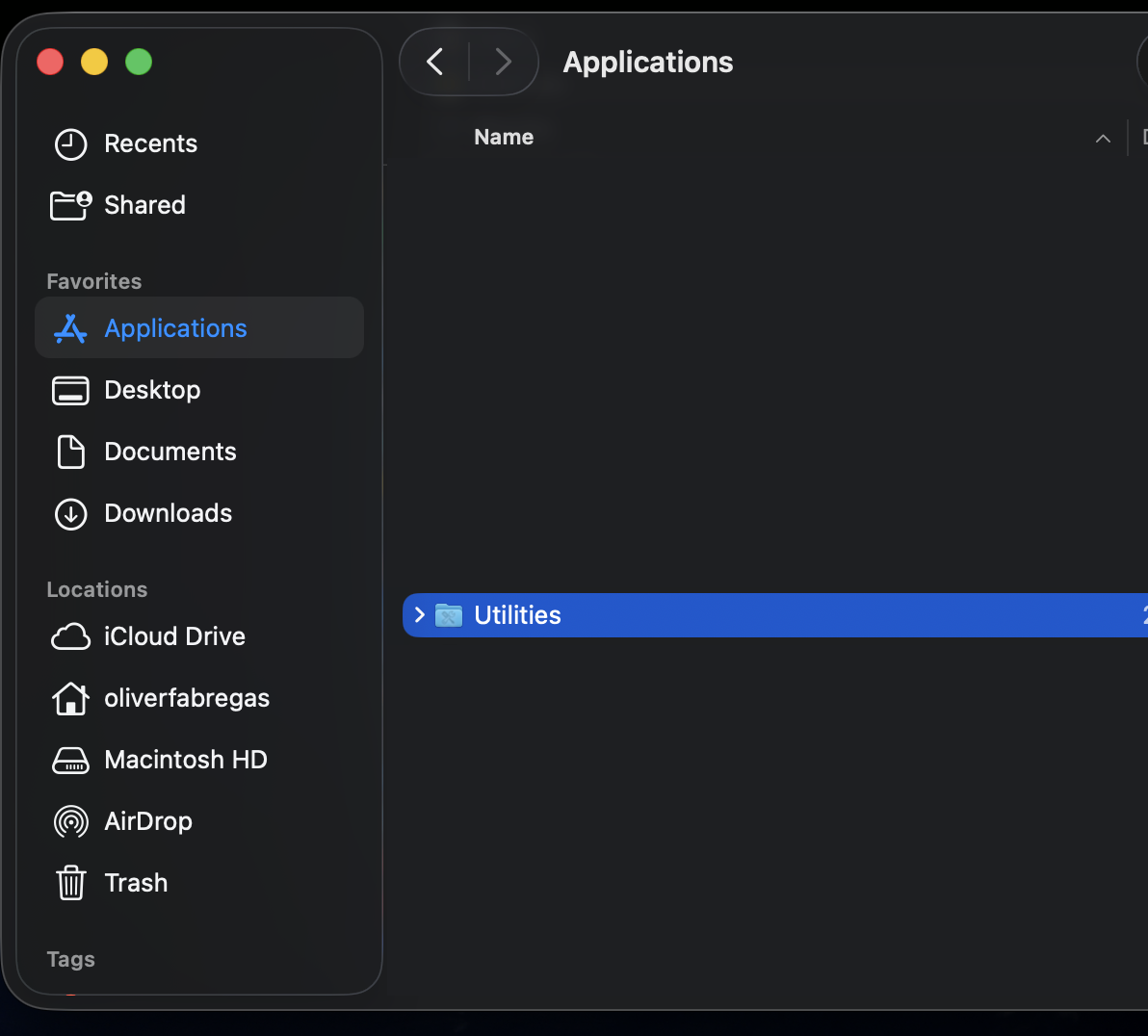
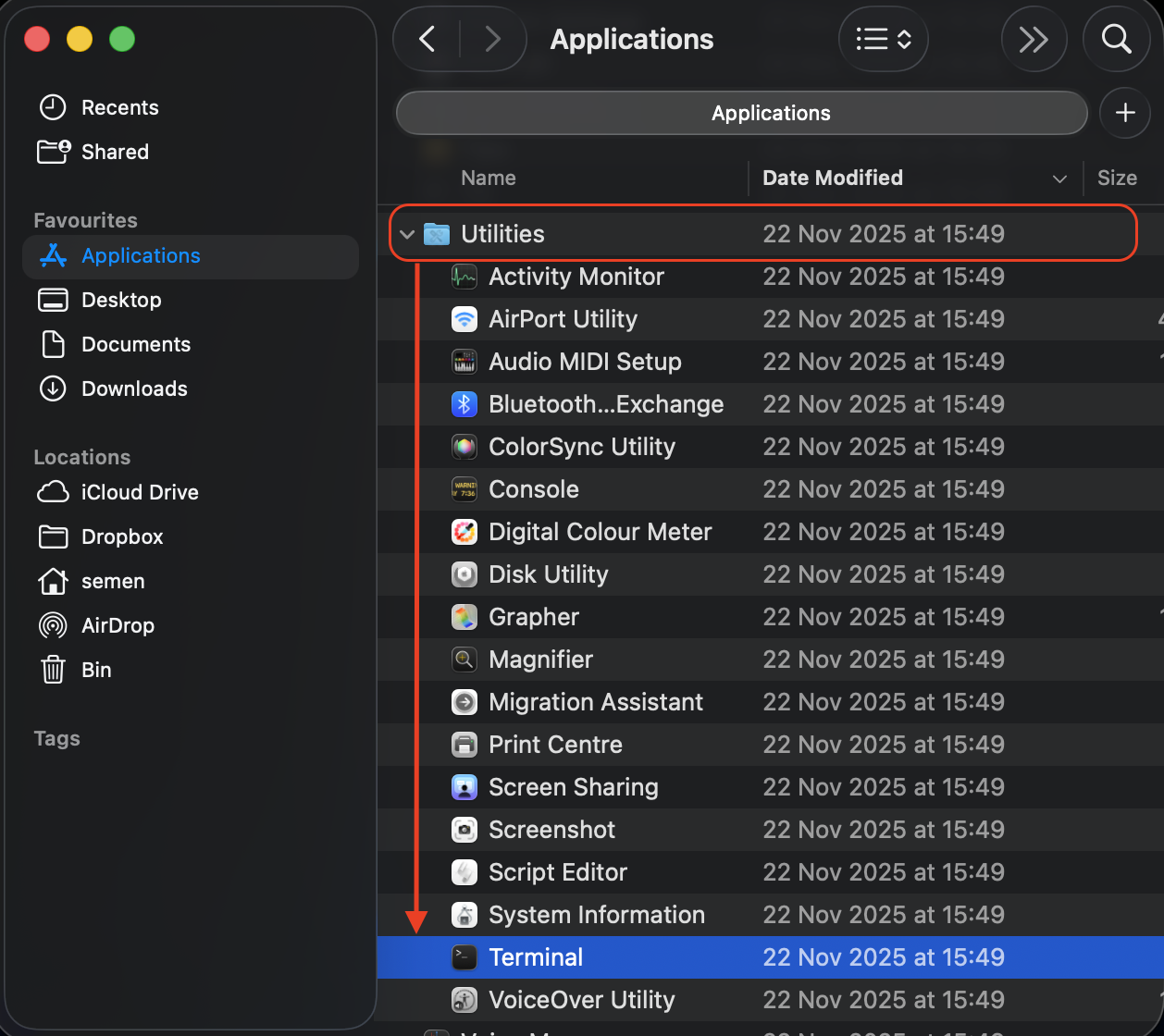
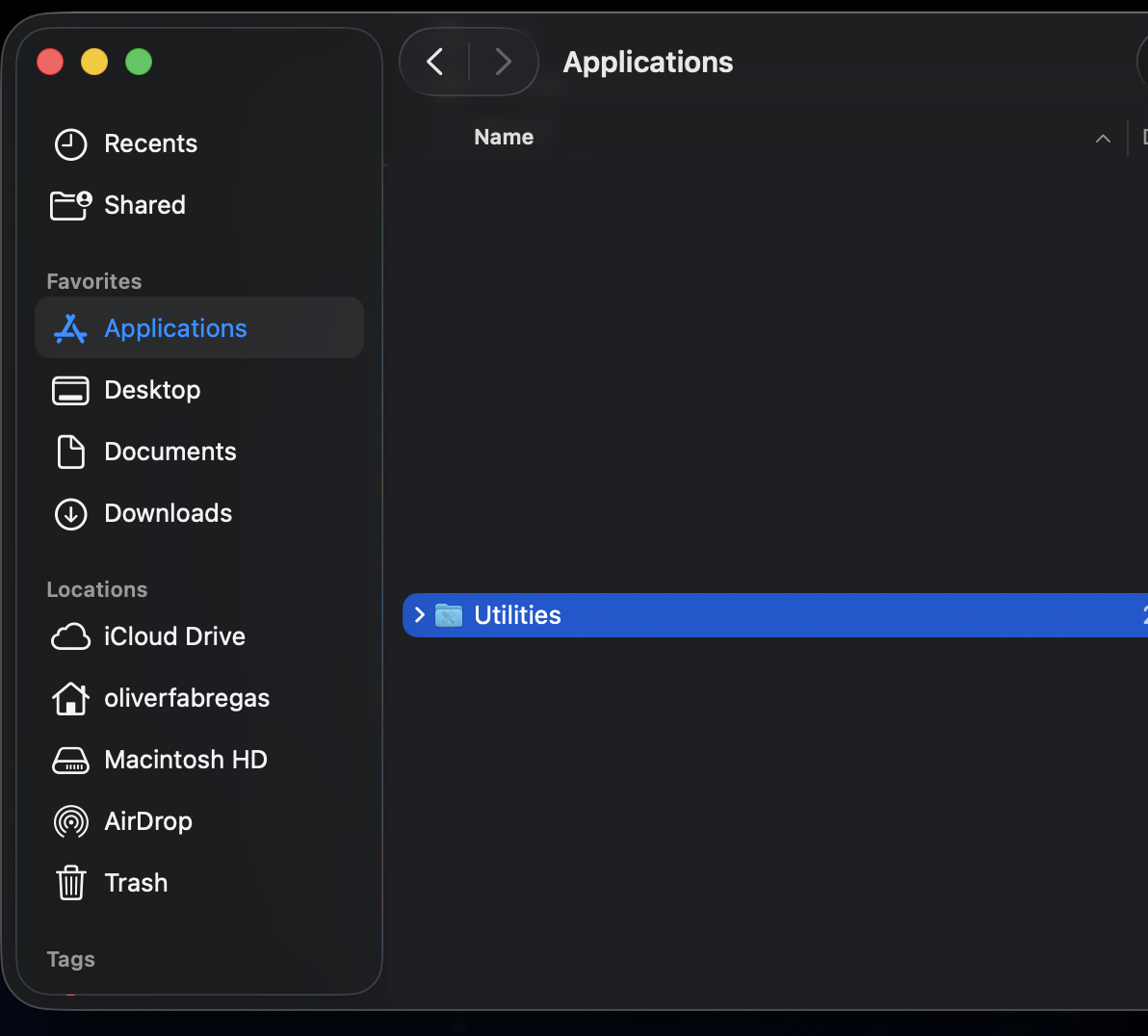
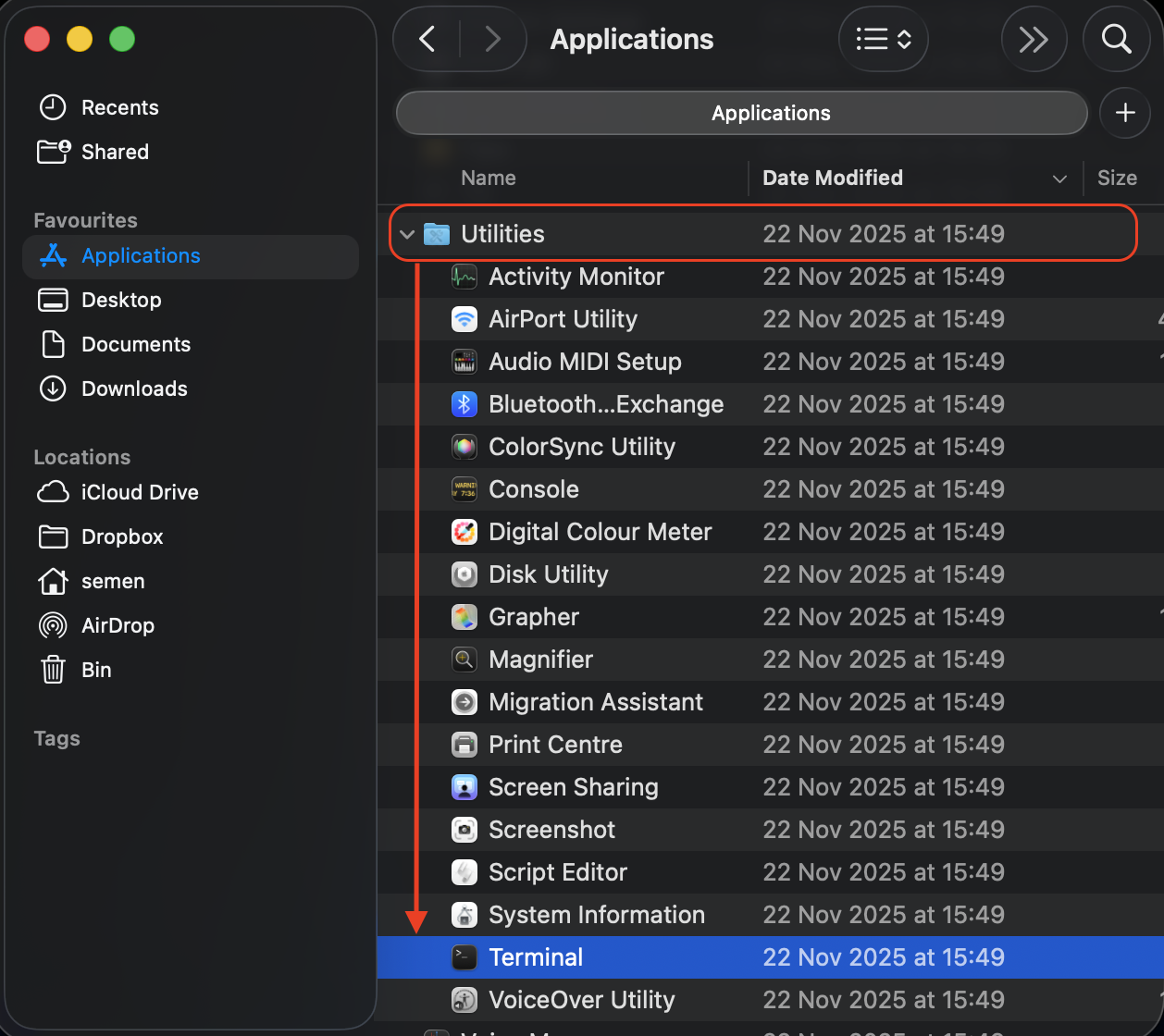
Launch Terminal from Applications > Utilities.
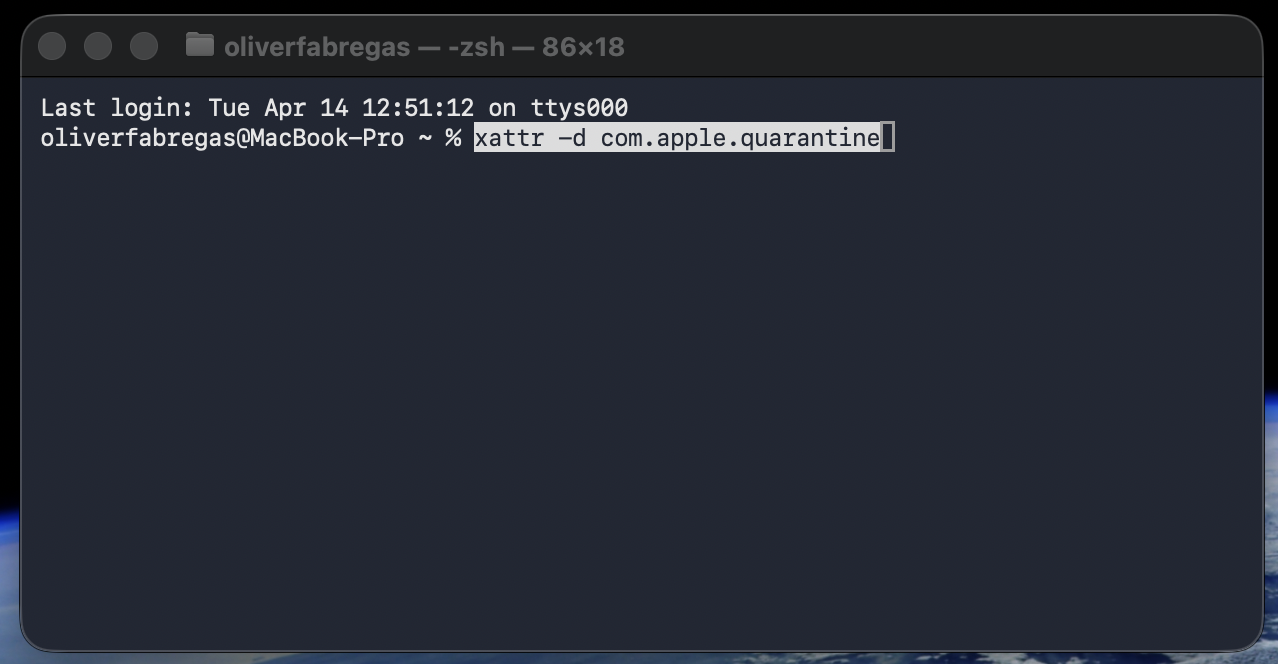
Type the following command: attr -d com.apple.quarantine /path/to/AppName.app, replacing the placeholder with the app's actual path.
Press Enter. You won’t see a confirmation message—that’s normal.
Try opening the app again.
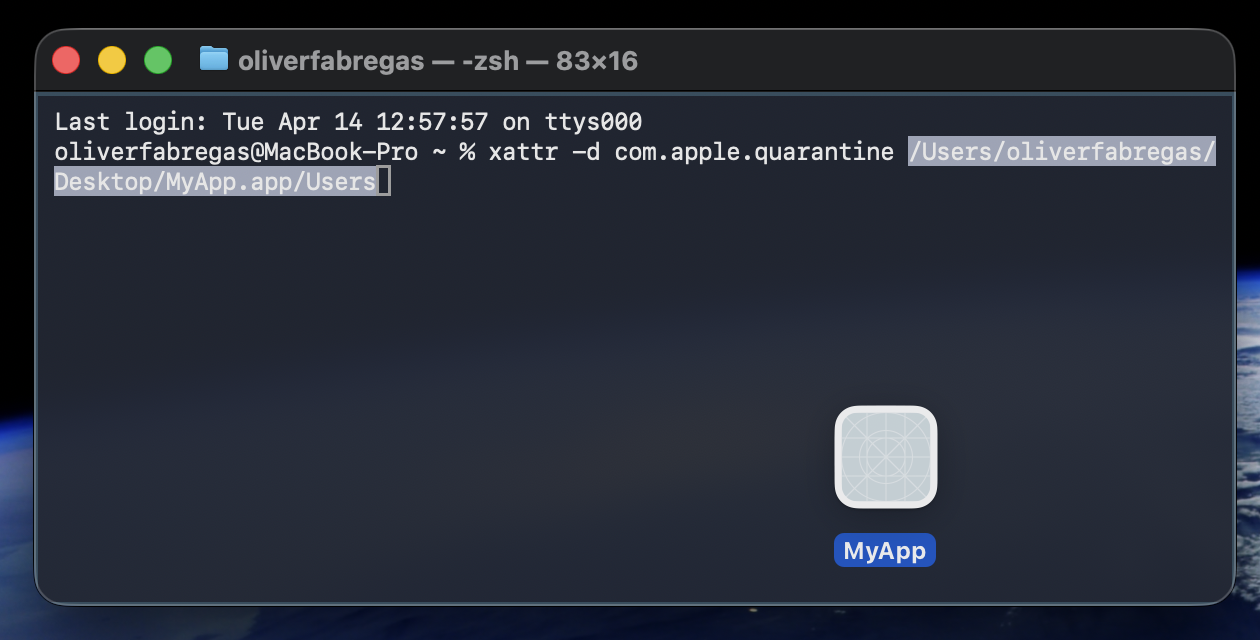
A lifehack from us: Instead of typing the full path, just drag the app icon into the Terminal window after the command.
Step 1. Go to Finder > Applications > UtilitiesStep 2. Expand the “Utilities Folder” and open “Terminal”Step 3. Type the following command: xattr -d com.apple.quarantineOr drag the app icon into the Terminal window after the command
3. Temporarily disable Gatekeeper
Disabling Gatekeeper lowers your Mac’s defenses, so only do this if you’re certain the app is safe. For a deeper look at what’s involved, read about macOS security features. Now, follow the steps below if you use macOS Monterey or earlier versions:
Open Terminal.
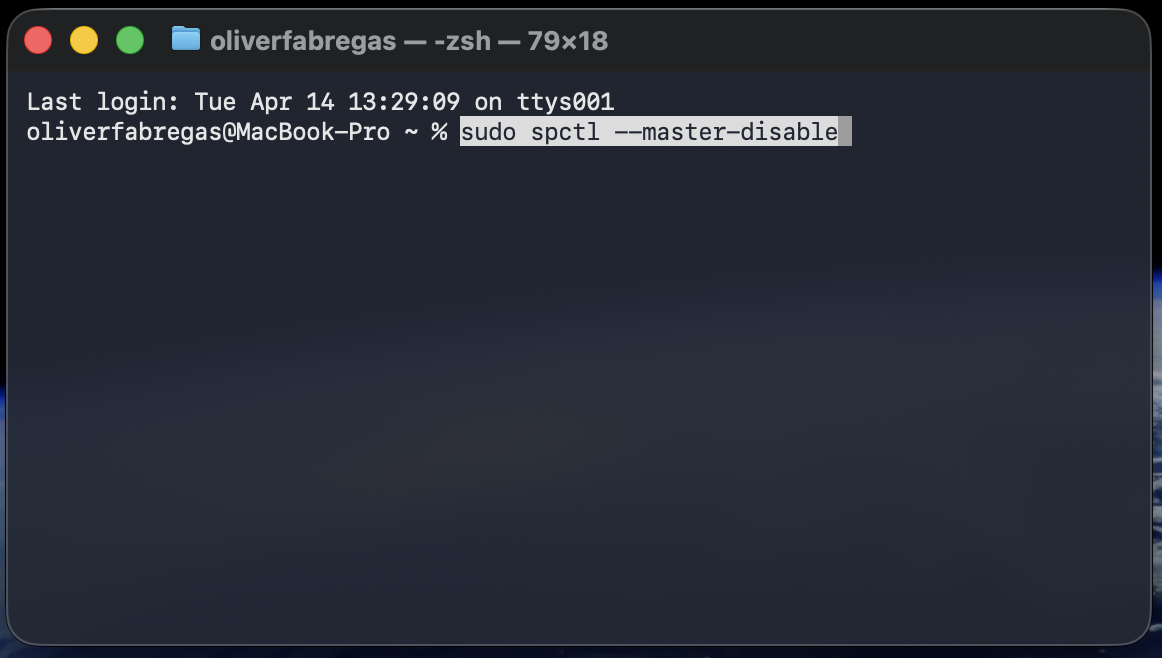
Type the sudo spctl --master-disable command.
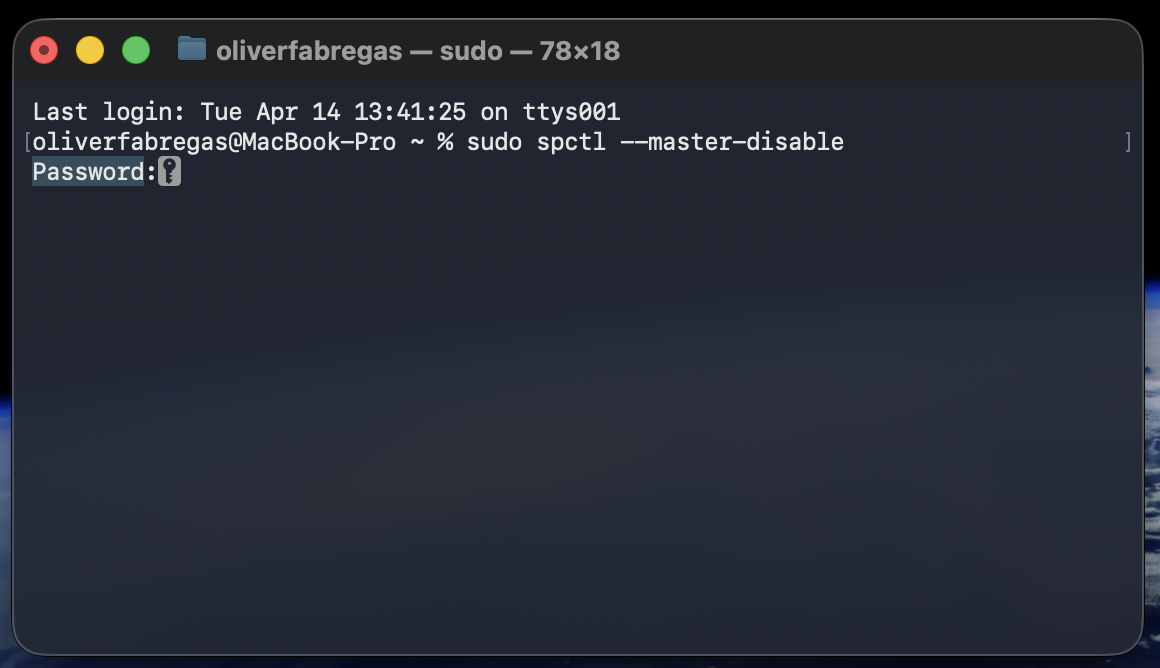
Enter your admin password when prompted.
Open the app that was blocked.
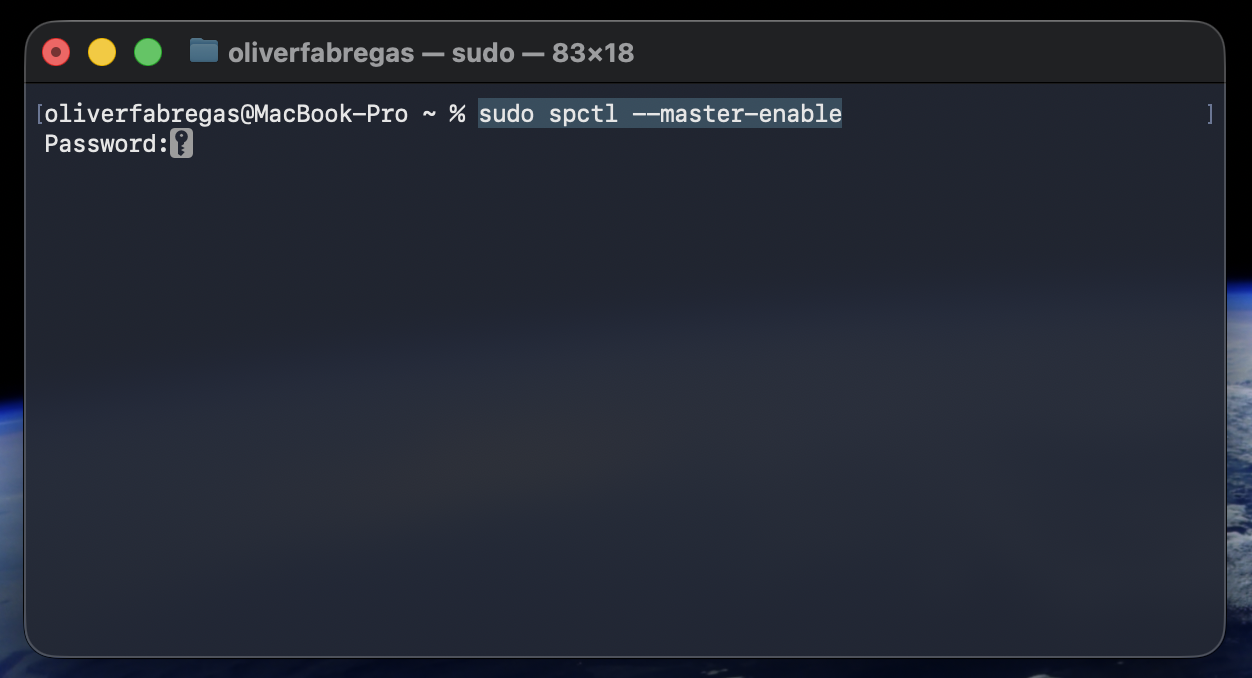
Re-enable Gatekeeper immediately after by running another command: sudo spctl --master-enable in Terminal.
Important:
Don’t leave Gatekeeper off! Re-enable it as soon as the app is running.
However, me also must say that sometimes it’s not possible to disable Gatekeeper directly through the UI. In other words, the command sudo spctl --master-enable will run successfully and show the status “enabled” in Terminal, but the “Anywhere” option will still appear in System Preferences.
So, you, as a user, won’t always be able to re-enable Gatekeeper immediately by running the command. Just be ready for that and contact MacKeeper’s Premium Services for assistance.
For the latest macOS versions like macOS Sonoma and macOS Tahoe, the steps are a bit different: in addition to Terminal, you also need to make some adjustments in System Settings.
Here’s the full guide for you:
Launch Terminal.
Enter the sudo spctl --master-disable command.
Use your admin password when asked.
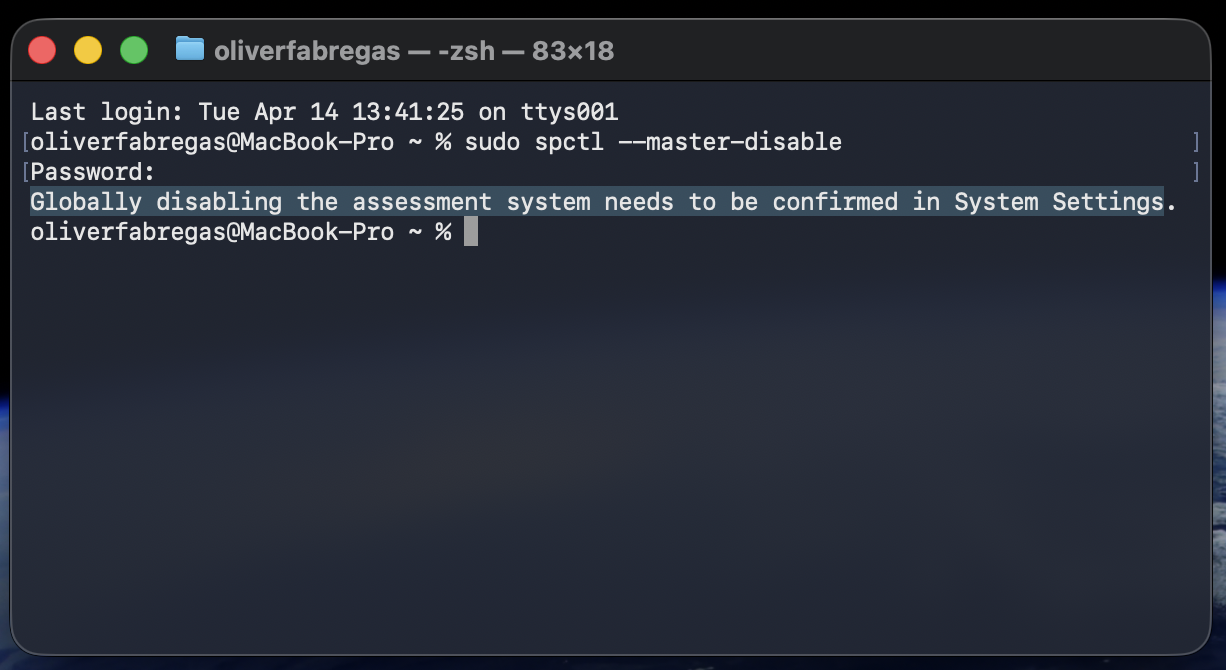
You’ll see this message: “Globally disabling the assessment system needs to be confirmed in System Settings.”
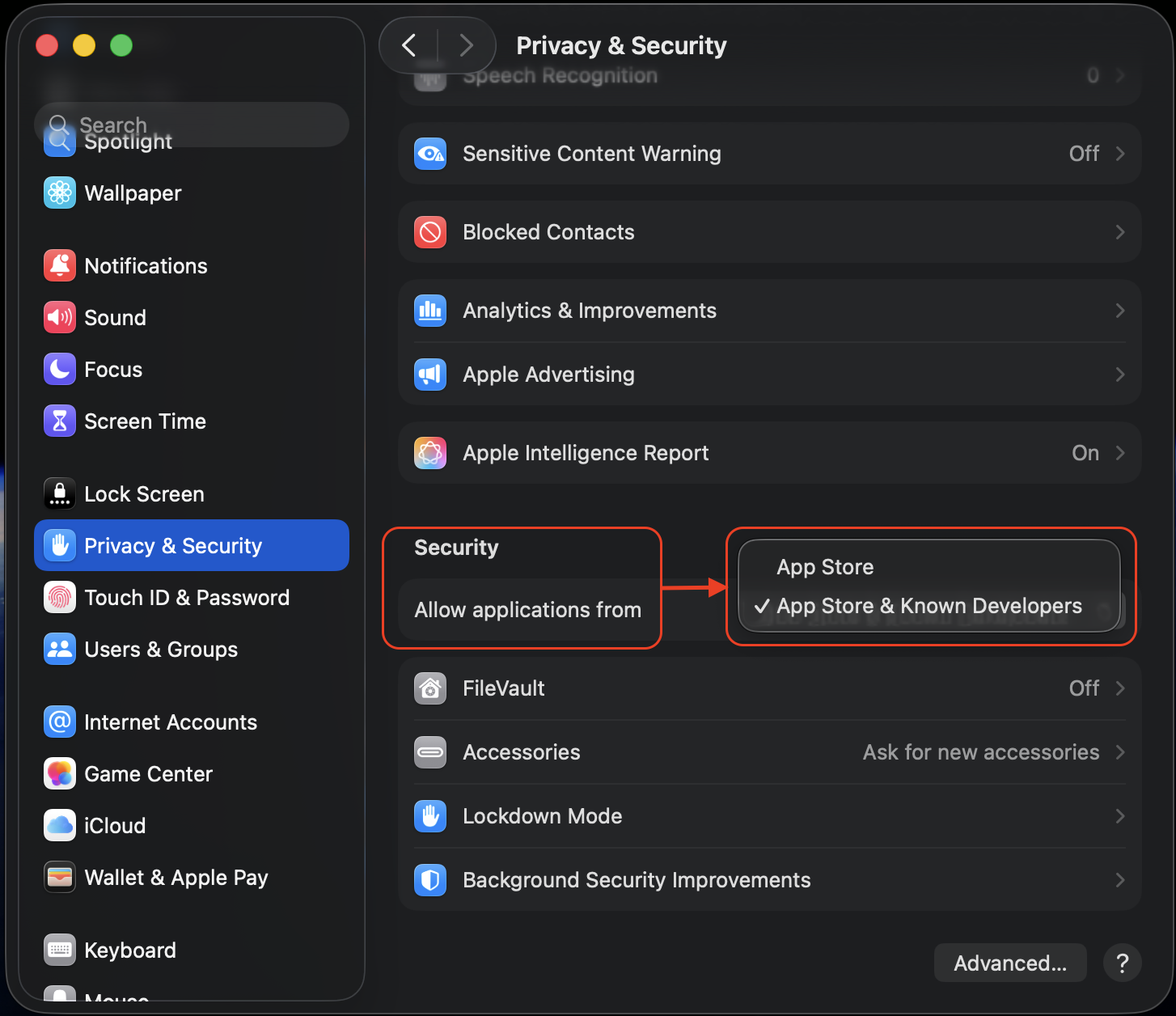
Open System Settings > Privacy & Security.
Scroll down to the Security section.
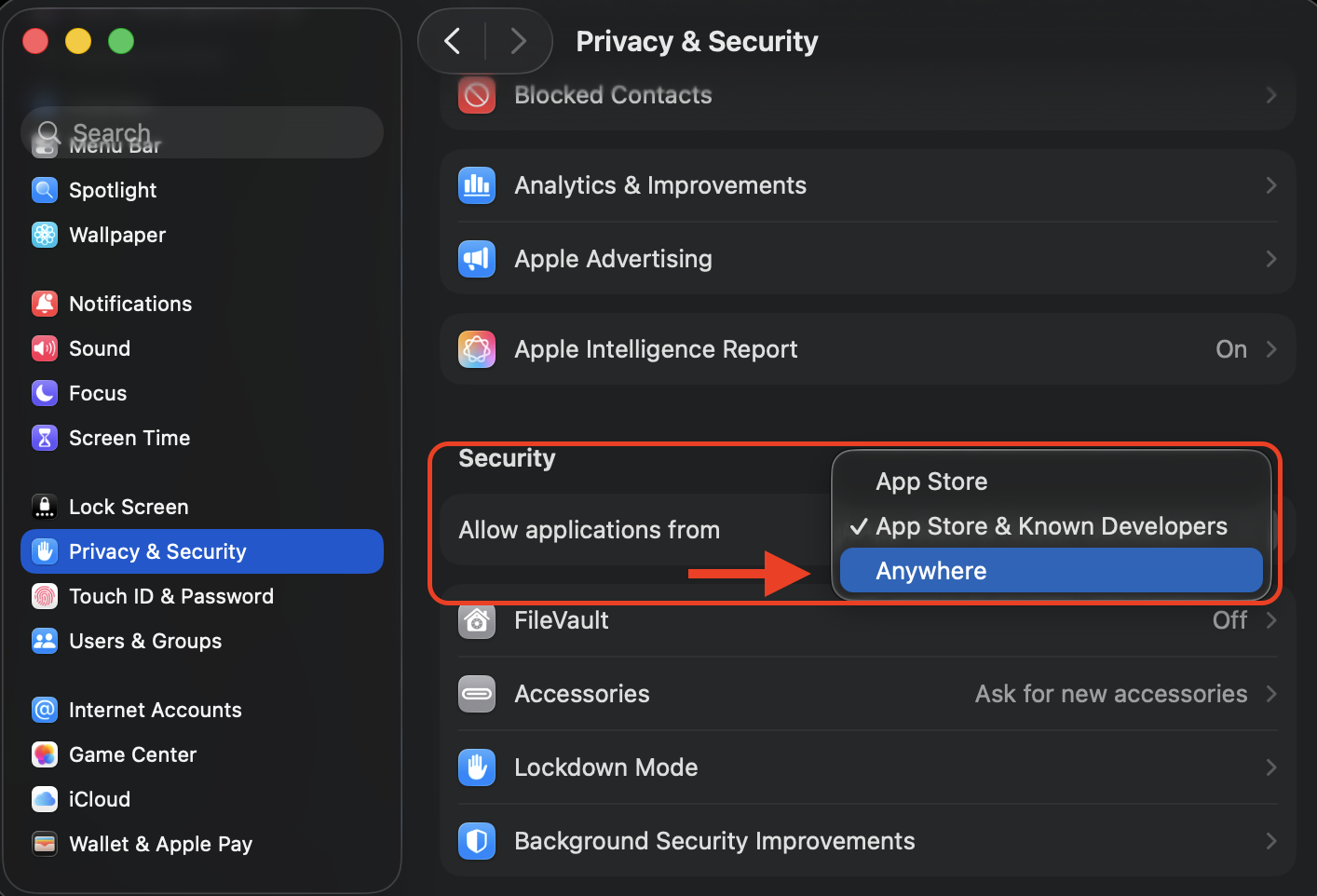
Change from "Allow Applications from" to "Anywhere."
Try opening the blocked app again.
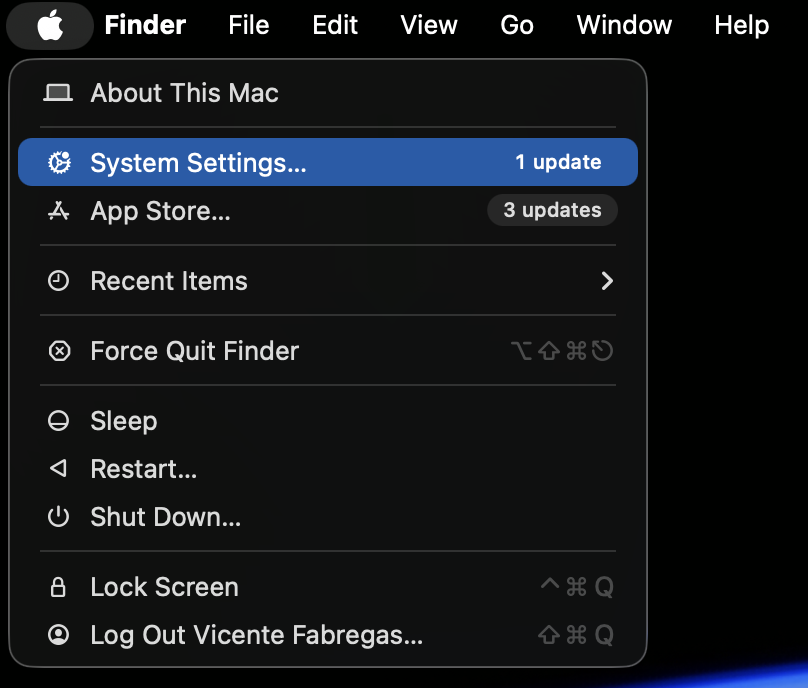
Step 1. Go to Finder > Applications > UtilitiesStep 2. Expand the Utilities Folder and open TerminalStep 3. Enter the following command: sudo spctl --master-disable and hit returnStep 4. Enter your admin password when prompted and hit returnStep 5. Check the result. Successful show you the following message: “Globally disabling the assessment system needs to be confirmed in System Settings”Step 6. Go to Apple menu > System SettingsStep 7. Go to Privacy & Security and scroll down to the Security sectionStep 8. Select “Allow Applications from" and change to "Anywhere"Step 9. Open the app that was blocked. Don’t forget revert changes, re-enable Gatekeeper immediately after by running: sudo spctl --master-enableStep 10. In the Apple menu > System Settings > Privacy & Security > Security, check the “Allow applications from” status
4. Reinstall the application
If the original download was corrupted or incomplete, a fresh copy from a trusted source often clears the problem. Follow our hints below:
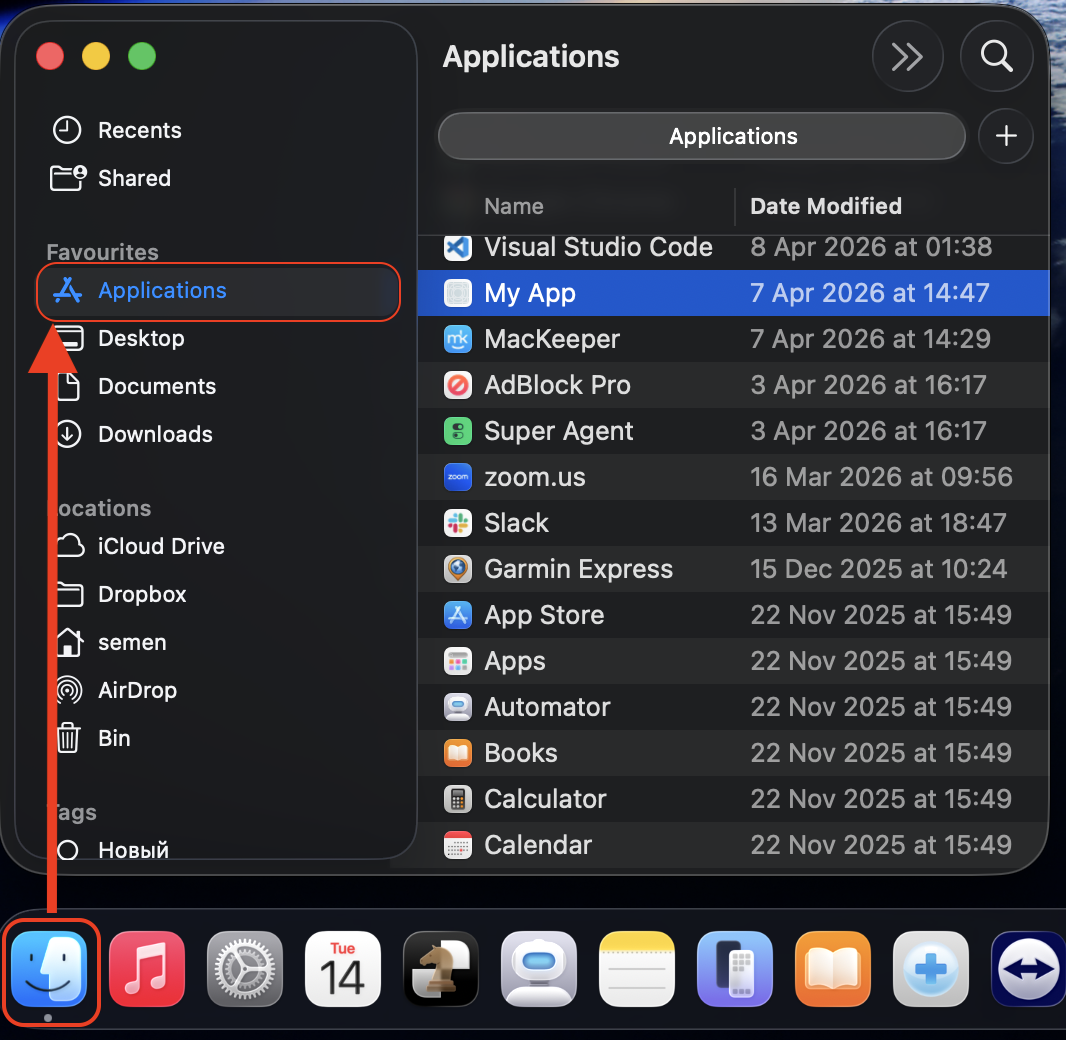
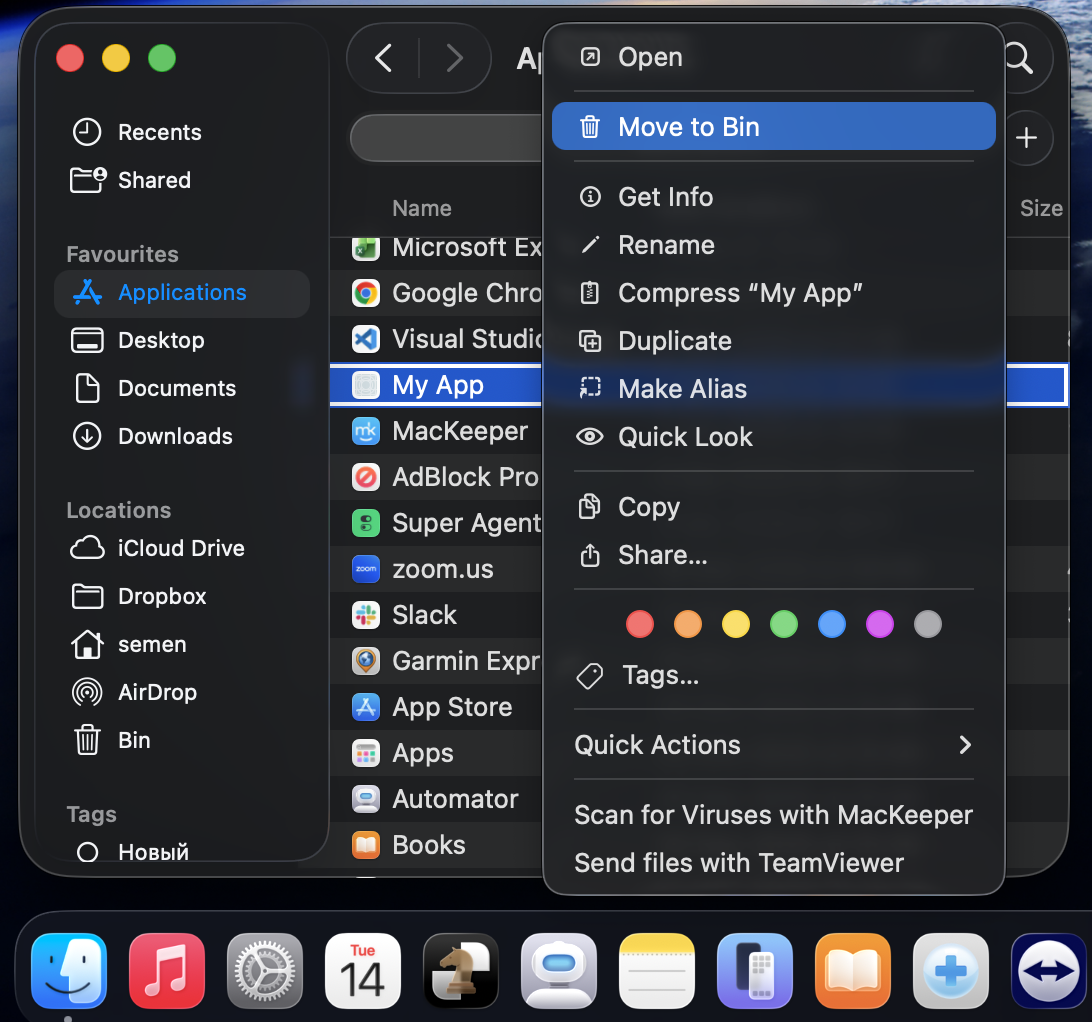
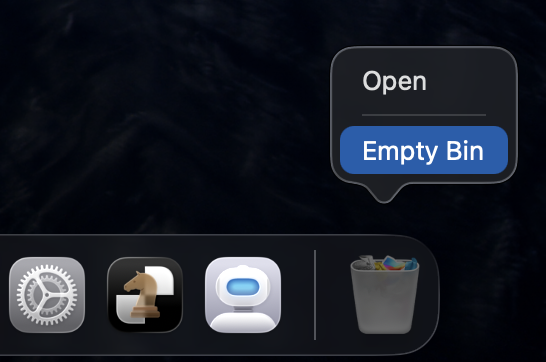
Drag the damaged app fromApplications to the Trash and empty it.
Download the app again from its official website or the Mac App Store.
Install it and try launching it.
A tip from our experts: If the app came bundled with extra files—plugins, preference files, or support folders—make sure to remove those as well before reinstalling.
Step 1. Go to Finder > AplicationsStep 2. Move the damaged app to the BinStep 3. Empty Bin. Once it's done, install the app and try launching
5. Update macOS or the application
Compatibility gaps between your macOS version and the app can trigger the “damaged” warning. Keeping both up to date closes those gaps—just do this:
To upgrade macOS, go to System Settings > General > Software Update.
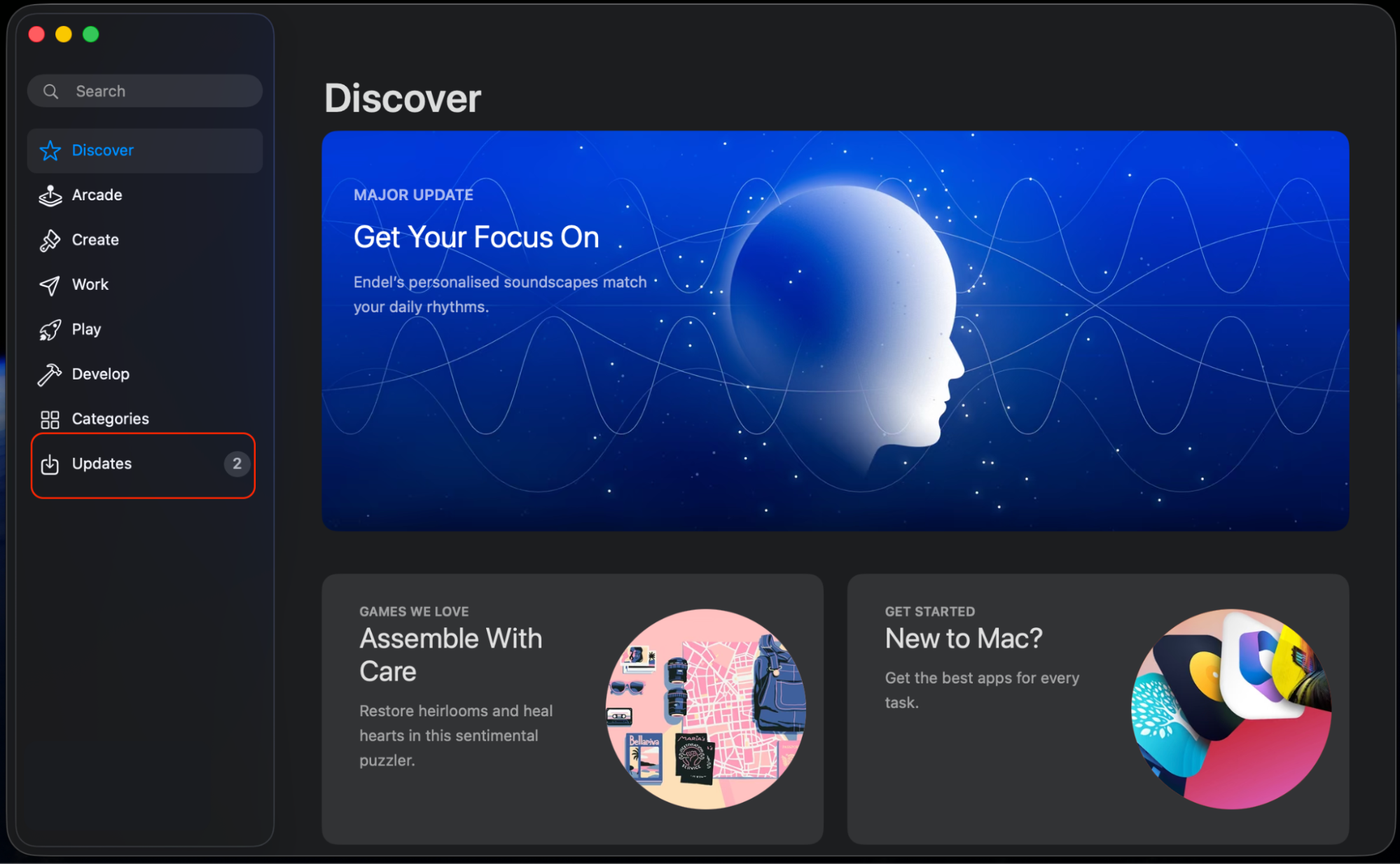
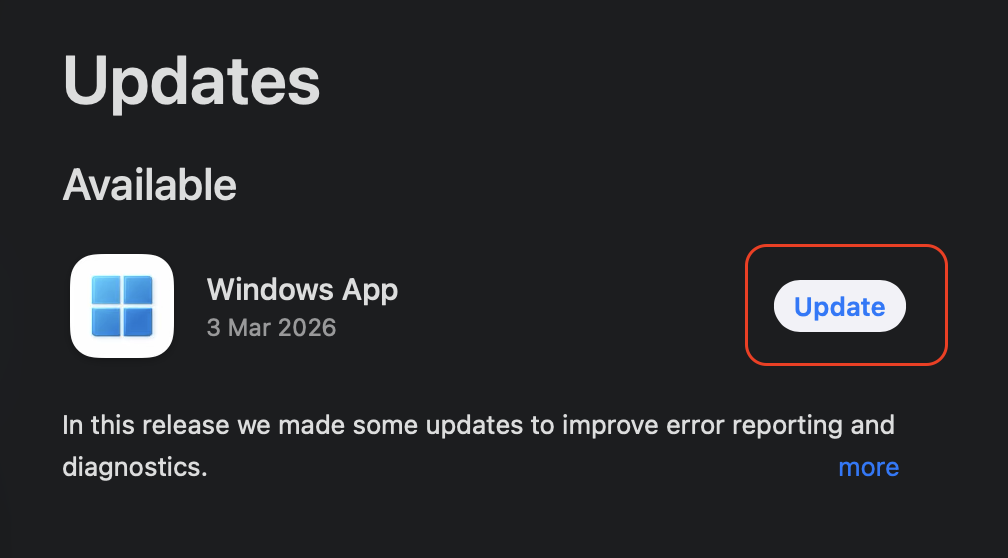
To update the app, check the Mac App Store or the developer’s website for the latest version. If anything available, update the app.
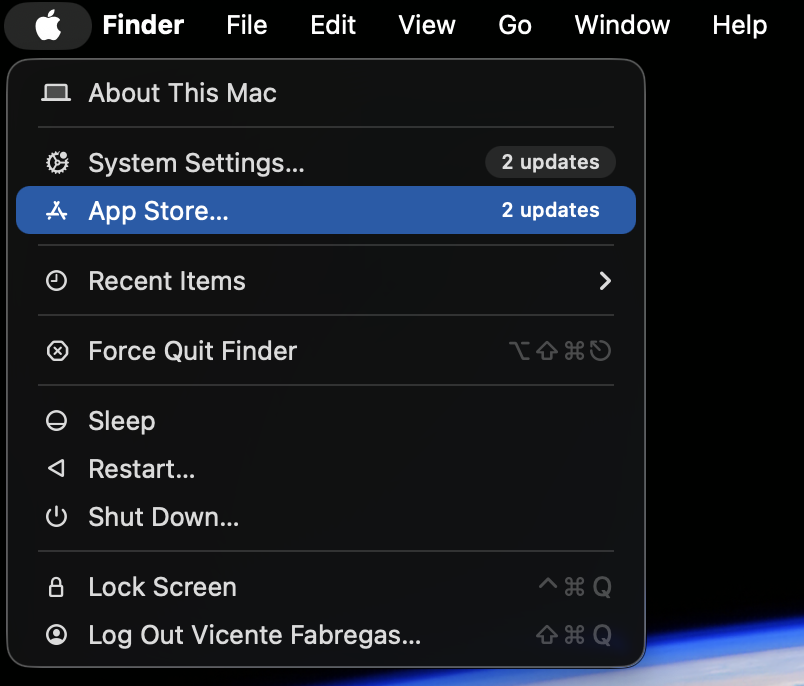
Step 1. Go to Apple menu > System Settings > General > Software UpdateStep 2. Go to Apple menu > App StoreStep 3. Select Updates sectionStep 4. Update the app
Is it safe to open an app that macOS says is damaged?
It depends on where the app came from. If you downloaded it from the developer’s official site or a reputable source, the “damaged” label is likely a false positive caused by a signing or quarantine issue—not actual malware.
However, if the app came from a random website, a torrent, or a link you didn’t expect, we highly advise you to treat the warning seriously. Unsigned or tampered apps can carry adware, spyware, or worse. When in doubt, delete the file and look for a trusted alternative.
Downloading apps from the App Store is generally safer than from third-party sources, as Apple applies strict review and security checks. But you can also ask—are apps on Apple Store safe? Generally speaking, yes, although no platform is completely secure, so it's still important to check app updates, permissions, and developer reliability.
When should you delete the application instead?
Sometimes, removing the app is the safest call. Consider deleting it if:
You don’t recognize the source or can’t verify the developer.
The app asks for unusual permissions—full disk access, keychain access, or admin rights—without a clear reason.
Your Mac’s antivirus flags the file as a threat.
You’ve tried reinstalling, and the warning keeps reappearing.
In such cases, it’s best to fully delete applications along with any leftover files to avoid potential issues.
Why does the “app is damaged and can’t be opened” message keep appearing?
If you’ve already tried the fixes above and the warning won’t go away, a few deeper issues could be at play:
The app’s quarantine attribute gets re-applied every time you re-download it from the same source.
A macOS update changed the security requirements, and the app hasn’t been re-signed to meet them.
System-level corruption is interfering with Gatekeeper’s verification process. Running Disk Utility’s First Aid can help rule this out.
A permissions conflict is preventing the app from being verified. Resetting permissions or creating a new user account may resolve it.
Persistent alerts can sometimes point to a related system glitch. If you’re also seeing a 10661 error, the causes may be connected.
Conclusion
The “app is damaged and can’t be opened” message on Mac is usually a security flag—not a sign of real damage. With the right steps, you can get past it safely. Need a hand? MacKeeper’s Premium Services team is ready to help you troubleshoot and keep your Mac running smoothly.
We respect your privacy and
use cookies
for the best site experience.
Privacy Preferences Center
We use cookies along with other tools to give you the best possible experience while using the
MacKeeper website. Cookies are small text files that help the website load faster. The cookies we
use don’t contain any type of personal data meaning they never store information such as your
location, email address, or IP address.
Help us improve how you interact with our website by accepting the use of cookies. You can change
your privacy settings whenever you like.
Manage consent
All cookies
These cookies are strictly necessary for enabling basic website functionality (including page
navigation, form submission, language detection, post commenting), downloading and purchasing
software. The website might malfunction without these cookies.