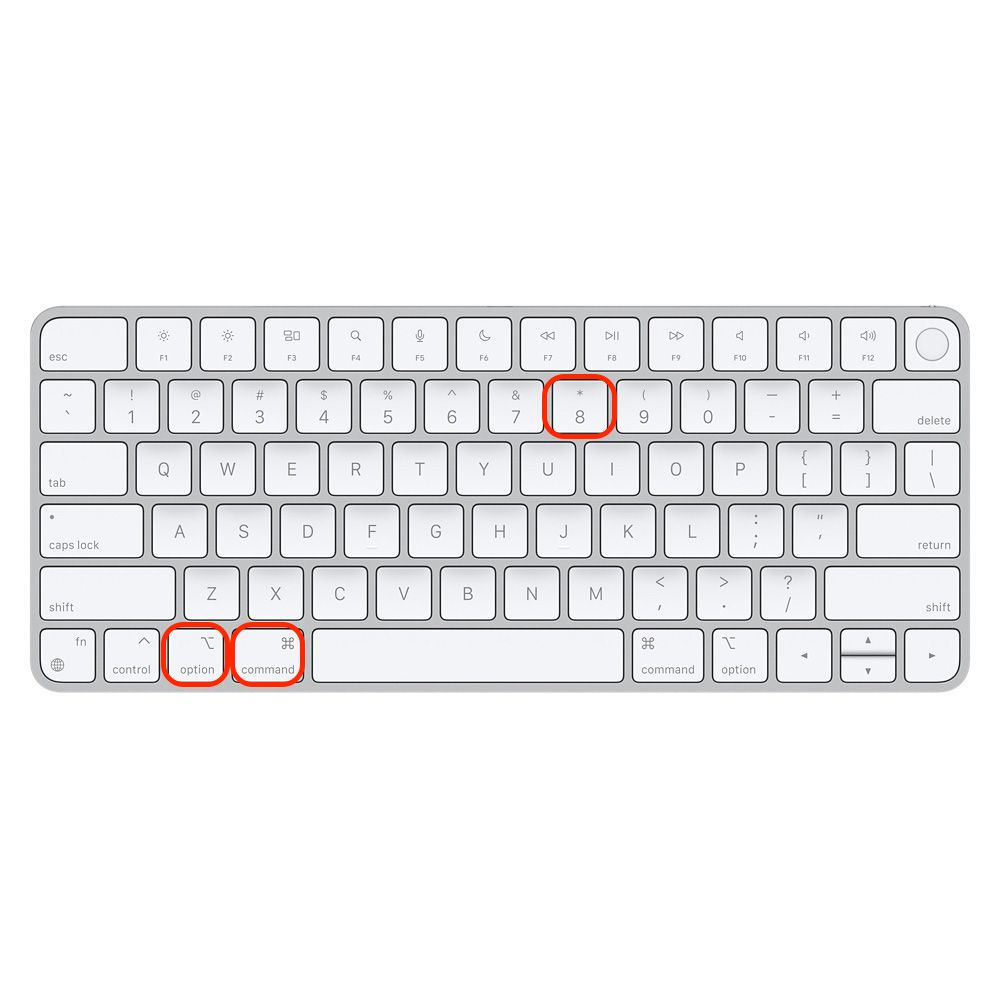
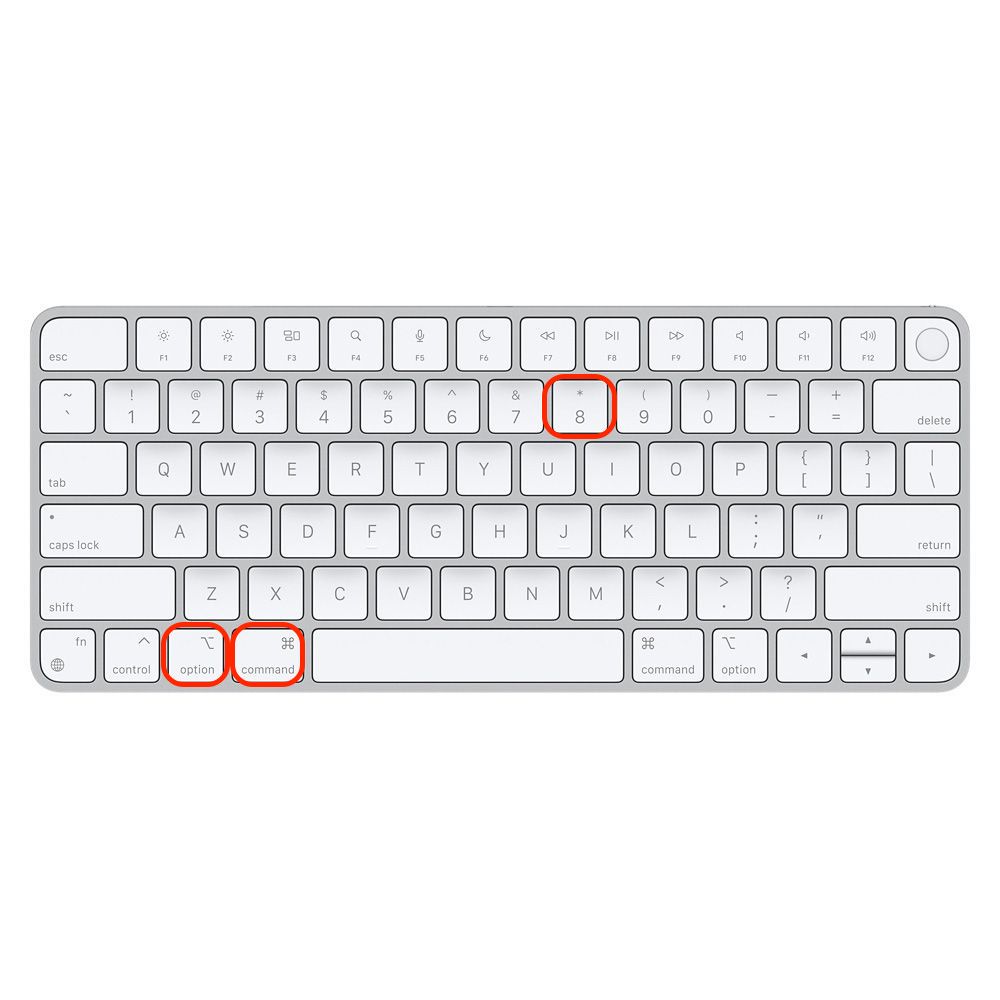
To reset zoom on Mac and fix a magnified screen that makes navigating your desktop a struggle, you can instantly return to a normal view by using the Option+Command+8 toggle. To keep your system responsive and free of the software clutter that sometimes triggers display glitches, we recommend using MacKeeper’s Smart Uninstaller to safely remove problematic apps and their hidden leftovers.
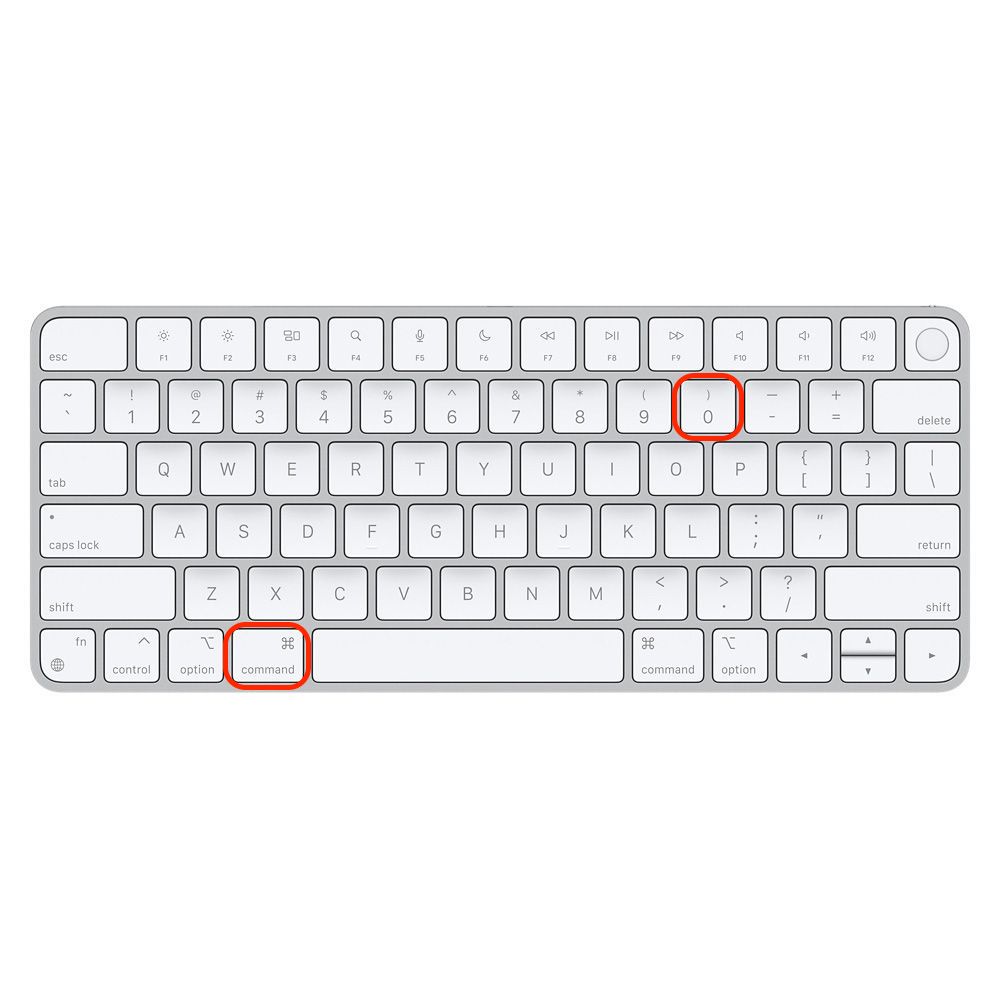
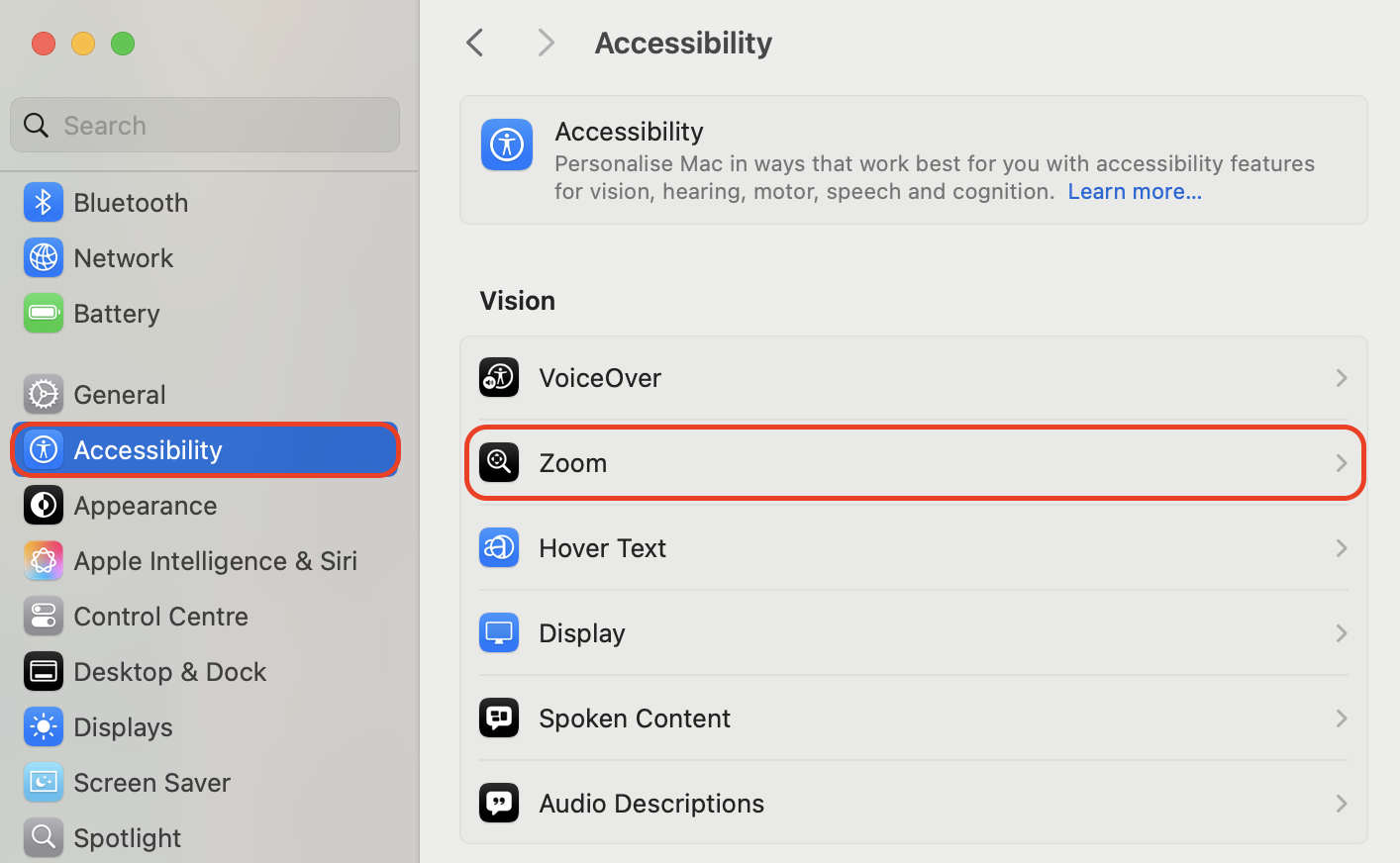
To reset Zoom on Mac, use the Command + 0 shortcut in web browsers for a default 100% view. For system-wide magnification, toggle the accessibility feature by pressing Option + Command + 8. You can also manage these settings manually by navigating to System Settings > Accessibility > Zoom to restore your original display scaling immediately.
Use the Command + 0 shortcut in web browsers for a default 100% viewFor system-wide magnification, toggle the accessibility feature by pressing Option + Command + 8You can also manage these settings manually by navigating to System Settings > Accessibility > Zoom
Why is your Mac screen zoomed in?
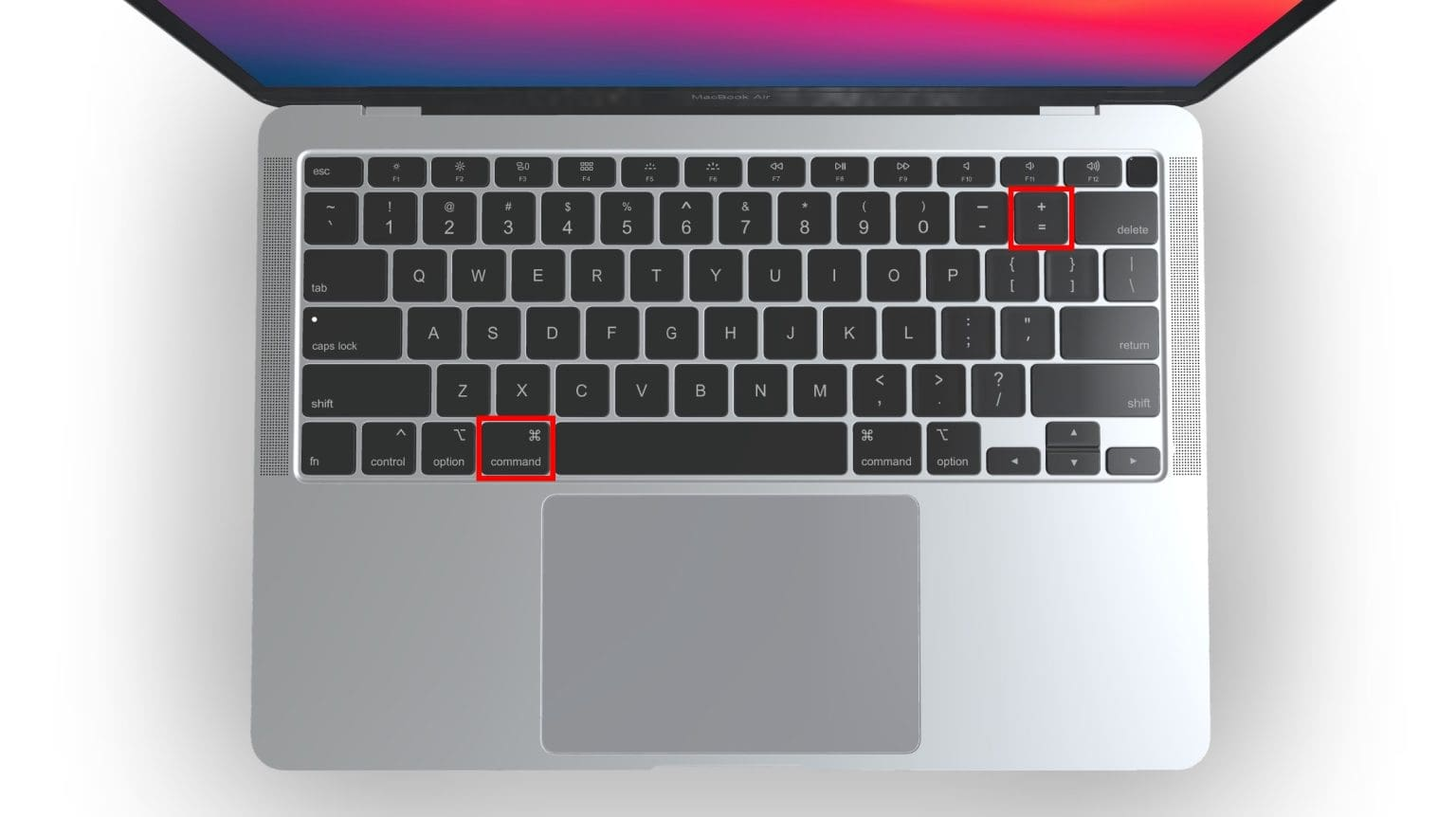
A Mac screen typically becomes magnified because a user unknowingly triggered a keyboard shortcut, such as Command + Option + = (plus), or performed a pinch-to-zoom gesture on the trackpad. In some cases, specific apps or recent macOS updates can cause resolution scaling issues that require you to undo zoom on Mac.
How to unzoom on Mac?
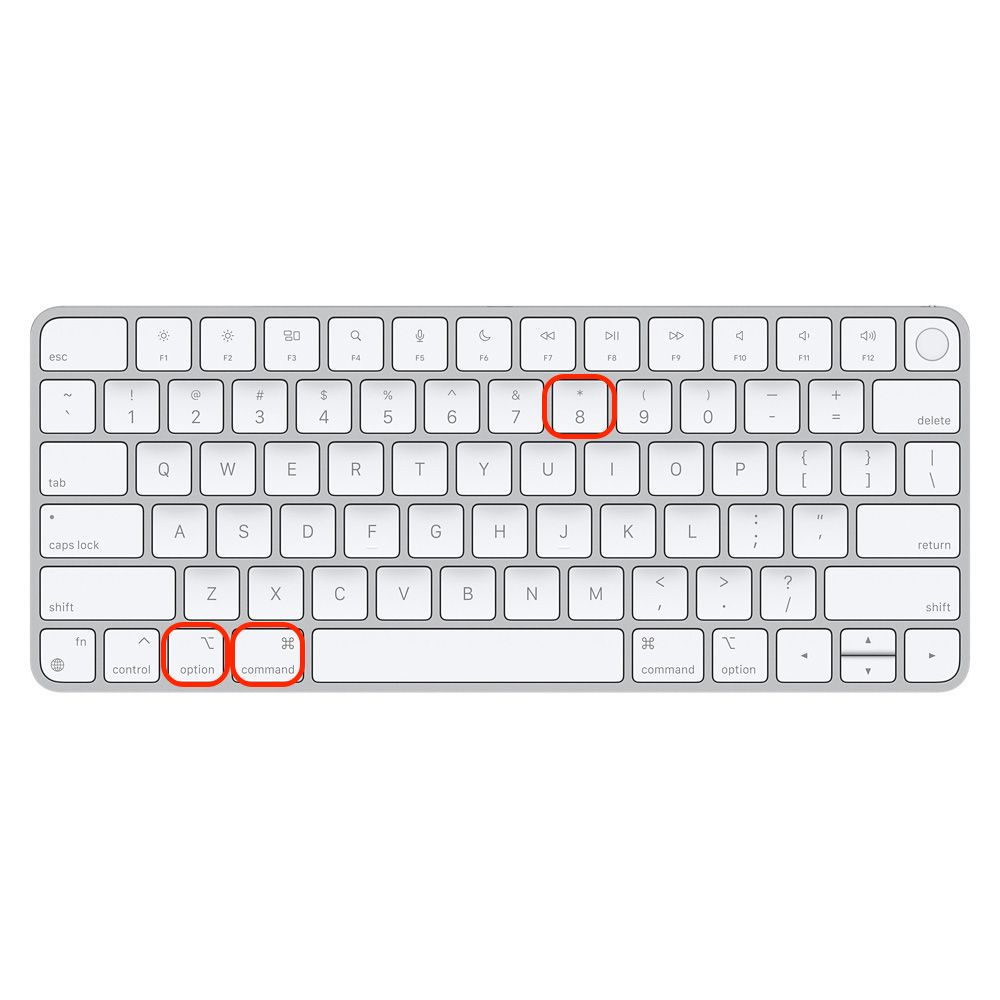
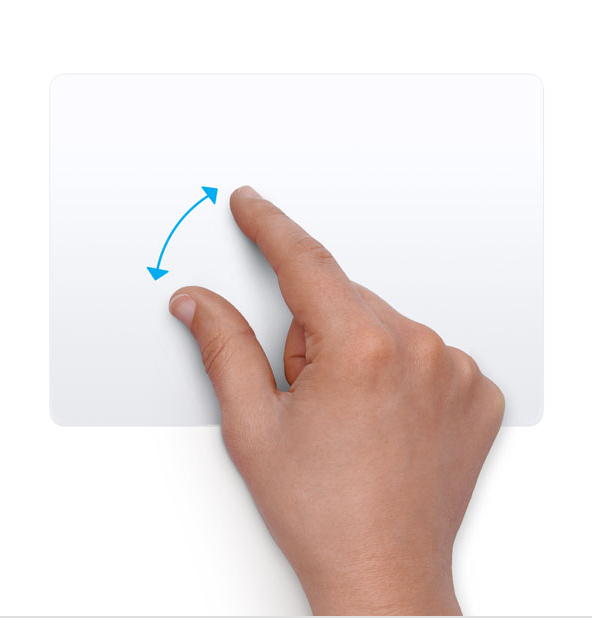
To unzoom on Mac, press Option + Command + 8 to toggle the accessibility zoom off instantly. You can also use Option + Command + Minus (-) to reduce magnification in increments or pinch two fingers together on your trackpad to restore your desktop view.
To unzoom on Mac, press Option + Command + 8
A note from our experts:
Deleting an app doesn't always remove everything—leftover files often remain hidden, taking up valuable space and slowing down performance. When an app doesn't work properly, our team recommends using MacKeeper’s Smart Uninstaller to perform a clean reinstall. MacKeeper is a leading solution in Mac optimization and cybersecurity developed by Clario Tech, and it offers performance monitoring to ensure your Mac runs flawlessly.
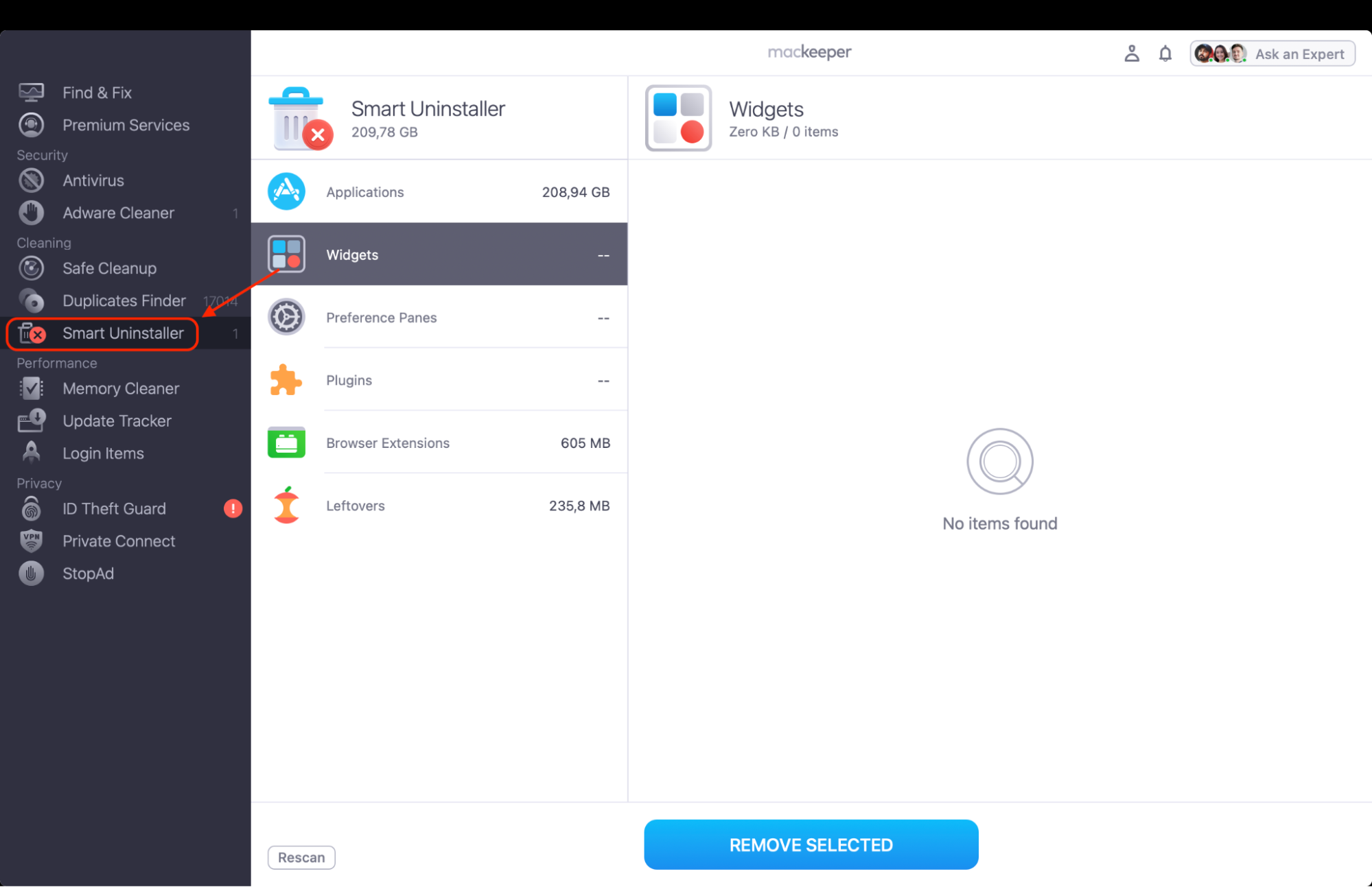
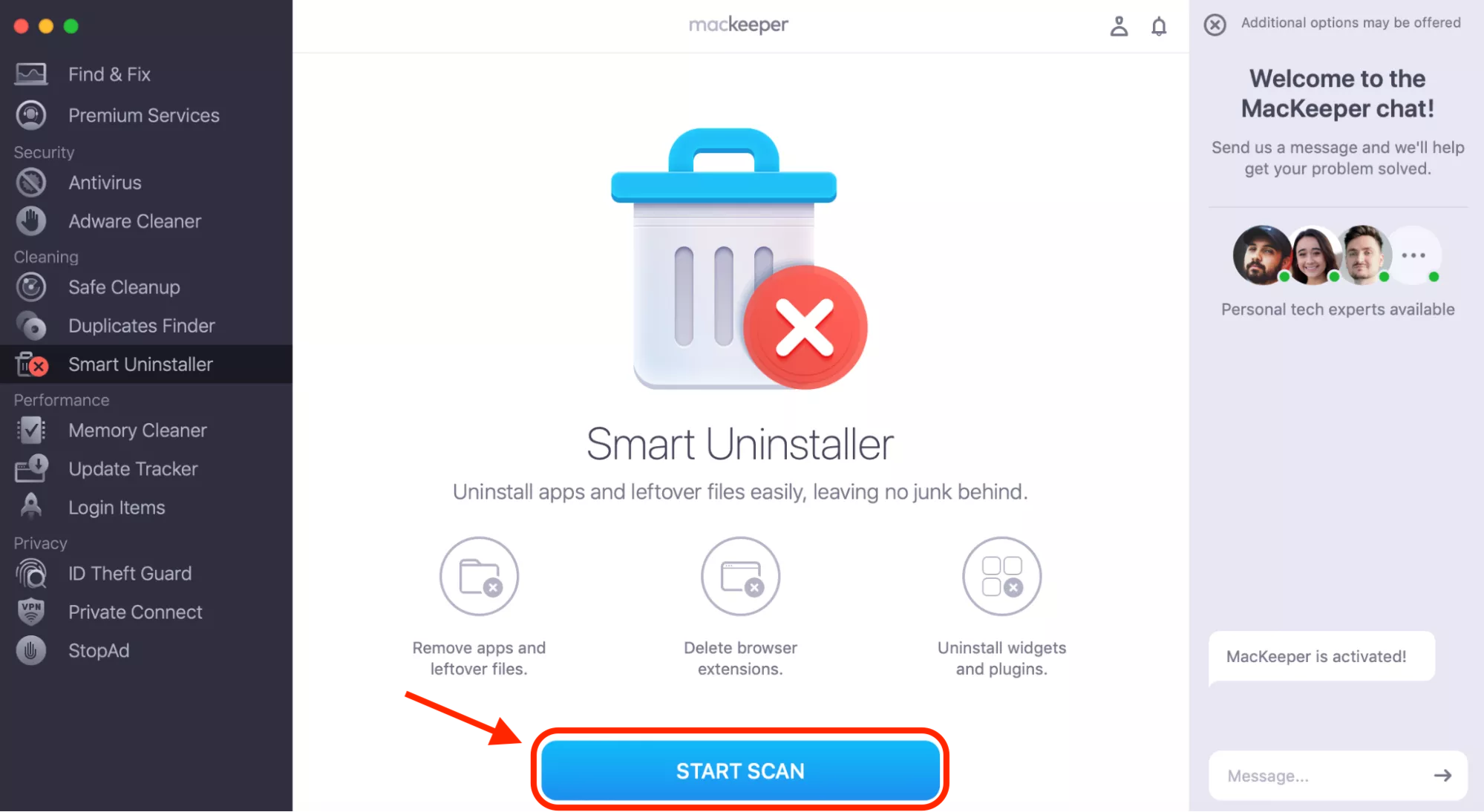
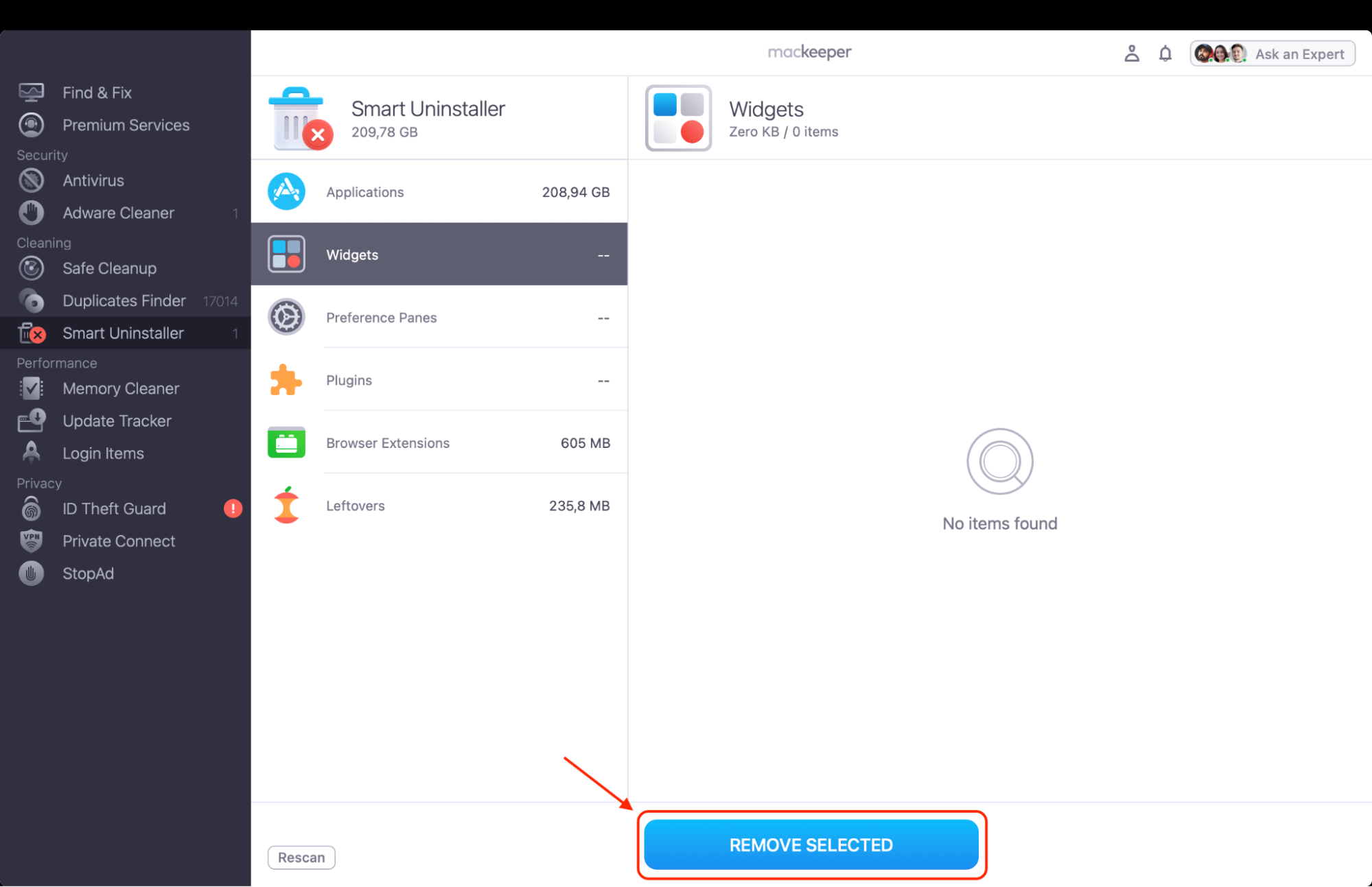
Here’s how to scan and uninstall apps with Smart Uninstaller:
Open MacKeeper and select Smart Uninstaller from the left sidebar to find apps that are not behaving correctly.
Click Start Scan to detect all installed applications and their associated hidden service files.
Review the results and select the problematic app(s) to prepare for a clean removal.
Click Remove to delete the application along with all its leftovers, allowing you to reinstall a fresh, working version.
Step 1. Open MacKeeper and select Smart Uninstaller from the left sidebarStep. 2. Click Start Scan to generate a list of removable itemsStep. 3. Click Remove to uninstall selected apps
1. Using keyboard shortcuts
We’ve found through our tests that utilizing macOS keyboard shortcuts is the most efficient way to quickly restore your screen to its original size. This method works best when you’ve accidentally zoomed in while working in a browser or a document. From our perspective, mastering these keys saves you significant time during daily multitasking.
Follow our guide to reset zoom using your keyboard:
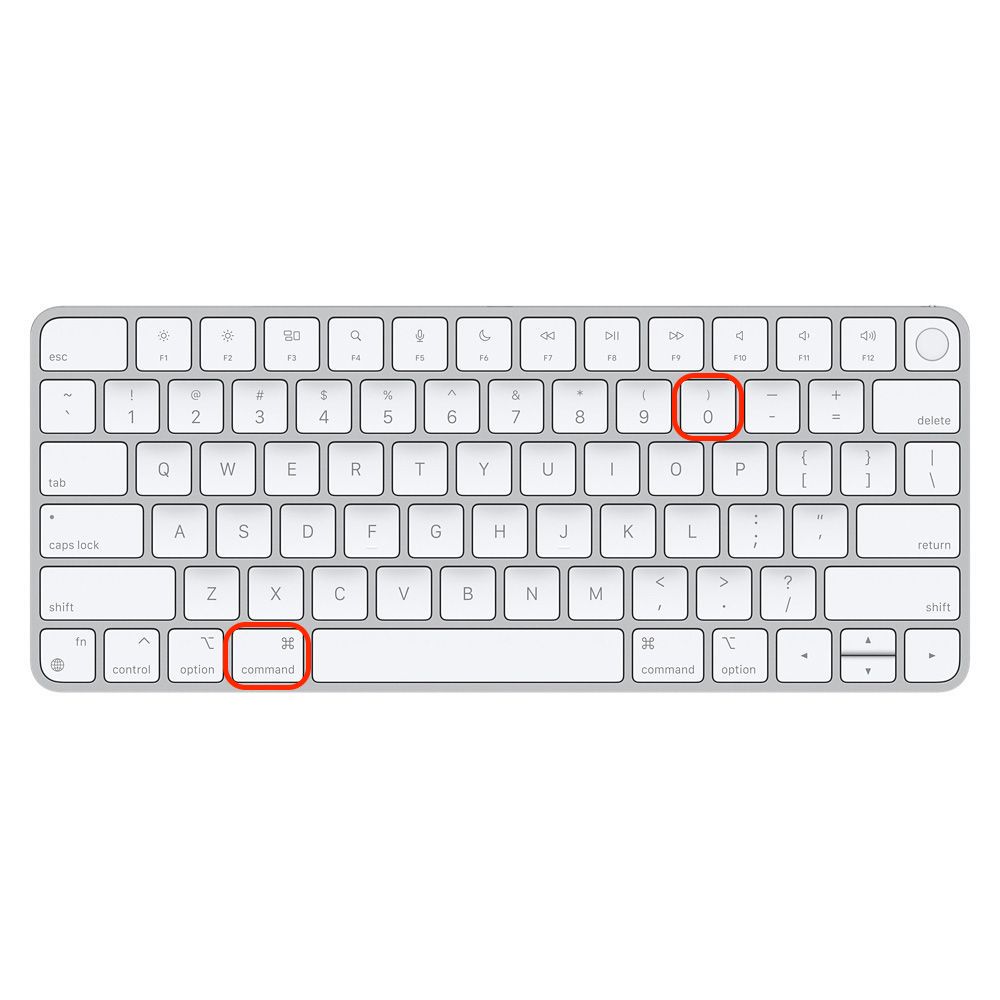
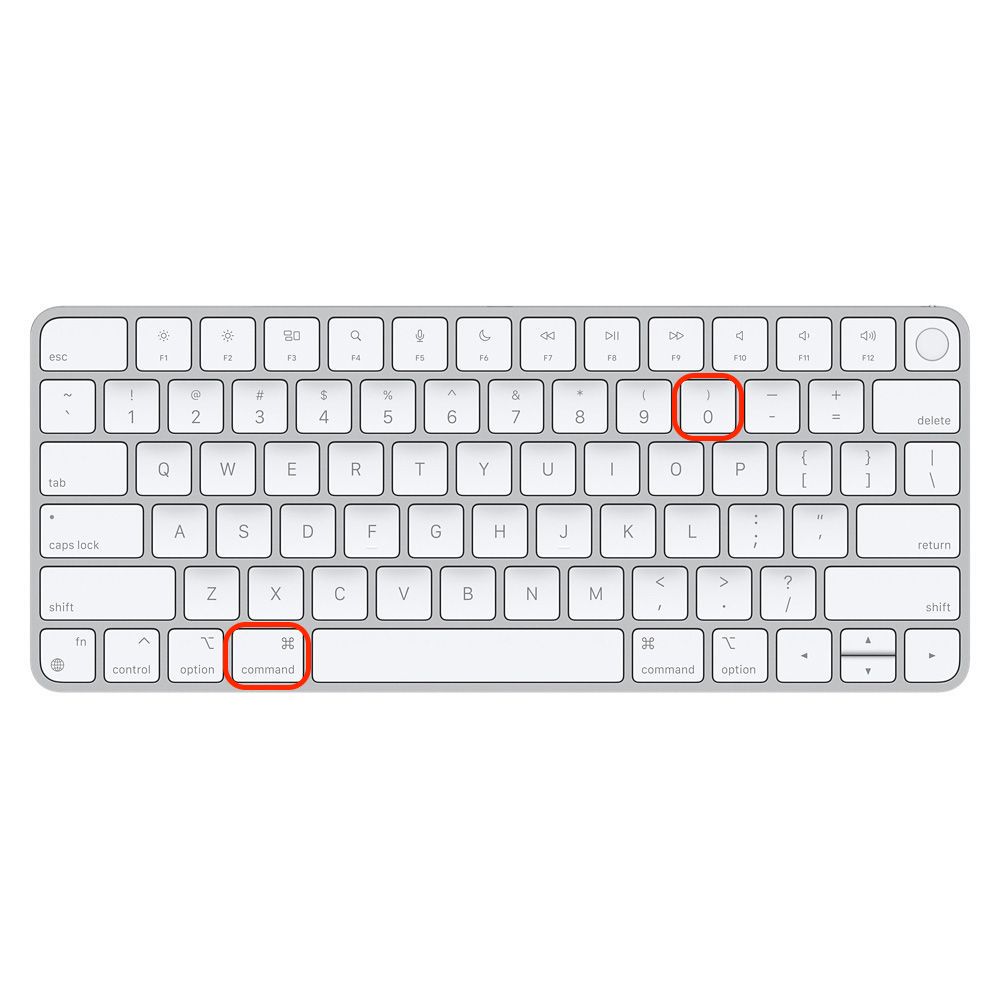
Press Command + 0 to instantly return an active window to its default 100% size.
Hold Option + Command + 8 to toggle the system-wide accessibility zoom off if your whole desktop is magnified.
Press Option + Command + - (minus) to gradually reduce the entire screen's magnification.
Use Command + - (minus) repeatedly in apps if you prefer to zoom out in smaller, controlled increments.
Press Option + Command + / (slash) to toggle the softening of pixels if the magnified image appears too jagged.
Step 1. Press Command + 0 to instantly return an active window to its default 100% sizeStep 2. Hold Option + Command + 8 to toggle the system-wide accessibility zoom off if your whole desktop is magnifiedStep 3. Press Option + Command + - (minus) to gradually reduce the entire screen's magnification
2. Using trackpad or mouse gestures
In our experience, gestures offer a tactile way to manage your screen, though it can be frustrating if you feel your MacBook trackpad not working correctly. We believe that pinch-to-zoom is intuitive, yet we've found it’s often the primary cause of accidental magnification. Finally, a quick double-tap often resets the Smart zoom logic if the trackpad feels unresponsive, and then you can turn off screen zoom on Mac.
Here’s how we recommend managing zoom gestures:
Pinch two fingers together on the trackpad surface to manually zoom out of the current view.
Double-tap with two fingers on the trackpad to trigger the Smart zoom reset for browsers.
Use a two-finger swipe downward while holding the Control key if you’ve enabled the scroll-gesture modifier.
Perform a double-tap with one finger on the surface of an Apple Magic Mouse to toggle standard views.
Slide your finger back and forth across the Touch Bar on your model to adjust magnification.
Pinch two fingers together on the trackpad surface to manually zoom out of the current view
3. How to turn off zoom in macOS settings
When shortcuts fail, we’ve observed that the most reliable solution is to dive into the system configuration to disable the feature entirely. Based on our expertise, this approach is best if you find yourself constantly zooming in by mistake. Our team suggests reviewing these settings after every major macOS update to ensure your preferences remain active.
Follow these steps to adjust your settings manually:
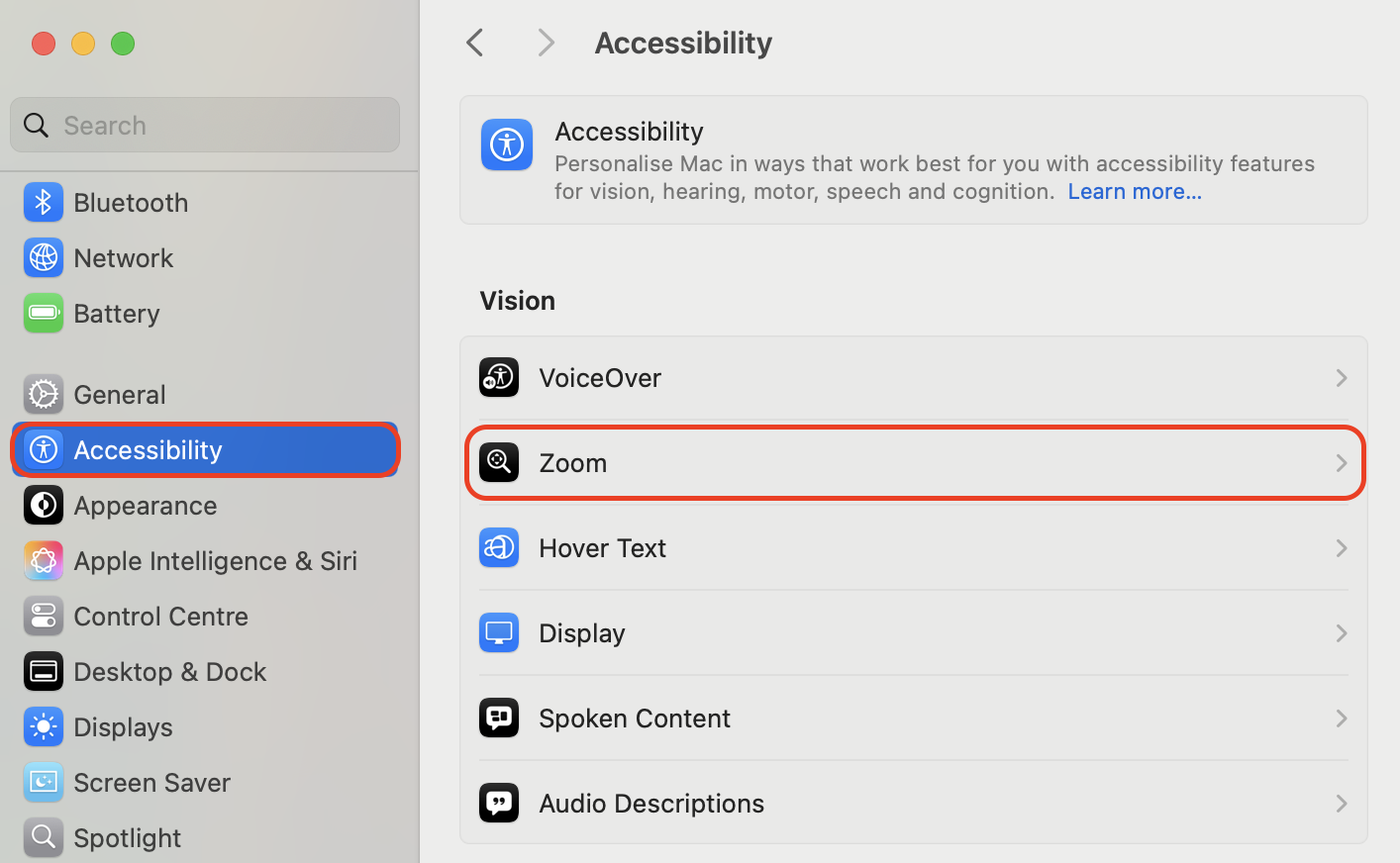
Click the Apple menu and select System Settings from the dropdown list.
Navigate to the Accessibility section located in the left-hand sidebar.
Select Zoom from the list of vision-related features.
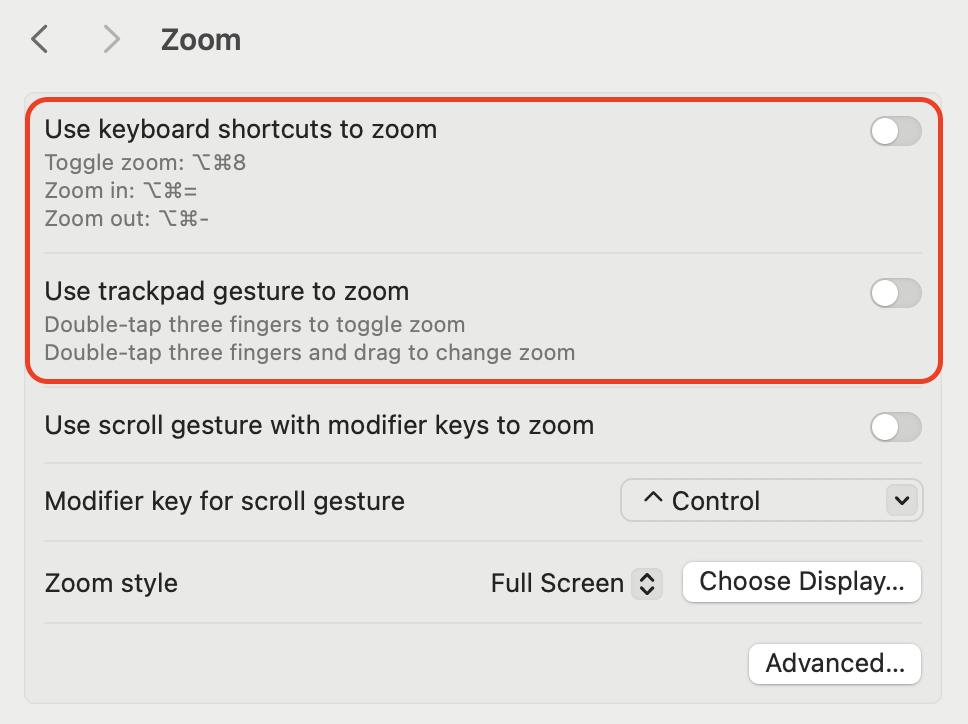
Toggle off the switch next to Use keyboard shortcuts to zoom to disable the feature.
Uncheck the box labeled "Use trackpad gesture to zoom" to prevent accidental pinches from magnifying your screen.
Step 1. Navigate to System Settings > Accessibility > ZoomStep 2. Toggle off the switch next to Use keyboard shortcuts to zoom to disable the feature and uncheck the box labeled "Use trackpad gesture to zoom"
How to undo zoom in specific apps?
Individual programs often have their own unique magnification settings that operate independently of your system-wide preferences. Having a single window look distorted usually means an app-specific command is required to restore a clean 100% view without affecting the rest of your desktop.
You can press Command + 0 (zero) to instantly return to the Actual Size in most macOS apps or use Command + - (minus) to shrink the contents of a window if a full reset feels too drastic for your current task.
Resetting zoom in web browsers
Web browsers like Chrome and Firefox often store independent zoom levels for every website you visit. Reverting these individual site settings is necessary if YouTube or other pages appear too large while the rest of your app looks normal. You can find these controls hidden within the privacy or view settings of your preferred browser.
Follow these instructions to restore browser scaling:
Press Command + 0 while the problematic webpage is active to instantly snap back to 100%.
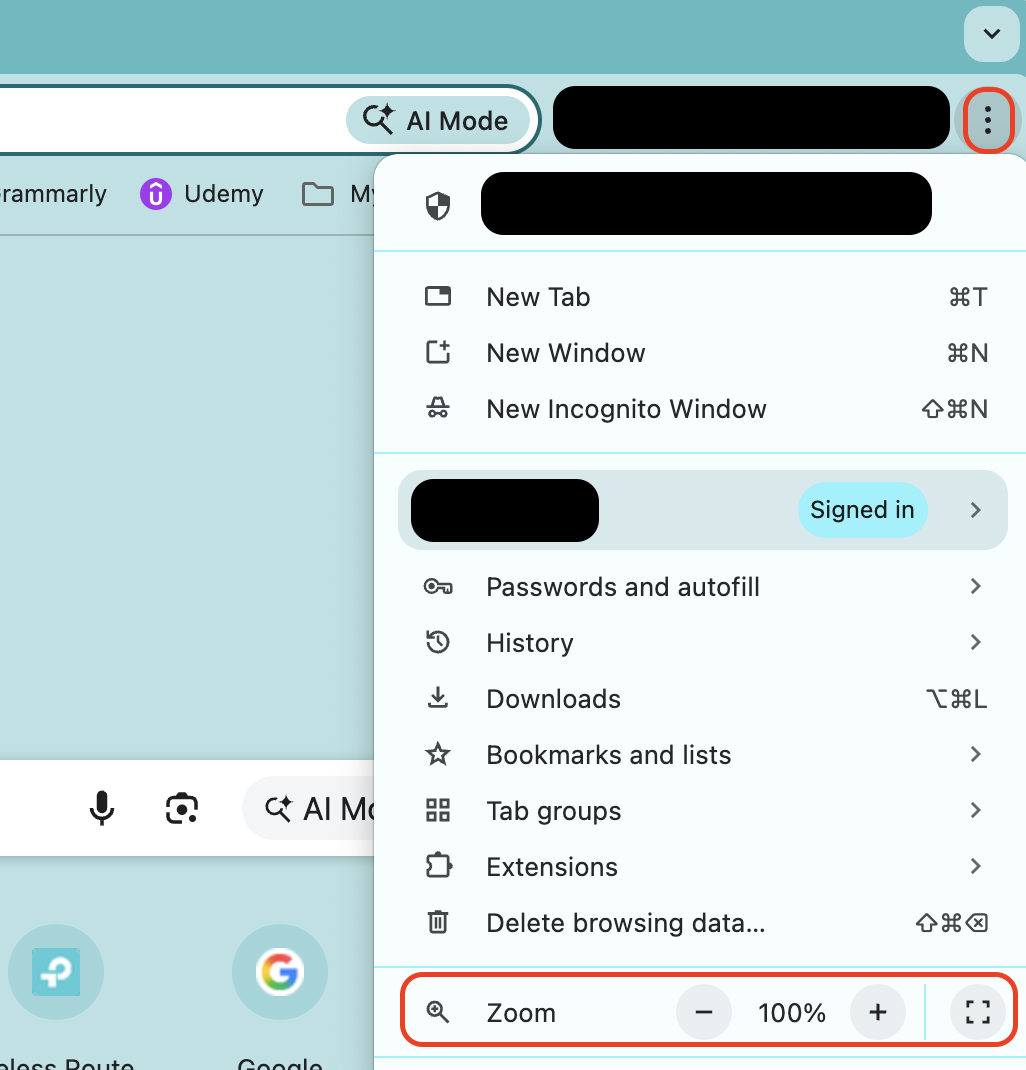
Open the three-dot menuin Chrome and look at the Zoom section to verify you are at the default level.
Navigate to Settings > Page Zoom in Firefox to set a global magnification limit for all sites.
Check your browser extensions to ensure a third-party tool isn't forcing a magnified view on specific domains.
Step 1. Press Command + 0 while the problematic webpage is active to instantly snap back to 100%Step 2. Open the three-dot menu in Chrome and look at the Zoom section to verify you are at the default level
Conclusion
Resetting your display to its original size ensures that a simple accidental keystroke does not interrupt your productivity or hide essential menu bar elements. Whether you choose to use keyboard shortcuts, trackpad pinches, or system settings, getting back to a standard resolution only takes a second.
MacKeeper is a macOS utility software that offers memory optimization to keep your system stable. We recommend using Smart Uninstaller to remove problematic apps and hidden leftovers that might be cluttering your system. It is Apple-notarized and provides a reliable way to maintain your device's peak performance.
We respect your privacy and
use cookies
for the best site experience.
Privacy Preferences Center
We use cookies along with other tools to give you the best possible experience while using the
MacKeeper website. Cookies are small text files that help the website load faster. The cookies we
use don’t contain any type of personal data meaning they never store information such as your
location, email address, or IP address.
Help us improve how you interact with our website by accepting the use of cookies. You can change
your privacy settings whenever you like.
Manage consent
All cookies
These cookies are strictly necessary for enabling basic website functionality (including page
navigation, form submission, language detection, post commenting), downloading and purchasing
software. The website might malfunction without these cookies.