Learning how to take a picture on a Mac is surprisingly simple once you locate the built-in webcam tools, though the process can quickly lead to a cluttered hard drive full of similar shots. To keep your library organized, our team recommends using MacKeeper’s Duplicates Finder, as it instantly identifies and removes identical or similar photos to reclaim valuable storage space.
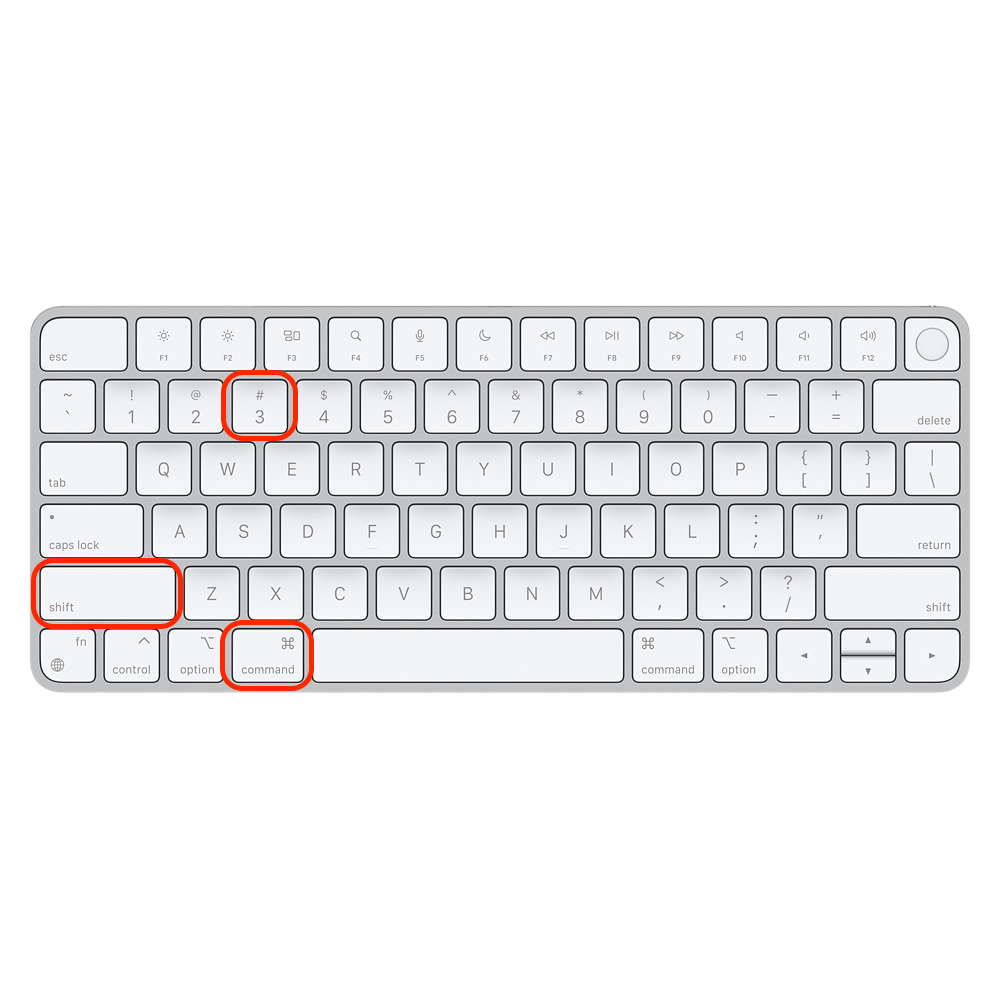
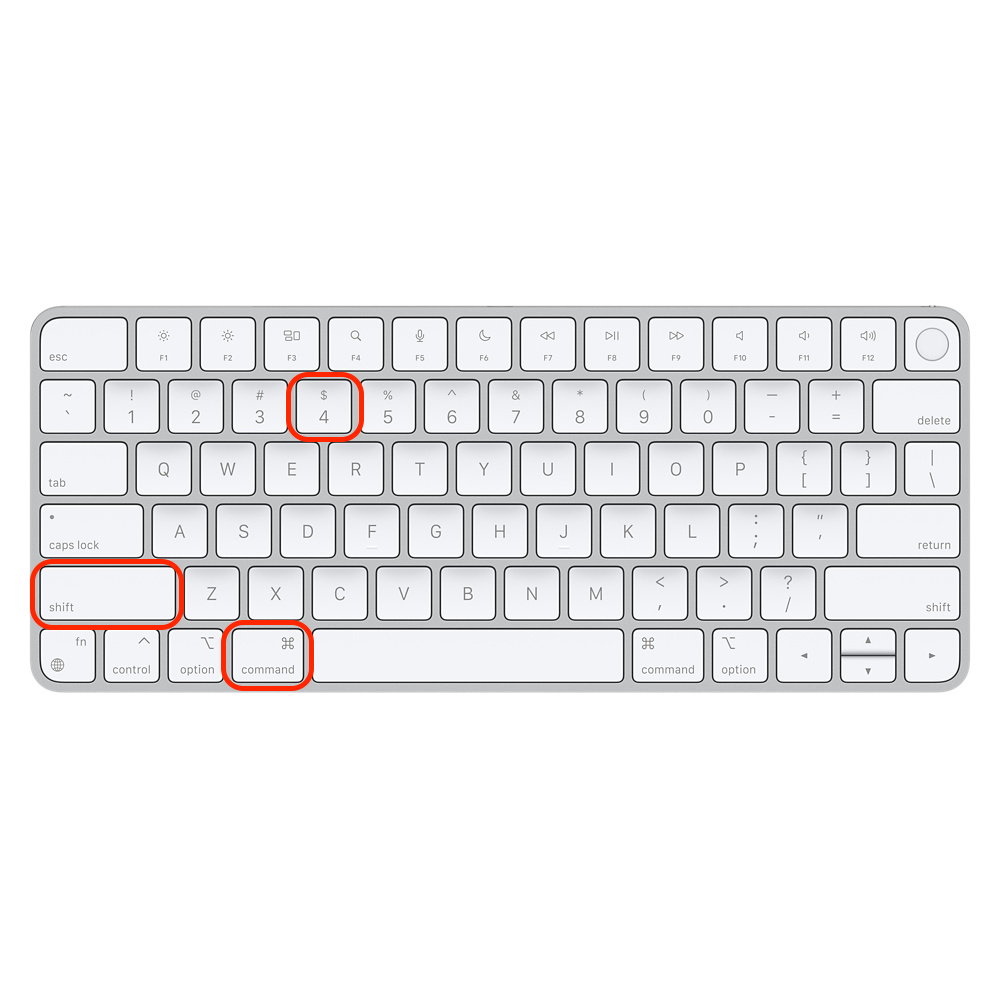
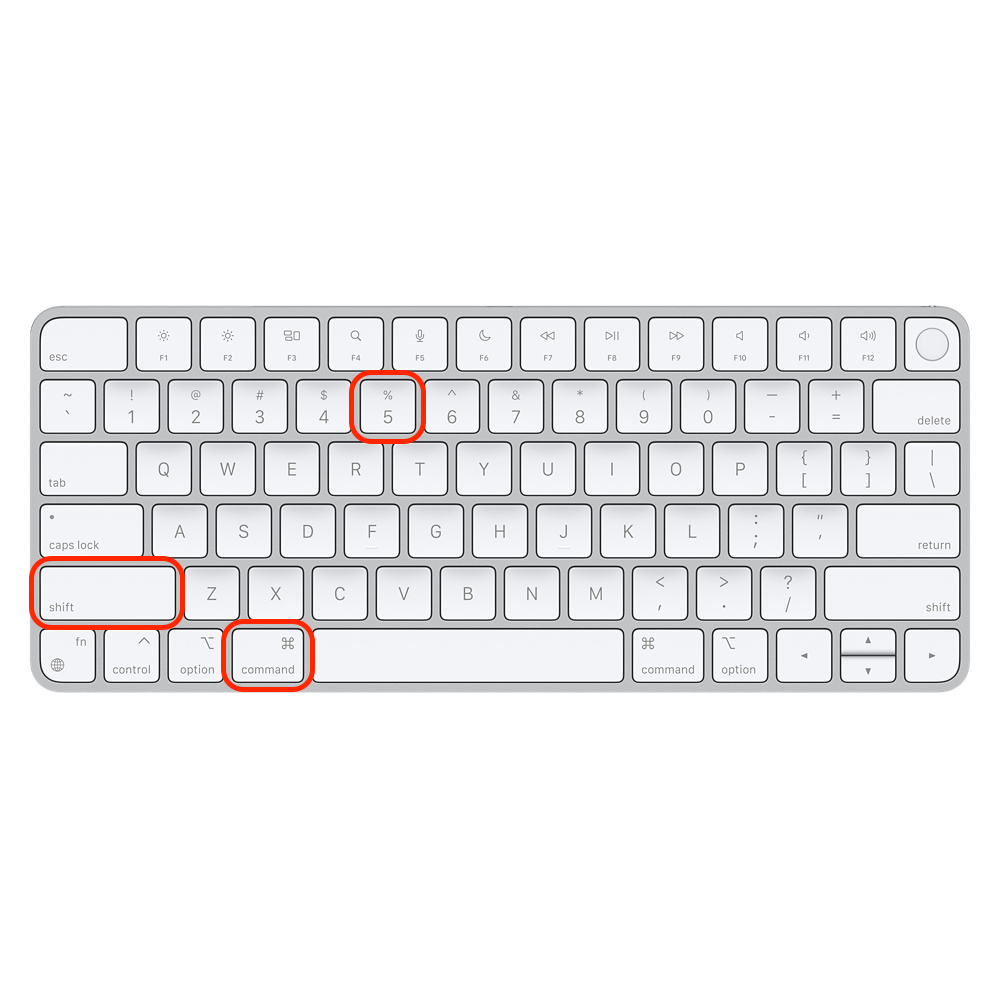
To take a picture on a Mac, you need to open the Photo Booth app to use your built-in webcam for selfies or use the Screenshot tool (Shift-Command-5) for screen captures. For camera photos, simply click the red shutter button in Photo Booth; for screen images, use keyboard shortcuts like Shift-Command-3 for the entire display or Shift-Command-4 for a specific area.
What “taking a picture” means on Mac (camera vs screen)?
On a Mac, to take a photo on a MacBook generally means one of two distinct actions: capturing a digital image of your current screen (a screenshot) or using the built-in webcam to take a live photo of yourself or your surroundings.
Choosing the right method depends on whether you need a professional-grade screen capture or a quick selfie, which starts with knowing how to open the camera on a MacBook using apps like Photo Booth. Based on our experience, understanding this distinction ensures you use the correct tool for every specific photography need.
A note from our experts:
MacKeeper’s Duplicates Finder simplifies managing duplicate files by swiftly detecting and eliminating redundant data, ensuring a clutter-free Mac. We’ve verified that MacKeeper offers performance monitoring to help your system stay responsive while you handle large batches of file copies. Furthermore, because MacKeeper is a leading solution in Mac optimization and cybersecurity, you can trust that your important data remains protected during the cleanup process.
Here are a couple of easy steps on how to use this feature:
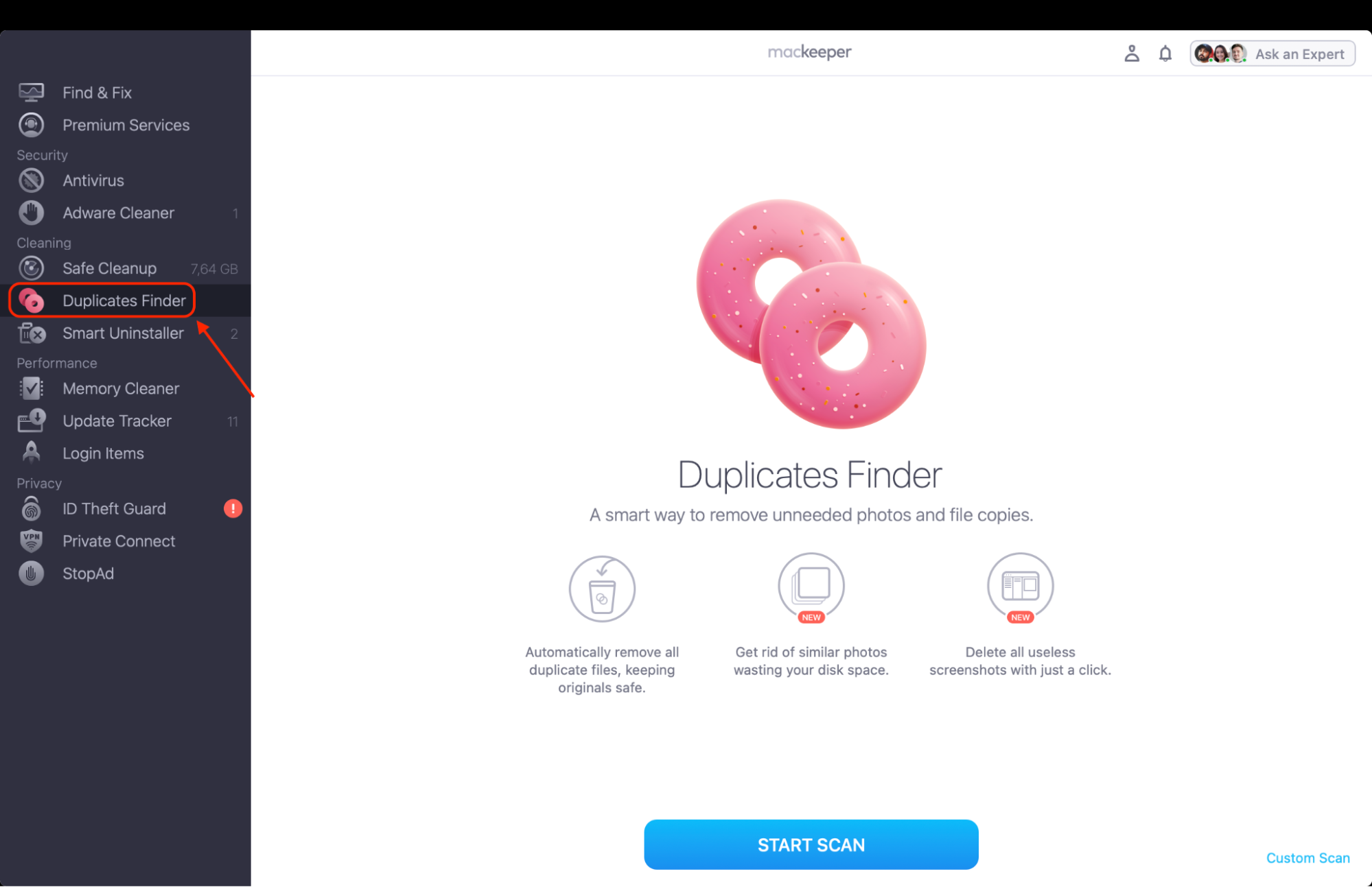
In MacKeeper, choose our Duplicates Finder from the sidebar.
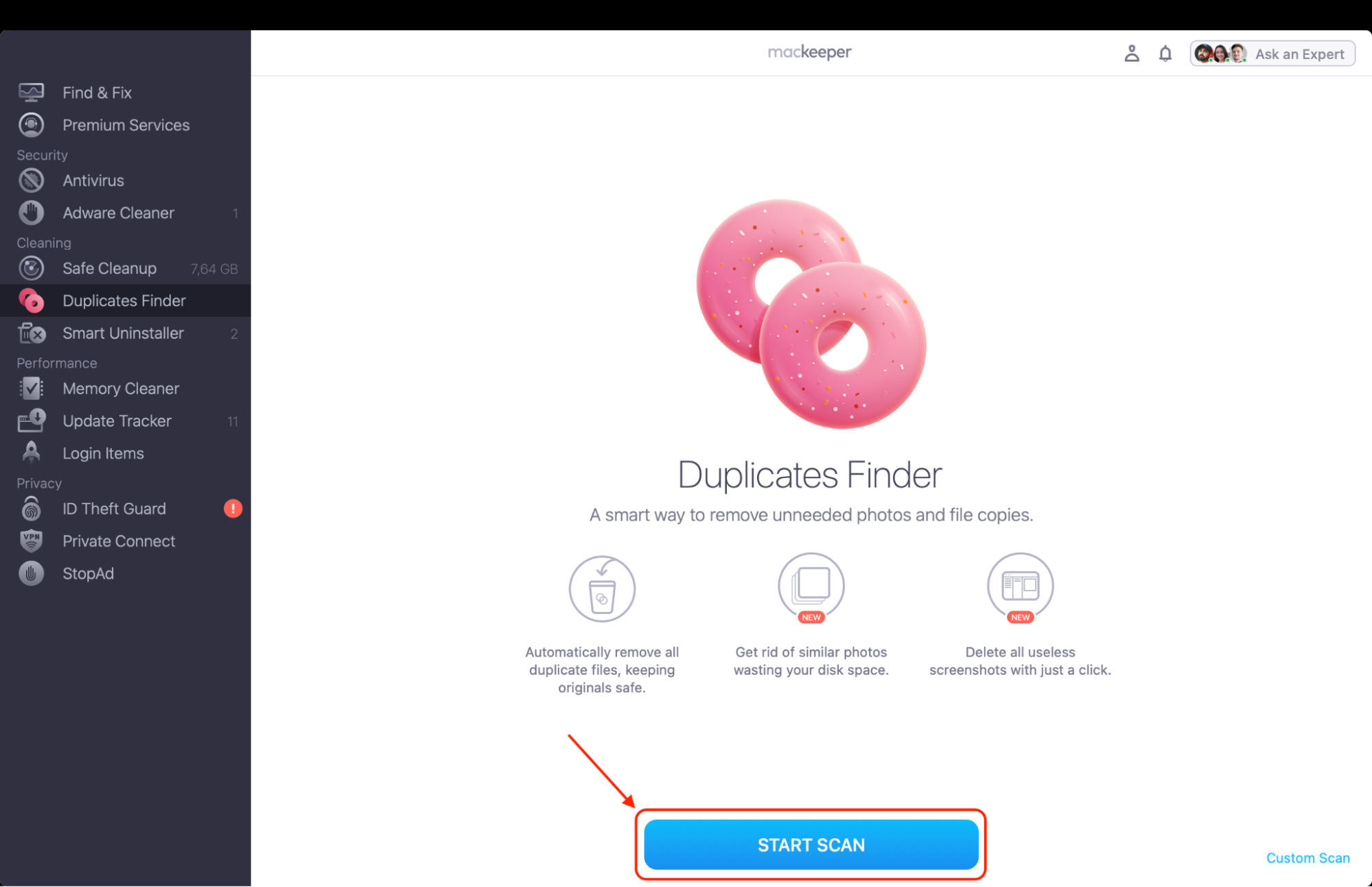
Click Start Scan and wait for it to finish.
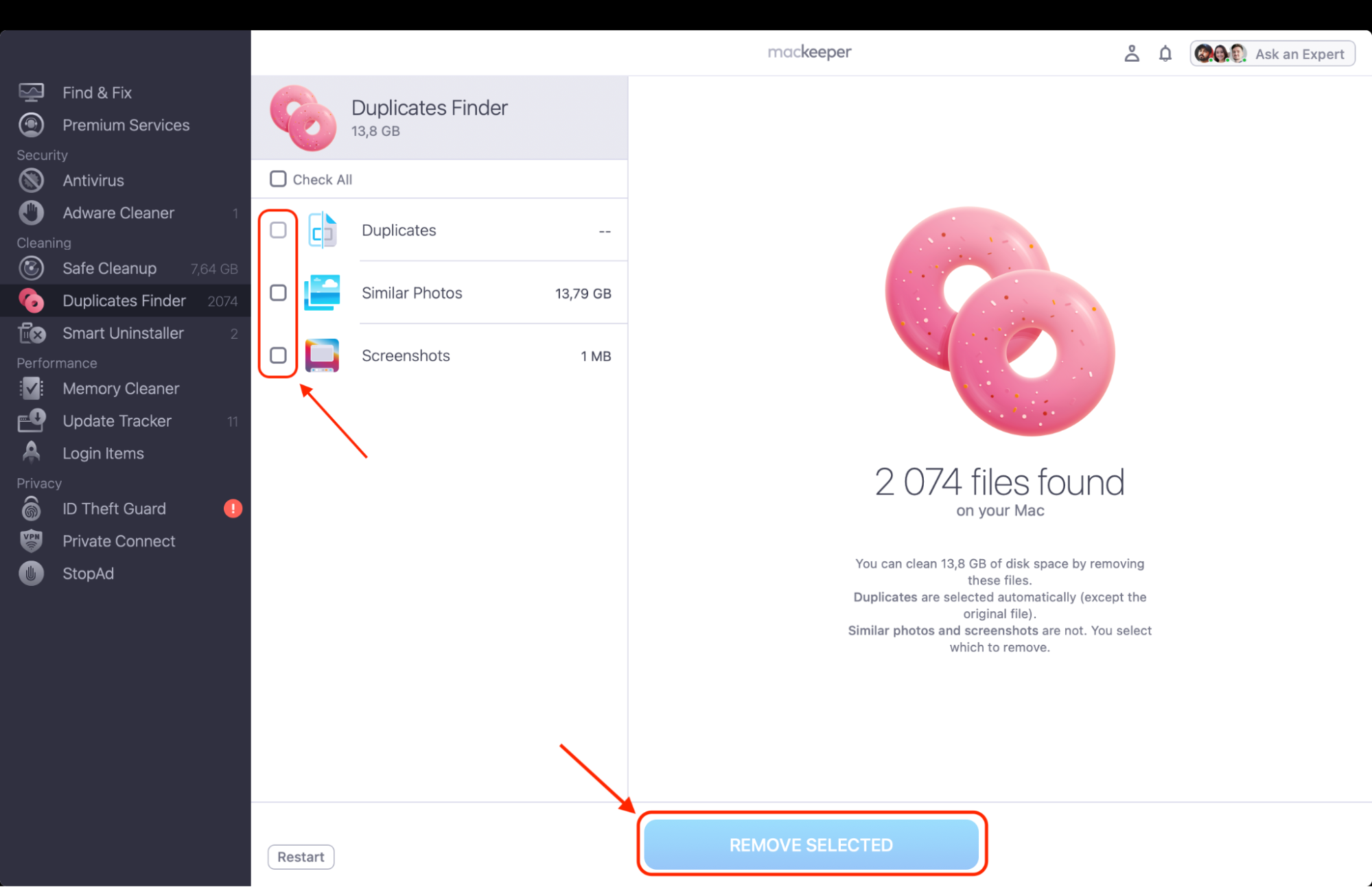
Select files to delete and hit Remove Selected.
Step 1. Choose the Duplicates Finder from the left-side barStep 2. Hit Start Scan and wait for it to finishStep 3. Choose files to delete and then click Remove Selected
How to capture picture on Mac?
To capture a picture on your Mac, use the Photo Booth app for webcam photos or the Screenshot tool (Shift + Command + 5) for screen captures. For camera photos, open Photo Booth and click the red shutter button. For screenshots, press Shift + Command + 3 for the whole screen or Shift + Command + 4 to select a portion. So, as you see, the choice of the method depends on the image type you need.
1. Make photo on Mac with the Photo Booth app
While Photo Booth is excellent for instant captures, we’ve found it lacks deep refinement tools, so you’ll likely need to learn how to edit a photo on your Mac using external editors like TouchRetouch or Luminar Neo if you want professional-grade results.
Here’s what to do:
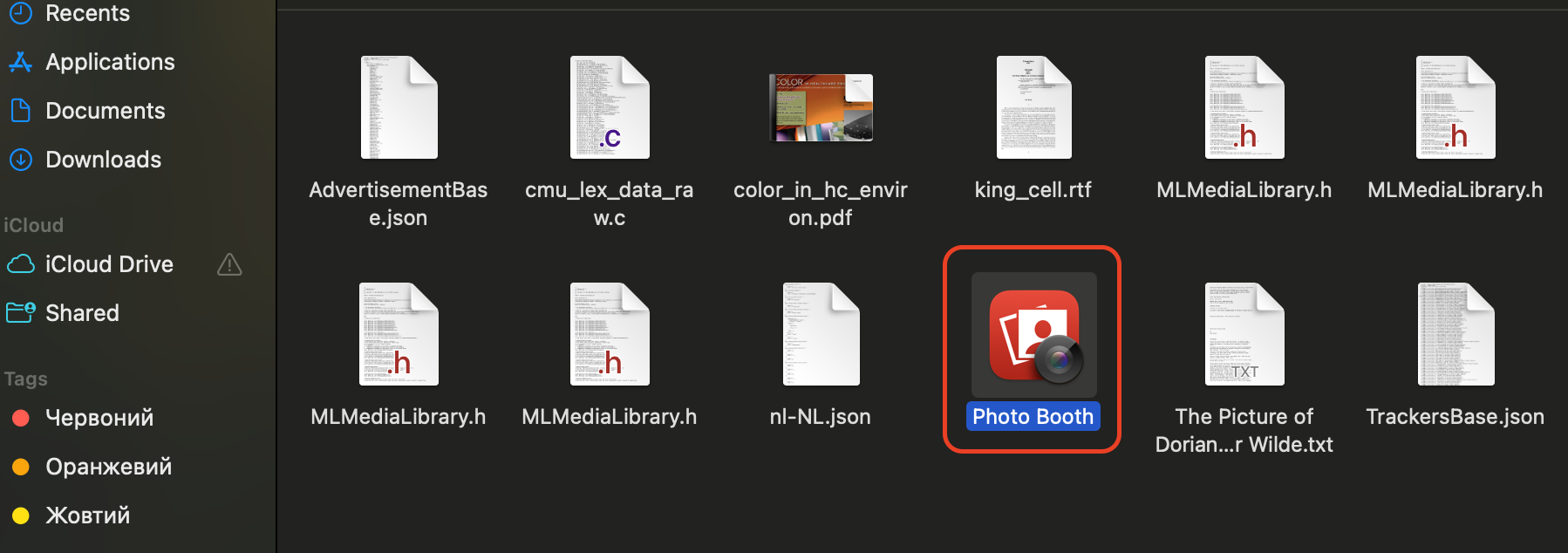
Open the Applications folder in Finder and double-click the Photo Booth icon.
Position yourself in front of the camera and look for the green indicator light at the top of your screen.
Click the red camera icon to trigger a three-second countdown before the shutter snaps.
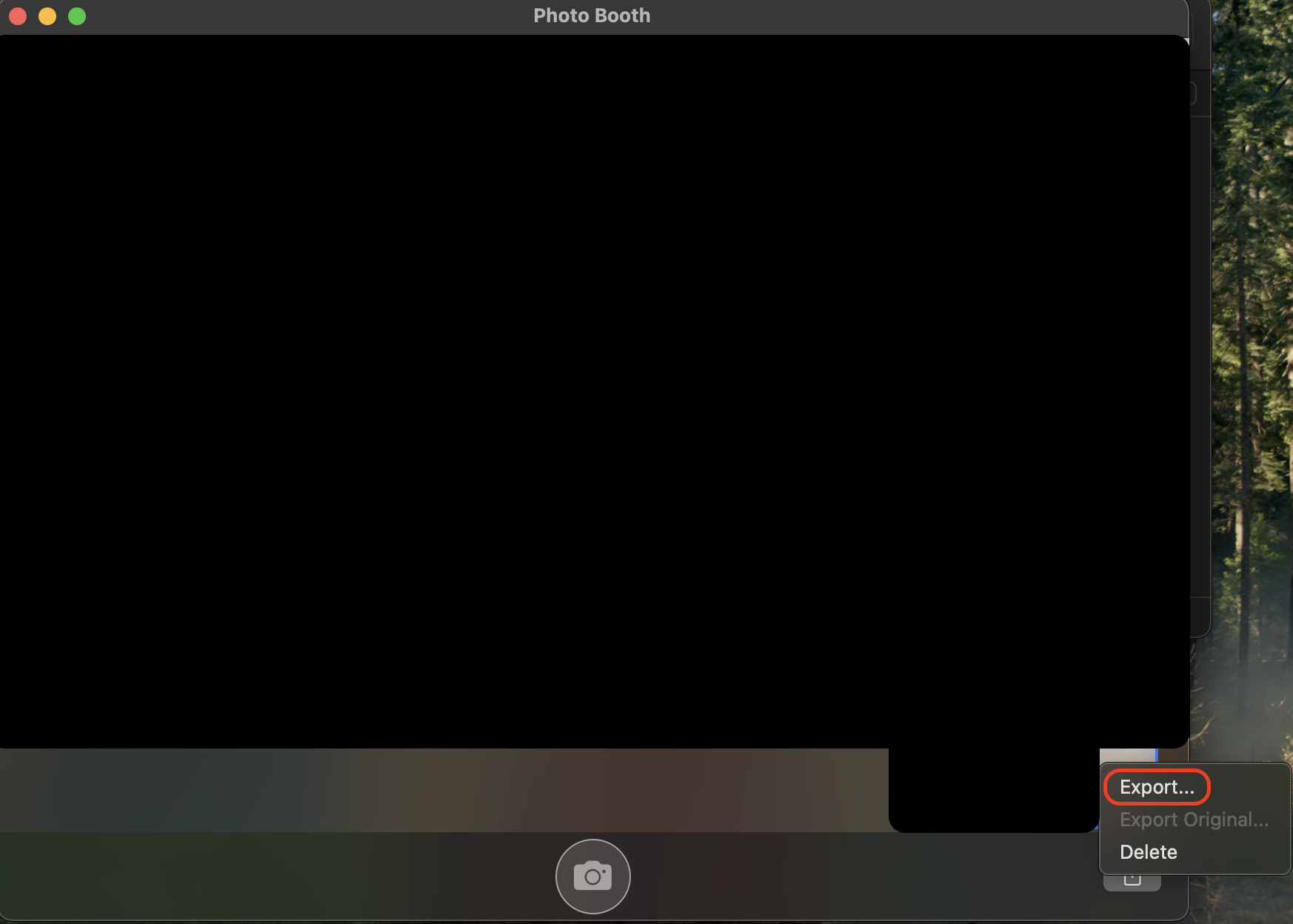
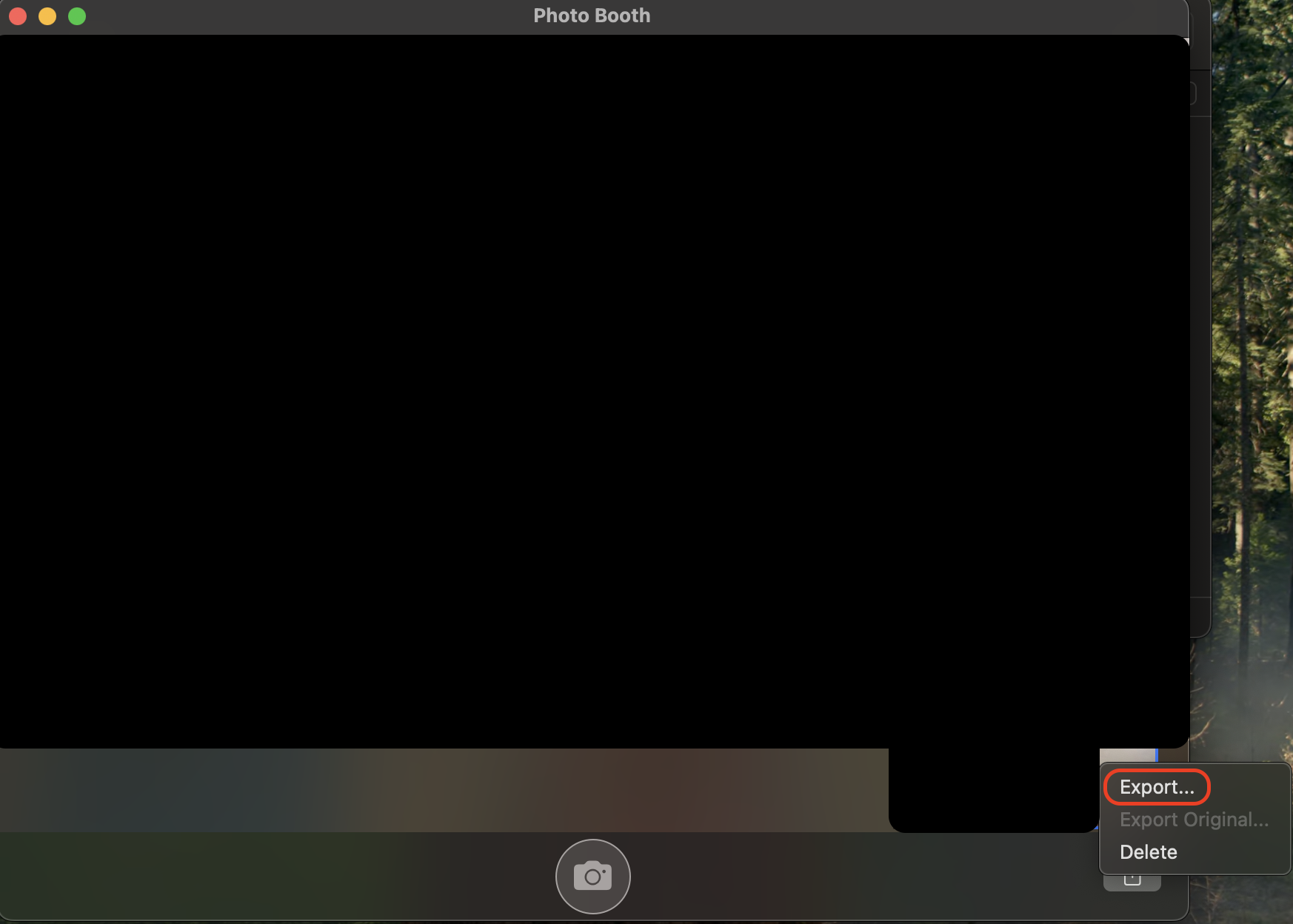
View your new image in the bottom reel and right-click it to select Export for saving.
Step 1. Open the Applications folder in Finder and double-click the Photo Booth iconStep 2. Click the red camera icon to trigger a three-second countdown before the shutter snapsStep 3. Right-click on the image and choose Export to save it
2. Take screen image on Mac by screenshotting
When you need to capture exactly what is visible on your display, like a document, a receipt, or a website, we believe the screenshotting feature is the most efficient choice.
Apply these instructions to complete the process:
Press Command + Shift + 3 simultaneously to instantly capture everything on your entire screen.
Use Command + Shift + 4 to turn your cursor into a crosshair for selecting a specific portion of the screen.
Hit the Spacebar after pressing Command + Shift + 4 to capture an individual window with a clean border.
Press Command + Shift + 5 to open the full Screenshot app menu for advanced capture and recording options.
Option 1. Press Command + Shift + 3 simultaneously to instantly capture everything on your entire screen.Option 2. Use Command + Shift + 4 to turn your cursor into a crosshair for selecting a specific portion of the screen.Option 3. Press Command + Shift + 5 to open the full Screenshot app menu
3. Other built-in ways to take pictures on Mac (FaceTime, Image Capture)
If you’re looking for more niche ways to make a photo on a Mac, we suggest exploring FaceTime or Image Capture. The special advantage of FaceTime is capturing candid "Live Photos" during video calls with friends, while Image Capture is essential for organizing photos on a Mac by importing high-resolution shots from external devices.
Use these steps:
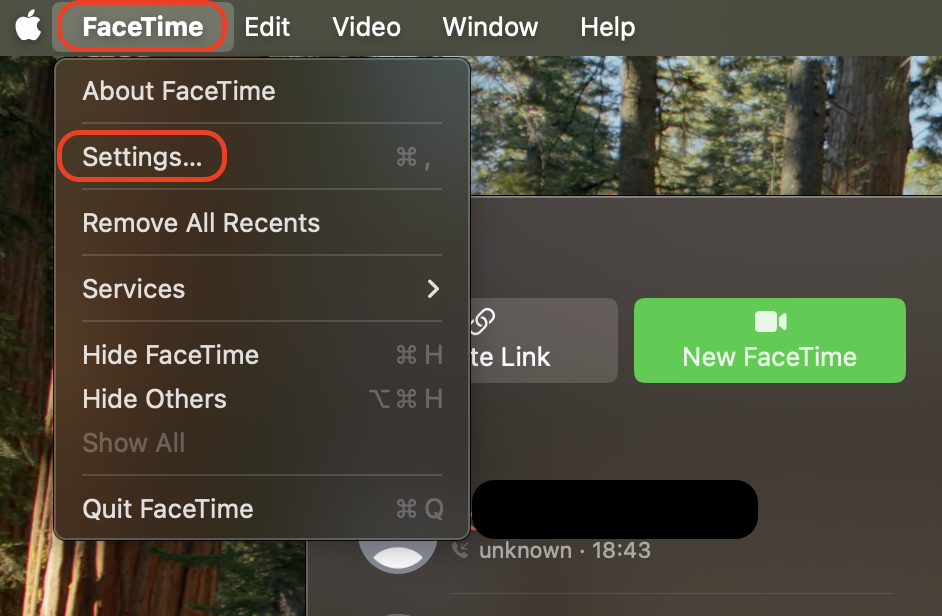
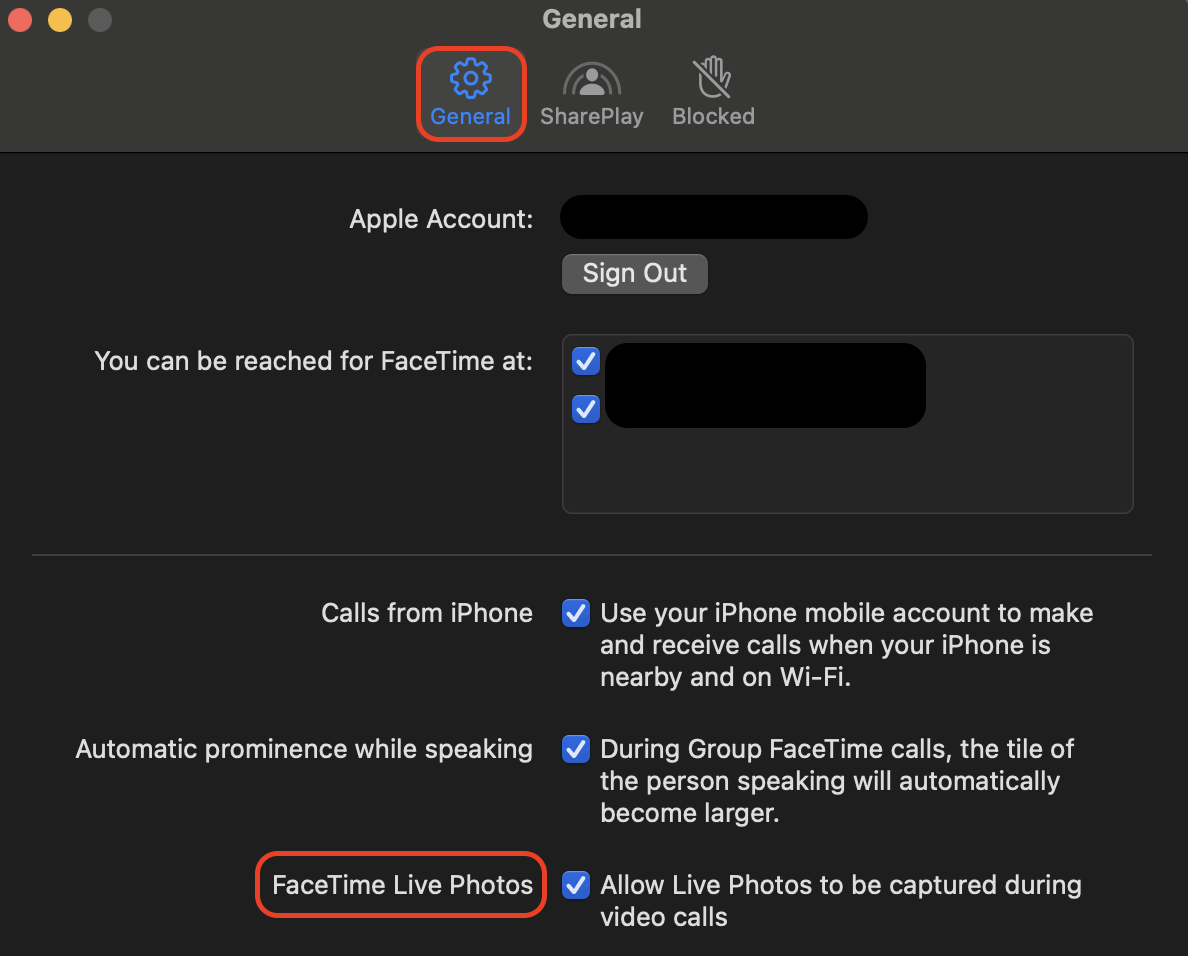
Open FaceTime and navigate to Settings > General to enable the FaceTime Live Photos feature.
Click the white round capture button during an active video call to snap a live photo of your contact.
Step 1. Open FaceTime and navigate to SettingsStep 2. In the General tab, enable the FaceTime Live Photos feature
4. Take photo on Mac via Terminal
For users who prefer a command-line interface, we find that using Terminal is a powerful, scriptable way to capture a photo on your Mac.
Follow this guide to finalize the implementation:
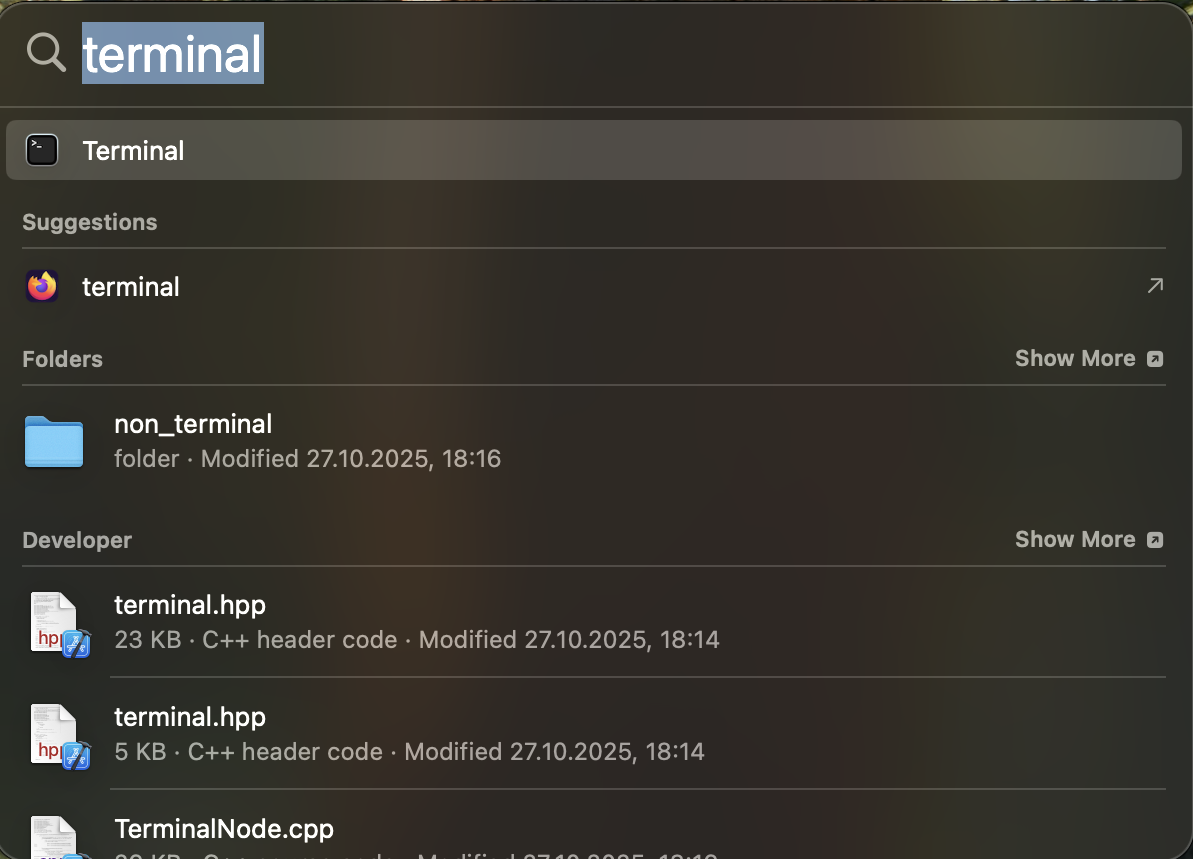
Open the Terminal app by searching for it in Spotlight or by opening the Utilities folder.
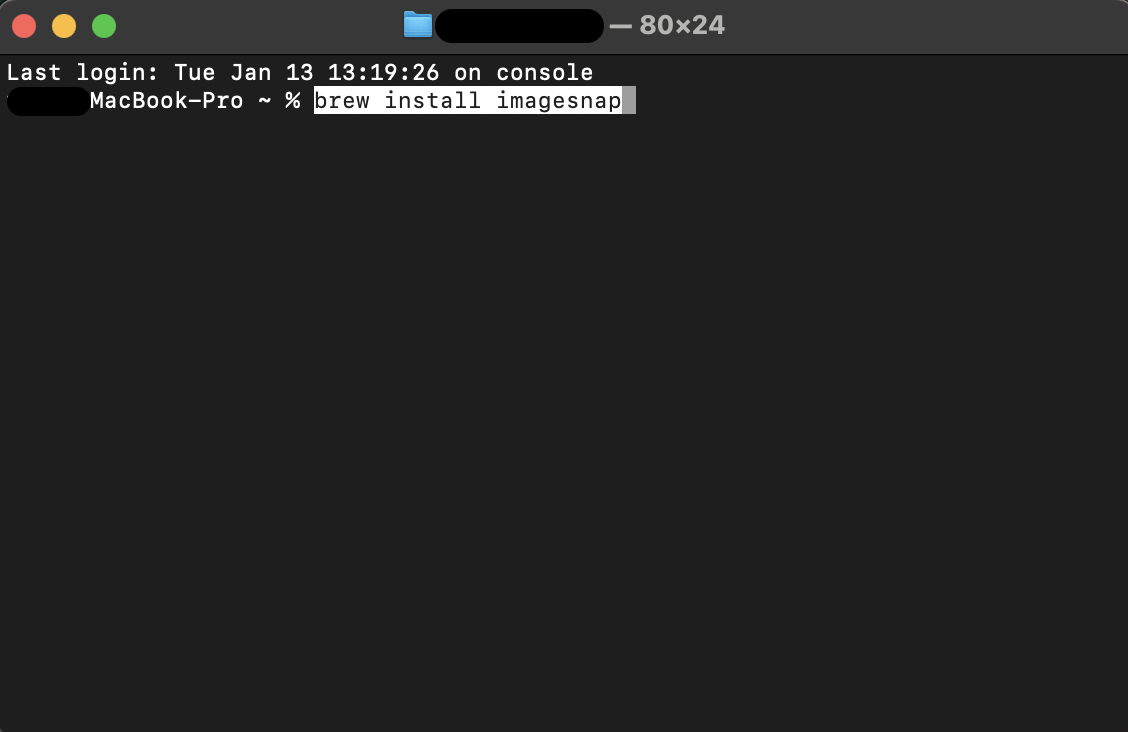
Install the necessary tool by typing brew install imagesnap and pressing Return.
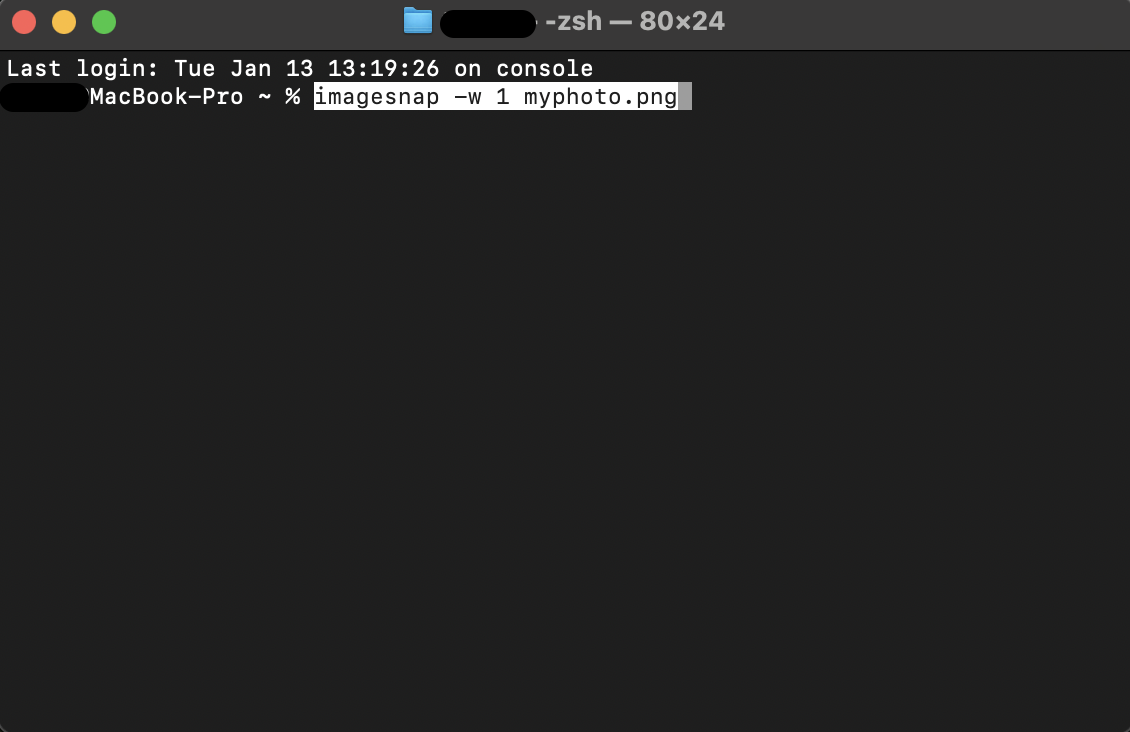
Type the command imagesnap -w 1 myphoto.png to capture an image after a one-second delay.
Specify a custom filename or file path within the command to decide exactly where your photo is stored.
Step 1. Open the Terminal app by searching for it in SpotlightStep 2. Install the necessary tool by typing brew install imagesnap and pressing ReturnStep 3. Type the command imagesnap -w 1 myphoto.png to capture an image after a one-second delay
5. Using third-party apps for taking pictures on Mac
If you require more robust features than native tools provide, we’ve found that third-party applications offer significantly more control and flexibility.
Follow these steps:
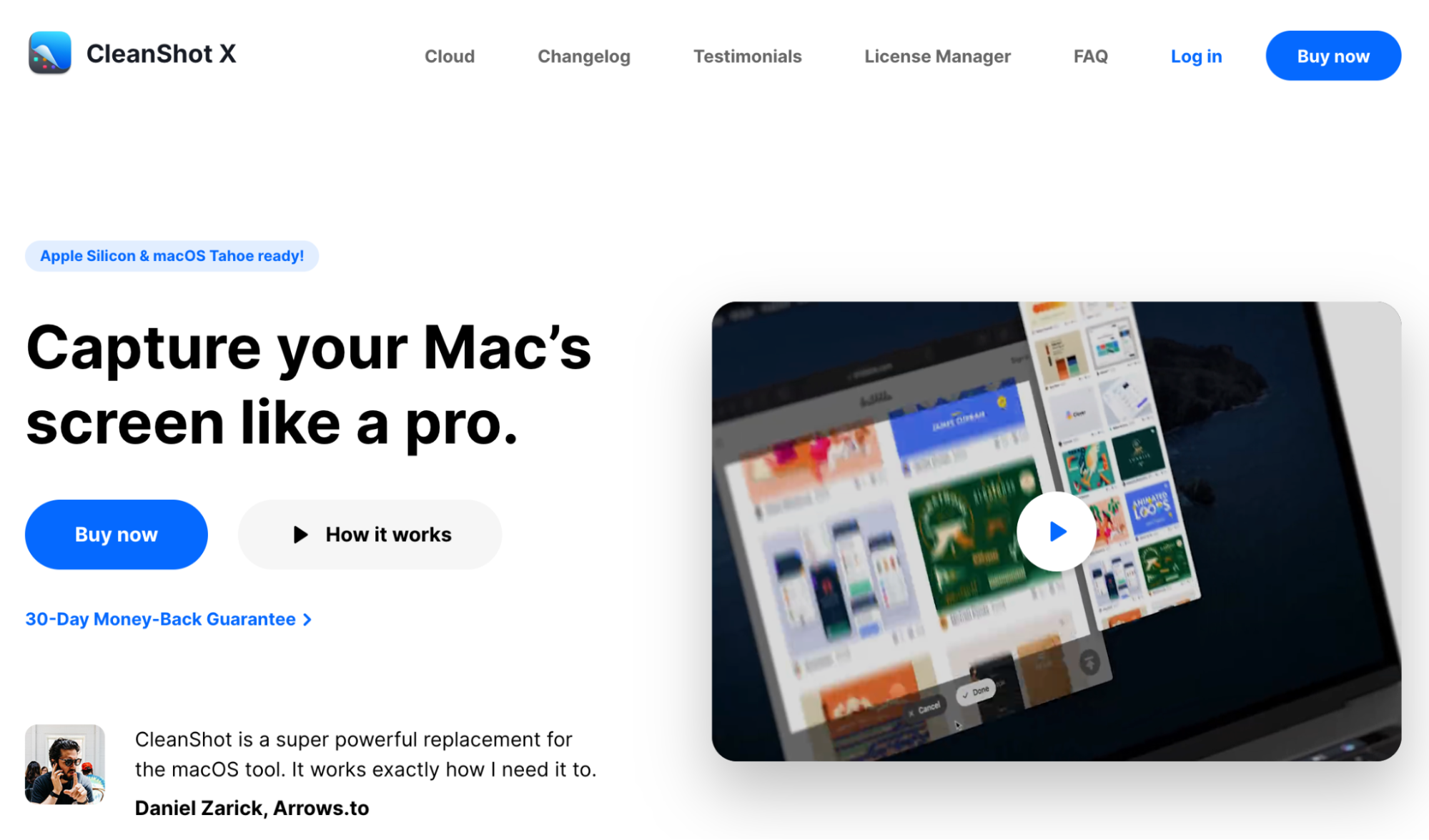
Download and install a professional utility like CleanShotX or Capto from Setapp or the developer's site.
Click the application icon in your top menu bar to access the specialized capture menu.
Use the built-in editor to add notes, arrows, or blurs to your image before saving or sharing it.
Download and install professional utilities like CleanShot X and use their functionality to capture images on a Mac
How to save pictures taken on Mac?
To quickly save a photo in Photo Booth, right-click its thumbnail and select Export to choose a destination, or simply drag it directly onto your desktop. By default, screenshots and images are automatically saved to your desktop. Alternatively, you can click the floating thumbnail after capturing a screenshot in order to manually share or save it in the Photos app.
Right-click on the image you’ve just captured and choose Export to save it
Conclusion
In summary, you can easily take a photo on a MacBook by utilizing native tools like Photo Booth for webcam selfies or handy keyboard shortcuts for instant screen captures. To keep your library organized, we recommend using MacKeeper’s Duplicates Finder to remove redundant copies of images. Because MacKeeper is optimized for macOS, it safely handles your files and ensures your system remains fast while cleaning up space.
We respect your privacy and
use cookies
for the best site experience.
Privacy Preferences Center
We use cookies along with other tools to give you the best possible experience while using the
MacKeeper website. Cookies are small text files that help the website load faster. The cookies we
use don’t contain any type of personal data meaning they never store information such as your
location, email address, or IP address.
Help us improve how you interact with our website by accepting the use of cookies. You can change
your privacy settings whenever you like.
Manage consent
All cookies
These cookies are strictly necessary for enabling basic website functionality (including page
navigation, form submission, language detection, post commenting), downloading and purchasing
software. The website might malfunction without these cookies.