Disconnecting FaceTime on your Mac is straightforward, provided there are no bugs or other technical issues. To prevent unwanted notifications, including those from FaceTime, MacKeeper’s StopAd can block them, making your Mac experience more comfortable and distraction-free.
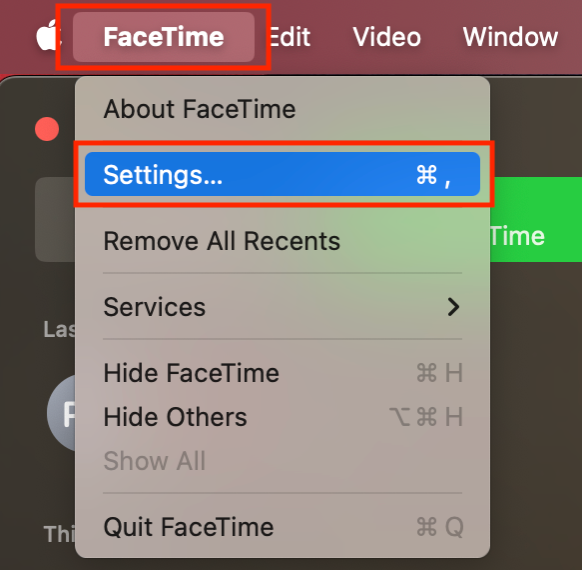
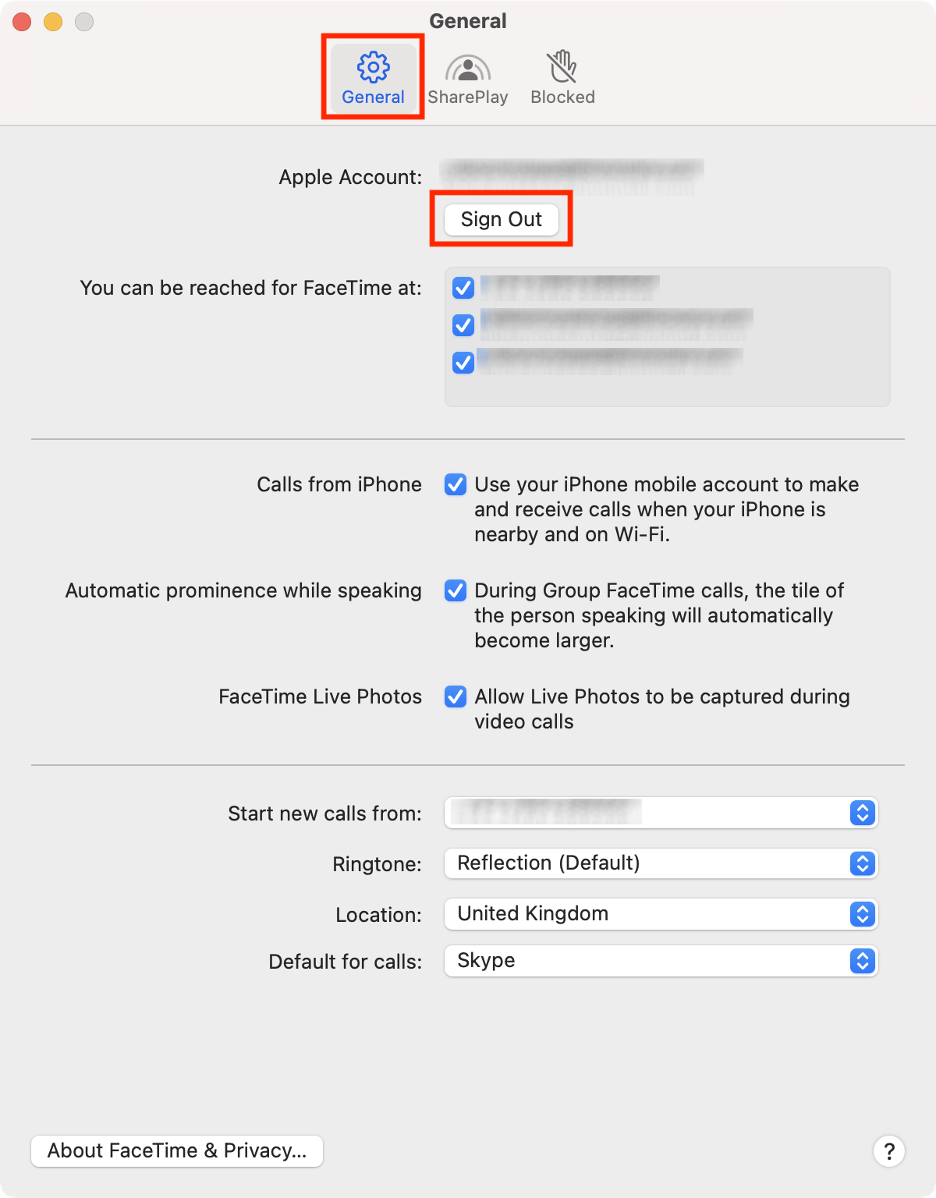
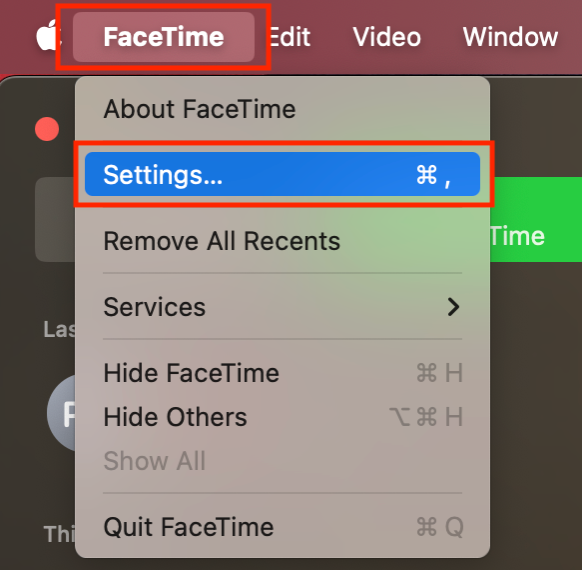
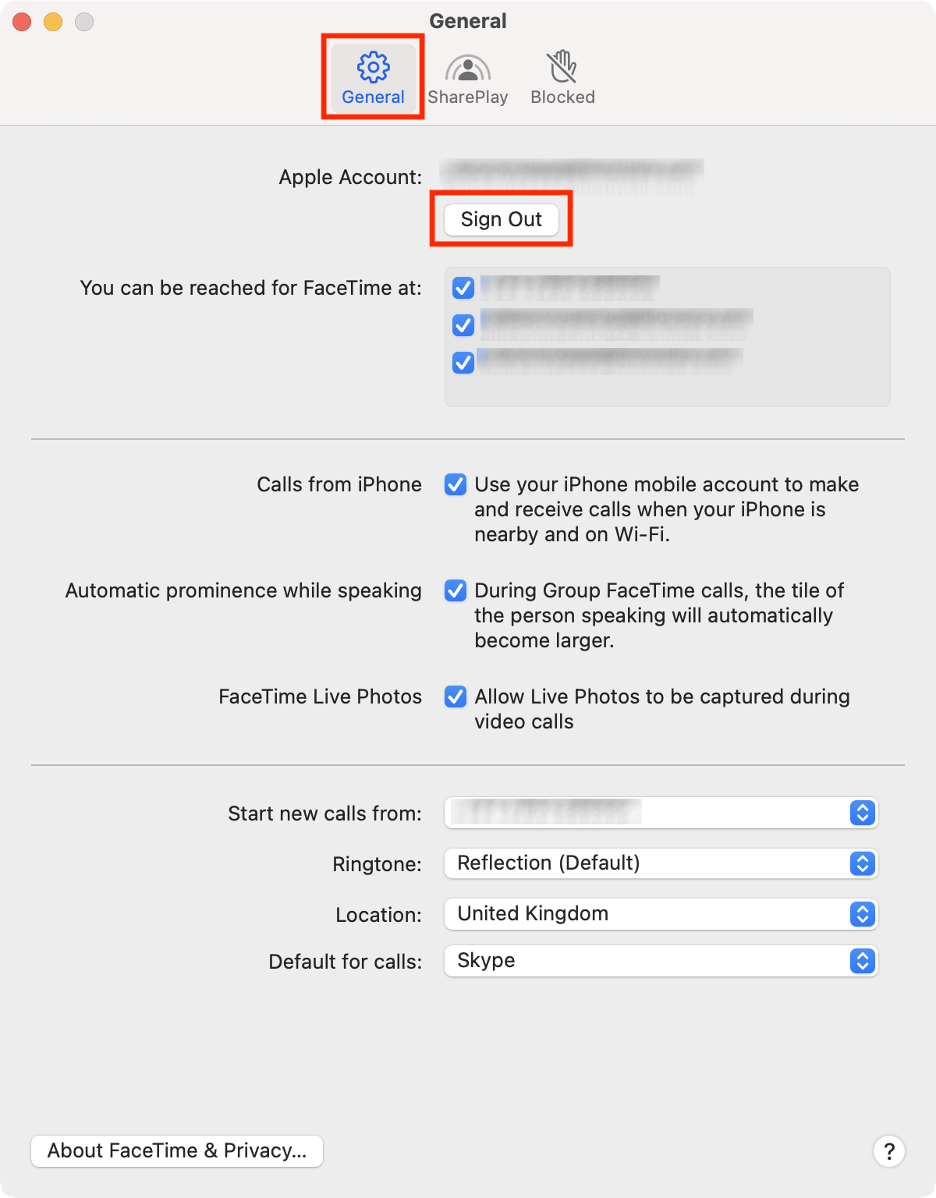
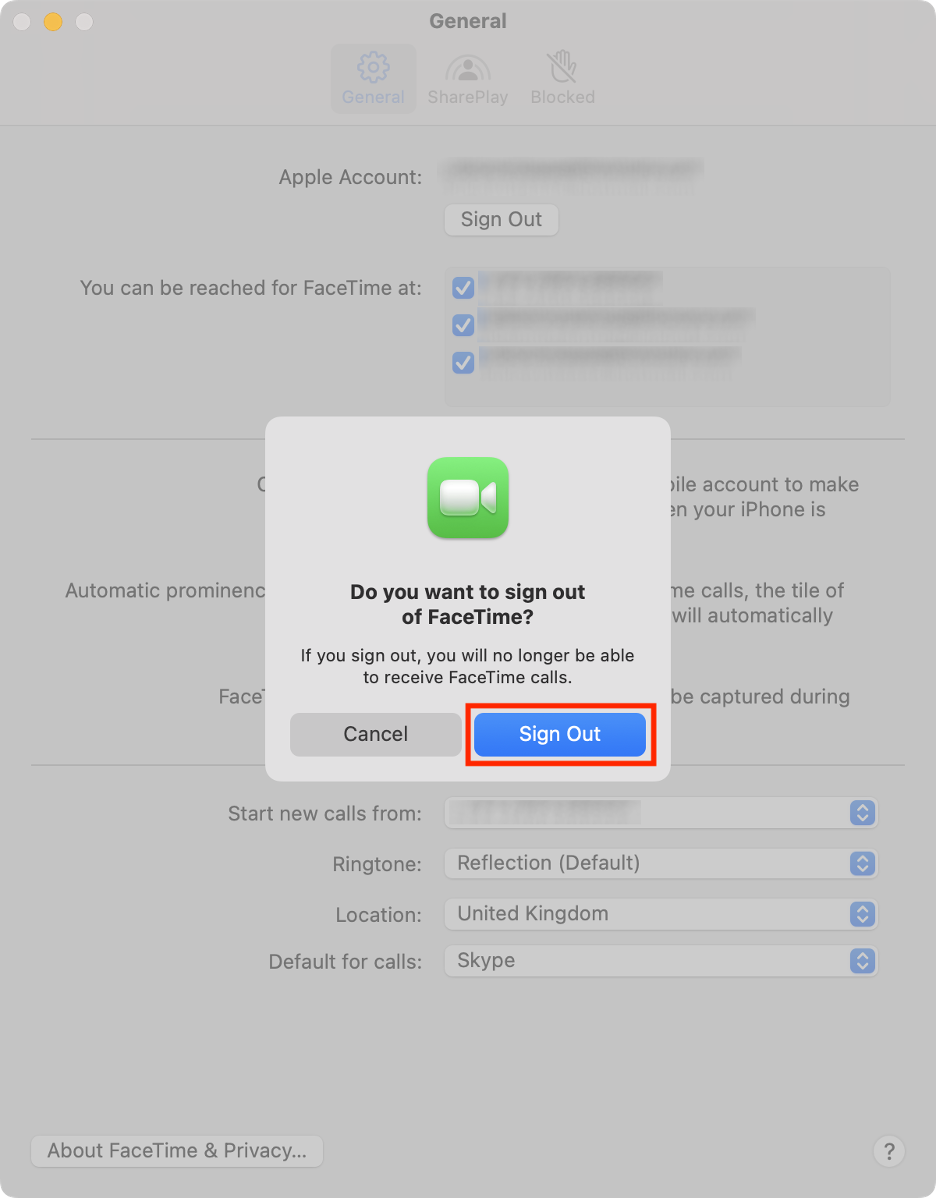
To turn off FaceTime on your Mac, start by launching the app on your computer. Next, click FaceTime in the menu bar, and select Settings from the dropdown list. In the new window, hit Sign Out to stop receiving calls on your device.
Can you disable FaceTime on Mac?
Yes, you can turn off FaceTime on your Mac. Since FaceTime is a stock app, many users wonder if they can stop using Apple’s popular calling and video service on their computer. However, disabling FaceTime entirely isn’t always the best solution. Instead, we often recommend simply turning off notifications to avoid receiving calls on your Mac.
FaceTime call failed on Mac? Instead of disabling FaceTime entirely, follow our expert guide to troubleshoot and resolve common issues so you can keep making calls and video calls without interruption.
Reasons to disconnect FaceTime from Mac
There are plenty of reasons you might want to turn off FaceTime on your Mac. Perhaps you prefer to answer calls on your iPhone, or you want to enhance your privacy and protect yourself from eavesdropping. Also, you might simply find the notifications disruptive, especially when you’re focused on work. Disabling FaceTime can also make sense if your Mac’s camera isn’t working, or if you rarely use video calls on this device.
A note from our experts:
For those who rely on their Macs for work, constant notifications and pop-up alerts can quickly become a major distraction. While turning off FaceTime may help, MacKeeper’s StopAd is a smarter solution for blocking intrusive ads on Mac. Trusted by millions and optimized for macOS, StopAd also shields you from online tracking and delivers real-time antivirus protection.
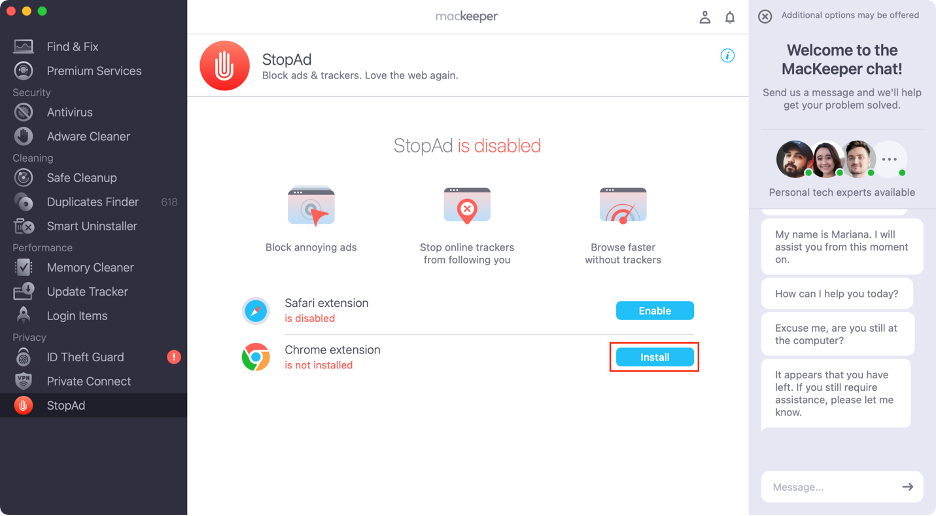
See the steps below to turn on MacKeeper’s StopAd on your Mac:
From now on, StopAd will automatically block ads on your browser.
Step 1. MacKeeper > StopAd > OpenStep 2. Click InstallStep 3. Add the StopAd extension to your browser
How to stop FaceTime on Mac?
Previously, you could easily turn off FaceTime by selecting the Turn FaceTime off option from the app’s menu bar or by pressing Command + K. However, this option is no longer available. Now, to disable FaceTime on your Mac, you need to sign out of your Apple ID first:
Launch FaceTime on your Mac.
Click FaceTime in the menu bar.
Select Settings from the dropdown menu.
In the new window, select the General tab.
Click the Sign Out button.
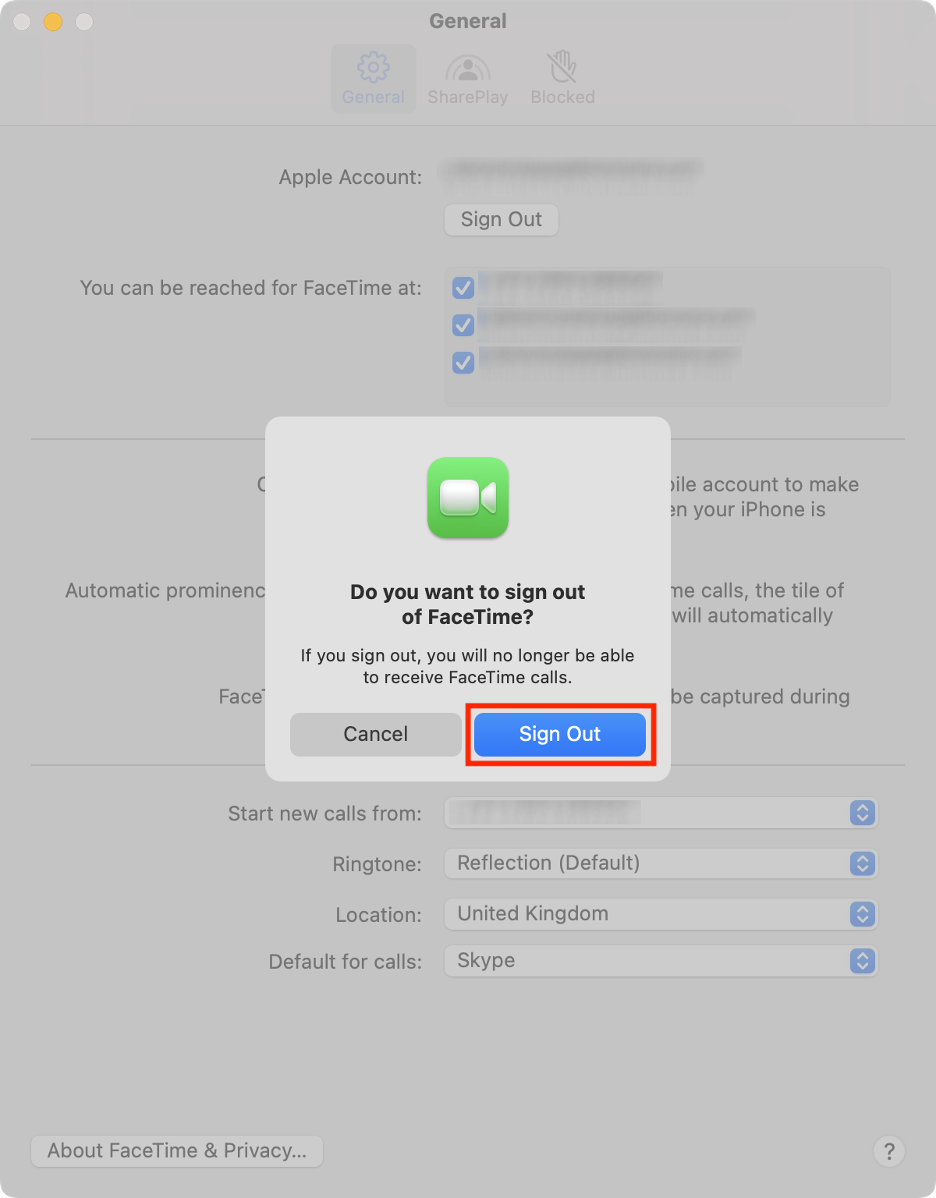
Hit Sign Out again to confirm.
Step 1. FaceTime > FaceTime > SettingsStep 2. General > Sign OutStep 3. Click Sign Out
If you’re disabling FaceTime to avoid distractions, consider also learning how to turn off the ringer on MacBook to prevent unexpected sounds. Muting notifications is another effective way to create a quieter, more focused workspace.
How to unlink FaceTime from Apple devices?
After disconnecting FaceTime on your Mac (or MacBook), you may also want to disable it on your iPhone or iPad to stop receiving calls and video calls across all your Apple devices:
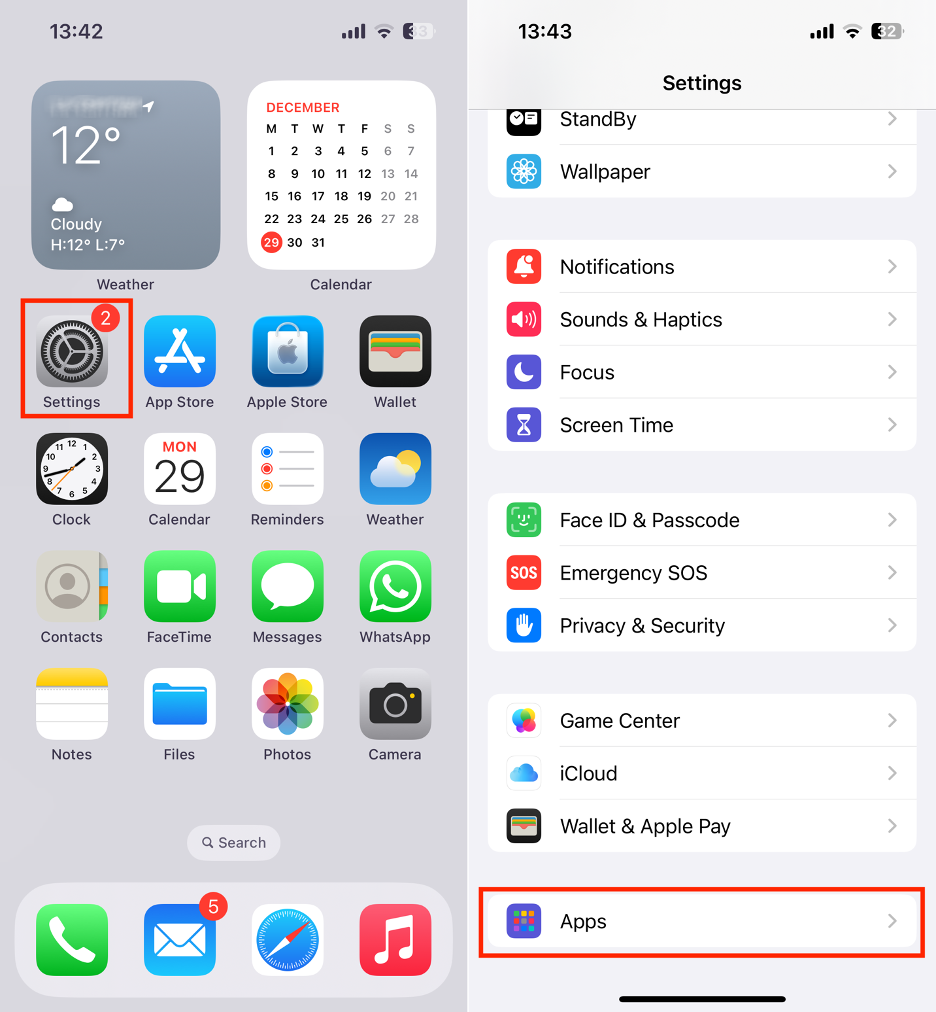
Go to the Settings app on your iPhone or iPad.
Scroll down and select Apps.
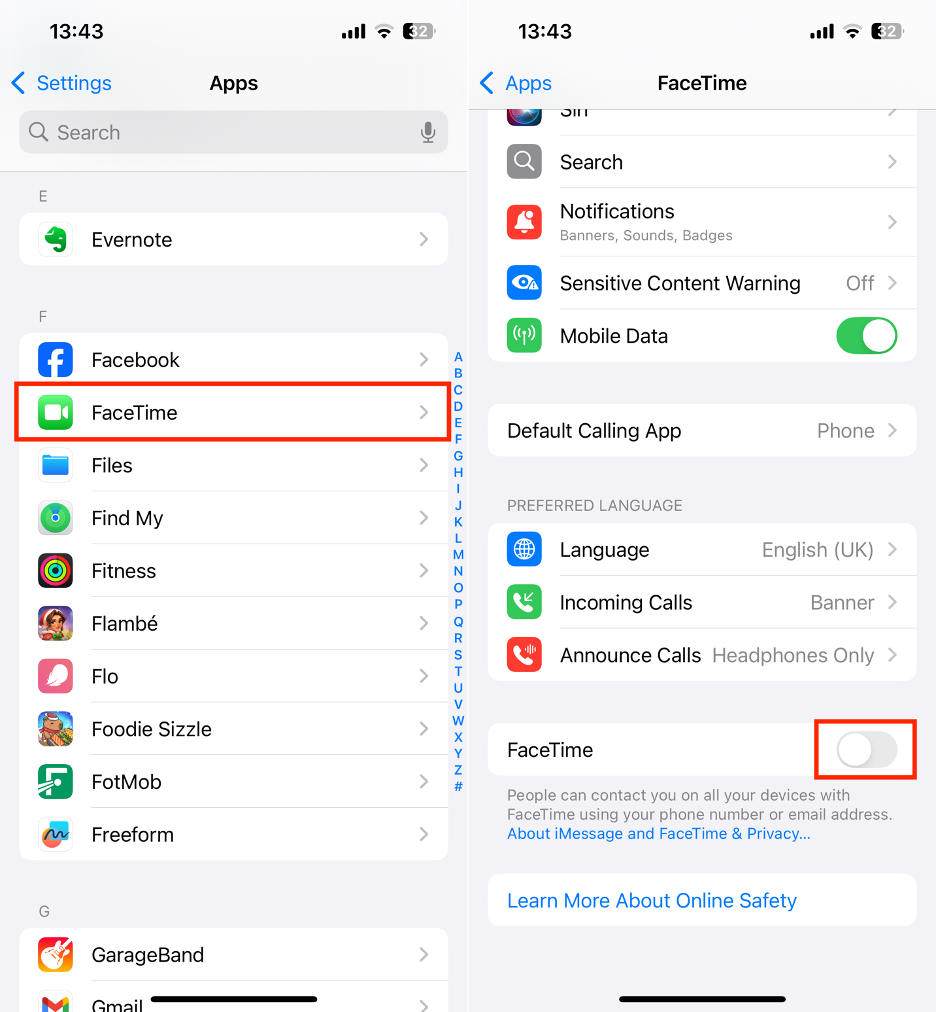
Find and tap on FaceTime.
Turn off the toggle next to FaceTime.
Step 1. Settings > AppsStep 2. Select FaceTime > Turn off the FaceTime toggle
How to disconnect FaceTime from MacBook?
macOS works the same way on both Macs and MacBook, so the steps to disconnect FaceTime are identical on both devices:
Open the FaceTime app on your MacBook.
Click FaceTime in the menu bar.
Choose Settings from the list.
Go to the General tab in the new window.
Hit Sign Out.
Click Sign Out again to confirm.
Step 1. FaceTime > FaceTime > SettingsStep 2. General > Sign OutStep 3. Click Sign Out
If you want to clear your call history, simply disconnecting FaceTime isn’t enough in our experience. For step-by-step instructions, we suggest checking out our guide on how to delete FaceTime calls on MacBook.
Our final advice to turning off FaceTime on Mac
People turn off FaceTime on their Macs for all sorts of reasons. Some want to take calls only on their iPhone and keep their Mac focused on work, while others are concerned about privacy or want to avoid distracting notifications. Whatever your motivation, there’s a solution tailored to your needs.
If avoiding distractions is your main goal, consider blocking all types of unwanted alerts, not just FaceTime notifications. MacKeeper’s StopAd can eliminate annoying pop-up ads and keep your screen clutter-free. In addition to adware and malware removal, MacKeeper by Clario Tech also offers memory optimization and real-time protection for a smoother, safer Mac experience.
We respect your privacy and
use cookies
for the best site experience.
Privacy Preferences Center
We use cookies along with other tools to give you the best possible experience while using the
MacKeeper website. Cookies are small text files that help the website load faster. The cookies we
use don’t contain any type of personal data meaning they never store information such as your
location, email address, or IP address.
Help us improve how you interact with our website by accepting the use of cookies. You can change
your privacy settings whenever you like.
Manage consent
All cookies
These cookies are strictly necessary for enabling basic website functionality (including page
navigation, form submission, language detection, post commenting), downloading and purchasing
software. The website might malfunction without these cookies.