Uninstalling Zoom on a Mac may take some time because its leftovers may be scattered in random places. So correct uninstallation requires some skills and time unless you have an uninstalling app. For instance, MacKeeper’s Smart Uninstaller can do it much faster and requires just a few clicks on your side.
Follow these steps to remove the Zoom app from your MacBook computer:
Open the Zoom app on your Mac’s desktop.
Select zoom.us in the top menu bar and choose the Uninstall Zoom option.
Select OK to confirm the action.
You’ve finally decided you’re done using Zoom, and it’s time to delete it. There are various reasons why you’d want to delete Zoom. Either you don’t agree with its privacy policy, you’re frustrated by its limitations compared to other video conferencing tools, or you’ve found a better video conferencing app.
Possible reasons for uninstalling Zoom from Mac
Mac users remove the Zoom app from their MacBooks for various reasons. Sometimes, it’s a matter of preferences, while other times, it’s due to Zoom’s performance issues.
Here are some of the major reasons you may want to delete Zoom from Mac:
The Zoom web server runs in the background when you aren’t using the app
Your workplace uses a different video conferencing app
Zoom’s service files are slowing down your Mac
Zoom automatically turns your camera on when you join a meeting
A note from our experts:
Removing Zoom from a Mac might be troublesome. Some of its leftover files you can find later in different folders. To remove Zoom or any other app with all its files, use MacKeeper’s Smart Uninstaller.
Remove Zoom from your Mac most efficiently with MacKeeper’s Smart Uninstaller:
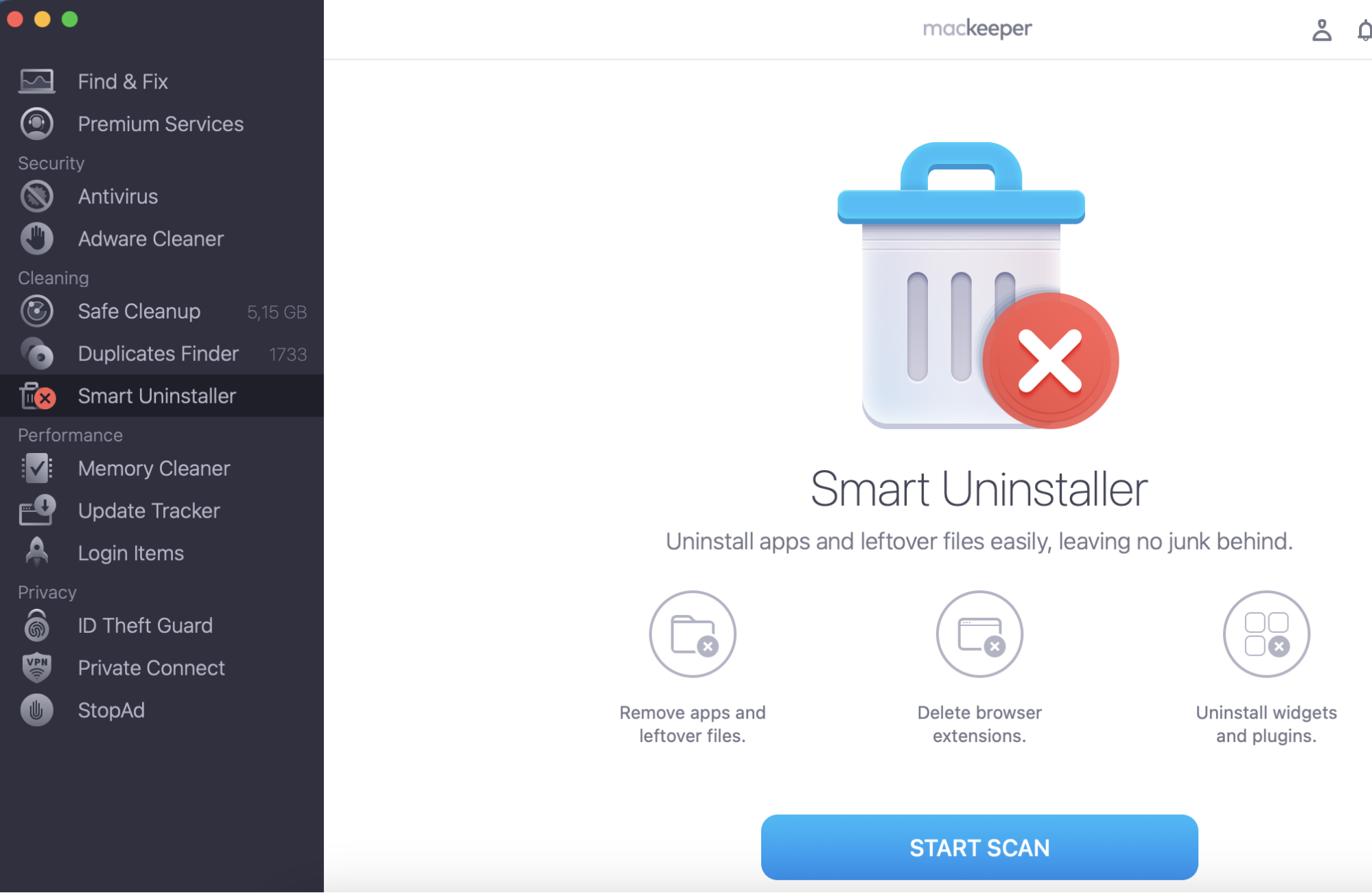
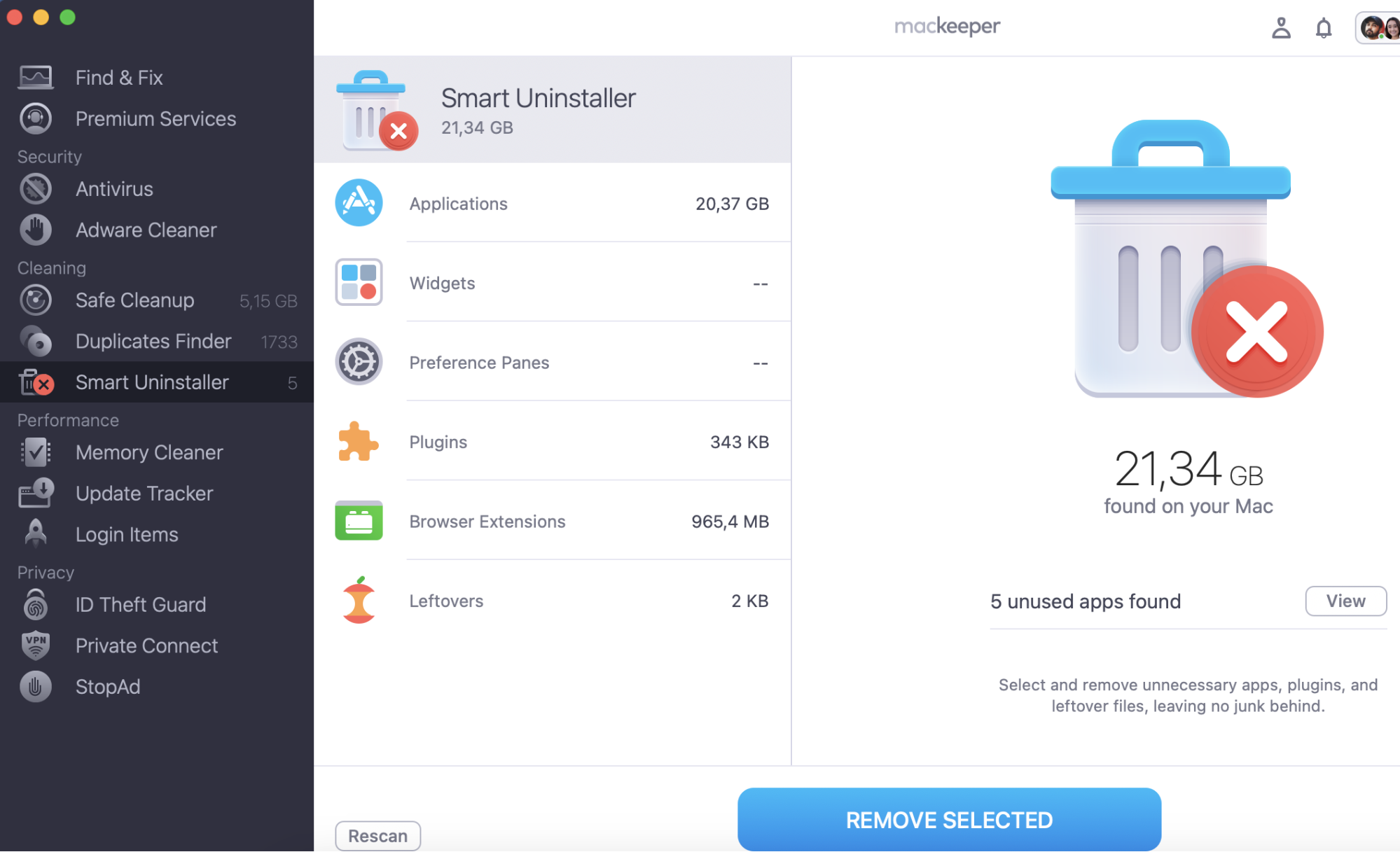
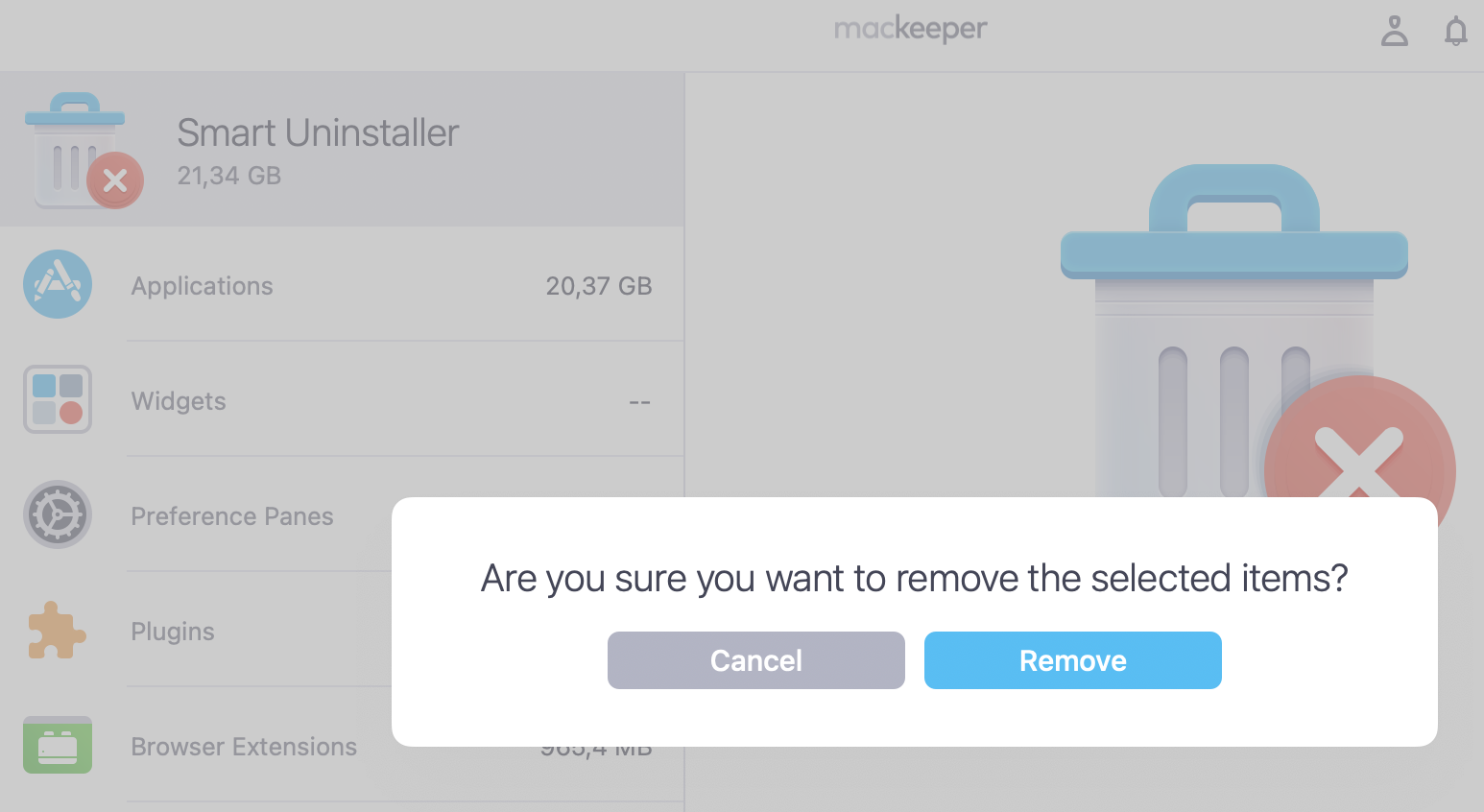
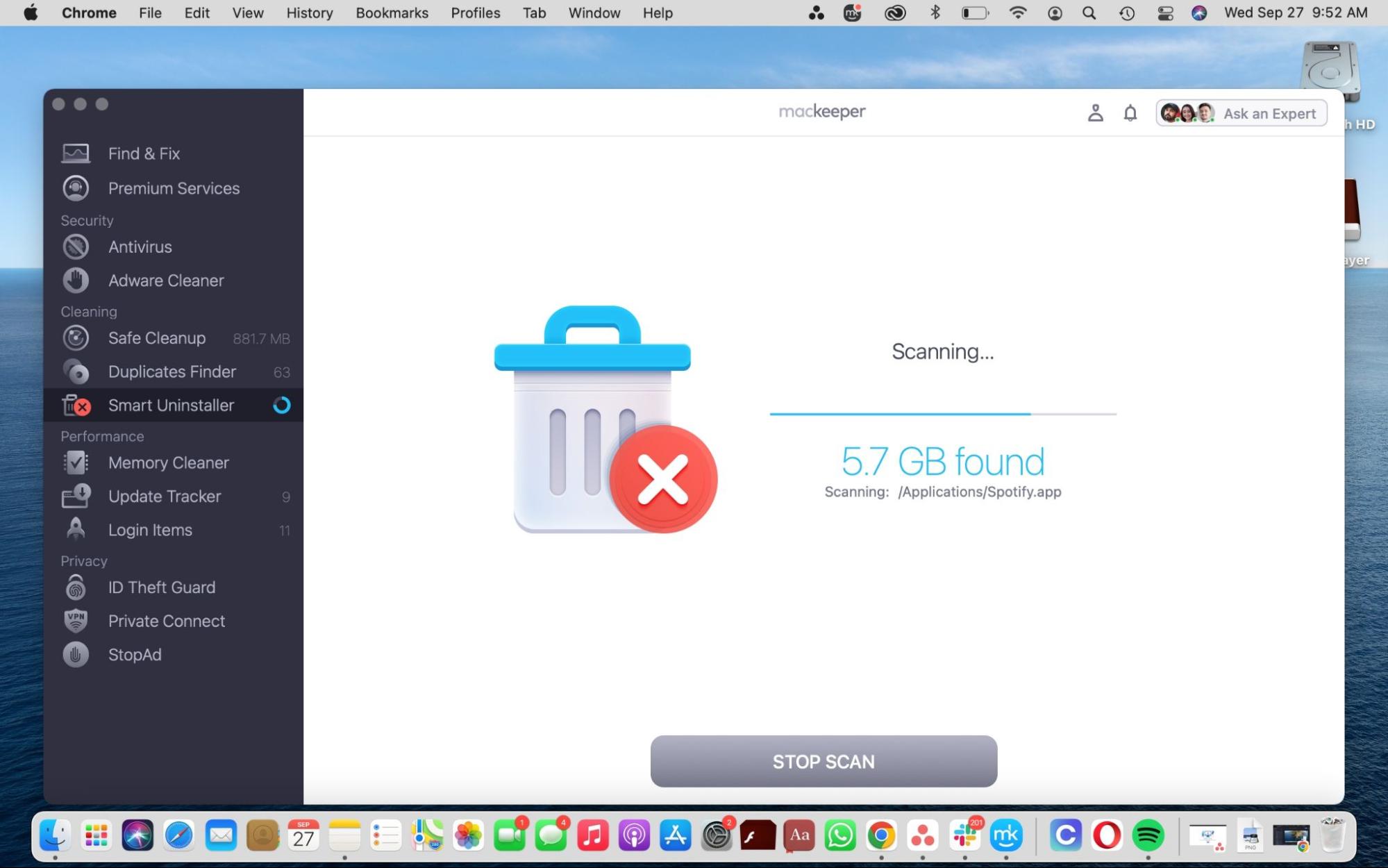
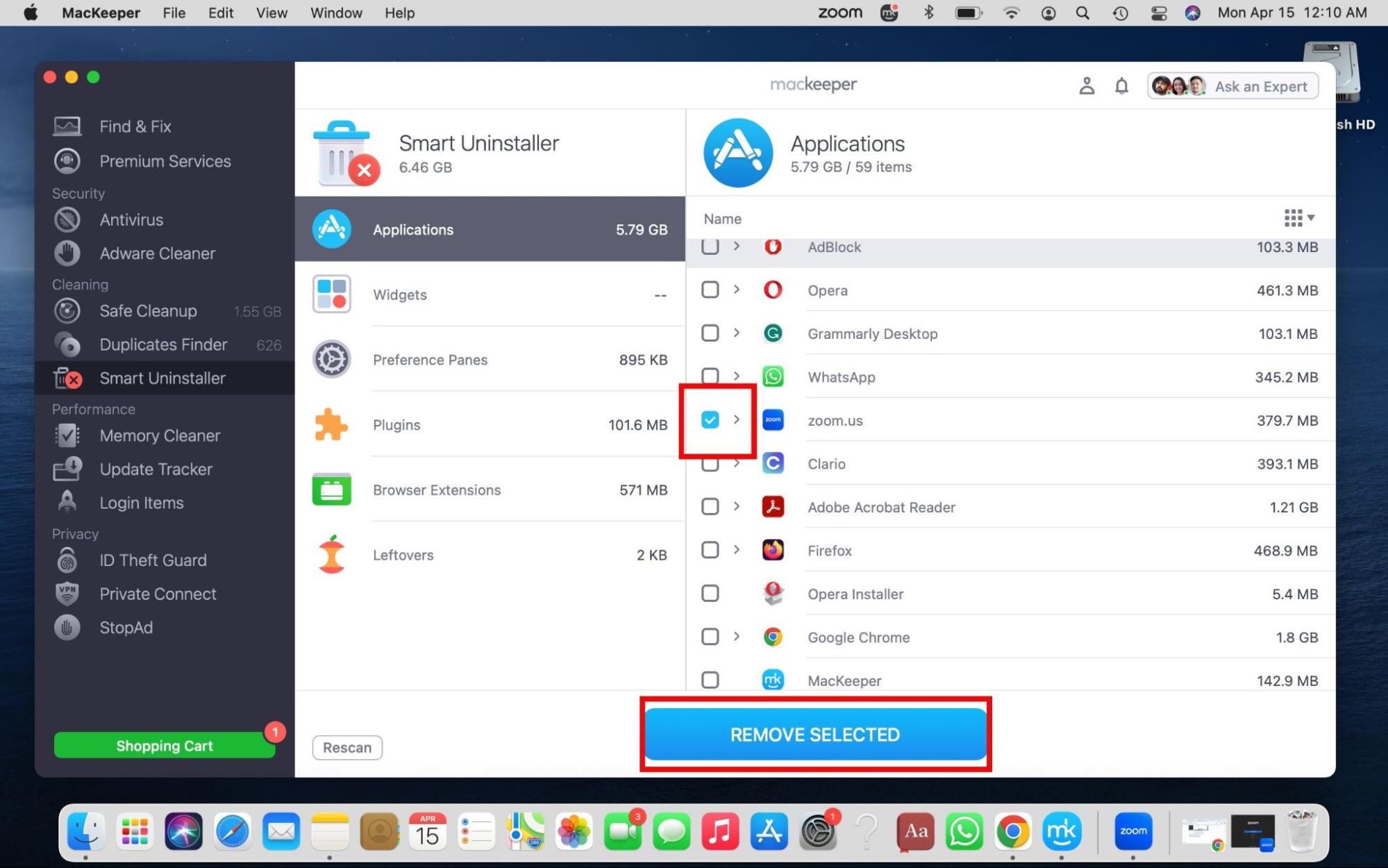
Click the Start Scan button, make sure zoom.us is selected, and hit the Remove Selected button after the scan is completed.
Step 1. MacKeeper > Smart Uninstaller > Start ScanStep 2. Scanning is in progressStep 3. Select items to delete > Remove SelectedStep 4. Select Remove
Get ready to learn how to remove Zoom from your MacBook Pro or Air device the right way.
How to delete Zoom from Mac manually
There are plenty of methods to remove Zoom from your Mac manually. Whether it’s because Zoom’s sound not working on MacBook or another reason, you can safely delete Zoom yourself. Here’s how:
Uninstall Zoom with MacKeeper’s uninstaller
Remove the Zoom app from the Finder app
Delete Zoom on Mac in Terminal
Get rid of Zoom leftovers
Delete Zoom account on Mac
Follow our simple guide below to get started.
1. Uninstall Zoom with MacKeeper’s uninstaller
MacKeeper’s Smart Uninstaller is the trusted software to help you get rid of unwanted apps like Zoom. It quickly locates the junk files associated with the apps you want to delete. This saves you time and effort, as it would take you a long time to do it yourself. If you’re strapped for time or don’t know how to remove apps and their leftover files properly, MacKeeper is here to help:
Download MacKeeper on your Mac, choose the Smart Uninstaller feature in the sidebar, and select Start Scan at the bottom of the window.
When the scan is finished, MacKeeper will show you a list of categories, including apps, widgets, preference panes, plugins, browser extensions, and leftovers. Click on Applications to expand the list.
Make sure the box next to zoom.us is checked (you can also click on the arrow to see what you’ll be deleting first), then hit the Remove Selected button when you’re ready to proceed.
Step 1. Select Smart Uninstaller in the sidebarStep 2. Click on Start Scan > Remove Selected
2. Remove the Zoom app from the Finder app
You can delete Zoom and all the files linked to it by meticulously combing through Finder. Here’s how:
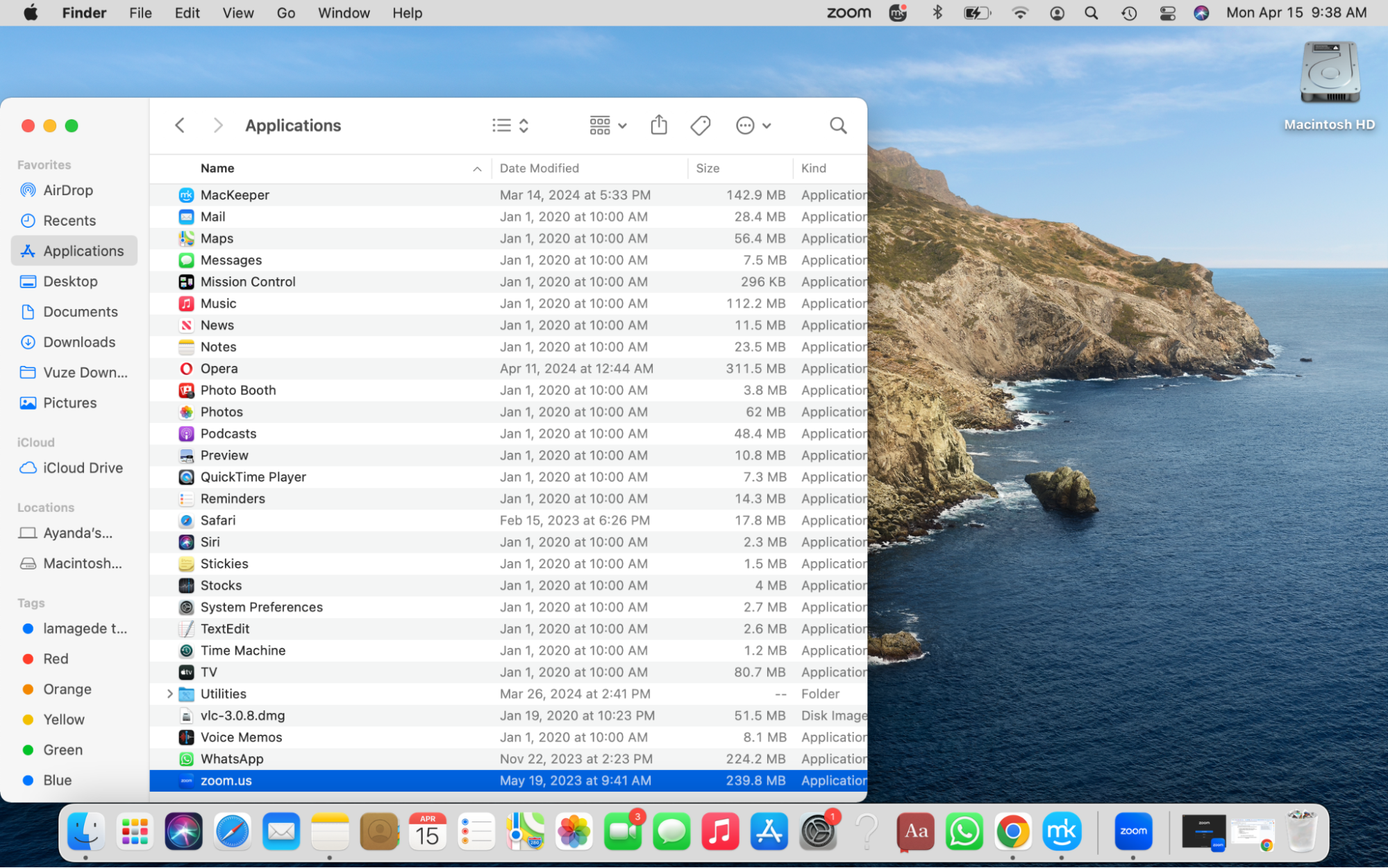
Quit Zoom, go to Finder > Applications > zoom.us, and drag it to the Trash.
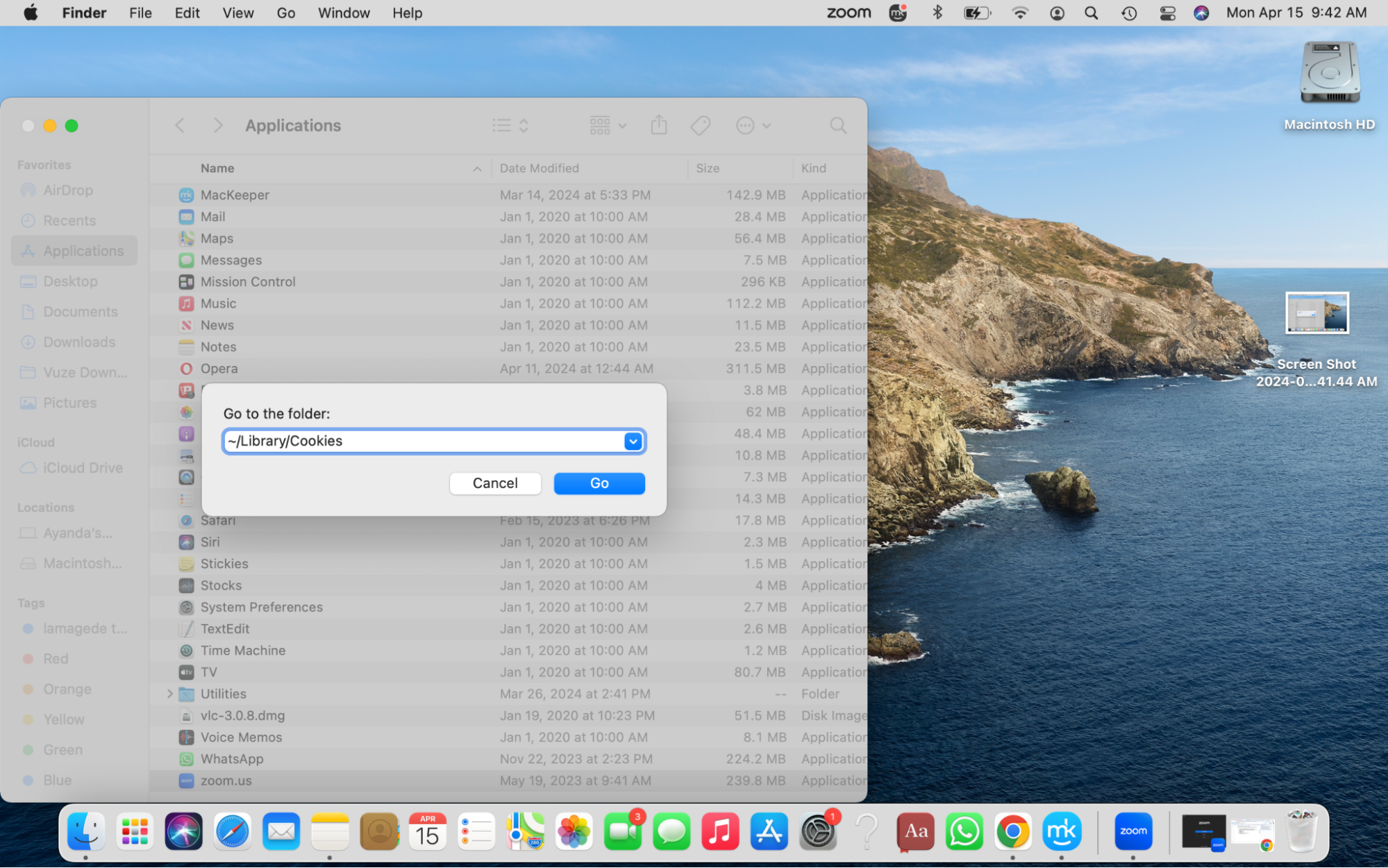
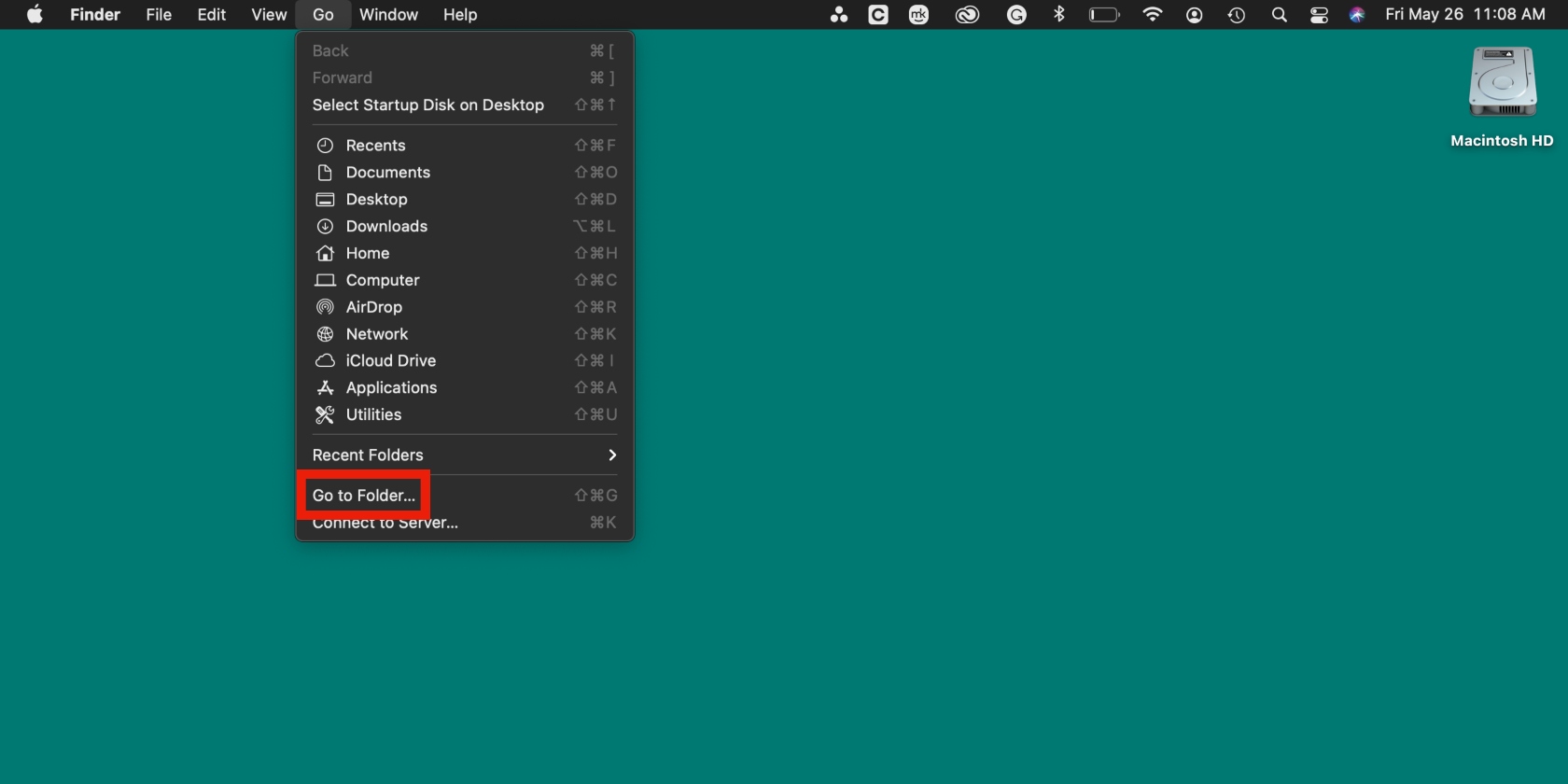
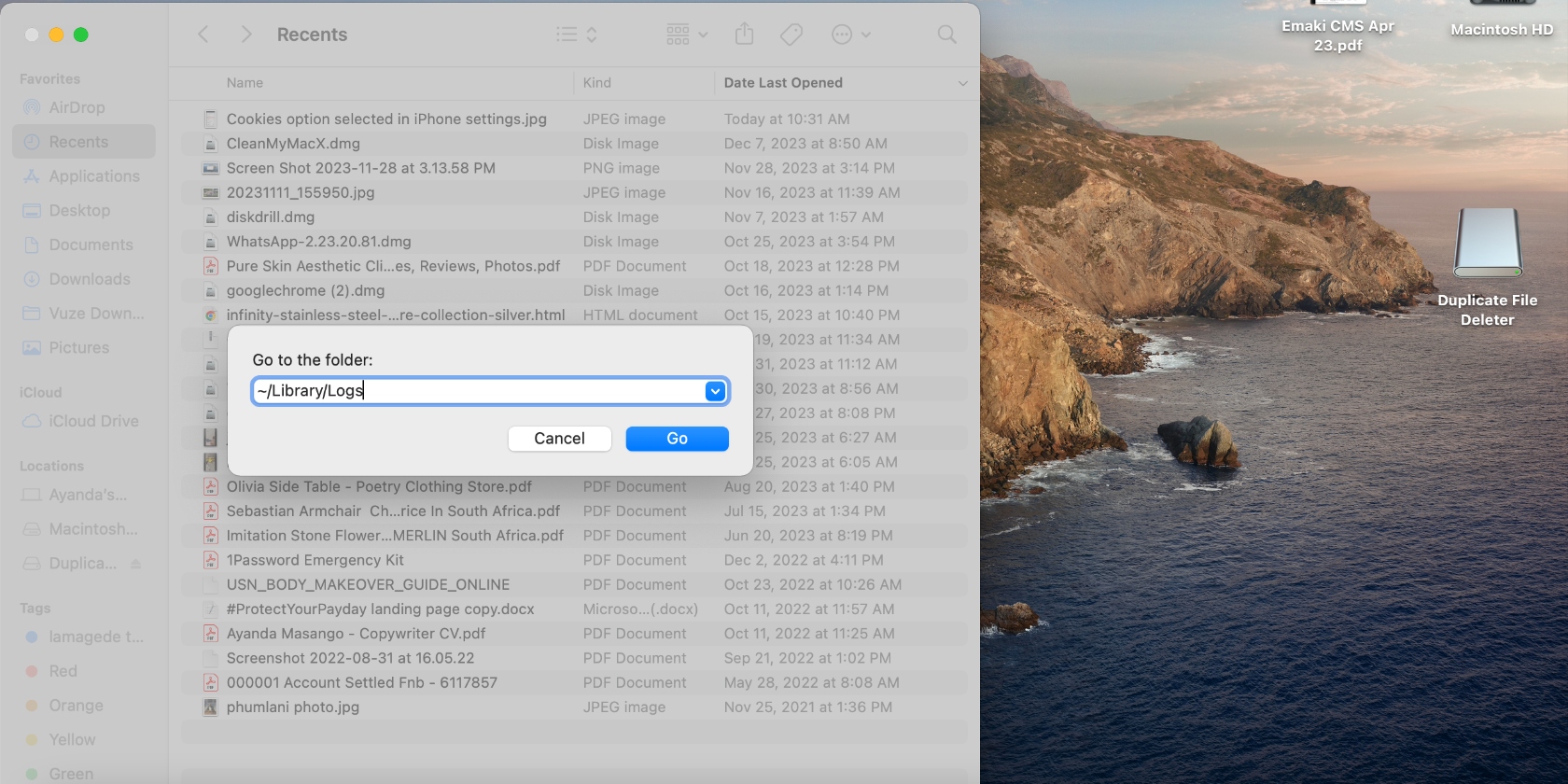
Click on Go > Go to Folder in the top menu bar, enter the folders listed below, and drag Zoom-linked files to the Trash:
~/.zoomus/
~/Library/Cookies
/Applications/
~/Applications/
/System/Library/Extensions
~/Library/Logs
~/Library/Application\ Support/~/Library/Caches
~/Library/Saved Application State
Don’t forget to empty the Trash afterward.
Step 1. Drag Zoom to the Trash from Applications in FinderStep 2. Click on the Go > Go to Folder > delete the Zoom files in the listed foldersStep 3. Empty Bin/Trash
A nuance to know:
If you’re looking for more detailed instructions, be sure to read our complete guide on how to uninstall apps on Mac.
3. Delete Zoom on Mac in Terminal
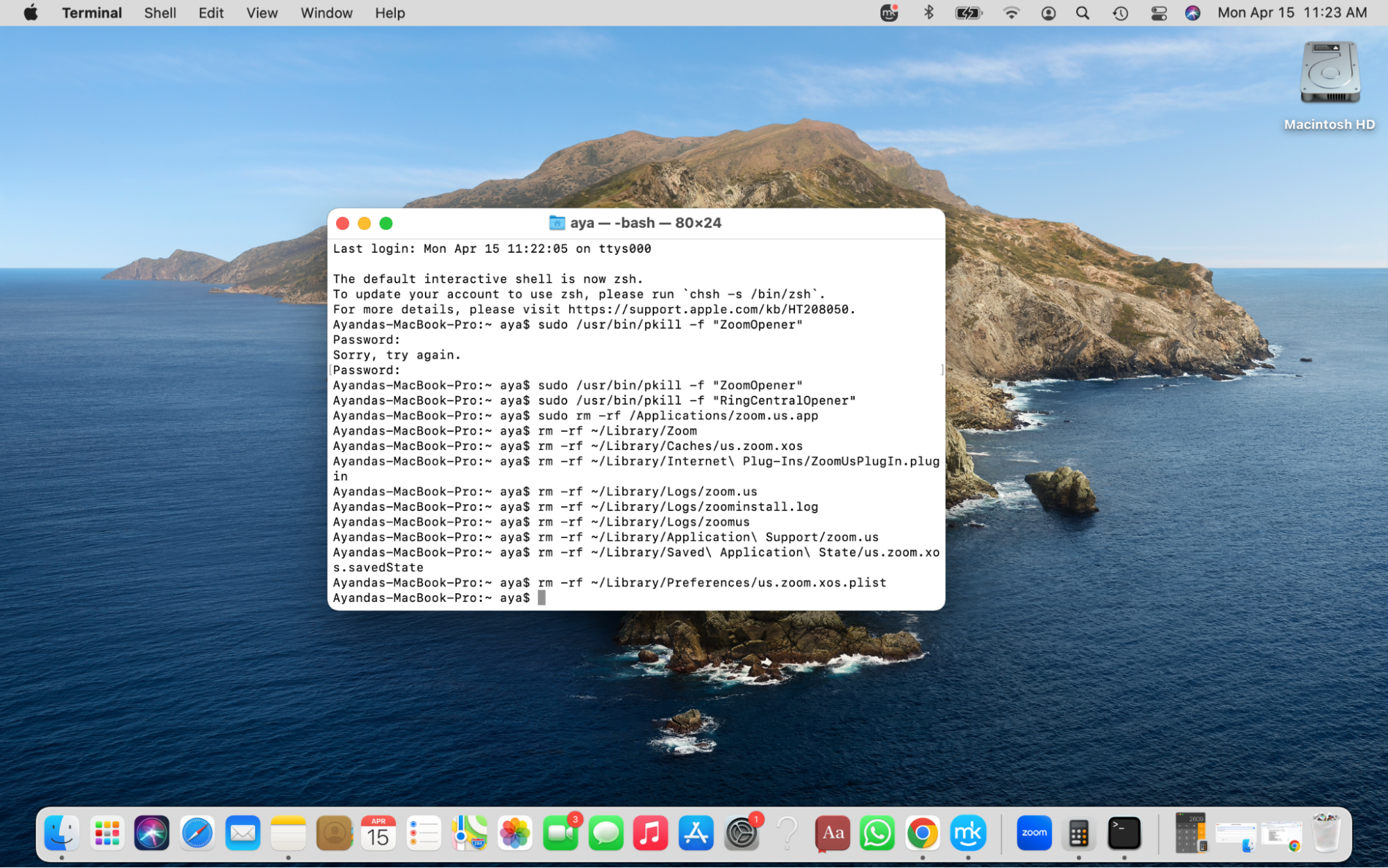
If you aren’t confident, you can delete all of Zoom’s files in Finder, or if you don’t have the time, you can use Terminal instead. Meanwhile, using Mac’s Terminal app can be tricky, so make sure you follow the steps carefully and copy the commands properly to avoid making costly mistakes.
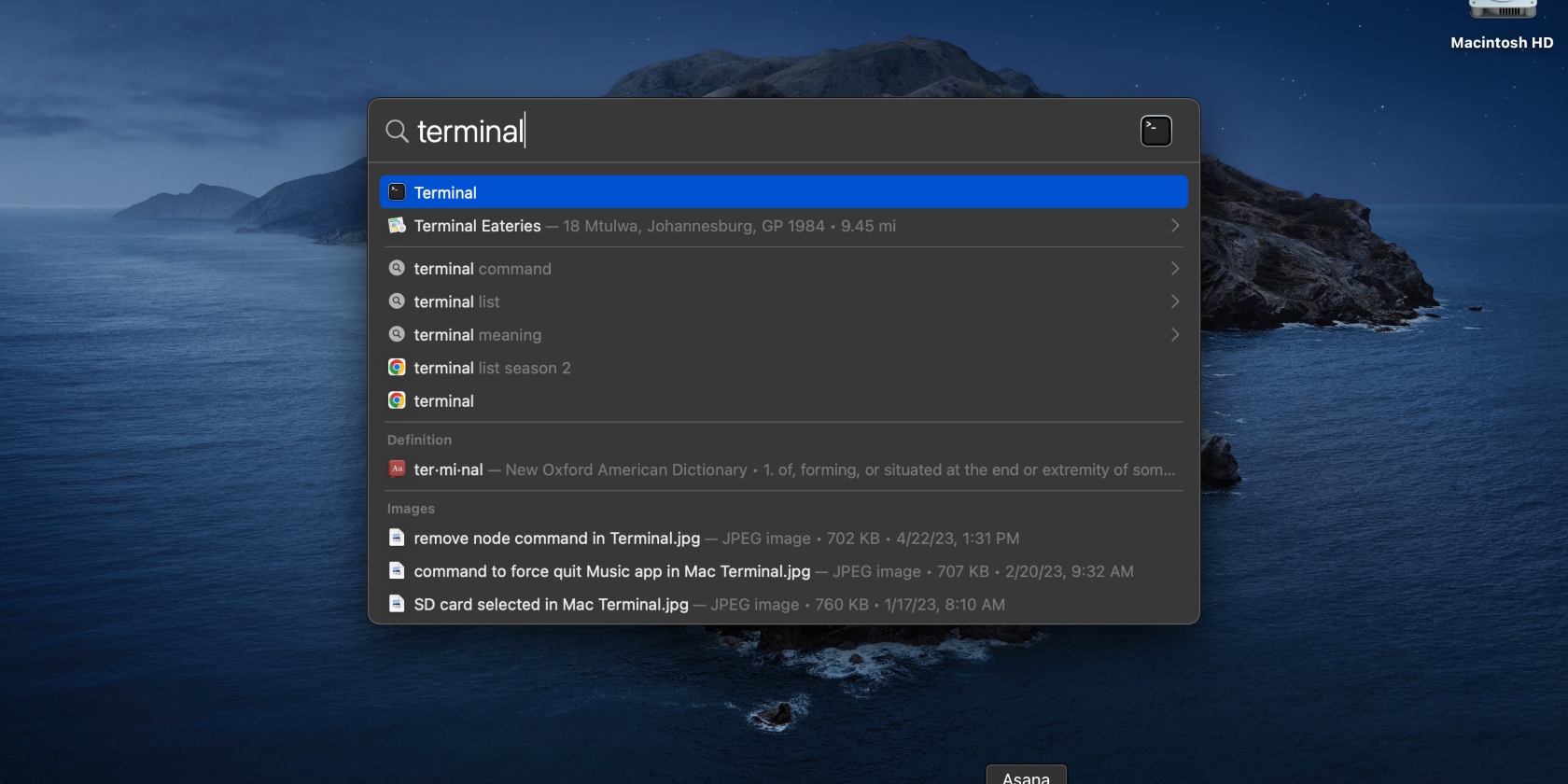
To open Terminal, press the command + space bar keys to bring up Spotlight search, type Terminal in the search box, and select it from the list.
Copy the following script, paste it into the Finder window on a new line, and press Enter:
You may be asked to enter your admin password. Do it and press Enter.
Step 1. Type Terminal in Spotlight search and select it from the listStep 2. Copy the script listed and press Enter, then enter your admin password
4. Get rid of Zoom leftovers
Deleting Zoom alone is only doing half the job. In case you’ve only dragged the app to the Trash, this is your chance to remove software leftovers from your Mac. You must look for Zoom leftovers in Finder and manually delete them to avoid holding onto junk files that can clog up your Mac’s disk. Follow these steps to delete Zoom leftovers on a Mac:
Click on the Finder icon in the Dock and hit Go > Go to Folder in the top menu bar.
Copy and paste the following file names into the Go to Folder text box and hit the Go button. Once in the relevant folder, carefully look for Zoom files and send them to the Trash:
~/Library
~/Library/Logs
~/Library/Caches
~/Library/Saved Application State
~/Library/Cookies
Step 1. Click on Finder > Go > Go to FolderStep 2. Copy and paste the listed file names into the Go to Folder text box and delete the Zoom files in each folder
Important: Ensure you take your time cherry-picking and checking the Zoom-related files to avoid deleting the wrong files and possibly damaging your Mac’s system.
5. Delete Zoom account on Mac
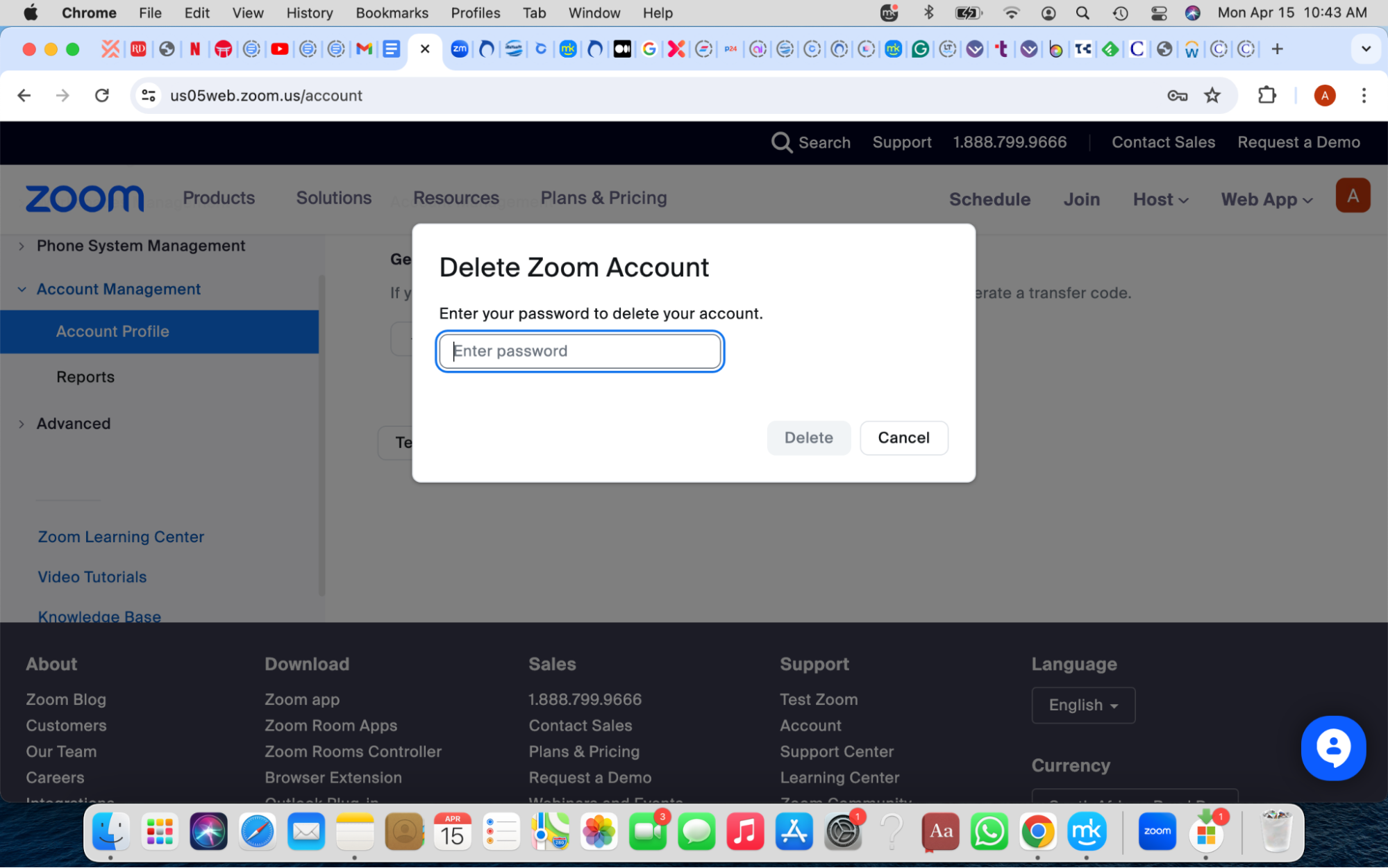
Deleting the Zoom app from your Mac isn't enough if you don’t intend to use it again. You must delete your Zoom account too. If you have a Zoom subscription, you must disable (cancel) your plan first. As a free Zoom user, you can simply terminate your account in Zoom’s Admin settings on Zoom’s online version. Here’s how:
Head to the Admin section and click Account Management > Account Profile > Terminate my account > Enter your password > Delete.
How to automatically remove Zoom from Mac
There’s a better way to remove Zoom from Mac, and that’s by using the third-party program including MacKeeper’s Smart Uninstaller tool. It’s a simpler and faster method compared to deleting Zoom manually.
Namely, using MacKeeper’s Smart Uninstaller is a good way to ensure you’re getting rid of Zoom from Mac thoroughly and leaving no redundant files behind, which is often the case when deleting apps manually.
Hint from our experts:
In addition to the perfect uninstaller, MacKeeper has an array of tools that are helpful for your Mac, like the Safe Cleanup tool, which helps you clean Mac storage.
How do you completely remove Zoom from Mac
While you can remove Zoom from your Mac manually, you risk leaving behind redundant junk files. The most efficient way to completely delete Zoom is with dedicated software, like MacKeeper’s Smart Uninstaller. It simultaneously removes the app and its leftover files to avoid them clogging up your Mac’s disk.
How do you uninstall Zoom plugins on Mac
The Zoom Microsoft Outlook Plugin is an add-on that allows you to schedule and join quickly
Zoom meetings. It also allows you to turn existing meeting events into Zoom meetings. However, you can delete the plugin if you don’t need it.
To remove the Zoom Microsoft Outlook Plugin on Mac, close all Office applications, then go to Finder and select Applications. Control-click Zoom Plugin for Outlook and drag it to the Trash. It’s that simple. If you can’t find it, it probably doesn’t exist.
Is Zoom safe for Mac
While Apple is secure, Zoom can infringe upon your privacy and expose you to security threats. According to the FTC, Zoom compromised Mac users’ security by secretly installing the ZoomOpener web server in July 2018. The software bypassed a Safari safeguard that protects Mac users from a popular form of malware. The FTC also found that from 2016, Zoom misled users by claiming it offered end-to-end, 256-bit encryption, but its security measures didn’t line up with its promises.
Not to mention that Zoom bombing, phishing, hacking, and microphones not turning off have plagued the app in recent years. Zoom meetings can be recorded and saved in the cloud, and there’s nothing you can do about it if you were a participant in those meetings. As you can see, Zoom isn’t exactly safe. If you must use it, ensure you update the app regularly to fix security flaws. However, that doesn’t guarantee that you’ll be safe, as hackers can exploit unknown flaws in the app.
Removing Zoom easily is possible on your Mac
Sometimes, you reach the end of your journey with a particular app, and that’s okay. It happens when you’ve outgrown Zoom, don’t trust its privacy policy anymore, are skeptical about its safety and security, or have simply found a better alternative you’re more comfortable with. Regardless, you can get rid of Zoom manually by following the tips in our guide.
Or, better yet, consider safely removing Zoom and all of its junk files with the help of an uninstaller. With MacKeeper’s Smart Uninstaller, you can quickly locate Zoom and all its pesky files that can be easily missed when deleting the app manually. Zoom helps you get rid of them at the click of a button. It’s a reliable, fool-proof method that saves you time and disk space and helps you avoid mistakes.
We respect your privacy and
use cookies
for the best site experience.
Privacy Preferences Center
We use cookies along with other tools to give you the best possible experience while using the
MacKeeper website. Cookies are small text files that help the website load faster. The cookies we
use don’t contain any type of personal data meaning they never store information such as your
location, email address, or IP address.
Help us improve how you interact with our website by accepting the use of cookies. You can change
your privacy settings whenever you like.
Manage consent
All cookies
These cookies are strictly necessary for enabling basic website functionality (including page
navigation, form submission, language detection, post commenting), downloading and purchasing
software. The website might malfunction without these cookies.