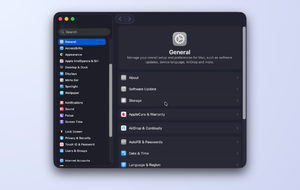
Is your older Mac feeling sluggish, with warnings that your startup disk is almost full? You’re not alone. To free up disk space on Mac Yosemite, you can clear out junk by hand — or let MacKeeper’s Safe Cleanup do the heavy lifting in one click, without touching your personal files.
iCloud Keychain is Apple’s built-in password manager and secure syncing service. It stores your website logins, Wi-Fi passwords, passkeys, and card details, then makes them available on every device signed in to your Apple Account. In other words, it’s an iCloud Keychain password manager that’s already part of your device—no separate iCloud Keychain app to install.
Today, every Macintosh, iPhone, and iPad shares the same system. Think of it as a locked drawer that travels with you. Whether you’re on your MacBook or your iPhone, your saved passwords stay right at your fingertips, protected by encryption and biometric verification.
A note from our experts:
If you’re reading this guide, you care about your privacy and your Mac's security. Congratulations!
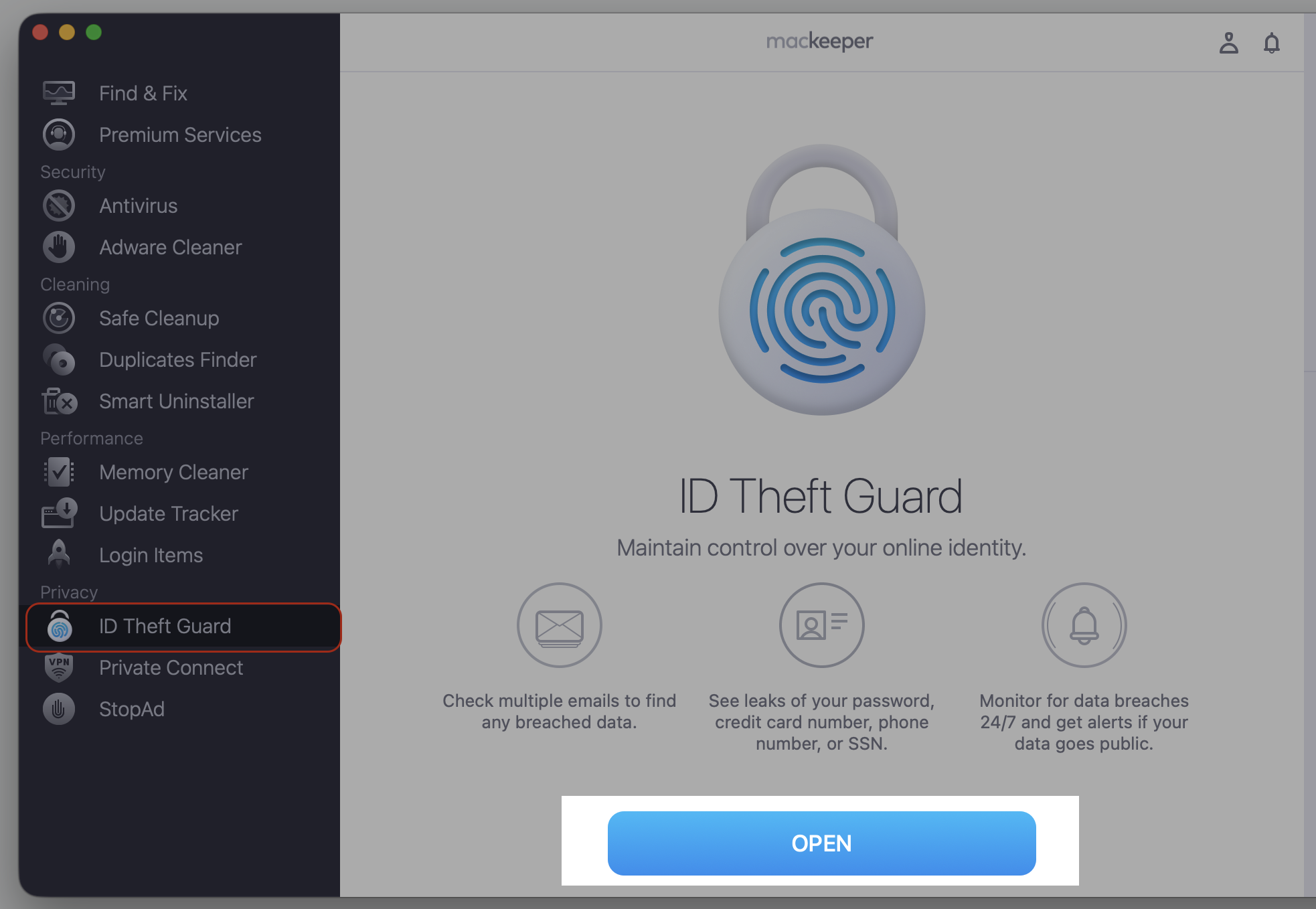
We have an additional trick for you that helps safeguard your emails, too. With MacKeeper’s ID Theft Guard tool, this task becomes not only possible but much easier. All you need to do is to follow our instructions below:
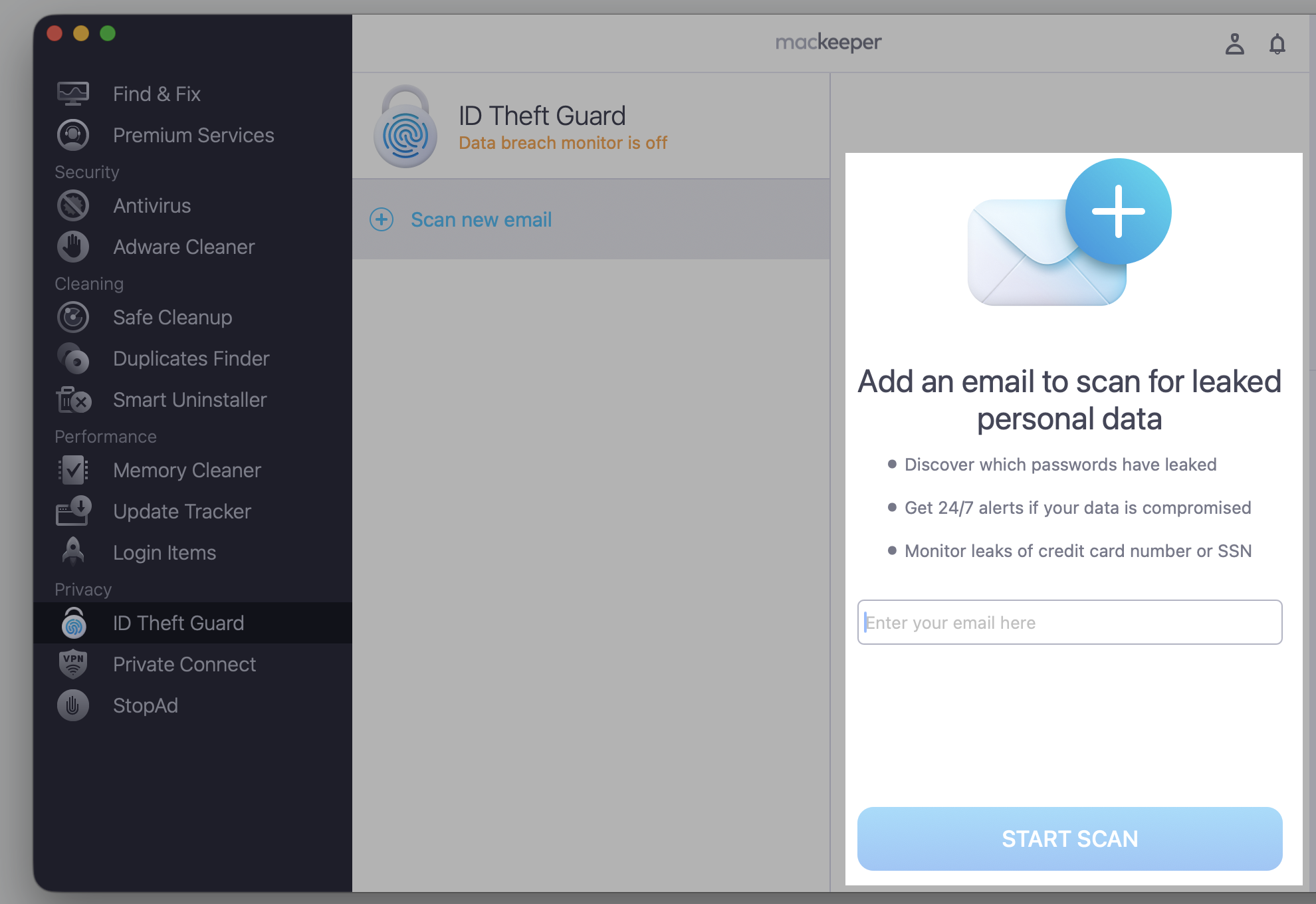
Add your email address and enjoy the safety of your online correspondence.
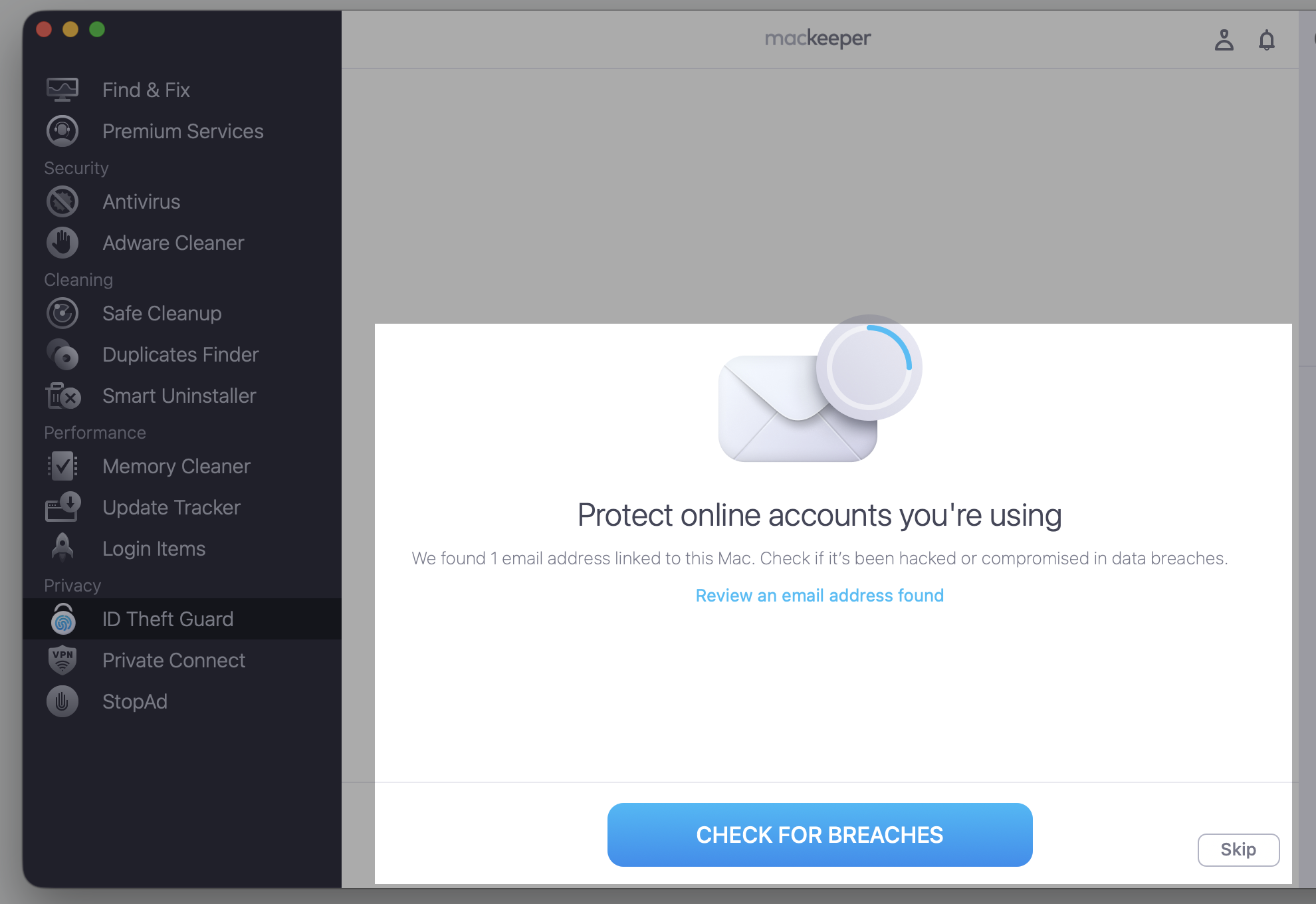
Step 1. Go to MacKeeper > ID Theft Guard > OpenStep 2. Select Check For BreachesStep 3. Add an email to scan for leaked personal data
Is iCloud Keychain the same as the Passwords app?
These names can feel confusing, so let’s clear it up. iCloud Keychain was once widely used for managing system passwords, but it has now been replaced by the more user-friendly Password app. However, they are essentially the same, and the principle is more or less the same.
Nevertheless, iCloud Keychain is the syncing service that stores and encrypts your logins across your Apple devices. The Passwords app, added in macOS Sequoia, is the dedicated iCloud Keychain app where you view, edit, and organize what’s saved. Safari password settings are where Safari offers to save and autofill logins as you browse, and Keychain Access is an older Mac utility for advanced items like certificates and secure notes.
So they’re not rivals—they’re different doors into the same password system. Compared with standalone password managers for Mac, iCloud Keychain is free and built right in, though a dedicated tool can add features across other browsers and platforms.
How does iCloud Keychain work?
When you save a login, iCloud Keychain encrypts it with end-to-end encryption. That means only your approved devices can unlock the information—not even Apple can read it. The encrypted data then syncs through iCloud to every device connected to the same Apple Account.
To keep things safe, Apple relies on secure protocols and two-factor authentication before a new device can join—the same layered thinking that helps you protect iCloud from hackers. Securing your Apple Account is a crucial part of keeping this system private.
Main iCloud Keychain features
Here are the key password-management and syncing functions you’ll rely on across compatible Apple devices:
Password and passkey storage—saves logins and modern passkeys for websites and apps
Cross-device syncing—keeps each individual login current on every verified Mac, iPhone, and iPad
AutoFill—fills in usernames, passwords, and payment details as you browse
Security recommendations—flags weak, reused, or leaked passwords that carry potential risk
Family sharing—lets you share selected logins with trusted people
Apple keeps expanding these tools, and managing them from one place supports your wider Mac optimization and security habits. They also pair well with broader macOS hardening steps that keep your whole system safe.
How to use iCloud Keychain?
Getting comfortable with iCloud Keychain takes just a few minutes. Below, we’ll walk through the main actions, from turning on the feature to reviewing your account security—and even a Mac Keychain password not working is usually quick to sort out. Let’s go through each step together, starting with turning it on.
Turn on iCloud Keychain
Password syncing lives in your account settings, and we’ll switch it on in just a few clicks. You’ll only need your device passcode or Apple Account password to confirm.
Here’s how to set up iCloud Keychain on your Mac:
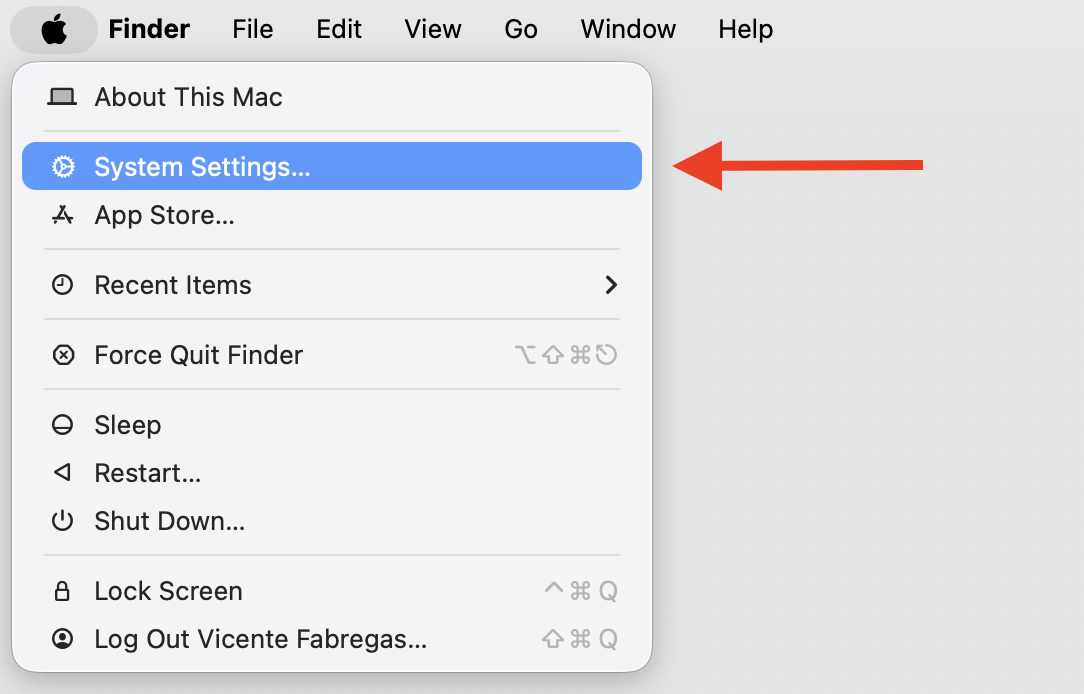
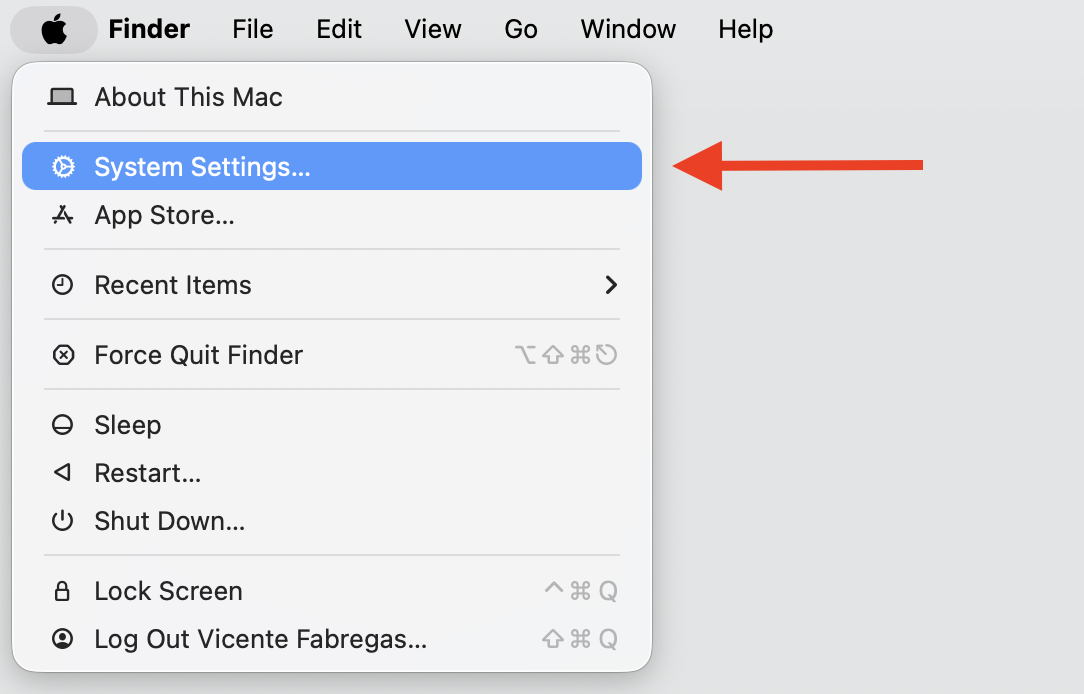
Open the Apple menu and select System Settings.
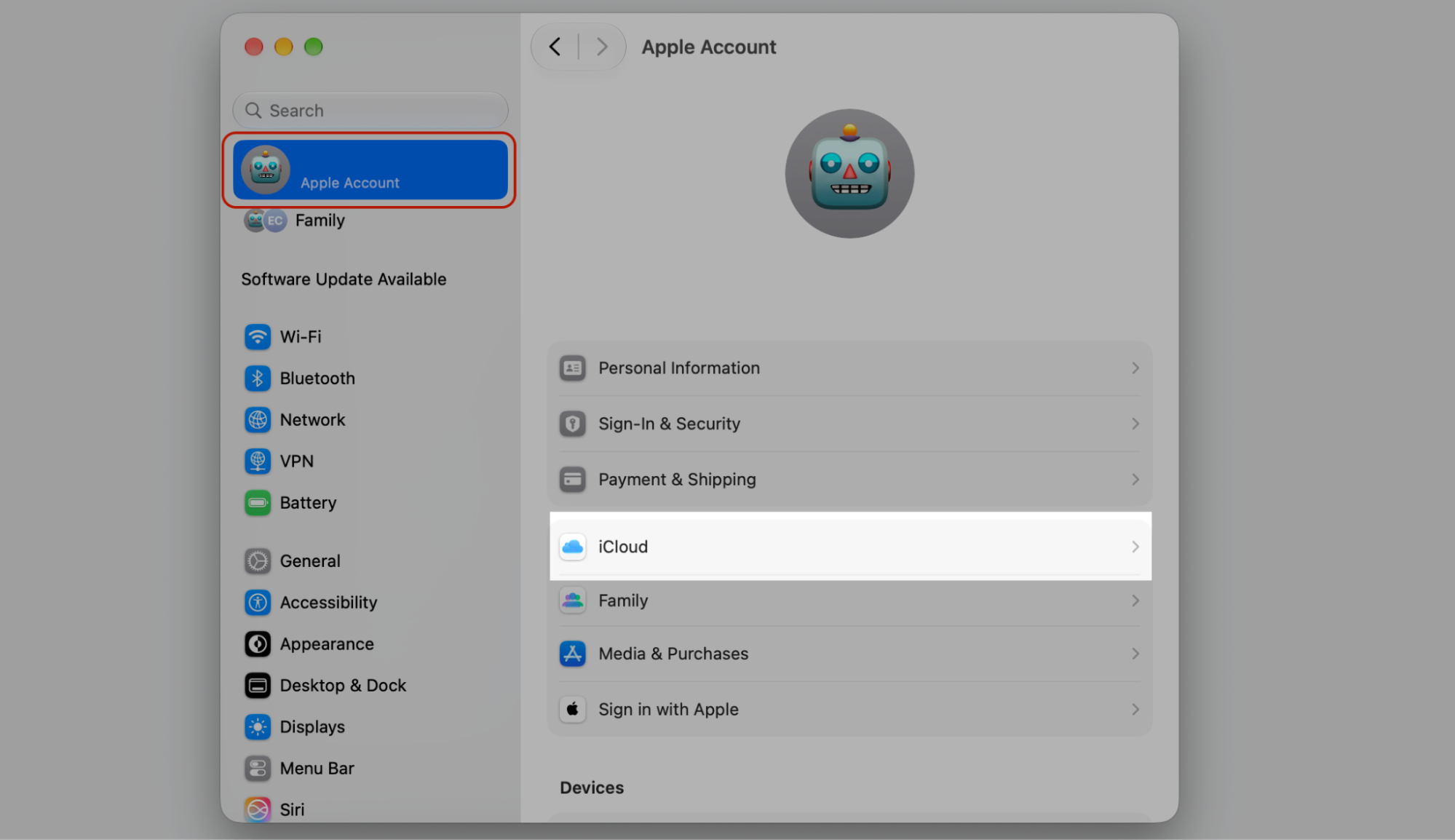
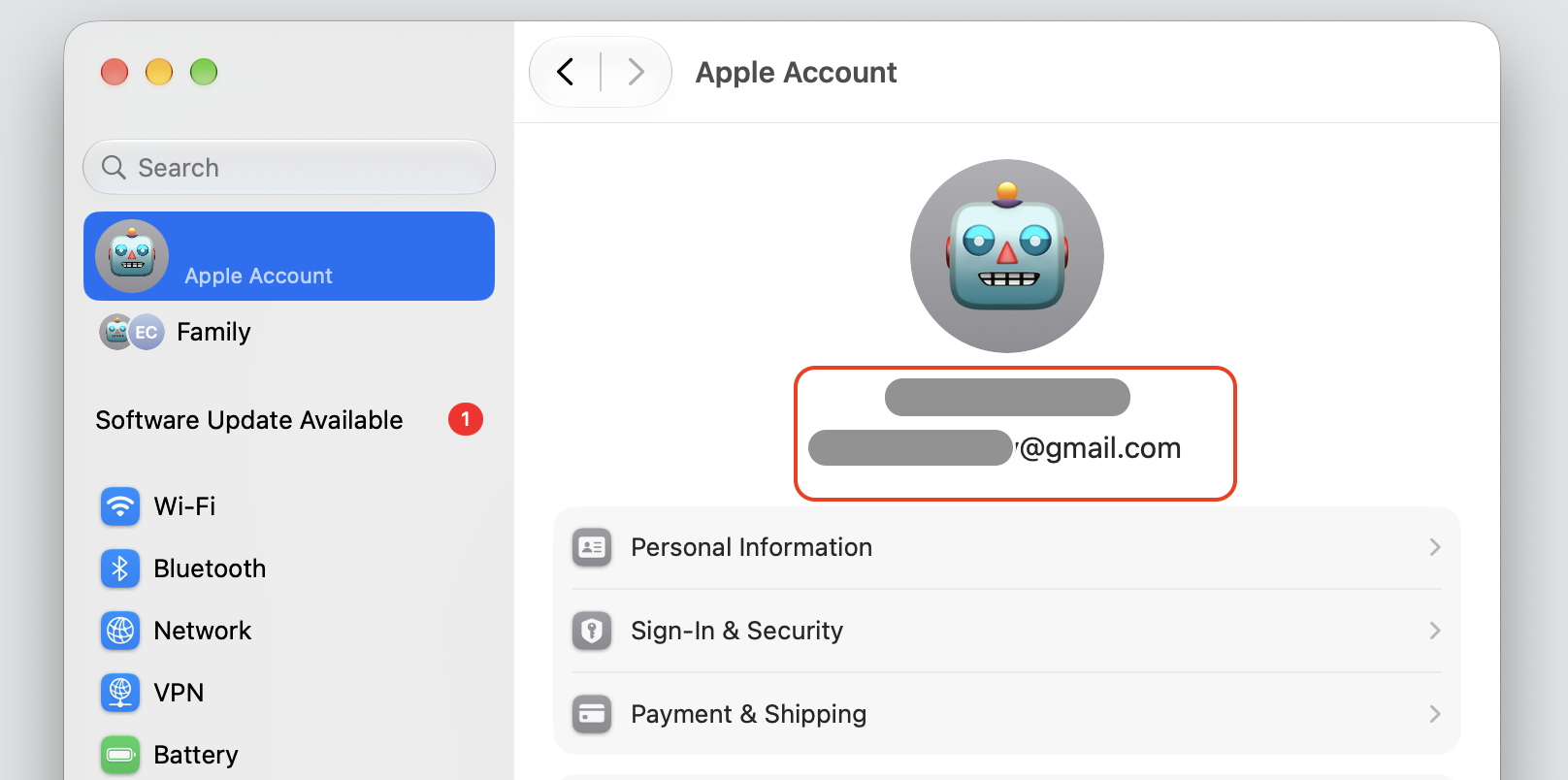
Click your name at the top, then choose iCloud.
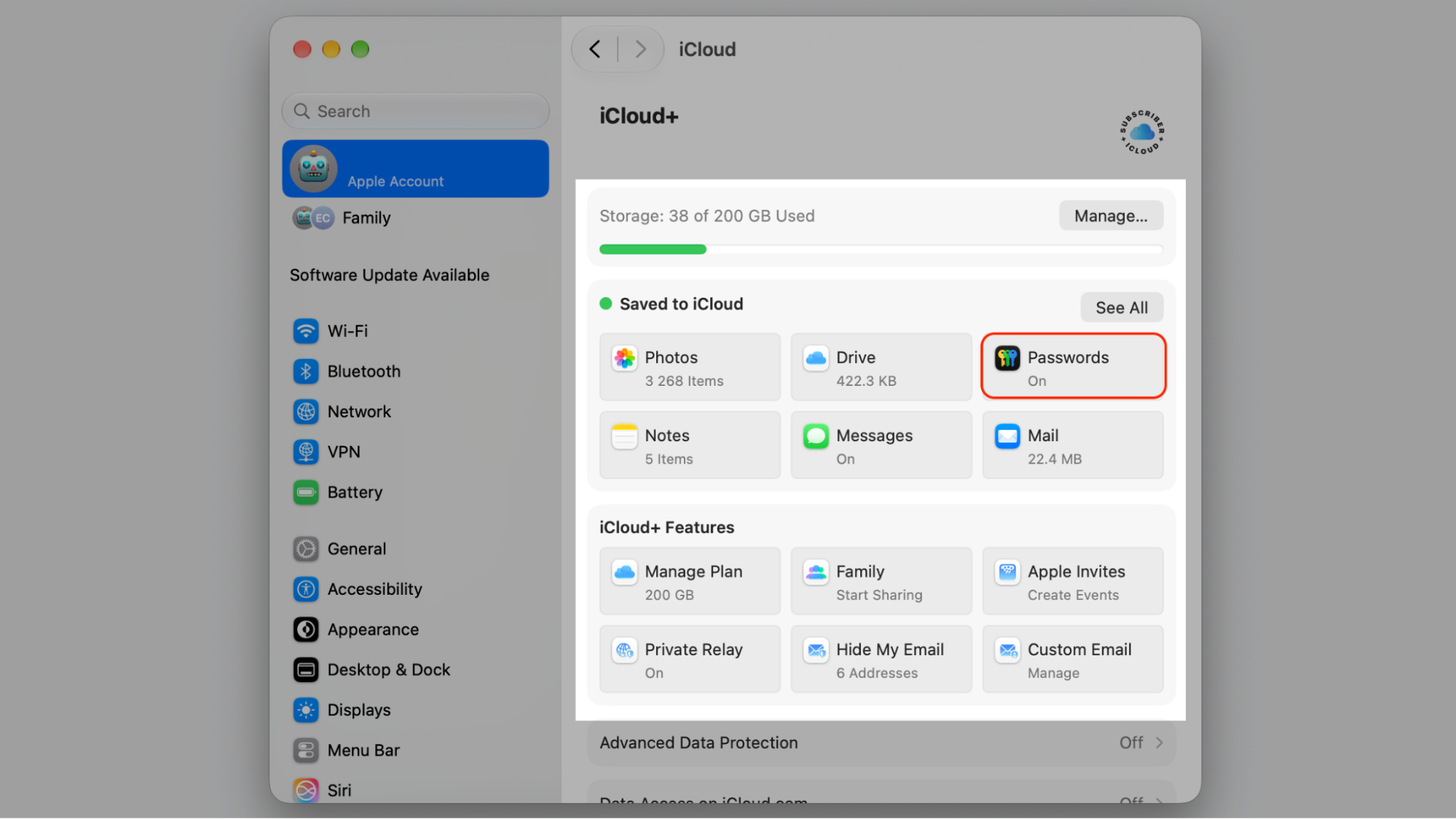
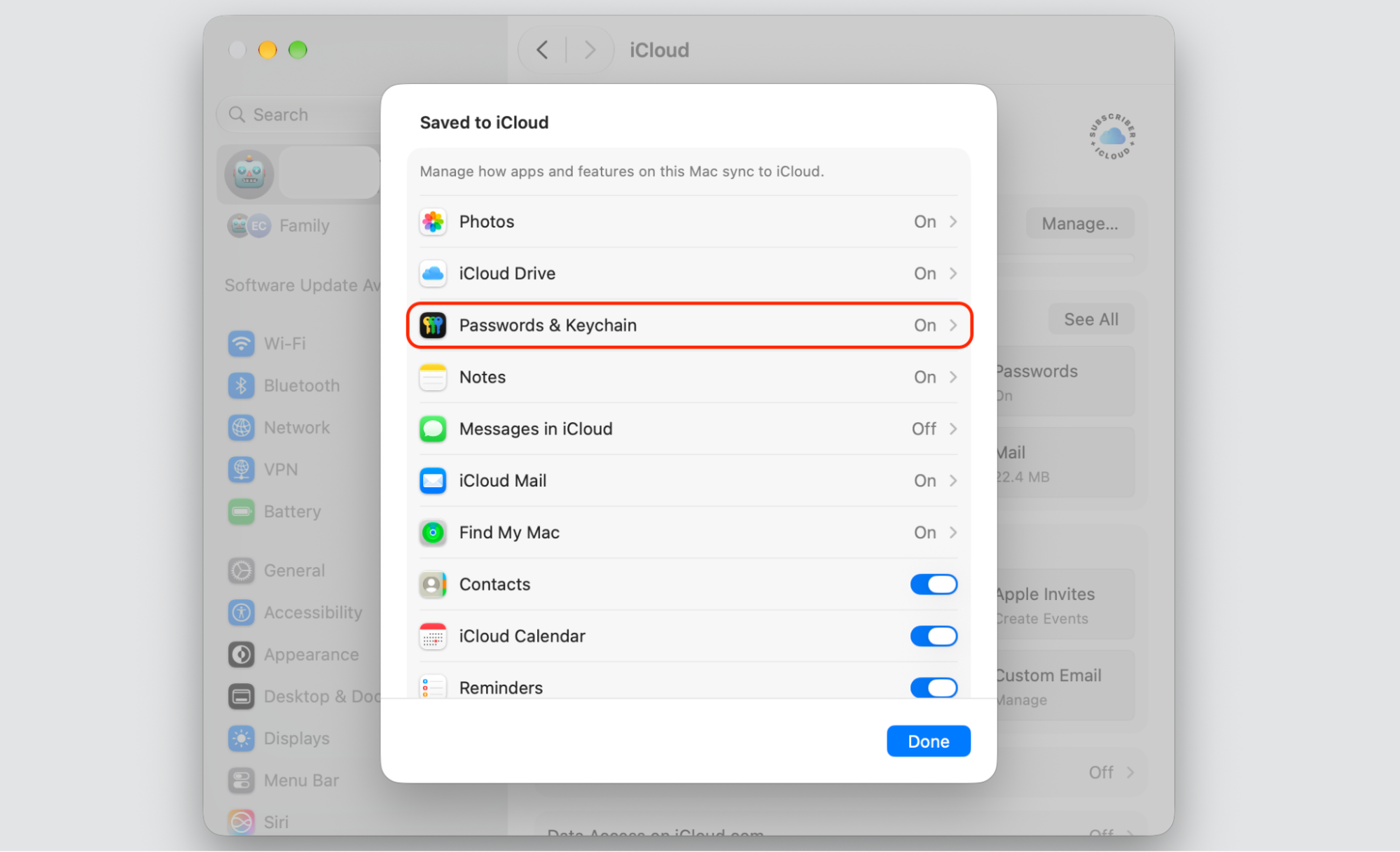
Select Passwords (older macOS versions call this iCloud Keychain).
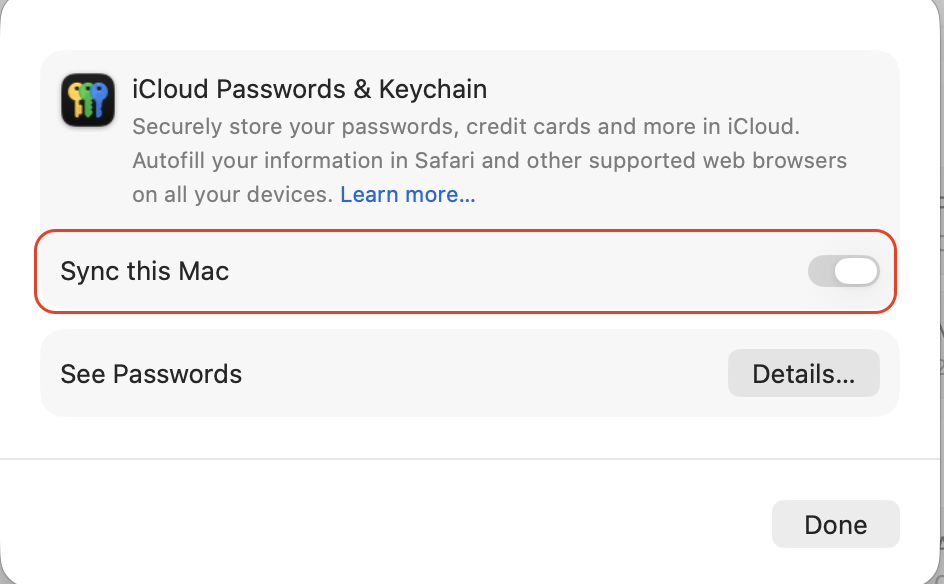
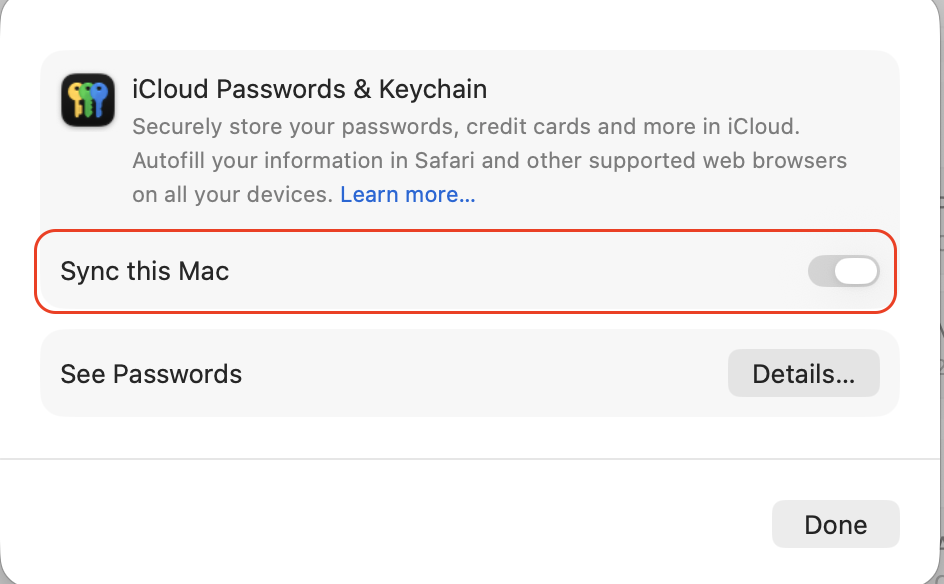
Turn on the switch, then confirm with your device passcode or Apple Account password.
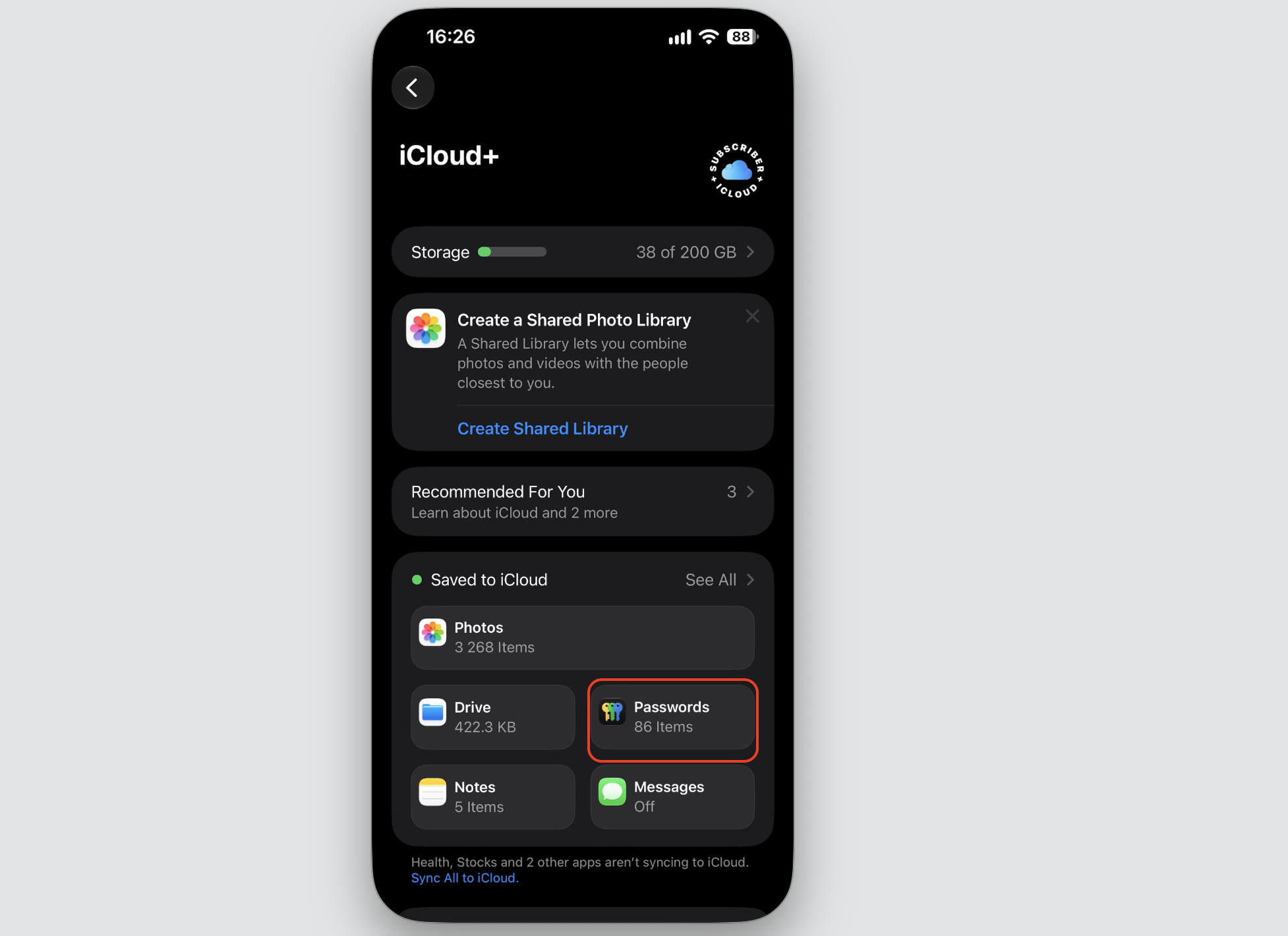
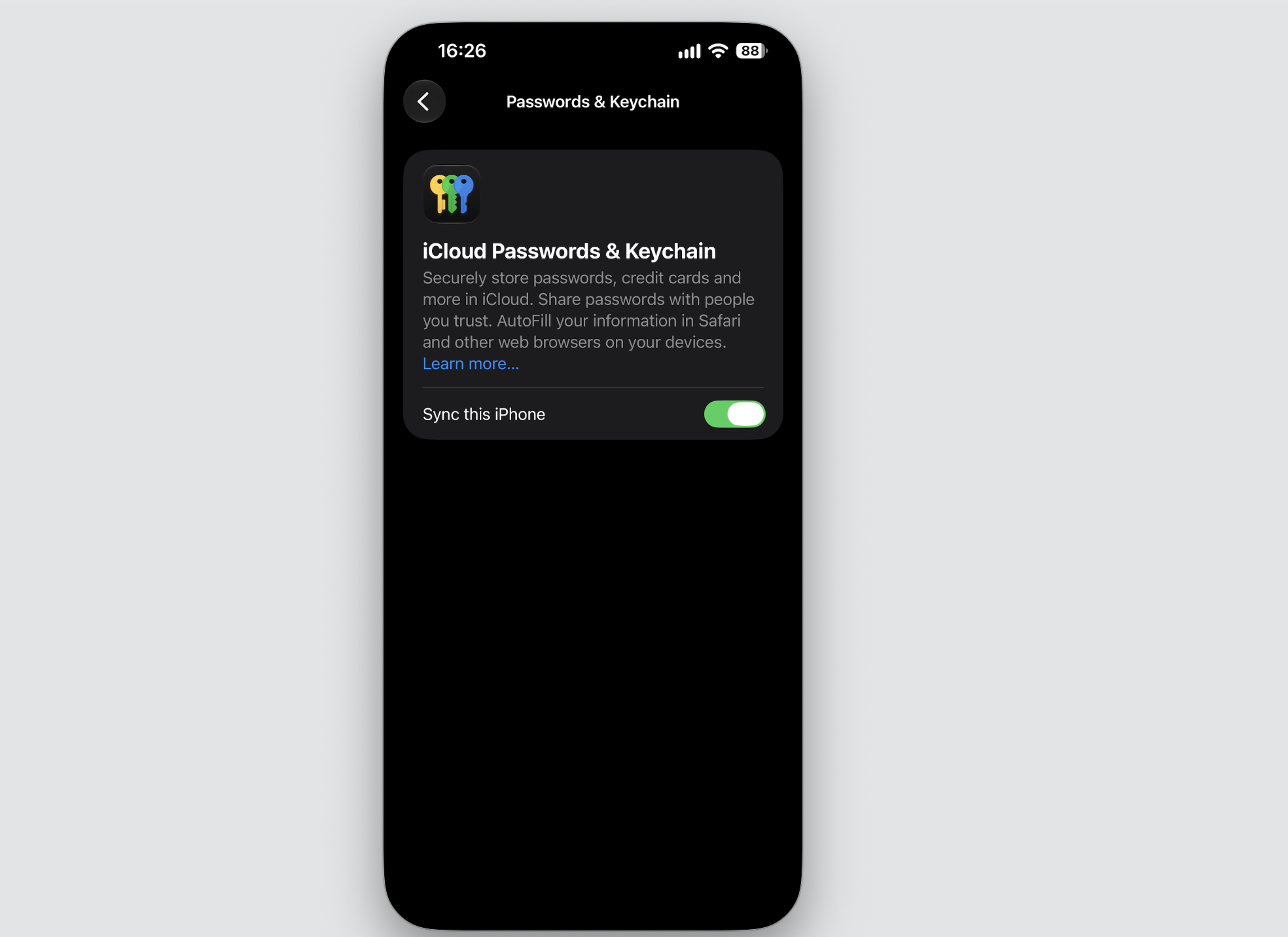
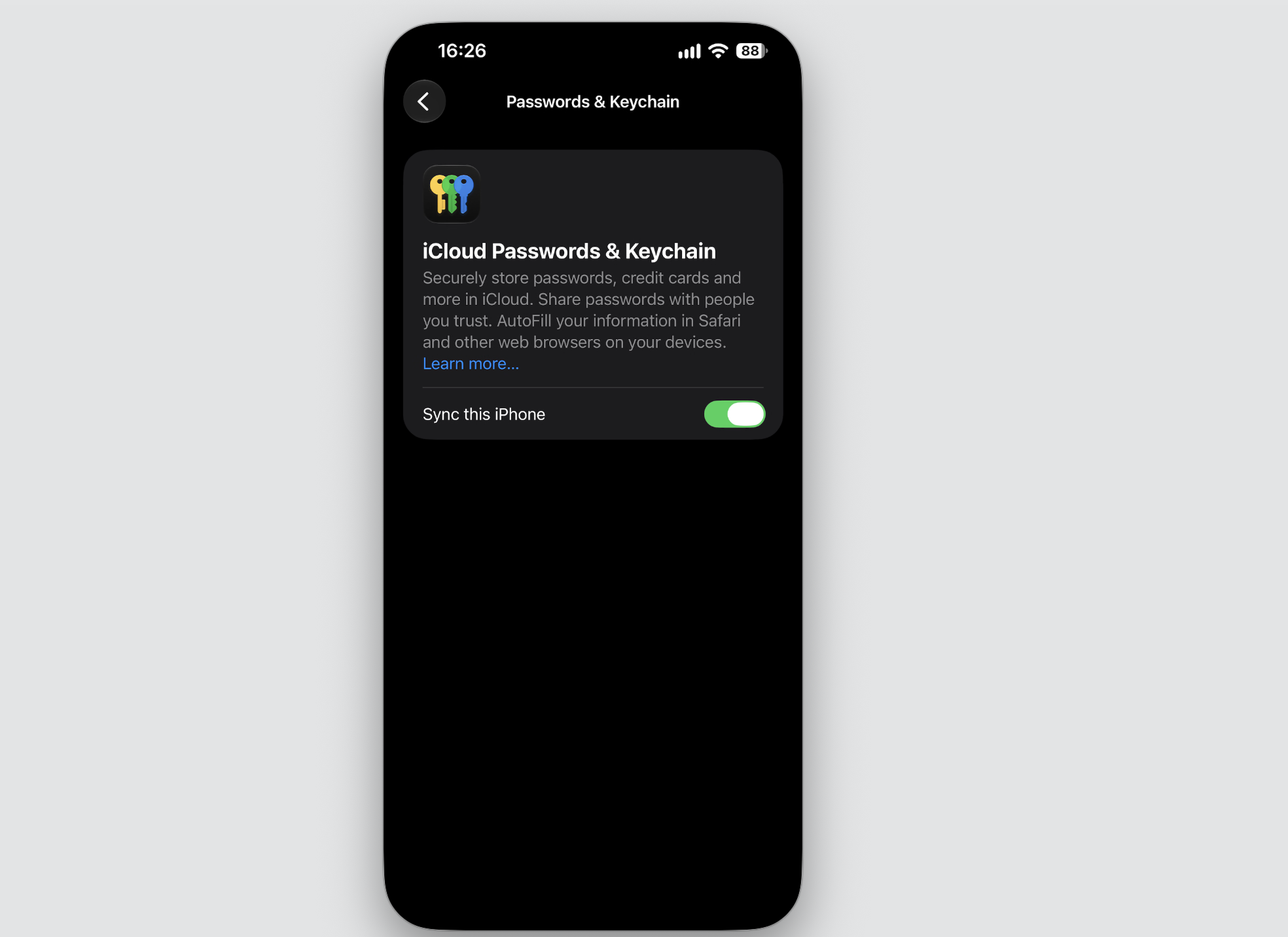
Step 1. Go to Apple Logo > System SettingsStep 2. Select your name at the top left corner, then choose iCloudStep 3. Go to PasswordsStep 4. Turn on the Sync this Mac optionStep 5. Go to Settings > iCloud > Passwords on your deviceStep 6. Toggle on Sync this Device
An extra explanation from us: On an iPhone or iPad, open Settings, tap your name, choose iCloud, and turn on Passwords. Apple may ask you to activate the feature by verifying your identity first.
Save passwords and passkeys
Each time you sign in somewhere new, iCloud Keychain offers to remember the details, and you can manage Keychain passwords by hand whenever you like.
Whenever you log in to a new site, saving is quick:
Enter your username and password on a website or in an app.
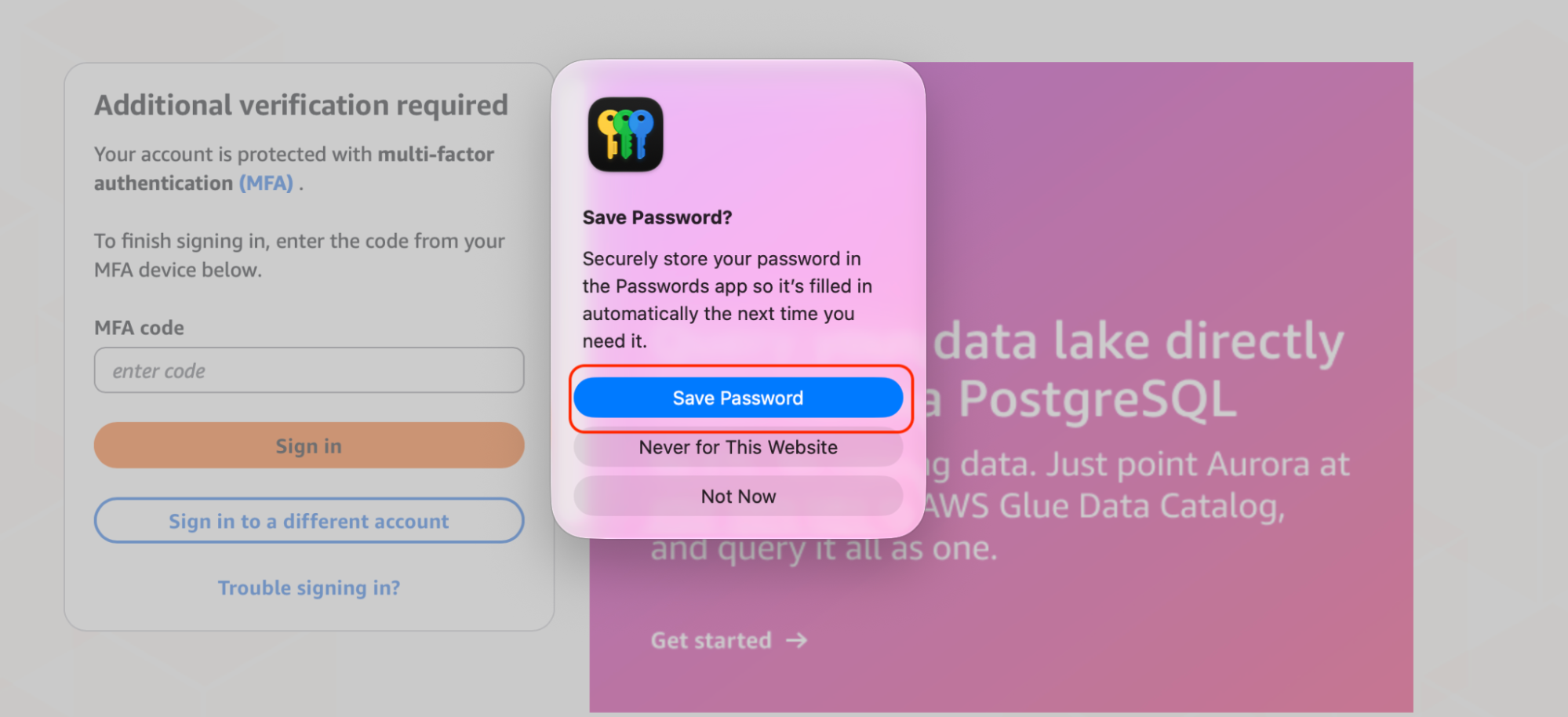
When your Mac asks if you’d like to save the login, select Save Password.
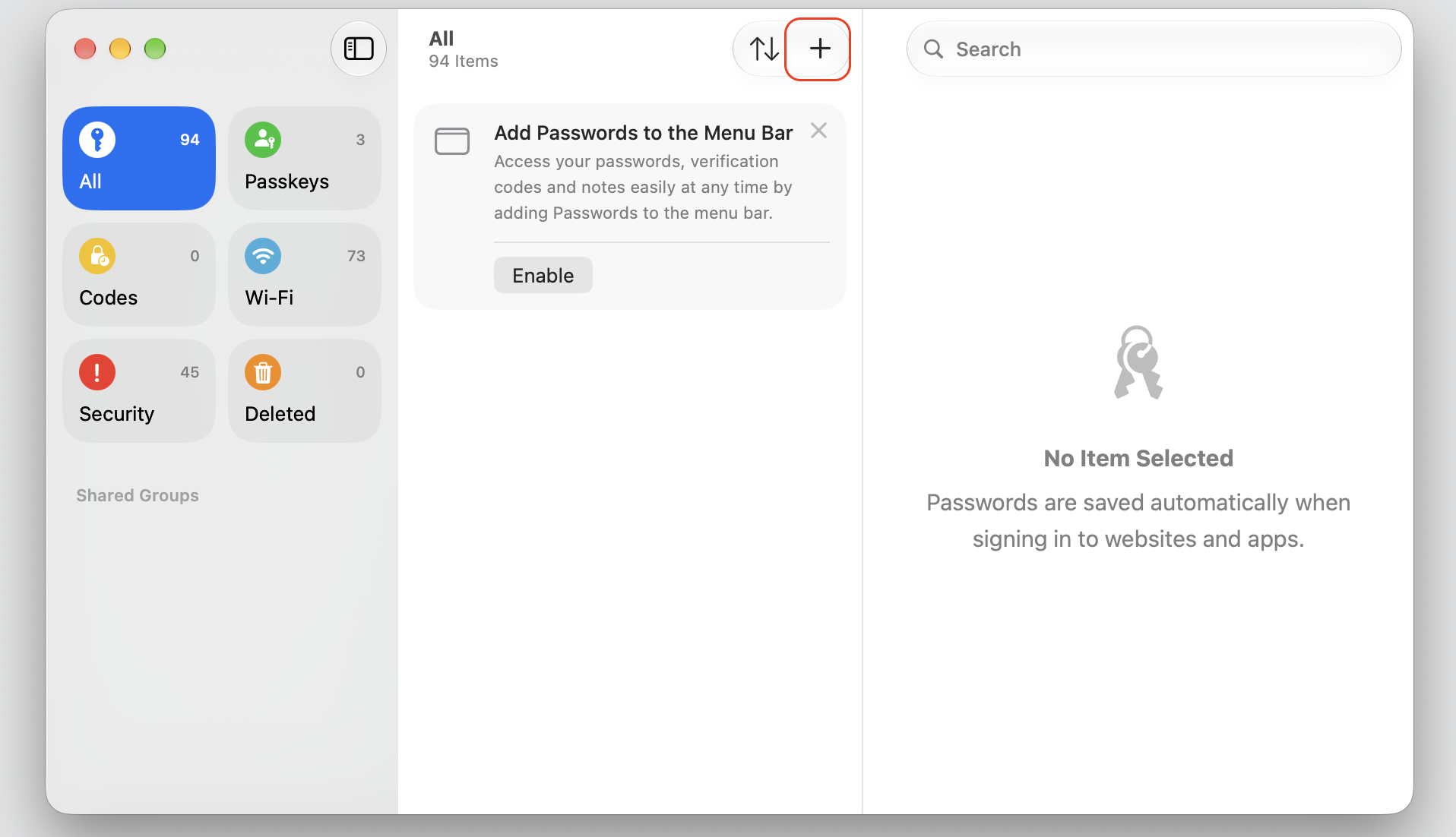
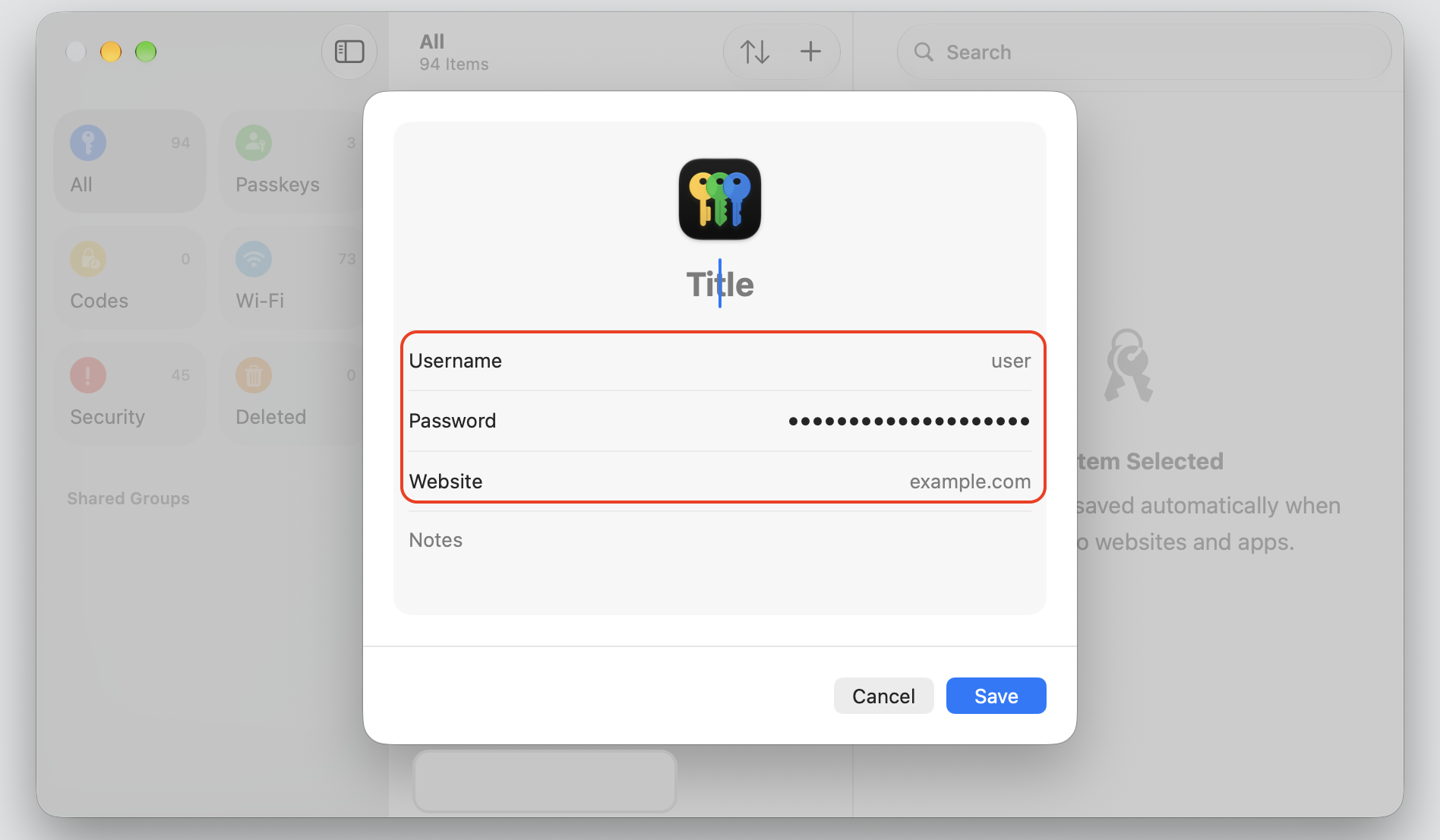
To add one by hand, open the Passwords app and click the add button.
Type the site, username, and password, then click Save.
Step 1. When your Mac asks if you’d like to save the login, select Save PasswordStep 2. To add one by hand, open the Passwords app and click the add buttonStep 3. Type the site, username, and password, then click Save
View saved passwords
Your saved logins are stored securely behind your device's unlock, and we can pull any of them up in seconds whenever you need them. That’s why we consider it as an easy way to access iCloud Keychain and view iCloud Keychain passwords on any Apple device signed in to your account.
Want to check a saved login? Just do the following:
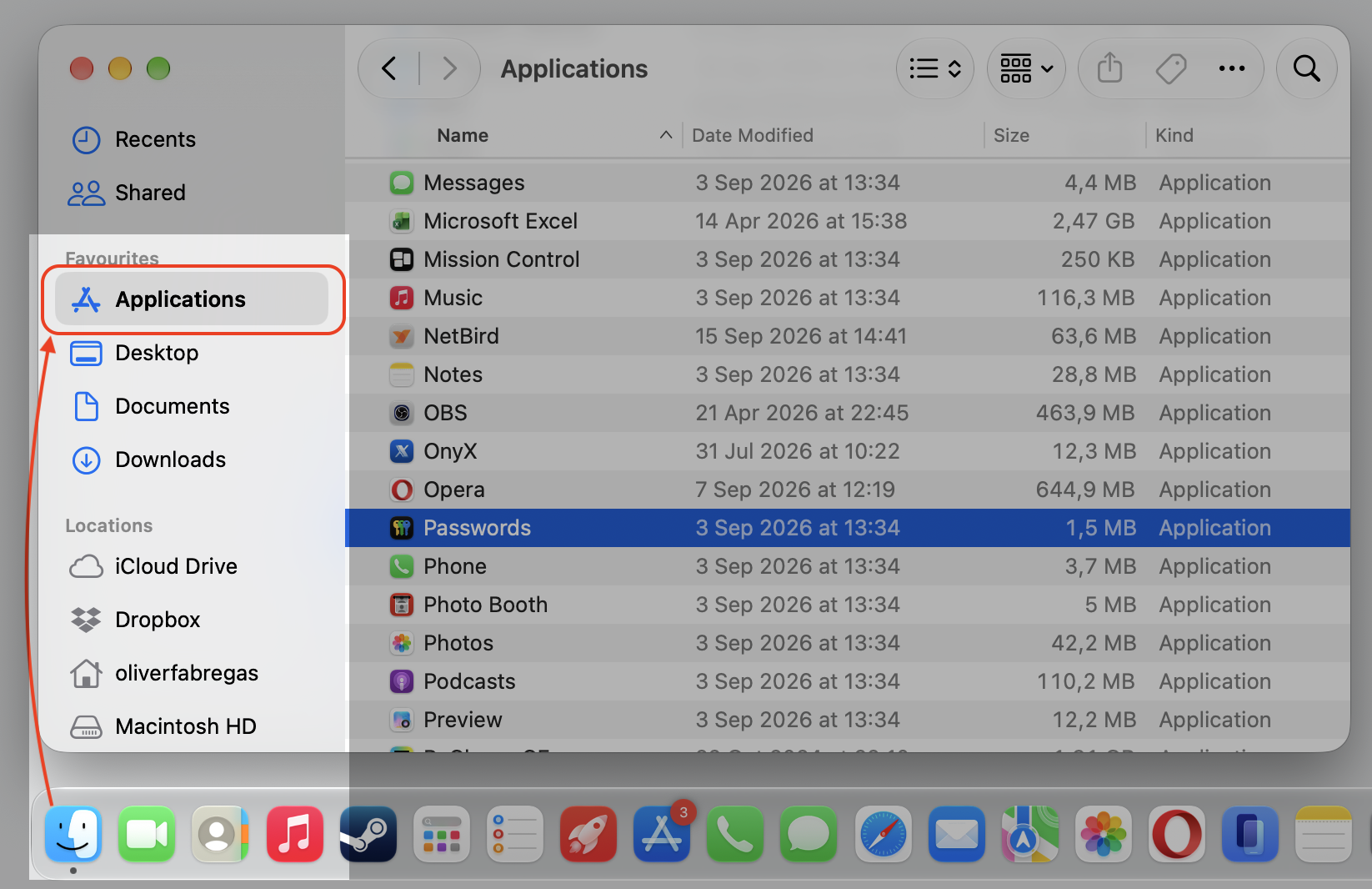
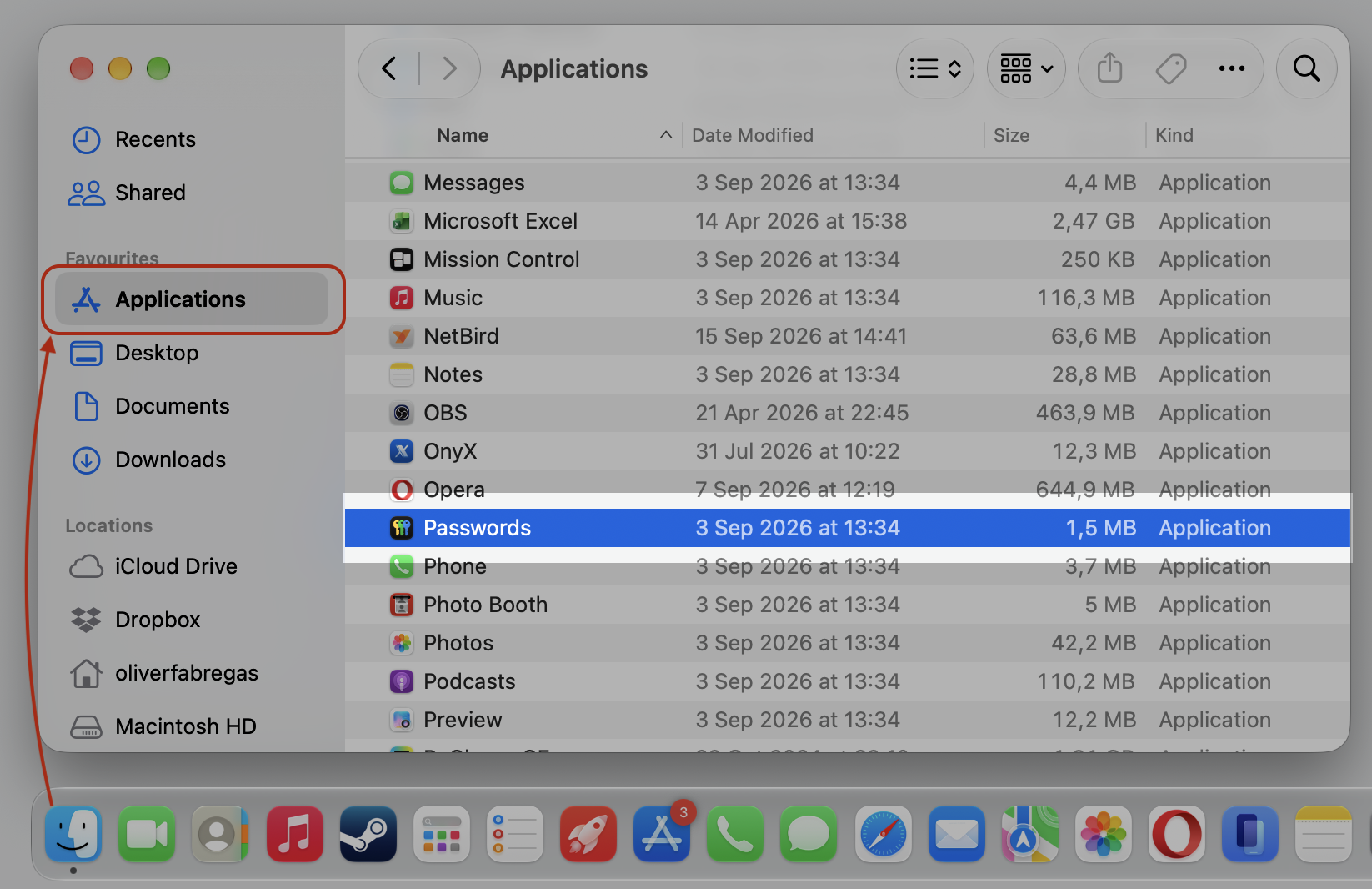
Open the Passwords app from your Applications folder or Spotlight.
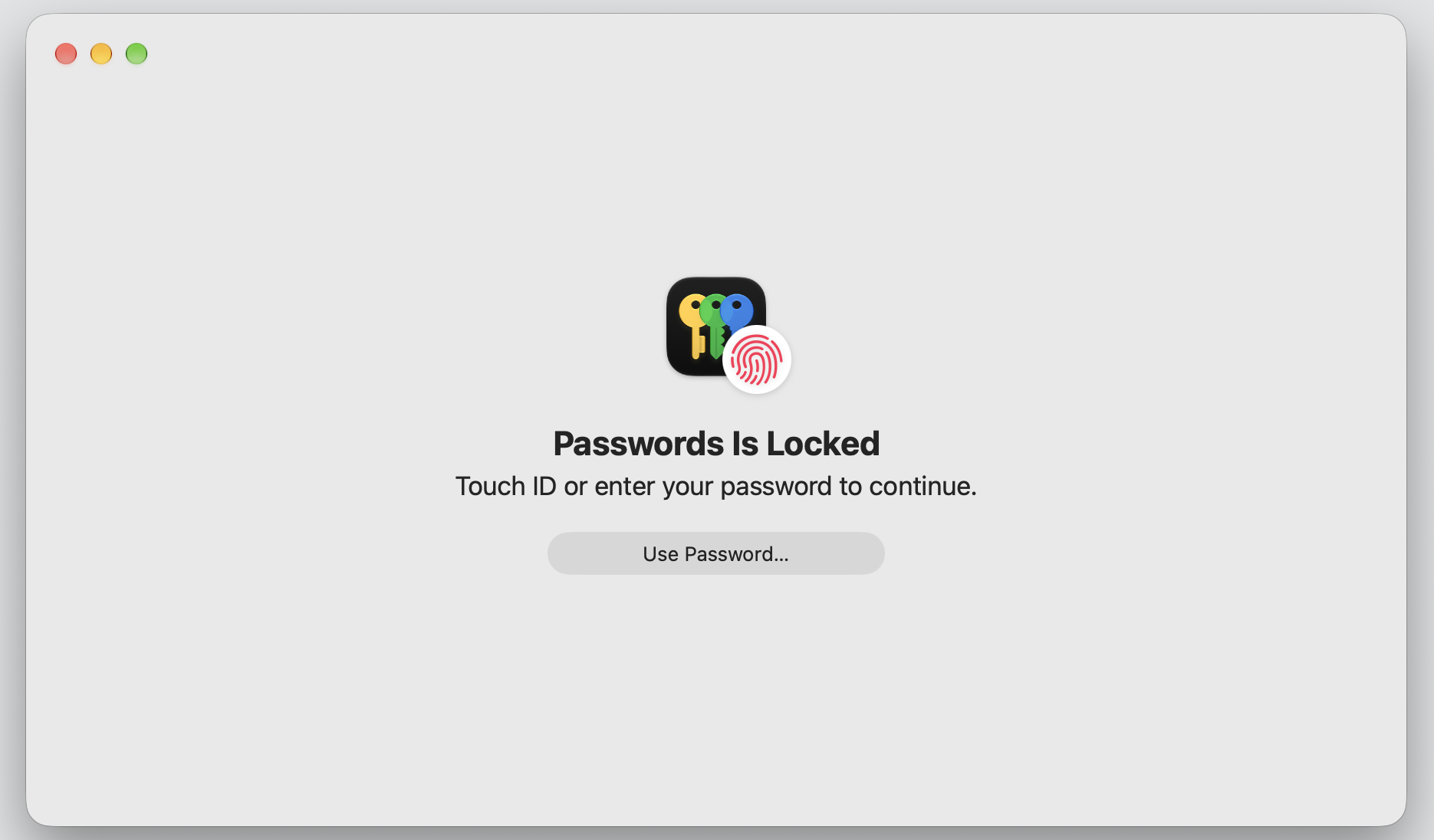
Unlock it with Touch ID or your Mac password.
Browse the list or use the search bar to find an entry.
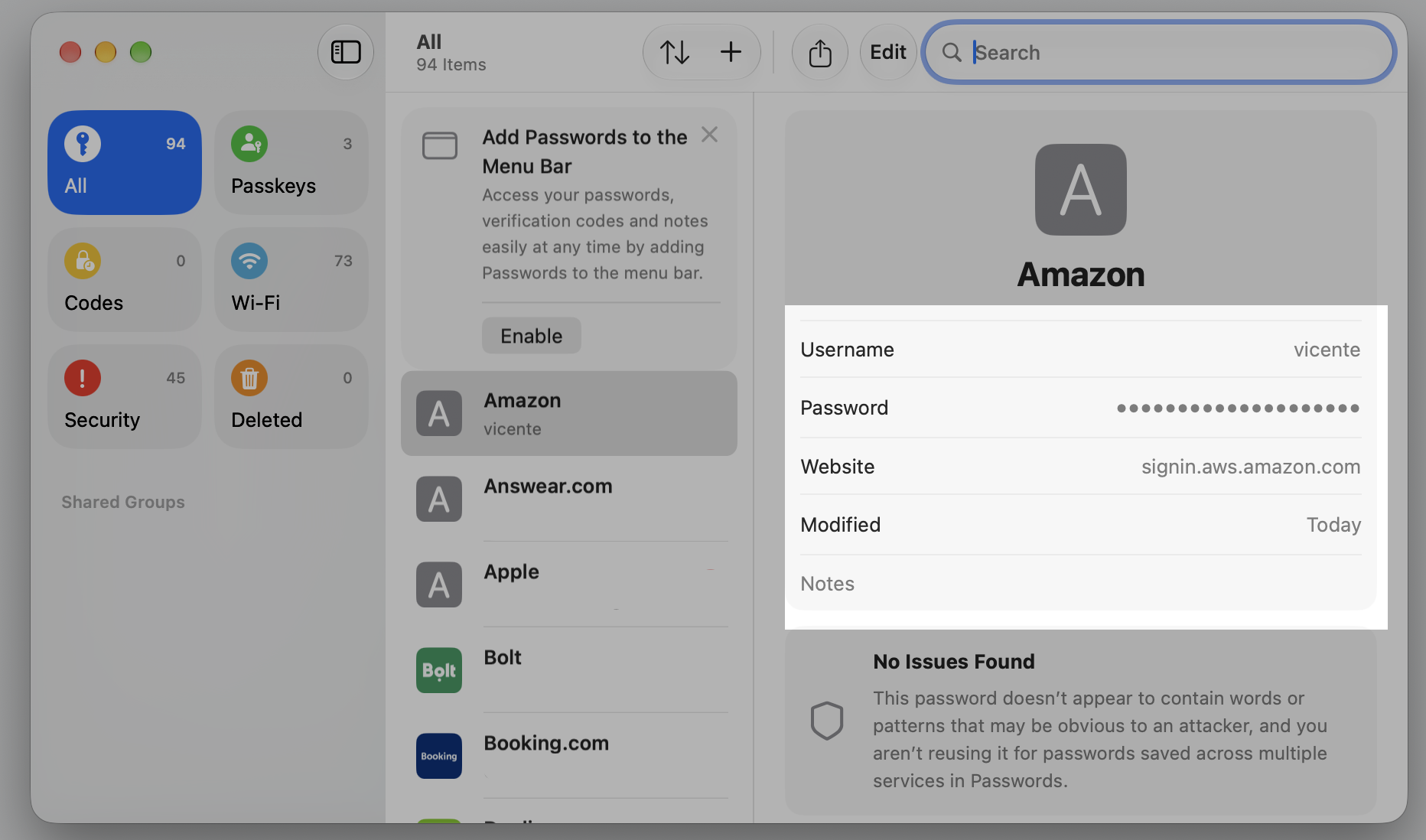
Click any item to see the full username and password.
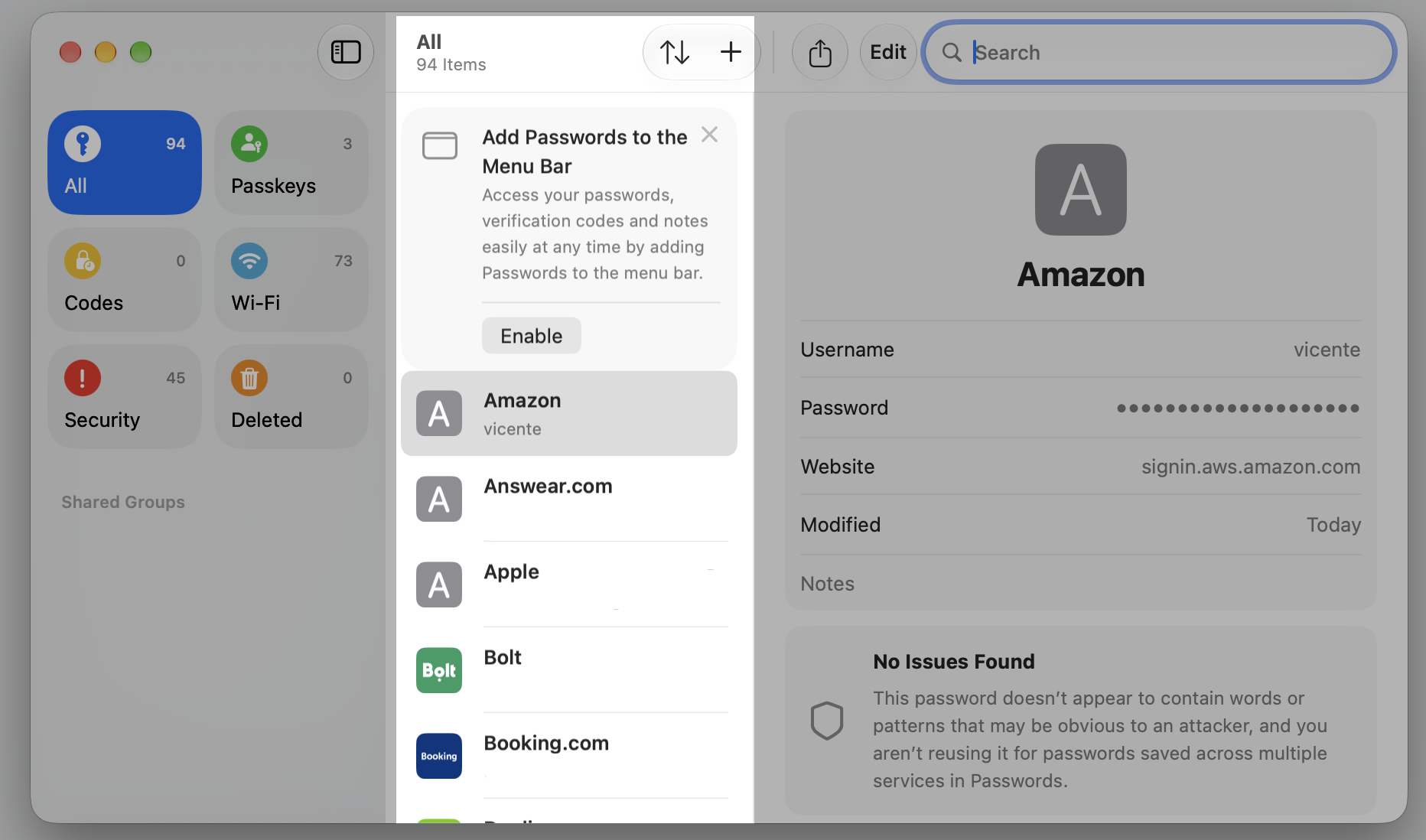
Step 1. Go to Finder > Applications Step 2. Open Passwords appStep 3. Unlock it with Touch ID or your Mac passwordStep 4. Browse the list to find an entryStep 5. Click any item to see the full username and password
Edit or delete saved passwords
Keeping your logins accurate helps AutoFill run smoothly, so let’s tidy up any outdated details or clear out ones you no longer use.
Updating or removing a login only takes a moment:
Open the Passwords app and select the entry you want to change.
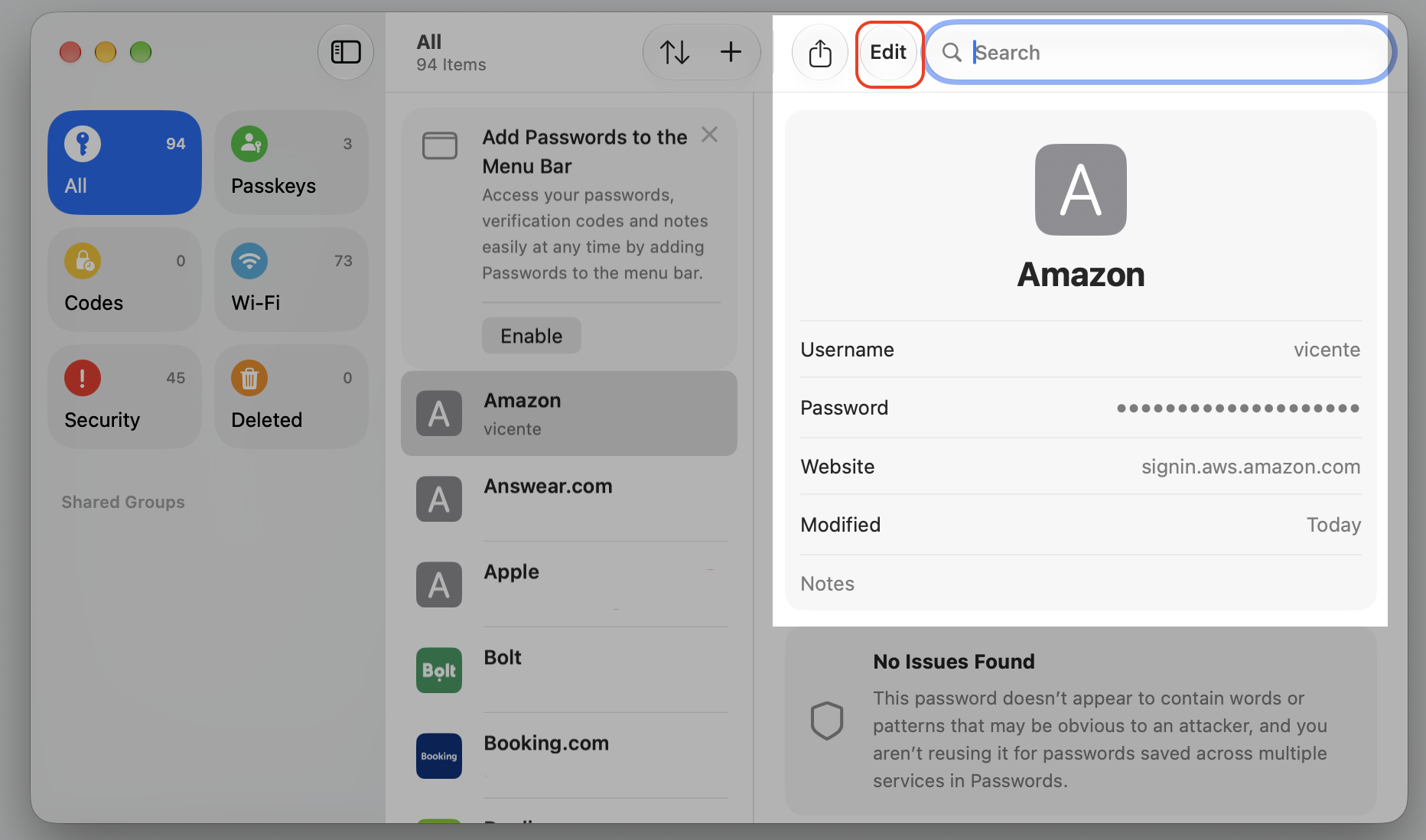
Click Edit to update an outdated username or password.
Make your changes, then click Save.
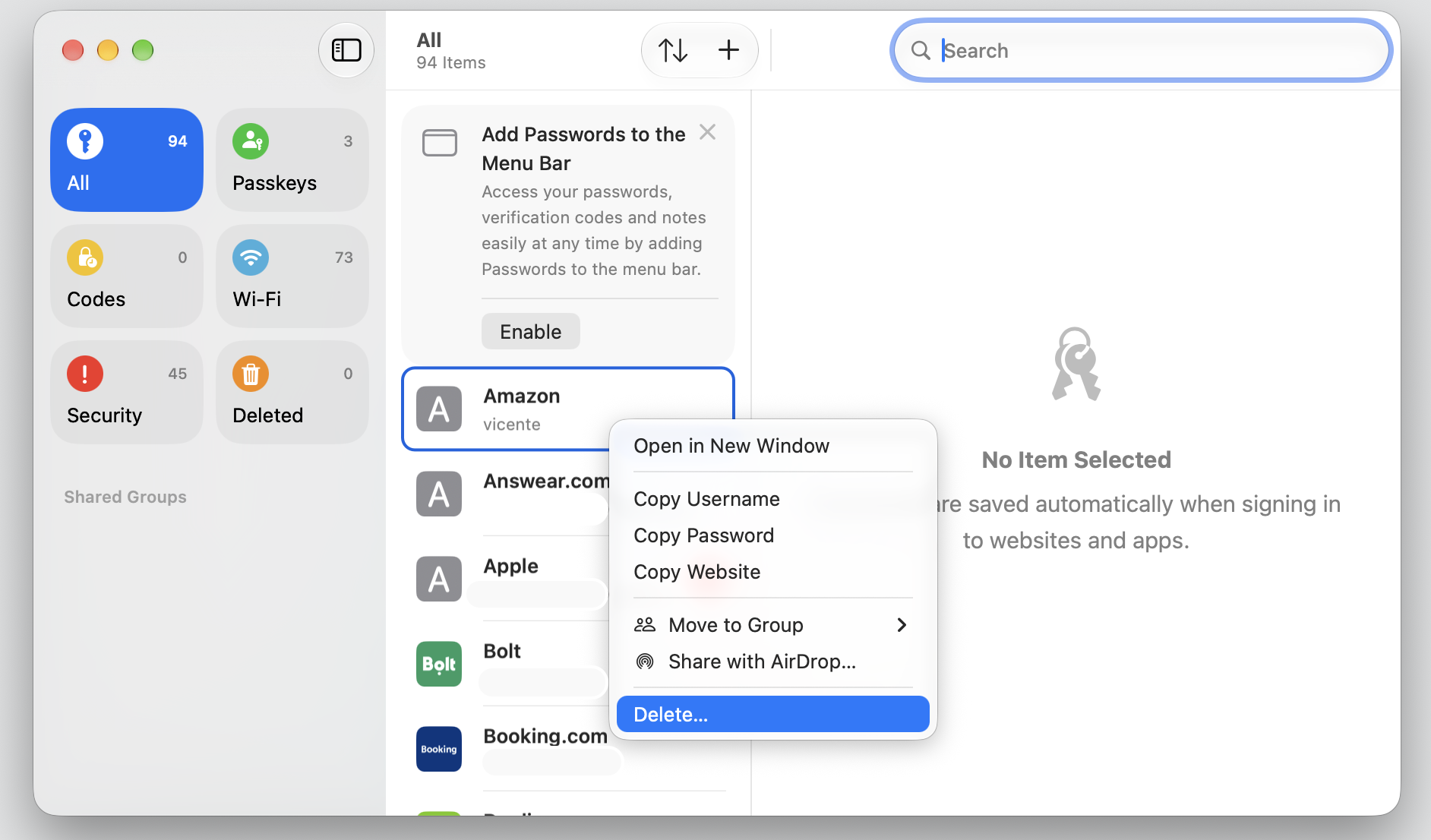
To remove a login, click Delete Password and confirm.
Step 1. Click Edit to update an outdated username or passwordStep 2. Control- click on the item and select Delete to remove password
Sync passwords across Apple devices
Your devices keep each other up to date on their own, and if you notice some iCloud data isn’t syncing on Mac, a quick sign-out and sign-in from your iCloud preferences usually gets things moving again.
Syncing happens on its own after a little setup:
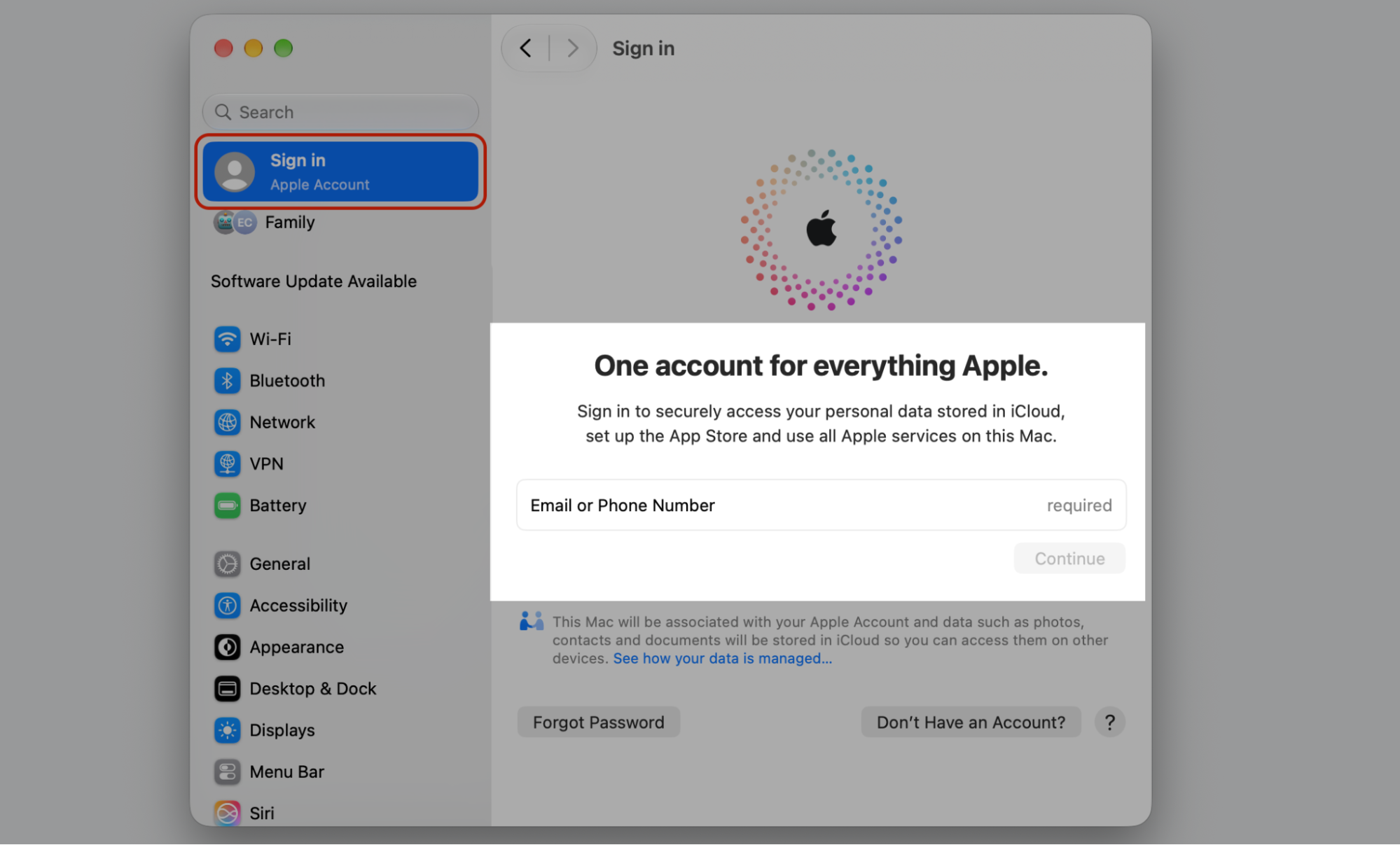
Sign in to each device with the same Apple Account.
Turn on Passwords in iCloud settings on every device.
Make sure each device is connected to the internet.
Give it a moment—updates appear on all approved devices.
Step 1. Sign in to each device with the same Apple AccountStep 2. Go to iCloud > Passwords > iCloud Sections and turn on Sync this MacStep 3. Go to Settings > iCloud > Passwords > Sync this device (iPhone or iPad)
Add new device to iCloud Keychain
Every new Mac, iPhone, or iPad goes through a quick approval step, which is how Apple keeps your encrypted data private. Once the device is verified, your passwords appear automatically.
Approving a device is simple and keeps your data protected:
Sign in to iCloud on the new Mac, iPhone, or iPad.
Turn on Passwords syncing in iCloud settings.
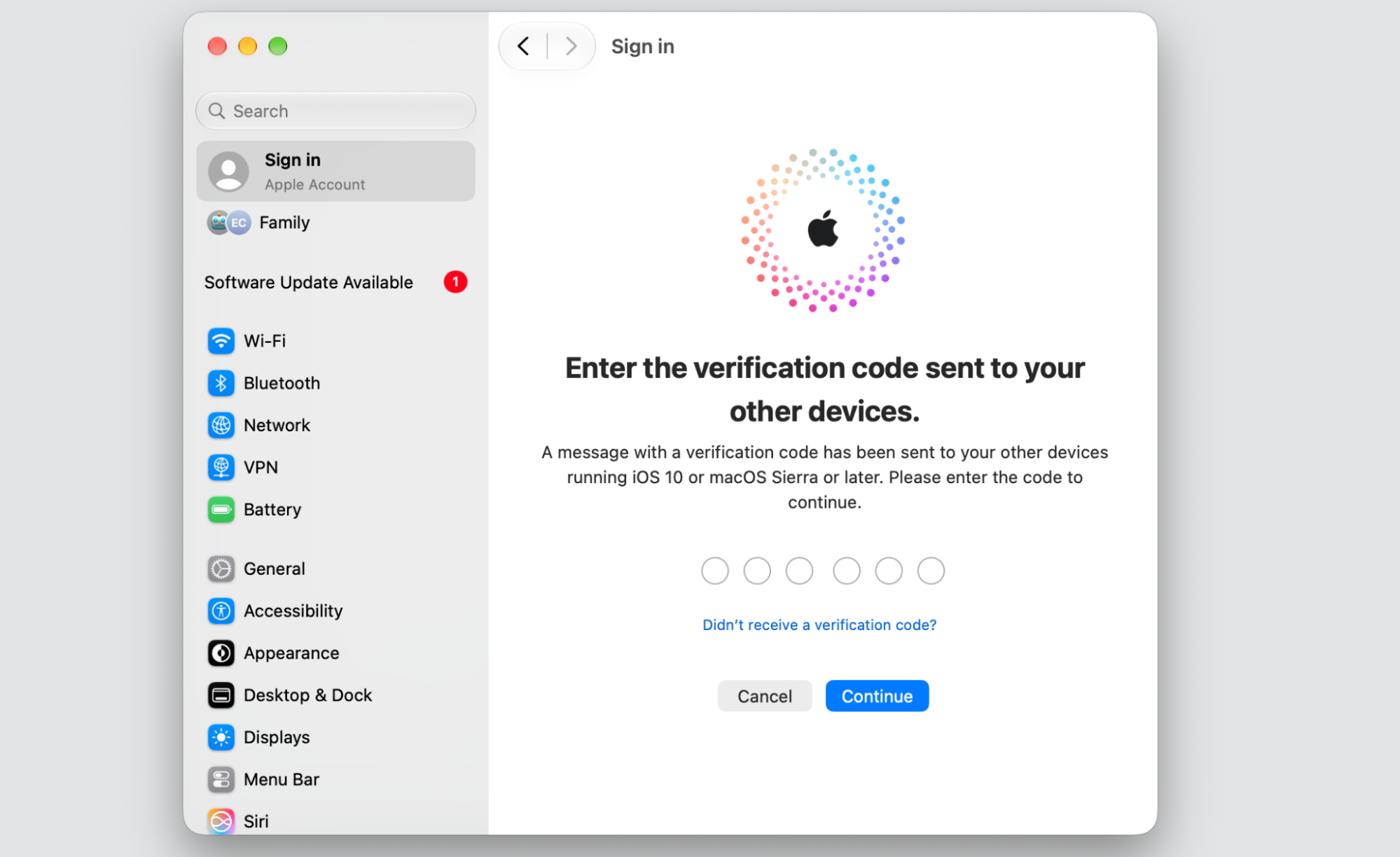
Approve the device from another device already signed in, or enter your verification code.
Your encrypted passwords appear once the device is verified.
Step 1. Go to Apple Logo > System SettingsStep 2. Sign in to iCloud on the new MacStep 3. Enter your verification codeStep 4. Now your encrypted passwords appear in the Password and Keychain app
Use iCloud Keychain with Safari and apps
AutoFill works across Safari and many of our favorite apps, so we rarely have to type a password again. Thanks to this integration, many third-party apps also let you use Apple Keychain for a quick, secure sign-in. When you have more than one account for a site, iCloud Keychain lets you pick the right one.
Signing in with AutoFill looks like this:
Visit a login page in Safari or open a supported app.
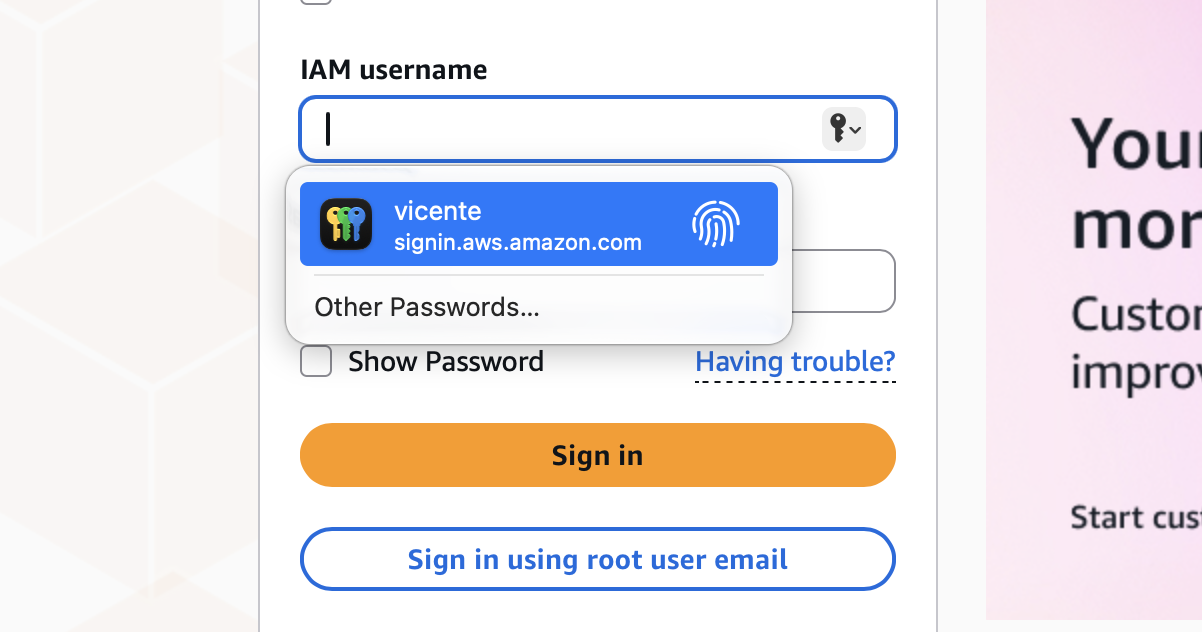
Tap the username field—your saved logins appear above the keyboard or as a suggestion.
If you have more than one account, select the one you want.
Confirm with Touch ID, Face ID, or your device password.
Confirm with Touch ID to autofill a previously saved password on the website
Store and autofill payment information
Saving a card once means faster checkouts on the sites we trust, without digging through a wallet each time. iCloud Keychain fills in the number and name for you, while your security code stays private.
Add a card and let Safari fill it in for you:
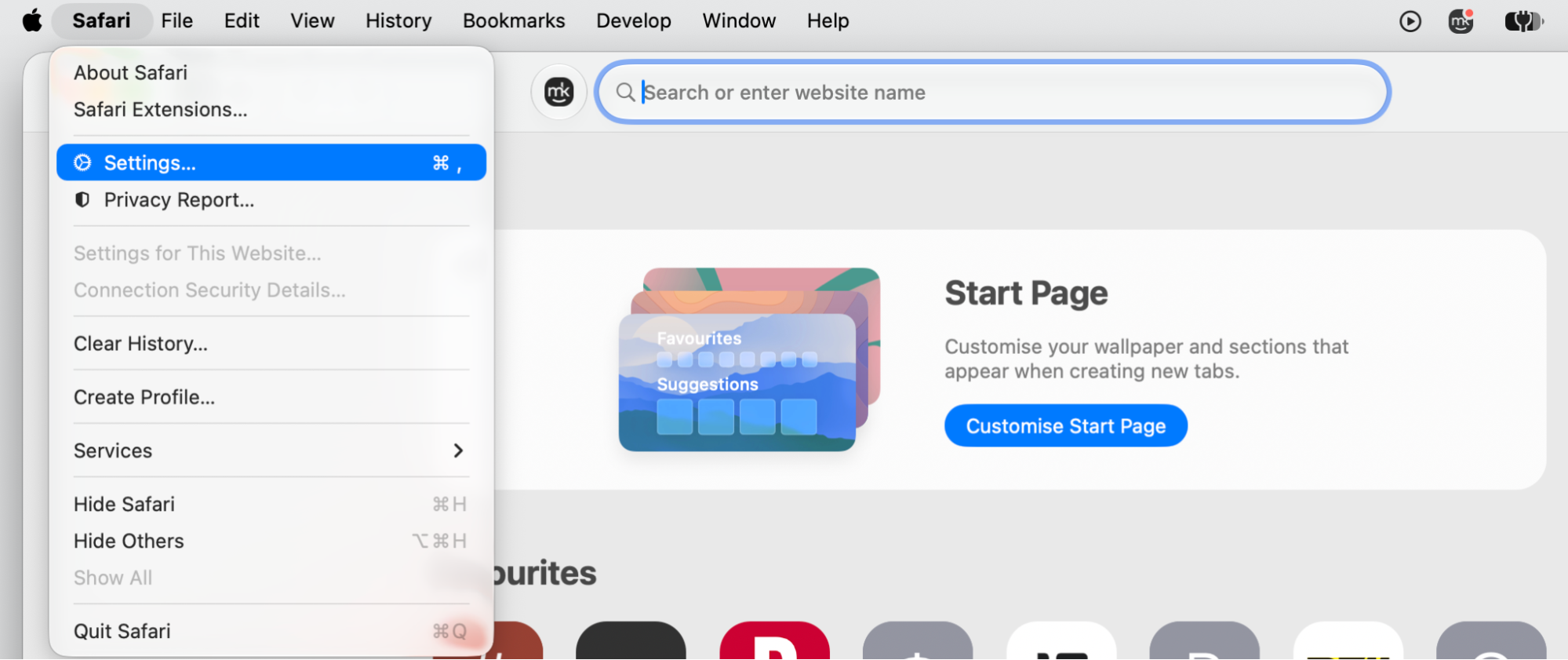
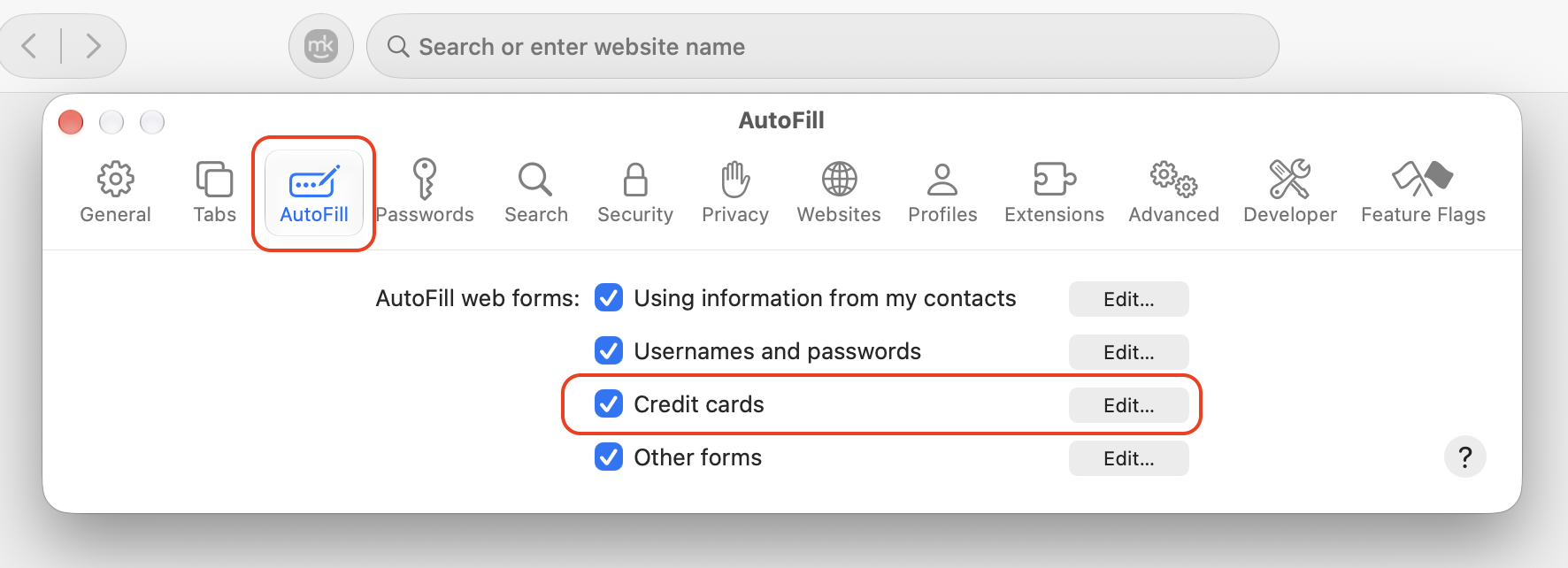
Open Safari, then go to Settings and click AutoFill.
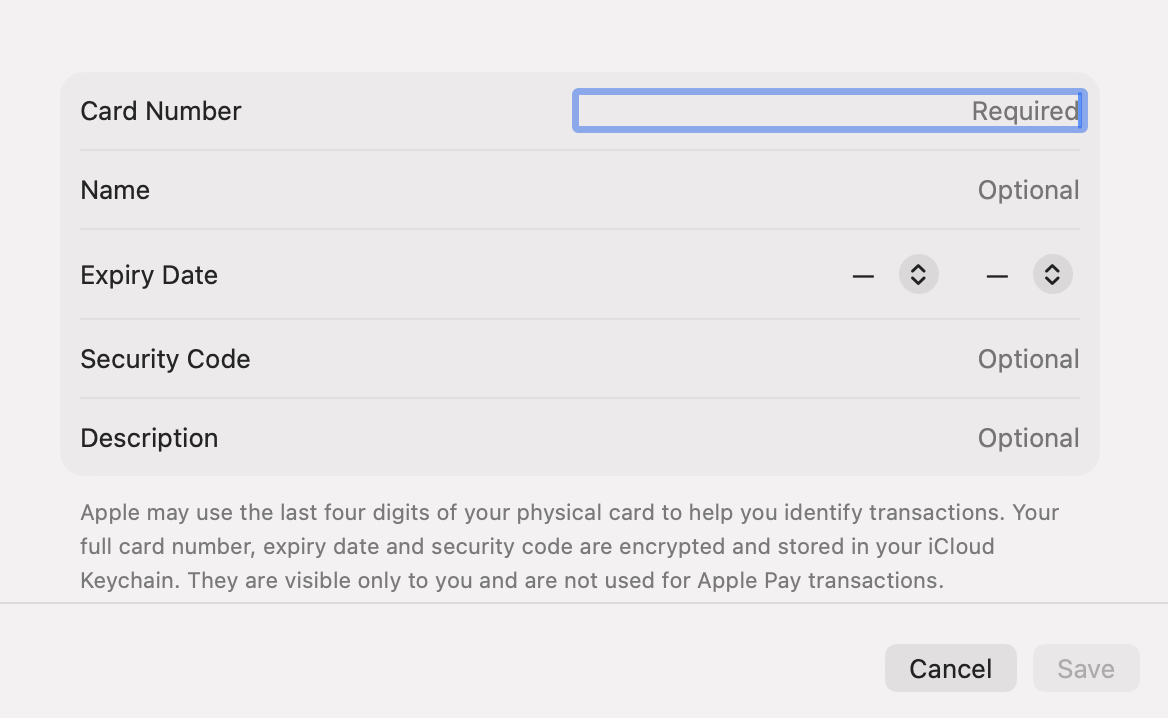
Select Credit Cards, then click Edit.
Enter your card number, expiration date, and name.
At checkout on a supported site, select the saved card to fill it in automatically.
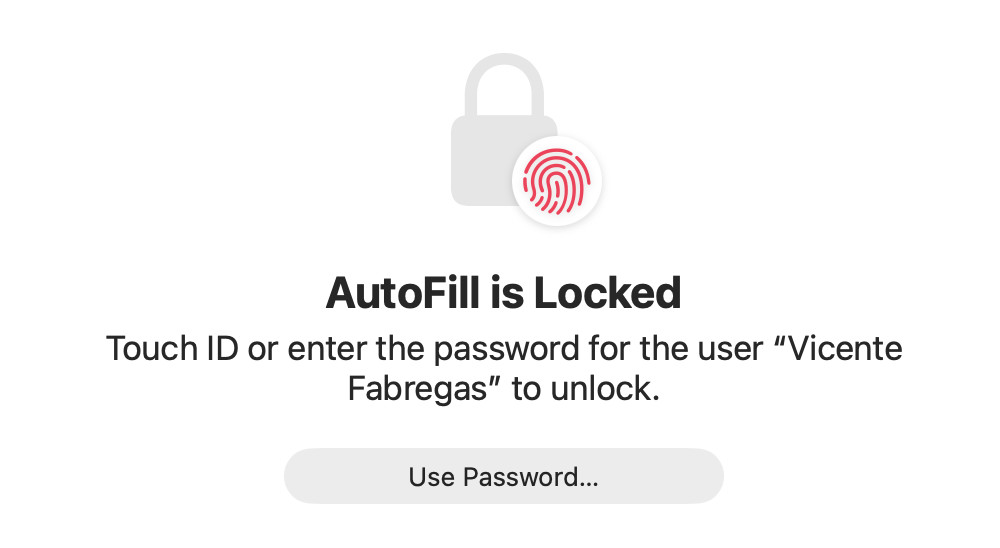
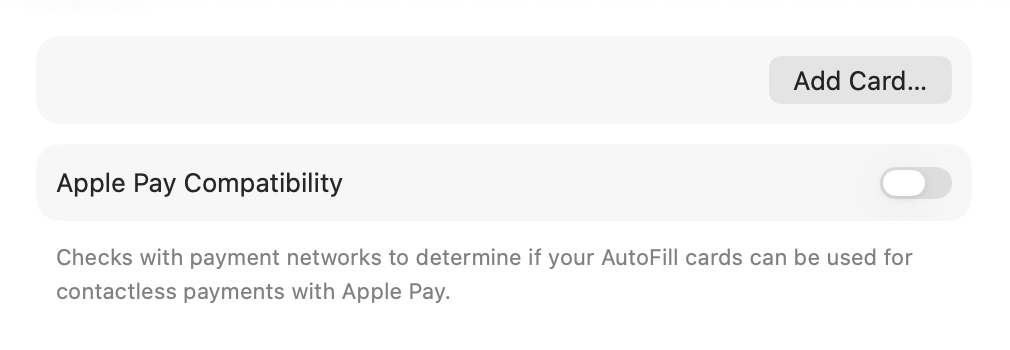
Step 1. Go to Safari Preferences > SettingsStep 2. Select AutoFill > Credit Cards > EditStep 3. Unlock the Apple Wallet with the admin passwordStep 4. Add Card…Step 5. Enter your card number, expiration date, and name
A hint from our team: Your card’s security code is never stored, so you’ll enter it yourself each time—one more way your details stay safe.
Share passwords securely
Shared groups let us hand a login to family or other trusted people without ever reading it aloud. We think they’re handy for a family streaming account or shared Wi-Fi, and you stay in control of exactly what’s included. Everyone in the group sees the latest version, and you stay in control of what’s included.
Sharing with your Family group? Set one up like this:
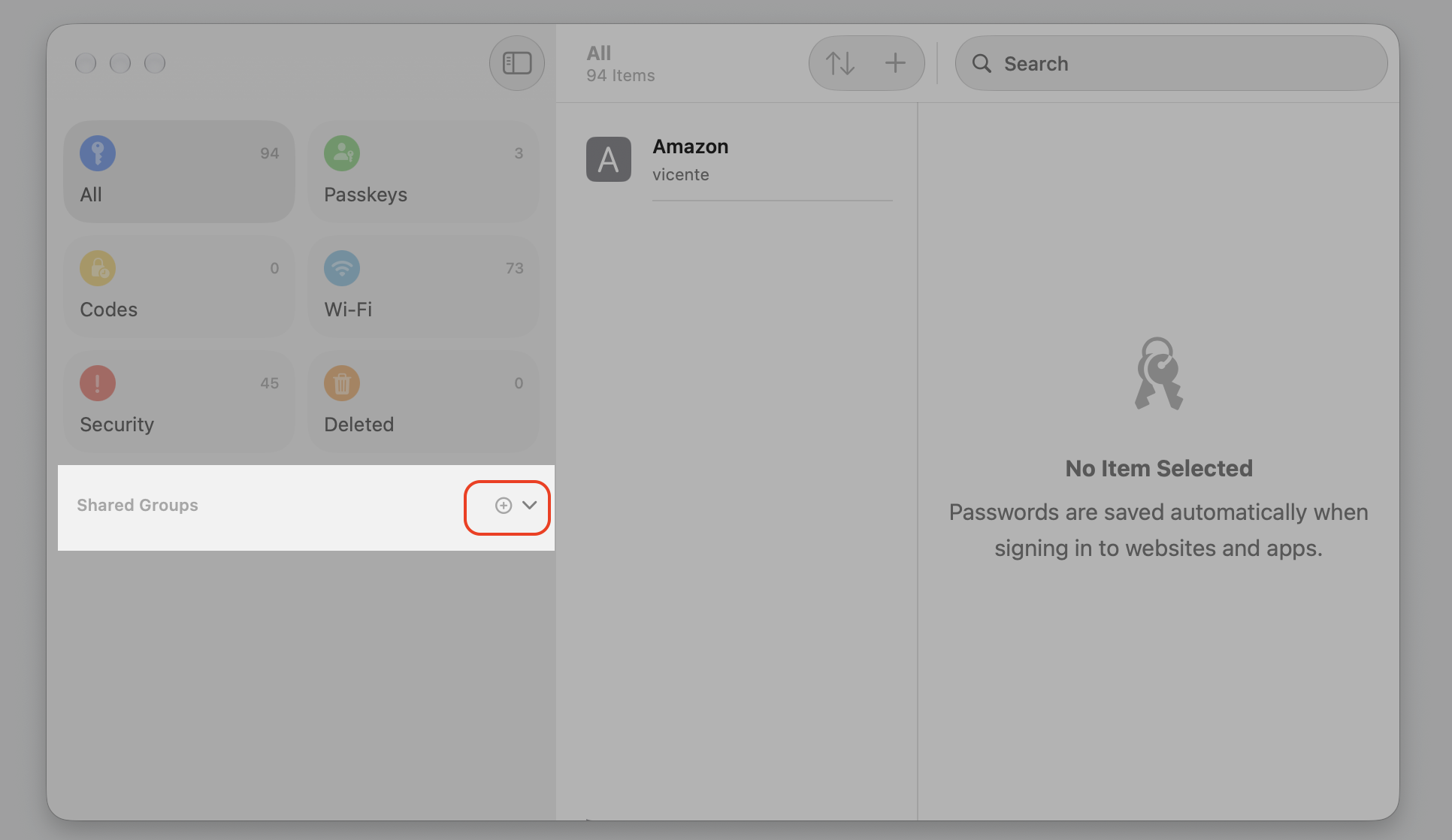
Open the Passwords app and click New Shared Group (the + in the sidebar).
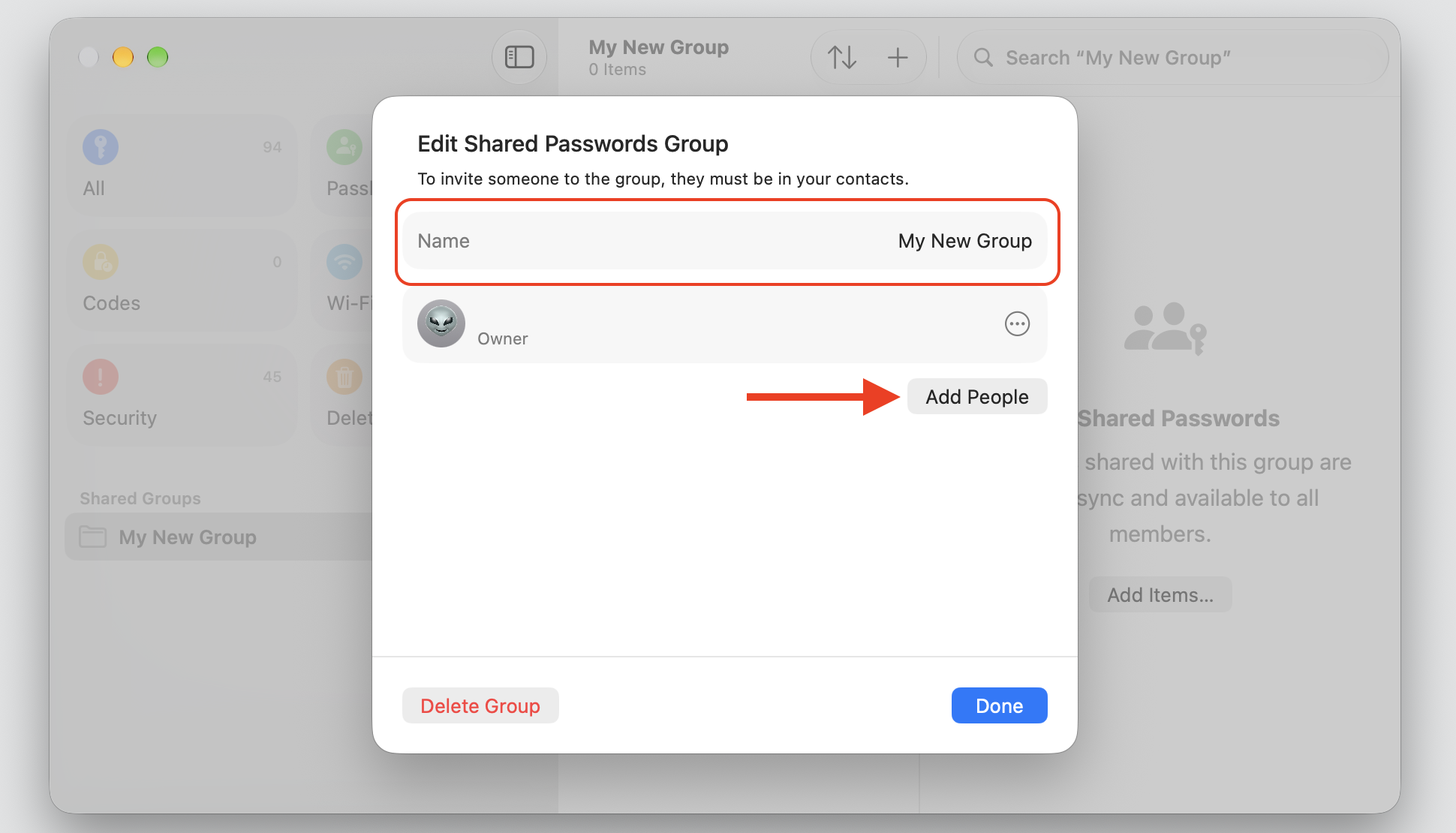
Name the group and add people from your contacts.
Choose which logins to move into the group.
Send the invite—everyone you add can view and use those passwords.
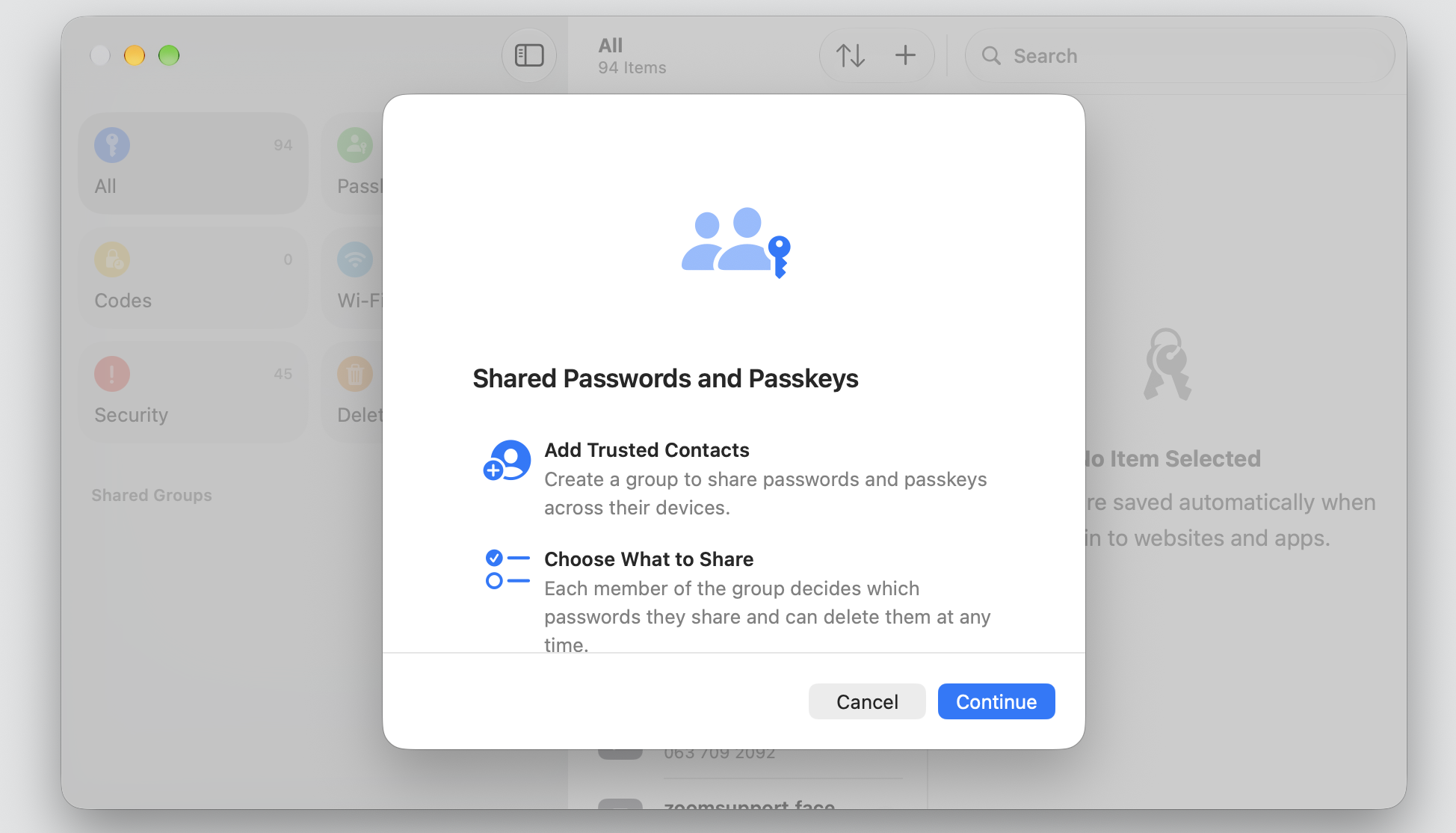
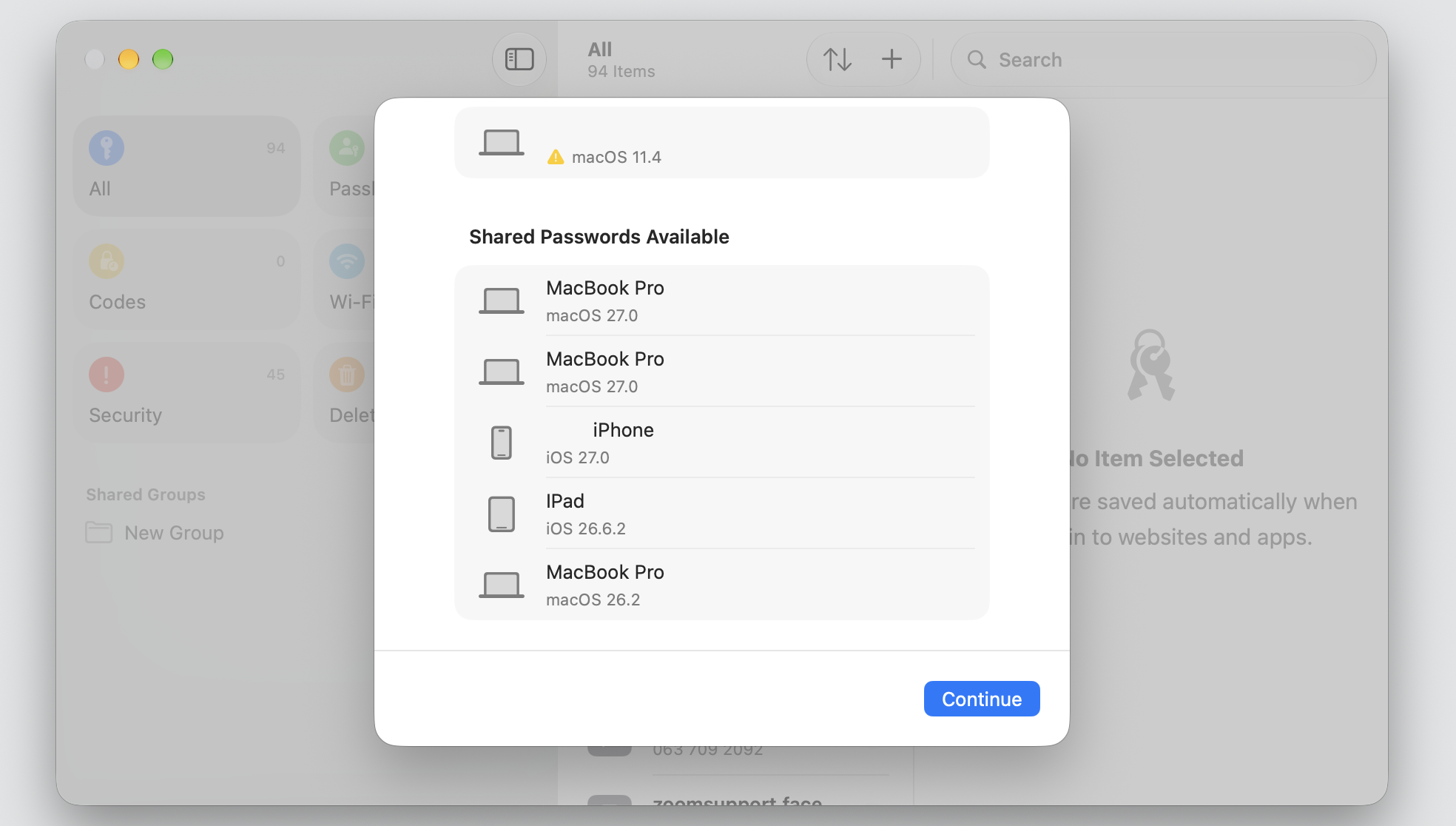
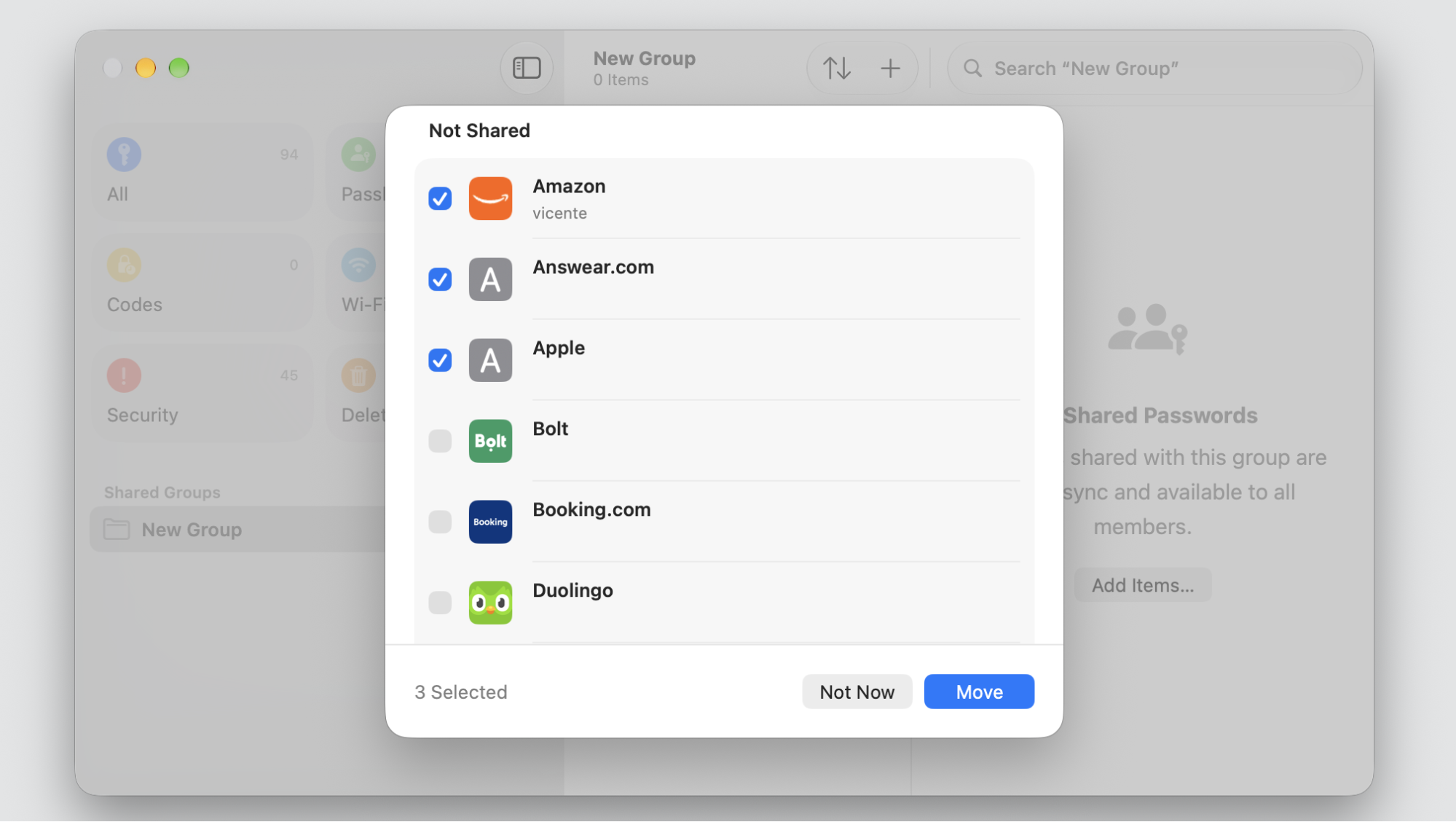
Step 1. Open the Passwords app, go to Shared Groups, and click the plus (+) button in the sidebarStep 2. Press Continue to proceedStep 3. Name the Group and Add PeopleStep 4. Review the list of devices and click ContinueStep 5. Select the Item would you like to share and press Move to the list
Check weak, reused, or compromised passwords
iCloud Keychain quietly checks our logins against known leaks and points out the ones worth changing. A quick review here lowers the chance of account breaches down the line. In our opinion, coming back to this list every so often keeps your most-used logins fresh and your accounts safer.
Reviewing Apple’s security tips takes about a minute:
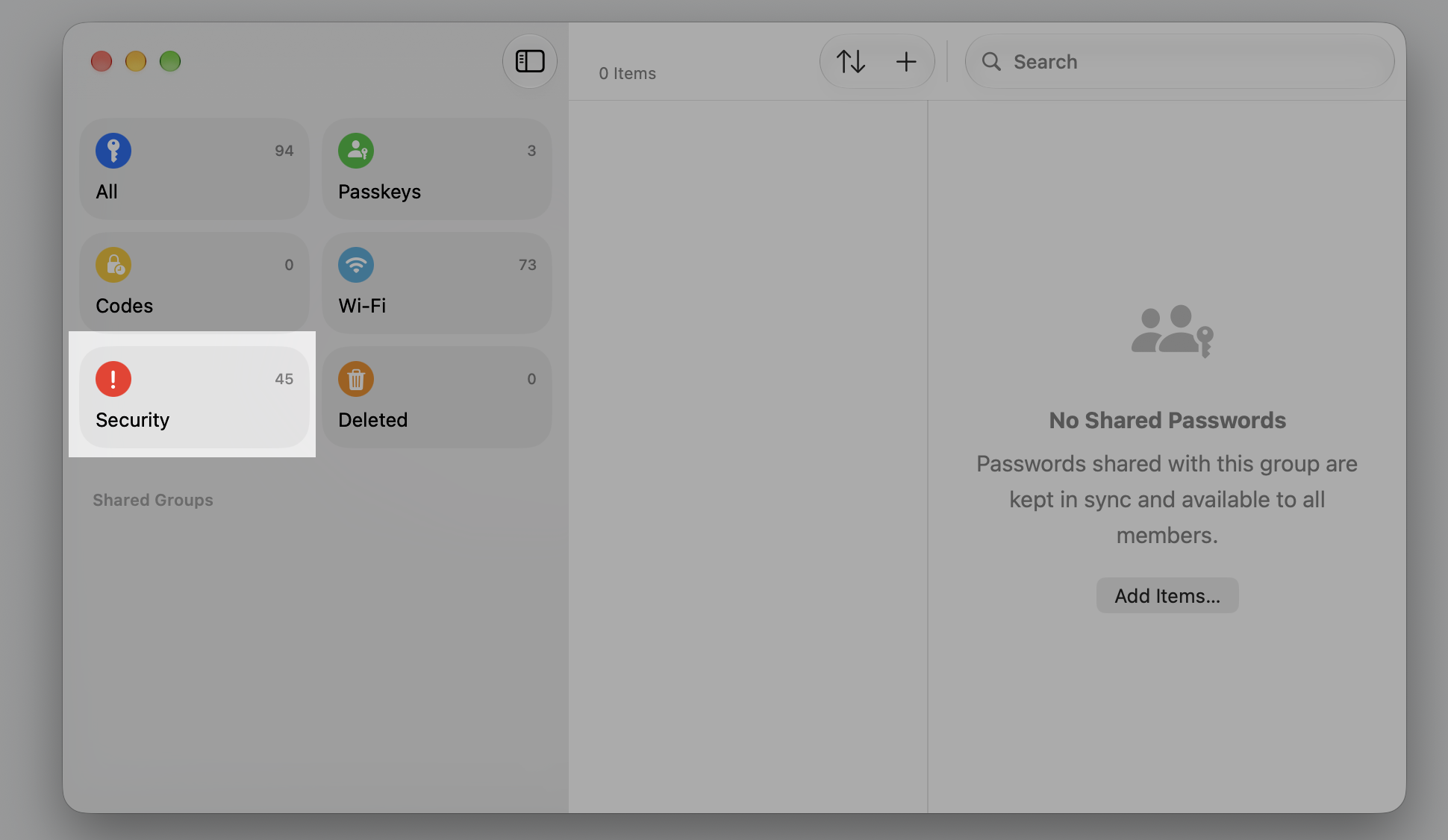
Open the Passwords app and select Security in the sidebar.
Look through the flagged logins for weak, reused, or leaked items.
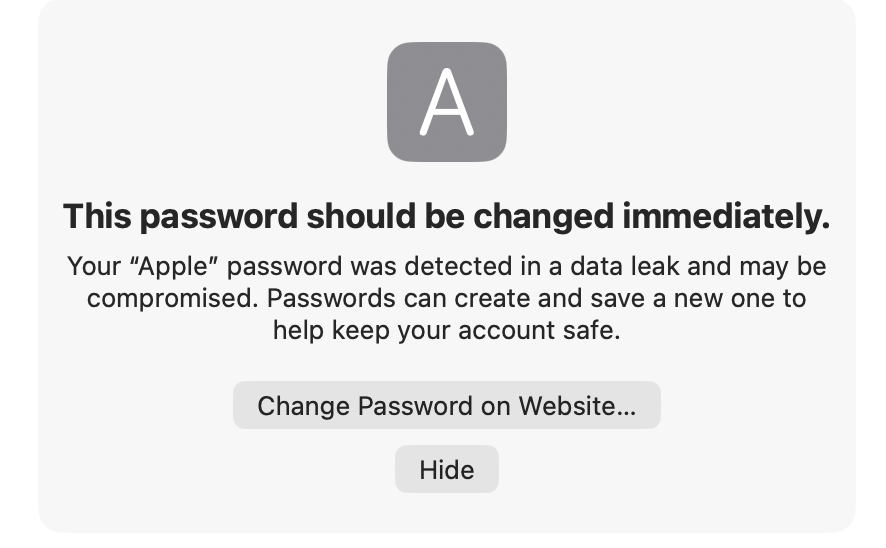
Click an entry, then choose Change Password on Website.
Create a strong, unique password and let iCloud Keychain save it.
Step 1. Go to Passwords app and select Security in the sidebarStep 2. If your password has been compromised, click Change Password on Website
Conclusion
iCloud Keychain gives you a simple, secure way to store and sync your passwords, passkeys, and payment details across every Apple device. It encrypts each individual login, keeps them current on approved devices, and flags any that put you at risk.
Still, no built-in tool can watch the whole web for you. If your details leak in a breach, you’ll want to know right away. That’s where MacKeeper’s ID Theft Guard helps—it monitors data breaches around the clock and alerts you the moment your email, passwords, or card credentials appear somewhere they shouldn’t. Pair it with iCloud Keychain to keep your personal information safe. Download MacKeeper today and take control of your digital security.
We respect your privacy and
use cookies
for the best site experience.
Privacy Preferences Center
We use cookies along with other tools to give you the best possible experience while using the
MacKeeper website. Cookies are small text files that help the website load faster. The cookies we
use don’t contain any type of personal data meaning they never store information such as your
location, email address, or IP address.
Help us improve how you interact with our website by accepting the use of cookies. You can change
your privacy settings whenever you like.
Manage consent
All cookies
These cookies are strictly necessary for enabling basic website functionality (including page
navigation, form submission, language detection, post commenting), downloading and purchasing
software. The website might malfunction without these cookies.