Not sure where to change a setting on your Mac? You’re not alone. To open System Settings on Mac and keep things tidy, MacKeeper’s Safe Cleanup clears junk files and frees up space in one click—without touching your personal files. It’s a simple way to keep your Mac clean and clutter-free.
System Settings is the control panel of your Mac. It’s the one app where you manage system-wide options—things like Wi-Fi, display brightness, sound, accounts, and privacy. These settings shape the whole computer, not just a single app.
That’s different from the preferences inside individual apps. When you change the font in Pages or the default zoom in Safari, you’re only adjusting that one app. System Settings, on the other hand, controls how the entire Mac behaves.
We’d like to remind you that the options can differ by Mac model, macOS version, connected accessories, and installed apps.
A note from our experts:
No matter which Apple laptop model you use regularly, cleaning your computer space is a must to maintain smooth performance and extend your machine's lifespan. That’s why using MacKeeper’s Safe Cleanup is one of the basic steps we recommend for Mac newbies, as it’s no less important than understanding how to use your Apple System Settings.
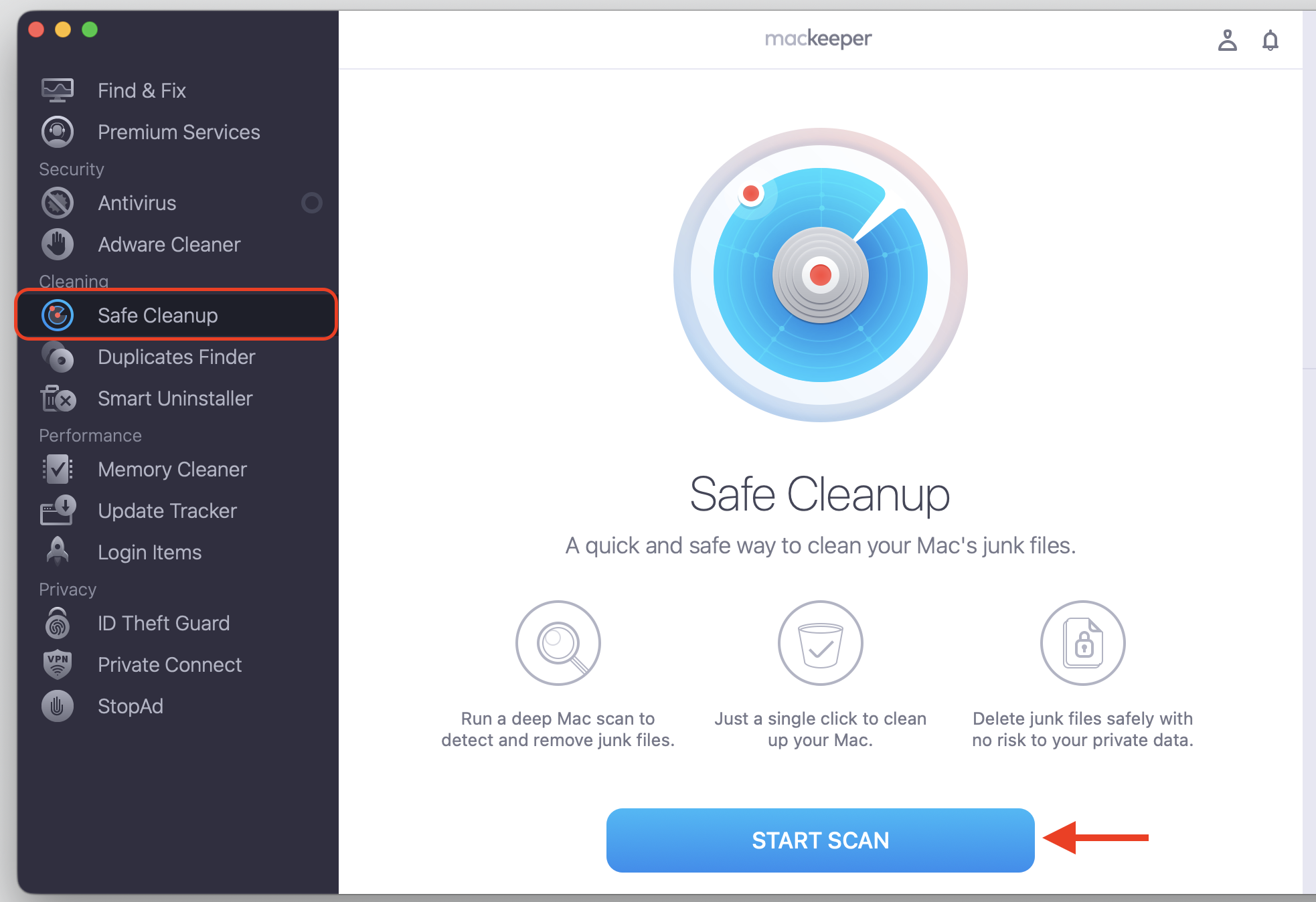
Select Safe Cleanup, then click the Start Scan button.
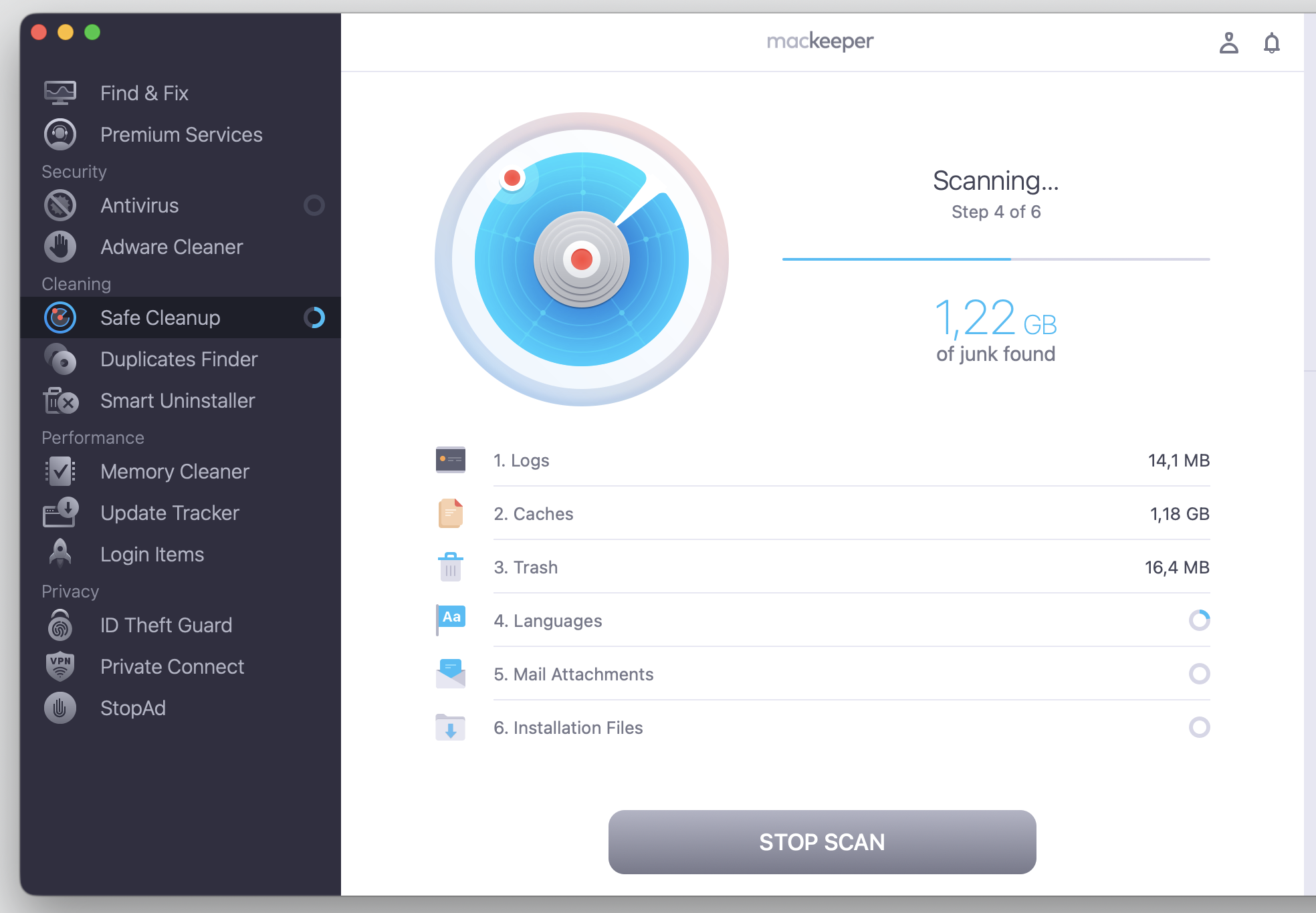
See the scan results.
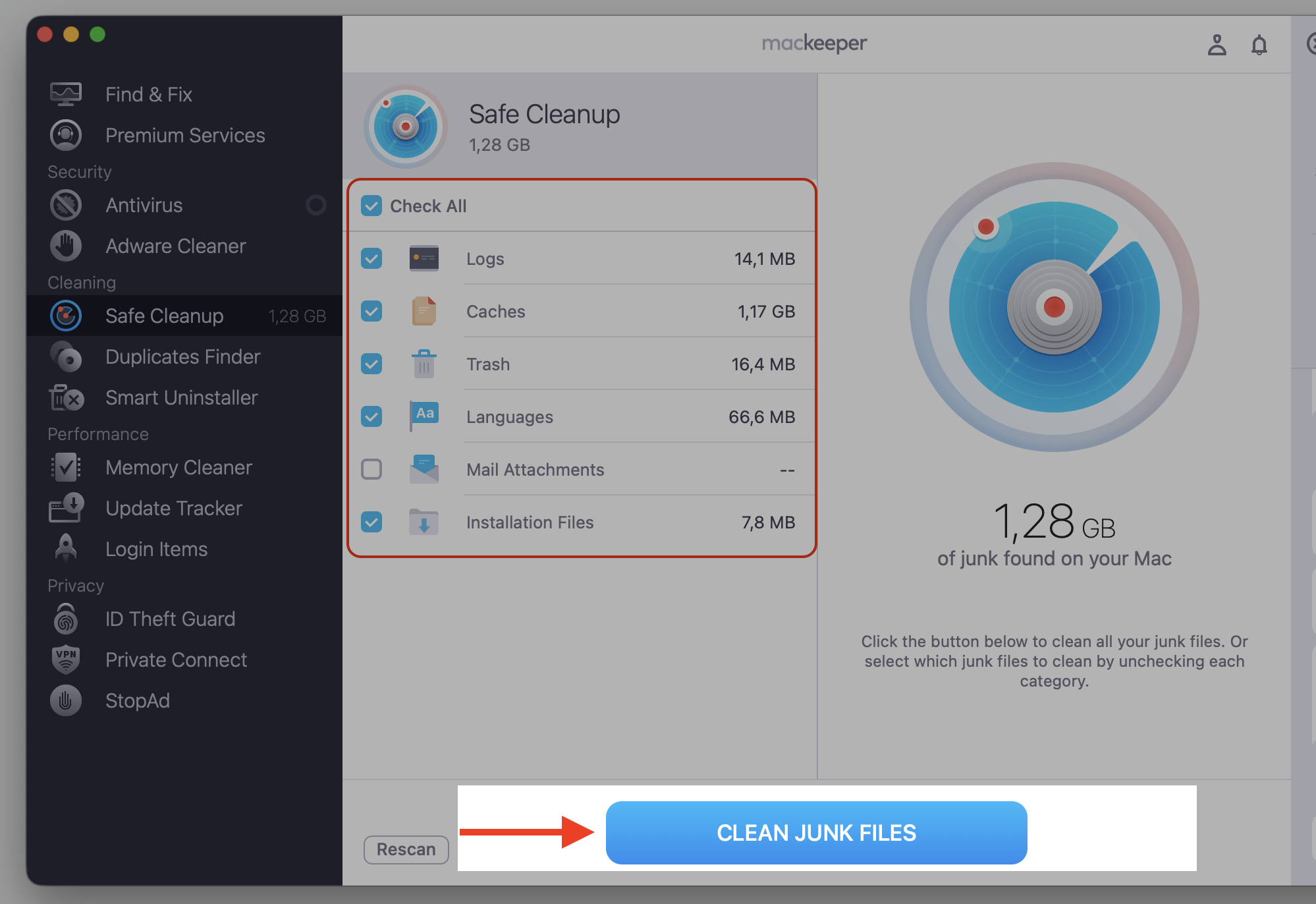
Pick the necessary boxes on the left, and choose Clean Junk Files.
Step 1. Go to MacKeeper > Safe Cleanup and Start ScanStep 2. Wait until the scan is finishedStep 3. Check all setup and proceed with Clean Junk Files
System Settings vs System Preferences
If you’ve used a Mac for a while, you’ll remember how you used to get to System Preferences on Mac. That was the name Apple used in macOS Monterey and earlier. Starting with macOS Ventura, Apple renamed it to System Settings and gave it a fresh look.
The layout changed too—the old grid of icons became a scrolling sidebar, similar to the Settings app on iPhone or iPad. Both names point to the same place, so don’t worry if a tutorial still says System Preferences.
Where is System Settings on Mac?
There are several ways to open the app—pick whichever feels natural:
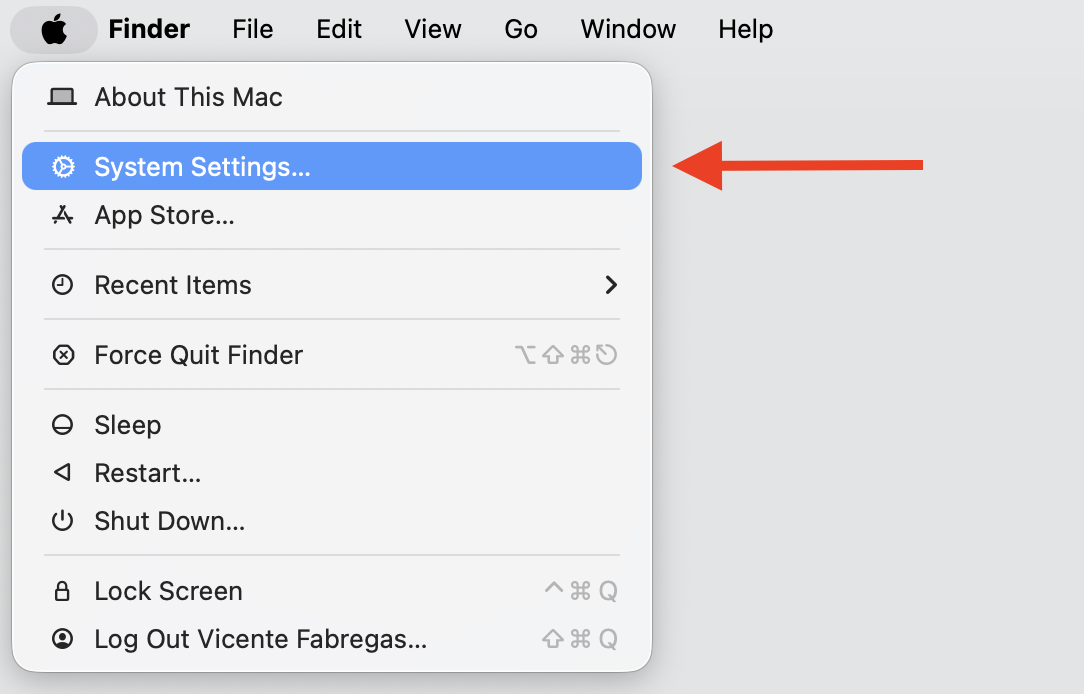
The Apple menu on Mac—click the Apple logo in the top-left corner, then choose System Settings. It’s a reliable route.
The Dock—look for the gray gear icon and give it a click.
Spotlight—press Command-Space, type System Settings, and press Return.
Finder—open a window, then find System Settings in the Applications folder.
Any of these lets you access System Settings on Mac in a couple of seconds.
How to navigate System Settings?
Once it’s open, System Settings is simple to move around. On the left, a scrollable sidebar lists categories like Wi-Fi, Notifications, and Privacy & Security. Click any category and its controls appear on the right, where you’ll find toggles, drop-down menus, and buttons that open subpages for advanced choices.
Some changes are protected. If you adjust security options or add a user, macOS may ask for Touch ID or an administrator password. That’s normal—it keeps the wrong person from changing settings that matter.
How to search for setting?
We’ve all forgotten which category holds a setting. When that happens, we reach for the search field at the top of the sidebar. Type a keyword—say, “brightness” or “keyboard”—and the Mac settings menu quickly filters to the matching controls.
This is handy when you want to check System Settings on Mac but don’t know the exact category. The search saves you from clicking through every section of your Mac desktop settings.
How to use System Settings on Mac?
System Settings groups everything into categories, and each one controls a different part of your Mac. On the rare occasion the panel stops responding, our tips for a Mac System Settings frozen screen can help you get moving again. Let’s walk through the main categories below together, so you’ll always know where your setting lives.
Apple Account and iCloud settings
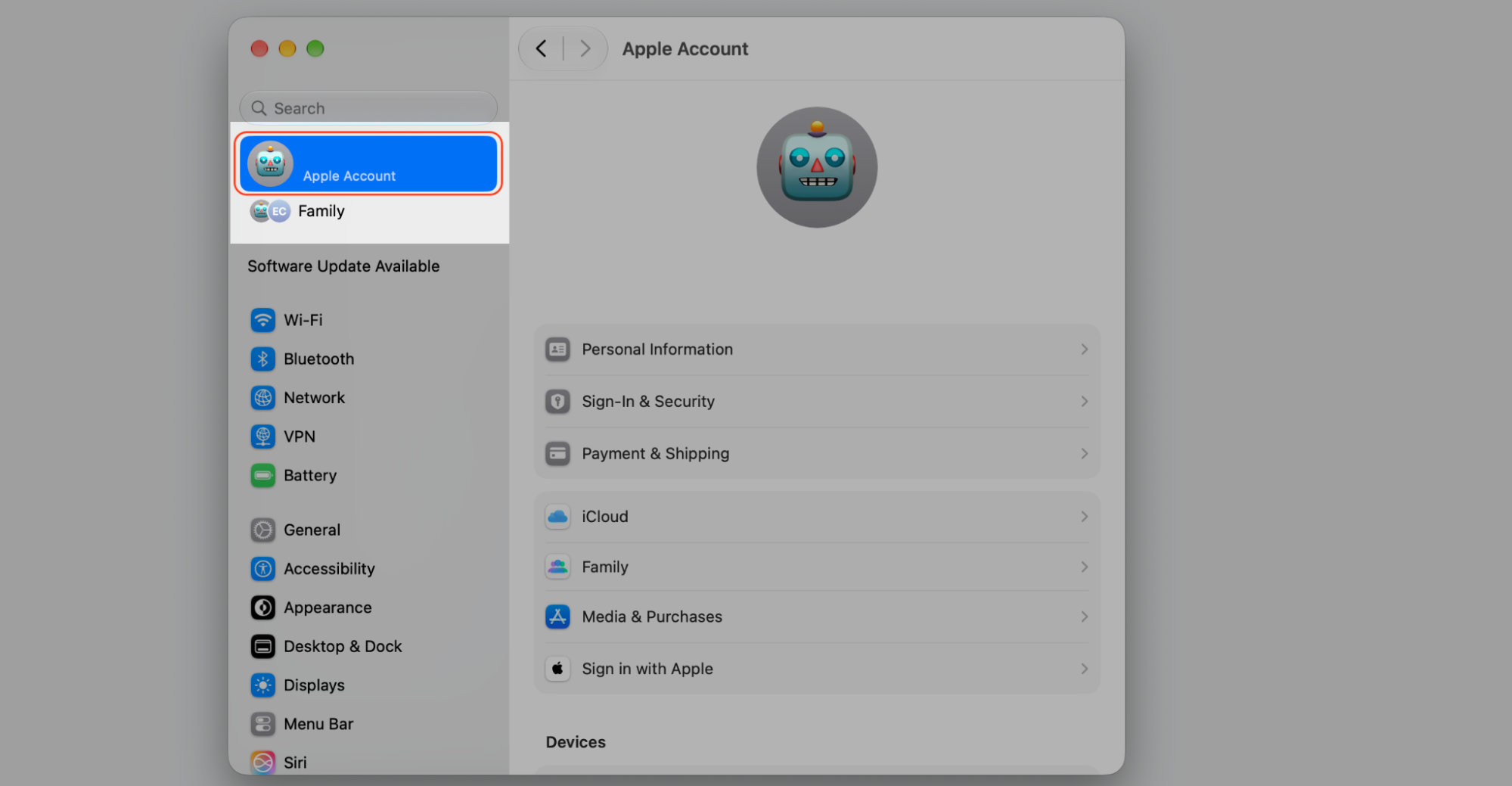
At the top of the sidebar sits your Apple Account. This section manages your personal info, connected devices, iCloud services, subscriptions, Family Sharing, and payments across your Apple devices. It’s also where you change Apple ID on Mac when you switch to a new account.
Here’s how to reach it:
Open System Settings from the Apple menu.
Click your name at the top of the sidebar.
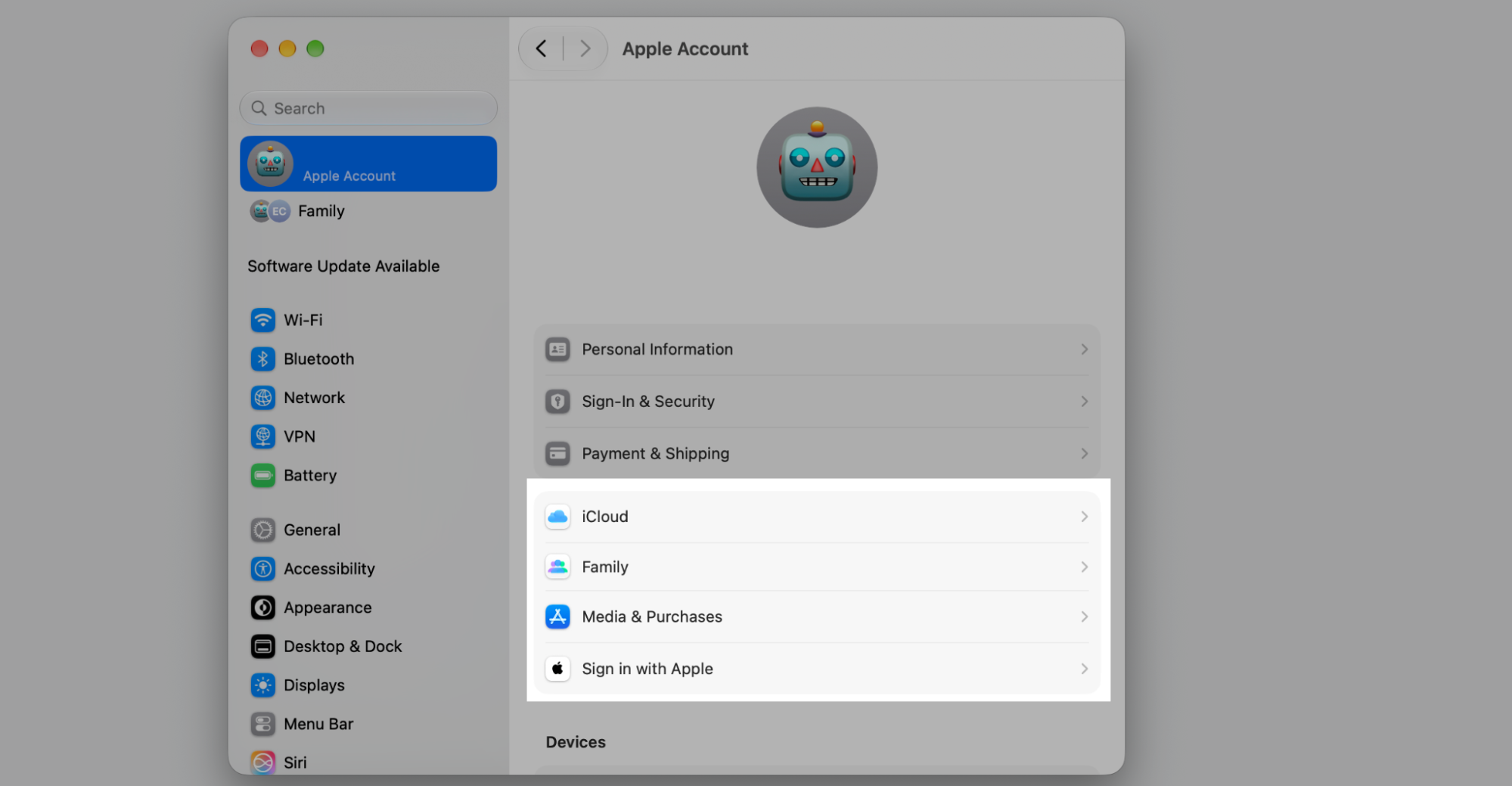
Select a service, such as iCloud or Media & Purchases, to manage it.
Step 1. Go to Apple Logo > System SettingsStep 2. Click your name at the top of the sidebarStep 3. Select a service, such as iCloud or Media & Purchases, to manage it
General settings
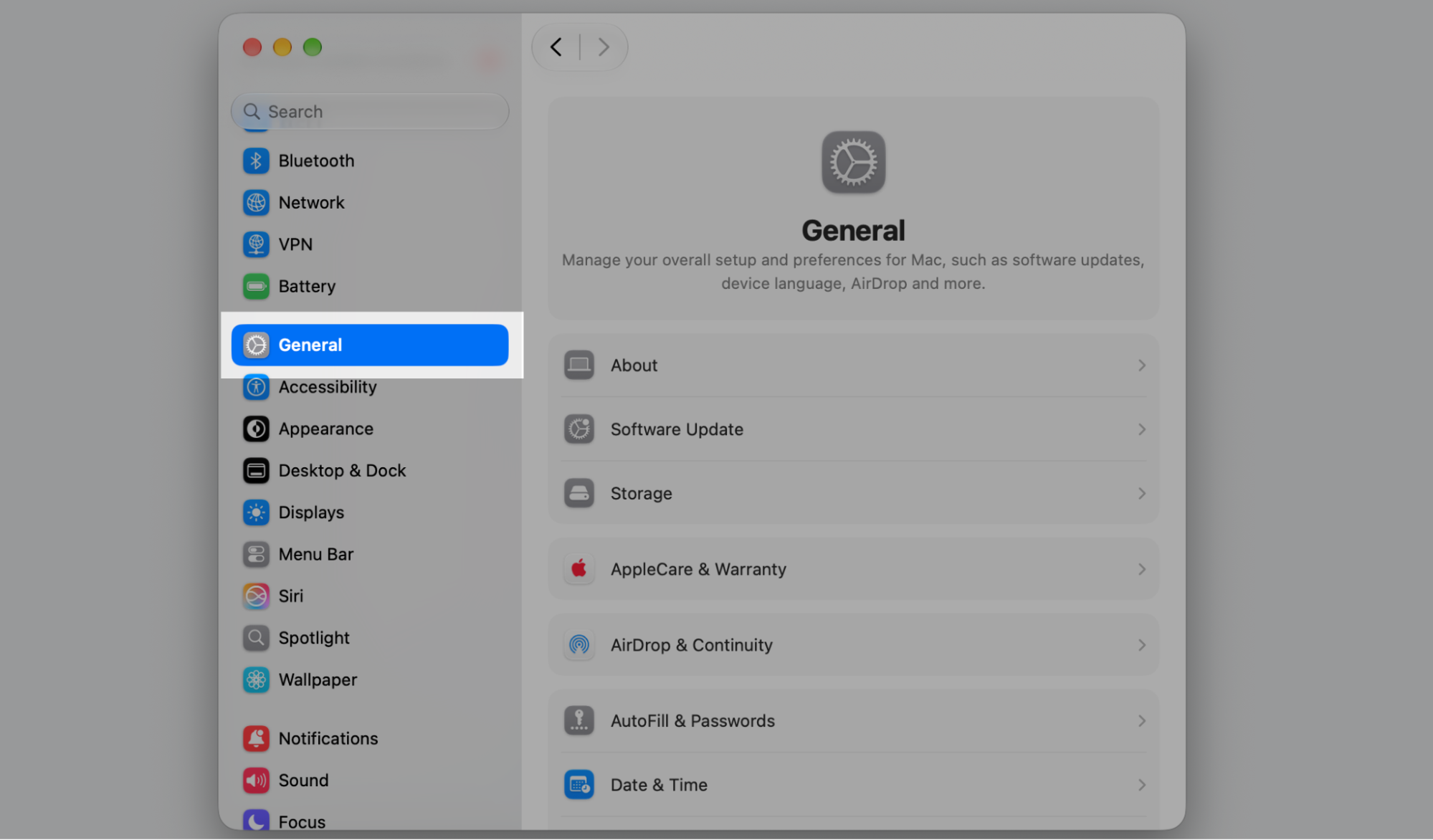
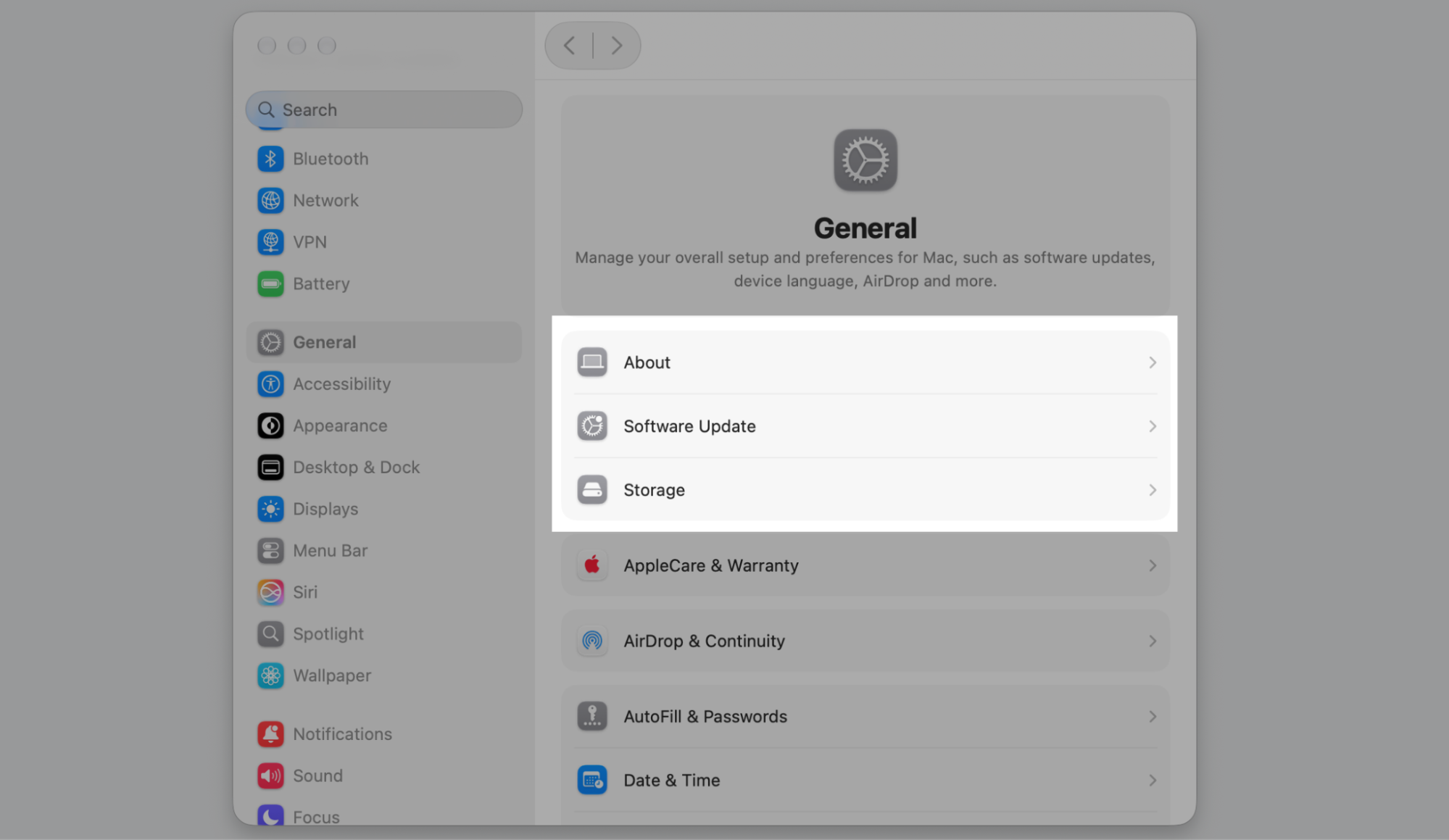
The General section holds broad system-management options—details about your Mac, software updates, storage, login items, sharing, Time Machine, and startup or reset controls. We consider it a good place to see how much storage on Mac you’ve left.
Here’s how we get there:
Click General in the sidebar.
Choose a subpage, like Storage or Software Update.
Adjust the options you need on the right.
Step 1. Go to General tabStep 2. Adjust the options you need
Wi-Fi, Bluetooth, and network settings
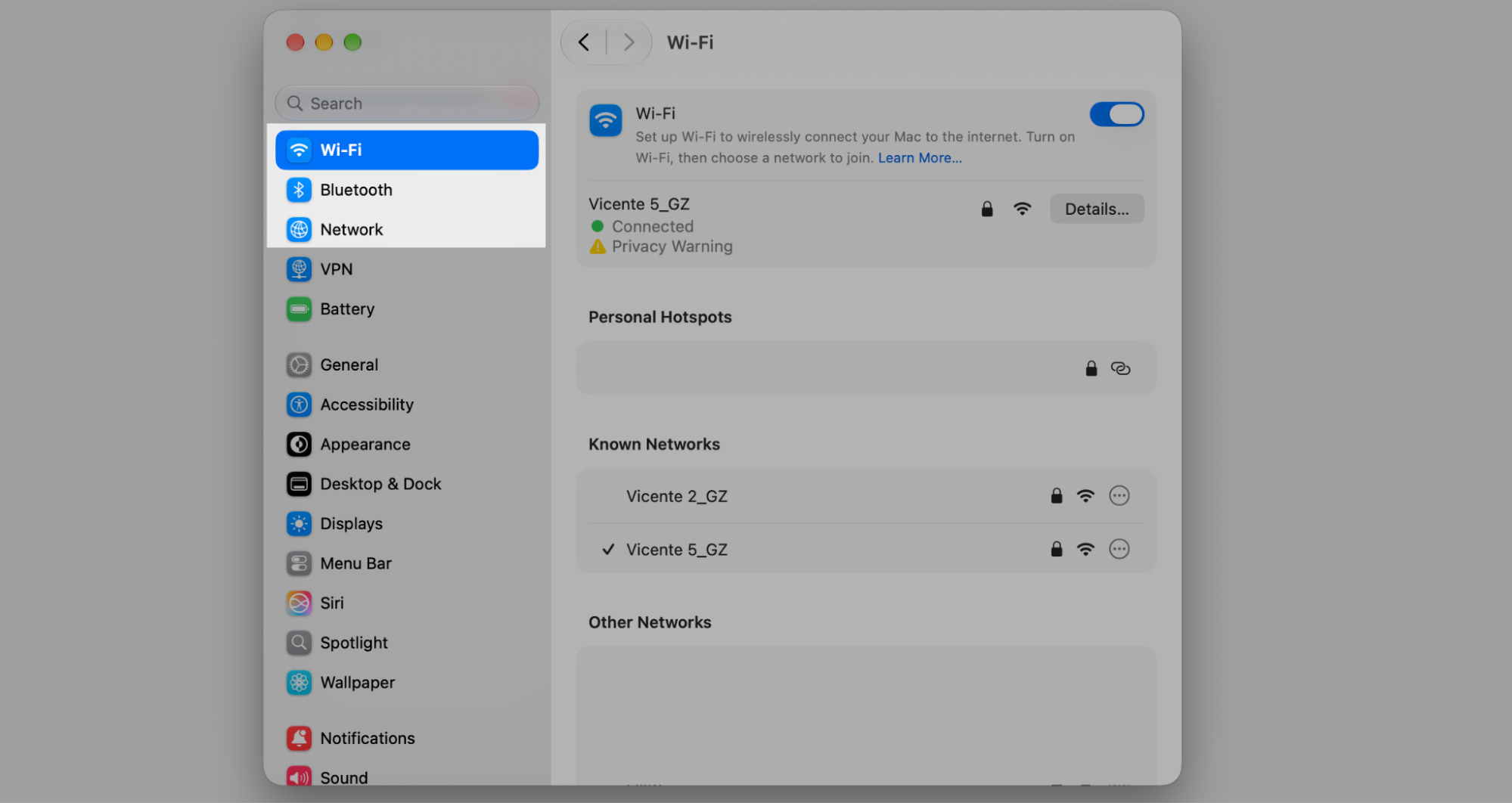
These categories manage how your Mac connects—join Wi-Fi networks, pair Bluetooth accessories, set up Ethernet, add a VPN, and turn on the firewall. If your connection acts up, you can reset network settings and start fresh.
Try this:
Select Wi-Fi or Bluetooth in the sidebar.
Pick a network or device to connect.
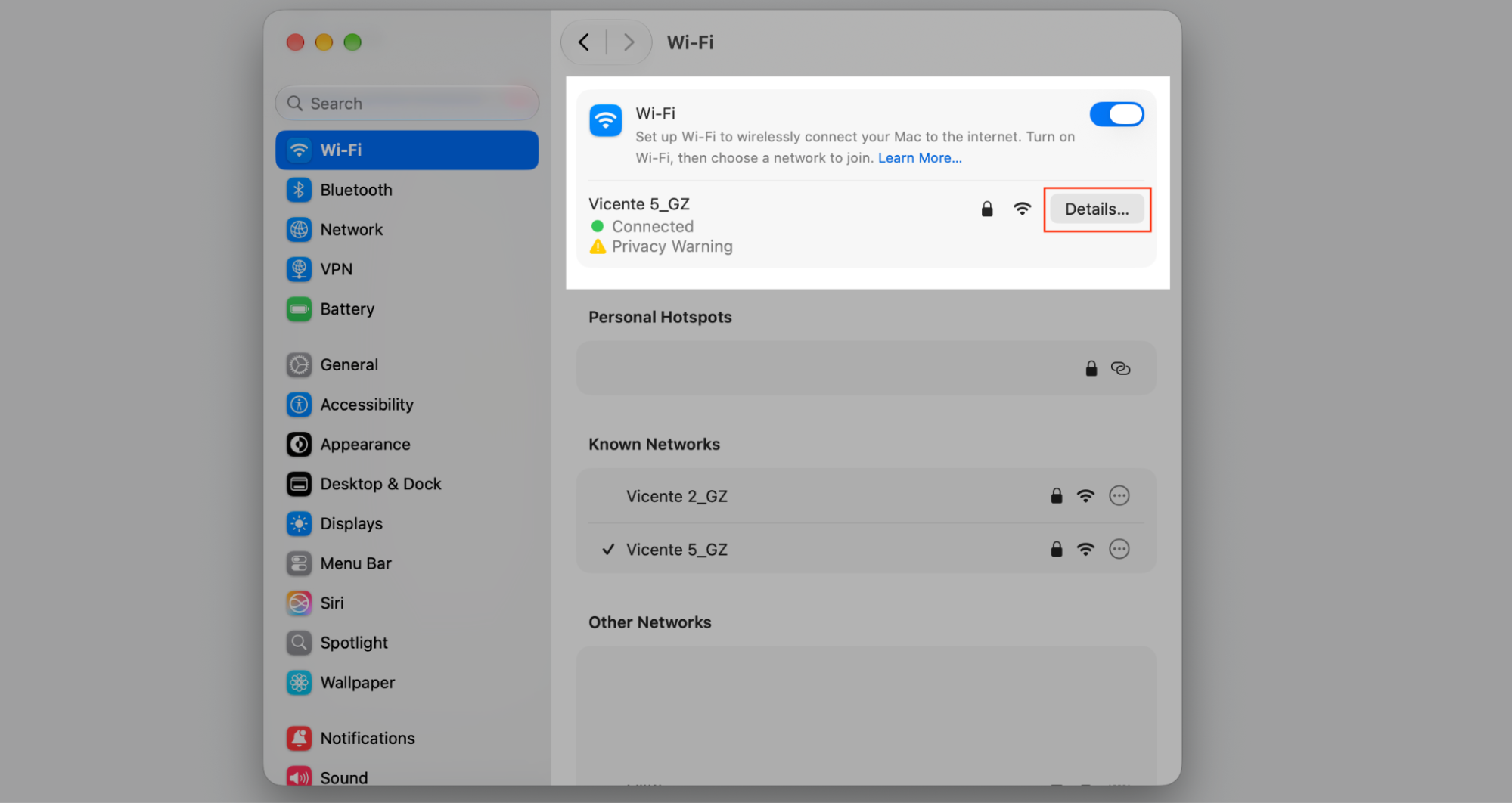
Click Details to open advanced options.
Step 1. Select the required categoryStep 2. Click Details to open advanced options
Appearance, wallpaper, and desktop settings
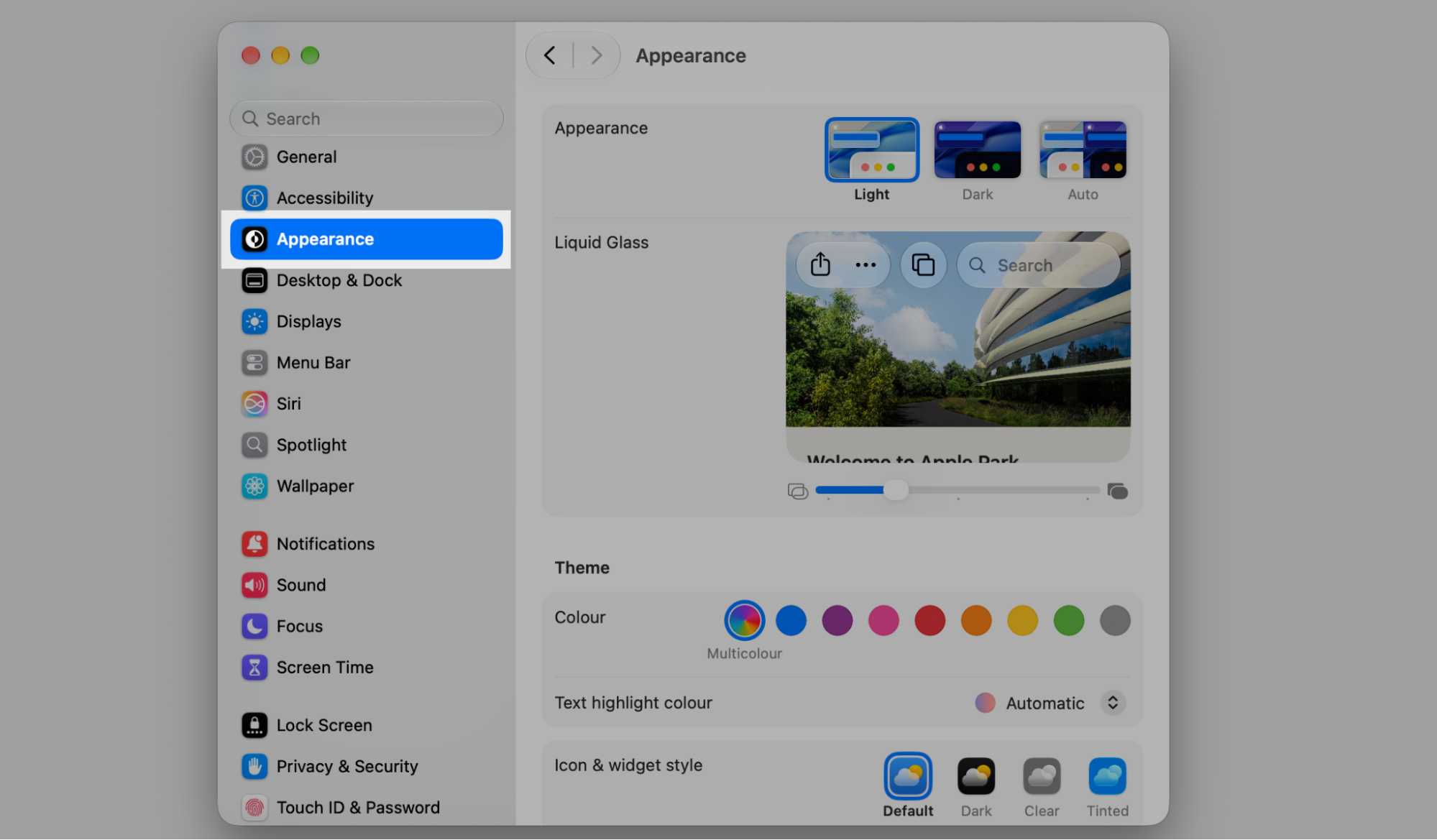
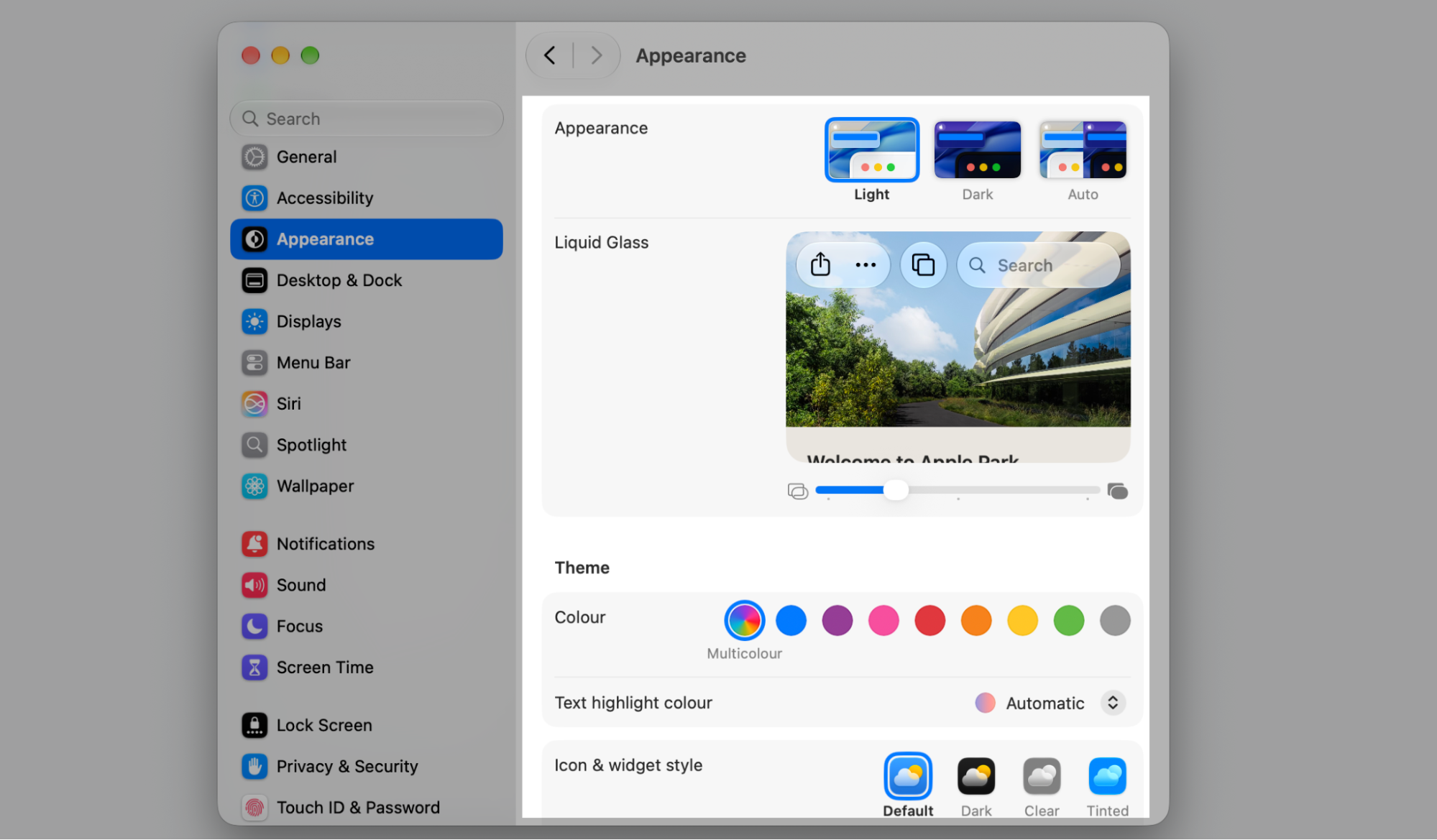
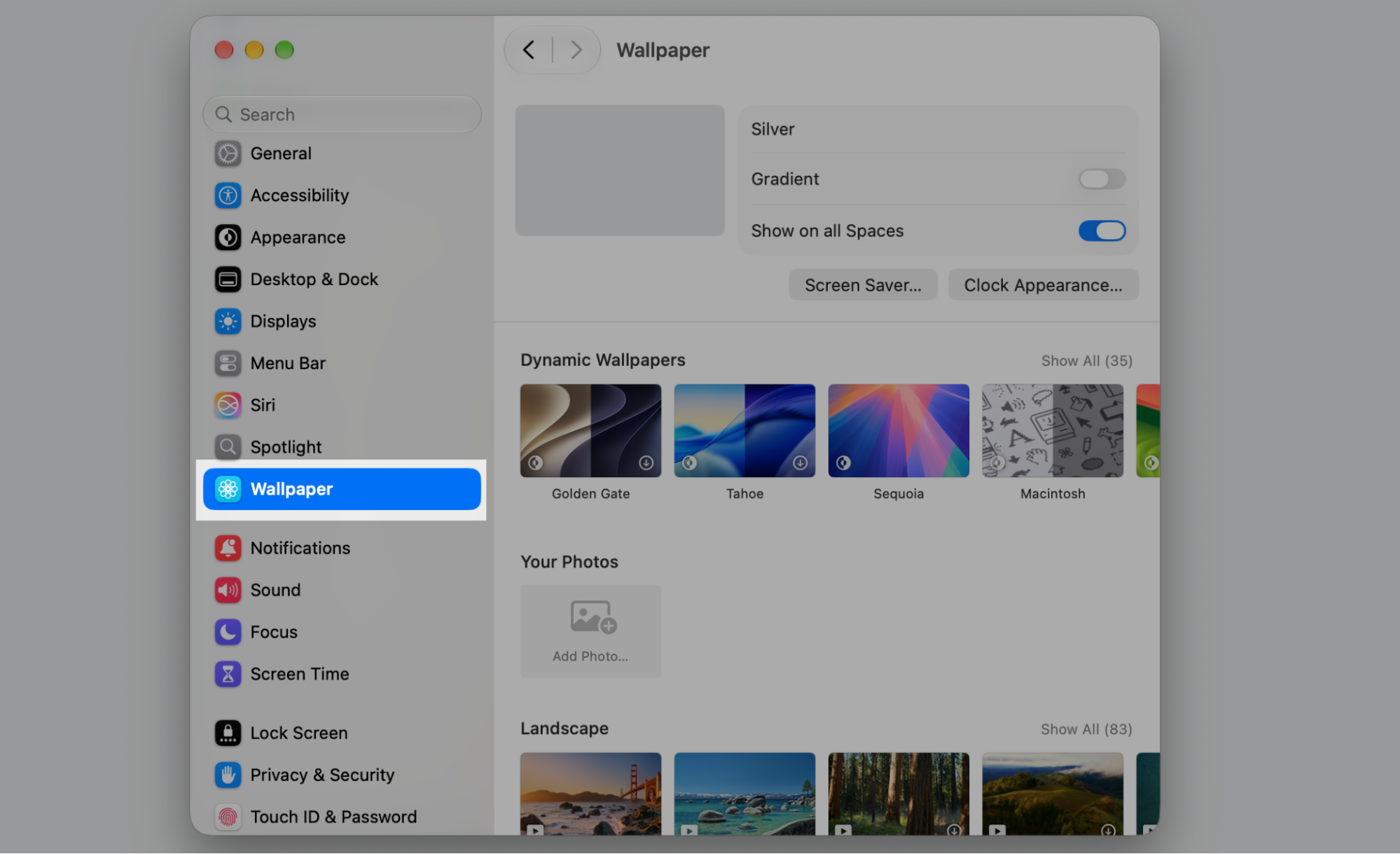
These settings control Light or Dark Mode, accent colors, wallpaper, screen savers, the Dock, and desktop items. You can even make lockscreen and homescreen different on Mac for a personal touch.
Let’s set it up:
Open Appearance or Wallpaper in the sidebar.
Choose your preferred style or image.
Watch the change apply right away.
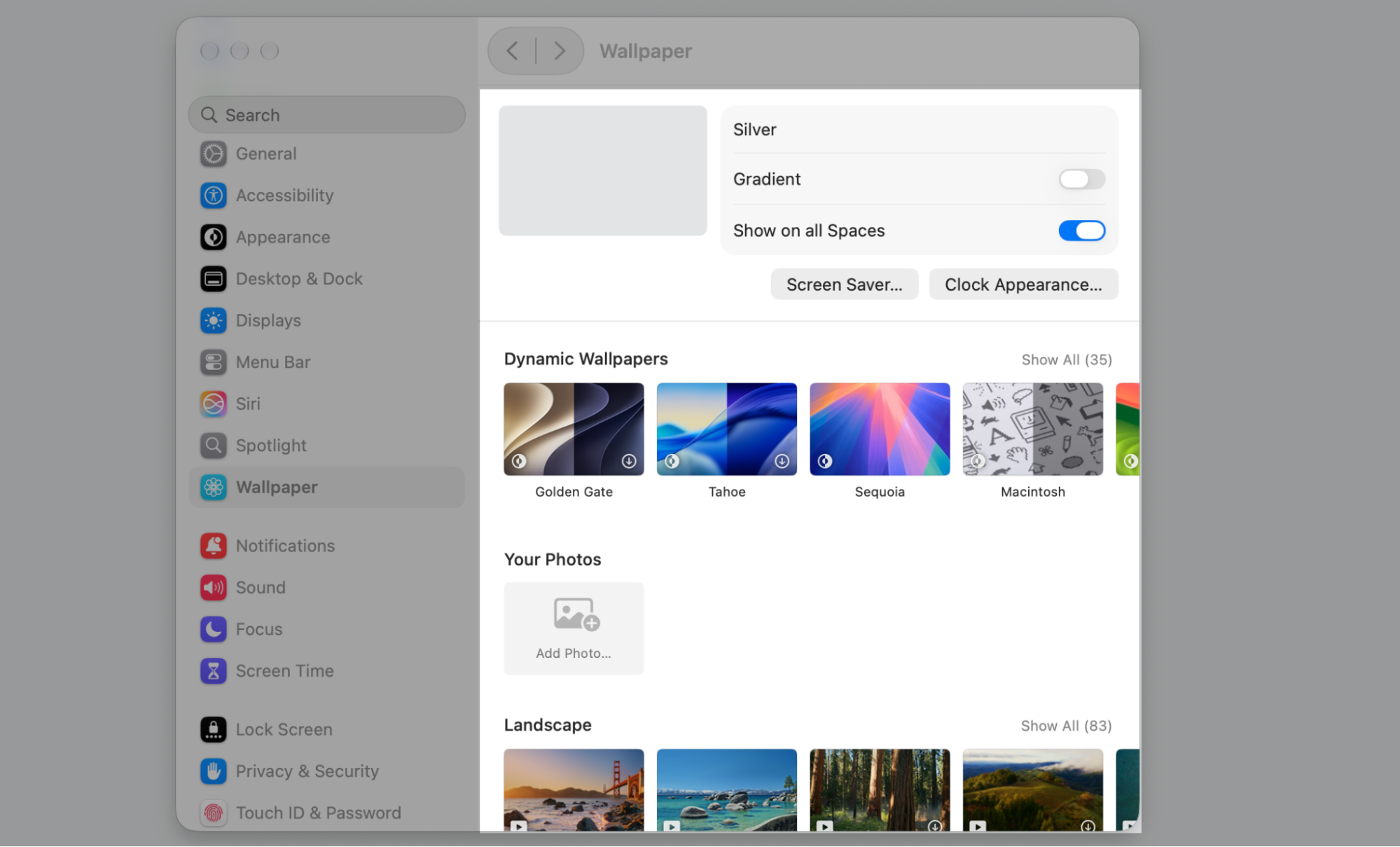
Step 1. Go to the Appearance sectionStep 2. Setup your preferred style viewStep 3. Go back to the Wallpaper sectionStep 4. Setup your personal Wallpaper or Screen Saver
Display and sound settings
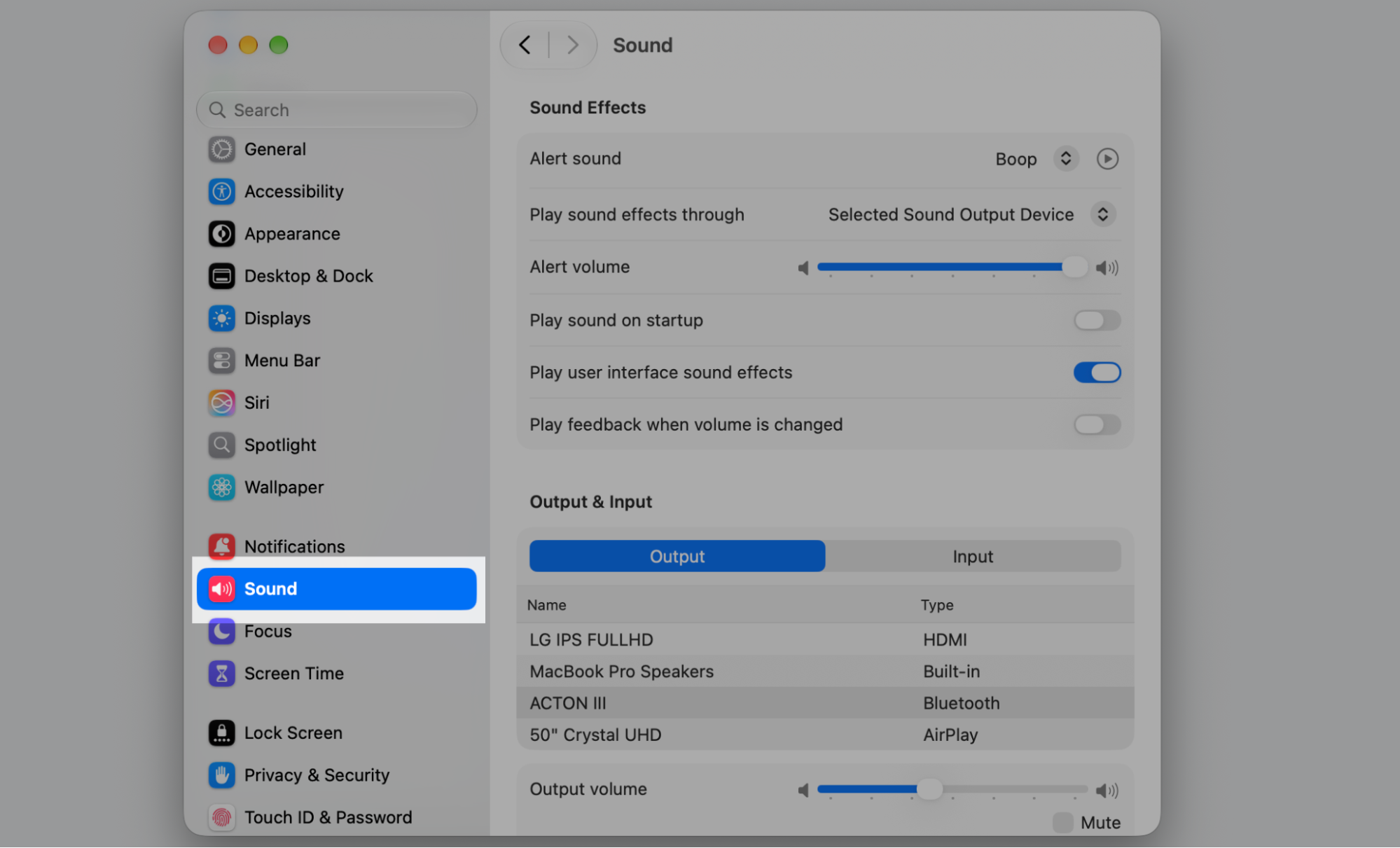
Here you fine-tune what you see and hear—brightness, resolution, Night Shift, audio input and output, volume, and system sounds. Connect a second monitor, and you can extend display on your Mac for more room to work.
Here’s the way:
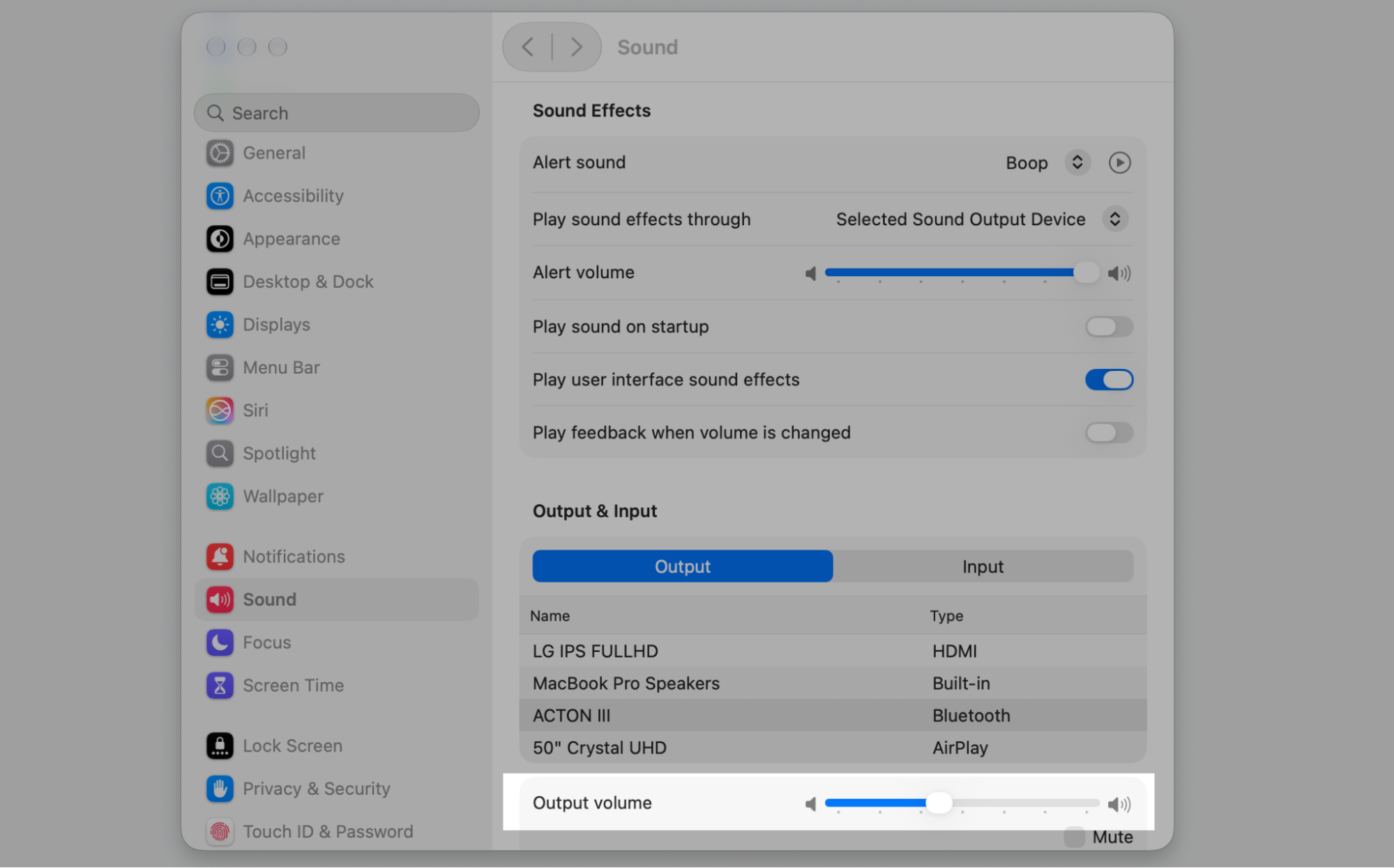
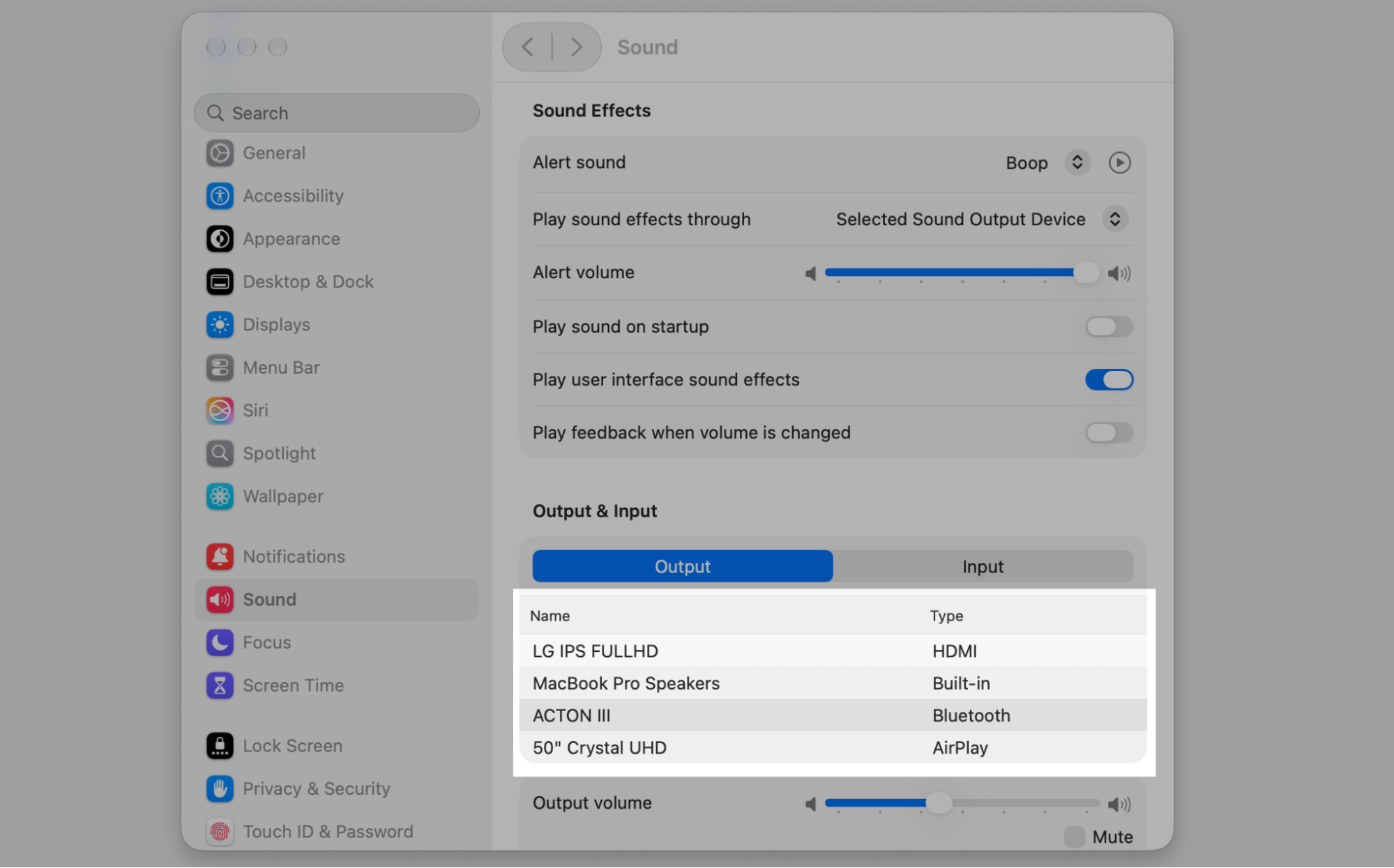
Click Displays or Sound in the sidebar.
Drag the sliders to set brightness or volume.
Select an external display or speaker if one’s connected.
Step 1. Go to the Sound section from the left sidebarStep 2. Setup the Output Volume through the sliderStep 3. Select the output speakers
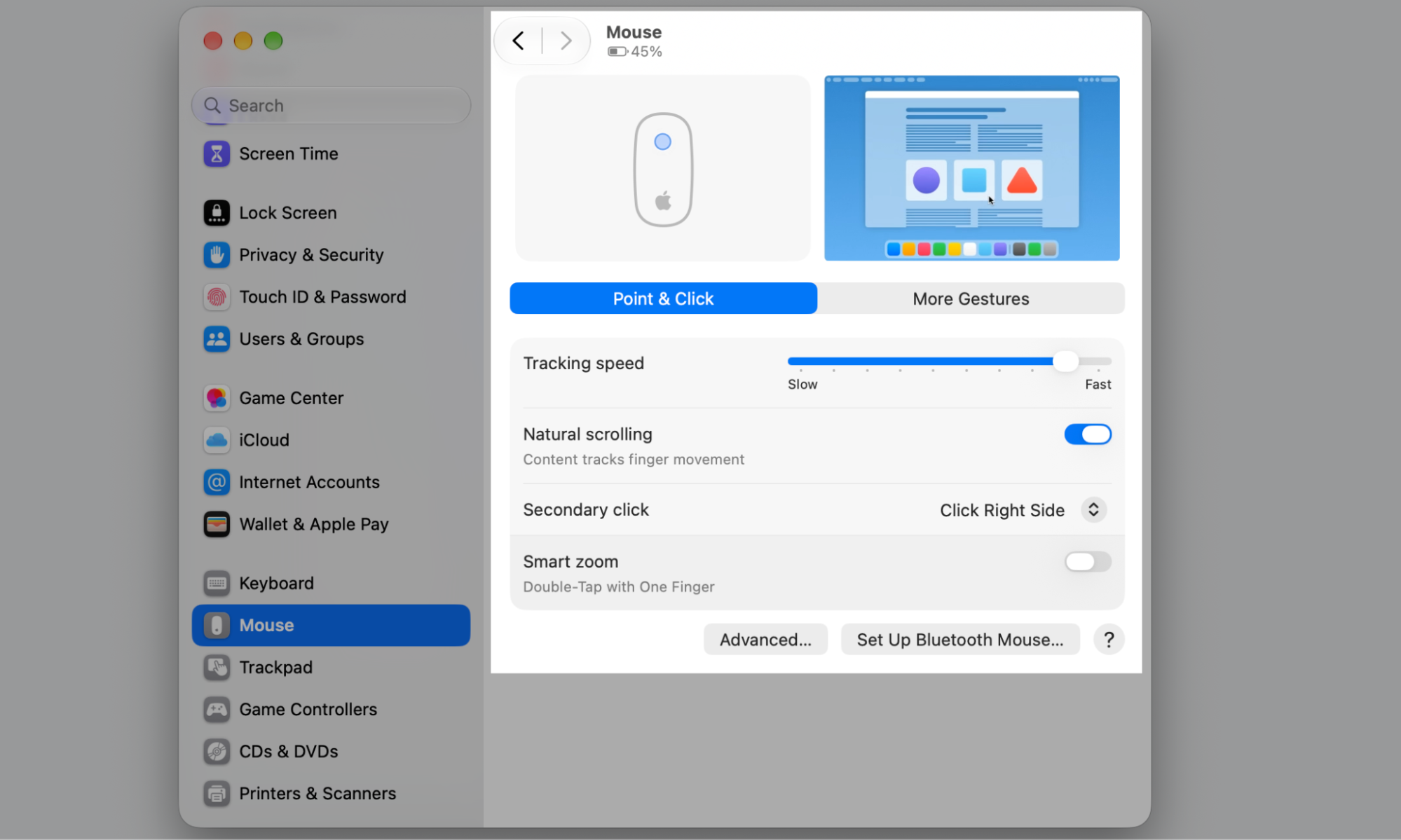
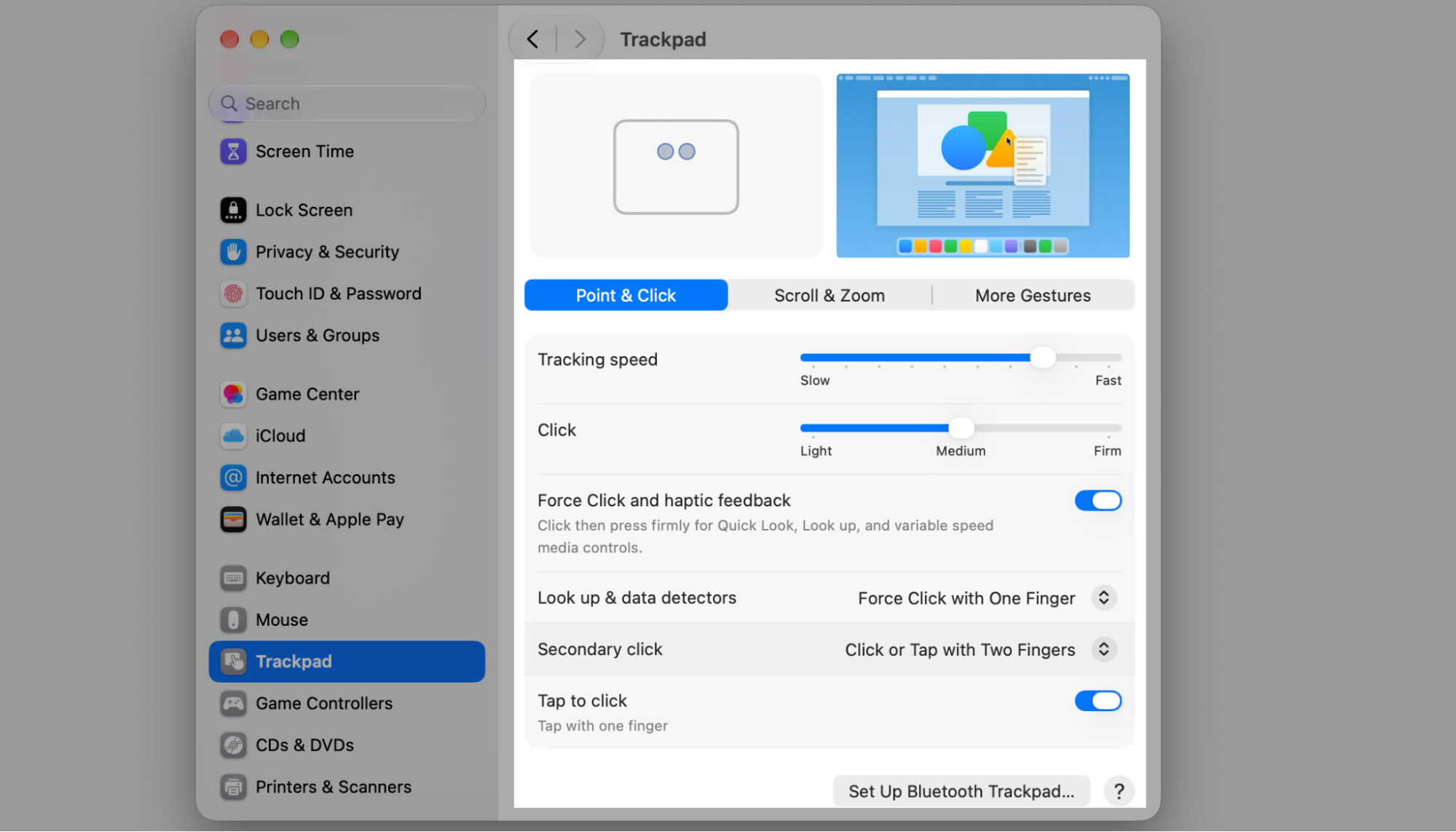
Keyboard, mouse, and trackpad settings
These controls shape how your Mac responds to typing and clicks—shortcuts, input sources, scrolling, gestures, and pointer behavior. For instance, we advise you to change mouse speed on a Mac if the cursor feels too quick or too slow.
Give this a go:
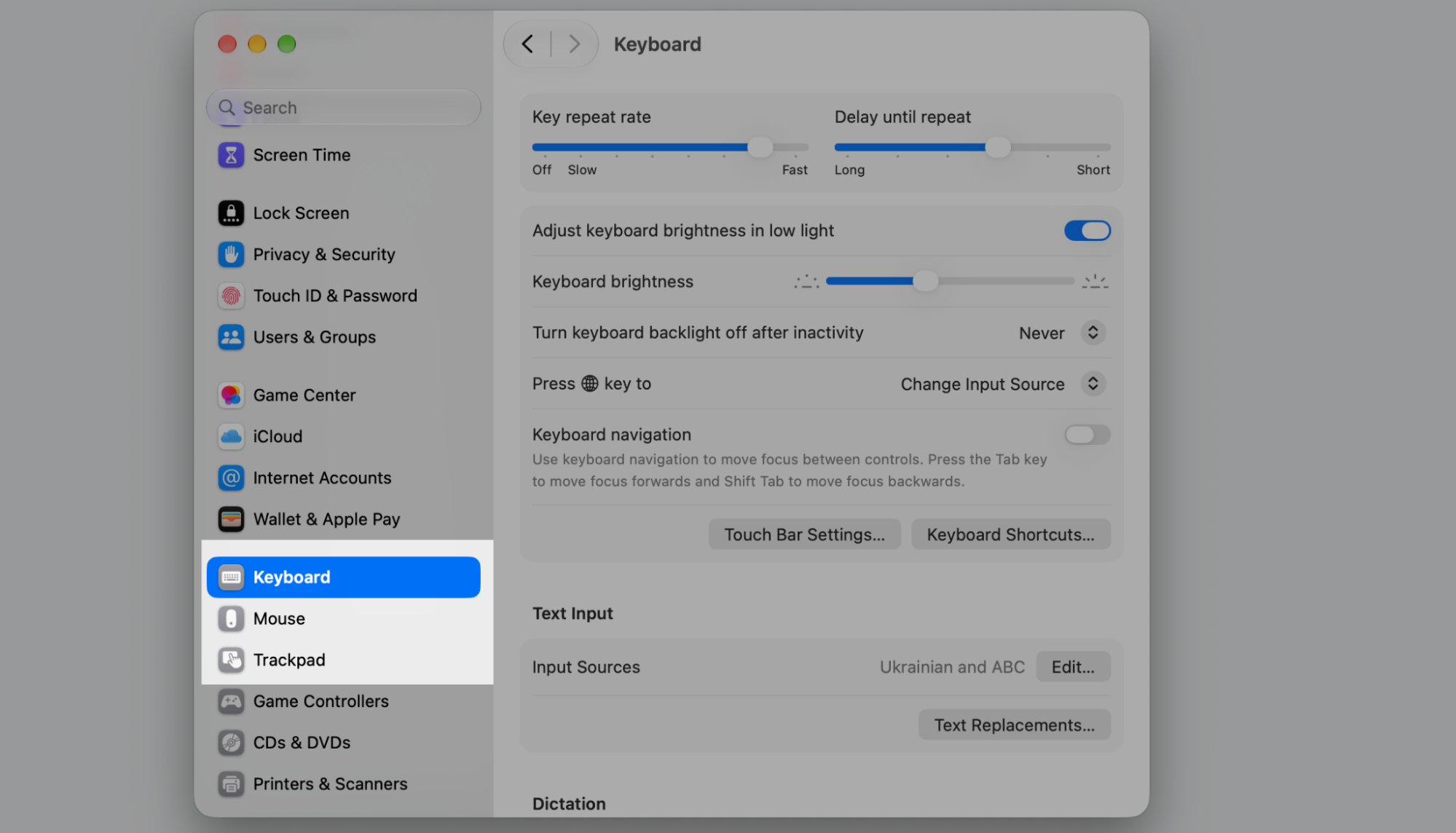
Select Keyboard, Mouse, or Trackpad.
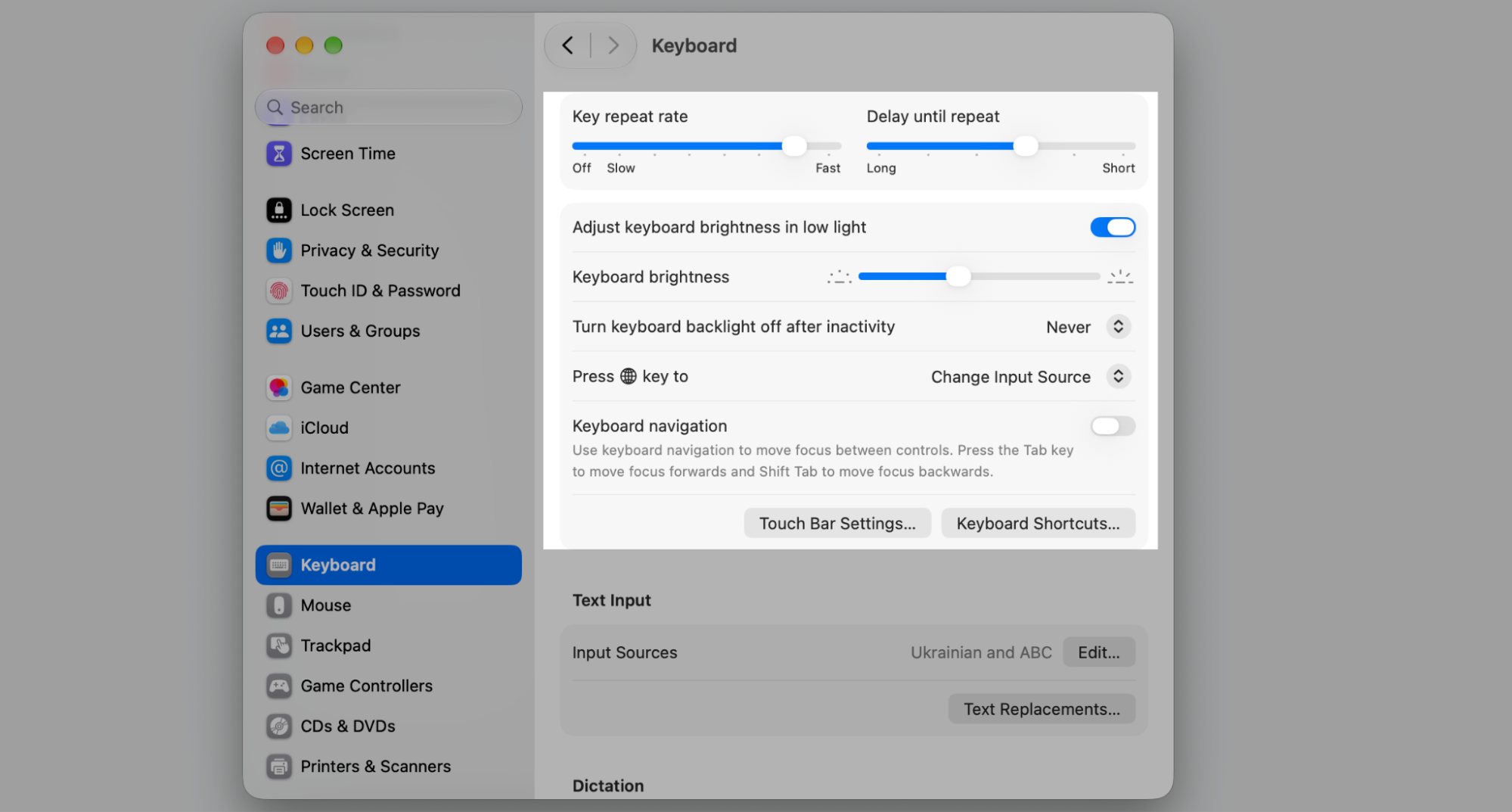
Move the sliders to set speed and sensitivity.
Test the feel and tweak as needed.
Step 1. Select the category you want to adjustStep 2. Configure Input Sources, Touch Bar, Keyboard Shortcuts, and other keyboard settingsStep 3. Configure tracking speed, scrolling, and other mouse settingsStep 4. Configure Point & Click, Scroll & Zoom, Tracking Speed, and many other trackpad-specific settings
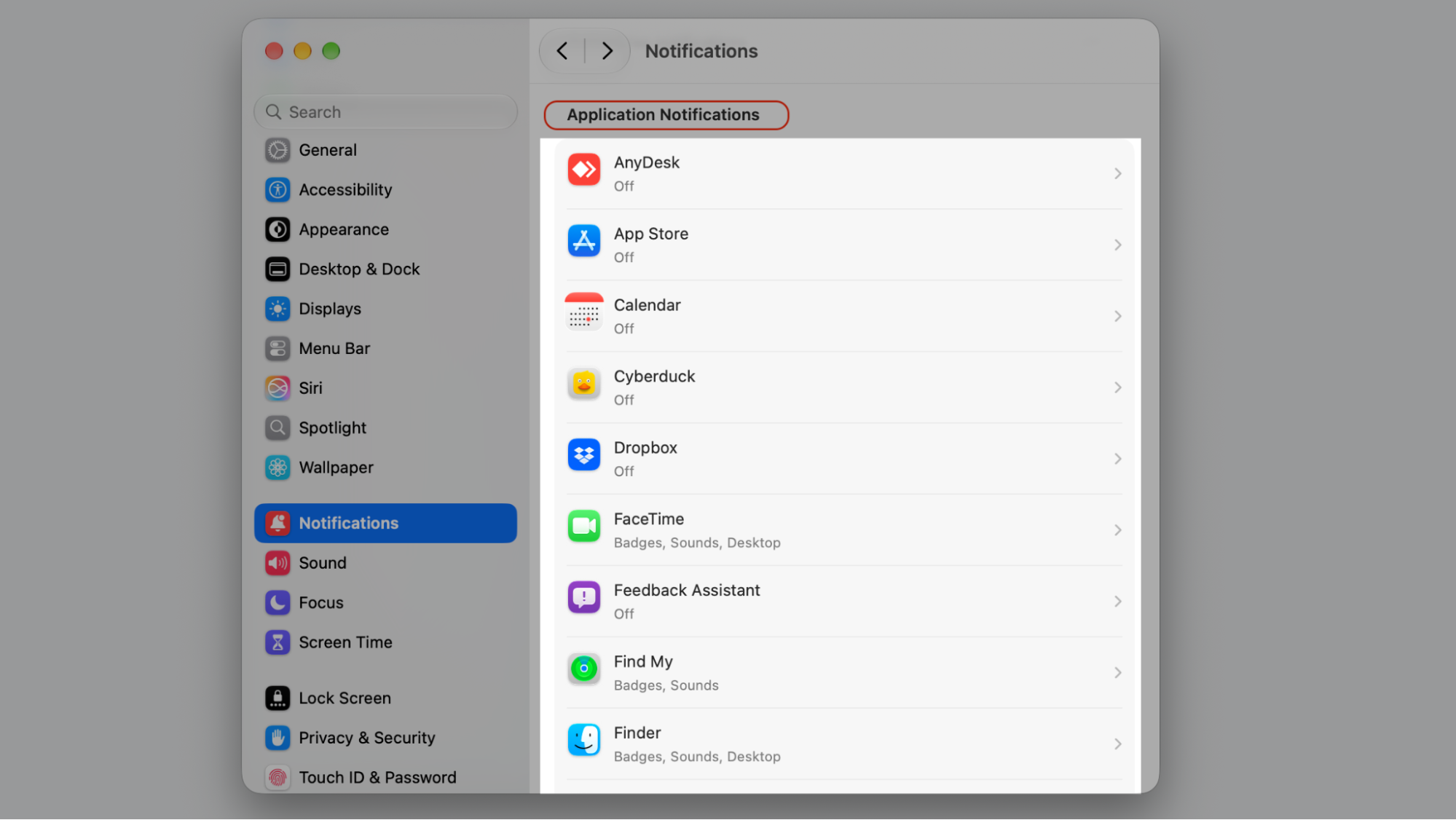
Notifications and Focus settings
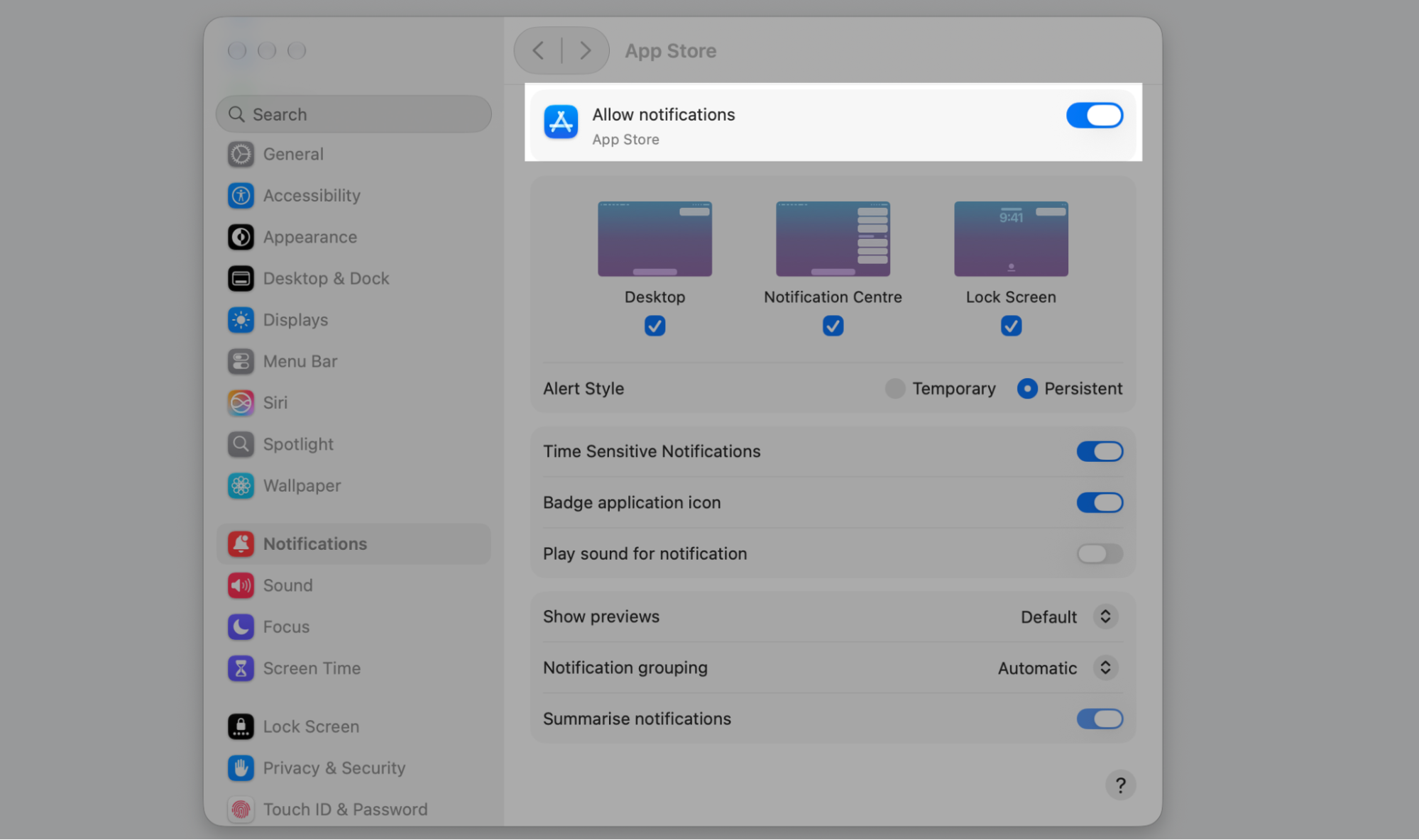
Here you manage alerts from each app and build Focus modes for work, study, or rest. You can mute notifications on Mac during a meeting and let them back in later.
Here’s how we do it:
Open Notifications or Focus in the sidebar.
Pick an app to adjust its alerts.
Create a Focus mode and set when it turns on.
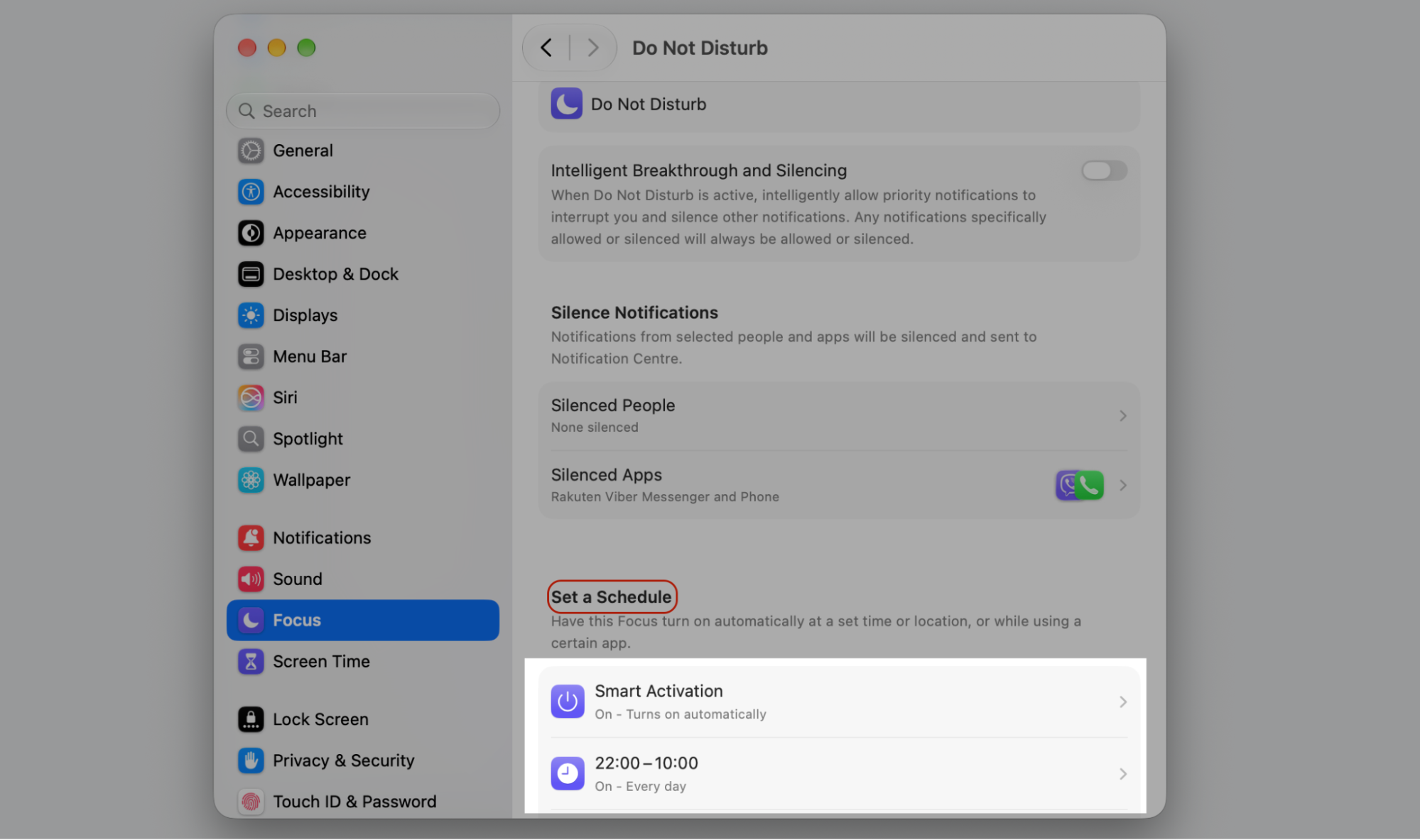
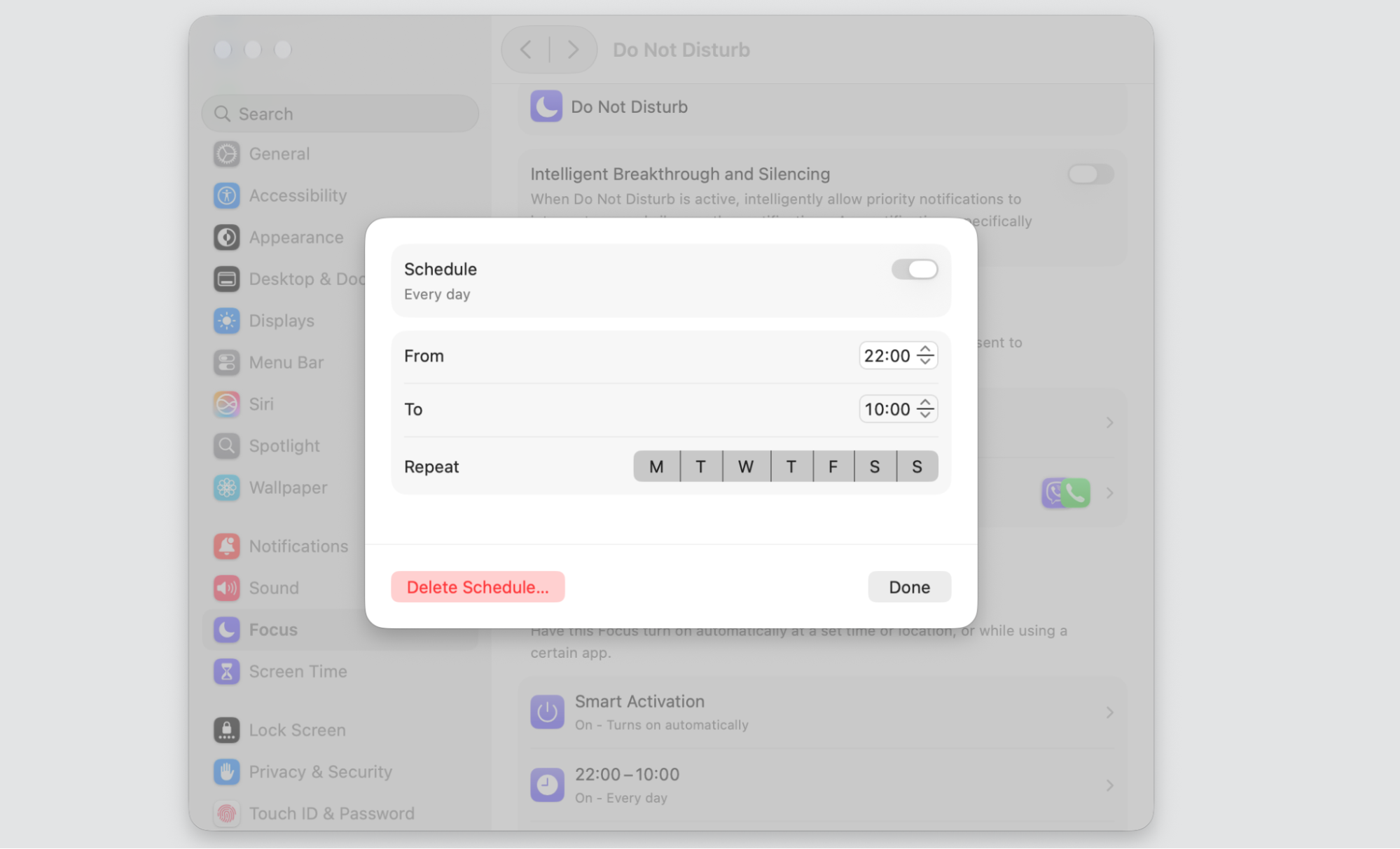
Step 1. Go to Notifications > App Notifications > Select App from the listStep 2. Turn notifications on or off by switching the toggleStep 3. Go back to the Focus and select Set a ScheduleStep 4. Set up your personal Focus Time
Privacy & Security settings
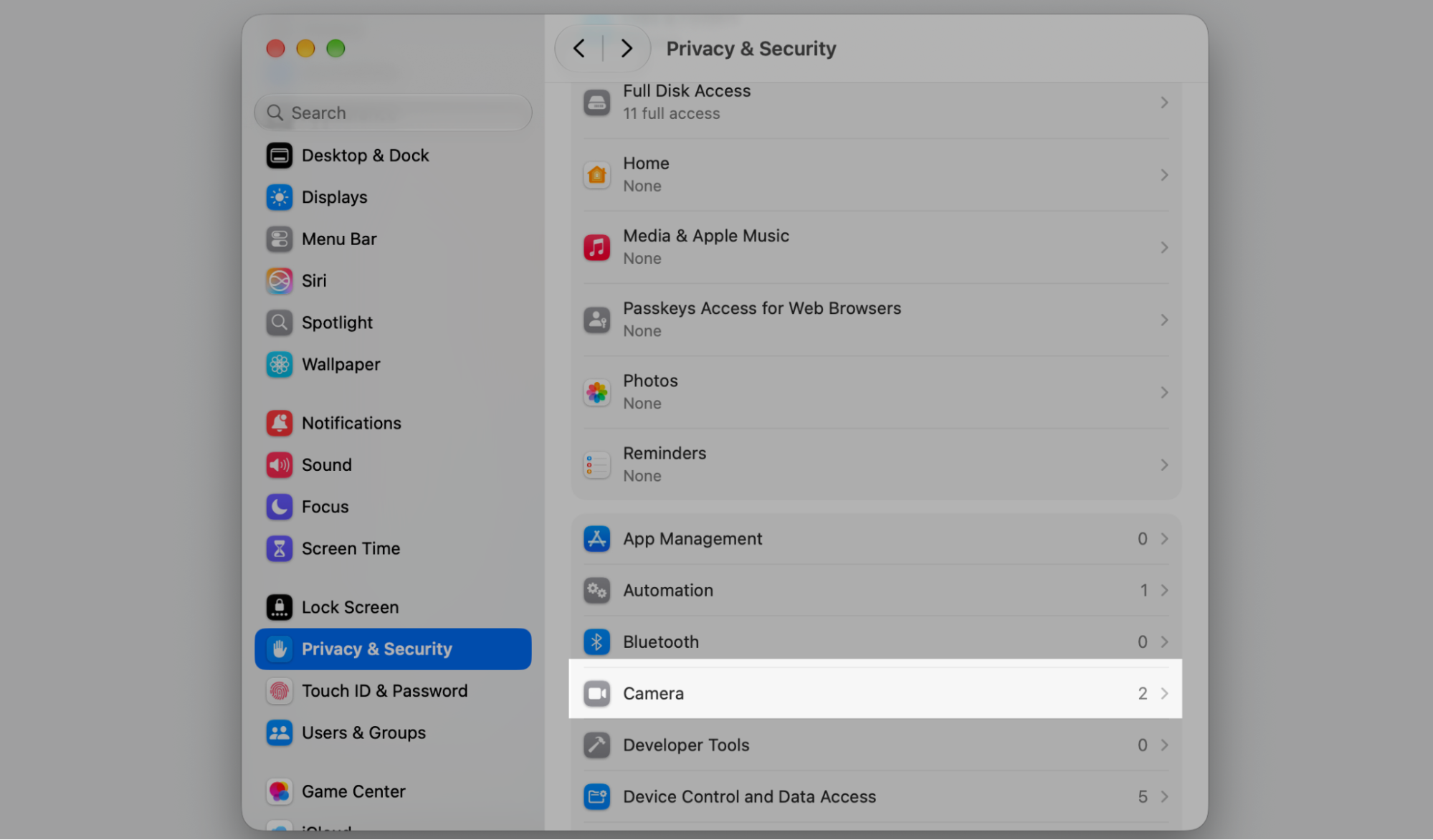
This section sets the permissions that decide which apps can reach your files, location, camera, microphone, and other private data. It also covers FileVault and allowed app sources. When you install a new app, we recommend you to change security preferences on Mac.
Here’s what to do:
Click Privacy & Security in the sidebar.
Choose a category, such as Camera or Location Services.
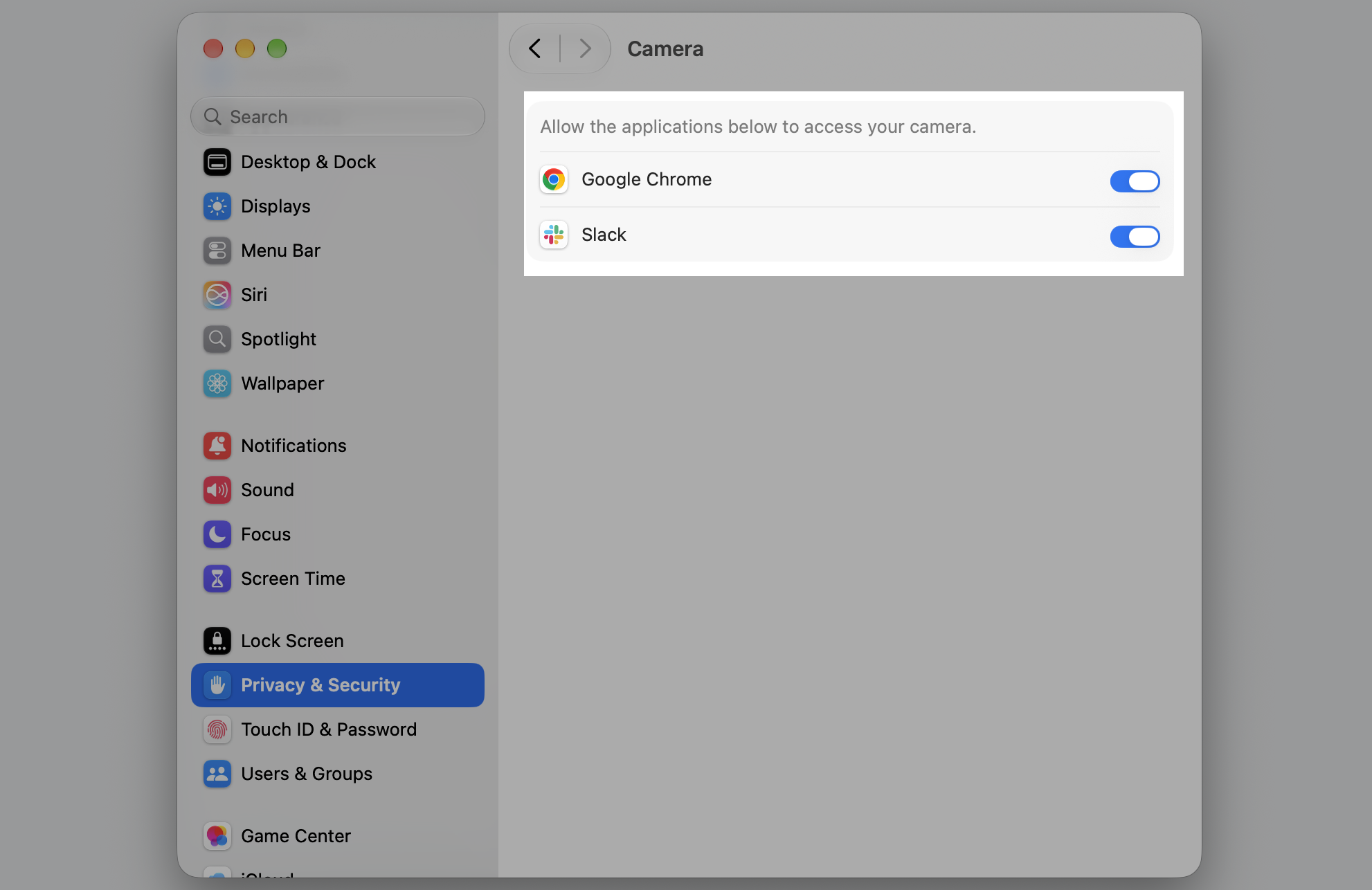
Toggle access on or off for each app.
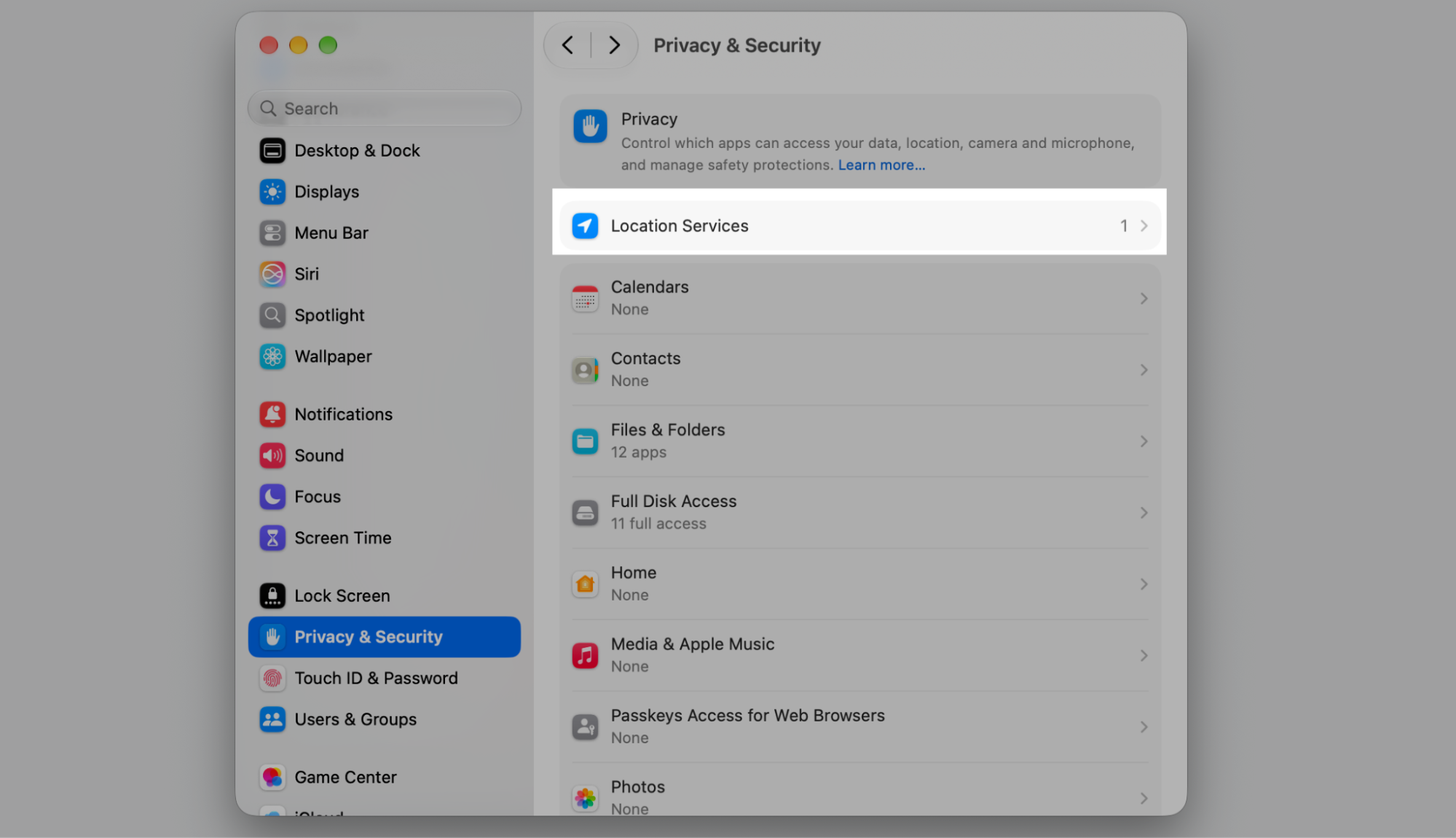
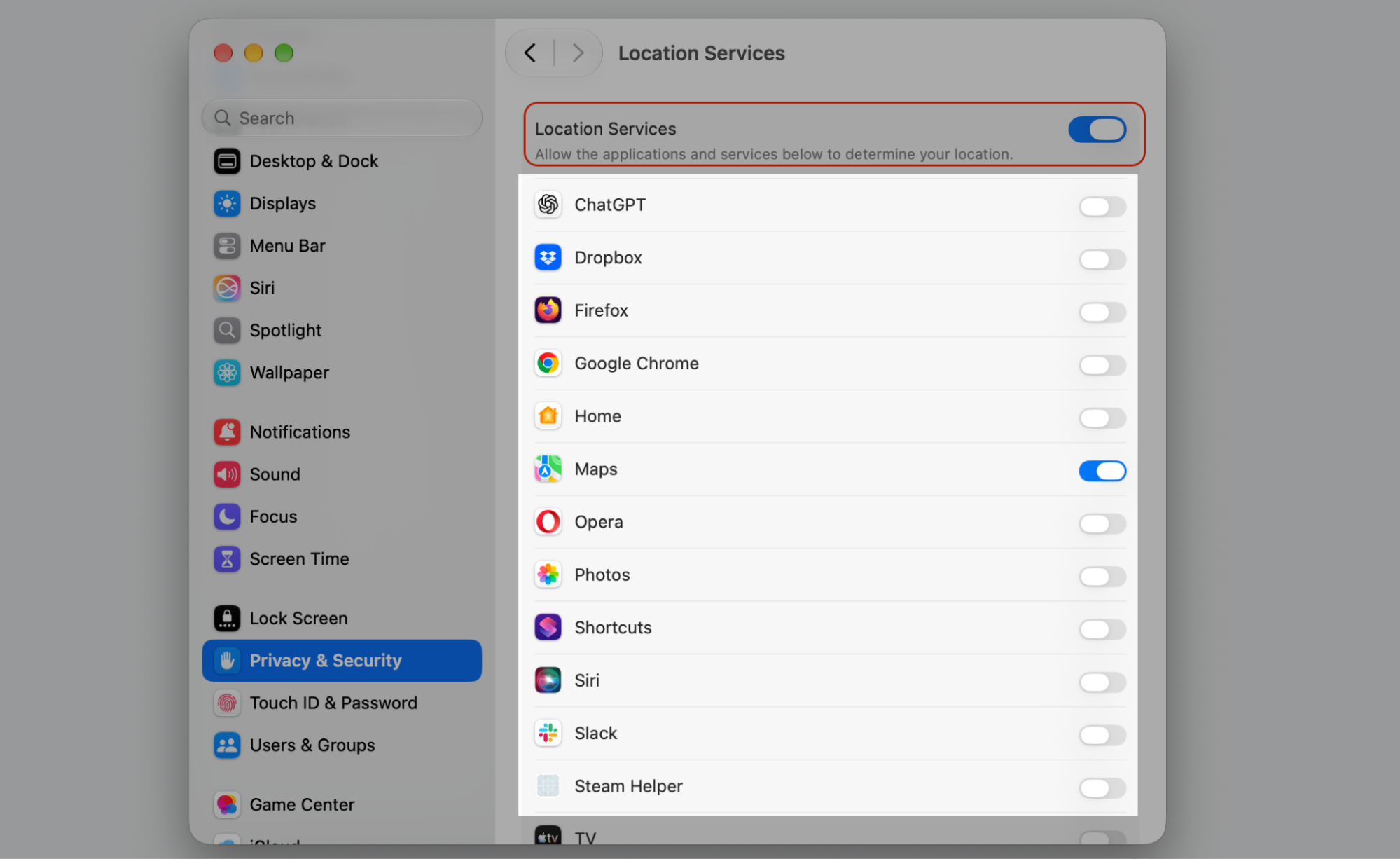
Step 1. Select Location Services from Privacy & SecurityStep 2. Turn on Location Services or customize location permissions for individual appsStep 3. Go back to the Privacy & Security and select CameraStep 4. Set up app permissions for camera access
Users & Groups and login settings
Users & Groups lets you manage administrator, standard, and guest accounts, plus how people log in. Turning on fast user switching on Mac makes hopping between accounts quick.
Set it up like this:
Open Users & Groups in the sidebar.
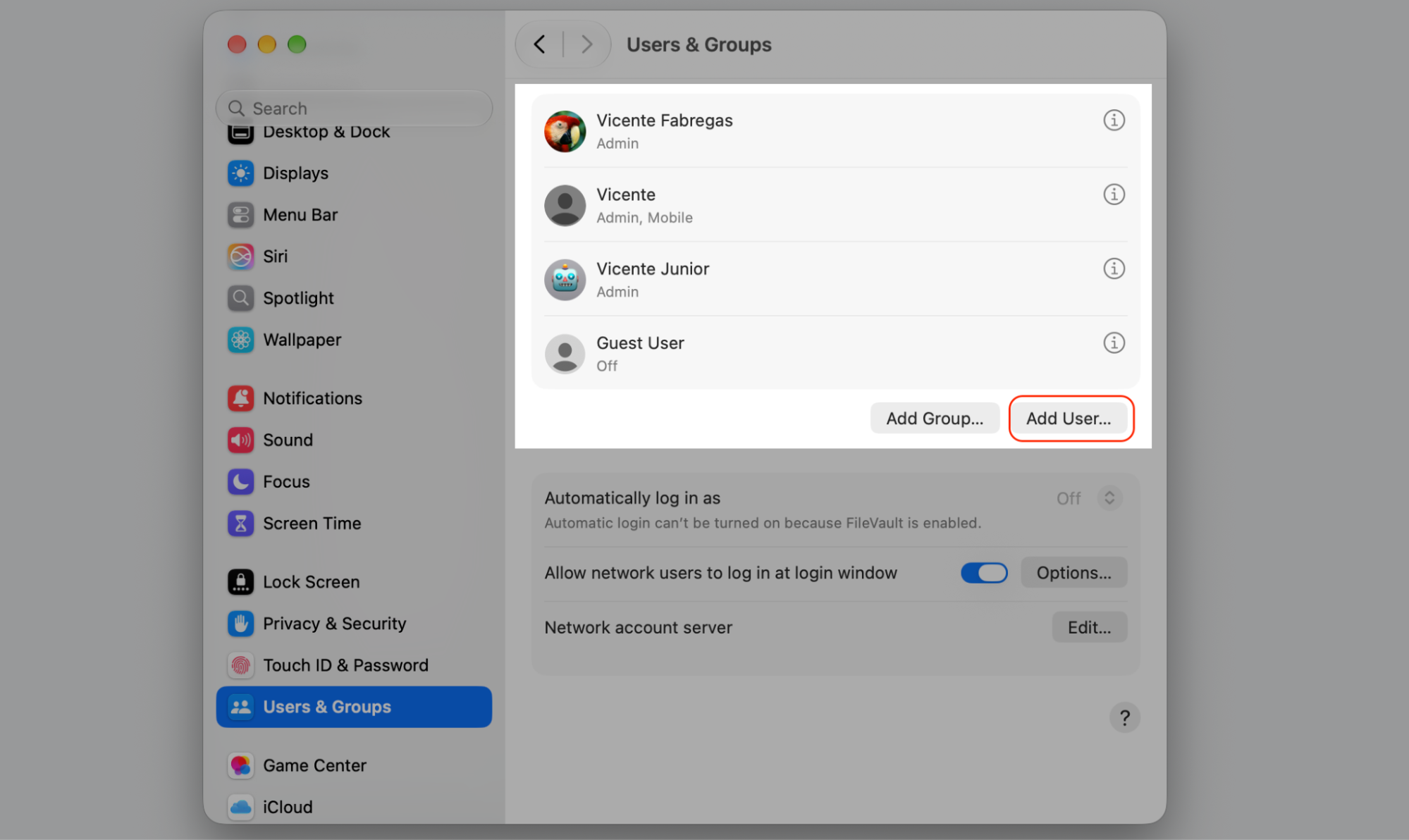
Click Add Account to create a new one.
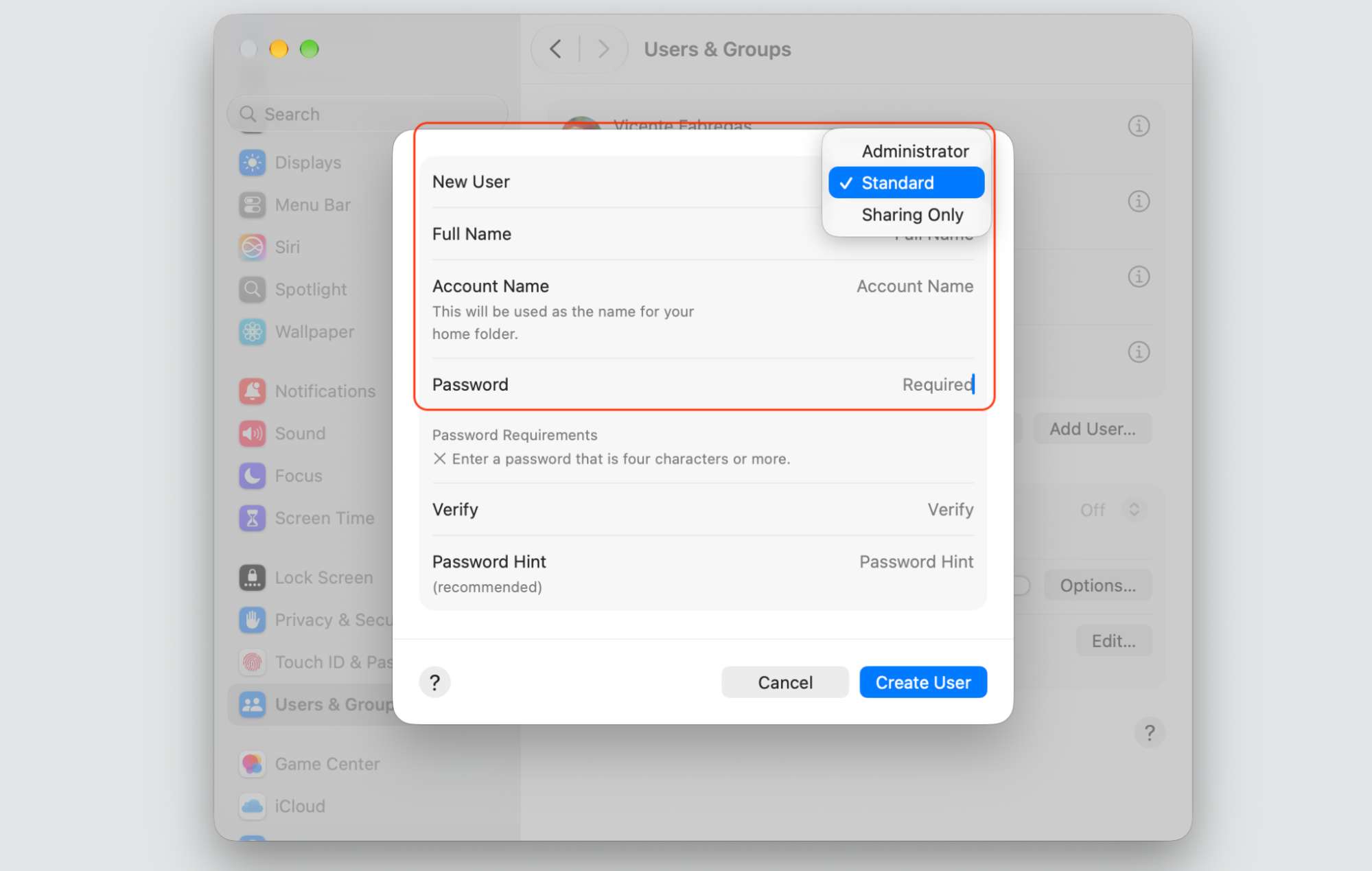
Set the account type and a password.
Step 1. Go to Users & Groups and select Add UserStep 2. Select the account type, enter the account name and password, then click Create User
Battery and energy settings
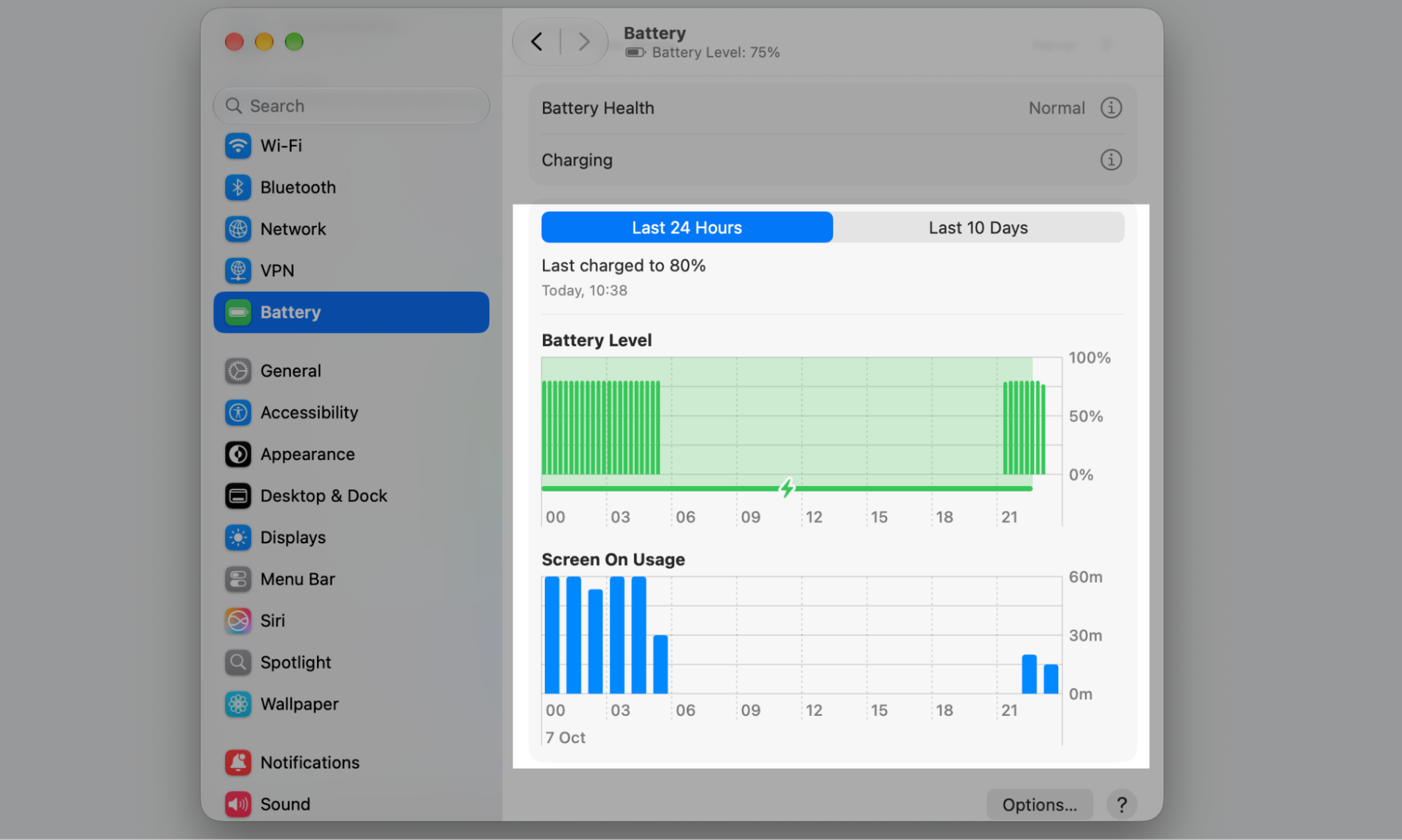
On MacBook models, this section shows how your battery is used and lets you review usage history, manage charging, and adjust sleep behavior. You can change power settings on MacBook to save energy on the go.
Let’s take a look:
Click Battery in the sidebar.
Review your recent battery usage.
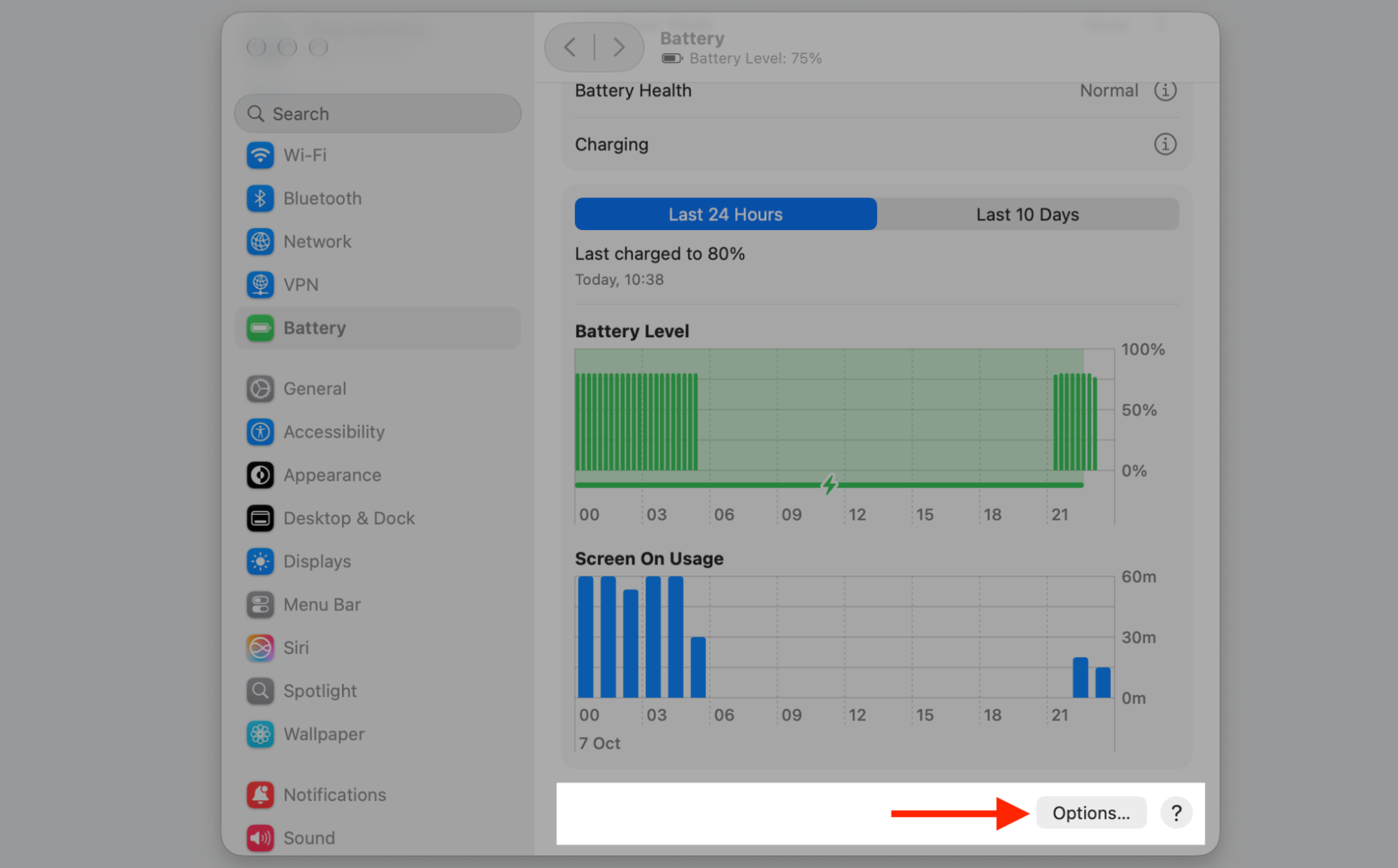
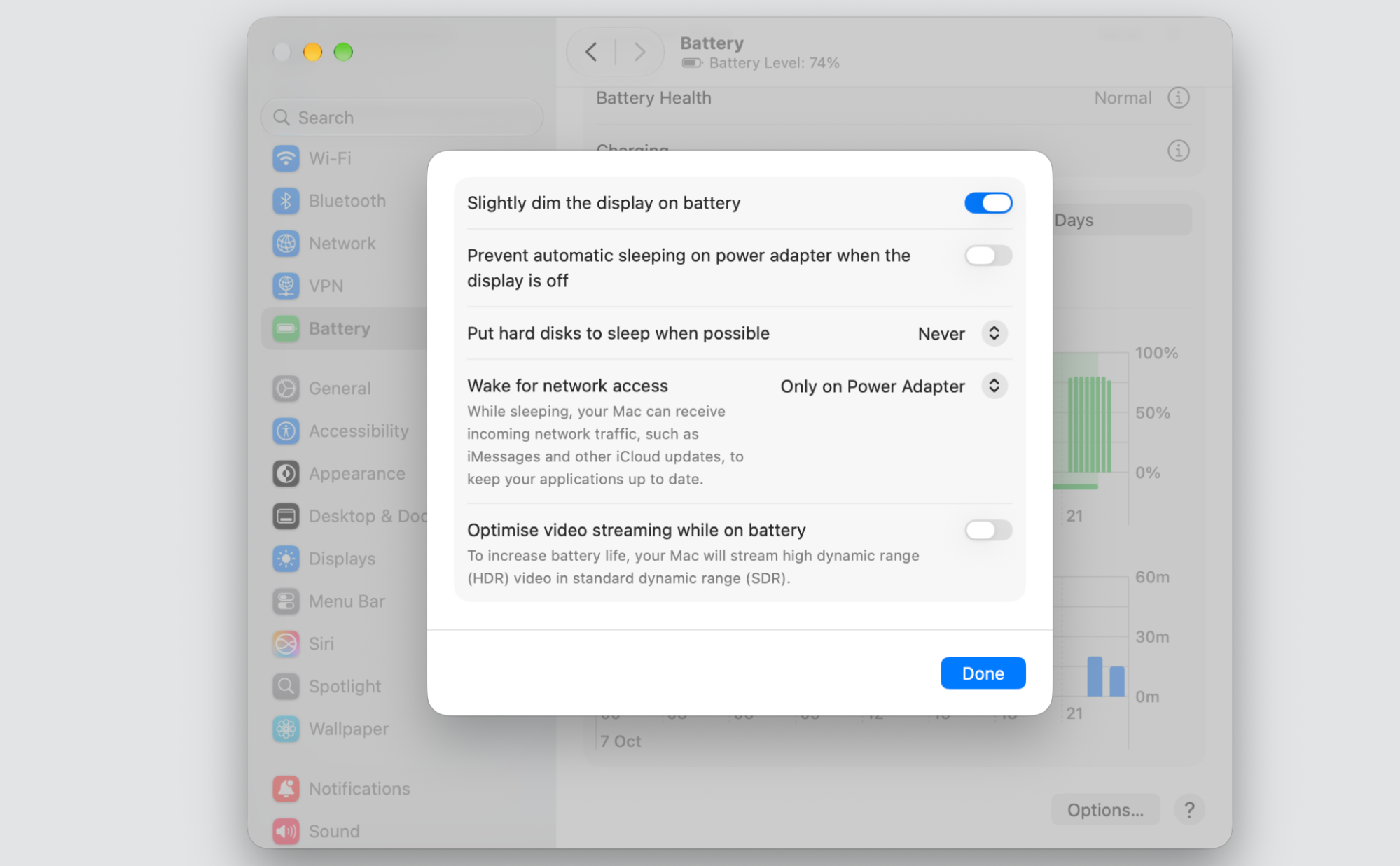
Adjust Options for charging and sleep.
Step 1. Go to Battery and Review your recent battery usageStep 2. Select OptionsStep 3. Customize your settings
Accessibility settings
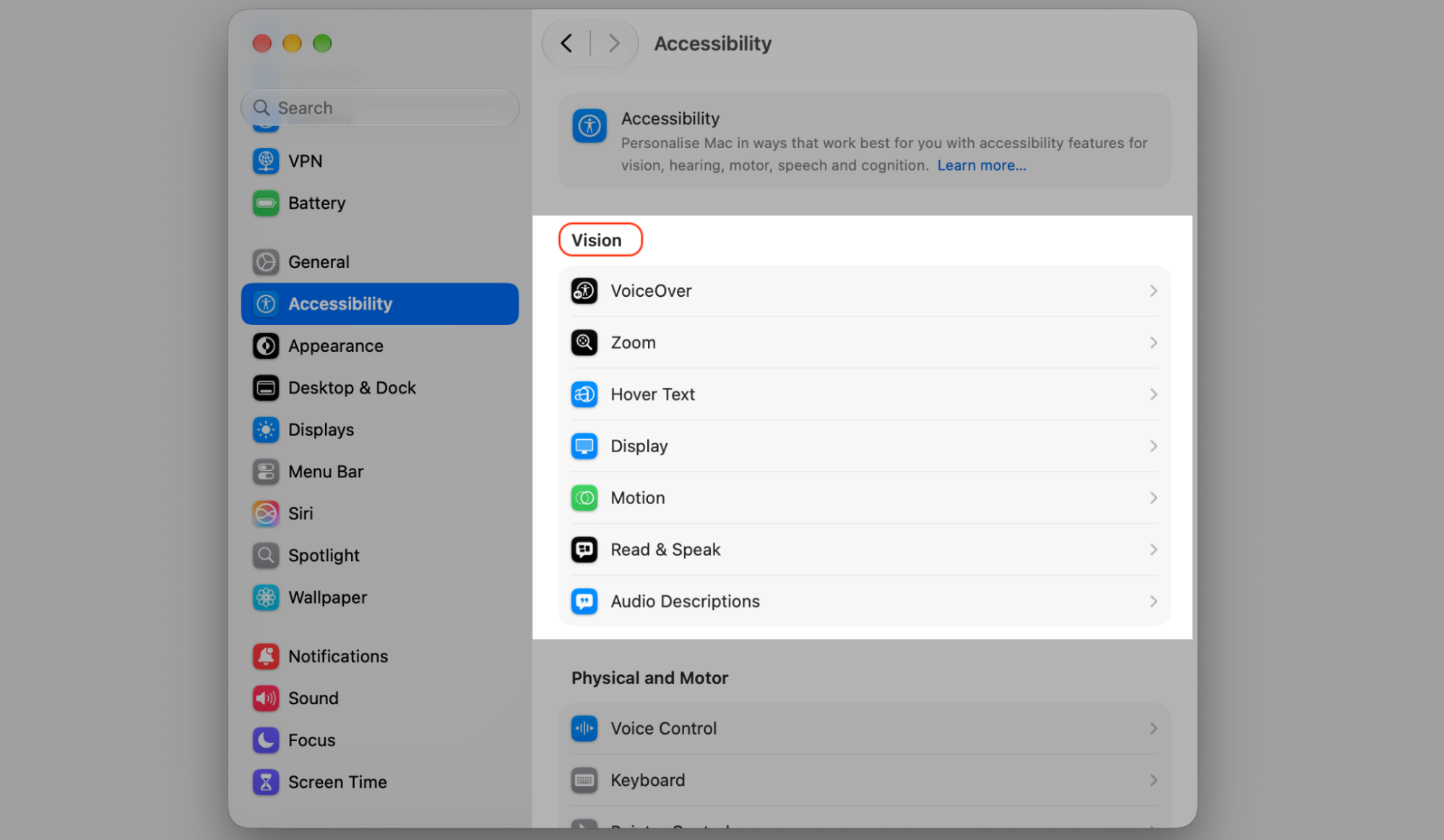
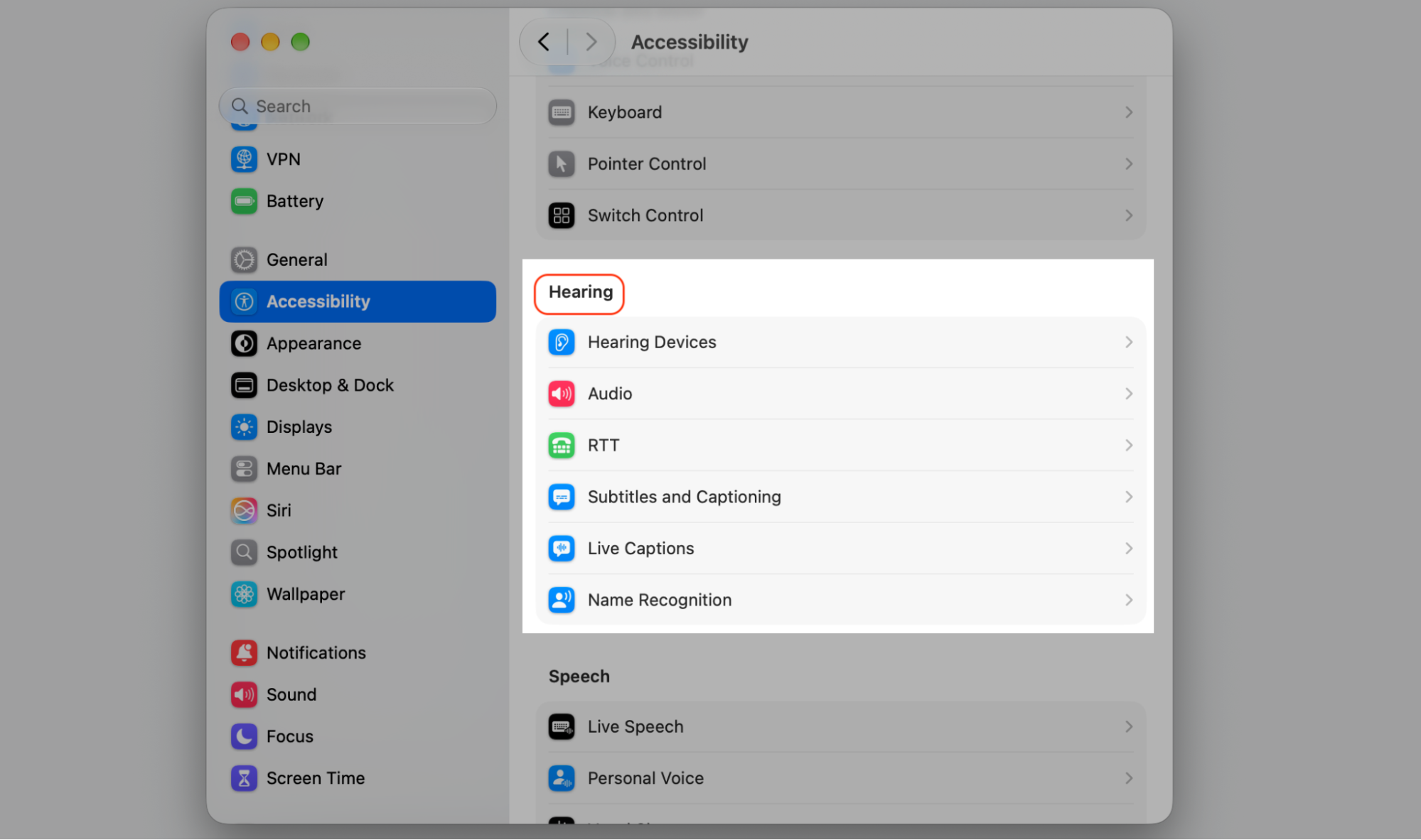
macOS includes accessibility tools for vision, hearing, mobility, and reading, plus spoken feedback, display comfort, and keyboard control—so the Mac fits the way you work.
Explore them here:
Open Accessibility in the sidebar.
Pick an area, like Vision or Hearing.
Turn on the features that suit you.
Step 1. Turn on the features that suit you from Accessibility > Vision CategoryStep 2. Setup the features like Audio, RTT, Hearing Devices from Hearing category
Siri, Spotlight, and Screen Time settings
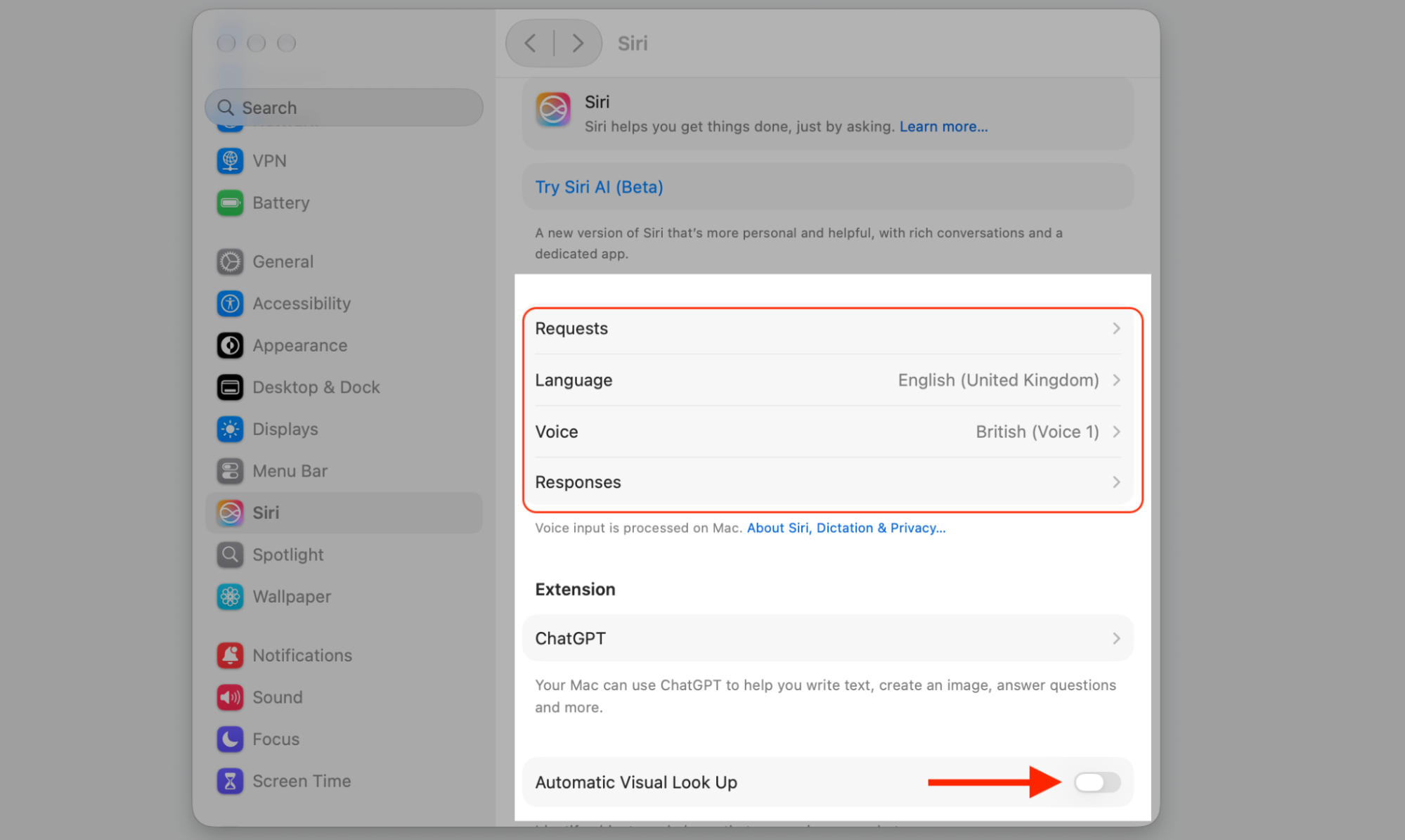
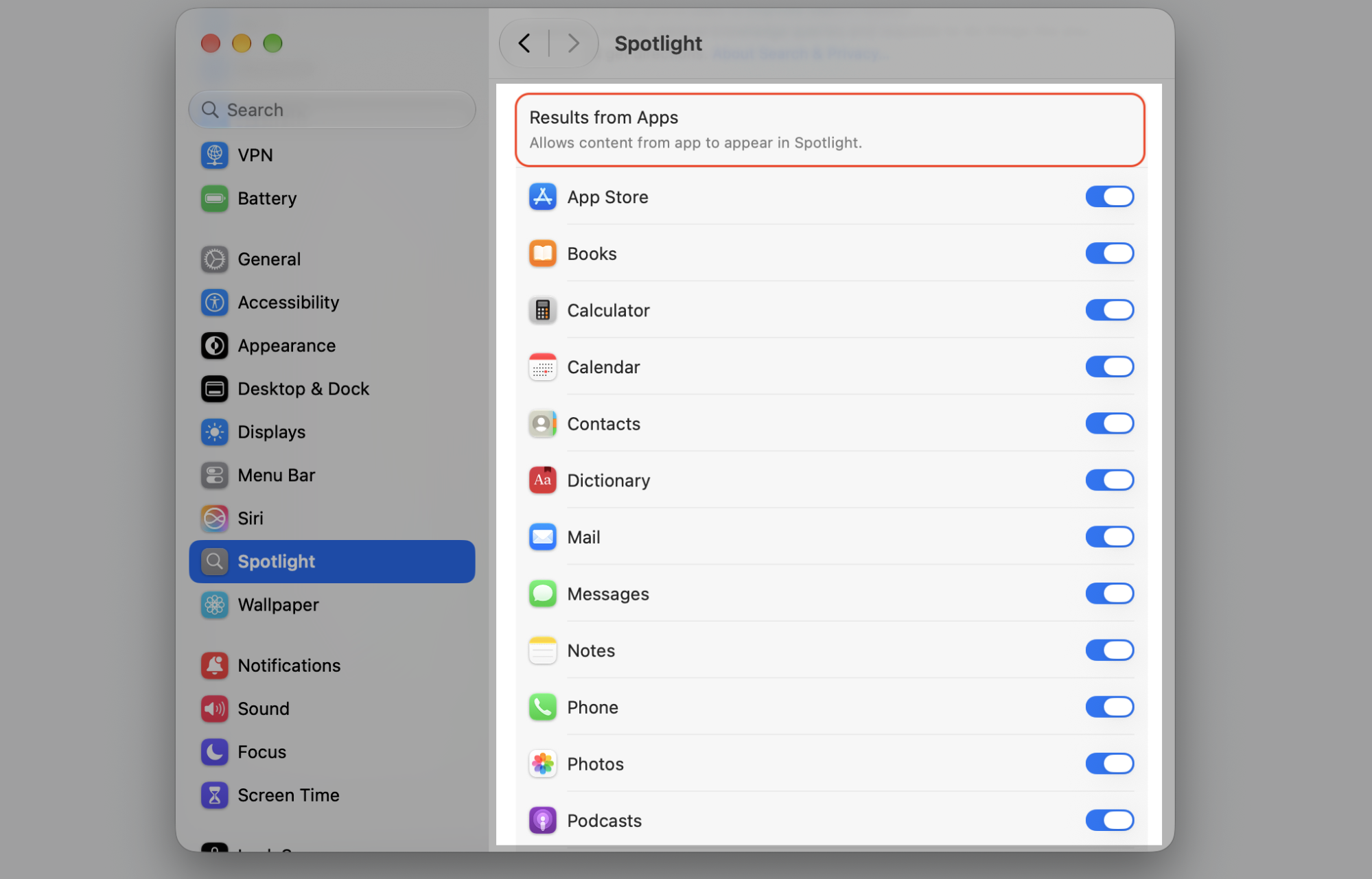
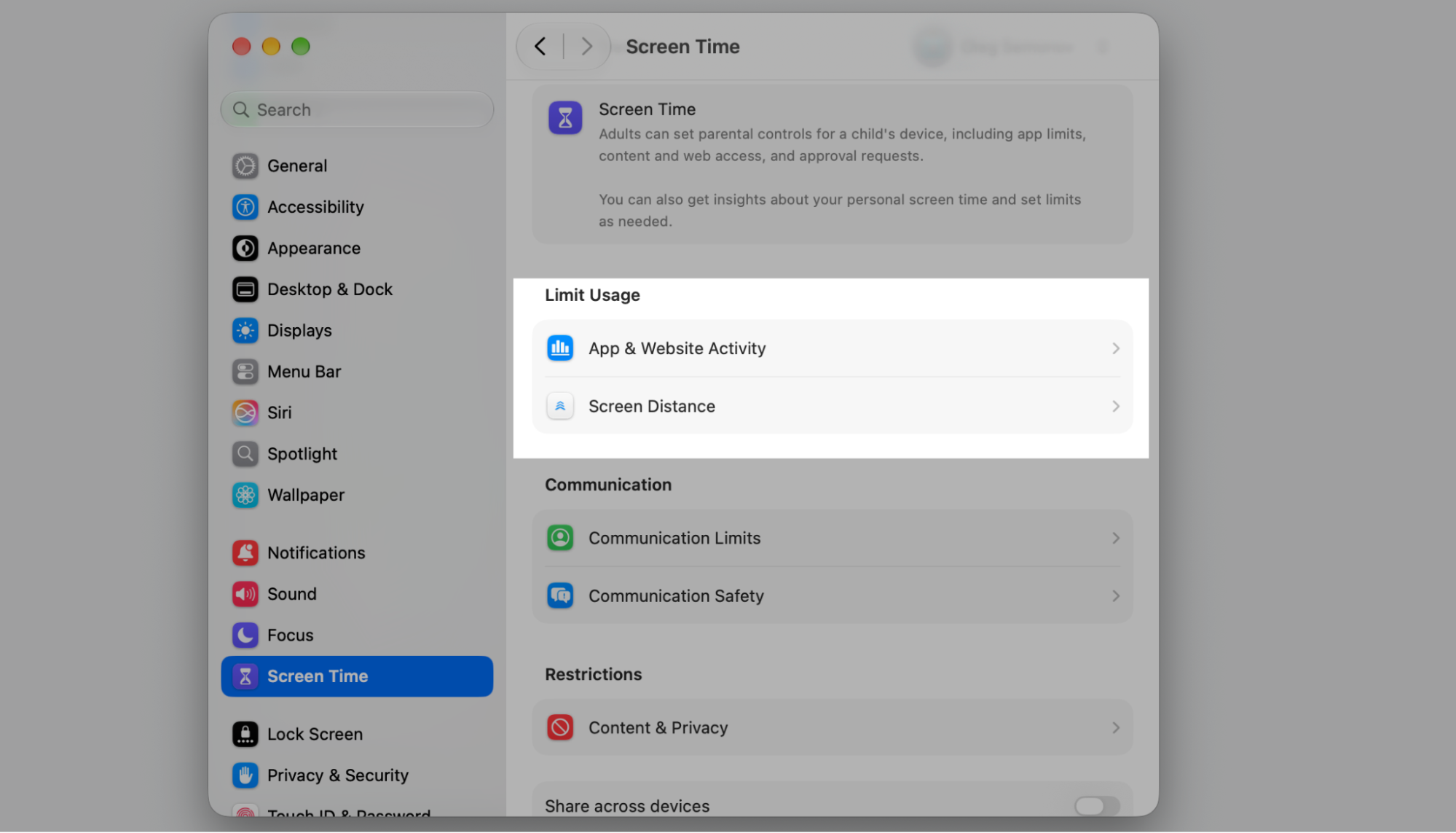
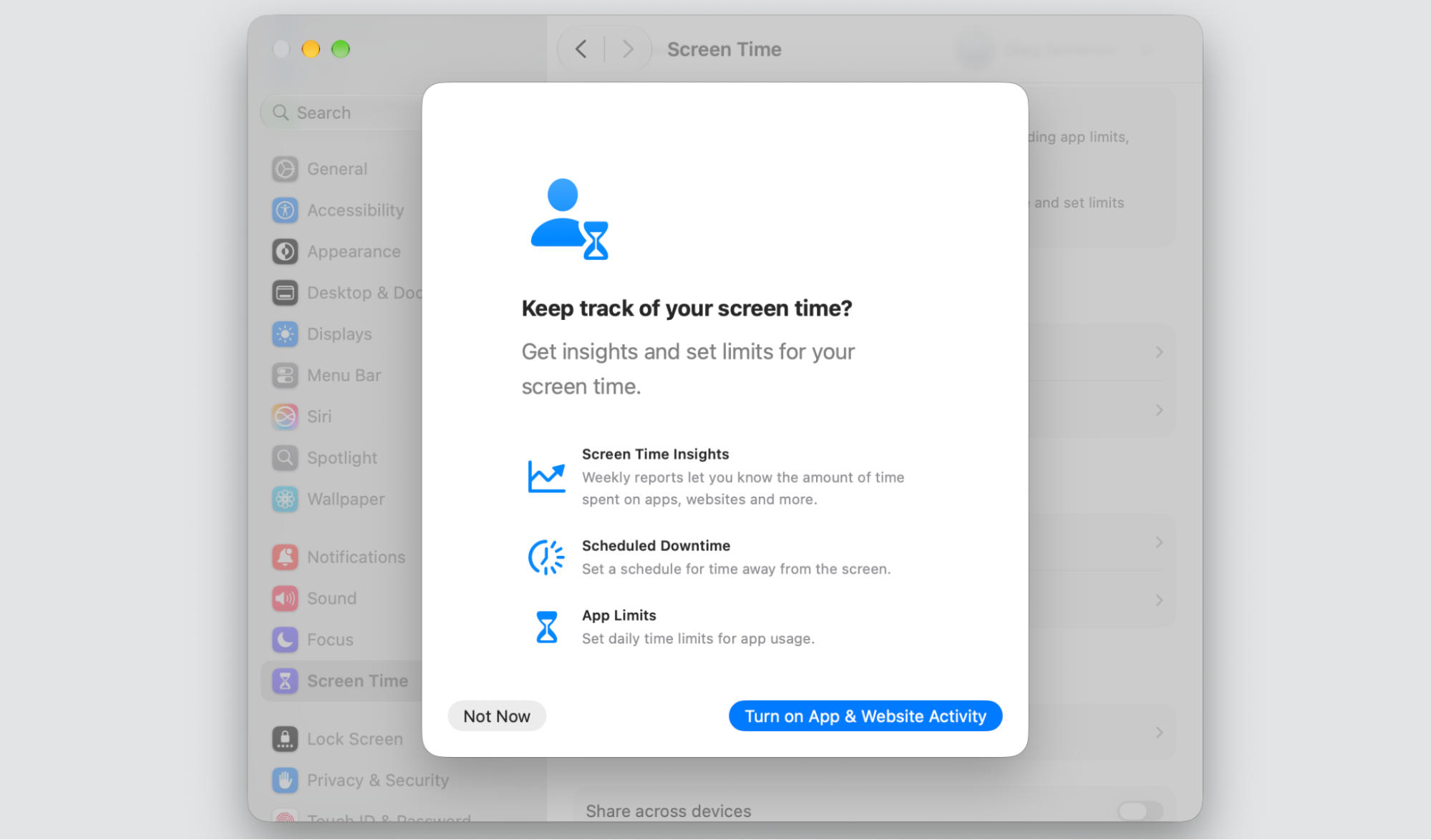
These settings personalize how your Mac assists you—customize Siri, choose what appears in Spotlight results, and use Screen Time to monitor usage and set limits. On supported models, you can also use Apple Intelligence on Mac for everyday help.
Here’s how it works:
Select Siri & Spotlight or Screen Time.
Adjust the options for each feature.
Set app or website limits if you’d like.
Step 1. Configure basic settings and turn on features such as Automatic Visual Look UpStep 2. Go to Spotlight and choose which types of app information appear in resultsStep 3. Select Limit Usage from Screen Time sectionStep 4. Use Screen Time to monitor usage and set limits
Control Center and menu bar settings
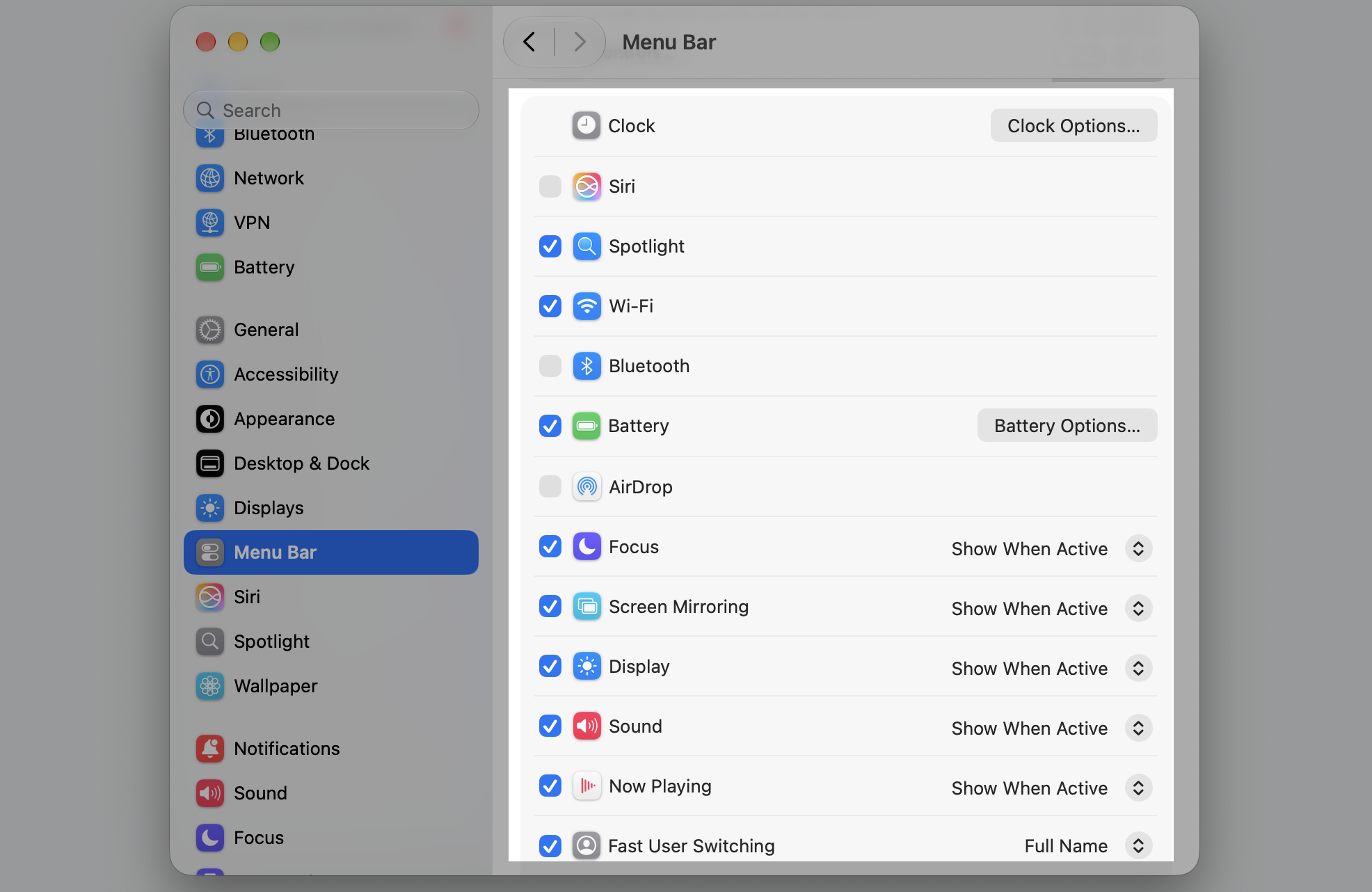
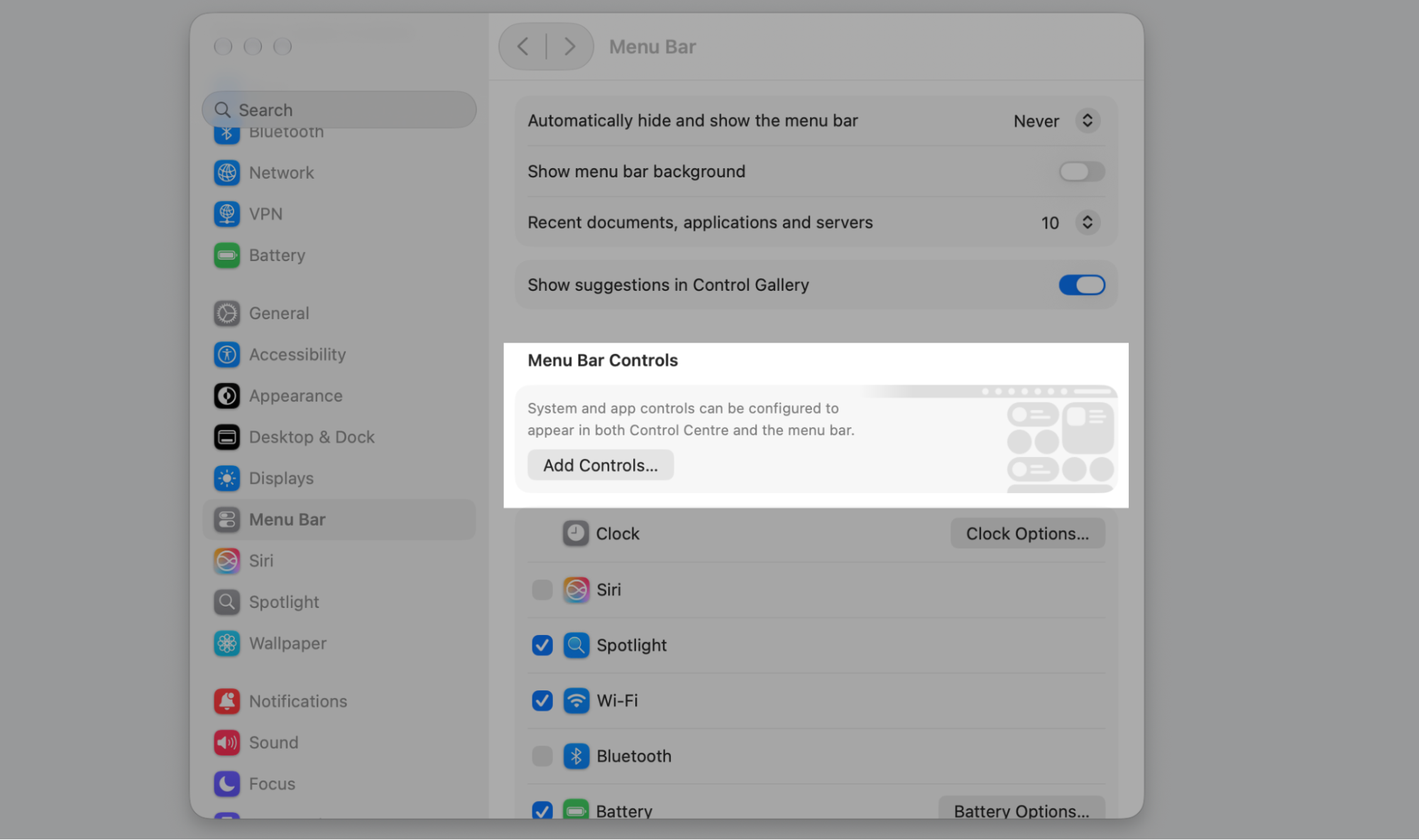
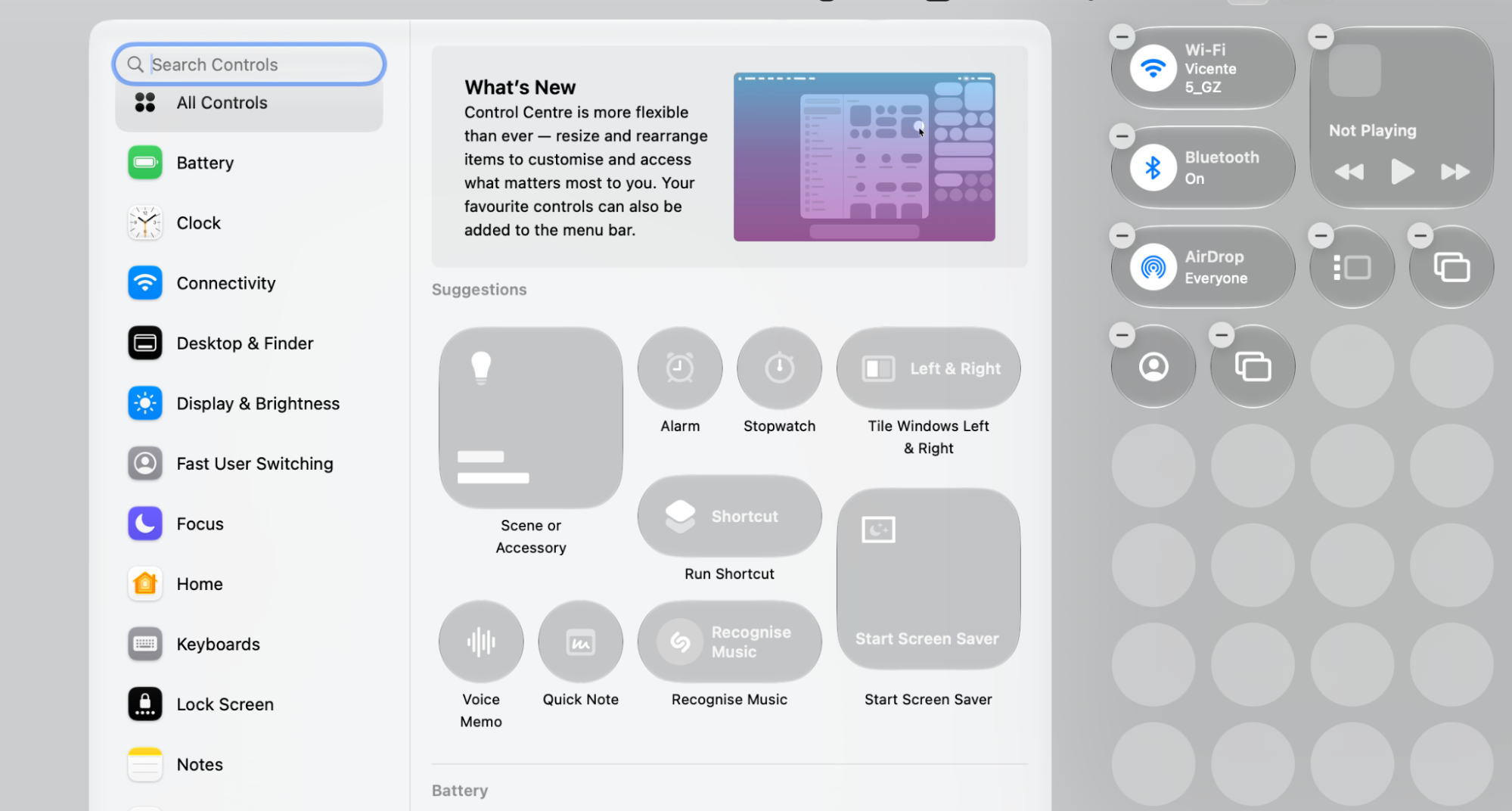
This section lets you decide which controls appear in Control Center and the menu bar. Once set up, open Control Center on Mac from the menu bar with a single click.
Follow our instructions below:
Click the Menu bar in the sidebar.
Choose which items appear in the menu bar.
Toggle extras on for faster access.
Step 1. Customize which controls appear in the Menu barStep 2. Go to Menu bar > Menu Bar Controls > Add ControlsStep 3. Customize which controls appear in the Control Center
Keep your Mac clean while you explore its settings
System Settings is the central place to manage accounts, connections, appearance, hardware, security, updates, accessibility, and everyday Mac behavior. When you’re not sure where an option lives, lean on the search field—it’ll point you straight to it.
As you tidy your settings, we suggest tidying your storage too. Cluttered caches and junk files build up over time, leaving your Mac feeling sluggish. MacKeeper’s Safe Cleanup clears that clutter in one click, empties the trash, and frees up space—without touching your personal files.
We respect your privacy and
use cookies
for the best site experience.
Privacy Preferences Center
We use cookies along with other tools to give you the best possible experience while using the
MacKeeper website. Cookies are small text files that help the website load faster. The cookies we
use don’t contain any type of personal data meaning they never store information such as your
location, email address, or IP address.
Help us improve how you interact with our website by accepting the use of cookies. You can change
your privacy settings whenever you like.
Manage consent
All cookies
These cookies are strictly necessary for enabling basic website functionality (including page
navigation, form submission, language detection, post commenting), downloading and purchasing
software. The website might malfunction without these cookies.