Is ChatGPT Atlas safe enough to trust with your browsing? Before you decide, MacKeeper’s StopAd can block intrusive ads, stop online trackers, and cut distractions across Safari and Chrome — a simple way to keep your sessions cleaner and more private while you browse.
ChatGPT Atlas is a web browser from OpenAI, the company behind ChatGPT, with the AI assistant built straight into the browsing experience. Instead of switching between a browser and a separate window, you get help right on the page you’re viewing. It’s targeted at summarizing articles, answering questions about what’s on screen, and handling some tasks as an AI agent.
Important: We’d like to warn you that ChatGPT Atlas is no longer supported; it’s currently not an active product. The support for it was discontinued in the summer of 2026, and its features were reintegrated into the ChatGPT services. But this topic is still discussed, we’ve decided to write the relevant article for you to know what it is and how safe it is.
Moreover, there’s a difference from ChatGPT Atlas and a regular browser like Apple’s Safari. A traditional browser shows you pages and stays out of the way, while Atlas reads page context and works alongside you. It runs on macOS, so any modern Mac or MacBook can install it, and people try it for research, quick summaries, and AI-assisted tasks that would normally take several steps.
Is ChatGPT Atlas safe to use?
Generally yes. ChatGPT Atlas can be safe for everyday browsing if you understand its limits, adjust your privacy settings, and avoid handing it your most sensitive data. People often ask the same follow-ups, like is ChatGPT Atlas reliable, and is ChatGPT Atlas trustworthy for daily use. For casual reading, searching, and light research, it’s reasonable to trust.
It’s a different story for banking, medical, or work accounts, and we’d suggest keeping those out of an AI browser for now. If you want the wider picture on the platform itself, our tips on how to safely use ChatGPT walk you through the settings that matter most.
A note from our experts:
As today we’re talking about browsers, we’d like you to get acquainted with MacKeeper’s StopAd, which is created exactly with the purpose of ameliorating your internet activity in terms of privacy and security. With its help, you’ll search for all the desired information without any trackers, enjoying anonymity on your side.
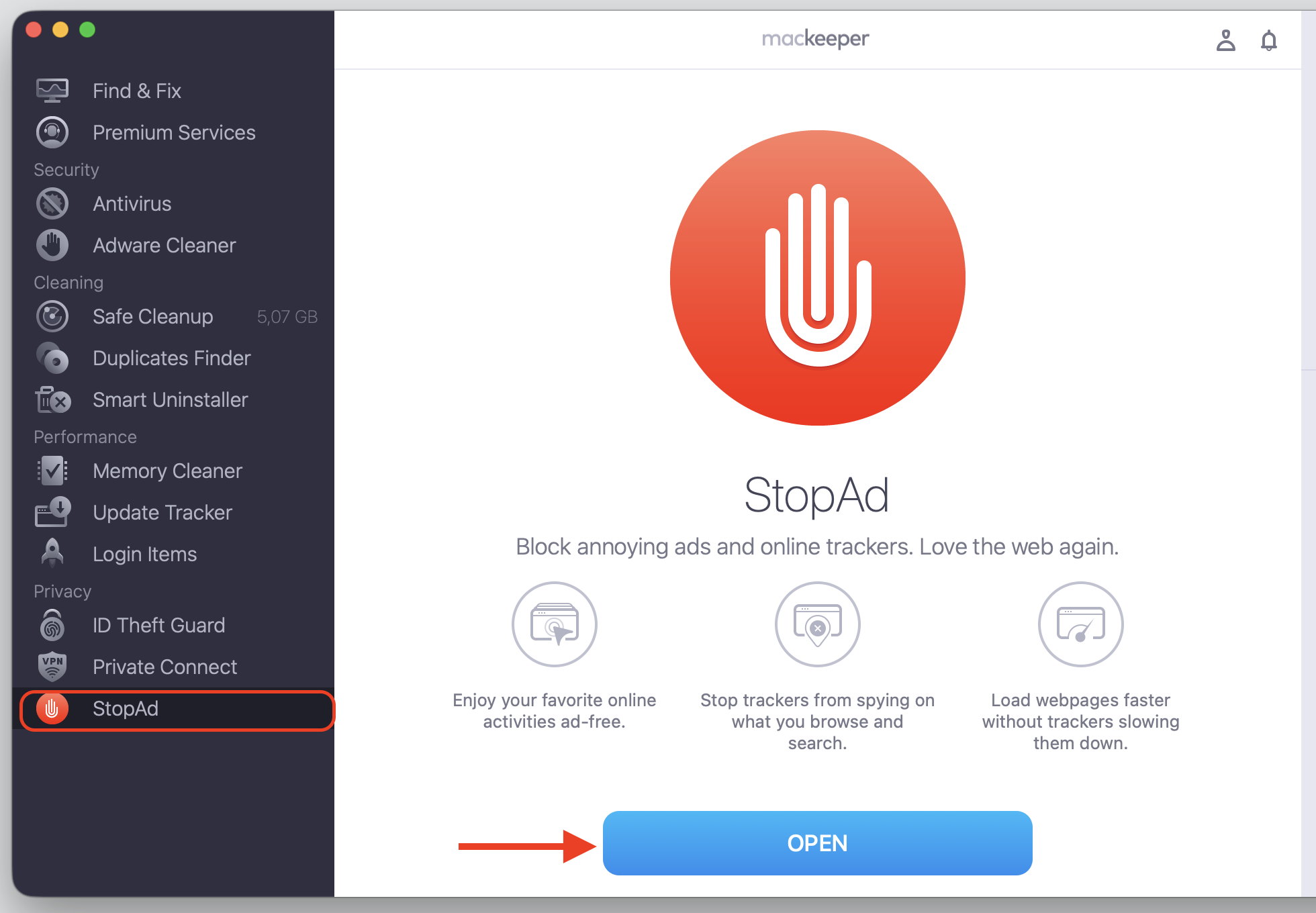
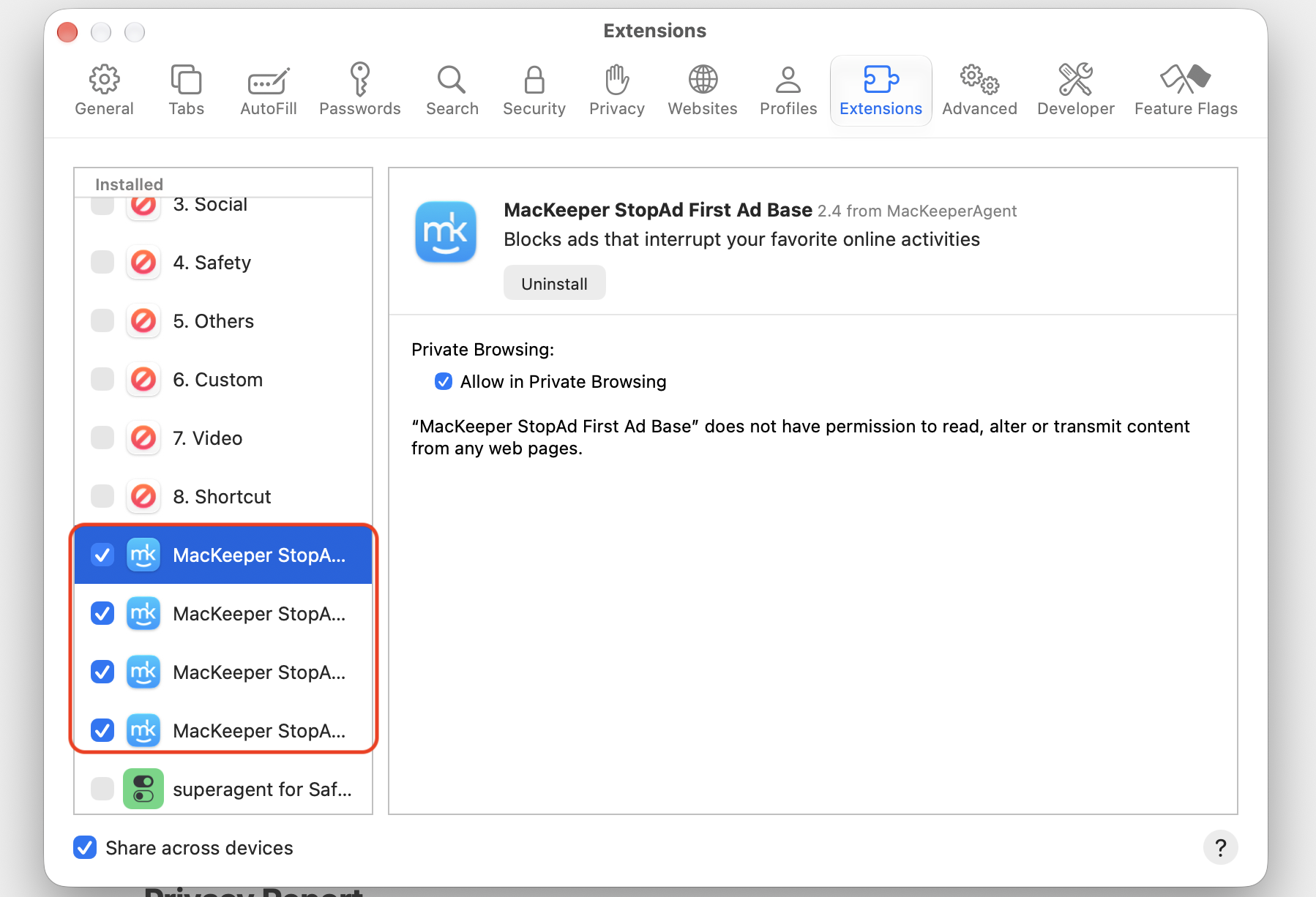
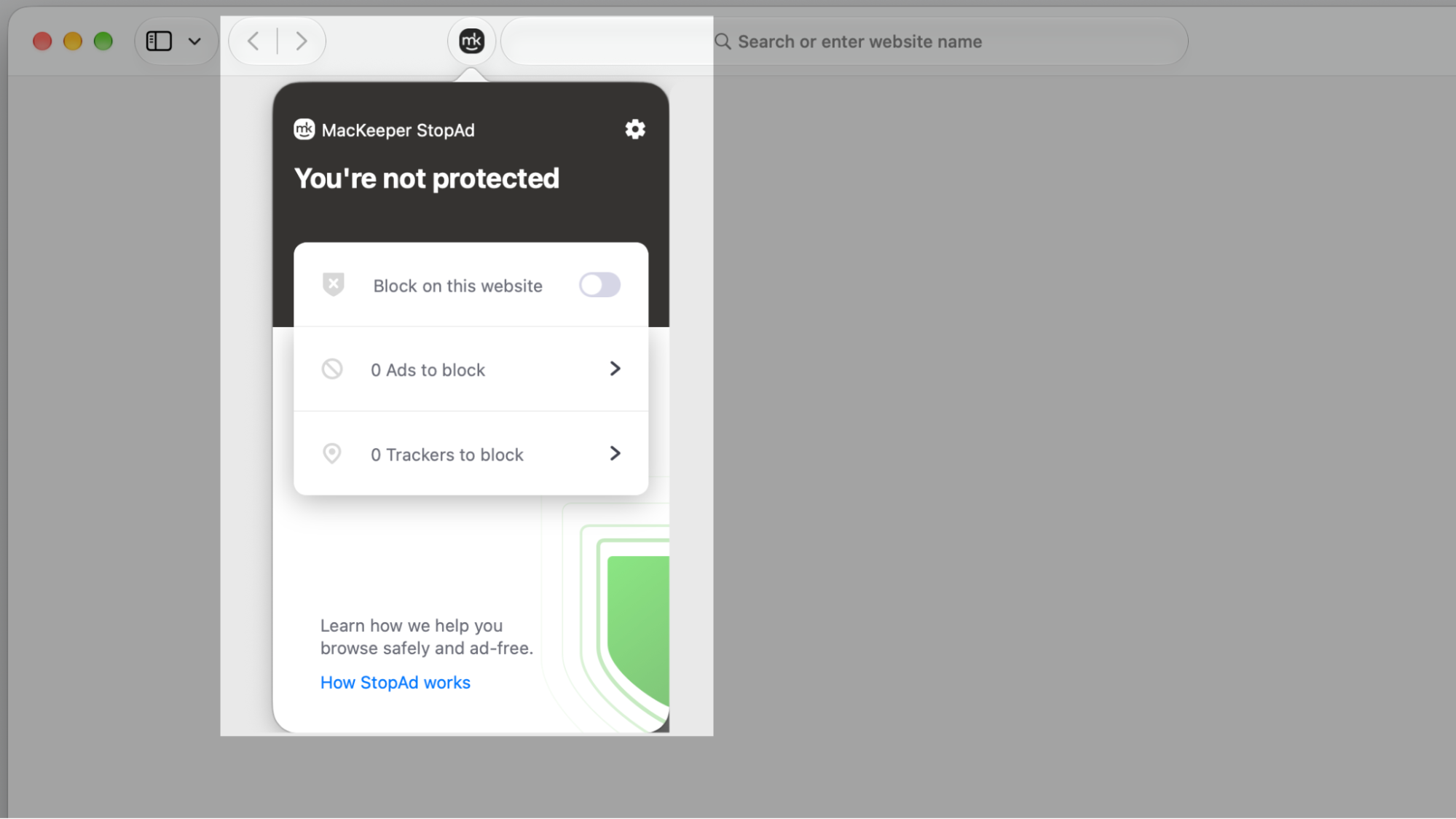
Install and run the app, then choose StopAd in the bottom of the feature list.
Click Open.
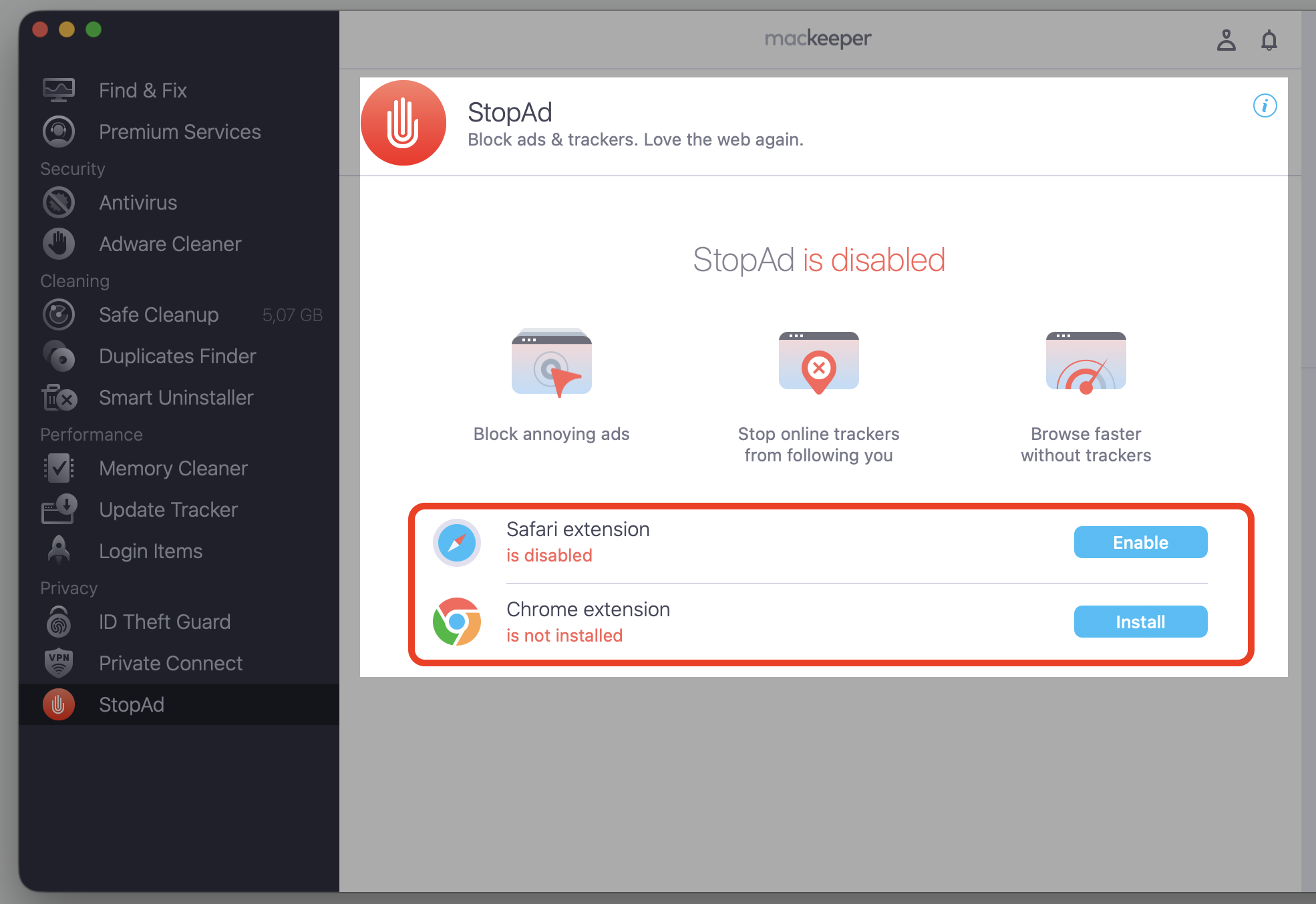
Enable the browsers you’re using on the daily basis based on the given instructions.
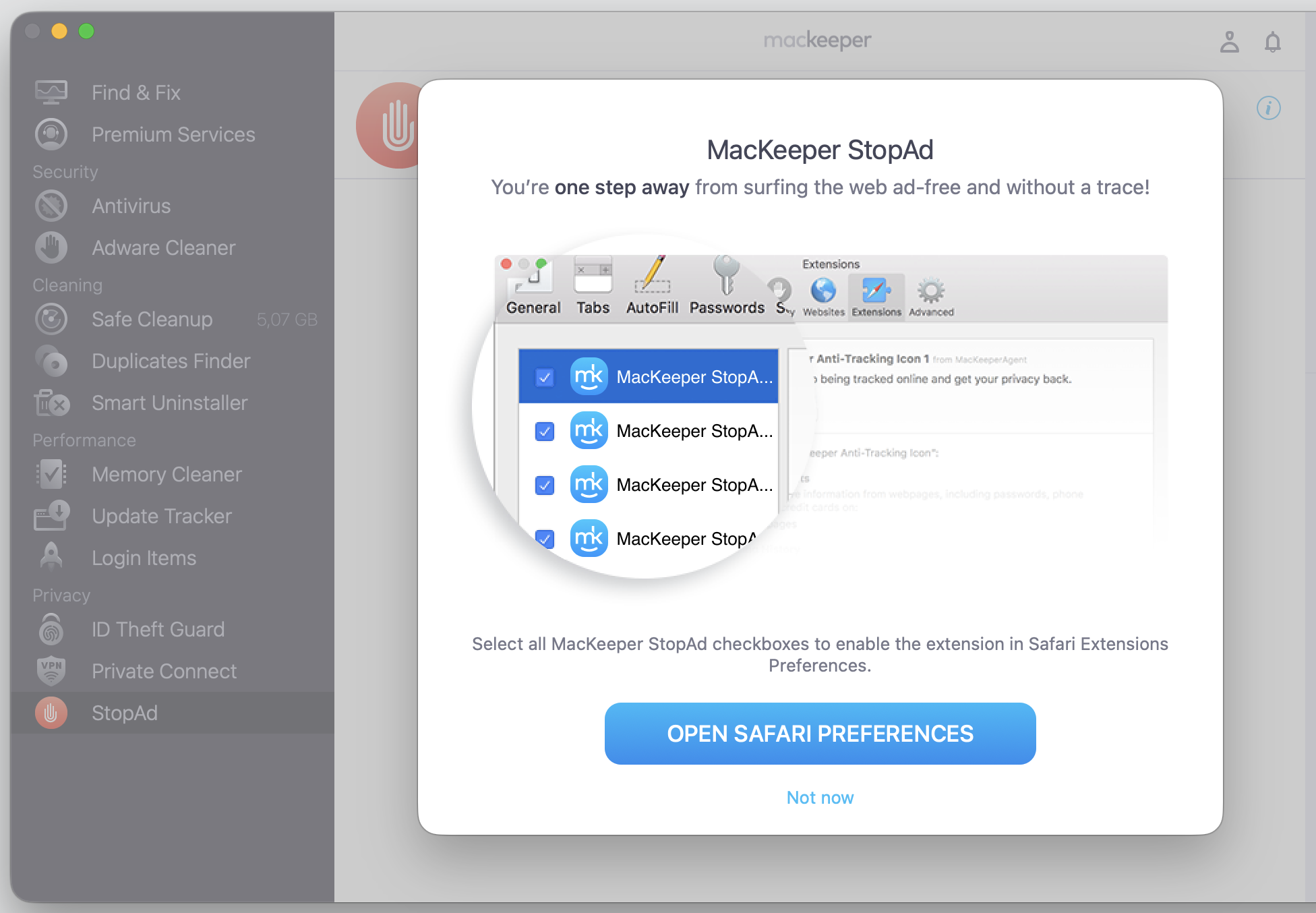
Enable all the addons.
Enjoy the result.
Step 1. Go to MacKeeper > StopAd > OpenStep 2. Enable StopAd extension in all your browsersStep 3. Follow the instructionsStep 4. Enable all required MacKeeper addonsStep 5. Check the result
Why are people worried about ChatGPT Atlas safety?
Much of the concern comes down to one thing — a browser with built-in AI can see and do more than a traditional one. When software reads your pages, remembers your activity, and acts on your behalf, it creates more privacy and security exposure than you might expect.
Early reviews from security researchers point to a few recurring worries: how much the browser can access, how it handles sensitive information, and whether malicious websites could trick the AI. These aren’t reasons to panic, but they’re worth understanding before you rely on Atlas and run into avoidable problems.
How does ChatGPT Atlas work with your browsing data?
To be helpful, Atlas needs visibility into what you’re doing. It can read the page you’re on, follow your browsing activity, and use your interactions to shape its answers. That’s how it summarizes an article or picks up where you left off in a session.
The trade-off is clear — the more context the AI has, the more it knows about you. Before you use Atlas for personal or work-related tasks, it helps to know exactly what the browser can see. We think of it like inviting an assistant to read over your shoulder — useful, but only if you trust the arrangement and stay in control of it.
What are biggest security risks of ChatGPT Atlas?
The question underneath all of this is simple — is ChatGPT Atlas secure? The honest answer is that it depends on how you use it. Most ChatGPT Atlas risks fall into a few categories, and each one is a potential vulnerability. Learning to prevent phishing scams helps, too, since many AI-browser attacks start with a convincing fake page. Below, we’ll walk you through the four risks we’d flag before you rely on it.
1. Prompt injection
Some websites hide instructions inside their code or text — instructions meant for the AI, not for you. This is called prompt injection. If Atlas reads that page and follows the hidden prompt, it might take actions you never asked for, like leaking data or opening a malicious link.
2. Sensitive data exposure
An AI browser can see whatever is on your screen, including passwords, financial details, medical records, work dashboards, and private documents. If that information passes through the AI, you lose some control over where it goes. Treat anything sensitive with extra care inside Atlas.
3. Unsafe automation
Agent mode lets Atlas click buttons, fill forms, and complete tasks for you. That’s convenient, but the AI can misread a page or follow a malicious instruction. A small misunderstanding might mean a form submitted to the wrong site or an action you didn’t intend.
4. Privacy and tracking concerns
Every summary, search, and interaction adds to a detailed picture of how you browse. Over time, that can start to feel like quiet surveillance. Review the data controls before you lean on Atlas, so you always know what’s stored and what’s shared.
What should you avoid doing in ChatGPT Atlas?
Some habits raise your risk more than others. Until AI browser security matures, we’d steer clear of the following:
Opening banking pages or entering card details
Sharing passwords or importing sensitive credentials
Using agent mode on private or work accounts
Handling confidential work data or client files
Storing personal documents you wouldn’t want an AI to read
If a site ever behaves strangely after you visit it, that can be one of the symptoms of a compromised session, and removing malware from browsers is a sensible next step.
How to make ChatGPT Atlas safer?
The good news is that you can lower your exposure by limiting what Atlas can see, remember, and do. A few quick settings go a long way toward helping you avoid cybercrime while still enjoying the AI features. Let’s go through the settings we’d adjust first, one at a time, below.
1. Turn off browser memories
Memories let Atlas personalize your experience over time, but they also mean the browser holds onto details from past sessions. We’d switch them off to limit what it remembers about you.
Start by clearing what Atlas keeps on file:
Open Atlas and go to Settings.
Find the Memory or Personalization section.
Turn off Browser memories.
Clear any saved memories to remove past data.
2. Limit agent mode
Agent mode is handy for low-risk chores, but it shouldn’t touch your sensitive sites. We’d use it only where a mistake wouldn’t cost you much.
Keep automation on a short leash:
Open Settings and look for Agent or Automation.
Turn agent mode off by default.
Enable it only for specific, low-risk tasks.
Never let it act on banking, work, or medical pages.
3. Use incognito or private browsing
Private browsing stops Atlas from saving your session locally, which helps for one-off tasks. In our experience, though, it doesn’t make you anonymous to websites, your network, or your internet provider.
Browse without leaving a trail when it counts:
Open a new Incognito or Private window.
Do your quick task inside that window.
Quit the window when you’re done.
Avoid signing in to sensitive accounts, even here.
4. Review data controls
Your settings decide whether your activity trains the model or gets stored. We think it’s worth a quick check before Atlas becomes part of your routine.
Take a minute to see what Atlas shares:
Open Settings and go to Data controls.
Turn off Improve the model for everyone if you’d rather opt out.
Review what browsing data is saved.
Adjust memory and privacy options to your comfort level.
5. Keep sensitive accounts in another browser
Using a separate browser for banking, work, and medical accounts keeps them away from AI features. We find Safari or another browser on your Mac works well for this.
Split your risky logins from your AI browsing:
Pick a second browser, such as Safari, for sensitive logins.
Sign in to banking, work, and medical sites only there.
Keep Atlas for research, reading, and casual tasks.
Don’t sync passwords between the two.
6. Download Atlas only from official sources
It’s not available to install ChatGPT Atlas already from official sources. However, here, we’d like to remind you that outsource installers are a common way malware sneaks onto a Mac, so learning to protect your Mac from viruses starts with where you get your apps.
Enjoy ChatGPT Atlas without extra worry
So, is ChatGPT Atlas safe? It’s not automatically unsafe — it’s a helpful AI browser as long as you use it carefully. Keep it for low-risk tasks like reading and research, and keep your banking, work, and private documents in a separate browser until AI browser security grows up a bit. That’s how you get the convenience without the anxiety, whether you’re on a MacBook, an iMac, or any Macintosh you rely on day to day.
If the ads, trackers, and pop-ups that clutter AI browsing are wearing you down, MacKeeper’s StopAd can help. It blocks ads on selected or every site, stops trackers, and keeps Safari and Chrome feeling clean and quick. Install MacKeeper and switch on StopAd to browse with fewer distractions and more privacy.
We respect your privacy and
use cookies
for the best site experience.
Privacy Preferences Center
We use cookies along with other tools to give you the best possible experience while using the
MacKeeper website. Cookies are small text files that help the website load faster. The cookies we
use don’t contain any type of personal data meaning they never store information such as your
location, email address, or IP address.
Help us improve how you interact with our website by accepting the use of cookies. You can change
your privacy settings whenever you like.
Manage consent
All cookies
These cookies are strictly necessary for enabling basic website functionality (including page
navigation, form submission, language detection, post commenting), downloading and purchasing
software. The website might malfunction without these cookies.