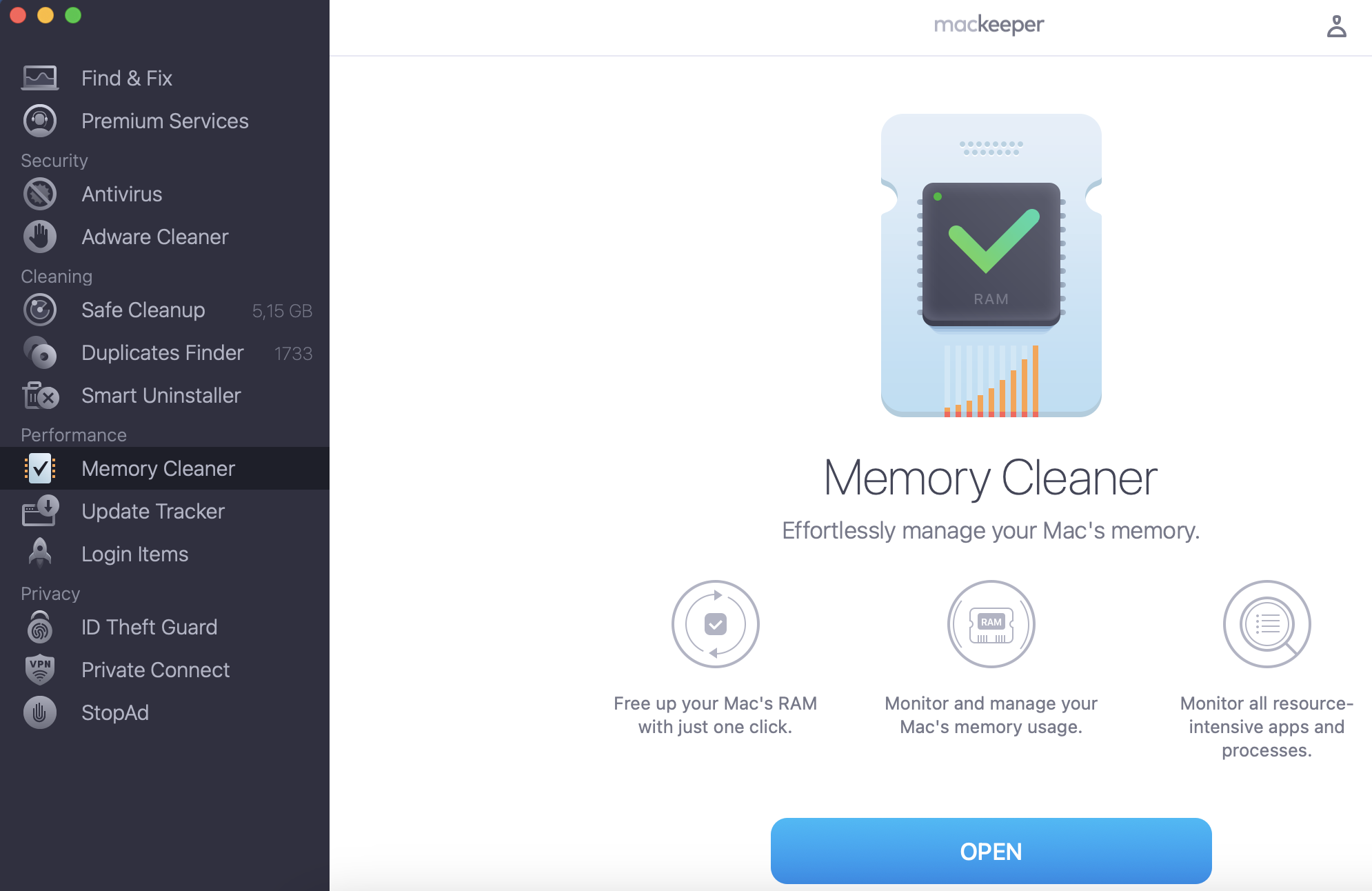
Finding the best Mac for photo editing is a tricky task. Actually, even your old machine can become more powerful if you manage its resources properly. MacKeeper's Memory Cleaner can help you with that—it allows you to close unnecessary resource-intensive processes and devote your Mac’s powers to something you really need.
Macs have always been popular among creative people, including photographers, thanks to their blend of great performance and style. It’s no coincidence that leading apps like Photoshop were Mac only for years.
But if you’re a photographer looking for a new Mac, you’ve got a decision to make. In this article, we’ll take a look at the best MacBook for photo editing and how to choose it right now.
A note from our experts:
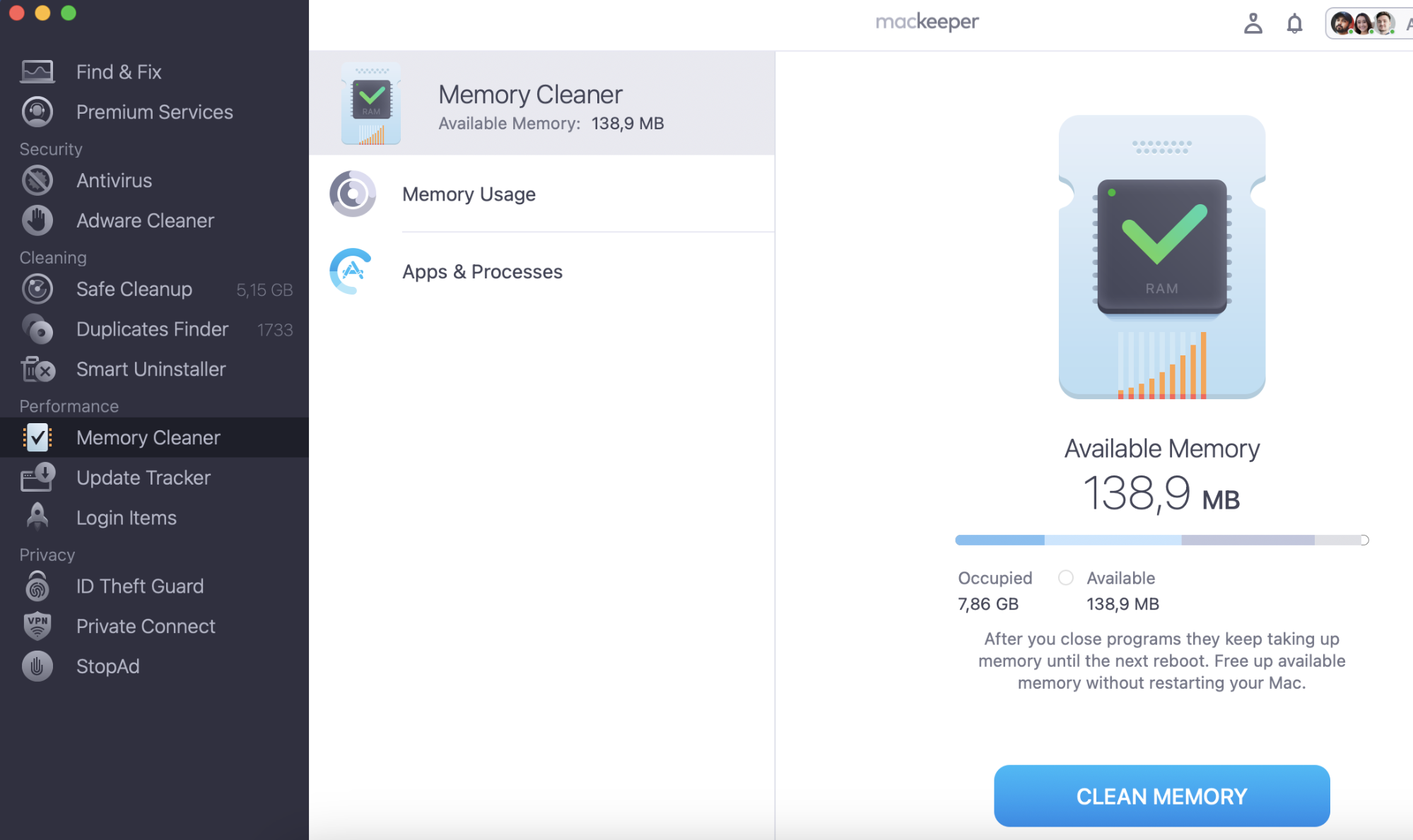
When you’re running powerful photo-editing apps, you might occasionally find your Mac slowing down a bit. This could be because you’re running out RAM. You can quickly fix this problem with MacKeeper’s Memory Cleaner feature.
MacKeeper will end any unnecessary processes running in the background, freeing up RAM for you. Want to try it out? You get one free fix, so you can see for yourself how it works.
Top three Macs for photo editing:
Best for working on the go: 13-inch MacBook Air (2025)
Best for budget: MacBook mini (2024)
Best for screen size: 24-inch iMac with 4.5K Retina Display (2024)
Why use a Mac for photo editing?
As we’ve said, Macs are well loved by creative people, like filmmakers and app developers. Photographers will also be well served by the power and durability of Macs.
Macs also have a tendency to hold their value longer than other types of computer. That’s great if you like to sell your old Mac every few years to help fund a new one.
Plus macOS comes with its own Photo app, which can be a great way to upload and organize the pictures on your Mac.
Recommended system requirements
Photography and photo editing don’t require much processing power, so any modern Mac will be good enough. Below, you’ll find our recommended Mac specs to ensure a smooth and efficient photo editing experience.
Desktop vs laptop: If you want to work on your photos while you’re out and about, then you’re definitely going to need a MacBook. But if you prefer to do photo editing at home, then it’s not so important to get a laptop. The decision comes down to your priorities: while the iMac offers a larger screen, the latest MacBooks feature more powerful processors.
Screen: Ideally, you want a high-resolution display with a substantial pixel density. You also want your display to be bright, with reliable color reproduction (wide color P3). When it comes to screen size, a larger display offers better visibility and a more comfortable workspace. However, 14- or 15-inch models provide a balanced compromise between portability and viewing area.
Processor: Apple Silicon processors consistently deliver strong performance for most photo editing tasks. For newer chips, such as the M4 or M5, the standard versions should be enough. However, if you’re considering an older model, opting for the “Pro” variant is recommended for smoother performance.
RAM: RAM is crucial in photo editing. For the best results, choose a Mac with at least 12 GB of RAM, though 24 GB or more is ideal. Investing in additional memory not only boosts current performance but also extends the device’s usefulness for years to come.
SSD: High-definition photo files can be huge, and a 256GB SSD will fill up fast, so you should opt for 512GB or larger. However, Apple charges a significant premium for larger storage sizes, so you might simply want to use external hard drives instead. Or you could store your photos in iCloud.
Connectivity: As a photographer, you should select a Mac with ample USB ports to support your camera, external hard drives, and other peripherals. SD card reader compatibility is also important, though built-in readers are increasingly rare on modern Macs. We recommend using adapters or hubs to ensure seamless connectivity for all your devices.
13-inch MacBook Air (2025) — best for portability
If you’re a serious photographer, you might have to take a lot of equipment on the road with you — like your camera, additional lenses, a tripod, lights, screens and more. The last thing you need is a heavy laptop weighing you down as well.
That’s where the new latest MacBook Air can really help. Weighing just 2.7lbs, it’s just 0.63-inches thick, making it easy to carry around with you wherever you go.
That portability does mean sacrificing screen size, though. The MacBook Air’s 13-inch display isn’t ideal for photo editing, although it does have a sharp 2560x1664 resolution, giving it a pixel density of 224ppi (pixels per inch). The 500 nits brightness, True Tone technology, and wide color (P3) are plus points too. And, if you need more screen space, you can plug in up to two external displays with up to 8K at 60Hz. Alternatively, consider the more powerful MacBook Pro.
As one of Apple’s newest Macs, the MacBook Air has an M5 processor, which is plenty for photo editing. It features integrated graphics, and you can either have an eight- or ten-core on-board GPU (graphic processing unit). Again, it doesn’t really matter for standard photo editing.
M5 chips also have built-in, unified memory, and you can choose either 16GB, 24GB, or 32GB. For most people, 16GB will be enough, but if you use a lot of resource-intensive filters and effects or do any 3D editing, 32GB might be a better option. You can’t upgrade the RAM later, so it’s important to choose wisely.
The MacBook Air’s battery lasts for about 15 hours when browsing the web, so you can probably expect to get less than that when working on photos. In any case, it’s likely to be a good number of hours, and enough for the majority of photo editing tasks. Plus you might be able to tweak the macOS battery settings to squeeze more life out of it.
In terms of storage, you can choose from 512GB up to 4TB. If you’re only planning to use internal storage and not external hard drives or cloud storage, 256GB is quite small. Besides, system storage might be occupying a lot of space too. Again, this can’t be upgraded, so think carefully before making a decision.
Finally, you should be aware this MacBook has one MagSafe 3 charging port, two USB-C ports and a headphone port. That’s it. So you might need to buy adaptors and a USB hub.
13-inch MacBook Air (2025) specs
CPU
Apple M5 Chip
GPU
Eight-core integrated GPU or ten-core integrated GPU
RAM
16GB unified memory
Configurable up to 32GB
Storage
Basic: 512GB
Configurable up to 4TB
Display
13.6-inch IPS display with 2560x1664 resolution
Battery life
Up to 15 hours using wireless web. Up to 18 hours watching movies.
Ports
One MagSafe 3 charging port
Two Thunderbolt 3 4
3.5mm headphone jack
Weight
2.7lbs (1.23kg)
24-inch iMac with 4.5K Retina Display (2024) — best for screen size
If you want an all-in-one Mac with the biggest display possible, then you have to get the 27-inch iMac. It uses a basic Apple Silicon chip, so it’s not as future-proof as a Pro or Max model. Still, its 4.5K Retina screen is perfect for viewing and editing photos. With 500 nits brightness and a 4480x2520 resolution, images look fantastic on this Mac.
That M4 chip is no joke. The base model has an eight-core CPU and an eight-core GPU, but you can also choose a more powerful ten-core CPU. For photography and photo editing, eight-core CPUs and eight-core GPUs will be fine.
You can also choose either 16GB, 24GB, or 32GB of RAM and have between 256GB and 2TB of SSD storage space. Again, many of these are overkill for photography, but more storage space is something you might want to think about.
Another big plus point for this Mac is the connectivity. With two or four Thunderbolt 4 ports, Ethernet and a card reader, it’s perfect for photographers.
24-inch iMac with 4.5K Retina Display (2024) specs
Processor
Apple M4 Chip
Graphics
Eight-core integrated GPU or ten-core integrated GPU
RAM
16GB unified memory
Configurable up to 32GB
Display
24-inch 4.5K Retina display with 4480x2520 resolution
Storage
256GB SSD
Configurable up to 4TB SSD
Mac mini (2024) — best budget Mac
If you’re eager to use a Mac for photography but your budget is small, the M4 version of the Mac mini is the ideal choice. It’s affordable, starting from $799, but it has more than enough power to run photo editing apps like Photoshop.
If you do go for the base model, you’ll get the ten-core M4 chip, which has a ten-core GPU built in. It also includes 16GB of unified memory, which can be upgraded to 16GB, and a 256GB SSD, which is configurable up to 8TB. If you take a lot of large photos and videos, we’d recommend opting for larger internal storage or using external drives, because even 2TB might not be enough.
Connectivity isn’t bad. With the Mac mini, you get two USB-C Thunderbolt ports, Ethernet, two USB-A ports and one HDMI.
Of course, you don’t get a display with the Mac mini, which is either a pro or a con, depending on how you look at it. On one hand, it means you can hook up whatever size screen you want, up to 5K resolution, along with a second monitor up to 8K resolution. But it also means you have to pay for a display. If you don’t already own one, that could wipe out the cost savings you get from buying a Mac mini.
Mac mini (2024) specs
Processor
Apple M4 Chip
Graphics
Ten-core M4 system-on-chip
RAM
16GB of unified memory
Configurable up to 48GB of RAM
The display must be purchased separately
Storage
256GB SSD
Configurable up to 8TB SSD
Are Macs better than PCs for photo editing?
The answer to this really boils down to personal preference. Some photographers choose Macs for their design, reliability, ergonomics and ease of use. Others prefer the PCs for their lower cost, better graphics card performance and upgradability.
Ultimately, if you already own a PC or a Mac, there’s no need to switch, but there are reasons to consider getting a Mac for photo editing. They include:
High color accuracy
Strong malware protection
High durability
Excellent software optimization
High resale value.
How to optimize your Mac for photo editing
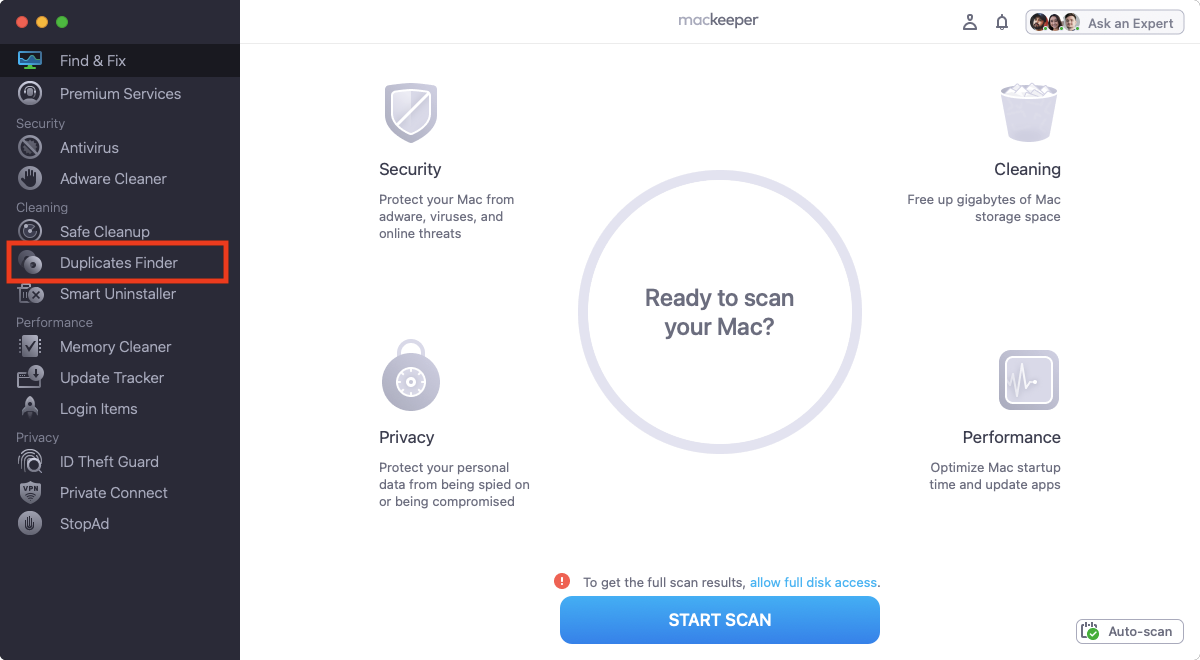
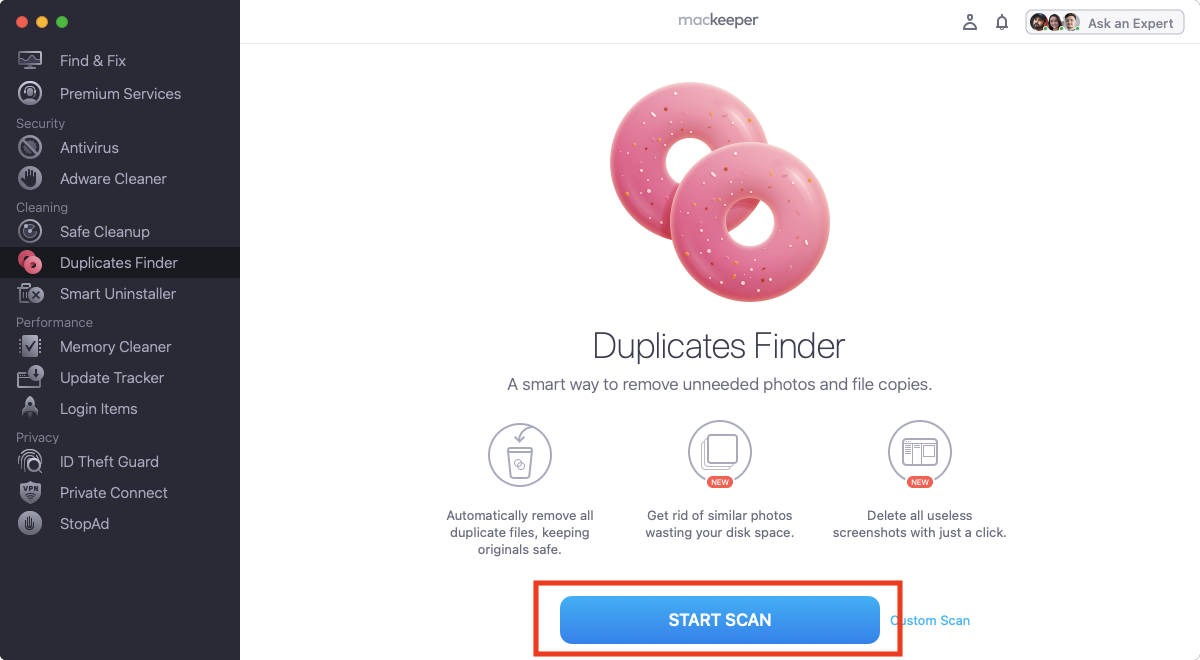
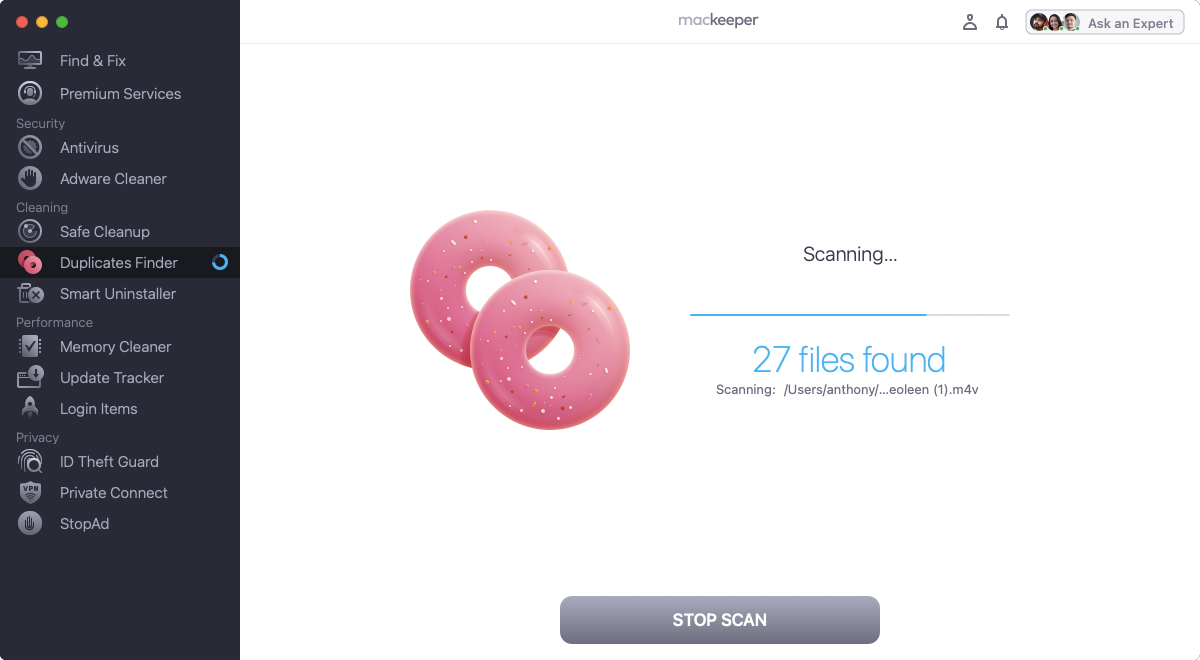
When you’re dealing with hundreds or even thousands of photos, it’s easy to end up with more than a few duplicates on your Mac. Sifting through them to delete the ones you don’t need can be a long, tiresome task. But you can save yourself a ton of time by using MacKeeper’s built-in duplicate file finder.
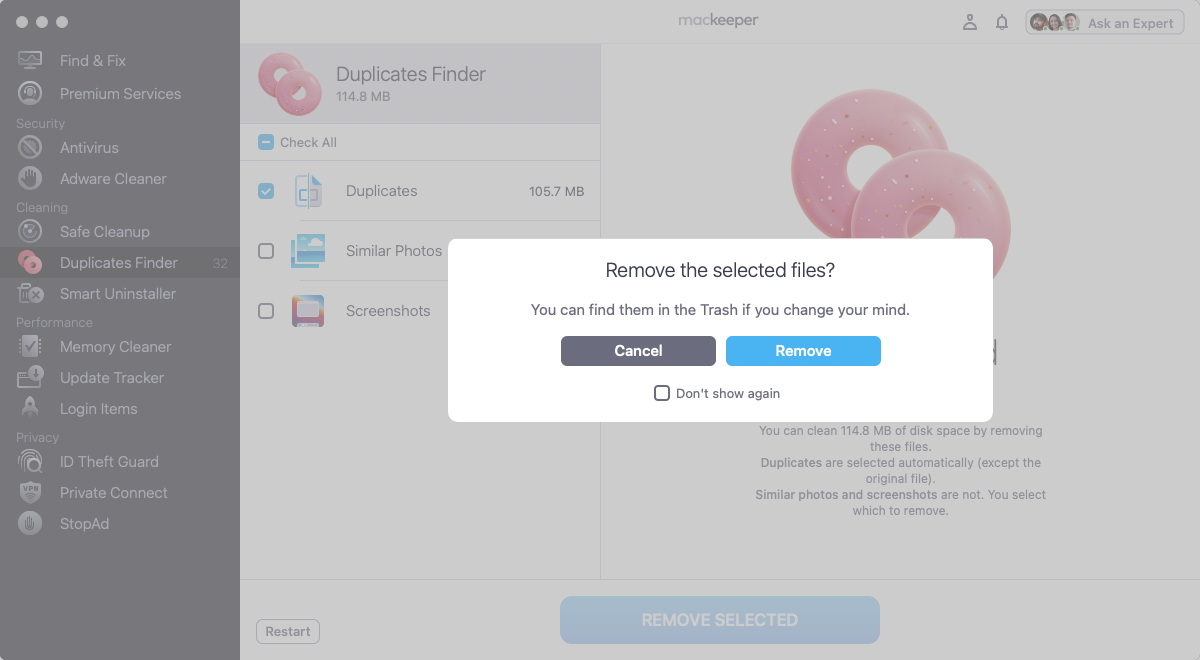
Select any duplicate or similar photos you don’t want, and click Remove selected.
If you see a message asking if you want to remove these files, click Remove.
Step 1. Open MacKeeper, and select Duplicates FinderStep 2. Click Start ScanStep 3. Wait for the scan to finishStep 4. Select any duplicate or similar photos and click Remove
Why do photographers use Macs?
Many photographers use Macs because of the outstanding display quality offered by Apple devices. Whether it’s gamut coverage, color accuracy or peak brightness, Macs deliver consistently great performance. Naturally, professional photographers consider these criteria crucial enough to base their buying decisions on them.
Does Photoshop work better on Mac or PC?
Photoshop works well with both Mac and Windows. To understand whether Photoshop works better on Mac vs. PC, it’s important to test the app performance on devices with similar configurations. Tests run on Mac and PC with similar Intel chips show no considerable performance difference. However, Mac usually takes the lead with the newest M5 chip.
How do I edit RAW photos on Mac?
To edit RAW photos on Mac, use either the Photos app or third-party apps. Although the Photos app does not have many bells and whistles, you shouldn’t overlook it. The app has an intuitive interface and can be used to change brightness, contrast, and apply other basic tweaks to your images.
Can I edit RAW photos in iPhoto?
To edit RAW photos in the Photo app, double-click an image and click the Edit button. Then, apply the changes using the editing tools from the panel on the right.
Is a MacBook Air or Pro better for photographers?
Overall, MacBook Pros excel at photo editing thanks to their powerful processors and larger, high-resolution displays, providing an optimal environment for detailed work. However, they may not be ideal for every photographer, particularly those who frequently travel or edit on location. In these situations, the MacBook Air stands out as an excellent choice, offering impressive portability and enough performance to handle editing tasks wherever inspiration strikes.
What is the best MacBook for Photoshop and Illustrator?
For Photoshop and Illustrator users, the M5 MacBook Pro stands out as the top choice, even in its base configuration. Its advanced system-on-chip combines a 10-core CPU and 10-core GPU, supports up to 32 GB of unified memory, and boasts a stunning display with a native resolution of 3024x1964.
While the M5 MacBook Pro comes at a premium compared to the MacBook Air, this significant performance boost is invaluable for professionals who work extensively with advanced Adobe applications and juggle multiple windows for hours on end.
Conclusion
Photography and photo editing don’t generally require the fastest Macs you can get. However, you might benefit from more power if you work with a lot of high-resolution images or 3D. You certainly don’t need it for basic tasks like creating slideshows, though.
The cheaper Macs should be more than enough for most people, and the money you save can be put towards a better camera. Just weigh up what features you need, how much you want to spend and where you’ll be doing most of your editing. Then, hopefully, you’ll find what you think is your own best Mac for photographers and photo editing.
We respect your privacy and
use cookies
for the best site experience.
Privacy Preferences Center
We use cookies along with other tools to give you the best possible experience while using the
MacKeeper website. Cookies are small text files that help the website load faster. The cookies we
use don’t contain any type of personal data meaning they never store information such as your
location, email address, or IP address.
Help us improve how you interact with our website by accepting the use of cookies. You can change
your privacy settings whenever you like.
Manage consent
All cookies
These cookies are strictly necessary for enabling basic website functionality (including page
navigation, form submission, language detection, post commenting), downloading and purchasing
software. The website might malfunction without these cookies.