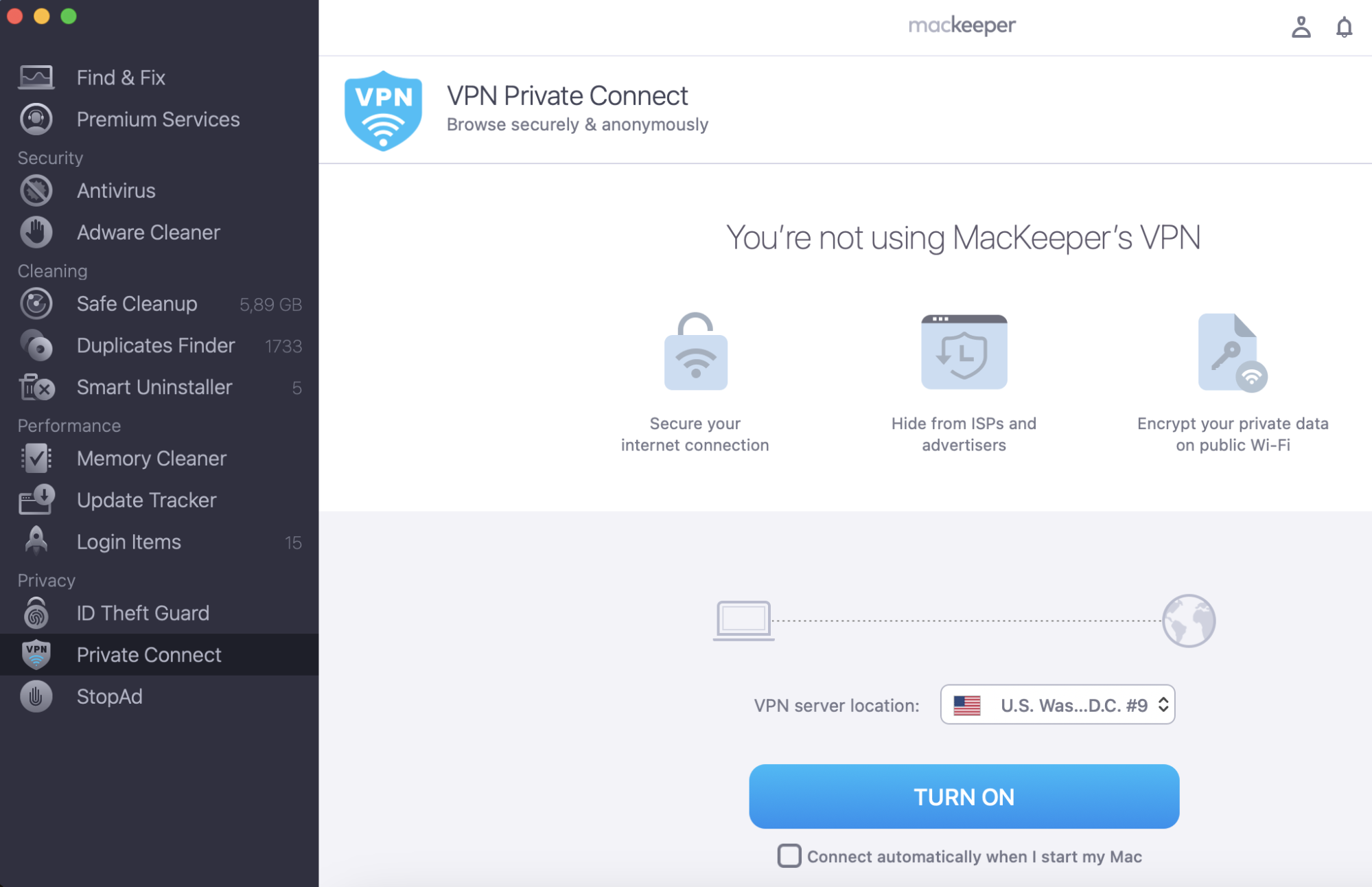
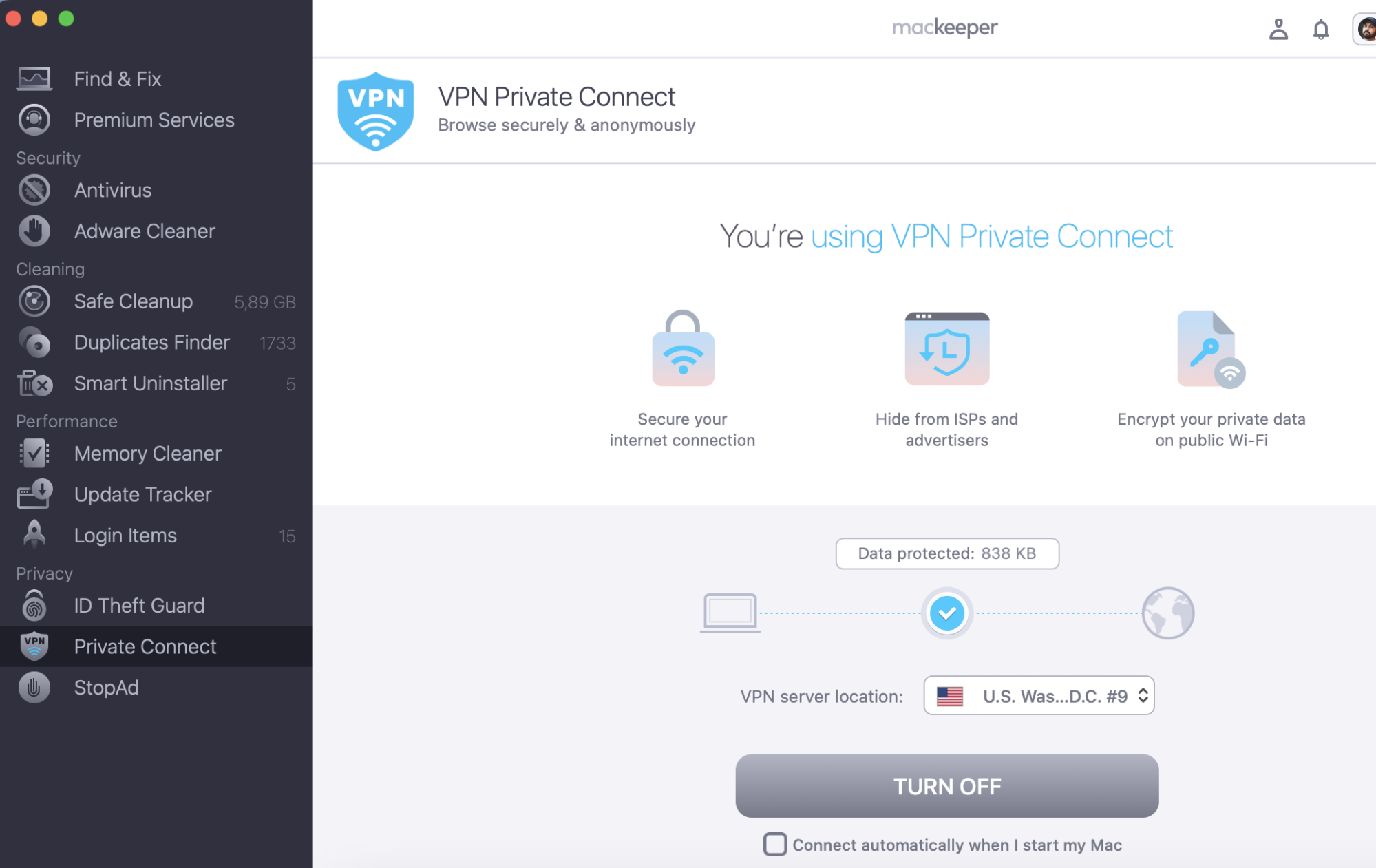
While searching for the best Mac for students, don’t forget to secure your connection to protect your data—both on your current machine and on a potential new one. MacKeeper’s Private Connect can do it easily—it encrypts your data when you go online, providing a safer browsing experience.
Although colleges have computers that students can use, life is much easier if you have your own. And Apple systems are a great choice for students. MacBooks give you the freedom to work from anywhere, but iMacs and Mac minis can be good Macs for students as well.
Ultimately, the best Mac for you, if you’re a student, depends on how you’ll be using it and what kind of work you do. If you need a lot of screen space, for example, a desktop Mac might be better than a laptop.
In this guide, we’ll look at some of these factors to choose the best Macs for students.
A note from our experts:
As a student, you’ll likely spend a lot of time researching articles on the web, including public ones. When you’re doing that, you want to stay private and protected. So try out MacKeeper’s VPN Private Connect feature, and browse in peace.
Step 1. MacKeeper > Private Connect > choose the location > Turn OnStep 2. Click Turn Off when complete browsing
You can try out MacKeeper for free now. It’s packed with other features, and you get one free fix, so you can see it in action.
Best overall MacBook for college students
While the best MacBook depends on your individual needs as a student, like what course you’re taking, how large your workload is, and your budget, our overall best pick is the MacBook Air 13-inch (M5, 2026). It’s lightweight, portable, silent, and performs well. As one of the more recent MacBook releases, it’ll last you well beyond your college years with good care.
Here are more MacBook models you could consider buying for college:
MacBook Neo
MacBook Air 13-inch M4
MacBook Air 15-inch M4
MacBook Pro 14-inch M5
MacBook Pro 16-inch M4
How to choose the best MacBook for college education?
Choosing the best MacBook for college depends on your major, budget, and how long you need the laptop to last.
Here are the key factors to consider when choosing a MacBook for college:
RAM: Handles multitasking. As such, we highly recommend you go for 16GB to ensure your laptop stays fast for years and handles heavy workloads without slowing down. 8GB works for basic tasks like web browsing and word processing.
Storage: Depends on the files and apps you plan to store on your device. A 256GB drive is the bare minimum, especially when starting out, but we suggest you upgrade to 512GB to avoid running out of space for big software updates, projects, and large file downloads.
Portability: Do you attend classes on campus? Your laptop’s portability affects your daily commute. For instance, the MacBook Air is light and thin for carrying around, while the MacBook Pro is heavier but offers more robust cooling and power.
Processor: Think of this as your computer’s brainpower. Go for the Pro chip variants if you study a course like media or engineering. Otherwise, Apple's standard M-series chips are fast enough for everyday schoolwork.
Battery life: Your MacBook should last through long lectures. Fortunately, all modern Apple Silicon MacBooks offer exceptional battery life (often 15 to 18 hours or more), easily lasting a full day of classes without a charger.
Screen size: Find a nice balance between workspace and bag space. A 13-inch or 14-inch screen works well for small lecture-hall desks, whereas a 15-inch or 16-inch screen is better for viewing multiple documents side by side.
Choosing the best Mac for college depends on the kind of student you are, the type of assignments you get, and your general expectations from a computer.
As we previously mentioned, the choice of the best Mac for school depends on your major. If you’re studying a technically demanding major such as photography, coding, music production, or filming, we recommend you look for the best Mac for your profession — not just a laptop for a student. You will need this device beyond your graduation as a tool to complete assignments at work.
On the other hand, students who aren’t embarking on a creative specialization don’t need their computer to have that much power. Instead, you should look for a light and small device that you can easily carry around and show presentations whenever you need it.
You may not need that much RAM, but you might want to look into getting bigger storage for all that school-related paperwork, essays, and presentations. If you don’t want to pay for additional gigabytes on the Mac, consider buying an external disk or, to save even more money, extra cloud space. You can read more in our guide on how to check disk space on Mac.
The best Macs for students
Because the requirements of different courses can vary so much, the best Macs for each of them will vary too. Based on that assumption, here are the best Macs for college right now.
MacBook Air 13-inch M5
The 13-inch MacBook Air M5 is the perfect laptop for everyday use, perfectly balancing light weight with serious power. Apple now includes 16GB of RAM and 512GB of storage on the entry-level model, making it a faster and smarter long-term investment than ever before.
Best for
Students and professionals who need a lightweight machine for writing papers, analyzing data, and multitasking across heavy web apps.
On-the-go creators working with photo editing, programming, or light 4K video production.
AI workflows, thanks to the M5 chip’s dedicated Neural Accelerators built into every core to handle the latest Apple Intelligence features smoothly.
Pros
Portable design: Its compact, lightweight design makes it easy to carry anywhere, and it fits effortlessly into a school or laptop bag.
Completely silent: It uses a fanless cooling system, which keeps it dead silent even under heavy workloads, making it perfect for using in lectures.
Generous base specs: You no longer need to pay extra to upgrade from low storage, as the entry-level 512GB SSD is also twice as fast as older generations.
Incredible battery life: The laptop easily lasts approximately 13 to 18 hours on a single charge.
Upgraded wireless tech: It features Wi-Fi 7 and Bluetooth 6 for the fast and reliable wireless connections for years to come.
Cons
Port limitations: You only get two USB-C/Thunderbolt 4 ports and a MagSafe charging socket, meaning you will likely need a dongle or dock for multiple accessories.
Thermal slowdowns: Its performance can drop during extended, heavy 3D rendering or prolonged processing tasks due the lack of a physical cooling fan.
60Hz screen rate: While the display is beautifully bright and sharp, the refresh rate is still locked at 60Hz instead of a smoother 120Hz.
Specification
Value
CPU
10-Core Processor
GPU
8-Core or 10-Core Graphics
RAM
16GB Unified Memory
Storage
512GB SSD Baseline
Display
13.6-inch Liquid Retina
Battery life
Up to 15–18 hours
Ports
2 Thunderbolt 4 / USB 4 ports
Weight
1.23 kg / 2.7 pounds
Apple released the 13.3-inch MacBook Air in 2020. Like all of Apple’s new computers, it uses the company’s own M1 processor, which means it’s fast and power-efficient. It boasts up to 15 hours of wireless web use on one charge, which is impressive.
MacBook Neo
Released in March of 2026, the MacBook Neo is Apple's most affordable laptop ever, starting at $599 and $499 for students. Apple wanted a truly affordable option to lower the barrier of entry into the Mac ecosystem for students and budget-conscious buyers and bring the full macOS experience and Apple Intelligence to a much wider audience. Instead of the M-series processors, it uses a binned version of the iPhone-derived A18 Pro chip instead.
Best for
Budget-conscious students in non-technical fields who primarily need to type essays, manage spreadsheets, and browse the web.
Casual home users looking for an affordable, easy-to-use laptop for everyday tasks like streaming video, answering emails, and handling daily tasks.
Anyone wanting an entry-level Mac that natively runs on-device AI features like Apple Intelligence writing tools without paying premium prices.
Pros
Unbeatable pricing: At just $599 and $499 for students, it lowers the barrier to entry into the Apple ecosystem.
Premium build quality: Features a highly durable, recycled aluminum frame that feels far sturdier than plastic competitors.
Completely fanless: Runs dead silent all day long, even under full sustained workloads.
Excellent AI performance: The built-in Neural Engine boasts a powerful 35 TOPS output specifically optimized for swift AI workloads.
Vibrant display: Bright 500-nit screen makes it highly legible indoors and clear for streaming content.
Cons
Huge RAM limitations: Limited to 8GB of unified memory with no option to upgrade, which can bottleneck heavy multitasking.
Heavy SSD wear: Due to low memory, the system heavily relies on SSD Swap, causing the non-replaceable internal storage to burn through write cycles faster.
Base model has no Touch ID: The entry-level $599 version doesn’t include the fingerprint sensor, restricting it only to the upgraded $699 model.
Extremely limited ports: Packs only a single USB-C port (USB 3 spec) for charging and accessories, meaning you must buy a dongle to hook up multiple devices.
No MagSafe charging: Charges via its lone USB-C port, so it lacks the breakaway safety cable found on the MacBook Air.
Specification
Value
CPU
6-Core Processor
GPU
5-Core Graphics
RAM
8GB Unified Memory
Storage
256GB or 512GB SSD
Display
13.0-inch Liquid Retina
Battery life
Up to 16 hours
Ports
1 USB-C, 1 headphone jack
Weight
1.23 kg / 2.7 pounds
As for iMac devices, there are currently two models available, and they’re both excellent. The one we haven’t chosen here is the 27-inch iMac, which is the biggest Mac you can buy. If you’re studying any kind of design course, it’s the best model available. It’s fast, stylish, and has an amazing 5K Retina display.
MacBook Pro 14-inch (M5 or M5 Pro)
While the Neo is the budget saver and the Air is the everyday all-rounder, the MacBook Pro is the ultimate powerhouse. If your course requires heavy lifting or you simply need massive performance without compromises, this is the Mac for you. It’s powered by either the standard M5 or the faster M5 Pro chip, depending on your configuration. It also features a brilliant mini-LED screen, a pro-grade cooling fan, and a ton of actual ports, meaning you’ll never need a dongle.
Best for
Power-user majors like software engineering, film or media production, 3D animation, data science, and advanced music production.
Outdoor studiers who like to do assignments on campus lawns, thanks to its incredibly bright screen and optional glare-cutting nano-texture finish.
Students who hate dongles and want to connect monitors, camera cards, and external drives directly into their machine.
Pros
Stunning 120Hz ProMotion screen: Its liquid Retina XDR display with Mini-LED backlighting & ProMotion adaptive refresh (up to 120 Hz) makes for smooth scrolling, animations, and video playback.
Pro-grade ports: It comes with a built-in HDMI port and an SDXC card slot alongside three Thunderbolt ports, completely eliminating the need for extra adapters.
Active fan cooling: Unlike the fanless Air and Neo, the Pro features high-performance fans that keep the laptop completely cool, so it never slows down during heavy rendering or code compilation.
Massive base configuration: The M5 Pro version comes standard with 24GB of ultra-fast unified memory.
Next-gen speeds: Features cutting-edge Thunderbolt 5 ports (on M5 Pro models) and Wi-Fi 7 for high data and wireless speeds.
Cons
Very costly: This device costs noticeably more than a standard MacBook Air, making it a major investment that may not be affordable to most students.
Thicker and heavier: Weighing in at 1.6 kg, it feels a bit bulkier in a backpack compared to the razor-thin MacBook Air.
Specification
Value
CPU
Up to 15-20 Cores
GPU
Next-Gen Powerhouse
RAM
24GB or 32GB base
Storage
512GB to 1TB baseline
Display
14.2-inch Liquid Retina XDR
Battery life
Up to 18-22 hours
Ports
3 Thunderbolt, HDMI, SD Card
Weight
1.6 kg / 3.5 pounds
How students can save when buying a MacBook for college?
Saving money on a MacBook is entirely possible if you know where to look and what pitfalls to avoid.
Here’s how you can get the best deal for college without overpaying:
Reseller discounts
Authorized third-party retailers are often the best place to find cash discounts on brand-new Macs.
Watch major retailers: Stores like Best Buy and Amazon frequently cut prices on MacBooks, especially during back-to-school seasons or holiday sales.
Check student programs: Sign up for student-specific discount portals at major tech retailers to unlock exclusive coupon codes.
Compare with Apple Education: Always check if a reseller's discount beats Apple’s official US Education Store. Apple gives students roughly 10% off year-round and includes a $100 to $150 Apple Gift Card during their summer Back to School promotion (which runs until September 24).
Refurbished Macs
Buying refurbished is the single best way to get a premium MacBook on a tight budget.
Stick to official Apple Certified Refurbished: Apple sells used Macs on their website that are practically indistinguishable from brand-new ones.
Get the full warranty: Apple refurbs come with a brand-new outer shell, a fresh battery, a standard one-year warranty, and full AppleCare eligibility.
Save up to 15%: You can easily save thousands on recent models like the MacBook Air M2 or M3, getting a more powerful machine for the price of a base model.
What to avoid
Some deals are traps that will cost you more money or headaches down the road.
Avoid older Intel-based MacBooks: Never buy an old MacBook with an Intel processor. Apple is phasing out software support for them, and they run hot with terrible battery life. Stick to Apple Silicon (M1, M2, M3, etc.).
Avoid unauthorized “as-is” used sellers: Buying from random sellers on online marketplaces is risky. If the Mac is locked with an Activation Lock or Mobile Device Management (MDM) from a previous school or company, it will be a completely useless brick that Apple cannot unlock for you.
Avoid buying 8GB of RAM if your major is technical: Do not cheap out on memory just to save a bit of cash if you’re studying engineering, video editing, or computer science. Buying a machine that slows down next year will force you to buy a whole new laptop sooner.
Apple education pricing
You can save on a new Mac for your studies with Apple Education Pricing. As well as a discount on Macs, you get an Apple Gift Card worth up to $150 during the summer promotional period, and you can save 20% on AppleCare+. Plus, you can sign up for the Apple Music Student Plan to get a discounted monthly rate that includes Apple TV+ for free.
Education Pricing is available on eligible Mac models for college students and their parents, as well as faculty, staff, and homeschool teachers. Please note that you will be asked to verify your student or educator status online using a UNiDAYS account to get the discount.
How to prepare your Mac for college?
Preparing your Mac for college before you arrive on campus ensures you avoid tech headaches during your first week of classes.
Here are the most important steps to get your computer completely ready for your studies:
Set up your digital student ID through the UNiDAYS portal using your new college email address. Doing this early gives you instant access to student discounts on essential academic software and subscription services.
Install the latest macOS operating system updates and security patches. This keeps your data safe while on public campus networks and prevents compatibility issues with classroom apps.
Back up your data by turning on Time Machine with an external drive or syncing your data to iCloud Drive. Losing your work due to a spilled coffee or accidental damage can devastate your grades.
Download required software, such as productivity suites like Microsoft Office 365 or Google Workspace before classes start. Many universities provide these premium software suites completely free of charge through the campus IT portal.
Set up a password manager to securely store your school logins using the built-in Apple Keychain or a third-party manager like 1Password. You’ll need to juggle multiple new passwords for your student portal, library access, and Wi-Fi networks.
Free up space by deleting old high school files, clearing large downloads, and cleaning your cache. This ensures your Mac runs at peak speeds when you open heavy research tabs.
A brand new Mac won’t need much preparation, though. Just install all the apps you’re going to need, and make sure you’ve got an antivirus and anti-malware for Mac tool. But if you’ve bought a second-hand Mac for college, it might need cleaning up. In that case, use MacKeeper to remove unwanted apps, junk files, duplicates, and so on.
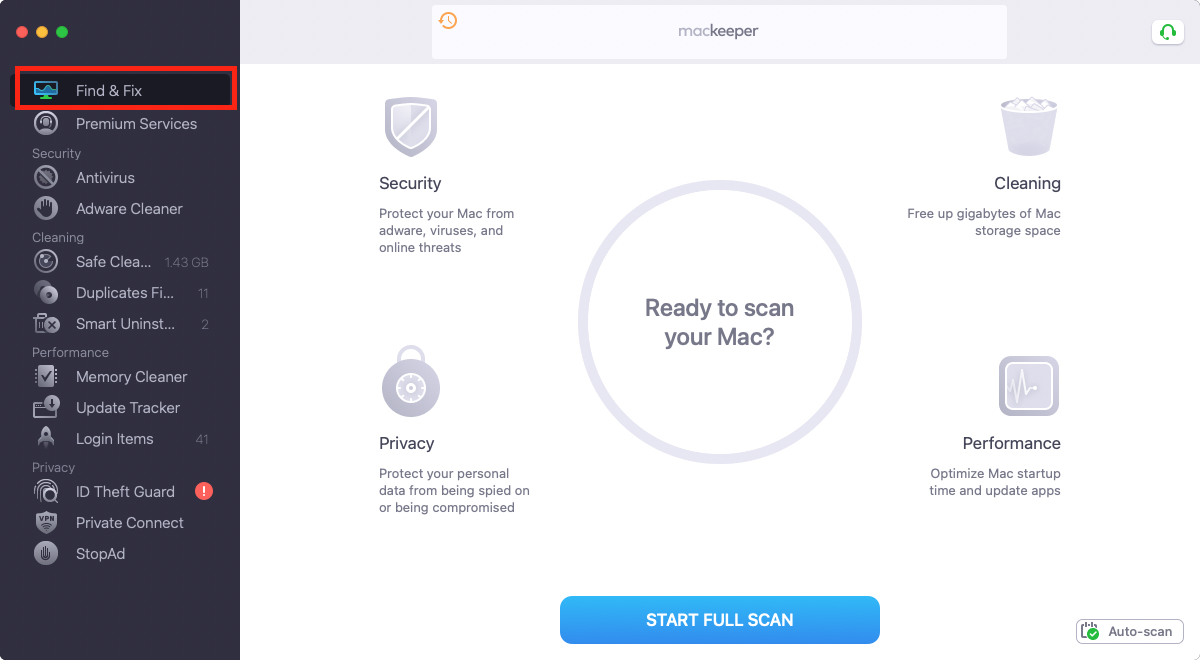
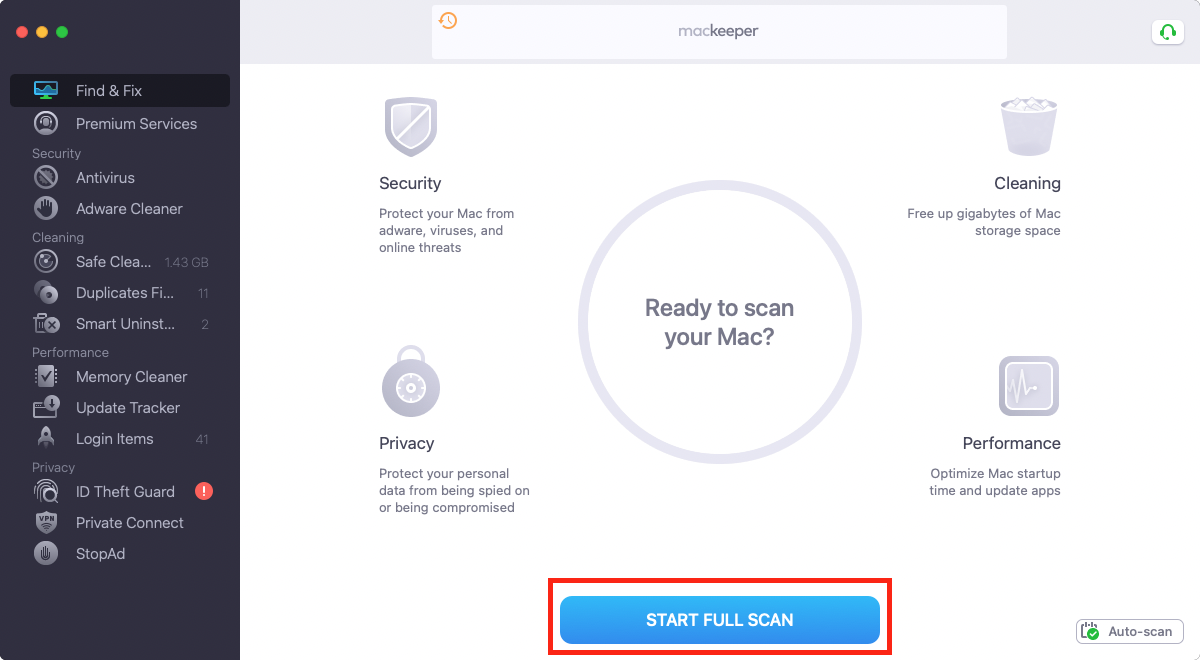
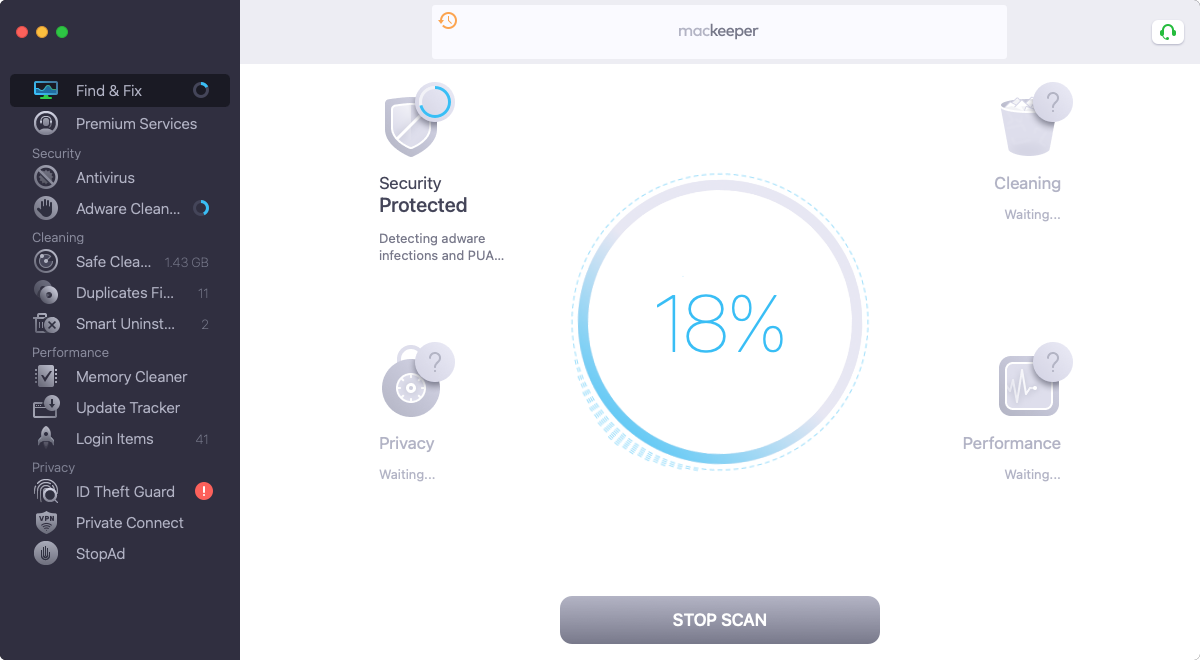
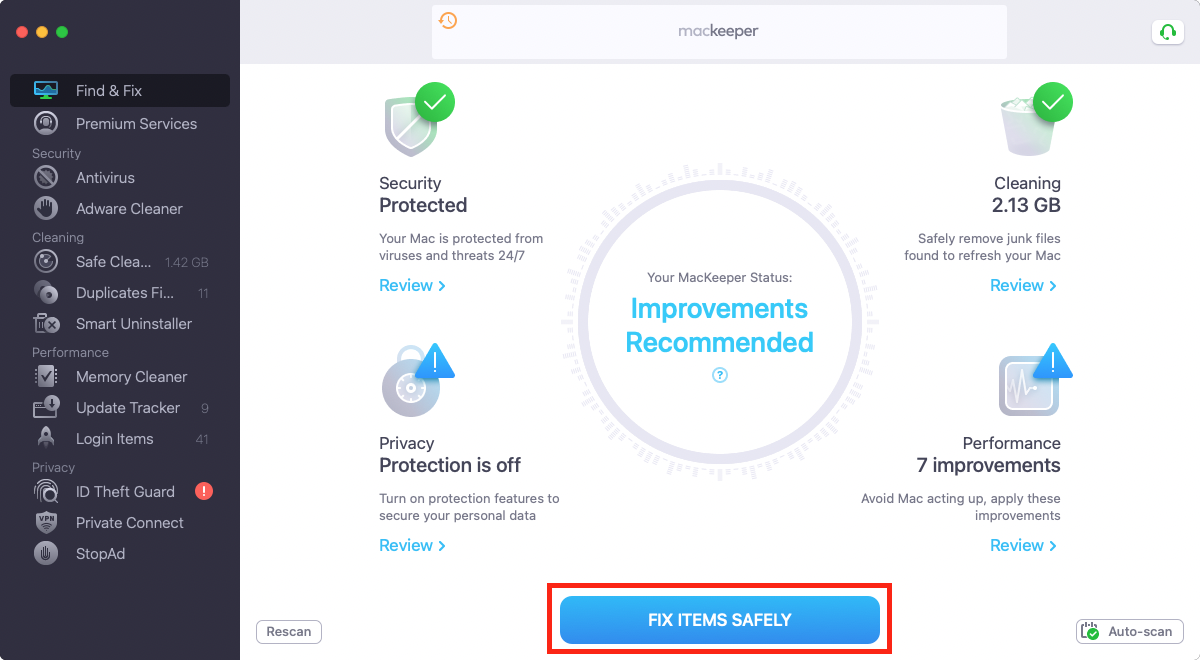
Here’s how to run a full Find & Fix scan in MacKeeper:
Step 1. Open MacKeeper and click on Find & FixStep 2. Click the Start Full Scan buttonStep 3. Wait until the scan is completedStep 4. Click on Fix items safely to complete the cleanup
But if you’ve bought a second-hand Mac for college, it might need cleaning up. In that case, use MacKeeper to remove unwanted apps, junk files, duplicates, and so on. It’s one of the best Mac cleaning software you’ll find if you’re after an all-in-one security and optimization tool.
Final verdict: Best MacBook for most students
The 13-inch MacBook Air M5 is the absolute best choice for most college students. Its standard 16GB of memory and 512GB of storage ensures the device easily lasts your entire tenure without expensive upgrades. It outperforms the budget Neo with double the memory and ports, while remaining lighter and cheaper than the heavy-duty MacBook Pro. With an all-day battery and a compact size that fits on tiny lecture desks, it offers the ultimate balance of portability and power for campus life.
To keep this laptop running like new throughout your studies, MacKeeper’s Find & Fix solution provides immense value. It automatically clears hidden junk files to free up storage space, detects campus network security threats, and optimizes performance bottlenecks. This ensures your Mac remains fast, secure, and reliable from your freshman orientation all the response to graduation day.
FAQ
Are Macs or PCs better for students?
It depends on what you’re studying. For creative or design courses, a Mac is often the best option. But other courses might also require you to run Windows-only software. That’s pretty rare, though, and in most cases, a Mac is going to be a good choice, because Macs are reliable and stylish. And MacBooks offer exceptional battery life too.
Should I choose a MacBook or iMac for college?
If portability is your primary concern, a MacBook Air is ideal. For a bit more power, a MacBook Pro is your best choice. But if you just want raw power, and you don’t need to take your computer on the move, then an iMac or Mac mini is the way to go. But whichever one you choose, they’re all great Macs for students.
What percentage of college students use Macs?
According to a survey by the Apple device management company, 71% of students across five countries use or would prefer to use a Mac. This is a huge statistic demonstrating just how popular they are among young people — both due to their exterior design and the advantages of macOS.
Why do most college students use Macs?
Apple devices are popular for their sleek design, superb image quality and easy-to-use operating system. It’s a well-known fact that macOS is far less prone to malware infections and viruses than any other operating system. They’re also robust, thanks to their metal bodies, which protect them from physical damage.
Is a MacBook really worth it for college?
Yes, we’d say a MacBook is worth it for college students due to its reliability, long lifespan and battery efficiency. Not only that, but it holds monetary value quite well, so you can almost always get good money for it should you decide to sell it and upgrade to something better.
Is the MacBook Neo good for college students?
Yes, the MacBook Neo is a great choice for college students. It’s the most affordable Mac offering, making it a no-brainer for students on a budget or those looking for a basic Mac for everyday tasks for their modules. Though cheaper, it still delivers on the reliability and smooth performance you’d expect from more premium Macs, giving you peace of mind.
Should I get an iPad or a MacBook for university?
We recommend you get a MacBook for university. It’s more suitable for students, enabling you to type and multitask easily. If you have the budget, you can get an iPad for quick and easy tasks, such as briefly catching up on your notes or listening to lecture recordings.
We respect your privacy and
use cookies
for the best site experience.
Privacy Preferences Center
We use cookies along with other tools to give you the best possible experience while using the
MacKeeper website. Cookies are small text files that help the website load faster. The cookies we
use don’t contain any type of personal data meaning they never store information such as your
location, email address, or IP address.
Help us improve how you interact with our website by accepting the use of cookies. You can change
your privacy settings whenever you like.
Manage consent
All cookies
These cookies are strictly necessary for enabling basic website functionality (including page
navigation, form submission, language detection, post commenting), downloading and purchasing
software. The website might malfunction without these cookies.