When we use multiple displays, there is a way to get a Mac to show the Dock on all screens so that our most-used apps are never more than a click away. We can also boost the performance of our system when using multiple screens by blocking apps from automatically launching at startup with MacKeeper’s Login Items from Clario Tech.
Within Apple’s macOS, the Dock is a UI feature, usually located at the bottom of the screen, that provides fast access to apps, files, and folders. By default, it contains built-in Mac apps like Finder, Safari, and Notes—as well as the Downloads folder and the Trash can. However, we can customize the Dock to contain any application, and to resize it or change its position on screen.
Our favorite thing about the Dock is that, as standard, it’s always located at the bottom of a Mac’s display, similar to the taskbar on Windows. This means that no matter where we are in OSX, and regardless of what app we’re using, anything we’ve placed in the Dock is always immediately accessible.
Is it possible to show Dock on all screens on Mac?
Apple users who have multiple displays often ask us if it’s possible for a Mac to display the Dock on all screens. While it’s not possible to replicate the Dock across multiple screens, or have separate Docks for each display, there is a trick you can use to make the Dock accessible across all displays.
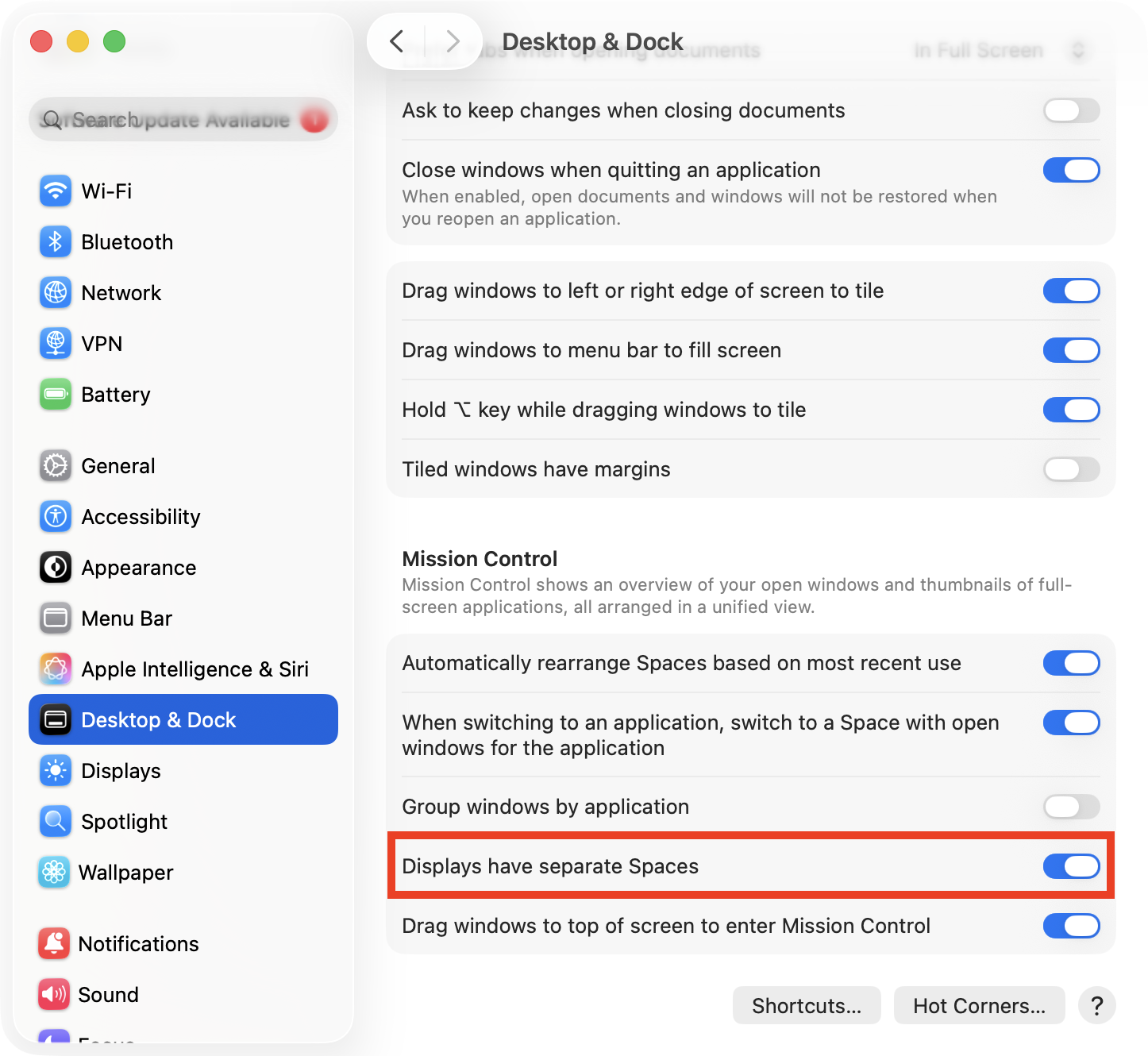
The best way to have the Dock follow you across displays is to enable Displays have separate Spaces in System Settings > Desktop & Dock. This will shift the Dock to whichever screen is active. If you find that the Mac Dock disappeared from all screens, you may have accidentally set it to hide automatically.
A note from our experts:
If you find your Mac’s performance suffers when you have multiple displays connected, we recommend that you free up system resources to improve responsiveness by preventing software from opening automatically when you turn on your Mac. The easiest way to do this is with Login Items feature developed by Clario Tech under the hood of the MacKeeper app.
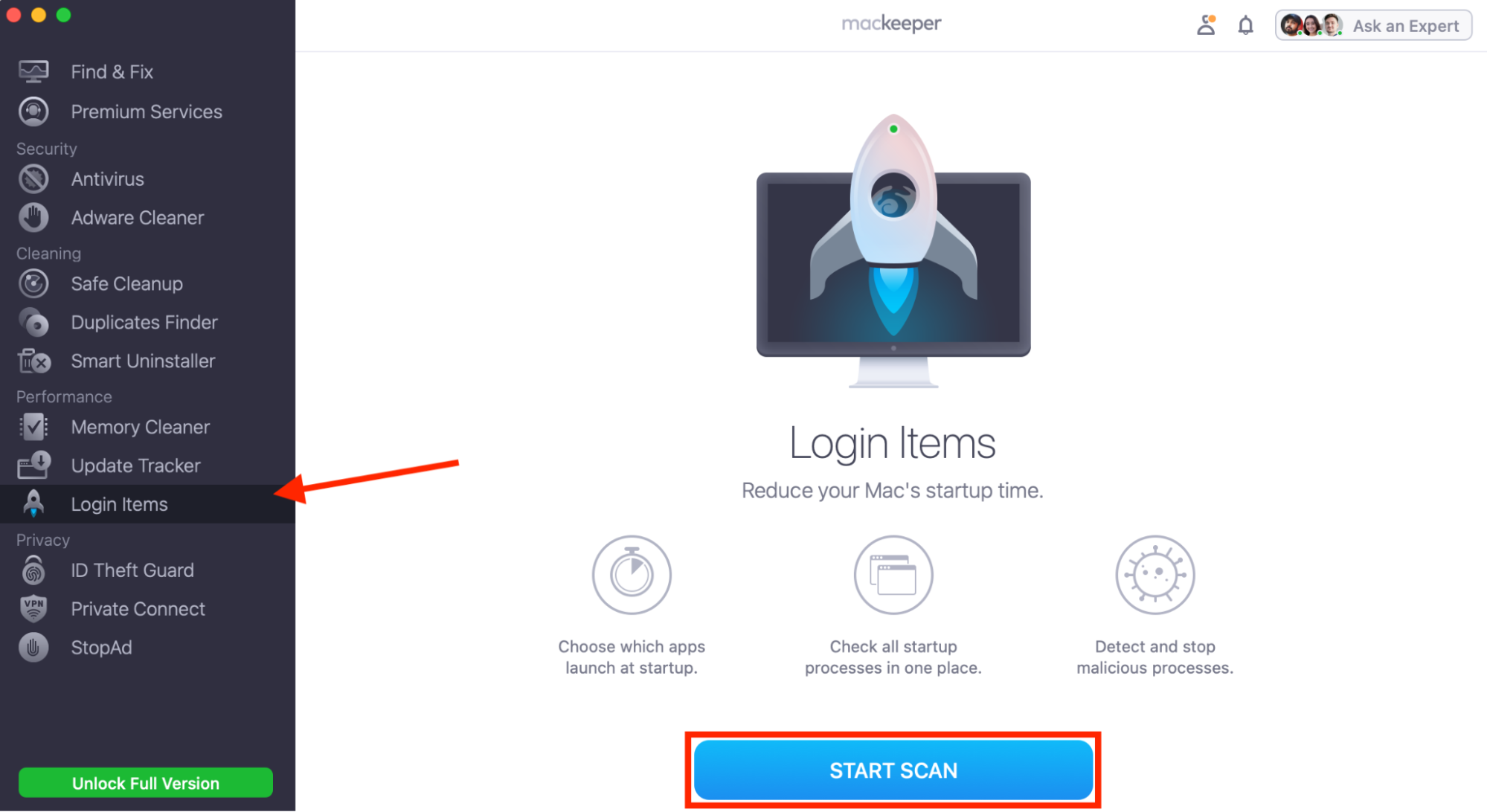
When MacKeeper opens, choose Login Items in the sidebar and click Start Scan.
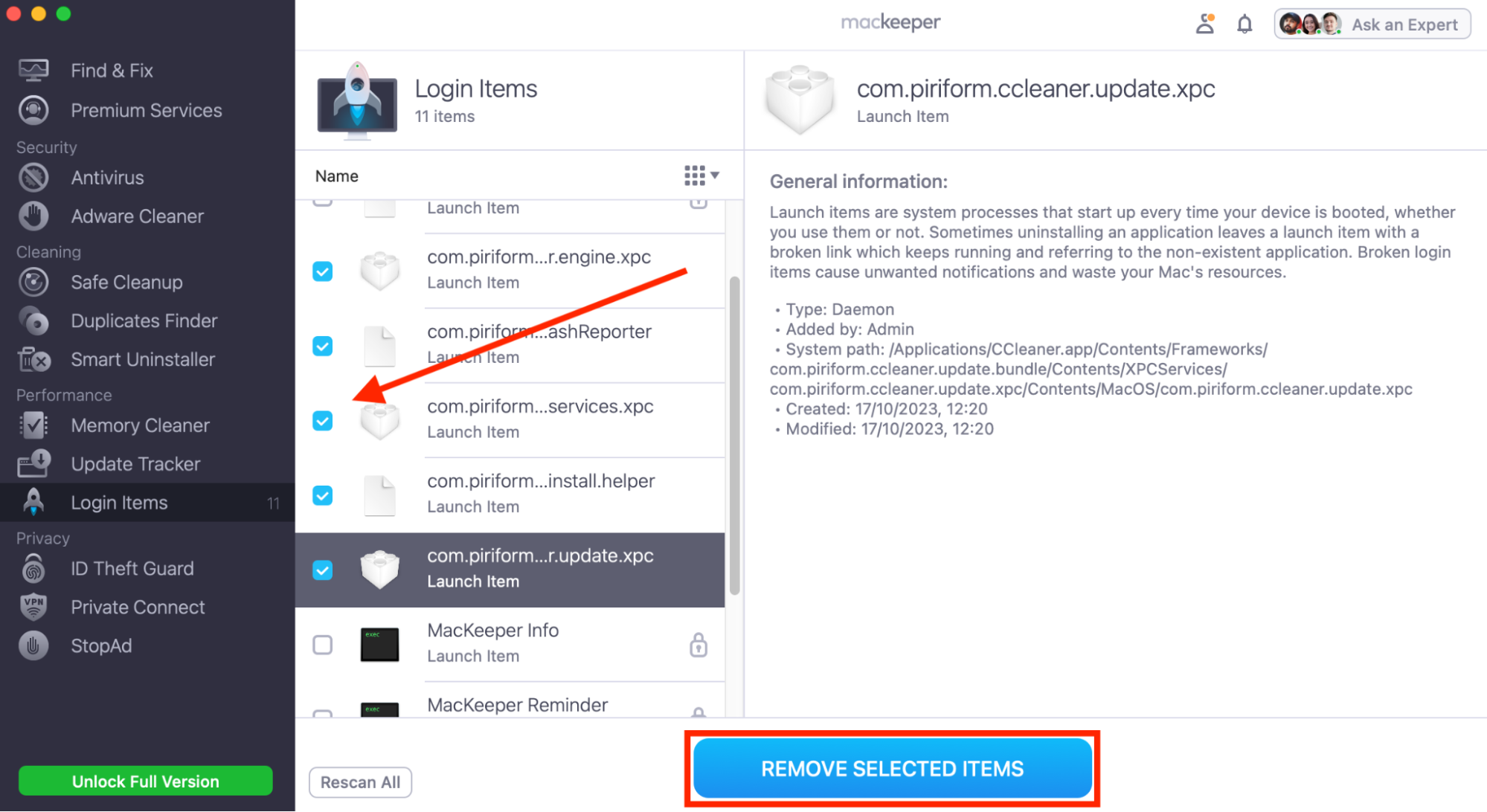
Select apps you don’t want to launch automatically at startup, then click Remove Selected Items.
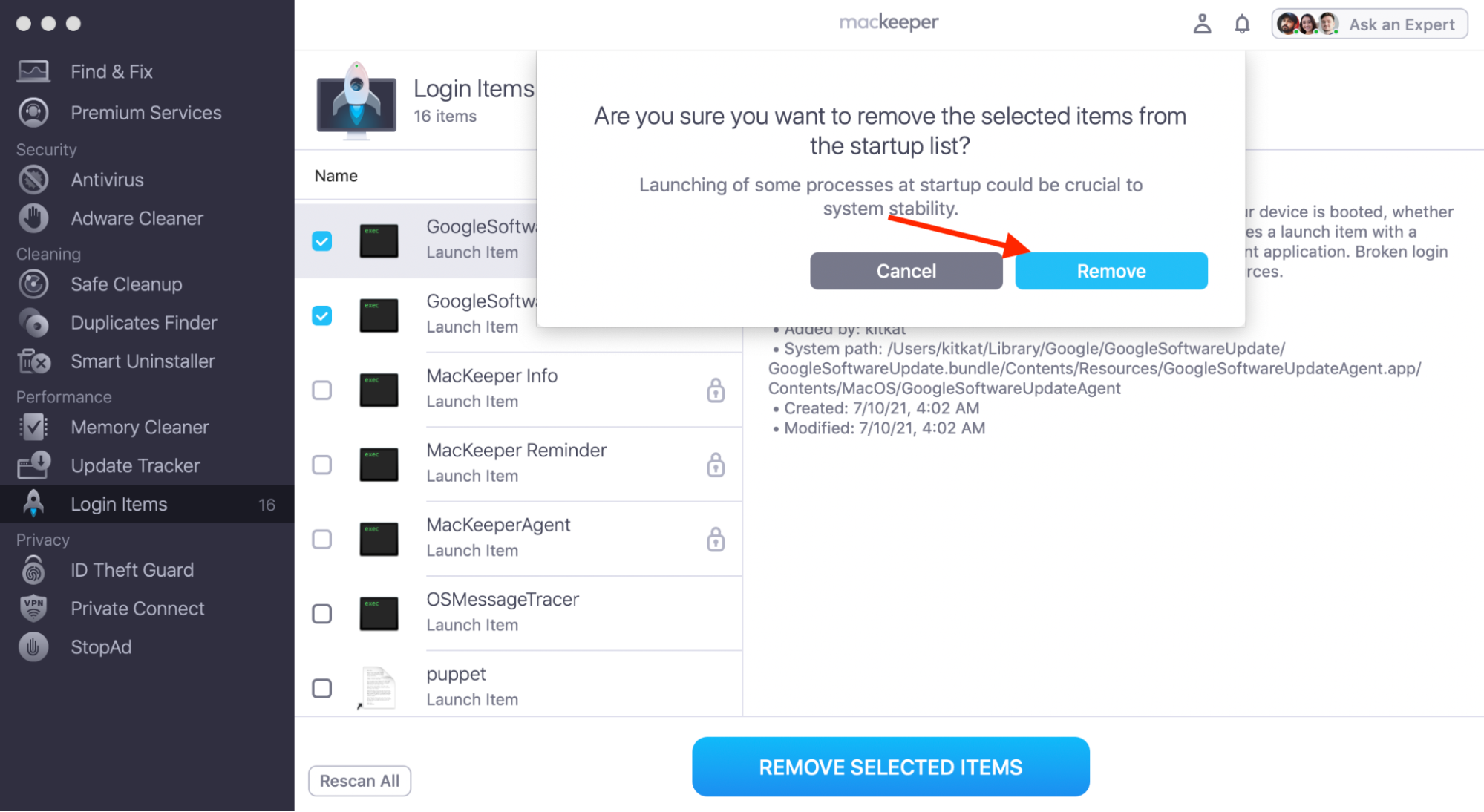
Choose Remove again to confirm.
Step 1. Select Login Items, then click Start ScanStep 2. Select apps to block, then click Remove Selected ItemsStep 3. Click Remove to confirm
How to display Dock on all screens on Mac?
To easily access the Dock on Mac when you have multiple displays in use, there are two options we recommend. You can either have the Dock follow you to whichever display you’re working in, or you can affix it to one screen so that you always know where to find it:
Make Dock appear on any screen (separate Spaces enabled): This option means that the Mac Dock will move to whichever display is active.
Keep the Dock fixed on one screen (primary display): Use this method to make sure the Dock stays in one place so that it’s always easy to find.
1. Make Dock appear on any screen (separate Spaces enabled)
To make your Mac move the Dock to other screens when multiple displays are in use, we’ve found the best solution is to make it so that each display is a separate Space within macOS. Try this:
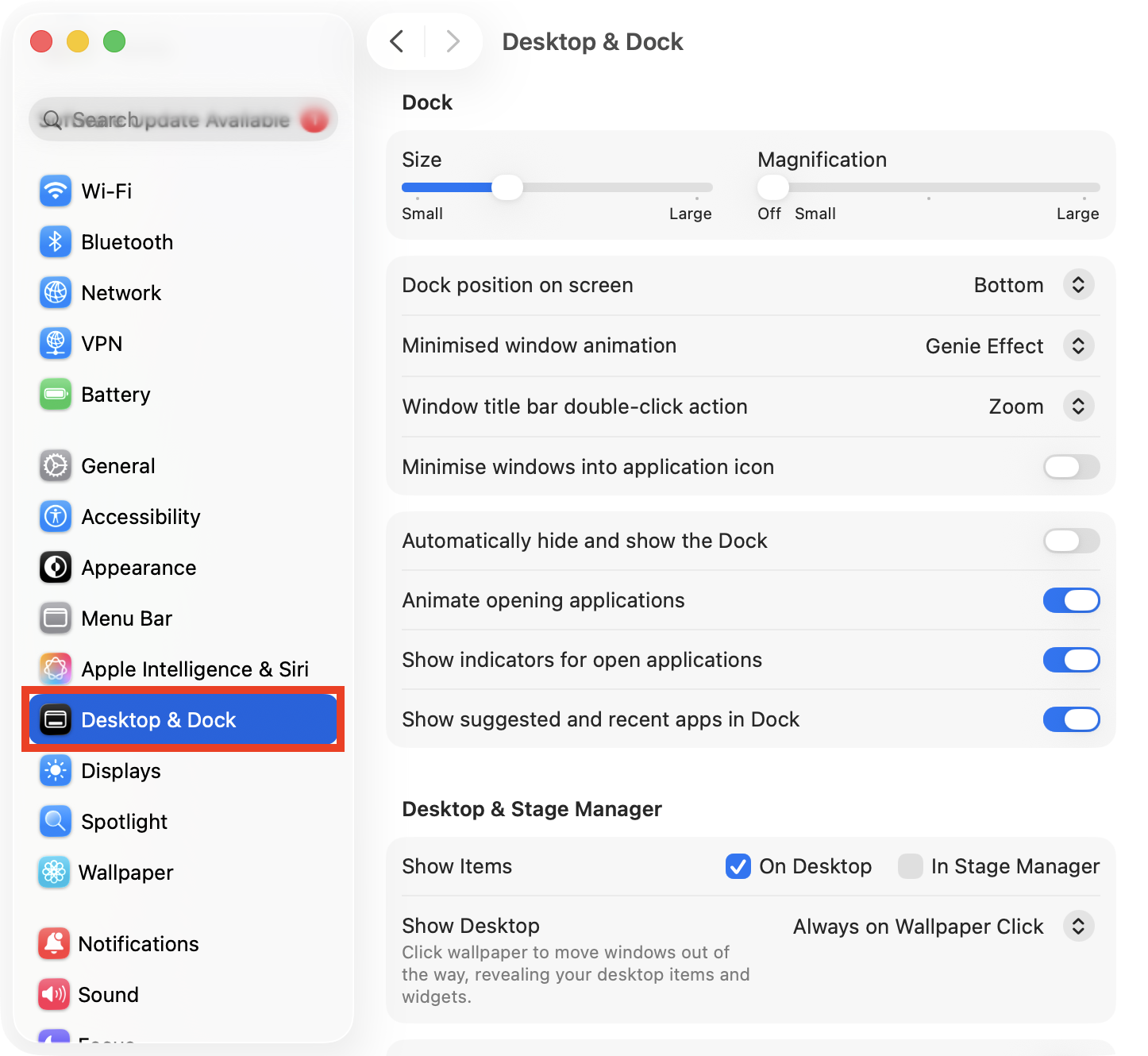
Open System Settings and select Desktop & Dock.
Scroll down to the Mission Control section, then enable Displays have separate Spaces.
Step 1. In System Settings, choose Desktop & DockStep 2. Enable Displays have separate Spaces
A specification from us:
This feature should be enabled by default on desktops like Mac mini, and MacBook Air and Pro. However, we’ve seen users sometimes disable it inadvertently, which prevents the Dock from moving. Note that this feature must be enabled if you’re trying to figure out how to split screen on Mac using Split View.
2. Keep the Dock fixed on one screen (primary display)
We know that some users would prefer to keep the Dock fixed to their primary monitor so that they always know where it is if they can’t have separate Docks on every screen. If you’re in this camp, here’s how to make sure the Dock never moves:
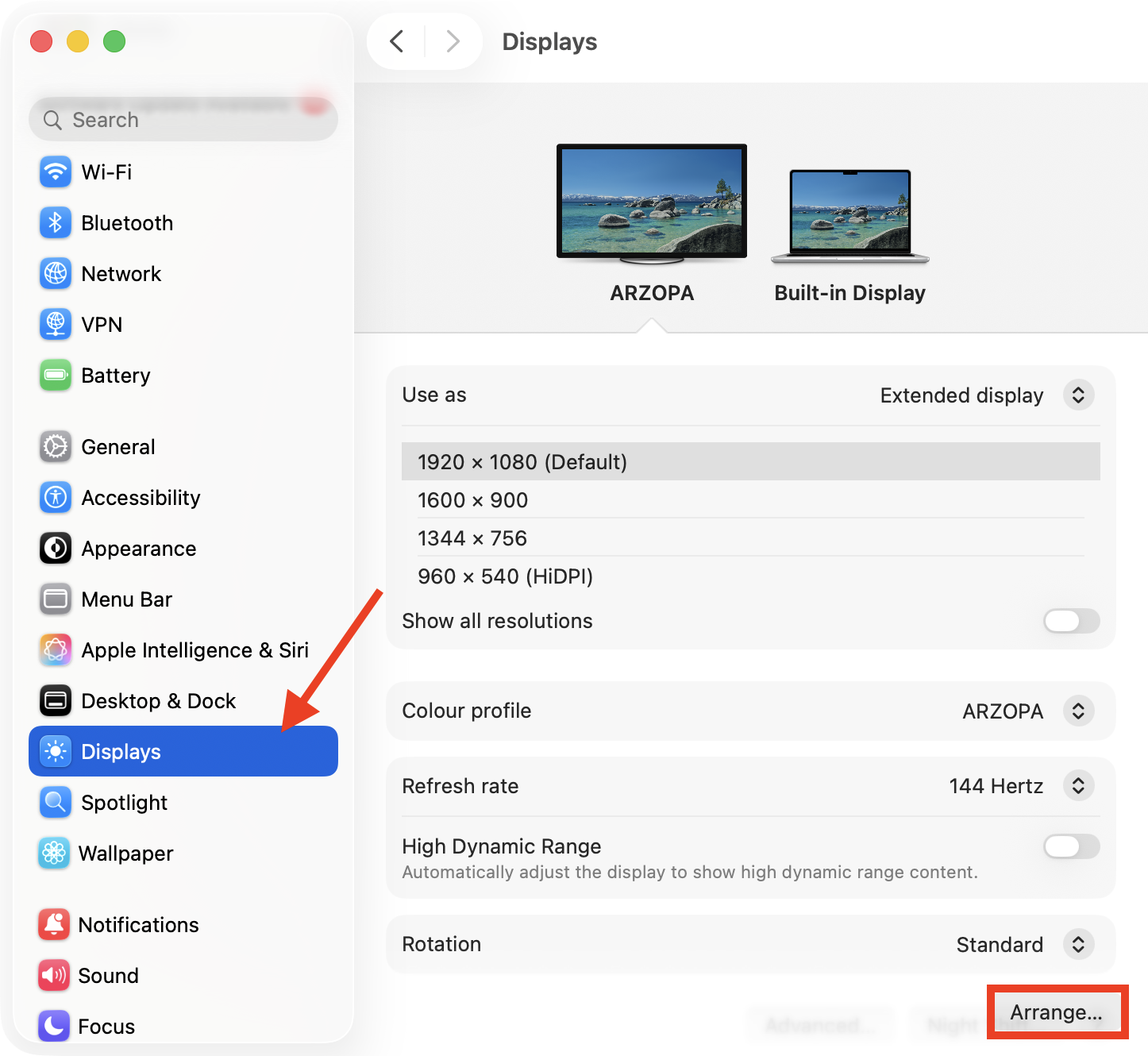
In System Settings, select Displays, then click the Arrange button.
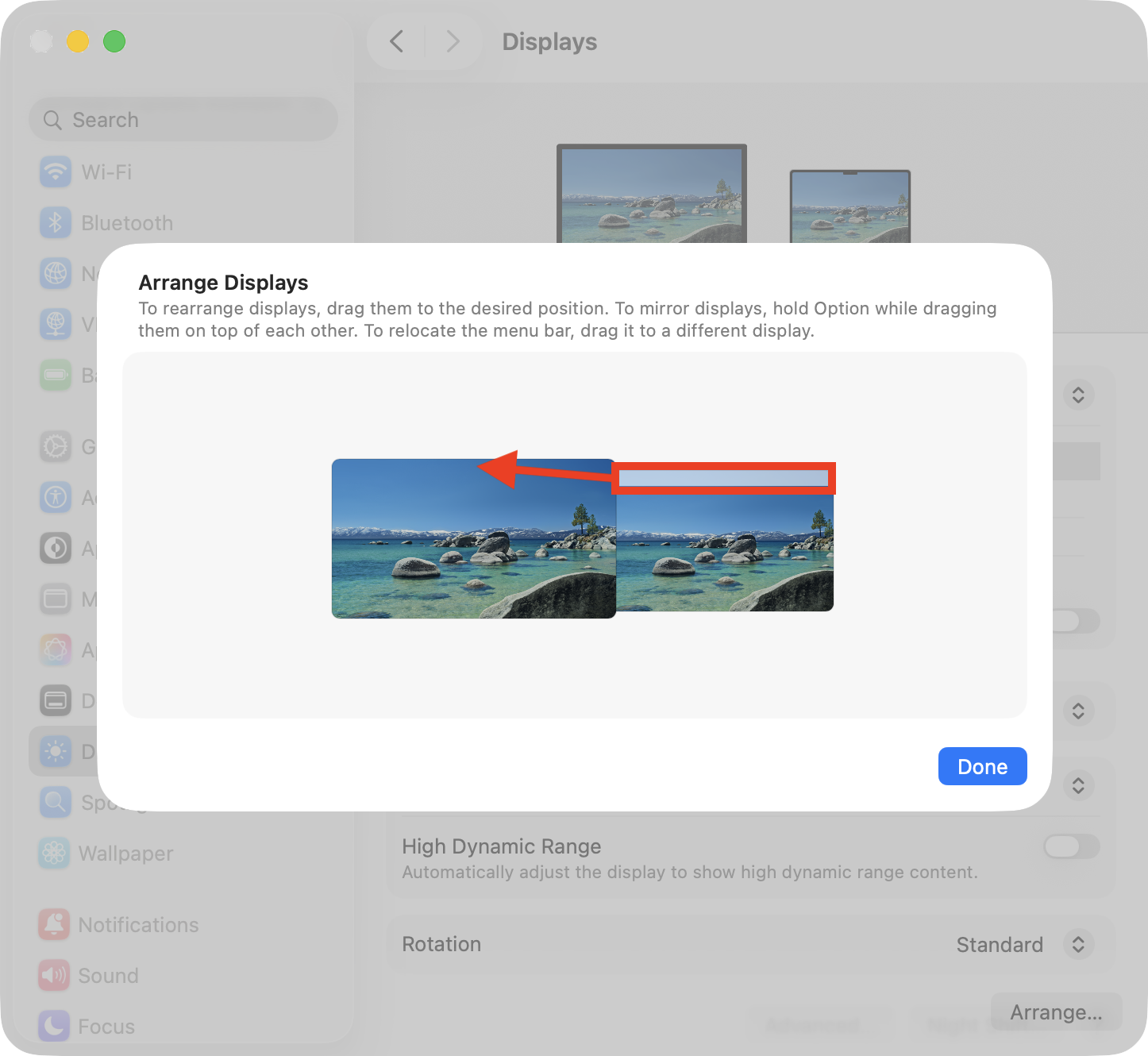
Grab the white menu bar and drag it to the display you want to fix the Dock to.
Step 1. In System Settings > Displays, click ArrangeStep 2. Drag the menu bar to your primary monitor
Our extra tip:
You can only change this setting when an external display is connected, so if you’re using a MacBook on its built-in screen only, the Arrange button won’t appear. If you find the Mac menu bar not showing after following the steps above, confirm the white bar is in the right place, or check the Menu Bar settings.
System settings that affect Dock behavior on Mac
In addition to making your Mac to show the Dock on all screens, there are other settings that affect Dock behavior within macOS. For example, you can change its position on screen, automatically hide it to free up more space, enable magnification and more from within System Settings > Desktop & Dock.
Within the same menu, you can change or disable the Dock’s animation effects that appear when you launch apps and minimize windows, and get rid of the suggestions and recent apps section that sits on the left side of the Downloads folder.
We can also adjust our Desktop preferences from within the Desktop & Dock menu, such as enabling Stage Manager or turning off Widgets. Here’s where you’ll find the option to show items on the desktop, so if you ever find your MacBook desktop icons disappeared, ensure this feature is enabled.
Conclusion
Apple has never given us the ability to extend or replicate the Dock across multiple displays, or create separate Docks for different screens in macOS. However, for those who use more than one monitor regularly, we have the option to move the Dock to the active desktop automatically or fix it in place.
A lot of readers tell us that their Mac is noticeably slower when using more than one display, so if you’re going to be working across multiple desktops regularly, we highly recommend using MacKeeper’s Login Items tool to free up valuable system resources by blocking apps from launching automatically at startup.
We respect your privacy and
use cookies
for the best site experience.
Privacy Preferences Center
We use cookies along with other tools to give you the best possible experience while using the
MacKeeper website. Cookies are small text files that help the website load faster. The cookies we
use don’t contain any type of personal data meaning they never store information such as your
location, email address, or IP address.
Help us improve how you interact with our website by accepting the use of cookies. You can change
your privacy settings whenever you like.
Manage consent
All cookies
These cookies are strictly necessary for enabling basic website functionality (including page
navigation, form submission, language detection, post commenting), downloading and purchasing
software. The website might malfunction without these cookies.