Doing a macOS Big Sur factory reset isn’t a task to be taken lightly, but if you need to do it, we’re here to help. But before you take such drastic action, try MacKeeper’s Safe Cleanup tool, and rid your Mac of unwanted junk data in an instant.
To restore your Mac to factory settings in Big Sur, you need to enter Recovery mode. From there, you can use Disk Utility to completely erase your system disk and format it as APFS. Then select Reinstall macOS Big Sur, and follow the on-screen prompts to install the operating system. This will wipe all data.
Reasons to reset macOS Big Sur
You might choose to erase Mac Big Sur because the OS is malfunctioning, due to a bug or virus. If your Mac is running slowly, a factory reset will restore its performance too. It’s also a good idea to wipe your Mac if you’re giving it away or selling it, as that will protect your personal data.
Preparation steps before resetting macOS Big Sur
Before you wipe MacBook Big Sur, you should back up any data that you want to keep, because reinstalling Big Sur will permanently delete all your data, apps, and preferences. You can simply store files on an external drive or use software like Time Machine to back up your Mac. Then you should erase your hard drive or SSD using Disk Utility while in Recovery mode.
A note from our experts:
If you’re factory resetting your Mac because of performance or disk space issues, try MacKeeper’s Safe Cleanup first. In just a few clicks, Safe Cleanup can find and delete all kinds of unneeded data off your Mac—saving space and boosting your computer’s speed.
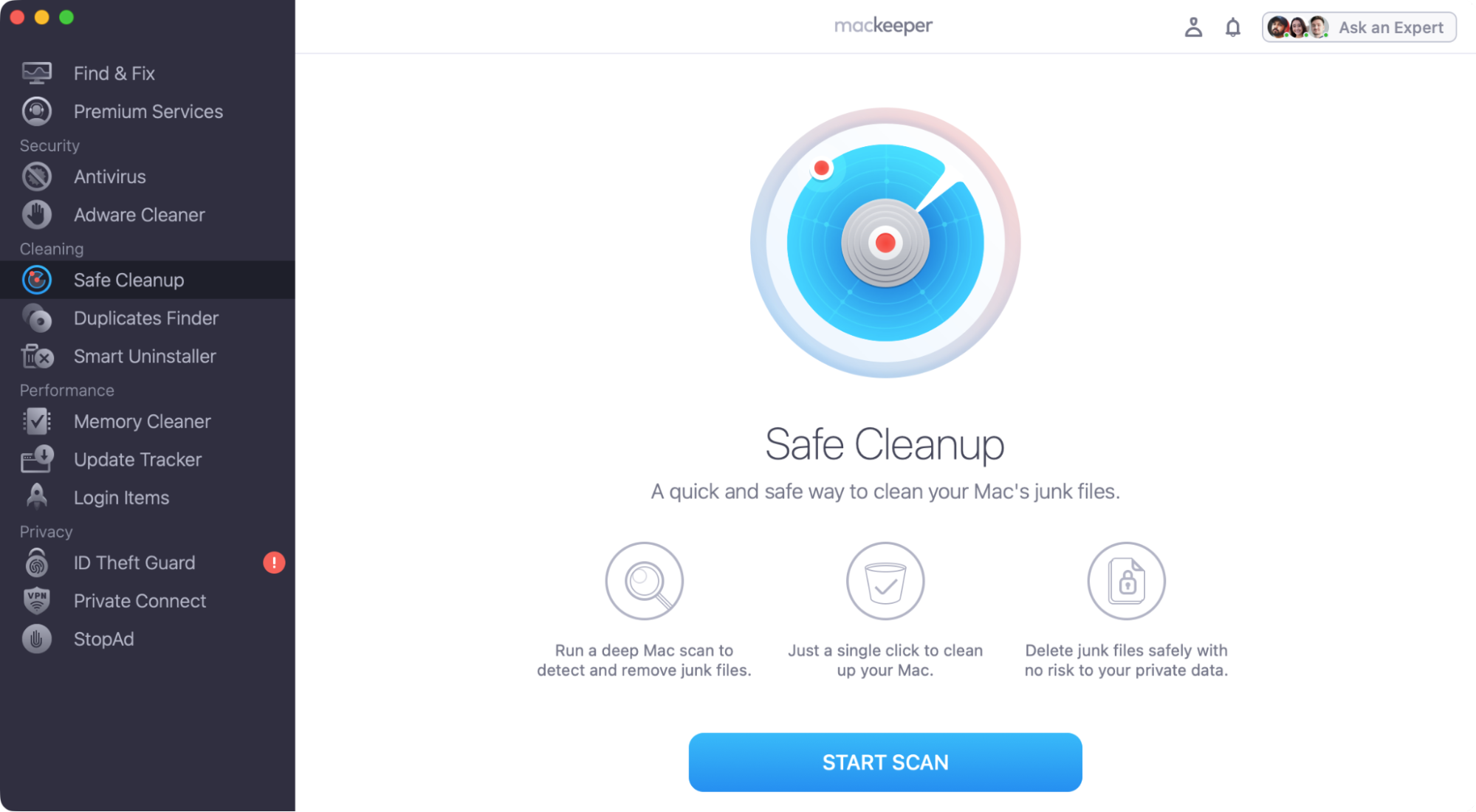
Here’s how to use this tool to delete unneeded and junk data on your iMac or MacBook:
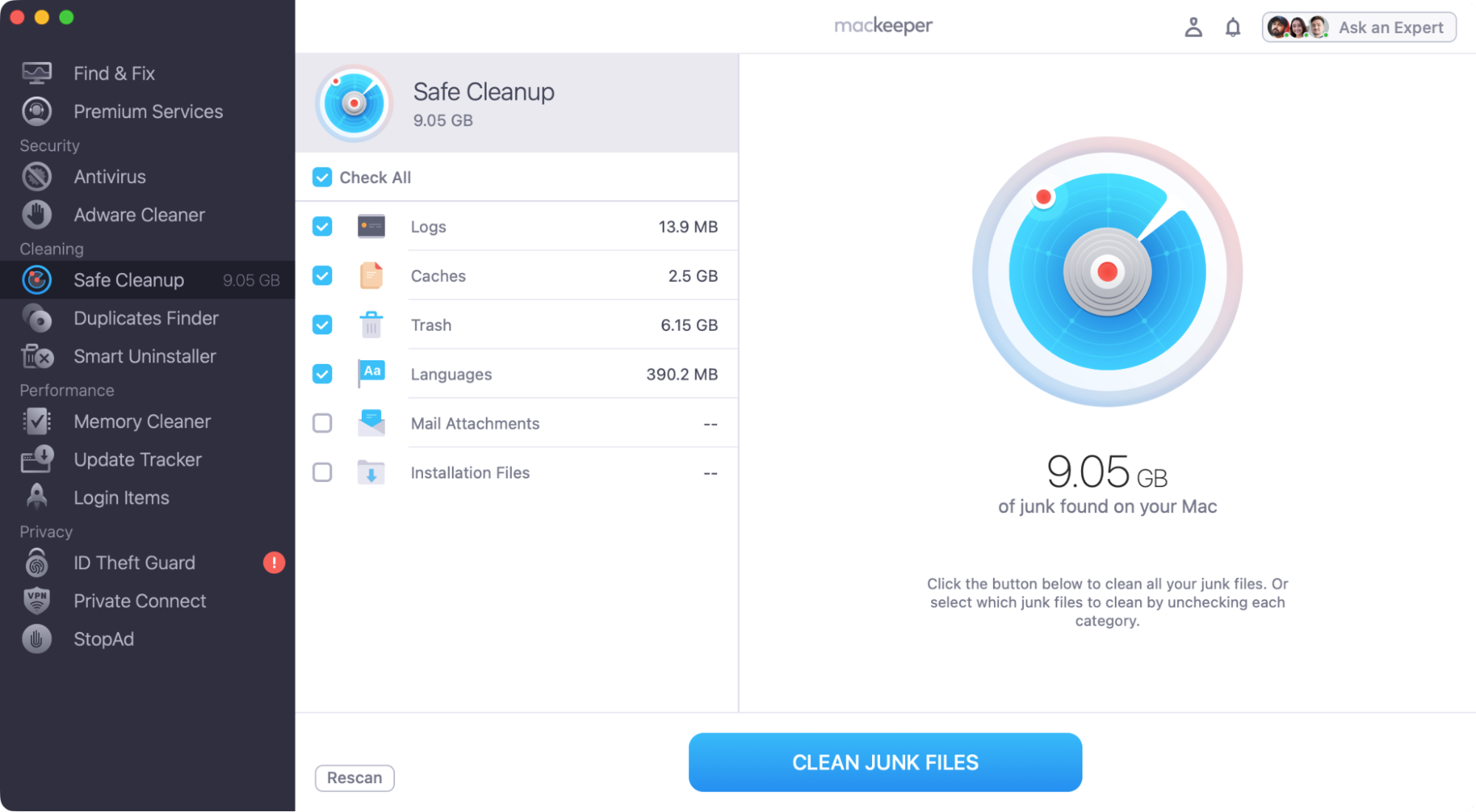
When the scan is done, select what you want to delete, and click Clean Junk Files.
Step 1. Open Safe Cleanup and click Start ScanStep 2. Select what to delete and click Clean Junk Files
That’s all it takes. In just a moment or two, you can clear out gigabytes of free space on your Apple computer—quickly and safely.
How to restore macOS Big Sur to factory settings?
For Apple Mac devices running Big Sur or earlier, you need to use Recovery mode to do a factory reset. This involves launching your Mac in Recovery mode, then wiping your disk with Disk Utility and selecting the Reinstall Big Sur option from the menu. Later versions of macOS feature a dedicated Erase Assistant in System Settings.
The first thing we need to do is to get your Big Sur Mac into Recovery mode. How you do this depends on what type of Mac you have—one with an Intel processor or a more modern Apple Silicon chip.
To get an Intel Mac into Recovery mode, do as follows:
If your Mac is running, restart it. If it’s turned off, turn it on.
As soon as your Mac begins to boot up, press and hold down Cmd+R.
Keep these keys held down until you see the Recovery mode menu.
For an Apple Silicon Mac, do this to get into Recovery mode:
If your Mac is turned on, turn it off.
Now press and hold the power button until you see Loading startup options.
Select Options, then click Continue.
Follow the on-screen instructions to get into Recovery mode.
From the Big Sur Recovery mode screen, you can reinstall macOS
A bonus for you:
Read our guide on what is Mac Recovery mode to get more information about how this function works and what you can do with it.
2. Wipe disk
Before you reinstall macOS Big Sur, you should erase your system disk with Disk Utility. This will ensure a good, clean installation.
Here’s how to wipe your Mac’s disk drive with Disk Utility:
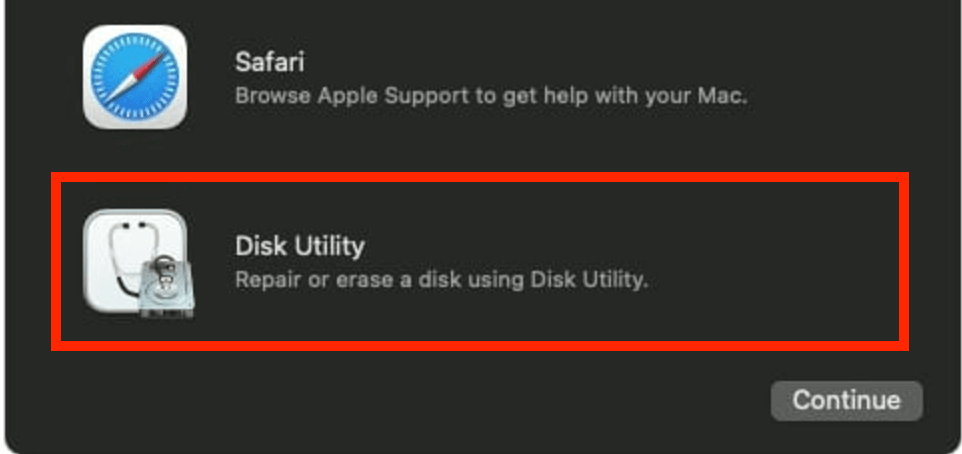
While in Recovery mode, select the Disk Utility option.
From the menu on the left-hand side of Disk Utility, select the disk where you’ll be installing Big Sur.
Click the Erase button at the top of Disk Utility.
Type in a name for the disk, and select APFS as the format.
Click Erase.
When you’re finished, click Done.
Step 1. While in Recovery mode, choose Disk UtilityStep 2. Select your system disk and then click Erase
An explanation from our team: Disk Utility also has a First Aid function, which can repair data errors on your Mac. If you’re thinking of doing a macOS Big Sur factory reset due to performance issues, we recommend trying the First Aid feature first. If it works, you’ll save yourself a lot of time, and you won’t lose any data either.
3. Reinstall macOS Big Sur
Now for the final step of the process—to restore your Mac to factory settings in Big Sur. macOS will guide you through this, so it’s just a case of following the on-screen prompts.
In summary, this is what you need to do:
From the Big Sur Recovery mode menu, select Reinstall macOS Big Sur.
Agree to the terms and conditions.
Select the hard drive or SSD where you want to install Big Sur.
Click Install, and then follow the on-screen instructions.
If you have problems with the Big Sur reinstallation process, read our guide on how to clean install macOS. Doing a clean installation takes longer, but it can often work better if you’re having issues with the standard installation process.
Starting afresh with Big Sur
Big Sur was the last version of macOS that didn’t come with the Erase Assistant tool. That means you need to use Recovery mode if you want to erase Big Sur and do a factory reset. Thankfully, it’s not a difficult process—you just use the Disk Utility app to erase your system drive and then use the Reinstall macOS Big Sur option to reinstall the operating system. You’ll need a steady internet connection for this too, so make sure everything is set up before you get started.
Although we’ve shown you how to do a factory reset, we don’t recommend doing it unless you really need to in order to fix Mac Big Sur issues. Not only will you lose all your data, apps, and settings, but you can also run into more issues that need troubleshooting too.
If you’re experiencing performance problems with your desktop or laptop Mac, try MacKeeper’s Safe Cleanup tool. In just a few clicks, it can find and delete all kinds of unneeded data, including cached files, old log files, and unused languages, which can take up gigabytes of disk space. It could be just what you need to free up space and get a speed boost.
We respect your privacy and
use cookies
for the best site experience.
Privacy Preferences Center
We use cookies along with other tools to give you the best possible experience while using the
MacKeeper website. Cookies are small text files that help the website load faster. The cookies we
use don’t contain any type of personal data meaning they never store information such as your
location, email address, or IP address.
Help us improve how you interact with our website by accepting the use of cookies. You can change
your privacy settings whenever you like.
Manage consent
All cookies
These cookies are strictly necessary for enabling basic website functionality (including page
navigation, form submission, language detection, post commenting), downloading and purchasing
software. The website might malfunction without these cookies.