When we encounter NSURLErrorDomain error -1012 on Mac, it typically means our device is unable to connect to Apple’s servers when attempting to download a software update, and there are a number of steps we can take to fix it. If you’ve already tried troubleshooting and you can’t fix NSURLErrorDomain error -1012, reach out to our team of macOS experts at any time of the day through MacKeeper’s Premium Services.
In our experience, NSURLErrorDomain error -1012 occurs when a Mac is unable to maintain a connection to Apple’s servers to verify the server’s identity—sometimes as a result of network outages or restrictions, outdated system software, certificate issues, and software glitches that prevent a macOS update from being downloaded successfully. Depending on the cause, there are numerous ways we can fix NSURLErrorDomain error -1012.
Common causes of NSURLErrorDomain error 1012 on Mac
Like many macOS errors, NSURLErrorDomain error -1012 doesn’t have a single root cause; it actually stems from various different issues that we might face on Mac. These include network failures, such as a bad connection or incorrect firewall settings, SSL certificate issues, and out of date MacBook software. Here’s the full list of common causes we’ve found for NSURLErrorDomain error -1012:
1. Invalid SSL certificates
We sometimes find that users run into the NSURLErrorDomain error because their Mac can’t verify the authenticity of Apple’s servers as a result of old or incorrect SSL certificates. This almost always occurs when running older versions of macOS.
2. Outdated macOS
Outdated macOS versions don’t just lead to invalid SSL certificates; they also increase the likelihood of other OS glitches and update incompatibilities that can lead to the NSURLErrorDomain error.
3. DNS problems
Incorrect or potentially corrupt DNS settings can cause all kinds of connectivity issues, including an inability to access Apple’s update servers when trying to update macOS.
4. Apple Configurator problems
If you use Apple Configurator to manage devices from your Mac, we’ve noticed that NSURLErrorDomain error -1012 can occur due to an expired certificate.
5. Apps hold old data
Apple Configurator isn’t the only app that can throw up a NSURLErrorDomain error -1012 message as a result of old certificate data, so be on the lookout for outdated cache files.
6. Network restrictions
In our experience, poor or unstable connectivity, incorrect firewall or proxy settings, and misconfigured antivirus apps are the most common cause of the NSURLErrorDomain message.
A note from our experts:
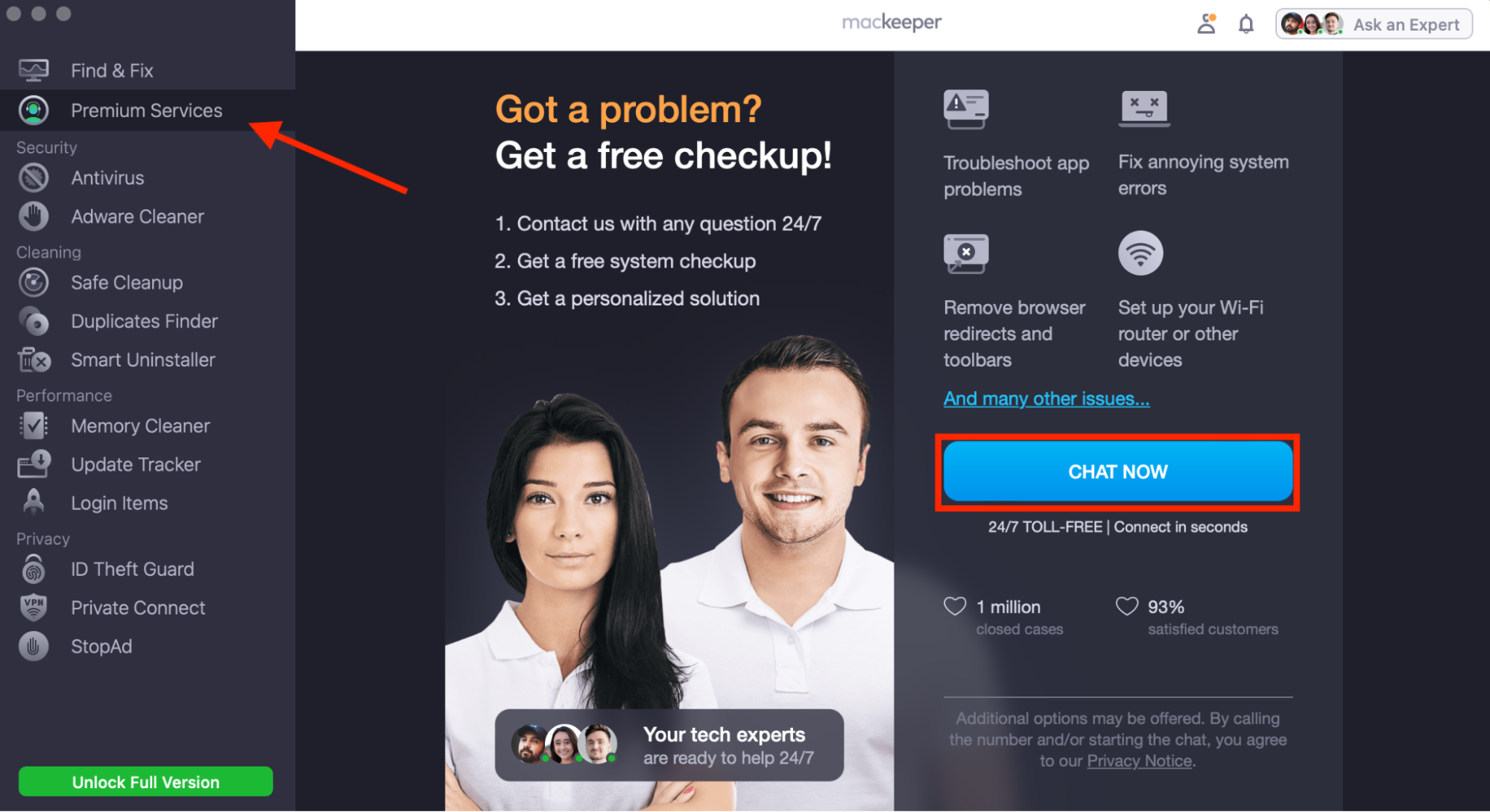
As there are many causes of the NSURLErrorDomain error on Mac, we find users often have difficulty addressing the issue themselves. But don’t worry! If you need help with a NSURLErrorDomain error -1012 Mac fix, simply reach out to our professional team of experts through MacKeeper’s Premium Services from Clario Tech. They’re available 24/7 and are trained to provide support for almost any problem your Mac might be experiencing.
In the sidebar, select Premium Services, then click Chat Now.
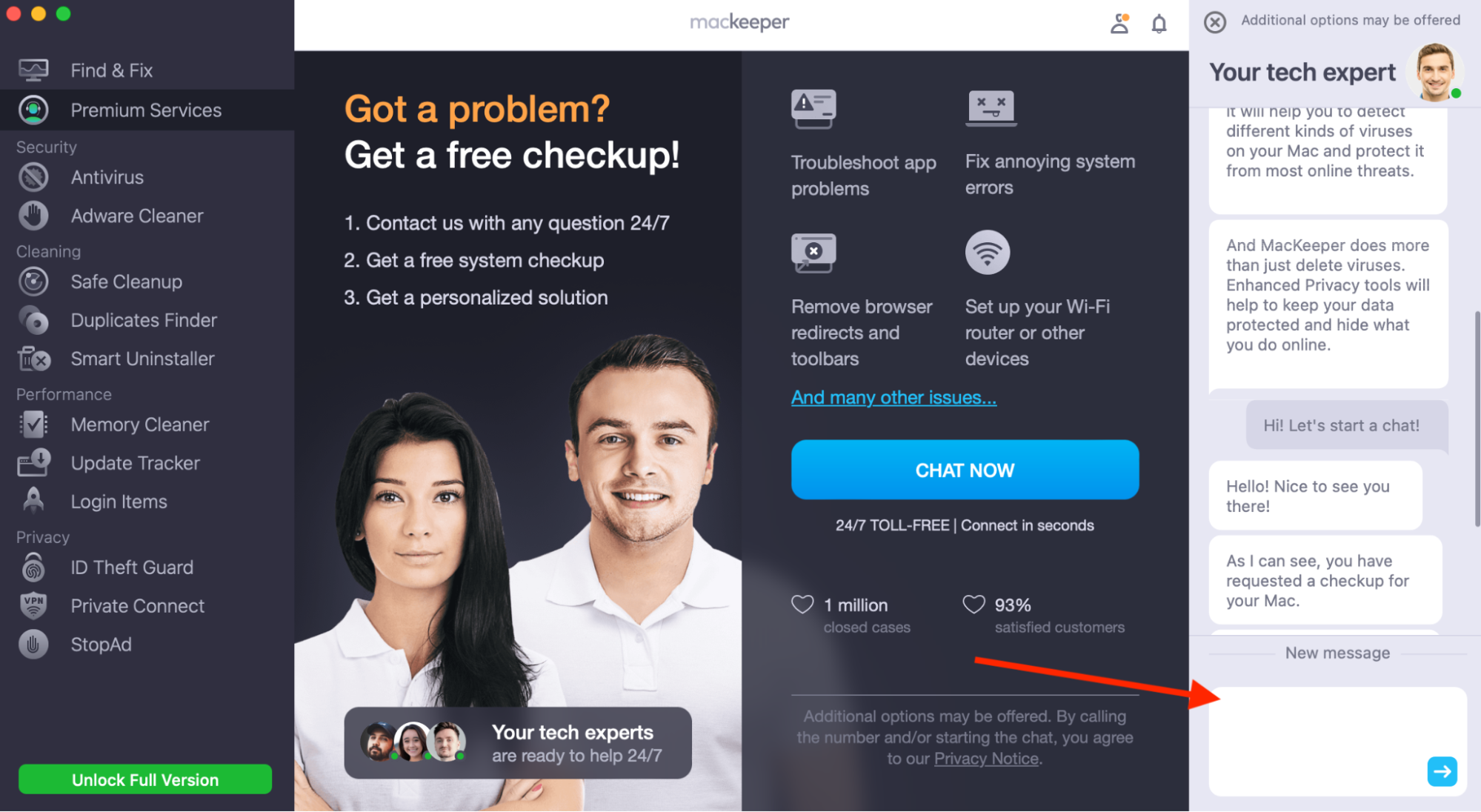
Describe the issue you’re dealing with in the chat box to get expert help quickly.
Step 1. Select Premium Services, then click Chat NowStep 2. Describe your problem for expert help
How to fix NSURLErrorDomain error 1012?
There are numerous steps we can take to alleviate NSURLErrorDomain error -1012 on Mac, from a simple system restart to renewing the Mac’s DHCP lease—or even clearing our network settings if necessary. We recommend making sure your system is running the latest available macOS release first, then try the following solutions until NSURLErrorDomain error -1012 no longer appears.
1. Restart device
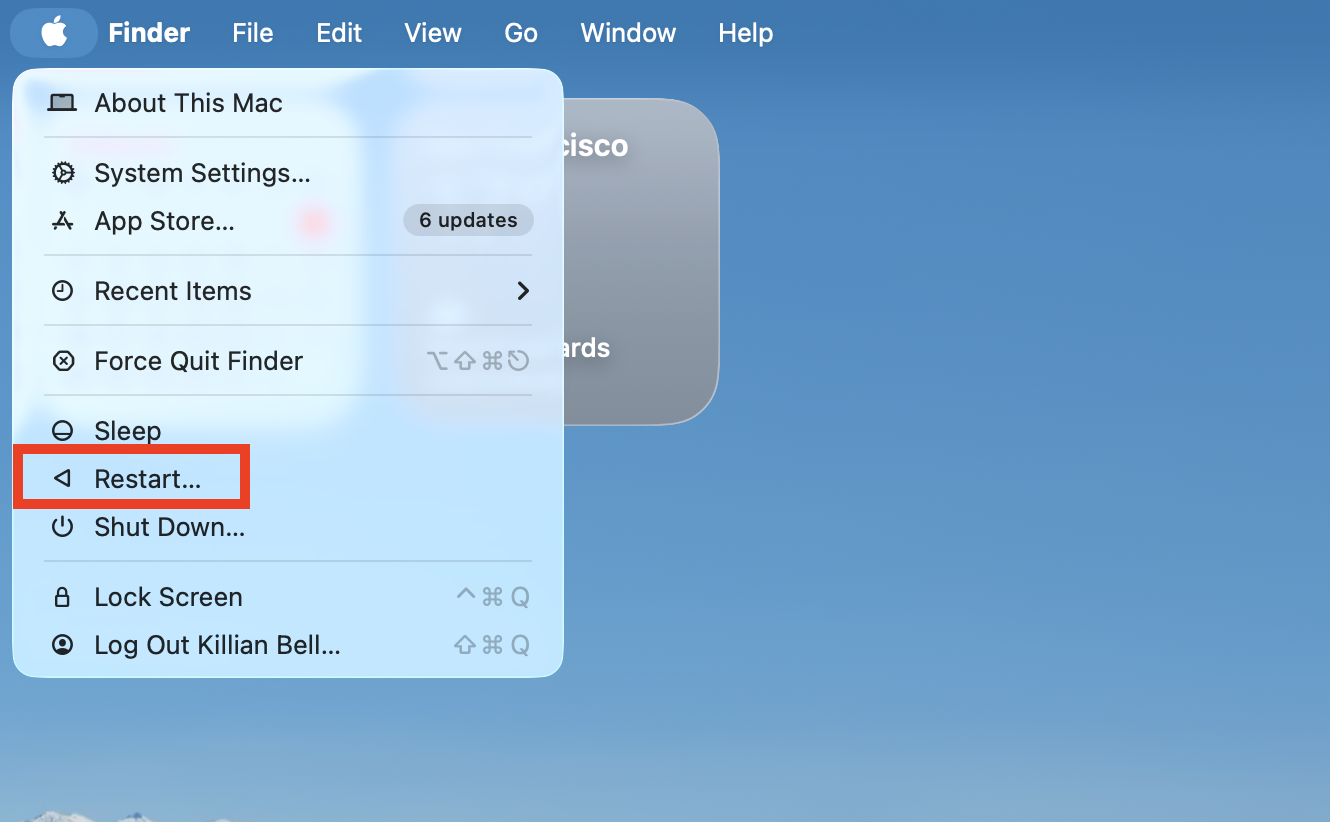
A system restart is often enough to fix strange macOS issues, so let’s try that first:
In the Apple menu, choose Restart.
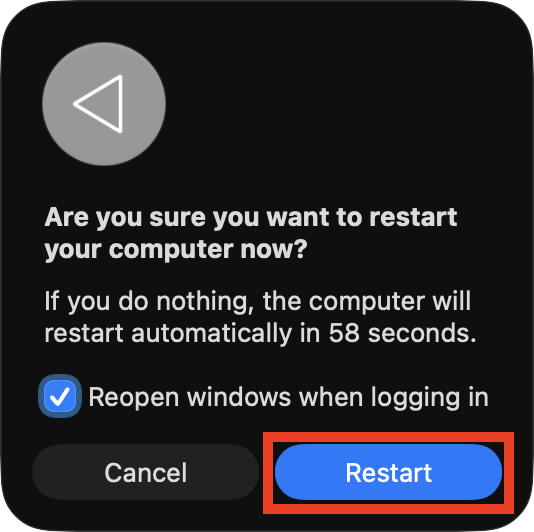
Click Restart again to confirm, then see if NSURLErrorDomain error -1012 stops after your Mac has rebooted.
Step 1. In the Apple menu, choose RestartStep 2. Select Restart again to confirm
An extra hint form us:
As part of the restart process, you can clear the NVRAM of your Mac if you wish. This clears some lower-level hardware settings and can help when we face macOS errors.
2. Check Internet
One of the most effective ways to fix NSURLErrorDomain error -1012 is to eliminate any internet connectivity issues. Follow these steps to check you have a reliable connection:
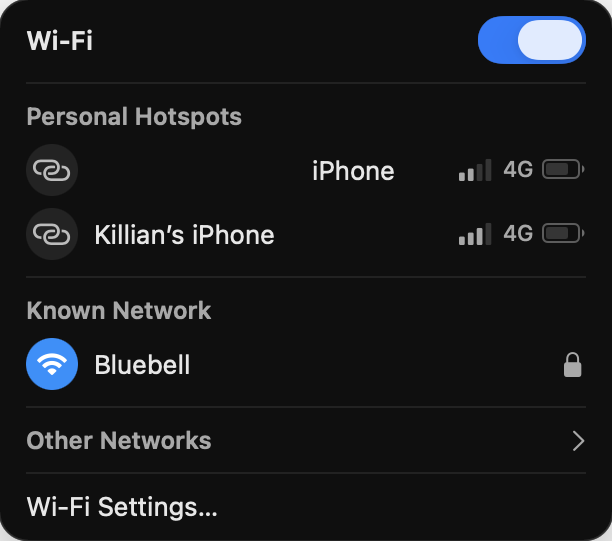
Confirm your Mac is connected to the right Wi-Fi network.
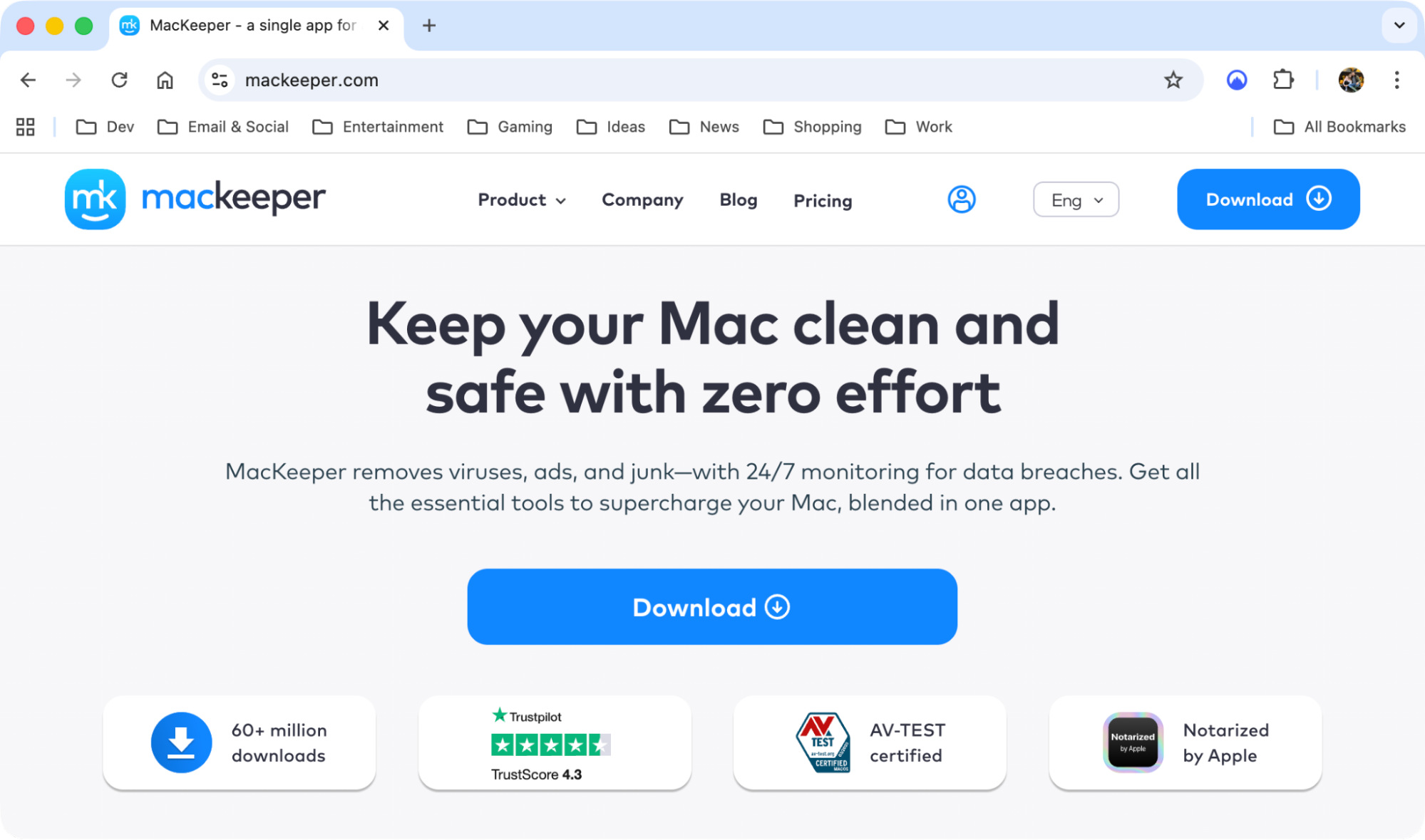
Visit a website in your browser to make sure you have an active internet connection.
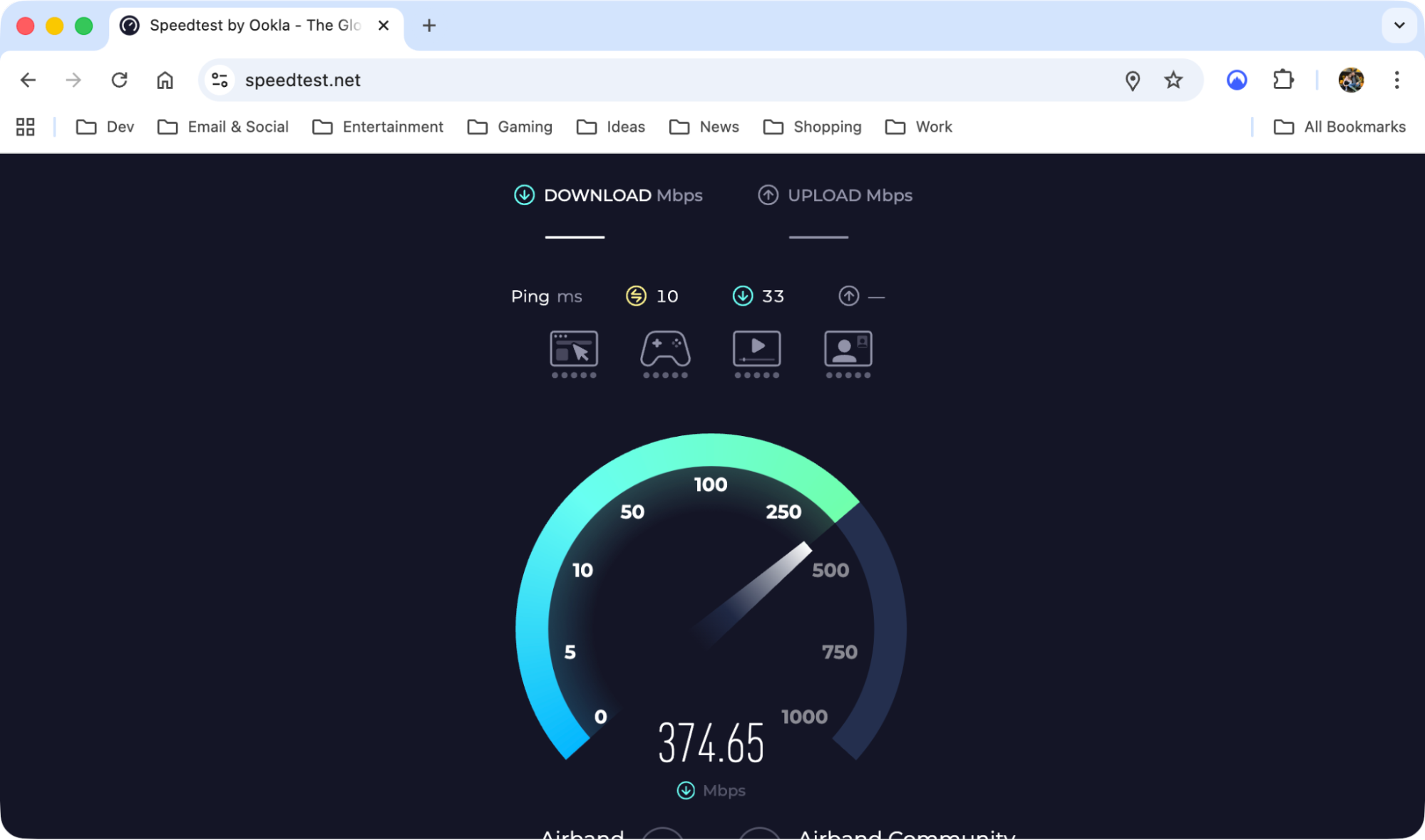
Use a site like speedtest.net to check your internet speed and stability.
Switch to a faster or more stable network when possible if your current network is unreliable.
Step 1. Check you're connected to the right networkStep 2. Try visiting a website in your browserStep 3. Run a speed test to check your connection
3. Renew DHCP lease
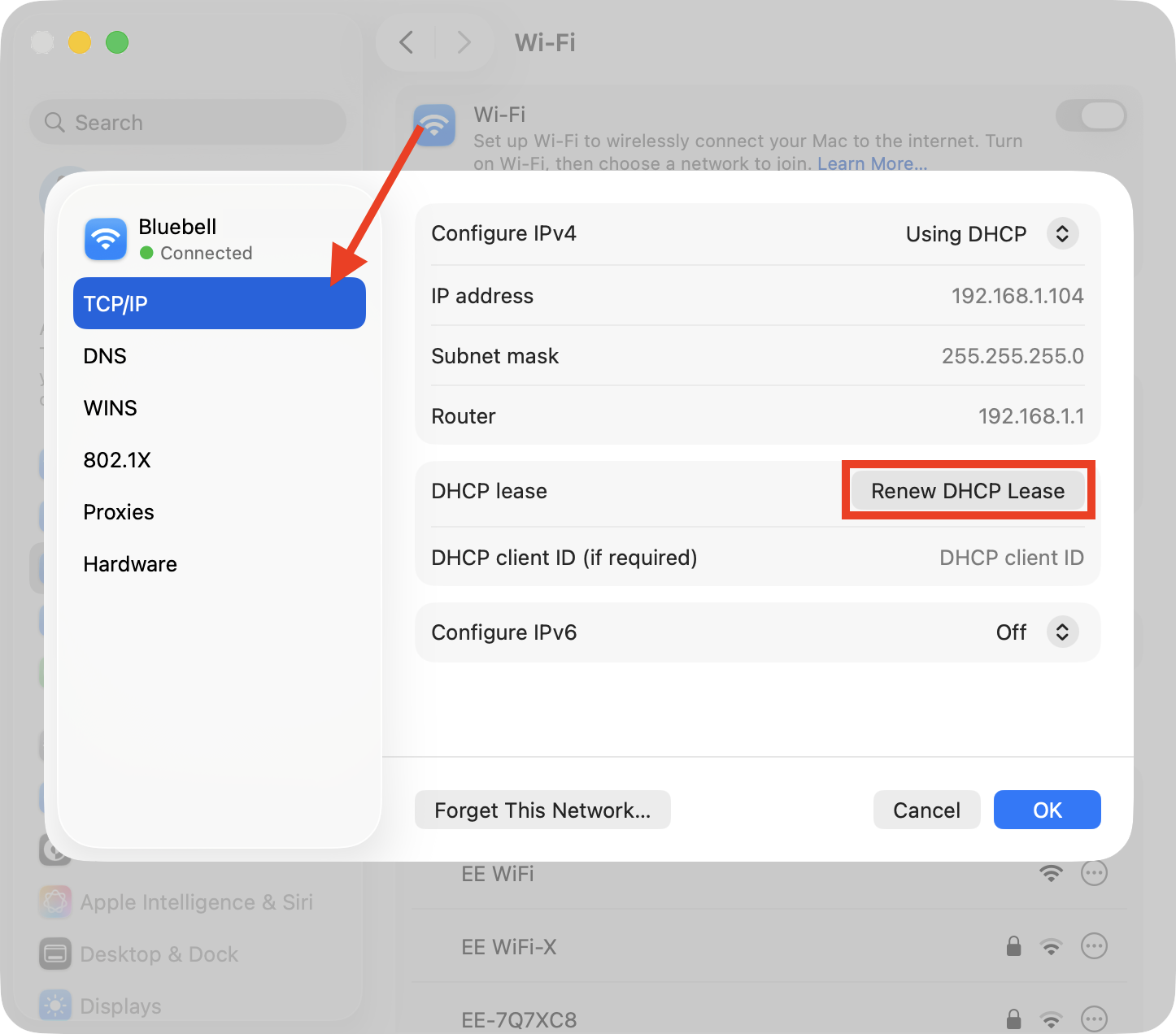
Renewing your Mac’s DHCP lease forces it to request new network configuration details—such as an IP address and subnet mask—from the router, which can lead to a more successful connection to Apple’s servers. Try this:
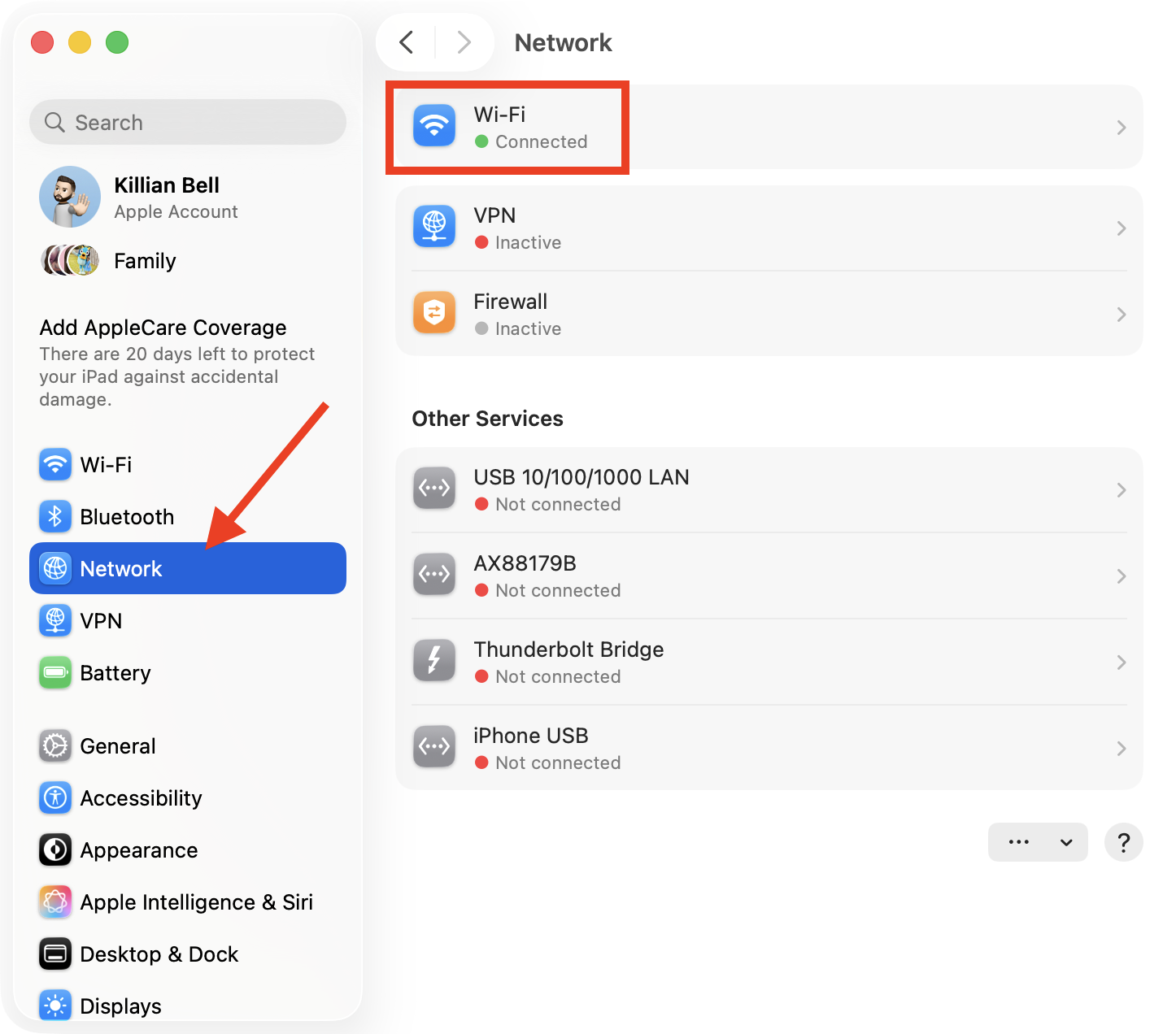
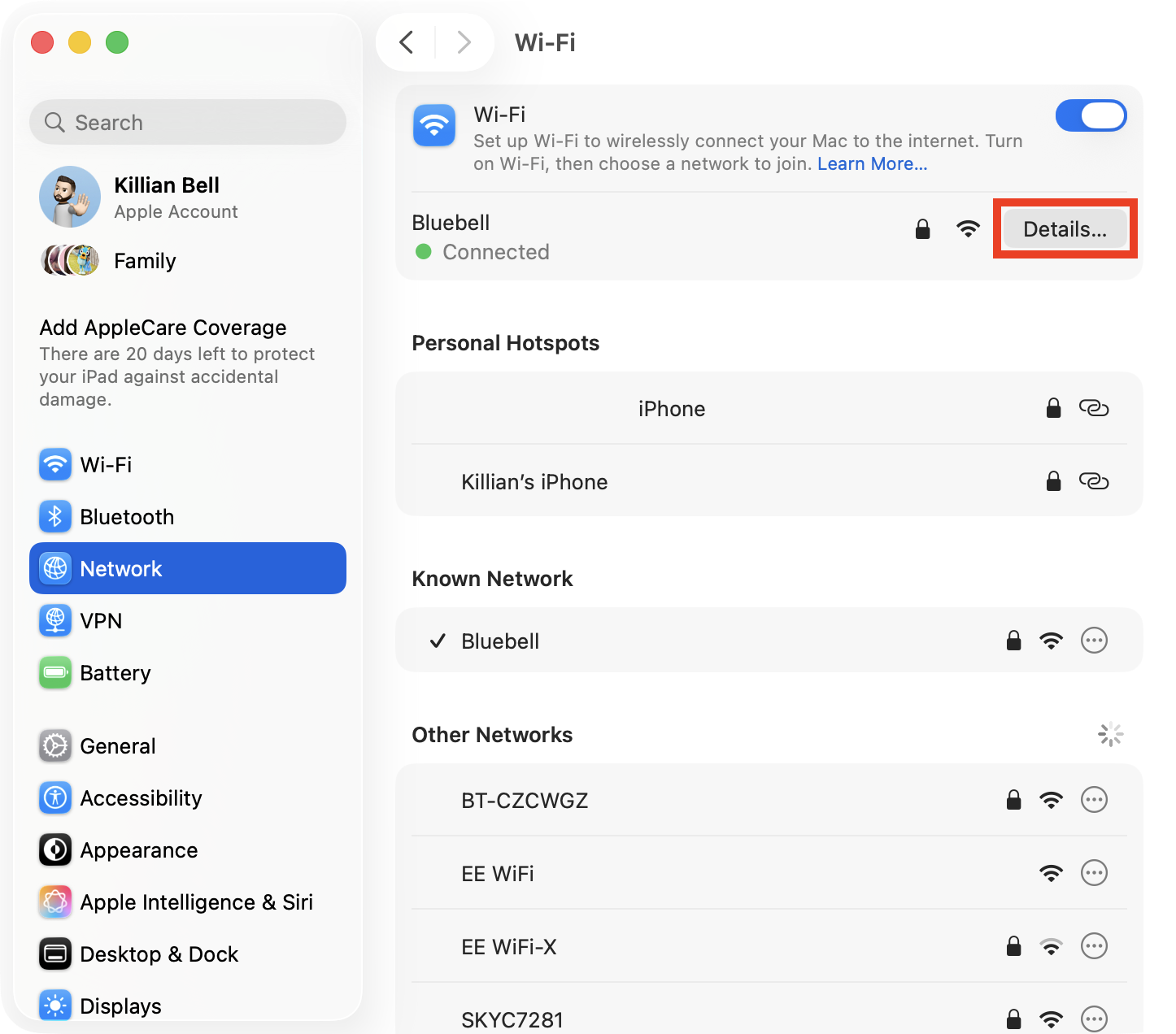
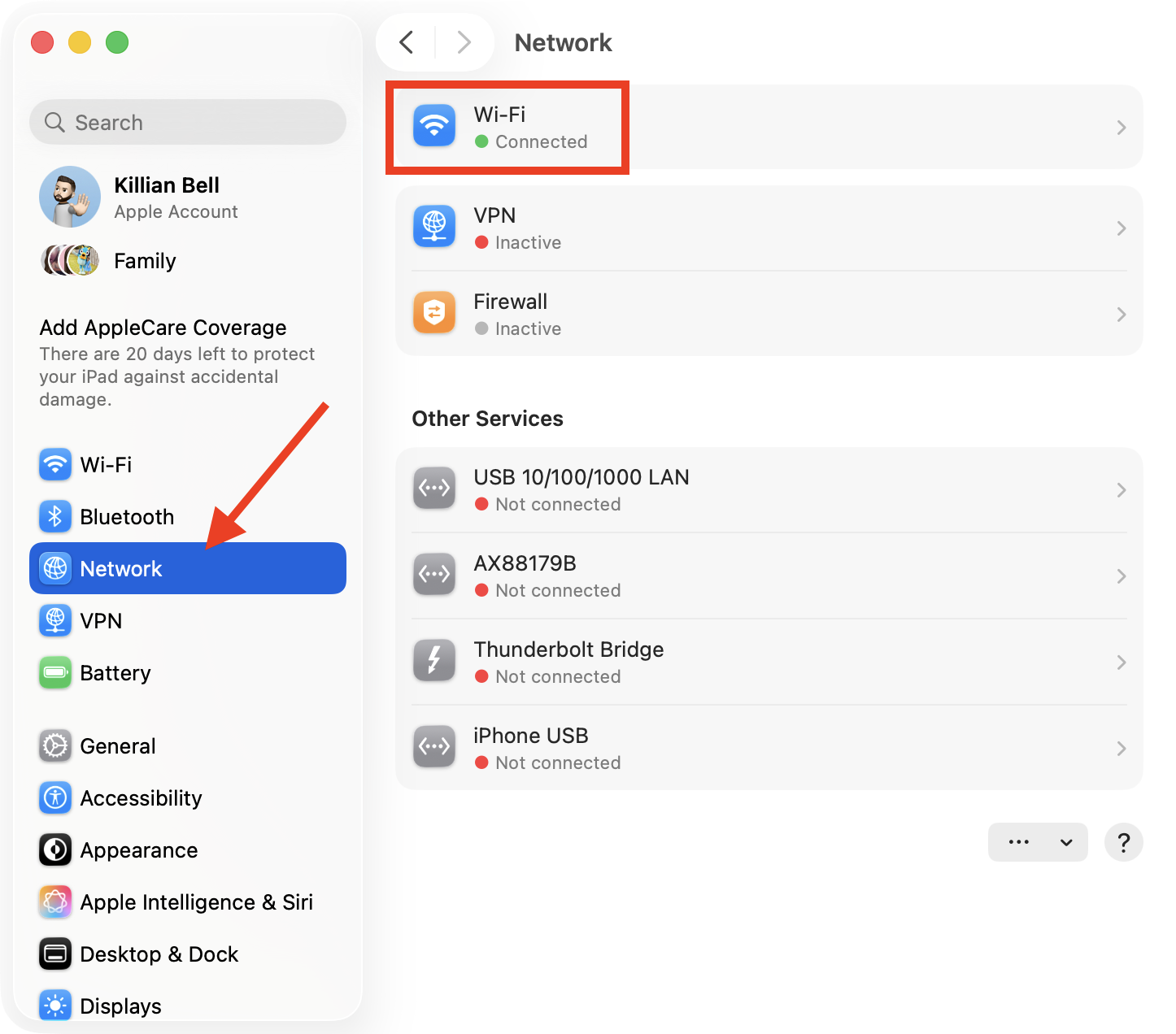
In System Settings > Network, choose the connection type your Mac is using.
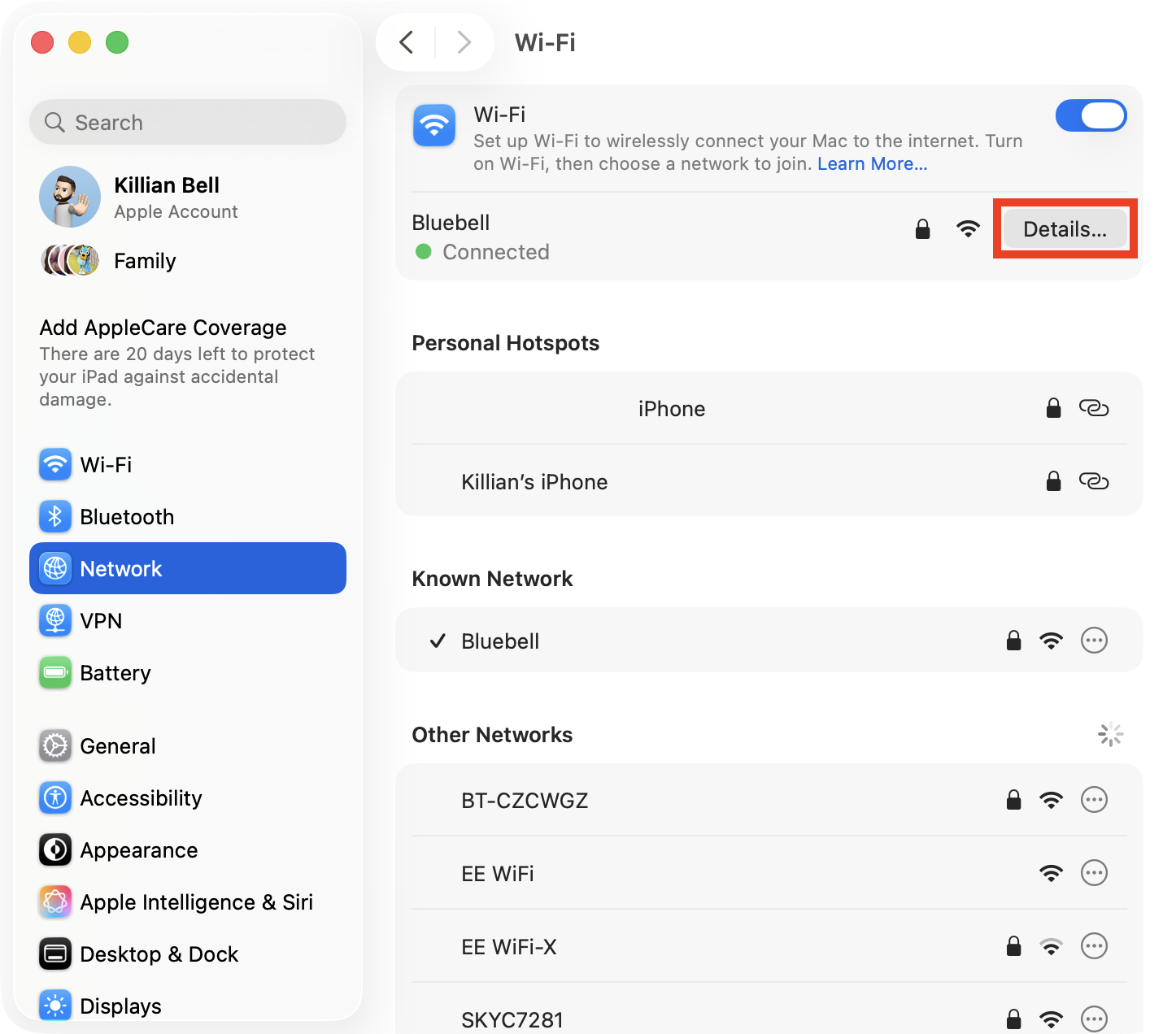
Click the Details button next to your network’s name.
Select TCP/IP, then click Renew DHCP Lease.
Step 1. In System Settings, choose Network > Wi-FiStep 2. Click DetailsStep 3. Click TCP/IP then click Renew DHCP Lease
4. Reset Network Settings (DNS)
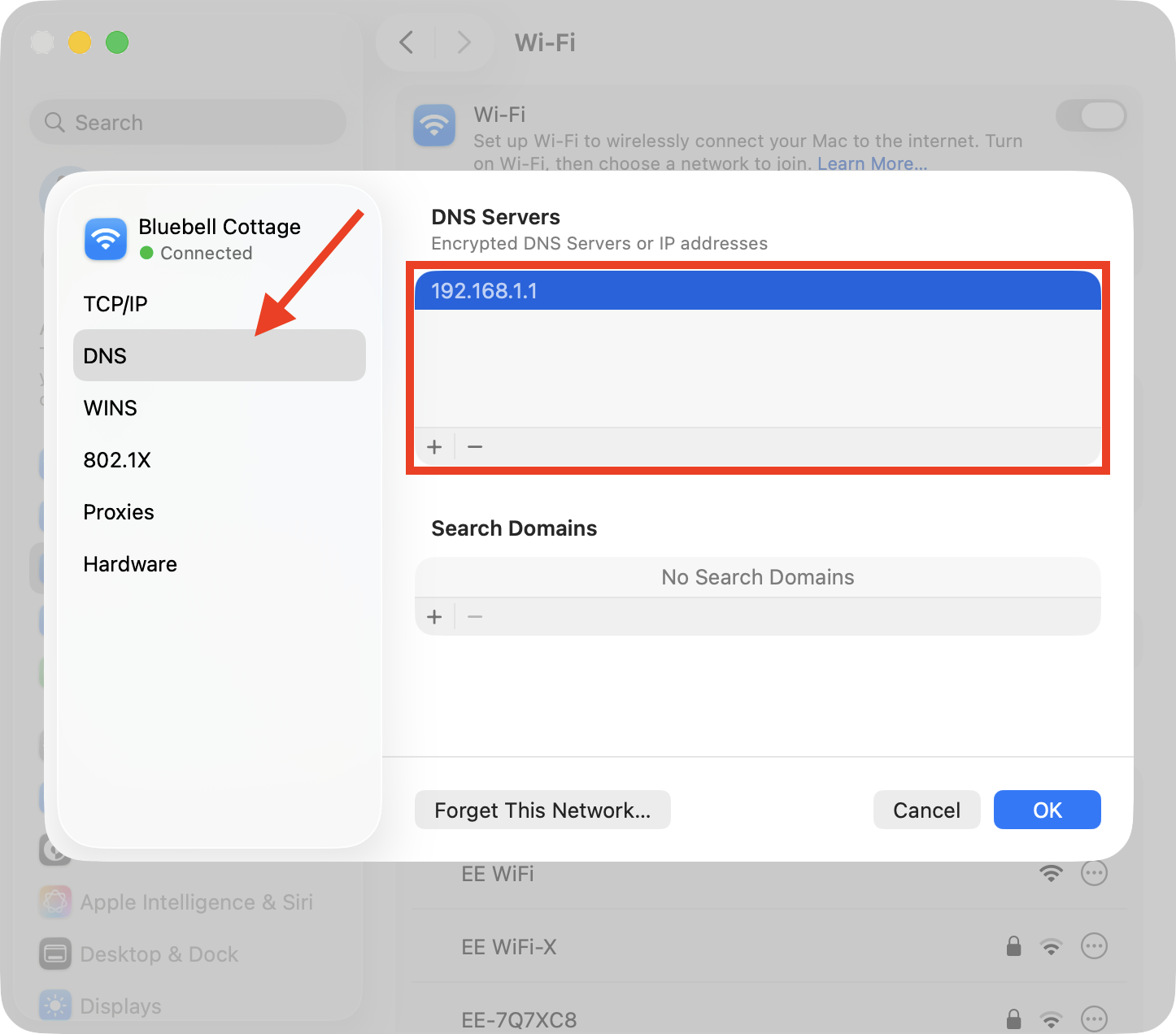
When our Mac’s network settings become corrupt, it’s usually because of custom DNS settings that no longer work. Follow our instructions below to reset them:
Go to System Settings > Network and select your connection type.
Click Details.
Choose DNS, then select any custom DNS servers in the list and click the – button to remove them.
Step 1. In Network, choose your active connectionStep 2. Choose DetailsStep 3. Remove any custom DNS servers
5. Clear DNS cache
Clearing our Mac’s DNS cache is different to resetting our DNS settings, but it can also help when you’re trying to find a NSURLErrorDomain error -1012 Mac fix. Here’s how to flush the DNS cache:
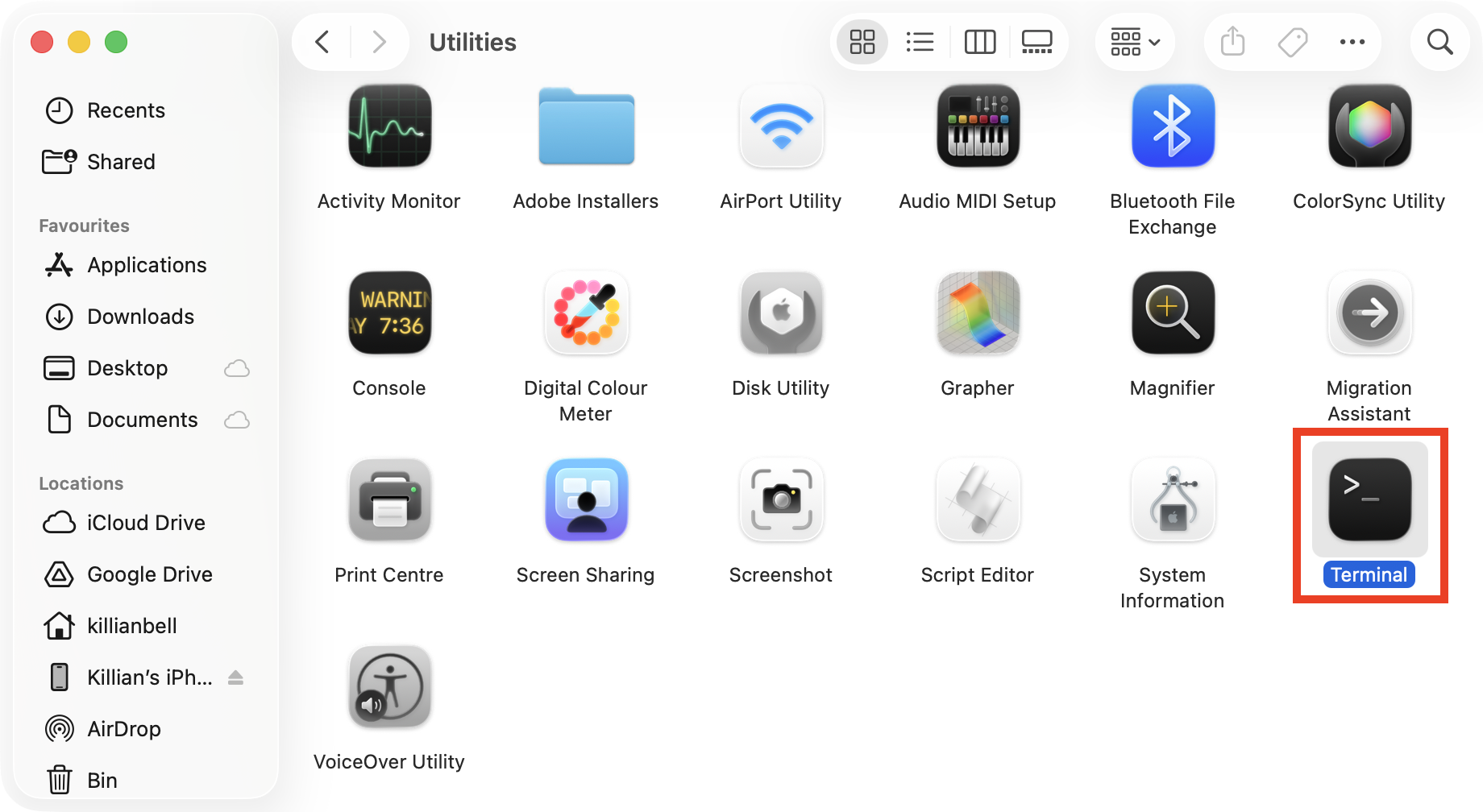
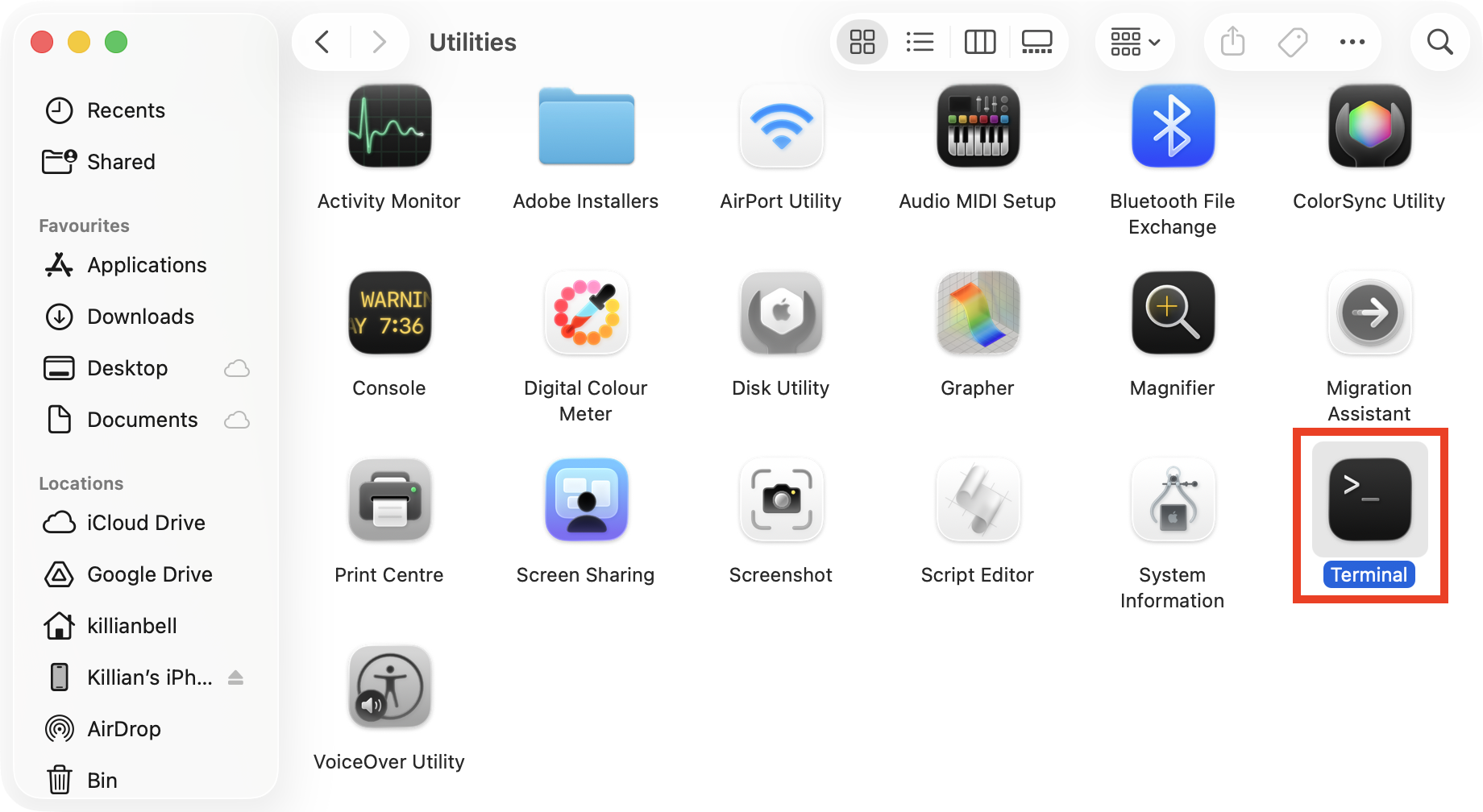
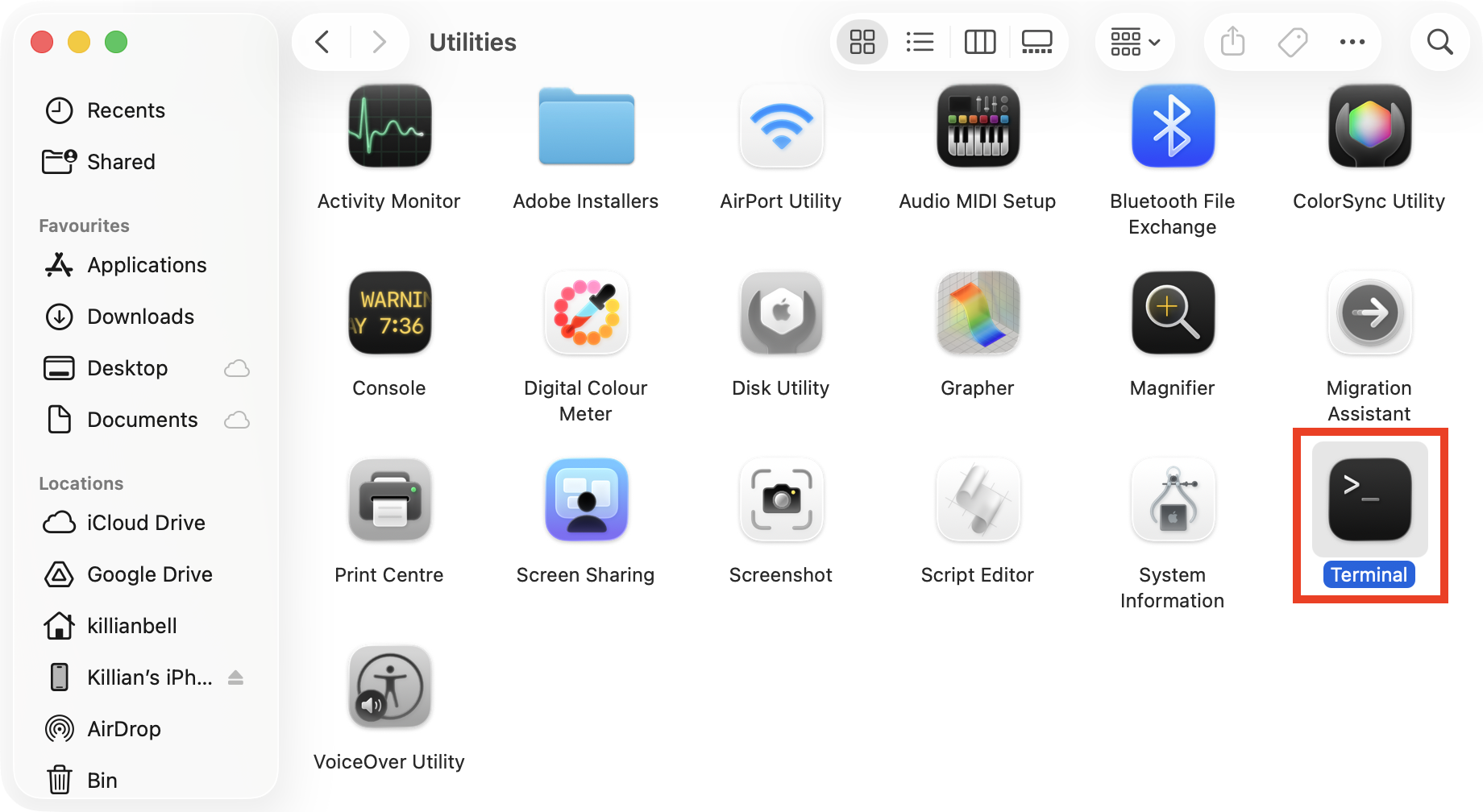
In Finder, go to Applications > Utilities and launch Terminal.
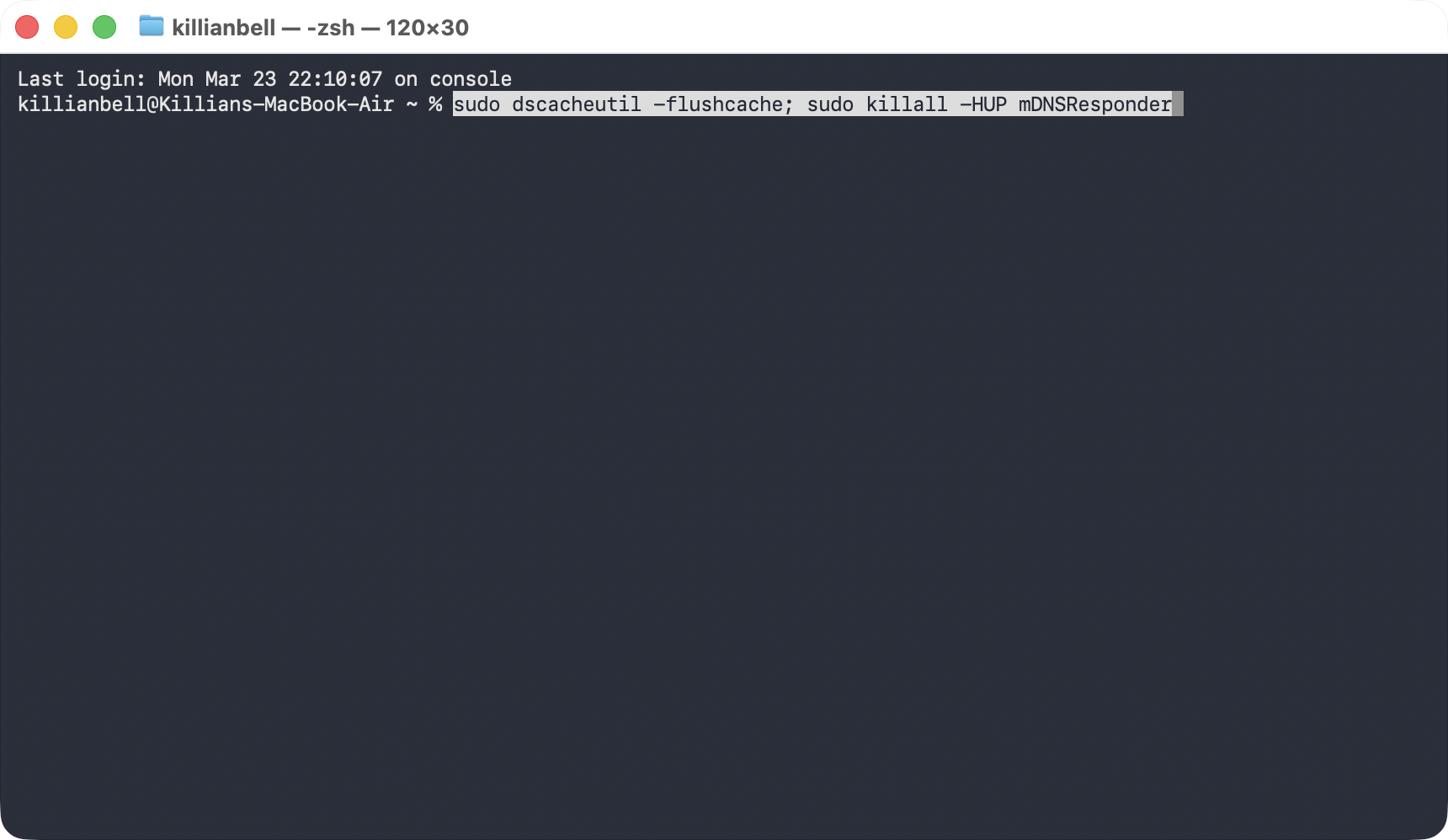
Type sudo dscacheutil -flushcache; sudo killall -HUP mDNSResponder and press return.
Step 1. Launch Terminal from the Utilities folderStep 2. Enter this command, then hit return
We know some users like to clear cache data for other apps when they run into issues in macOS, but for NSURLErrorDomain error -1012, this usually isn’t necessary.
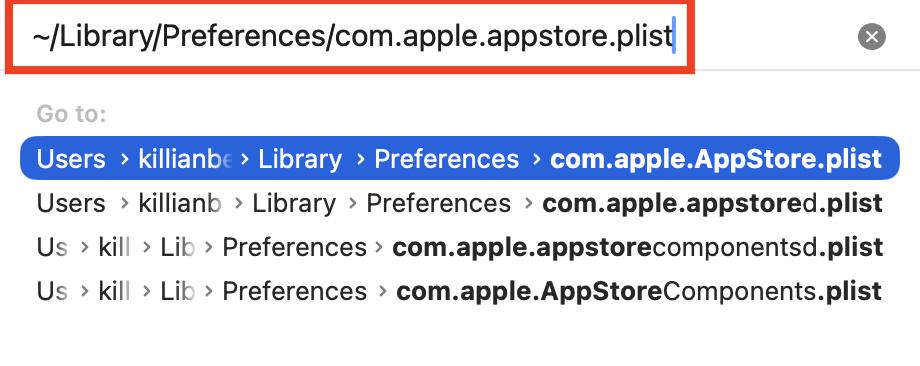
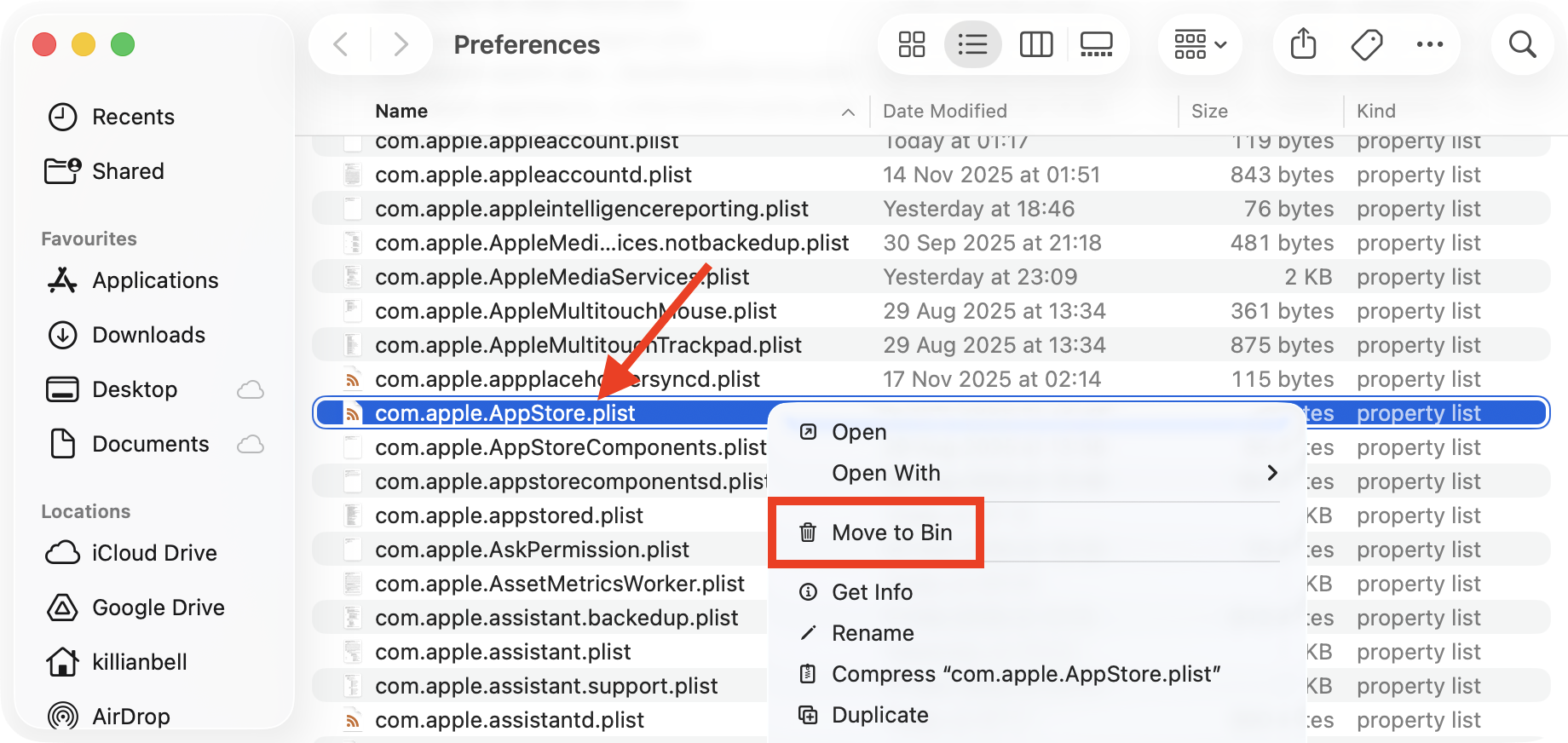
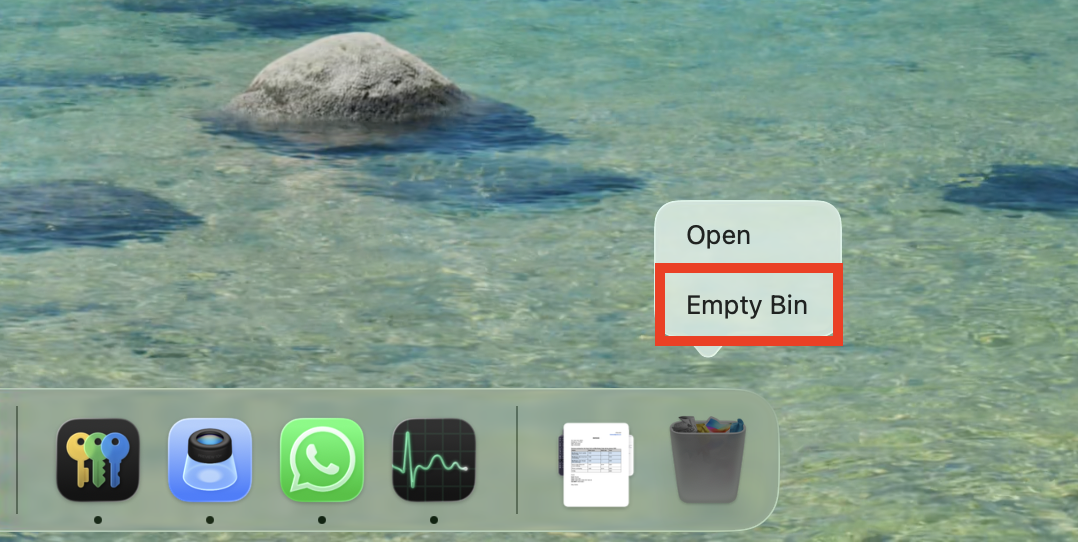
6. Delete App Store preferences files
If you find that NSURLErrorDomain error -1012 appears when attempting to update your Mac apps, it’s possible your App Store preference files are to blame. Follow these steps to reset them:
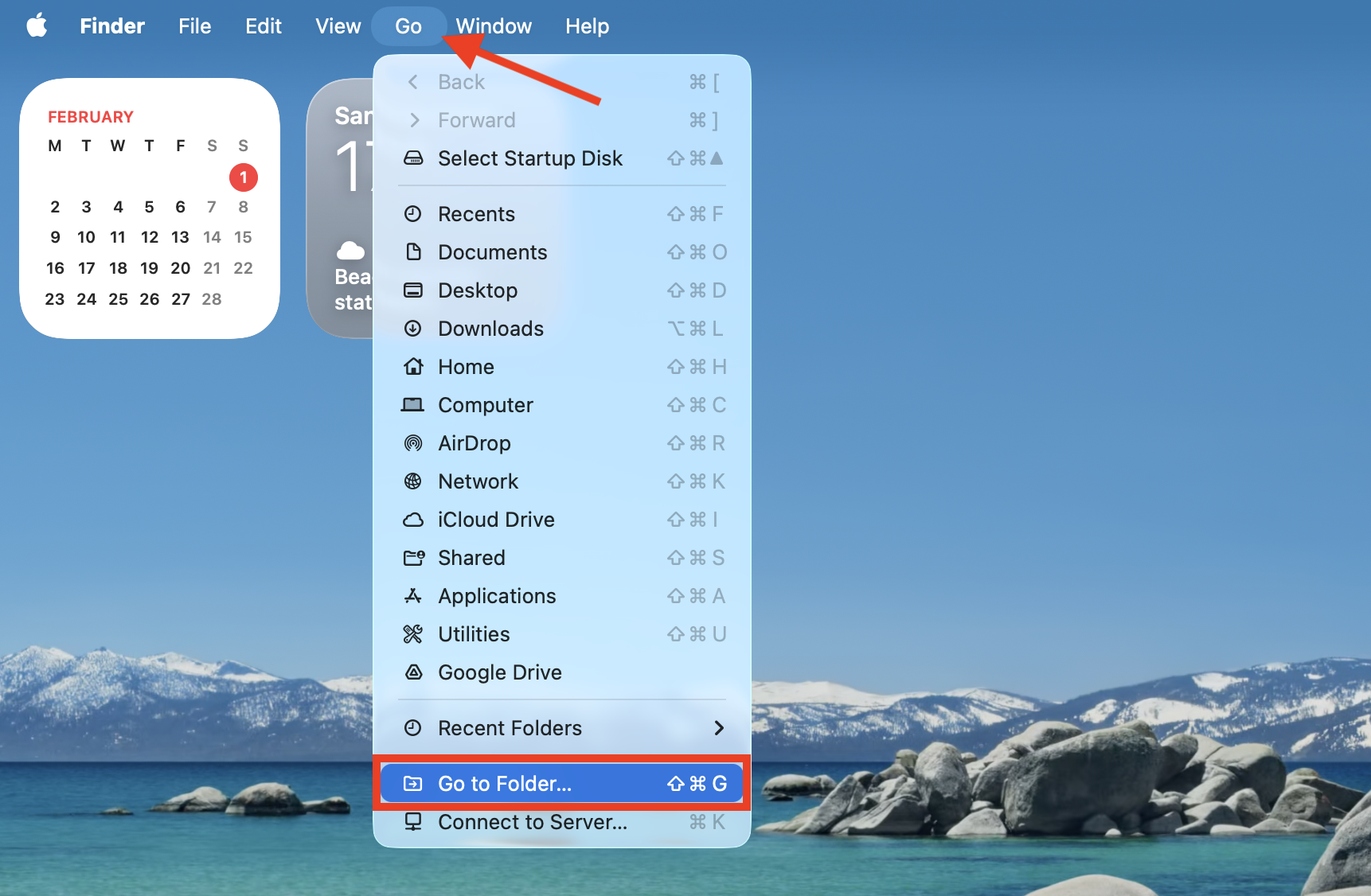
Open Finder, then select Go > Go to Folder from the menu bar.
Type ~/Library/Preferences/com.apple.appstore.plist and press return.
Right-click the highlighted file and choose Move to Trash.
Repeat the above steps for the ~/Library/Preferences/com.apple.appstore.plist.lockfile and ~/Library/Preferences/com.apple.softwareupdate.plist files.
Once all three files are in the trash, empty it.
Step 1. In Finder, choose Go > Go to FolderStep 2. Enter the file location and press returnStep 3. Delete the App Store preferences filesStep 4. Empty the Trash
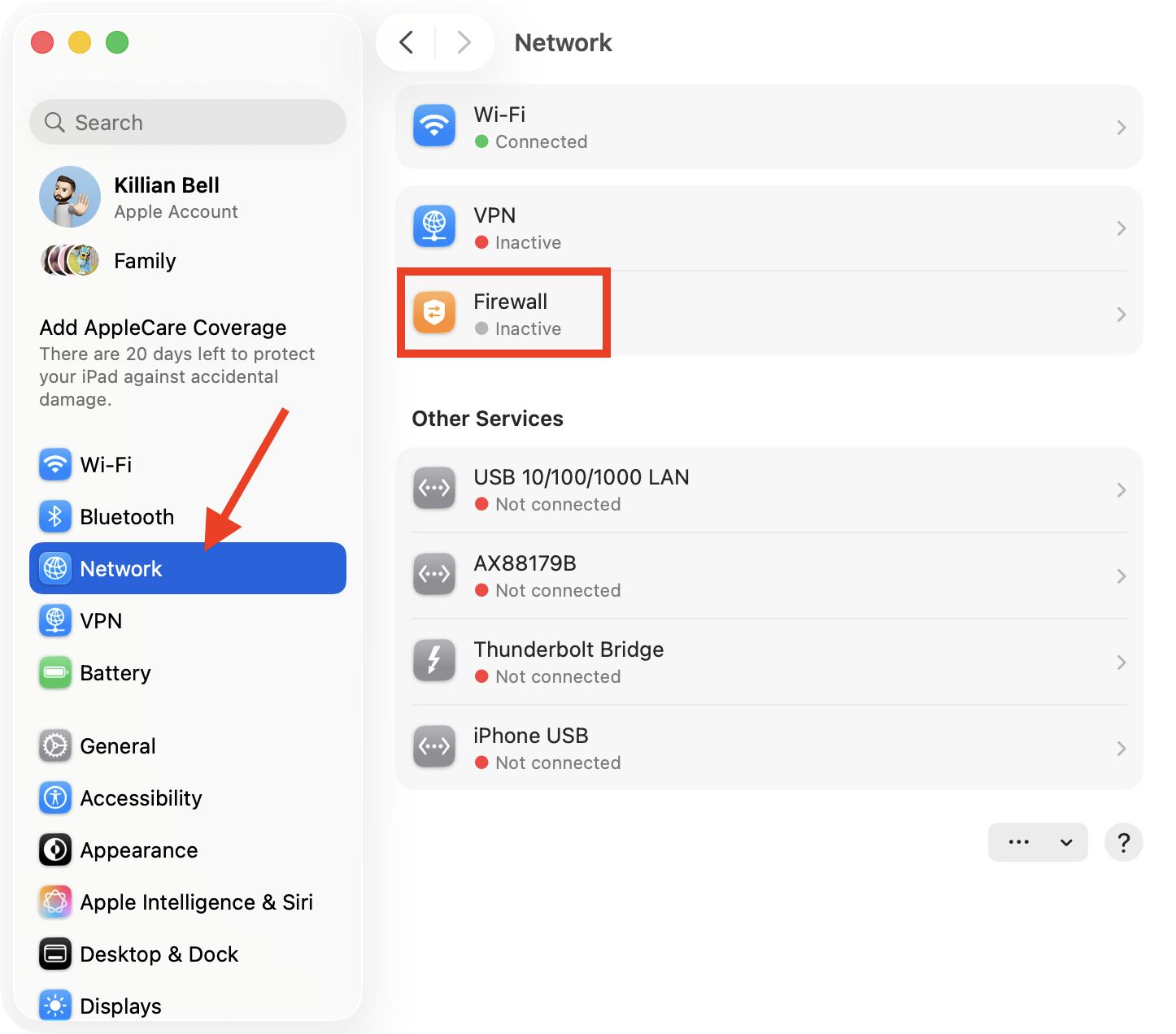
7. Check Firewalls
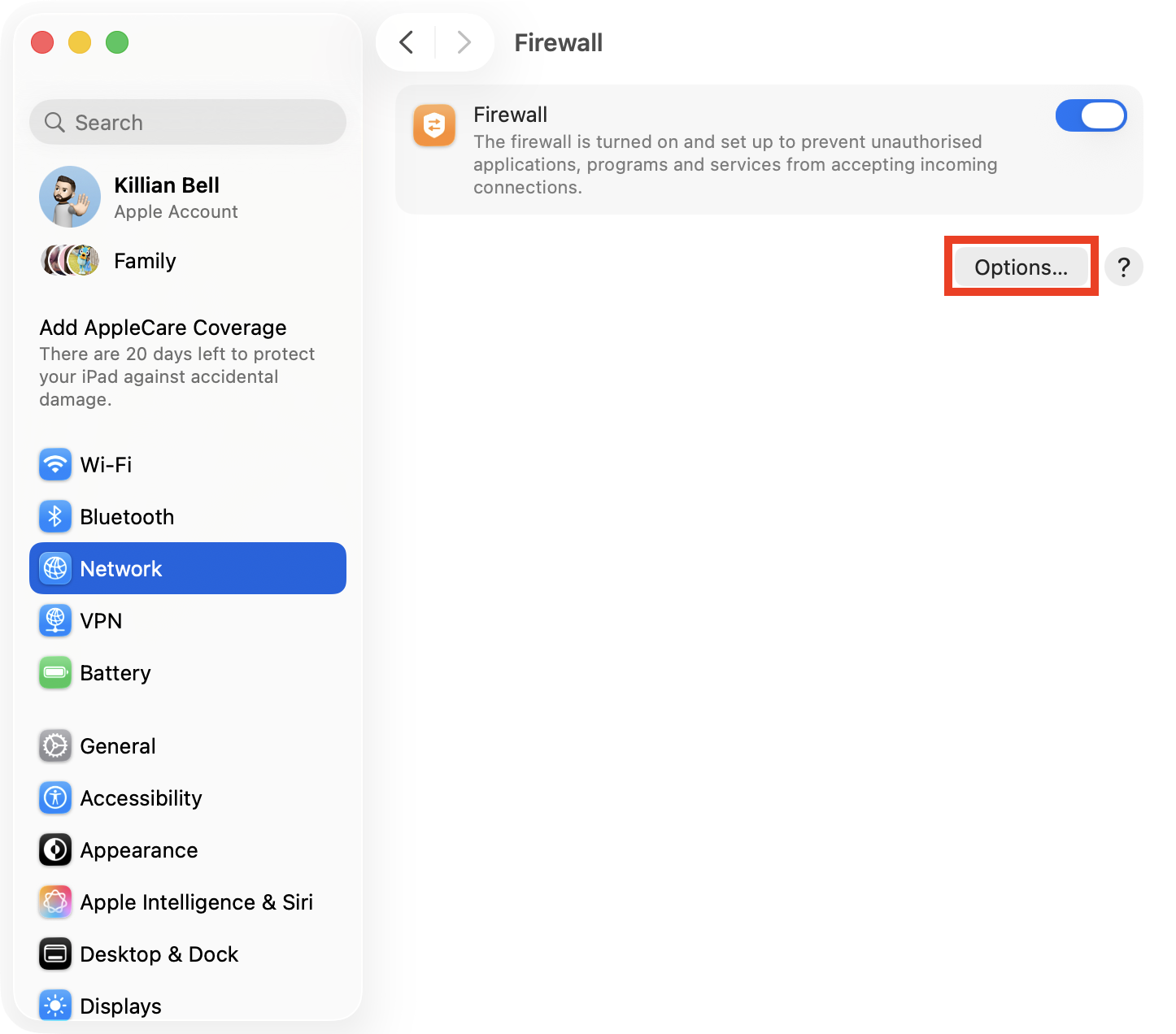
Incorrect firewall settings can prevent your Mac from properly communicating with Apple’s servers. Check your firewall like so:
In System Settings > Network, choose Firewall.
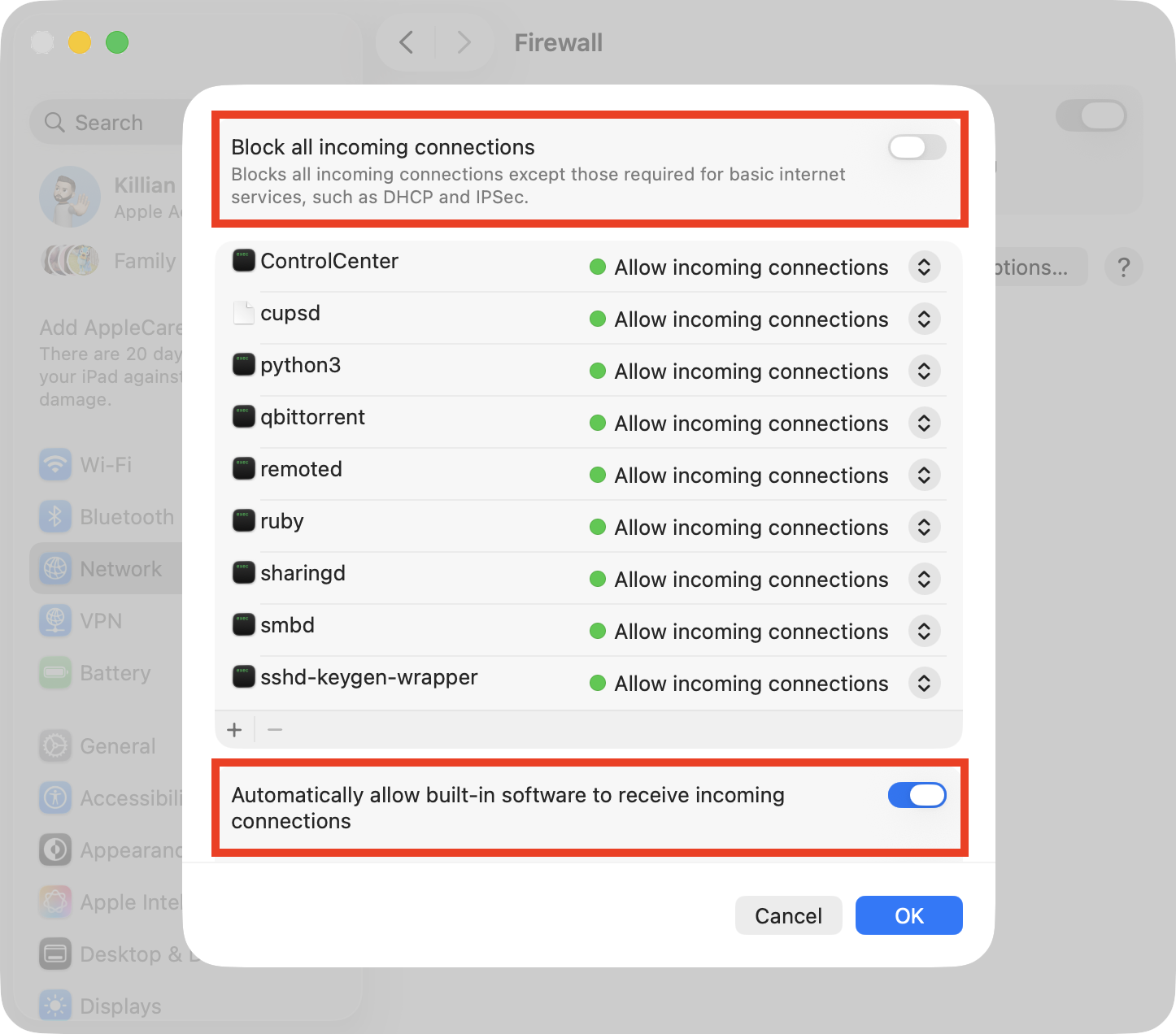
If your Mac’s firewall is enabled, click Options, then scan the settings to confirm they’re correct.
Ensure Block all incoming connections is disabled and that Automatically allow built-in software to receive incoming connections is enabled.
Step 1. Go to Network > FirewallStep 2. Click the Options buttonStep 3. Confirm your firewall settings are correct
8. Restart mDNSResponder
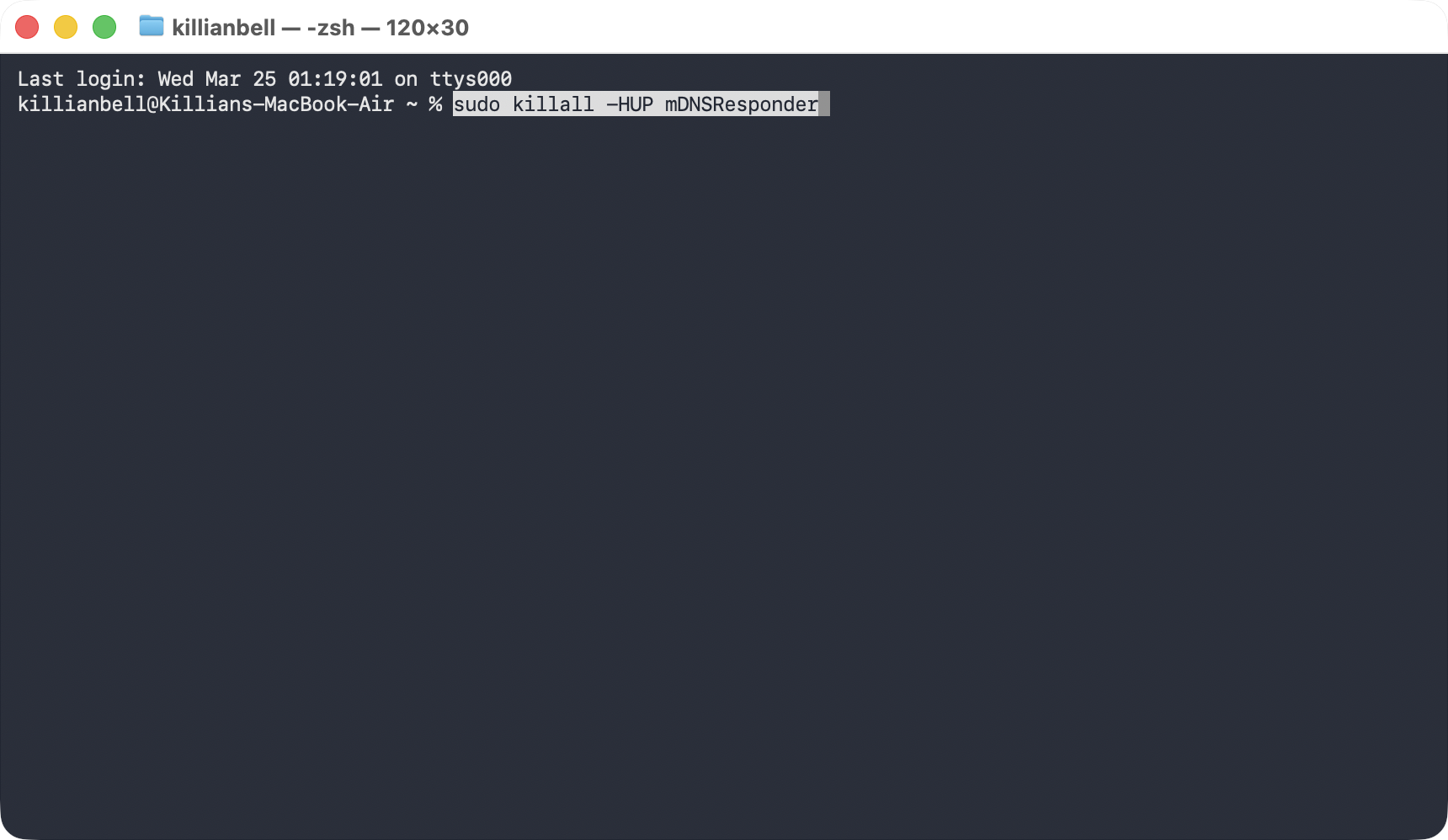
The mDNSResponder on Mac is a built-in daemon that takes care of certain connectivity features. When we start seeing NSURLErrorDomain error -1012, it can help to restart mDNSResponder like so:
Launch Terminal from Applications > Utilities.
Type sudo killall -HUP mDNSResponder and press enter.
Step 1. Open Terminal from the Utilities folderStep 2. Enter the command to restart mDNSResponder
9. Change catalogURL
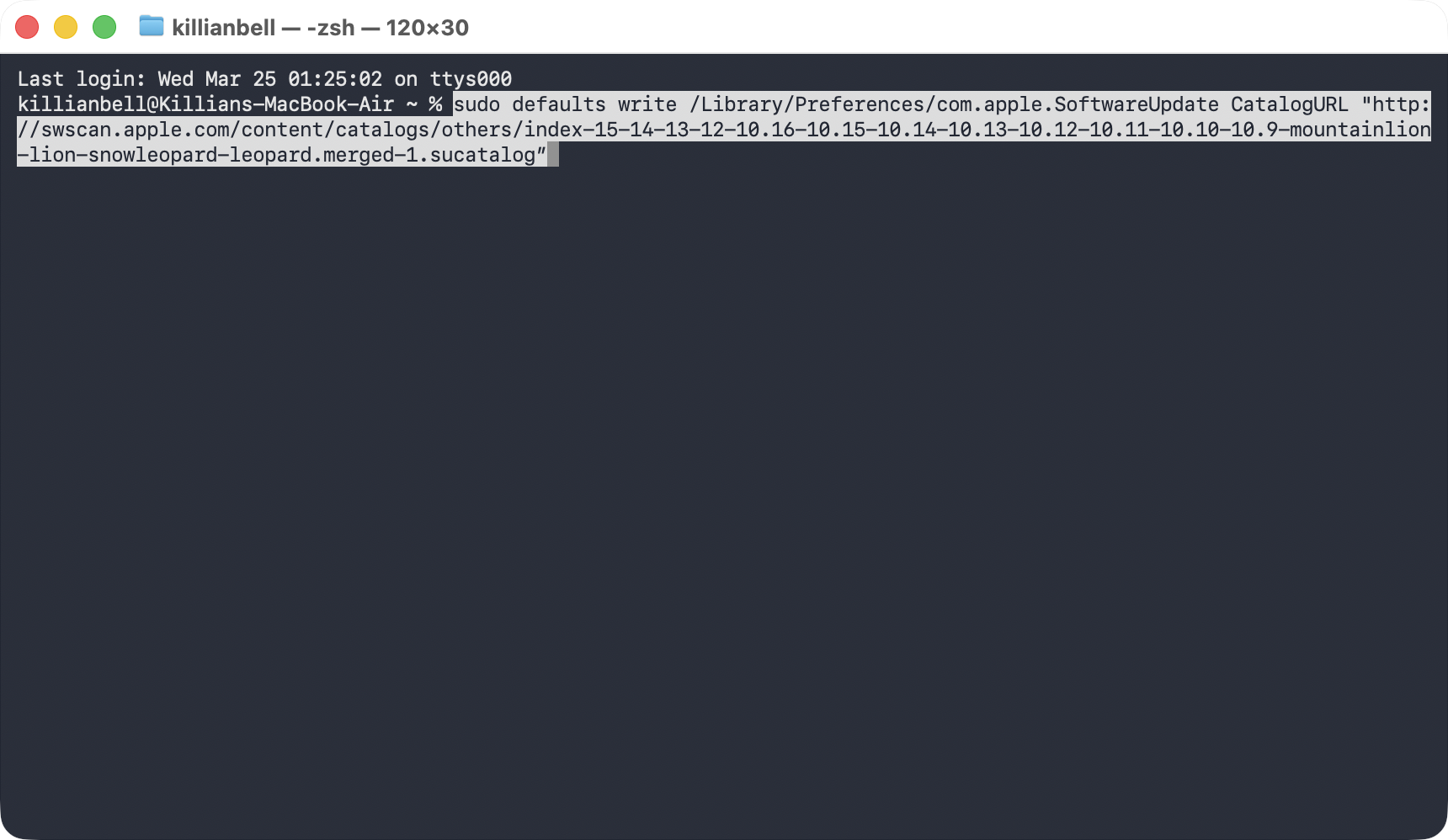
When we encounter NSURLErrorDomain error -1012 while trying to update our Mac, we should try changing the catalogURL via Terminal to fix the issue. Here’s how:
Open the Terminal app.
Paste in sudo defaults write /Library/Preferences/com.apple.SoftwareUpdate CatalogURL "http://swscan.apple.com/content/catalogs/others/index-15-14-13-12-10.16-10.15-10.14-10.13-10.12-10.11-10.10-10.9-mountainlion-lion-snowleopard-leopard.merged-1.sucatalog” then press return.
Enter your Mac’s password when prompted, then press return again.
Try updating your Mac again.
Step 1. Launch TerminalStep 2. Enter this command then press return
Conclusion
It’s not uncommon to see NSURLErrorDomain error -1012 on Mac, especially if you’re running an older version of macOS. There are many reasons why the error can occur, and therefore many ways to fix it. If you’re looking to fix NSURLErrorDomain error -1012 yourself, we recommend trying the solutions above, which have proven to be the most effective for us.
If you’re unable to get rid of the NSURLErrorDomain error on your MacBook Pro, our expert team is available to help you diagnose and eliminate the issue. Contact MacKeeper’s Premium Services day or night to get fast assistance from our professional team.
We respect your privacy and
use cookies
for the best site experience.
Privacy Preferences Center
We use cookies along with other tools to give you the best possible experience while using the
MacKeeper website. Cookies are small text files that help the website load faster. The cookies we
use don’t contain any type of personal data meaning they never store information such as your
location, email address, or IP address.
Help us improve how you interact with our website by accepting the use of cookies. You can change
your privacy settings whenever you like.
Manage consent
All cookies
These cookies are strictly necessary for enabling basic website functionality (including page
navigation, form submission, language detection, post commenting), downloading and purchasing
software. The website might malfunction without these cookies.