Printtool Is Trying to Modify the Printer Settings
If your Mac is showing a message saying “printtool is trying to modify the printer settings”, then stick around, because we’re going to show you how to fix it. Work your way through our tips, and if the issue doesn’t go away, reach out for our expert help from MacKeeper’s Premium Services.
The printtol process is located deep in your /System/Library/Frameworks folder. On Macs, it acts as a privileged gateway between macOS applications and the printing system. It’s not meant to be opened directly by users, but whenever you print something, your Mac will call upon printtool, and if you open Activity Monitor, you’ll see printtool appear in the list of running processes.
Why does printtool keep popping up?
There are a few common reasons why you might see Apple “printtool is trying to modify the printer settings”. The most likely cause is that you have a printer driver installed on your Mac for a printer that’s no longer available. Alternatively, you may be trying to access a printer for which you don’t have the right user privileges.
If the printer isn’t responding on your Mac, open Activity Monitor, and make sure printtool is running.
How to stop printtool from trying to modify the printer settings
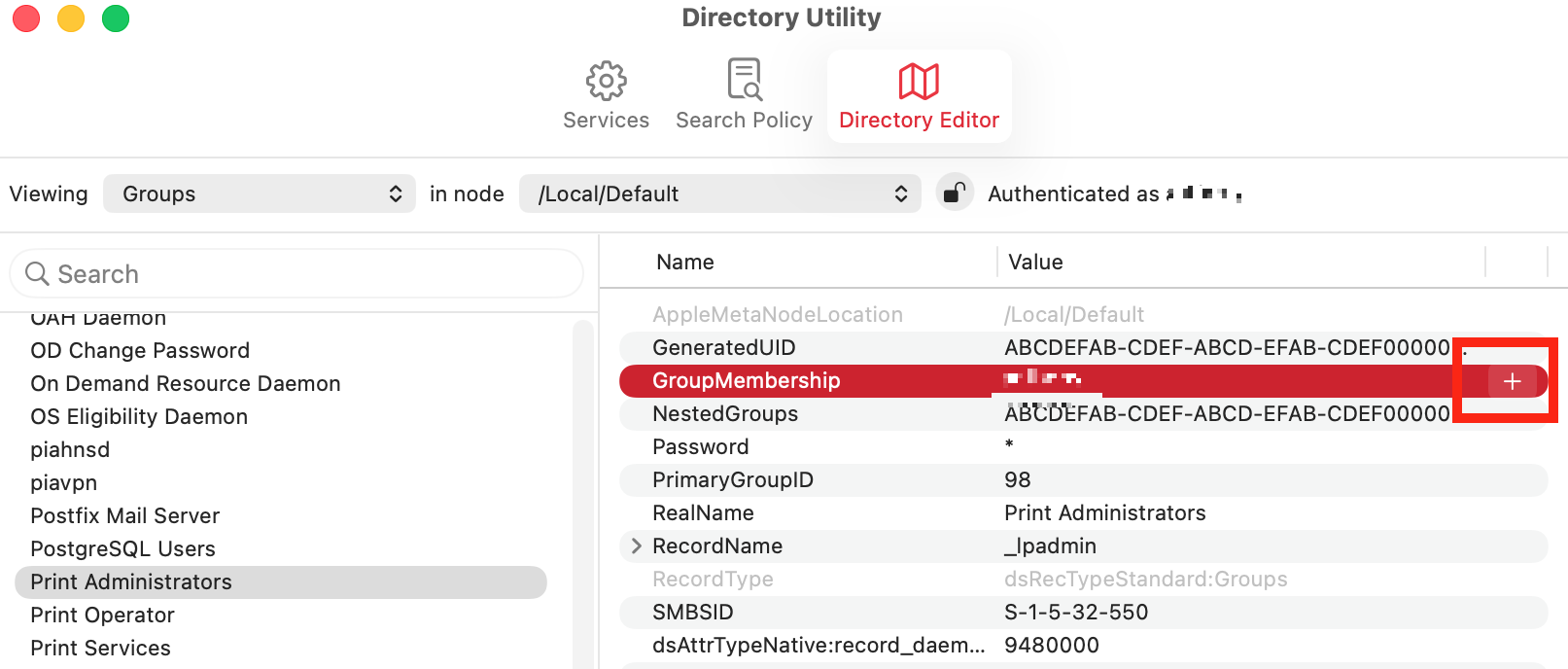
You can get rid of “printtool is trying to modify the printer settings” by removing any unavailable printers in your Mac’s System Settings or by changing the user permissions for your printer or printers. To change the printer permissions on your Mac, open Directory Editor with Spotlight, select the Directory Editor tab, and in Viewing > Groups, select Print Administrators. Click the plus button in GroupMembership, and then manually add any users who are missing. Click Save to finish.
A note from our experts:
If you find printtool keeps popping up, you might be able to fix it alone using our tips below, but if not, MacKeeper’s Premium Services are here to help.
Start chatting with the online agent, and they’ll take it from there.
MacKeeper's Premium Services are available 24 hours a day
1. Delete unused printers on Mac
The first thing we suggest is to delete any unused printers from your iMac or MacBook. Hopefully, this will stop “printtool is trying to modify the printer settings” from appearing. Here’s what you need to do:
Click the Apple in the top left of your screen and select System Settings.
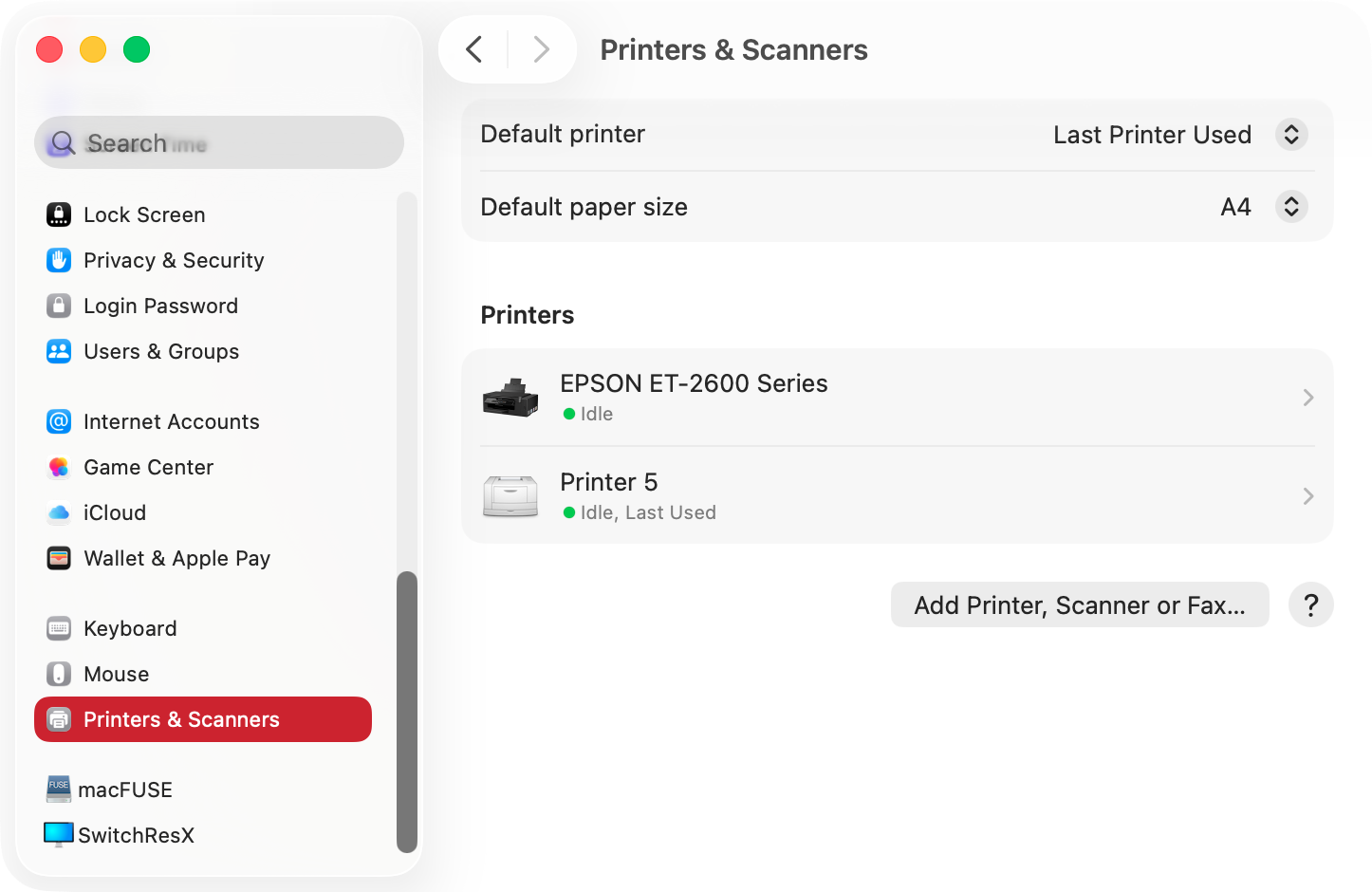
In System Settings, select Printers & Scanners from the side menu.
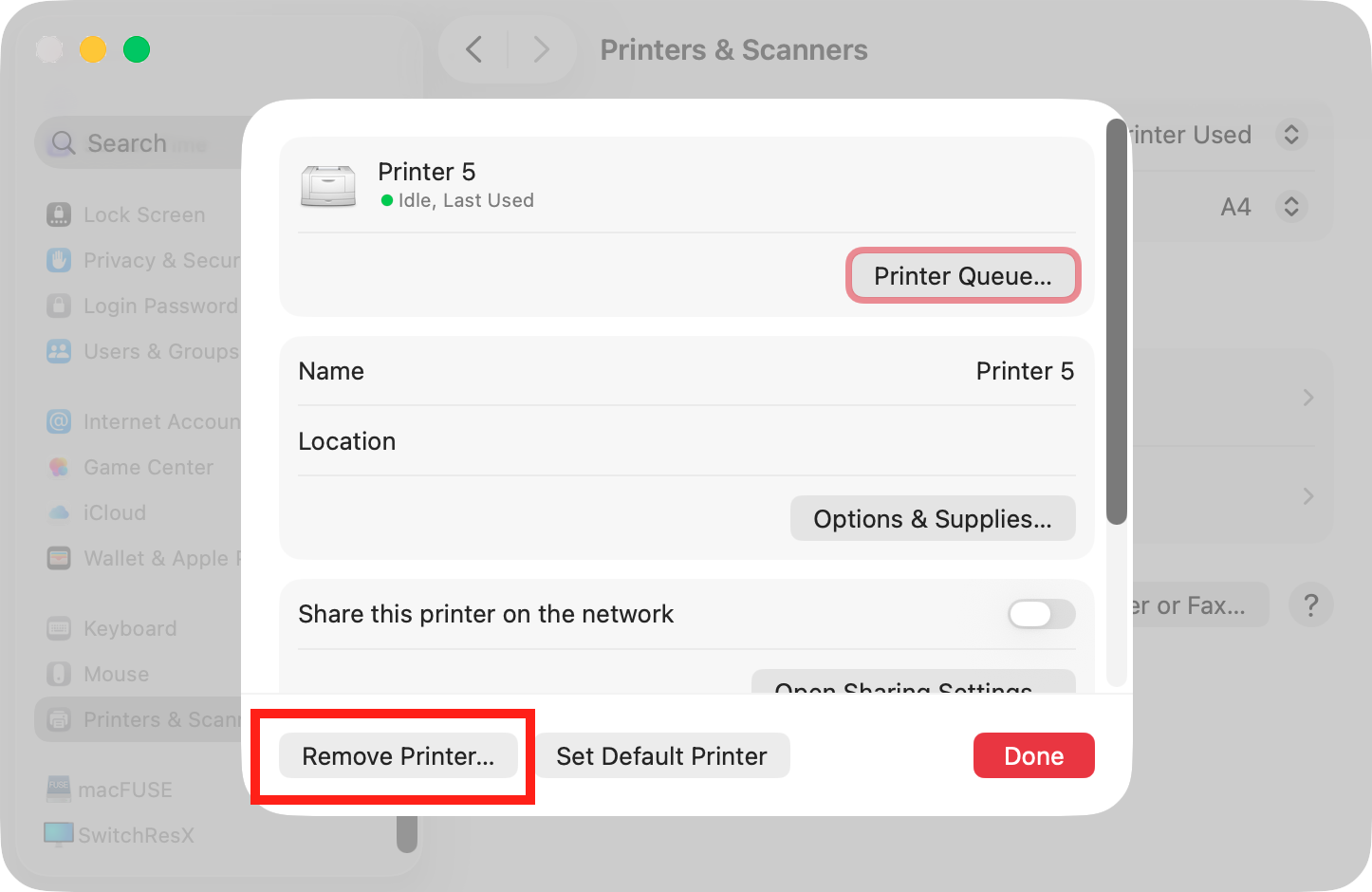
Click on the printer you want to remove, then in the panel that pops up, click Remove Printer.
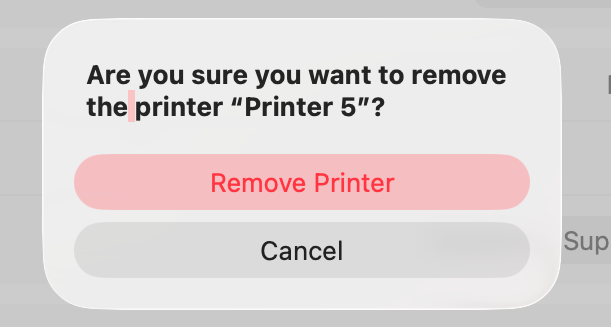
Click Remove Printer to confirm.
If the printtool pop-up still appears, try restarting your Mac.
Step 1. Open your Printers & Scanners settingsStep 2. Select a printer, then click Remove PrinterStep 3. Click Remove Printer to confirm
For more detailed guidance, read our guide on how to delete printer on Mac.
2. Add user to Print Administrators group
The printtool error may be popping up because you don’t have the right user privileges to access printing services on your Mac. If you have an admin account, you can easily edit these settings, like this:
Press Cmd+Spacebar to open Spotlight, and use it to search for and open Directory Utility.
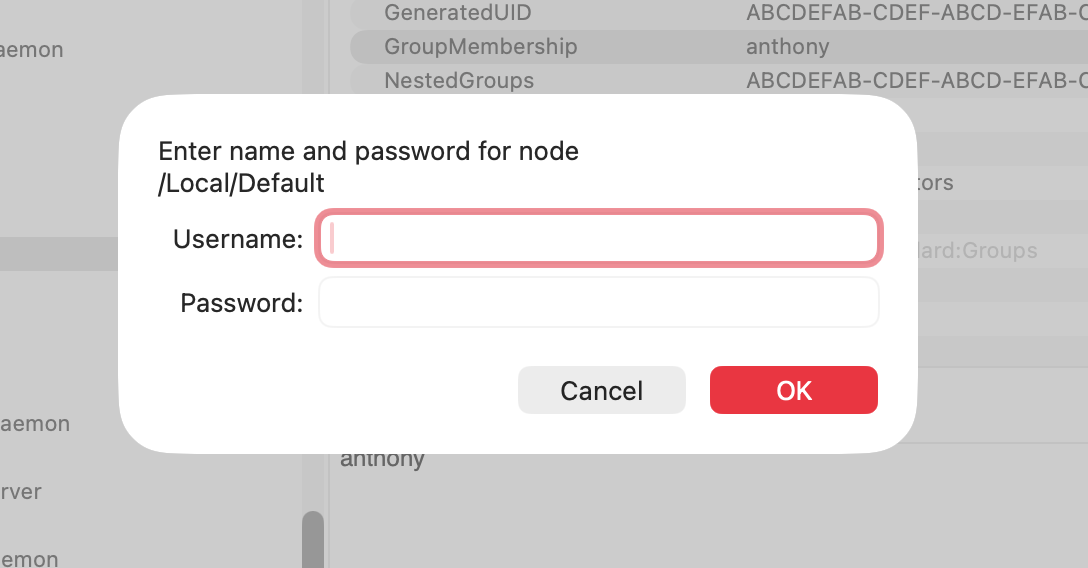
Click the padlock icon and enter your admin details.
Select the Directory Editor tab.
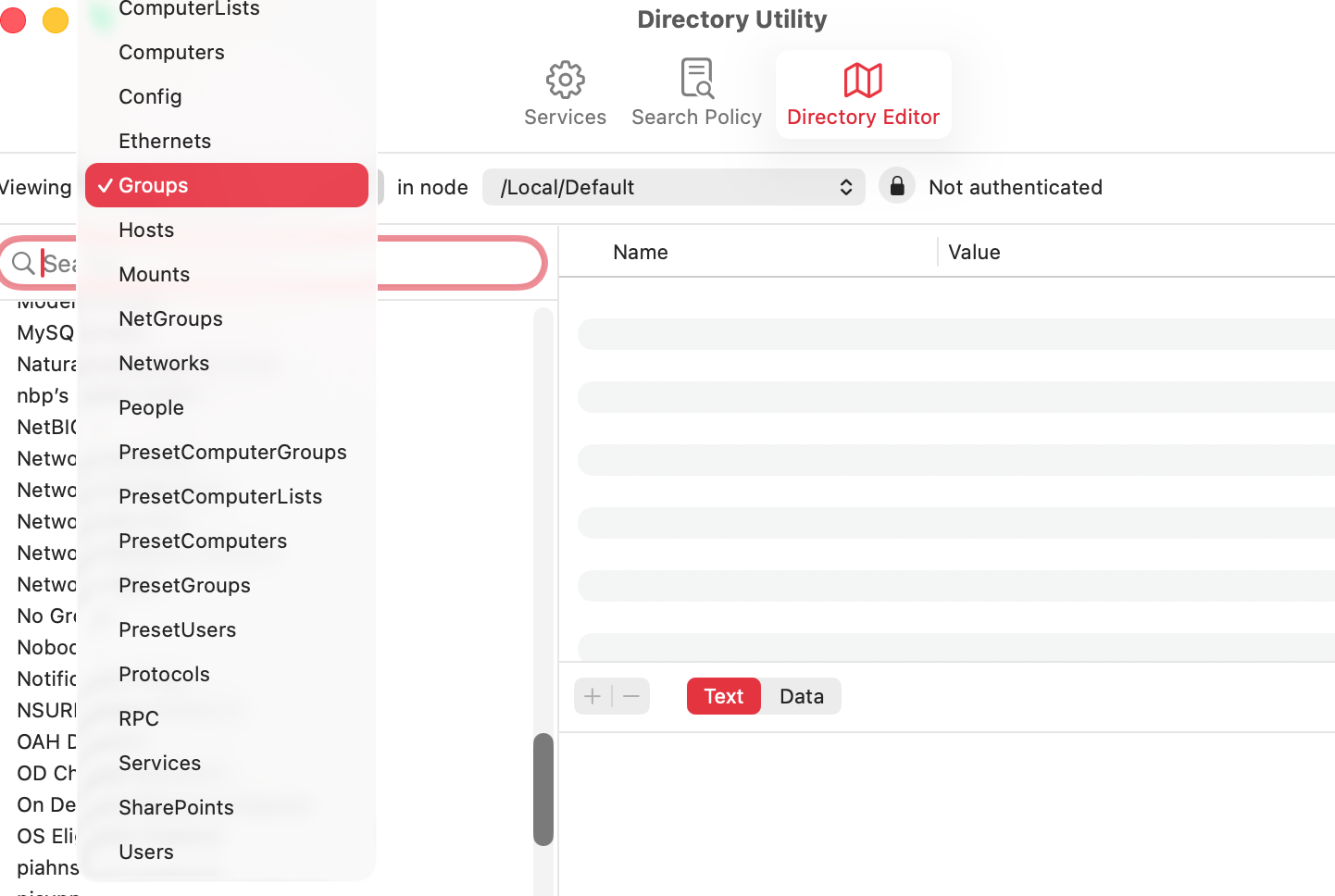
Use the Viewing dropdown menu to select Groups.
In the list on the left-hand side, find and select Print Administrators.
In the right-hand window, look for GroupMembership. Click the plus button next to it.
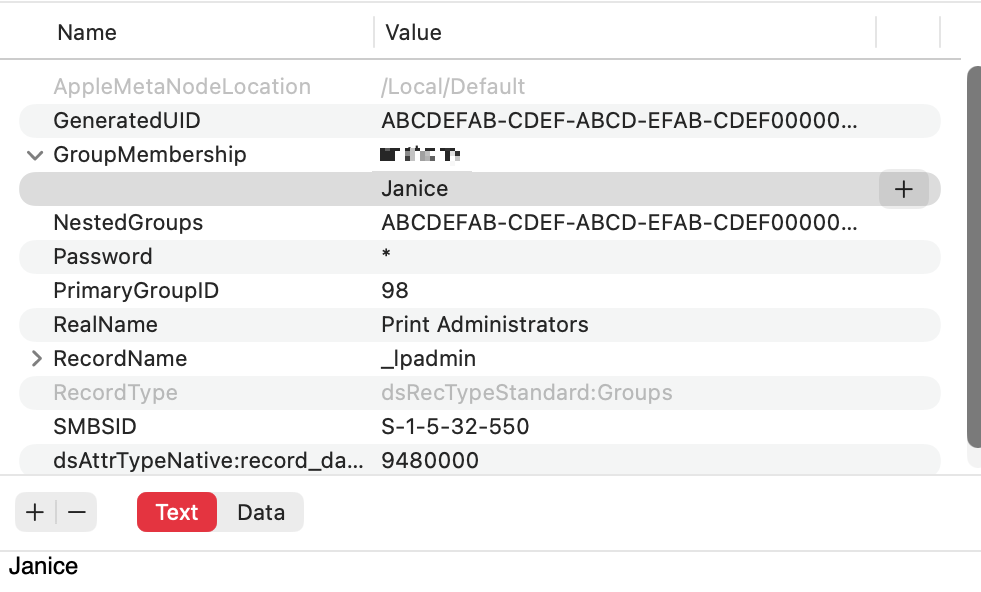
Type in the name of the user account you want to give print privileges.
Click Save, then restart your Mac.
Step 1. Open the Directory Utility and select Viewing > GroupsStep 2. Enter your admin details so you can make changesStep 3. Add users to Print Administrators > GroupMembershipStep 4. Add new users
Not sure how to print on Mac? Check out our dedicated guide for more information.
3. Reset the print system on Mac
A temporary error could be responsible for printtool popping up on your Mac. If that’s the case, then resetting the printing system could be enough to stop it. Resetting the macOS print system is simple:
In your Mac’s System Settings, open the Printers & Scanners section.
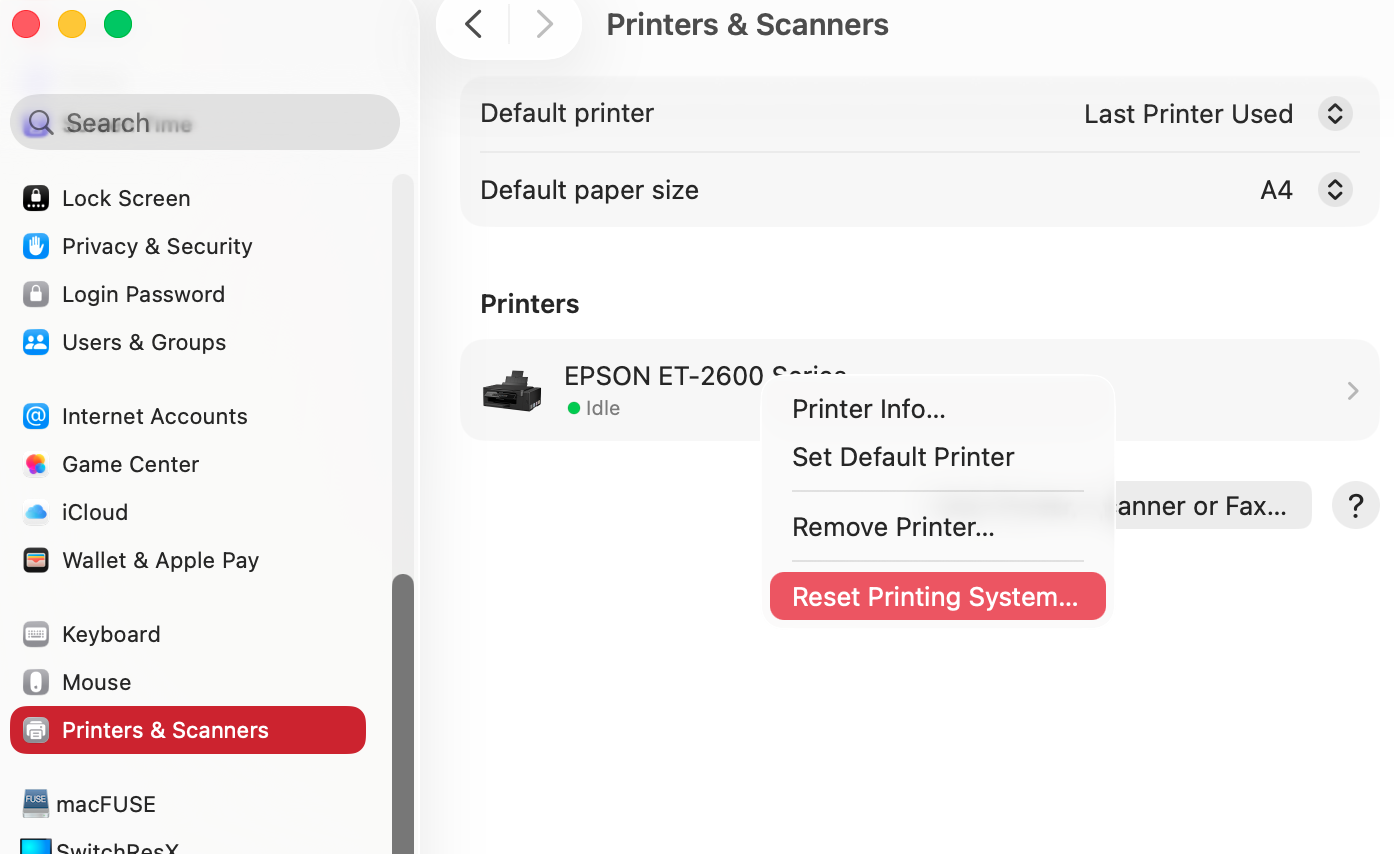
Right-click your printer and select Reset Printing System.
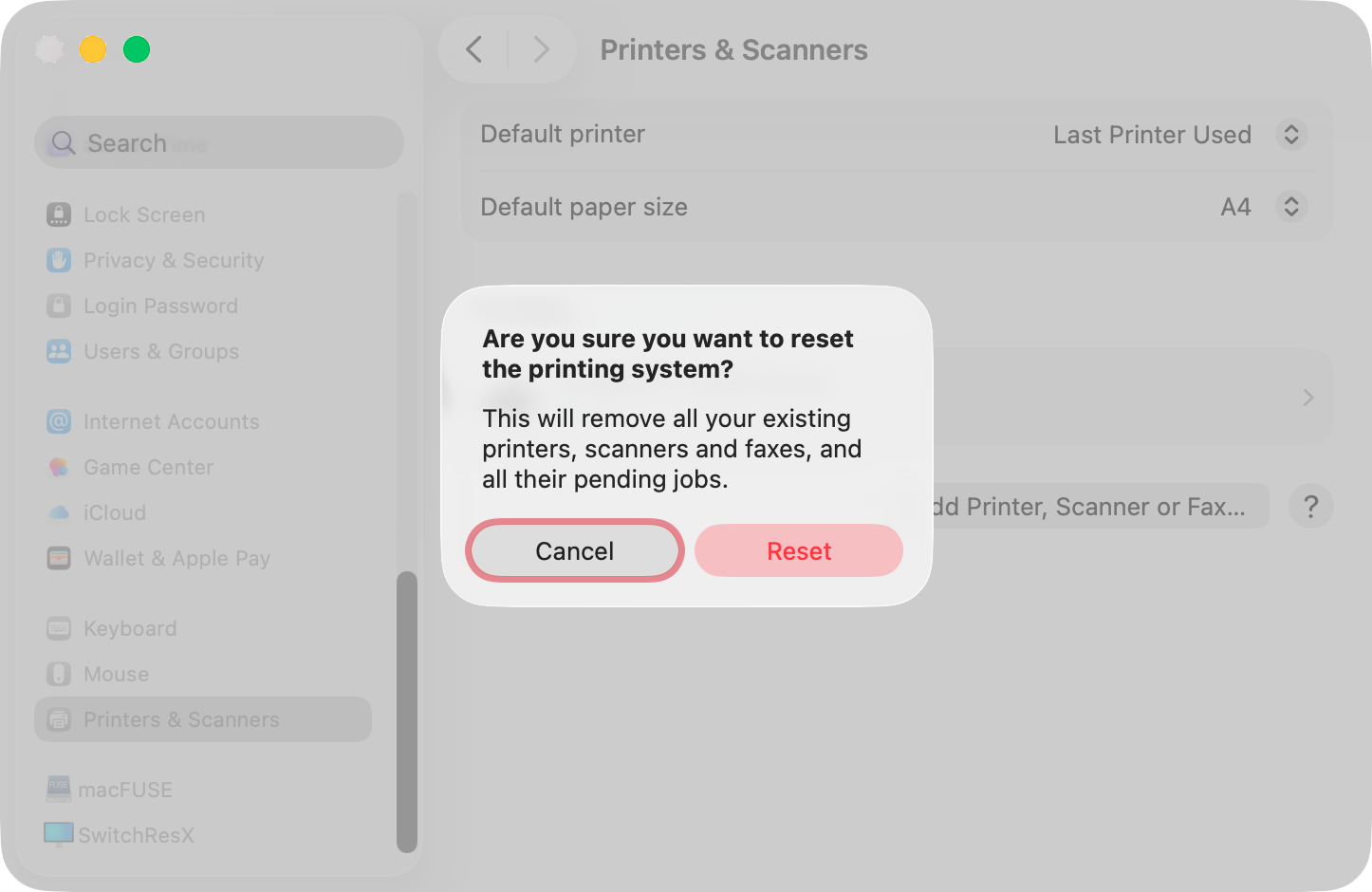
Click Reset.
Step 1. Right-click a printer and click Reset Printing SystemStep 2. Confirm that you want to reset the printing system
Resetting your print settings will remove your printer and drivers, so select the add printer option and add it back to your Mac.
4. Check printer settings and drivers
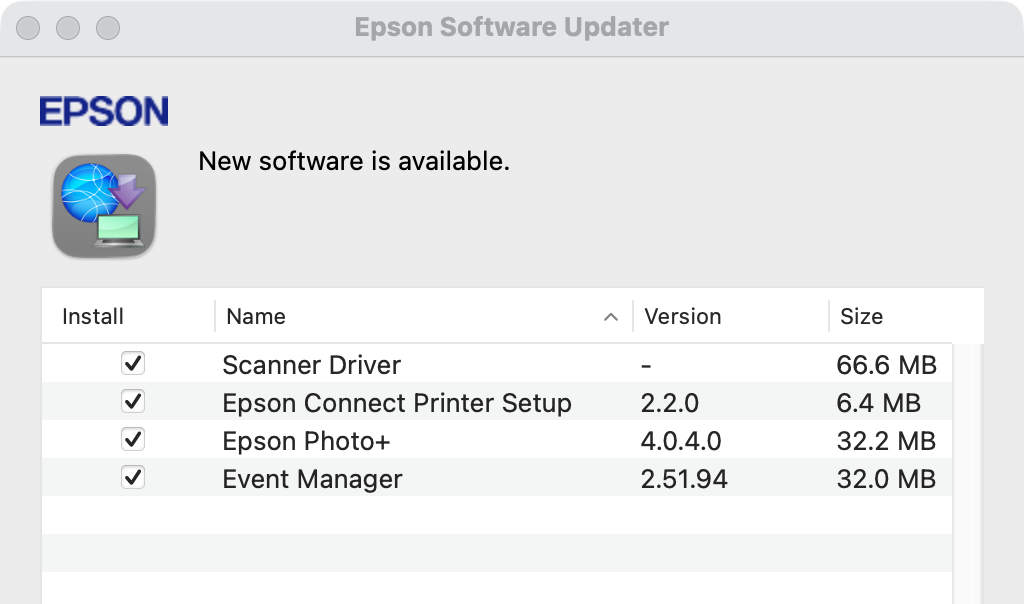
Sometimes, you might see “printtool is trying to modify the printer settings” because there’s an issue with your printer settings or drivers. If your printer has its own official app, make sure it’s up to date, and check the app for error messages and settings that might be wrong. Also, try uninstalling and reinstalling the app and printer drivers.
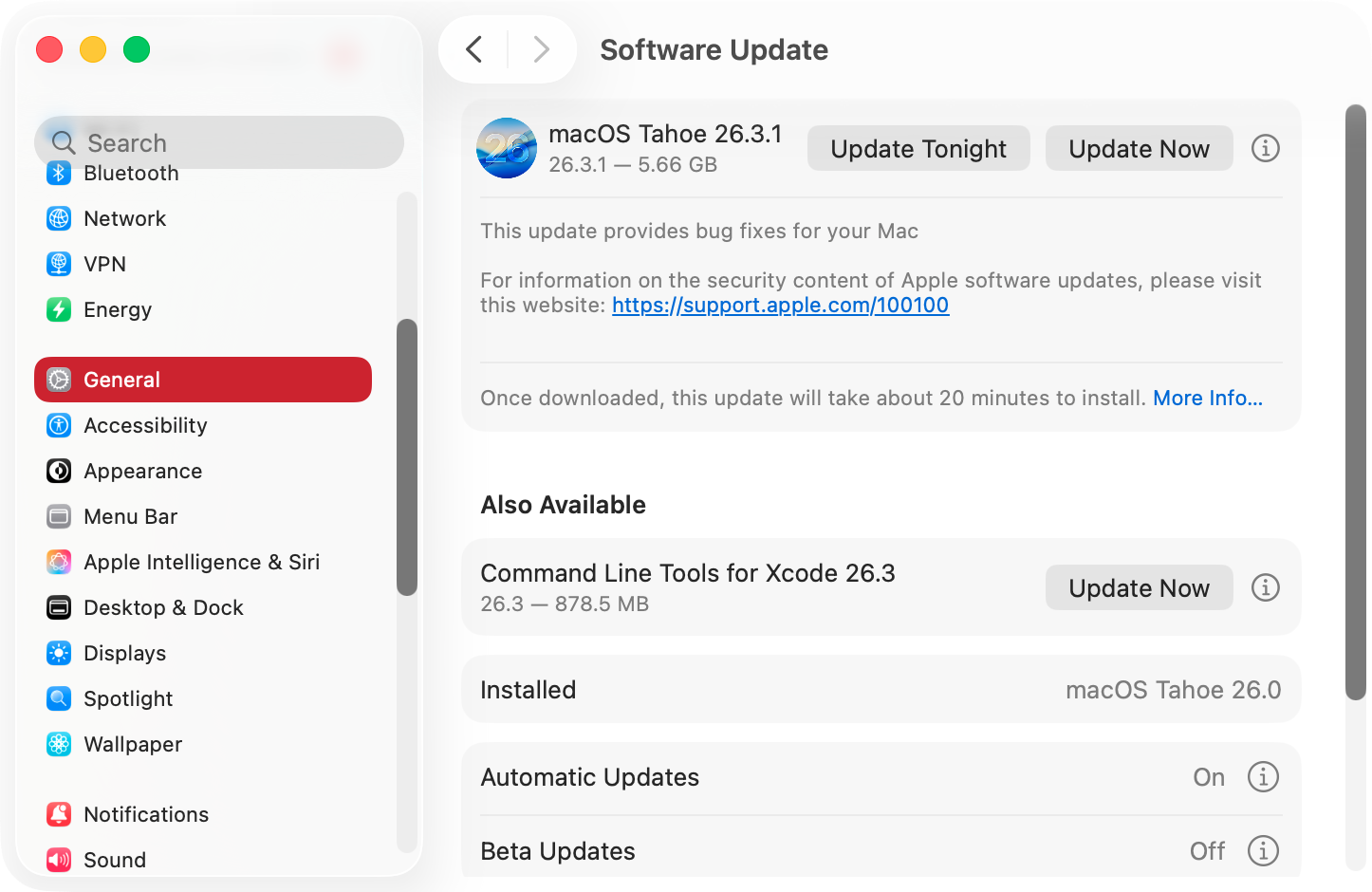
If you let your macOS automatically set up your printer, use your Mac’s System Settings to manage your print drivers and settings. We also advise making sure macOS is up to date—in System Settings, go to General > Software Update, and install any available updates.
After updating your printer drivers or changing settings, restart your Mac, and see if the printtool problem persists.
Step 1. Check and update any third-party printer driversStep 2. Update macOS and check your default printer settings
5. Remove conflicting apps
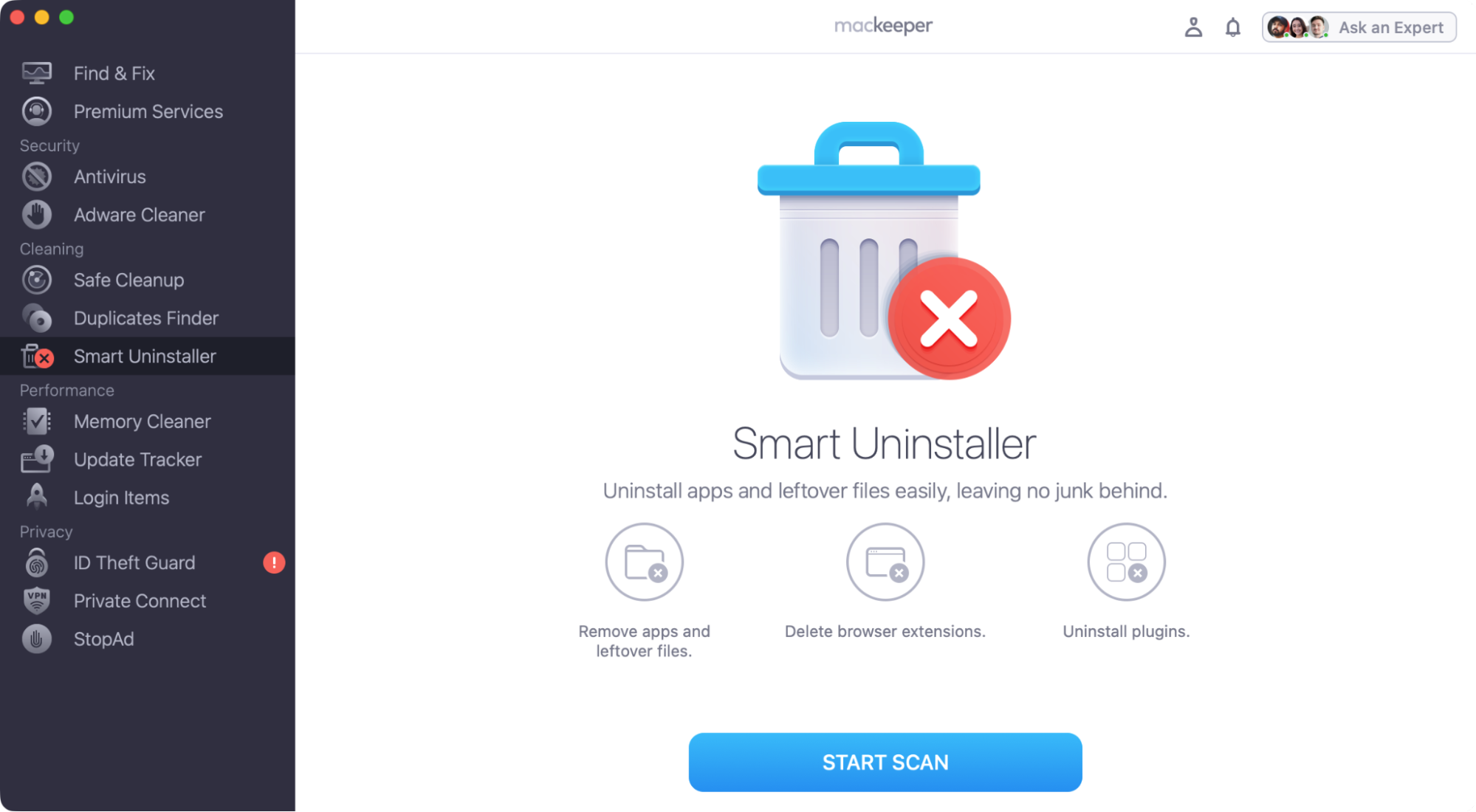
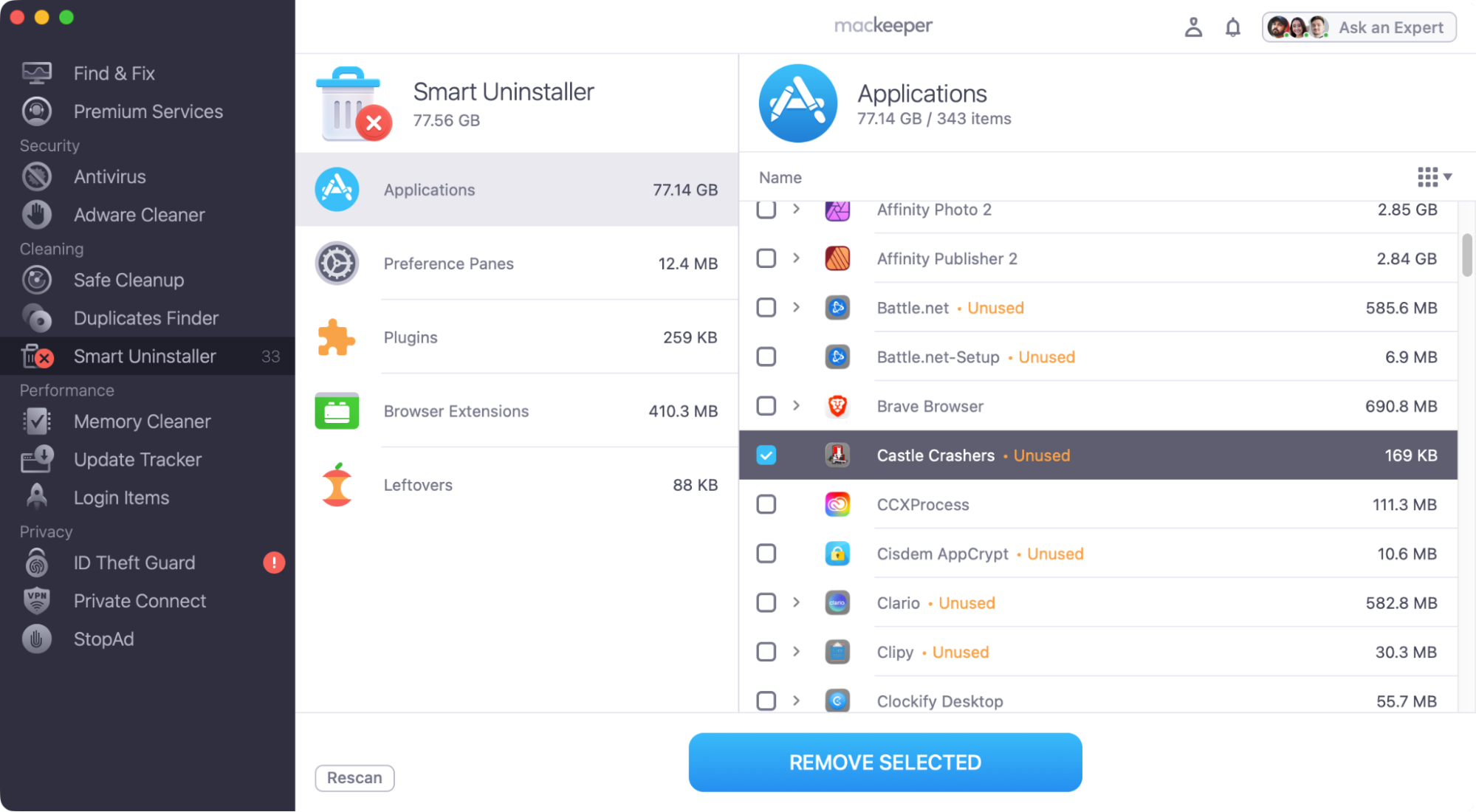
Did printtool start popping up after you installed a new programme on your Mac? If so, that app may be causing a conflict with your printer driver, making it malfunction—hence the “printtool is trying to modify the printer settings” error. To completely remove apps from your Mac, we recommend using MacKeeper’s Smart Uninstaller:
Open MacKeeper, and select Smart Uninstaller from the side menu.
Click Start Scan.
When MacKeeper has finished scanning your Mac, choose the app you want to delete, and click Remove Selected.
Click Remove to confirm.
Step 1. Select Smart Uninstaller and click Start ScanStep 2. Select what to delete, then click Remove Selected
Now restart your Mac, and see if printtool keeps popping up still.
No more print problems
In most cases, the “printtool is trying to modify the printer settings” problem is simple to fix. Just remove any unused printers from macOS, and make sure you have the right permissions to access printing on your Mac. If those don’t work, then you might have a driver conflict or potentially even a virus on your Mac.
The good news is MacKeeper’s Premium Services are just a click away. We have years of expert experience, helping Mac users to solve their computer problems—and we’re available all day, every day, 365 days a year.
We respect your privacy and
use cookies
for the best site experience.
Privacy Preferences Center
We use cookies along with other tools to give you the best possible experience while using the
MacKeeper website. Cookies are small text files that help the website load faster. The cookies we
use don’t contain any type of personal data meaning they never store information such as your
location, email address, or IP address.
Help us improve how you interact with our website by accepting the use of cookies. You can change
your privacy settings whenever you like.
Manage consent
All cookies
These cookies are strictly necessary for enabling basic website functionality (including page
navigation, form submission, language detection, post commenting), downloading and purchasing
software. The website might malfunction without these cookies.