If you can’t pair your wireless headphones, mouse, or keyboard, there’s no need to buy new devices for your Mac. First, try fixing any Bluetooth issues on macOS Sequoia using our tips. If you still need assistance, MacKeeper’s Premium Services technical team is available to help.
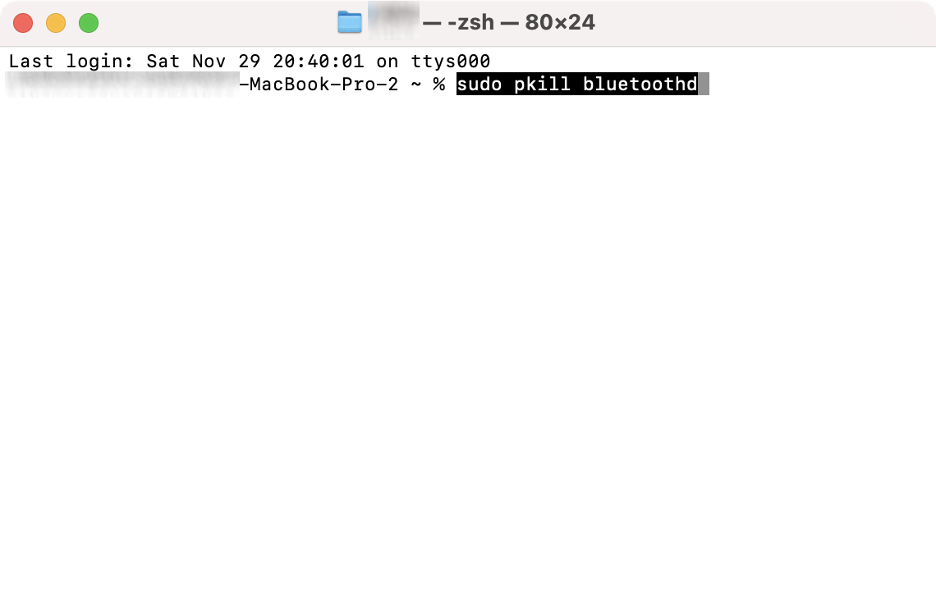
Resetting Bluetooth settings can often resolve issues on Apple devices. To restore Bluetooth to its factory settings on macOS Sequoia, open the built-in Terminal app and enter the following command: sudo pkill bluetoothd. You’ll be prompted for your admin password to complete the process. After running the command, your connected Bluetooth devices will automatically disconnect and then reconnect.
Why Bluetooth issues occur on macOS Sequoia?
MacBook Bluetooth not working? When Bluetooth issues arise on macOS Sequoia, it could be caused by a temporary software bug or glitch. Other possible reasons include software conflicts, incompatibility with your wireless device, or interference from other devices. In some cases, the issue may be that your Bluetooth device is low on battery or it has a technical fault.
When to consider resetting Bluetooth on macOS Sequoia?
Our experts recommend resetting Bluetooth in macOS Sequoia if you’re unable to pair a wireless device with your Mac or MacBook, if the device doesn’t appear in the list of available Bluetooth devices, if it frequently disconnects, or if it has performance issues, such as unresponsive controls and audio problems.
A note from our experts:
Are persistent Bluetooth issues on macOS Sequoia leaving you frustrated? While our tips can help, turning to MacKeeper’s Premium Services team ensures fast, expert support whenever you need it. With over 332,000 Macs repaired and a 93% customer satisfaction rate, MacKeeper is the trusted solution for any technical issue.
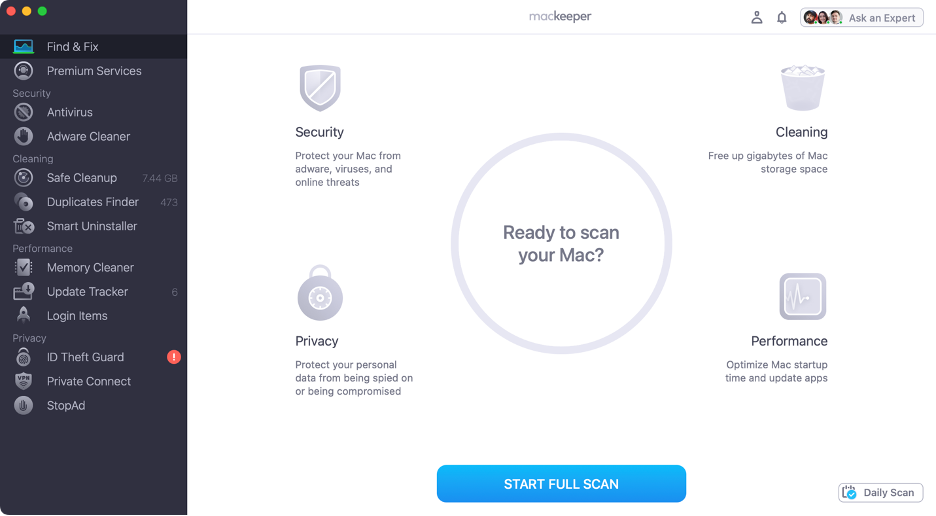
Here’s how to use MacKeeper’s Premium Services on your Mac/MacBook:
Step 1. Launch MacKeeperStep 2. Select Premium Services from the sidebarStep 3. Click Chat NowStep 4. Type in your message
Resetting Bluetooth on macOS Sequoia
Simply turning Bluetooth off and on again doesn’t always resolve issues with your Mac and wireless devices. For a more effective solution, try advanced methods to reset Bluetooth on macOS Sequoia, including using built-in utilities such as Terminal or Activity Monitor, checking for corrupted files in your Library, or resetting the SMC on older Macs.
For more solutions to macOS Sequoia issues, check out our troubleshooting guide for the latest version of Apple’s Mac software.
1. Reset Bluetooth via Terminal
First, we recommend using the macOS Terminal to reset Bluetooth. We particularly like the fact that Terminal lets you solve advanced issues with simple commands, but don’t worry—we’ll guide you through each step so even non-tech-savvy users can follow along, too.
Follow our tips to reset the Bluetooth module on macOS Sequoia using Terminal:
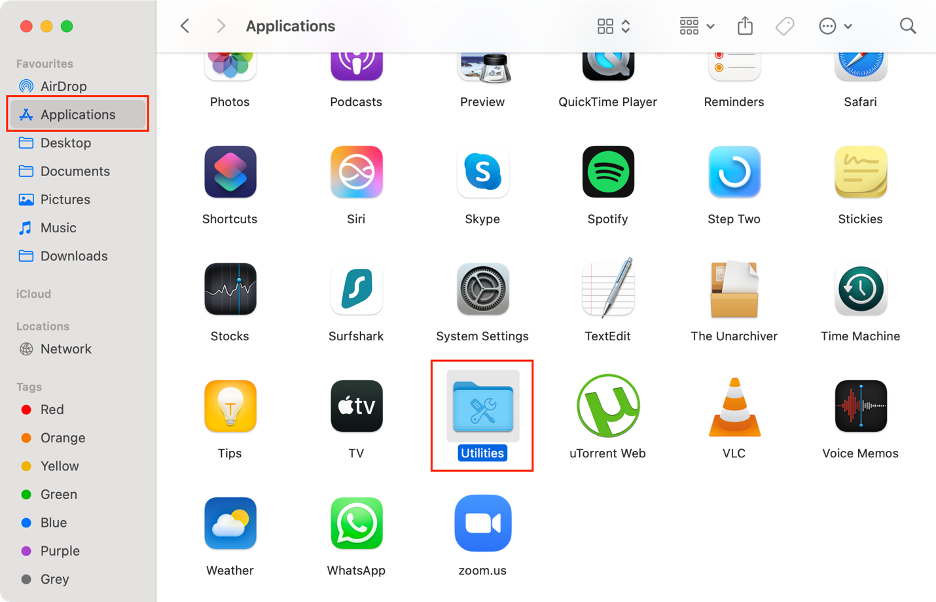
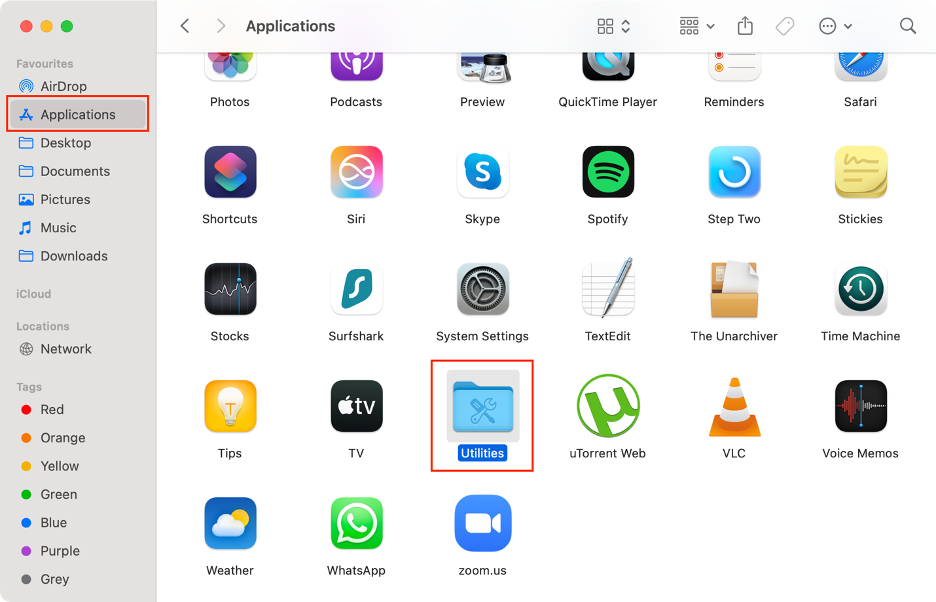
Open Finder.
Select Applications from the sidebar.
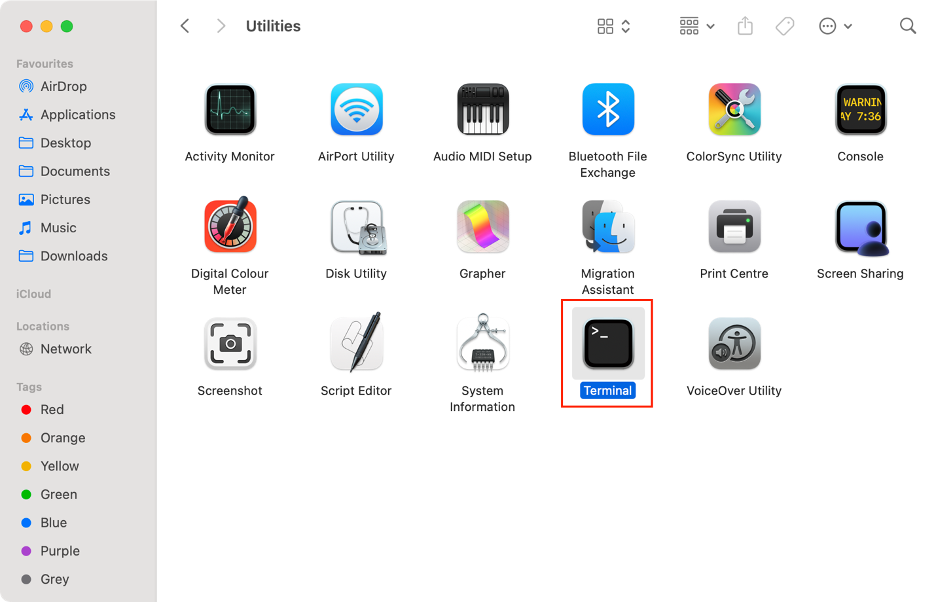
Access the Utilities folder.
Launch Terminal.
Type in the following command: sudo pkill bluetoothd, then press Enter.
Enter your admin password.
Step 1. Finder > Applications > UtilitiesStep 2. Launch TerminalStep 3. Type in the “sudo pkill bluetoothd” command
2. Force-quit Bluetooth in Activity Monitor
Another built-in macOS utility we recommend for Bluetooth issues in Sequoia is Activity Monitor. This tool is ideal for troubleshooting processes that are running slowly or have frozen, which are common causes of wireless device problems on your Mac.
Below, we explain how to force Bluetooth to close using Activity Monitor:
Open Finder.
Select Applications from the sidebar.
Access the Utilities folder.
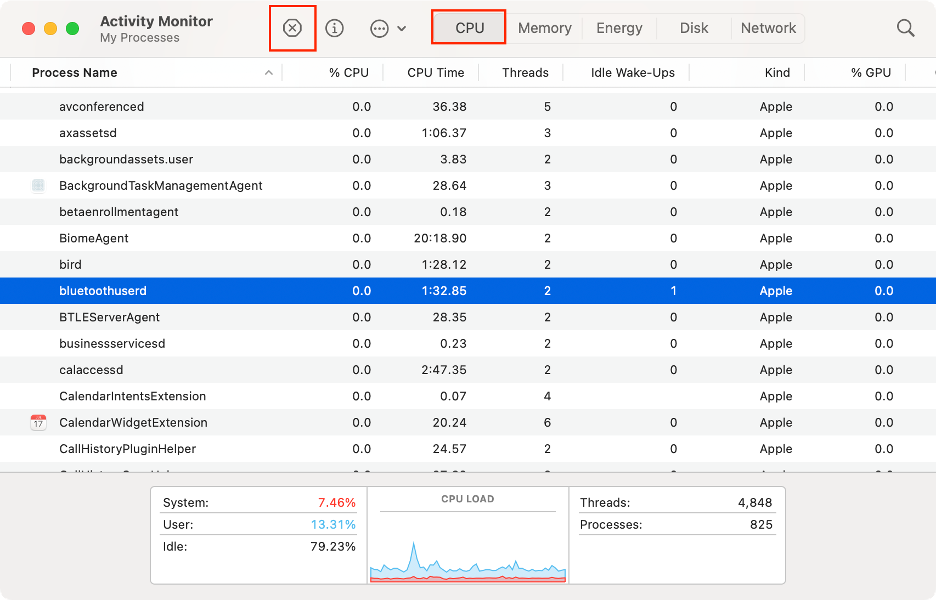
Launch Activity Monitor.
In the CPU tab, find all Bluetooth processes.
Select them and click the X icon to force-quit them.
Step 1. Finder > Applications > UtilitiesStep 2. Launch Activity MonitorStep 3. Select all Bluetooth processes under CPU > Clic the X icon
3. Deleting Bluetooth preference / PLIST files
If you think file corruption is causing your Bluetooth issues, we suggest deleting the PLIST files, as this method can often restore your connection quickly and easily. The PLIST files store your Bluetooth preference settings and will be automatically recreated when you restart your Mac.
Here’s how to delete Bluetooth PLIST files in macOS Sequoia:
Open Finder.
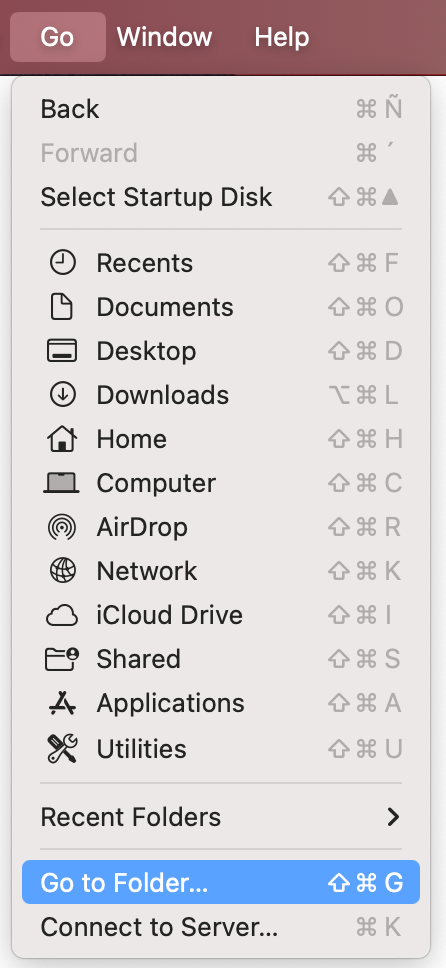
Click Go in the menu bar.
Select Go to Folder in the dropdown menu.
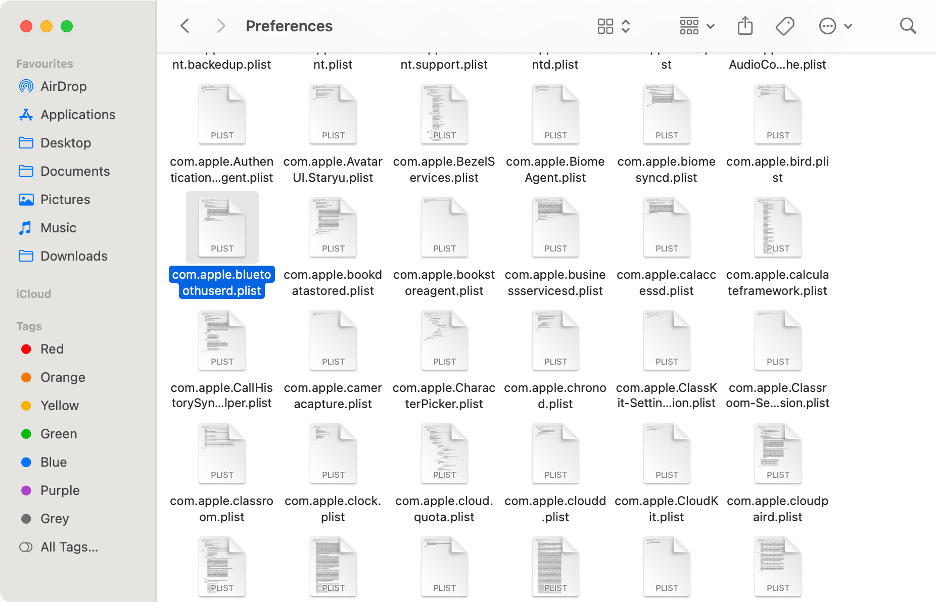
Visit the /Library/Preferences and /Library/Preferences/ByHost folders.
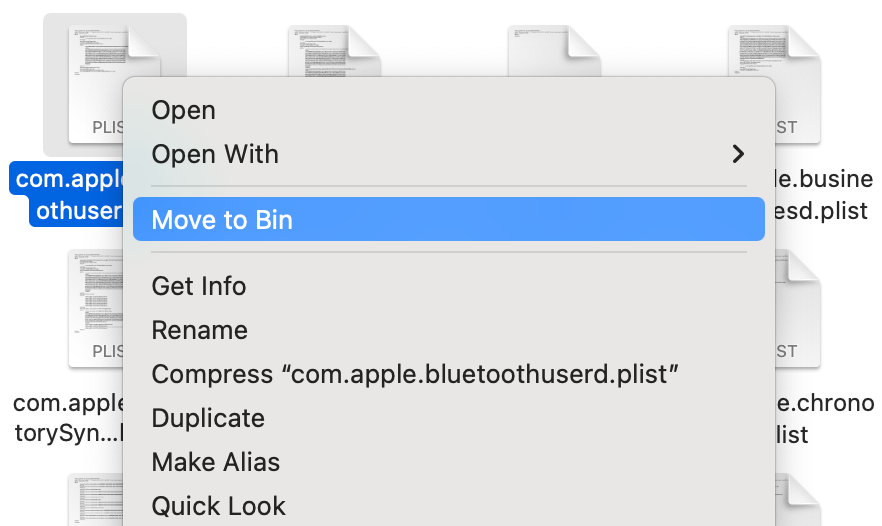
Find any Bluetooth PLIST files, select them, and move them to the Trash.
Step 1. Finder > Go > Go to FolderStep 2. Visit the /Library/Preferences and /Library/Preferences/ByHost foldersStep 3. Select all Bluetooth PLIST filesStep 4. Right click > Move to Trash
4. Reset SMC (optional but helpful)
Most Sequoia-compatible devices use Apple Silicon chips, but some Intel-based Macs are also supported. If you’re experiencing hardware issues with your wireless devices on an Intel Mac, a last-resort fix is to force reset the SMC. On Apple Silicon devices, this process happens automatically.
To reset the SMC and resolve Bluetooth issues on your Mac, follow our guide:
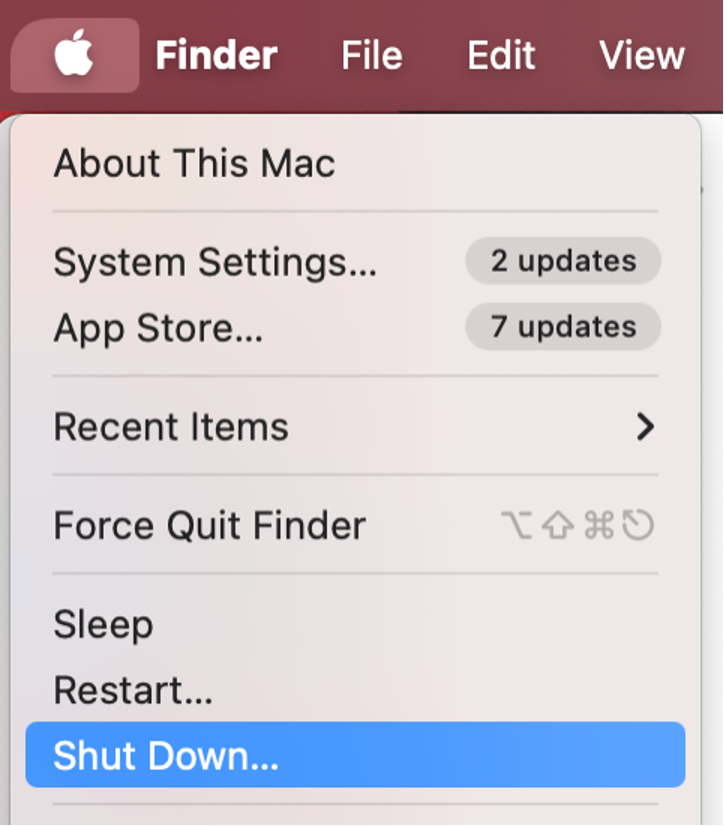
Click the Apple icon in the menu bar.
Select Shut Down from the dropdown menu.
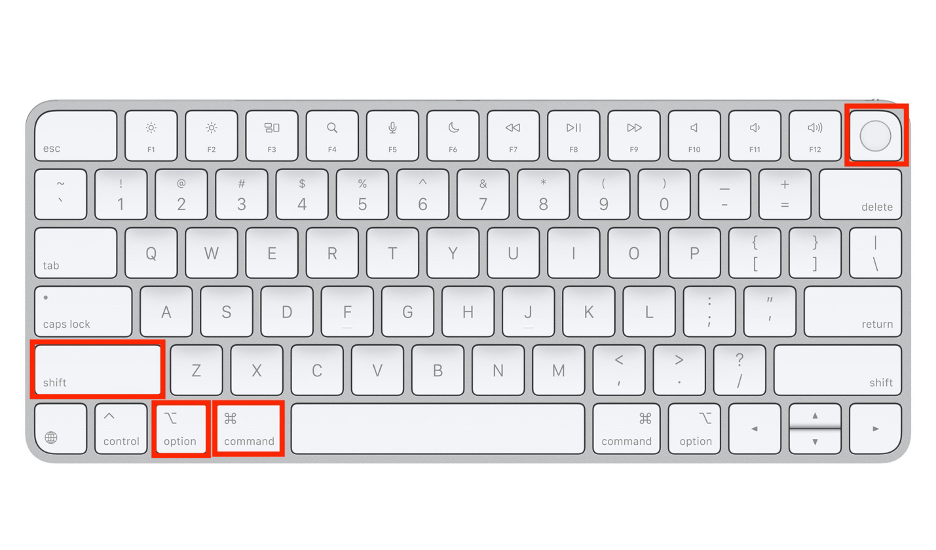
Press and hold the Shift + Option + Control keys at the same time for about 7 seconds.
Keep pressing Shift + Option + Control, as well as the Power button, for another 7 seconds.
Step 1. Apple icon > Shut DownStep 2. Press and hold Shift + Option + Command + Power button
What to do after resetting Bluetooth on macOS Sequoia?
To ensure the changes you made on your macOS Sequoia device take effect, our team recommends restarting your Mac, re-pairing and reconnecting your Bluetooth devices, and testing with other wireless devices to confirm the issues are resolved.
1. Restart your Mac
After completing any of the methods above, we recommend rebooting your Mac. For instance, restarting creates new PLIST files and fully resets the Bluetooth processes that may have been causing issues.
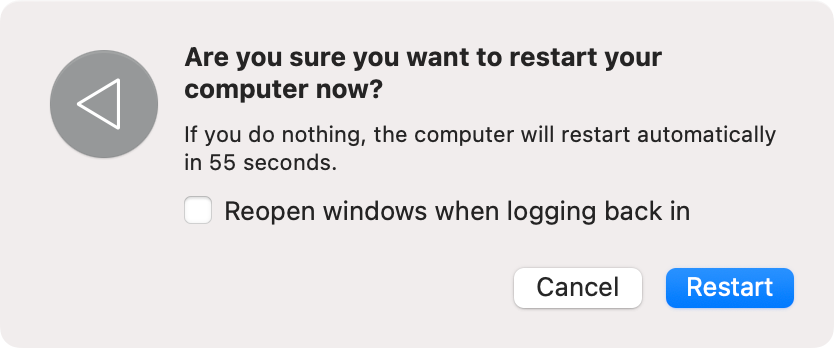
Restarting your macOS Sequoia device is simple:
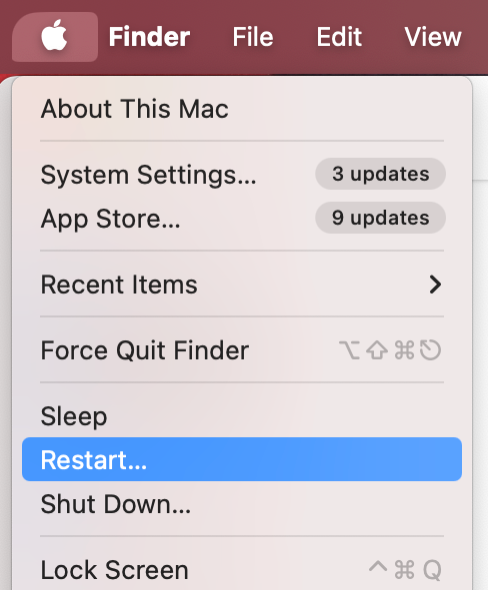
Go to the Apple logo in the menu bar.
Select Restart in the dropdown menu.
To confirm, choose Restart in the new window.
Step 1. Apple logo > RestartStep 2. Click Restart again
Is your macOS Sequoia update stuck? In these situations, knowing how to reset your Mac can be helpful, too.
2. Re-pair all Bluetooth devices
Resetting your Mac’s Bluetooth settings in macOS Sequoia will likely remove all previously paired devices. To continue using your wireless devices, simply re-pair them following the process you used the first time.
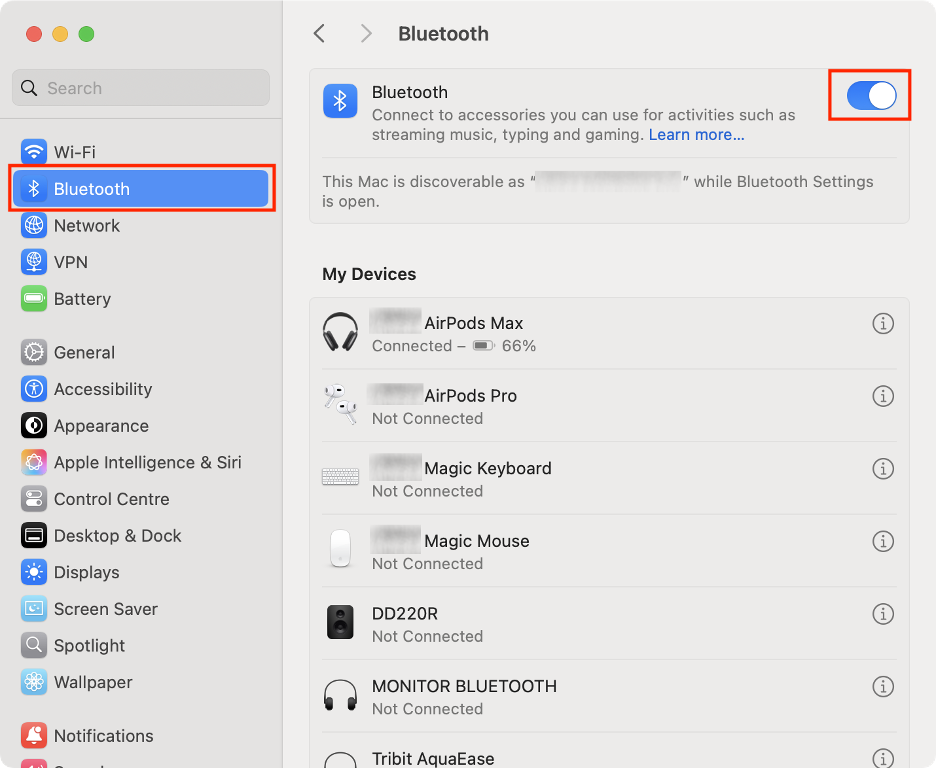
While the exact steps may vary by device, you can generally follow this process to re-pair your Bluetooth devices in macOS Sequoia:
Open System Settings on your Mac.
Select Bluetooth from the left sidebar.
Turn on the toggle if Bluetooth’s not enabled.
Press the pairing button on your wireless device.
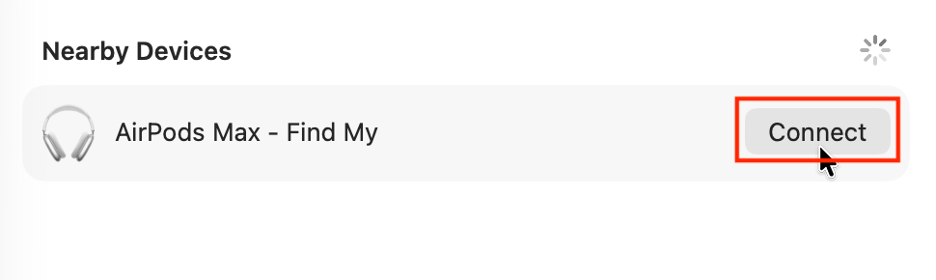
Your device will appear under Nearby Devices.
Click the Connect button.
Step 1. System Settings > BluetoothStep 2. Click Connect under Nearby Devices
3. Reconnect keyboards, mice, and headphones
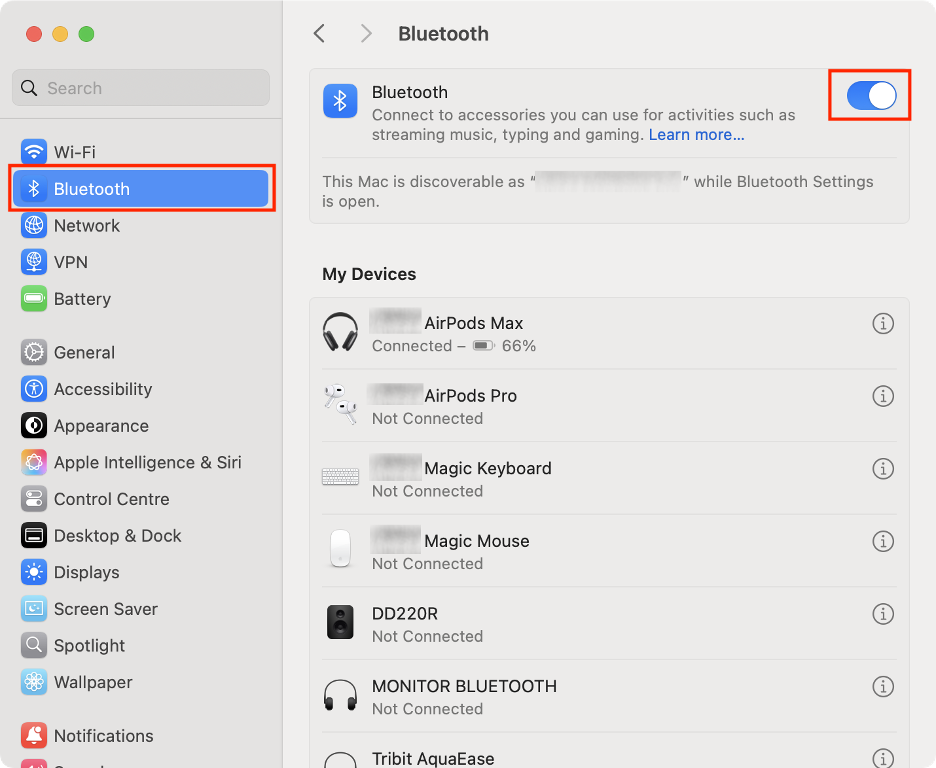
After pairing your Bluetooth keyboard, mouse, and headphones with your Mac, you’ll be able to reconnect them whenever you need to use them with your Apple computer. While they’ll usually reconnect automatically when in range, we explain how to connect a wireless device to your Mac manually below:
Open System Settings on your Mac.
Select Bluetooth from the left-hand sidebar.
Activate Bluetooth by turning the toggle on.
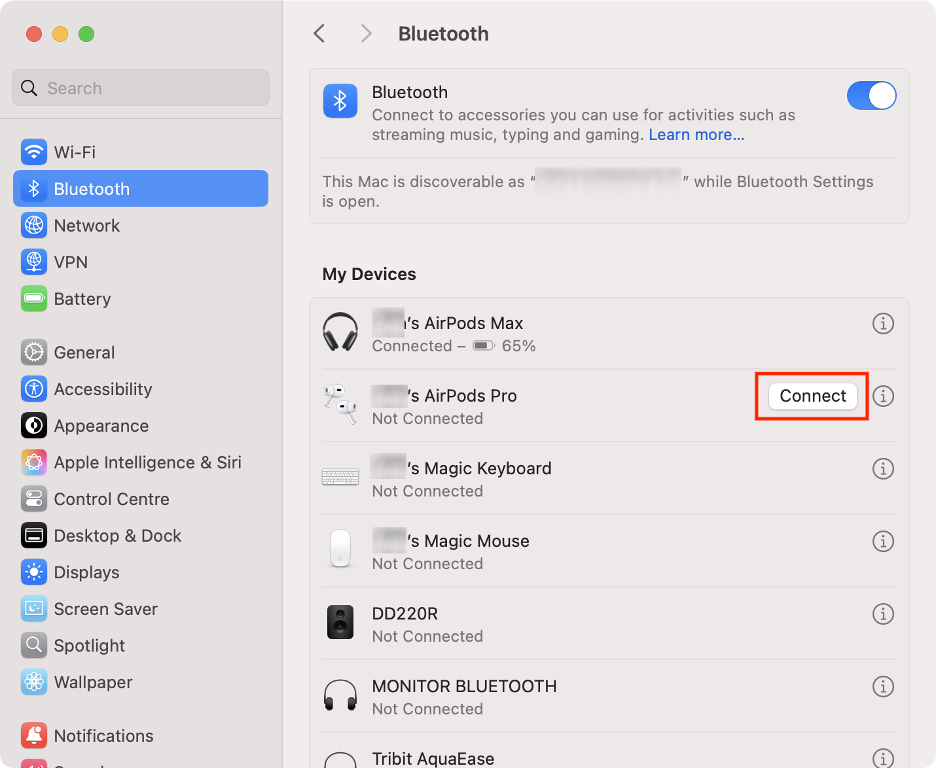
Under My Devices, find the wireless device you want to use.
Click the Connect button.
Step 1. System Settings > BluetoothStep 2. Click Connect next to your devices
4. Test with different devices
As a final step to resolve Bluetooth issues on your Mac running macOS Sequoia, we suggest connecting other wireless devices. These could be different from the problematic devices, or even ones you haven’t used with your Apple computer before.
To connect a new wireless device, follow the instructions provided in sections 2 and 3 above.
The ultimate guide to solving Bluetooth issues on macOS Sequoia
Struggling to use your wireless devices on a Mac running macOS Sequoia can be incredibly frustrating. Fortunately, you can resolve most Bluetooth issues by following a few key steps, such as using Terminal or Activity Monitor, or by deleting PLIST preference files.
If you’ve tried everything and still can’t resolve your Bluetooth issues, MacKeeper’s Premium Services team is here to help. Trusted by millions and notarized by Apple, Premium Services is available 24/7 to solve technical problems, which shows that MacKeeper is more than just an antivirus or Mac optimization tool.
We respect your privacy and
use cookies
for the best site experience.
Privacy Preferences Center
We use cookies along with other tools to give you the best possible experience while using the
MacKeeper website. Cookies are small text files that help the website load faster. The cookies we
use don’t contain any type of personal data meaning they never store information such as your
location, email address, or IP address.
Help us improve how you interact with our website by accepting the use of cookies. You can change
your privacy settings whenever you like.
Manage consent
All cookies
These cookies are strictly necessary for enabling basic website functionality (including page
navigation, form submission, language detection, post commenting), downloading and purchasing
software. The website might malfunction without these cookies.