When you can’t find the Bluetooth icon in the Menu bar, it can be frustrating, interrupting your workflow and slowing you down. I suggest you use MacKeeper’s Login Items to control startup apps, reducing background clutter and helping your Mac stay responsive.
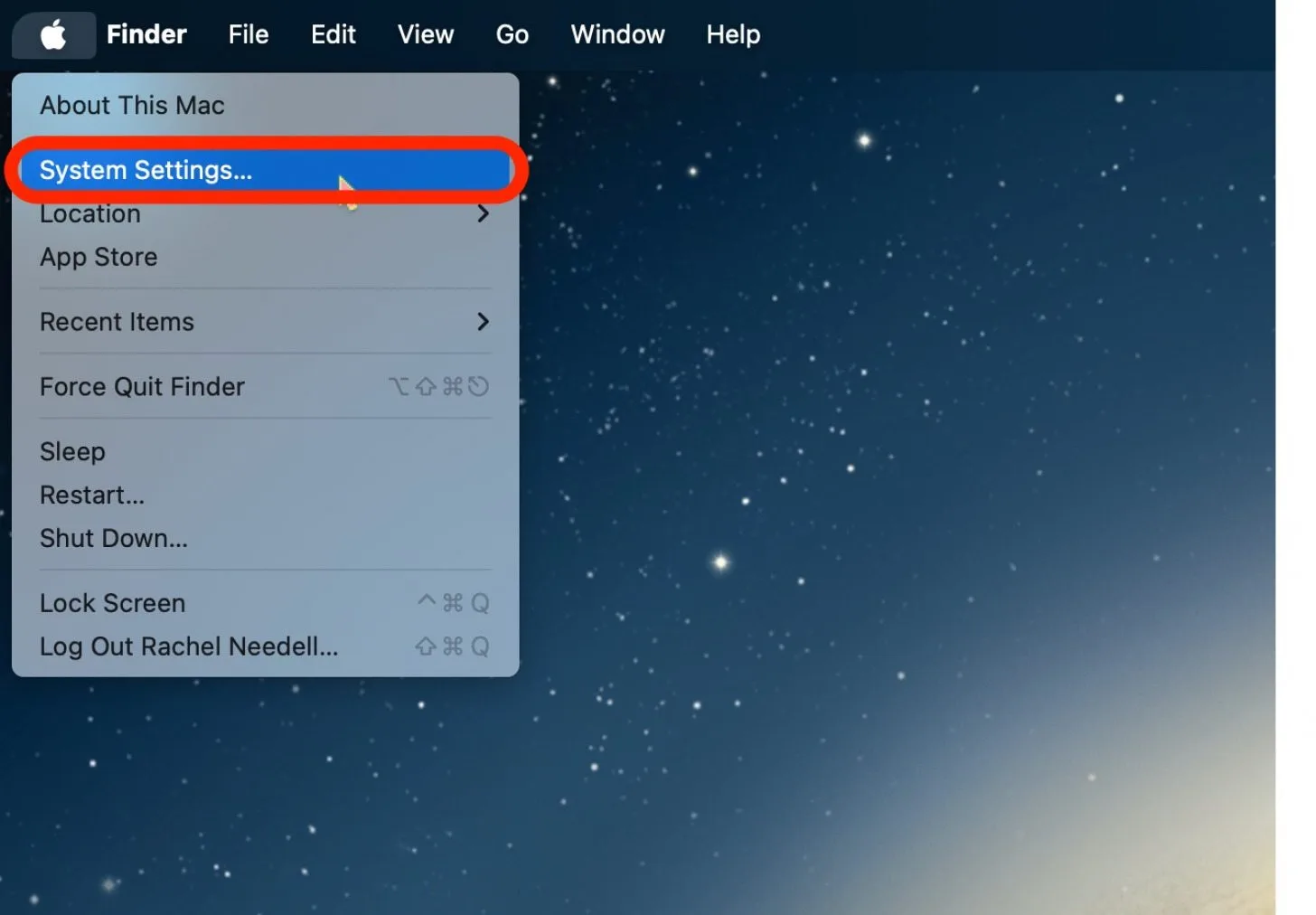
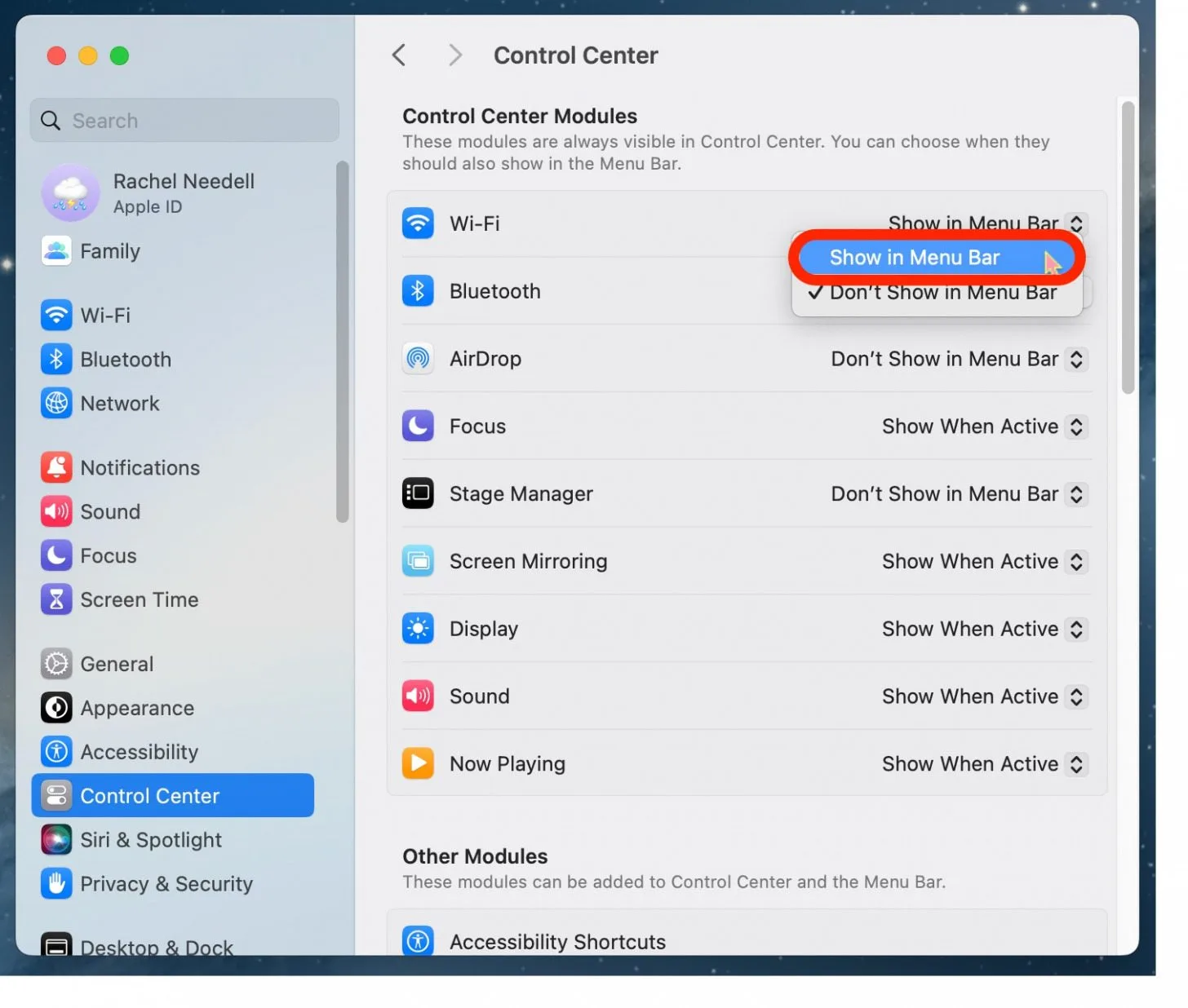
To show Bluetooth in the menu bar Mac, open Apple menu, go to System Settings, and choose Control Center. Then, find Bluetooth and enable Show in Menu bar or choose Always show in Menu bar. Also, you can manually drag the Bluetooth icon from Control Center directly to the Menu bar to make it accessible instantly.
Why is Bluetooth not showing in menu bar Mac?
If your Mac menu bar not showing the Bluetooth icon, it’s usually because the icon is disabled in settings, which you can enable in System Settings ➙ Control Center ➙Bluetooth ➙ Show in Menu bar. The Bluetooth icon may be hidden among dozens of other icons on your screen, which means you need to manage your space.
A note from our experts:
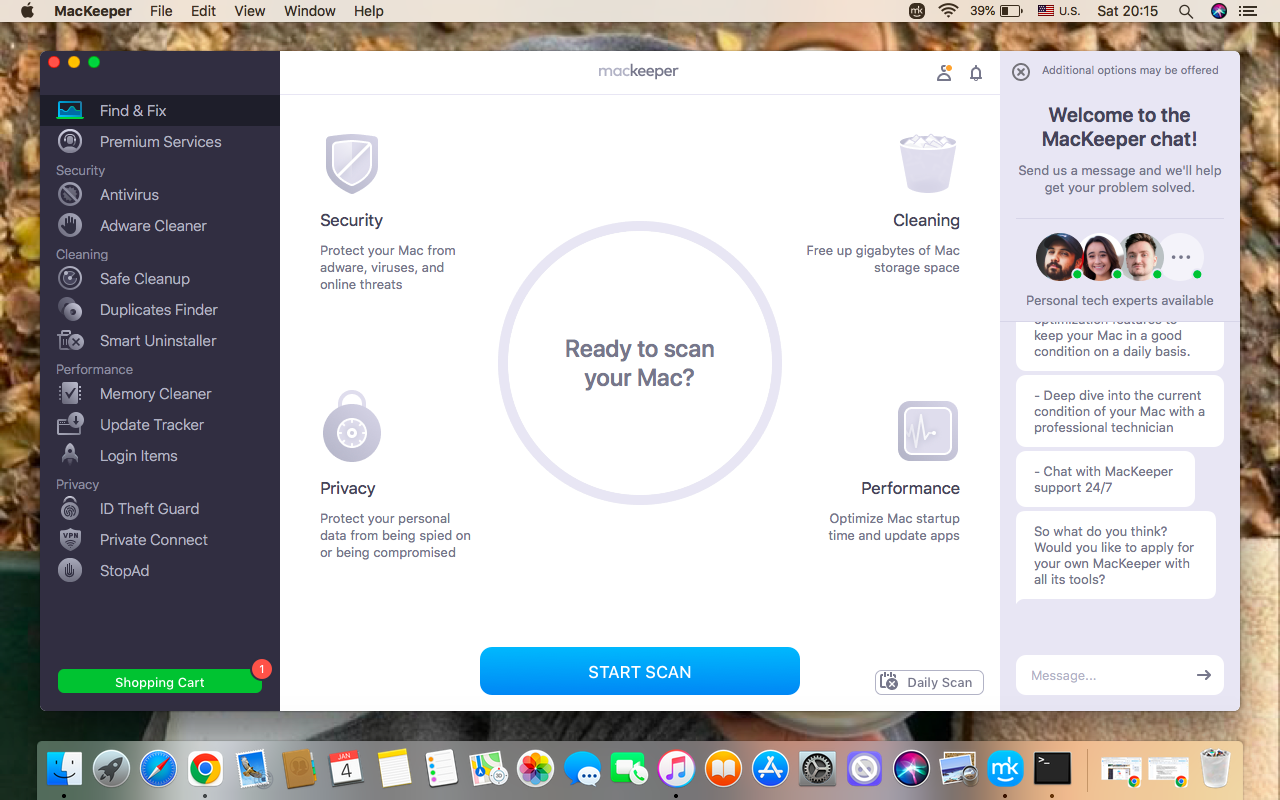
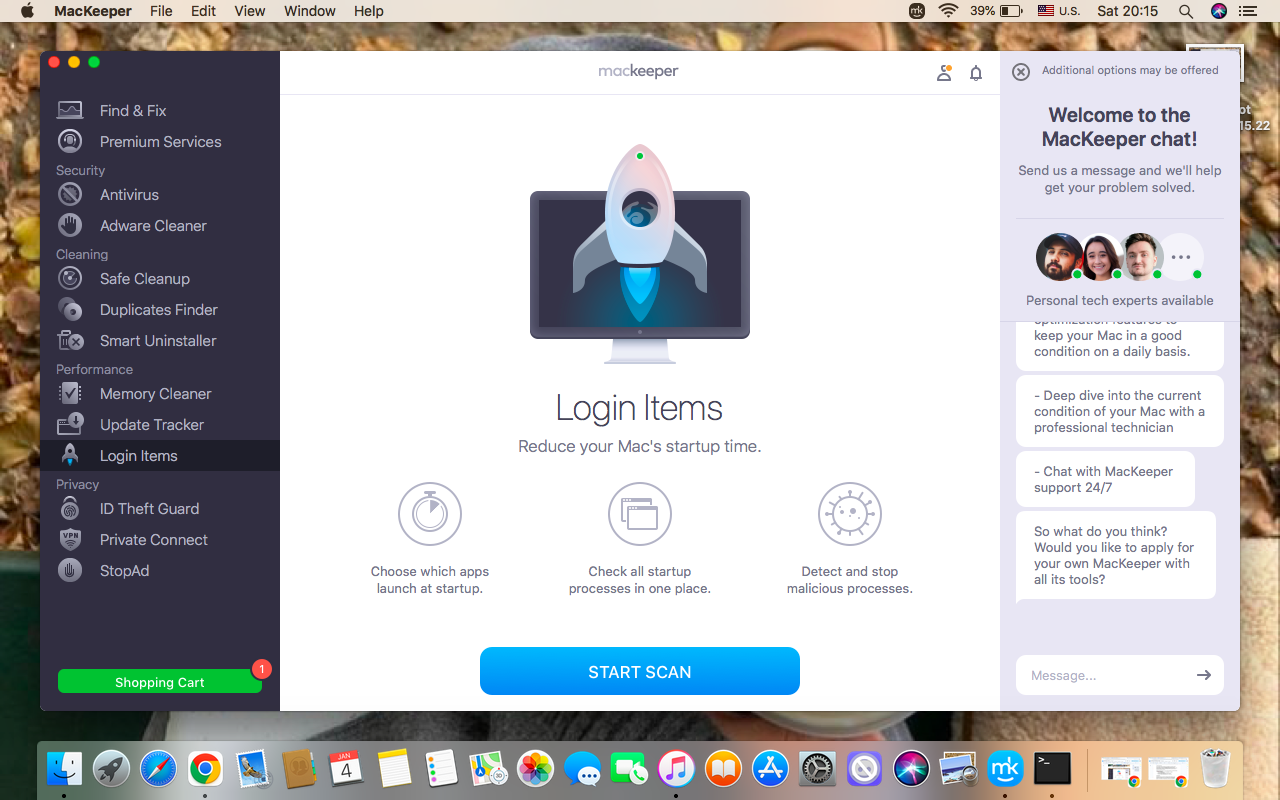
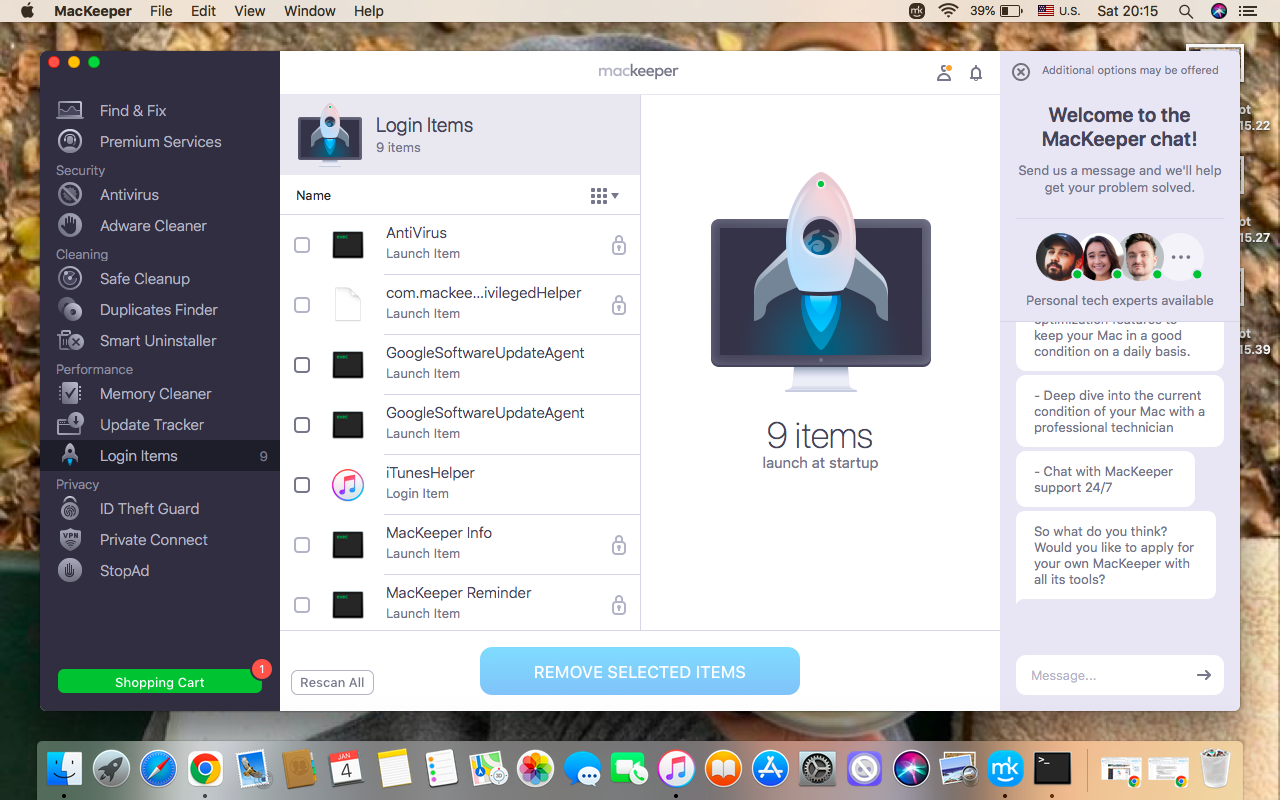
Even if you add Bluetooth to Mac menu bar, your laptop’s performance depends on what runs in the background at startup, as too many startup apps can slow your Mac down, and affect overall performance. With MacKeeper’s Login Items, you can control which apps launch automatically at startup, keeping only the necessary ones. By disabling the programs you don’t need, you reduce the system strain, improve the system’s responsiveness, and help your Mac to perform efficiently.
Below, I’ve prepared a clear guide for you on how to use MacKeeper’s Login Items:
As an important warning, I’d like to remind you that if your Menu bar is cluttered with random icons, try to change the menu bar on Mac, keeping your favorite apps easily accessible and removing unnecessary ones.
How to add Bluetooth to the menu bar on Mac?
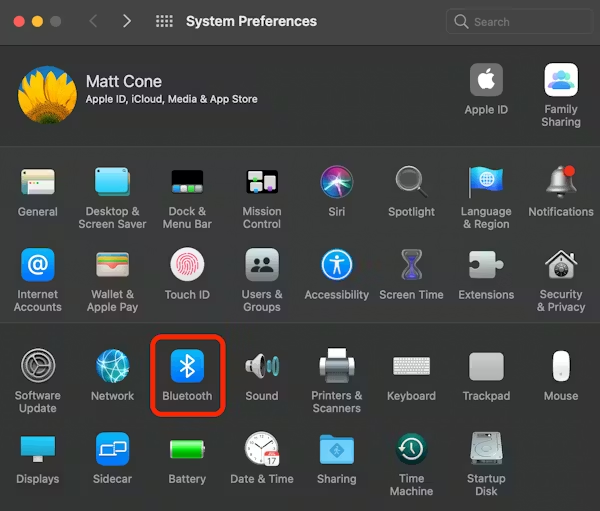
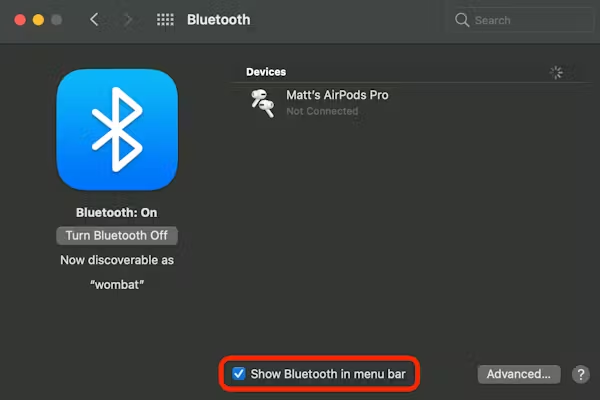
To add Bluetooth to the top bar Mac, go to System Settings ➙ Control Center ➙ Bluetooth ➙ change settings to Show in Menu bar (or Always Show). For older macOS, go to System Preferences ➙ Bluetooth ➙ enable Show Bluetooth in menu bar, and the icon appears at the top of your screen.
1. Get via System Settings
Do the following to get Bluetooth in the menu bar Mac via the System Settings:
Launch System Settings in the Apple menu.
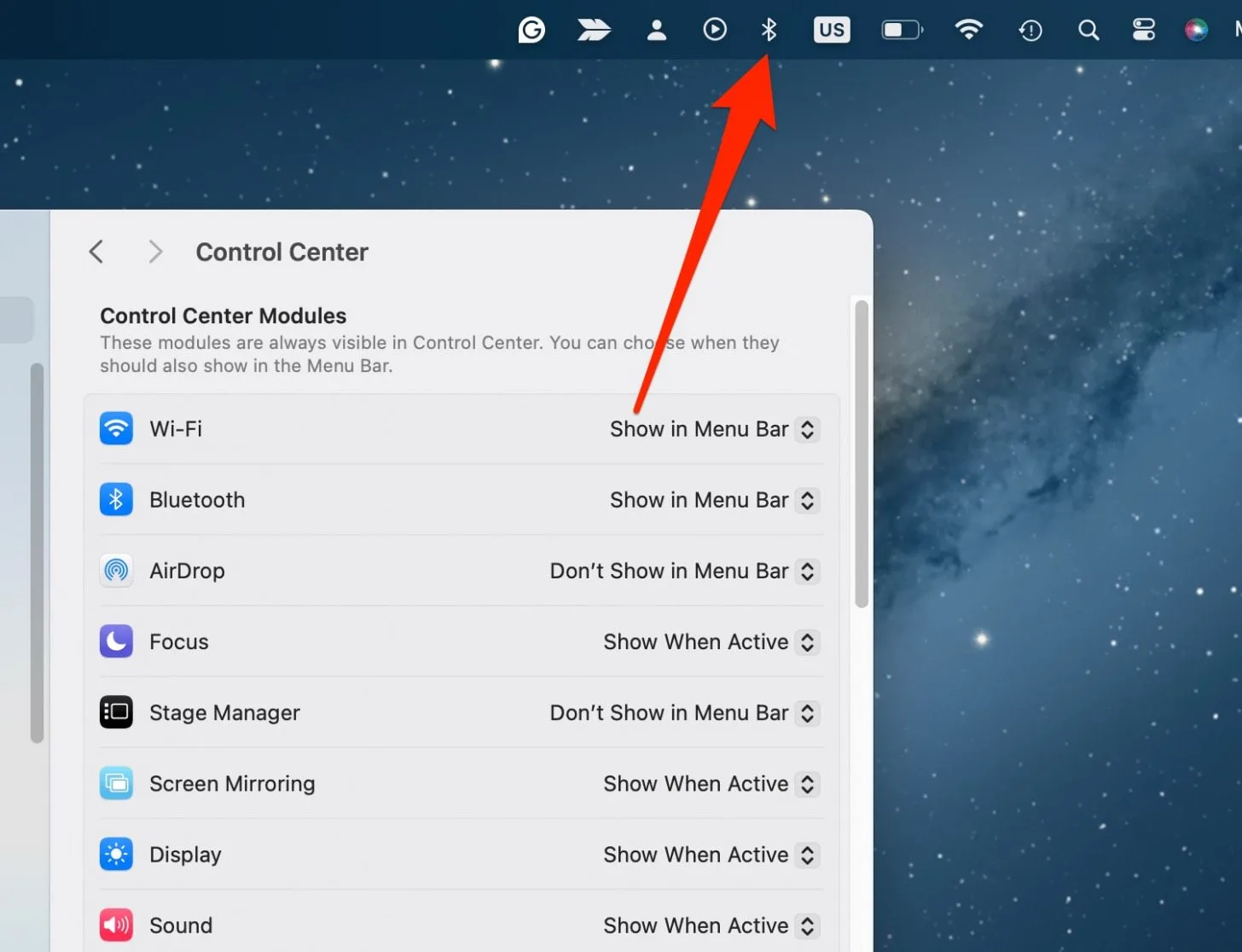
Choose Control Center from the drop-down menu ➙ Bluetooth ➙ select Show in Menu bar ➙ the Bluetooth icon appears in the Menu Bar.
Step 1. System Settings Step 2. Control Center > Bluetooth > Show in Menu barStep 3. The Bluetooth icon appears in the Menu bar
2. Use Control Center
Follow my instructions to display macOS Bluetooth in the menu bar using Control Center:
Find Control Center in the menu bar ➙ select Bluetooth.
Drag the Bluetooth icon directly to the Menu bar.
3. Show Bluetooth via System Preference
If your MacBook’s Bluetooth not working, as you can’t find the icon, but you use an older macOS version (Monterey or earlier), don’t worry, I’ll tell you what to do.
Take these steps to add the Bluetooth icon to the Menu bar via System Preferences:
Open System Preferences in the Apple menu ➙ select Bluetooth.
Enable Show Bluetoothin the Menu bar.
Step 1. Apple Menu > System Preferences > BluetoothStep 2. Show Bluetooth in Menu bar
When Bluetooth fails, reset Bluetooth on MacBook to restore connections and stop constant drops and errors.
Conclusion
Making the Bluetooth icon visible in your Mac’s Menu bar is quick and easy with this guide. Still, it’s important to keep your Mac organized. With MacKeeper’s Login Items, you can manage startup apps, reduce unnecessary background activities, and keep your Mac running smoothly.
We respect your privacy and
use cookies
for the best site experience.
Privacy Preferences Center
We use cookies along with other tools to give you the best possible experience while using the
MacKeeper website. Cookies are small text files that help the website load faster. The cookies we
use don’t contain any type of personal data meaning they never store information such as your
location, email address, or IP address.
Help us improve how you interact with our website by accepting the use of cookies. You can change
your privacy settings whenever you like.
Manage consent
All cookies
These cookies are strictly necessary for enabling basic website functionality (including page
navigation, form submission, language detection, post commenting), downloading and purchasing
software. The website might malfunction without these cookies.