Are you selling your MacBook or giving it away? Consider signing out of your iCloud account to protect your privacy and prepare the device for its next owner. If you’re not parting ways with your Mac laptop or desktop computer, we recommend using MacKeeper’s Duplicates Finder to remove duplicate files and reclaim storage space.
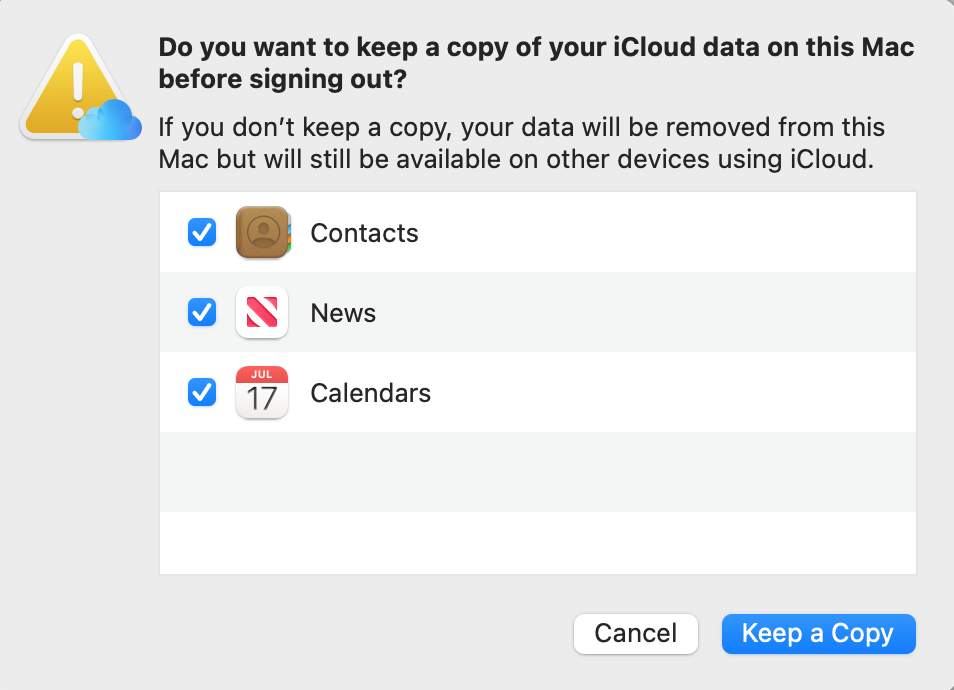
To log out of iCloud on a Mac, click on the Apple menu > System Settings > your name > Sign Out. Tick the appropriate boxes and click Keep a Copy if you want to keep a copy of your iCloud data. In macOS Ventura or earlier, click Keep on This Mac to retain a copy of your Safari passwords. Click Sign Out. For Apple Pay users, click Sign Out and Remove Cards.
How to prepare to sign out of iCloud on Mac?
Take the necessary steps before signing out of your iCloud account. Start by checking for syncing changes. This is important because syncing can sometimes take a while, so you want to make sure it’s done before proceeding. Back up your data to avoid losing your files forever. Disable Find My Mac. macOS Sonoma prompts you to do this before signing out of iCloud. Pay attention to apps that require iCloud.
1. Check for syncing
Have you recently uploaded new files, such as photos, documents, or others, to iCloud? You might want to wait for syncing to complete and confirm it before proceeding to sign out. We do this to prevent a situation where syncing with iCloud is paused on a Mac, which can be a huge inconvenience, especially if you realize it after switching devices. We’ve experienced this firsthand, so believe us when we say that this is not a mistake you want to make.
Here’s how to check your iCloud Drive file and folder status on Mac:
Open the relevant folder on your new Mac.
Check for the files you’ve synced and confirm they synced successfully.
An extra hint from us:
Are you having issues with syncing photos? Find out what to do when iCloud Photos are not syncing to Mac.
2. Back up data
After signing out of your iCloud account, your Mac will no longer store your files and data. And anything you store on your device, from that point on, will be deleted forever after you wipe your Mac. Any files you delete will also be gone forever. For this reason, we back up all data that’s important to us. Learn how to backup MacBook to iCloud.
A note from our experts:
We advise that you follow the proper Mac maintenance procedures before backing up your Mac. To achieve this, we use MacKeeper’s Duplicates Finder. It removes all duplicate files and photos you typically don’t need, which are hogging up much-needed space and potentially causing your device to perform poorly. After all, a clogged-up Mac disk (not to be confused with a situation where iCloud storage is full) is a common culprit for a slow Mac. MacKeeper is developed by Clario Tech and trusted by thousands of Mac owners like yourself worldwide.
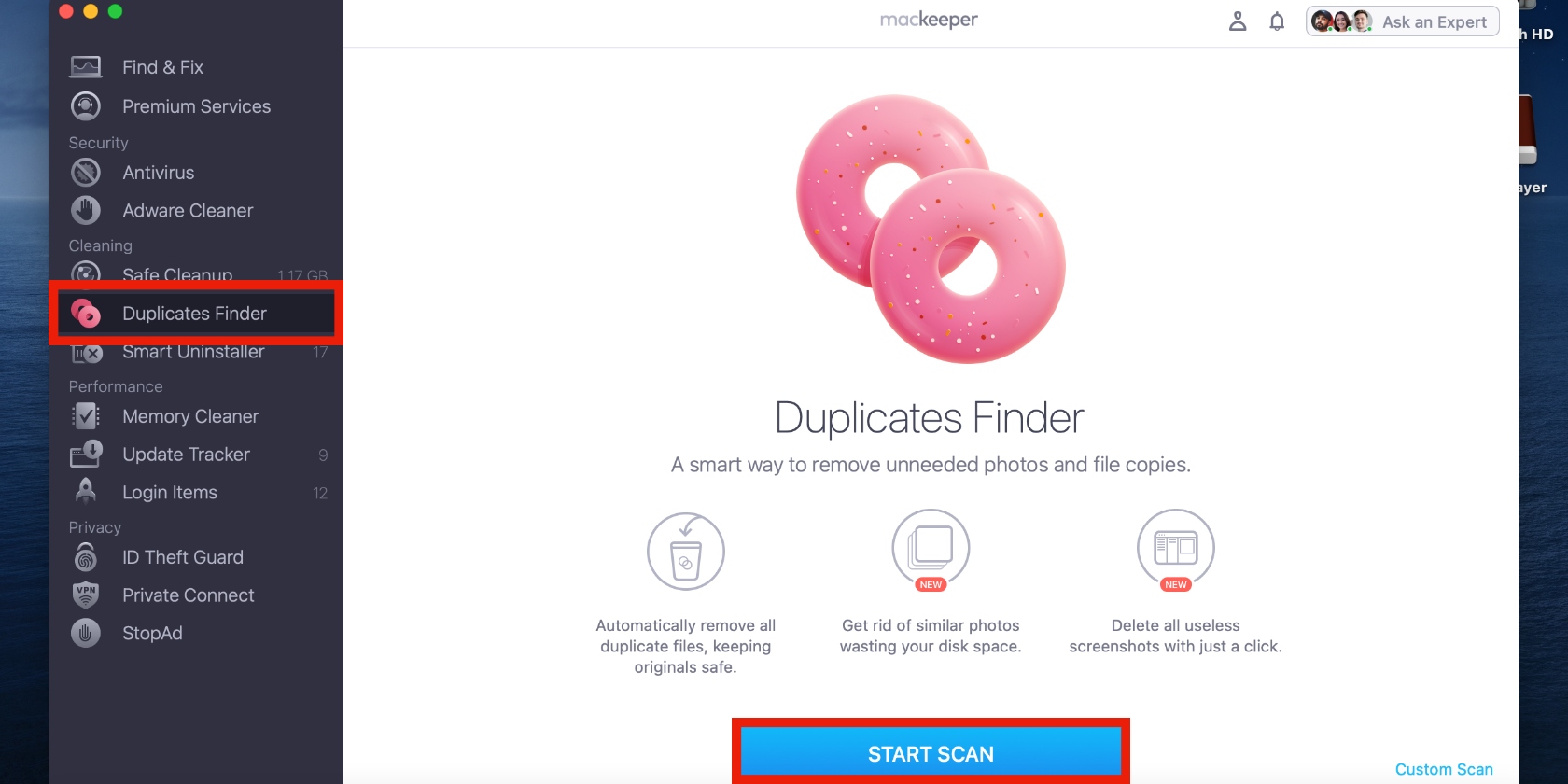
Follow the steps below to get rid of duplicate files with MacKeeper’s Duplicates Finder.
Open the application on your Mac, choose the Duplicates Finder option from the sidebar, and click on Start Scan at the bottom of the screen.
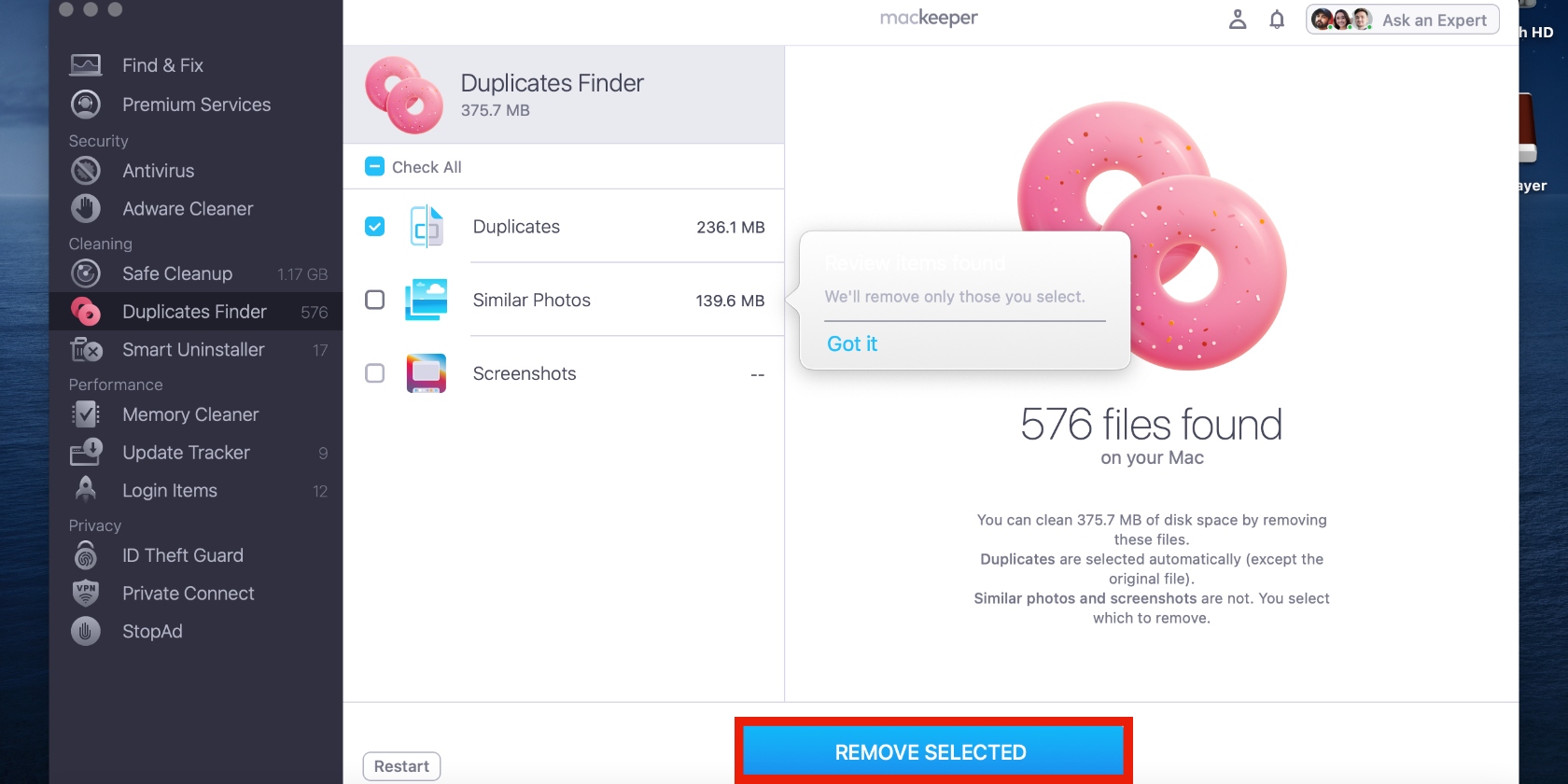
After the scan is finished, either select Check All or tick the appropriate box, and then hit the Start Scan button.
Step 1. Choose the Duplicates Finder option and click on Start ScanStep 3. Tick the appropriate box and click on Remove Selected
Do you want to do the same for iCloud storage? Well, that works differently. Explore how to manage iCloud storage on Mac.
3. Disable ‘Find My Mac'
For a proper handoff, we always disable Find My Mac, though that’s not the only reason. Disabling Find My Mac removes Activation Lock. This is a security feature from Apple that prevents unauthorized users from reactivating and using your Mac if it's ever lost or stolen. It achieves this by automatically switching on when you enable Find My Mac.
Follow this approach to disable Find My Mac:
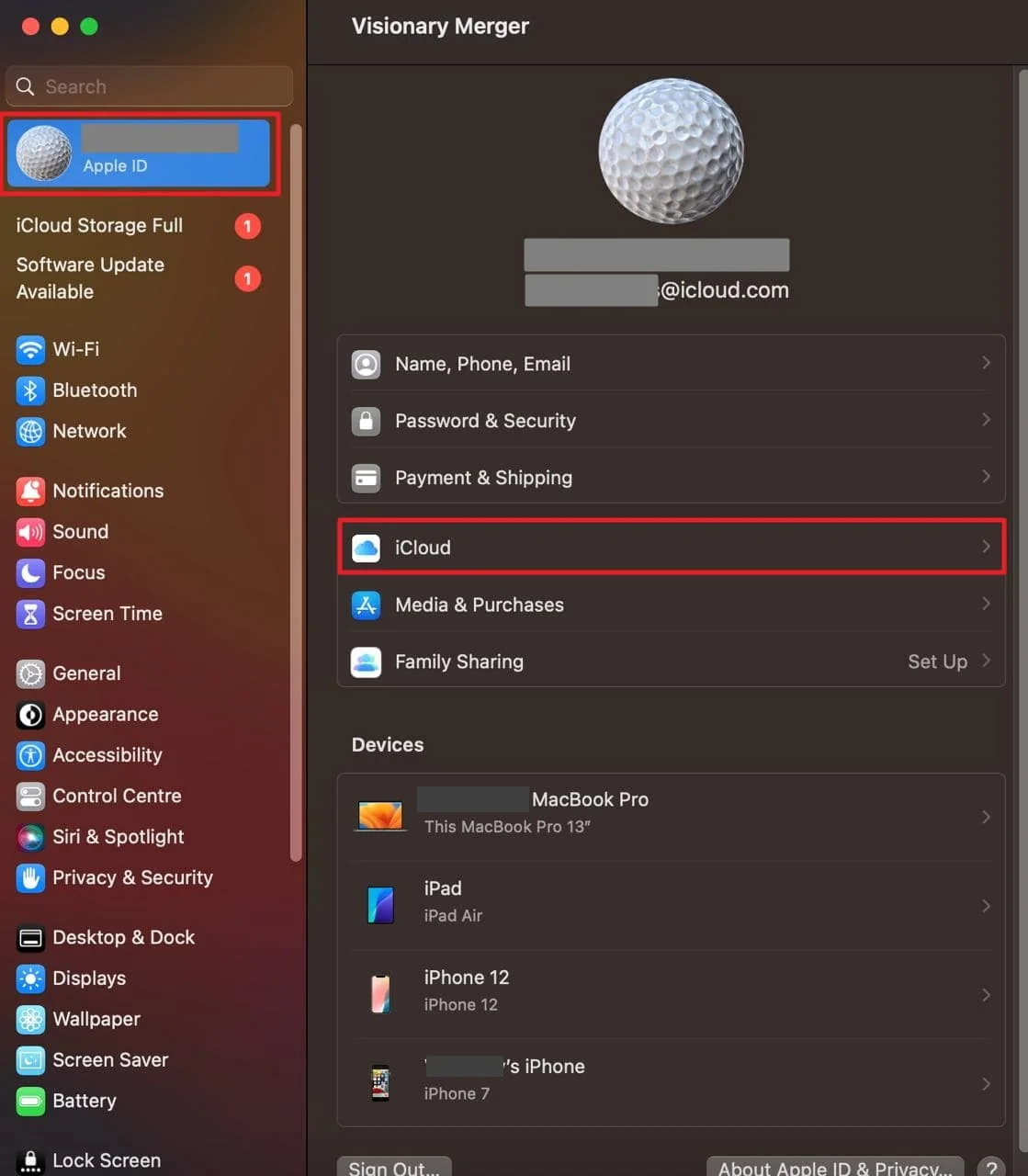
Go to System Settings > your name > iCloud (if you don’t see your name, you’ll need to sign in first).
Click on iCloud and proceed as follows, based on your macOS version:
macOS 15 or later: Click on See All > Find My Mac > Turn Off next to Saved to iCloud.
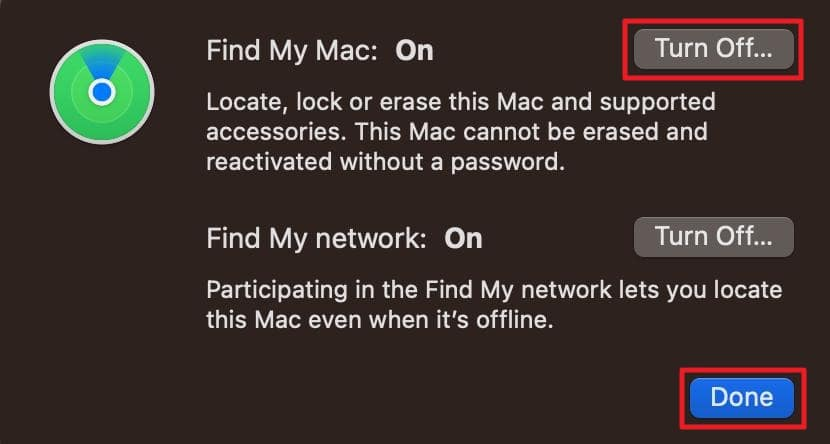
macOS 14 or earlier: Click on Find My Mac > Turn Off next to Find My Mac.
Step 1. Go to System Settings > your name > iCloudStep 2. Click the Turn Off button
A tip from our team:
After your new MacBook is set up, you can transfer iCloud photos to it. Discover how to download photos from iCloud to Mac.
4. Pay attention to apps that require iCloud
Some apps depend on iCloud for functionality, such as Messages, Mail, and more. As such, signing out of iCloud would restrict those apps. For this reason, we find it helpful to check for restrictions. If iCloud is greyed out, it means there are restrictions in place, and you’re unable to log out.
How to check for restrictions preventing iCloud sign-out on your Mac:
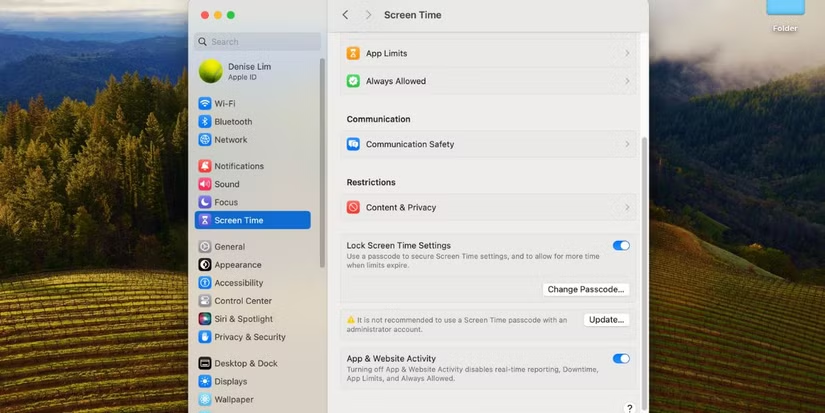
In System Settings, select Screen Time, followed by Content & Privacy Restrictions or Content & Privacy.
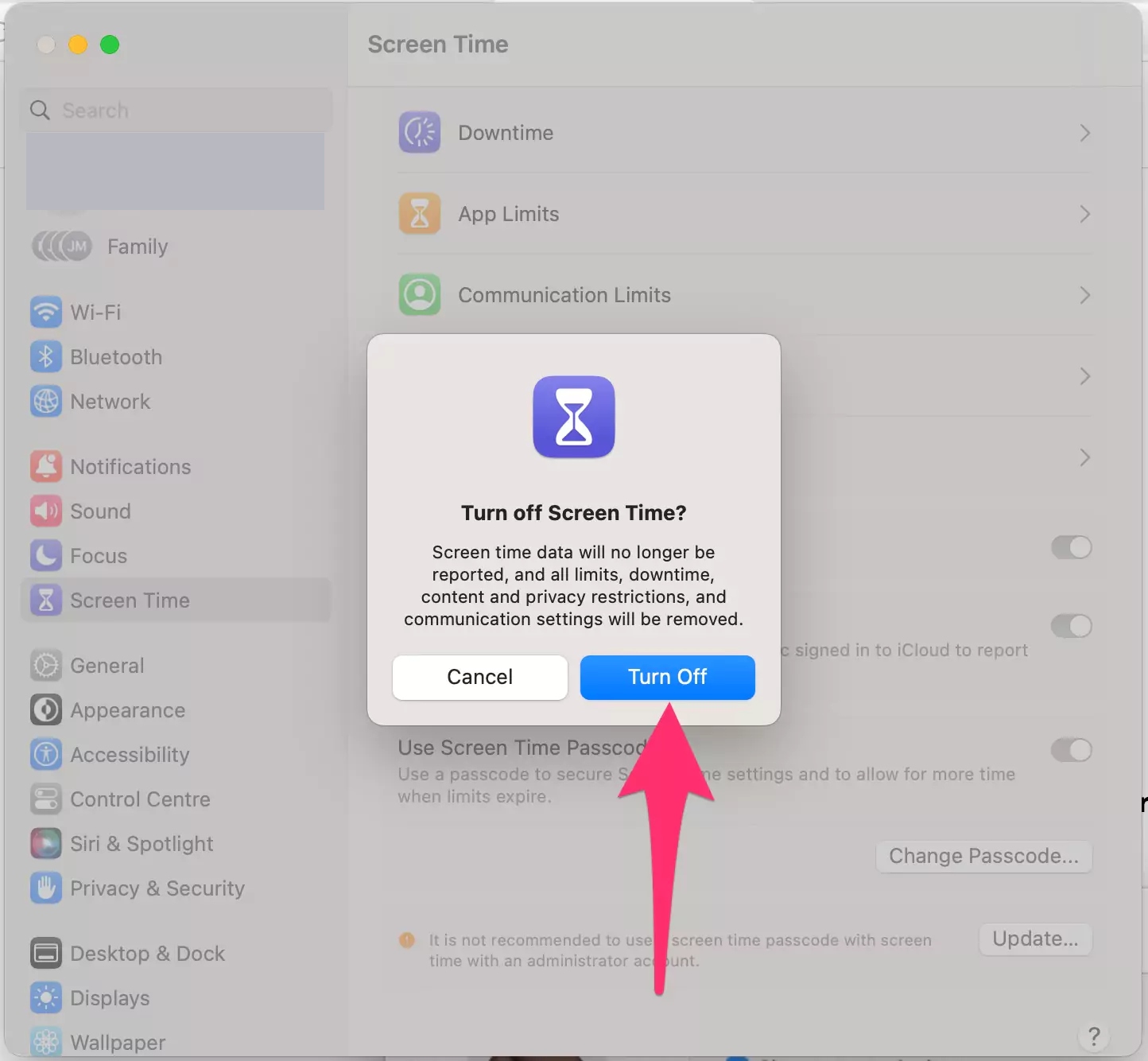
If the Sign Out option is grayed out, disable the Screen Time setting or specific restrictions for Account Changes.
Step 1. Click on System Settings > Screen Time > Content & PrivacyStep 2. Disable the Screen Time setting or specific restrictions for Account Changes
How to log out of iCloud on Mac?
To sign out of iCloud on a Mac, click on the Apple menu, select System Settings, click on your name, and then choose the Sign Out option. Tick the appropriate boxes and click Keep a Copy if that’s what you intend to do. In macOS Ventura or earlier, click Keep on This Mac to keep a copy of your Safari passwords, and then click the Sign Out option. If you’re an Apple Pay user, click Sign Out and Remove Cards.
Note that after you sign out of your iCloud account on your Mac, you will no longer be able to access iCloud Photos on that Mac.
1. Sign out of iCloud on macOS Ventura or later
Logging out of iCloud works differently across devices running macOS Ventura or later and those running macOS Monterey or earlier. The steps we take depend on our current macOS version.
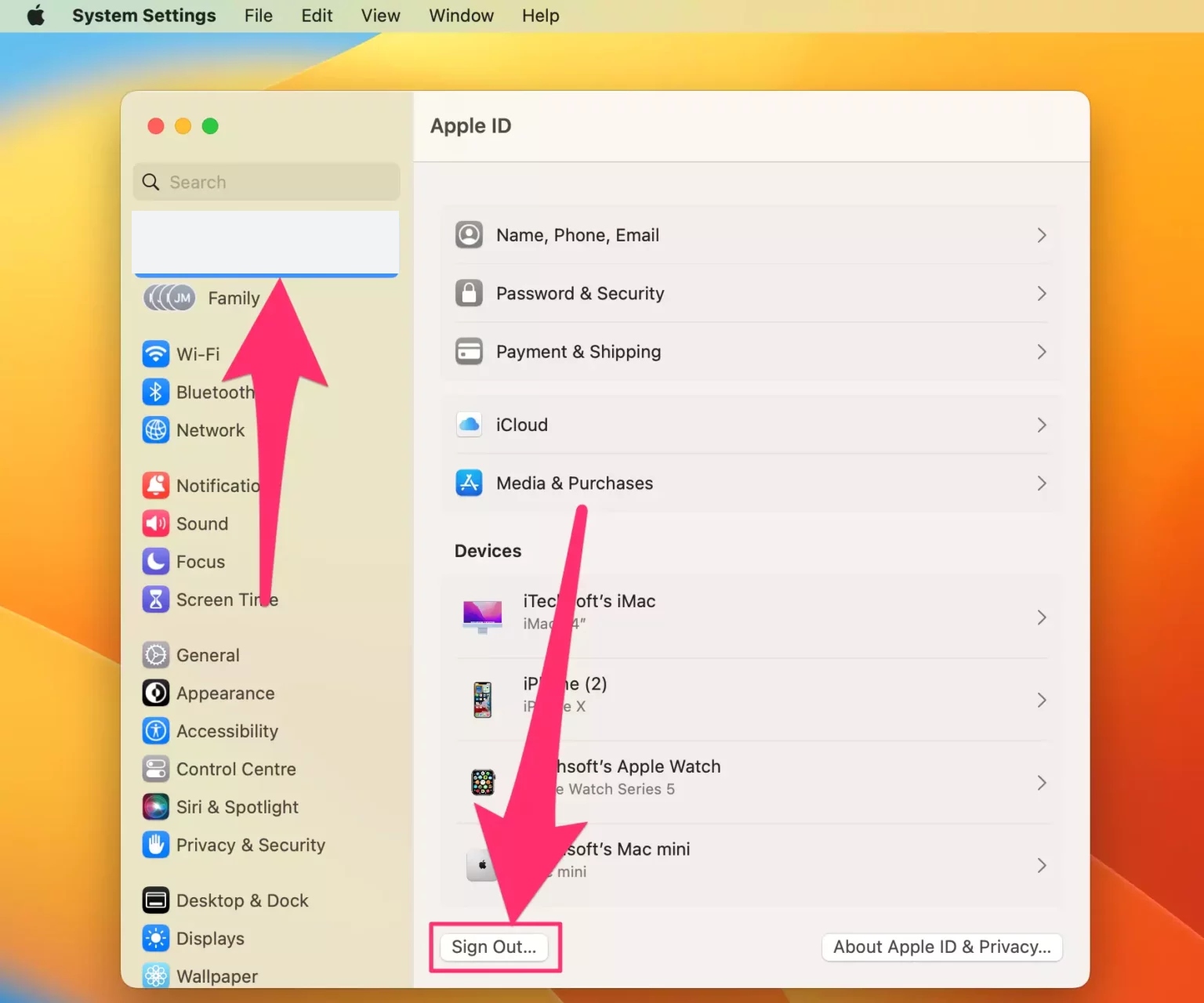
Here’s how to sign out of iCloud on OS X Ventura or later:
In System Settings, click on Apple Account in the upper-left corner.
Click the Sign Out button at the bottom of the window.
Are you running out of space because of iCloud? Find out why iCloud Drive is taking up so much storage on Mac.
2. Log out of iCloud on macOS Monterey or earlier
We follow a slightly longer process on devices running OS X Monterey or earlier, though it’s still a simple process. It involves a few more steps compared to signing out on a Mac running macOS Ventura or later.
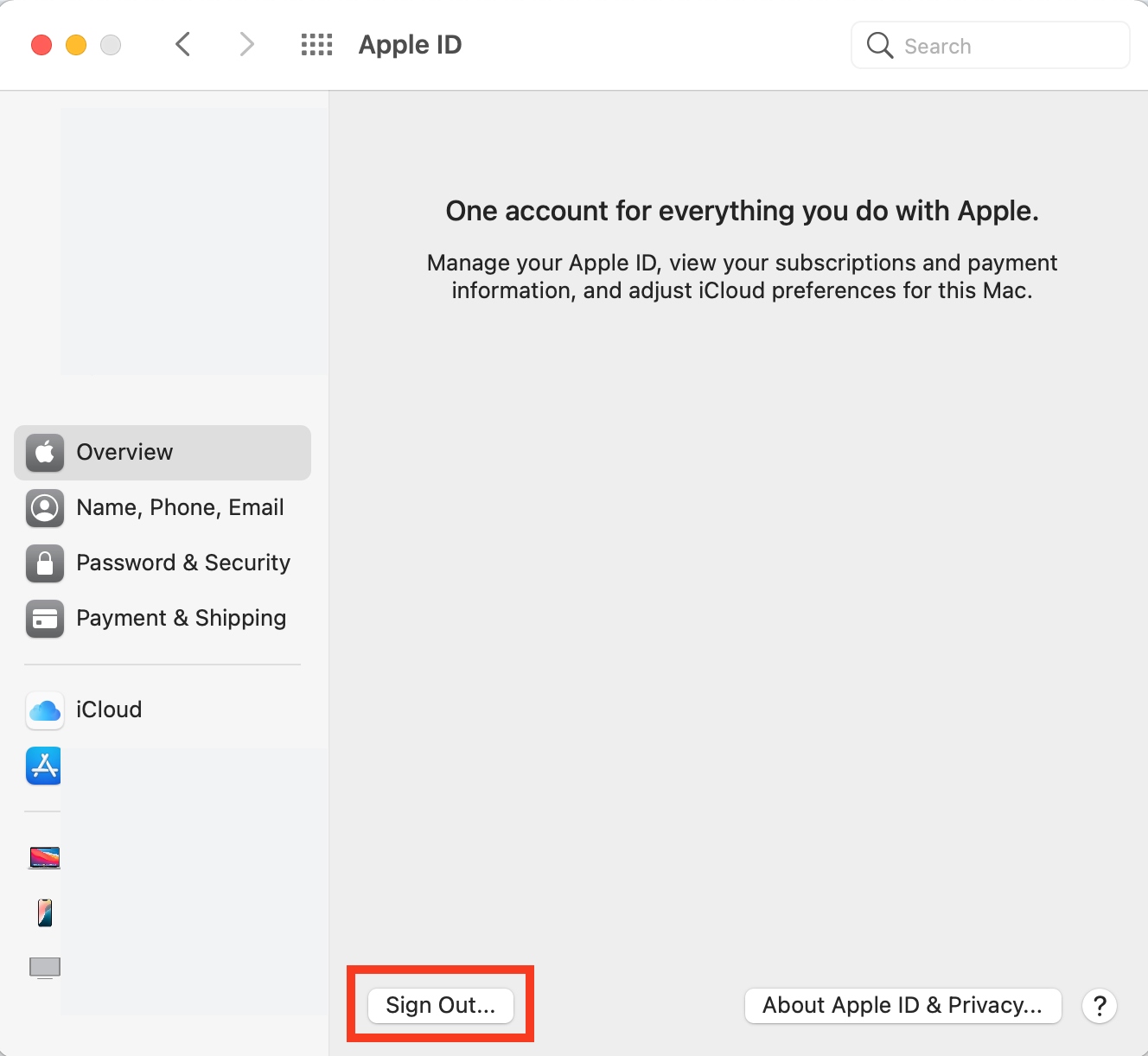
Follow these steps to sign out of iCloud on macOS Monterey or earlier:
In System Preferences, click on Apple ID > Overview > Sign Out.
Choose the data you want to keep and click on Keep a Copy.
Step 1. Click on Apple ID > Overview > Sign OutStep 2. Choose the data you want to keep and click on Keep a Copy
After signing out of iCloud on your old Mac, you may be ready to sign in on the new one. Learn how to sign into iCloud on Mac.
Signing out of an iCloud account on a Mac
For privacy reasons, it’s important to sign out of iCloud on a Mac you’re parting ways with. Use the tips in this guide to sign out of your iCloud account, whether you’re running macOS Ventura or later or macOS Monterey or earlier.
Before signing out, consider using MacKeeper’s Duplicates Finder to safely delete duplicate files and photos on your Mac. It will also help you free up storage and optimize your device.
We respect your privacy and
use cookies
for the best site experience.
Privacy Preferences Center
We use cookies along with other tools to give you the best possible experience while using the
MacKeeper website. Cookies are small text files that help the website load faster. The cookies we
use don’t contain any type of personal data meaning they never store information such as your
location, email address, or IP address.
Help us improve how you interact with our website by accepting the use of cookies. You can change
your privacy settings whenever you like.
Manage consent
All cookies
These cookies are strictly necessary for enabling basic website functionality (including page
navigation, form submission, language detection, post commenting), downloading and purchasing
software. The website might malfunction without these cookies.