Hunting for the same downloads and screenshots across a dozen folders gets tiring fast, and Smart Folders gather them in one place. To clear the junk you find, MacKeeper’s Safe Cleanup removes caches, logs, and Trash contents in a few clicks while leaving your personal files untouched.
A Smart Folder on Mac is a saved search that looks like a folder in Finder. Instead of storing files, it holds rules, such as file type or date, and shows every item that matches them.
Deleting an item inside a Smart Folder deletes the original, though, while removing the Smart Folder itself is harmless. In our experience, it’s a quick way to spot what’s eating storage before you learn how to free up disk space on Mac.
How do smart folders work on Mac?
Smart Folders rely on Spotlight, the search index Apple builds into macOS. Each time you open one, Finder runs the saved query against that index, so new files appear and deleted ones drop out on their own.
The query sits in a tiny .savedSearch file in your Saved Searches folder, which is why macOS smart folders take up almost no space on your Macintosh HD. One catch we’ve noticed is that unindexed locations, such as excluded folders or some external drives, won’t show up.
A note from our experts:
Smart Folders are great at showing clutter, but they can’t clear it for you. That’s where MacKeeper’s Safe Cleanup helps. It scans your Mac for junk such as caches, logs, and Trash contents, lets you review each category, and removes only what you select. MacKeeper offers performance monitoring. MacKeeper is optimized for macOS.
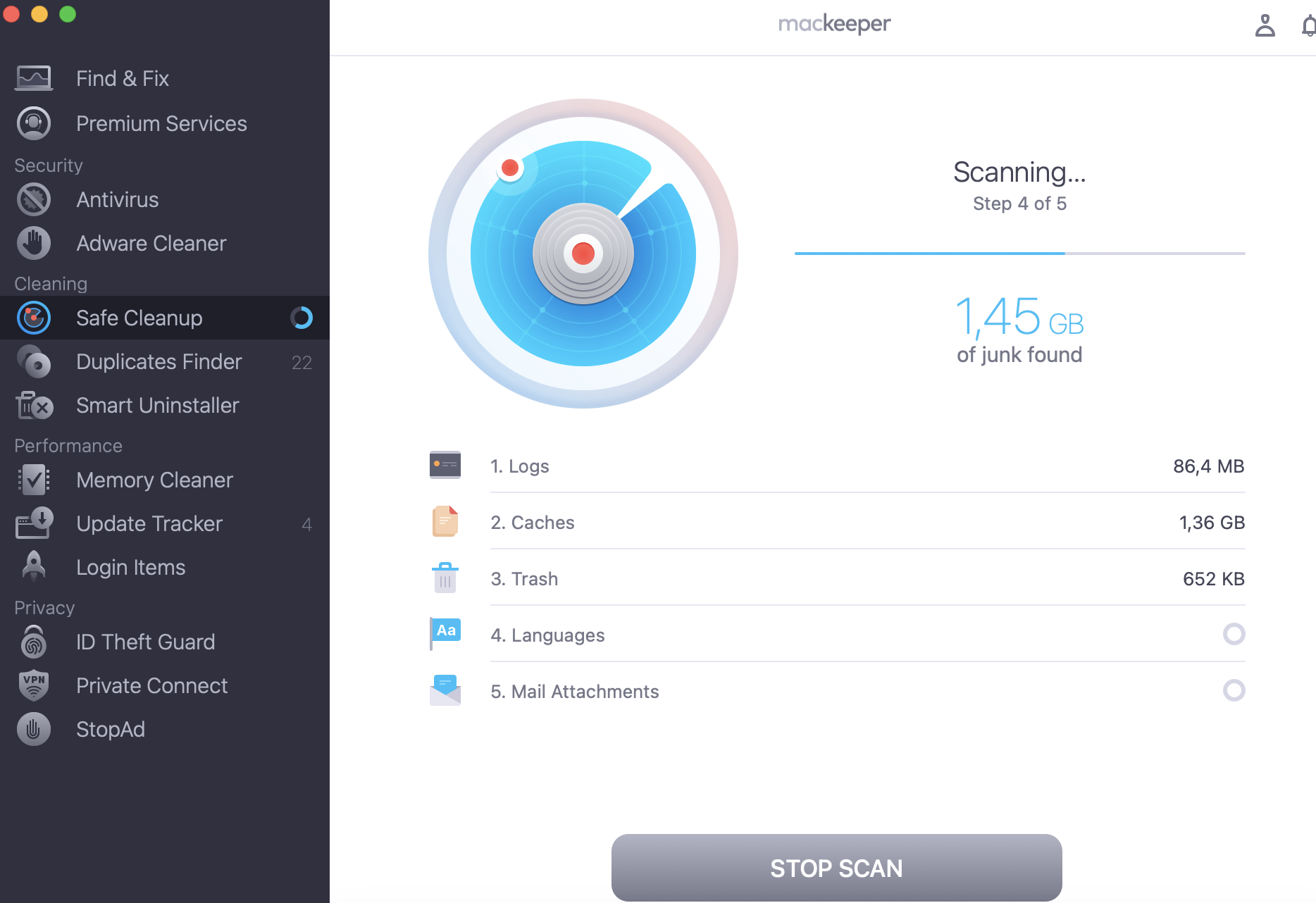
Click Start Scan and wait while MacKeeper checks your drive.
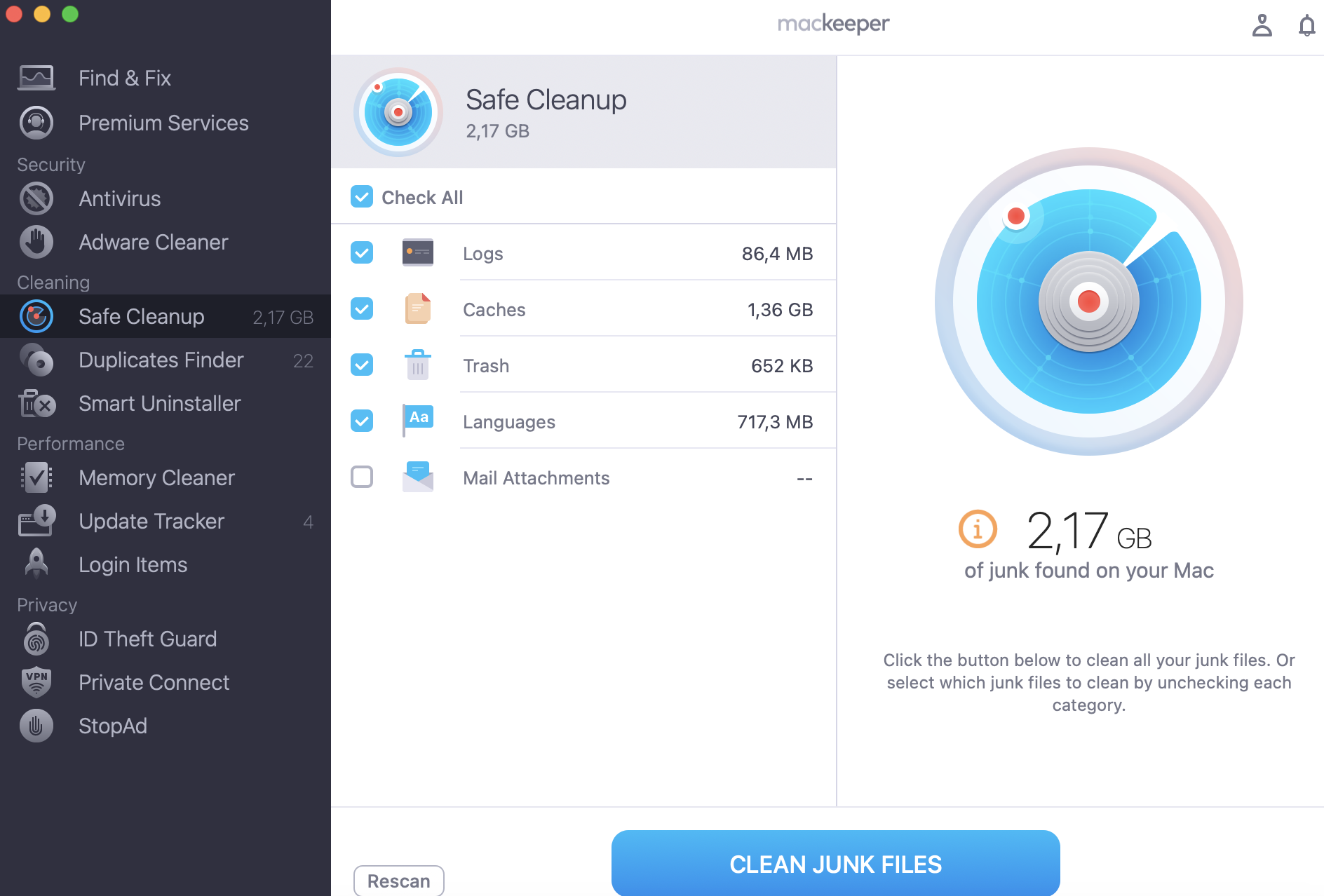
Review the categories found, such as Logs, Caches, and Trash, then click Clean Junk Files.
Step 1. Open MacKeeper, select Safe Cleanup in the left sidebar, and click Start ScanStep 2. Review the junk categories MacKeeper found, then click Clean Junk Files to remove them
What do smart folders do on Mac?
Smart Folders do the sorting you’d otherwise do by hand. They pull matching files from Desktop, Documents, Downloads, and other indexed locations into one view that refreshes itself.
Here’s what they help you do day to day:
Automate sorting. New notes or invoices show up in the right view as soon as you save them.
Categorize by type, tag, or date. Files can live anywhere and still appear together.
Find clutter faster. Size and date rules surface forgotten downloads and installers.
The trade-off is that they only show files, so moving or deleting anything is still up to you.
How to create smart folders on Mac?
Creating a Smart Folder takes about a minute in Finder. If you want to organize your Mac without dragging files around, start with one simple rule and build from there, as our team usually does.
1. Setting up search criteria in Finder
We like starting with one broad rule because it shows how many files match before you narrow things down.
To open a new smart search and add the first rule:
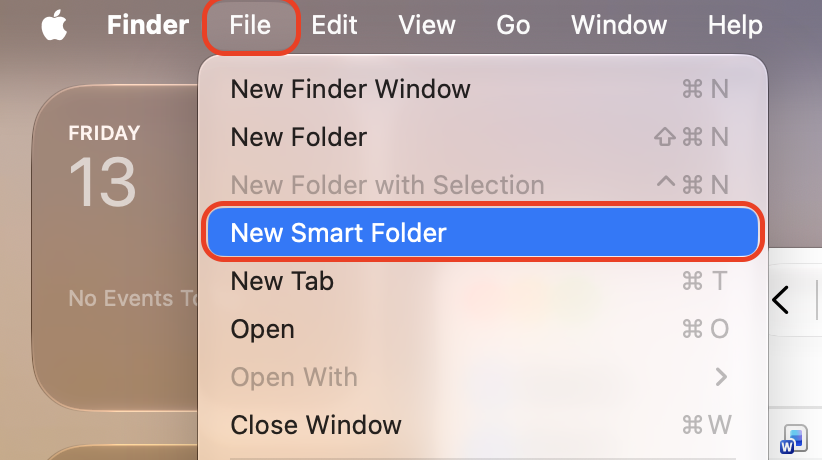
Launch Finder and choose File > New Smart Folder.
Click This Mac to search the whole drive.
Click the Add button (+) to add a rule line.
Choose an attribute such as Kind, Name, or Other > Tags, then set its value.
Step 1. Choose New Smart Folder from the File menu in FinderStep 2. Set the first rule, such as Kind is Document
2. Refining rules with multi-condition parameters
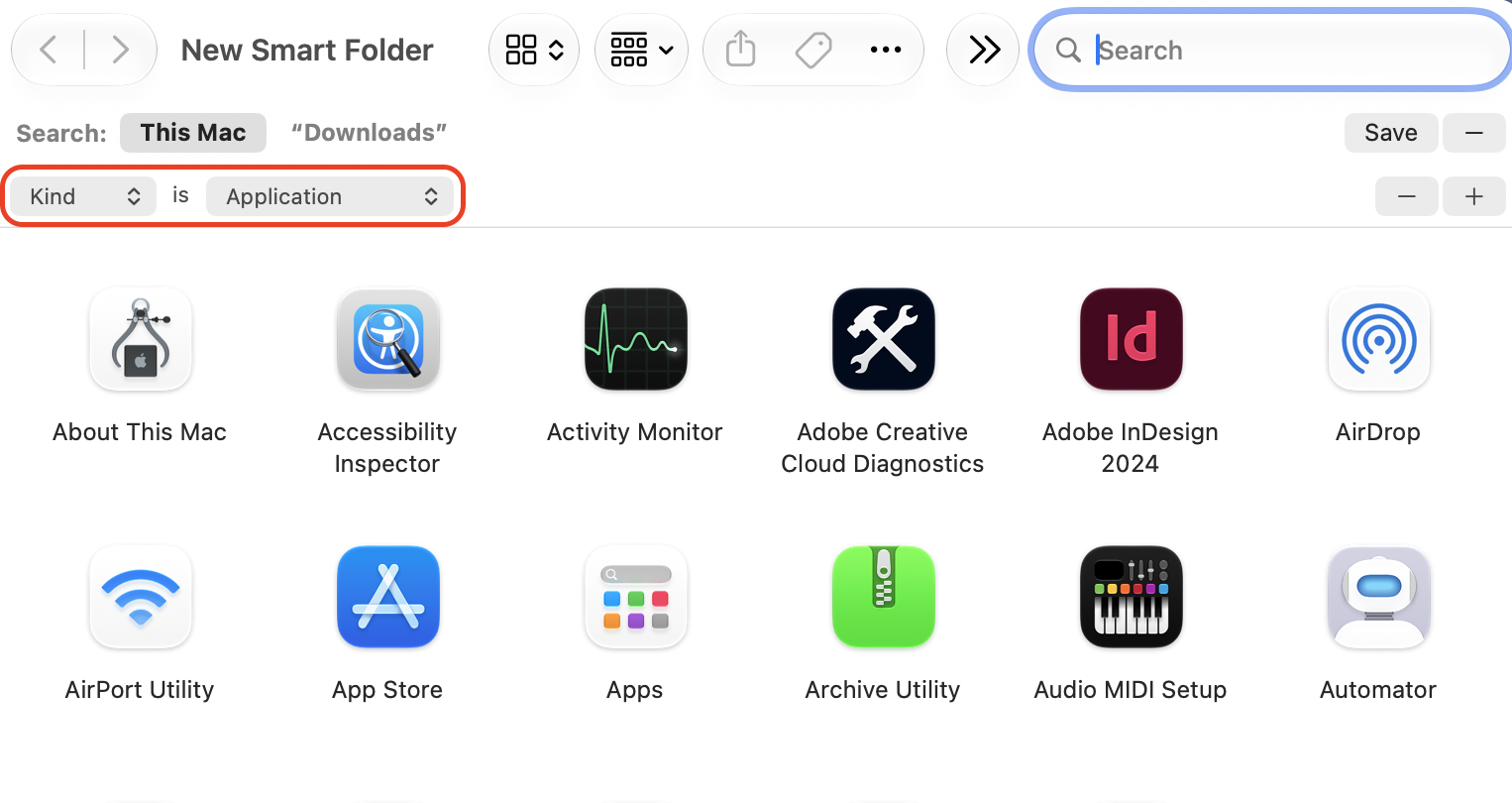
Every extra line narrows the results, since Finder matches all of them by default. For either-or logic, there’s a hidden Option trick that, from what we can tell, most people miss.
To combine several conditions in one search:
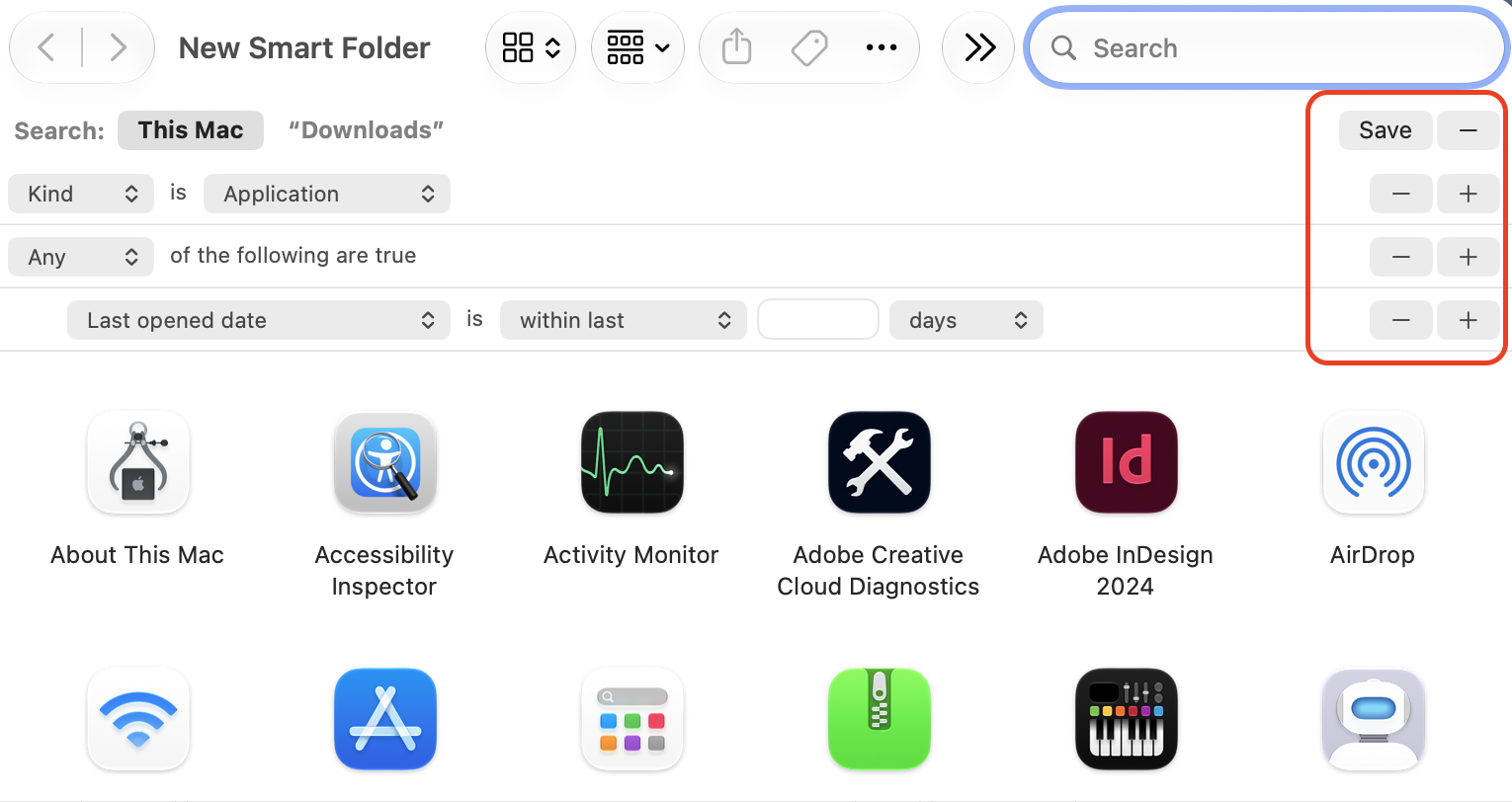
Click + again and add a second rule, such as Last modified date.
Hold Option so + turns into …, then click it.
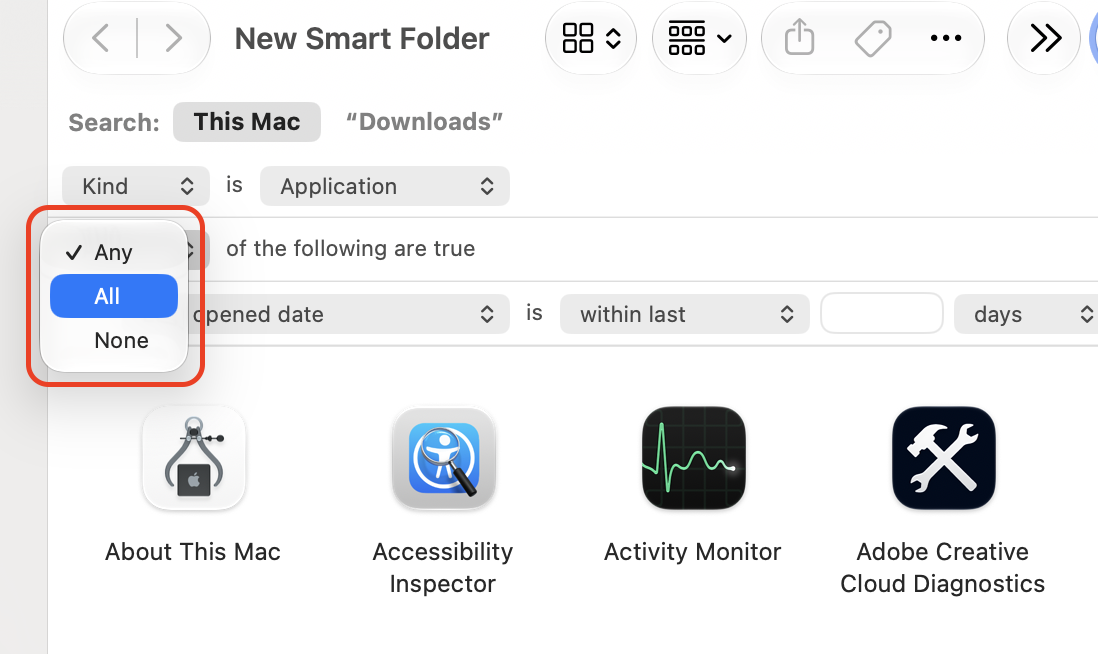
Choose Any, All, or None for the new group and add its rules.
Step 1. Hold Option and click the ellipsis to add a nested groupStep 2. Choose Any, All, or None for the nested rules
3. Saving and organizing smart folder locations
Saving turns a one-off search into something you can reopen in a click. Our tip is to name each folder after its job, like “Big files,” so the sidebar stays readable.
To name and store your finished search:
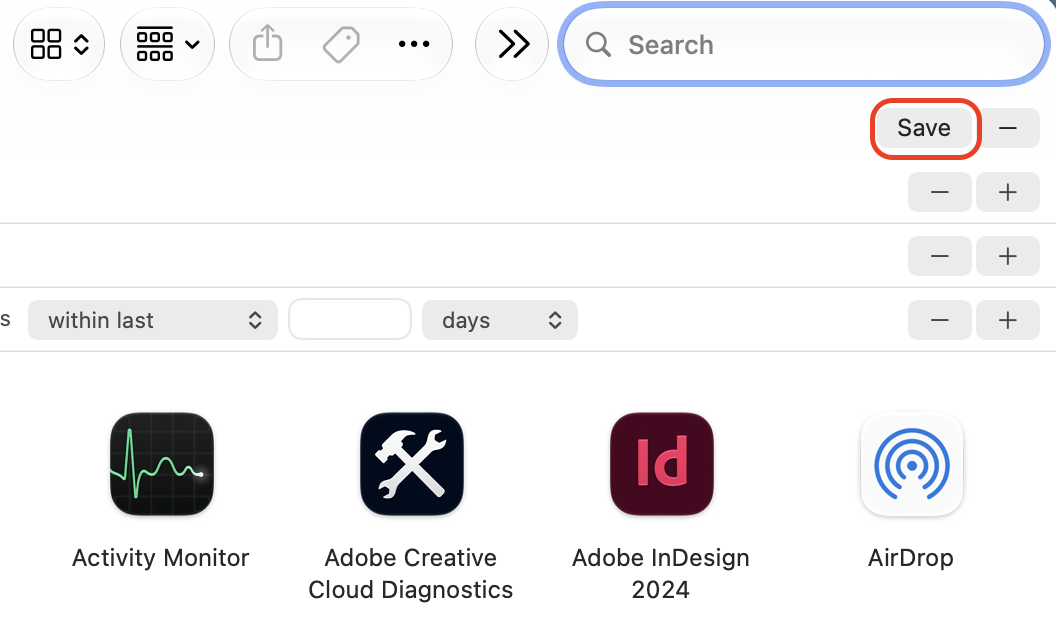
Click Save in the upper-right corner.
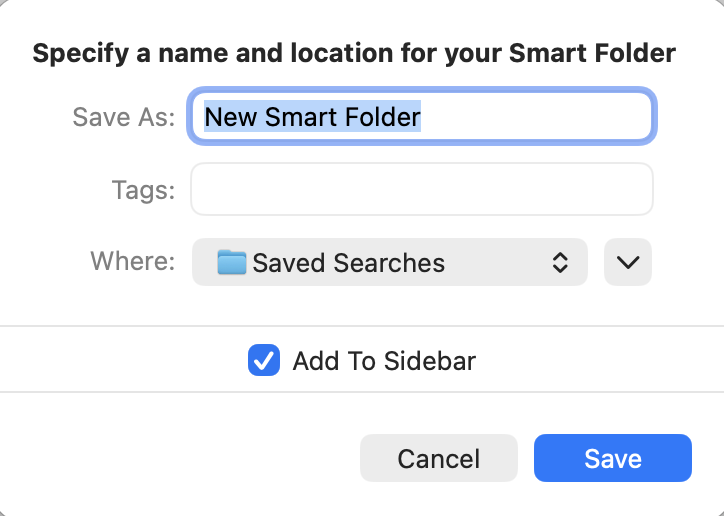
Type a name in Save As and keep the default Saved Searches location.
Leave Add To Sidebar selected, then click Save.
Step 1. Click Save in the upper-right corner of the windowStep 2. Keep Add To Sidebar selected and click Save
How to use smart folders on Mac?
Once you know the basics, build a few Smart Folders around real habits. These are the setups our team reaches for most when we use a smart folder on Mac for work and storage management.
1. Tracking large files and reclaiming disk storage
A size rule is the fastest way we know to find forgotten downloads and video exports. On a test MacBook Air, our “Big files” folder surfaced 30GB of old footage, which made it easy to clean up MacBook storage.
To build a large-files tracker:
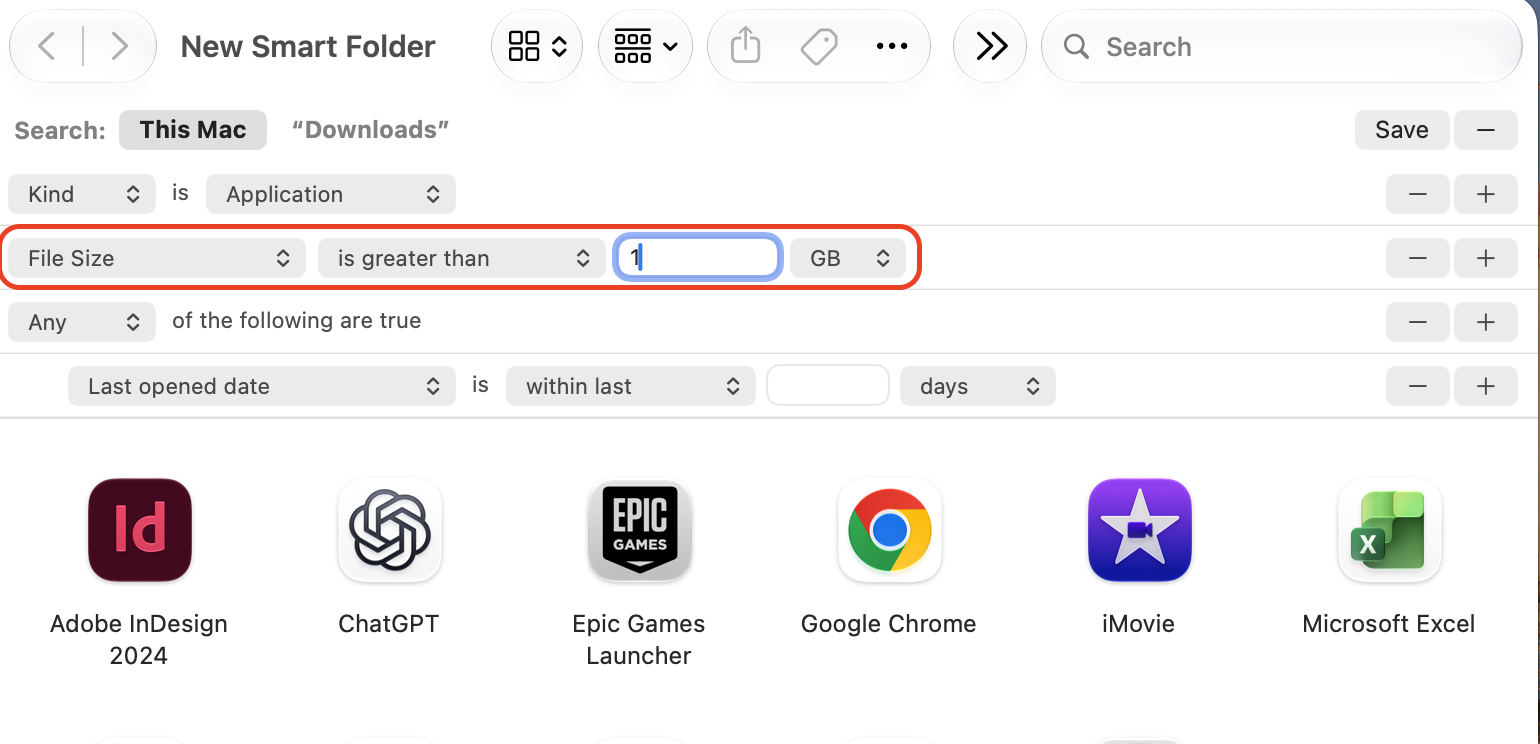
Create a Smart Folder and select This Mac.
Click +, choose Other, and add File size.
Set it to is greater than 1GB, then save.
Set File size to greater than 1GB to list heavy files
2. Managing recently modified work documents
Date rules help when you can’t remember where you saved yesterday’s report, because they ignore folders entirely.
To see the documents you’ve worked on lately:
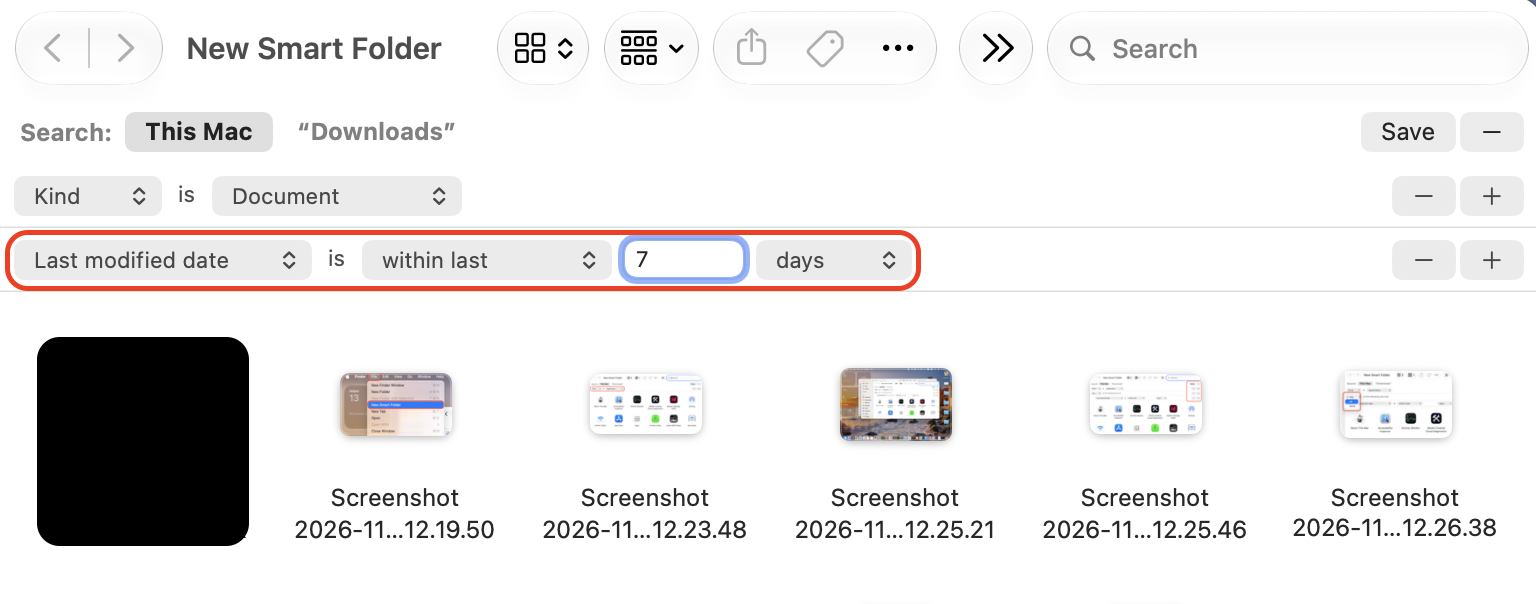
Set Kind to Document.
Add a Last modified date rule set to within last 7 days.
Save it as “This week.”
Add a Last modified date rule set to within the last 7 days
3. Gathering downloaded installation packages and disk images
In our experience, a DMG file just sits there taking up space once its app is installed. An installer folder catches these leftovers.
To collect leftover installers in one view:
Create a Smart Folder with This Mac selected.
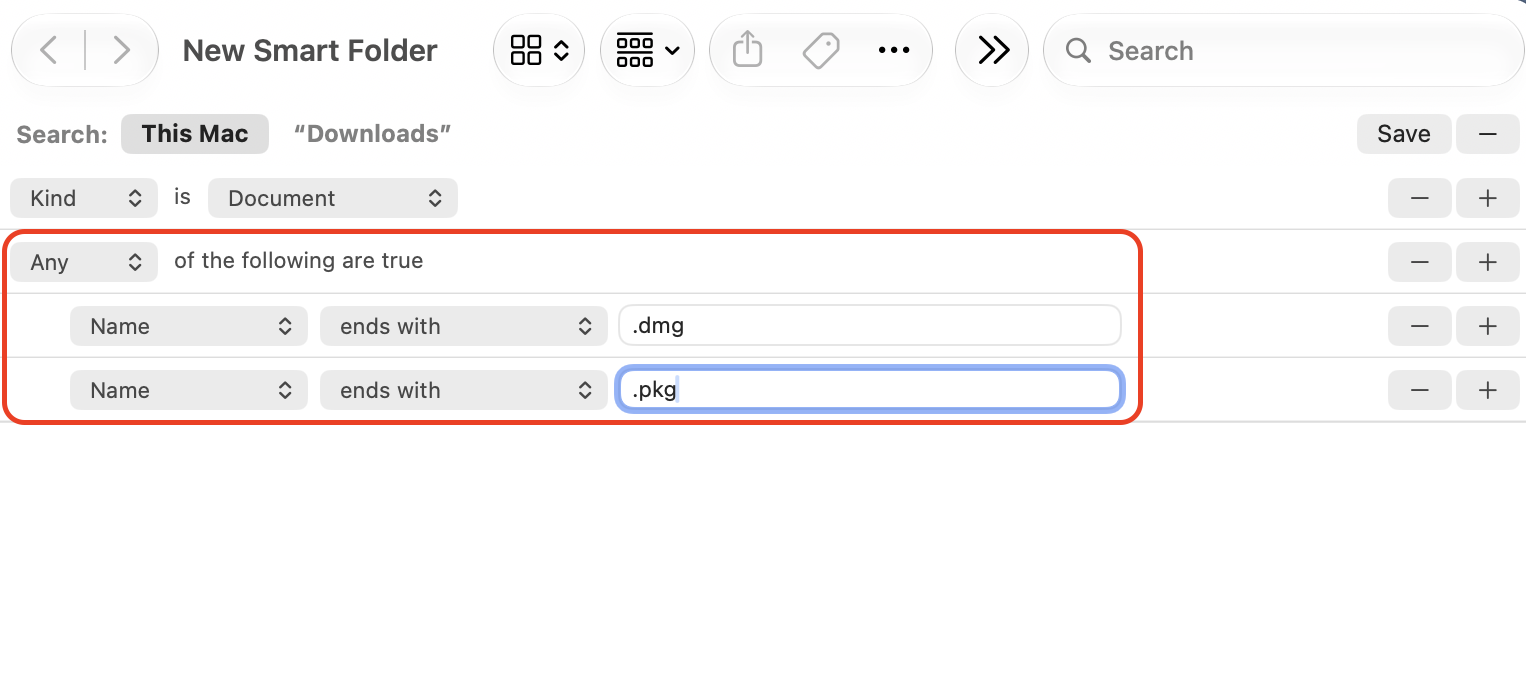
Hold Option, click …, and choose Any.
Add Name ends with rules for .dmg and .pkg, then save.
Use an Any group with Name ends with .dmg and .pkg
4. Grouping duplicate downloads and named copies
Browsers and Finder name repeats like “report (1).pdf” or “report copy.pdf,” so a name rule catches most of them. To see duplicate files with different names, though, we use a tool that compares contents.
To group likely copies from your downloads:
Open Downloads, then choose File > New Smart Folder.
Add an Any group by holding Option and clicking ….
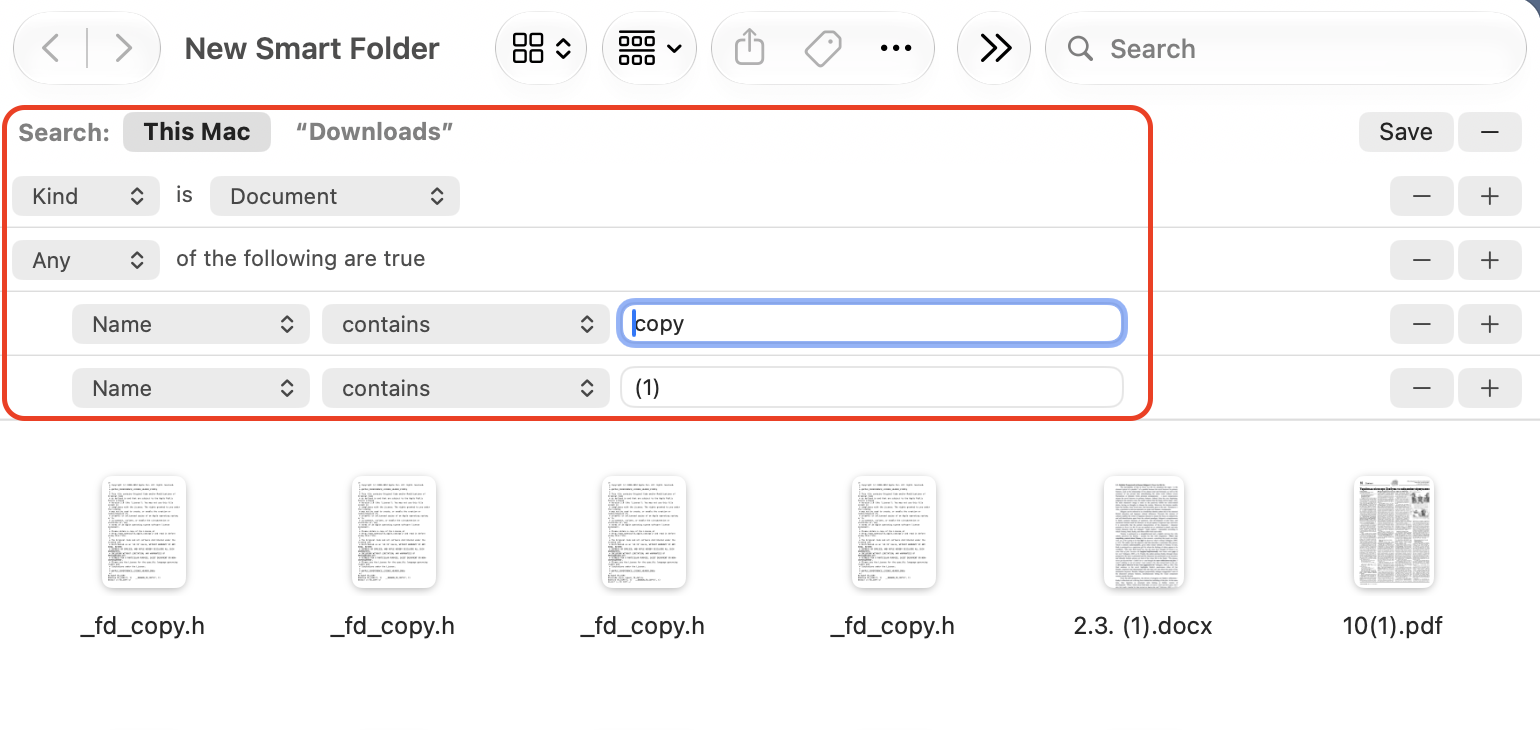
Add Name contains rules for “copy” and “(1)”.
Add a top-level Created date rule for recent downloads.
Add Name contains rules for “copy” and “(1)” in an Any group
5. Collecting visual assets and screenshots
Screenshots pile up on the Desktop faster than most of us admit, and one Smart Folder brings them together for review.
To gather your images and screen captures:
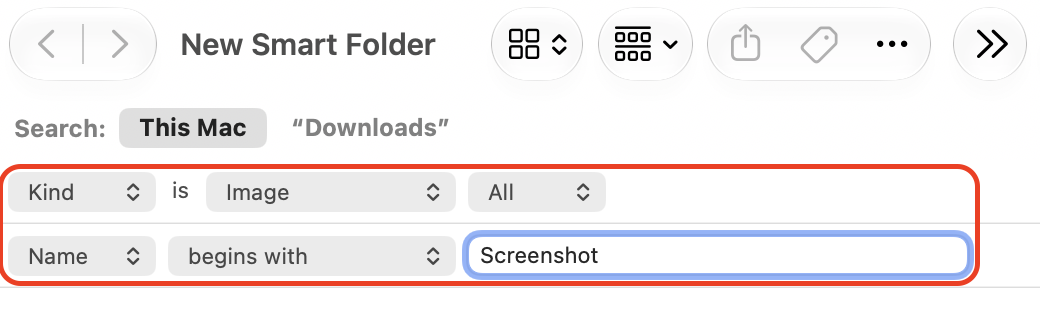
Set Kind to Image.
Add a Name rule that begins with “Screenshot.
”Skip that rule if you want camera imports too, then save.
Set Kind to Image and Name begins with Screenshot
How to edit or delete smart folders on Mac?
You can change a Smart Folder’s rules or delete it without touching a single original file, since removing it erases only the query.
To update the search criteria:
Open the Smart Folder from the sidebar.
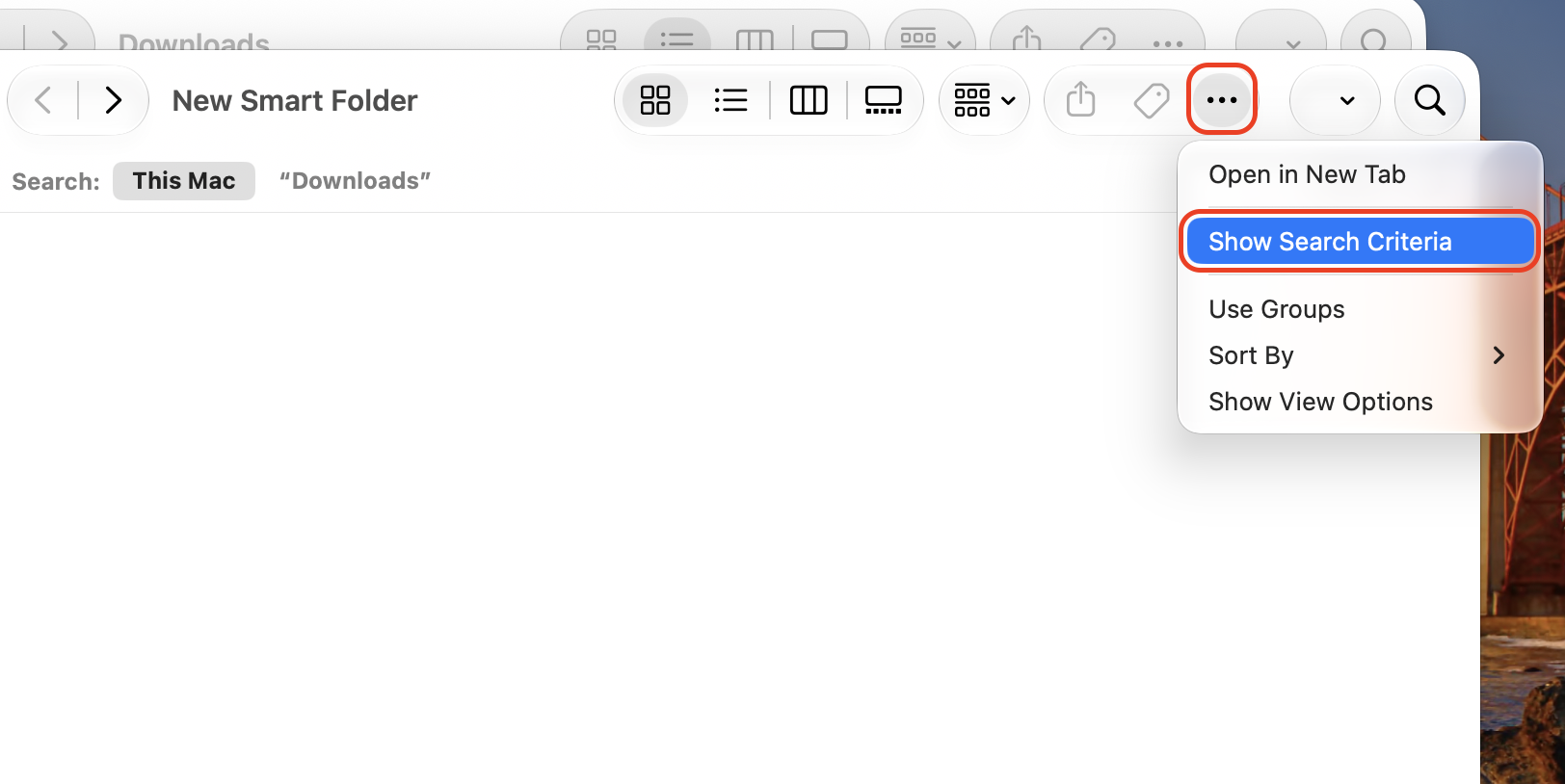
Click the Action button and choose Show Search Criteria.
Change the rules, then click Save.
Click the Action button and choose Show Search Criteria
To delete a Smart Folder for good:
Control-click it in the sidebar and choose Remove from Sidebar.
Choose Go > Go to Folder and enter the ~/Library/Saved Searches command.
Drag the Smart Folder to the Trash.
Conclusion
Smart Folders save you from digging through Desktop, Documents, and Downloads every time you need a file. They sort by rules instead of by hand and point straight at the clutter. Finding junk is only half the job, though.
MacKeeper’s Safe Cleanup removes caches, logs, and Trash contents in a few clicks, and you choose what goes. MacKeeper is a leading solution in Mac optimization and cybersecurity. Besides, MacKeeper is trusted by millions of users—join it yourself.
We respect your privacy and
use cookies
for the best site experience.
Privacy Preferences Center
We use cookies along with other tools to give you the best possible experience while using the
MacKeeper website. Cookies are small text files that help the website load faster. The cookies we
use don’t contain any type of personal data meaning they never store information such as your
location, email address, or IP address.
Help us improve how you interact with our website by accepting the use of cookies. You can change
your privacy settings whenever you like.
Manage consent
All cookies
These cookies are strictly necessary for enabling basic website functionality (including page
navigation, form submission, language detection, post commenting), downloading and purchasing
software. The website might malfunction without these cookies.