When Mac system settings frozen errors lock you out of essential controls, even simple tasks like changing Wi-Fi or security preferences become impossible. MacKeeper's Premium Services provide you with direct access to trained technicians who troubleshoot the problem, apply safe system fixes, and help get your Mac running normally again.
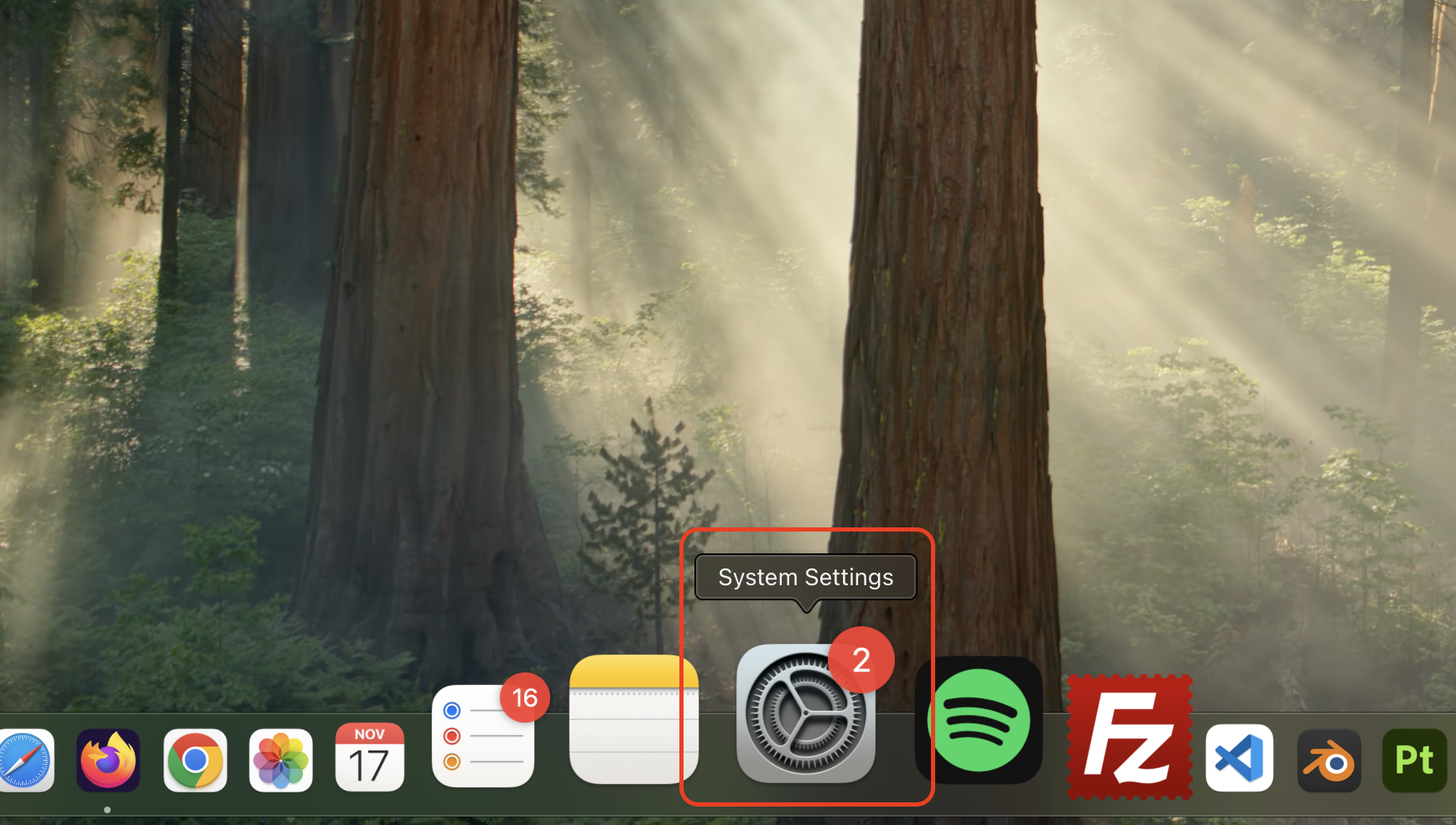
System Settings on macOS—previously called System Preferences—is the main control center for managing how your Mac looks, behaves, and connects. It's where you adjust display options, change audio settings, manage user accounts, and configure privacy and network preferences. You can open it from the Apple menu or locate it quickly through Spotlight.
When system preferences frozen on a Mac errors occur, the app stops responding, and prevents you from accessing these essential controls. This means you can't modify settings, apply updates, or troubleshoot connected devices until the issue is resolved.
Why System Settings freeze on Mac?
System Settings may freeze on a Mac when there are software conflicts, corrupted plist files, outdated macOS versions, or low disk space and memory. In some cases, minor disk errors or background processes also make the app stop responding. This doesn't usually mean permanent damage—it's a sign your Mac needs troubleshooting, such as force quitting, restarting, safe mode, or disk and system repairs.
A note from our experts:
When System Settings freezes, many users try every fix they find online, including force-quitting and deleting plist files, without knowing which step actually makes a difference. From our experience, this often leads to wasted time and incomplete repairs. MacKeeper is a leading solution in Mac optimization and cybersecurity, and its Premium Services give you a faster, guided, and far more reliable way to resolve the issue.
Instead of troubleshooting unquestioningly, our certified technicians analyze your Mac remotely, identify the exact cause of the freeze, and apply safe, system-level fixes that restore Settings functionality in one session.
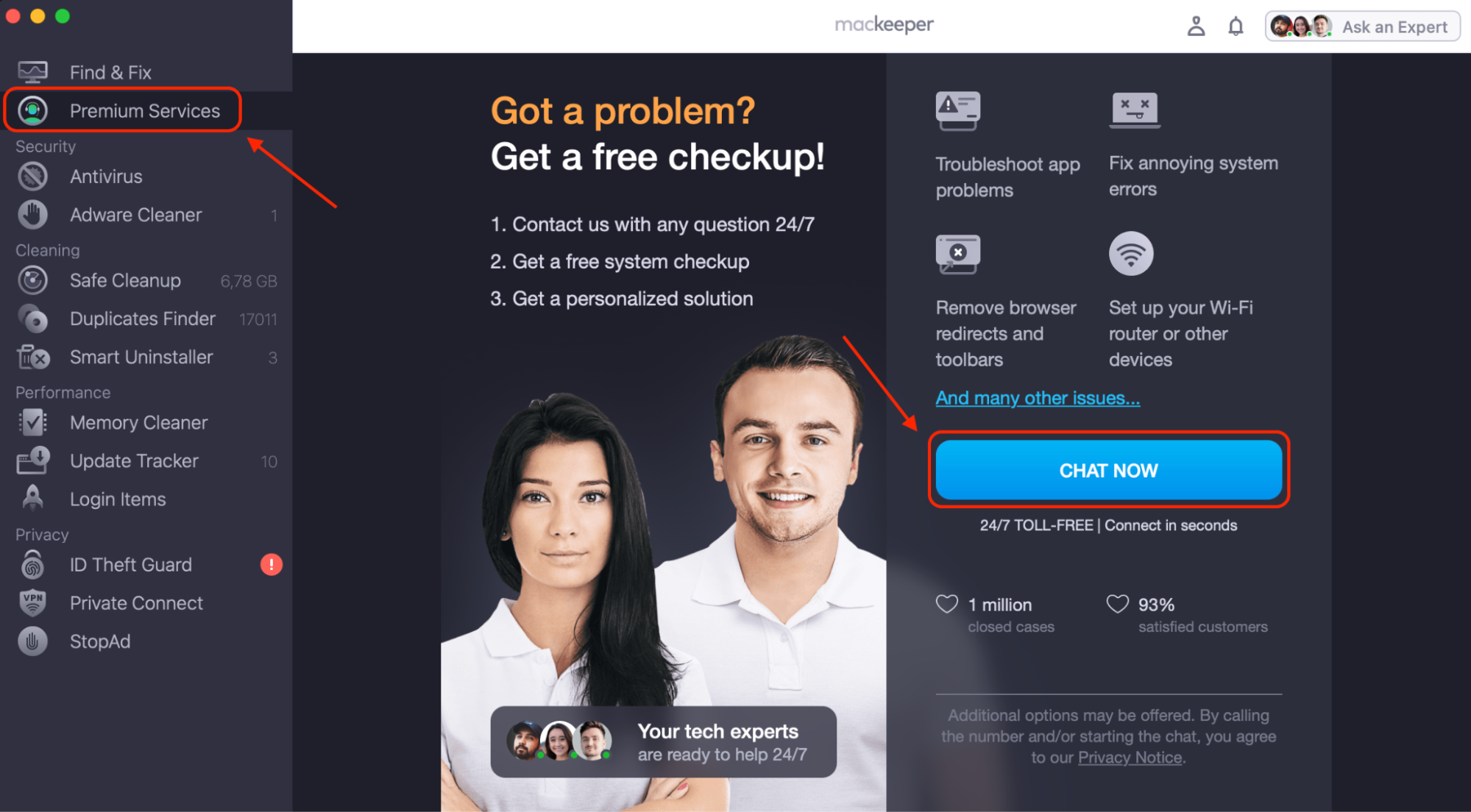
Open the app and select Premium Services from the left sidebar.
Click Chat Now to connect with a certified technician instantly.
Describe the System Settings freezing issue, so the tech can run diagnostics.
Follow the technician's recommendations to complete the fix safely and efficiently.
Open MacKeeper, click Premium Services in the sidebar, and select Chat Now
How to fix System Settings stuck on Mac?
When you find system settings stuck on a Mac, the quickest fix is to restart your device to clear temporary glitches. If the panel stays frozen, you can force-quit System Settings using Command + Option + Esc. Persistent freezes may require safe mode, removing corrupted plist files, or checking your disk for errors to restore normal functionality.
1. Force quit System Preferences
When system settings not responding on a Mac becomes a recurring issue, freezing System Preferences on a MacBook often means a single process has stalled and needs to be shut down manually. A force quit is the safest quick fix before trying deeper troubleshooting.
Here's the exact procedure you should run through:
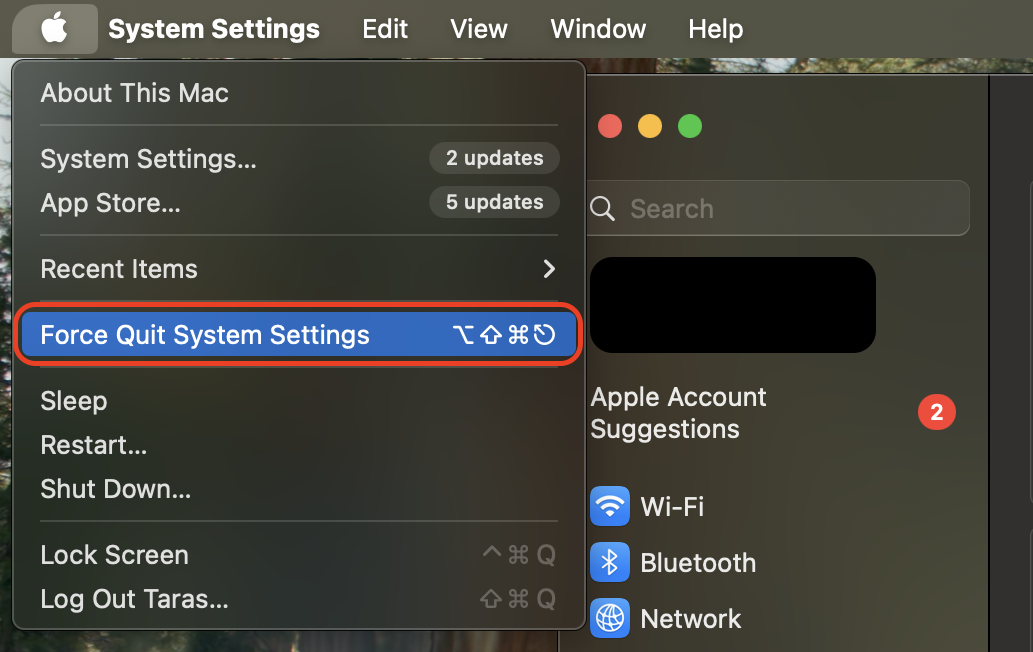
Open the Apple menu in the top-left corner and choose Force Quit to display all running apps.
Wait a few seconds before reopening it to prevent the old process from hanging again.
If it still freezes, force close other heavy apps using Command + Option + Escape to free up system resources.
Step 1. Open the Apple menu in the top-left corner and choose Force Quit to display all running appsStep 2. If it still freezes, force close other heavy apps using Command + Option + Escape
2. Restart Mac into Safe Mode
Safe Mode helps you rule out conflicts with login items, drivers, or third-party tools that may be causing System Settings to freeze.
Use the following sequence to start Safe Mode correctly:
Shut down your Mac completely—don't just close the lid.
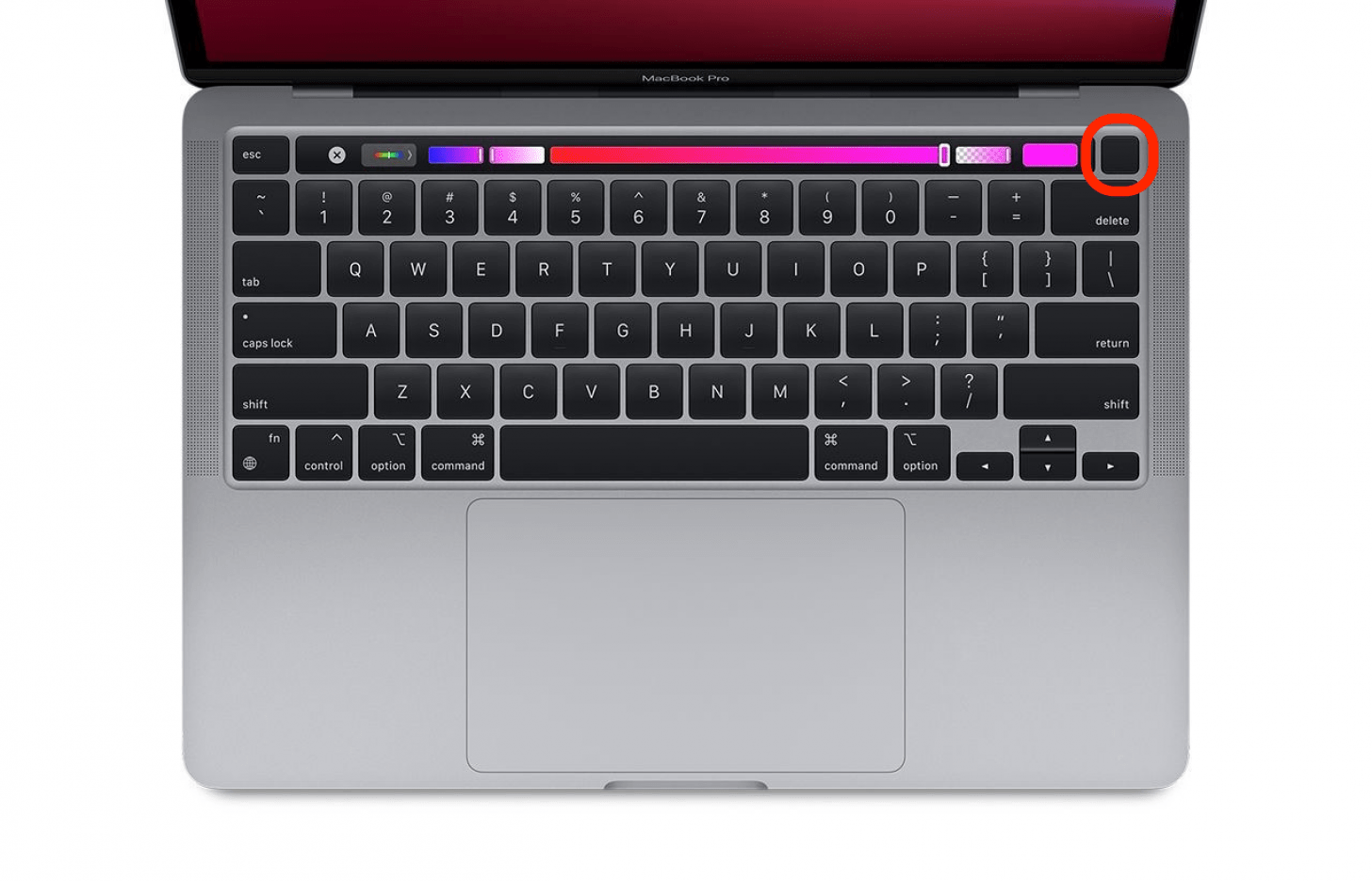
On Intel Macs: press power, then hold Shift until you see the login screen.
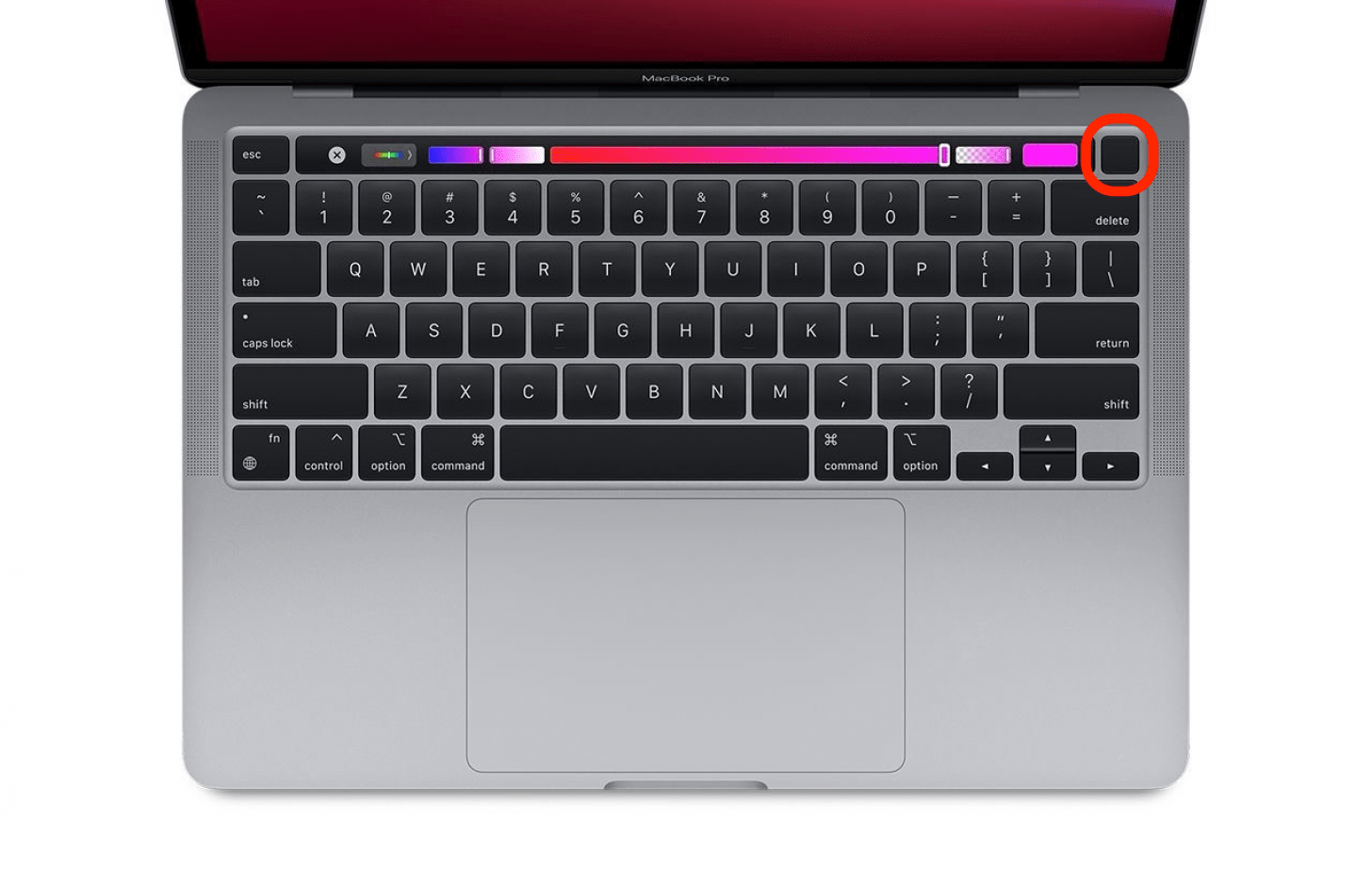
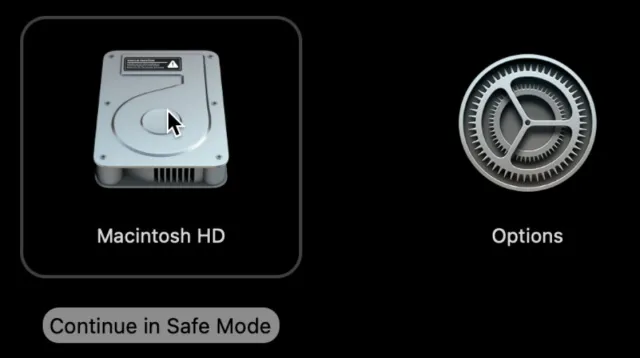
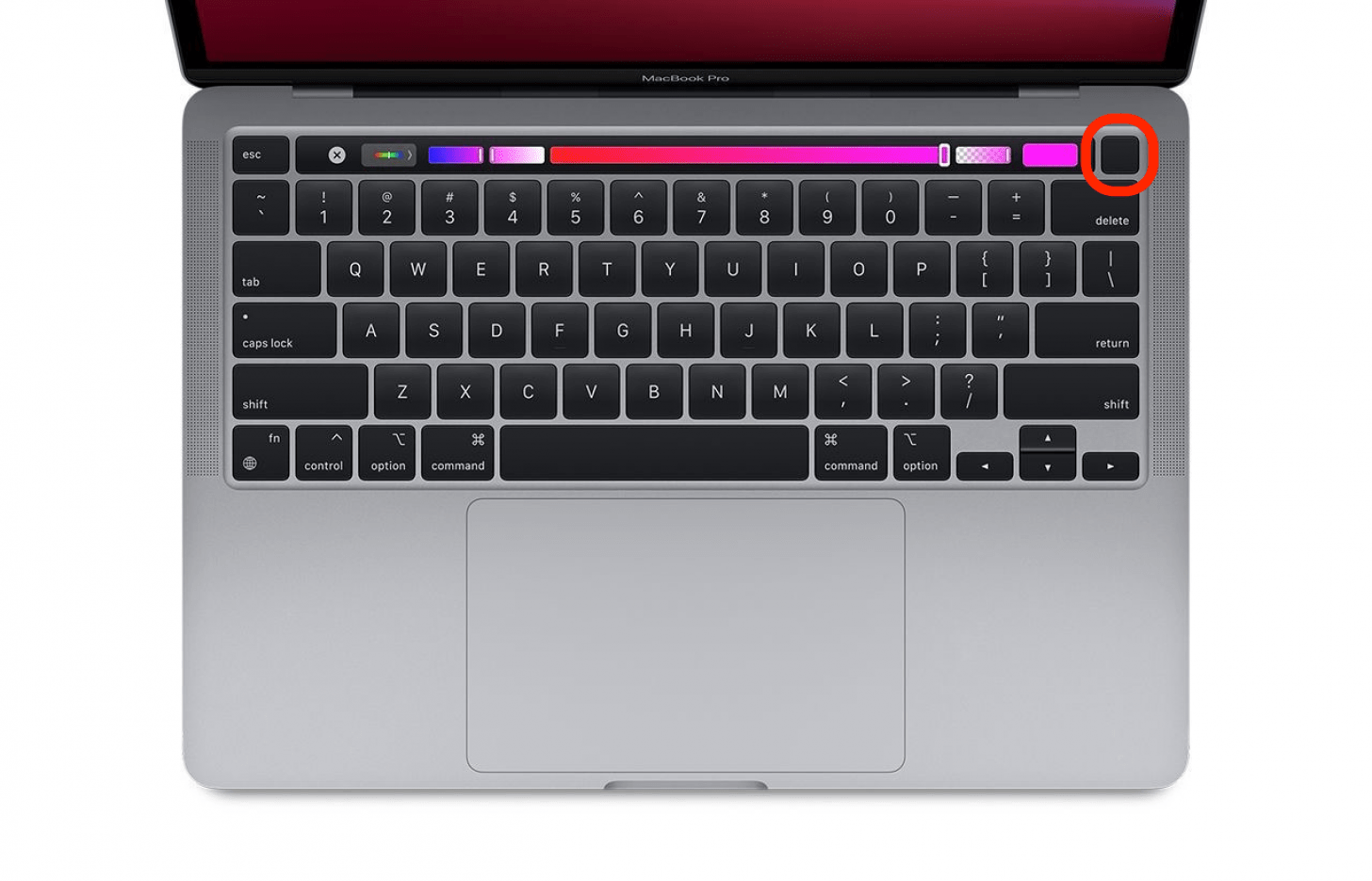
On Apple Silicon: hold the Power button until startup options appear, choose your disk, then hold Shift and click Continue in Safe Mode.
Log in normally, then open System Settings and navigate through several panes to check stability.
Restart your Mac to exit Safe Mode once you confirm whether the issue persists.
Step 1. Hold the Power button until startup options appearStep 2. Hold Shift and click Continue in Safe ModeStep 3. Log in normally, then open System Settings and navigate through several panes to check stability
3. Delete plist files
If System Settings keeps freezing and other interface symptoms appear, such as the Mac menu bar not showing, your plist file may be corrupted.
Try the following steps to reset the plist safely:
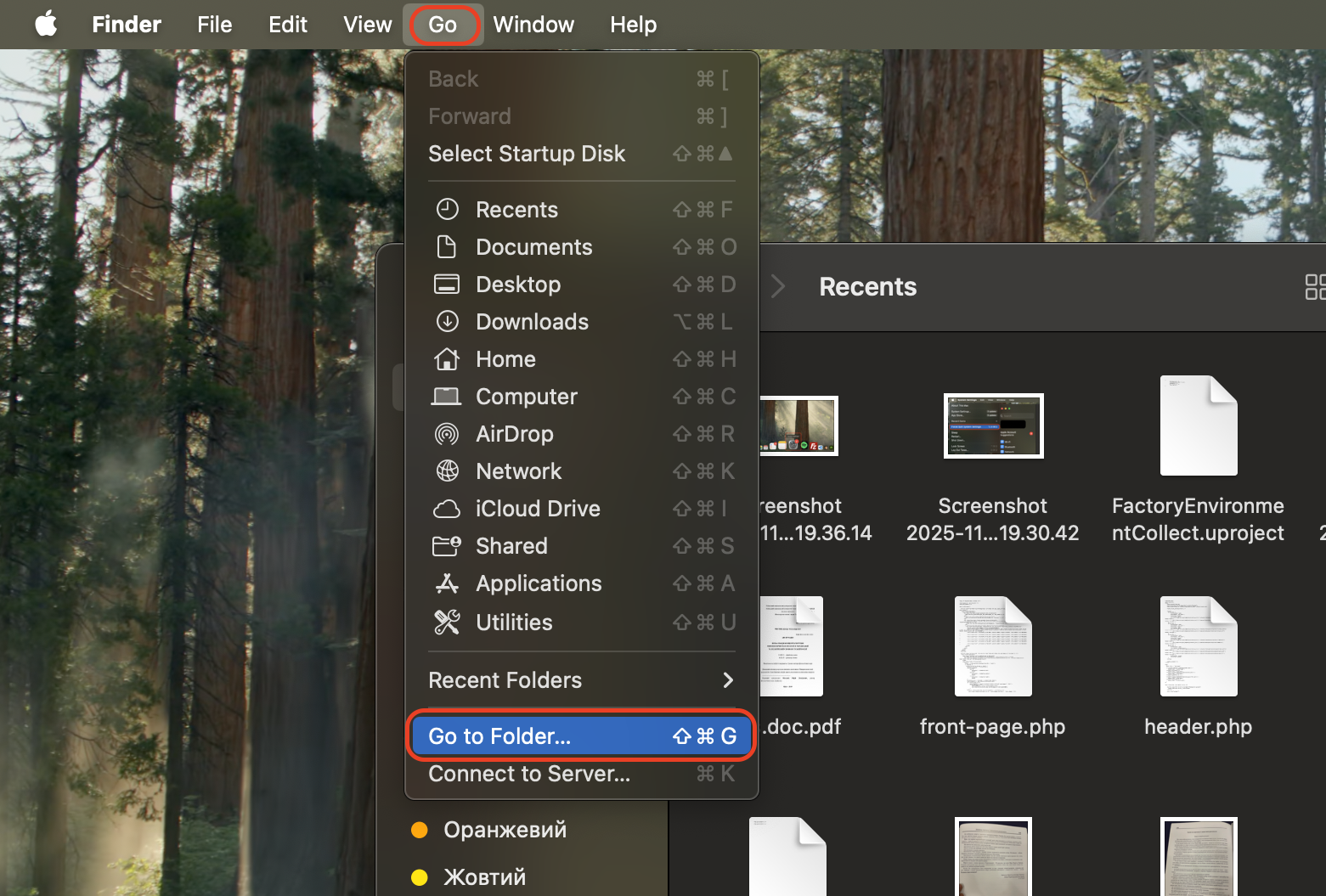
Open Finder, then click Go → Go to Folder from the menu bar.
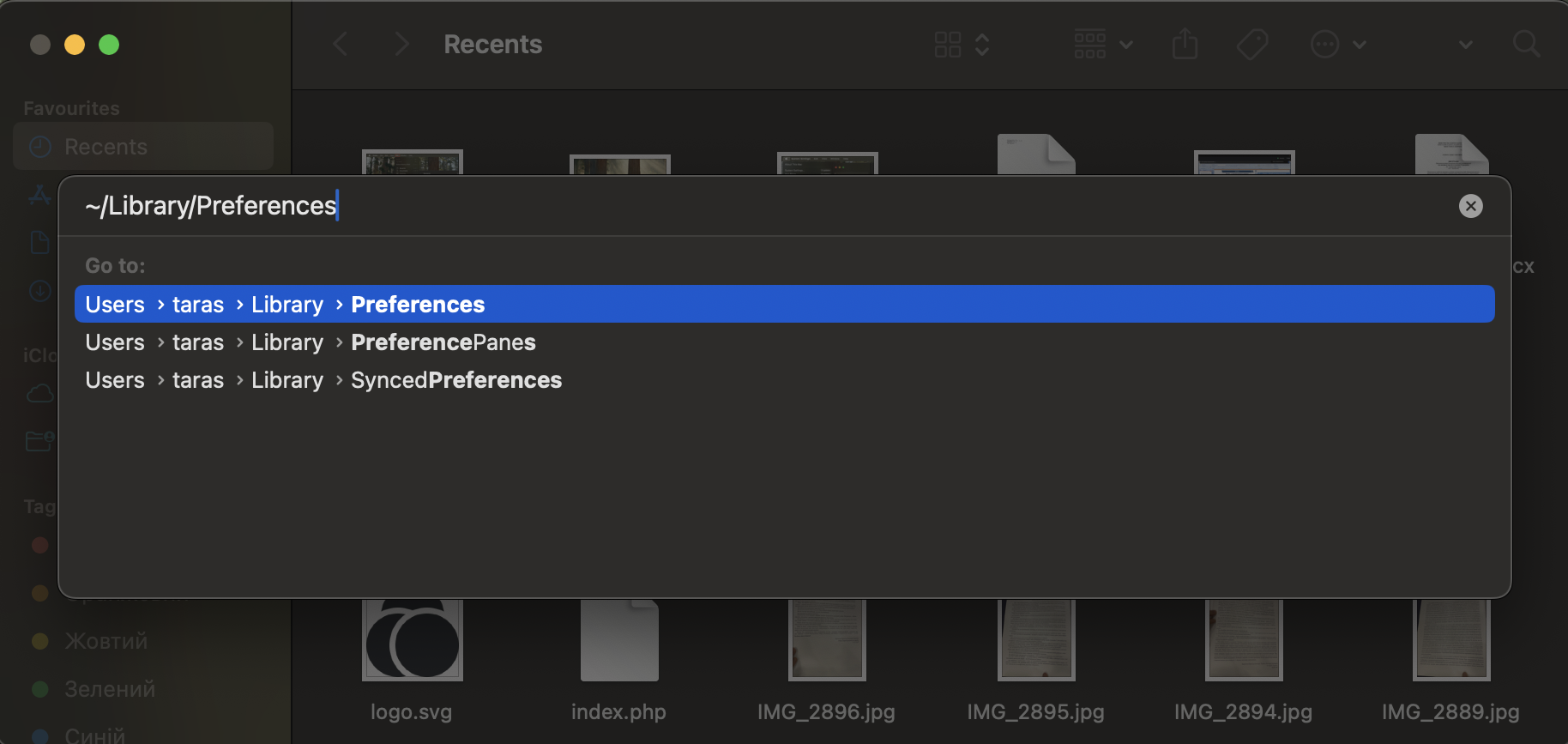
Enter ~/Library/Preferences and press Return to access preference files.
Locate com.apple.systempreferences.plist, which stores System Settings configuration.
Move it to Trash, but do not empty Trash yet in case you need to restore it.
Restart your Mac to allow macOS to generate a fresh plist.
Step 1. Open Finder, then click Go → Go to Folder from the menu barStep 2. Enter ~/Library/Preferences and press Return to access preference files. Locate com.apple.systempreferences.plist and move it to Trash
Follow this repair path to run First Aid properly:
Restart your Mac and enter Recovery Mode.
On Intel Macs: hold Command + R until the Apple logo appears.
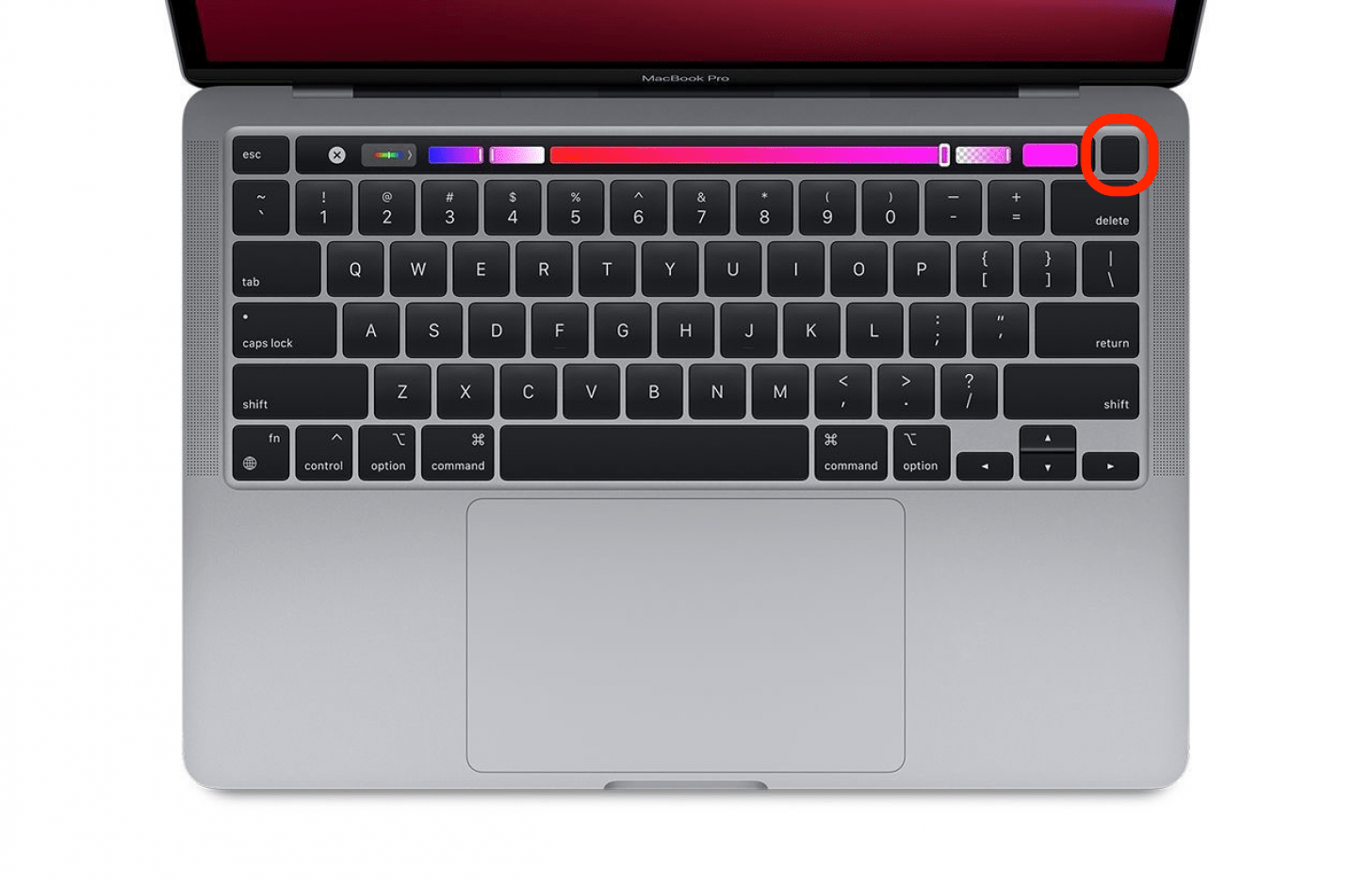
On Apple Silicon: hold the Power button until Options appears, then click Continue.
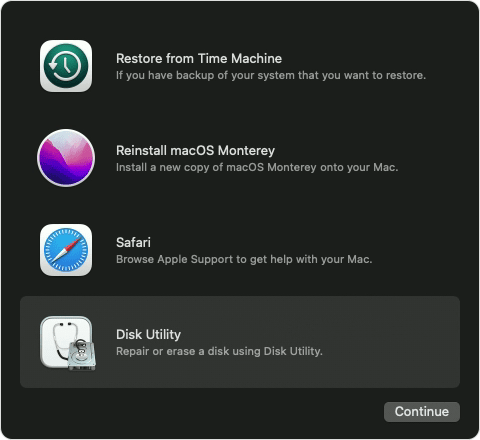
Open Disk Utility from the recovery menu.
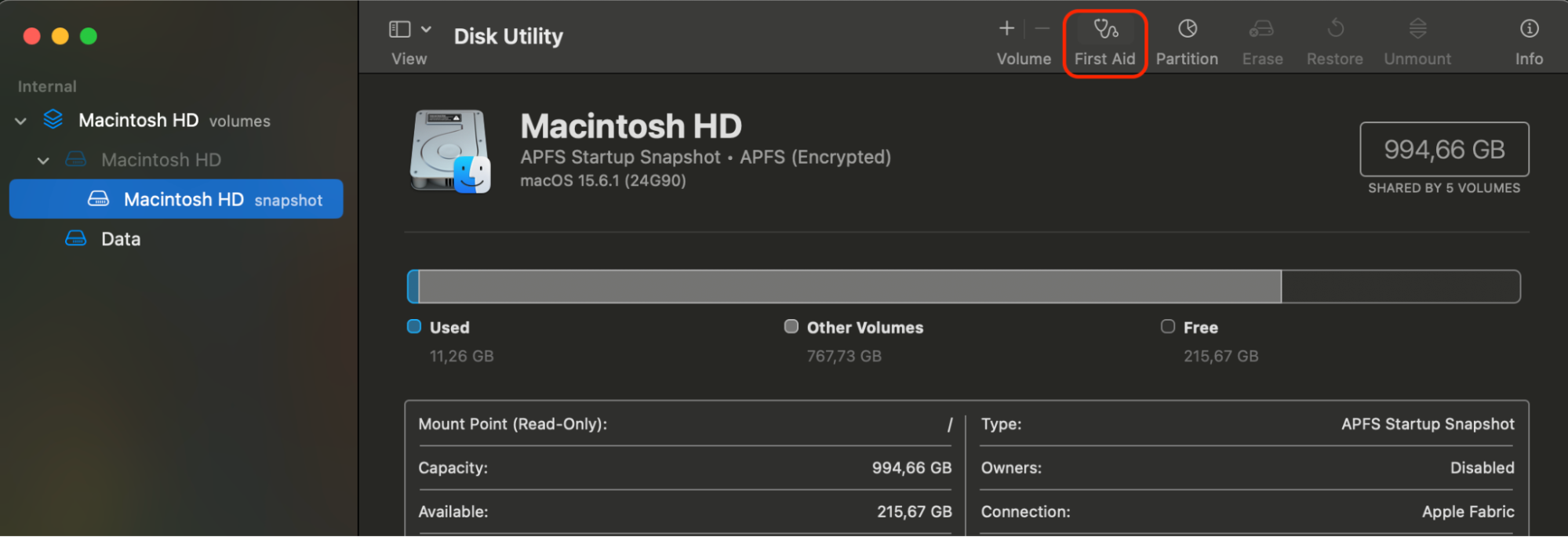
Select your startup disk (Macintosh HD).
Click First Aid → Run to repair the disk's structure and file system.
Restart your Mac normally once the repair completes.
Step 1. Hold the Power button until startup options appearStep 2. Open Disk Utility from the recovery menuStep 3. Click First Aid → Run to repair the disk's structure and file system
5. Check for malware
Malware can interfere with core macOS components, causing System Settings to freeze, crash, or react slowly.
Use this process to scan and remove suspicious items:
Open Finder and check Applications for apps you don't recognize or didn't install.
Remove questionable apps by dragging them to the Trash and emptying it.
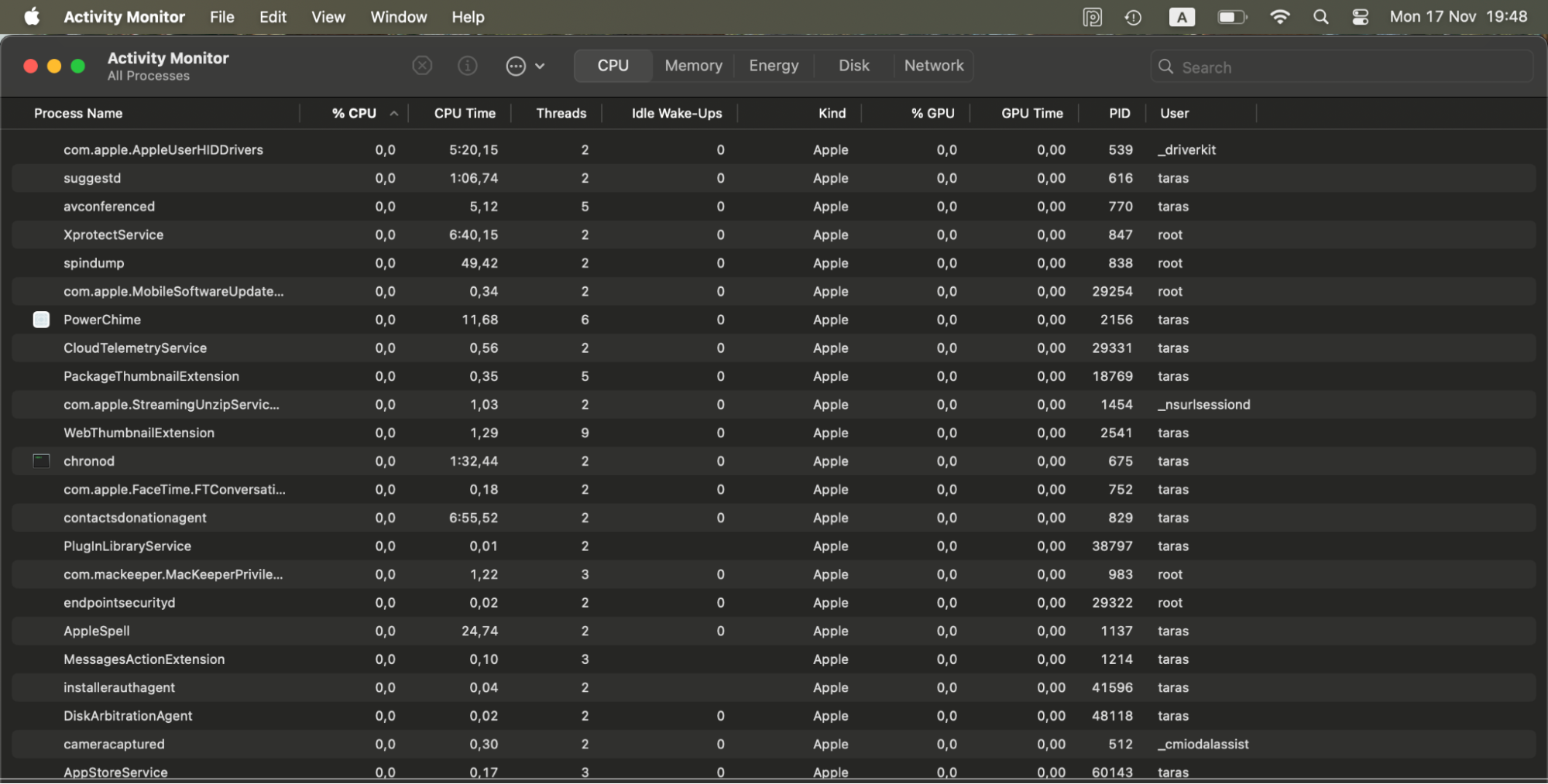
Open Activity Monitor and look for processes using excessive CPU or memory.
Select suspicious entries and click X → Quit to stop them.
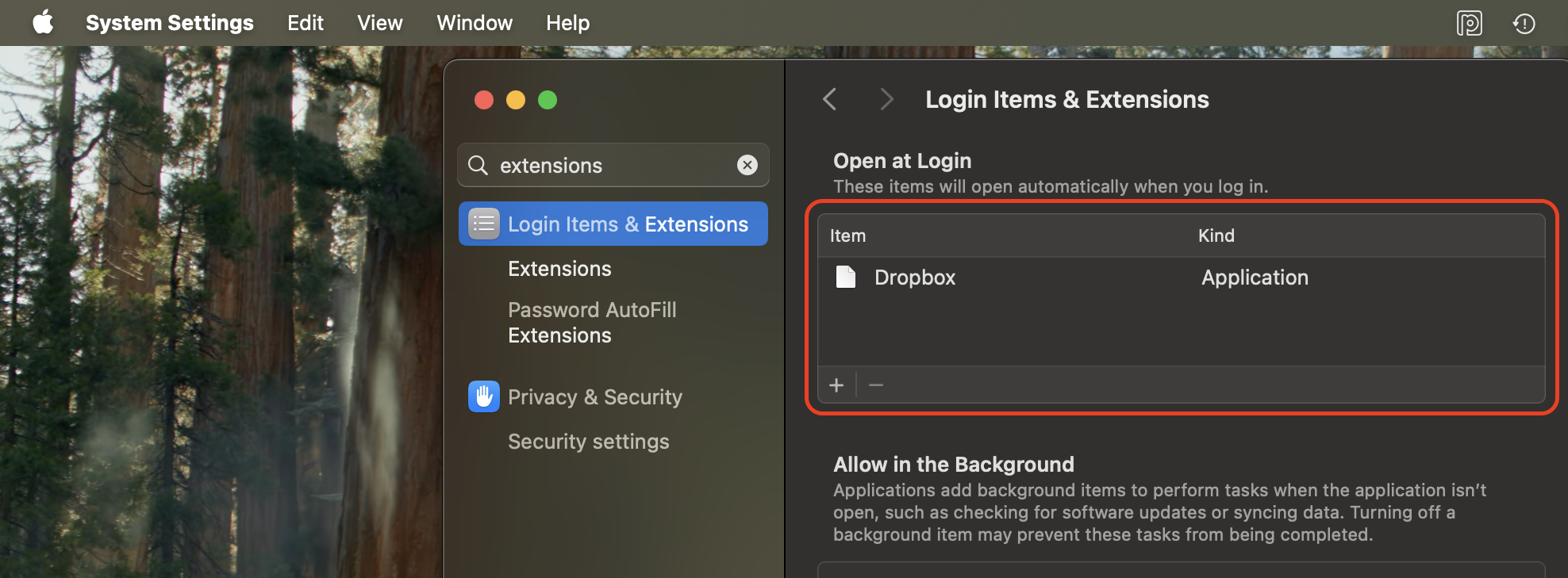
Open System Settings → Login Items & Extensions and disable unknown add-ons.
Run a reputable malware scanner to remove hidden launch agents, scripts, or background daemons.
Restart your Mac and test System Settings again for stability.
Step 1. Open Activity Monitor and look for processes using excessive CPU or memoryStep 2. Open System Settings → Login Items & Extensions and disable unknown add-ons
6. Restore System Settings from backup
If System Settings freezes after an update, crash, or even a Mac blue screen of death, restoring from a backup may bring back a working configuration.
Follow this restoration path to recover a stable version:
Connect your Time Machine drive to your Mac.
Restart your Mac and enter recovery mode using Command + R (Intel) or holding Power (Apple Silicon).
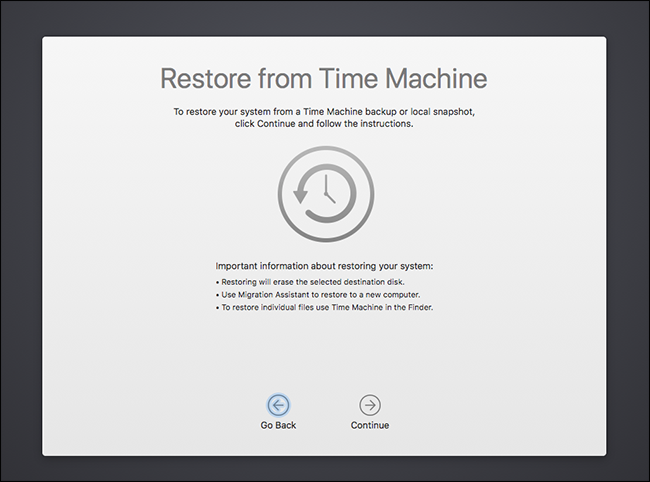
Select Restore From Time Machine Backup from the Recovery Assistant menu.
Choose your backup disk once it appears in the list.
Select a backup created before System Settings began freezing.
Click Continue and allow the restoration to complete.
Restart your Mac and open System Settings to confirm that it operates normally.
Step 1. Restart your Mac and enter recovery mode using Command + R (Intel) or holding Power (Apple Silicon)Step 2. Select Restore From Time Machine Backup from the Recovery Assistant menu
7. Reinstall macOS
When all other methods fail, reinstalling macOS is the most reliable way to replace damaged system files and restore full System Settings functionality.
Here's the clean installation sequence you should follow:
Restart your Mac and enter recovery mode.
On Intel: hold Command + R. On Apple Silicon: hold the Power button until Options appear.
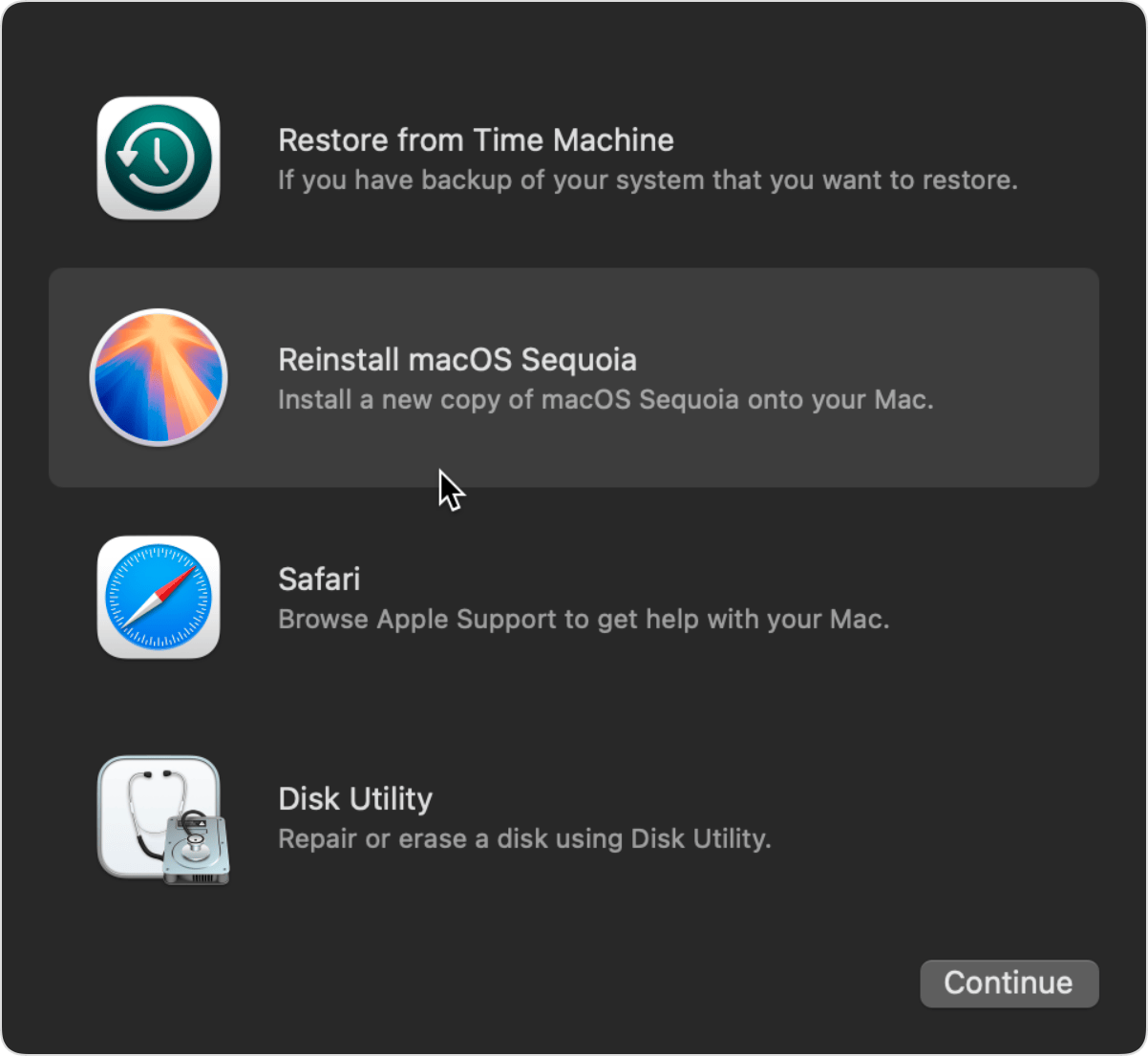
Select Reinstall macOS from the Recovery menu.
Click Continue and choose your startup disk (Macintosh HD).
Wait for macOS to download and reinstall—this may take 20–40 minutes, depending on your connection.
Let your Mac restart automatically once the installation finishes.
Step 1. Restart your Mac and enter recovery modeStep 2. Select Reinstall macOS from the Recovery menu
Conclusion
System Settings can become frozen for several reasons, including corrupted files, software conflicts, disk errors, or system-level damage. By applying the methods above, you can restore standard functionality and prevent future freezes from occurring.
For a faster, guided fix, consider MacKeeper's Premium Services. Since MacKeeper offers performance monitoring, experts can identify the exact cause behind the freeze and help you repair your Mac safely and efficiently.
We respect your privacy and
use cookies
for the best site experience.
Privacy Preferences Center
We use cookies along with other tools to give you the best possible experience while using the
MacKeeper website. Cookies are small text files that help the website load faster. The cookies we
use don’t contain any type of personal data meaning they never store information such as your
location, email address, or IP address.
Help us improve how you interact with our website by accepting the use of cookies. You can change
your privacy settings whenever you like.
Manage consent
All cookies
These cookies are strictly necessary for enabling basic website functionality (including page
navigation, form submission, language detection, post commenting), downloading and purchasing
software. The website might malfunction without these cookies.