The Installer Information on the Recovery Server Is Damaged
Coming across the error “The installer information on the recovery server is damaged” on your Mac can be unsettling, but there’s no need to worry. This guide will walk you through every potential solution before you consider reaching out to MacKeeper’s Premium Services.
What does it mean when the installer information on the recovery server is damaged?
Mac’s “installer information on the recovery server is damaged” error can be perplexing. Despite its wording, this error rarely indicates that the installer information is truly corrupted. More often, it signals that your Mac believes something is wrong, typically because an issue is blocking the installation of macOS.
Although this error is uncommon, it most often occurs when you boot your Mac into Recovery Mode (or its online alternative, Internet Recovery Mode) and attempt to reinstall macOS. During this process, your Mac may halt verification of the OS files, identifying them as damaged. As a result, you’ll be unable to reinstall macOS as intended.
Why do you see “The installer information on the recovery server is damaged”?
You might encounter the macOS install “the installer information on the recovery server is damaged” error for several reasons:
Outdated certificate: This is usually a compatibility issue caused by an expired certificate on your Mac. If that’s the case, Apple’s servers can’t verify your Mac when you attempt to install macOS.
Incompatible macOS version: You might be trying to install a version of macOS that requires the APFS disk format (introduced with macOS High Sierra), but your startup disk isn’t formatted accordingly.
Corrupted system files: In rarer cases, your system files may actually be corrupted due to disk errors, software bugs, or hardware failures, which can block the macOS installation.
Incorrect system date and time: If your Mac’s date and time don’t match those of Apple’s servers, the macOS installation can fail.
Unenrolled Mac: If you’re attempting to install a beta version of macOS, this error may appear if your Mac isn’t enrolled with the macOS Beta Access Utility (for either public or developer versions).
Connectivity issues: A weak or unreliable Internet connection can result in incomplete installer data. Occasionally, the issue may stem from Apple’s servers being temporarily unavailable.
How to fix “The installer information on the recovery server is damaged” on Mac?
To fix the “installer information on the recovery server is damaged” error, follow these steps in order: ensure you have a stable Internet connection, update your Mac’s date and time, repair the startup disk, attempt Internet Recovery, and if needed, reinstall macOS using a bootable installer.
A note from our experts:
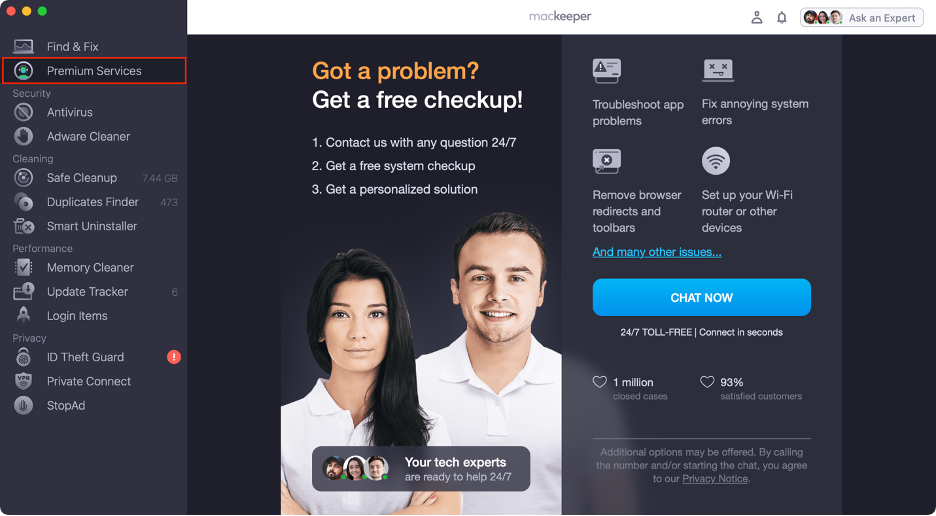
If you’re unable to resolve the “installer information on the recovery server is damaged” error on your Mac, consider reaching out to MacKeeper’s Premium Services team. With more than 150 professional technicians available 24/7, MacKeeper boasts a 93% customer satisfaction rate and has successfully repaired over 330,000 Macs.
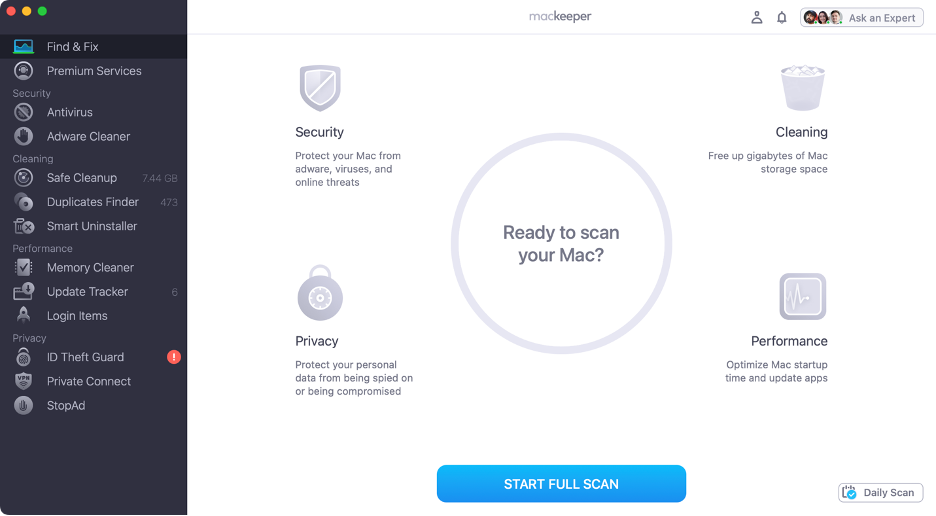
Follow these steps to use MacKeeper’s Premium Services:
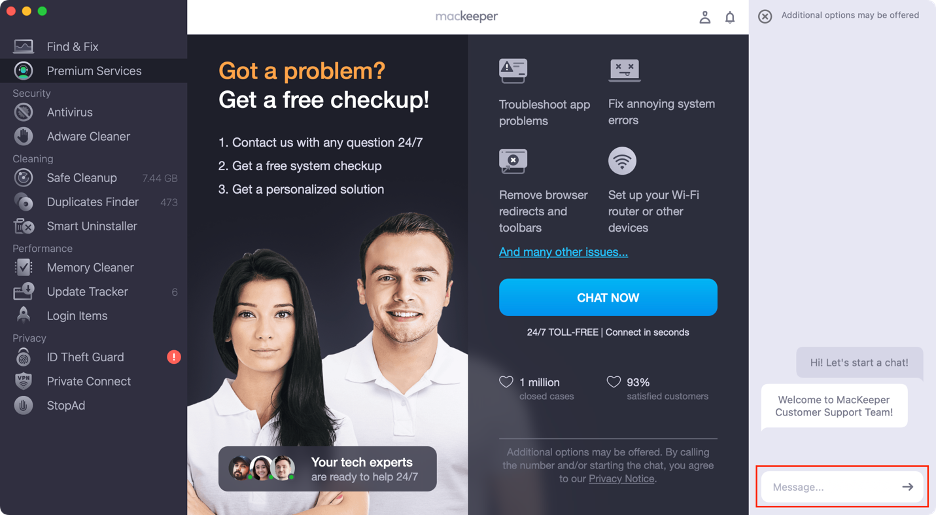
Type in your message and let our team know what you need.
Step 1. Launch MacKeeperStep 2. Select Premium Services from the sidebarStep 3. Click Chat NowStep 4. Type in your message
1. Check Apple servers and Internet stability
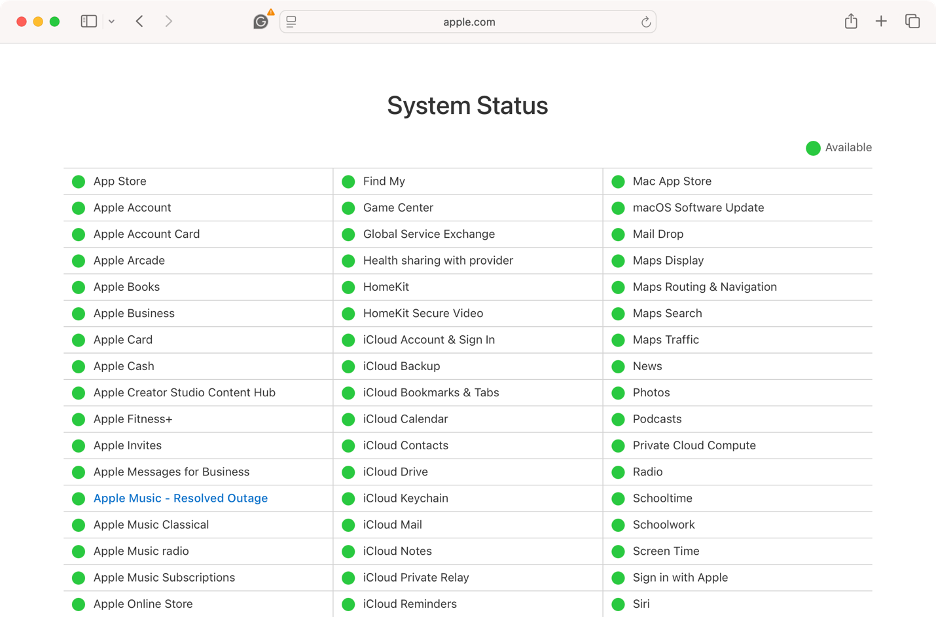
A stable connection is essential for a successful macOS reinstallation. Our first tip is ensuring your Internet connection is reliable and that Apple’s servers are functioning properly. Follow these steps to verify both:
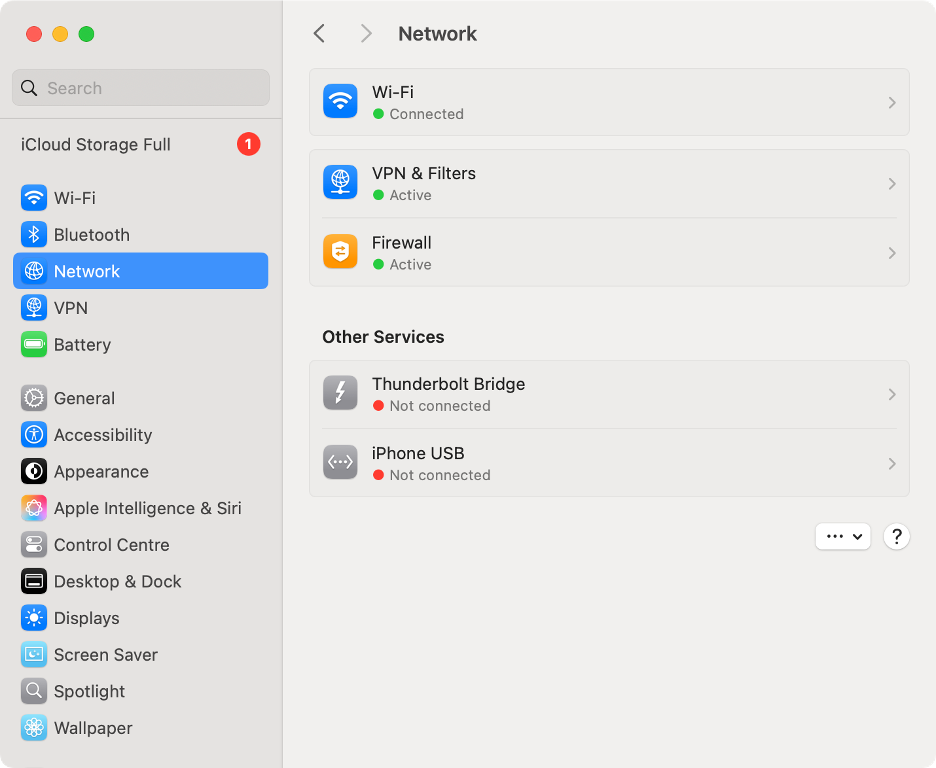
To confirm your Mac is connected to the Internet, open System Settings.
Select Network from the left sidebar.
Step 1. Safari > Apple’s System Status pageStep 2. System Settings > Network
2. Fix Date & Time
Based on our experience, the “installer information on the recovery server is damaged” error is frequently triggered by a mismatch between your Mac’s date and time and the certificate associated with the macOS version you’re attempting to install, often due to an expired certificate.
To resolve this, set your Mac’s date and time to a few months after the release of that macOS version. Here’s how to adjust your date and time settings:
Boot your Mac into macOS Recovery Mode:
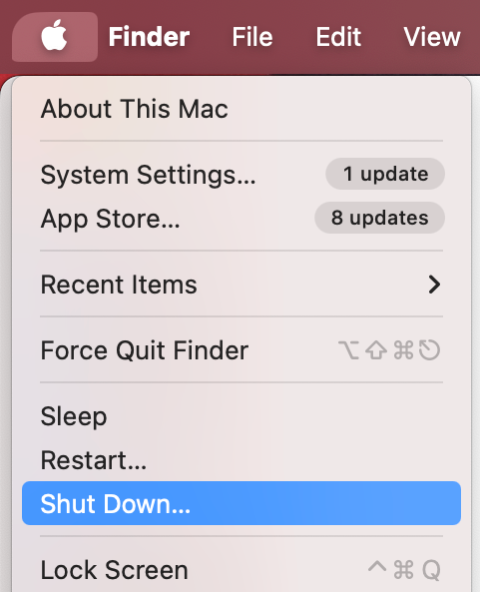
On an Intel-based Mac, go to the Apple logo in the menu bar and click Shut Down, press the Power button, then hold down the Command and R keys until you see the Apple logo.
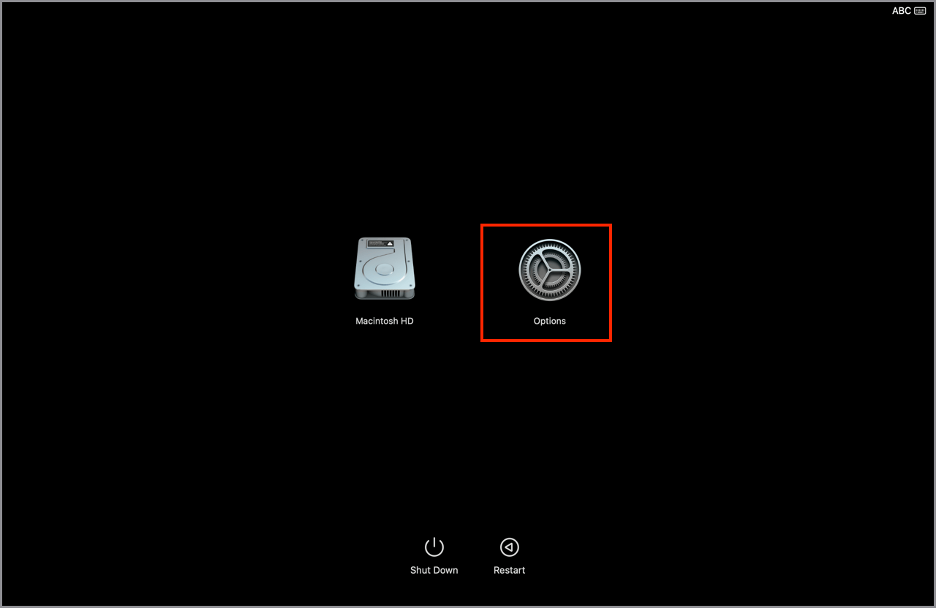
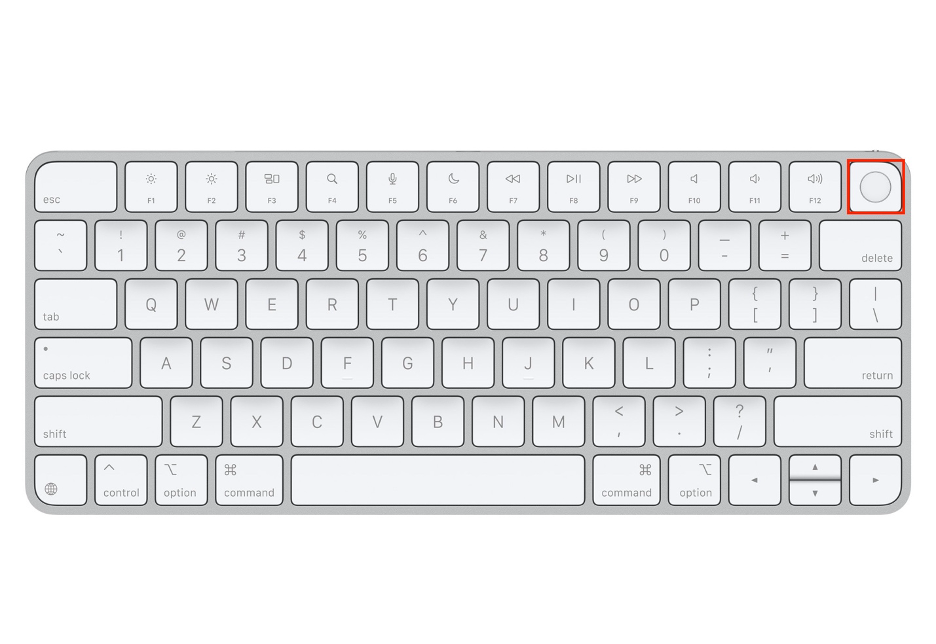
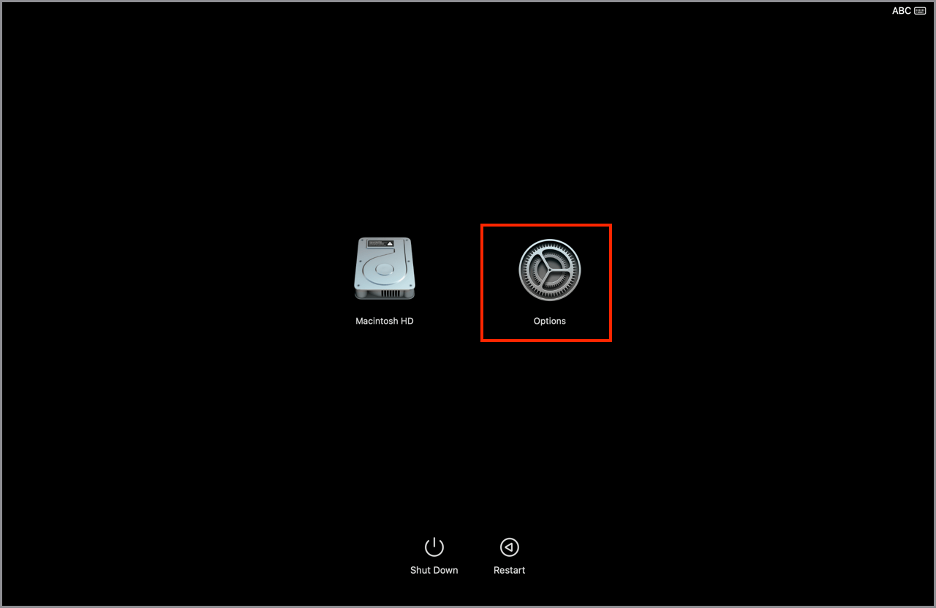
On an Apple Silicon Mac, click the Apple logo in the menu bar and select Shut Down, then press and hold down the Power button until you see the startup options.
Click Options (or wait until you see the utilities list if you use an Intel-based Mac).
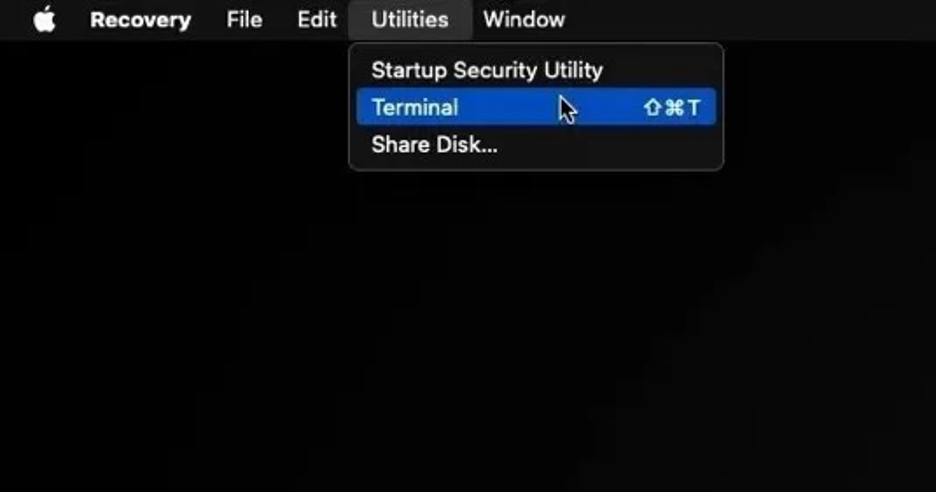
Click Utilities at the top of your screen and select Terminal.
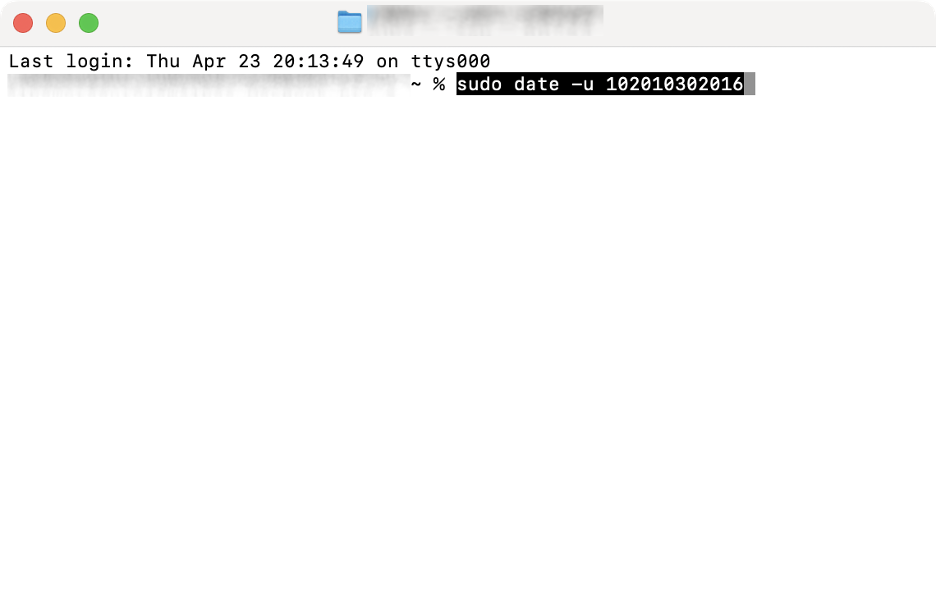
Enter the following command: sudo date -u 102010302016 (you can change the digits to your preferred date: {month}{day}{hour}{minute}{year}).
Type your admin password.
Exit Terminal.
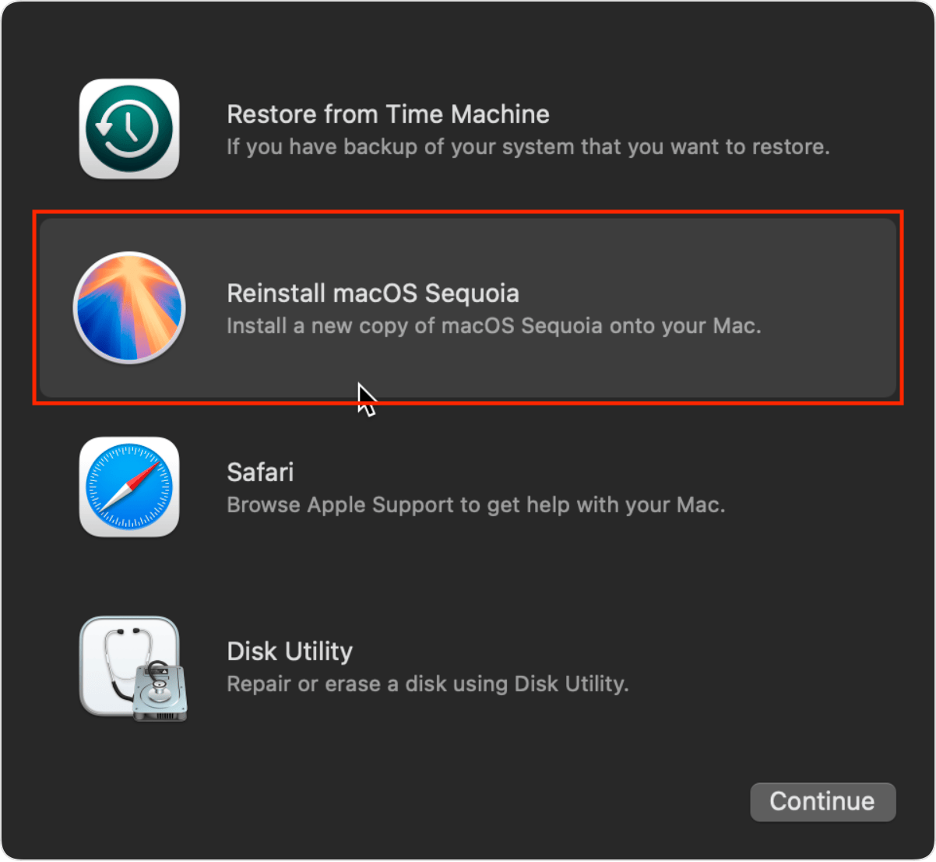
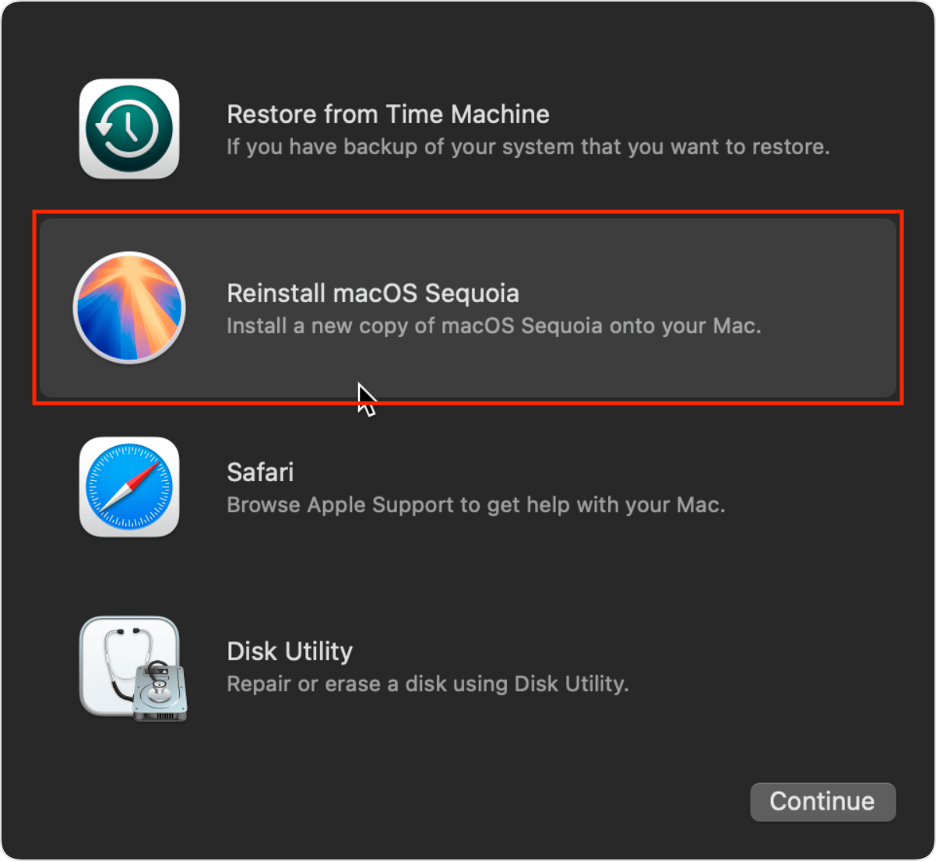
Click Reinstall macOS.
Step 1. Boot into macOS Recovery ModeStep 2. Utilities > TerminalStep 3. Enter the “sudo date -u 102010302016” commandStep 4. Click Reinstall macOS
As you can see, this issue isn’t directly related to the clock displayed in your Mac’s menu bar or your MacBook’s time not updating. To help you with this, check our separate troubleshooting guide.
3. Use correct disk format for macOS version you’re installing
We believe that another possible reason for the “installer information on the recovery server is damaged” error is that the disk you’re installing macOS on is either not formatted correctly or isn’t compatible with the macOS version you’re attempting to install.
Consider the following:
The startup disk should be formatted as APFS for all modern Mac models.
If your Mac originally shipped with a version of macOS earlier than Catalina (macOS 15), the disk should be formatted as macOS Journaled Extended.
If you’re installing a version newer than High Sierra, the disk must be formatted as APFS for compatibility.
If you’ve previously installed a version newer than High Sierra, your disk is already formatted as APFS. In this case, you can’t reinstall a version earlier than Catalina, as it doesn’t support APFS.
For external disks, always check the disk format to ensure that it’s compatible with the version of macOS you want to install.
4. Check and repair disk in Disk Utility (First Aid)
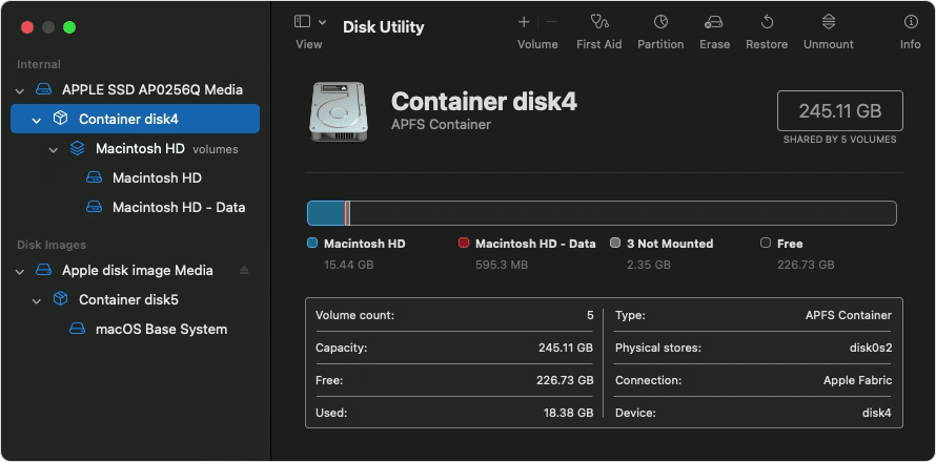
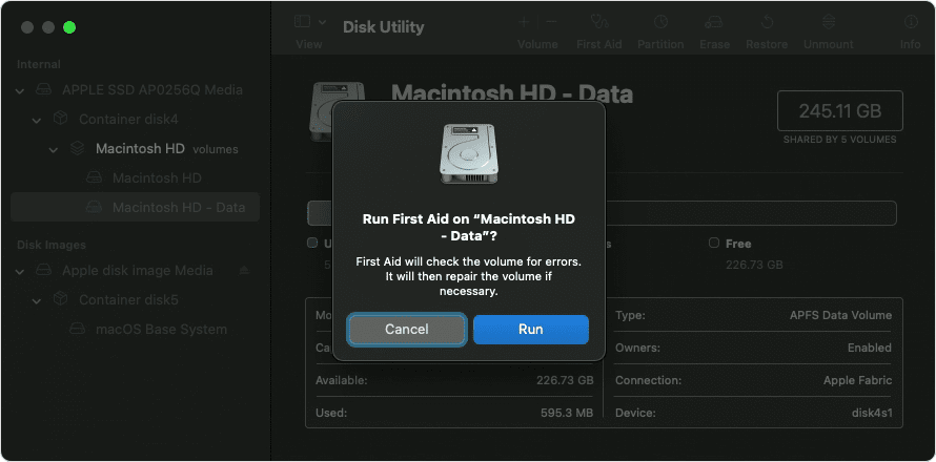
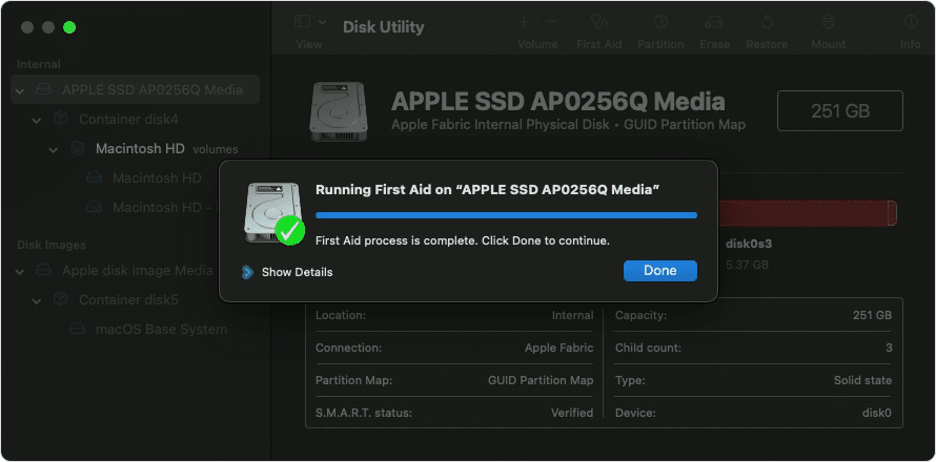
Another potential cause to consider is that your macOS installation may have failed due to disk or volume errors. Before attempting more drastic solutions, we recommend repairing the disk you’re using for the installation.
Here’s how to repair a disk using Disk Utility on your Mac:
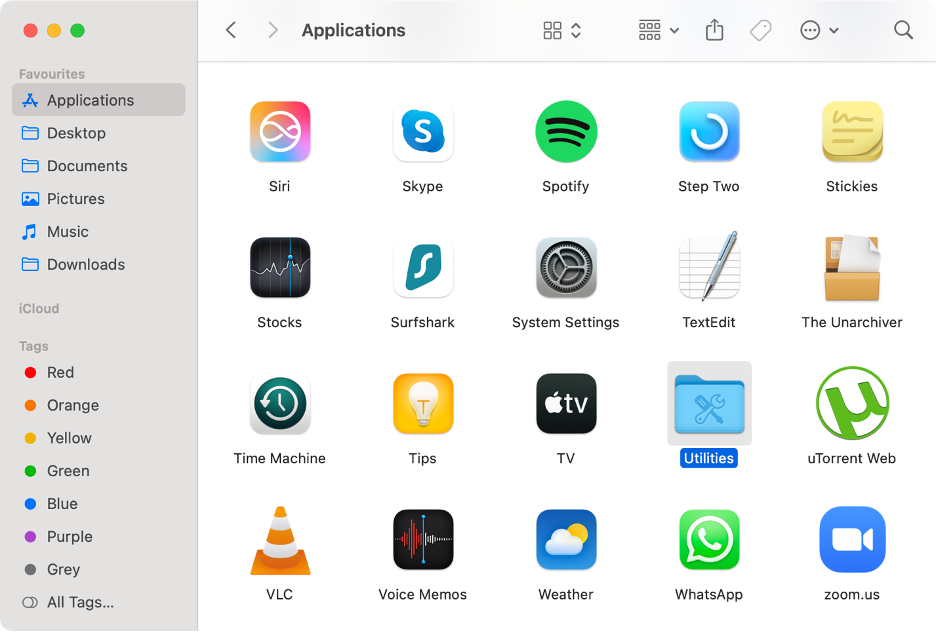
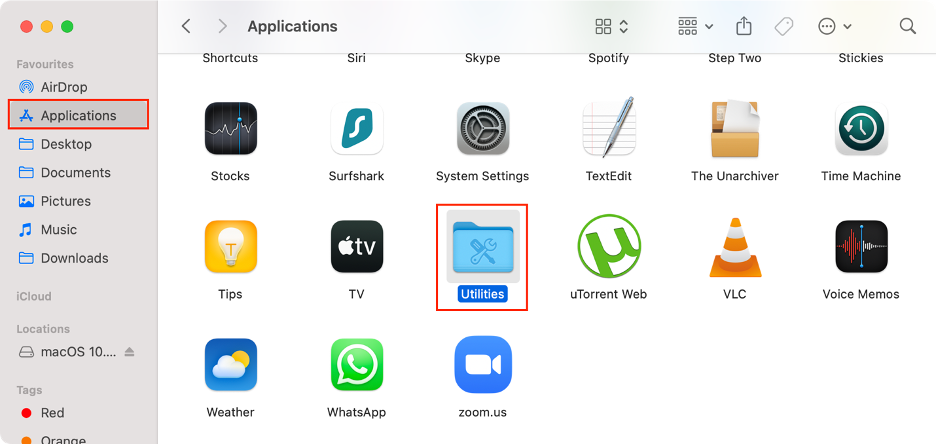
In Finder, click Applications.
Open the Utilities folder.
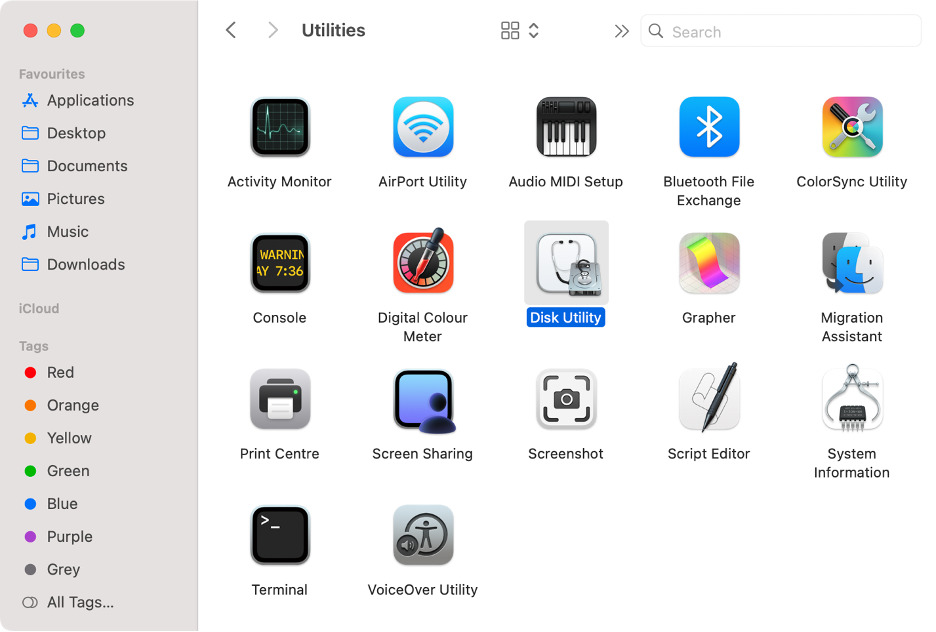
Find and launch Disk Utility.
Select your startup disk.
Click First Aid, then click Run.
Hit Done.
Step 1. Finder > Applications > UtilitiesStep 2. Launch Disk UtilityStep 3. Select your diskStep 4. First Aid > RunStep 4. Click Done to finish the process
5. Use Internet Recovery to reinstall macOS
We strongly recommend attempting the installation again using Internet Recovery rather than the standard Recovery Mode. Internet Recovery on Mac often helps bypass persistent issues, making it one of the most effective solutions.
Here’s a step-by-step guide to reinstall macOS using Internet Recovery Mode:
Go to the Apple logo in the menu bar.
Click Shut Down.
Wait a few seconds.
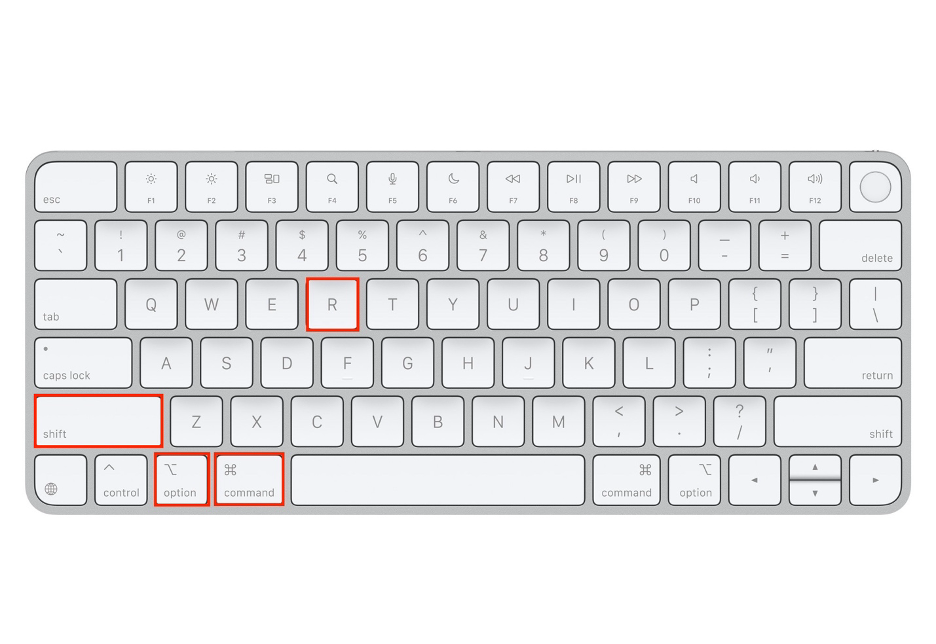
Hold down the Shift + Option + Command + R keys simultaneously.
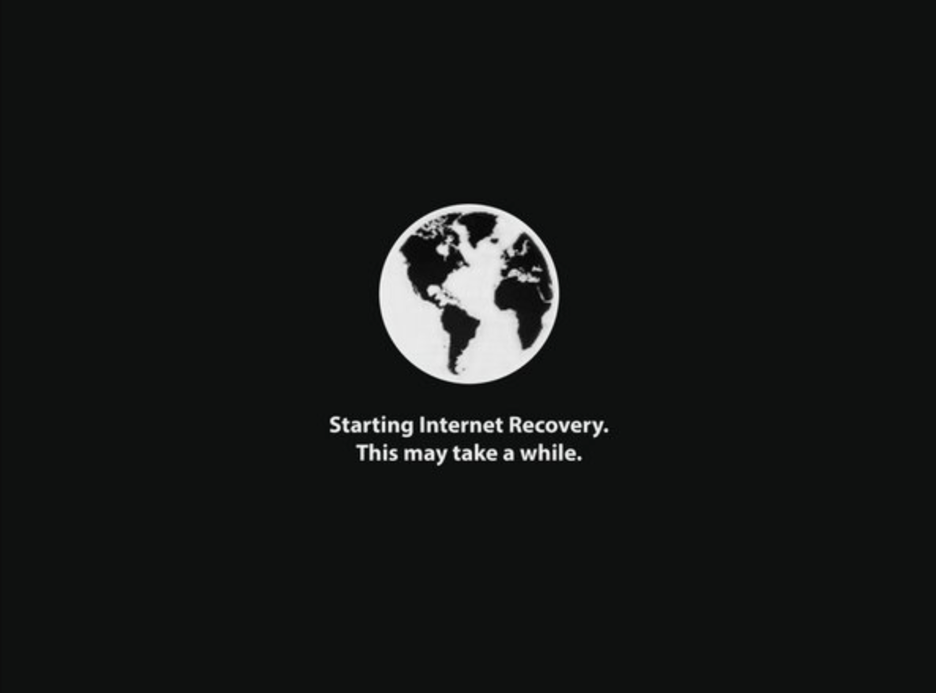
Release the keys once you see the spinning globe icon.
Connect to your Wi-Fi network.
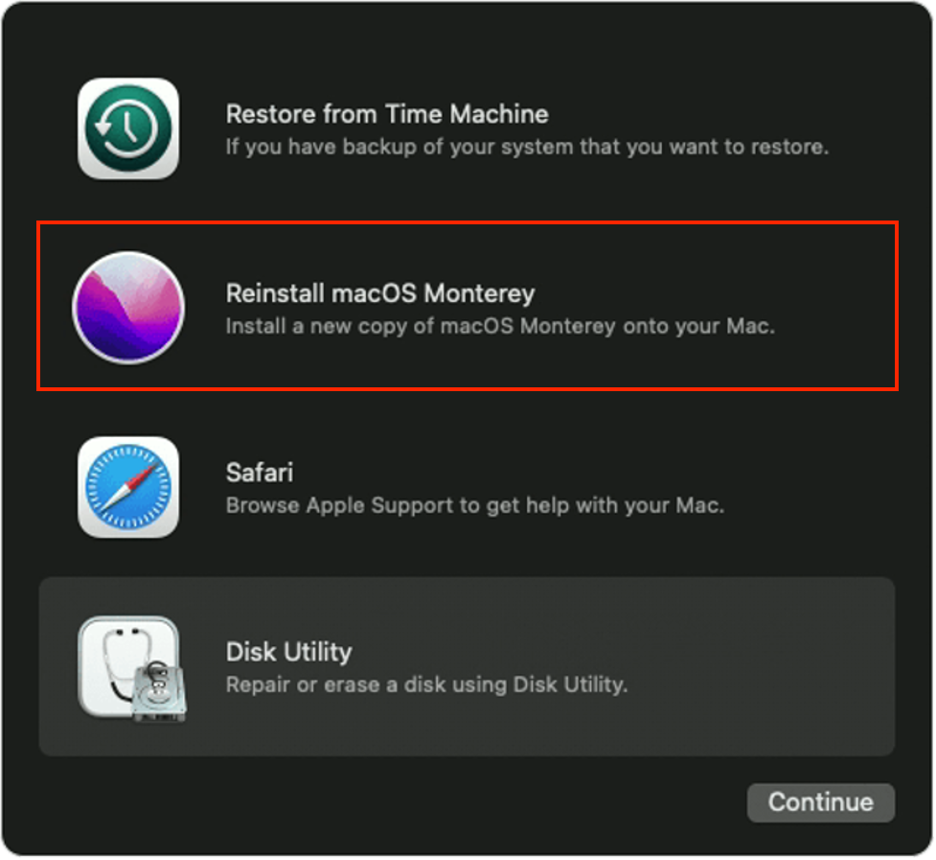
Click Reinstall macOS.
Follow the steps on your screen.
Step 1. Apple icon > Shut DownStep 2. Shift + Option + Command + RStep 3. Wait until Internet Recovery Mode startsStep 4. Click Reinstall macOS
6. Create and install from bootable USB installer
If you’re experiencing persistent problems installing macOS (such as unstable downloads, repeated verification failures, or disk format incompatibility), we suggest that you create a bootable installer for macOS. Using an external drive with a bootable installer enables you to reinstall macOS without relying on your startup disk.
We explain how to reinstall macOS from a bootable USB installer bellow:
Open Finder, go to Applications, then open the Utilities folder.
Launch Disk Utility.
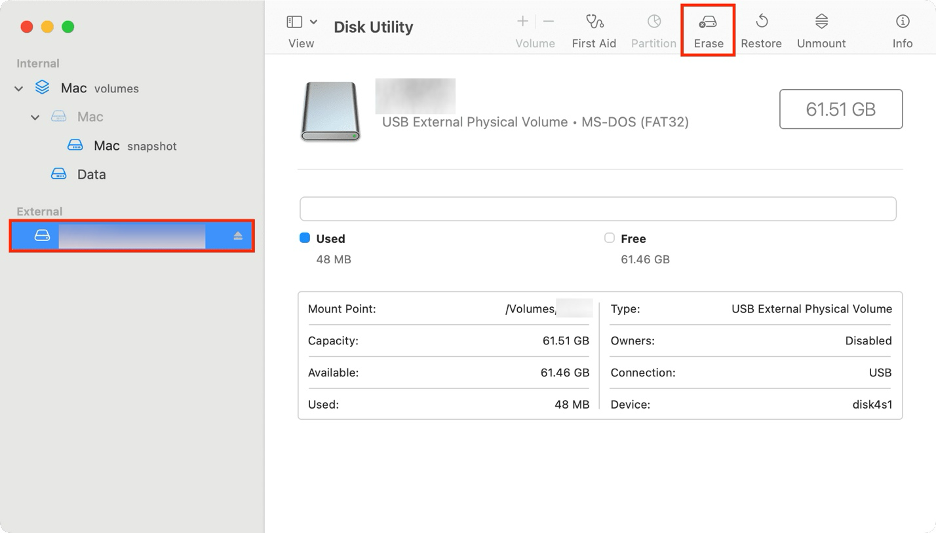
Select your external drive from the sidebar.
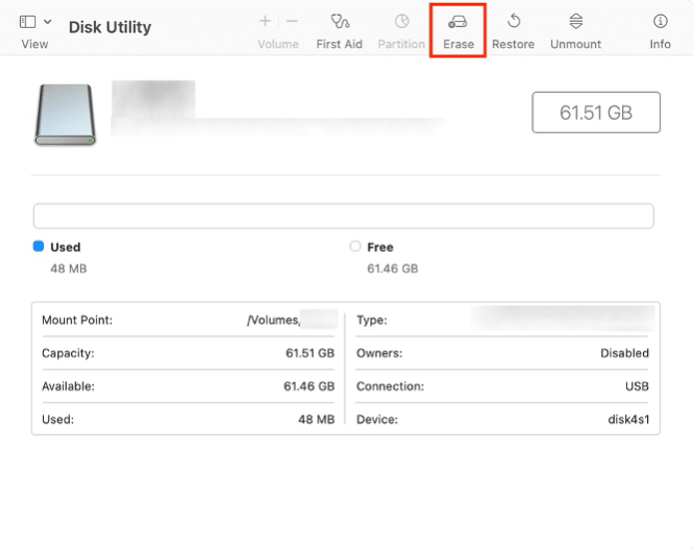
Click Erase.
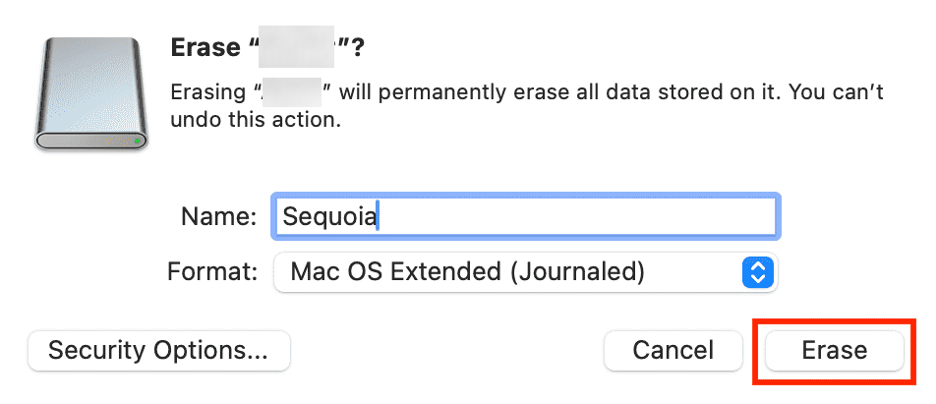
Rename your disk as “MacInstaller.”
Choose a compatible disk format.
Hit Erase, then click Done.
Close Disk Utility.
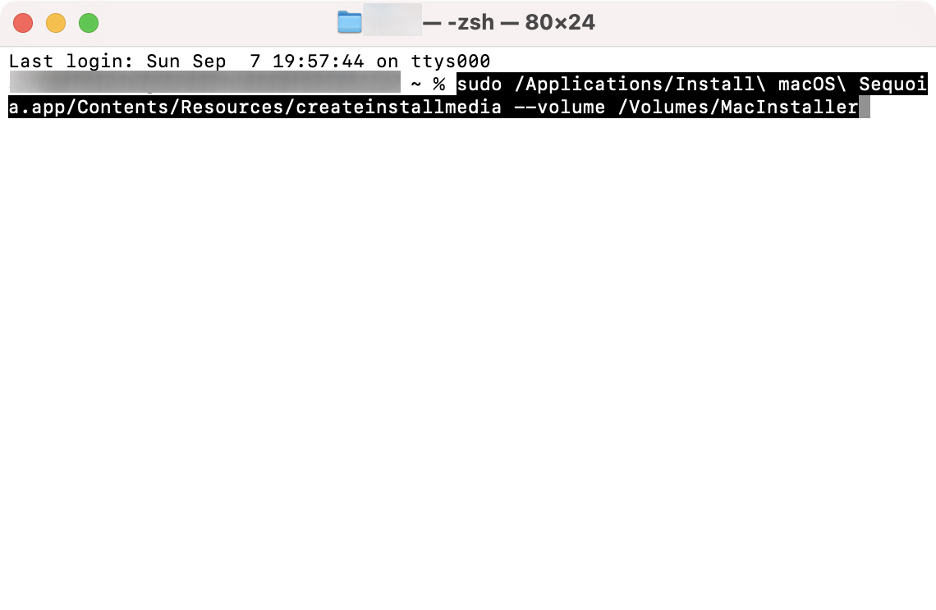
Go back to the Utilities folder, and launch Terminal.
Enter the following command to create a bootable installer (change the macOS name for previous versions): sudo /Applications/Install\ macOS\ Sequoia.app/Contents/Resources/createinstallmedia --volume /Volumes/MacInstaller.
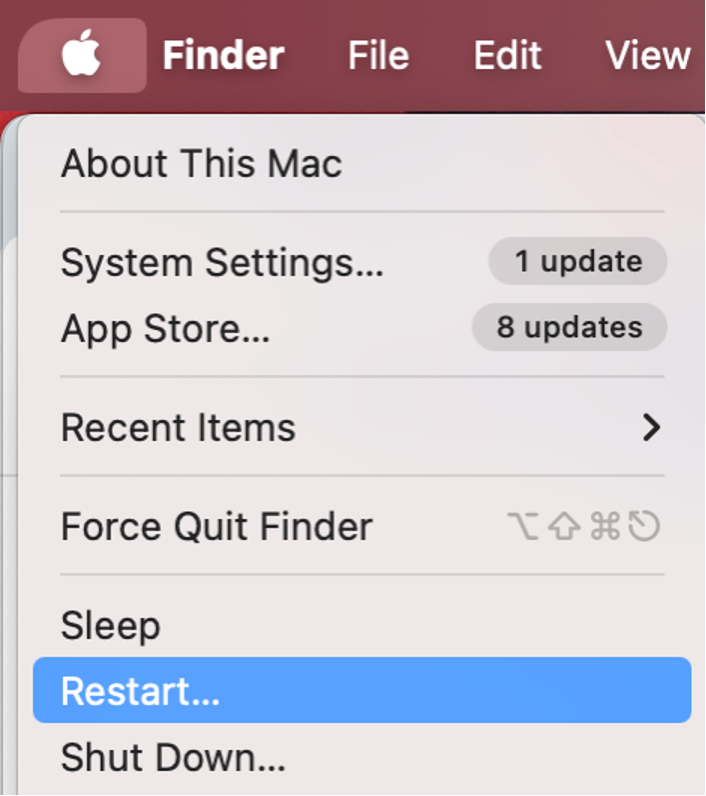
Click the Apple icon in the menu bar, then select Restart.
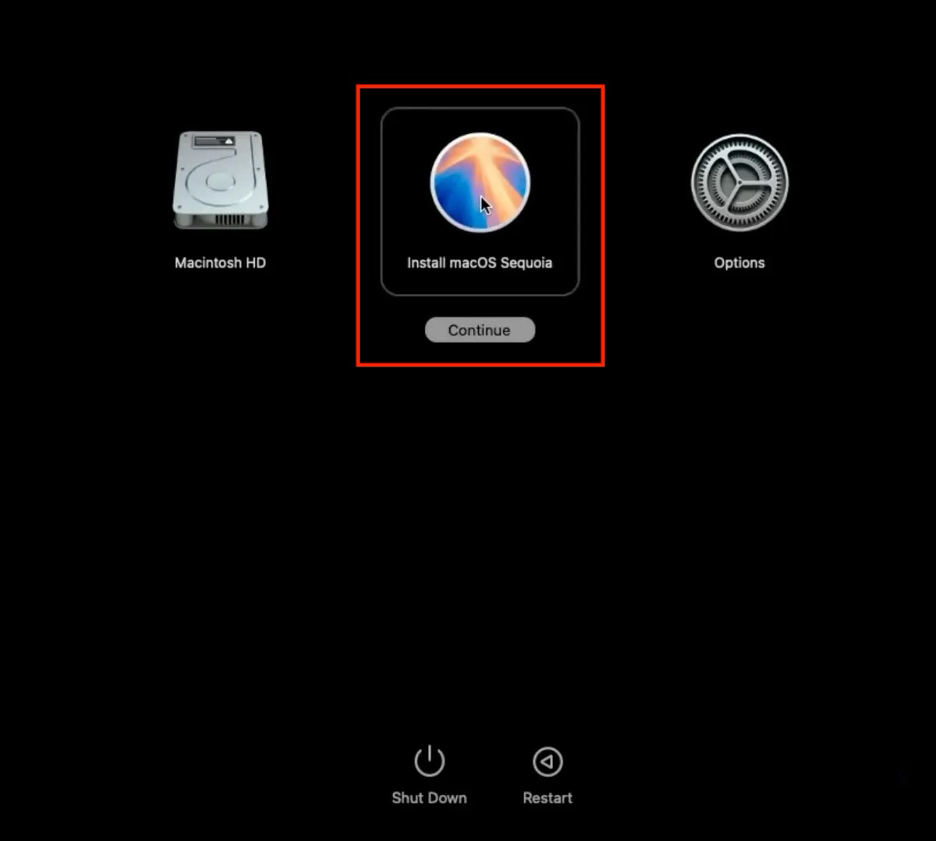
Hold down the Power button until you see the startup options.
Choose the Install[macOS version] disk.
Select Reinstall macOS.
Step 1. Applications > Utilities > Disk UtilityStep 2. Select your external disk > Click EraseStep 3. Rename your disk and select a compatible formatStep 4. Launch Terminal and type in the commandStep 5. Apple icon > RestartStep 6. Hold down the Power buttonStep 7. Select the macOS installerStep 8. Click Reinstall macOS
7. Erase startup disk and reinstall macOS (last resort)
If you continue to encounter verification errors, we suggest formatting your startup disk. However, this step should always be considered a last resort, as it’ll erase all data and settings from your Mac. We highly recommend backing up your important files before proceeding.
On Intel-based Macs, press the Powerbutton and hold down Command + R until you see the Apple logo.
On Apple Silicon Macs, hold down the Powerbutton until the startup options appear on your screen.
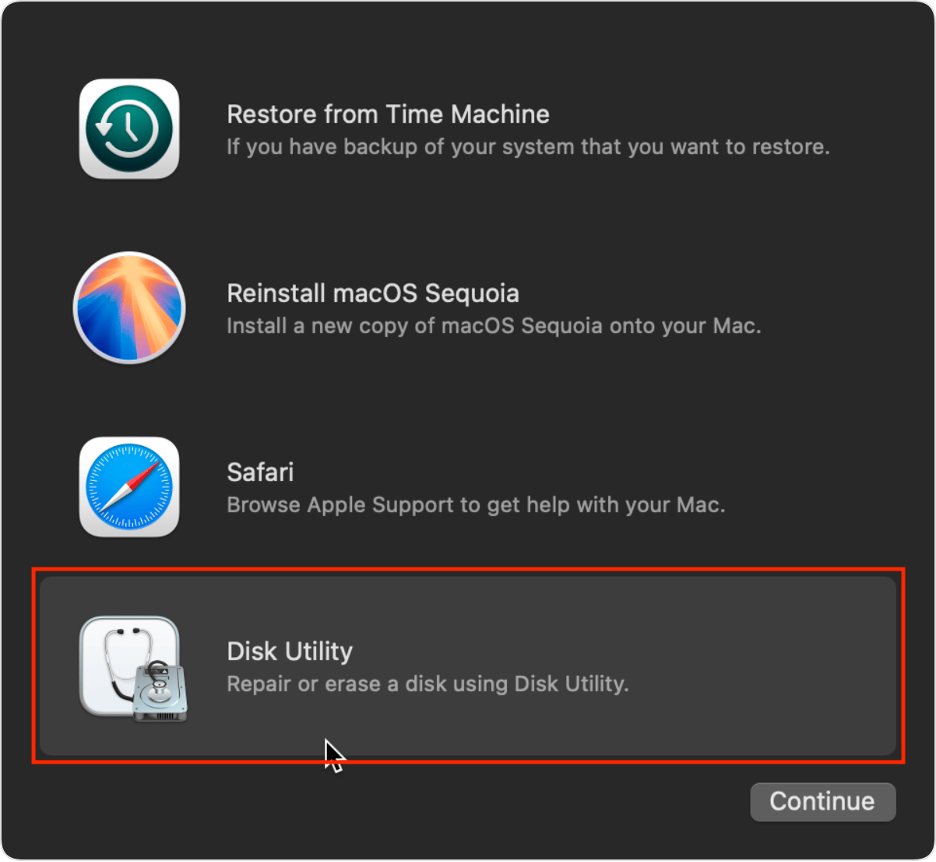
Click Disk Utility from the list.
Choose your startup disk in the sidebar.
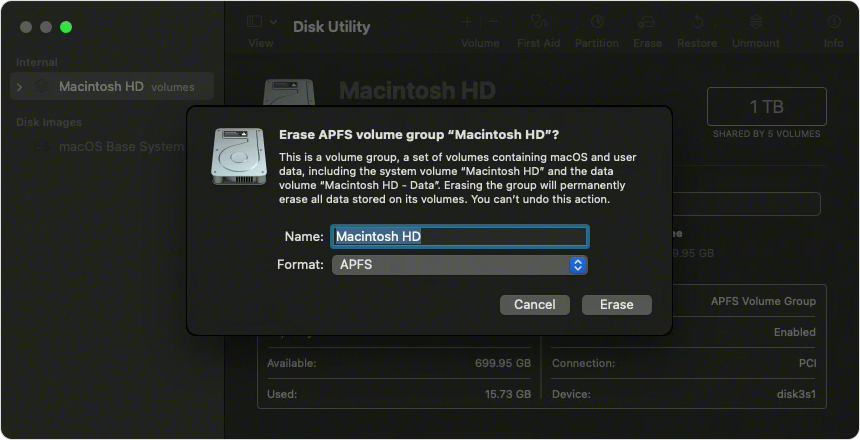
Click Erase.
Choose a name and a format for your disk.
Click Erase or Erase Volume Group.
When the process is complete, close Disk Utility.
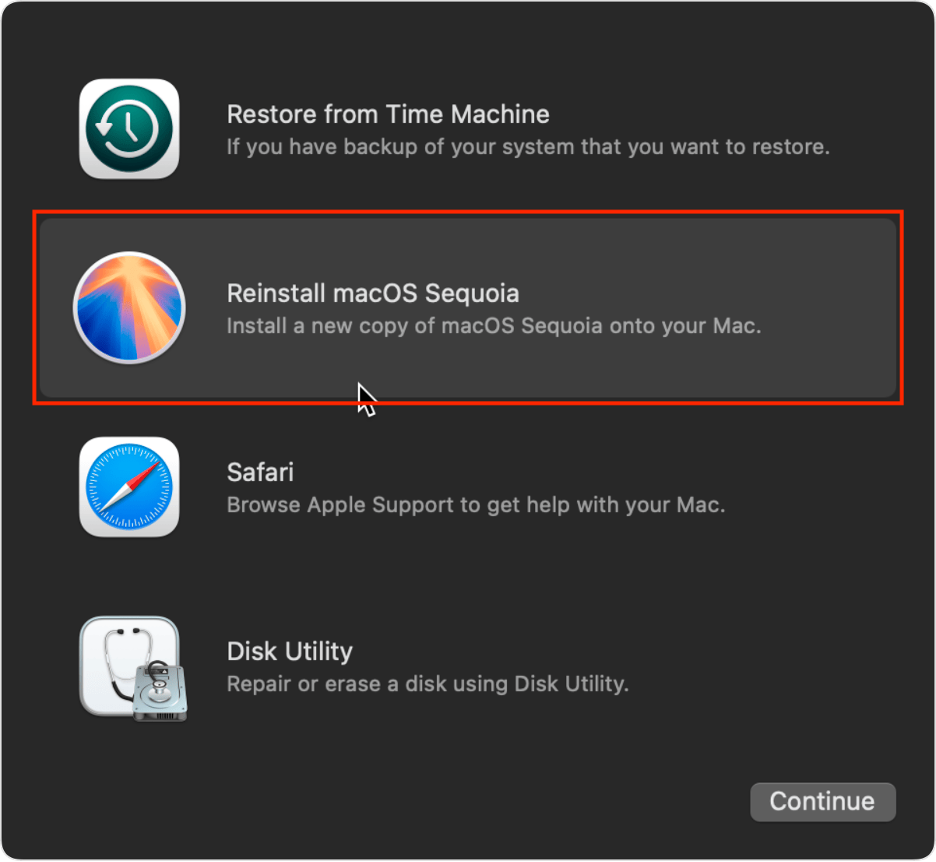
Click Reinstall macOS.
Step 1. Boot into macOS Recovery ModeStep 2. Select Disk UtilityStep 3. Select your startup disk > Click EraseStep 4. Choose a name and a format > Click EraseStep 5. Click Reinstall macOS
The ultimate “The installer information on the recovery server is damaged” fix
Seeing the message “The installer information on the recovery server is damaged” can be concerning, but in most cases, it simply indicates an incompatibility issue. Begin by checking that Apple’s servers are operational, your Mac’s date and time are accurate, and your disk is properly formatted. You can then attempt to resolve the issue using Disk Utility, Internet Recovery, or a bootable USB installer.
Before considering the most drastic option—erasing your startup disk —we recommend contacting our experts at MacKeeper’s Premium Services. Notarized by Apple and trusted by millions, MacKeeper is also the leading solution in Mac optimization and cybersecurity.
We respect your privacy and
use cookies
for the best site experience.
Privacy Preferences Center
We use cookies along with other tools to give you the best possible experience while using the
MacKeeper website. Cookies are small text files that help the website load faster. The cookies we
use don’t contain any type of personal data meaning they never store information such as your
location, email address, or IP address.
Help us improve how you interact with our website by accepting the use of cookies. You can change
your privacy settings whenever you like.
Manage consent
All cookies
These cookies are strictly necessary for enabling basic website functionality (including page
navigation, form submission, language detection, post commenting), downloading and purchasing
software. The website might malfunction without these cookies.