Your Mac's desktop keyboard stopped working, and now you need to perform a factory reset. You can factory reset a Mac without a keyboard using Erase All Content and Settings, Recovery Mode via the power button, or Find My’s remote erase. Before resetting, we suggest you clean up junk files with MacKeeper’s Safe Cleanup to free up disk space.
A factory reset erases everything—your files, preferences, and accounts. Since your keyboard isn’t working, you’ll rely on mouse navigation and the on-screen Accessibility Keyboard for password entry. If possible, try to connect keyboard to Mac temporarily via USB before you begin—it’ll make a few steps easier.
A note from our experts:
As the factory reset is the cardinal measure, we usually recommend trying the safer cleanup alternatives that may solve your Mac problems. One of them is to clean up your MacBook’s space with MacKeeper’s Safe Cleanup, as accumulated cache and other clutter is one of the key culprits of more serious issues on your computer.
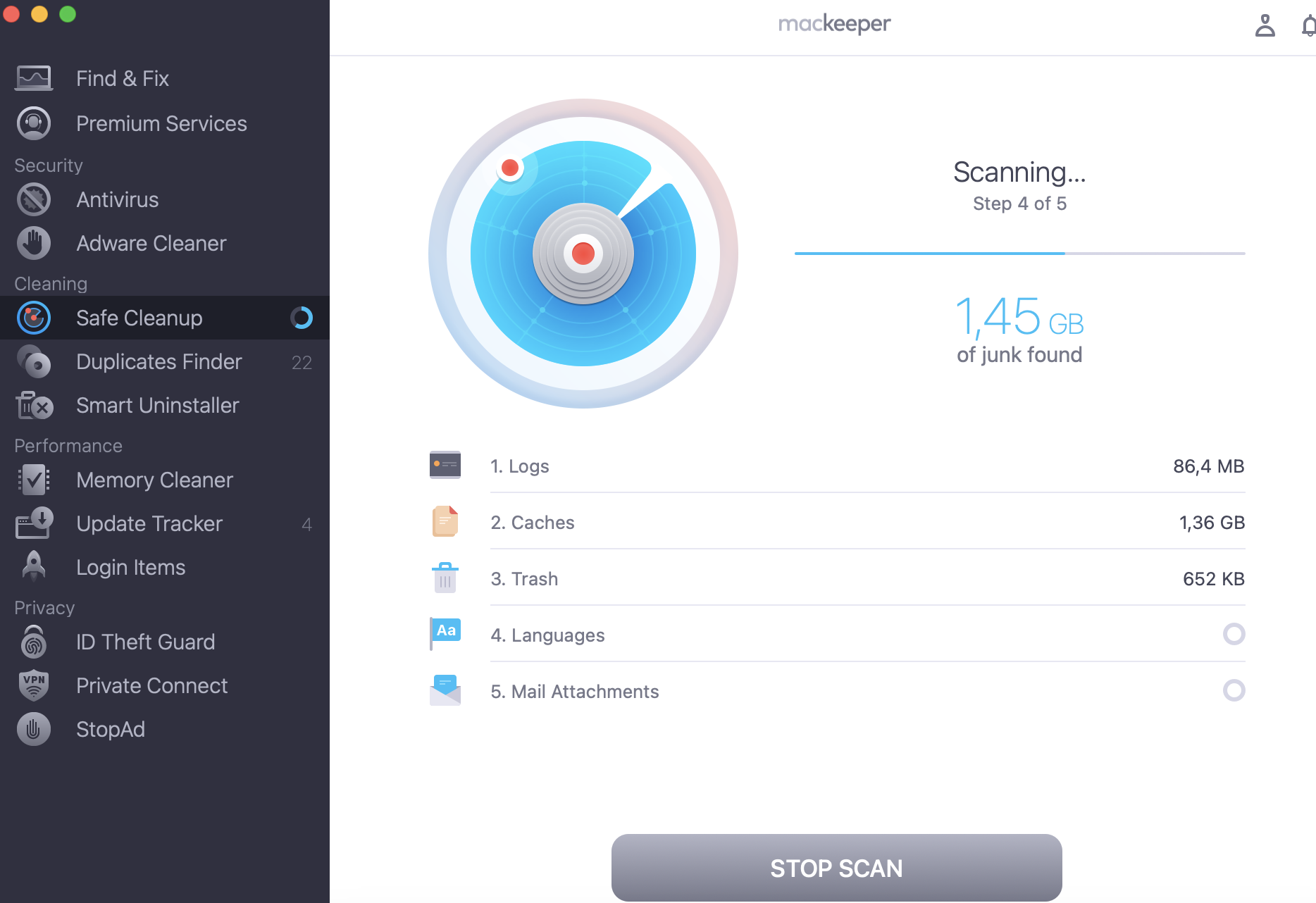
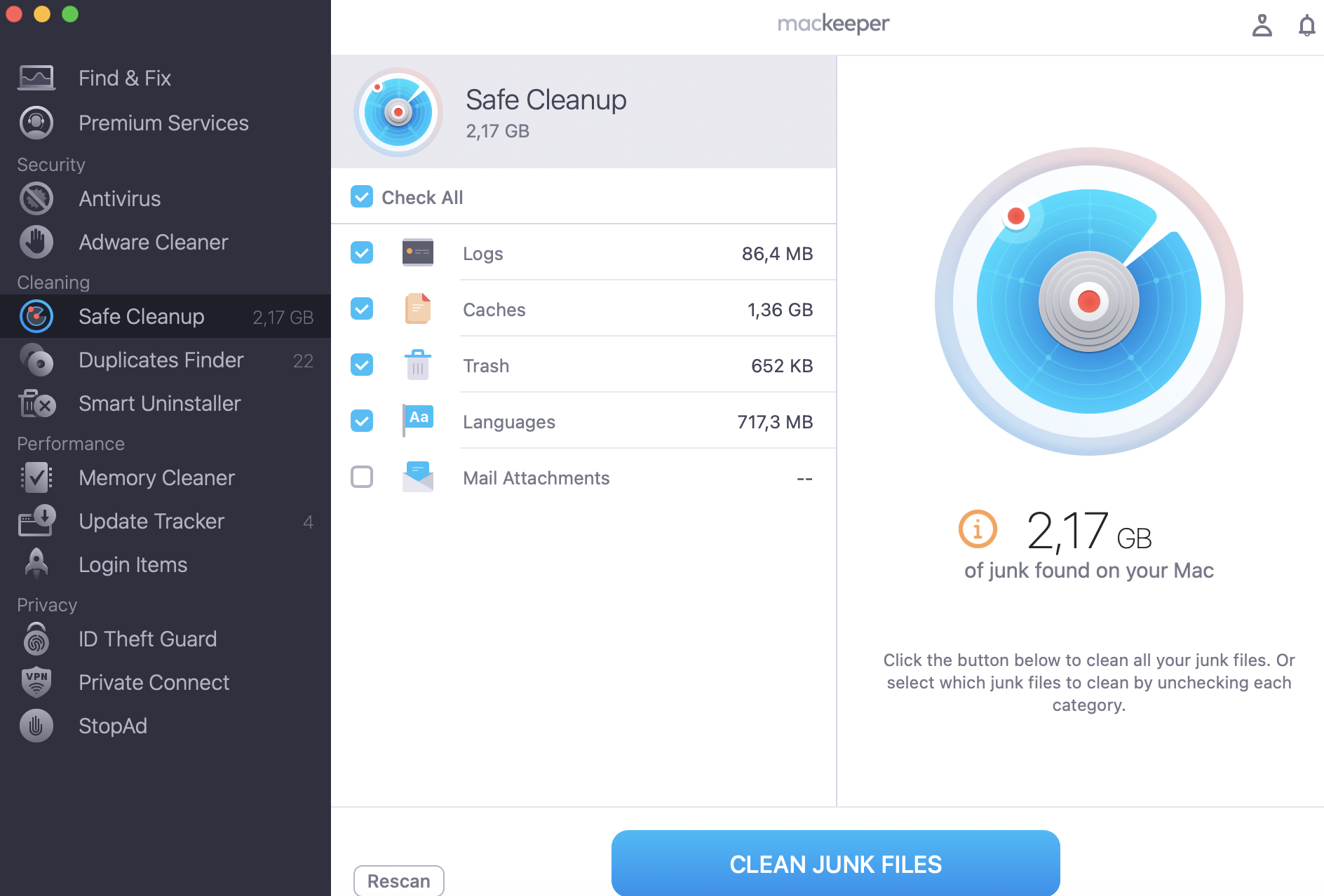
Here’s how to go further with MacKeeper’s Safe Cleanup:
Choose the Safe Cleanup feature from the sidebar menu.
Click the Start Scan button.
Select the files you’re ready to delete and press the Clean Junk Files button to remove them.
Step 1. Wait for MacKeeper’s Safe Cleanup to do its job after pressing the Start Scan buttonStep 2. See the scan results, then select unnecessary files and click Clean Junk Files
1. Back up important data (using mouse only)
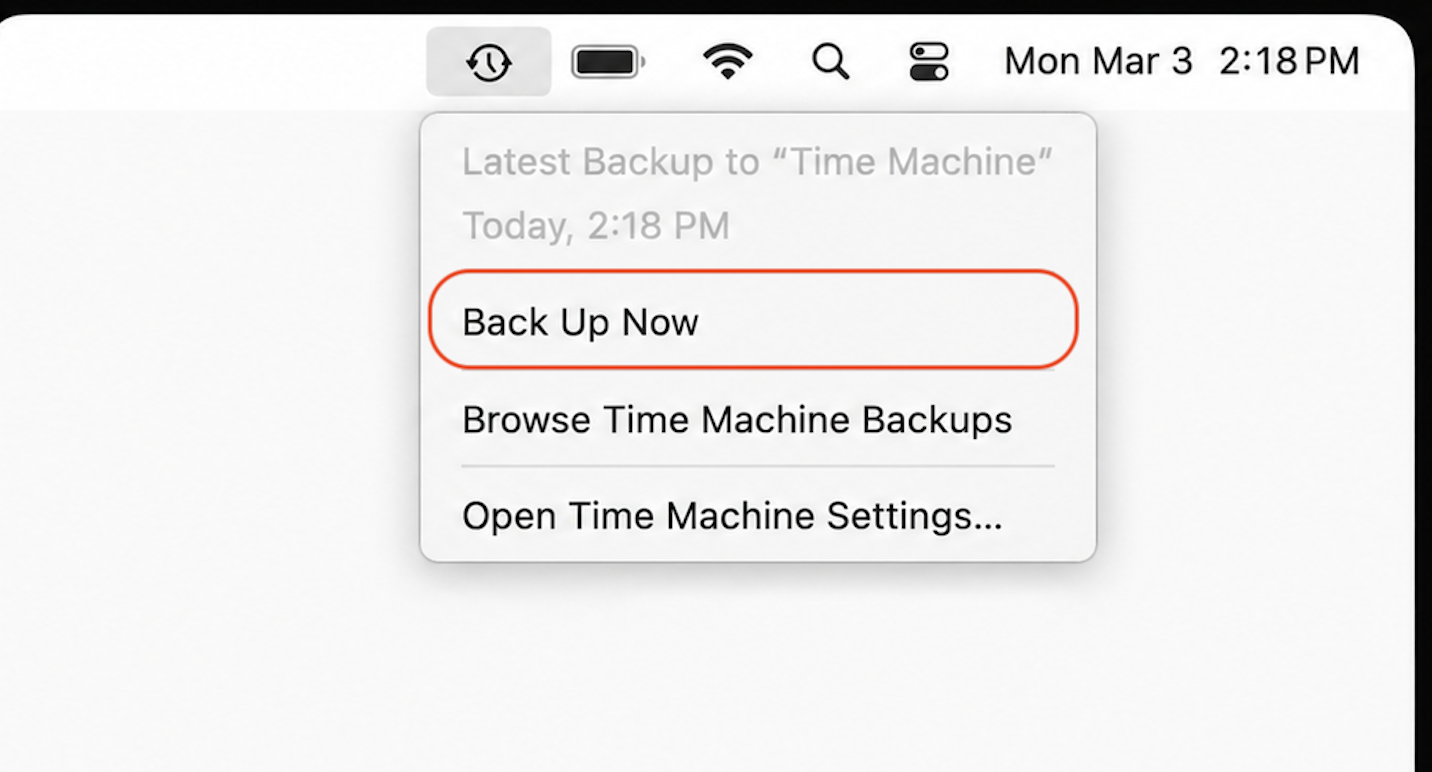
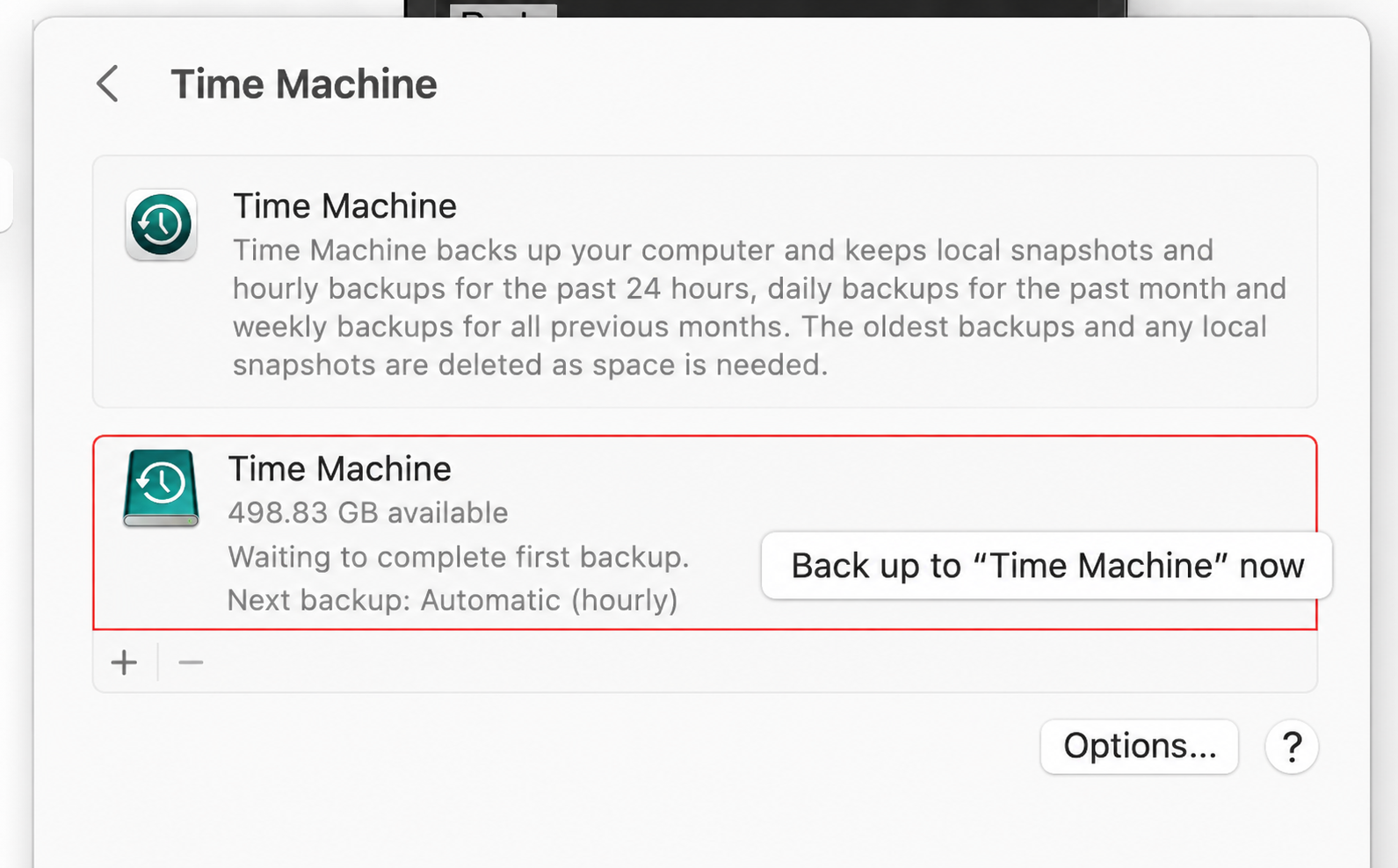
Don’t let years of photos, documents, and downloads vanish in one click. Backing up is the most important step before any factory reset. If you already use Time Machine with an external drive, starting a backup with your mouse is simple. Just select Time Machine in the upper-right corner, then click Backup Now.
Or here’s the alternative way for you:
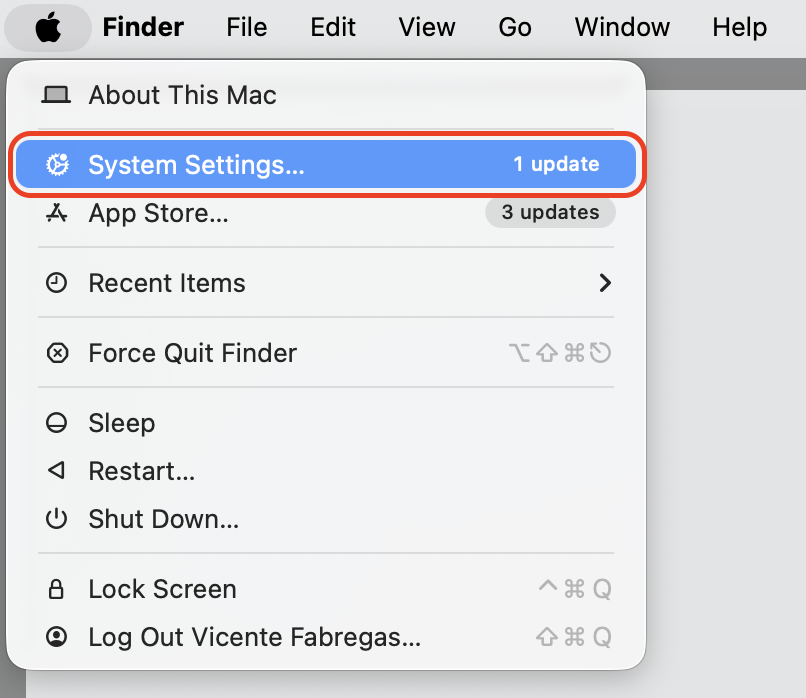
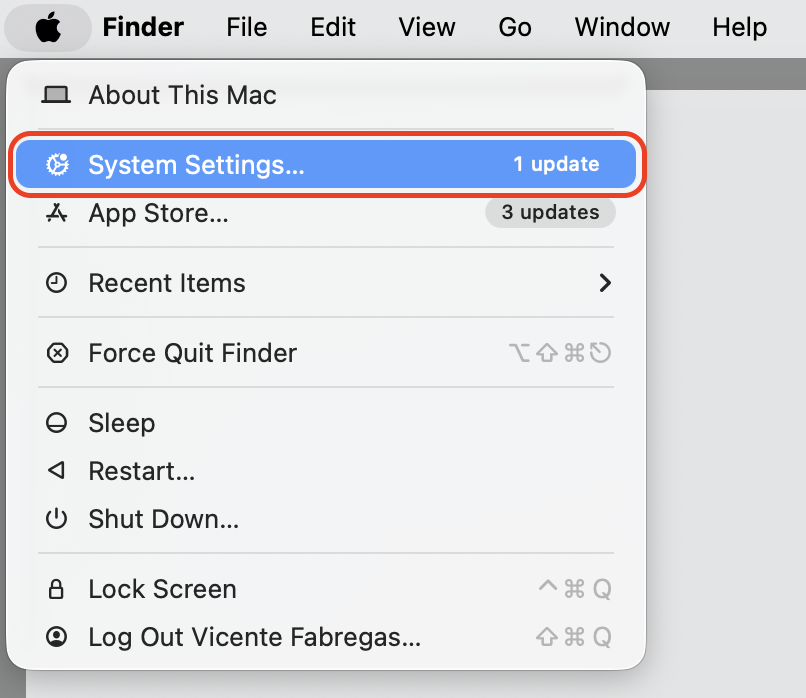
Click the Apple menu in the top-left corner.
Open System Settings (or System Preferences on older versions).
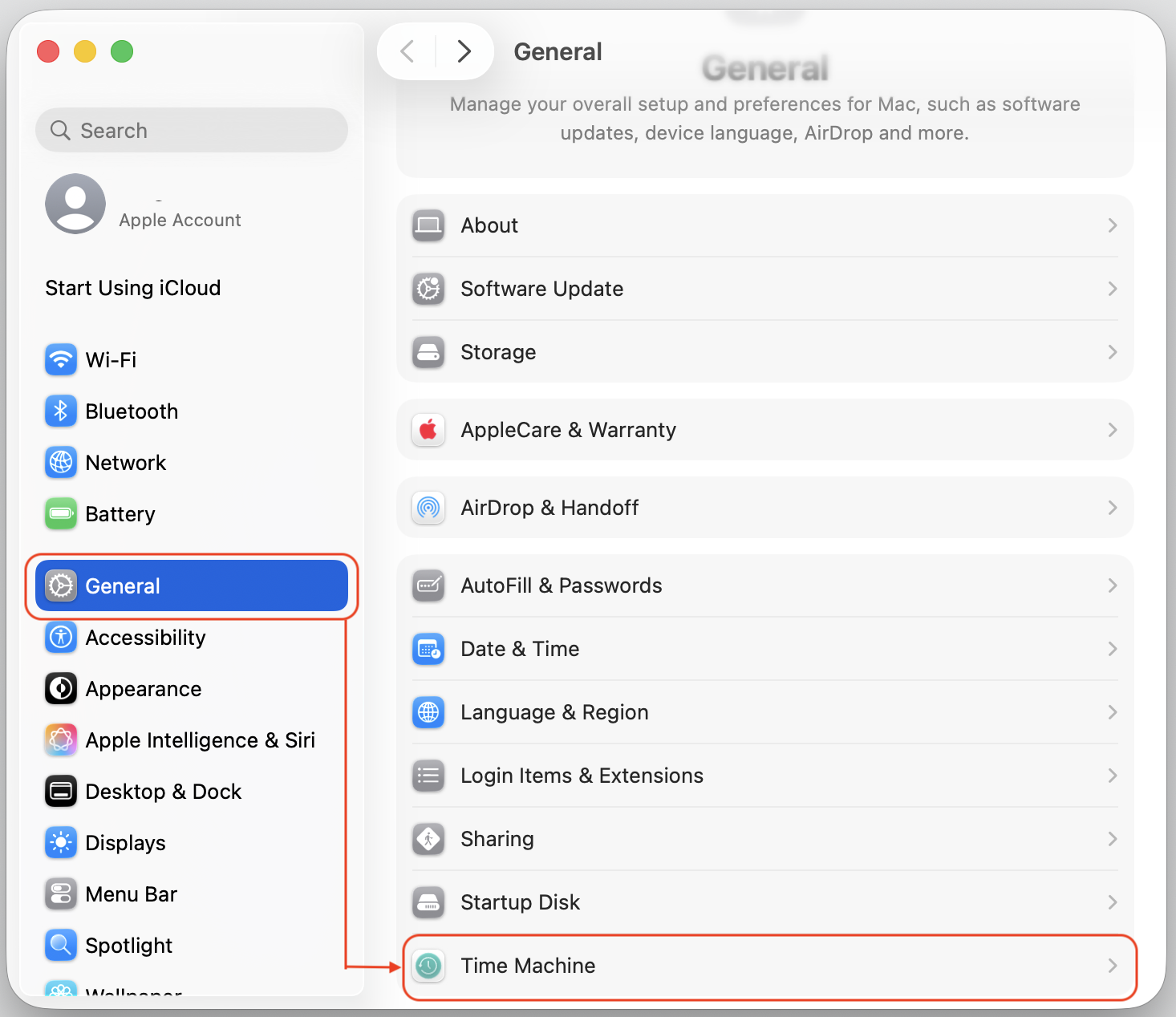
Select General, then click Time Machine.
Click Back Up Now.
Step 1. Go to Apple menu > System Settings
Step 2. Select General > Time MachineStep 3. Control-click on the backup disk in Time Machine and press Back Up Now
2. Sign out of Apple ID and disable Activation Lock
Skipping this step can lock your Mac to your Apple ID after the reset. We also warn you that signing out removes Activation Lock and unlinks your account from the device. You can also factory reset MacBook Pro without password if you’ve forgotten your credentials. Here’s how to proceed with the sign out:
Click the Apple menu and open System Settings.
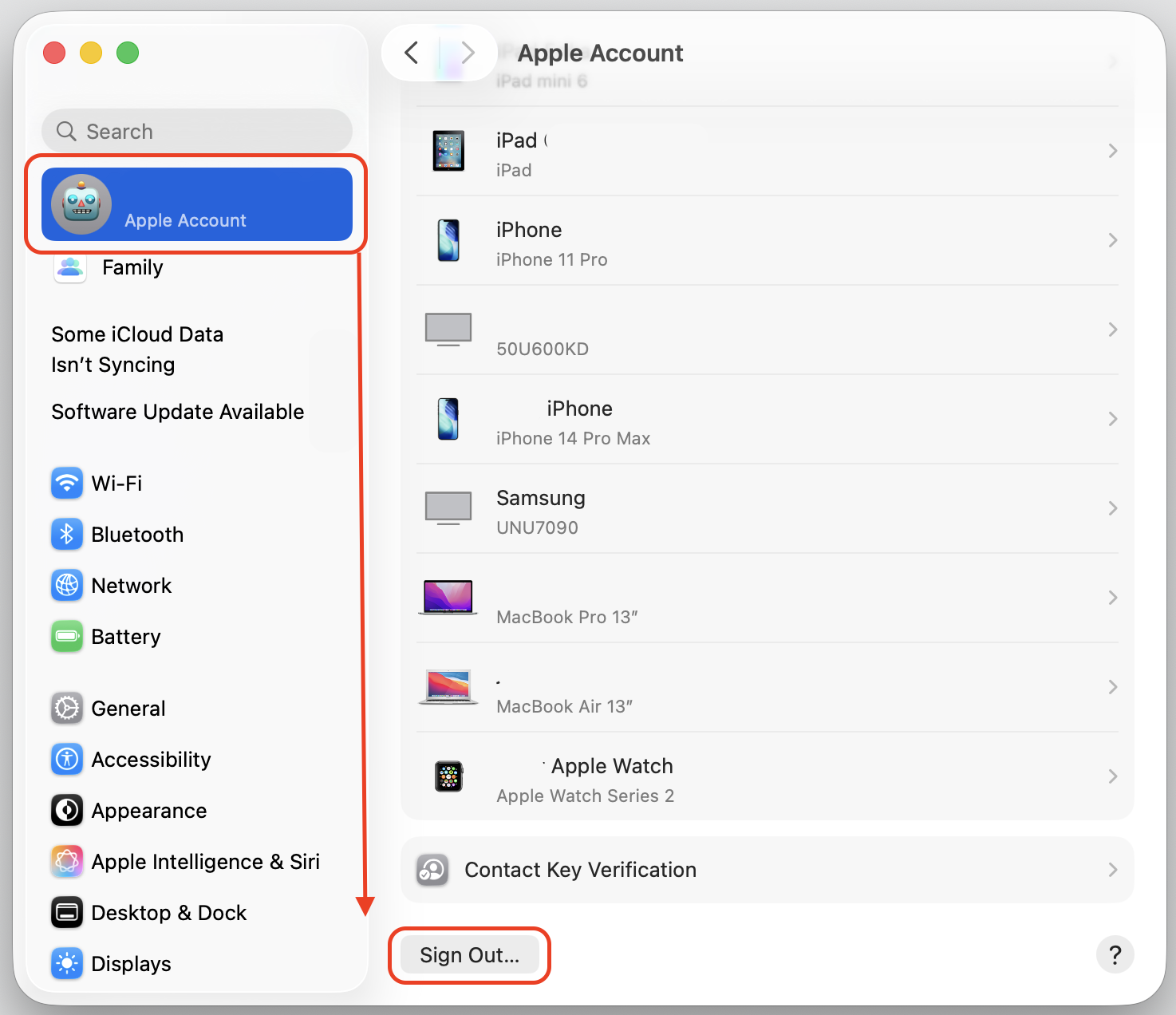
Click your Apple ID name at the top of the sidebar.
Scroll down and click Sign Out.
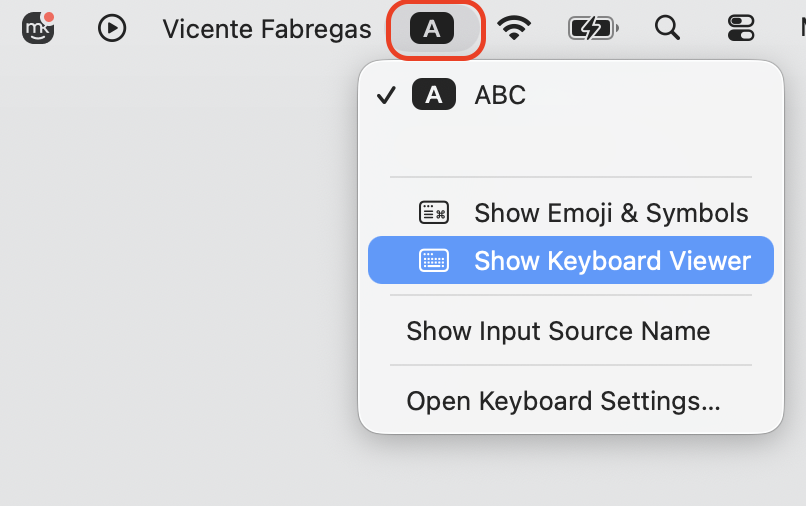
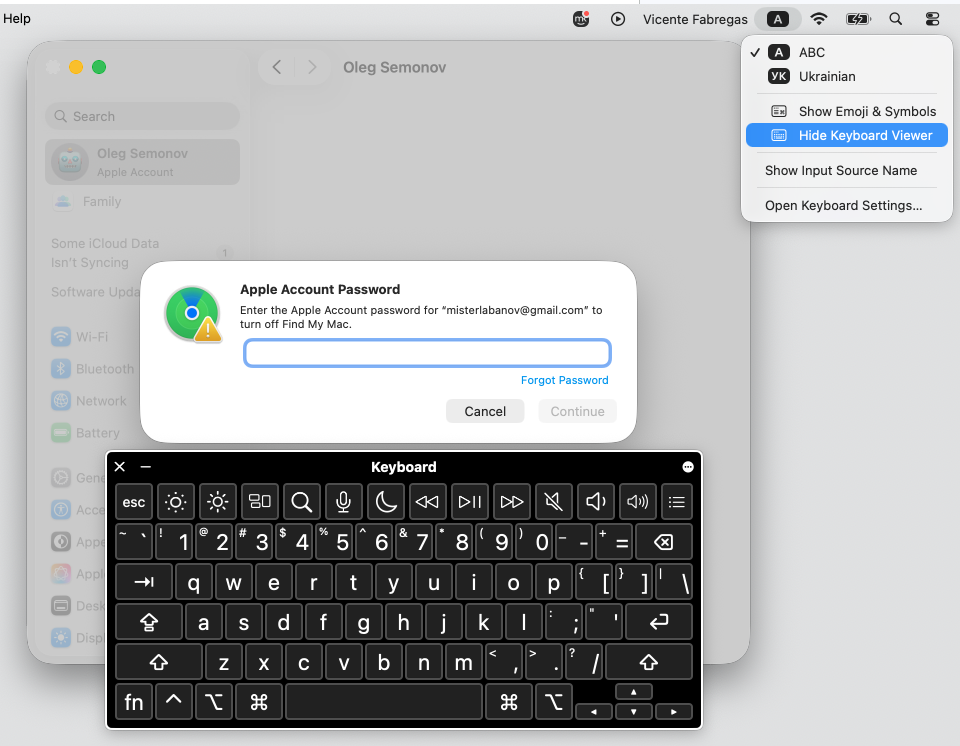
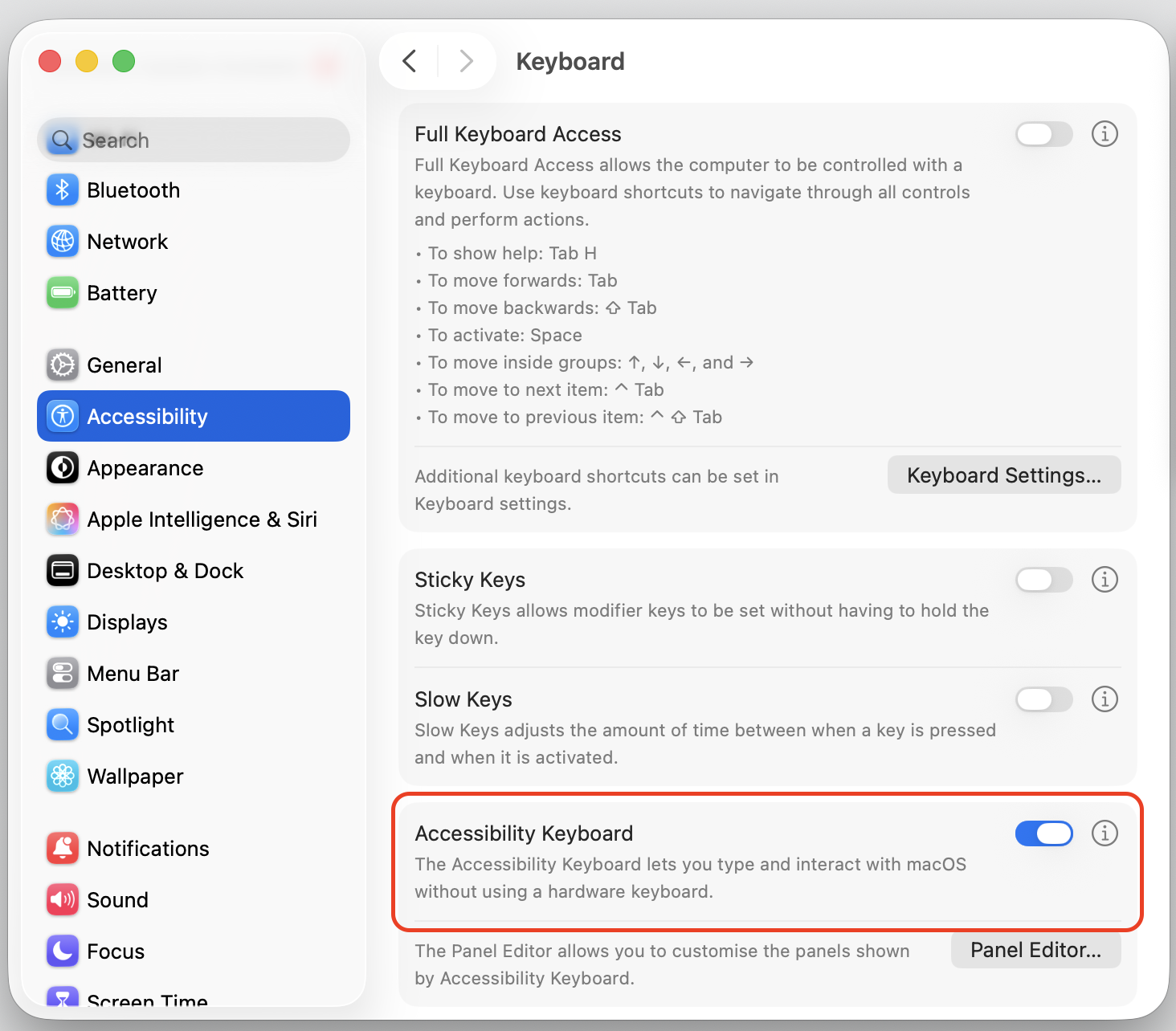
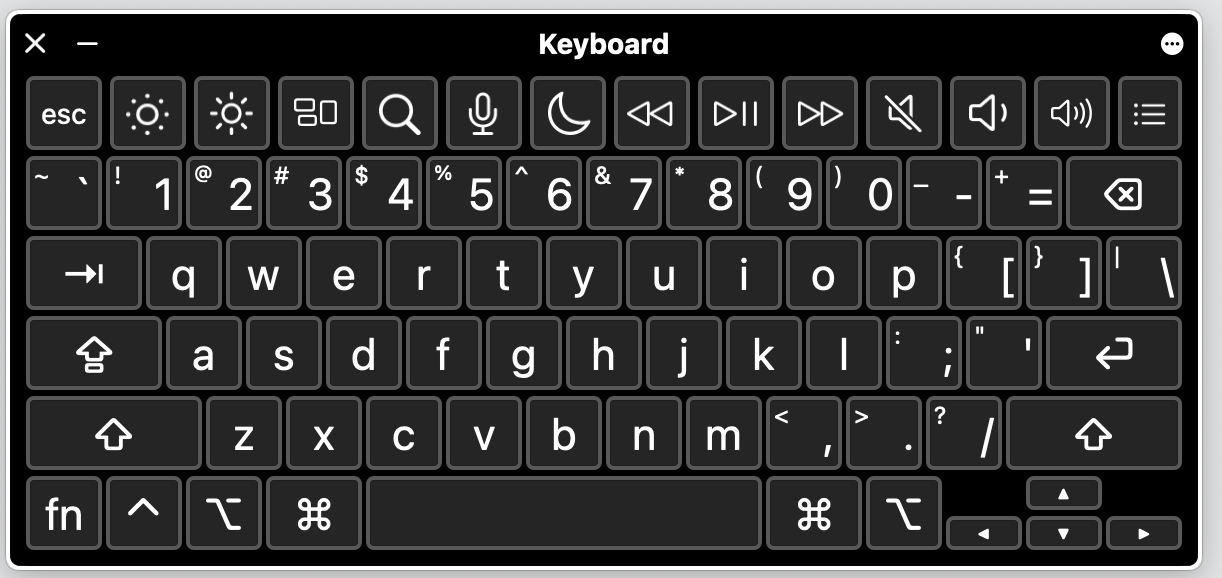
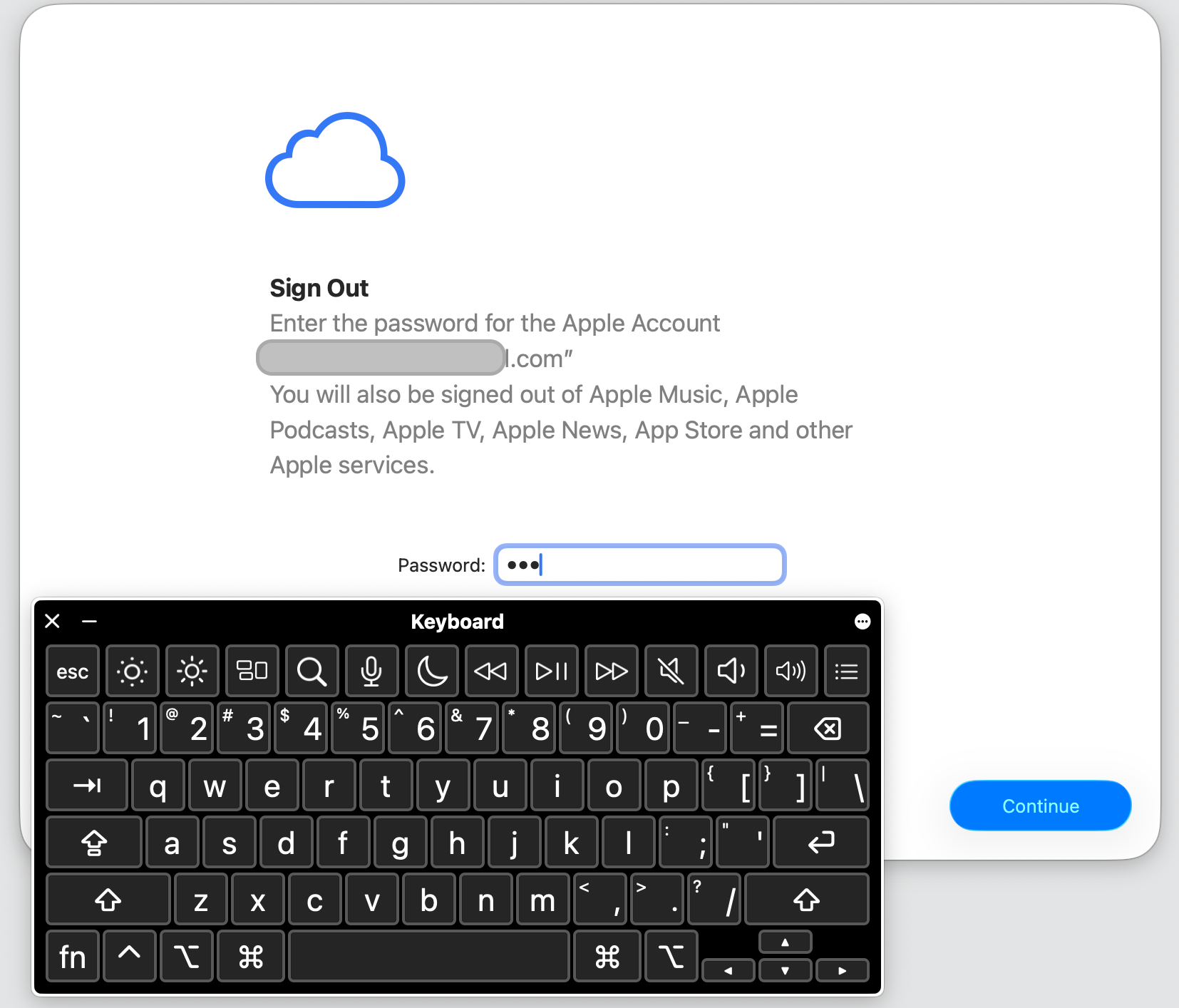
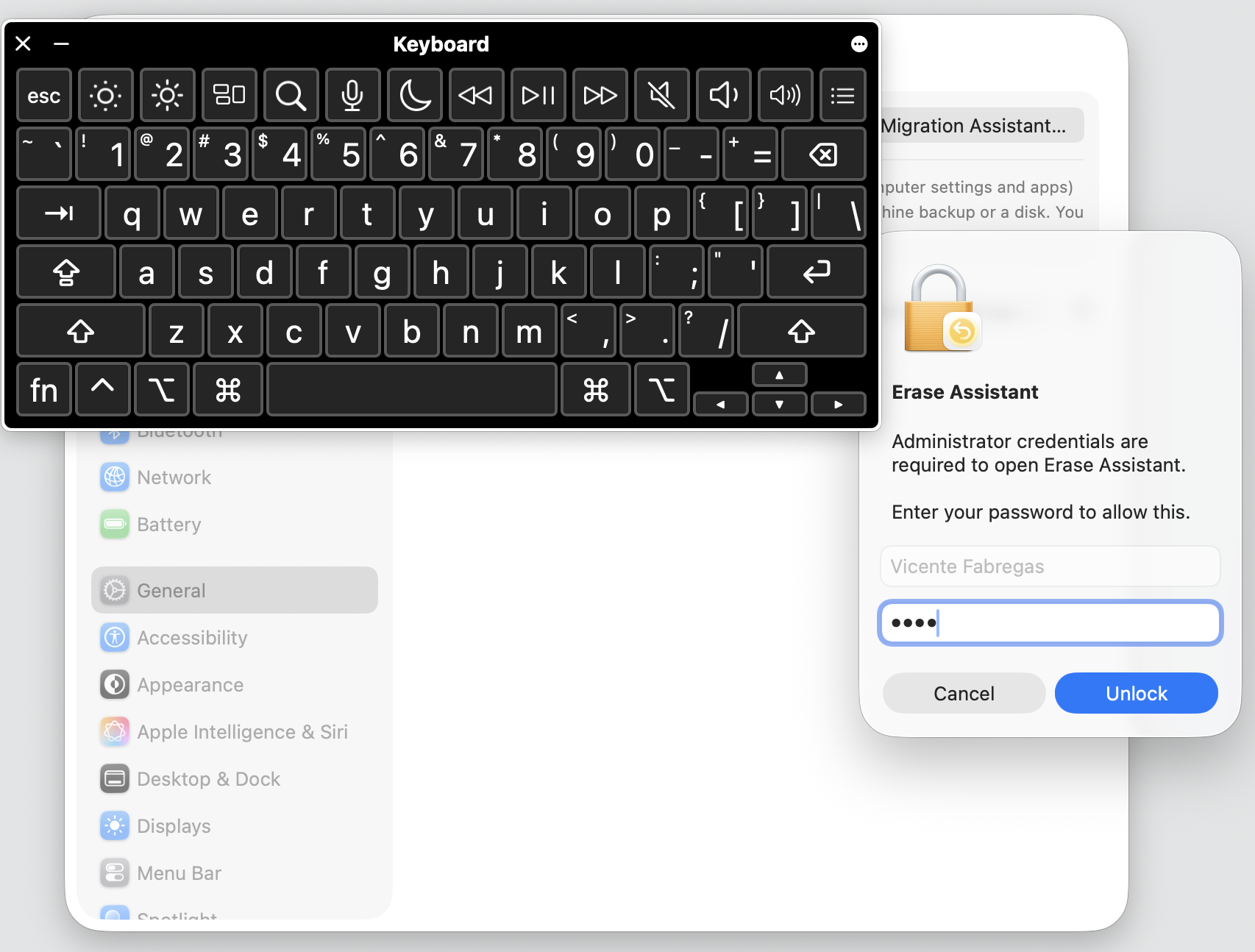
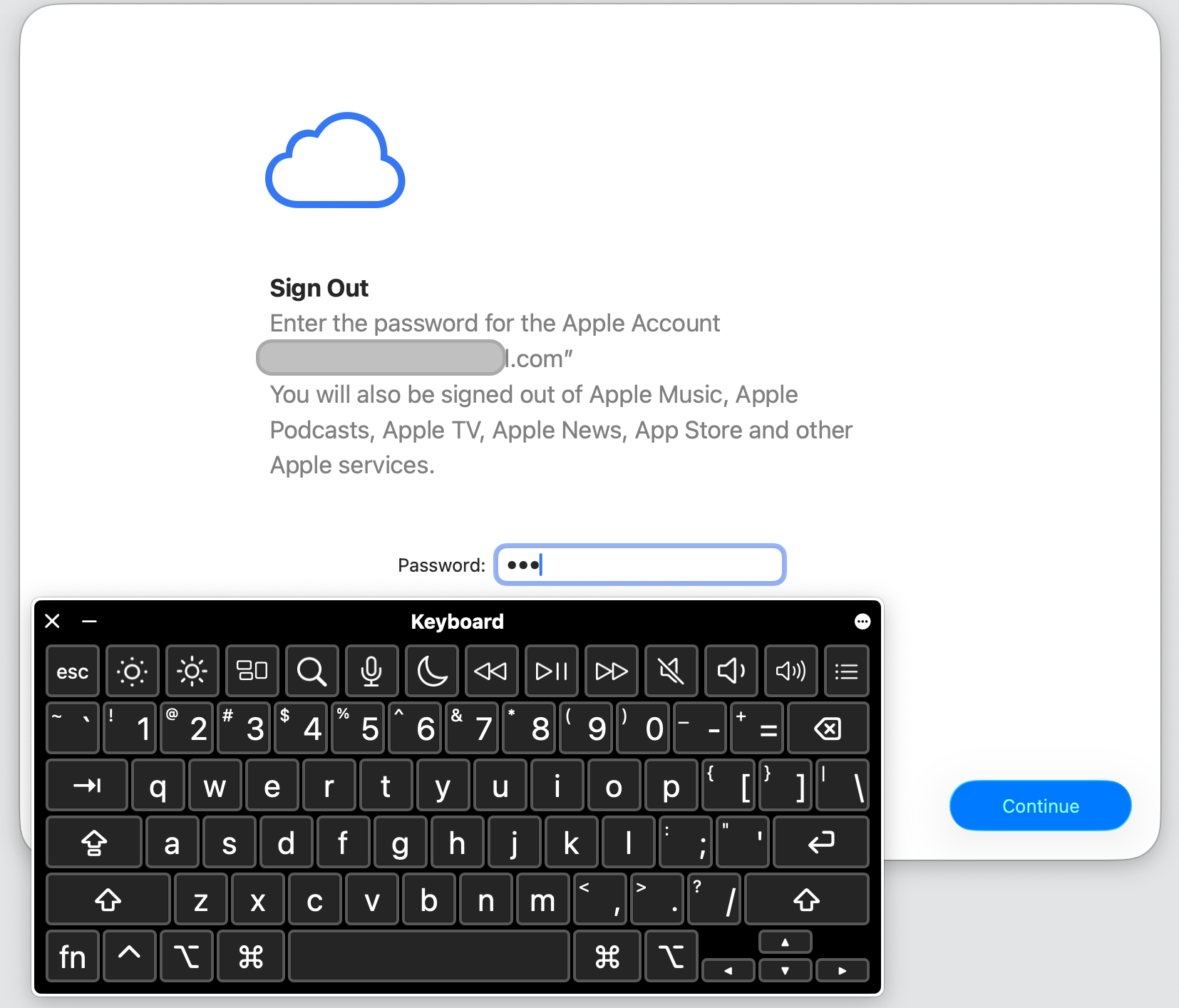
Enter your Apple ID password when prompted—use the Virtual Keyboard if your physical keyboard isn’t working. To enable it, go to System Settings > Accessibility > Keyboard and toggle it on. This virtual keyboard can be operated entirely with your mouse.
Step 1. Go to Apple menu > System Settings (or System Preferences on older versions)Step 2. Select your Apple Account, scroll down and choose Sign Out optionStep 3. Select Show Keyboard ViewerStep 4. Enter your Apple ID password when prompted by using the Virtual Keyboard
A hint from our team:
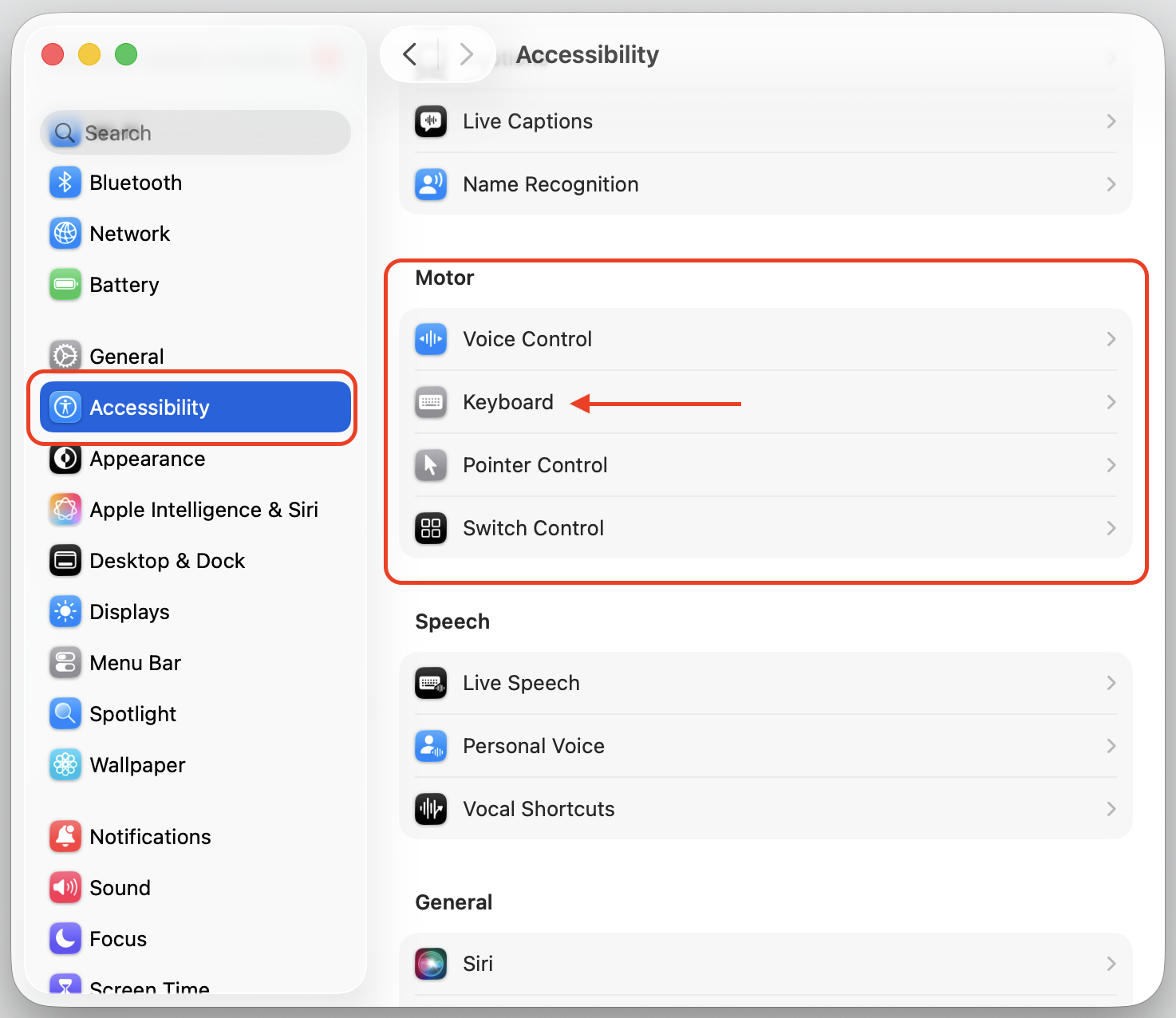
Also, you can equally use the Accessibility Keyboard to finalize the sign-out of Apple ID. To enable Accessibility Keyboard, follow our visual guidelines below.
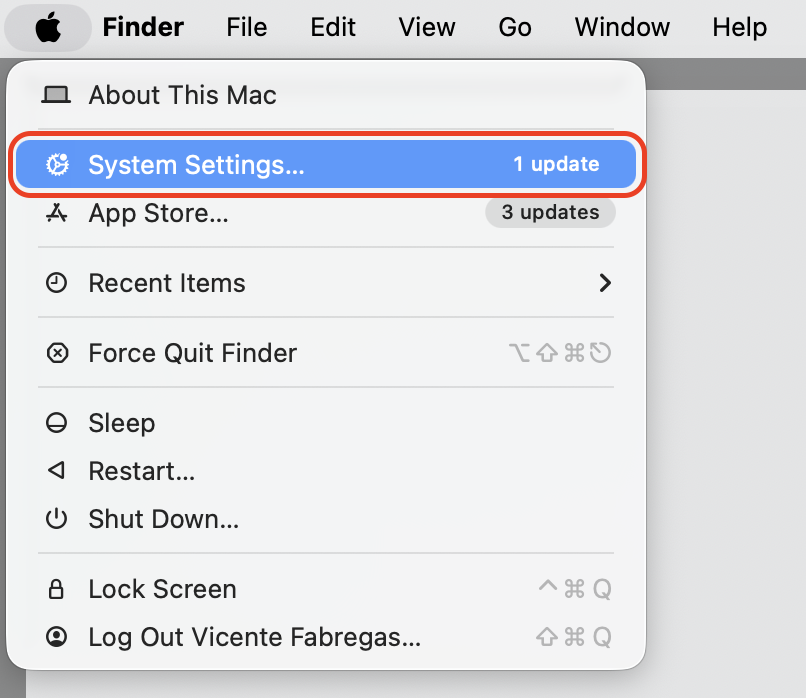
Step 1. Go to Apple menu > System Settings (or System Preferences on older versions)Step 2. Go to Accessibility > Motor Section and select KeyboardStep 3. Turn on the Accessibility Keyboard optionStep 4. Use your Accessibility Keyboard to enter the password
3. Ensure you have a working mouse (wired only)
From our experience, Bluetooth devices often don’t connect in Recovery Mode. That’s why your Magic Mouse might work fine on the desktop but become unresponsive after a restart into startup utility screens.
A wired USB mouse is the safest option. If your Mac only has USB-C ports, grab an adapter. If your Mac mouse not working at all, troubleshoot that before you begin the erase process.
How to reset Mac to factory settings without keyboard?
Below are the methods tested by us to factory reset a Mac desktop when the keyboard isn’t functioning. The right approach depends on your Mac model and macOS version—whether you have an Apple Silicon or Intel machine. If you need the standard steps, the process to factory reset MacBook with a working keyboard follows a similar path.
1. Use “Erase All Content and Settings”
In our opinion, this is the easiest and most mouse-friendly method. Available on macOS Monterey or later (on Apple Silicon or T2-equipped Intel Macs), the Erase Assistant lets you wipe your Mac without keyboard shortcuts.
On macOS Ventura or later, do the following:
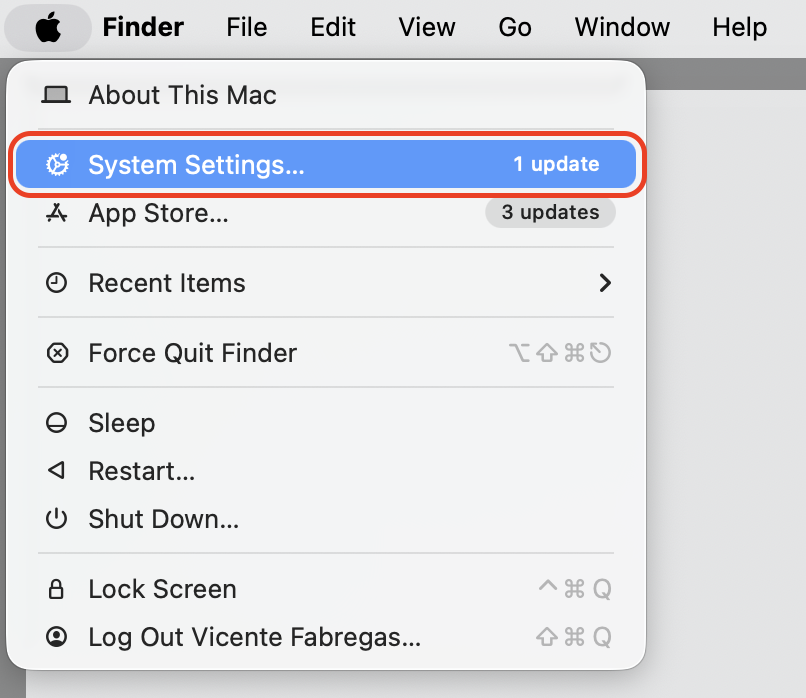
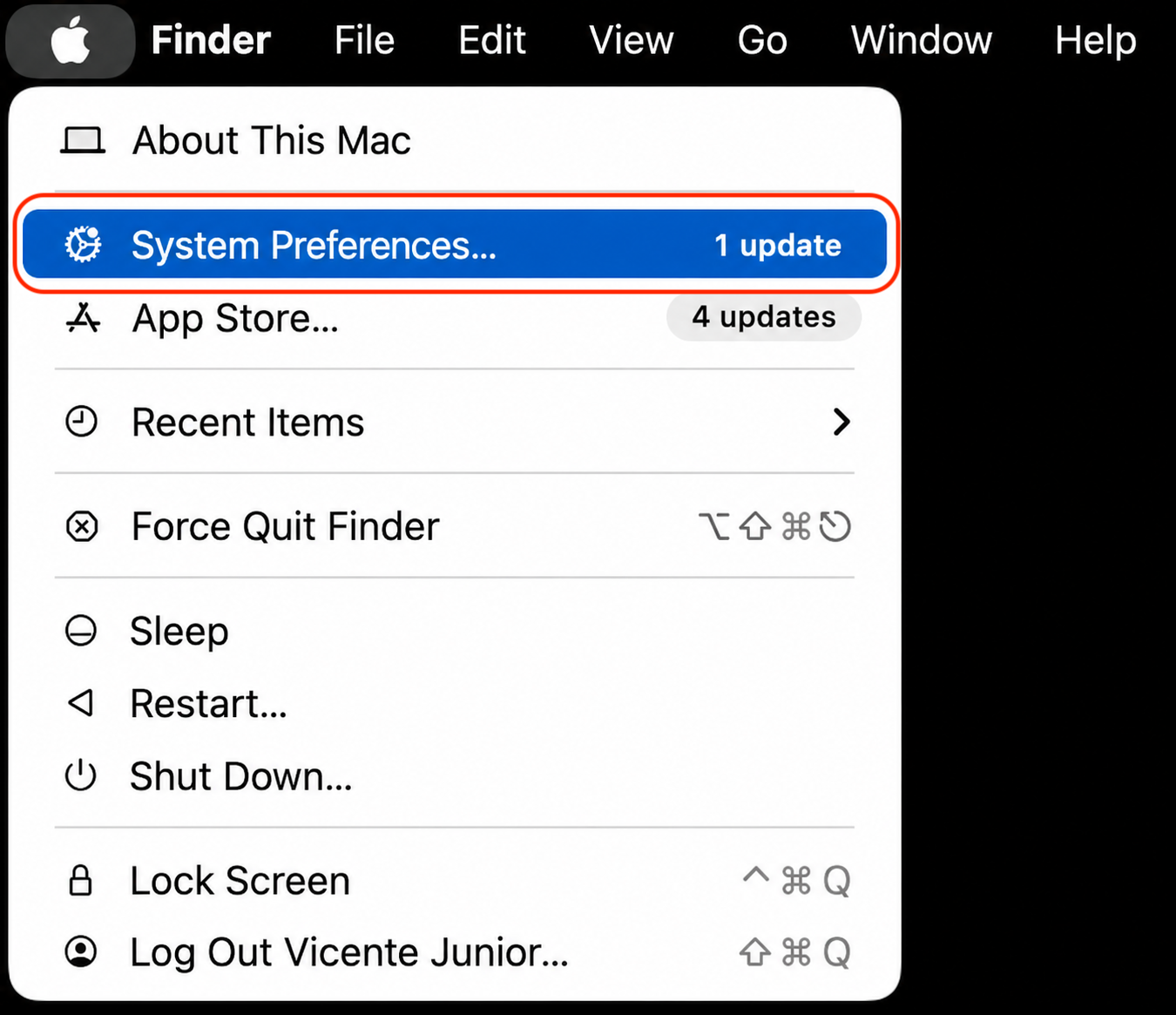
Click the Apple menu and select System Settings.
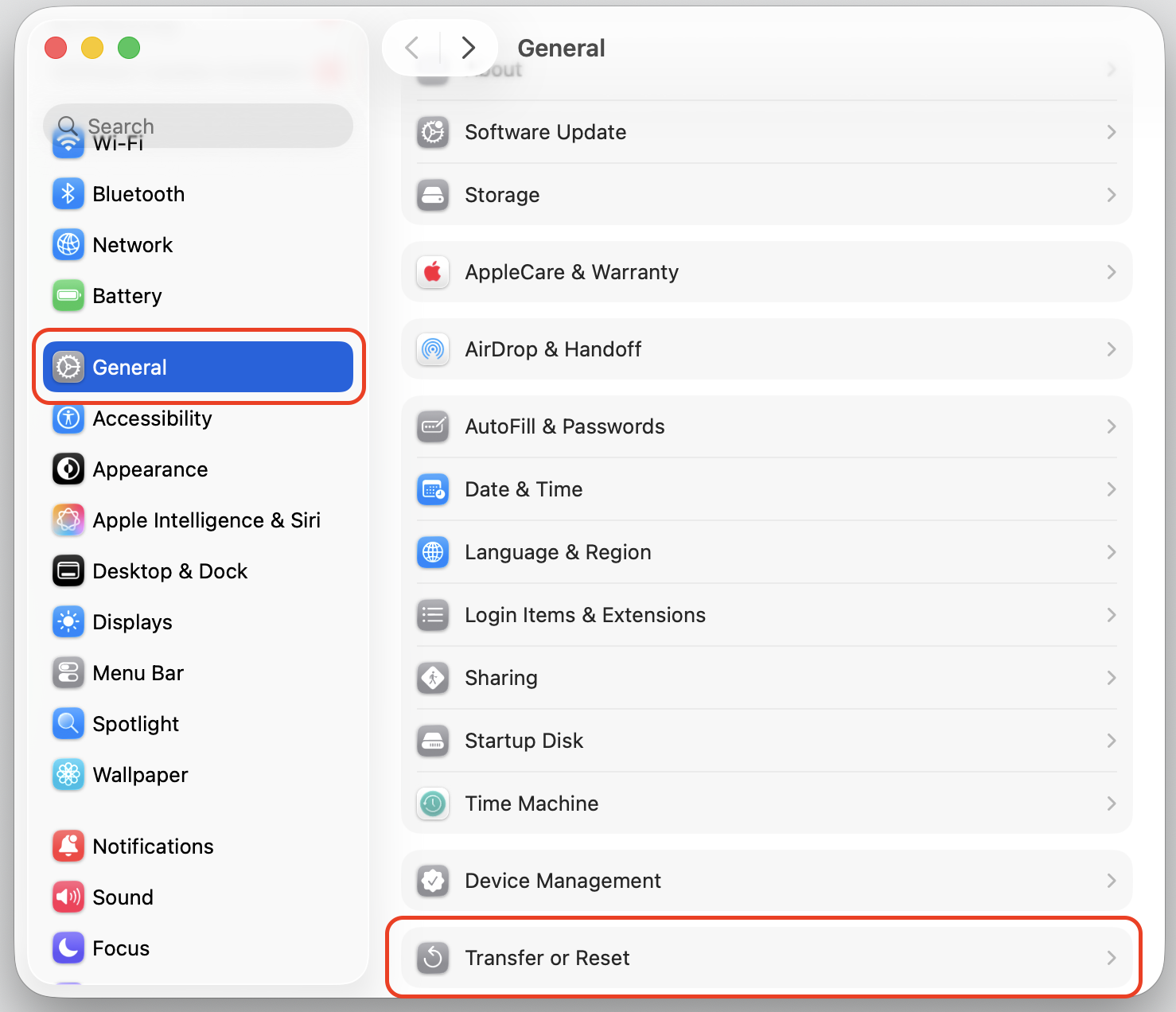
Click General in the sidebar.
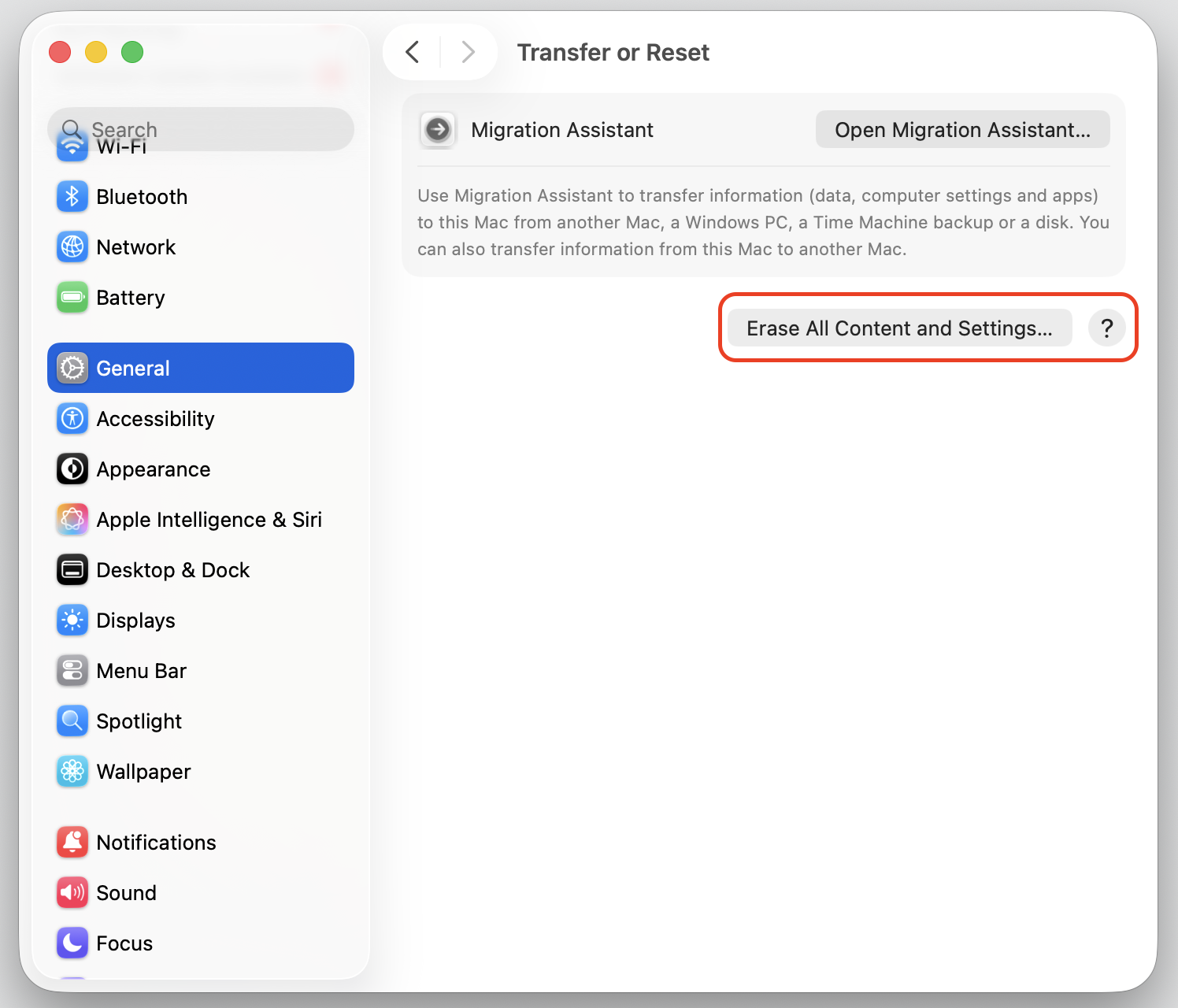
Click Transfer or Reset.
Click Erase All Content and Settings.
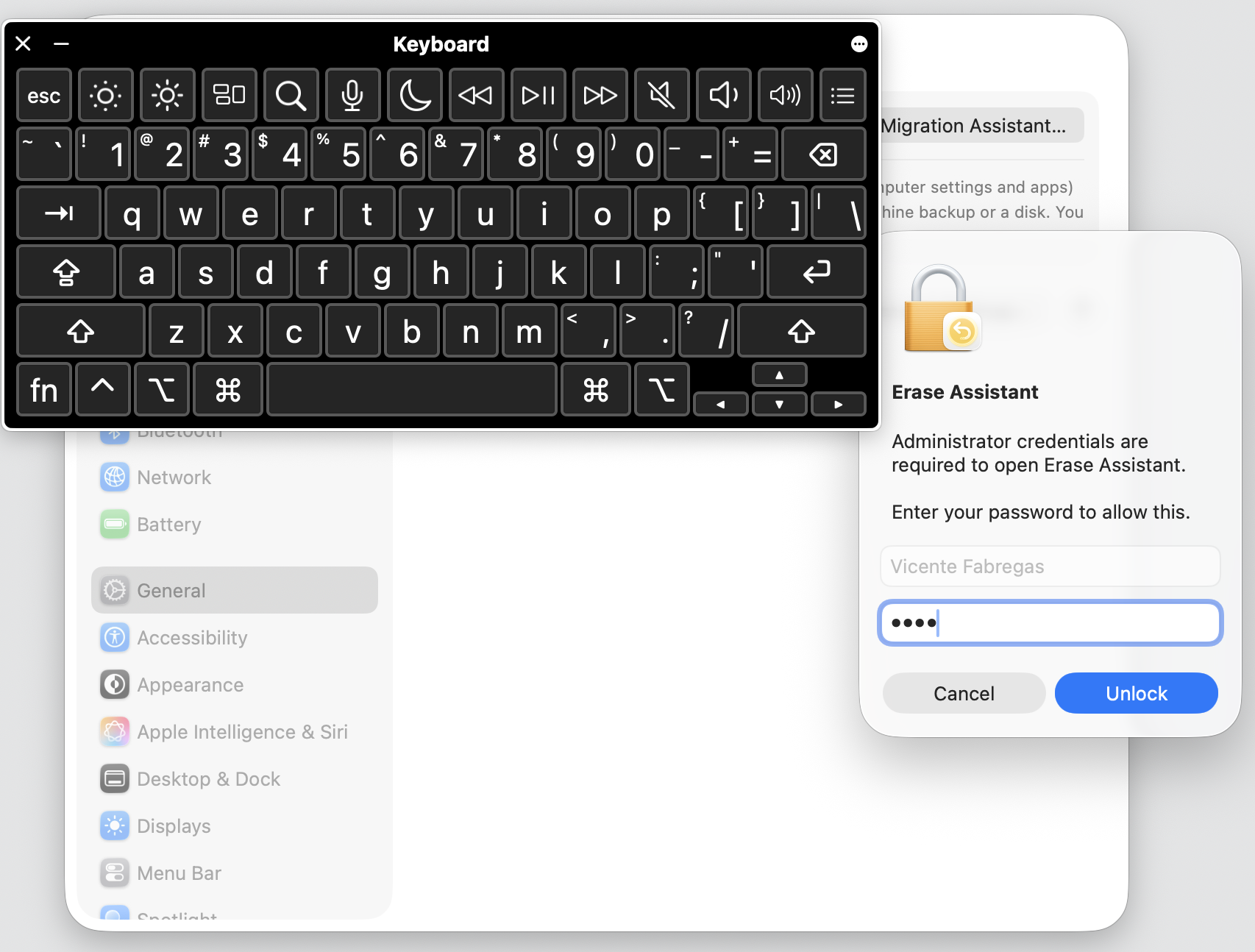
Enter your login password (use the Accessibility Keyboard if needed) and follow the prompts.
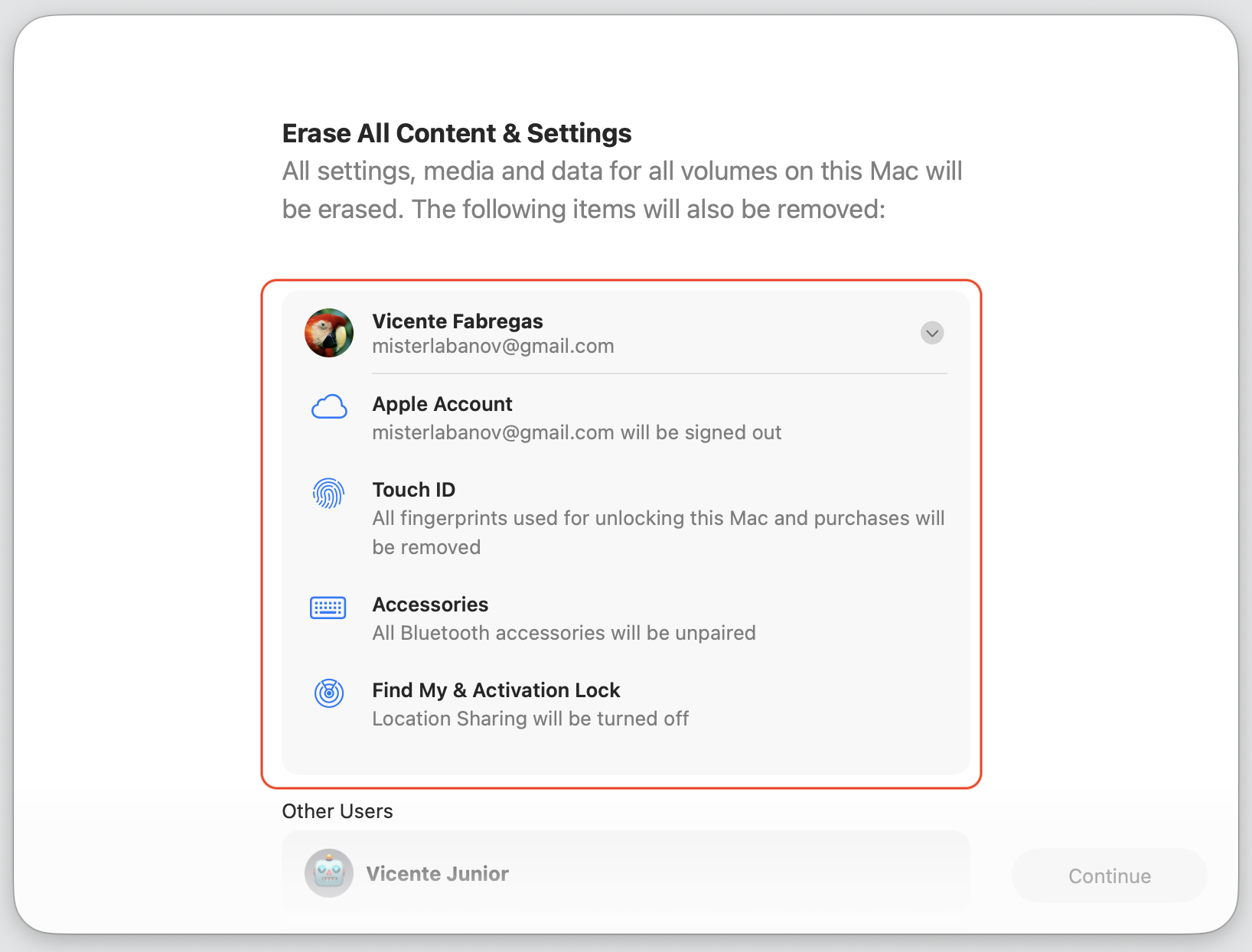
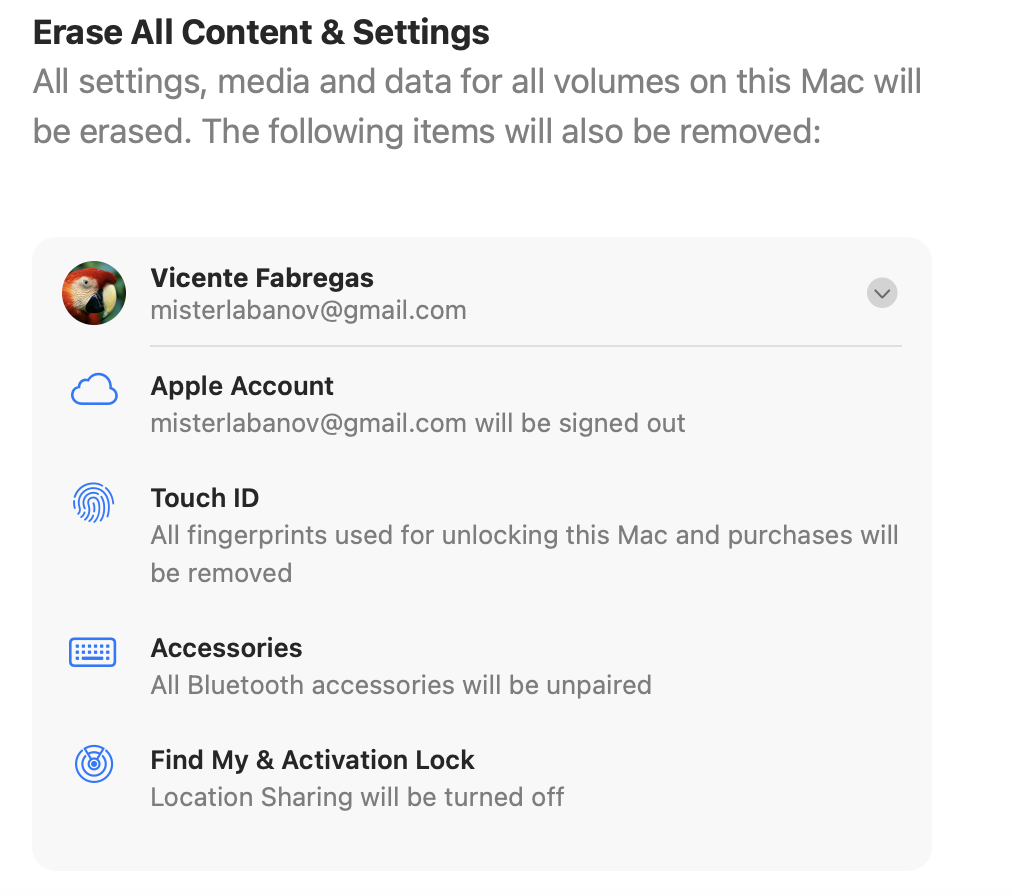
Step 1. Go to Apple menu > System SettingsStep 2. Select General from the sidebar and choose Transfer or ResetStep 3. Select Erase All Content and Settings…Step 4. Enter your Administrator password to Unlock the Erase AssistantStep 4. Select the user to confirm actionsStep 4. Enter your Apple ID Password to sign out
On macOS Monterey, follow these steps:
Click the Apple menu.
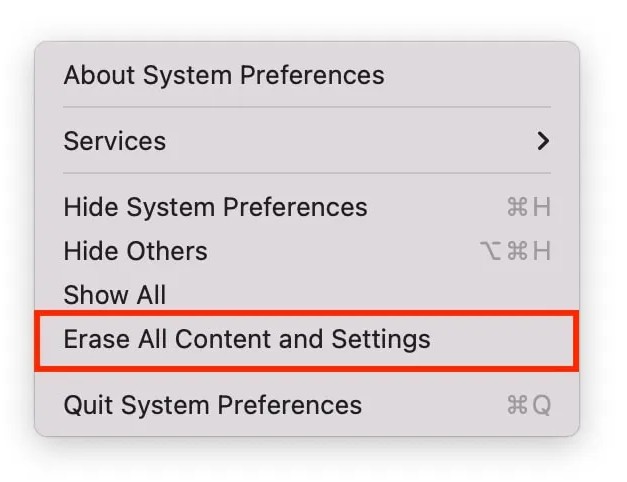
Open System Preferences, then select Erase All Content and Settings from the System Preferences menu bar item.
Step 1. Go to Apple menu > System PreferencesStep 2. Press System Preferences and choose Erase All Content and SettingsStep 3. Enter your Administrator password to unlock the Erase AssistantStep 4. Read the information and confirm by Continue ButtonStep 5. Enter your Apple ID Password to sign out
Your Mac will restart, erase your data, and leave macOS intact. The entire process works with just a mouse.
2. Use Recovery Mode without keyboard (Apple Silicon Macs)
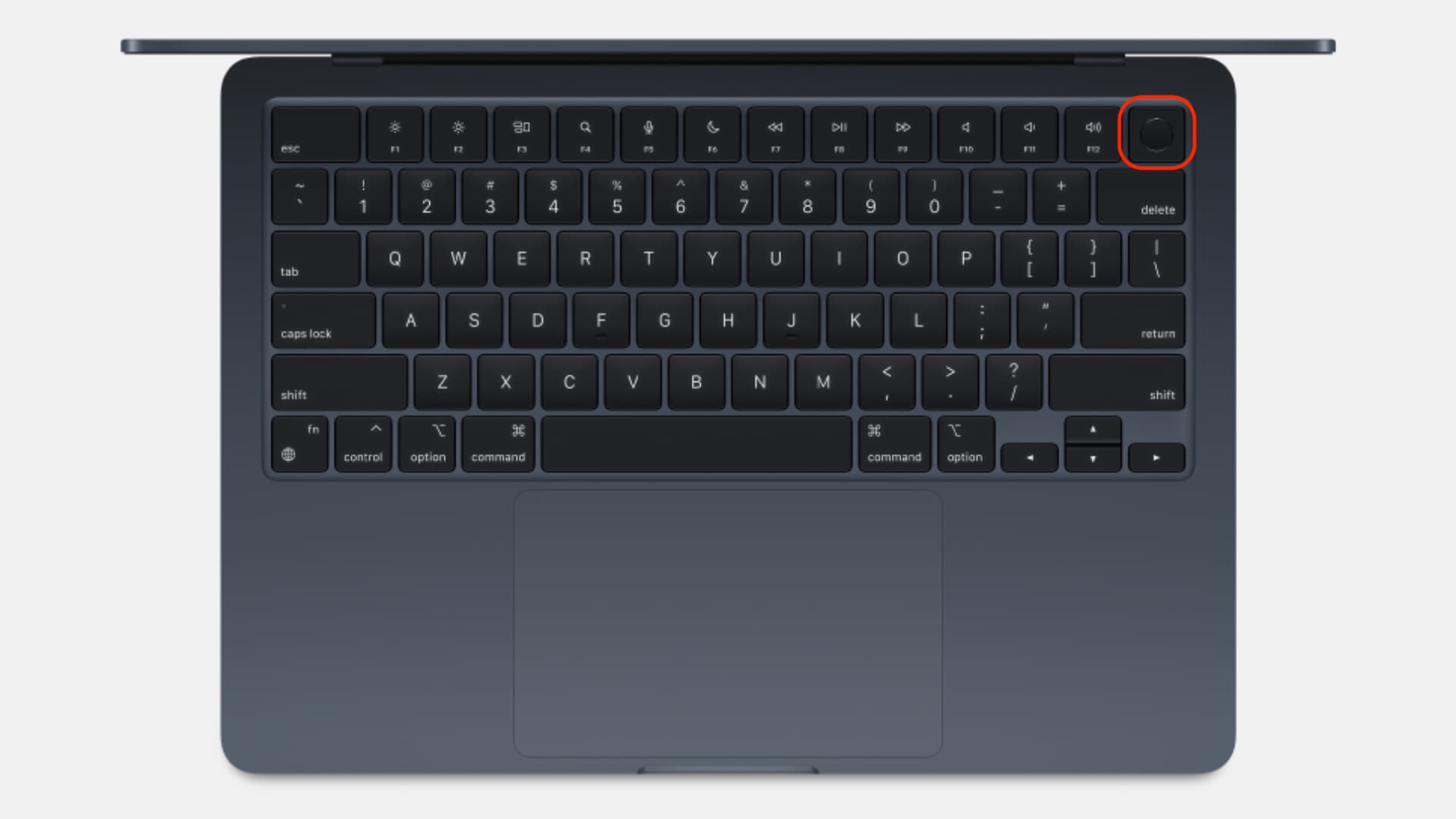
Apple Silicon Macs (M1, M2, M3, M4, and newer) let you enter Recovery Mode using only the power button—no keyboard shortcuts required, but you’ll need a USB keyboard as the virtual one will be unavailable in the recovery mode.
Warning: Keep your Mac connected to Wi-Fi or Ethernet throughout the reinstallation.
Now, do the following:
Shut down your Mac. Wait until the screen goes dark and any lights turn off.
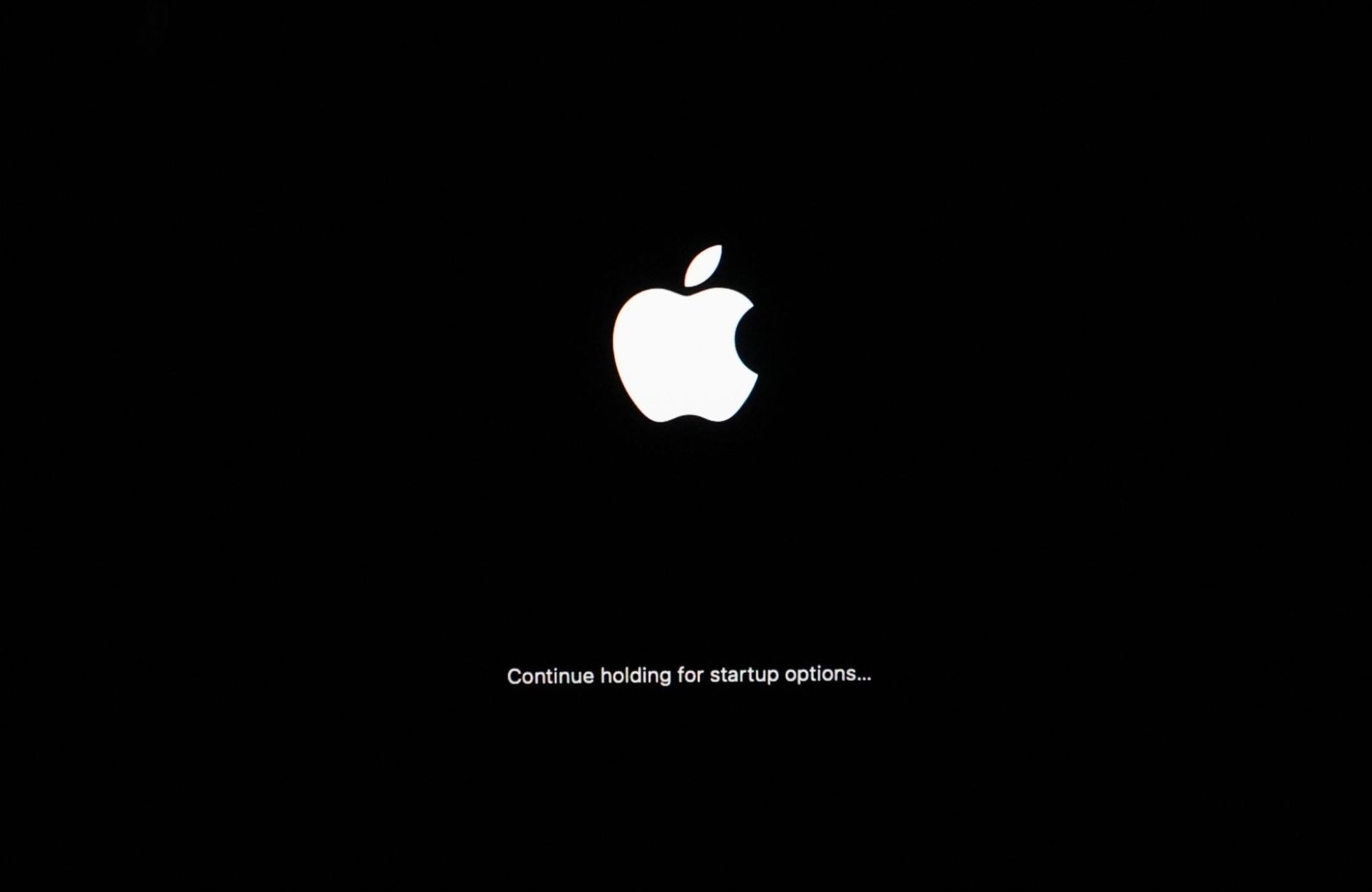
Press and hold the power button until you see Loading startup options or the Options icon.
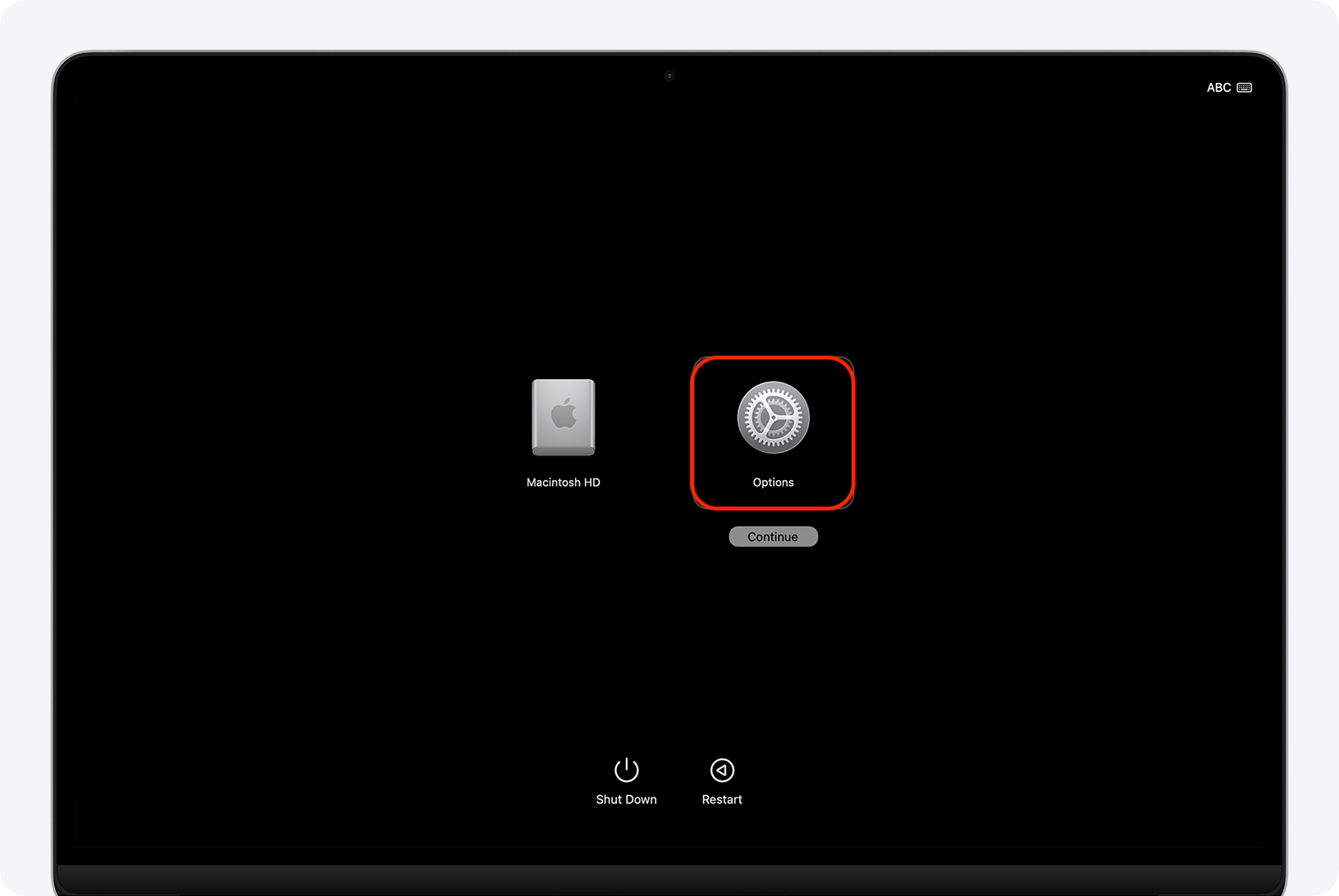
Click Options, then click Continue.
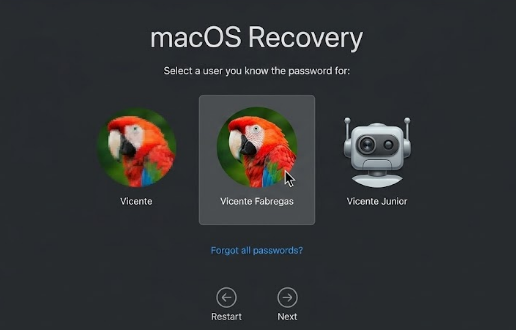
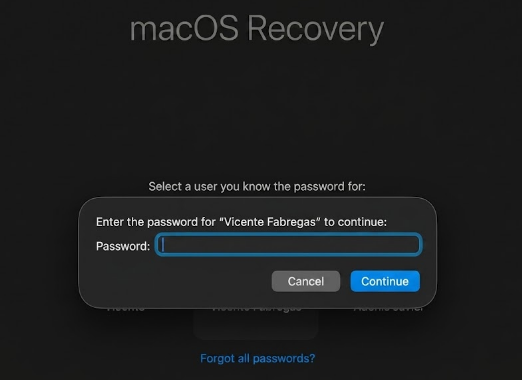
Select an admin account and enter your password via a wired keyboard.
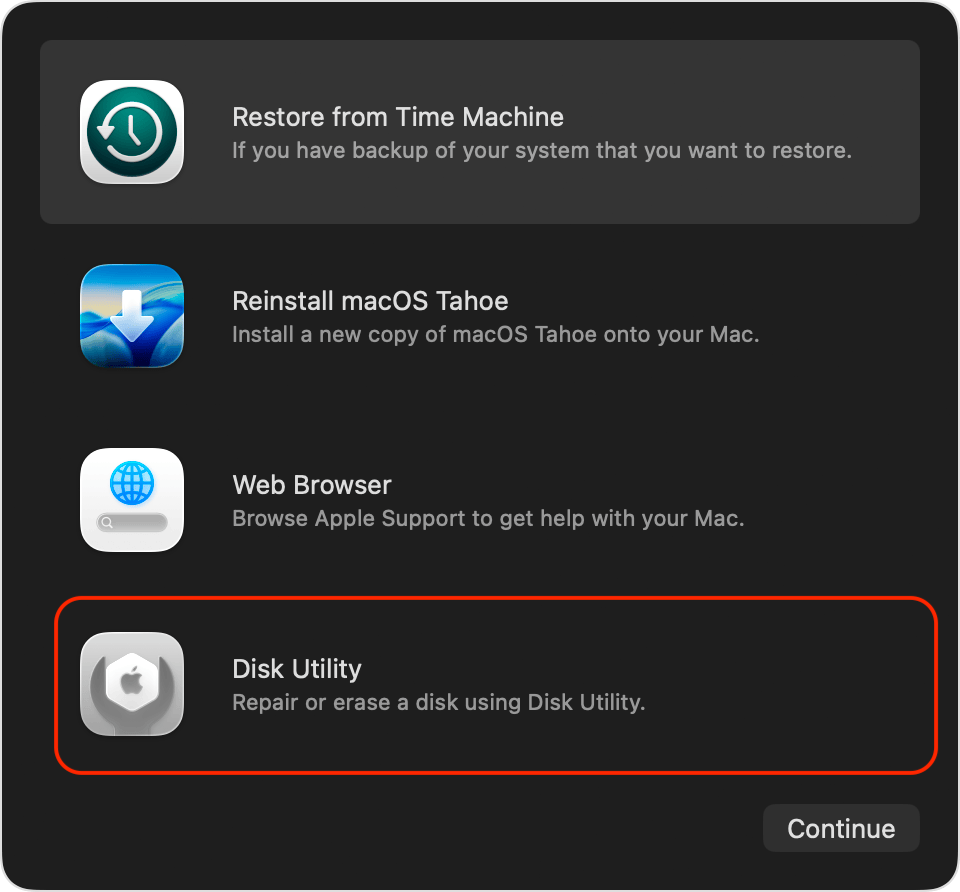
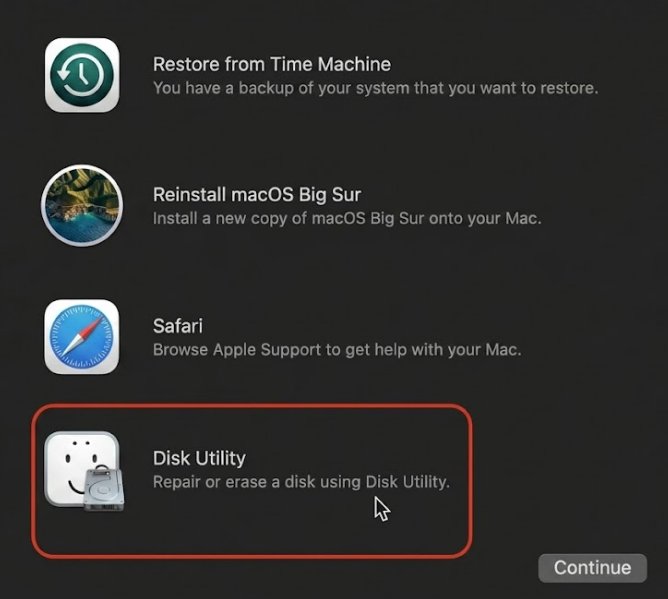
In the Recovery app, select Disk Utility and click Continue.
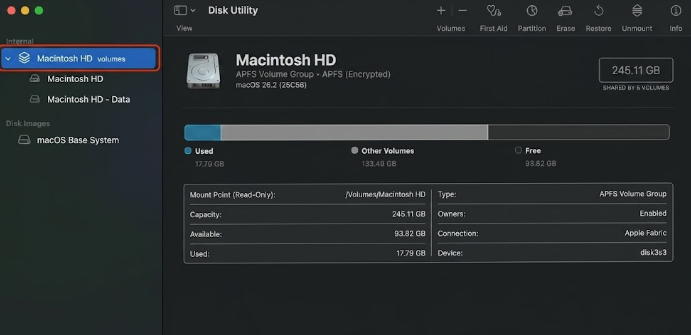
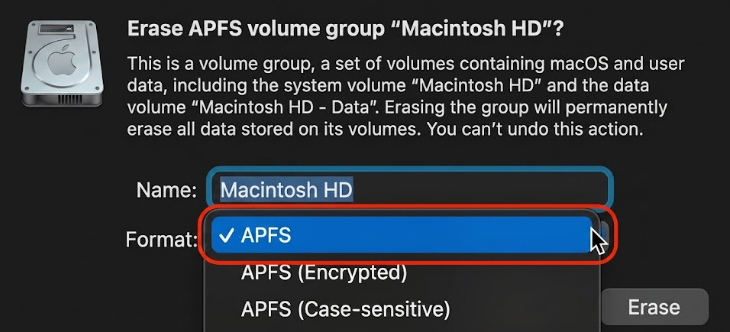
Select Macintosh HD, click Erase, choose APFS format, then click Erase Volume Group.
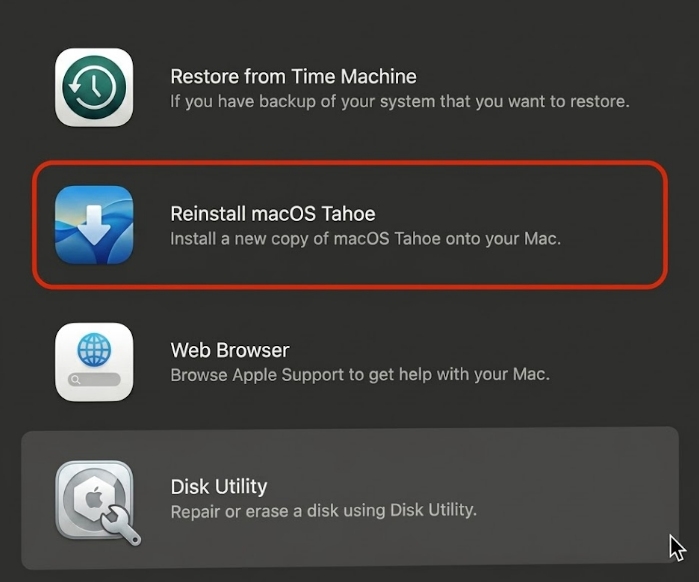
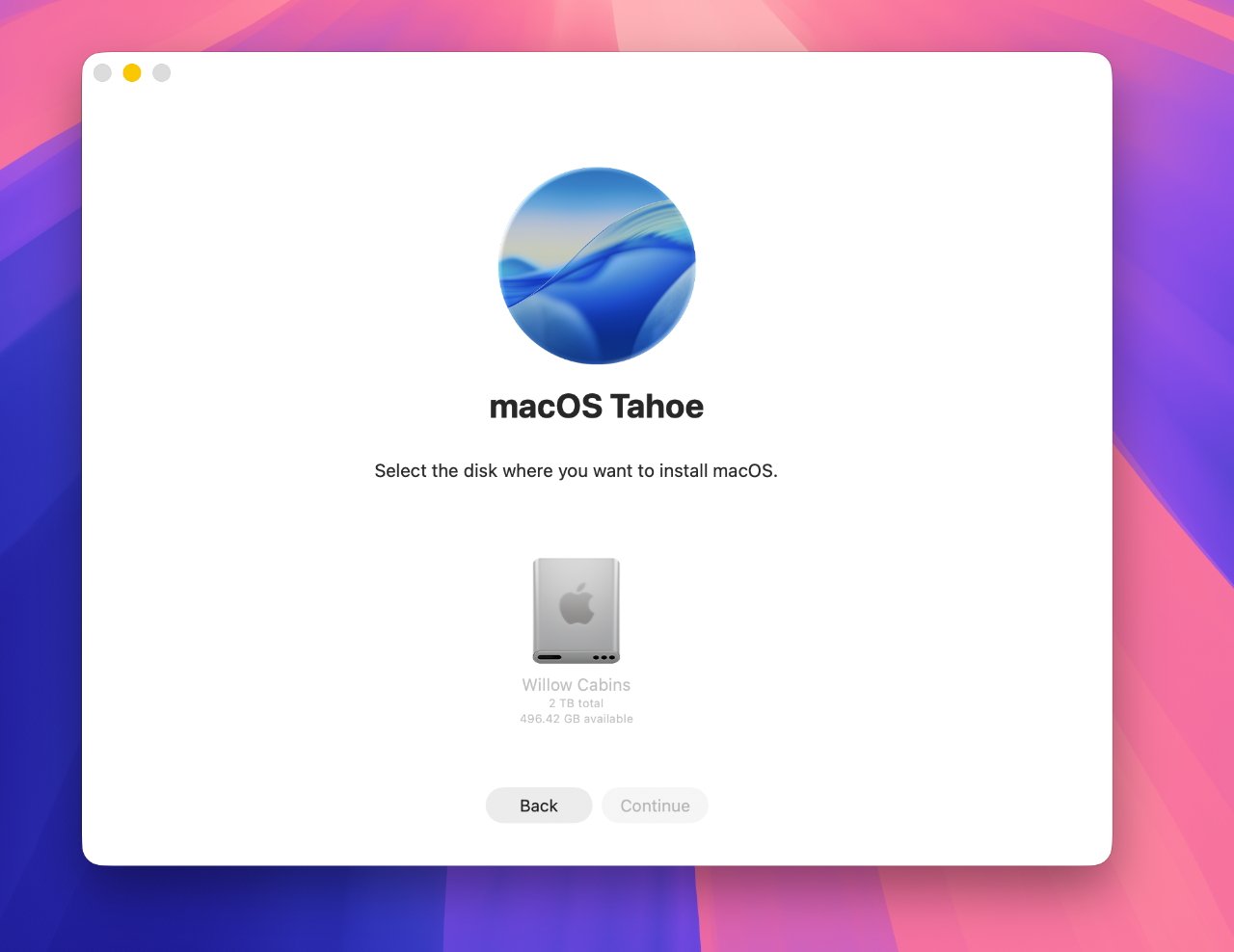
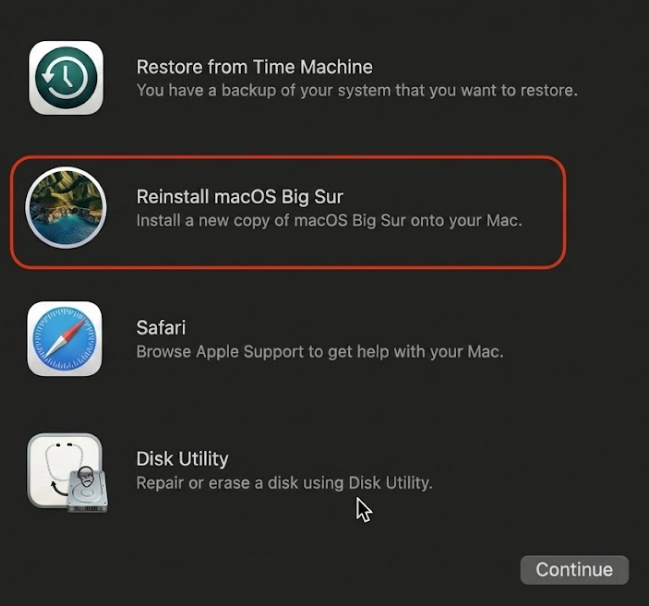
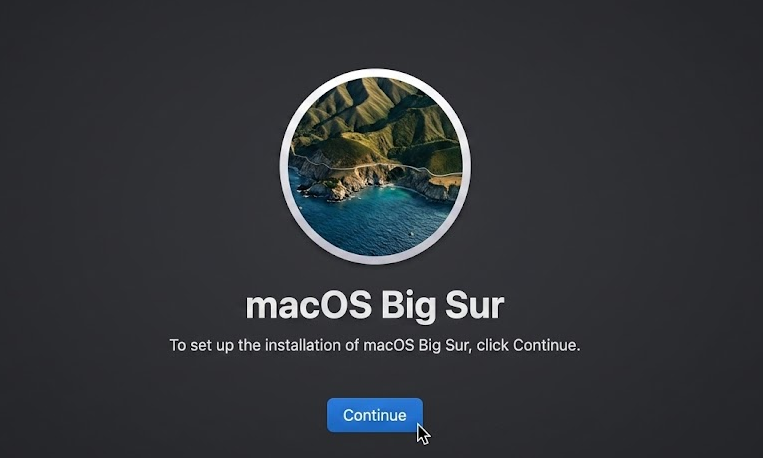
Quit Disk Utility, select Reinstall macOS, and follow the instructions.
Step 1. Press and hold the power buttonStep 2. Continue holding for startup optionsStep 3. Select Options and press ContinueStep 4. Select a user whose password you knowStep 5. Enter your Administrator password to unlock the Recovery appStep 6. Select Disk Utility and press ContinueStep 7. Choose the Macintosh HD Volume optionStep 8. Click EraseStep 9. Select APFS format and press EraseStep 10. Go back to Recovery Mode and select Reinstall OSStep 11. Start the macOS installation process and follow the on-screen instructions
3. Recovery Mode on Intel Macs if the keyboard is completely unavailable
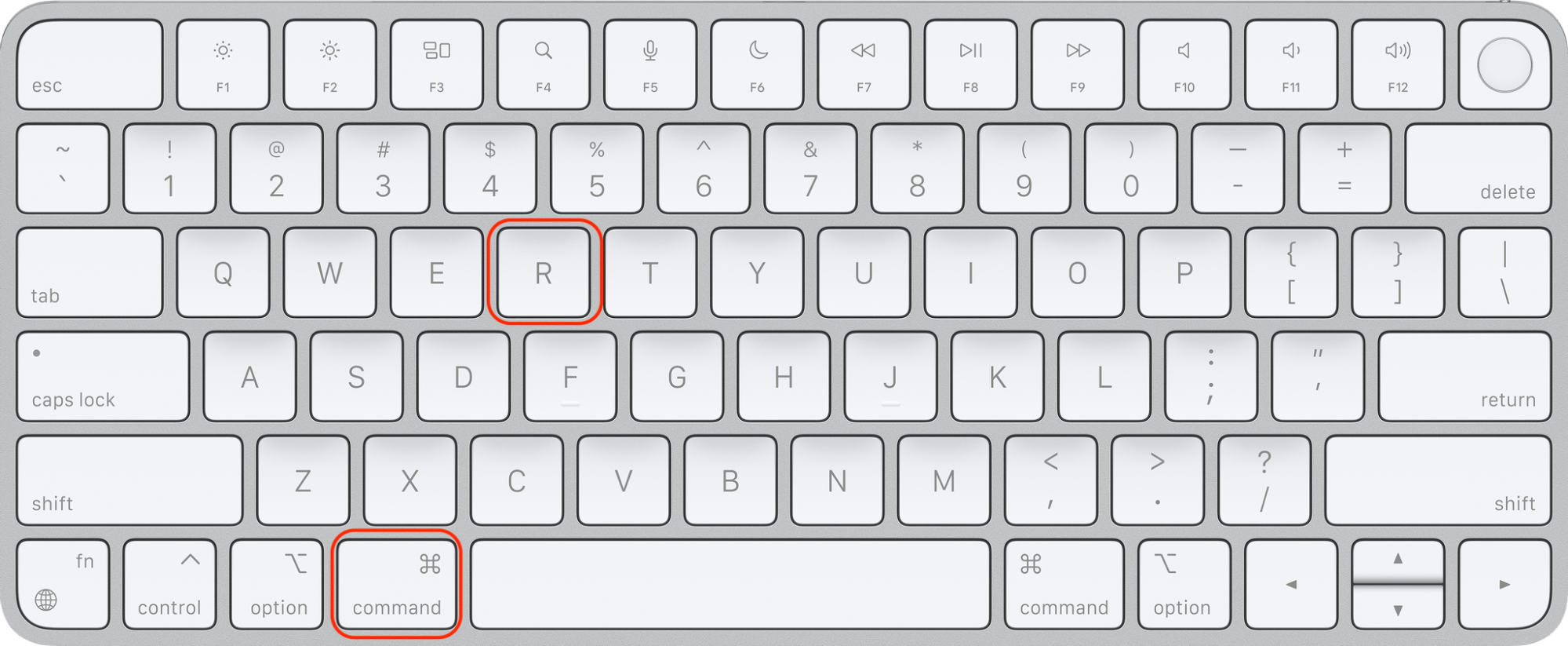
This is the trickiest scenario. Intel Macs require holding Command + R during startup to enter Recovery Mode, which needs a working keyboard. Here are your options:
Connect a wired USB keyboard temporarily. Even a basic USB keyboard will work. Plug it in before powering on.
Try a PC keyboard. Use the Windows key in place of Command. Hold Windows + R as you press the power button.
Once you’re in Recovery Mode, follow our instructions for the Intel Mac:
Open Disk Utility.
Erase the startup disk.
Reinstall macOS.
Now, we’ll show all the process together visually for you.
Step 1. Press and hold Command+ RStep 2. Wait until the progress bar is completeStep 3. Select Disk Utility and press ContinueStep 4. Select Macintosh HD VolumeStep 5. Choose EraseStep 6. Select APFS format and press EraseStep 7. Go back to Recovery Mode and select Reinstall OSStep 8. Start the macOS installation process and follow the on-screen instructions
If no keyboard is available, try the remote erase method below.
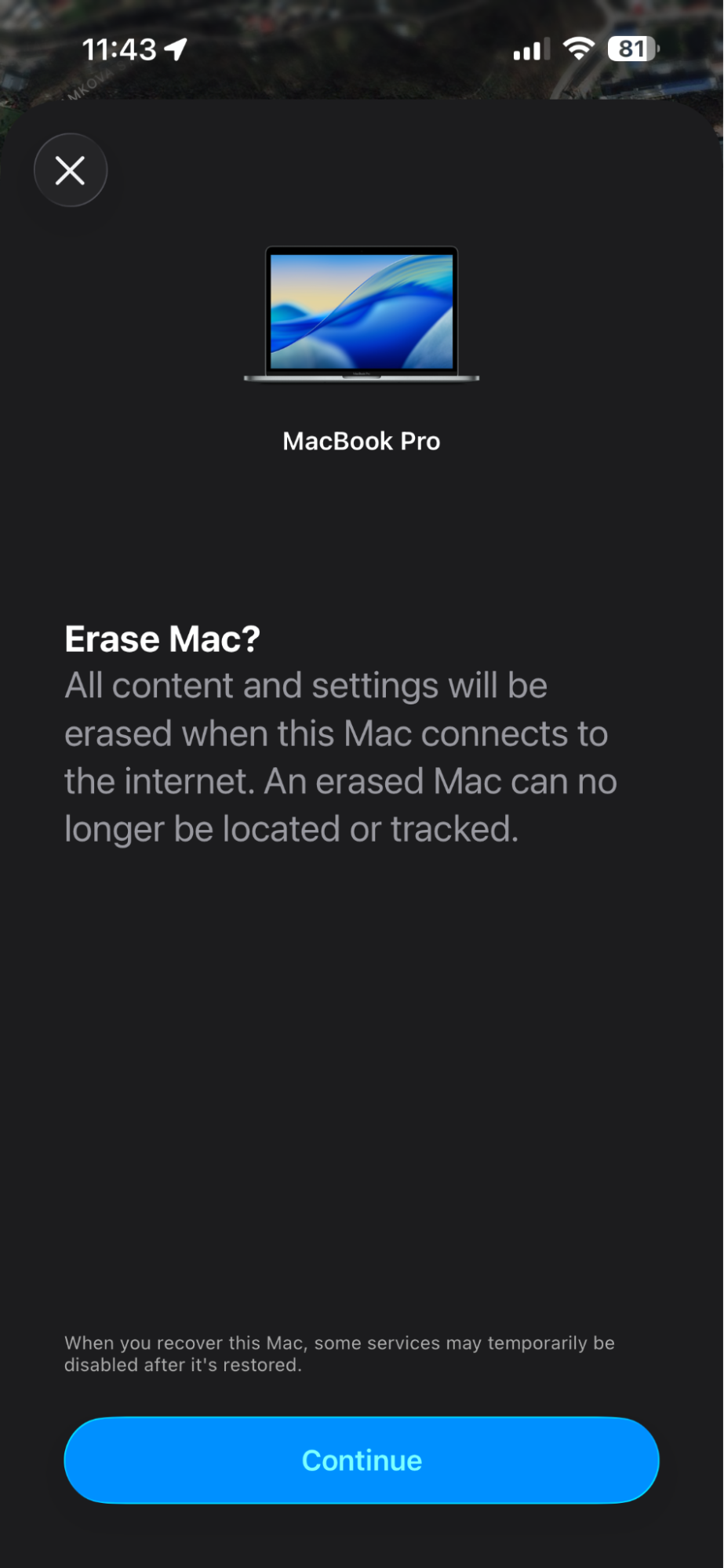
4. Remote erase using Find My
If Find My was enabled on your Mac before the keyboard stopped working, you can erase it remotely from another Apple device or any web browser.
If you prefer doing it from iCloud.com, make sure you’ve granted data access in iCloud settings on your iPhone or iPad device, and then do the following:
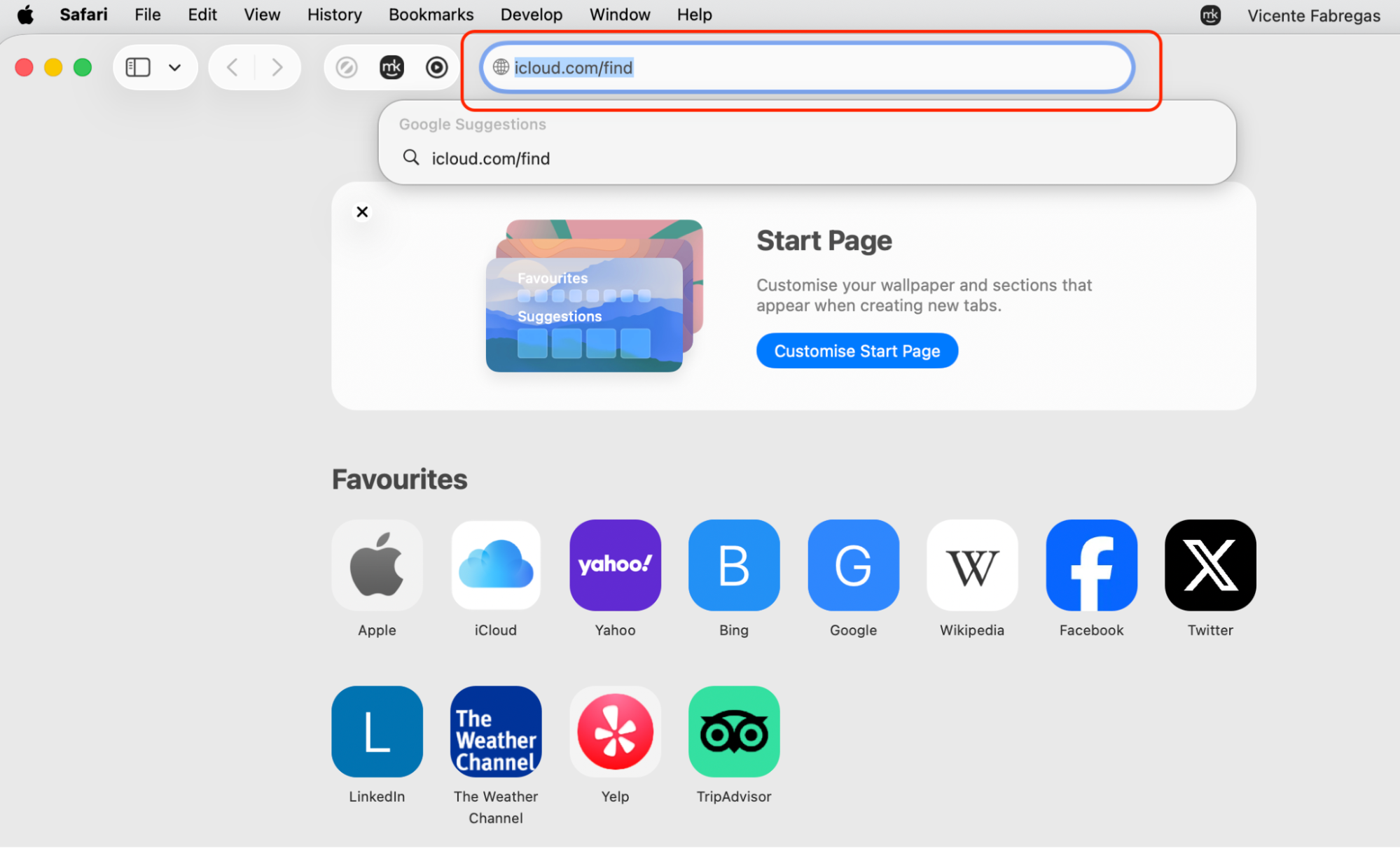
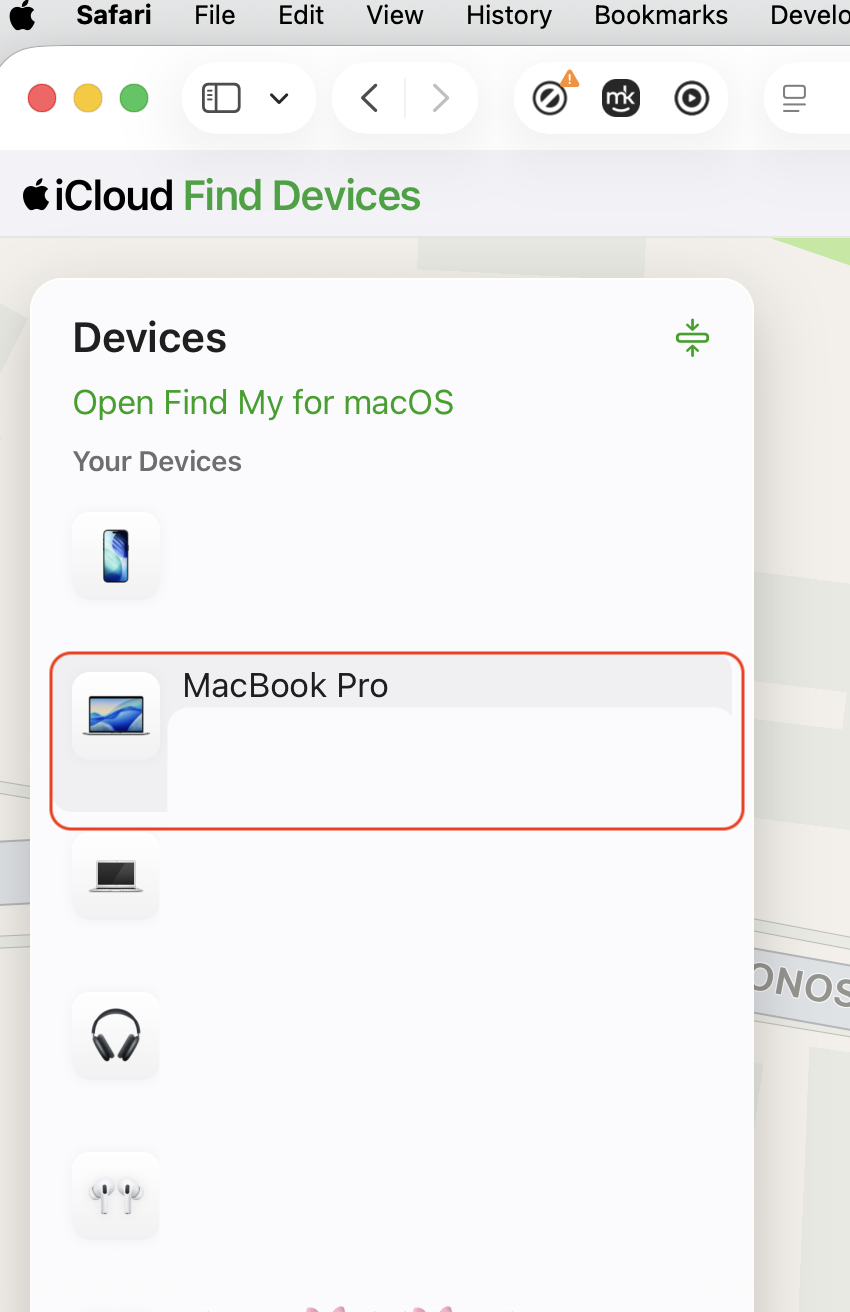
Go to icloud.com/find and sign in with your Apple ID.
Click All Devices and select your Mac from the list.
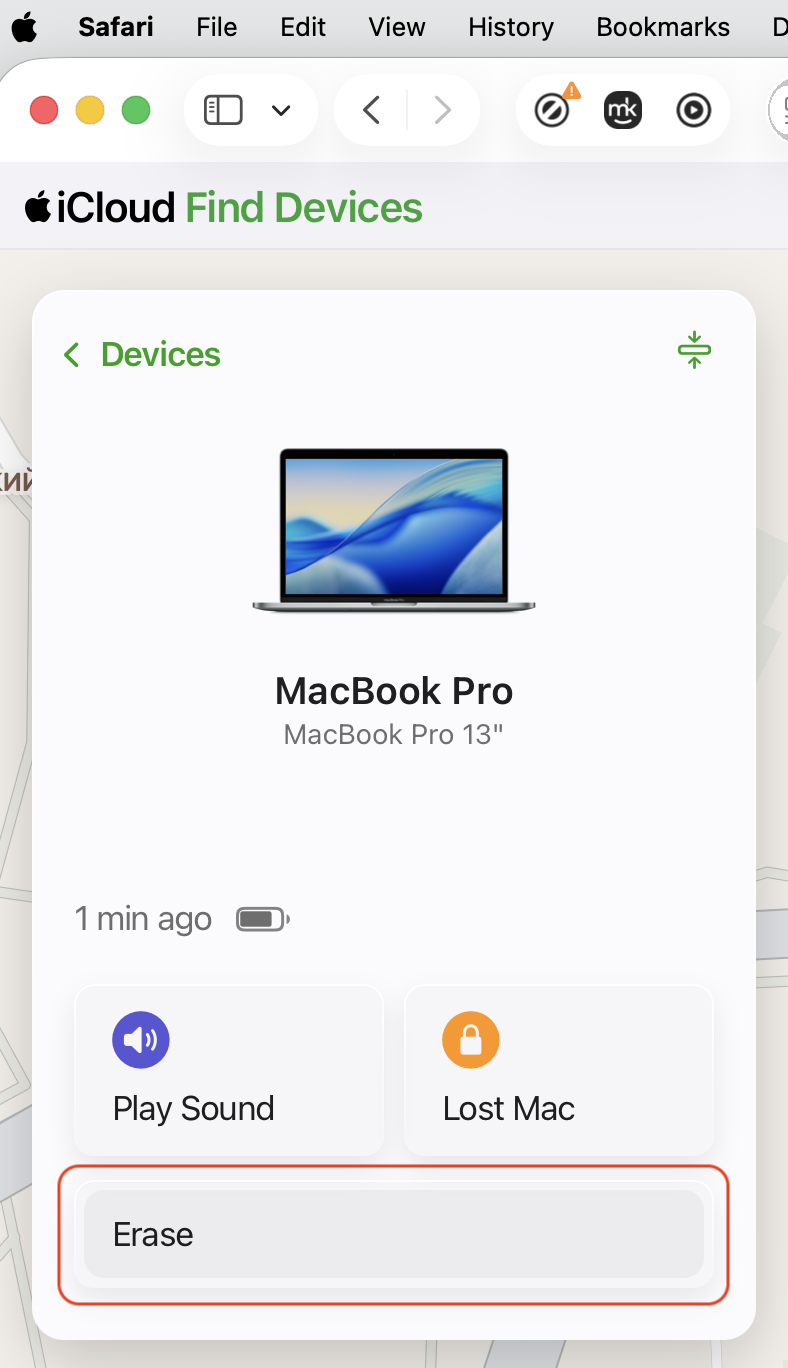
Click Erase This Device and follow the on-screen instructions.
Step 1. Go to icloud.com/find from any browserStep 2. Click All Devices and select your Mac from the listStep 3. Erase Device remotely
From an iPhone or iPad, follow our steps below:
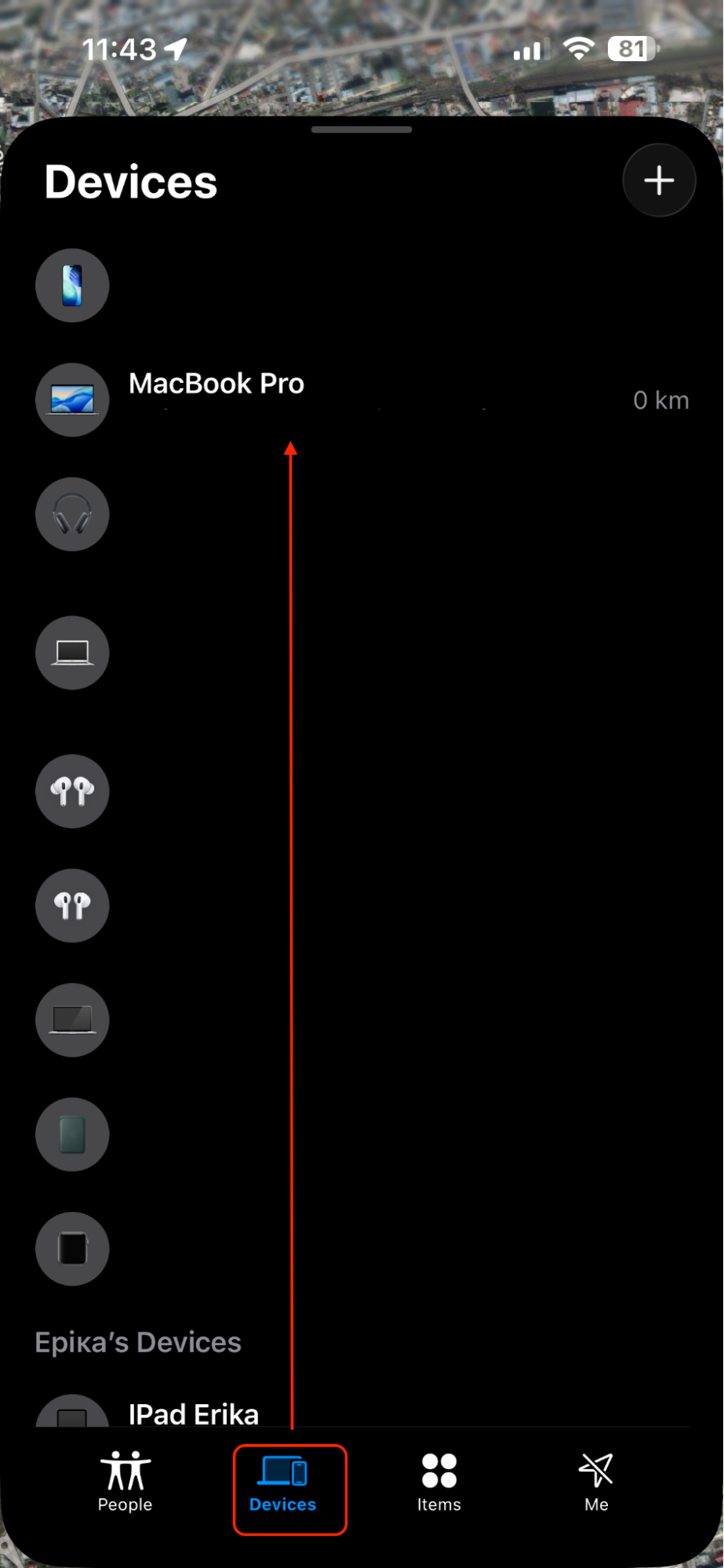
Open the Find My app.
Tap the Devices tab and select your Mac.
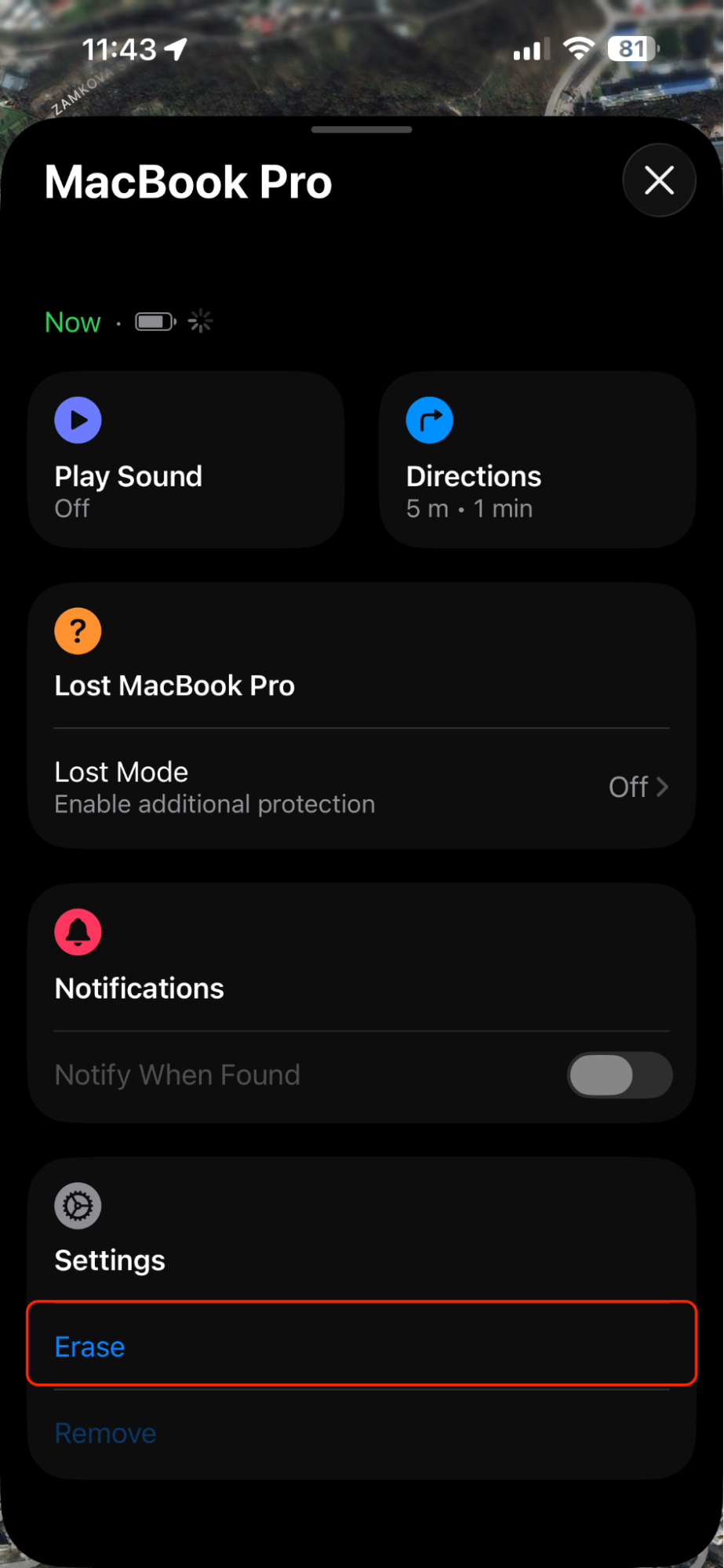
Tap Erase This Device and confirm.
Important: Your Mac needs to be online for the erase to work. If it’s offline, the wipe happens the next time it connects. Activation Lock stays active afterward, keeping the Mac tied to your Apple ID.
Step 1. Open Find My appStep 2. From the Devices section, select your Device you want to eraseStep 3. Swipe up and find the Erase optionStep 4. Erase your device by pressing Continue
Final verdict
Factory resetting a Mac without a keyboard is straightforward enough on modern macOS. Apple Silicon Macs running Monterey or later let you use Erase All Content and Settings or enter Recovery Mode with just the power button. Intel Macs are more limited and may require temporary access to the keyboard. When no input devices are available, Find My’s remote erase is a reliable fallback.
Whatever method you choose, we recommend you back up your data, sign out of your Apple ID, and use a wired mouse first. Also, clear out junk files before or after a reset— MacKeeper’s Safe Cleanup makes it quick and easy for you.
We respect your privacy and
use cookies
for the best site experience.
Privacy Preferences Center
We use cookies along with other tools to give you the best possible experience while using the
MacKeeper website. Cookies are small text files that help the website load faster. The cookies we
use don’t contain any type of personal data meaning they never store information such as your
location, email address, or IP address.
Help us improve how you interact with our website by accepting the use of cookies. You can change
your privacy settings whenever you like.
Manage consent
All cookies
These cookies are strictly necessary for enabling basic website functionality (including page
navigation, form submission, language detection, post commenting), downloading and purchasing
software. The website might malfunction without these cookies.