If you no longer use Soundflower on your Mac, it’s a good idea to uninstall it to free up space and prevent unnecessary files from accumulating. However, the uninstallation process can be a bit complicated. If you’re concerned about clutter, consider using MacKeeper’s Smart Uninstaller. It’s a simple and effective tool for removing apps, files, and plugins on macOS.
What is Soundflower and why you might need to remove it?
Soundflower is a macOS system extension that serves as an audio router, allowing you to pass audio between applications without cables or external hardware. This open-source kernel plugin creates a virtual audio output from one app (like the Music app) and enables you to use it as an input in another program (such as a video conferencing, audio editing, or screen recording app).
While Soundflower can be quite useful, it often malfunctions due to a lack of regular updates, leading to operational issues and installation errors. You may also want to uninstall Soundflower for various reasons, such as no longer needing it, having found a more effective alternative, experiencing conflicts with other applications, or simply wanting to clean up your Mac.
If any of these reasons resonate with you, you might also be interested in reading on to learn how to uninstall apps like Soundflower from your Mac.
Methods to delete Soundflower on Mac
To uninstall Soundflower on a Mac, merely dragging the icon to the Trash from the Applications folder usually isn’t enough. While this process may seem complicated, following the steps below will make it easier than you might think. We’ll guide you on how to remove Soundflower using the official uninstaller script, the manual method, or through Terminal.
A note from our experts:
Are you running low on storage space on your Mac? If you’re considering removing Soundflower for this reason, MacKeeper’s Smart Uninstaller can help you remove all the associated files that have piled up. Developed by Clario Tech and notarized by Apple, MacKeeper is a leading utility software for macOS that also helps you remove other plugins, apps, and files as needed—even if you decide to keep Soundflower.
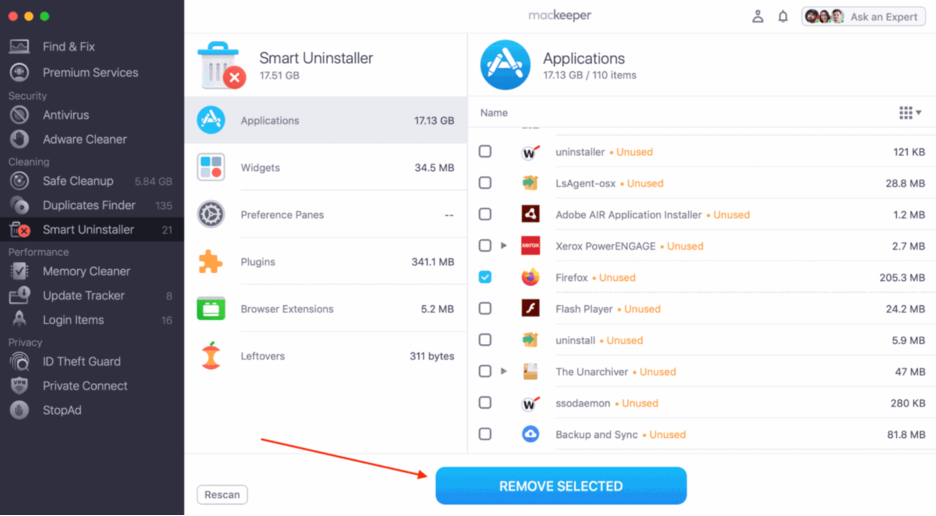
Follow these steps to use MacKeeper’s Smart Uninstaller:
In the sidebar, select Smart Uninstaller under Cleaning.
Click Start Scan.
Select all relevant categories from the list.
Click Removed Selected.
Choose Remove to confirm.
Step 1. Click Smart Uninstaller on the MacKeeper appStep 2. Choose all relevant categories > Click Remove SelectedStep 3. Click Remove to confirm
1. Uninstall Soundflower using official uninstaller script
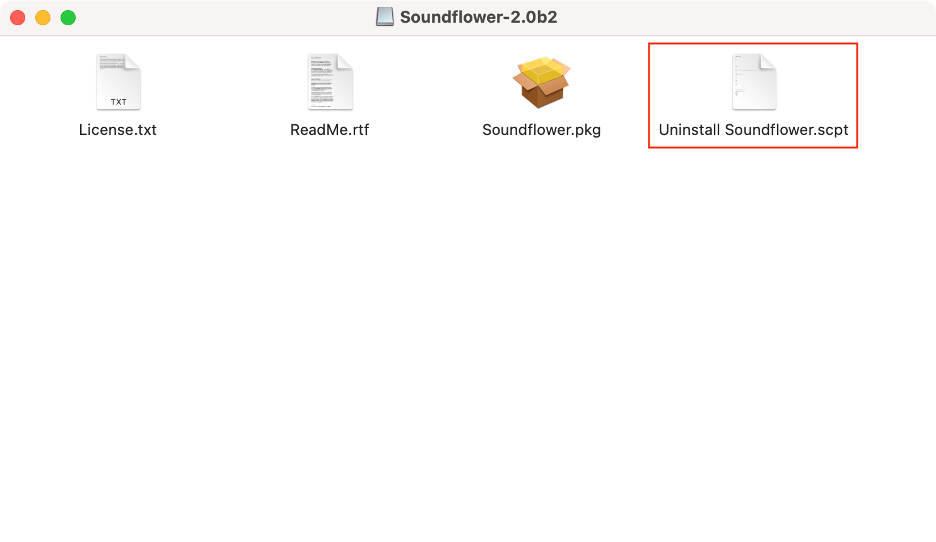
To uninstall Soundflower, we recommend using the official method. If you still have the installation package you downloaded from GitHub, look for a file named “Uninstall Soundflower.scpt” within it. If you have deleted the package, you can download it again. After downloading, click on the installer image to mount it, and you’ll find the uninstaller script there.
Once you have located the uninstaller, follow these steps to uninstall Soundflower:
Open the Soundflower installation package on your Mac.
Double-click on the Uninstall Soundflower.scpt file.
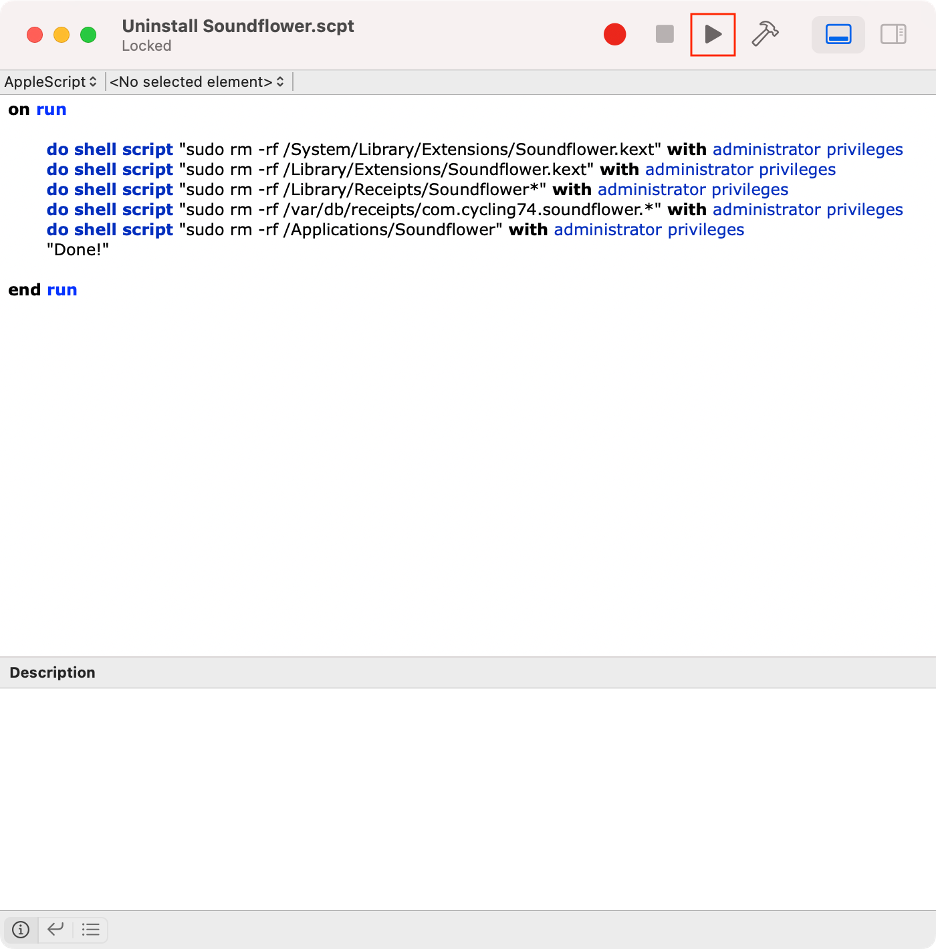
In the new window, click the Play button to run the script.
Step 1. Launch the Uninstall Soundflower.scpt fileStep 2. Click the Play button
2. Manually uninstall Soundflower on Mac
Alternatively, you can manually uninstall Soundflower from your Mac by dragging the extension to the Trash in Finder. However, our team of experts typically doesn’t recommend this method on its own, as it doesn’t remove the leftover files that accumulate from using the plugin. We’ll explain how to completely uninstall all Soundflower-associated files later on.
For now, let’s focus on how to manually uninstall Soundflower:
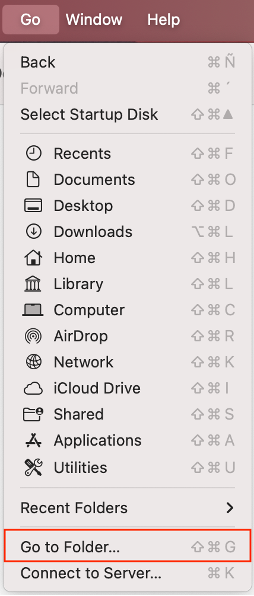
Open Finder.
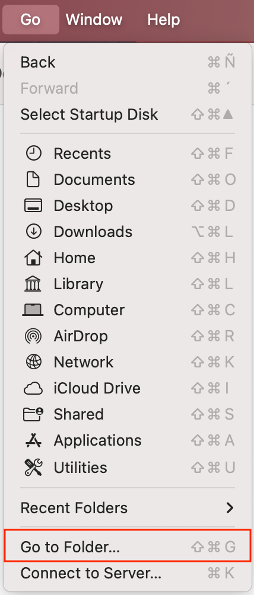
Click Go in the menu bar.
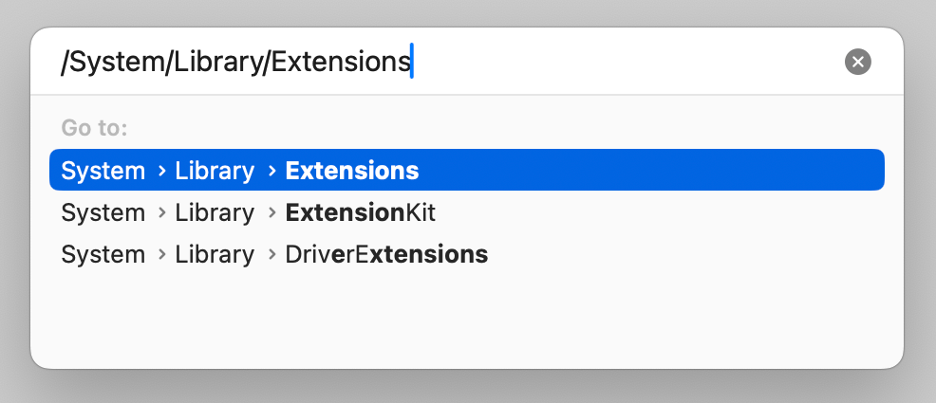
Select Go to Folder.
Type the following path: /Library/Extensions.
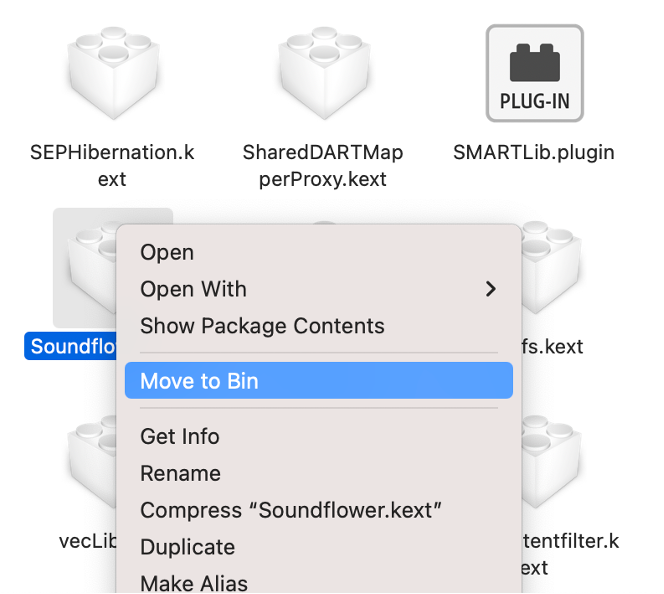
Find the Soundflower.kext file and drag it to the Trash.
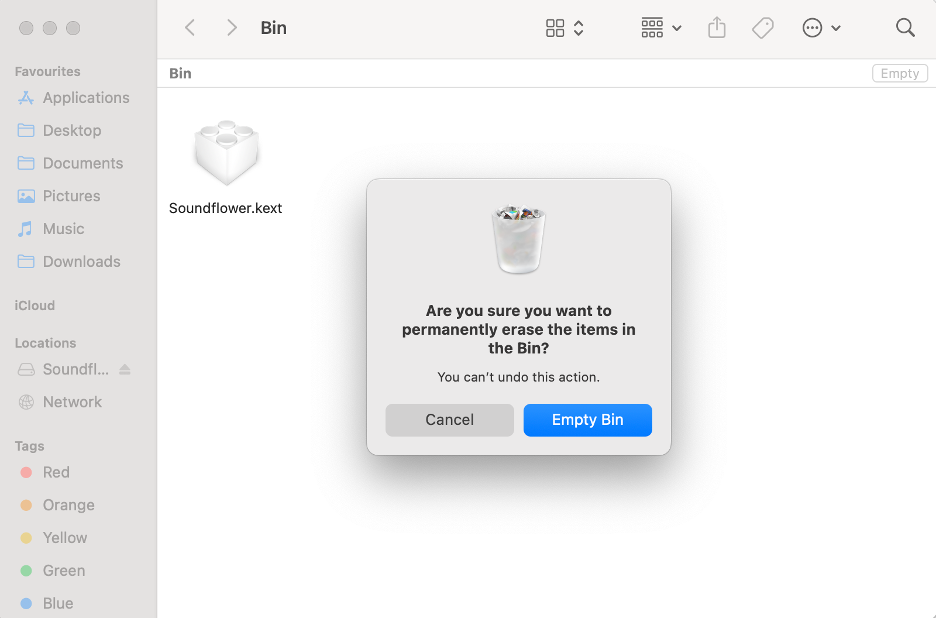
Go to the Trash and click Empty.
Step 1. Finder > Go > Go to Folder Step 2. Type “/Library/Extensions”Step 3. Delete the Soundflower.kext fileStep 4. Empty the Trash
3. Uninstall Soundflower using Terminal
If you’re comfortable using Terminal, this macOS utility is a great option for uninstalling Soundflower from your Mac. Our team of experts often prefers Terminal because it allows for more control, but we don’t recommend this method if you’re not familiar with entering commands. Please keep in mind that typing a command incorrectly could put your Mac at risk.
As long as you copy and paste the commands correctly, we believe you shouldn’t encounter any issues. Here’s how to uninstall Soundflower using Terminal:
Launch Finder.
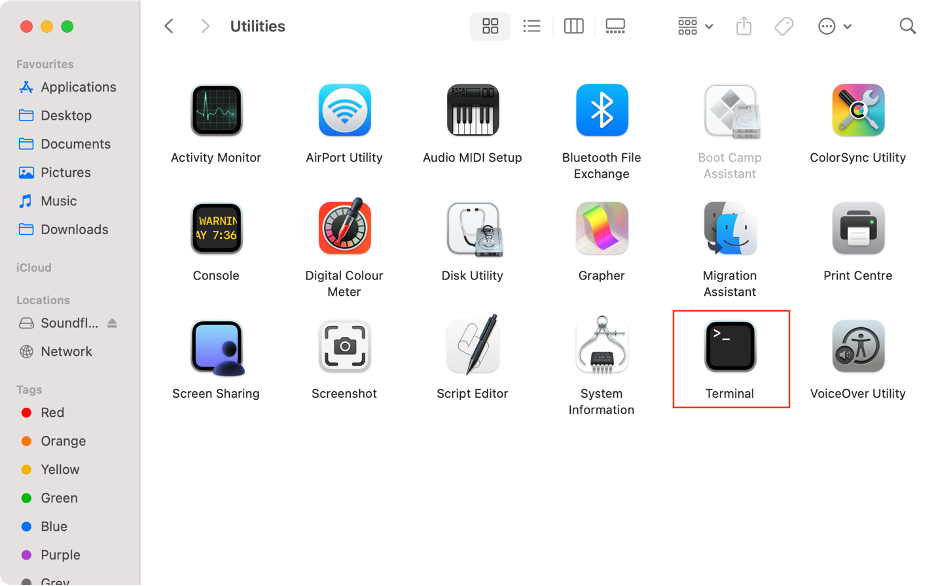
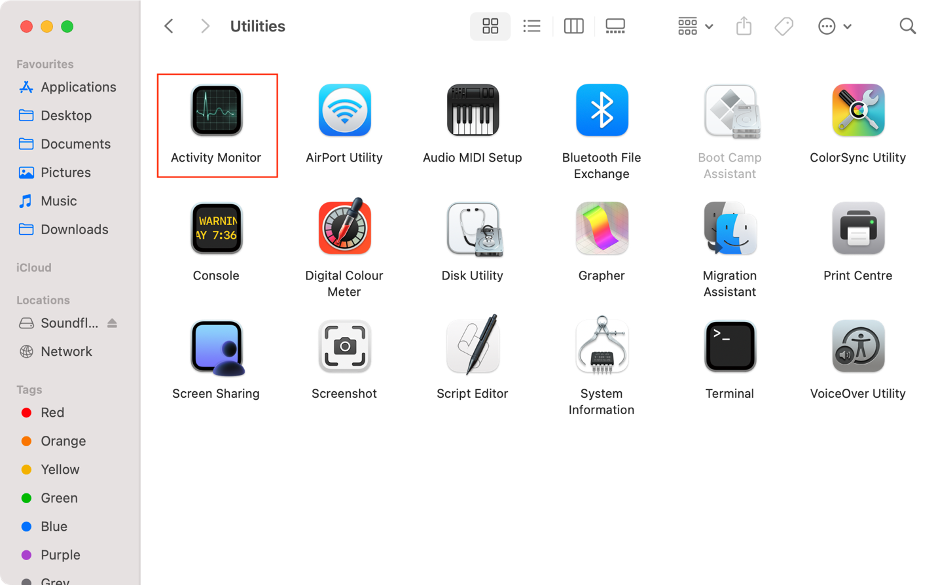
Go to Applications, then open the Utilities folder.
Run Terminal.
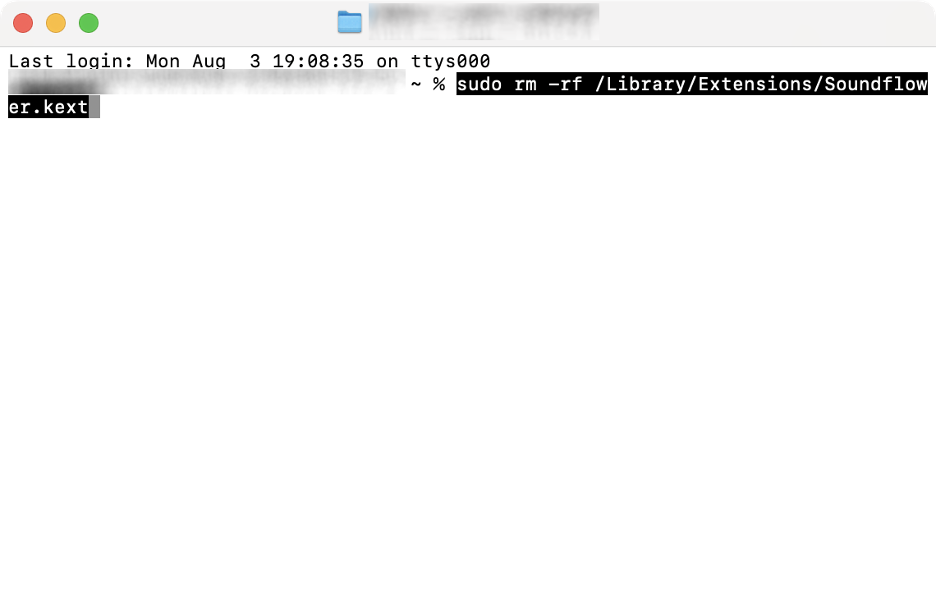
Type the sudo rm -rf /Library/Extensions/Soundflower.kext command.
Press Enter and write your password, if asked.
Step 1. Finder > Applications > Utilities > TerminalStep 2. Type “sudo rm -rf /Library/Extensions/Soundflower.kext”
Remove Soundflower leftover files completely
The methods mentioned earlier vary in their effectiveness at removing the files that accumulate from using Soundflower. Regardless of which method you choose, we recommen to remove leftovers as a final step. While this may require some manual effort (and we understand that time can be tight), our experience shows that it’s wise to do so in order to avoid compatibility issues with other programs and to free up space on your device.
Find below how to delete the leftover Soundflower files on your Mac:
Launch Finder again.
Go to Applications and double-click on the Utilities folder.
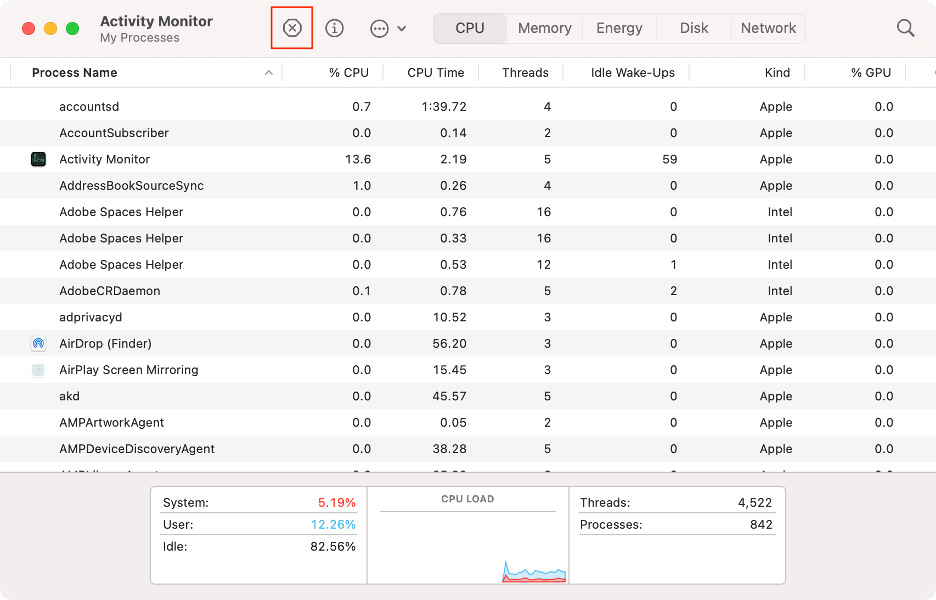
Open Activity Monitor.
Search for any Soundflower processes.
Select them and click the X icon.
Quit Activity Monitor.
In Finder, click Go in the menu bar.
Select Go to Folder.
Copy and paste the following path: /Library/Receipts.
Delete any Soundflower leftover files.
Repeat with these addresses:
~/Library/Application Support
~/Library/Application Scripts
~/Library/Caches
~/Library/Preferences
~/Library/Extensions
Empty the Trash.
Step 1. Finder > Applications > Utilities > Activity MonitorStep 2. End any Soundflower processesStep 3. Finder > Go > Go to FolderStep 4. Find leftover files and move them to the Trash
Now you’re ready to remove Soundflower from Mac
Soundflower is a useful extension for macOS, but it can sometimes crash and become unhelpful. If you want to remove it and its leftover files from your Mac, you can do so manually. However, we recommend going for a more effective method. You can use the official uninstaller script or the Terminal utility, which is available on all Macs.
To clean up your Mac even further, we suggest using MacKeeper’s Smart Uninstaller tool to ensure that no traces of Soundflower remain. Trusted by millions of users, MacKeeper is also an excellent choice for cybersecurity, offering real-time antivirus protection, memory optimization, and private browsing.
We respect your privacy and
use cookies
for the best site experience.
Privacy Preferences Center
We use cookies along with other tools to give you the best possible experience while using the
MacKeeper website. Cookies are small text files that help the website load faster. The cookies we
use don’t contain any type of personal data meaning they never store information such as your
location, email address, or IP address.
Help us improve how you interact with our website by accepting the use of cookies. You can change
your privacy settings whenever you like.
Manage consent
All cookies
These cookies are strictly necessary for enabling basic website functionality (including page
navigation, form submission, language detection, post commenting), downloading and purchasing
software. The website might malfunction without these cookies.