A stuck Mac while verifying Microsoft Outlook is a common case. It can be tricky to fix some issues, especially when you don’t see an obvious reason for an error. MacKeeper’s Premium Services can help you remedy such issues on your device and provide you with recommendations on how to avoid such problems in the future.
You might face the verifying Microsoft Outlook Mac stuck issue thanks to outdated software, corrupted files, or incorrect settings. We suggest you check if Outlook settings are correct or re-add your email if necessary.
A note from our experts:
It’s frustrating when your Mac is stuck. And it’s even more upsetting when it happens while verifying Microsoft Outlook. You might like to cope with this challenge on your own, or you can ask experts for help. MacKeeper’s Premium Services provides 24/7 tech support for Mac users.
Open the app, and in the left sidebar, click Premium Services.
Press Chat Now.
In the popup chat bar, located on the right-hand side, you’ll be able to type out the details of your issues in the chat to get the professional advice from one of our experts.
Step 1. MacKeeper > Premium Services > Chat NowStep 2. Enter your concerns in the live chat box
How to fix when “verifying Microsoft Outlook” on Mac stuck
To get rid of verifying Microsoft Outlook on Mac and be able to use Outlook again, try the following:
Force quit Outlook
Restart your Mac
Re-add your Outlook email account
Step 1. Force Quit Outlook AppStep 2. Restart your MacBookStep 3. Re-add your Outlook email account
In case that didn’t fix the issues you’re experiencing with Outlook, you might find our additional troubleshooting methods below more helpful:
Check your internet connection
Force close Microsoft Outlook
Restart Your Mac
Manage your Outlook security settings
Re-add your Outlook email account
Update Microsoft Outlook
Upgrade your macOS
Launch Outlook into safe mode
Reset Microsoft Outlook
Choose full disk access for Outlook
1. Check your internet connection
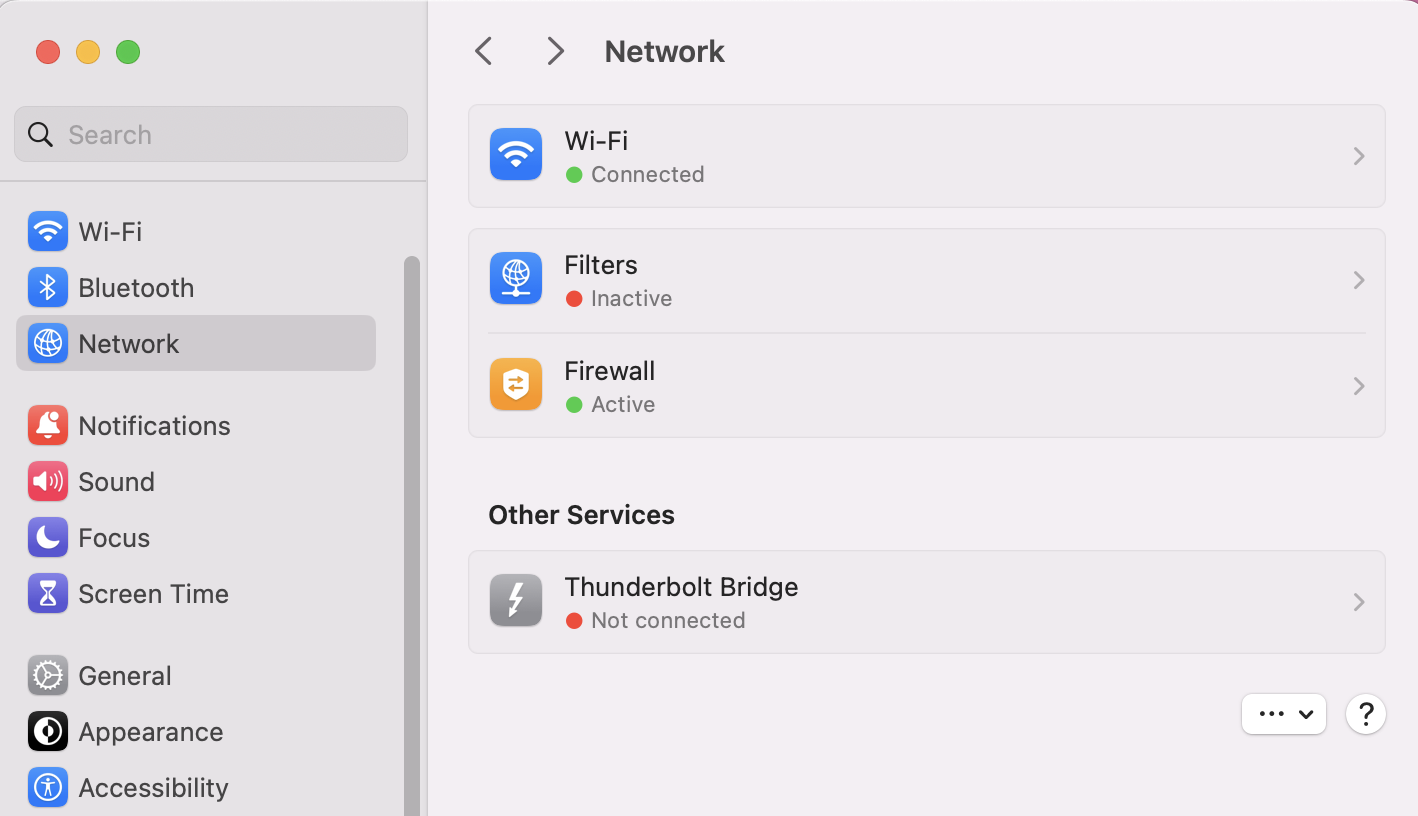
In our experience, a weak internet connection is often the main reason Outlook gets stuck on verifying. Here’s how to check you have a stable internet connection:
Open System Settings from your Apple’s menu and choose Network.
Click on your connection—Wi-Fi or Ethernet.
Check the status of your connection—whether it says Connected with a green dot or not.
In System Settings, go to Network and check you’re connected to your chosen server
2. Force close Microsoft Outlook
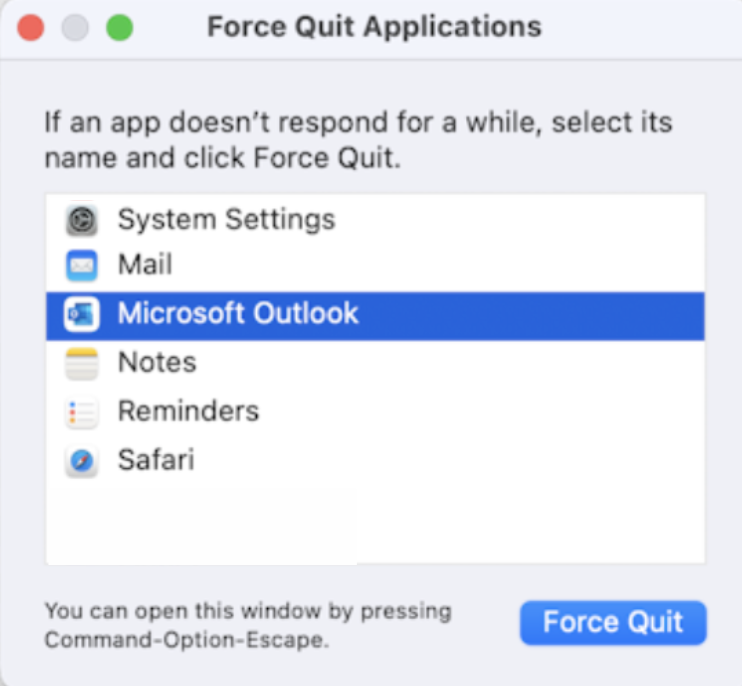
Once you know your connection isn’t the issue, you might get rid of verifying Microsoft Outlook on Mac by force closing Outlook. It’s the quickest way to restart the app.
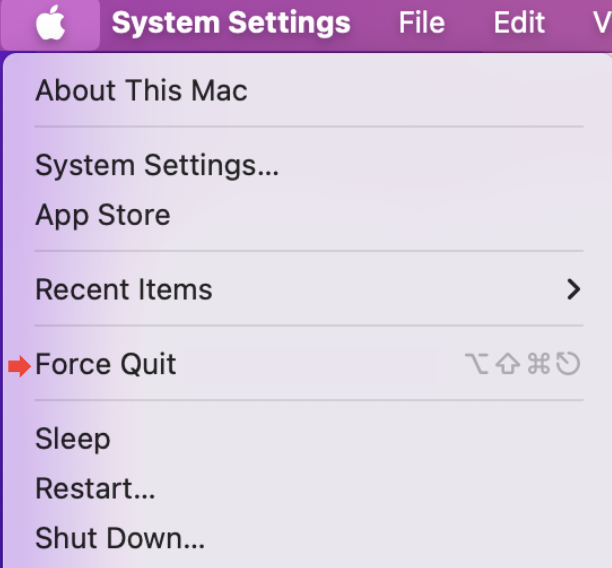
Here are the steps to force close verifying Microsoft Outlook on Mac:
Click on the Apple icon.
Press Force Quit.
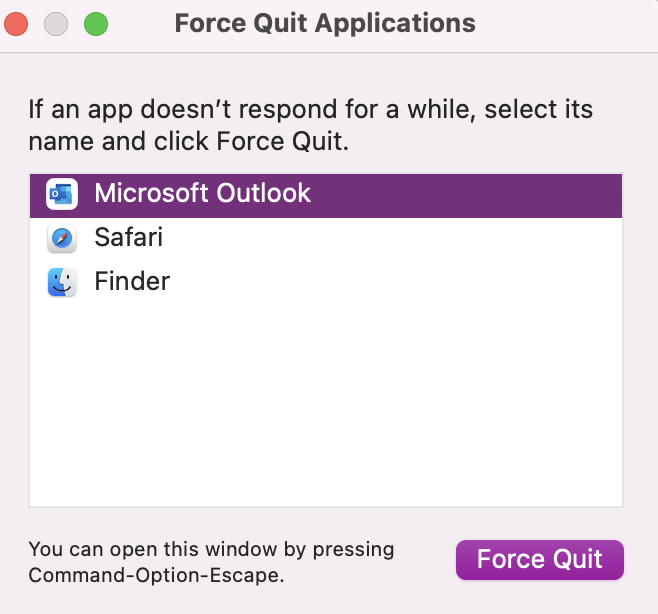
Choose Microsoft Outlook from the list of running apps.
Click the Force Quit button.
Step 1. Click on the Apple icon and choose Force QuitStep 2. In the list, select Microsoft Outlook and press the Force Quit button
3. Restart Your Mac
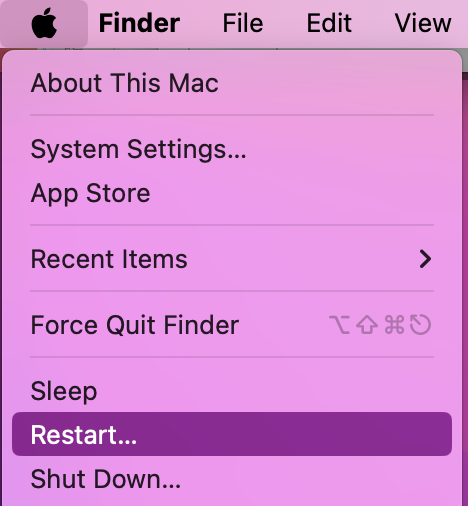
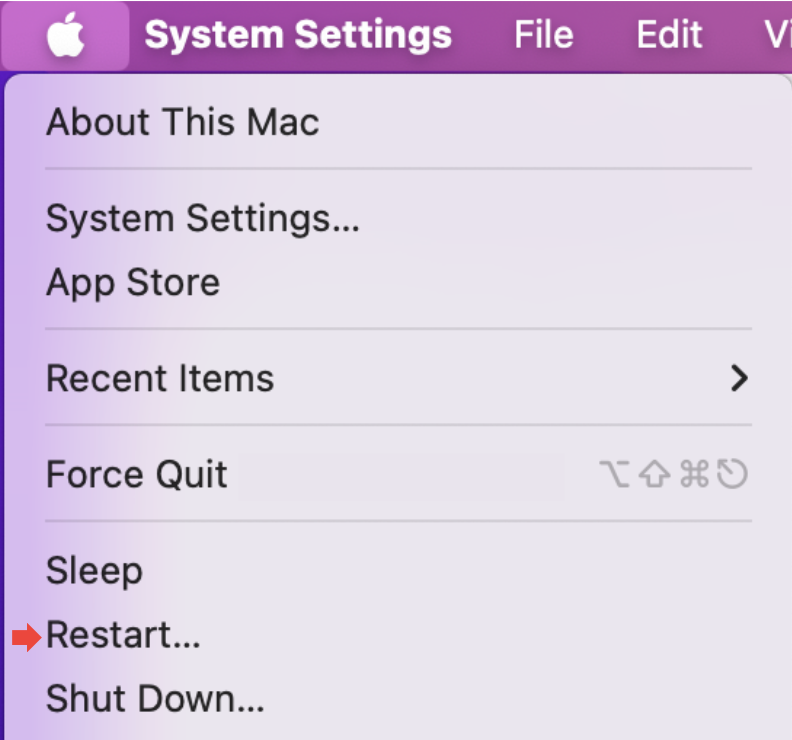
Another quick solution that we hope will fix that annoying verifying Microsoft Outlook Mac stuck issue is to restart your device. Follow these steps to safely restart your Mac:
Have all your apps closed.
Click on the Apple icon.
Press Restart.
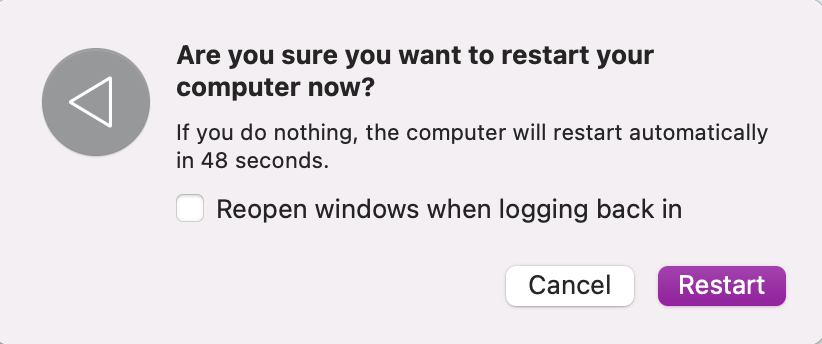
Confirm in the pop-up window. Wait until your device restarts, and then re-open Outlook to see if the issue has sorted itself.
Step 1. Click on the Apple icon and press RestartStep 2. Confirm you want to Restart your device
An extra tip from us:
Restarting your device is a good idea if your MacBook keeps freezing. The advice in this blog article has further advice on how to fix screen hanging and glitches—check it out.
4. Manage your Outlook security settings
In case you’re still waiting for verification, we suggest adjusting your Outlook security settings as you have access restrictions—affecting the verification process.
Here’s how to check and then manage your Outlook security settings:
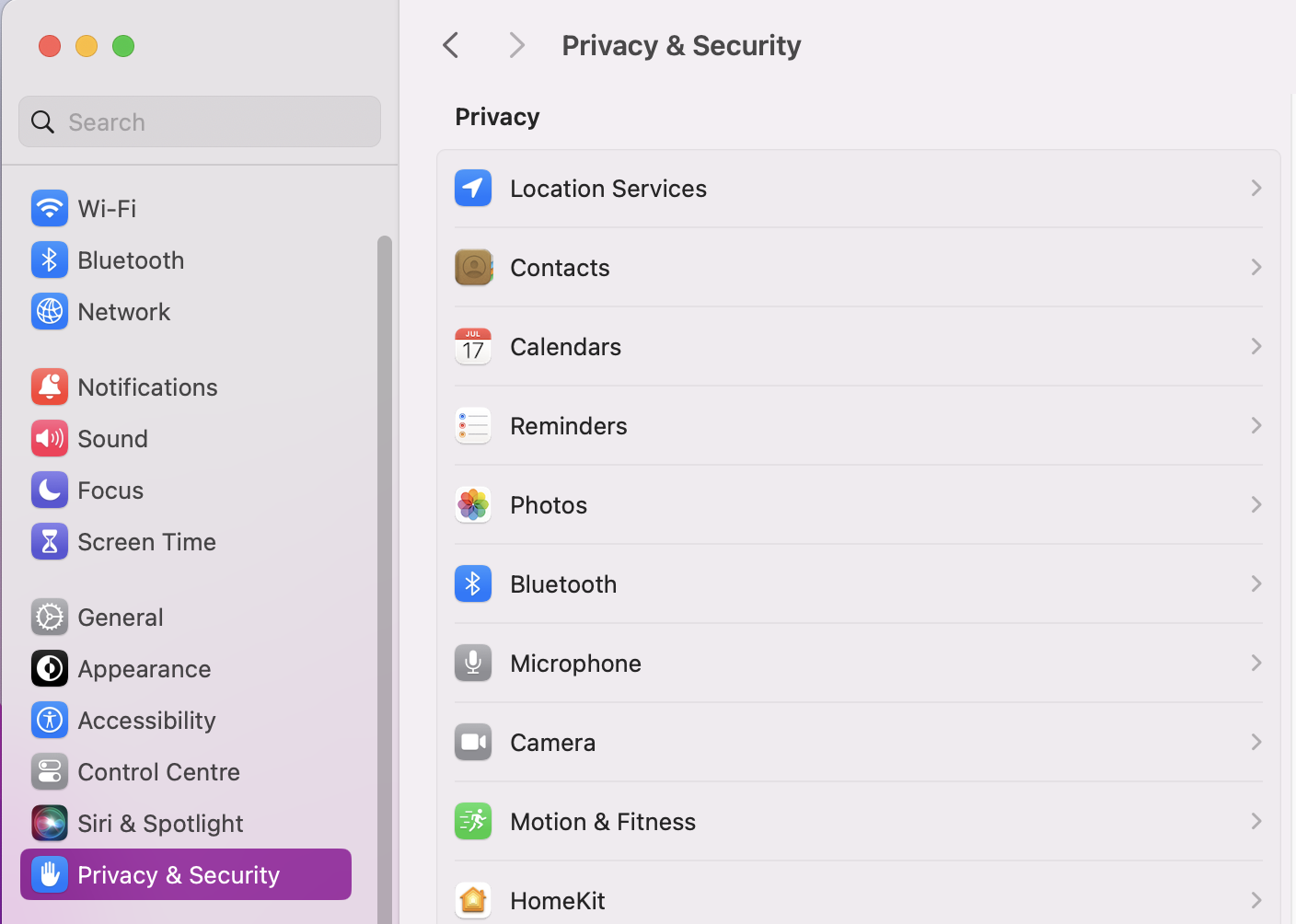
Open System Settings on your computer.
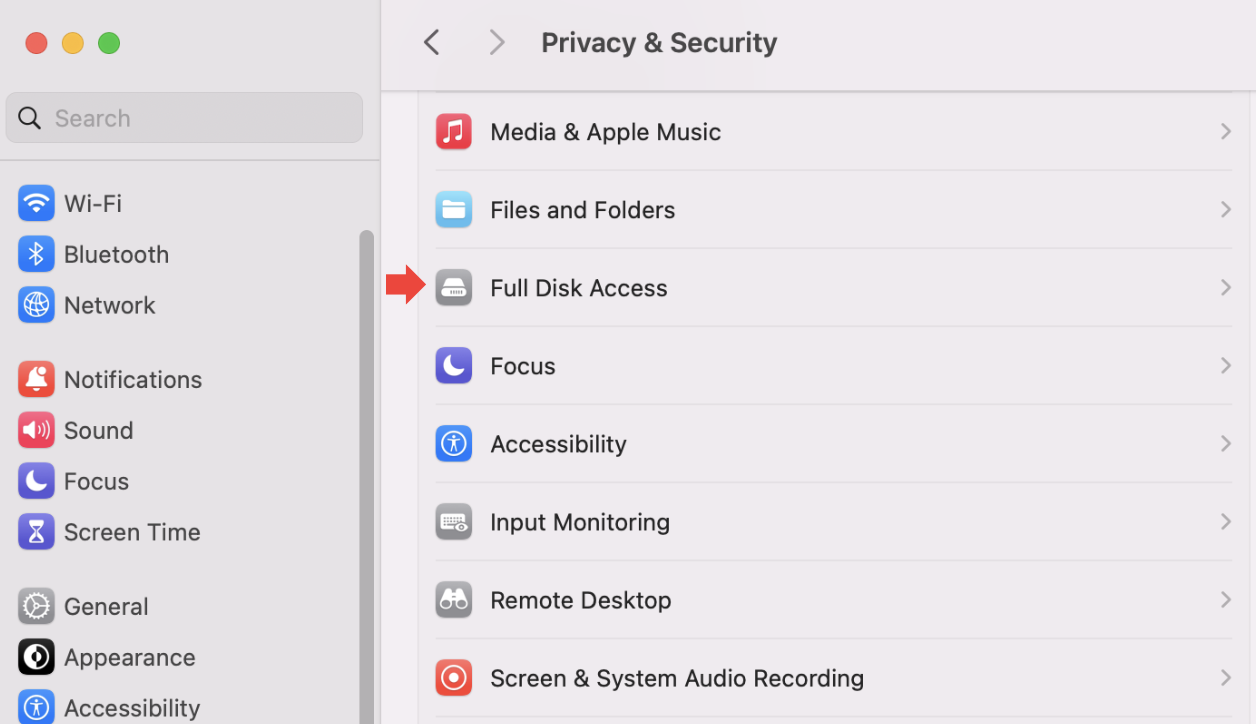
Click on Privacy & Security > Full Disk Access.
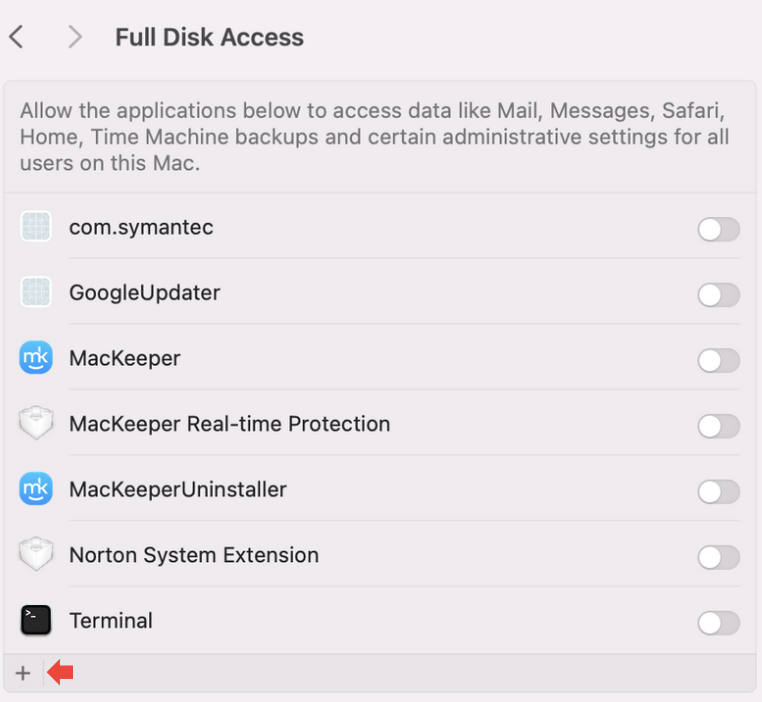
Press the (+) button and verify.
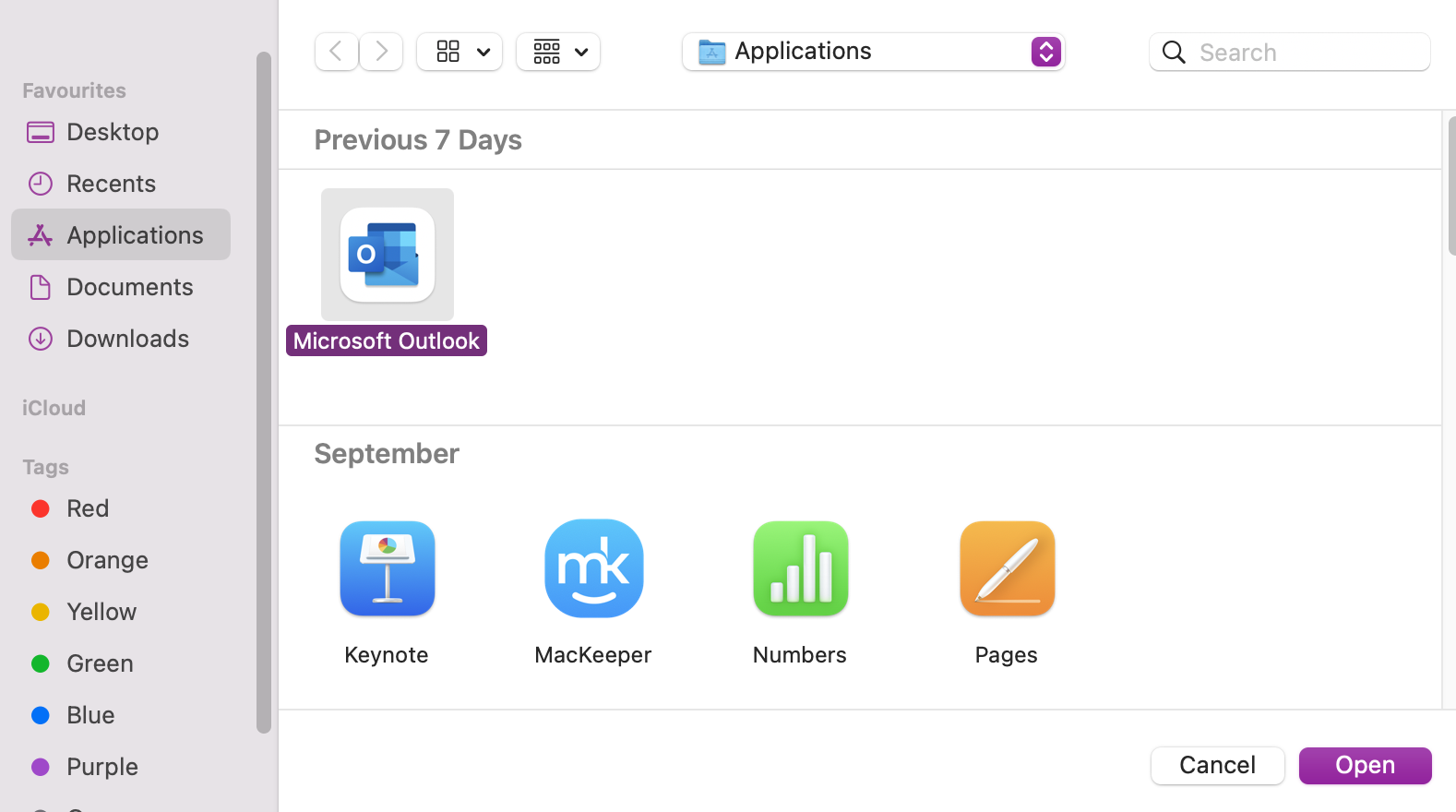
Find Outlook and press Open.
Step 1. In Settings, click on Privacy & SecurityStep 2. Click on Full Disk AccessStep 3. Press the + button and verify with your IDStep 4. Choose Outlook and press Open
5. Re-add your Outlook email account
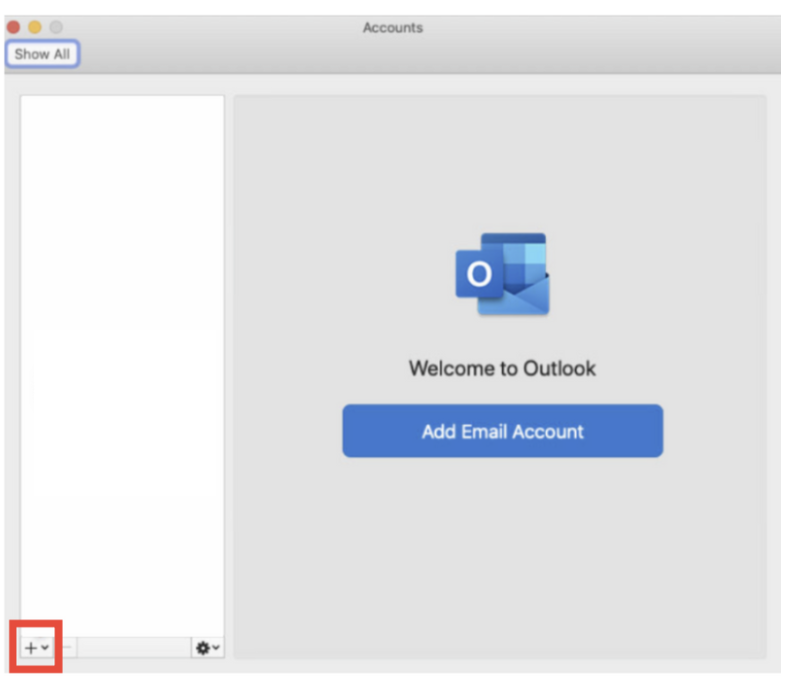
Another method you can try is to remove and re-add your Outlook email account. Here’s how to do it:
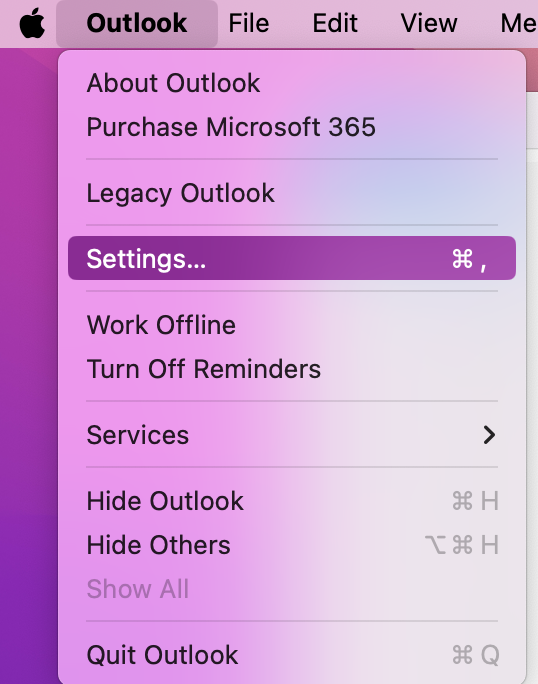
Open Microsoft Outlook and click on Outlook Settings.
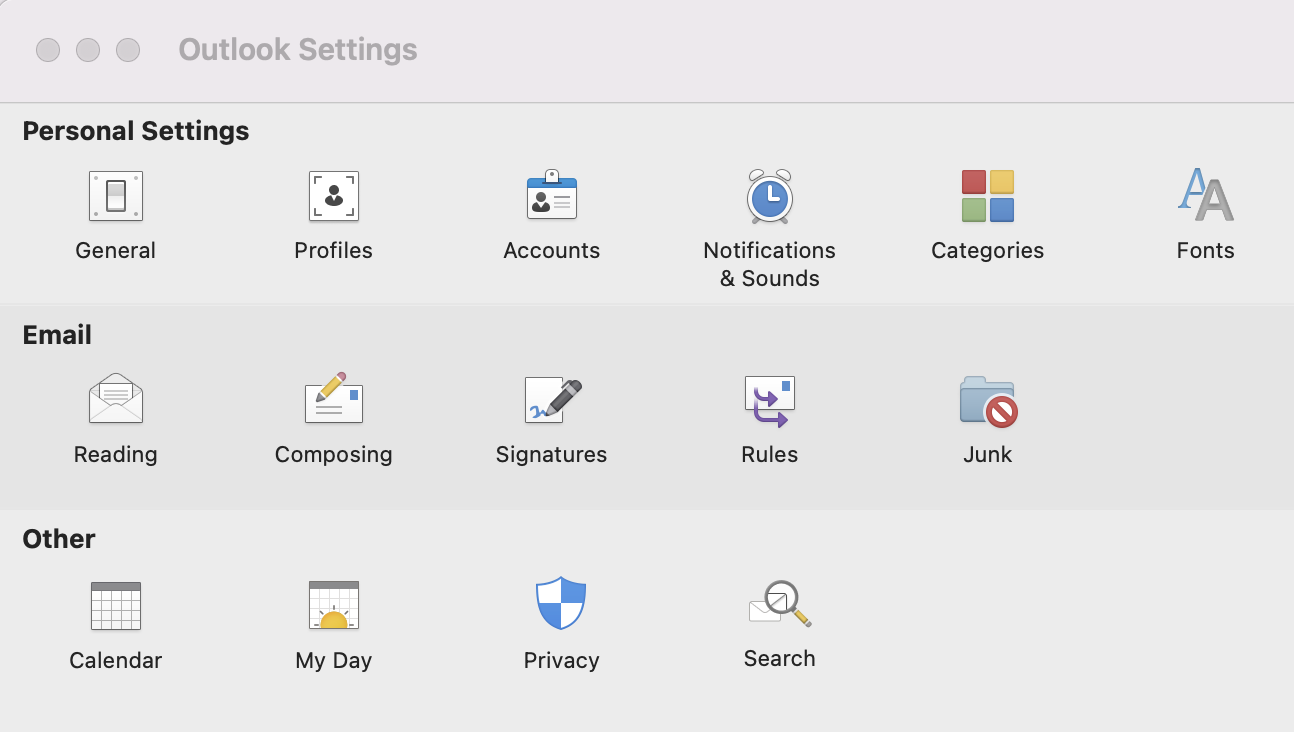
Press Accounts.
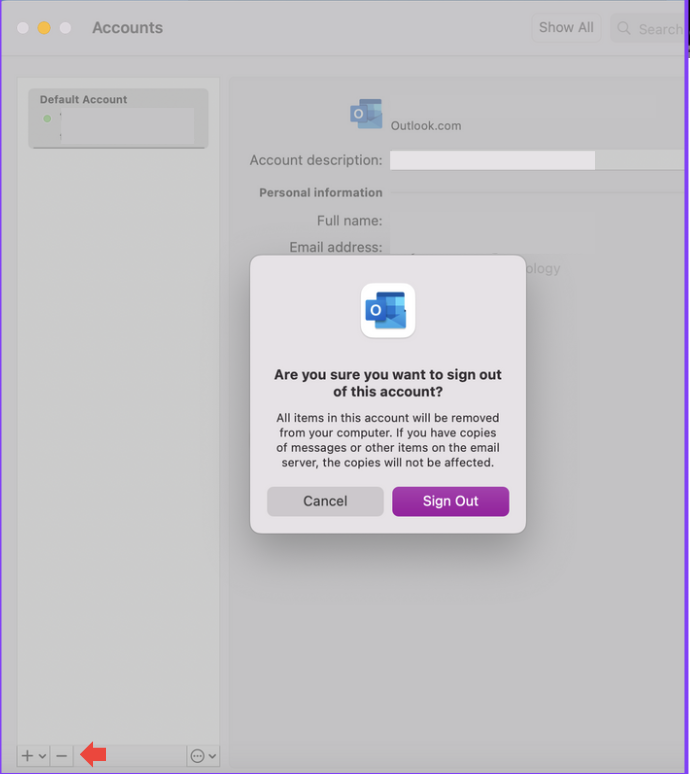
Click the (-) button to remove your stuck account.
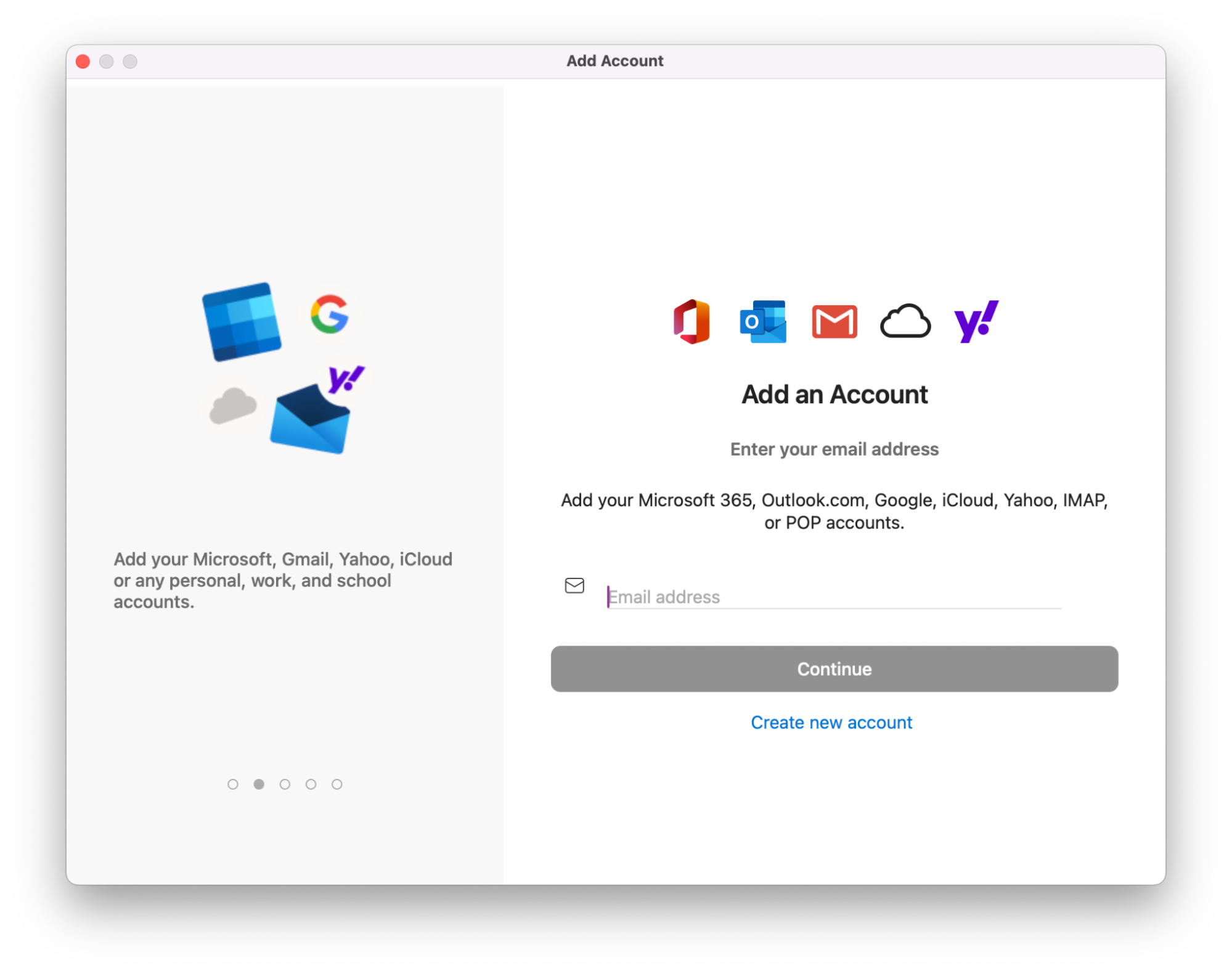
RestartOutlook, and go back to Accounts. This time, click (+) to re-add your email.
Step 1. Open Outlook SettingsStep 2. Press AccountsStep 3. Click on the (-) button to remove the stuck accountStep 4. Press the (+) button to re-add your Outlook email account
A hint from our team:
Mac users are known to have issues when their Office account doesn’t allow editing on Mac. Are you one of them? We’ll help you see if the problem is account-related or system-related—just read on our attached piece.
6. Update Microsoft Outlook
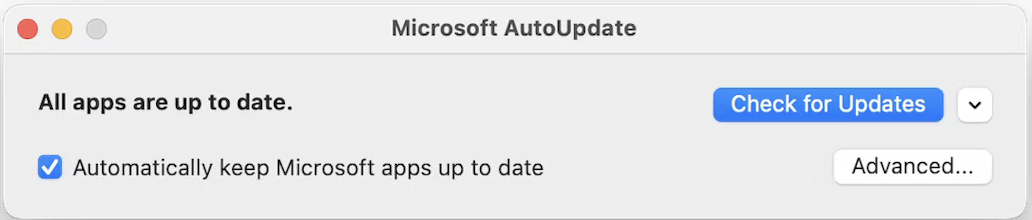
You may be having verification issues due to the Outlook app running with old software. Here’s how to update Microsoft Outlook:
Open Microsoft Outlook and click on Help.
Press Check for Updates.
If any updates are available, you’ll be able to click Install.
In the Outlook app, click on Help and press Check for Updates
Our hint to consider:
If Word keeps crashing on Mac this could be a sign that the app needs troubleshooting. Our supporting blog can show you have to fix any glitches you experience—enjoy our tips.
7. Upgrade your macOS
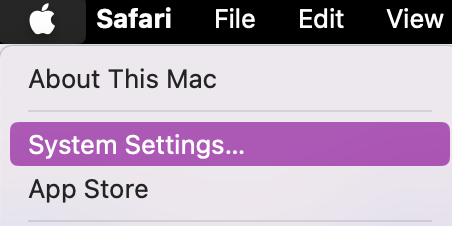
In case updating the app doesn’t work, it’s time to check that macOS is up-to-date. Here’s how to see if your macOS needs upgrading:
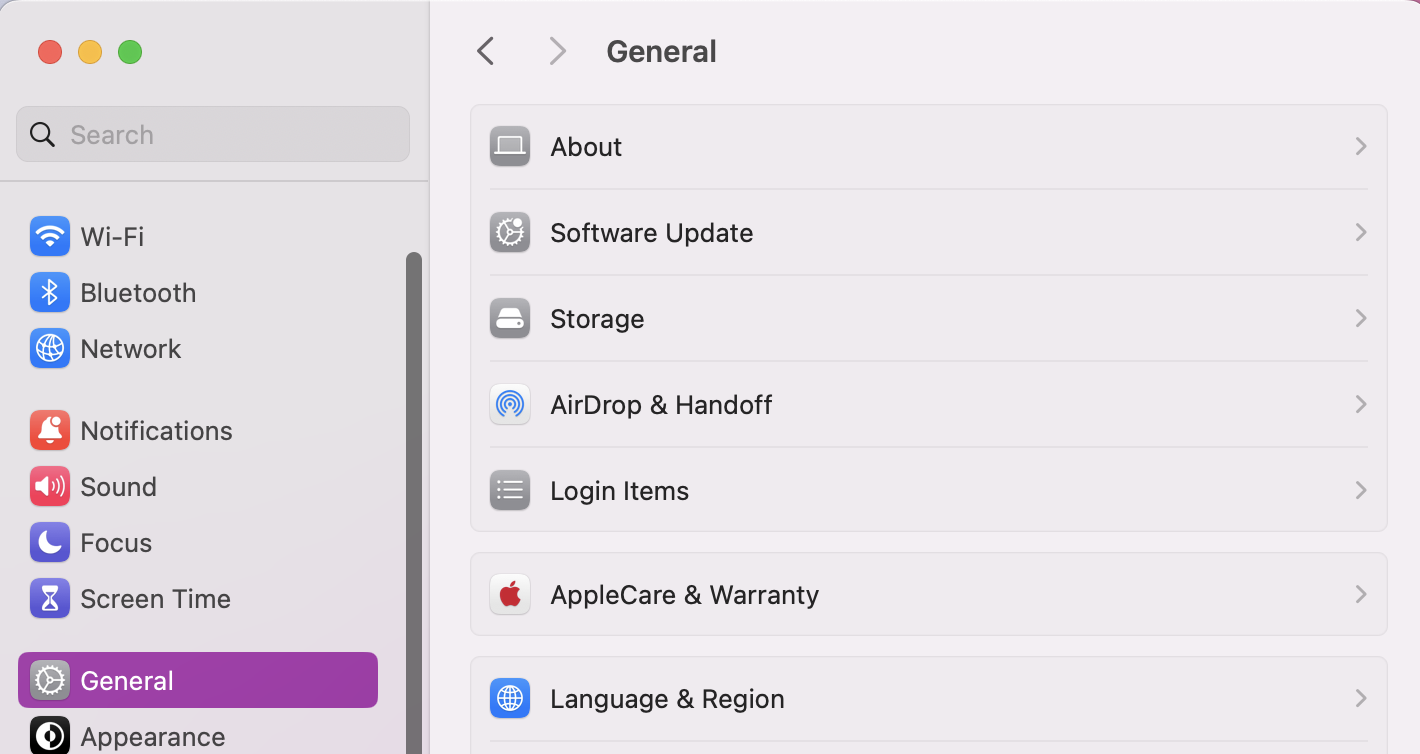
Open System Settings > General.
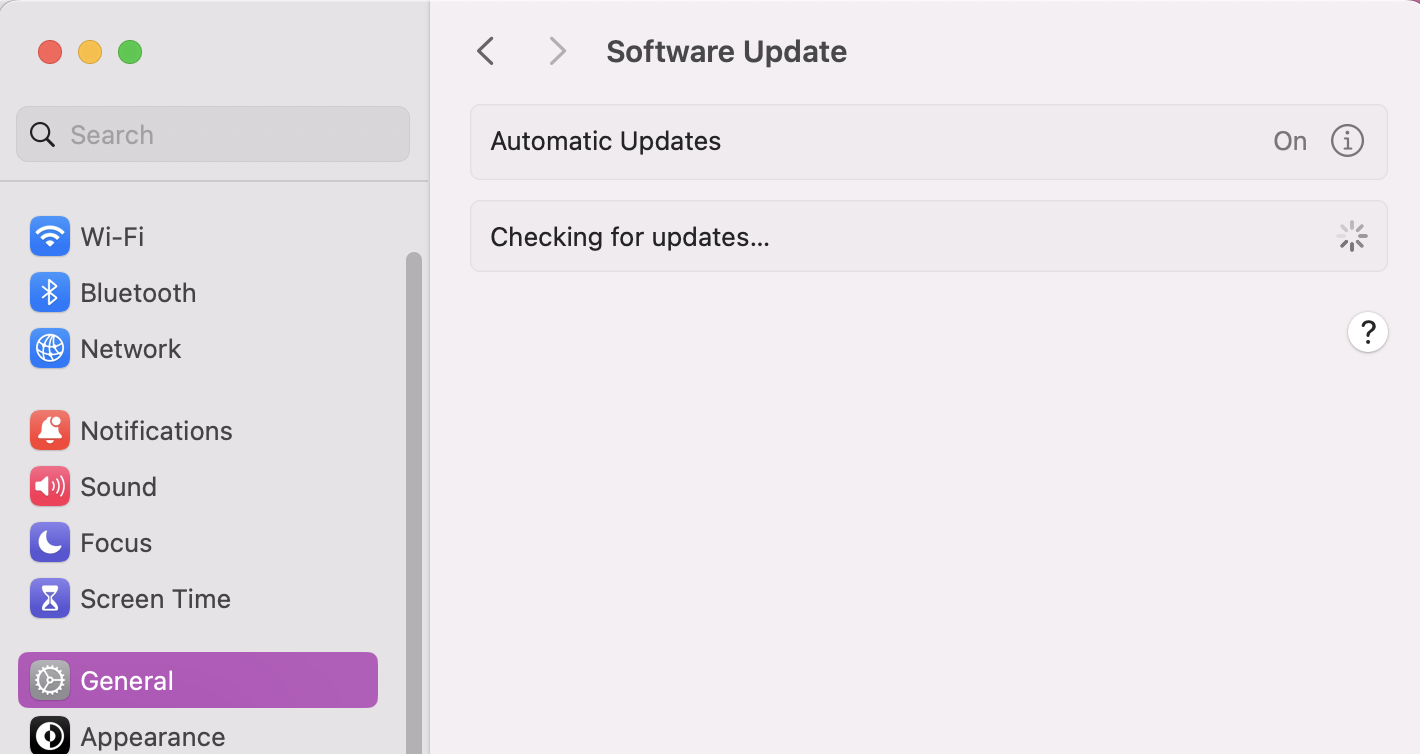
Click on Software Updates.
Wait for your Mac to Scan for Updates. If any are available, click Upgrade Now.
Step 1. Open System Settings in Apple’s menuStep 2. Go to the General tab > Software UpdateStep 3. If any updates are available, click on the Upgrade Now button
8. Launch Outlook into safe mode
Should Outlook still be showing that nuisance stuck on verifying error, it may help to launch the app in safe mode so only the essential files will load.
8.1. Mac on Apple Silicon
Here’s how to boot a Mac, with Apple Silicon software, into safe mode:
Turn off your Mac.
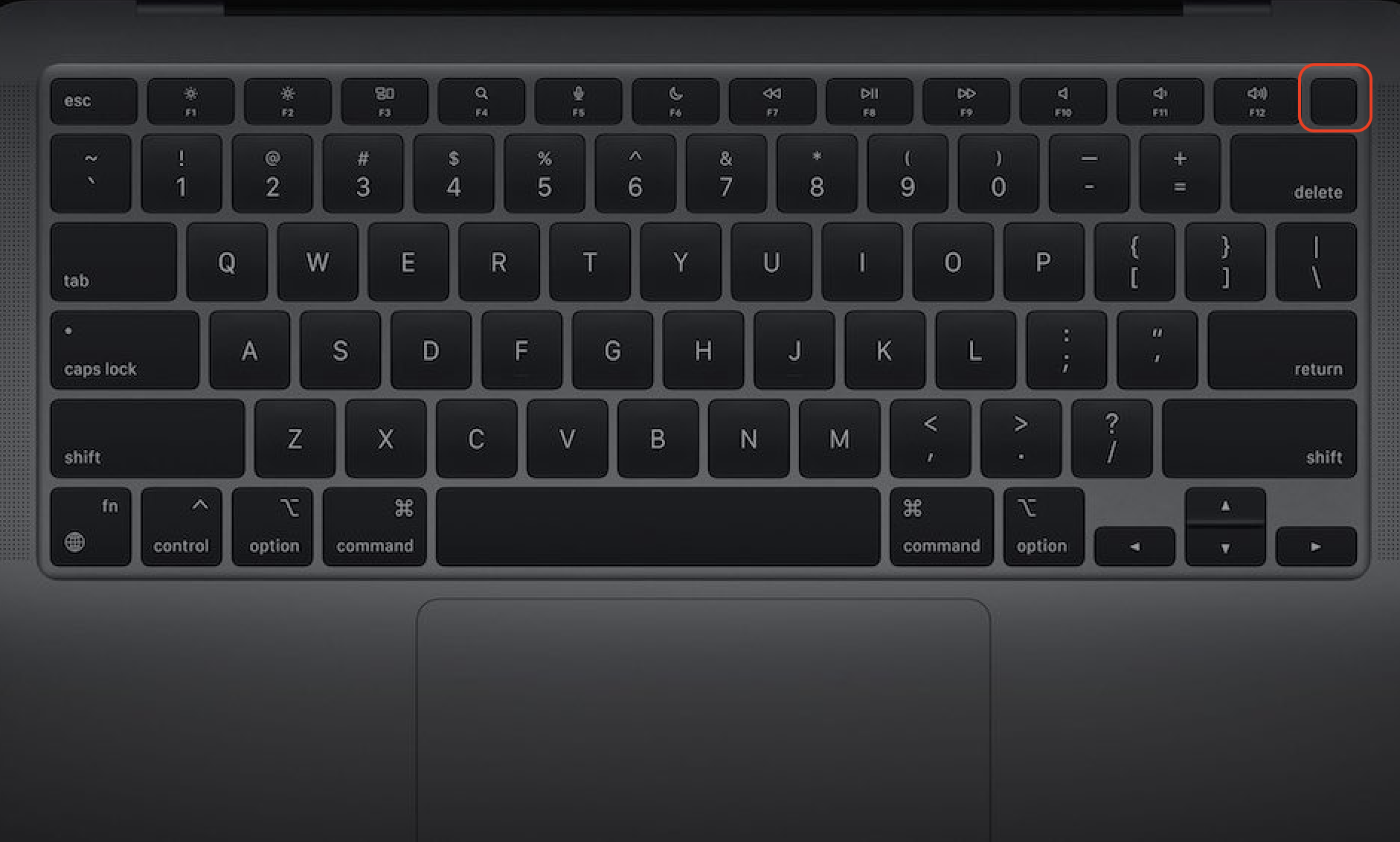
Press the power button and hold down to open Startup Options.
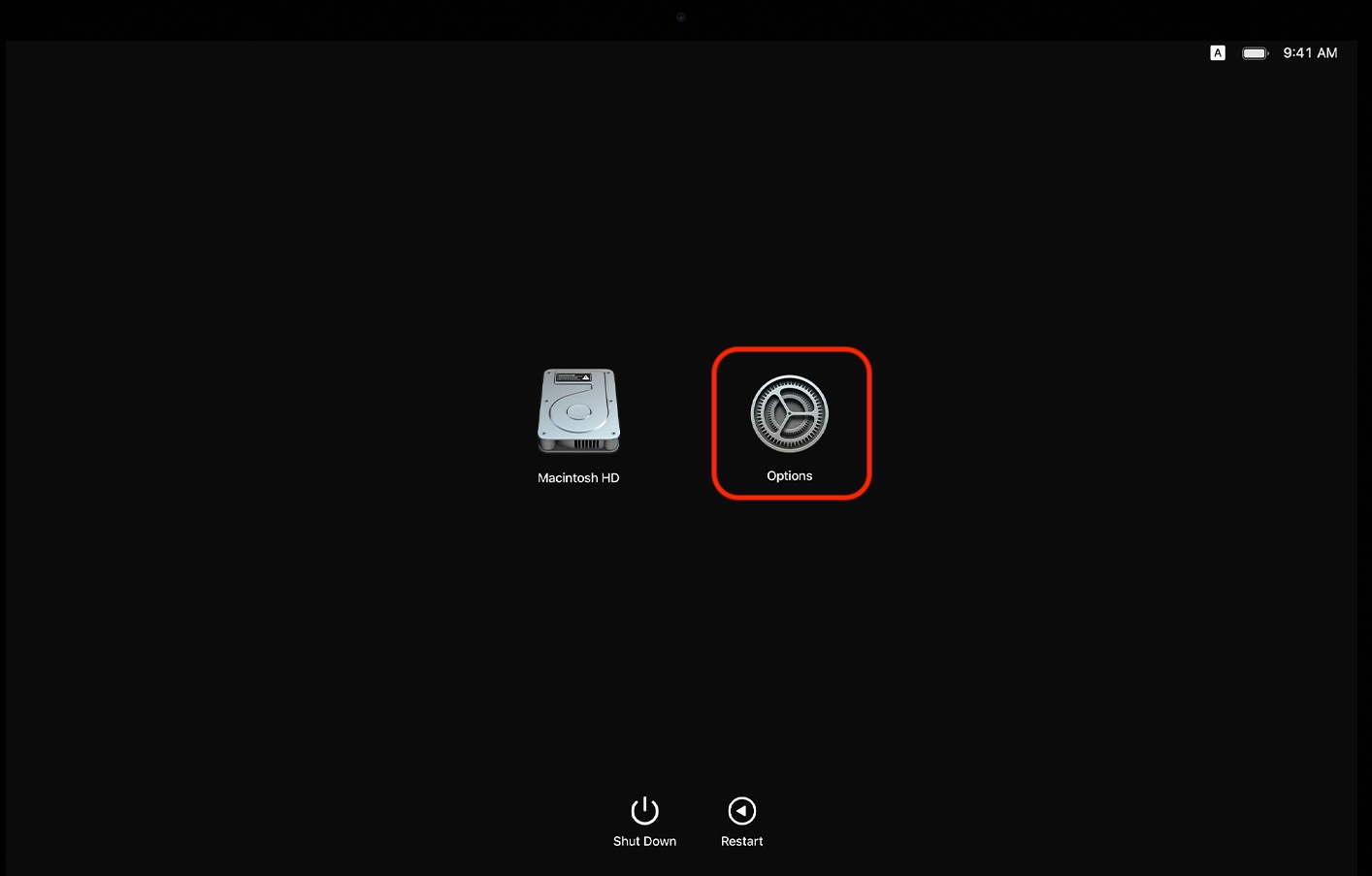
Choose Options and select your startup disk.
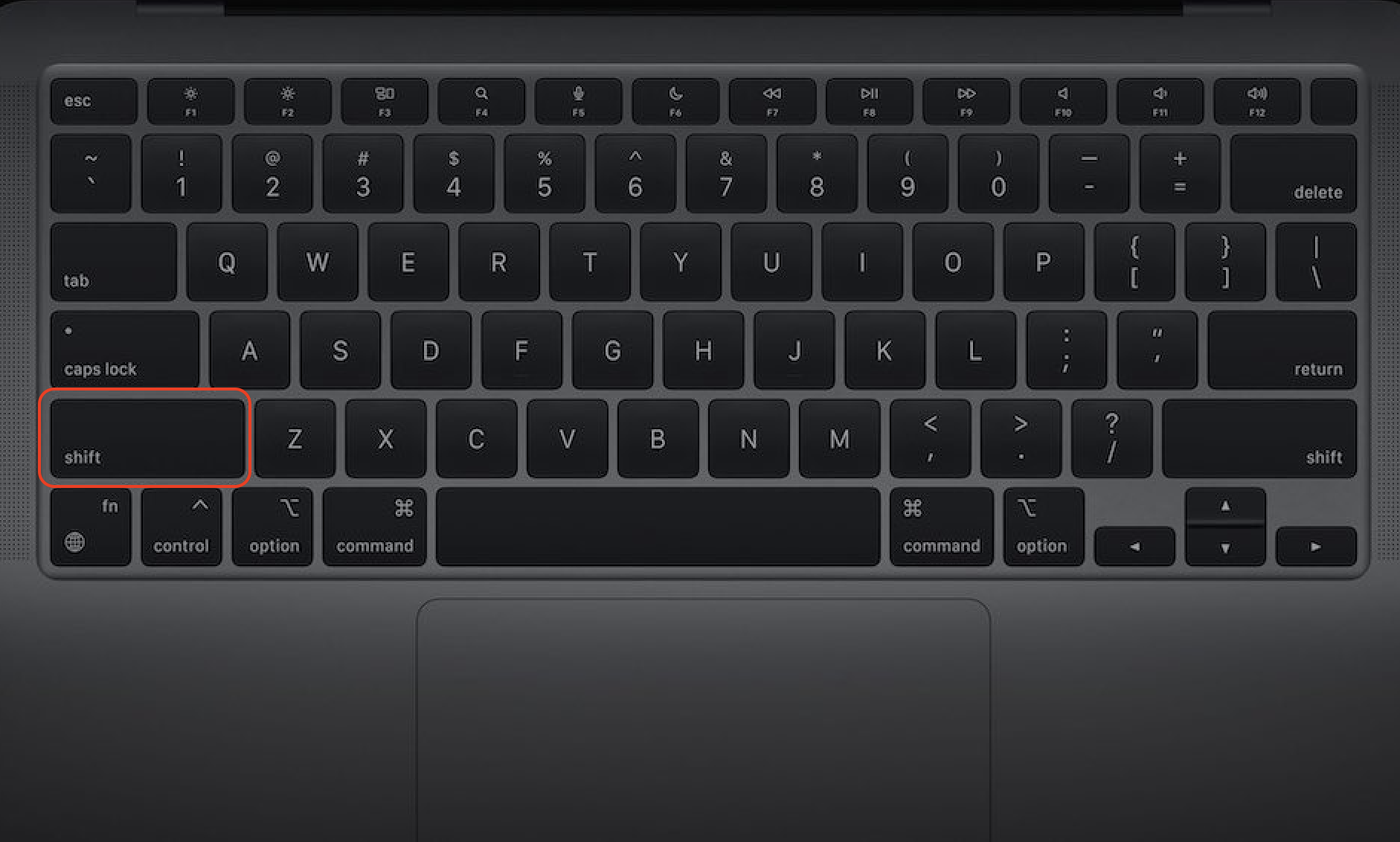
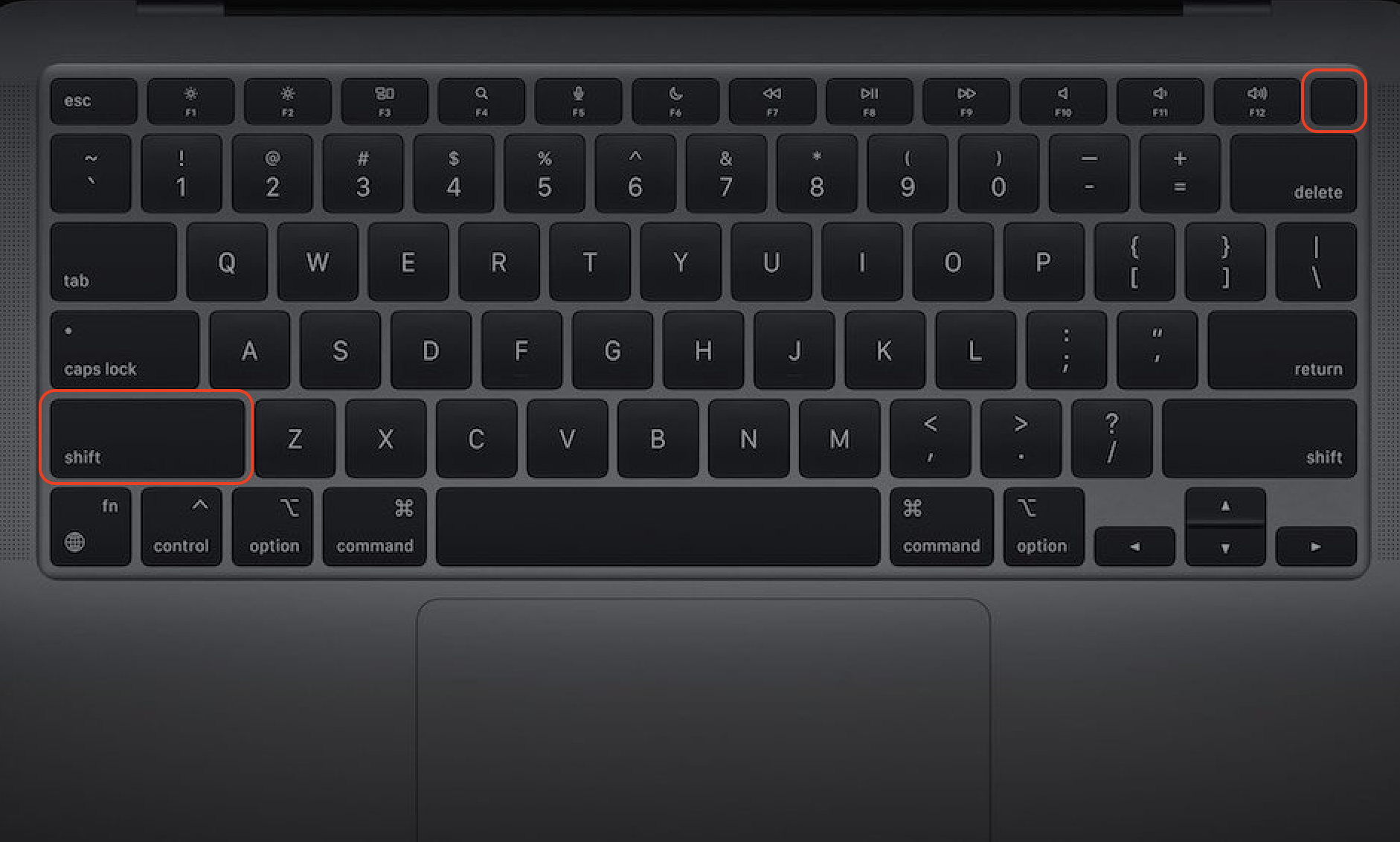
Hold down Shift.
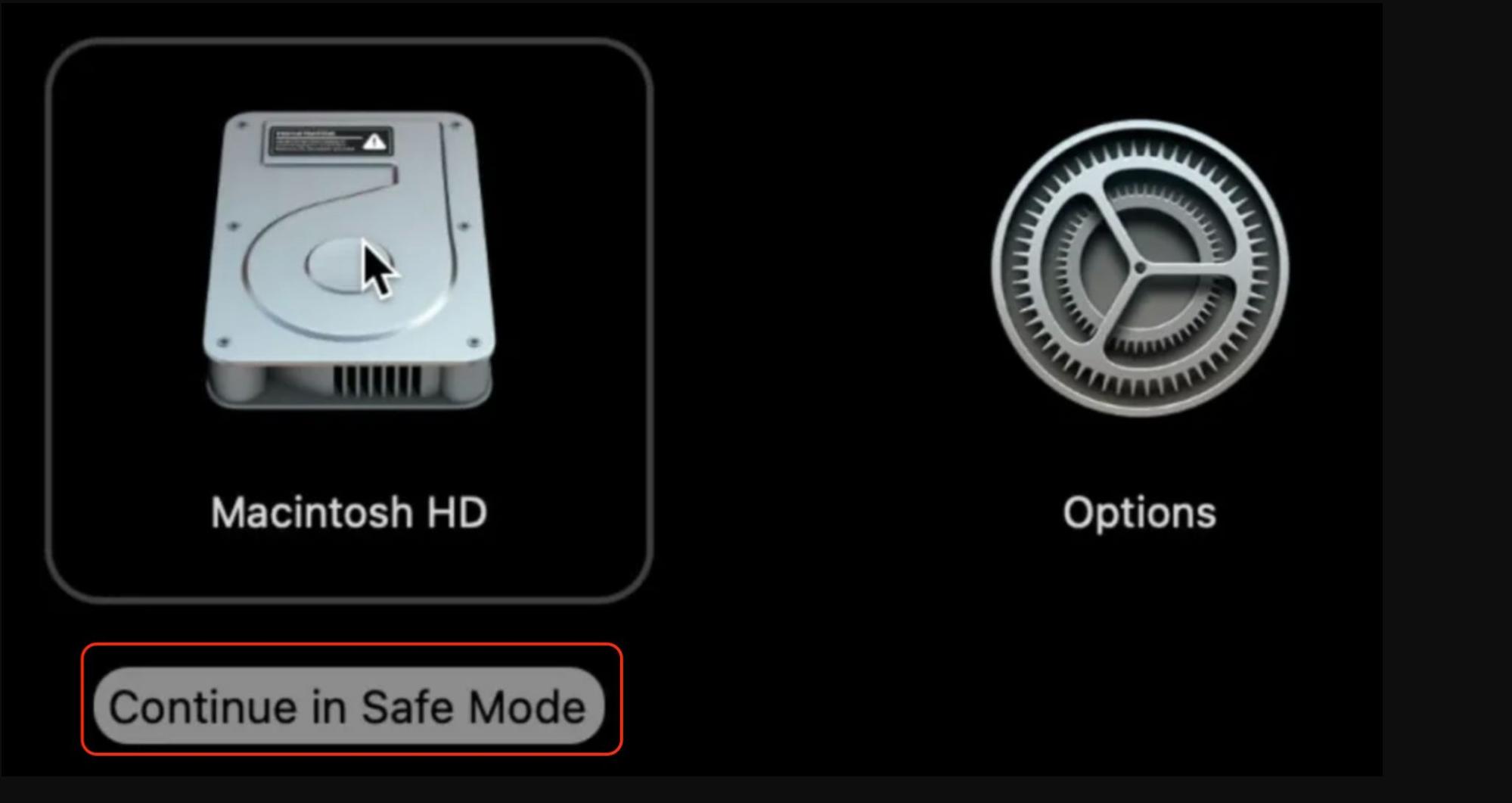
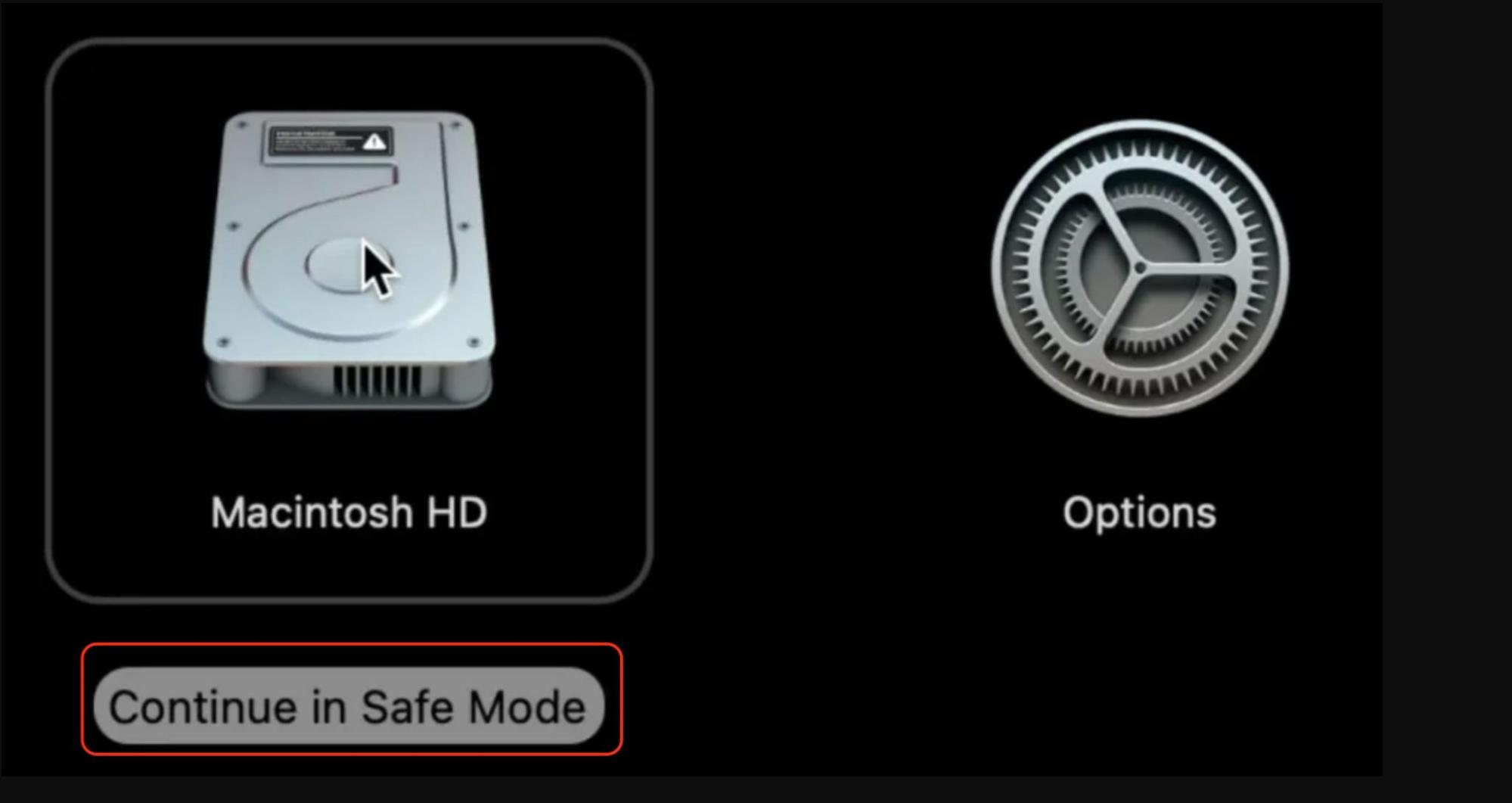
Click Continue in Safe Mode, release Shift, and log in as prompted.
Step 1. With your Mac off, press the power button and hold it down to open Startup OptionsStep 2. Click on Options and select your startup diskStep 3. Make sure to hold down the Shift keyStep 4. Then you’ll see the option to Continue in Safe Mode, release Shift, and log into your Mac
8.2. Mac on Intel
If you have an Intel Mac, these steps will show you how to launch safe mode:
With your Mac off, Press the power button while holding Shift.
Release the Shift key when the login window appears and log in.
You should see Safe Mode in the corner of the login screen.
Step 1. With your MacBook off, press the Power button whilst holding down ShiftStep 2. Release the Shift key when the login window appears and continue in Safe Mode.
9. Reset Microsoft Outlook
Still no luck? It might be time to try resetting Microsoft Outlook to restore any corrupt settings.
Here’s how to reset Microsoft Outlook:
Open Outlook.
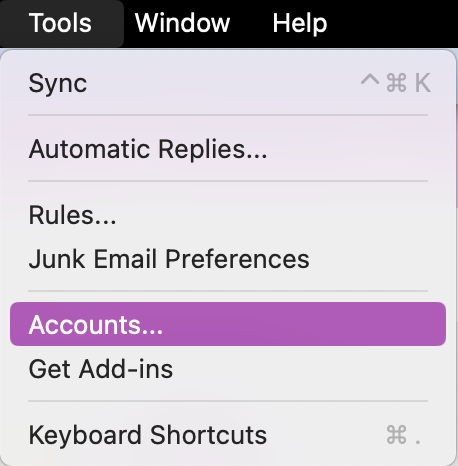
Go to Tools > Accounts.
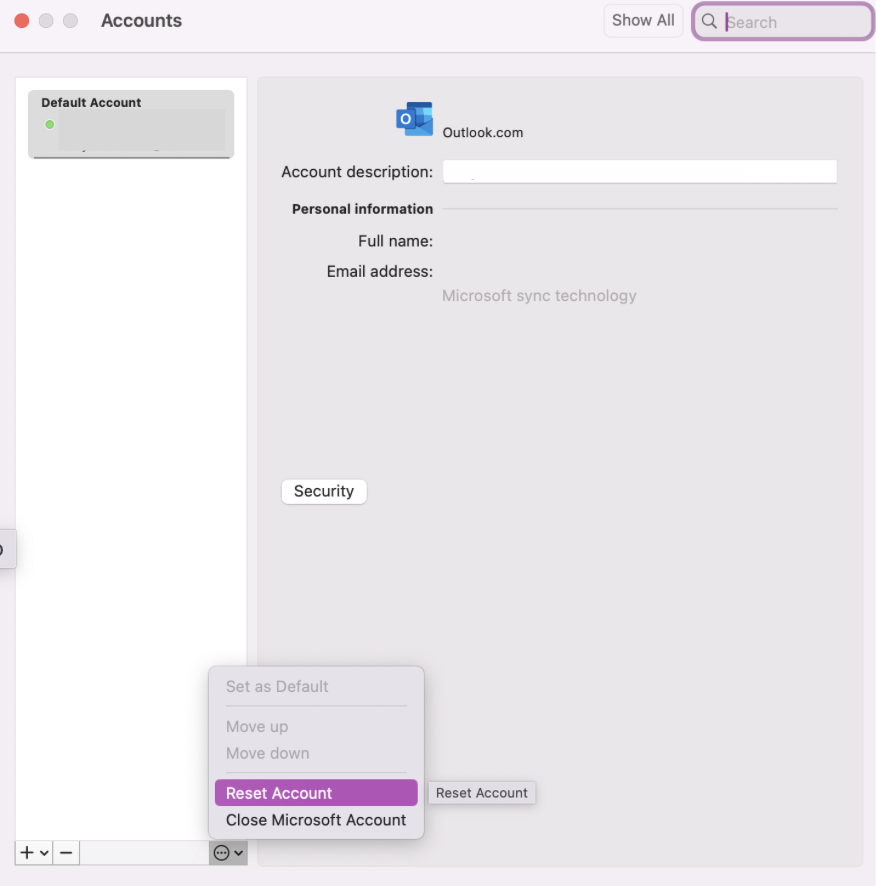
Click on the three dots and press Reset Account.
Step 1. In Outlook, go to Tools > AccountsStep 2. Click on the three dots and press Reset Account
10. Choose full disk access for Outlook
Allowing Microsoft Outlook to have full disk access could help the app to run properly and fix the verifying Microsoft Outlook Mac stuck issue.
Back in section 4, you’ll see how to add Outlook to the list of apps with full disk access.
Getting an expert to help fix your Outlook verification issues
Still having no luck verifying your Outlook account? It can be frustrating, especially if checking your internet and updating your software doesn’t work.
We recommend asking for an extra hand. In the MacKeeper app, you can chat with our experts through MacKeeper's Premium Services to help resolve your Outlook account issues or any other Mac-related inconvenience.
Here's how you can use MacKeeper’s Premium Services:
Open the MacKeeper app and click on Premium Services.
Click on Chat Now, and describe your issue so that the connecting expert can help.
In the MacKeeper app, choose Premium Services and click Chat Now
With the help of our team, you’ll get back to using your Outlook account in no time.
Now, check yourself with the final question: do you suspect malware is the culprit to your verification issue? If so, you can find out how to get rid of malware on Mac by reading our relevant piece and closing the stuck Outlook verifying issue once and to the full.
We respect your privacy and
use cookies
for the best site experience.
Privacy Preferences Center
We use cookies along with other tools to give you the best possible experience while using the
MacKeeper website. Cookies are small text files that help the website load faster. The cookies we
use don’t contain any type of personal data meaning they never store information such as your
location, email address, or IP address.
Help us improve how you interact with our website by accepting the use of cookies. You can change
your privacy settings whenever you like.
Manage consent
All cookies
These cookies are strictly necessary for enabling basic website functionality (including page
navigation, form submission, language detection, post commenting), downloading and purchasing
software. The website might malfunction without these cookies.