The cfprefsd process on Mac is an essential part of the macOS operating system and shouldn’t be interrupted unless it’s absolutely necessary. When we find that cfprefsd is eating up system resources and bringing our Mac to a crawl, there are other steps we can take to boost performance, like using MacKeeper’s Memory Cleaner to quickly free up system RAM.
Cfprefsd on Mac is a background service or daemon that reads and writes preference files so that macOS and your apps can save your desired settings. It helps ensure system-wide defaults are respected. Although it’s usually very efficient, there are times when you’ll notice cfprefsd has high CPU usage and causes your MacBook to feel slower. If necessary, you can use the sudo killall cfprefsd command or reboot your Mac to restart the process.
Why you might notice cfprefsd on your Mac?
Most macOS users never notice cfprefsd on Mac because it doesn’t usually get in the way. However, there may be times when your Mac starts to feel slow and you open Activity Monitor to see cfprefsd with high CPU usage. This is normally when it’s busy reading or writing system preferences.
When cfprefsd slows down your MacBook, we recommend leaving it be if possible. In our experience, the increased demand on resources doesn’t typically last very long. If it’s clear that cfprefsd is stuck, then you may be forced to stop it or restart your Mac so that performance returns to normal.
A note from our experts:
Before interrupting the cfprefsd process on Mac—which can cause system stability issues that lead to crashes—it’s a good idea to try safer ways to improve performance first. Using MacKeeper’s Memory Cleaner from Clario Tech, you can quickly purge old data from RAM and free up space, making macOS and all your apps immediately more performant.
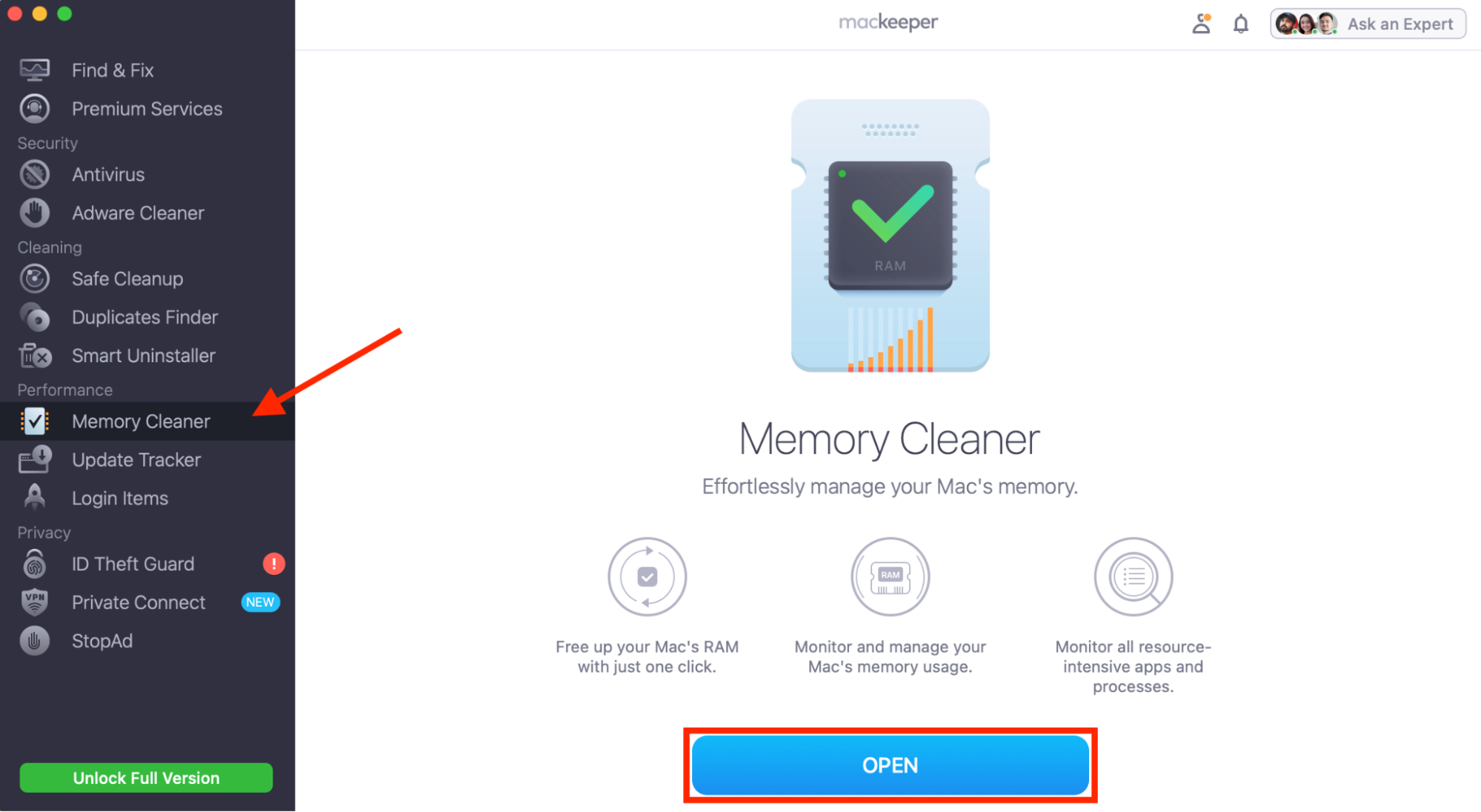
Select Memory Cleaner in the MacKeeper sidebar, then click Open.
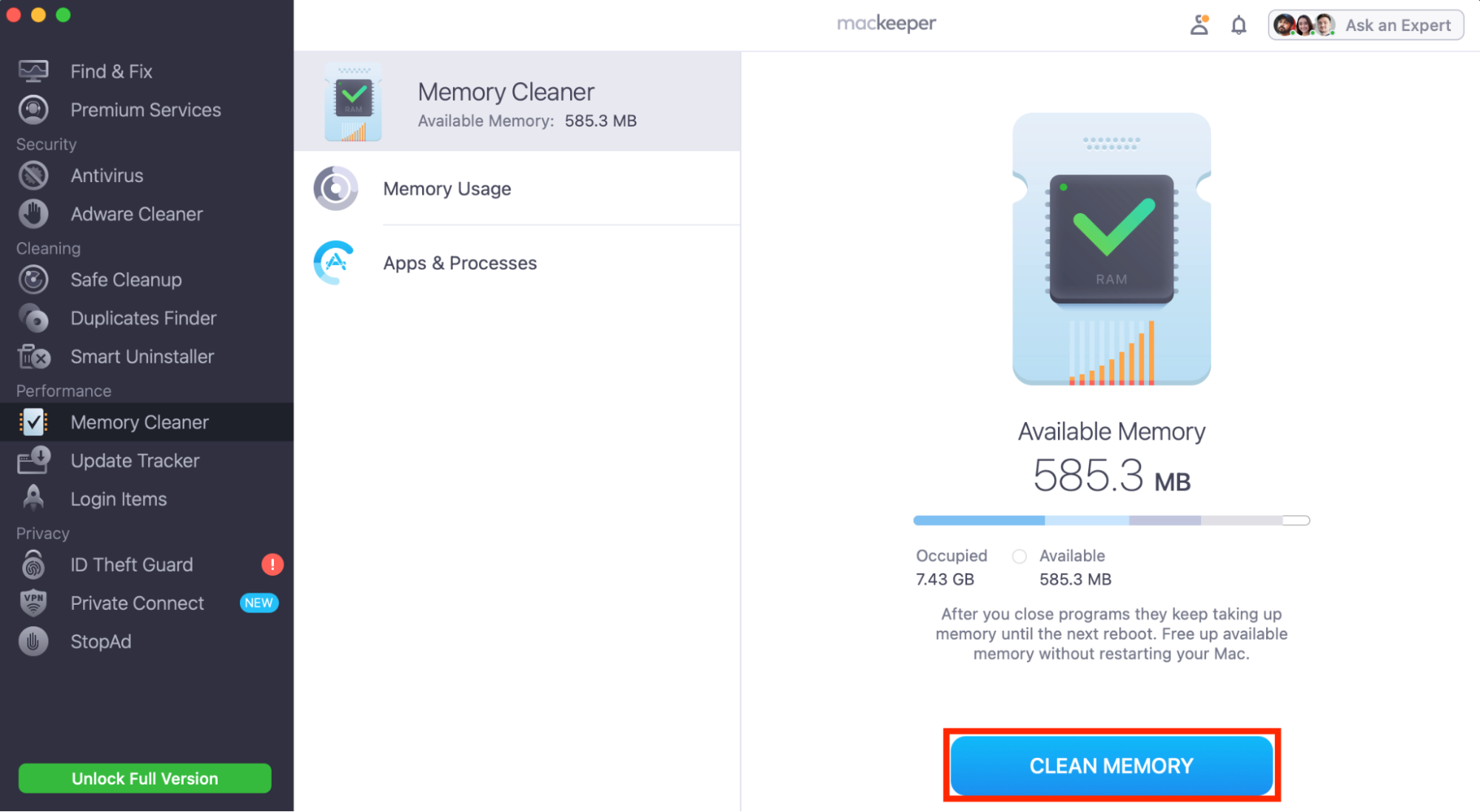
Click Clean Memory to instantly clear old data from RAM and free up space for other apps.
Step 1. Choose Memory Cleaner, then select OpenStep 2. Click Clean Memory to purge old data from RAM
Technical overview of cfprefsd on Mac
The cfprefsd process on Mac is one of many, many daemons built into macOS that handles small but essential tasks in the background. Cfprefsd is responsible for managing preferences for macOS and its pre-installed software, as well as third-party apps. When we adjust settings to our liking, the daemon writes them to property list (.plist) files via the CFPreferences and NSUserDefaults APIs and then reads them when we run the apps again later to ensure our chosen settings remain intact.
If you use Activity Monitor regularly to check background processes on Mac, you likely will have seen cfprefsd in the list of running processes. It’s supposed to operate quietly in the background at all times, so you shouldn’t be concerned that it’s always active.
Common issues related to cfprefsd on Mac
While it’s designed to be lightweight with minimal impact on system performance, we may occasionally see issues with cfprefsd on MacBook, such as:
Excessive and sustained CPU usage for more than a minute or so
An overall drop is system performance and reduced stability
Corrupted .plist files that have to be recreated.
In addition, we’ve noticed rare instances of cfprefsd issues leading to memory leaks, preference changes not saving properly, and “File Can’t Be Found” errors.
How to diagnose and fix cfprefsd-related problems on Mac?
To fix issues with the cfprefsd process on Mac, we first need to diagnose them. Restarting your Mac is usually enough to fix cfprefsd when it’s stuck in a loop. We can then check computer performance in Activity Monitor to see if the problem persists after a reboot. Also, try to restart or reinstall the malfunctioning apps if needed.
1. Restart your Mac
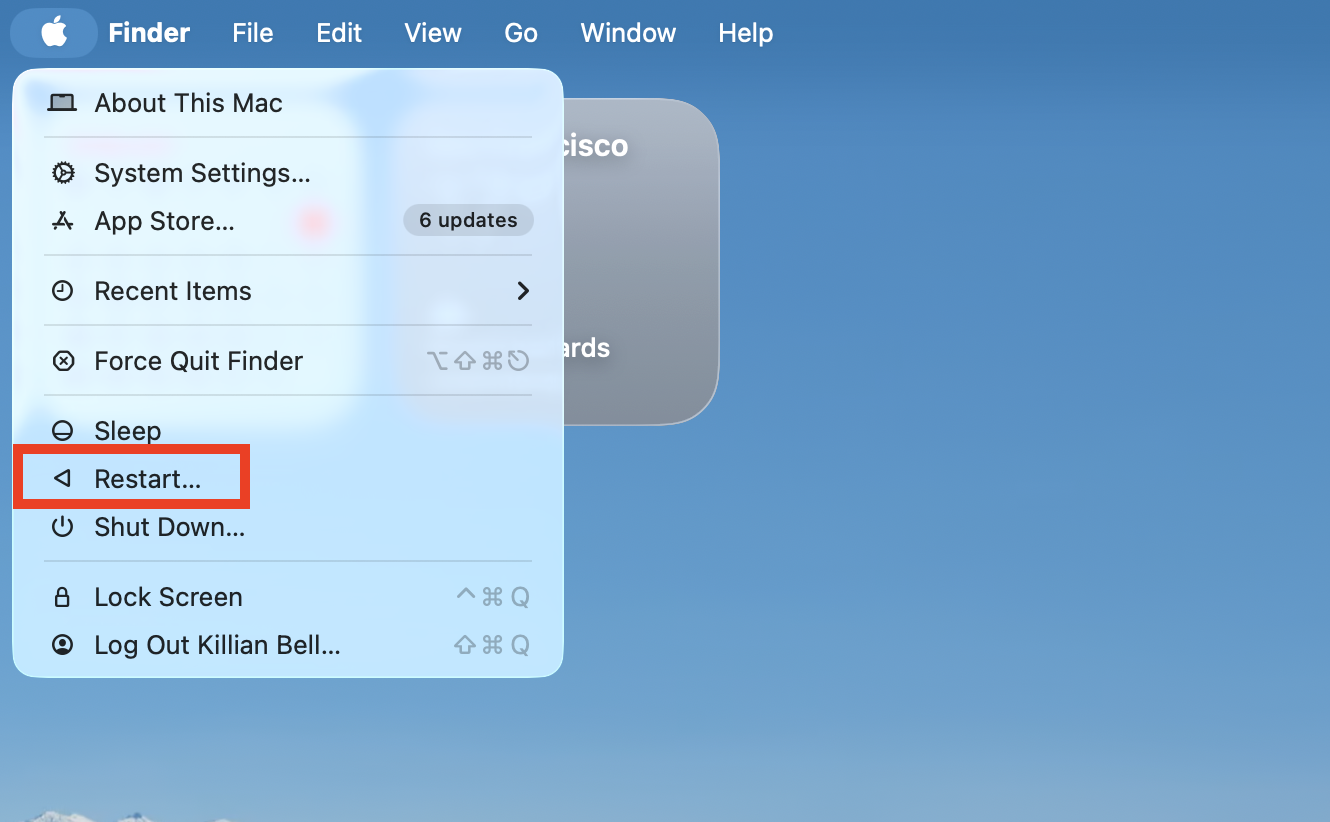
A simple restart forces the cfprefsd process to close, even if it’s become stuck. In most cases, this will be enough to fix the problem.
Restart your Mac
2. Check Activity Monitor
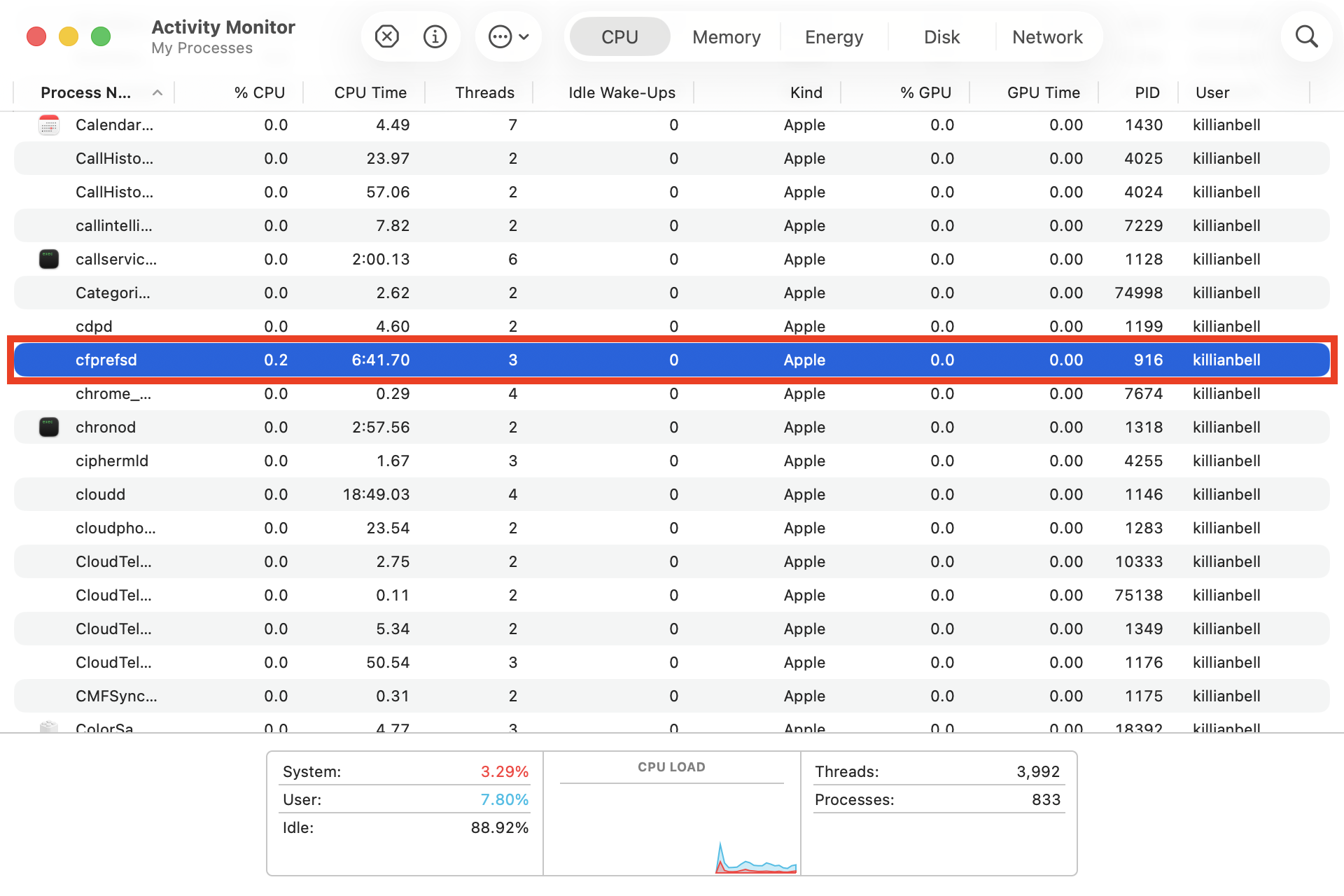
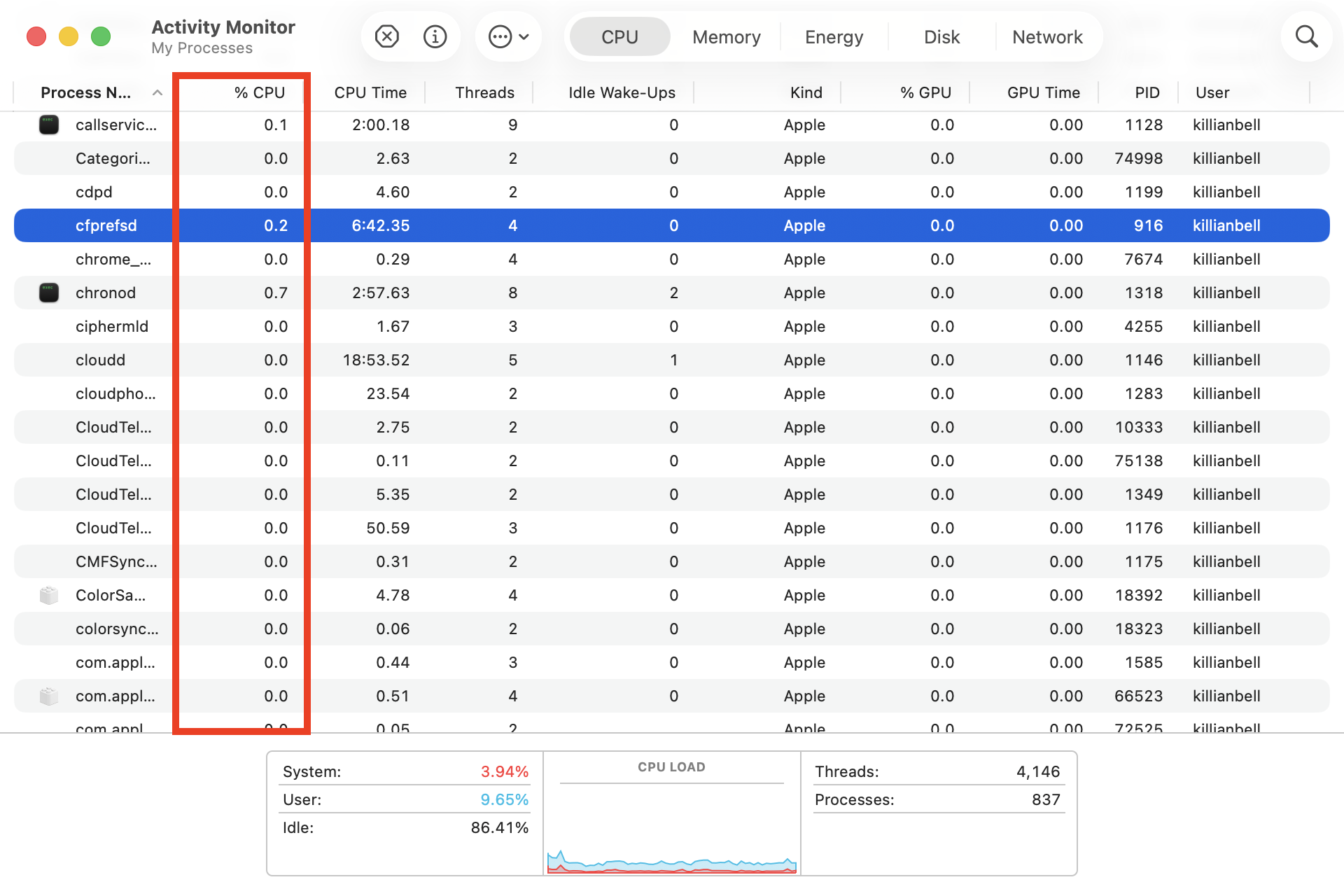
Check CPU usage in Activity Monitor to confirm whether cfprefsd is fixed, or whether additional troubleshooting is required.
Check cfprefsd usage in Activity Monitor
3. Launch apps while monitoring performance
We sometimes find that a restart fixes cfprefsd, but then it returns to eating up system resources later, which usually indicates a certain app has corrupted .plist files that are causing the process to get stuck. Watch the CPU column in Activity Monitor while launching apps to see if any cause a spike in cfprefsd usage.
Monitor CPU usage while launching apps
4. Reinstall apps if necessary
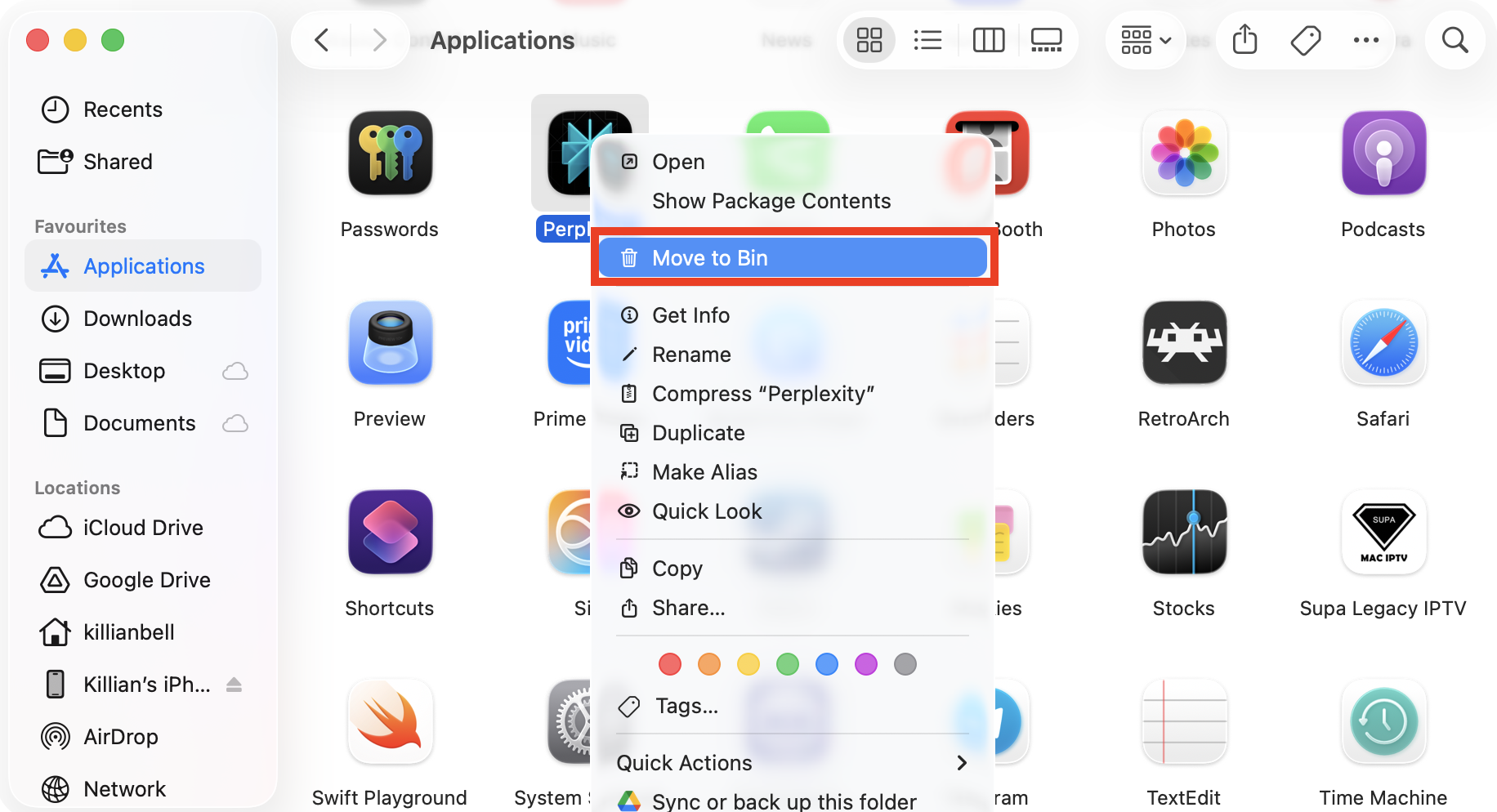
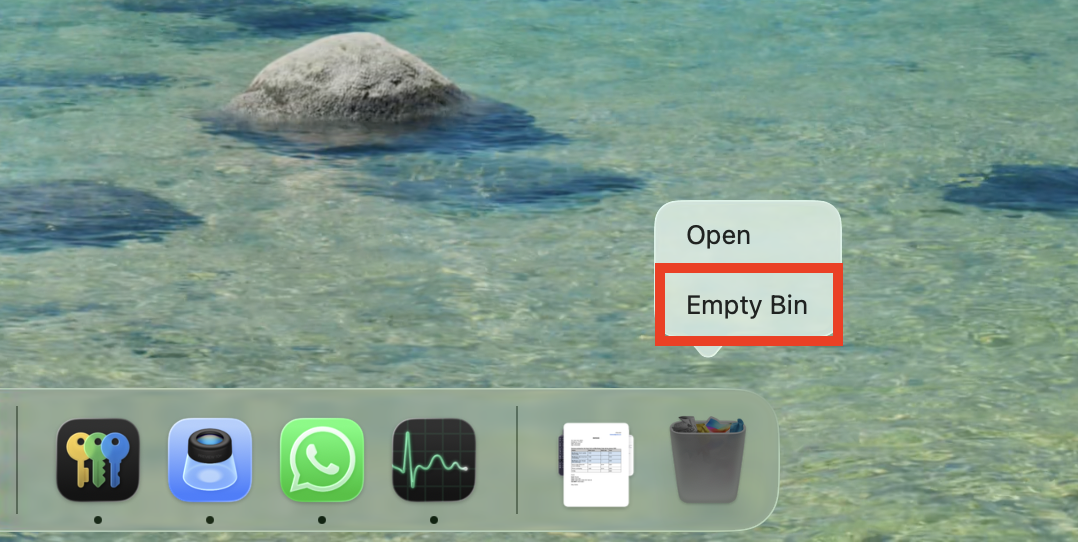
If, after following step three, you find that specific software is causing cfprefsd issues, we recommend that you delete it from the Applications folder and then reinstall it to create new .plist files. Right-click the app icon, select Move to Trash, then empty the Trash to complete the uninstall.
Step 1. Right-click an app icon and choose Move to TrashStep 2. Empty the Trash to remove the app
Conclusion
Cfprefs on Mac is a daemon that manages preferences within macOS. If you find that cfprefsd has high CPU usage over a period of time, this indicates an issue with the process that needs to be addressed. A simple restart is normally enough to fix it, but the steps above will help you diagnose other potential causes.
We don’t recommend interrupting the cfprefsd process unless it’s absolutely necessary, as this can cause crashes. Instead, when cfprefsd slows down your Mac, try using MacKeeper’s Memory Cleaner, developed by Clario Tech, to clear old data from RAM and immediately boost system performance.
We respect your privacy and
use cookies
for the best site experience.
Privacy Preferences Center
We use cookies along with other tools to give you the best possible experience while using the
MacKeeper website. Cookies are small text files that help the website load faster. The cookies we
use don’t contain any type of personal data meaning they never store information such as your
location, email address, or IP address.
Help us improve how you interact with our website by accepting the use of cookies. You can change
your privacy settings whenever you like.
Manage consent
All cookies
These cookies are strictly necessary for enabling basic website functionality (including page
navigation, form submission, language detection, post commenting), downloading and purchasing
software. The website might malfunction without these cookies.