If you’re searching for Safari menu preferences on Mac, but the Safari menu seems to disappear suddenly, don’t worry, it’s a common issue for new macOS users, which is more of a design peculiarity than a problem. Keep reading to know how to find the Safari menu on Mac and how to block intrusive ads easily with MacKeeper’s StopAd.
If you’re a new Mac user, to find Safari menu on Mac can be confusing at first. Unlike Windows, where menu bars are attached to the app’s windows, Mac apps share a single menu bar located at the top of the screen.
To get to Safari menu on Mac, open your Safari browser first, then move the cursor to the top-left corner of the screen, where you’ll find the menu bar indicated by the Apple logo. While the Safari browser is open, you’ll see the Safari menu next to the Apple logo. In this menu bar, you’ll also find other important options, including File, Edit, View, History, Bookmarks, Window, and Help for full access to Safari’s features and settings. If you’re looking for Safari customization on Mac, it can be easily achieved with these options.
Safari > Apple menu > find the Safari menu next to the Apple logo
Remember that the menu bar on Mac always reflects the currently active app. If you switch to another app, the Safari menu will disappear, and you’ll see the menu of the newly opened app.
For quick access to Safari Settings, press the Command (⌘) + Comma (,) combination. This universal Mac keyboard shortcut instantly opens the settings window in Safari and other Mac apps, saving you time from navigating through menus.
Why does menu show another browser or app instead of Safari?
One of the first things that confused me when I got my first Mac was seeing Chrome, Finder, and other apps in the menu bar when I was looking for Safari’s options. My first thought was that something was wrong with my browser. Actually, it’s just the way macOS is designed.
If you are used to Windows, you expect that menus are tied to the apps’ windows, but macOS has some peculiarities in this regard, as the Mac menu bar always reflects the menu of the currently active app.
In fact, if you see Chrome, Finder, or any other app in the top-left corner of your screen instead of the Safari menu, check if Safari is really active at the moment. If you need to show menu bar in Safari on Mac again, simply click on the Safari window, choose Safari from the Dock, or use the keyboard shortcut. When Safari becomes active, the menu bar will immediately switch and show you Safari’s menu and settings.
A note from our experts:
While trying to find the Safari menu on Mac, I ran into another common issues, many users are familiar with: intrusive ads, pop-ups, and constant notification requests that interrupt the workflow, not to mention the frustration that comes with them.
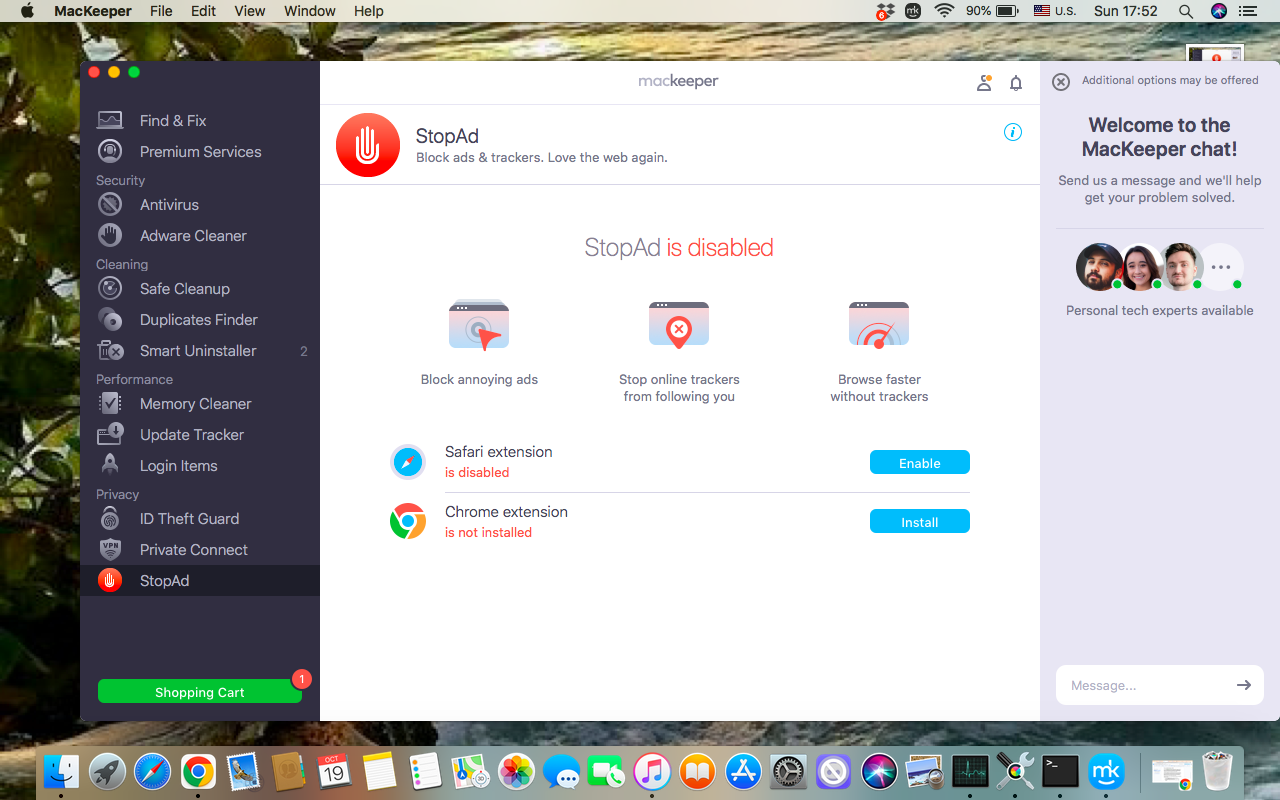
If you don’t want to deal with such unwanted content anymore, I suggest you consider MacKeeper’s StopAd. This tool creates a clean and secure environment by blocking ads, trackers, and other harmful elements before they appear. MacKeeper’s StopAd works not only in Safari but also across other browsers, so you don’t need to adjust settings for each browser.
Follow my instructions below to eliminate annoying ads and notifications with MacKeeper’s StopAd:
Choose the MacKeeper’s StopAd feature in the left sidebar.
Click the Open button at the bottom of the window.
Enable the extension you don’t need in your browser.
Step 1. MacKeeper’s app > StopAd > OpenStep 2. Enable the extension in your browser
What to do if Safari menu bar disappeared on Mac?
If you notice the Safari menu bar has disappeared on Mac, don’t panic, as it isn’t visible because macOS handles menus differently. Probably, the thing is that Safari isn’t active at the time being. If you have recently switched to some other apps like Finder, Chrome, or Mail, the menu bar automatically switches to show that app’s menu. The solution is just to click back into Safari.
Other possible reasons for the Mac menu bar not showing issue are Mac’s configuration to hide the menu bar automatically, a temporary interface glitch, or if your Safari is running in full-screen mode.
Why is Safari menu not inside browser window on Mac?
When I first moved from Windows to macOS, I was surprised to discover that Safari didn’t keep its menu inside the browser window like Chrome and other Windows apps do. At first, it was confusing, but soon I realised that it’s just a part of Apple’s design.
Unlike Windows, where apps keep File, Edit, View, and settings menus directly within the program window, macOS uses a single shared menu bar at the top of the screen for the currently active app. Such an approach may seem unusual at first, but it’s logical and quite beneficial.
Here are the objective reasons why a single shared menu bar for all apps was a good idea:
The menu is always in the same place, no matter which app you’re using.
Menus don’t take up space inside the apps’ windows, instead, this space is devoted to more essential content.
The menu bar remains accessible, even if the app window isn’t fully visible, for example, after resizing.
The menu bar shows automatically which app is currently active on your Mac.
If you still have some questions concerning this peculiarity, learn how to change menu bar on Mac to adjust it to your personal preferences.
Conclusion
Unlike Windows, macOS uses a shared menu bar, which means that apps’ menus are always in the same location and can be easily accessed with just one click. Safari browser is no exception. Rather than being attached to the browser’s window, Safari’s menu can be found in the menu bar at the top of the screen, if the app is currently active. If you can’t show menu bar in Safari for Mac, first check whether another app is currently active. Other possible reasons include full-screen mode, system settings, or a temporary system glitch.
However, knowing where the menus are located is only one step to creating a smooth workflow. I also recommend minimizing distractions with MacKeeper’s StopAd. This tool safely blocks unwanted ads, pop-ups, and tracking elements before they interrupt your workflow. As it works not only with Safari, but also with other browsers, it’s an excellent solution to keep your browsing experience clean and safe.
We respect your privacy and
use cookies
for the best site experience.
Privacy Preferences Center
We use cookies along with other tools to give you the best possible experience while using the
MacKeeper website. Cookies are small text files that help the website load faster. The cookies we
use don’t contain any type of personal data meaning they never store information such as your
location, email address, or IP address.
Help us improve how you interact with our website by accepting the use of cookies. You can change
your privacy settings whenever you like.
Manage consent
All cookies
These cookies are strictly necessary for enabling basic website functionality (including page
navigation, form submission, language detection, post commenting), downloading and purchasing
software. The website might malfunction without these cookies.