If you’re trying to back up iPhone on macOS Catalina but can’t find iTunes where the backup options used to be, don’t panic, this feature was moved to Finder, making the entire process easier. Before creating a backup, use MacKeeper’s Safe Cleanup to remove unnecessary files, free up storage space, and help your Mac perform more smoothly.
What changed in macOS Catalina for iPhone backups?
One thing I appreciate about macOS is how Apple regularly improves its operating system. I’m always curious to see what’s new in each release. When I upgraded to macOS Catalina, I was surprised to find that iTunes had disappeared. As I had always used iTunes to manage my iPhone, I was wondering “how to backup iPhone using Catalina?” As it turned out, Apple introduced a logical and useful change.
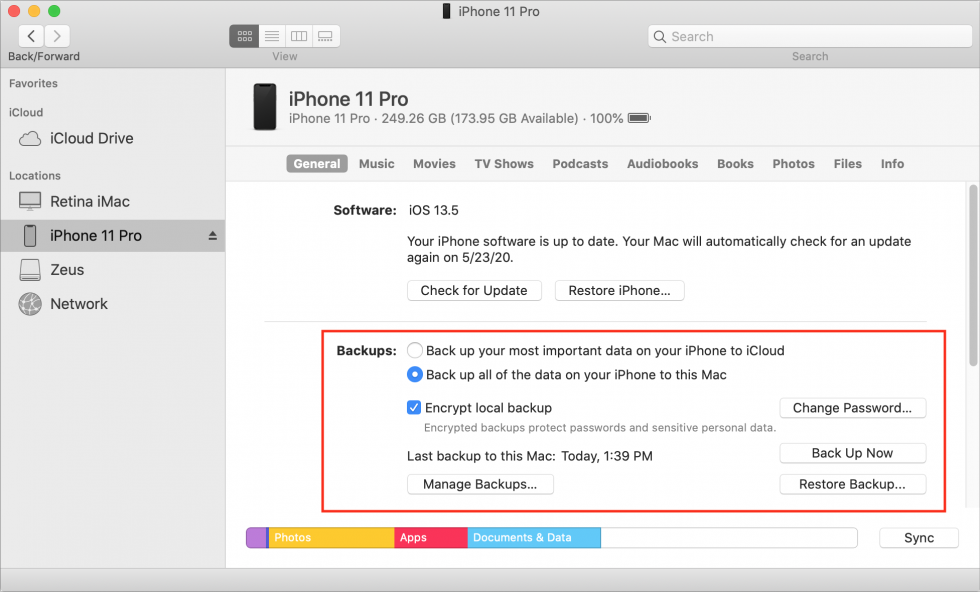
In macOS Catalina, Apple removed iTunes and moved its iPhone management features into Finder. This means that syncing, updating, and other options are no longer located in a separate app. In Catalina, all these features become available directly in Finder.
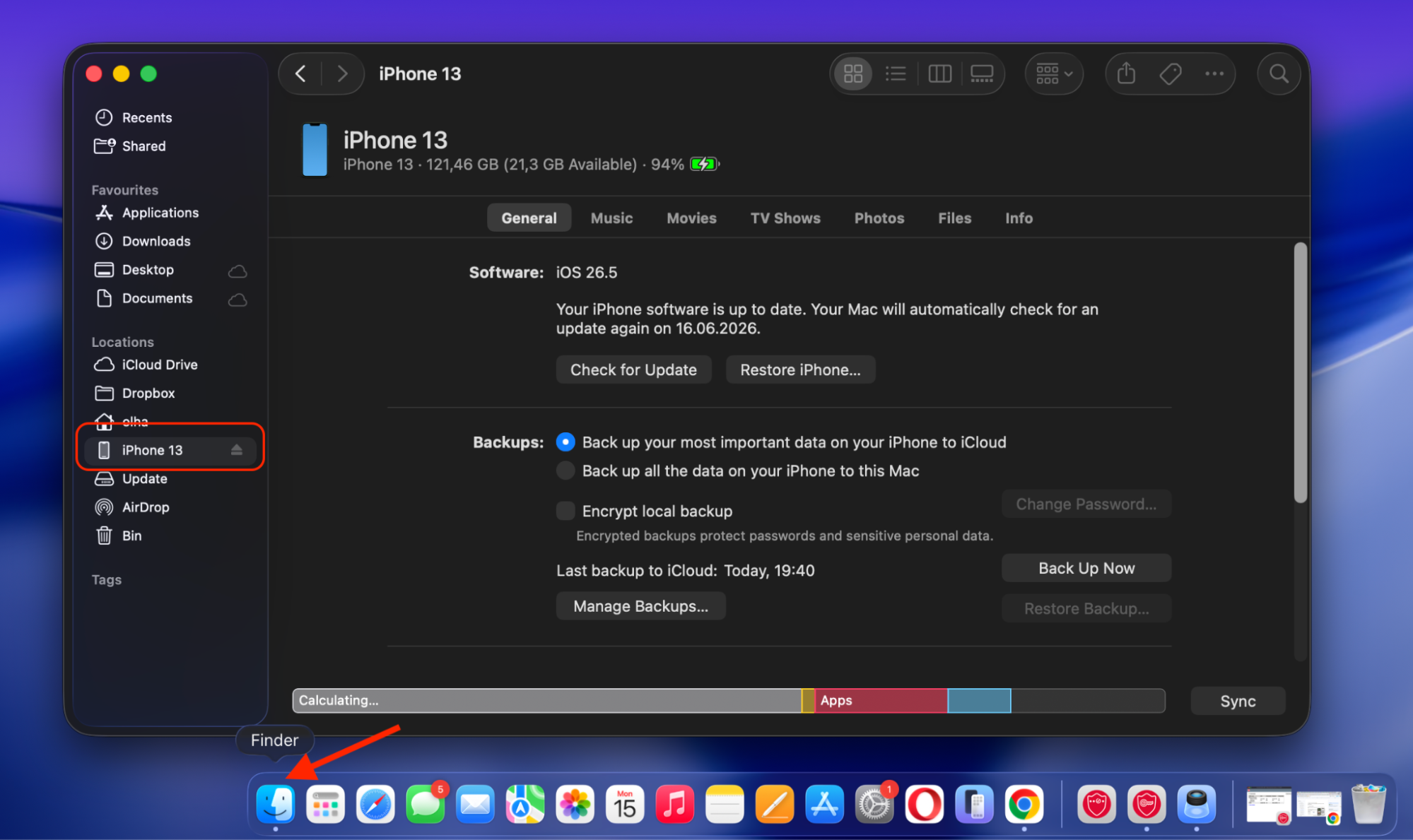
If you want to backup iPhone to Mac on Catalina, there is no reason to worry, as the process is very similar to what you used in iTunes. The primary difference lies in the location of the options. When your iPhone is connected, choose it in Finder, open the General tab, and you’ll find options such as creating backups, restoring previous ones, syncing, and managing settings. I find this approach more streamlined, as it eliminates the need to switch between different apps to manage my device.
Although iTunes was removed in macOS Catalina, Apple relocated its iPhone management features to Finder, making them easily accessible.
What you need before backing up iPhone to Mac Catalina?
I want to share my experience of backing up my iPhone to a Mac running macOS Catalina so that you can avoid any difficulties or misunderstandings. Though the process is quite straightforward, being aware of a few things beforehand can save you time and prevent unexpected issues.
First thing you’ll need to take care of before backing up your iPhone to a Mac running macOS Catalina is a compatible cable to connect your iPhone to your Mac. While wireless syncing is available, sometimes using a cable for backups is a faster and more reliable way.
Another important requirement is having enough available storage space on your Mac, as iPhone backups can take up a lot of disk space. If your Mac is running low on storage, don’t forget to free up disk space on macOS Catalina before starting the backup process. This step prevents interruptions and ensures the backup completes successfully.
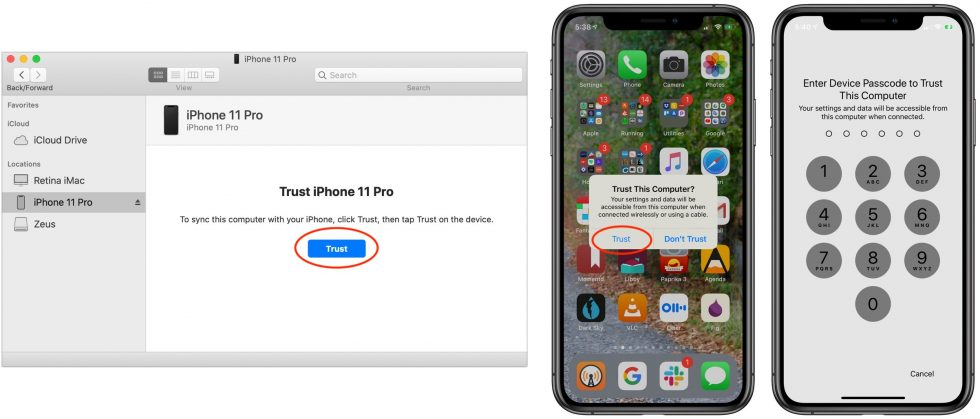
One final detail is to make sure you remember your iPhone passcode. The first time you connect your iPhone to a Mac, you’ll be asked to confirm that you trust this computer. Without a passcode, you won’t be able to do it, so the backup process won’t continue.
As long as you keep these three points in mind, you’ll create a smooth and successful backup of your iPhone to Mac Catalina.
Where to store your iPhone backup: iCloud or your Mac?
Before creating your first macOS Catalina iPhone backup, you need to decide where it should be stored. You have two options: store an iPhone backup in iCloud or keep a local backup on your Mac. Both methods have advantages, so choose the one that suits you better.
The main benefit of iCloud backup is convenience. Once it’s enabled, backups are created automatically when your iPhone is connected to WiFi without your involvement. However, this convenience depends on the cloud storage space. If you’ve ever seen the iCloud storage full message, you know how quickly your pics, files, and backups consume your cloud storage.
A local backup presupposes a different approach. It doesn’t rely on iCloud, but saves backup data directly to your Mac. This variant gives you more control over the data that is stored and doesn’t depend on available iCloud space.
Another difference lies in privacy preferences. Some users feel comfortable storing iPhone backups in iCloud, while others prefer to save files on their own devices. There is no right or wrong variant, it’s up to you to decide where to keep your personal data.
A note from our experts:
Over time, Mac accumulates a lot of unnecessary files, such as caches, logs, temporary data, duplicates, and other clutter. While these files are of no use anymore, they continue to occupy valuable storage space and may affect your Mac’s overall performance. That’s why I recommend a quick cleanup of your Mac before creating an iPhone backup. Remember that a clean Mac always feels more responsive and prepared for important tasks.
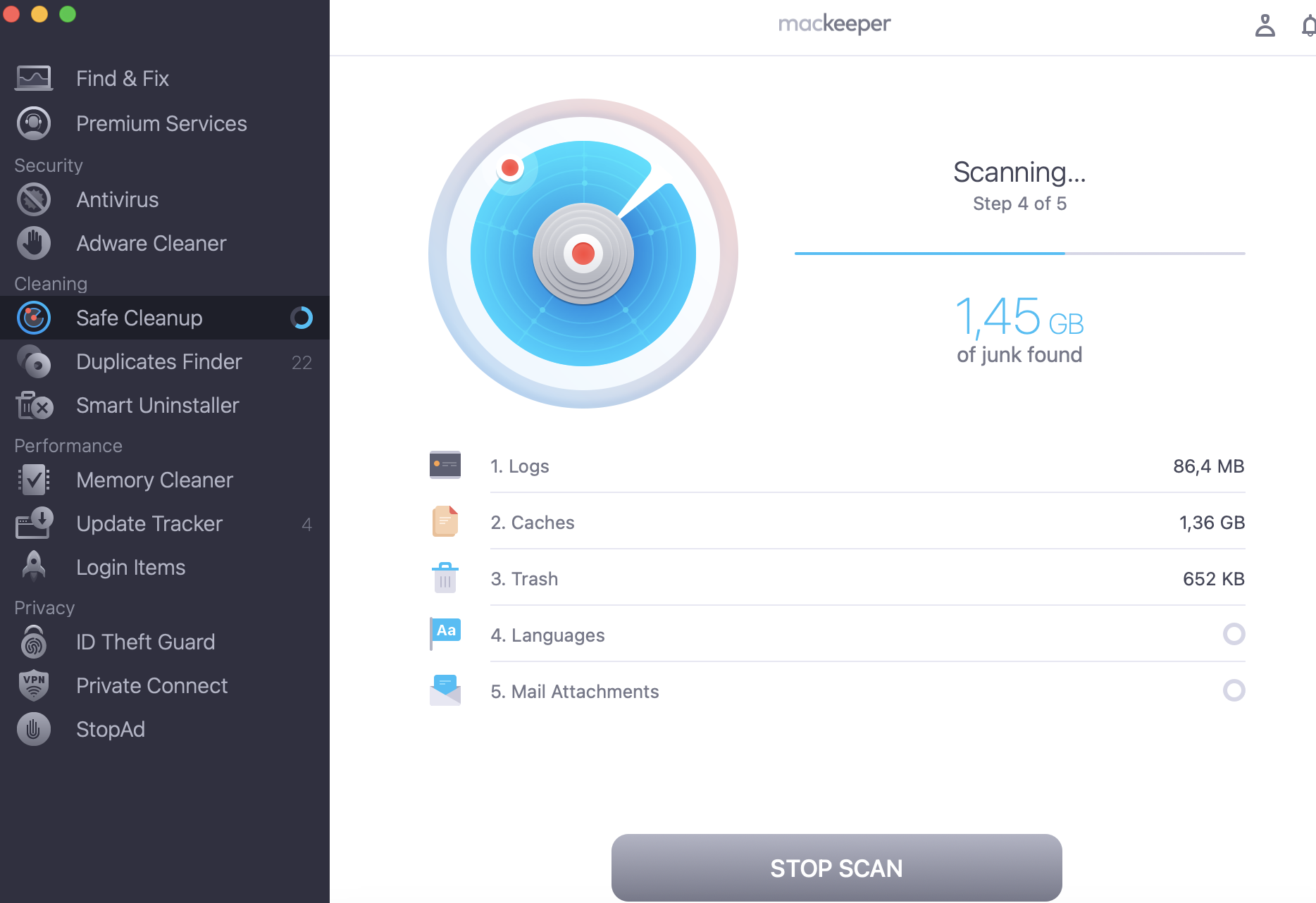
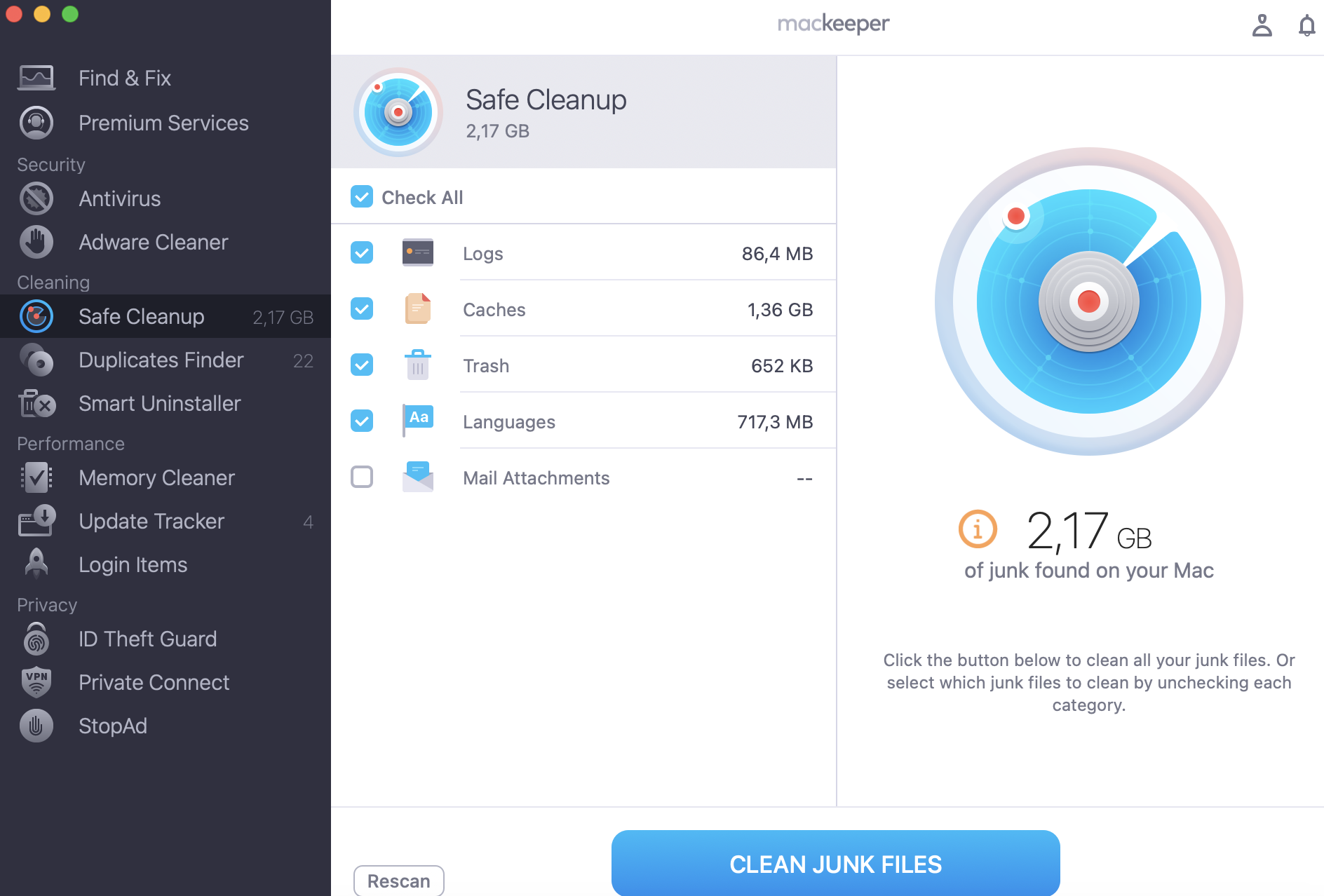
Among the available cleanup tools, MacKeeper’s Safe Cleanup is worth your attention. It helps to identify junk files, temporary data, and caches, and removes them safely. I really like that with MacKeeper’s Safe Cleanup, you don't need to spend time searching for these junk files manually, but still take control over the detected files to avoid accidentally removing important data.
Follow my hints below to clean your Mac with MacKeeper’s Safe Cleanup before creating an iPhone backup:
Once you remember that Apple had moved all iPhone management tools from iTunes to Finder in macOS Catalina, to make iPhone backup on Catalina takes a few minutes and very little effort. The first thing you need is to connect your iPhone to your Mac and launch Finder. Then select your iPhone in the Finder sidebar, open the General tab, and choose the Create a backup option.
Before to take iPhone backup on Mac Catalina, I suggest you speed up macOS Catalina and make sure your laptop has enough storage and is performing smoothly.
1. Connect your iPhone to Mac
Unlock your iPhone ➙ connect your iPhone using a compatible cable ➙ wait until macOS Catalina can detect the device.
2. Open Finder and select your iPhone
Open Finder on your Mac ➙ choose your iPhone in the Finder sidebar under connected locations or devices.
Finder > Choose your iPhone
3. Trust Mac if prompted
Enter your iPhone passcode to confirm that you trust this computer and allow access to your data.
Trust > Confirm > Enter passcode
4. Open General tab
After establishing a trust link between your iPhone and Mac, select your iPhone in the Finder sidebar ➙ choose the General option to see the main device management screen, where the backup controls are available.
Finder > your iPhone > General > choose local backup
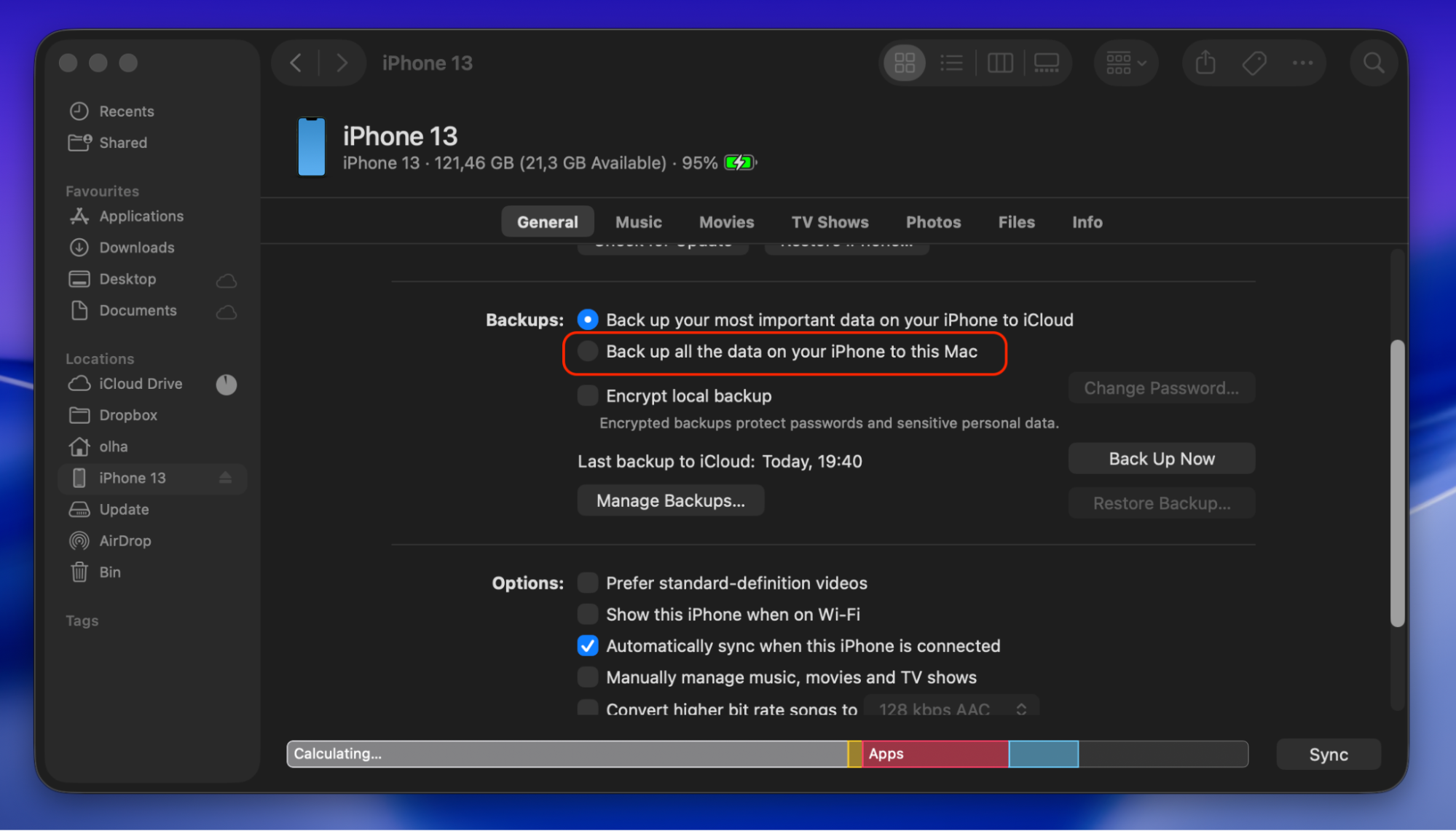
5. Choose local backup settings
Find the Backups section, where a few options are available ➙enable the Back up all of the data on your iPhone to this Mac to create a local copy of your iPhone instead of relying only on iCloud.
Back up all the data on your iPhone to this Mac
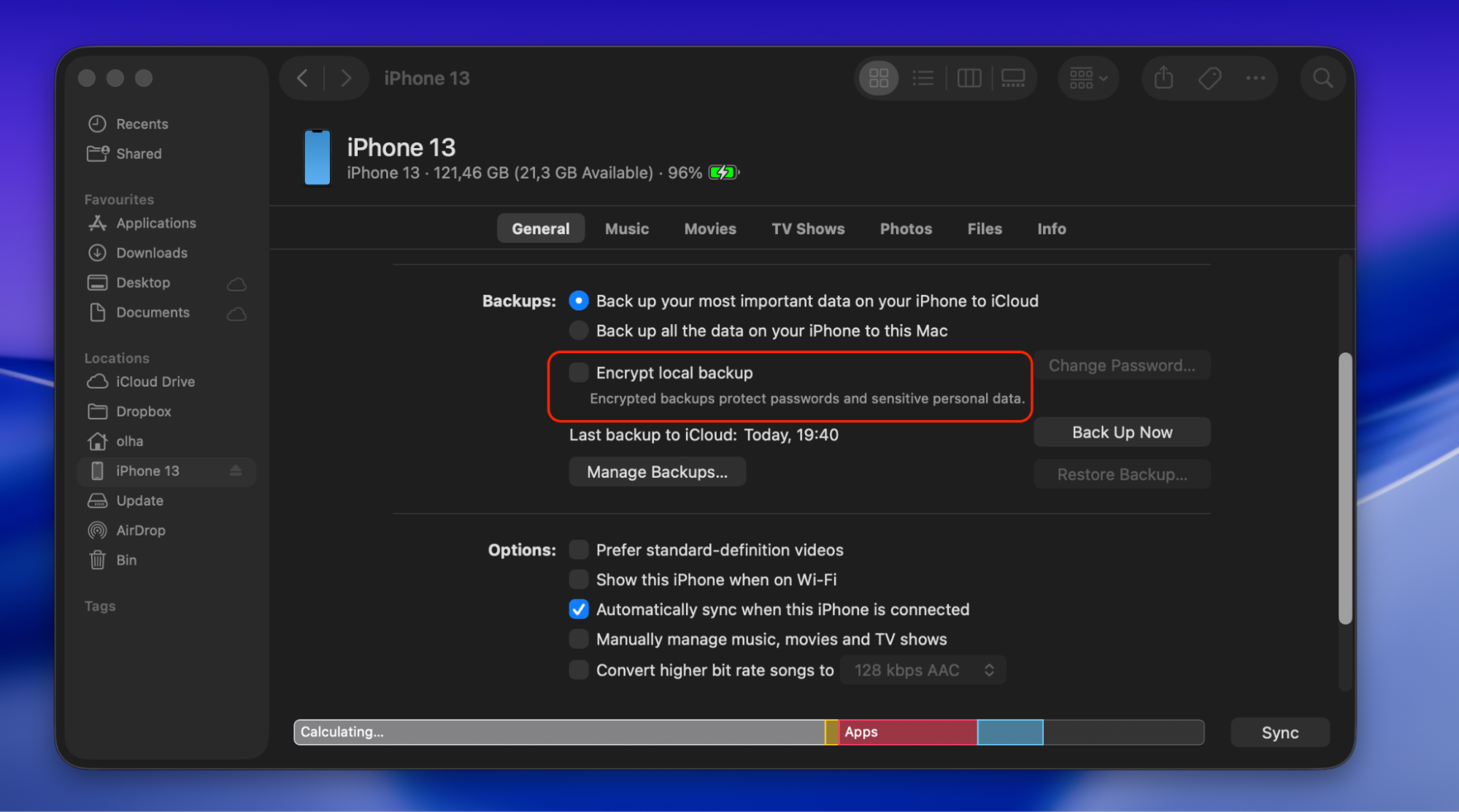
6. Enable encrypted backup if needed
If you choose Local backup, enable the Encrypted backup option to include more sensitive device data in the local backup, like saved passwords, browsing history, or Wi-Fi settings.
Encrypt local backup
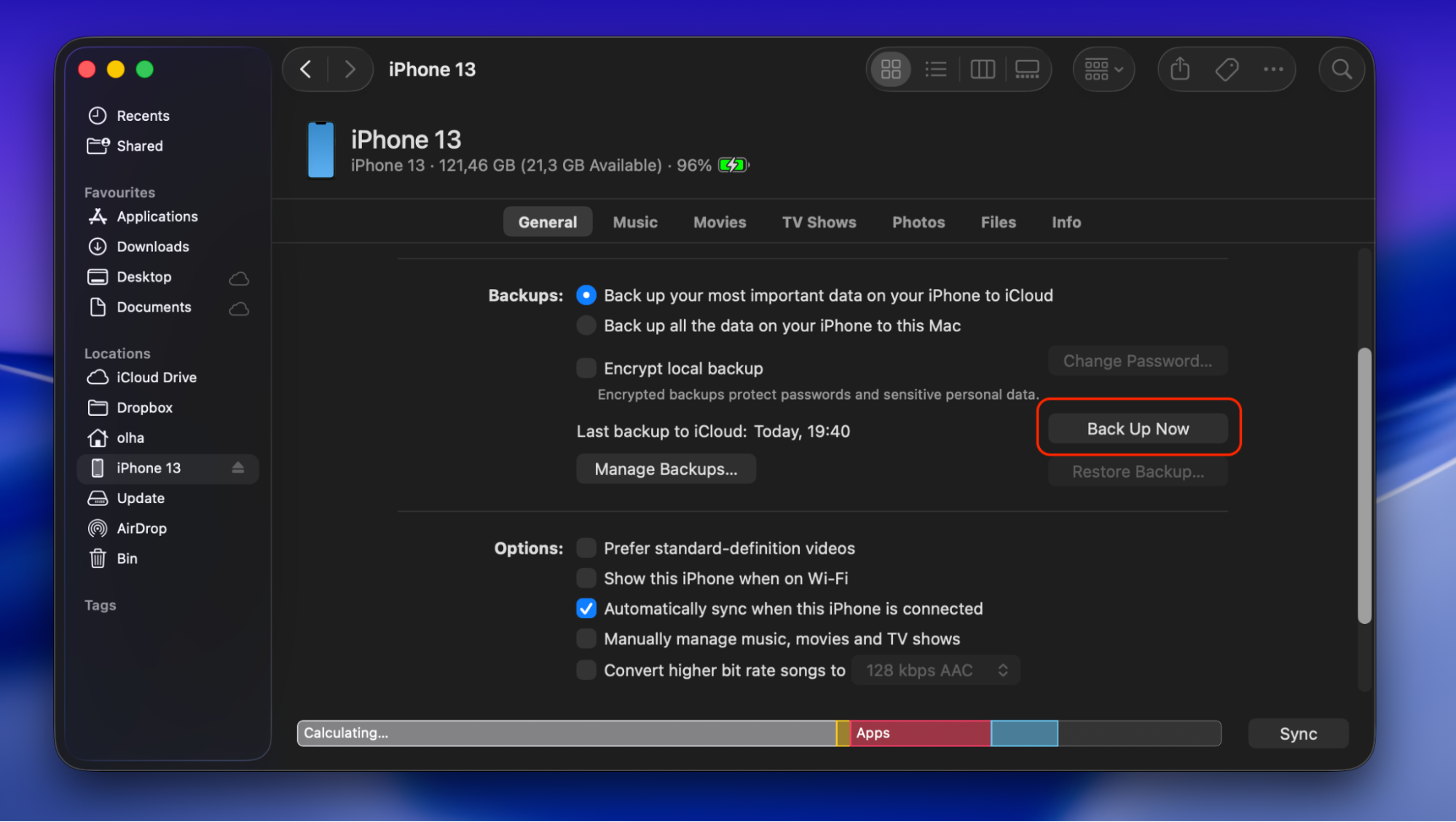
7. Start iPhone backup
Click the Backup now button to start the process ➙ keep your iPhone connected to your Mac until the backup is completed to avoid interruptions.
Back Up Now
Where are iPhone backups stored on Mac Catalina?
Finally, once the iPhone backup process is complete, you need to know where your data is stored. If you choose a local iPhone backup on macOS Catalina, all backup files are stored directly on your Mac. However, if you choose iCloud backup, your data is stored in iCloud and managed through Apple Account settings rather than being saved on your computer.
Understanding this difference makes it easier to manage your storage and select the backup method that best suits your needs. For example, if you notice iOS files taking up space on Mac, a local iPhone backup may be one of the reasons. Knowing where your backups are stored can help you avoid storage issues.
Conclusion
Creating an iPhone backup on macOS Catalina is a straightforward process, even though Apple moved iPhone management features from iTunes to Finder. Now it includes just a few simple steps: connecting your iPhone to your Mac, selecting the device in Finder, and choosing the local backup settings.
To make the process even smoother, don’t hesitate to clean your Mac with MacKeeper’s Safe Cleanup beforehand. This tool quickly identifies temporary files, caches, duplicates, leftovers, and other unnecessary data that clutter your system, and safely removes them, freeing up storage space and helping your Mac perform more efficiently.
We respect your privacy and
use cookies
for the best site experience.
Privacy Preferences Center
We use cookies along with other tools to give you the best possible experience while using the
MacKeeper website. Cookies are small text files that help the website load faster. The cookies we
use don’t contain any type of personal data meaning they never store information such as your
location, email address, or IP address.
Help us improve how you interact with our website by accepting the use of cookies. You can change
your privacy settings whenever you like.
Manage consent
All cookies
These cookies are strictly necessary for enabling basic website functionality (including page
navigation, form submission, language detection, post commenting), downloading and purchasing
software. The website might malfunction without these cookies.